Outlook 2013 Preview

Hello and welcome to our Outlook 2013 Preview. Everyone has heard of sneak peeks when it comes to new movies and games that are coming out soon. That is what advertisements and test reels are for to get the audience interested and excited before the piece of media even comes out.

It serves to entertain the target audience in the months, maybe even years, up until the release date of this thing they want to play or see and it keeps it in the public mind.

It is also great for the viewers because it is a hint to what they will expect when it comes out and it keeps them wanting more excitedly. However, did you know that sometimes computer software releases previews and sneak peeks too?

Outlook 2013

Well, they do and Microsoft has released some sneak peeks and previews of their new Outlook, Outlook 2013!

This is probably to get consumers ready for when it comes out next year; people are going to be getting excited about this new makeover that Microsoft Office, with Outlook, has given itself, people from Microsoft even saying it is ‘the most ambitious’ version of Office yet!

The new orange color scheme and logo design look promising enough for the consumer without even checking the new features and special things that have been revealed about it yet!

Outlook 2013 Features

The best part of this new Outlook is that you can move widgets around in it.

If you don’t like the fact that your inbox is placed over your outbox, you can move it- simple as that! It will be really handy for people who like messing around with layouts and will also be handy for people who tend to overlook things at the bottom of the pile like spam and trash if they can move them to a more noticeable location for themselves.

Another great thing is that the new Microsoft Office that Outlook comes with has a cool new stylus option, allowing you to personalize things with your own handwriting or even drawings.

This can then be used as your email signature on Outlook which can give a really nice and personal feel to the emails you are sending.

Another new thing is their labeling of drafts. Like Gmail, Google’s own email service, a red-lettered ‘draft’ will now appear over composing messages you have not yet sent.

Handy Email Tools in Outlook 2013

This is handy because you know where your message has been saved as opposed to how it could be saved in your outbox or be sent to the trash.

Also, there are new links with Facebook that allow you to see what your friends are doing through Outlook. You can also converse with Facebook friends through Outlook now, which is a big step forward in this age of social media.

You can get an email from a person and, at a click of a button, also read all their Facebook posts. However, there is not an option for Twitter or Tumblr or even Myspace, which is a shame I suppose, but maybe in the next update.

So, I think Outlook 2013 will be worth looking at, don’t you?

Do You Need Help with Your Device?

Our Team of Experts May Help
Troubleshoot.Tech Experts are There for You!
Replace damaged files
Restore performance
Free disk space
Remove Malware
Protects WEB browser
Remove Viruses
Stop PC freezing
GET HELP
Troubleshoot.Tech experts work with all versions of Microsoft Windows including Windows 11, with Android, Mac, and more.

Share this article:

You might also like

A Guide to Fixing Magcore.dll Error on Your PC

Magcore.dll Error - What is it?

Magcore.dll is a type of Dynamic Link Library. This file is associated with software developed by ArcSoft, a renowned multimedia application developer. Magcore.dll consists of small programs that help load and run software developed by ArcSoft on your system smoothly. This file virtually comes into function when you use certain audio and video features incorporated in ArcSoft programs for example ArcSoft Media converter. However, you may experience Magcore.dll error code on when this DLL file fails to run and load programs. The error may hamper your ability to access ArcSoft programs on your system and cause you a great deal of inconvenience. Magcore.dll error is often displayed in any one of the following formats:
“The file magcore.dll is missing” “MagCore.dll cannot be found” "Cannot find [PATH]magcore.dll" “This application has failed to start because MagCore.dll was not found. Reinstalling the application may fix the error.”

Solution

Restoro box imageError Causes

This DLL file is known to be prone to errors. MagCore.dll error occurs due to several reasons such as:
  • Missing or damaged MagCore.dll file
  • Hardware failure
  • Viral infection
  • Registry issues
If you experience MagCore.dll error on your system, it is advisable to fix it right away. Though it is not fatal, but if you don’t repair it, you may not be able to access practically all ArcSoft programs on your PC.

Further Information and Manual Repair

Here are some of the efficient and easy manual methods to resolve error MagCore.dll on your PC:

Method 1 - Scan and Remove Malware

MagCore.dll error can be triggered by viral or other malware infection. Malware can easily damage DLL files and masquerade as the MagCore.dll file. To resolve, simply download a powerful antivirus on your system. Run it to scan your entire PC for viruses and remove them right away.

Method 2 - Update the Drivers for Hardware Devices

As we mentioned above the error may be related to hardware failure too. In times like these, it is advisable to update the drivers for hardware devices. For example if you try to play a 3D video game and it fails to run showing you MagCore.dll error message, then simply try updating the drivers for your video card. Drivers can be updated in Windows by using a driver update wizard from within Device Manager.

Method 3 - Use System Restore to Undo Recent System Changes

After trying method 1 and 2, if the error code still persists, then it is opt for method 3. Use Windows System Restore utility to undo recent system changes and bring your PC to its normal previous condition before the error occurred. To restore, simply go to the start menu, type System Restore. Now click on System Restore and just pick a point in the past called a restore point to return important Windows files and settings.

Method 4 - Repair the Registry

If the underlying cause of the MagCore.dll error code is related to registry issues, then simply repair the registry. You can fix it manually but it is a little complicated and time-consuming. You may find it difficult if you are not a technical whiz. Nonetheless to resolve and repair it in seconds, download Restoro. This is a powerful and a user-friendly PC Fixer embedded with a registry cleaner and several other highly functional scanners. Run it to scan your entire PC for registry problems. The registry cleaner utility removes all bad and invalid entries, cleans up the registry space, and repairs the damaged files. Click here to download Restoro and repair MagCore.dll error code on your PC.
Read More
Switch audio devices in Windows 11 taskbar
windows 11 audio settingsWindows 11 has brought some new features and changed some of the existing ones. One of these changes includes quick switching of audio devices which will play audio. Audio switching can still be done under the taskbar, it is just a little different and one could say even hidden. Follow this quick guide and you will be switching from your headphones to speakers as an example in a matter of seconds.
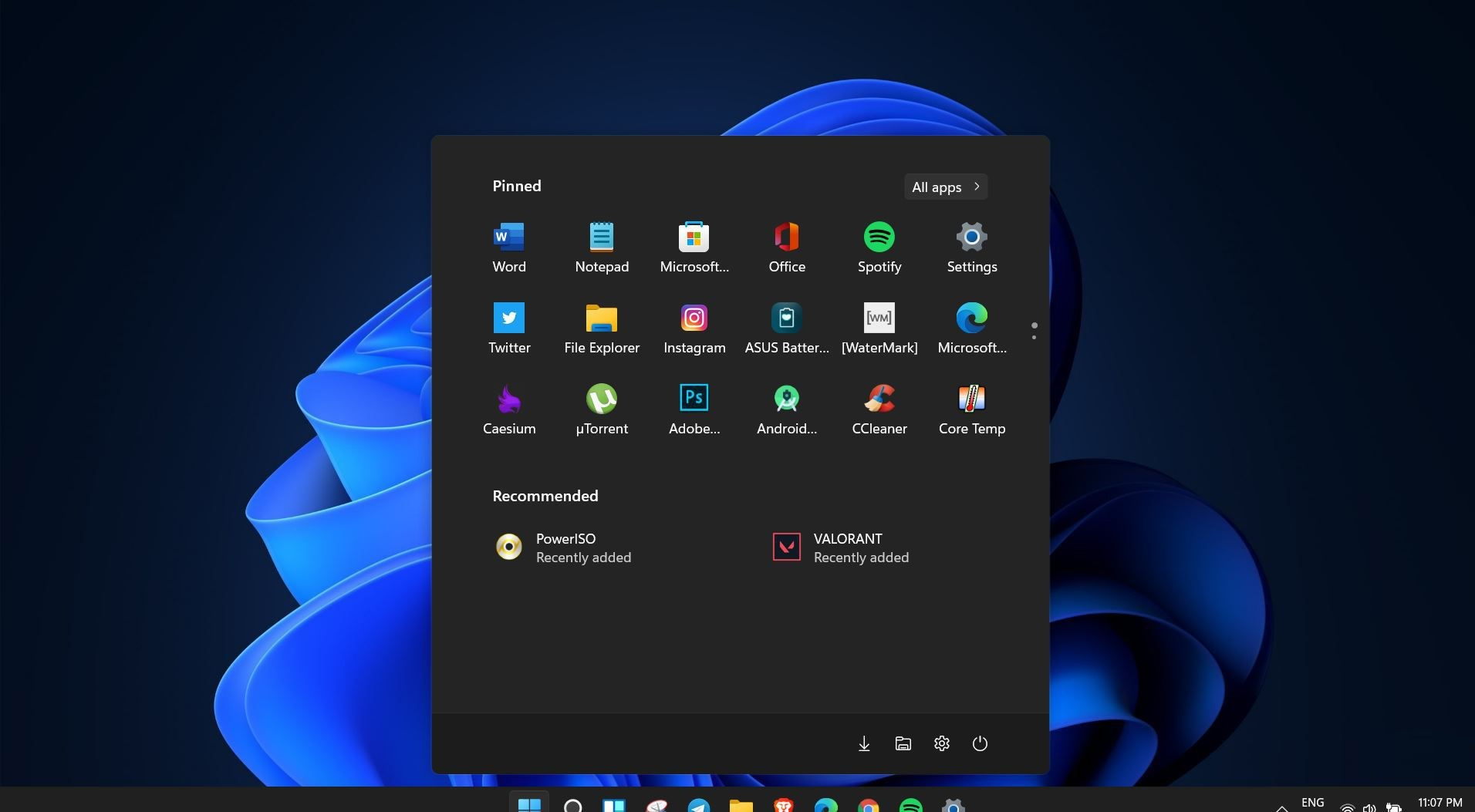
  1. Click on the speaker icon located in the far-right part of the taskbar.
  2. After the quick settings menu appears click on the right arrow located right of the volume slider. If the arrow is not present, instead of click on the pencil icon, then on add, and finally select Volume from the list.
  3. After clicking on the arrow icon, a list of all enabled audio devices on the system will replace the volume slider. Click on the desired audio device in order to make it active.
  4. Click anywhere outside the quick setting menu to save changes and close it.
Note: in the Quick settings menu if you choose More Volume Settings it will bring you to System > Sound where you can access more sound input and output options.
Read More
A Quick Guide to Fixing Error 404

Error 404 - What is it?

Error 404 is a HTTP status code. You may come across the error code 404 while browsing online. The message indicates the web page you are trying to log on to couldn’t be found on the server. This error code is frequently customized by individual websites. Most of the time it is displayed by:
  • “404 Error"
  • "404 Not Found"
  • "Error 404"
  • "404 File or Directory Not Found"
  • "HTTP 404 Not Found”
  • "The requested URL [URL] was not found on this server."
  • "HTTP 404"
  • "404 Page Not Found"
  • “Error 404 Not Found"
The error message 404 can occur in any browser including Firefox, Internet Explorer and Google Chrome. It can also occur is any operating system. In addition to this, the error 404 may also occur during Windows updates.

Solution

Restoro box imageError Causes

Technically, the error 404 is a client-side error that implies you couldn’t access the desired web page because either you typed the wrong URL or either the page has been removed from the website. Other causes of this error code include:
  • Junk files in the browser
  • Junk registry entries
  • Browser cache issues
  • DNS server problems

Further Information and Manual Repair

If the error code does not occur due to web page removal from the owner of the website, then this means there is some other underlying issue from the error code 404. To avoid inconvenience and to access the website, it is advisable to resolve the error right away. To help you resolve the error 404 on your PC, we have listed some of the best and easy DIY solutions. Try these methods to fix the issue on your system:

Method 1

Press F5 to retry accessing the web page. F5 is the refresh/reload button. If the error is temporary this will resolve the issue immediately.

Method 2

Check the URL - ‘The error 404 not found’ may also appear because the URL was typed wrong. Search for the page on the popular search engines. Insert the correct URL for the web page you want to access. This will most likely fix the error.

Method 3

Clear your browser’s cache – For this, simply go to the history and clear up your browser’s cookies.

Method 4

Change the DNS Servers - If the entire website you want to access is giving you error 404 and if the site is available to others on different servers then you might want to try changing your DNS server. 404 errors are not particularly common unless your ISP or government filters or censors websites.

Method 5

Remove Junk files and Junk registry entries - Another way to resolve the error is to clean the registry. The underlying cause of the error could be accumulation of the junk, invalid and bad registry entries. You can remove them manually, but that process will require technical expertise and will be quite time-consuming. Nonetheless, the easy and efficient way to clean up the registry is to download Restoro. This is an advanced, highly functional and next-generation Registry Cleaner.

Why Use Restoro?

  • It is deployed with a cutting-edge and intuitive algorithm that detects, scans, and removes all the registry issues on your entire PC in seconds.
  • This registry cleaner wipes out all bad entries and junk files saved on the disk immediately, fixes the damaged and corrupt files, and restores the registry back to normal.
  • Besides functioning as a registry cleaner, this software is also integrated with several other utilities such as an antivirus that removes all kinds of malicious software from your system, a system optimizer for optimum PC functioning, and Active X controls and Class ID scanner.
  • It is safe to download, user-friendly and efficient. This error tool is compatible with all Windows versions.
To resolve error 404 on your PC, click here to download Restoro today!
Read More
Fixing To use System Restore you must ...
There are cases when you want to undo some changes you’ve made to your computer and to do that you have to perform the System Restore task. However, if you encounter an error that states “To use System Restore you must specify which Windows installation to restore”, when doing so, read on as this post will help you fix the problem. This kind of error in System Restore could be due to corrupted files in the system. There are also situations where you are not able to boot up once you encounter this error which could be a big problem. On the other hand, this error might have something to do with corrupted BCD files. Whatever the cause is, here are some potential fixes you have to try.

Option 1 – Try to run System File Checker offline

Like pointed out, since the error might be due to corrupted system files, you can try to run System File Checker offline. How? Refer to these steps:
  • You need to go to the Advanced Startup Options and from there select Troubleshoot.
  • Next, select the Advanced Options and then Command Prompt.
  • After opening Command Prompt, type the commands given below and tap Enter right after you type each one of them.
    • Cd /
    • Dir
  • If you can see the “Users” folder, that is your system’s drive. However, if you can’t see it, you can just change the drive-by assigning “D” as its alphabet volume.
  • Then execute this command where “C” is the system drive: sfc /scannow /offbootdir=C: /offwindir=C:Windows
  • Now repeat the given steps sequentially.

Option 2 – Try to run DISM tool

You can also run the DISM tool to repair the potentially corrupted system image. First, you have to check the health of the system like checking the integrity of the system files and Windows services. To run DISM, follow the given steps below sequentially.
  • Open Command Prompt from the Advanced Startup options.
  • After that, execute this command where “C:” is the system volume: DISM /Image:C:Windows /Cleanup-Image /RestoreHealth /Source:C:WindowsWinSxS
  • If you encounter an error after executing the given command, insert the Windows USB or DVD and then execute this next command where “E:” is the USB or DVD drive: DISM /Image:C:Windows /Cleanup-Image /RestoreHealth /Source:esd:E:SourcesInstall.esd:1 /limitaccess
  • In some cases, “install.esd” would be “install.wim” and in such case, you have to modify and execute this command: DISM /Image:C:Windows /Cleanup-Image /RestoreHealth /Source:wim:E:SourcesInstall.wim /limitaccess

Option 3 – Try to repair corrupted BCD

As mentioned, the error could also be due to corruption in BCD, and to fix it, you can use Bootrec.exe – a built-in command-line tool used to troubleshot issues related to boot up and Windows Startup. Before you run this tool, make sure that you have inserted a bootable USB or DVD into your computer. Once you have that covered, follow these steps:
  • You need to go to the Advanced Startup Options.
  • Then click on Troubleshoot.
  • Next, select the Advanced Options and then Command Prompt.
  • Once Command Prompt has been pulled up, enter each one of the following commands and in the sequence that they are given to rebuild BCD files and repair MBR files:
    • Bootrec /Fixmbr
    • Bootrec /FixBoot
  • After you execute the commands given above, you should see a confirmation message that says, “The operation completed successfully”.
  • Now type the “Bootrec /RebuildBCD” command to rebuild BCD.
  • Finally, close Command Prompt and then restart your computer to successfully apply the changes made.

Option 4 – Try to run the Automatic Repair Utility

You might also want to use Automatic Repair in fixing the error. To do so, follow the steps below.
  • You can start by creating and booting from a bootable Windows 10 USB Stick.
  • After that, click on Repair your computer located in the bottom left corner when you are on the initial Windows Startup screen.
  • Next, click on Troubleshoot, and then on the other screen, click the Startup Repair option.
  • Now select the operating system you want to repair. Once you do that, it will start to repair your operating system. Wait until the process is completed and then check if the problem’s now fixed.

Option 5 – Try to use the Windows Recovery Environment

If the four options given above didn’t help fix the problem, you could try running Windows Repair and a Windows bootable USB or DVD.
  • First, insert the bootable USB or DVD and boot into it, and select the “Repair your computer” option.
  • Next, once you see the manufacturer logo on your computer, tap the key to enter into Windows Recovery Environment.
  • After that, change the Boot sequence to DVD drive under the UEFI Firmware settings and restart your computer.
  • Once your computer has restarted, select the boot order and make changes accordingly as displayed in the BIOS.

Option 6 – Try running System Restore in Advanced Startup Options

Since you probably can’t boot into your Windows 10 computer, you can try to run System Restore again in the Advanced Startup Options.
  • Boot your computer into the Advanced Startup Options screen.
  • From there, you will see some options to troubleshoot when you can’t log in to Windows in the usual way.
  • Now select Troubleshoot > Advanced Options > Command Prompt.
  • After that, type “exe /OFFLINE:C:Windows” and hit Enter to execute the command which will start the System Restore process.
Note: You need to replace “C” with the drive where Windows Installation is located.
Read More
Fixing Error 633: The modem already in use
If you are trying to connect to the internet using a Wi-Fi, Ethernet, or a Wi-Fi connection and you suddenly encounter Error 633, then read on as this post will guide you on how you can fix this problem in your Windows 10 computer. According to users who encountered the same problem, when they try to connect to the internet, an error pops up that states, “The modem or other connecting device is either already in use or not appropriately configured”. This error is the VPN Error 633 which indicates that the modem is malfunctioning due to some broken configuration. It is possible that this broken configuration is caused by the WAN Miniport device which is associated with your preferred VPN protocol. It could also be due to the TCP port that’s required for the VPN connection to work might be used by another application. There are instances when Error 622 could occur when there are multiple internet connections set up on one device or when the communication port is exploited by another program. It could also occur when the affected modem is not bound to one specific device. Thus, any model and computer can be affected by this problem. The first and basic thing you can do to fix the VPN Error 633 is to turn off or unplug the modem your computer is using and then plug it back in to see if the problem is fixed. If not, then there are several other potential fixes you need to check out to resolve the problem. You can try the suggestions provided below and see if any of them help.

Option 1 – Run the Network Adapter Troubleshooter

  • Open the Search bar on your computer and type in “troubleshoot” to open the Troubleshoot settings.
  • Next, scroll down and select the “Network Adapter” option from the right pane.
  • Then click on the Run Troubleshooter” button.
  • After that, your computer will check for any possible errors and will pinpoint the root cause of the problem if possible.

Option 2 – Try to explicitly reserve the TCP port

The next thing you can do to fix the error is to reserve the TCP port explicitly and to do that, follow the steps below.
  • Tap the Win + R keys to pull up the Run dialog box and type “Regedit” in the field and hit Enter to open the Registry Editor.
  • Next, navigate to this registry path: HKEY_LOCAL_MACHINESYSTEMCurrentControlSetServicesTcpipParameters
  • After that, follow the path New > Multi-String Value on the edit menu and rename the multi-string value as “ReservedPorts” and then double click on it.
  • Now in the value data of ReservedPorts, input “1723-1723” and click OK to save the changes made.
  • Close the Registry Editor and restart your PC. Once your computer has restarted, check if the VPN Error 633 is fixed or not.

Option 3 – Try to use the netstat command

  • In the Windows Start Search, type “cmd” and from the search results that appear, right-click on Command Prompt and then select the “Run as administrator” option.
  • After opening Command Prompt as admin, type this command and hit Enter: netstat –aon
  • After that, the output will be displayed and from there, look for the process ID or PID of any program that uses the TCP port 1723 on your computer.
  • Next, type this next command and hit Enter: taskkill /PID PID /F
  • Once the command has been executed, the concerned program will be forced to close and the TCP port 1723 will be freed up. Keep in mind that the taskkill command ends the process corresponds to the process ID number and the given command above, “/F” option is used to end the program’s process forcefully.
  • Now restart your computer and after that, the concerned program should start using a TCP port other than 1723 which leaves the TCP port 1723 free for your internet device to use.

Option 4 – Remove any irrelevant internet device programs

You could also try removing any irrelevant device programs since it is possible that any of these programs could be the one that’s causing the modem to malfunction. These irrelevant programs could be an internet booster or third-party tools that comes with the modem and so on. These programs are not necessarily needed for your modem to function. Thus, if you want to fix the VPN Error 633, you can try uninstalling them and see if it fixed the error.

Option 5 – Update the Network Adapter drivers

You might also want to update the Network Adapter drivers by following these steps:
  • Tap the Win + R keys to launch the Run window and then type in the “devmgmt.msc” command and hit Enter to open the Device Manager window.
  • Under the Device Manager, you will see a list of drivers. From there, look for the Network Adapters and expand them.
  • Then right-click on each one of the Network drivers and update them all.
  • Restart your PC and see if it helped in fixing the BSOD error.
Note: If updating the network drivers didn’t help in fixing the VPN Error 633, you can also try to uninstall the very same drivers and restart your Windows 10 PC. After that, the system itself will reinstall the drivers you just uninstalled. Alternatively, you can also download and install the drivers from the manufacturer’s website directly. To reinstall the network adapter driver, refer to these steps:
  • Open the Devices Manager from the Win X Menu.
  • Then locate the device drivers and right-click on them to open the Properties.
  • After that, switch to the Driver tab and click on the Uninstall Device button.
  • Follow the screen option to completely uninstall it.
  • Finally, restart your computer. It will just reinstall the device drivers automatically.
Read More
Fix Windows Update Error 0x80071a91
Windows Update Error 0x80071a91, what it is? As you know, Windows Updates are very essential to the operating system since they push with them the important security updates that are crucial to the system. And if a Windows Update is delayed, it can the system vulnerable to potential threats. Thus, this kind of issue must be resolved right away. One of the errors that you can encounter while updating your computer is the Windows Update Error 0x80071a91. The error code 0x80071a91 occurs when the “Transaction support within the specified file system resource manager is not started or was shut down due to an error”. This happens when a service called “File System Resource Manager” or FSRM does not function due to some reason. To fix the Windows Update Error 0x80071a91, here are some suggestions that could help.

Option 1 – Run the Windows Update Troubleshooter

Running the built-in Windows Update troubleshooter could also help you resolve the Windows Update Error 0x80071a91. To run it, go to Settings and then select Troubleshoot from the options. From there, click on Windows Update and then click the “Run the troubleshooter” button. After that, follow the next on-screen instructions and you should be good to go.

Option 2 – Disable the antivirus program temporarily

There are times when the antivirus program installed in your computer blocks file access and even disk access. Thus, disabling the antivirus program or any security software installed in your computer is always a good idea you can try when the Windows Update process does not go smoothly. So before you try updating your computer again, make sure to disable the antivirus or security program and once the Windows Update is done, don’t forget to enable the antivirus program back again.

Option 3 – Try resetting the File System Resource Manager

As pointed out earlier, the error 0x80071a91 pops up when the FSRM service suddenly stops working and so resetting this service via Command Prompt might resolve the problem. To do so, follow the steps below.
  • In the Windows Search box, type “command prompt” and hit Enter.
  • Then right-click on Command Prompt from the related search results and click the “Run as administrator” option.
  • After opening Command Prompt as admin, type the following command and hit Enter:
resource setautoreset true C:
  • After that, exit Command Prompt and restart your computer and then check if the problem’s fixed by running Windows Update again.

Option 4 – Flush the contents of the SoftwareDistribution folder

You have to stop a couple of services such as BITS, Cryptographic, MSI Installer, and Windows Update Services. And to do that, you need to flush the contents in the SoftwareDistribution folder. The Software Distribution folder in the Windows operating system is a folder that can be found in the Windows directory and is used to store files temporarily which might be required to install the Windows Update on your PC. Thus, it is required by the Windows Update and maintained by WUAgent. Aside from that, it also contains all the Windows Update History files and once you delete them, you will most likely lose the Update history. As a result, the next time you run the Windows Update, it may result in a longer detection time.
  • Open the WinX Menu.
  • From there, open Command Prompt as admin.
  • Then type in the following command – don’t forget to hit Enter right after typing each one of them.
net stop wuauserv net start cryptSvc net start bits net start msiserver
  • After entering these commands, it will stop the Windows Update Service, Background Intelligent Transfer Service (BITS), Cryptographic, and the MSI Installer
  • Next, go to the C:/Windows/SoftwareDistribution folder and get rid of all the folders and files thereby tapping the Ctrl + A keys to select them all and then click on Delete. Note that if the files are in use, you won’t be able to delete them.
  • Once all the contents in the Software Distribution folder are deleted, restart your PC and then go back to Command Prompt and input the following commands again.
net start wuauserv net start bits

Option 5 – Delete the Common Log File System transaction logs

You might also want to delete the Common Log File System or CLFS transaction logs to fix the Windows Update Error 0x80071a91.
  • Open an elevated Command Prompt.
  • Then type each of the commands listed below and press Enter after you type each one of them.
    • cd /d %SystemRoot%System32SMIStoreMachine
    • attrib -s -h *
    • del *.blf
    • del *.regtrans-ms
  • After you’ve executed the commands given above, restart your computer and try to update Windows 10 again.
Read More
How to switch to Dark mode in Windows 11
Dark modeWindows 11 is coming soon, from its typical view and color scheme, Windows 11 will natively support dark mode. The dark mode is very popular in many applications today, some large companies like Adobe, Autodesk, and many more have already adopted a dark color scheme for their software so it is logical for others to follow and Microsoft is aboard for it. The dark mode itself has its benefits, for people who work on computer for longer period of time dark mode inside applications will throw less white and blue light on their eyes making workhours easier and pleasant on them. As a person who does indeed spend a lot of time in front of the screen, I would advise you to switch to dark mode regardless of the time that you spend with a computer, your eyes will be grateful.


Switching to Dark mode in Windows 11

  1. Open Windows 11 Settings by pressing ⊞ WINDOWS + I
  2. Click on Personalization on the left sidebar
  3. On the right side click on Color
  4. In color options click on the drop-down menu right next to Choose your color
  5. Select Dark
Your choice will be applied right away and you can safely close settings.
Read More
An Easy Guide to Resolving Internal Error 2324

Internal Error 2324 - What is it?

Internal Error 2324 occurs when you try to upgrade Firefox on your Windows 7 PC. The program fails to install and run successfully. The following error message is displayed:
‘The installer encountered an unexpected error installing this package. This may indicate a problem with this package. The error code is 2324.’

Solution

Restoro box imageError Causes

This error may occur due to different reasons. These include:
  • Viral infection
  • Bad registry entries (cookies or traces of old version of Firefox program)
  • Other programs running on your PC during Firefox program installation
  • Installation was not performed from the Administrator account
To use the Firefox web browser successfully on your PC, you first need to resolve error 2324 on your system.

Further Information and Manual Repair

To repair error 2324, try the following methods:

Method 1 - Perform a Clean Reinstall.

This means to remove the Firefox program completely from your PC and then reinstall it. To do this, remove the Firefox installation folder saved in one of the locations by default: C:\Program Files\Mozilla Firefox C:\Program Files (x86)\Mozilla Firefox Now download the latest Firefox version on your PC and save the setup file on your computer. After that double click, the downloaded installation file and follow the steps illustrated in the wizard to install Firefox on your PC.

Method 2

Sometimes Firefox installation may fail because of the interference from other programs running on your PC. Therefore, it is advisable to close all programs running in the background when upgrading the Firefox program. You can also disable programs like Logitech QuickCam and Spybot Tea Timer.  These are some of the many programs that are notorious for interfering with Firefox updates.

Method 3 - Scan for viruses to resolve.

Viruses are malicious programs that often enter computers through files downloads from unreliable websites and phishing emails. These programs then hide in your PC and infect it. You may often experience problems during program installation if your PC is infected by viruses. To fix the issue and ensure smooth Firefox program installation on your system, simply run an antivirus. Antivirus scans and detects all viruses in a few minutes. Upon detection, remove them right away to ensure your PC is free from such malicious programs. Now try updating Firefox on your system again. If it is updated smoothly, then the error is resolved.

Method 4

The registry of your system stores all the activities performed on your PC. You may have uninstalled the old Firefox version from the Control Panel but the traces of the uninstalled program may still remain in the registry as bad entries. These bad entries may be causing error 2324 to pop up on your PC. To resolve, you need to remove these entries from the registry. For quick removal, download Restoro. It is a user-friendly PC Fixer with a registry cleaner that scans and removes all obsolete files stored in the registry such as incorrect registry keys, bad entries, cookies, and junk files. Click here to download Restoro.
Read More
Fix igfxem.exe application error in Windows 10
When you get an igfxem.exe error in Windows, it is not really clear what does this means, usually, Windows throw us some code or we get a DLL error, rarely we get an EXE error. So what does this error means? Intel Graphics Executable Main Module, shortly called as IgfxEM module is a part of the Windows operating system. When you run Microsoft .NET Framework applications that use the AS/400 Data Queue ActiveX control (Mseigdq.dll) to read from and to write to IBM iSeries (AS/400) data queues, you may experience this error. In order to overcome this error and cope with it try the following things:
  1. Increase Virtual Memory

    Go to the Start Menu and click on Settings. Type performance. Choose Adjust the appearance and performance of Windows. In the new window, go to the Advanced tab and under the Virtual memory section, click on Change. At the bottom of the new window, check what the Recommended value is and how it compares to Currently allocated. If the current setting is significantly less than the recommended, uncheck the Automatically manage paging file size for all drives box at the top of the same windows and then click on Custom size. Enter the Recommended value in the Initial Size box, and a larger figure in the Maximum size box. Click OK to save the new settings.
  2. Download and update .NET framework

    Go to the Microsoft website and download the latest .NET framework. Once the download is complete, install the package following onscreen instructions.
  3. Reinstall INTEL graphic drivers

    Go to the intel website and download the latest graphic drivers for your graphic card model. Once the download is complete, install the package following onscreen instructions.
  4. Run SCF scan

    If all else fails, run command prompt and inside type sfc /scannow
Read More
An Easy Guide to Resolving Code 18

Code 18 - What is it?

Code 18 is a typical Device Manager error code that occurs when the device driver is damaged. Device Manager is an important tool that allows Windows PC users to have an overall look at the connected hardware.

Furthermore, it also allows diagnostic testing. It is vital too and errors associated with the Device Manager such as error code 18 should and must be resolved quickly.

Error code 18 is usually presented in the following formats:

“The drivers for this device are not installed. (Code 18)” Or “Reinstall the drivers for this device.”

Solution

driverfix boxError Causes

Error code 18 may be triggered due to several reasons such as:

  • Outdated drivers
  • Corrupted drivers
  • Improperly configured drivers

Error code 18 may cause a great deal of inconvenience. It may hamper your ability to use certain devices on your PC.

For example, if code 18 pops up due to a corrupted or improperly configured keyboard driver, then it may hamper your ability to use your keyboard and work on your PC.

Further Information and Manual Repair

The good news is that Device Manager error codes like error code 18 are easy to resolve. Below are some of the easiest and effective methods to repair error code 18 on your PC. Try one of these methods to repair error code 18 in no time:

Method 1 - Uninstall and Reinstall Device Drivers

One of the easiest ways to repair error code 18 and to ensure that this error doesn’t pop up on your PC again is to uninstall the problematic driver. For this, simply:

  • Go to the start menu
  • Type Device Manager and press enter
  • Now click on the device whose driver you want to uninstall.
  • Press right-click and then click on uninstall. Windows will prompt you to confirm the removal of the driver.
  • Click OK to confirm and then reboot your PC to activate changes.
  • Now scan for new hardware and follow the same process to reinstall the uninstalled device driver.

Method 2 - Update Drivers Automatically

Finding problematic drivers and then updating them individually can be frustrating and a time-consuming process. It can take a lot of time to perform updates and resolve the error code on your PC.

If you have projects to work on with pressing deadlines, then updating drivers on your PC separately can cause you a great deal of inconvenience and waste your precious time.

However, to avoid this situation, we advise you to set your drivers to update automatically. Automatic update installation requires only a few seconds.

And to update drivers automatically, it is recommended you download DriverFIX.

As the name suggests, this software is designed to assist programmers to upgrade device drivers automatically. In just a few clicks, you can update all your outdated drivers and repair error code 18.

DriverFIX is easy to use and an advanced program that is smoothly integrated with an intelligent programming system. This system identifies and detects all the problematic drivers on your PC and then updates each driver automatically to their latest versions.

It continues to update drivers regularly ensuring that you never come across device driver problems on your system.

Click here to download DriverFIX and repair error code 18 today!

Read More
1 2 3 171
Logo
Copyright © 2023, ErrorTools. All Rights Reserved
Trademark: Microsoft Windows logos are registered trademarks of Microsoft. Disclaimer: ErrorTools.com is not affiliated with Microsoft, nor claims direct affiliation.
The information on this page is provided for information purposes only.
DMCA.com Protection Status