Logo

An Easy Guide to Fixing Error Code 14

Error Code 14 - What is it?

Generated due to temporary device and Window system conflicts, Error code 14 is a typical Device Manager error.  This error code can pop up anytime and usually displayed in the following format:

“This device cannot work properly until you restart your computer. (Code 14)”

Though it is not a fatal error code like the infamous Blue Screen of Death and runtime error codes, nonetheless it is still advisable to repair it immediately before any delay to avoid inconvenience.

It can lower your PC’s performance and hamper you from using certain hardware devices as a result of driver problems.

Solution

driverfix boxError Causes

Error 14 is triggered when your system is unable to correctly read the files and settings which is important for running a certain piece of your PC hardware. Now this conflict may occur due to reasons like outdated, corrupted, or poorly installed drivers. Other causes may include corrupted registry entries.

Simply put, Error code 14 is a good reminder that PC users should pay attention to updating device drivers to ensure healthy systems and optimum PC performance.

Further Information and Manual Repair

The good news is that error code 14 is quite easy to resolve. You don’t have to spend hundreds of dollars to hire a professional programmer to get it fixed. To repair, simply follow the DIY methods listed below.

We have compiled some of the best, proven, and easy to perform solutions for PC users to resolve Device Manager error codes like error code 14. Follow the instructions here to resume the functionality of your PC.

Let’s get started:

Method 1 - Reboot Your System

Sometimes, an action as simple as rebooting your PC can also resolve technical problems like error code 14. So, before you try any other method, try giving this a shot.

The moment the error code pops on your screen, simply close all the programs running on your system and restart your PC. This refreshes your system settings, processes and services allowing it to run smoothly.

However, if the error still persists, then try other methods given below.

Method 2 - Delete the Corrupted Registry Entries

Corrupted registry entry can also trigger error code 14. To resolve delete the corrupted registry entries. For this, go to the start menu and type Regedit. A dialog box will open. Now navigate through the HKEY_LOCAL_MACHINE key. Expand further to locate HKEY_LOCAL_MACHINESYSTEMCurrentControlSetControlClass. Once located, now in the right pane click upper filters and then click delete on the edit menu. Click yes when prompted to confirm the deletion.

Now in the right pane, click lower filters. Repeat the same steps as performed to delete upper filters. Confirm deletion and then exit the registry editor. To activate changes, restart your PC. This will hopefully resolve the issue. If the error code pops up on your computer screen, then try method 3.

Method 3 - Update Corrupted/Outdated Drivers

Drivers are basically software applications that communicate and provide instructions to your system to operate hardware devices.

When these become corrupt or outdated, you start experiencing problems like error code 14. To resolve, locate corrupted drivers and update them. You can do it both manually and automatically. We’ll discuss both ways.

For a manual driver update, go to the start menu, control panel, and then Device Manager. Now go through all devices listed to locate problematic drivers. To identify problematic drivers, look for yellow exclamation marks next to each device. Devices with yellow exclamation marks indicate that driver issues. To repair, right-click on each hardware device and select update driver.

Method 4 - Install DriverFIX - Alternative to Manual Driver Update

Updating each driver separately and manually is a stressful and frustrating task. This can take a lot of your time. Sometimes, you may also have to download new driver versions from the internet to install perform updates. To avoid the hassle and save time, it is advisable to install a program like DriverFIX.

This user-friendly and intuitive software is based on sophisticated technology featuring an intelligent programming system that automatically detects all your PC drivers in seconds.

Once you install this software on your system, it instantly identifies problematic drivers and matches them to the latest versions. It updates PC drivers immediately thereby resolving the error code 14 problem in a few seconds. It enables accurate installations and ensures that your PC runs at its optimum level.

More importantly, with this software installed on your PC, you don’t have to worry about keeping track of your driver updates anymore. The software updates drivers on a regular basis with new and compatible versions ensuring that your PC functions properly and you don’t experience any type of Device Manager error code. It is easy to use and install. It is compatible with all Windows versions.

Click here to download DriverFIX to resolve error code 14 on your system right away.

Do You Need Help with Your Device?

Our Team of Experts May Help
Troubleshoot.Tech Experts are There for You!
Replace damaged files
Restore performance
Free disk space
Remove Malware
Protects WEB browser
Remove Viruses
Stop PC freezing
GET HELP
Troubleshoot.Tech experts work with all versions of Microsoft Windows including Windows 11, with Android, Mac, and more.

Share this article:

You might also like

How to Fix Error Code 0x80070002 in Windows 10

Error Code 0x80070002 – What is it?

Error code 0x80070002 is a Windows Update error code. It occurs due to corruption errors which result when missing files in Windows Update prevent users from accessing updates on their system. It affects Windows 10 users and presents similar symptoms as error code 0x80070003, another Windows Update error. These symptoms include the following:

  • Presence of message box highlighting the name of the Windows Update error code
  • The inability of users to complete updates on their system

Error Causes

If certain files are missing in Windows Update on your system, you will most likely experience error code 0x80070002. These missing files prevent Windows Update from functioning properly even in cases where an update is downloaded on your PC.

Further Information and Manual Repair

Manual repair methods are necessary to resolve issues related to many Windows error codes. To fix Windows Update error codes like error code 0x80070002 in Windows 10, users will need to apply several procedures that include stopping and restarting the Windows Update service. Note that the methods listed below must be done in the order they are listed. This is because they work in conjunction with each other to repair and replace corrupted update files that may be preventing your Windows Update service from functioning correctly.

Method One: Stop Windows Update Service

Stopping the Windows Update service will enable users to begin the manual repair process. It’s crucial, to begin with, this step, as it prepares users to delete temporary update files when the Window Update service is no longer functioning correctly. These temporary files may be the source of the corruption errors resulting in error code 0x80070002. Follow the steps below to stop Windows Update and resolve the error code.
  • Step one: Type Control Panel in the Search box near the Start button
  • Step two: Select Control Panel
  • Step three: Type Administrative Tools in the search box
  • Stop four: Select Administrative Tools
  • Step five: Click Services, then search for Windows Update
  • Step six: Right-click Windows Update service, then select Stop
After you have successfully stopped the service, proceed by deleting temporary update files in the SoftwareDistribution folder.

Method Two: Delete Temporary Update Files in SoftwareDistribution Folder

Error code 0x80070002 is unlikely to be resolved without addressing the problems related to missing or corrupted update files. By deleting temporary update files within the SoftwareDistribution folder, you will most likely be able to fix the error code and access updates within the Windows Update service.
  • Step one: Open File Explorer, then open Windows folder in drive C
  • Step two: Double-click SoftwareDistribution folder
  • Step three: Open the DataStore folder and delete all files within this folder
  • Step four: Click Back to access the SoftwareDistribution folder
  • Step five: Open the Download folder to delete all files from this folder as well
While attempting to delete these files, you may be asked to enter a password as an administrator. If this occurs, enter the required password to proceed.

Method Three: Restart Windows Update Service

Once you have logged on as an administrator and deleted appropriate update files in the SoftwareDistribution folder, follow the steps below to restart the Windows Update service.
  • Step one: Type Control Panel in the Search box near the Start button.
  • Step two: Select Control Panel
  • Step three: Type Administrative Tools in the search box, then select Administrative Tools
  • Step four: Double-click Services
  • Step five: Search for the Windows Update service
  • Step six: Right-click the Windows Update service, then select Start.
Once you’ve selected Start, you’ll be able to access the Windows Update service. Verify these manual methods have proven successful by restarting your PC, then check if you can access updates. If error code 0x80070002 has been resolved, you will be able to complete the download process when you attempt to access updates within Windows 10. You will also no longer see the error code 0x80070002 message box.
Read More
Fix 0xc00d36cb error in Windows 10
0xc00d36cb error shows up when you are trying to play a video or movie using the default player in Windows. This error can occur due to a glitch in the media player or corrupted system files. in this guide, we will show you how to tackle this issue and fix it.
  1. Run the video playback troubleshooter

    • Click on Start and select Settings.
    • Go to Update and Security.
    • Scroll down and open the Troubleshoot tab.
    • Scroll down and select the Video Playback option.
    • Click the Run the Troubleshooter button.
    • The troubleshooter will perform an initial scan and offer a few options.
    • Select Continue with this troubleshooter.
    • The troubleshooter will scan the system again for driver and codec issues.
    • Follow on-screen instructions and apply recommended fixes.
  2. Reset the Movies and TV app

    • Click on Start and select Settings.
    • Go to Apps and open the Apps and features tab.
    • Scroll down to Movies and TV.
    • Select Movies and TV.
    • Click Advanced options.
    • Scroll down and click on the Reset button.
  3. Create a new user account

    • Click on Start and select Settings.
    • Open Accounts.
    • Open the Family & other users tab.
    • Scroll down to Other users and click the Add someone else to this PC button.
    • In the Microsoft account window, type your email address.
    • If you don’t want to enter an email address and establish a local account, click on I don’t have this person’s sign-in information option instead.
    • Next, select Add a user without a Microsoft account (for a local account).
      • Else, enter your Microsoft account login details.
    • Enter a user name and password for your new account. Also, select a security question and add an answer to it.
    • Once the new profile is ready, log out of your current account.
  4. Check for permission issues

    • Right-click on the problematic file and select Properties.
    • Open the Security tab.
    • Click the Advanced button.
    • In the Advanced Security Setting window, click the Change link.
    • In the Select User or Group window, enter Everyone in the text box.
    • Click the Check Names button.
    • Click OK and Apply to save the changes.
    • Close all the Properties windows.
    • Try playing the file or modifying the properties and check for any improvements.
Read More
Fix error 0x00000709 when connecting a Printer
One of the most common and bothersome issues with a printer is when it refuses to get configured or set up on your computer. Thus when your printer has some configuration issues, you will most likely encounter the error 0x00000709. This occurs if there is already a default printer set and configured or Windows does not want to configure the new printer at all. The operation could not be completed (error 0x00000709), Double check the printer name and make sure that the printer is connected to the network. Today, we will try two fixes that may help you get rid of this error.

Option 1 – Run the Printer Troubleshooter

One of the first basic troubleshooting you can perform to resolve the printer issue is running the Printer Troubleshooter. This built-in troubleshooter can detect and automatically fix the problem for you. To use it, follow these steps:
  • Tap the Win + R keys to open the Run dialog box.
  • Next, type “exe /id PrinterDiagnostic” in the field and click OK or hit Enter to open the Printer Troubleshooter.
  • Then click the Next button and follow the next on-screen instructions to fix the issue with the printer.

Option 2 – Try to use some Registry tweaks to add the Printer

You might want to use some tweaks to add the Printer but before you proceed, make sure to create a System Restore Point so that if anything goes out of hand, you can always undo the changes you’ve made.
  • Tap the Win + R keys to open the Run dialog box.
  • Next, type “Regedit” in the field and hit Enter to open the Registry Editor.
  • When a UAC or User Account Control prompt appears, click Yes.
  • Once you’ve opened the Registry Editor, go to the following key location:
HKEY_CURRENT_USERSoftwareMicrosoftWindows NTCurrentVersionWindows
  • From there, double click on the file named “Device on the right side pane under the Windows folder.
  • Now add the name of your printer in the Value Data field as you can see below and then click the OK button.
Note: As you can see on the image above, you must not change the “.winspool.Ne02:” part and only the first one which is the name of your printer.
  • After that, you will get a message that says, “Cannot edit Device: Error writing the value’s new contents, simply click on OK again. You have to take note of the existing permissions before you proceed to the next step. Once you’ve added the Printer, make sure to reverse the changes you’ve made to the Permissions.
  • Now right click on the Windows folder located on the left pane and click on Permission.
  • Select Restricted under the Group or user names section.
  • Then check the checkboxes for “Full Control”, “Read” and “Special Permissions” under the Permissions for RESTRICTED section.
  • After that click the Apply button and then OK to save the changes made.
  • Next, right-click on the file named “UserSelectdDefault” and select Rename to rename it to your printer’s name.
  • Now restart your computer to successfully apply the changes made.
  • After the printer is added, don’t forget to reverse the Permission changes you’ve made early on.

Option 3 – Try updating the Printer drivers

You might also want to try updating your printer drivers. All you have to do is locate the USB Composite Device. For complete details, follow the steps below.
  • First, click the Start button and type “device manager”.
  • Then click on the “Device Manager” from the search results to open it.
  • From there, look for the USB Composite Device option and right-click on it, and select the Update Driver from the options.
  • Restart your PC and then click the “Search automatically for updated driver software” option.
Note: You also have the option to download the latest version of your Printer from the manufacturer’s website.
Read More
WEB sites for cheap game purchases
Gaming can be sometimes a very cheap hobby, sometimes can be really expensive. It really depends on your preferences or gaming habits. So for all of you game spenders, we have compiled a little list of WEB sites where you can find games cheap. Provided sites are checked ones and not scam. You can purchase without concern. Also, note that some of these sites will require you to create an account in order to be able to make a purchase.

List of WEB sites for cheap purchases

is there any deal cheap gamesIs There Any Deal

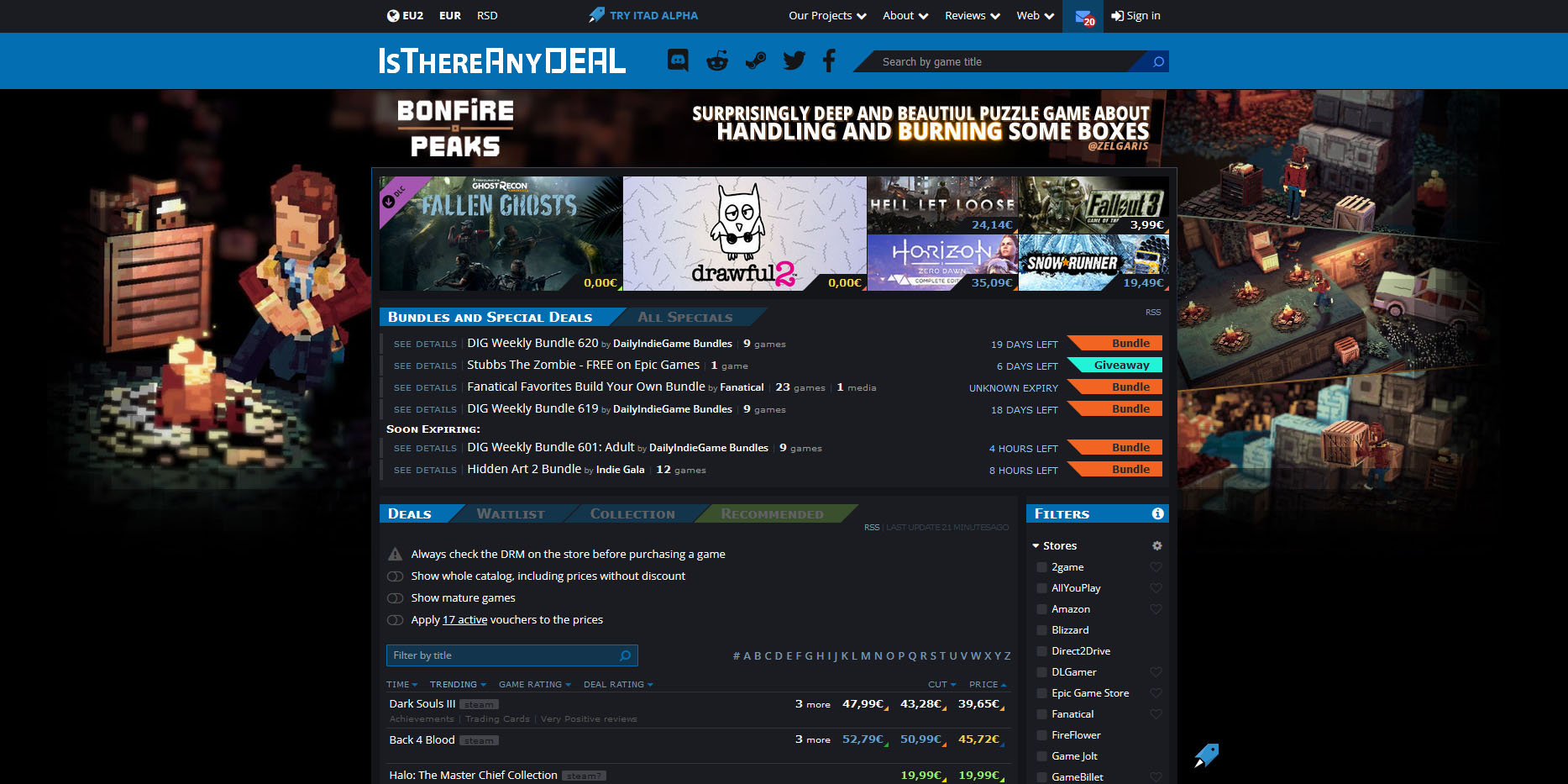
https://isthereanydeal.com/ Is there any deal really behaves as it sounds, it is basically a search engine tailored to find existing deals on required games. Type in the desired game and see if anywhere you can find a deal on it. The site also features wait for better price options as well as the price history of the game and the trend of its sales.

cheap shark dealsCheap Shark

https://www.cheapshark.com/ On cheap shark by typing game name, you will get its listing on different online retailers, like Steam, EPIC, etc. so you can compare prices among them and pick the best deal. Site packs are also the cheapest ever feature so you can check the lowest price ever on the wished title and you can get alerts and notifications on prices.

humble bundleHumble Bundle

https://www.humblebundle.com/ Humble bundle got famous for its pay what you want approach due to its origins where it was selling games and donate money to charities. Even today they go by this logic once they decide to place great games on sale for charity purposes and you can donate any amount you wish (there is the minimum amount, but it is very cheap). And regular cheap bundles make this site one of the best out there.

fanatical cheap gamesFanatical

https://www.fanatical.com/ Fanatical is a site that will offer you to get titles in a bundle with a discount, the good stuff is that you can create your own bundle and get a discount on bulk purchases. And the site also offers flash deals and holds sales where you can buy stuff cheaper.

sick dealsSlick Deals

https://slickdeals.net/deals/games/ If you are looking for the best deals on daily basis slick deals is the site for you. We could not found a better website that offers cheaper deals on a daily basis and you can subscribe to get notified in email about daily discounts.

green man gamingGreen Man Gaming

https://www.greenmangaming.com/ Green Man Gaming is one of the best stores and game discount sites out there, it might not be the cheapest but one very important thing about it is that keys for Stream and Xbox come directly from the game publisher so you can rest assured that they are all 100% legal and do not come from some third party benefits and resellers. And that's it for now. We hope to see you again on our site for more articles and error fixing tips.
Read More
How to Fix Error 0x80070057

Error Code 0x80070057 - What is it?

Error 0x80070057 is a typical Windows 7 error code. It may occur when you try to back up files by using Windows Backup on Windows 7 and the backup fails.  The error message is often displayed as the following:

“An internal error has occurred: The parameter is incorrect: (0x80070057)”

Besides this, you may also experience this error message when you format a hard disk drive to install Windows 7.

Solution

Restoro box imageError Causes

The error 0x8007005 occurs due to multiple reasons. However, the most common causes for this error code include:
  • The partition that is reserved for the system is damaged
  • Misconfigured registry keys
  • Misconfigured decimal symbol settings

Further Information and Manual Repair

Here are some of the best and easy DIY methods to resolve the error 0x80070057 on your PC.

Solution 1: Change the Decimal Symbol Setting

As mentioned above the error 0x80070057 sometimes can be triggered by misconfigured decimal symbol settings. Therefore, try changing the settings to fix the problem. The error is likely to occur if the decimal symbol is not set to ‘.’ (dot). This is common in languages and locales other than English such as German. Here’s what you need to do to change the decimal symbol setting:
  • First, open the Control Panel, click the clock, then language, and then region.
  • Now click the formats tab and go to the additional settings menu.
  • Here you will find the decimal symbol field, now type "." (dot) and then click OK twice.
  • After that, you must restart your PC to activate the changes.

Solution 2: Create a New Partition and Reinstall Windows 7

If the error 0x80070057 is linked to partition damage, then this method is the best way to resolve it. Here’s what you need to do:
  • Insert the Windows 7 DVD and start the installation.
  • Select your language preference to install. Here you will see a screen of the Microsoft License Agreement. Click on the I accept option to proceed with the installation process.
Then click next.
  • Choose a custom advance option and select the Disk O partition 1 option.
  • Once selected, click delete. When you do this you will be prompted if you want to confirm the deletion, click OK to continue.
  • Now repeat the same however now select Disk O partition 2.
Delete this partition as well. Now click New to create a new partition. Here define the disk size and then click apply. Please note, the size of the default value is the maximum size of the disk. After doing so, select disk 0 partition 2 and then click the formatting tab. Once the formatting is complete, click next to continue Now you will be able to complete the installation of Windows 7 on your PC without any problem.

Solution 3: Add a Registry Key Value

If the underlying cause of the error 0x80070057 is a registry issue, then it is serious as such issues can put your PC at serious risks like system failure, crash, and data loss. To resolve this error and add a registry key value here’s what you need to do: Go to the start menu and type Regedit.exe in the search bar and then press enter. Locate and click the following registry sub-key: HKEY_LOCAL_MACHINESOFTWAREPoliciesMicrosoftSystem. Once you locate it, now go to the edit menu and point to new, and then click DWORD Value. After that, type CopyFileBufferedSynchronousIo and press enter again. Right-click now on the text you just typed and then click Modify. In the Value data box, type 1 and then click ok and exit the registry editor. This will fix the error on a temporary basis but not permanently. However, a long-term solution is to clean and repair the registry.

Solution 4: Restoro

The registry gets cluttered with unnecessary and redundant files like junk files, cookies, internet history, and bad registry keys. If these are not removed timely, they can damage the registry and corrupt DLL files. It often leads to disk fragmentation (disk partition) too. To remove these files immediately, clean and restore the registry and repair the corrupt files, it is advisable to download Restoro.

Why Restoro

  • This is an advanced and highly functional Registry Cleaner. It is deployed with a cutting-edge and intuitive algorithm that scans your entire PC to detect all registry issues in seconds. It cleans the cluttered disk and restores the registry back to normal.
  • It is safe, bug-free, and efficient. This software is easy to use and compatible with all Windows versions.
  • In addition to this, it is also deployed with several other powerful utilities like an antivirus that detects all malicious software and removes them right away. It also functions as a system optimizer and boosts the speed of your PC significantly.
Click here to download Restoro and resolve error 0x80070057 now!
Read More
Your password may have expired or ...
There are instances when you have to connect to another Windows 10 PC via remote connection from another Windows 10 PC. However, when you encountered an error saying, “Your password may have expired or the remote pc might not accept blank passwords” while doing so then read on as this post will walk you through how you can fix it. Here is the full content of the error message:
“Your password may have expired, or the remote PC might not accept blank passwords. Try connecting again. If this keeps happening, ask your admin or tech support for help.”
It is unknown what the exact cause of the error message is as it could involve several factors. Even so, there are still various potential fixes you can try to fix this kind of error. You can try to check if your password has expired or troubleshoot any issues with the network. You could also use a remote desktop application or configure the settings of firewall or restart the remote desktop service. For more details, refer to each one of the given options below. But before you proceed, make sure that you have someone to help assist you on the other side to help you troubleshoot the issue.

Option 1 – Try to check if the password has expired

The first thing you can do to fix the problem is to check if the password has expired as it could be the reason why you’re experiencing this problem. You have to make sure that you are using a user account that is on the remote computer and then check if the user account password has not expired yet. And if your PC is not within your access, then you can just ask someone to verify the password for you.

Option 2 – Try to troubleshoot network issues

To troubleshoot network-related issues that might be the one that triggers the error, you need to run the Network Troubleshooter. To get started, refer to these steps:
  • Open the Search bar on your computer and type in “troubleshoot” to open the Troubleshoot settings.
  • Next, scroll down and select the “Network Adapter” option from the right pane.
  • Then click on the Run Troubleshooter” button.
  • After that, your computer will check for any possible errors and will pinpoint the root cause of the problem if possible.
  • Restart your computer.

Option 3 – Try to use a remote desktop software

A number of users reported that the issue occurred when they used the universal app for Remote Desktop and they were able to fix it by switching to the Remote Desktop application. Thus, you can try to switch to the remote desktop software and see if it fixes the problem or not.

Option 4 – Try to configure Firewall settings

You might also want to configure the settings of the Firewall as it could also help in fixing the problem. It is possible that the firewall is blocking the incoming connection on the remote computer. To check if whether the firewall is the culprit or not, follow the steps below.
  • Go to Windows Security and then go to Firewall and network application.
  • Next, click on the Advanced Settings link. This will open the classic Windows Defender Firewall and Advanced Security application.
  • From there, look for the rule named “Remote Desktop – User Mode (TCP-In)” under inbound rules and check if it has been disabled or not.
  • If the rule is disabled, you have to enable it.
  • Once done, check if the error is now fixed or not.

Option 5 – Try to restart the Remote Desktop service

If none of the four given options given above worked, you might want to restart the Remote Desktop service as it can help you in fixing the problem. To do so, follow these steps:
  • Tap the Win + R keys to open the Run dialog box and type “services.msc” in the field and hit Enter to open the Windows Services Manager.
  • Next, from the list of services, look for the Remote Desktop Service and right-click on it, and then click on the Restart option.
  • Once done, check it was able to fix the “Your password may have expired or the remote pc might not accept blank passwords” error or not.
Read More
Disabling the Recently Opened Files in Windows
The Windows 10 operating system comes with a user-friendly interface as well as better security features compared to its previous versions. One of these new features is the “Recently Opened Files” feature which displays all the files you’ve opened recently in File Explorer. Although it might seem useful, some users see this as a privacy concern especially if there are other users that use the same computer. If you are one of these users, read on as this post will guide you on how you can disable the “Recently Opened Files” feature in Windows 10. There are three ways you can disable the “Recently Opened Files” feature. You can manually clear the recent files, or disable the feature via Control Panel. You can also do it using the Group Policy Editor.

Option 1 – Manually clear the recent files

The first thing you can do is to clear the recent files manually. Since the information about the recently opened files is stored in the form of cached data, you can locate this data and delete it manually, from time to time. To do that, follow these steps:
  • Tap the Win + R keys to open the Run utility and copy this address in the field: %AppData%MicrosoftWindowsRecent
  • Next, tap the Ctrl + A keys to select all the items and then tap the Shift + Delete keys simultaneously.
  • After that, a prompt will appear where you have to click on Yes. This will delete all the recently opened files in the File Explorer the next time you open it.

Option 2 – Disable the feature via Control Panel

The next option you can try to disable the feature is via Control Panel. Refer to these steps to do so:
  • First, click on the Start Menu button and select the Settings icon.
  • After that, click on Personalization and then on Start located on the left pane.
  • Next, scroll down until you see the “Show recently opened items” in Jump Lists on the Start or the Taskbar and click on it and then toggle it off.

Option 3 – Disable the feature using the Group Policy Editor

If you are using the Windows 10 Pro version, then you have access to edit the functions in the Group Policy. The Group Policy function has the option that can disable all the default services of Windows 10. Note that in this step, you will permanently disable the “Recently Opened Files” feature. So before you proceed, make sure that you really want to disable this feature permanently and not in the meantime.
  • Tap the Win + R keys to open the Run dialog box and type “gpedit.msc” in the field and click OK or tap Enter to open the Group Policy Editor.
  • Next, on the left side pane, click on the “User Configuration” option and then click the “Administrative Templates” option.
  • After that, select the “Start Menu and Taskbar” option and select the “Don’t keep the history of recently opened documents” option in the right pane.
  • Now double click on this option and check the “Enabled” option and then click on Apply and OK buttons to save the changes made.
Read More
Fix ERR_CACHE_MISS error in Google Chrome
One of the most popular and most used web browsers commonly used by Windows users is Google Chrome. This well-known web browser has been introducing various features recently in order to stay at the top. However, it makes the web browser a lot more complex and thus prone to errors. Although this may not be a big deal, it can be quite annoying as it can interrupt your web browsing. There are various errors that can come up with this level of complexity of the web browser. One of these errors is the “This site can’t be loaded from the cache, ERR_CACHE_MISS” error message that can suddenly appear while you browse the web using your Google Chrome browser on your Windows 10 PC. Take note that when you encounter this particular error, there really is no direct fault in the Chrome browser as there are also issues with caching the website data locally in the computer. Moreover, this error can also occur when a website is coded in an incorrect manner or if there are some browser extensions or toolbars that are in conflict with the proper functioning of the website. To fix the ERR_CACHE_MISS error in Google Chrome, refer to the possible solutions laid out below.

Option 1 – Try clearing browser data

There are times when some data in the browser is conflicting with the loading of the website and triggers errors like ERR_CACHE_MISS. And so you can try to clear your browser’s data. This might be a very basic solution but oftentimes it works in fixing this kind of error in Google Chrome. Follow the steps below to clear the data in your browser.
  • Open your Google Chrome browser.
  • After that, tap the Ctrl + H keys. Doing so will open a new panel that allows you to delete the browsing history and other data in your browser.
  • Now select every checkbox that you see and click on the Clear browsing data button.
  • Then restart your Chrome browser and check if you can now open any website or not.

Option 2 – Try using the Developer Tools

You can also try using the Developer tools in Google Chrome to help you fix the ERR_CACHE_MISS error. Refer to the steps below to do so.
  • Open Google Chrome.
  • Tap the Ctrl + Shift + I keys on your keyboard and then tap the F1 key to open the Settings tab inside the Chrome Developer Tools.
  • Next, select the Disable cache option while DevTools is open and apply those settings.
  • After that, refresh your browser and check if the entries you’ve seen previously in the Network tab are gone.
  • Now try to load the same webpage again and see if the problem is resolved.

Option 3 – Reset Winsock, TCP/IP & Flush DNS

Resetting Winsock, TCP/IP, and flushing DNS might help you resolve the ERR_CACHE_MISS error. To do so, follow these steps:
  • Right-click on the Start button and click on Command Prompt (administrator) so you can pull up an elevated Command Prompt.
  • After that, execute each one of the commands listed below. And after you typed in one after the other, you have to hit Enter.
  1. netsh winsock reset – type in this command to reset Winsock
  2. netsh int ip reset resettcpip.txt – type in this command to reset TCP/IP
  3. ipconfig /flushdns – type in this command to flush the DNS cache
  • Next, restart your PC and check if the problem’s fixed.

Option 4 – Get rid of any conflicting browser extensions

  • Open Chrome and press Alt + F keys.
  • Go to More tools and click Extensions to look for any suspicious browser extensions or toolbars.
  • Click the Recycle bin and select Remove.
  • Restart Chrome and press Alt + F keys again.
  • Proceed to On Startup and mark Open a specific page or set of pages.
  • To check if the browser hijacker is still active, click Set pages, if it is active, overwrite the URL.
Note: If removing the browser extensions or toolbars didn’t work, you can also try to reset your Google Chrome browser.
  • Open Google Chrome, then tap the Alt + F keys.
  • After that, click on Settings.
  • Next, scroll down until you see the Advanced option, once you see it, click on it.
  • After clicking the Advanced option, go to the “Restore and clean up option and click on the “Restore settings to their original defaults” option to reset Google Chrome.
  • Now restart Google Chrome.
Read More
How to Repair BSOD Stop Error code 0xc000021a in Windows 10

Error code 0xc000021a - What is it?

Error code 0xc000021a occurs when the system is unable to start or there’s a failure in critical system processes. Normally, it would take about several seconds for the system to boot and while on the startup process, error code 0xc000021a may take place to block the system to boot up. Users will get a blue screen of death (BOSD) when this error occurs. When upgrading to Windows 10, be careful; you might encounter other error messages such as error code 8007002c

Solution

Restoro box imageError Causes

There are several reasons why error code 0xc000021a occurs. It is important to have a full understanding of what caused the blue screen of death before attempting to fix the error by yourself. See below for a few common causes:

Computer malware has infiltrated your device.

• Important files such as Winlogon.exe and Csrss.exe are damaged. Winlogon.exe file is responsible for handling the login and logout processes while Csrss.exe is a vital part of Microsoft Client or Server ‘Runtime Server Subsystem’. Once one of these files is damaged or deleted, a stop error will occur.

• When there are mismatched system files installed or system upgrading process failed or still incomplete.

• Premature unloading of Wbemprox.dll

• Newly installed third-party software is not compatible with the operating system.

• There are corrupted, outdated, or incorrectly configured device drivers.

• There’s insufficient space in the system partition. Once the system partition is full, certain errors such as error code 0xc000021a will manifest.

• Windows registry is corrupted or damaged due to a software or system change. This means there are registry entries that are not cleared after uninstalling an application.

Further Information and Manual Repair

In fixing error code 0xc000021a, you might want to try and manually do so. Manual repair methods can give users effective and efficient solutions, addressing the root problems in relation to Windows error codes. Once the manual repair method is correctly implemented, users will be able to resolve issues immediately. However, there might be instances when a Windows professional is needed. In such cases, seek help from a certified Windows expert or you might want to consider using an automated tool whenever necessary.

Method One: Convert the Drive or Partition from NTFS to GPT

In order to fix Error code 0xc000021a in Windows 10, you might need to convert the partition or drive from NTFS to GPT. See below for the procedure: 1. Shut down your device then put in the Windows installation USB key or DVD. 2. Boot your device to the USB key or DVD in UEFI mode. 3. Inside the Windows Setup, open a Command Prompt window by pressing Shift + F10. 4. Type diskpart in the Command Prompt window to open the diskpart tool. 5. Type list disk to identify which drive to reformat. 6. Select which drive to reformat by typing select disk in the command prompt. Afterward, type clean then hit Enter. Once done, type convert gpt to be able to convert the drive from NTFS to GPT. Finally, type exit and press Enter. You can now close the Command Prompt window. 7. Once the partition or drive is converted from NTFS to GPT, the user can now continue the Windows Setup installation. NOTE: Select Custom in choosing which installation type to use. The drive will then appear as a single area of unallocated space. Choose that unallocated space then select Next. At this point, Windows will now begin the installation.

Method Two: Fix System File Errors

There are times when system files get corrupted or damaged which will result in system failure. If this is the case, you can use a Windows free tool to repair corrupted or damaged system files. 1. Right-click on the Start button then selects Command Prompt (Admin) from the list to open a Command Prompt window. 2. Once the Command Prompt appears, type sfc /scannow then hit Enter. Wait until the process completes. If the process is completed and it doesn’t report any error or issues that remain unsolved, you might want to employ the next method.

Method Three: Reset Windows 10

Resetting Windows will delete all software and user accounts installed in the operating system and will reinstall a fresh Windows. 1. Boot your device using a Windows installation USB key or DVD. Select Repair your computer to locate the Troubleshoot option. Afterward, choose Reset this PC. NOTE: If the device is able to boot the system, you can reset Windows without using a Windows installation USB key or DVD. You just have to boot the device then navigate to Settings in the Start button. Choose Update & Recovery then select Recovery found on the left pane. Choose Reset this PC option then select Go back to an earlier build and Advanced startup. Select Get Started button found in the Reset this PC tab. 2. Depending on your device’s condition, you can either select Keep my files or Remove everything. Both options will remove all applications installed in the device and will revert to default settings. 3. Choose either Just remove my files or Remove files and clean the drive depending on the situation. If you choose the Remove files and clean the drive option, the procedure will take longer as it will erase all the files permanently. In this case, deleted files cannot be recovered. However, if you don’t want to remove files permanently, select Just remove my files. 4. Once you’ve decided how to reset your system, click on Next once the Warning screen appears. Afterward, choose Reset once prompted. When the process completed, click on Continue.

Method Four: Download an Automated Tool

Can’t seem to put up with the long and technical manual repair process? You can still fix this error by downloading and installing a powerful automated tool that will surely get the job done in a jiffy!
Read More
Fix Feature Update failed, error 0x8007000e
In every task carried out in the Windows 10 operating system, some of them don’t go smoothly and it could encounter a couple of errors along the way. One of these errors you could encounter is the Windows Update error code 0x8007000e. This particular error was reported to occur a lot when downloading and installing a Feature update via Windows Updates. And recently, it has been reported to occur a couple of times for the Windows 10 1903 May 2019 update. According to security experts, this error could be caused by a lack of memory or disk space as well as issues in the Windows Update mechanism. Whatever the cause is, troubleshooting this problem shouldn’t be hard as this post will give you some potential fixes you can check out. To fix this error, here are some options you need to consider:

Option 1 – Clear up temporary or junk files

The error could be caused by some temporary or junk files in your computer and so you need to clear them up to fix the problem. You can achieve that using the Storage Sense feature.
  • Open Setting > System > Storage from the WinX Menu.
  • From there, you will see a list of all the local and connected storage devices along with the details on the free space. Make sure that Storage Sense is on.
  • Next, find a link that says “Free Up Space” and click it to open.
  • After that, a screen which is the built-in program in Windows 10 will appear and will scan your computer for the following junk files so you can free up disk space:
    • Windows Upgrade Log Files
    • System created Windows Error Reporting Files
    • Thumbnails
    • Temporary Internet Files
    • Previous Windows Installation Files
    • Delivery Optimisation Files
    • DirectX Shader Cache
  • Choose the files you want to get rid of and then click on the remove files option. Note that you’ll have an idea of the total size as you select any of the junk files listed above.
  • Now go to the “Free Up Space Now” section and click the Clear Now button. This will get rid of all the temporary or junk files in your computer and should hopefully fix the Windows Update error 0x8007000e.

Option 2 – Reset the Windows Update components

If by any chance that the second option didn’t work, resetting the Windows Update components could also help you resolve the problem. How? Refer to the following steps:
  • Open Command Prompt with admin privileges.
  • After that, type each one of the following commands and hit Enter after you key in one after the other.
    • net stop wuauserv
    • net stop cryptsvc
    • net stop bits
    • net stop msiserver
Note: The commands you entered will stop the Windows Update components such as Windows Update service, Cryptographic services, BITS and MSI Installer.
  • After disabling WU components, you need to rename both the SoftwareDistribution and Catroot2 folders. To do that, type each one of the following commands below and don’t forget to hit Enter after you type one command after the other.
    • ren C:/Windows/SoftwareDistribution/SoftwareDistribution.old
    • ren C:/Windows/System32/catroot2/Catroot2.old
  • Next, restart the services you’ve stopped by entering another series of commands. Don’t forget to hit Enter after you key in one command after the other.
    • net start wuauserv
    • net start cryptsvc
    • net start bits
    • net start msiserver
  • Close Command Prompt and reboot your PC.

Option 3 – Try configuring the Windows Update-related Services

  • Tap the Win + R keys to open the Run dialog box.
  • Then type “cmd” in the field and tap Enter to open an elevated Command Prompt.
  • Next, execute the following commands. Note that you have to type and enter each the command one after the other.
    • SC config wuauserv start= auto
    • SC config bits start= auto
    • SC config cryptsvc start= auto
    • SC config trustedinstaller start= auto
  • The commands you executed will make sure that the Windows Update-related services are available. Once it’s done, restart your computer and see if the Windows Update error is now fixed.

Option 4 – Try running the Windows Update troubleshooter

Windows 10 have various troubleshooters that can help you resolve many system issues. So if you’re dealing with Windows Update errors like Error 0x8007000e, you can run the Windows Update troubleshooter to resolve it. To run it, go to Settings and then select Troubleshoot from the options. From there, click on Windows Update and then click the “Run the troubleshooter” button. After that, follow the next on-screen instructions and you should be good to go.

Option 5 – Try to use the Media Creation tool

The Media Creation tool in Windows allows you to use the ISO installation file to make a bootable device that you can use to install Windows on your PC. Note that this is kind of different from the usual installation process as it could erase your computer’s current settings and data on the primary drive. Thus, before you proceed, you need to backup all your data into some removable drive and then use the Media Creation tool to make a bootable drive.
  • After making the bootable drive, you need to plug it in your computer and then reboot.
  • Next, tap the F10 or Esc key to open the boot options.
  • Now set the boot priority of the removable drive the highest. Once the setup comes forth, follow the next onscreen instructions and install Windows without any problems.
Read More
1 2 3 171
Logo
Copyright © 2023, ErrorTools. All Rights Reserved
Trademark: Microsoft Windows logos are registered trademarks of Microsoft. Disclaimer: ErrorTools.com is not affiliated with Microsoft, nor claims direct affiliation.
The information on this page is provided for information purposes only.
DMCA.com Protection Status