Logo

How to Deal With Error Code 42

Code 42 - What is it?

Code 42 Error is referred to as a Device Manager Error code. Before we explain what this code indicates, it is important to understand what ‘Device Manager’ is and its functions.

Device Manager is basically a Windows tool that helps manage devices attached to the system such as the Printer, Scanner and the USB Device. The Device Manager Error code 42 occurs when a duplicate device is detected.

Error Code 42 is displayed in the following format:

“Windows cannot load the device driver for this hardware because there is a duplicate device already running in the system. Code 42”

Solution

driverfix boxError Causes

Narrowing down to one particular cause for error code 42 is not virtually possible because it may be triggered due to many underlying reasons. These include:

  • When a bus driver incorrectly generates and creates 2 identically named devices
  • When a device with a serial number is found in a new location without being removed from its original location
  • Mis-configured drivers

No matter what the reason for this error code,, to avoid inconvenience and to ensure proper hardware performance, it is advisable to fix it right away without any delay.

Further Information and Manual Repair

If you’re not technically sound, the code 42 message display can panic you. But don’t worry, the error message sounds complex but it is quite easy to fix.

To resolve code 42 in a few minutes, simply try the methods given below. These methods are easy-to-perform, effective and more importantly require no technical expertise.

Method 1 - Restart Your System

Code 42 can pop up due to some temporary glitch in the Device Manager. By simply restarting your PC, you can resolve this problem.

Therefore, first things first, restart your system. However, in case it doesn’t work out, try other methods.

Method 2 - Launch the Troubleshooting Wizard

Launch the troubleshooting wizard to find the underlying problem and resolve it accordingly. To do this, proceed with the following steps:

  • Go to the start menu
  • Type Device Manager in the search bar and press enter
  • Now click on the ‘General Tab’
  • Then click on ‘Trouble Shoot’ to launch the Troubleshooting Wizard
  • After that follow the instructions in this Wizard to diagnose the problem and resolve it.

Method 3 - Restore Your PC to its Previous State

Another method to fix code 42 is to use the System Restore tool to restore your PC to its previous working state before the error popped up. To do this,

  • Go to the start menu
  • Type System Restore in the search bar and press enter
  • Now click on ‘Restore my computer to an earlier time’ and then click ‘Next’
  • After that select the restore point on the restore point list and confirm settings
  • Restart your PC to activate changes
  • Before restoring your PC to its previous state, create a backup. By creating data backup you can avoid data loss issues, which are likely to occur during this process.

Creating backup manually can be time-consuming and a painstaking task. The best way to create backup and restore your PC to its normal state is to download DriverFIX.

It is a user-friendly device driver management software that helps create data backup automatically and simultaneously restores your PC back to its normal working state in a few seconds.

This software is compatible with all Windows versions.

Click here to download DriverFIX on your system to resolve error code 42.

Do You Need Help with Your Device?

Our Team of Experts May Help
Troubleshoot.Tech Experts are There for You!
Replace damaged files
Restore performance
Free disk space
Remove Malware
Protects WEB browser
Remove Viruses
Stop PC freezing
GET HELP
Troubleshoot.Tech experts work with all versions of Microsoft Windows including Windows 11, with Android, Mac, and more.

Share this article:

You might also like

T-Mobile Hack, 40 Million and more Impacted
T-MobileHacker group recently came up with claims that they have stolen data from 100 million T-Mobile customers. T-Mobile has responded with confirmation it has been compromised and that over 40 million records were stolen, among them are not just present customers, but anyone who has applied for T-Mobile service as well as past accounts.

What has been stolen?

Report from T-Mobile states that stolen records included first and last name, date of birth, social security number, driver’s license & ID information. The company said that it has “no indication that the data contained in the stolen files included any customer financial information, credit card information, debit or other payment information.” Not really a reassuring statement meaning that they really do not know, but even if the statement is true, already stolen information is as much if even not more damaging and devastating as payment information.

What T-Mobile is planning to do now?

It is stated that the hole used for the hack has been addressed and closed so no more data can be stolen. Considering people that had their personal information compromised, T-Mobile said it is planning to reach out to them and offer them two years of free identity protection through McAfee’s ID Theft Protection Service. Additionally, T-Mobile recommends postpaid customers change their PIN by going online into their T-Mobile account or calling T-Mobile customer service by dialing 611 on their phone. The company also recommends a feature called Account Takeover Protection that prevents unauthorized individuals from stealing a phone number and porting it out of T-Mobile. Finally, the company will publish a website “for one-stop information and solutions to help customers take steps to further protect themselves.”
Read More
How To Speed Up PC Startup
Hello and welcome to How To Speed Up PC Startup where we will explore how to make your PC boot-up system faster. When your computer gets older, you'll see a decrease in your PC's load time. This can be very annoying and frustrating, especially if you're not accustomed to exercising patience. Your computer's boot time does not need to be sluggish, even if it's old. While there are reasons why your computer is acting up and giving you the 'slow' sign, there are ways that you can optimize how fast your PC starts up at the beginning. Once you start speeding things up, you’ll never look back!

Start With your BIOS

You may need to tweak your PC’s start-up menu. Since the majority of issues encountered on your PC might not be related to the software running in the back end, you can focus on your computer's hardware. The ideal way to speed up your PC startup is to access your computer's BIOS when booting up. This can be accessed by holding the DEL key or whichever button is used to tap into your BIOS. You can change where your computer boots from. You can opt to put your hard disk right at the top which would elude searching for CDs and other storage media devices when your PC starts up.

Tweak Startup Programs

There are many programs that execute when your computer starts up. These programs normally run in the back end. Most times back-end programs are unnecessary and do not contribute to the productivity or performance of your computer when in use. Instead of allowing these programs to execute when your PC boots up, why not disable them?  By deactivating these programs, you'll be reducing the amount of CPU usage which will accelerate your PC performance. Additionally, there are some installed programs that you never use. Instead of leaving these programs to occupy needed space on your computer system, you can uninstall these to create more room on your computer. This actually increases your PC startup speed.

Put Malware on a Leash

Malware and spyware can cause problems for your start-up. A slow computer is an indication that your computer is plagued by malware. This affects your computer's boot time and whether or not it'll startup as quickly as you intend it to. If your computer gives you the 'virus alert', you need to download an antivirus program that will be able to eradicate all virus threats. Be mindful of where you download antivirus programs since many of them are viruses or have viruses attached to them. Some viruses are tough on your computer. This means that if an antivirus works for your best friend, it may not work for you. Since malware differs in functions and the havoc they cause, it's best to know what you're up against by doing research.

Clean Your Registry

You should also clean out your registry. The fewer unused registry keys you have lying around on your computer, the faster your computer will go. Getting a good registry cleaner from a clean source can help tremendously, but be careful; registry cleaners have the potential to be very dangerous so make sure you backup everything on your computer and only download registry cleaners from a reliable source. By implementing the above tips, you'll see quick improvements when using your computer.
Read More
How to change system font in Windows 11

Windows 11 is a good-looking operating system but people love to make things personal and to their liking so we decided to help you in this mission with small customization of changing default system fonts inside Windows 11.

Since there is no really easy way to just switch the font windows is using for itself we will have to tweak a registry a little so before we start please do make a backup of the registry file and follow the steps as they are presented in order to avoid any errors and break the system.

windows 11 transparency off

So, if all precautions are made and you are ready to change your Windows appearance let's dive right into it:

Find and/or install the font that you wish to use

There are vast free font sites on the internet where you can find fonts that you like and wish to use but be very careful with your desired font selection. The font that you choose needs to be a complete typeface, meaning that it has to contain all glyphs, large and small font sizes, all special characters, etc or you will experience that in certain areas nothing will be displayed.

Once you have found the font that you like and made sure it is a complete font, install it on your system (you can skip this step if you just want to change the system font with one already installed on your system)

Create REG file

Open notepad or a similar plain text editor in order to create a file that will apply changes directly into the registry and create a new file. Inside the file paste this text:

Windows Registry Editor Version 5.00

[HKEY_LOCAL_MACHINE\SOFTWARE\Microsoft\Windows NT\CurrentVersion\Fonts]
"Segoe UI (TrueType)"=""
"Segoe UI Bold (TrueType)"=""
"Segoe UI Bold Italic (TrueType)"=""
"Segoe UI Italic (TrueType)"=""
"Segoe UI Light (TrueType)"=""
"Segoe UI Semibold (TrueType)"=""
"Segoe UI Symbol (TrueType)"=""

[HKEY_LOCAL_MACHINE\SOFTWARE\Microsoft\Windows NT\CurrentVersion\FontSubstitutes]

"Segoe UI"="NEW-FONT"

All the way to the bottom where it says: "Segoe UI"="NEW-FONT", change NEW-FONT with the font name that you have chosen or installed in the previous step. For example: "Segoe UI"="Ubuntu".

Now go to File > Save As and name your file however you want but give it REG extension so it looks like: my_new_windows_font.REG

Apply changes

Now that you have your registry entry saved, locate it and double-click on it, at this stage Windows warning will probably pop up, you can just ignore it and click on YES since you wrote the file and know what it is. After registry entry is applied reboot your PC in order for changes to take effect.

Rolling back

If you want to change the font to another one, just repeat this procedure again. If you want to roll back to using the default Windows font, repeat the process but with this code instead of the one provided in the REG file:

Windows Registry Editor Version 5.00

[HKEY_LOCAL_MACHINE\SOFTWARE\Microsoft\Windows NT\CurrentVersion\Fonts]
"Segoe UI (TrueType)"="segoeui.ttf"
"Segoe UI Black (TrueType)"="seguibl.ttf"
"Segoe UI Black Italic (TrueType)"="seguibli.ttf"
"Segoe UI Bold (TrueType)"="segoeuib.ttf"
"Segoe UI Bold Italic (TrueType)"="segoeuiz.ttf"
"Segoe UI Emoji (TrueType)"="seguiemj.ttf"
"Segoe UI Historic (TrueType)"="seguihis.ttf"
"Segoe UI Italic (TrueType)"="segoeuii.ttf"
"Segoe UI Light (TrueType)"="segoeuil.ttf"
"Segoe UI Light Italic (TrueType)"="seguili.ttf"
"Segoe UI Semibold (TrueType)"="seguisb.ttf"
"Segoe UI Semibold Italic (TrueType)"="seguisbi.ttf"
"Segoe UI Semilight (TrueType)"="segoeuisl.ttf"
"Segoe UI Semilight Italic (TrueType)"="seguisli.ttf"
"Segoe UI Symbol (TrueType)"="seguisym.ttf"
"Segoe MDL2 Assets (TrueType)"="segmdl2.ttf"
"Segoe Print (TrueType)"="segoepr.ttf"
"Segoe Print Bold (TrueType)"="segoeprb.ttf"
"Segoe Script (TrueType)"="segoesc.ttf"
"Segoe Script Bold (TrueType)"="segoescb.ttf"

[HKEY_LOCAL_MACHINE\SOFTWARE\Microsoft\Windows NT\CurrentVersion\FontSubstitutes]
"Segoe UI"=-
Read More
PUP - Driver Pro complete removal guide

Driver Pro Description

DriverPro is a program developed by PC Utilities Pro. This program is often found bundled in other installations.

From the author: PC Utilities Pro is a leading software development company founded in 2009. As a group of young enthusiastic programmers, we constantly strive in creating powerful, yet easy-to-use solutions that would enable even the most basic computer users to keep their PCs running like new.

When installed, DriverPro will add registry entries for the current user that allow it to run each time to computer is started. It will also add a scheduled task in Windows, that allows it to run at various times. The optimizing nature of the application allows it to access any file and information on your computer without your knowledge.

Multiple anti-virus programs have marked this application as a Potentially Unwanted Program, and it is not recommended to keep it on your computer.

About Potentially Unwanted Applications

Have you ever discovered an unwanted program running on your PC and wondered exactly how the heck it got there? A PUA / PUP (potentially unwanted application / potentially unwanted program) is a software program that comes bundled with freeware/shareware and you agree to install on your computer. These are programs you certainly don’t want on your computer since it doesn’t provide any useful service. Despite being regarded very dangerous, PUPs aren’t necessarily computer viruses or malware What makes a PUP different from malware is the fact that whenever you download one, you are doing it with your consent – though in most instances unwittingly and unwillingly. PUPs might not be malware but still, they’re harmful programs to your computer. At best, these unwanted applications provide hardly any benefit, and at worst, they could be quite damaging to your computer.

What do PUPs do on your computer, really?

Most Potentially Unwanted Programs will come in the form of adware, which typically aims to exhibit numerous irritating pop-up ads, banners, coupons, and bargains on websites you go to. PUPs that come as browser add-ons and toolbars are readily identifiable. They’ll track your online activities, redirect your search results to unsafe websites where spyware and adware can be downloaded, hijack your home page, and slow your internet browser down to a crawl. PUPs load up a dangerous bite if kept unchecked. They will often include things like information gathering program code which could gather and send your sensitive information back to 3rd parties. These are programs that don’t really do anything good for you; in addition to occupying space on the hard drive, they also slow down your PC, often alter settings without your authorization, the list of annoying features goes on and on.

Great tips on protecting yourself from unwanted software

• When setting up anything on your computer system, always study the fine print, like the license agreement. Don’t accept terms of use that are for bundled programs. • Only Use the “custom” or “manual” install method – and never blindly click Next, Next, Next. • Use an advert blocker/pop-up blocker; Install anti-malware products such as Safebytes Anti-malware. These software programs could establish a wall between the computer and cybercriminals. • Think twice before you decide to download any type of freeware or shareware. Just before adding a plug-in or web browser extension, think about whether it is really necessary. • Only download programs from the original providers’ websites. Avoid download portals because they use their very own download manager to pack extra programs along with the initial download.

Help! Malware Blocking Anti-virus Installation And Access To The Web

All malware is bad, but certain kinds of malicious software do a lot more damage to your computer than others. Some malware is meant to hinder or block things that you wish to do on your computer. It may well not allow you to download anything from the net or it will stop you from accessing some or all websites, particularly the anti-malware sites. So what you should do if malware prevents you from downloading or installing Safebytes Anti-Malware? Do as instructed below to get rid of the malware in alternate ways.

Get rid of malware in Safe Mode

The Windows operating system has a special mode known as “Safe Mode” where just the bare minimum required programs and services are loaded. In the event, the virus is set to load automatically when the PC starts, shifting to this mode may well prevent it from doing so. To start the computer into Safe Mode, press the “F8” key on the keyboard just before the Windows boot screen appears; Or right after normal Windows boot up, run MSConfig, check the Safe Boot under the Boot tab, and click Apply. After you restart into Safe Mode with Networking, you could download, install, and update the anti-malware program from there. Now, you are able to run the anti-virus scan to eliminate computer viruses and malware without any interference from another malicious application.

Switch to some other internet browser

Web-based viruses could be environment-specific, aiming for a particular internet browser or attacking particular versions of the browser. If you appear to have malware attached to Internet Explorer, then switch over to a different internet browser with built-in safety features, such as Firefox or Chrome, to download your favorite antivirus program – Safebytes.

Run anti-virus from your USB drive

Another way is to download and transfer an anti-malware program from a clean computer to run a scan on the affected system. Adopt these measures to run the anti-malware on the infected computer system. 1) On a clean computer, download and install Safebytes Anti-Malware. 2) Plug the pen drive into the uninfected computer. 3) Run the setup program by double-clicking the executable file of the downloaded application, which has a .exe file format. 4) Select the USB flash drive as the location when the wizard asks you where you intend to install the software. Follow the activation instructions. 5) Remove the flash drive. You may now utilize this portable antivirus on the infected computer. 6) Run the Safebytes Anti-malware directly from the flash drive by double-clicking the icon. 7) Press the “Scan” button to run a full system scan and remove viruses automatically.

Detect And Remove Viruses With SafeBytes Anti-Malware

Want to download the very best anti-malware software for your laptop or computer? There are many applications available that come in paid and free versions for Microsoft Windows computers. A few are worth your money, but many aren’t. You need to pick a company that creates industry-best antimalware and has earned a reputation as reliable. Among few good programs, SafeBytes Anti-Malware is the strongly recommended software for the security-conscious end user. Safebytes is one of the well-established PC solutions firms, which provide this complete anti-malware software program. This software program can easily detect, remove, and protect your computer from the most advanced malware intrusions such as adware, spyware, trojan horses, ransomware, parasites, worms, PUPs, along with other potentially harmful software applications. SafeBytes anti-malware offers a plethora of advanced features that set it apart from all others. The following are some of the good ones: Real-time Protection: SafeBytes provides complete and real-time security for your personal machine. It will regularly monitor your computer for hacker activity and also gives users superior firewall protection. Best AntiMalware Protection: This deep-cleaning anti-malware program goes much deeper than most antivirus tools to clean out your computer system. Its critically acclaimed virus engine finds and disables hard to remove malware that hides deep within your PC. Web Protection: SafeBytes gives an instant safety rating about the web pages you are about to check out, automatically blocking unsafe sites and ensuring that you are certain of your safety while browsing the world wide web. Fast Scan: SafeBytes Anti-Malware has a multi-thread scan algorithm that works up to 5x faster than any other antivirus software. Very Low CPU and RAM Usage: This software program is not “heavy” on your computer’s resources, so you’ll not notice any overall performance problems when SafeBytes is operating in the background. Fantastic Tech Support Team: You will get 24/7 technical assistance to promptly resolve any issue with your security application.

Technical Details and Manual Removal (Advanced Users)

To remove Driver Pro manually, navigate to the Add/Remove programs list in the Control Panel and choose the offending program you want to get rid of. For web browser plug-ins, go to your web browser’s Addon/Extension manager and select the add-on you want to remove or disable. You may also want to reset your web browser settings, as well as clear your web browser cache and cookies. Lastly, check your hard disk for all of the following and clean your registry manually to remove leftover application entries after uninstalls. Please note that only professional computer users should try to manually edit the system files mainly because removing any single vital registry entry leads to a major problem or even a computer crash. Also, certain malware is capable of replicating itself or preventing its removal. Carrying out this in Safe Mode is suggested.
Files: %Program Files%\Driver Pro\Driver Pro.exe %UserProfile%\Desktop\Driver Pro.lnk %UserProfile%\Start Menu\Driver Pro\Driver Pro.lnk %UserProfile%\Start Menu\Driver Pro\Help.lnk %UserProfile%\Start Menu\Driver Pro\Registration.Lnk Registry: HKEY_CURRENT_USER\Software376694984709702142491016734454 HKEY_CURRENT_USER\Software\Microsoft\Windows\CurrentVersion\Run 13376694984709702142491016734454
Read More
Fix 0x80070079: The semaphore timeout ...
This post will guide you on how you can fix the Error 0x80070079. This kind of error mostly occurs during the transfer of files across the networks. It could be caused by several factors which include the incorrect configuration of drivers or the network, as well as deadlock state or the server is loaded with a lot of tasks and if any location is not available. This error could also appear when you try to create a System Image or copy or move files on your computer. Here’s the full context of the error message:
“Error 0x80070079: The semaphore timeout period has expired.”
To fix this error, you can try to run the three built-in Network-related troubleshooters or update or reinstall the network adapter drivers or perform a network reset. For more details, follow the options laid out below.

Option 1 – Try to run the three built-in Network-related troubleshooters

The first thing you could do to fix the problem is to run any of the three built-in troubleshooters related to Networks such as Incoming Connections, Network Adapter, and Shared Folders troubleshooters. To access them, just open the Windows Settings app, and go to Update & security > Troubleshoot. From there, run any or each one of the aforementioned troubleshooters.

Option 2 – Update the Network Adapter drivers

You might also want to update the Network Adapter drivers by following these steps:
  • Tap the Win + R keys to launch the Run window and then type in the “MSC” command and hit Enter to open the Device Manager window.
  • Under the Device Manager, you will see a list of drivers. From there, look for the Network Adapters and expand them.
  • Then right-click on each one of the Network drivers and update them all.
  • Restart your PC and see if it helped in fixing the BSOD error.
Note: If updating the network drivers didn’t help in fixing the “Windows could not find a driver for your network adapter” error, you can also try to uninstall the very same drivers and restart your Windows 10 PC. After that, the system itself will reinstall the drivers you just uninstalled. Alternatively, you can also download and install the drivers from the manufacturer’s website directly. To reinstall the network adapter driver, refer to these steps:
  • Open the Devices Manager from the Win X Menu.
  • Then locate the device drivers and right-click on them to open the Properties.
  • After that, switch to the Driver tab and click on the Uninstall Device button.
  • Follow the screen option to completely uninstall it.
  • Finally, restart your computer. It will just reinstall the device drivers automatically.

Option 3 – Perform a Network Reset

Network Reset is a feature in Windows 10 that will help you reinstall the Network adapters as well as reset the Networking Components back to their original settings.
  • Open the Start Menu and click on the Settings icon.
  • Next, click on the Status link on the left side where you should see the status of your Network. Aside from that, you should also see a link that will let you open the Network Troubleshooter – click on that link to expand Network Troubleshooter.
  • Under Network Troubleshooter, select the link for “Network reset”.
  • After you click on Network reset, it should redirect you to the following page. From there, click on the Reset now button.
Read More
Disable Speech Recognition feature in Windows
Speech Recognition is a technology used to control computers using voice commands. Through this feature, you can say commands that your computer will respond to, and aside from that, you can also dictate text to your computer which eliminates the need to type words in any word processing program or text editor. All in all, the Speech Recognition feature allows you to communicate with your computer and improves your computer’s ability to understand your own voice better as well as improve its diction accuracy. However, before you can improve its accuracy, you need to “train the feature” first. And if so far you are not satisfied with its performance, you actually have the option to disable it. So in this post, you will be guided on how you can disable the Speech Recognition feature in Windows 10 v1809.

To disable Speech Recognition on your computer, follow the steps below.

Step 1: Go to Settings > Ease of Access. Step 2: From there, go to Speech. Step 3: Now switch off the toggle button for Speech Recognition to disable this feature. On the other hand, you can also disable the Online Speech Recognition feature if you really don’t want to have anything to do with it. You have two options to do that – you can either do it using Settings or using the Registry Editor.

Disable Online Speech Recognition feature via Settings:

  • Click on the Start button and select Settings.
  • Next, go to the Privacy section and click on the Speech option located at the right pane.
  • Then switch the toggle button off to turn off the Online Speech Recognition feature.
Note: Speech services exist on your computer and even in the cloud since Microsoft collects essential information from these services in order to enhance user experience and if you want to stop this, you have to turn off the “Getting to know you” option under the “Inking and typing Personalization” section.

Disable Online Speech Recognition feature via Registry Editor:

Before you proceed, you need to create a System Restore Point first.
  • Tap the Win + R keys to open the Run dialog box.
  • Then type “Regedit” in the field and hit Enter to open the Registry Editor.
  • Next, navigate to the following registry path:
HKEY_CURRENT_USERSoftwareMicrosoftSpeech_OneCoreSettingsOnlineSpeechPrivacy
  • After that, check the default value of the “HasAccepted” key located in the right pane. As you can see its value is set to “1” which means that the Speech Recognition feature is enabled. And so to change it, you have to set “0” as its new value to permanently disable the feature.
  • Just double click on the key and change the value from “1” to “0”. Keep in mind that even if you are using a 64-bit Windows 10 computer, you still have to create a 32-bit DWORD value.
  • After that, restart your computer to apply the changes made.
Read More
Fix Windows Error Code 0x80070017
If you suddenly encountered a Windows Error Code 0x80070017 during an Update, Installation or System Restore then it’s probably due to some missing or corrupted system files. This kind of error code can occur during an update, installation, or system restore and the only way out of it is to download the file once again and re-run the installation from the top. Before you start to troubleshoot the problem, you need to create a System Restore Point first. After you create a System Restore point, you can follow the troubleshooting options laid out below to fix the Windows Error Code 0x80070017. You just have to follow the troubleshooting option that applies to your situation and whether you got the error during an update, installation, or during System Restore. Whether you got the error 0x80070017 while updating Windows 10 or installing it or during a system restore, the first thing you must do is run the System File Checker. As pointed out early on, the Windows Error Code 0x80070017 might be caused by corrupted or missing system files so the first thing you can try is to run the System File Checker scan.
  • Tap Win + R to launch Run.
  • Type in cmd in the field and tap Enter.
  • After opening Command Prompt, type in sfc /scannow and hit Enter.
The command will start a system scan which will take a few whiles before it finishes. Once it’s done, you could get the following results:
  1. Windows Resource Protection did not find any integrity violations.
  2. Windows Resource Protection found corrupt files and successfully repaired them.
  3. Windows Resource Protection found corrupt files but was unable to fix some of them.
If you have encountered Windows Error Code 0x80070017 during an Update, then here are some options you need to try:

Option 1 – Delete the files/contents in the SoftwareDistribution Folder

The Software Distribution folder in the Windows operating system is a folder that can be found in the Windows directory and is used to store files temporarily which might be required to install the Windows Update on your PC. Thus, it is required by the Windows Update and maintained by WUAgent. A lot of users tried deleting the files in this folder to fix the problem and so far it has worked. Like them, you can try clearing the Windows Update cache by simply deleting the contents of the folder named “SoftwareDistribution” since Windows apparently can’t clear and re-download the update contents once they are corrupted. Thus, deleting the contents of this folder will make Windows download the contents again which will fix the problem. To do that, follow the steps below.
  • Open the WinX Menu.
  • From there, open Command Prompt as admin.
  • Then type in the following command – don’t forget to hit Enter right after typing each one of them.
net stop wuauserv net stop bits
  • After entering these commands, it will stop the Windows Update Service and the Background Intelligent Transfer Service.
  • Next, go to the C:/Windows/SoftwareDistribution folder and get rid of all the folders and files thereby tapping the Ctrl + A keys to select them all and then click on Delete. Note that if the files are in use, you won’t be able to delete them.
  • Once all the contents in the Software Distribution folder are deleted, restart your PC and then go back to Command Prompt and input the following commands again.
net start wuauserv net start bits
Since the folder has already been flushed, it will be populated afresh the instant your restart your computer and open Windows Update.

Option 2 – Run the Windows Update Troubleshooter

Running the built-in Windows Update troubleshooter could also help you resolve the Windows Update Error Code 0x80070017. To run it, go to Settings and then select Troubleshoot from the options. From there, click on Windows Update and then click the “Run the troubleshooter” button. After that, follow the next on-screen instructions and you should be good to go. On the other hand, if you got the error code 0x80070017 during a Windows 10 installation, then it’s because of bad media or corruption in ISO. Here are some troubleshooting steps for this kind of situation:

Option a – Try to create Windows 10 ISO media again

In this option, you will have to create a Windows 10 bootable media and use it to install the latest Windows 10 version. Most users reported that this option works and the reason why it does have something to do with the Windows Update client since the Windows Updates downloaded from the regular Windows Update client seem to create issues such as the error 0x80070017. However, issues like this one don’t occur when the very same Windows Updates are downloaded and installed via an ISO file. Take note that when using a Windows ISO file, you will be asked to choose what you want to do with the previous settings and apps. A lot of users opted for the “Not to keep the old Windows settings” option which has resolved the issue. So if you want to keep the previous settings then you must try to update Windows first while keeping the old settings. However, if it doesn’t work, you have to try installing the latest version of Windows without keeping the previous settings.
  • Click this link and then click the Download Tool Now button.
  • Next, click the “Use the tool to create installation media (USB flash drive, DVD, or ISO file)…” option and follow the next given instructions on the screen.
  • Now select the ISO file option in step 5.
  • After that, you should now have an ISO file.
  • Next, go to the location where you’ve downloaded the ISO file.
  • Then right-click on the Windows 10 ISO file and select the Open with the option and then select File Explorer.
  • Now click on “setup.exe” and follow the next instructions that appear on the screen. When asked, you have to select either Nothing (clean install) or Keep personal files only option. Take note that you must not select the “Keep personal files, apps, and Windows settings since it doesn’t really work.

Option b – Run Microsoft’s online troubleshooter

Running Microsoft’s online troubleshooter might also help you fix the Windows update error 0x80070017. This online troubleshooter is known to help in fixing Windows Update errors, it scans your computer for issues that might be causing the problem and then fixes them automatically. If you got the error during System Restore then this means that the files that are being copied from the disk are not making it to the hard drive. To resolve it, here’s what you can do:

Option 1 – Run System Restore in Safe Mode

You might want to run System Restore in Safe Mode and see if it works. Just reboot your PC into Safe Mode and then run System Restore.

Option 2 – Reset Repository

  • Boot your PC into Safe Mode.
  • Then open Command Prompt as admin.
  • Next, type the “net stop winmgmt” command and hit Enter to stop the Windows Management Instrumentation Service.
  • After that, go to C:/Windows/System32/wbem. From there, rename the repository folder to “repository-old”.
  • Restart your computer.
  • After your computer has restarted, open Command Prompt as admin again and then type the “net stop winmgmt” command and hit Enter.
  • Next, type the “winmgmt /resetRepository” and hit Enter to reset Repository.
  • Restart PC and check if System Restore now works.

Option 3 – Try resetting Windows 10

To fix the error 0x80070017, you can try resetting Windows 10. Doing so won’t get rid of any file in your system – instead of erasing all your media files and documents, it only resets all the system settings and files. Simply go to Settings > Recovery. From there click the Get started button under the Reset This PC section.
Read More
Completely Remove SweetIM From Computer

SweetIM Toolbar for Internet Explorer is a browser add-on which adds various shortcuts to your browsers for easy access. This toolbar also changes your homepage to home.sweetim.com. The toolbar is typically bundled with the free Sweet Instant Messenger program and does not necessarily get uninstalled when Instant Messenger is removed from the user’s PC. Additionally, if the home page and search settings were modified by this toolbar, they need to be manually reverted back by the user.

This extension injects various ads into your browser search results and changes your default search engine. While you are browsing the internet, this software records your website surfing data, clicks, and possibly private information. Several Anti-virus programs have classified SweetIM Toolbar as a potentially unwanted application and are not recommended to keep.

About Browser Hijackers

Browser hijacking means that a malicious program code has power over and modified the settings of your web browser, without your approval. They are made to disrupt browser functions for many different reasons. Generally, the idea would be to force users to visit particular sites that are looking to increase their visitor traffic and produce higher ad revenue. Most people assume that such websites are legitimate and harmless but that is incorrect. Nearly every browser hijacker poses an actual threat to your online safety and it is vital to categorize them under privacy dangers. On top of that, hijackers can make the whole infected system vulnerable – other harmful malware and viruses would grab these opportunities to intrude into your system effortlessly.

Major signs that an internet browser has been highjacked

The common signs that indicate having this malicious software on your PC are: the home page of your respective browser is changed unexpectedly; bookmark and the new tab are also modified; the default search engine and the default web browser settings are altered; discover new toolbars that you didn’t add; you find lots of pop-up ads on your computer screen; web pages load very slowly and sometimes incomplete; Inability to navigate to particular sites, particularly antivirus and also other computer security software websites.

Exactly how they get into your computer or laptop

There are several ways your computer can get infected with a browser hijacker. They usually arrive by way of spam e-mail, via file sharing websites, or by a drive-by download. Many browser hijackings originate from add-on software, i.e., toolbars, browser helper objects (BHO), or extensions added to browsers to give them additional features. A browser hijacker may also come bundled up with some freeware that you unwittingly download to your computer system, compromising your internet security. A good example of some notorious browser hijackers includes Anyprotect, Conduit, Babylon, SweetPage, DefaultTab, RocketTab, and Delta Search, but the names are continually changing. Browser hijackers can record user keystrokes to gather potentially invaluable information that leads to privacy concerns, cause instability on systems, severely disrupt the user experience, and eventually slow down the PC to a stage where it becomes unusable.

Removal

Some browser hijacking could be quite easily corrected by identifying and removing the corresponding malware application through your control panel. But, many browser hijackers are hard to eliminate manually. Regardless of how much you attempt to remove it, it may keep returning over and over. You should consider doing manual repairs only if you are a tech-savvy person, as there are risks associated with tinkering around with the computer registry and HOSTS file. Browser hijackers could be effectively removed by installing the anti-malware application on the affected computer. One of the finest tools for repairing browser hijacker malware is Safebytes Anti-Malware. It will help you get rid of any pre-existing malware on your computer and gives you real-time monitoring and protection from new internet threats. Along with the antivirus tool, a PC optimizer will help you in getting rid of all related files and modifications in the registry automatically.

Can't Install Safebytes Anti-malware because of Malware? Do This!

Viruses could potentially cause a great deal of damage to your personal computer. Certain malware variants alter browser settings by including a proxy server or change the computer’s DNS settings. In such cases, you will be unable to visit certain or all internet sites, and thus unable to download or install the necessary security software to remove the infection. If you’re reading this, chances are you’re stuck with a virus infection that is preventing you to download or install Safebytes Anti-Malware software on your system. Although this kind of issue will be difficult to get around, there are some actions you can take.

Eliminate malware in Safe Mode

The Windows-based PC has got a special mode referred to as “Safe Mode” in which only the minimum required programs and services are loaded. If the malware is blocking access to the internet and affecting your computer, launching it in Safe Mode enables you to download anti-virus and run a diagnostic scan while limiting potential damage. To boot into Safe Mode, hit the “F8” key on the keyboard just before the Windows logo screen shows up; Or after normal Windows boot up, run MSCONFIG, check the Safe Boot under the Boot tab, and then click Apply. As soon as you restart the PC into Safe Mode with Networking, you can download, install, and update the anti-malware program from there. At this point, you can actually run the anti-virus scan to remove computer viruses and malware without any hindrance from another malicious application.

Switch over to an alternate browser

Malicious code could exploit vulnerabilities on a specific internet browser and block access to all antivirus software sites. If you appear to have malware attached to Internet Explorer, then switch over to an alternate internet browser with built-in safety features, such as Firefox or Chrome, to download your preferred antivirus program – Safebytes.

Make a bootable USB anti-virus drive

Another solution is to create a portable antivirus program onto your USB thumb drive. Follow these steps to run the anti-virus on the affected PC. 1) On a clean computer, install Safebytes Anti-Malware. 2) Mount the USB drive onto the same computer. 3) Double-click the Setup icon of the anti-malware software to run the Installation Wizard. 4) Pick a USB flash drive as the place when the wizard asks you exactly where you want to install the application. Follow activation instructions. 5) Disconnect the USB drive. You may now utilize this portable antivirus on the infected computer. 6) Double-click the EXE file to open the Safebytes program from the thumb drive. 7) Click “Scan Now” to run a complete scan on the infected computer for viruses.

Overview of SafeBytes Anti-Malware

Nowadays, an anti-malware program can protect your laptop or computer from different forms of online threats. But wait, how do choose the best one amongst plenty of malware protection applications that’s available on the market? You may be aware, there are numerous anti-malware companies and tools for you to consider. A few of them are good, some are ok types, and some will affect your computer themselves! You should go with a product that has gained a strong reputation and detects not just viruses but other kinds of malware as well. On the list of highly recommended applications by industry, analysts are SafeBytes Anti-Malware, a well-known security application for Windows computers. SafeBytes anti-malware is a trusted software that not only protects your system completely but is also very user-friendly for people of all ability levels. Once you’ve got installed this application, SafeBytes advanced protection system will ensure that absolutely no viruses or malicious software can seep through your PC. There are many great features you’ll get with this security product. Listed below are some of the great ones: Active Protection: SafeBytes offers complete and real-time security for your laptop or computer. This tool will constantly monitor your PC for suspicious activity and updates itself regularly to keep current with the latest threats. Antimalware Protection: With its advanced and sophisticated algorithm, this malware elimination tool can identify and remove the malware threats hiding within your computer system effectively. Web protection: Through its unique safety score, SafeBytes informs you whether a site is safe or not to visit it. This will make sure that you’re always certain of your safety when browsing the net. Lightweight Tool: This program is not “heavy” on the computer’s resources, so you’ll not see any overall performance difficulties when SafeBytes is operating in the background. 24/7 Live Expert Support: Support service is available 24 x 7 x 365 days via chat and email to answer your concerns.

Technical Details and Manual Removal (Advanced Users)

If you wish to manually remove SweetIM without the use of an automated tool, it may be possible to do so by removing the program from the Windows Add/Remove Programs menu, or in cases of browser extensions, going to the browsers AddOn/Extension manager and removing it. You will likely also want to reset your browser. To ensure the complete removal, manually check your hard drive and registry for all of the following and remove or reset the values accordingly. Please note that this is for advanced users only and may be difficult, with incorrect file removal causing additional PC errors. In addition, some malware is capable of replicating or preventing deletion. Doing this in Safe Mode is advised.

The following files, folders, and registry entries are created or modified by SweetIM

Files: File %COMMONAPPDATASweetIMMessengerconfusersmain_user_config.xml. File %COMMONAPPDATASweetIMMessengerdatacontentdbcache_indx.dat. File %PROGRAMFILESSweetIMMessengerdefault.xml. File %PROGRAMFILESSweetIMMessengermgYahooMessengerAdapter.dll. File %PROGRAMFILESSweetIMMessengermsvcp71.dll. File %PROGRAMFILESSweetIMMessengermsvcr71.dll. File %PROGRAMFILESSweetIMMessengerresourcesimagesAudibleButton.png. File %PROGRAMFILESSweetIMMessengerresourcesimagesDisplayPicturesButton.png. File %PROGRAMFILESSweetIMMessengerresourcesimagesEmoticonButton.png. File %PROGRAMFILESSweetIMMessengerresourcesimagesGamesButton.png. File %PROGRAMFILESSweetIMMessengerresourcesimagesKeyboardButton.png. File %PROGRAMFILESSweetIMMessengerresourcesimagesNudgeButton.png. File %PROGRAMFILESSweetIMMessengerresourcesimagesSoundFxButton.png. File %PROGRAMFILESSweetIMMessengerresourcesimagesWinksButton.png. File %PROGRAMFILESSweetIMMessengerSweetIM.exe. File %PROGRAMFILESSweetIMToolbarsInternet Explorerdefault.xml. File %PROGRAMFILESSweetIMToolbarsInternet Explorerresourcesabout.html. File %PROGRAMFILESSweetIMToolbarsInternet Explorerresourcesaffid.dat. File %PROGRAMFILESSweetIMToolbarsInternet Explorerresourcesbasis.xml. File %PROGRAMFILESSweetIMToolbarsInternet Explorerresourcesbing.png. File %PROGRAMFILESSweetIMToolbarsInternet Explorerresourcesclear-history.png. File %PROGRAMFILESSweetIMToolbarsInternet Explorerresourcescontent-notifier.js. File %PROGRAMFILESSweetIMToolbarsInternet Explorerresourcescontent-notifier-anim.gif. File %PROGRAMFILESSweetIMToolbarsInternet Explorerresourcescontent-notifier-anim-over.gif. File %PROGRAMFILESSweetIMToolbarsInternet Explorerresourcesdating.png. File %PROGRAMFILESSweetIMToolbarsInternet Explorerresourcesdictionary.png. File %PROGRAMFILESSweetIMToolbarsInternet Explorerresourcese_cards.png. File %PROGRAMFILESSweetIMToolbarsInternet Explorerresourceseye_icon.png. File %PROGRAMFILESSweetIMToolbarsInternet Explorerresourceseye_icon_over.png. File %PROGRAMFILESSweetIMToolbarsInternet Explorerresourcesfind.png. File %PROGRAMFILESSweetIMToolbarsInternet Explorerresourcesfree_stuff.png. File %PROGRAMFILESSweetIMToolbarsInternet Explorerresourcesgames.png. File %PROGRAMFILESSweetIMToolbarsInternet Explorerresourcesglitter.png. File %PROGRAMFILESSweetIMToolbarsInternet Explorerresourcesgoogle.png. File %PROGRAMFILESSweetIMToolbarsInternet Explorerresourceshelp.png. File %PROGRAMFILESSweetIMToolbarsInternet Explorerresourceshighlight.png. File %PROGRAMFILESSweetIMToolbarsInternet Explorerresourceslocales.xml. File %PROGRAMFILESSweetIMToolbarsInternet Explorerresourceslogo_16x16.png. File %PROGRAMFILESSweetIMToolbarsInternet Explorerresourceslogo_21x18.png. File %PROGRAMFILESSweetIMToolbarsInternet Explorerresourceslogo_32x32.png. File %PROGRAMFILESSweetIMToolbarsInternet Explorerresourceslogo_about.png. File %PROGRAMFILESSweetIMToolbarsInternet Explorerresourcesmore-search-providers.png. File %PROGRAMFILESSweetIMToolbarsInternet Explorerresourcesmusic.png. File %PROGRAMFILESSweetIMToolbarsInternet Explorerresourcesnews.png. File %PROGRAMFILESSweetIMToolbarsInternet Explorerresourcesoptions.html. File %PROGRAMFILESSweetIMToolbarsInternet Explorerresourcesphotos.png. File %PROGRAMFILESSweetIMToolbarsInternet Explorerresourcessearch-current-site.png. File %PROGRAMFILESSweetIMToolbarsInternet Explorerresourcesshopping.png. File %PROGRAMFILESSweetIMToolbarsInternet ExplorerresourcesSmileySmile.png. File %PROGRAMFILESSweetIMToolbarsInternet ExplorerresourcesSmileyWink.png. File %PROGRAMFILESSweetIMToolbarsInternet Explorerresourcessweetim_text.png. File %PROGRAMFILESSweetIMToolbarsInternet Explorerresourcestoolbar.xml. File %PROGRAMFILESSweetIMToolbarsInternet Explorerresourcesversion.txt. File %PROGRAMFILESSweetIMToolbarsInternet Explorerresourcesvideo.png. File %PROGRAMFILESSweetIMToolbarsInternet Explorerresourcesweb-search.png. File %PROGRAMFILESSweetIMToolbarsInternet Explorerresourcesweb-toolbar.js. File %PROGRAMFILESSweetIMToolbarsInternet Explorerresourcesyahoo.png. Registry: Directory %COMMONAPPDATASweetIMMessengerconfusers. Directory %COMMONAPPDATASweetIMMessengerconf. Directory %COMMONAPPDATASweetIMMessengerdatacontentdb. Directory %COMMONAPPDATASweetIMMessengerdata. Directory %COMMONAPPDATASweetIMMessengerlogs. Directory %COMMONAPPDATASweetIMMessengerupdate. Directory %COMMONAPPDATASweetIMMessenger. Directory %COMMONAPPDATASweetIMToolbarsInternet Explorercache. Directory %COMMONAPPDATASweetIMToolbarsInternet Explorer. Directory %COMMONAPPDATASweetIMToolbars. Directory %COMMONAPPDATASweetIM. Directory %PROGRAMFILESSweetIMMessengerresourcesimages. Directory %PROGRAMFILESSweetIMMessengerresources. Directory %PROGRAMFILESSweetIMMessenger. Directory %PROGRAMFILESSweetIMToolbarsInternet Explorerconf. Directory %PROGRAMFILESSweetIMToolbarsInternet ExplorerMicrosoft.VC90.CRT. Directory %PROGRAMFILESSweetIMToolbarsInternet Explorerresources. Directory %PROGRAMFILESSweetIMToolbarsInternet Explorer. Directory %PROGRAMFILESSweetIMToolbars. Directory %PROGRAMFILESSweetIM. Key HKEY_CLASSES_ROOT named SWEETIE.IEToolbar.1, plus associated values. Key HKEY_CLASSES_ROOT named SWEETIE.IEToolbar, plus associated values. Key HKEY_CLASSES_ROOT named SweetIM_URLSearchHook.ToolbarURLSearchHook.1, plus associated values. Key HKEY_CLASSES_ROOT named SweetIM_URLSearchHook.ToolbarURLSearchHook, plus associated values. Key HKEY_CLASSES_ROOT named Toolbar3.SWEETIE.1, plus associated values. Key HKEY_CLASSES_ROOT named Toolbar3.SWEETIE, plus associated values. Key 4D3B167E-5FD8-4276-8FD7-9DF19C1E4D19 at HKEY_CLASSES_ROOTTypeLib. Key 82AC53B4-164C-4B07-A016-437A8388B81A at HKEY_CLASSES_ROOTCLSID. Key A4A0CB15-8465-4F58-A7E5-73084EA2A064 at HKEY_CLASSES_ROOTCLSID. Key EEE6C35B-6118-11DC-9C72-001320C79847 at HKEY_CLASSES_ROOTCLSID. Key EEE6C35C-6118-11DC-9C72-001320C79847 at HKEY_CLASSES_ROOTCLSID. Key EEE6C35C-6118-11DC-9C72-001320C79847 at HKEY_LOCAL_MACHINESOFTWAREMicrosoftWindowsCurrentVersionExplorerBrowser Helper Objects. Key EEE6C35D-6118-11DC-9C72-001320C79847 at HKEY_CLASSES_ROOTCLSID. Key EEE6C35E-6118-11DC-9C72-001320C79847 at HKEY_CLASSES_ROOTTypeLib. Key EEE6C35F-6118-11DC-9C72-001320C79847 at HKEY_CLASSES_ROOTTypeLib. Key EEE6C360-6118-11DC-9C72-001320C79847 at HKEY_CURRENT_USERSoftwareMicrosoftInternet ExplorerSearchScopes. Key EEE6C360-6118-11DC-9C72-001320C79847 at HKEY_LOCAL_MACHINESOFTWAREMicrosoftInternet ExplorerSearchScopes. Key 878E59AD181B66344A3316549572708A at HKEY_CLASSES_ROOTInstallerProducts. Key E54D4DC11584D69448F0C2E257E2FC7B at HKEY_CLASSES_ROOTInstallerProducts. Key Install at HKEY_CURRENT_USERSoftwareSweetIM. Key Messenger at HKEY_LOCAL_MACHINESOFTWARESweetIM. Key SweetIM.exe at HKEY_LOCAL_MACHINESOFTWAREMicrosoftWindowsCurrentVersionApp Paths. Key SweetIM at HKEY_CURRENT_USERSoftware. Key SweetIM at HKEY_LOCAL_MACHINESOFTWARE. Key Toolbars at HKEY_CURRENT_USERSoftwareSweetIM. Key Toolbars at HKEY_LOCAL_MACHINESOFTWARESweetIM. Value (Default) at HKEY_LOCAL_MACHINESOFTWAREMicrosoftWindowsCurrentVersionApp PathsSweetIM.exe. Value EEE6C35B-6118-11DC-9C72-001320C79847 at HKEY_CURRENT_USERSoftwareMicrosoftInternet ExplorerToolbarWebBrowser. Value EEE6C35B-6118-11DC-9C72-001320C79847 at HKEY_LOCAL_MACHINESOFTWAREMicrosoftInternet ExplorerToolbar. Value EEE6C35D-6118-11DC-9C72-001320C79847 at HKEY_CURRENT_USERSoftwareMicrosoftInternet ExplorerURLSearchHooks. Value Path at HKEY_LOCAL_MACHINESOFTWAREMicrosoftWindowsCurrentVersionApp PathsSweetIM.exe. Value simapp_id at HKEY_CURRENT_USERSoftwareSweetIM. Value simapp_id at HKEY_LOCAL_MACHINESOFTWARESweetIM.

Read More
Fix error code 16 in Windows 10
Access denied error code 16 is tied to websites, it is an error which you will encounter when trying to visit some specific website or if you are unlucky on all of the websites. Lucky for us this error is fixable and in order for us to do this, follow this guide for possible solutions.
  1. Check Date and Time, Incorrect date and time can often interfere with services in your Windows, browsers are not different and this can cause some websites not to be shown. Check your date and time and set it correctly if needed.
  2. Try to access the website from another device. If you manage to open a website on another PC or some other device then keep reading in order to find the solution, if you can not, then the problem is on the website itself.
  3. Turn off Firewall or antivirus. New antivirus and firewall applications can sometimes mark certain websites as malicious and will cut contact with them rendering them unable to be accessed or opened. Try turning the firewall and antivirus temporarily off and then try to access the website.
  4. Try opening web site in another browser. To eliminate browser-specific issues and their configuration, try opening the website in another browser.
  5. Disable PROXI server. Some applications, especially malicious ones can change your proxi setting in LAN. go to your LAN settings and turn off proxi if it is enabled.
  6. Reset your Browser. If this issue is caused by bad data in your browser or by its settings and preferences, resetting the complete browser will solve the issue.
  7. Use VPN. Sometimes the reason for you was not able to access some website might be because the site is not available for your region, to bypass this issue use VPN and reroute your location.
Read More
Apple gaming is coming!!!

New Apple's upscaling technology called MetalFX will place iOS and macOS devices back into the gaming world. Apple had great games back in the old days and some all-time hits like the prince of Persia have been made first for apple but along the way, it just lost it.

Same as NVIDIA's DLSS and Intel's XeSS systems, Apple MetalFX also uses AI algorithms to upscale the resolution of output game frames. So, for example, the GPU inside your MAC might render the game at 1080p, but through MetalFX and AI upscaling it will look like a 4K image but have a good frame rate since it is rendered in base resolution.

apple metalfx

The ability to make AI strike a good balance between performance and image quality is a key to technology in today's modern gaming and having this technology will help developers a ton to be able to achieve great results on Apple hardware.

The First MetalFX Games

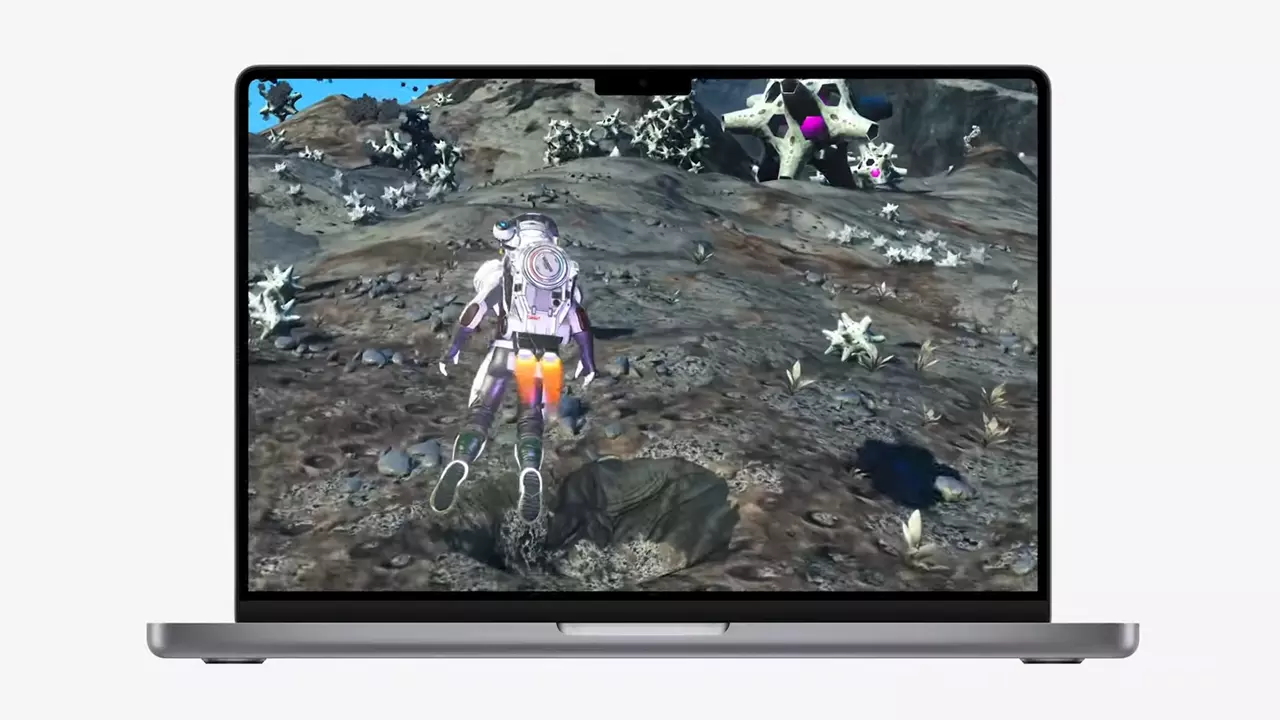
So far three official games that will use this technology and be released natively for Appl hardware are Resident Evil 8 Village, GRID legends, and No Man's Sky. All three games have been confirmed and Resident Evil 8 Village is already sent for review people are impressed since the game can run smoothly on all Apple devices, even ones with an M1 CPU.

Apple is back into gaming

When you say Apple gaming is probably the last thing that comes to your mind but truth be told Apple makes more money from games than Microsoft, Nintendo and Sony combined. Also, Apple itself was a big player once regarding computer games as well, Myst and Prince of Persia are games that were made and have been released for Apple first. Bungie was also founded by Apple developers and Halo was originally announced as a Mac game.

Apple has been trying and pushing gaming on its platform since it kind of died down. Today all Sony, Nintendo, and Microsoft controllers work without any issues with all Apple products. Apple also has its own gaming subscription service, Apple Arcade, and its Apple TV is packed with GPU that can rival Xbox ones.

MetalFX API ties and brings it all together, it is designed to get the most performance from the hardware by minimizing overhead.

Now, computers and laptops do not hold any large numbers if we look at the user base, and that could deter developers but if we look at iPad and iPhone things are different there, much different. How same CPU power these devices and how MetalFX is available across all products it is clear that there is a market for games there. No Man's Sky is coming to iPad using these technologies and bringing full computer experience to tablets.

Read More
1 2 3 171
Logo
Copyright © 2023, ErrorTools. All Rights Reserved
Trademark: Microsoft Windows logos are registered trademarks of Microsoft. Disclaimer: ErrorTools.com is not affiliated with Microsoft, nor claims direct affiliation.
The information on this page is provided for information purposes only.
DMCA.com Protection Status