Logo

Fix Realtek HD audio driver issue

Realtek sound device not playing sound is a common Windows issue.  It happens occasionally and luckily it can be solved with a little effort and in a short time period. Today in this article we will explore the most common reasons and solutions for driver malfunction for Realtek inside Windows 10. If you have this particular problem, go from step 1 to the last step since all steps are meant to go from simplest to the most complex.

All of that being said let us fix your Realtek driver issue.

  1. Check Speakers or/and Headphones first

    The first thing would in any troubleshooting be to check are your speakers turned on or are your headphones connected and the volume or switch on them is set properly. Nothing more embarrassing than spending an hour or so troubleshooting only to find out that issue was in a malfunction of speakers or them not being turned on.

  2. Check the Volume control in Windows

    Same as the previous step where you have checked hardware, now it is time to check to see if the volume control is set properly and not by any chance muted or volume is brought all the way down.

  3. Check if the Device Manager is reporting an error and update the driver

    If both hardware is functioning properly and volume control in Windows is set correctly then the issue might be in Windows not detecting device or driver malfunction. In any case, the Device Manager will be the one who will report this problem. In order to check to see if the driver is properly working press ⊞ WINDOWS + X to open the hidden start menu.
    keyboard with windows and x marked
    Once it opens, click on Device Manager to open it,
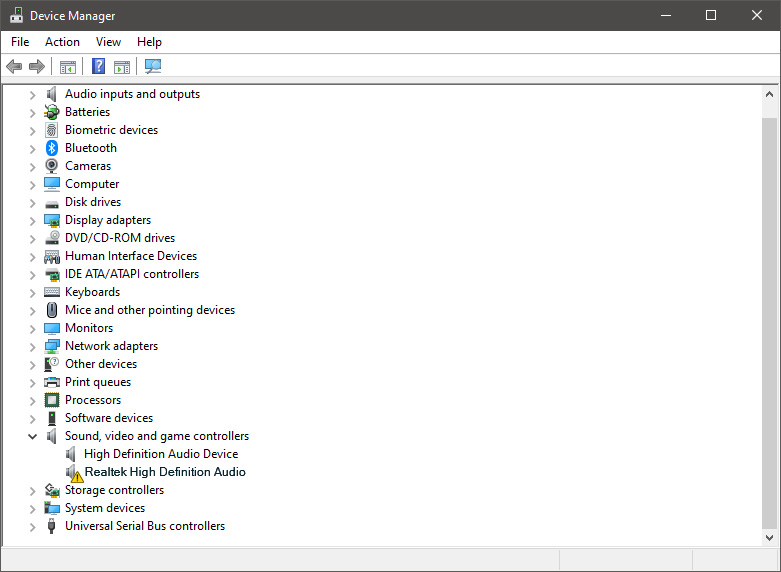
    realtek audio driver in device menager
    If you have a driver device error inside Windows, you should see it immediately when entering the Device Manager, it will have a yellow exclamation mark beside it. Right-click on it and choose update driver.

  4. Reinstall driver

    If driver update failed or you already have the latest drivers, reinstalling them could fix the issue since drivers might have corrupted during installation of some update or application. Follow steps from point 3 to get to the driver in Device Manager, then right-click on it but instead of update choose to uninstall. Reboot Windows once the driver is uninstalled and Windows will install a new one.

  5. Check Windows update

    Check to see if the latest Windows update is installed, update your Windows if needed

  6. Fix driver issue with DRIVERFIX

    If everything else fails, get DRIVERFIX, a premium solution for your PC issues, and fix driver errors.

Do You Need Help with Your Device?

Our Team of Experts May Help
Troubleshoot.Tech Experts are There for You!
Replace damaged files
Restore performance
Free disk space
Remove Malware
Protects WEB browser
Remove Viruses
Stop PC freezing
GET HELP
Troubleshoot.Tech experts work with all versions of Microsoft Windows including Windows 11, with Android, Mac, and more.

Share this article:

You might also like

How to save google DOC as a PDF

Google Docs has cemented itself as a great free alternative to Microsoft Office Word. Most of the time people just share links to google Docs among themselves but sometimes you need to save and download files.

PDF

Luckily Google docs let you download easily files in various formats including PDF as well. In this short tutorial we will explain how can you download your Google document as a PDF file.

Saving Google Docs as a PDF

Open the Google document inside the browser and click on the File drop-down menu. In the file drop-down menu go to Download and choose PDF document. Next, choose the location where you would like your file to be saved and click on SAVE.

And that's all that needs to be done. Also, you can edit PDF files as well in google docs if you need to.

Read More
Fix Windows Sandbox failed to start 0x80070015
As of late, many users reported getting an error in Windows Sandbox that has an error code of 0x80070015. According to users, they encountered this error when they tried to start Windows Sandbox. Based on the error code, it seems that there are some problems with the supporting services of Windows Sandbox that trigger the error. It is possible that these services are misconfigured or that they are outdated and have to be updated. Here’s the complete message of the error:
“Windows Sandbox failed to start. Error 0x80070015. The device is not ready. Would you like to submit feedback about this issue?”
If you are one of the users who encountered this kind of error in Windows Sandbox, then you’ve come to the right place as this post will help you sort this problem out. All you have to do is follow each one of the options provided below.

Option 1 – Make sure that all the supporting processes and services of Windows Sandbox are running properly

If running Windows Sandbox as an administrator didn’t fix the error, you have to ensure that all related processes for Windows Sandbox are running properly. To do that, follow these steps:
  • Tap the Win + R keys to launch the Run utility and type “services.msc” in the field and hit Enter to open the Windows Services Manager.
  • Next, from the list of services, look for the following services in the given order:
    • Network Virtualization Service: (Startup type: Manual)
    • Virtual Disk: (Startup type: Manual)
    • Hyper – V Virtual Machine: (Startup type: Manual)
    • Hyper – V Host Compute Service: (Startup type: Manual)
    • Container Manager Services: (Startup type: Automatic)
  • After you find the aforementioned services, restart each one of them.
  • Once done, try to open the Windows Sandbox again and see if the error is fixed or not.

Option 2 – Try to install any pending Windows Updates

If the second option still didn’t work, then you might want to check Windows Updates on your computer and see if there are any pending Windows Updates you have to install. All you have to do is go to the Windows 10 Settings app and then go to the Windows Updates section and click on the “Check for updates” button to check if there are any pending updates that are needed to be installed. This could fix the Windows Sandbox Error 0x80070015.

Option 3 – Try to run Windows Sandbox as an admin

  • In the Start Menu, scroll down until you see the entry for the Windows Sandbox.
  • Then right-click on it and select More and then select the “Run as administrator” option to open it with admin privileges.
  • Next, if a User Account Control or UAC prompt pops up, just click on Yes to proceed.
  • You should now be able to open the Windows Sandbox without the error. However, if the error persists, proceed to the next given option below.
Read More
Fix Error 0x8000704ec in Windows 10
Universal Windows Platform (UWP) applications are the modern application in the windows store that can be used in all the Window devices like Xbox, Hololens, Tablet, PC or Phone. Basically, UWP provides a common platform for every device that runs Windows 10. When attempting to login into these applications and receive this error:
Can’t sign in with a Microsoft account This program is blocked by group policy. For more information, contact your system administrator. 0x8000704ec
Then this post is for you. We will guide you on how to easily resolve issues, please follow the steps provided.
  1. Local group policy editor solution

    • Press ⊞ WINDOWS + R to open the Run dialog.
    • In the Run dialog box type gpedit.msc and press ENTER to open Group Policy Editor.
    • Inside the Local Group Policy Editor, navigate to the path below:
    Computer Configuration > Windows Settings > Security Settings > Local Polices > Security Options
    • On the right pane, double-click on Accounts: Block Microsoft accounts to edit its properties.
    • Under Local Security Setting tab, click on the drop-down and select This policy is disabled.
    • Click Apply > OK to save the changes.
    • Exit Group Policy Editor.
  2. Registry editor solution

    As always, it is highly recommended to make a backup of the registry editor just in case that something goes wrong.
    • Press ⊞ WINDOWS + R to open the Run dialog.
    • In the Run dialog box, type regedit and hit ENTER to open Registry Editor.
    • Navigate to the registry key path below:
    HKEY_LOCAL_MACHINE\SOFTWARE\Microsoft\Windows\CurrentVersion\Policies\System
    • At the location, on the right pane, identify the NoConnectedUser key. The key value might be set to either 1 or 3.
    • Now, double-click the NoConnectedUser entry to edit its properties.
    • Input 0 in the Value data field and hit Enter to save the change.
Read More
How to remove Aro 2012 from your Computer.

Aro2012 is a PC Optimizer Software that typically comes bundled with other software. Even though Aro2012 poses no threat itself, the programs that it comes bundled with may pose a problem to your computer.

From the Author: ARO is an advanced repair and optimization utility designed to help improve and maintain computers running the Windows operating system (both 32- and 64-bit). ARO focuses on finding errors that hide out in the Windows registry, identifying PC and web browser clutter that may be hindering PC performance, and ensuring computers have adequate security solutions installed and up to date. With its advanced scanning engine, ARO provides deep scanning capabilities to identify and repair registry errors. ARO also searches for and removes “junk” files that accumulate over time and can put a damper on PC performance.

When installed Aro2012 creates a startup entry that allows it to run each time the computer is started. It also adds a task scheduler that allows it to run at various times.

About Potentially Unwanted Applications

Have you ever found an unwanted program on your computer system and pondered how it got there since you are sure you didn’t purposefully download and never gave authorization to be installed? A PUA / PUP (potentially unwanted application / potentially unwanted program) is a piece of software that comes bundled with freeware/shareware and you agree to install on your computer. These are programs you definitely don’t want on your PC since it doesn’t give any beneficial service. The term PUP was first coined to outline this downloadable crapware as something other than malicious software. The reason is, most PUPs get into a PC not because they slip via the security holes, for instance, but because the users have installed them by themselves – 100 % unintentionally needless to say. PUPs might not be malware but nevertheless, they are dangerous programs for your laptop or computer. At best, these types of unwanted programs provide hardly any benefit, and at worst, they can be quite harmful to your computer.

What do PUPs do on your PC, precisely?

Most Potentially Unwanted Programs comes in the form of adware, which typically aims to exhibit lots of annoying pop-up ads, banners, coupons, and bargains on web pages you explore. PUPS also comes in the form of unwanted toolbars or browser plug-ins. Not only they entirely take up space on your computer screen, but toolbars could also manipulate search engine results, track your surfing activities, decrease your internet browser’s overall performance, and slow down your internet connection to a crawl. They could appear innocent but PUPs tend to be spyware. And in the large majority of the cases, end-users will not be aware that they’re installing an unwanted program. These are software programs that don’t do anything useful to you; in addition to taking up space on your hard disk drive, they will also slow down your computer, often modify settings without your permission, and the list of frustrating features goes on and on.

How can you avoid ‘crapware’

• Read the fine print so that the end-user license agreement (EULA) you’re accepting is only for the program you actually intend to download. • Always choose “Custom” or “Advanced” installation and never blindly click the Next button, which should let you uncheck any “foistware” software programs you do not want. • Have a solid anti-virus program such as Safebytes Anti-malware that can protect your computer from PUPs. As soon as you install this software, protection from malware and PUPs is already turned on. • Avoid installing a freeware application you will not use. Nowadays ‘freeware’ isn’t actually freeware – but “crapware” bundling nonsense. • Don’t download software programs from pop-ups, online advertisements, file sharing websites, as well as other unreliable sources; look out for any preset, unwanted options when downloading the program. Avoid visiting blogs and sites that support pirated programs.

What To Do When You Cannot Install Any Anti-Malware?

Practically all malware is inherently unsafe, but certain kinds of malicious software do a lot more damage to your computer than others. Some malware is designed to interfere with or prevent things that you’d like to do on your computer. It may well not permit you to download anything from the net or it will prevent you from accessing some or all of the websites, especially the antivirus sites. If you’re reading this, odds are you’re stuck with a malware infection that is preventing you to download and install the Safebytes Anti-Malware program on your computer. Although this type of issue will be harder to get around, there are some actions you can take.

Install in Safe Mode

If the malware is set to load at Windows startup, then booting in safe mode should avoid it. Only minimal required applications and services are loaded when you start your computer into Safe Mode. To launch your Windows XP, Vista, or 7 computers in Safe Mode with Networking, follow the instructions below. 1) At power-on/startup, hit the F8 key in 1-second intervals. This should bring up the Advanced Boot Options menu. 2) Use the arrow keys to select Safe Mode with Networking and hit ENTER. 3) Once this mode loads, you should have internet access. Now, get the virus removal application you need by using the internet browser. To install the program, follow the guidelines within the setup wizard. 4) Immediately after installation, do a complete scan and let the software get rid of the threats it detects.

Download the antivirus program in a different internet browser

Web-based viruses could be environment-specific, aiming for a particular internet browser or attacking specific versions of the browser. If you seem to have a trojan attached to Internet Explorer, then switch over to a different internet browser with built-in security features, such as Chrome or Firefox, to download your favorite antivirus program – Safebytes.

Install and run anti-malware from a Thumb drive

Another option is to create a portable antivirus program on your USB flash drive. Adopt these measures to use a thumb drive to clean your corrupted system. 1) Make use of another virus-free computer to download Safebytes Anti-Malware. 2) Insert the USB drive on the same computer. 3) Double-click the Setup icon of the antivirus software to run the Installation Wizard. 4) Select the USB flash drive as the destination for saving the software file. Follow the on-screen instructions to finish the installation process. 5) Now, insert the pen drive into the corrupted PC. 6) Run the Safebytes Anti-malware directly from the flash drive by double-clicking the icon. 7) Simply click “Scan Now” to run a scan on the affected computer for viruses.

SafeBytes Anti-Malware: Lightweight Malware Protection for Windows PC

Want to install the very best anti-malware software for your laptop or computer? There are plenty of applications available that come in paid and free versions for Windows systems. Some of them are excellent, some are ok types, and some will ruin your PC themselves! You need to pick out a product that has obtained a good reputation and detects not only viruses but other kinds of malware also. On the list of strongly recommended applications by industry experts is SafeBytes Anti-Malware, the most dependable program for Microsoft Windows. SafeBytes can be described as a powerful, real-time antivirus application that is designed to assist the typical computer user in protecting their computer from malicious threats. Using its outstanding protection system, this software will quickly detect and get rid of most of the security threats, including adware, viruses, browser hijackers, ransomware, trojans, worms, and PUPs. SafeBytes has got a plethora of wonderful features that can help you protect your computer from malware attacks and damage. A few of them are given as below: Active Protection: SafeBytes provides round-the-clock protection for your personal computer limiting malware attacks instantly. It’ll continuously monitor your laptop or computer for hacker activity and also gives users superior firewall protection. Most Reliable AntiMalware Protection: With a critically acclaimed malware engine, SafeBytes gives multilayered protection which is designed to catch and remove viruses and malware which are concealed deep in your computer. Extremely Speed Scanning: SafeBytes’s very fast malware scanning engine lessens scanning times and extends battery life. At the same time, it will effectively detect and remove infected computer files or any internet threat. Website Filtering: Through its unique safety ranking, SafeBytes notifies you whether a website is safe or not to access it. This will ensure that you’re always certain of your online safety when browsing the web. Minimal CPU and RAM Usage: This software is lightweight and will run quietly in the background, and will not affect your computer efficiency. Premium Support: Support service is readily available for 24 x 7 x 365 days through email and chats to answer your queries.

Technical Details and Manual Removal (Advanced Users)

To eliminate Aro 2012 manually, go to the Add or Remove programs list in the Control Panel and choose the program you want to get rid of. For web browser plug-ins, go to your web browser’s Addon/Extension manager and select the add-on you intend to disable or remove. It is also advised to reset your web browser to its default state to fix corrupt settings. To ensure complete removal, find the following registry entries on your computer and remove them or reset the values accordingly. Please keep in mind that only professional users should try to manually edit the registry because removing any single critical system file results in a serious issue or perhaps a PC crash. Additionally, some malicious programs have the capability to defend against its deletion. Completing this task in Safe Mode is advised.
Files: Search & Delete ARO2013_tbt.exe CleanSchedule.exe soref.dll AROSS.dll CheckForV4.dll aro.exe Registry: Search and delete: CURRENT_USER / AROReminder

Read More
How to fix disk signature collision problem
As you know, storage devices are an important part of the computer system for porting, saving, and extracting data files. And for you to differentiate between storage devices on your computer system, each one of the storage devices is labeled with a unique number referred to as Disk Signature for identification. The unique disk identifier is stored as a part of the MBR or Master Boot Record. Disk signature is used by operating systems in order to identify and set apart different data storage devices and hard disk drives in the computer for data access. These days, Disk cloning has become a regular practice in upgrading to larger hard disk drives. Drives are cloned in order to produce a similar copy to use both the original drive and cloned copy together. Moreover, lots of virtualization tools are being used to virtualize the physical hard disk drives to create virtual hard disk drives and several virtual machine clones that are created with the existing virtual hard disk drives. And since these are identical copies, chances these copies may have identical disk signatures. As a result, when you use both disks that have identical signatures at the same time you run into the Disk Signature Collision problem. This kind of problem does not often occur as the Windows system does not really allow two disks to function simultaneously when they have the same disk signature. When you encounter a Disk Collision problem in your Windows 10 computer, you may see the following error messages:
  • The boot selection failed because a required device is inaccessible
  • The disk is offline because it has a signature collision
  • This disk is offline because it has a signature collision with another disk that is online
You can fix the disk collision problem by changing the disk signature which you can achieve using the command line utility diskpart in Windows PowerShell or Command Prompt or using Windows Disk Management utility. To fix the disk collision problem, you can make use of the command-line utility called diskpart in Windows PowerShell or Command Prompt to view and change the signature, or can make use of Master Boot record in the Windows Registry. You can also make use of Windows Disk Management Utility to change the signature. Simply follow the given options below to change the disk signature either way.

Option 1 – Change Disk Signature via Diskpart

  • Type “command prompt” in the Windows Search bar and then right-click on the related search result and select the “Run as administrator” option.
  • After that, type the “diskpart” command and hit Enter to open Diskpart.
  • Next, type the “list disk” command to display all the disks available in the system.
  • Next, take note of the problematic disk number with the status Offline from the list and then type the “Select disk x” command where x is the offline disk to select the offline disk. For instance, if you type “select disk 1”, it will display the “Disk 1 is now the selected disk” message.
  • Now type the “Uniqueid disk” command to display the disk signature and to change the disk’s signature and set the disk online, type the “unique disk ID= (New signature)” where (New signature) is the new ID in hexadecimal. For instance, you can set the new id as “unique disk ID= 1456ACBD”.
Note: If you have given the wrong format ID, the command prompt will display the following error:
“The specified identifier is not in the correct format. Type the identifier in the correct format: in hexadecimal form for an MBR disk or as a GUID for a GPT disk.”
  • After you’re done, the disk will be online, and then restart your computer.

Option 2 – Change Disk Signature via Disk Management Utility

  • Tap the Win + R keys to open the Run dialog box and then type “diskmgmt.msc” and hit Enter or click OK to open Disk Management.
  • Next, right-click on the disk that is marked as Missing or Offline.
  • After that, select the Online command from the drop-down menu.
  • Then from the selecting option Online, Windows will generate a new disk signature.
Read More
CLR20R3 error while launching an Application
CLR20R3 error is received when you are launching an application in Windows 10. It can happen because of two reasons, a corrupted application file or missing system components. Keep on reading in order to find solutions to fix this error.
  1. Run the program in compatibility mode

    Locate problematic application executable file Right-click on executable Click on properties Go to the compatibility tab and try running the application in the previous version of Windows or as an administrator.
  2. Reset Windows media component

    Right-click on Start, then left-click on command prompt (admin) In command prompt type next command and after each line of command press ENTER regsvr32 atl.dll cd C:\WINDOWS\eHome ehSched /unregServer ehSched /service ehRecvr /unregServer ehRecvr /service ehRec.exe /unregServer ehRec.exe /regserver ehmsas.exe /unregServer ehmsas.exe /regserver
  3. Reinstall Windows media player

    Go to control panel Click on Program and Features > Turn Windows feature on or off. Expand Media Features, uncheck Windows Media Player, and click Ok. Restart your PC, go through the same steps, tick Windows Media Player, and restart your computer once again.
  4. Reinstall .NET framework

    Go to control panel Click on Program and Features > Turn Windows feature on or off. Uncheck “.NET Framework 3.5” and “.NET Framework 4.8”, and click Ok. Restart your computer, go through the same steps, check “.NET Framework 3.5” and “.NET Framework 4.8”, and restart your computer once again.
  5. Update Windows

    Go to settings and check for updates
Read More
Intel & MS fixed DRM issue with alder lake
Due to its hybrid core technology, the Alder Lake line of processors had some DRM issues with some game titles where DRM protection software detected hybrid core design switching via manager as a hack attempt and prevented the game from working properly. Over 50 titles were affected by this issue, now only 3 remain still affected but it is being worked on them so that can be also resolved. alder lake drmIntel says that the remedy to the issue for these games is the scroll lock fix which can be done so by enabling Legacy Game Compatibility mode from the BIOS of your motherboard. When running the said games, you can press scroll lock to park the E-cores on Intel's Alder Lake Desktop CPUs to get rid of DRM issues. Certain motherboard manufacturers such as MSI and Gigabyte have made this even easier through software tools with which you don't have to access the BIOS. All you need to do is select a button in the tool which works on both Windows 11 and Windows 10 operating systems and you will enable compatibility mode.

Read More
Fix Microsoft Edge Error 0x80200070
As you know, any software needs sufficient CPU power when it downloads, updates and installs so if you encounter an error code 0x80200070 when you tried to install or update the Microsoft Edge browser on your Windows 10 computer, then read on as this post will guide you on how to fix it. This kind of error occurs when the Edge browser installation does not get enough CPU power to update or install and the only way to fix it is to kill programs that are consuming a lot of PC resources as well as stop or remove any unnecessary programs that are running in the background. This kind of error can also be encountered in the new Microsoft Edge Chromium. For more details, follow each one of the options provided below.

Option 1 – Try to kill applications that consume high resources

  • Tap the Ctrl + Shift + Esc keys to open the Task Manager.
  • Go to the Performance tab and sort by CPU usage.
  • Next, close a few additional programs that are consuming maximum CPU power.
  • After that, try to update or install Microsoft Edge again and check if the error is fixed. If not, try to restart your computer and then start the installation or update again.

Option 2 – Try to remove or stop unnecessary programs and services

If the applications or processes that are consuming a lot of CPU resources reappear even after you kill them or end their processes, then you can try the following suggestions to remove or stop these unnecessary programs and processes.
  • The first thing you can do is to stop the Service. If the program happens to be a service, then you have the option to disable the Windows Service. All you have to do is open the Services Manager and stop the service. How? Refer to these steps:
    • Tap the Win + R keys to launch the Run utility and type “services.msc” in the field and tap Enter to open the Services Manager.
  • After that, identify which service is consuming a lot of power and then stop it temporarily.
  • The next thing you can do is to uninstall the problematic program. If the one that consumes a lot of resources is not a service but a program, then you can try to uninstall the program for the meantime until you’ve updated or installed the Edge browser. Once you’ve uninstalled the program, try to update or install Edge again.
  • You can also try booting your computer into Safe Mode and then update or install Microsoft Edge. This will make sure that all the unnecessary programs and services won’t consume a lot of CPU resources as well as memory.
Read More
Fix Error Accessing the Registry in Windows
If you encounter an error saying, “error accessing the registry” when you try to merge a registry key on your Windows 10 computer, you’re not alone as some users also experienced the same problem. According to these users, they encounter the error after they’ve re-installed their Windows version and tried to open a .reg file. Based on the reports, this error could occur if the registry file does not have administrative privileges. Meaning to say, the program does not have the necessary permission to merge the .reg file. This is common with fresh installs as well as reinstalls. Moreover, this kind of issue could also occur due to system file corruption. Whichever the case may be, here are some troubleshooting tips you can check out to resolve the error.

Option 1 – Try to import the .reg file with admin privileges

As pointed out, the error may be due to a lack of admin privileges. It could be that the Registry Editor does not have admin privileges to merge the registry file. This is common with new Windows installations especially since the Registry Editor hasn’t been opened before. So you need to import the .reg file again and this time, with admin privileges.
  • Tap the Win + R keys to open the Run dialog box.
  • Then type “Regedit” in the field and tap the Ctrl + Shift + Enter keys to open the Registry Editor with admin privileges.
  • A User Account Control or UAC prompt will appear where you have to click Yes to proceed.
  • After opening the Registry Editor, go to File > Import using the ribbon bar at the top.
  • Next, use the import menu to go to the location of the file you were trying to merge. Once you’ve found it, click Open to merge it with your current registry. This should fix the problem. If not, refer to the next options below.

Option 2 – Try performing a System Restore

Running System Restore can also help you fix the error when accessing the Registry. You can do this option either by booting into Safe Mode or in System Restore. If you are already in the Advanced Startup Options, just directly select System Restore and proceed with the next steps. And if you have just booted your PC into Safe Mode, refer to the steps below.
  • Tap the Win + R keys to open the Run dialog box.
  • After that, type in “sysdm.cpl” in the field and tap Enter.
  • Next, go to the System Protection tab then click the System Restore button. This will open a new window where you have to select your preferred System Restore point.
  • After that, follow the on-screen instructions to finish the process and then restart your computer and check if the problem is fixed or not.
  • Once the next startup is complete, you have to merge or import the file again and see if the error is now fixed or not.

Option 3 – Try to perform repair install by creating a Windows 10 installation media

  • Click this link and then click the Download Tool Now button.
  • Next, click the “Use the tool to create installation media (USB flash drive, DVD, or ISO file)…” option and follow the next given instructions on the screen.
  • Now select the ISO file option in step 5.
  • After that, you should now have an ISO file.
  • Next, go to the location where you’ve downloaded the ISO file.
  • Then right-click on the Windows 10 ISO file and select the Open with option and then select File Explorer.
  • Now click on “setup.exe” and follow the next instructions that appear on the screen. When asked, you have to select either Nothing (clean install) or Keep personal files only option. Take note that you must not select the “Keep personal files, apps, and Windows settings since it doesn’t really work.

Option 4 – Try running the System File Checker Scan

As mentioned, the error when accessing the Registry might be caused by file corruption. And that’s where the SFC scan comes in. The SFC or System File Checker scan could detect and automatically repair damaged system files. SFC is a built-in command utility that helps in restoring corrupted files as well as missing files. It replaces bad and corrupted system files with good system files. To run the SFC command, follow the steps given below.
  • Tap Win + R to launch Run.
  • Type in cmd in the field and tap Enter.
  • After opening Command Prompt, type in sfc /scannow
The command will start a system scan which will take a few whiles before it finishes. Once it’s done, you could get the following results:
  1. Windows Resource Protection did not find any integrity violations.
  2. Windows Resource Protection found corrupt files and successfully repaired them.
  3. Windows Resource Protection found corrupt files but was unable to fix some of them.
  • Now restart your computer.
Read More
How to Fix Logon.scr Application Error

Logon.scr Application Error - What is it?

To understand Logon.scr application error, it is first important to understand the function of logon.scr. Logon.scr is an important file that is located in the Windows\System32 folder. It guarantees Windows systems stability. Logon.scr application error occurs when logon.scr file gets corrupt. It is a common system error that can happen in most Windows platforms. It usually pops up during system start-ups and when trying to launch certain programs. Some of the common systems of this error code include: system halt, freeze, no application icons are visible on the desktop, random blue screen of death and system performance decreases dramatically.

Solution

Restoro box imageError Causes

Two of the most common causes of logon.scr application error is:
  • Corrupted and damaged logon.scr file
  • Viral infection
It is advisable to fix this error code immediately because it leads to serious damages. It is fatal and can result in a system crash; therefore resolve it right away.

Further Information and Manual Repair

To resolve this issue on your computer you don’t have to spend hundreds of dollars to hire a professional for the job. The good news is that it can be repaired easily and does not require any technical expertise. Here are some of the most effective and easy DIY methods to resolve the error on your screens.

Method 1 - Replace the Damaged and the Corrupted Logon.scr File

Whether the file gets corrupted or is accidentally deleted, the best way to fix the issue is to download the Logon.scr file again from a reliable website and install in the following location C:\Windows\System32. Alternatively you can also get the file copy form another proper functioning computer by using flash drive if you don’t have an internet connection to download the logon.scr file online.

Method 2 - Restore Points by Applying System Restore of Windows

Another way to resolve this is to restore points to bring back your system to the previous state before the error occurred. To do this, simply click the start button and type ‘System Restore’. Now click System Restore in the result and click next. Select the restore point in the list and click the next button to proceed. To activate changes reboot your PC.

Method 3 - Scan and Remove Viruses

If Logon.scr application error still persists, then it could be due to viruses. To resolve, install a powerful anti-virus. Scan your entire PC and remove viruses.

Method 4 - Repair the Registry

Corrupt and damaged Logon.scr file also triggers issues with the registry. DLL files and other important files like Logon.scr application files may get damage due to too many bad and invalid registry entries. Registry stores all the activities performed on the PC including unnecessary files like junk files and cookies. If these are not removed timely, these files accumulate and corrupt important files. Therefore, to fix the error it is advisable to clean and repair the registry. The best way to go about is to download Restoro. This is a user-friendly and multi-functional PC Fixer deployed with a registry cleaner. It scans for all registry errors and removes all the invalid entries. It cleans the registry and repairs the damaged files thereby resolving the issue in seconds. Click here to download Restoro and resolve the Logon.scr application error now!
Read More
1 2 3 171
Logo
Copyright © 2023, ErrorTools. All Rights Reserved
Trademark: Microsoft Windows logos are registered trademarks of Microsoft. Disclaimer: ErrorTools.com is not affiliated with Microsoft, nor claims direct affiliation.
The information on this page is provided for information purposes only.
DMCA.com Protection Status