Logo

Upcoming comic book movies with release dates

upcoming comic moviesThe World of Superhero movies has gone through some interesting variations, from good ones to bad ones, from big-budget ones to small ventures, even from large well-known characters to niche ones.

No matter what you think of some of them no one would disagree that since the release of Iron Man and starting Marvel cinematic universe superheroes movies exploded in popularity.

Following the Superhero craze, let’s see what is coming up in comic books transferred to big screens with their release dates.

List of upcoming movies

Shang-Chi and the Legend of the Ten Rings, Sept. 3, 2021 Trailer

Venom: Let There Be Carnage, Oct. 15, 2021 Trailer

Eternals, Nov. 5, 2021 Trailer

Spider-Man: No Way Home, Dec. 17, 2021 Trailer

Morbius, Jan. 28, 2022 Trailer

The Batman, March 4, 2022 Trailer

Doctor Strange in the Multiverse of Madness, March 25, 2022

Thor: Love and Thunder, May 6, 2022

DC League of Super-Pets, May 22, 2022

Black Panther: Wakanda Forever, July 8, 2022

Black Adam, July 29, 2022 Trailer

Spider-Man: Into the Spider-Verse 2, Oct. 7, 2022

The Flash, Nov. 4, 2022

The Marvels, Nov. 11, 2022

Aquaman and the Lost Kingdom, Dec. 16, 2022

Do You Need Help with Your Device?

Our Team of Experts May Help
Troubleshoot.Tech Experts are There for You!
Replace damaged files
Restore performance
Free disk space
Remove Malware
Protects WEB browser
Remove Viruses
Stop PC freezing
GET HELP
Troubleshoot.Tech experts work with all versions of Microsoft Windows including Windows 11, with Android, Mac, and more.

Share this article:

You might also like

A Guide to Fixing Error 0x80004005

Error 0x80004005 - What is it?

Error 0x80004005 is a typical Outlook error. This error code occurs either when sending emails or receiving them. The error message may be displayed in either of the following formats:
‘Sending and receiving reported error "0x80004005": The operation failed.’ ‘This message could not be sent. Try sending the message again or contact your network administrator. The client operation failed. Error is [OX80004005- 0X0004B9-OXOO501].’

Error Causes

There are several causes for the error 0x80004005 such as:
  • The Script Blocking Feature Enabled While Using Norton Antivirus
  • Spyware
  • Viruses
  • Registry problems-Missing or corrupt registry keys
It is advisable to repair and resolve error 0x80004005 immediately as it may cause a great deal of inconvenience to you. This error may hamper your ability to receive and send emails from your Outlook account and lower your productivity too as you may be unable to communicate with your peers.

Further Information and Manual Repair

To fix error 0x80004005, you don’t have to wait for the network personnel or be a technical expert yourself. This may be a critical error but the good news is that it is easy to resolve. Here are some effective methods and quick fixes to resolve the error 0x80004005 instantly.

Method 1: Disable Script Blocking Feature in Norton Antivirus

After installing Norton Antivirus on your PC, if you start experiencing the Outlook error 0x80004005, then the best way to resolve it is to simply disable the script blocking feature. However, the downside of this is that by disabling this feature your PC will become vulnerable to viruses and malware.

Method 2: Disable the New-Mail Notification Feature in MS Outlook

If you don’t have Norton Antivirus downloaded on your PC, then try method 2. This method involves disabling the new-mail notification feature in MS Outlook. The error code 0x80004005 is often resolved by switching off this feature. Try it to see if it works. To disable the new-mail feature all you have to do is open your Outlook account and then go to the Tools menu, then go to Options and then select the ‘Preferences’ tab. After that click on the ‘Emails Options’ tab and then simply uncheck the check-box against ‘Display a notification message when new mail arrives’. To confirm changes press OK.

Method 3: Scan for Viruses

The error 0x80004005 may also be triggered due to viral infection or spyware. Such malicious software enters your PC through phishing emails and while downloading files and attachments. You may not be aware of this but your PC may be infected by viruses. It is important you remove them immediately as they can expose you to serious risks including privacy issues, identity thefts, data breaches, and more.
Read More
Signs that someone is spying on you via your phone

Spying via some malicious app on the target phone is not a new thing but it can be very uncomfortable and even against the law in some countries.

Infecting the target phone can be done in various ways, another person can intentionally download and install applications on it, and you can install them via some phishing attacks or by an online scam. Once installed this piece of software presents a very serious invasion of privacy since it can track text messages, track phone location in real-time, record calls in real-time, eavesdrop on calls, take control of the camera and microphone, and many other applications.

spy phone

Here are some common symptoms of mobile phones infected with spyware.

Symptoms of spyware

Random reboots
Slow performance
Strange text messages
Overheating
Unusual high data usage
Non-familiar apps in the app list
The fast drain of the battery
Long shutdown time
Strange interference and sounds during calls
Signs of activity during standby mode

If your phone exhibits any of these symptoms you might have a spyware app installed and running on it.

Common spy apps

There are many apps that have been designed to spy on people that can be downloaded in the app store or on Google Play today. Most of these spyware apps are aimed at parents wanting to keep an eye on and protect their children. However, these can be used by anyone in order to spy on a target person via their phone.

Below is a list of common apps that can be used to spy on you. Many spyware apps require a phone to be ‘jailbroken’ or ‘rooted’ before being installed, this is when the phone’s operating system is changed to allow the phone to become unlocked and customizable.

mSpy : An undetectable spying app for iOS devices. It can be used to read your chats, see your location, view your email, check your call history, record your keystrokes, and more.

Spyera : This app requires rooted and jail-broken iPhones to work. It can go undetected and monitors phone calls and your call history. It even allows call recording and eavesdropping on live calls.

Flexispy : Flexispy prides itself as the #1 phone monitor for parents and can monitor everything from calls to social texts.

Umobix : This powerful spyware app has a dashboard that allows users to easily monitor someone’s location, calls, texts, keystrokes, all major social media, and more. You can detect Umobix because it heats up the infected phone and greatly affects the battery life of the infected device.

Ikey Monitor : Although it requires the device to be rooted for Android or jailbroken for iPhones, this spy app captures keystrokes, passwords, and screenshots, allows for call recording and supports multiple languages.

Clevguard : Available for both iOS and Android, Clevguard allows users to track GPS and Wi-Fi locations, capture screenshots remotely, and more. Due to a recent update, the spy app drains the target phone’s battery significantly.

Remove spyware from your phone

If any of the beforementioned apps are present on your phone you need to remove them right away.

Go to your phone settings and remove the malicious applications, then download some protection suite and scan the whole phone for any other trace of software remains or other malware apps.

Read More
Fix Chrome ERR_SOCKET_NOT_CONNECTED
Recently, a number of users reported an error in Google Chrome that says, “ERR_SOCKET_NOT_CONNECTED”. If you are one of these users, read on as this post will guide you in resolving this error. This kind of error in Chrome is kind of vague so it could be caused by a couple of factors like DNS server issues, Socket Pools, third-party plugins or extensions, and many more. Whatever the cause may be, there are several options you can check out to resolve the problem. You can try to flush the Socket Pool or change the DNS address or remove unwanted extensions or reset your Google Chrome browser.

Option 1 – Try to flush the Socket Pool

  • Open Google Chrome and in the address bar, type “chrome://net-internals/”.
  • After that, select Sockets on the left side panel.
  • Next, select Flush socket pools from the right-side panel.
  • And once it’s done, restart your Chrome browser and check if the “ERR_SOCKET_NOT_CONNECTED” is fixed or not.

Option 2 – Try to change the DNS Server

In this option, you can try changing your current DNS settings to the Google Public DNS as it could also help in fixing the “ERR_SOCKET_NOT_CONNECTED” error. To do so, follow the steps below.
  • The first thing you have to do is right-click on the network icon in the Taskbar and select Network and Sharing Center.
  • Next, click on the “Change Adapter Settings” option.
  • After that, search for the network connection that you are using to connect to the internet. Note that the option might be “Wireless Connection” or “Local Area Connection”.
  • Right-click on your network connection and click on Properties.
  • Then select the new window to choose the “Internet Protocol 4 (TCP/IPv4)” option.
  • After that, click on the Properties button and click the checkbox in the new window for the option “Use the following DNS server addresses”.
  • Type in “8.8.8.8” and “8.8.4.4” and click OK and exit.

Option 3 – Get rid of any conflicting browser extensions

  • Open Chrome and press Alt + F keys.
  • Go to More tools and click Extensions to look for any suspicious browser extensions or toolbars.
  • Click the Recycle bin and select Remove.
  • Restart Chrome and press Alt + F keys again.
  • Proceed to On Startup and mark Open a specific page or set of pages.
  • To check if the browser hijacker is still active, click Set pages, if it is active, overwrite the URL.

Option 4 – Try to reset Google Chrome

Before you proceed, make sure that the Chrome browser is not running anywhere in the background via Task Manager. Once you’ve made sure that it’s no longer running, refer to these steps:
  • Tap the Win + R keys to open the Run dialog box.
  • Then type “%USERPROFILE%AppDataLocalGoogleChromeUser Data” in the field and tap Enter to open this location.
  • From there, look for the Default folder and then tap the Shift + Delete button and if a confirmation prompt appears, click on Yes.
  • After deleting the Default folder, open Google Chrome and click on the three vertical dots icon located in the top-right corner to open the menu.
  • Next, click on Settings and scroll down and then click on Advanced to open the Advanced Settings.
  • Then scroll down until you see the “Reset and clean up” section and click the “Restore Settings to their original defaults” option.
  • After that, you will see a confirmation box and from there, click on the Reset settings button to reset your Google Chrome browser.
Read More
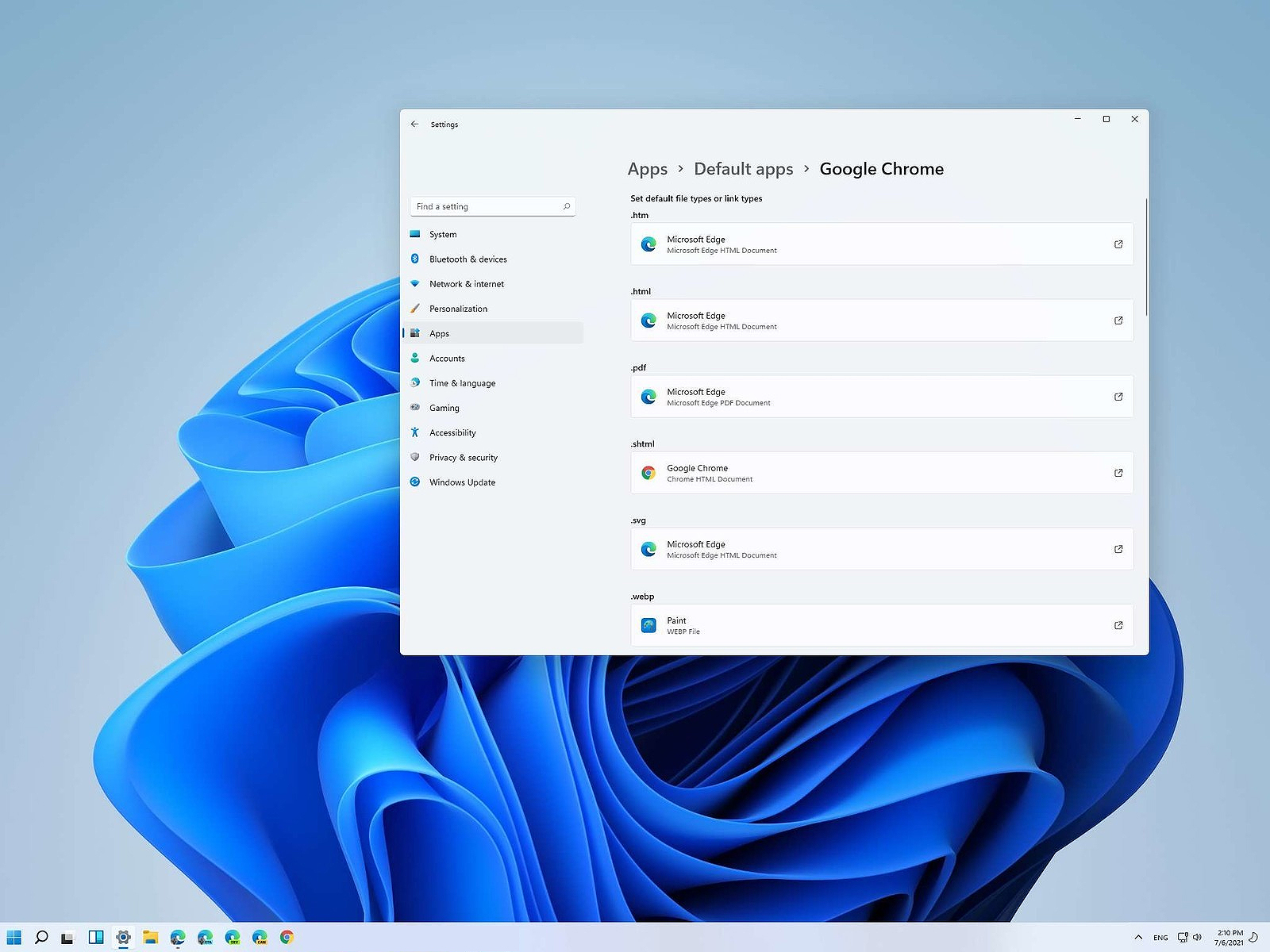
Setting default applications in Windows 11
Setting default applications in Windows 11Same as in previous Windows versions, Windows 11 will also use certain applications as default ones for opening certain file types and file extensions. And yes, same as in previous versions it will come preconfigured for certain file types and associated applications like for example photos for pictures. Of course, users usually have their own favorite applications for certain file types and much more prefer to open them inside the application of their choice instead of the default one. We can change the default application like in previous Windows versions but this time there are two ways and overall more control of this process. Windows 11 has settings for choosing default file type applications and default file extension applications giving you more control of this process.

The opening setting for apps

Whatever you wish to change default application or default extension application you will need to open settings for default application. Follow steps to quickly go into it.
  1. Press ⊞ WINDOWS + I to open settings
  2. Select Apps on left
  3. On the right part select Default Apps
Now you are in settings for choosing default applications

Choosing default application by file type extension

This is considering by Microsoft as a typical way to set default applications inside Windows 11. Once you are inside the settings app there is a box labeled Enter a file type or link type. Inside the search box, type in file extension that you wish to associate the application with like .JPG, .TXT, or other. If the file extension is not associated with any application you will be presented with a Choose a Default button, if however, the file extension is already associated with the app, you will need to click on the app box itself. In any case, a pop-up will appear and ask How do you want to open YOUR FILE EXTENSION files from now on? Choose Application from the list of presented ones and click on OK.

Choosing default file type

Another method is to select the default application by file type selecting application for it. In the settings screen, under the search box, you will have a list of installed applications. Choose the application that you would like to associate a file type with and click on it. On the next details screen scroll down and select the file type that you want to associate with the selected application and click on OK.

Other/third method

There is also the third method for choosing the default application for file type but it includes some surfing on your hard drive and it can be more time-consuming for first-time settings. But it is fairly quick when you need to only use it once on some new file type (for example you have a new application installed and want to switch just one file type extension to that application). Locate the file that you want to associate with the application and right-click on it. Select Open With from the menu and then Choose Another App. Pop up will appear, select the application that you would like to use, and check the box beside Always use this app to open CHOOSEN EXTENSION files followed by clicking on the OK button.
Read More
Cortana is Not Connecting to the Internet
Recently, a number of Windows 10 users reported that they were not able to use Cortana properly because it wasn’t able to connect to the internet. According to these users, Cortana won’t connect to the internet even when their internet connection is stable. According to security experts, this issue is confirmed to occur only with Microsoft accounts. This problem might have something to do with a proxy server that interferes with Cortana. There were reports that this issue was caused by a proxy that was filtering the network connection which also happens to interfere with Cortana’s ability to adapt search results and queries based on the user’s location. It could also be caused by some glitch in the home network or your Microsoft account information is inconsistent or your Microsoft account has to be verified. Here are some suggestions that could help fix the connection issue in Cortana, just start with the first one and work your way down until you encounter an option that fixes the problem.

Option 1 – Restart or reset your modem or router

The first thing you can try is restarting or resetting your modem or router. All you have to do is unplug the power cable of the modem and then plug it back in after a few seconds. You could also use the reset button of the modem at the back if it is one. But before you press the reset button, keep in mind that it will erase all the connection credentials and it will be set back to its default settings. After rebooting the network, you can restart your computer to force your modem or router to reassign an IP address to your computer.

Option 2 – Restart Cortana

Restarting Cortana can help you resolve the issue.
  • To restart Cortana, open the Task Manager, right-click on Cortana and select the “End process” option.
  • Then go to the File tab and select “Run new task”.
  • After that, type in “cortana.exe” and press Enter to restart the process.

Option 3 – Try to remove Proxy

Removing the Proxy might also help you in fixing the connection issue in Cortana. Here’s how you can do it:
  • Tap the Win + R keys to open the Run dialog box.
  • Then type “inetcpl.cpl” in the field and hit Enter to pull up the Internet Properties.
  • After that, go to the Connections tab and select the LAN settings.
  • From there. Uncheck the “Use a Proxy Server” option for your LAN and then make sure that the “Automatically detect settings” option is checked.
  • Now click the OK and the Apply buttons.
  • Restart your PC.
Note: If you are using a third-party proxy service, you have to disable it.

Option 4 – Open another app that uses a Microsoft account

This might seem like an odd fix, however, a couple of users tried doing this and it worked for them as it allowed Cortana to connect to the internet again. In this option, you just have to launch another app that uses your Microsoft account information in the same way as Cortana, for instance, the Store app. Once you open the app, a prompt should appear along with a dialog box that allows you to update your Microsoft account with the information required. After that, restart your computer and check if Cortana is now able to connect to the internet or not.

Option 5 – Verify your Microsoft account

In some cases, Cortana might not be able to connect to the internet because your Microsoft account is no longer verified. This usually happens when you use a two-step authentication system with your Microsoft account. To verify it, just open Settings and click on Accounts. After that, check if you have a Verify hyperlink under your Microsoft account or not then click on Verify. Afterward, follow the next on-screen prompts to verify your Microsoft account. Once your account is verified, restart your computer.

Option 6 – Reset Cortana settings

  • Open Cortana and go to the Settings section where you’ll see the “Turning off Cortana clears what Cortana knows on this device, but won’t delete anything from the Notebook. After Cortana is off, you can decide what you’d like to do with anything still stored in the cloud” option. Turn this option off.
  • Restart your PC.
  • After your computer boots, launch Cortana again and check.
Read More
Fix Error Code 0x80090016 for PIN and MS Store
If you encounter Error Code 0x80090016 while trying to create a PIN or when you are using Microsoft Store, then you’ve come to the right place as this post will guide you in how you can fix this problem. Recently some users reported that they were unable to sign in or set up the Windows 10 Login PIN. Note that the potential fixes for this issue are totally different in both scenarios. Here’s the error message you get when you encounter the PIN related error:
“Something went wrong, We weren’t able to set up your PIN. Sometimes it helps to try again or you can skip for now and do this later.”
On the other hand, here’s the error message you get for the Microsoft Store-related error:
“Try that again, Something happened on our end and we couldn’t sign you in.”
Here are some potential fixes you can try to fix the Error Code 0x80090016 in the Microsoft Store:

Option 1 – Try to sync the Date and Time

The first thing you can try is to sync the Date and Time of your computer as the wrong Date and Time settings are one of the most common causes of connection problems like the Error Code 0x80090016. This is because of the incompatibility between the SSL Certificate validation date and the System Clock. Thus, you have to sync your System Clock. Refer to the steps below to do so.
  • Start by tapping the Win + I keys to open the Windows Settings.
  • Next, go to Time & Language > Date & time.
  • From there, turn the toggle on for the “Set time automatically and Set time zone automatically” option on the right-side panel.
  • After that, click on Region & language located on the left side panel and make sure that the Country or region on the right-side panel is set to the country you live in.
  • Now close the Settings app and restart your computer and see if it fixes the problem or not.

Option 2 – Try to re-register the Microsoft Store app via PowerShell

  • Tap the Win + X key combination or right-click on the Start button and click on the Windows PowerShell (Admin) option.
  • If a User Account Control or UAC prompt appears, just click on Yes to proceed and open the Windows PowerShell window.
  • Next, type in or copy-paste the following command to re-register the Microsoft Store app and tap Enter:
powershell -ExecutionPolicy Unrestricted Add-AppxPackage -DisableDevelopmentMode -Register $Env:SystemRootWinStoreAppxManifest.xml
  • Wait for the process to be completed and then restart your computer.

Option 3 – Try to reset the Microsoft Store cache

Just like browsers, Microsoft Store also caches as you view apps and games so it is most likely that the cache is no longer valid and must be removed. To do so, follow the steps below.
  • Right-click on the start button and click on Command Prompt (administrator).
  • Next, type in the command, “exe” and tap Enter. Once you do, the command will clear the cache for the Windows Store app.
  • Now restart your PC and afterward, try opening Microsoft Store again and then see if Error Code 0x80090016 is resolved or not.

Option 4 – Try to run the Windows Store Troubleshooter

The Windows 10 Store Apps Troubleshooter will help you in fixing the Error Code 0x80090016. This is a great built-in tool from Microsoft that helps users fix any app installation issues. So this is worth a try to solve the problem. This built-in tool also helps you fix the Windows 10 Store if it isn’t working. To use the Windows Store Troubleshooter, follow the steps below.
  • Tap Win + I keys again to open the Windows Settings panel.
  • Go to Update & Security and then go to Troubleshoot.
  • On your right-hand side, scroll down to find the Windows Store Apps and then click on Run the troubleshooter option and see if it fixes the problem.
On the other hand, you can use the options below if you encounter Error Code 0x80090016 while setting up your PIN.

Option 5 – Try to manage the NGC Folder

  • You need to boot your computer into Safe Mode first.
  • Next, delete all the contents of the NGC folder and you can do that by taking ownership of the folder first. To do so, refer to these sub-steps:
    • First, locate the concerned folder and right-click on it then select Properties.
    • Next, click on the Edit button in the Properties window and click OK to confirm if you got a User Account Control elevation request.
    • After that, select user/group from the permission windows or click on the Add button to add another user or group. It would be best if you add “Everyone” to give permission.
    • Then check “Full Control” under the “Allow” column to assign full access rights control permissions.
    • Now edit the permission to Full Control for “Everyone”.
    • Click OK to save the changes made and then exit.
  • After you take ownership of the folder, you can now delete all of its contents.
  • Once you’re done, restart your computer and see if the problem is fixed.

Option 6 – Try to use the Group Policy Editor

  • Tap the Win + R keys to open the Run dialog box
  • Then type “gpedit.msc” in the field and hit Enter or click OK to open the Group Policy Editor.
  • Next, navigate to this setting: Computer Configuration > Administrative Templates > System > Logon
  • After that, double click on “Turn on convenience PIN Sign-in” and set its radio button to Enable. This policy setting has the following description:
“This policy setting allows you to control whether a domain user can sign in using a convenience PIN. If you enable this policy setting, a domain user can set up and sign in with a convenience PIN. If you disable or don’t configure this policy setting, a domain user can’t set up and use a convenience PIN. Note: The user’s domain password will be cached in the system vault when using this feature. To configure Windows Hello for Business, use the Administrative Template policies under Windows Hello for Business.”
  • After you set the radio button to Enable, it will turn on the Logins using the PIN. Note that setting the radio button to Disabled or Not Configured will turn off the Logins using the PIN.
  • Now exit the Group Policy Editor and restart your PC so that the changes can take effect.
Read More
Fix The backup application could not start
Windows comes with a built-in backup solution. However, if it failed because of an internal error, you will encounter an error message saying, “The backup application could not start due to an internal error, Server execution failed (0x80080005)”. When you get this kind of error, it means that it did not start and the process failed with a Server execution error. If you got this kind of error worries not for this post will guide you in fixing the problem in your Windows 10 computer. The Windows Backup service is an excellent feature in Windows that only works on the NTFS file system and if you want to use this make sure that you have formatted your files system to NTFS. It is performed by the Volume Shadow Copy, all you have to do is right-click on any folder and if you see the “Previous versions” option, this means that a backup process runs from time to time and can bring back old files when needed. To resolve the “The backup application could not start due to an internal error”, here are two suggestions you can check out.

Option 1 – Check if the Volume Shadow Copy service is running and restart it

The first thing you need to do is check if the Volume Shadow Copy service. To do that, refer to the following steps:
  • Click on Start and type “cmd” and right-click on Command Prompt from the search results.
  • Then select the “Run as administrator” option to open Command Prompt with admin privileges.
  • After that, type “net stop sdrsvc” and hit Enter to execute the command in stopping the Volume Shadow Copy service.
  • Next, type the “net start sdrsvc” command and hit Enter to start the service again.
Note: You can also restart the service using the Windows Services Manager.
  • In the Cortana search box, type “services” and click on the Services icon to open the Services Manager. Alternatively, you can also tap the Win + R keys to launch the Run prompt and then type “services.msc” in the field and hit Enter to open the Services Manager.
  • From there, look for the Volume Shadow Service (sdrsv) from the list of services. Its Startup type should be set to Manual by default.
  • Restart the service and if you don’t encounter any error while you turn it on, re-run the backup service and see if the backup process runs successfully.

Option 2 – Try to run the Volume Shadow Copy Service in a Clean Boot State

If the first option didn’t work and the service still keeps on failing even though the service is running, you can try putting your computer in a Clean Boot State and then try to run Windows Backup again.
  • Log onto your PC as an administrator.
  • Type in MSConfig in the Start Search to open the System Configuration utility.
  • From there, go to the General tab and click “Selective startup”.
  • Clear the “Load Startup items” check box and make sure that the “Load System Services” and “Use Original boot configuration” options are checked.
  • Next, click the Services tab and select the “Hide All Microsoft Services” check box.
  • Click Disable all.
  • Click on Apply/OK and restart your PC. (This will put your PC into a Clean Boot State. And configure Windows to use the usual startup, just simply undo the changes.)
  • Now try to run the Volume Shadow Copy service again and see if the process goes smoothly.
Note: You might also want to delete all the files in the backup solution if you want to start fresh with the backup solution. Just go to C:/System/Volume/Information/Windows Backup and take ownership of the folder. After that, make sure to stop the Volume Shadow Copy service and then delete all the files inside it.
Read More
How to Fix Error 0x0000605 in Windows
Recently, some users reported not being able to boot up their Windows 10 computers. And during the startup phase, at some time, the bootup sequence is halted with a Recovery error along with an error message saying, “Your PC/Device needs to be repaired” with an error code of 0x0000605. This kind of error message indicates that Windows was not able to verify the digital signature for the file as the signing certificate or it could be that it has expired. To resolve this error, you can follow the potential fixes given below and see if you stumble upon a fix that might work out for you.

Option 1 – Change the Date & Time settings in the BIOS

Some users reported that they were able to fix the error by changing the Date & Time settings in the BIOS. Upon checking, they saw that in their BIOS settings, the date was off several years. As a result, the incorrect date and time settings end up ticking the system into believing that the Windows build has expired long before the actual expiration date. You can check if the error pops up due to the same reasons by accessing the BIOS settings. To do so, you have to tap the Boot key that’s associated with your motherboard manufacturer during the initial startup phase. After that, you can search for a particular boot key online or you can also tap keys like F2, F4, F8, F10, F12, and the Delete key. Once you’re able to access the BIOS settings, locate the Date & time or anything similar, and then check if the date is correct or not. If not, you need to change the date to the actual date and then save the changes made and restart your computer and then check if the issue is now fixed or not. Just remember that if the actual date is past the expiration date of the build you have, you need to change it to an older date. If your Windows 10 PC is able to boot back up, you have to update it to a stable Windows build and then go back to the BIOS settings and change the date to the current one else you will definitely encounter Windows update errors in the future as well as security alerts.

Option 2 – Perform a clean install of a stable Windows 10 build

If every system boot fails accompanied by a BSOD error with error code 0x0000605 “A component of the operating system has expired” and you’ve already followed every instruction on option 1, then it’s most likely that your current Windows build has already expired. Remember that almost all the Windows 10 Insider Preview builds (98xx) are created along with an expiration date and when your computer reaches the expiration date, you won’t be able to boot your computer up. Note that the exact expiration date varies based on the build number. And prior to the expiration date, the operating system will start to display some error warnings telling you that the build will expire and urge you to update the most recent build available. And so once the computer reaches its expiration date, it will begin to reboot every three hours until it no longer boots up which is about 2 weeks approximately after the license has expired. Once the expiration date is up and your computer no longer boots up, you need to perform a clean install and then install the latest Windows 10 build to resolve the issue once and for all.
Read More
How to Resolve Error Code 0x80070643 in Windows 10

Error Code 0x80070643 – What is it?

Error Code 0x80070643 or Windows Update error code affects various versions of the Windows operating system, including Windows 10. Error code 0x80070643 usually occurs due to corruption within the .Net Framework. When this occurs, users will be unable to install updates they have downloaded on their PC.

Solution

Restoro box imageError Causes

Error codes within Windows occur for many reasons including corrupt system files, viruses, and lack of space on your PC. In terms of error code 0x80070643 in Windows 10, the cause usually relates to a problem with the .NET framework or errors within one’s registry.

Further Information and Manual Repair

To solve error code 0x80070643 in Windows 10, users will need to employ various manual repair methods. These methods seek to fix core problems that result in the error being present on your device in the first place. Thus, the methods include the use of the .Net Framework Repair tool, resetting Windows Update components, or running a clean boot.

Note that the instructions provided in this article must be followed correctly, as making changes to your computer via these manual repair methods can result in serious problems if mistakes are made. Consider a Windows repair technician if you are unable to complete the steps mentioned in the manual repair methods below. Note, failure to rectify this error might result in other error messages, such as error code 0xc004fc03

Method One: Run the .Net Framework Repair Tool

As error code 0x80070643 may be triggered by issues related to the .Net Framework on your machine, it’s important that you download the .Net Framework Repair tool. This tool, as the name suggests, helps to repair errors it detects within the setup or updates associated with the framework.

The tool is available on the official Windows site. Download the tool and follow the instructions provided. Once you’ve downloaded the .Net Framework Repair tool, run it and wait until it fixes all problems detected within the framework.

Afterward, reboot your computer and check to see if Windows Update is functioning properly. If the error code reoccurs, proceed to another solution by implementing the second manual repair method listed in this article.

Method Two: Reset Windows Update Components

This method is the most technical of all the methods mentioned in this article. It will require that Windows 10 user access Command Prompt and make modifications to the Windows registry – an area of the operating system which stores important information, settings and other details regarding hardware and programs installed on your machine. Follow the steps carefully and be sure to back up the registry before proceeding with this manual repair method.

Step one: Type Command Prompt in the search box near Start, then select Command Prompt (Admin).

Step two: Select Yes as soon as the User Account Control box appears.

Step three: Stop Windows Update service, the BITS service, and Cryptographic service by typing the following commands:

net stop bits

net stop wuauserv

net stop appidsvc

net stop cryptsvc

Step four: Be sure to press Enter after typing each command.

Step five: Type the following command, then Enter to delete qmgr*.dat files:

        Del "%ALLUSERSPROFILE%Application DataMicrosoftNetworkDownloaderqmgr*.dat"

Step six: Press enter after typing the following command:

        cd /d %windir%system32

Step seven: Reregister the files for BITS and Windows Update that you stopped in step three. To do this, type the following commands, selecting Enter after each command:

        regsvr32.exe atl.dll

        regsvr32.exe urlmon.dll

        regsvr32.exe mshtml.dll

        regsvr32.exe shdocvw.dll

        regsvr32.exe browseui.dll

        regsvr32.exe jscript.dll

        regsvr32.exe vbscript.dll

        regsvr32.exe scrrun.dll

        regsvr32.exe msxml.dll

        regsvr32.exe msxml3.dll

        regsvr32.exe msxml6.dll

        regsvr32.exe actxprxy.dll

        regsvr32.exe softpub.dll

        regsvr32.exe wintrust.dll

        regsvr32.exe dssenh.dll

        regsvr32.exe rsaenh.dll

        regsvr32.exe gpkcsp.dll

        regsvr32.exe sccbase.dll

        regsvr32.exe slbcsp.dll

        regsvr32.exe cryptdlg.dll

        regsvr32.exe oleaut32.dll

        regsvr32.exe ole32.dll

        regsvr32.exe shell32.dll

        regsvr32.exe initpki.dll

        regsvr32.exe wuapi.dll

        regsvr32.exe wuaueng.dll

        regsvr32.exe wuaueng1.dll

        regsvr32.exe wucltui.dll

        regsvr32.exe wups.dll

        regsvr32.exe wups2.dll

        regsvr32.exe wuweb.dll

        regsvr32.exe qmgr.dll

        regsvr32.exe qmgrprxy.dll

        regsvr32.exe wucltux.dll

        regsvr32.exe muweb.dll

        regsvr32.exe wuwebv.dll

Step eight: Reset Winsock in Command Prompt by typing the following command, then selecting Enter:

      netsh winsock reset

Step nine: Configure proxy settings in Windows 10 with the following command, then press Enter:

     netsh winhttp reset proxy

Step ten: To restart the BITS, Windows Update, and Cryptographic service, type the following commands, then press Enter:

        net start bits

        net start wuauserv

        net start appidsvc

        net start cryptsvc

Step eleven: Install the latest Windows Update Agent.

Step twelve: Restart your machine.

Once you’ve restarted your PC, check Windows Update to verify if the error code is resolved. You should now be able to access the latest updates on your device. However, if a problem has arisen and the error code reoccurs, you will need to proceed with a Clean Boot.

Method Three: Download an Automated Tool

If you wish to always have at your disposal a utility tool to fix these Windows 8 and other related issues when they do arise, download and install a powerful automated tool.

Read More
A Guide to Fixing Error Code 0x8007007b in Windows 8

Error Code 0x8007007b – What is it?

This error code occurs when users fail to activate their Windows operating system. It is one of the more popular Windows error codes since it affects many versions of Windows including Windows 7, Windows 8.1, and Windows 10. Error code 0x8007007b has common symptoms which include the following:

  • Inability to activate a Windows installation
  • Message box highlighting error code 0x8007007b

Solution

Restoro box imageError Causes

Error code 0x8007007b in Windows 8.1 usually results due to one or more main clauses. Windows 8.1 users may experience this error due to the use of volume-licensed media. The error code may also arise if the activation wizard is unable to connect to Key Management Service (KMS) host computer or if corrupted system files are present on your computer.

Further Information and Manual Repair

Windows error codes such as Error code 0x8007007b can be a complicated issue, requiring the use of technical knowledge and skills. For this reason, we have listed instructions in the simplest of forms to enable even average users to successfully complete manual repair methods that will resolve error code 0x8007007b.

The same approach has been applied to all our error code solutions. See also Error Code 0x00000024 and Error Code 0x80004005.

Below are the two main methods for correcting this issue.

Method One: Use Multiple Activation Key (MAK) to Activate Windows

This method involves the use of a Multiple Activation Key (MAK) instead of the Key Management Service (KMS) to activate the Windows operating system you intend to use on your PC. This manual repair method requires the use of Command Prompt so ensure you follow the instructions provided carefully so as to avoid the risks of causing harm to your system.

  • Step one: Select Windows log key + X.
  • Step two: Click Command Prompt, then Admin
  • Step three: Type in admin password if Command Prompt requests it
  • Step four: Type slmgr -ipk followed by the MAK product key. Note that the product key should have 25 characters with dashes between them like this xxxxx-xxxxx-xxxxx-xxxxx-xxxxx

Attempt to activate your Windows installation once you’ve completed the exact instructions above. If you are unable to complete this process, consider getting help from a Windows repair technician or simply move to the next manual repair method listed below.

Method Two: Run System File Checker

System File Checker (SFC) enables Windows users to scan and repair errors or corruption on system files. Since such errors within your system files can cause error code 0x8007007b to occur, follow the steps below to fix this error code.

  • Step One: Go to Start and type Command Prompt or CMD.
  • Step Two: Run as Administrator
  • Step Three: Type sfc /scannow with a space between “sfc” and “/scannow”.

The System File Checker tool will begin scanning your machine for corrupted or missing files in need of repair. If these files are found on your system, the tool will repair and replace them. Once this is done, restart your computer then check to see if you can now activate your Windows operating system.

Method Three: Use an Automated Tool

If you wish to always have at your disposal a utility tool to fix these Windows 8 and other related issues when they do arise, download and install a powerful automated tool.

Read More
1 2 3 171
Logo
Copyright © 2023, ErrorTools. All Rights Reserved
Trademark: Microsoft Windows logos are registered trademarks of Microsoft. Disclaimer: ErrorTools.com is not affiliated with Microsoft, nor claims direct affiliation.
The information on this page is provided for information purposes only.
DMCA.com Protection Status