Logo

Software review series: Adobe Photoshop

From photo editing and compositing to digital painting, animation, and graphic design you can do it all in Photoshop. Bring ideas to life across desktop and iPad. Magically transform images with the power of AI. Learn new skills and share your projects via Livestream.

Started as a photo editing application, photoshop has surpassed the original ideas and designs in the following years growing with each release and including more tools and flexibility not matched in other applications. Photoshop was the first to introduce many new features and set standards for other applications.

How years have passed product grew and innovation was pushed forward, it took some time but eventually, photoshop was able to set itself as the industry-standard application for pixel editing and it holds that position even today. Throughout the world artist all over the globe are using it to create digital art in various fields be that illustrations, film, photography, texturing, etc.

Its vast majority of tools and possibilities as well as its extensibility with plugins, actions, brushes have cemented it in the highest place in any designer or artist toolkit.

Today you can get it as a part of a creative suite for a monthly fee on the official adobe website and even if you do not need other creative suite applications photoshop is worth the fee alone. Simply you have to try it, learn it, and then harvest its power.

If you would like to read more helpful articles and tips about various software and hardware visit errortools.com daily.

Do You Need Help with Your Device?

Our Team of Experts May Help
Troubleshoot.Tech Experts are There for You!
Replace damaged files
Restore performance
Free disk space
Remove Malware
Protects WEB browser
Remove Viruses
Stop PC freezing
GET HELP
Troubleshoot.Tech experts work with all versions of Microsoft Windows including Windows 11, with Android, Mac, and more.

Share this article:

You might also like

What to do if you can’t find Recycle Bin
The Recycle Bin is undeniably an important place to make files ready for deletion. To put it simply, it assumes some importance but there are times when it displays an unpredictable behavior. For instance, it just suddenly goes missing and even Cortana is unable to find it. A lot of users have experienced the missing Recycle Bin issue in their Windows 10 computers. If you are one of these users, you might have wondered where the Recycle Bin icon has gone and how you can get it back. Worry not, as this post will provide you a couple of options you can try to bring back Recycle Bin in your Windows 10 computer. Follow the given options below to get started.

Option 1 – Try to restore Recycle Bin

It could be that you have disabled the Recycle Bin by accident which is why Windows was not able to show it on your desktop. To restore Recycle Bin, follow these steps:
  • First, click on the Start button and select Settings.
  • Next, select the Personalization setting and then select Themes from the left pane.
  • After that, click on the “Desktop icon settings” link under the “Related Settings” heading. This will display a list of icons in the Desktop Icons window.
  • From there, make sure that you check the checkbox for “Recycle Bin” to make it appear on your Desktop screen once again.

Option 2 – Try to recreate the Recycle Bin

If the first option didn’t work, then it could be that Recycle Bin might have been deleted which is why you fail to restore it. And to resolve this problem, you need to recreate Recycle Bin. Refer to the following steps to do so:
  • You need to launch the Windows File Explorer first and go to the View tab.
  • From this tab, select Options and click on the drop-down arrow and then select the “Change folder and search option”.
  • Afterward, switch to the View tab when the Folder Options window appears on your screen and select the “Show hidden files, folders, and drives” option.
  • And then unmark the checkbox next to the “Hide protected operating system files (Recommended)” option and click on both the Apply and OK buttons, respectively.
  • Next, go back to the File Explorer and click on “This PC” located on the left bar and go to the C: drive.
  • From there, you will find a file named “$Recycle.Bin” located at the top.
  • Open this folder to access its contents and you should see the Recycle Bin icon located at the top.
  • After that, right-click on the Recycle Bin icon and click on the “Send To” option and then click on “Desktop (create shortcut)”.
  • It will then confirm and recreate the Recycle Bin icon on your Desktop screen.
Note: Even though this icon is quite similar to the original one, it actually differs from it. The difference is that you won’t see if fill up when you delete files and you can’t simply empty it by right-clicking on the shortcut. On the other hand, you can still drag items into it just like with the original one. So when you want to empty the content of the newly restored Recycle Bin, you just have to double-click on the shortcut and right-click on the recycle bin in the window that appears, and select the “Empty Recycle Bin” option. In addition, now that you’ve set up the Recycle Bin shortcut, you have to re-activate the “Hide protected operating system files” to keep the important files and folders in your computer hidden.

Option 3 – Try to repair the Recycle Bin

If both the first two options failed to restore the missing Recycle Bin, then you can try repairing it instead. There are times when the Recycle Bin is removed from the Desktop screen due to some corrupted Windows system files. To fix these corrupted system files, you can run the DISM tool. This tool is known to repair potentially corrupted files in your system as having them could also system issues like the missing Recycle Bin. To repair these corrupted system files, you can run the DISM commands:
  • Tap the Win + X keys and click on the “Command Prompt (Admin)” option.
  • After that, input each one of the commands listed below sequentially to execute them:
    • Dism /Online /Cleanup-Image /CheckHealth
    • Dism /Online /Cleanup-Image /ScanHealth
    • Dism /Online /Cleanup-Image /RestoreHealth
  • Once you’ve executed the commands given above, restart your computer and check if the problem is now fixed.

Option 4 – Make sure that you are not in Tablet Mode

Since Windows 10 is designed to work on both desktop and mobile devices, it could be that your computer has slipped into Tablet Mode which explains why you’re not seeing the Recycle Bin. To check if your computer is really in Tablet Mode, follow these steps:
  • Go to the Start menu and select Settings.
  • Next, select the System setting and from the left pane select the Tablet Mode.
  • From there, make sure that the buttons next to the options given below are set to the off position:
    • Hide app icons on the taskbar in tablet mode
    • Automatically hide the taskbar in tablet mode
Read More
Your password may have expired or ...
There are instances when you have to connect to another Windows 10 PC via remote connection from another Windows 10 PC. However, when you encountered an error saying, “Your password may have expired or the remote pc might not accept blank passwords” while doing so then read on as this post will walk you through how you can fix it. Here is the full content of the error message:
“Your password may have expired, or the remote PC might not accept blank passwords. Try connecting again. If this keeps happening, ask your admin or tech support for help.”
It is unknown what the exact cause of the error message is as it could involve several factors. Even so, there are still various potential fixes you can try to fix this kind of error. You can try to check if your password has expired or troubleshoot any issues with the network. You could also use a remote desktop application or configure the settings of firewall or restart the remote desktop service. For more details, refer to each one of the given options below. But before you proceed, make sure that you have someone to help assist you on the other side to help you troubleshoot the issue.

Option 1 – Try to check if the password has expired

The first thing you can do to fix the problem is to check if the password has expired as it could be the reason why you’re experiencing this problem. You have to make sure that you are using a user account that is on the remote computer and then check if the user account password has not expired yet. And if your PC is not within your access, then you can just ask someone to verify the password for you.

Option 2 – Try to troubleshoot network issues

To troubleshoot network-related issues that might be the one that triggers the error, you need to run the Network Troubleshooter. To get started, refer to these steps:
  • Open the Search bar on your computer and type in “troubleshoot” to open the Troubleshoot settings.
  • Next, scroll down and select the “Network Adapter” option from the right pane.
  • Then click on the Run Troubleshooter” button.
  • After that, your computer will check for any possible errors and will pinpoint the root cause of the problem if possible.
  • Restart your computer.

Option 3 – Try to use a remote desktop software

A number of users reported that the issue occurred when they used the universal app for Remote Desktop and they were able to fix it by switching to the Remote Desktop application. Thus, you can try to switch to the remote desktop software and see if it fixes the problem or not.

Option 4 – Try to configure Firewall settings

You might also want to configure the settings of the Firewall as it could also help in fixing the problem. It is possible that the firewall is blocking the incoming connection on the remote computer. To check if whether the firewall is the culprit or not, follow the steps below.
  • Go to Windows Security and then go to Firewall and network application.
  • Next, click on the Advanced Settings link. This will open the classic Windows Defender Firewall and Advanced Security application.
  • From there, look for the rule named “Remote Desktop – User Mode (TCP-In)” under inbound rules and check if it has been disabled or not.
  • If the rule is disabled, you have to enable it.
  • Once done, check if the error is now fixed or not.

Option 5 – Try to restart the Remote Desktop service

If none of the four given options given above worked, you might want to restart the Remote Desktop service as it can help you in fixing the problem. To do so, follow these steps:
  • Tap the Win + R keys to open the Run dialog box and type “services.msc” in the field and hit Enter to open the Windows Services Manager.
  • Next, from the list of services, look for the Remote Desktop Service and right-click on it, and then click on the Restart option.
  • Once done, check it was able to fix the “Your password may have expired or the remote pc might not accept blank passwords” error or not.
Read More
Fix INVALID_POINTER_READ_c0000005 atidxx64.dll
If your Microsoft Edge browser encountered a Stop Error that says, “INVALID_POINTER_READ_c0000005 (atidxx64.dll)” in your Windows 10 computer, then this indicates that your Graphics card driver is outdated. According to security experts, Microsoft has already acknowledged the problem and stated that this issue exists with Windows 10 v1809, Windows Server 2019, and Windows Server version 1809. Although there is no direct way to resolve the problem, there are still some workarounds you can try. If you are using a RadeonHD2000 or HD4000 series video card, the update will be blocked for you. Some users also claim to experience performance issues with the lock screen or the ShellExperienceHost. However, if you are using AMD, the problem is that it no longer supports Radeon HD2000 and HD4000 series graphics processing units or GPUs. Even though Microsoft is already working for a way to resolve the problem, here are some alternative solutions you can check out:

Option 1 – Update your Graphics card drivers

  • First, boot your computer into Safe Mode.
  • After that, tap the Win + R keys to launch Run.
  • Type in devmgmt.msc into the box and tap Enter or click OK to open the Device Manager.
  • After that, a list of device drivers will be displayed. From there, look for the Display Adapters and click on them.
  • After that, right-click on each entry under the Display Adapters and select the “Uninstall Device” option from the menu.
  • Now restart your computer.
  • After restarting your computer, go to the Settings app and Check for Updates in the Windows Update section.
Note: You also have the option to go directly to the website of your graphics card manufacturers like NVIDIA, Intel or AMD and go to the section called Drivers then check if there’s a new available update – if there is, download and install it.

Option 2 – Try removing AMD Radeon HD2000 and HD4000 drivers

Although this is not exactly a perfect solution, removing AMD drivers will make the operating system fall back to the default GPU available on your motherboard. You also have the option to completely disable the hardware.
  • Tap the Win + X + M keys to open the Device Manager.
  • Next, look for your Graphics card drive, and under Display Adapters, right click on them and click Uninstall device or Disable device.
  • After that, restart your computer. This will disable the AMD drivers so you won’t be able to find them. It will also release the Windows 10 v1809 update on your computer and in case your operating system tries to prompt you with the “New Device found” message, simply ignore it.

Option 3 – Try to use another browser

You might want to use another browser especially when you already updated your computer and Microsoft Edge still keeps on crashing. You can use Google Chrome, Mozilla Firefox, and other browsers as alternatives until you sort out the problem.

Option 4 – Try to remove the Graphics card physically

You might also want to try removing both AMD Radeon HD2000 and HD4000 as they are very old graphics cards. And since AMD is not going to roll out anything, at least on its own if your motherboard has an onboard GPU, it would be best to get rid of the cards. After that, install the Windows v1809 update and then put them back in. You also have the option to install the driver but just don’t use Microsoft Edge.
Read More
How to change network from Public to Private

If you would like your computer to be discoverable on your network and use print and file sharing you will have to change your network profile on your computer from public to private.

computer network

Follow the provided guide step by step to change your network profile setting:

Switch to private profile in Windows 10

Locate the Wi-Fi icon in your system tray and click on it. Click on properties on your WI-FI network to open the network menu. Inside the menu in the Network profile section enable the Private option.

Your changes will be automatically saved.

Switch profile to private in Windows 11

Find the WI-FI icon in the system tray and right-click on it, then choose Network and Internet Settings. Network & Internet page with open, find your network name at the top and select properties.

On the WI-FI page, in the Network Profile Type section choose Private. As in Windows 10, your changes will be automatically charged, and you can start using them immediately.

Another way around

If you want to switch back to a public profile follow provided steps but disable the private option.

Read More
0x800701e3, The request failed due ...
A lot of things can go wrong even when you’re only doing some simple operations or tasks on your computer and this is due to the fact that there are various small operations make up in order to perform the larger operations on your computer. So if any of these smaller operations are not properly working, it crashes the operation as a whole and it throws an error code instead. And one of these error codes is Error 0x800701e3. This particular error pops up when an error has occurred in the File Explorer when a transfer is initiated from one disk to another in your Windows 10 computer. When you encounter this error, you will get the following error message:
“Error 0x800701e3: The request failed due to a fatal hardware error.”
There are several methods you can check out to fix this error – you can try to run System Restore or Check Disk or format the destination drive or check the SMART attribute of the drive. For more details, refer to each one of the following options.

Option 1 – Try to run System Restore

Error 0x800701e3 might be due to some adjustments you’ve made in your computer’s settings. Thus, to fix this error, you can try undoing those changes using System Restore. How? Refer to these steps:
  • Tap the Win + R keys to open the Run dialog box.
  • After that, type in “sysdm.cpl” in the field and tap Enter.
  • Next, go to the System Protection tab then click the System Restore button. This will open a new window where you have to select your preferred System Restore point.
  • After that, follow the on-screen instructions to finish the process and then restart your computer and then check if your mouse is now back to its normal state.

Option 2 – Try running the Check Disk utility

You can also run the Check Disk utility in fixing Error 0x800701e3.
  • In the Windows Search box, type “command prompt” and from the search results, right-click on Command Prompt and select “Run as administrator”.
  • After opening Command Prompt, type this command and tap Enter: chkdsk <Partition Letter>: /f /r /x /b
  • The command you entered will start to check for errors and fix them automatically. Else, it will throw an error message saying, “Chkdsk cannot run because the volume is in use by another process. Would you like the schedule this volume to be checked the next time the system restarts? (Y/N)”.
  • Tap the Y key to schedule Disk Check the next time your computer restarts.

Option 3 – Try to format the destination drive

Formatting the destination drive could also help you resolve error 0x800701e3. To format your drive, follow these steps:
  • First, open File Explorer and then right-click on the drive where you encountered the error.
  • Next, select Format from the context menu. This will open a new mini window.
  • Then select the NTFS option from the drop-down menu for the File System menu.
  • After that, check the box labeled as Quick Format.
  • Now click on Start. Keep in mind that doing so will remove all the contents of your storage device.

Option 4 – Verify the hard drive using SMART attributes

In case you don’t know, Windows has a built-in feature of SMART analysis which analyzes the hard drive/SSD and checks all the parameters by performing some minor operations. To use it, follow these steps:
  • Tap the Win + S keys and type “command prompt” in the field then right-click on the related search result and select the “Run as administrator” option.
  • After opening Command Prompt as admin, type the “wmic diskdrive get status” command and hit Enter.
  • You should get a result after that, and if you see that it’s “normal”, proceed to the next option below
Read More
New Snipping tool redesigned in Windows 11
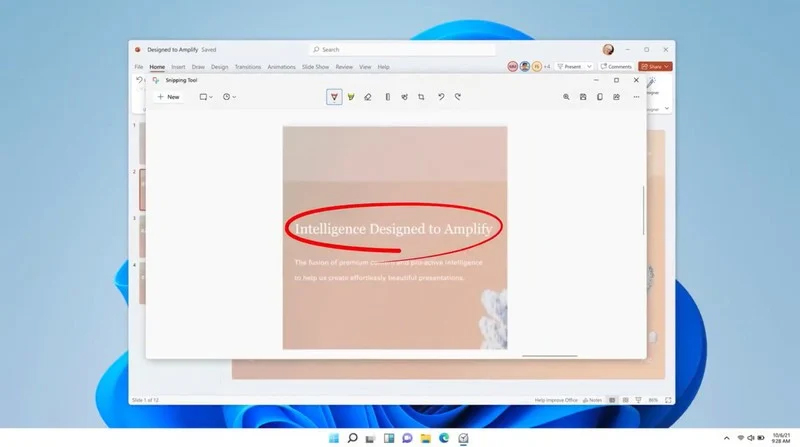
Windows 11 Snipping toolThe latest update from Panos Panay on Twitter is including New and redesigned Snipping tool inside Windows 11. From the shared video, we can see that it includes modern Windows 11 UI redesign and it looks and feels like a part of Windows 11. More things that can be seen from the shared video is that it looks like the new snipping tool is a merged version of the old with snip & sketch. It is good to see that it is still possible to capture screen with easier way natively inside Windows 11 but some more functionality would be more welcome I guess. Users were asking for added functions for a long time like adding simple text for example but from shared video, no new features were presented so for some users 3rd party solutions will still be the way to go. The new and redesigned Snipping tool will roll out with the next update and we will see then about all new features inside it firsthand. Until then, take care.
Read More
How to Fix: Not a Valid Win32 Application Error

Not a Valid Win32 Application Error - What is it?

Not a Valid Win32 Application error code that indicates either the file or the program you are attempting to run missing or corrupt. And because of this error, Windows is unable to open your desired file or run the program successfully.

Error Causes

The ‘Not a Valid Win32 Application’ is triggered due to multiple reasons such as:
  • Unsuccessful program installation due to damaged disc/CD
  • Corrupted or incompatible file
  • The hard drive is loaded with bad and invalid entries
  • Malware invasion or viral infection
When you come across this error code on your PC, it is advisable to resolve it as it will cause you a great deal of inconvenience hampering program and file accessibility. Furthermore, if the error code occurs due to malware or viruses, then it can lead to severe data security threats and privacy issues.

Further Information and Manual Repair

To resolve the Not a Valid Win32 Application error on your PC, you don’t need to be a technical expert or hire a professional. Though this error might be crucial it is easy to fix. Here are some of the many methods that you can try to resolve this error code on your PC:
  • Check for File Compatibility
If you downloaded a file that is not compatible with your Windows version then you will come across this error. In this case, it is advisable to download the file version that is compatible and can run easily on the Windows version installed on your system. Nonetheless, if the file is compatible but still doesn’t run on your PC, then it’s possible that the file became corrupt during the download. Try downloading the file again.
  • Check if the CD is Clean
You may also come across the Not a valid Win32 application error code if the program installation from the CD is unsuccessful. This happens when the CD is dirty or it is scratched. The program does not copy properly onto the computer from the damaged CD. So, if the CD is scratched and dirty, buy a new CD and try installing the program again.
  • Verify the Program You Want to Run is Still on the Computer
If you are running the program from a shortcut, then verify that the program is still installed on your PC. This error may occur if the program is no longer installed on the computer. If you find the program is not installed on your system, then reinstall and try running the program again.
  • Wrong File Name Issue
Make sure the program or the file you are attempting to run on your system does not contain the same name as the long filename directory it is saved in. For example, running a file named ‘program’ in the ‘program files’ directory can cause errors in some Windows versions. If this is the issue, then try installing the program in a different directory.
  • Repair Hard Drive
If the hard drive is bad or corrupted, it can also generate the not a valid Win32 application. And because of this error files and programs fail to execute successfully as not all data can be read from the hard drive. To repair this issue first you need to run defrag and ScanDisk Microsoft built-in tools. These tools check for errors on the hard drive.
  • Run an Antivirus
If the error code occurs due to a viral infection or malware attack on your system, then you must download an antivirus, scan, and remove such malicious software. However, antivirus may slow down the speed of your PC. So, to resolve speed issues and boost the performance of your system, you may have to download a system optimizer.
Read More
Increasing Virtual Memory
Hello and welcome to our Increasing Virtual Memory tutorial. Before trying to raise the quantity of virtual memory in your pc system, it's important to get a comprehension of its goal and use. This leads to the constant use of high-performing tasks in addition to keeping multitasking capability. The downside to this process is the fact that relatively, the HDD accesses information slower than a RAM module. Taking into consideration its use in a computer program and how virtual memory works, there isn't any amount of virtual memory allocation. The quantity of virtual memory to be defined for a unique computer program would be determined by the kinds of programs that are started and the quantity of multitasking done. The Microsoft Windows operating system yet does supply a recommended baseline memory based on the number of RAM installed and storage space of the HDD. Virtual memory allocation really indicates the upsurge in how big the paging file is. This file provides the pc program with all the essential instructions on the best way to act once all the installed RAM has been allotted to the running applications. In both Microsoft Windows XP (all variants) and Windows Vista environments, the method to control the paging file size is basically the same. To increase the quantity of virtual memory:
  • Click on the Start menu and choose the "Control Panel" alternative. When the Control Panel window is started, choose the "Operation and Maintenance" class.
  • Click on the "System" choice to create the Device Properties Window.
  • Click the "Advanced" tab and choose the "Settings" button under Operation. In the Operation alternative window, select the "Change" button under the Virtual Memory class.
  • Choose the hard disk where the Windows operating system is now installed. That can be the same place where in fact the paging file will be saved.
  • Test on the checkbox for the "Custom Size" to enable you to determine the number of virtual memory you need to use for your device.
  • Click the "OK" button thrice to shut all of the windows. Click the Start button and restart your machine to enable the upsurge in the number of virtual memory to be finished.
In establishing the number of virtual memory, you'll have to place a maximum value along with an initial. It is suggested that both values be equivalent in order to achieve the finest performance on your pc system.
Read More
Software review series: Wolfram Mathematica
For three decades, Wolfram Mathematica has defined the state of the art in technical computing and provided the principal computation environment for millions of innovators, educators, students, and others around the world. Widely admired for both its technical prowess and elegant ease of use, Mathematica provides a single integrated, continually expanding system that covers the breadth and depth of technical computing—and seamlessly available in the cloud through any web browser, as well as natively on all modern desktop systems. With energetic development and consistent vision for three decades, Mathematica stands alone in a huge range of dimensions, unique in its support for today's technical computing environments and workflows.

A Vast System, All Integrated

Mathematica has nearly 5,000 built-in functions covering all areas of technical computing—all carefully integrated so they work perfectly together, and all included in the fully integrated Mathematica system.

Not Just Numbers, Not Just Mathematica But Everything

Building on three decades of development, Mathematica excels across all areas of technical computing—including neural networks, machine learning, image processing, geometry, data science, visualizations, and much more.

Unimaginable Algorithm Power

Mathematica builds in unprecedentedly powerful algorithms across all areas—many of them created at Wolfram using unique development methodologies and the unique capabilities of the Wolfram Language.

Higher Level Than Ever Before

Superfunctions, meta-algorithms... Mathematica provides a progressively higher-level environment in which as much as possible is automated—so you can work as efficiently as possible.

Everything Is Industrial Strength

Mathematica is built to provide industrial-strength capabilities—with robust, efficient algorithms across all areas, capable of handling large-scale problems, with parallelism, GPU computing, and more.

Powerful Ease of Use

Mathematica draws on its algorithmic power—as well as the careful design of the Wolfram Language—to create a system that's uniquely easy to use, with predictive suggestions, natural language input, and more.

Documents As Well As Code

Mathematica uses the Wolfram Notebook Interface, which allows you to organize everything you do in rich documents that include text, runnable code, dynamic graphics, user interfaces, and more.

The Code Makes Sense

With its intuitive English-like function names and coherent design, the Wolfram Language is uniquely easy to read, write, and learn.

Make Your Results Look Their Best

With sophisticated computational aesthetics and award-winning design, Mathematica presents your results beautifully—instantly creating top-of-the-line interactive visualizations and publication-quality documents.

150,000+ Examples

Get started with almost any project with help from 150,000+ examples in the Documentation Center, over 10,000 open-code Demonstrations in the Wolfram Demonstrations Project—and a host of other resources.

Instant Real-World Data

Mathematica has access to the vast Wolfram Knowledgebase, which includes up-to-the-minute real-world data across thousands of domains.

Seamless Cloud Integration

Mathematica is now seamlessly integrated with the cloud—allowing sharing, cloud computing, and more in a unique and powerful hybrid cloud/desktop environment

Connected to Everything

Mathematica is built to be connected to everything: file formats (180+), other languages, Wolfram Data Drop, APIs, databases, programs, the Internet of Things, devices—and even distributed instances of itself. If you would like to read more helpful articles and tips about various software and hardware visit errortools.com daily.
Read More
Easy Remove SpeedItUp Tutorial

SpeedItUp is a potentially unwanted application made by MicroSmarts LLC. The program claims to optimize RAM, clean the registry, and boost internet connection speed. It is designed to speed up your computer by removing some background processes. While not malicious itself, SpeedItUp Free and its variations are often installed via third-party installer bundles, causing many users to unwittingly install the program. Aliases of the program include CheckMeUp, SpeedCheck, SpeedChecker, SpeedItUp Free, Speeditup-Checkup, and Speeditup-Nova. While intended to speed up the performance, its background processes and startup tasks may actually slow PCs down in some cases. Some versions of SpeedItUp also include a browser extension.

About Browser Hijackers

Browser hijacking is a type of unwanted software program, usually a web browser add-on or extension, which causes modifications in the browser’s settings. Browser hijacker malware is designed for a number of reasons. Typically, browser hijacking is used for earning advertising revenue that comes from forced advert mouse clicks and website visits. Though it might seem naive, these tools are designed by vicious individuals who always attempt to take full advantage of you, so that hackers can make money from your naive and distraction. On top of that, hijackers can make the whole infected system vulnerable – other destructive malware and viruses would grab these opportunities to get into your computer effortlessly.

Symptoms of browser hijack

There are many symptoms that could indicate a browser hijacking: your web browser’s homepage is suddenly different; your web browser is constantly being redirected to adult sites; the default online search engine has been changed and your browser security settings have been brought down without your knowledge; discover new toolbars which you did not add; your internet browser displays endless pop-up windows; your internet browser has become unstable or starts running slowly; Inability to navigate to certain websites, particularly anti-malware as well as other security software sites.

How they infect computer systems

A browser hijacker can be installed on your computer or laptop if you check out an infected site, click an email attachment, or download something from a file-sharing site. They may also originate from any BHO, browser extension, add-on, toolbar, or plug-in with the malicious objective. A browser hijacker can also come bundled up with some freeware that you inadvertently download to your PC, compromising your internet security. An example of some notorious browser hijacker includes Babylon, Anyprotect, Conduit, DefaultTab, SweetPage, Delta Search, and RocketTab, but the names are regularly changing.

The best ways to remove a browser hijacker

Certain kinds of browser hijackers can be removed from the computer by deleting malicious applications or any other recently added shareware. Often, it can be a challenging task to discover and get rid of the malicious piece because the associated file could be running as part of the operating system process. Moreover, manual removals demand deep system knowledge and thus can be quite a difficult job for novice computer users. Experts always recommend users remove any malware including browser hijackers by using an automatic malware removal tool, which is better, safer, and quicker than the manual removal method. One of the greatest tools for repairing browser hijacker malware is Safebytes Anti-Malware. It will help you remove any pre-existing malicious software in your system and provides you real-time monitoring and protection from the latest threats. Together with the anti-virus tool, a PC optimizer will help you in deleting all associated files and modifications in the computer registry automatically.

Virus Blocking Internet And All Antivirus Software? Do This!

Every malware is detrimental and the effects of the damage will vary based on the specific type of malicious software. Some malware goes to great lengths to stop you from installing anything on your computer, particularly anti-virus software programs. If you are reading this article, you probably have got affected by a virus that prevents you from installing a computer security program such as Safebytes Anti-Malware. Refer to the instructions below to remove malware through alternative ways.

Install antivirus in Safe Mode with Networking

If the virus is set to load immediately when Microsoft Windows starts, getting into safe mode could block this attempt. Since only the minimum applications and services launch in Safe Mode, there are seldom any reasons for conflicts to occur. Listed here are the steps you have to follow to start into the Safe Mode of your Windows XP, Vista, or 7 computers (go to Microsoft site for instructions on Windows 8 and 10 computers). 1) At power on/start-up, tap the F8 key in 1-second intervals. This would conjure up the “Advanced Boot Options” menu. 2) Use the arrow keys to select Safe Mode with Networking and hit ENTER. 3) As soon as this mode loads, you should have an internet connection. Now, make use of your internet browser normally and navigate to https://safebytes.com/products/anti-malware/ to download Safebytes Anti-Malware. 4) After the software is installed, allow the diagnostic scan run to remove trojans and other malware automatically.

Obtain the anti-malware software in a different internet browser

Some malware mainly targets particular web browsers. If this is your situation, utilize another internet browser as it could circumvent the virus. When you suspect that your Internet Explorer happens to be hijacked by a trojan or otherwise compromised by cybercriminals, the most effective plan of action would be to switch to a different web browser such as Chrome, Firefox, or Safari to download your favorite computer security program – Safebytes Anti-Malware.

Run antivirus from a pen drive

To successfully eliminate the malware, you might want to approach the issue of running an antivirus software program on the affected computer from a different angle. Adopt these measures to employ a flash drive to clean your corrupted computer. 1) Download Safebytes Anti-Malware or MS Windows Defender Offline onto a clean PC. 2) Insert the USB drive onto the same system. 3) Double click on the exe file to open the installation wizard. 4) Select the USB stick as the destination for saving the software file. Follow the on-screen instructions to complete the installation process. 5) Unplug the pen drive. You may now use this portable antivirus on the infected computer system. 6) Run the Safebytes Anti-malware directly from the USB drive by double-clicking the icon. 7) Press the “Scan” button to run a full computer scan and remove viruses automatically.

Protect Your PC & Privacy With SafeBytes Anti-Malware

Do you want to install the very best anti-malware application for your computer system? There are several applications available that come in paid and free versions for Microsoft Windows computers. Some of them do a good job in eliminating malware threats while many will damage your computer themselves. You must opt for a company that builds industry-best anti-malware and has gained a reputation as reliable. When considering the reliable software programs, Safebytes Anti-Malware is certainly the highly recommended one. SafeBytes can be described as a powerful, real-time antivirus application that is designed to assist everyday computer users in protecting their computer from malicious threats. With its outstanding protection system, this tool will automatically detect and get rid of most of the security threats, which include viruses, adware, browser hijackers, ransomware, PUPs, and trojans. SafeBytes anti-malware takes PC protection to a whole new level with its advanced features. Let’s have a look at some of them below: Active Protection: SafeBytes provides 100 % hands-free real-time protection which is set to monitor, prevent and get rid of all computer threats at its very first encounter. They are very effective in screening and getting rid of numerous threats because they are continuously revised with the latest updates and alerts. Antimalware Protection: This deep-cleaning anti-malware software goes much deeper than most anti-virus tools to clean out your PC. Its critically acclaimed virus engine locates and disables hard to remove malware that hides deep inside your PC. SuperSpeed Scanning: SafeBytes’s very fast malware scanning engine lessens scanning times and extends battery life. At the same time, it will effectively identify and eliminate infected files or any online threat. Web Security: SafeBytes provides an instant safety rating about the web pages you are about to visit, automatically blocking dangerous sites and make sure that you’re certain of your online safety while browsing the net. Lightweight Utility: This program is not “heavy” on the computer’s resources, so you’ll not notice any performance difficulties when SafeBytes is operating in the background. Premium Support: Support service is readily available for 24 x 7 x 365 days through chat and email to answer your questions.

Technical Details and Manual Removal (Advanced Users)

If you wish to manually remove SpeedItUp without the use of an automated tool, it may be possible to do so by removing the program from the Windows Add/Remove Programs menu, or in cases of browser extensions, going to the browsers AddOn/Extension manager and removing it. You will likely also want to reset your browser. To ensure the complete removal, manually check your hard drive and registry for all of the following and remove or reset the values accordingly. Please note that this is for advanced users only and may be difficult, with incorrect file removal causing additional PC errors. In addition, some malware is capable of replicating or preventing deletion. Doing this in Safe Mode is advised.

The following files, folders, and registry entries are created or modified by SpeedItUp

Files: C:DOCUME1USER1LOCALS1Tempinproc.temp C:DOCUME1USER1LOCALS1Temptmp1.tmp C:DOCUME1USER1LOCALS1Temptmp2.tmp C:DOCUME1USER1LOCALS1Temptmp3.tmp C:DOCUME1USER1LOCALS1Temptmp4.tmp C:DOCUME1USER1LOCALS1Temptmp5.tmp C:DOCUME1USER1LOCALS1Temptmp6.tmp c:autoexec.bat C:DOCUME1USER1LOCALS1Temptmp1.tmp C:DOCUME1USER1LOCALS1Temptmp2.tmp C:DOCUME1USER1LOCALS1Temptmp4.tmp C:DOCUME1USER1LOCALS1TemptmpA.tmp C:DOCUME1USER1LOCALS1TemptmpE.tmp C:DOCUME1USER1LOCALS1TemptmpF.tmp C:DOCUME1USER1LOCALS1Tempsearchprotect_w_prechecker.exe C:WINDOWSsystem32rsaenh.dll C:WINDOWSRegistrationR000000000007.clb C:DOCUME1USER1LOCALS1Tempinproc.temp C:DOCUME1USER1LOCALS1Temptmp1.tmp C:DOCUME1USER1LOCALS1Temptmp2.tmp C:DOCUME1USER1LOCALS1Temptmp3.tmp C:DOCUME1USER1LOCALS1Temptmp4.tmp C:DOCUME1USER1LOCALS1Temptmp5.tmp C:DOCUME1USER1LOCALS1Temptmp6.tmp C:DOCUME1USER1LOCALS1Temptmp7.tmp C:DOCUME1USER1LOCALS1Tempsearchprotect_w_prechecker.exe C:DOCUME1USER1LOCALS1Tempwajam_validate.exe C:DOCUME1USER1LOCALS1Temptmp1.tmp C:DOCUME1USER1LOCALS1Temptmp2.tmp C:DOCUME1USER1LOCALS1Temptmp3.tmp C:DOCUME1USER1LOCALS1Temptmp4.tmp C:DOCUME1USER1LOCALS1Temptmp5.tmp C:DOCUME1USER1LOCALS1Temptmp6.tmp C:DOCUME1USER1LOCALS1Temptmp7.tmp C:DOCUME1USER1LOCALS1TemptmpA.tmp C:DOCUME1USER1LOCALS1Tempsearchprotect_w_prechecker.exe C:DOCUME1USER1LOCALS1Tempwajam_validate.exe File %COMMONDESKTOPSpeedItup Free.lnk. File %COMMONPROGRAMSSpeedItup Free.lnk. File %COMMONPROGRAMSSpeedItup FreeSpeedItup Free.lnk. File %COMMONPROGRAMSSpeedItup FreeUninstall SpeedItup Free.lnk. File %COMMONSTARTMENUSpeedItup Free.lnk. File %LOCALSETTINGSTempspuad0.exe. File %LOCALSETTINGSTempspuad1.exe. File %PROGRAMFILESDisplay Offerdelayexec.exe. File %PROGRAMFILESDisplay Offerwait.exe. File %PROGRAMFILESSpeedItup Freedelayexec.exe. File %PROGRAMFILESSpeedItup Freespdfrmon.exe. File %PROGRAMFILESSpeedItup Freespeeditupfree.exe. File %SYSDRIVEProgram Files (x86)SpeedItup Freeupgradepath.ini. File %WINDIRSpeedItup Freeuninstall.exe. Directory %COMMONPROGRAMSSpeedItup Free. Directory %PROGRAMFILESDisplay Offer. Directory %PROGRAMFILESSpeedItup Free. Directory %SYSDRIVEProgram Files (x86)SpeedItup Free. Directory %WINDIRSpeedItup Free. Registry: Key HKEY_CLASSES_ROOT named spdfrmon.Gate.1, plus associated values. Key HKEY_CLASSES_ROOT named spdfrmon.Gate, plus associated values. Key 0142D788-C4FC-4ED8-2222-D654E27AF7F8 at HKEY_CLASSES_ROOTInterface. Key A1011E88-B997-11CF-2222-0080C7B2D6BB at HKEY_CLASSES_ROOTTypeLib. Key A1843388-EFC2-49C9-2222-FC0C403B0EBB at HKEY_CLASSES_ROOTInterface. Key A19F8F88-F91E-4E49-2222-BD21AB39D1BB at HKEY_CLASSES_ROOTAppID. Key A19F8F88-F91E-4E49-2222-BD21AB39D1BB at HKEY_CLASSES_ROOTCLSID. Key A1D87888-DEAA-4971-2222-5D5046F2B3BB at HKEY_CLASSES_ROOTInterface. Key A245B088-41FA-478E-8DEA-86177F1394BB at HKEY_CLASSES_ROOTAppID. Key spdfrmon.exe at HKEY_CLASSES_ROOTAppID. Key spdfrmon at HKEY_LOCAL_MACHINESYSTEMControlSet001Services. Key spdfrmon at HKEY_LOCAL_MACHINESYSTEMControlSet002Services. Key spdfrmon at HKEY_LOCAL_MACHINESYSTEMControlSet003Services. Key SpeeditupFree at HKEY_LOCAL_MACHINESoftwareMicrosoftWindowsCurrentVersionUninstall.

Read More
1 2 3 171
Logo
Copyright © 2023, ErrorTools. All Rights Reserved
Trademark: Microsoft Windows logos are registered trademarks of Microsoft. Disclaimer: ErrorTools.com is not affiliated with Microsoft, nor claims direct affiliation.
The information on this page is provided for information purposes only.
DMCA.com Protection Status