Logo

Regular vs Gaming mouse comparison

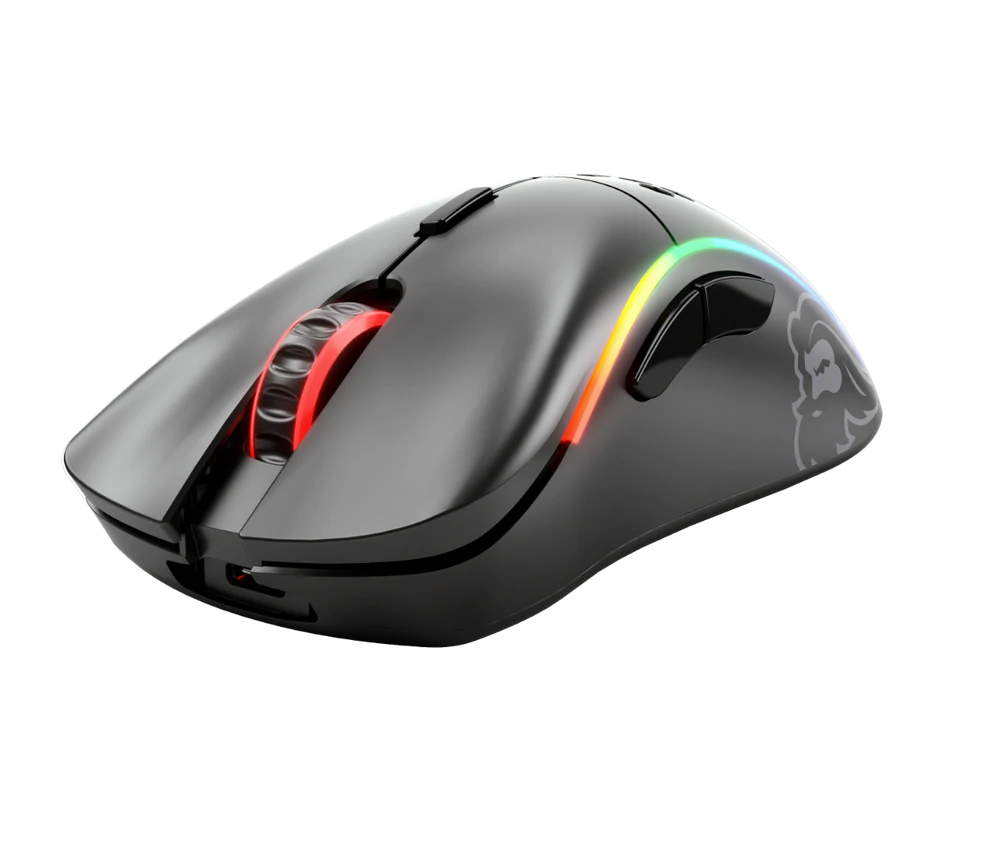
You have probably heard a lot of good things about gaming mice, how they are better feeling, better in any way possible and it is all true, everything you heard is actually true, they are superior in any way to a regular mouse but with one big disadvantage, and that would be the price. While you can find a regular mouse for pocket change, a gaming mouse is in comparison very expensive even for entry-level ones.

gaming mouse

In this article we will explore all advantages and compare it with the regular one so you can come up with your own conclusion about do you really need one for yourself or if you are fine with regular.

Price

As stated price is one factor that does not favor gaming mice. Regular mouse for a personal computer goes around 10 or 20 USD, while entry-level in gaming one will be 40 USD and can go up to 250 USD, this large gap in price is usually determining factor why people pick up regular one. If you are on a really tight budget go for the regular one, but if you can afford a gaming one get it without second thoughts.

Software

This is where you will see the big difference between mice. Regular ones when connected are recognized and the driver is automatically installed and you can use it, same goes with gaming ones but with one big difference, you have an option to install additional manufacturers' software specially tailored for your mouse. In the application, you will be able to access some features that are specific to the mouse model that you could not set in typical Windows mouse properties. Beside more options software can also have features like setting your profiles and saving them to be recalled when you need them on the fly.

Sensitivity of mouse

The sensitivity of the mouse is measured in dots per one inch or short DPI, this is directly shown on your screen by how fast your mouse can move, higher sensitivity means your mouse will move faster across the screen and lower means it will move slower. All gaming mice come with buttons and settings that will allow you to change DPI on the fly and you can choose precise DPI settings in the software.

The regular mouse comes with DPI around 800 and goes to 1200 typically and does not have usually the option to change this while gaming mice start at 400 and can go as high as 26000 with the option to change it. Some regular mice can have only 1 option of DPI, usually very cheap ones.

Polling rates in mice

Pooling rate is the measurement of how often your mouse reports where it is positioned on the computer. The higher the pooling rate, the more responsive your mouse will be and vice versa. It is measured in hertz (Hz) and regular mice have them around 125Hz that is enough if you are using a computer for office, internet, and mail work.

If you are working in design or gaming you will need more than 125Hz polling rate, luckily gaming mice come with a minimum of 500Hz as an entry point and some hi-end models are going as far as 8000Hz. This very high pooling rate will get some extra load on your CPU but the mouse itself will be maximally responsive and will respond even to the smallest moves.

Ergonomics

Regular mice are well just mice, they are typical shape and size, gaming mice are made with ergonomics in mind. How they are made for extensive daily use of several hours per day they are constructed in a way to offer a pleasant and pain-free experience.

If you work on a computer for long periods of time consider gaming an ergonomic mouse since it will take the strain from hands and place them in a more natural position.

Macro keys

Gaming mice most of the time come with more keys compared with regular ones and good thing is that via its software you can tie certain actions to these extra keys making work or gaming more pleasant and quicker.

Components and material quality

In order to make regular mice more affordable and cheaper materials and quality of components had to suffer. Gaming mice have millions of guaranteed clicks by companies that make them before they break and regular ones usually do not guarantee a single one. This is due of course quality of materials that have been used in constructing these devices.

In the long term, if you use a gaming mouse for typical daily tasks it will outlive your regular one and on the side offer you more pleasant and responsive use along the way.

Do You Need Help with Your Device?

Our Team of Experts May Help
Troubleshoot.Tech Experts are There for You!
Replace damaged files
Restore performance
Free disk space
Remove Malware
Protects WEB browser
Remove Viruses
Stop PC freezing
GET HELP
Troubleshoot.Tech experts work with all versions of Microsoft Windows including Windows 11, with Android, Mac, and more.

Share this article:

You might also like

Mobile Hotspot does not show up or detected
As you know, the Mobile Hotspot feature is used to share the internet connection with other devices using Wi-Fi signals. These Wi-Fi signals are later caught by other devices using their Wi-Fi and then the internet connection is shared once they are connected. However, recently, some users reported that their devices weren’t able to see the Wi-Fi network even if their Wi-Fi is on. This kind of problem could be caused by several factors but one of the main ones include the frequency at which the Wi-Fi network is being broadcasted. If you are one of the users who are currently facing this problem, read on as this post will guide you on what you can do if the Mobile Hotspot or Wi-Fi connection does not show up or is not detected on your Windows 10 device. In most cases, there are only two frequencies at which a Wi-Fi network is broadcasted. They are broadcasted either at 2.4 GHz and 5 GHz. The ones that are broadcasted at 5 GHz need specific hardware since it is a newer technology compared to the ones at 2.4 GHz. There are several other pieces of equipment as well as electrical appliances that operate at 2.4 GHz that includes microwaves as well which causes disruption in the signal strength of the Wi-Fi network. Moreover, aside from signal interruption, this issue with the mobile hotspot might also have something to do with the network-related drivers in your computer. Thus, to fix the problem, here are some suggestions you should follow.

Option 1 – Try toggling the Network band or the frequency at which the Wi-Fi network is broadcasted

  • First, open the Windows 10 Settings app and then navigate to Network & Internet > Mobile hotspot.
  • From there, click on the Edit button located under the Network name, Network password, and Network band.
  • After that, set the Network band to be at 2.4 GHz and then click on the Save button.
  • Once done, restart the Mobile hotspot in your Windows 10 device as well as the Wi-Fi connection of the device that’s trying to connect to the hotspot.

Option 2 – Try running the Network Adapter Troubleshooter

If the first option didn’t work, you might also want to run the Network Adapter Troubleshooter. You can use it to troubleshoot the problem with the Mobile hotspot, to run it, follow these steps:
  • Open the Search bar on your computer and type in “troubleshoot” to open the Troubleshoot settings.
  • Next, scroll down and select the “Network Adapter” option from the right pane.
  • Then click on the Run Troubleshooter” button.
  • After that, your computer will check for any possible errors and will pinpoint the root cause of the problem if possible.

Option 3 – Try updating the Network adapter driver

As mentioned, the problem could also be due to the network-related drivers. So it probably might be the reason why you’re mobile hotspot did not appear or was not detected. That’s why it is recommended that you update the Network adapter driver and to do it, refer to these instructions: Follow the steps below to update your Network Adapter Driver:
  • Tap the Win + R keys to launch the Run window and then type in the “MSC” command and hit Enter to open the Device Manager window.
  • From there, expand the list of all the network drives and update each one of them.
  • Restart your PC and see if it helped in fixing the issue with the mobile hotspot.
Note: If updating the network drivers didn’t help in fixing the problem, you can also try to uninstall the very same drivers and restart your Windows 10 PC. After that, the system itself will reinstall the drivers you just uninstalled. Alternatively, you can also download and install the drivers from the manufacturer’s website directly.
Read More
Fix Minecraft Realms Internal Server Error 500
Many Minecraft players are experiencing Realms internal server error 500, luckily for all of that players, we are offering you solutions.

Preliminary Fixes

Before heading towards the fixes here it is suggested to try some quick tweaks that might work in your case to fix Minecraft Internal Server Error 500. Restart your PC – Very first it is suggested to shut down your computer and after that restart the system. This worked for many players to get rid of the server outages issue. Update your Windows version – Check if you are running an outdated Windows version then make sure to install the latest Windows update and then run the game. Update Your Game Version – Also make sure you are running an updated version of Minecraft Realms. Installing the latest updates not only makes the game more stable but also helps you to solve common glitches and issues with the game. So, check if any recent updates are available to make sure to download and install them Modify the Game Settings – Check if you have tweaked some of the game settings then this might be the reason for the problem. So try to reconfigure the settings to default. This may work for you. Now after following the preliminary solutions check if the Minecraft Realms Internal Server Error 500 is resolved or else head to the next solution.

Check your Internet Connection

As said above if the internet connection is not working properly or it is preventing you from accessing the servers, then this can also cause the Internal Server Error 500 in the Minecraft server. So, very first make sure your internet connection is stable and working properly. Also if you are using Wi-Fi then use a wired connection to get a stable network. Moreover, if your internet connection is working fine then there is a possibility that your internet connection is causing interruption and preventing you from accessing the Minecraft Realms server. So, if this is the case then here it is suggested to use a VPN connection to get exceptionally fast & reliable speeds without getting detected.

Check for the Minecraft Server Outage

Well, there is a possibility the Minecraft servers are down and if this is the case then you don’t have any other option than just waiting for the servers to get restarted and the service becomes available again. Also, the service outages can affect the ability of the game and as a result, you are unable to play the game. Additionally, you can also inquire about Minecraft’s server status by visiting the Downdetector website. But if you find the services are running fine then the issue is from your side.

Disable Background Applications

If you are still getting the Minecraft Realms Internal Server Error 500, then there are chances that other applications running in the background are causing a limit to your internet bandwidth. It is suggested to disable the internet-connected apps and after that try connecting to Microsoft Realms again.
  • Hit CTRL + SHIFT + ESC keys > to open the Task Manager.
  • Then under the Process tab,> right-click on unwanted background process, > click on the End Task 
After disabling the applications running in the background, relaunch Minecraft and check if the internal server error 500 still appears or not.

Delete UUID Files in Minecraft

If you are still getting the Minecraft Realms Internal Server Error 500 then here it is suggested to delete the UUID files in Minecraft.
  • First, visit the website by clicking the https://mcuuid.net/ and enter all the credentials to get the player’s UUID
  • Then login to the server > proceed to server files > head to the world
  • Here locate the PlayerData folder > click to open it.
  • And from here choose the file containing the same name like the player’s Username or UUID > after that hit the Delete
  • Lastly, restart your server to save the changes

Remove Resource Packs & Mods

If you are getting the Minecraft realms internal server error 500 after the installation of a particular mod or the resource pack then this is what causing the issue while playing the realm. So, here it is suggested to delete it immediately, also uninstall the mod as well as the resource pack you installed recently. It is estimated this works for you but if you have a doubt related to any specific mod or the resource pack causing an error you should uninstall then also and check if the Minecraft internal error 500 is fixed.

Disable the Plugins

If you are still encountering the error then check for the plugins installed on your PC. Many times the installed plugin starts causing issues with the game as they are not compatible with the game version. So here it is recommended to try disabling the plugins on the PC and check if this works for you.
  • On your system > open the plugin window > rename the plugins files from “[plugin name].jar to [plugin name].jar.disabled”.
  • Next restart the server and check if the Minecraft Realms Internal Server Error 500 problem is resolved or not.

Uninstall & Reinstall Minecraft

If none of the above-given solutions works for you then here it is suggested to uninstall and reinstall Minecraft. Well, it is suggested to uninstall the game using the third-party uninstaller. Manually uninstalling the program won’t remove it completely, some of its registry entries, junk files are left behind and causes interruption when the next time you install it. If you are looking to uninstall it manually then follow the steps given:
  • Hit Window + R key > to open the Run box
  • And in the run box type appwiz.cpl command > hit Enter
  • Now the application manager window pops up on your screen > locate the Minecraft application > right-click to Uninstall
And as the uninstalling process is completed > head to the Minecraft official website and tries downloading and installing the game. Check if the Minecraft Realms Internal Server Error 500 is resolved or not.

Contact Support Center

If after trying all the solutions given you are still unable to fix the error then the only option left is to contact the Customer Support Center and fill the form in the link and describe the problem in a detailed way. And within few days you will get feedback from them to fix Minecraft Realms internal error 500.
Read More
Are gaming mousepads worth their price?

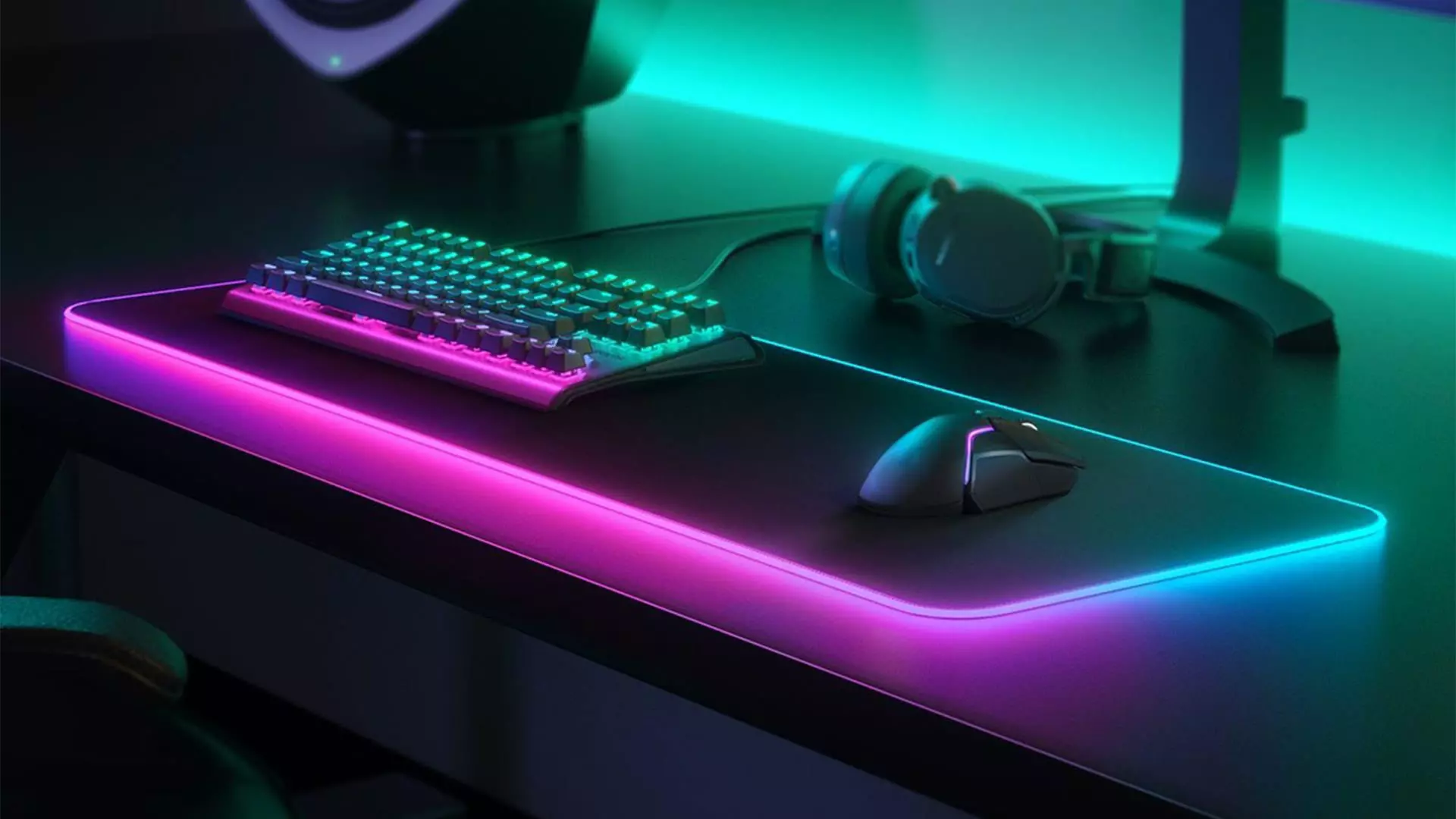
Mousepads are a common thing among computer users, everyone is using them and know what are they good for. Recently in the past few years, there are a lot of gaming mousepads on the rise, do you really need them, and do they back up their price? Short answer: YES, long answer: keep reading below.

gaming mousepad

Size advantage

One of the first things that one can see is the great difference in sizes between a regular mouse pad and a gaming one. Gaming pads have much more variety in size spawning all the way to really judge ones that you can use on your whole desk and place both keyboard and mouse on them. This will, of course, let you move your mouse more freely and have a much larger surface to use without the need to always lift the mouse up and center it on the regular pad.

Material advantage

Material on what are gaming pads built upon is extremely high in quality and usually even water phobic or water-resistant and it will allow great mouse movements on it. The backside is usually made of high-quality fabric that will stop slipping on the desk so the pad will stay at its pace during long sessions of work or gaming. Usually, standard mousepads are made with plastic or some other cheap material whereas gaming pads are made from fiber, high-quality fiber.

Other advantages

Among other great stuff that gaming pads have are wrist gel for hand resting and RBG light that looks cool, although RGB light is just a vanity that looks good gel for the wrist is a really good feature that will place less stress on your hands during long sessions of time spent in front of the computer.

Read More
How to remove Boost My PC From Your System

Boost My PC is a program developed by 1.0.2.6. During setup, a scheduled task is added to Windows Task Scheduler in order to launch the program at various scheduled times (the schedule varies depending on the version). When installed, it will add a context menu handler to the Windows shell in order to provide quick access to the program.

Boost My PC presents itself as a legit PC speed-up utility, it scans your computer for problems and displays errors that need to be fixed. Upon accepting to fix these alleged errors, you are asked for a Payment in order to activate this product for a few months.

Many anti-virus scanners have marked this application as a Potentially Unwanted Program, and while Boost My PC is not so harmful on its own, it comes bundled with other Potentially Unwanted Programs that might harm your computer.

About Potentially Unwanted Applications

If you’ve ever downloaded and installed a software package via the internet (shareware, freeware, etc,), odds are high you’ve unwittingly installed unwanted programs on your computer. Potentially Unwanted Programs (PUP), also referred to as Potentially Unwanted Applications (PUA), are programs that you never wanted in the first place and sometimes come bundled with freeware software. Once installed, most of these applications can be hard to remove and become more of a pain rather than a benefit. It’s clear by the name – unwanted applications – but did not really constitute “malware” in the traditional sense. Much like malware, PUPs create problems when downloaded and installed on your machine, but what makes a PUP different is that you grant consent to download it – though the truth is vastly different – the software installation bundle actually tricks you into agreeing to the installation. Regardless of whether it is considered malware or otherwise, PUPs are almost always detrimental to the user as they could bring on adware, spyware, keystroke logging, along other dangerous “crapware” features on your computer.

Exactly how do unwanted programs look like?

Potentially Unwanted Programs appear in different forms and varieties, however, most times, these are typically adware programs that show annoying pop-up adverts and advertisements on web pages you drop by. PUPs that come as browser add-ons and toolbars are widely identifiable. These toolbars change your homepage and your search engine in the installed web browser, track your web activities, influence your search results with redirects and sponsored links, and eventually slow down your web browser and diminish your browsing experience. PUPs lie inside the gray part of the software spectrum. They may carry keyloggers, dialers, along with other software built right into them that might monitor you or send out your sensitive information to 3rd parties. Even if the PUPs aren’t inherently malicious, these programs still do practically nothing good on your personal computer – they will take valuable resources, slow your PC, weaken your device’s security, making your PC more susceptible to malware.

Tips on protecting yourself from PUPs

• Read the EULA carefully. Look for clauses that say that you ought to accept advertising and pop-ups or bundled programs from the company. • Choose the “custom” install whenever downloading a program. In particular, look closely at those tiny boxes that have been checked as default, where you might ‘agree’ to receive ads or install software bundlers. • Use an ad blocker/pop-up blocker; Deploy anti-malware products such as Safebytes Anti-malware. These types of applications will establish a wall between the computer and cybercriminals. • Avoid installing freeware software you will not make use of. Avoid installing browser extensions and applications you aren’t knowledgeable about. • Only download software from the original providers’ sites. Stay away from download portals because they use their own download manager to pack additional programs together with the initial download.

What you can do if Malware Prevents You From Downloading Anything?

Malware could cause all sorts of damage after they invade your system, from stealing your private details to deleting files on your computer system. Certain malware types alter web browser settings by including a proxy server or change the computer’s DNS configuration settings. In these cases, you’ll be unable to visit certain or all websites, and therefore unable to download or install the required security software to remove the infection. So what you should do if malicious software prevents you from downloading or installing Anti-Malware? Even though this kind of problem can be difficult to get around, there are a few steps you can take.

Download the application in Safe Mode with Networking

If any virus is set to run immediately when Windows starts, stepping into safe mode could block this attempt. Just the minimum required applications and services are loaded whenever you start your PC in Safe Mode. To start your Windows XP, Vista, or 7 computers in Safe Mode with Networking, follow the instructions below. 1) Press the F8 key continuously as soon as your system boots, but before the large Windows logo shows up. This should bring up the Advanced Boot Options menu. 2) Select Safe Mode with Networking with arrow keys and hit ENTER. 3) Once you get into this mode, you should have online access once again. Now, use your internet browser normally and navigate to https://safebytes.com/products/anti-malware/ to download and install Safebytes Anti-Malware. 4) Immediately after installation, run a full scan and let the software remove the threats it discovers.

Switch over to a different web browser

Some malware only targets specific web browsers. If this sounds like your situation, employ another web browser as it may circumvent the computer virus. If you’re not able to download the security software using Internet Explorer, this means the virus may be targeting IE’s vulnerabilities. Here, you must switch to another internet browser like Chrome or Firefox to download the Safebytes program.

Install and run anti-virus from a USB drive

Another option is to store and operate an anti-malware program completely from a Flash drive. Try these simple steps to clear up your infected computer by using portable anti-malware. 1) Download the anti-malware on a virus-free computer. 2) Plug the Flash drive into the clean computer. 3) Run the setup program by double-clicking the executable file of the downloaded software, with a .exe file extension. 4) Select the drive letter of the flash drive as the place when the wizard asks you where you want to install the anti-malware. Do as instructed on the computer screen to finish off the installation process. 5) Transfer the pen drive from the uninfected computer to the infected computer. 6) Double-click the EXE file to open the Safebytes tool right from the thumb drive. 7) Click on “Scan Now” to run a scan on the affected computer for viruses.

Ensure the Safety of Your PC by Installing SafeBytes Anti-Malware

If you’re looking to buy anti-malware for your computer, there are numerous brands and packages for you to consider. A few are very good ones, some are ok types, and some are merely fake anti-malware programs that could damage your personal computer themselves! You have to be very careful not to pick the wrong product, especially if you purchase a paid application. On the list of strongly recommended software programs is SafeBytes Anti-Malware. SafeBytes carries a very good history of top-quality service, and clients appear to be happy with it. SafeBytes anti-malware is a trustworthy tool that not only secures your system completely but is also very easy to use for people of all ability levels. Through its cutting-edge technology, this software protects your personal computer against infections caused by various kinds of malware and other threats, including spyware, adware, computer viruses, worms, trojan horses, keyloggers, potentially unwanted programs (PUPs), and ransomware.

There are plenty of wonderful features you’ll get with this particular security product. These are some of the highlighted features included in the software.

World-class AntiMalware Protection: Built on a highly acclaimed anti-virus engine, this malware removal application has the capacity to detect and get rid of several stubborn malware threats like browser hijackers, PUPs, and ransomware that other common antivirus programs will miss. Live Protection: SafeBytes gives you round-the-clock protection for your PC restricting malware attacks in real-time. It will regularly monitor your pc for hacker activity and also provides users with advanced firewall protection. Safe Web Browsing: SafeBytes provides an instant safety rating about the web pages you’re going to visit, automatically blocking risky sites and making sure that you are certain of your online safety while browsing the world wide web. Low CPU Usage: This program is lightweight and can run silently in the background, and that does not impact your computer efficiency. 24/7 Customer Support: SafeBytes provides 24/7 technical support, automatic maintenance, and updates for the best user experience. To sum it up, SafeBytes has created a meaningful anti-malware solution that is aimed to protect your computer against various malware. Malware problems can become a thing of the past once you put this software program to use. For top protection and the best value for your money, you can’t get better than SafeBytes Anti-Malware.

Technical Details and Manual Removal (Advanced Users)

If you don’t wish to use an automated tool and like to eliminate Boost My PC manually, you could possibly do so by going to the Add/Remove Programs menu in the Control Panel and deleting the offending program; in cases of web browser add-ons, you could remove it by going to the browsers Add-on/Extension manager. You will definitely also want to reset your internet browser. If you opt to manually delete the system files and Windows registry entries, make use of the following list to ensure that you know precisely what files to remove before executing any actions. Please remember that this is for skilled users only and may be challenging, with wrong file removal leading to additional PC errors. In addition, certain malware is capable of replicating itself or preventing deletion. It is highly recommended that you carry out the removal procedure in Safe Mode.
Files: %PROGRAMFILES(x86)%\Boost My PC %PROGRAMFILES%\Boost My PC Registry: [HKEY_CURRENT_USER\Software\Microsoft\Windows\CurrentVersion\Run] [HKEY_LOCAL_MACHINE\SOFTWARE\Microsoft\Windows\CurrentVersion\Run] [HKEY_LOCAL_MACHINE\SOFTWARE\Wow6432Node\Microsoft\Windows\CurrentVersion\Run] delete the display Name: BoostMyPC

Read More
Fix update error 0x8024ce0e in Windows 10
The Windows update error 0x8024ce0e can happen as a result of improper installation, a virus, or due to file corruption. Follow this guide to easily fix errors and continue with your work.
  1. Restart Windows

    As awkward as it seems this method actually works most of the time. Click on the start button and restart your system.
  2. Check hard disk space

    Of course, when installing updates there should be enough disk space for updates to be downloaded and installed. Check your disk space to see if there is sufficient available space.
  3. Disconnect external components

    External components can interfere sometimes with the update process, disconnect external hard drives, USB, and other devices, leaving only the keyboard, mouse, and core ones.
  4. Check devices in the device manager

    Open device manager and visually check to see if there is a device with a yellow exclamation sign next to it. If there is such a device, right-click on it and choose update driver.
Read More
Software review series: HWiNFO
HWiNFO (Hardware Information) is a professional hardware information and diagnostic tool supporting the latest components, industry technologies, and standards. It's targeted to recognize and extract the most possible amount of information about computer hardware which makes it suitable for users searching for driver updates, computer manufactures, system integrators, and technical experts too. Retrieved information is presented in a logical and easily understandable form and can be exported into various types of reports. System health monitoring and basic benchmarking available too. If you would like to read more helpful articles and tips about various software and hardware visit errortools.com daily.
Read More
How to Resolve Runtime Error 372

What is the Runtime Error 372?

Runtime Error 372 is one of the various types of runtime errors on Windows PC. This error code hampers your ability to access and run Microsoft Visual Basic applications on the system.

Solution

Restoro box imageError Causes

Runtime Error 372 can occur due to multiple reasons:
  • Corrupt application due to viral infection
  • Missing or damaged DLL file
  • Poor PC maintenance
  • Data overload
  • Registry damages
Delay in resolving the runtime error 372  exposes your PC to further problems like the inability to install new programs, Windows startup issues, slow PC performance, system hang-ups, and crashes, etc. Therefore, it is recommended to take measures to resolve the runtime error 372 immediately.

Further Information and Manual Repair

The registry is one of the most critical components of Windows PC. It stores every data and configuration of your computer. Every hardware and software on the system has to connect to the registry to function properly. However, everyday and frequent PC usage keeps creating wasted, obsolete and invalid entries on your system and saves them in the registry. And if not cleaned, these files dilate the registry and eventually cause the registry to malfunction. DLL files go missing and often get damaged or corrupt. This leads to runtime error pop-ups like the error code 372. Furthermore, sometimes the registry also gets damaged due to malware attacks and viral infections. This malicious software damages the registry and exposes your system to serious PC threats like system failures, data loss, and data breaches.

Solutions To Runtime Error 372

To resolve the runtime error 372 on your system, clean and restore your registry. For this, you don’t have to hire a technician and spend hundreds of dollars when you can repair it for free. All you have to do is download Restoro. This is a powerful one-stop solution for all your PC-related problems. It functions as a registry cleaner and a system optimizer. Restoro is a user-friendly Windows PC repair tool that can be used by all levels of users. To run and operate this software on your system you don’t have to be a computer programmer or an expert. Its simple navigation and layout make it very easy to use. It resolves disk fragmentation issues which lead to missing DLL files. It also repairs the damaged and corrupted registry thereby resolving runtime errors like the error code 372. Restoro is a bug-free, reliable, and efficient tool. It is compatible with all Windows versions. Click here to download Restoro to repair the runtime error 372 on your PC.
Read More
Your Windows license will expire soon
If you suddenly get a message telling you that “Your Windows license will expire soon, You need to activate Windows in Settings” on your Windows 10 computer but you know that your Windows 10 is already activated. Worry not for this post will help you get rid of that error message right away. Before you get started, make sure that you have the Windows product key with you. If you don’t, you can get it by running the following command in an elevated Command Prompt:
wmic path SoftwareLicensingService get OA3xOriginalProductKey
Take note of the product key and then proceed to the options given below.

Option 1 – Try activating Windows 10 again or use another product key

  • If you’re sure that you have the correct product key, click the Go to the Settings button.
  • After that, click the Activate button once again.
  • If you have another license key, you can also use that as well, just simply click on the Change product key.
  • Then enter the new product key and click on Activate. That should fix the problem, if it doesn’t, refer to the next option below.

Option 2 – Try to reset the licensing status

  • Click the Start button and then type “cmd” in the Search box and then tap Ctrl + Shift + Enter to open an elevated Command Prompt.
  • Next, type the “slmgr –rearm” and hit Enter to reset the licensing status.
  • Restart your computer and check if the error is now gone or not.

Option 3 – Try uninstalling the product key and re-enter it once more.

  • The first thing you have to do to uninstall the product key is to know the Activation ID of your Windows installation. To do so, open an elevated Command Prompt and type this command, and hit Enter – vbs /dlv
  • After you enter the command, you should see the licensing status and Activation ID. And to get all the Activation IDs of all the installed Windows versions, key in this command and hit Enter – vbs /dlv all
Note: The “/dlv” parameter will give you the license information for the installed operating system.
  • After you enter the second command, you should see a Windows Script Host window with all the Windows licensing and activation status. Take note of the Activation ID.
  • Next, in the same elevated Command Prompt, type this command – slmgr /upk <Activation ID>
Note: In the third given command, “/upk” stands for “uninstall product key”. This parameter uninstalls the product key of the current Windows edition.
  • Restart your PC. After that, your computer will be in an unlicensed state so you need to re-enter the product key again.

Option 4 – Try rebuilding the Tokens.dat file.

The issue might be caused by a corrupted Tokens.dat file. The Tokens.dat file is a digitally signed file that stores most of the Windows Activation files so if it is corrupted then no wonder you’re having activation issues. To rebuild the Tokens.dat file, refer to these steps:
  • From the WinX Menu, open an elevated Command Prompt.
  • After opening Command Prompt, you need to type each one of the following commands and after you type each command, hit Enter.
    • net stop sppsvc
    • cd %windir%ServiceProfilesLocalServiceAppDataLocalMicrosoftWSLicense
    • ren tokens.dat tokens.bar
    • net start sppsvc
    • exe %windir%system32slmgr.vbs /rilc
  • Now restart your computer.

Option 5 – Try running the Windows 10 Activation Troubleshooter

  • Go to Settings and then select Activation.
  • After that, click on the Windows Activation and then troubleshoot. This will help you address most of the commonly found activation issues in Windows devices.

Option 6 – Try activating Windows 10 via mobile phone

Activating Windows 10 can also be done using your phone. Just note that you have to call Microsoft to do so.
  • In the Start Search box, type in “Slui 4” and tap Enter.
  • Next, select your country and click on Next.
  • Keep the window open and call the toll-free number of the country you’re from.
  • Afterward, a confirmation ID should be given by the automated system which you must take a note of.
  • Finally, in the box on the window, type in the confirmation ID and click on the Activate button. That should do it.
Read More
How To Fix Error 504

Error 504 - What is it?

Error 504 is a type of runtime error that occurs on Windows PC. A runtime error is a bug that causes software or hardware problems thereby preventing programs from working on your PC correctly. This error may occur during the execution of the program.  It also slows down your PC performance.

Solution

Restoro box imageError Causes

Error 504 can be triggered by many causes such as:
  • Incompatibility between 2 software programs
  • Malicious software
  • Missing DLL files
  • Registry issues

Further Information and Manual Repair

Whenever you experience the error 504 on your system, it is advisable to resolve it immediately, typically because runtime errors like error 504 can lead to system failure and valuable data loss which is more than often hard to recover. To resolve this error code, you don’t necessarily have to hire a professional for the job. In fact, here are some solutions that you can try to fix by yourself, even if you are not a computer programmer.

1. Get the latest updates for Windows and for the program showing the error

This is a quick way to resolve runtime error 504 on Windows PC. To update the latest updates for Windows and for the program causing the error, open Windows Update by going to the start menu. In the search box type ‘update’ and then in the list of results click Windows Update.  In the left pane click on check for updates, wait while Windows looks for the latest updates. It will show you a list of updates available select the important updates that you want to install. Then click ok and then click install updates. After the updates are successfully complete, restart your PC and try running the application. If the error still persists, then try the solution given below.

2. Scan For Malicious Software

Sometimes the runtime error 504 may occur due to viral infection and malware. So, to resolve it download an antivirus. However, the antivirus can also slow down your PC performance.

3. Scan for Registry Issues

Another way to resolve it is to scan for registry issues. The registry and DLL files get damaged when it overloads with too much data. This particularly includes irrelevant and obsolete files. Registry issues trigger runtime errors like 504. The best way to resolve it is to download Restoro. This is an advanced and multi-functional PC Fixer embedded with multiple utilities like a registry cleaner, an antivirus, and a system optimizer. The registry cleaning utility resolves registry issues by removing the unnecessary files completely and repairing the damaged dll files. The antivirus module scans and removes all kinds of malicious software on your PC like viruses and Trojans, thereby resolving the runtime error 504 in seconds. As for speed, Restoro also functions as a system optimizer which boosts the performance of your system significantly. Restoro is safe and bug-free software. It has simple navigation and a user-friendly interface which makes it very easy to operate and workaround. It is compatible with all Windows versions. Click here to download Restoro and resolve error 504 today!
Read More
Connecting a Wireless Printer to a Windows PC
Although it’s easy to set up wired printers in most cases and they have their charm, you don’t have to be around the printer if you are connected to the same network. So in this post, you will be guided on how you can install and set up a wireless printer on your Windows 10 computer. The idea here is to ensure that your Wi-Fi printer and your Windows 10 computer are connected on the same network and to do that, you need to carry out the following steps:
  • You have to connect the printer to the Wi-Fi network.
  • You have to add the printer or scanner to Windows 10.
  • You have to install the printer software.
  • You have to change the default printer.
  • And troubleshoot the printer.

For more details, follow the instructions below.

Step 1: Connect your printer to the Wi-Fi network. In this step, you need to turn on your printer and look for the option to connect to a Wi-Fi network. Note that the step to connect to the Wi-Fi network depends on what kind of printer you use as well as its OEM since there will be a user interface or a Wi-Fi button that will get the job done for you. Once your printer is connected to the Wi-Fi network, you need to keep it turned on until the setup is completed. Step 2: Next, add a printer or scanner to Windows 10
  • Since you’re already connected to the Wi-Fi network, you now have to go to Settings > Devices > Printers & scanners.
  • From there, click on the Add a printer or scanner option.
  • After that, the scanning process will begin as Windows 10 looks for the printer and once it finds it, it will display the printer in the result.
  • Choose the Wi-Fi printer from the results and click on the Add device option. Once you click this option, Windows will install the drivers via Windows 10 update. Note that this process will apply to all the printers – connected, wireless, and so on.
Step 3: You have to install a printer software In this step, you need to use the driver software from the OEM even though the default printer software works since in most cases, the driver software from OEM works better compared to the default ones and offers much better functionality like ink-saving modes, and many more. Step 4: You now have to change the default printer After installing the printer software, you now have to set or change the default printer in your computer. If you have not installed any printer, the default printer in Windows is the one that saves the files. Now since you have already installed your printer, all that’s left for you to do is to change the default printer of Windows 10 to the one you installed earlier. To do that, follow these sub-steps:
  • Go to Settings and navigate to Devices > Printers & scanners.
  • From there, check the checkbox labeled, “Let Windows manage my default printer” if there are many printers. This will recommend you to use the most used printer. But if you don’t want to switch to the most used printer, then uncheck the checkbox.
  • Once done, click on the printer you want to set as the default one and go to Manage, and then click on the Set as default button.
Step 5: If you have any issues with your newly installed printer, then you need to troubleshoot it One of the first basic troubleshooting you can perform to resolve the printer issue is running the Printer Troubleshooter. This built-in troubleshooter can detect and automatically fix the problem for you. To use it, follow these steps:
  • Tap the Win + R keys to open the Run dialog box.
  • Next, type “exe /id PrinterDiagnostic” in the field and click OK or hit Enter to open the Printer Troubleshooter.
  • Then click the Next button and follow the next on-screen instructions to fix the issue with the printer.
Read More
1 2 3 171
Logo
Copyright © 2023, ErrorTools. All Rights Reserved
Trademark: Microsoft Windows logos are registered trademarks of Microsoft. Disclaimer: ErrorTools.com is not affiliated with Microsoft, nor claims direct affiliation.
The information on this page is provided for information purposes only.
DMCA.com Protection Status