Logo

Logitech lift ergonomic mouse

Recently Logitech has released a new line of ergonomic mouse products on market, strangely shaped and lifted on a vertical axis Logitech claims that these devices will fix your issues and ease your hand pains for prolonged use of the computer.

Logitech ergonomic vertical mouse

The first time I saw this mouse I was not really impressed with its looks and somehow I thought it will not feel good. This all changed when I actually started using it, surprisingly altho strange in looks it does feel much more natural and much less stressful on hand. Also, it felt like I have used it before, personally, I did not need any adjustment period in order to use it fully.

All of that being said I will admit that using it for gaming is still not an option for me, someone might find it ok, especially if they play some games that do not need to be responsive like strategies or similar but for RTS and FPS I will still stick to the typically shaped mouse. This might be just a habit for me but somehow I feel more responsive with the typical mouse, but for anything else, this is the mouse that will keep your hands stress-free.

Now in order to get the mouse to be really recommended it needs to have some good technical specifications as well, looks are not all. The less important detail is that the mouse comes in 3 different colors: Black, white and pink, and its technical specifications are:

Specs & Details

Dimensions

Height: 71 mmWidth: 70 mmDepth: 108 mmWeight: 125 g

Technical Specifications

Sensor technology
  • Sensor type: Logitech Advanced Optical Tracking
  • Dpi range: 400-4000 dpi (Fully adjustable with 100DPI increments)
  • Nominal value: 1000 dpi
Buttons
  • Number of buttons: 6 (Left/Right-click, Back/Forward, Middle button, Scroll-wheel with a middle click)
Battery
  • Battery type: 1x AA battery (included)
  • Battery life: up to 24- months Battery life may vary based on user and computing conditions.
Connection type support
  • Logi Bolt USB receiver (included)
  • Bluetooth® Low Energy Technology
Wireless range
  • 10-m wireless range

Personally, I would recommend this mouse for anyone who does work in front of the computer during the whole workday since it really does loosen grip and strain on hands.

Do You Need Help with Your Device?

Our Team of Experts May Help
Troubleshoot.Tech Experts are There for You!
Replace damaged files
Restore performance
Free disk space
Remove Malware
Protects WEB browser
Remove Viruses
Stop PC freezing
GET HELP
Troubleshoot.Tech experts work with all versions of Microsoft Windows including Windows 11, with Android, Mac, and more.

Share this article:

You might also like

Steam Deck's docking station delayed

The docking station was promised upon release of the Deck but it was pushed back and now the official statement is that it is delayed again.

Steam deck docking station

Valve said in an announcement on June 1:

“Due to parts shortages and COVID closures at our manufacturing facilities, the official Steam Deck Docking Station is delayed. We’re working on improving the situation and will share more info when we have it.”

Valve

The docking station was presented at the same time as Deck itself and the whole idea was to make Steam Deck work like a laptop docking station. It has ports for USB devices, displays, and network connections that became functional the moment Deck is placed on it. Docking supports a mouse, keyboard, and external display making it an almost full PC station if needed.

Valve confirmed that its official dock station will not improve performance so while you wait for its release you can use another docking station with a USB Type-C connector.

Read More
Fix Windows is still setting up ... Code 56
If your internet suddenly stops working on your Windows 10 computer and you get an error message saying, “Windows is still setting up the class configuration for this device (Code 56)”, then read on as this post will show you what you can do to resolve it. This kind of issue has something to do with the Network Adapter and you can see this error message in the Properties menu of the corresponding Network Adapter under the Device Manager. This kind of issue could be caused by many things. For one, it could be caused by your VPN connection if you are using one or it could also be due to an outdated driver. Whatever the cause may be, here are some suggestions you have to check out to fix the error.

Option 1 – Check your VPN

When you install a virtual machine or VPN software on your computer, a new setup will be added in the Network Connection settings and helps your computer in using that adapter setting each time the VPN is turned on. Assuming that you are using an Ethernet connection but your system is trying to use another adapter or settings, that’s when issues occur and one of them is the “Windows is still setting up the class configuration for this device” error. To fix it, you can try to disable your VPN temporarily and see if the error is resolved or not and if turns out that your VPN is the culprit, you have to uninstall it and install a new one or its latest version. To uninstall it, follow the steps below.
  • Tap the Win + R keys to open the Run dialog box
  • Then type “appwiz.cpl” in the field and hit Enter to open the Programs and Features in Control Panel.
  • From there, look for the VPN service you are using, select it and then click on Uninstall to remove it.
  • After that, restart your computer and try to install the latest version of the program again. It should work now. If not, proceed to the next available option below.

Option 2 – Try to update or rollback or uninstall the Network Adapter drivers

You might also want to update, roll back or disable your Network drivers to fix the “This operation failed as no adapter is in the state permissible for this operation” error.
  • Tap the Win + R keys to launch the Run window and then type in the “devmgmt.msc” command and hit Enter to open the Device Manager window.
  • Under the Device Manager, you will see a list of drivers. From there, look for the Network Adapters and expand it.
  • Then right-click on each one of the Network drivers and depending on your preference, you can either select “Update driver”, “Disable device” or “Uninstall device”.
  • After that, restart your PC and see if it helped in fixing the netio.sys Blue Screen error.

Option 3 – Try to run the Network Adapter troubleshooter

To run the Network Troubleshooter, refer to these steps:
  • Open the Search bar on your computer and type in “troubleshoot” to open the Troubleshoot settings.
  • Next, scroll down and select the “Network Adapter” option from the right pane.
  • Then click on the Run Troubleshooter” button.
  • After that, your computer will check for any possible errors and will pinpoint the root cause of the problem if possible.
  • Restart your computer.

Option 4 – Try to reset the Network

You might perform a Network Reset to resolve the problem if none of the three given options above worked. This will reset the entire network configuration including your IP address. To perform Network Reset, follow these steps:
  • Tap the Win + I keys to open Settings.
  • From there, go to the Network and Internet section.
  • Next, scroll down and look for “Network Reset” under the status pane.
  • After that, click on Network Reset and then on Reset now to start resetting the network configuration. Once done, check if it is able to fix the error or not.
Read More
The task image is corrupt/tampered 0x80041321
If you suddenly encountered an error that says, “The Task image is corrupt or has been tampered with”, along with an error code of 0x80041321, read on as this post will guide you on what you can do to resolve this problem in your Windows 10 computer. According to security experts, this kind of error has something to do with a corrupt scheduled backup task wherein each time the task service plans to execute a task, it validates a few things. And if it finds any issue with the integrity or corruption in the registry, it will mark those tasks as corrupt and throws the error 0x80041321. There are several options you can check out to fix the problem. You can try using the Registry Editor to edit and fix the corrupted tasks or you could also delete the schedule keys or the WindowsBackup file, as well as try deleting the task from the Task Scheduler or refresh the User_Feed_Synchronization. But before you of these potential fixes, make sure that you check every option and verify if it’s not associated or trying to run a file which it should not. In addition, make sure that you create a System Restore point as well so that you can undo any changes you will be making if anything goes wrong. Once you have these things covered, refer to each one of the options provided below.

Option 1 – Try to use the Registry Editor to edit and fix corrupted tasks

The first thing you can do to fix the problem is to edit those tasks via Registry Editor, as well as fix the corrupted ones in System32. Before you proceed, keep in mind that since you are dealing with the Backup triggered by the Task Scheduler, you can find the entries for the tasks in different locations. You can find the Task Scheduler at Task Scheduler Library > Microsoft > Windows > Windows Backup, whereas, you can find it in this path in the Registry Editor, HKEY_LOCAL_MACHINE SOFTWARE Microsoft Windows NT CurrentVersion Schedule WindowsBackup AutomaticBackup. On the other hand, you can find the Windows System folder at C:/Windows/System32/Tasks/MicrosoftWindows/WindowsBackup. You need to ensure that the name of the task name is the same as everywhere and take note of the name. Once you have these covered, follow the steps below.
  • Tap the Win + R keys to open Run and type “Regedit” in the field and hit Enter to open the Registry Editor.
  • Next, navigate to this key: ComputerHKEY_LOCAL_MACHINESOFTWAREMicrosoftWindows NTCurrentVersionScheduleTaskCacheTreeMicrosoftWindowsWindowsBackup
  • From there, take note of the GUID value in the ID entry of the task under the AutomaticBackup and Windows Backup Monitor folder.
  • After that, you have to remove the task registry entries related to the ID from these locations
    • HKEY_LOCAL_MACHINESOFTWAREMicrosoftWindows NTCurrentVersionScheduleTaskCachePlain
    • HKEY_LOCAL_MACHINESOFTWAREMicrosoftWindows NTCurrentVersionScheduleTaskCacheLogon
    • HKEY_LOCAL_MACHINESOFTWAREMicrosoftWindows NTCurrentVersionScheduleTaskCacheBoot
  • Once done, you have to create a temporary copy of the corrupted task file by going to this location: C:/Windows/System32/Tasks/MicrosoftWindows/WindowsBackup
  • From there, look for the AutomaticBackup and Windows Backup Monitor tasks and copy them to a location where you can keep them safe.
  • Next, you have to fix the corrupted task by deleting it from this location: C:/Windows/System32/Tasks/MicrosoftWindows/WindowsBackup
  • After that, you have to recreate the task by going to Task Scheduler > Microsoft > Windows> Windows Backup.
  • Now click on the Action menu and on Import task and navigate to the backup files and import them.
  • Once you’ve created the tasks, run them manually and see if the error is now fixed.

Option 2 – Try to delete the Schedule keys in the Registry

  • Launch the Registry Editor and go to this key: HKLMSOFTWAREMicrosoftWindows NTCurrent VersionSchedule
  • From there, delete all of its sub-keys.
  • Once done, exit the Registry Editor and check if the Backup Tasks are now working.

Option 3 – Try to remove the WindowsBackup file

The next thing you can do to fix the problem is to remove the WindowsBackup file if the first two options didn’t work. It is possible that the problem has something to do with corrupted Task files. The task files are XML files that include parameters, programs to use, and many more. If any of these files end up getting corrupted, the task scheduler will have trouble running it and will throw the “The Task image is corrupt or has been tampered with” error.
  • To delete it, go to C:WindowsSystem32TasksMicrosoftWindowsWindowsBackup.
  • From this location, get rid of all the files. You could also these files via Command Prompt using the DEL command.
  • Once done, go to the Backup and Restore in the Control Panel and set up the Windows Backup again.

Option 4 – Try to delete the task from the Task Scheduler

If you don’t want to delete the files from Windows Explorer, you can delete them instead via Task Scheduler.
  • Open the Task Scheduler and go to Task Schedule LibraryMicrosoftWindowsWindowsBackup.
  • From there, delete both of the tasks and set up Windows Backup again.
  • Once done, go to the Task Manager and run the AutomaticBackup task again and see if it works.

Option 5 – Try to restart the Task Scheduler service

As mentioned, it is possible that the Task Scheduler service could be disabled. You could have disabled it when trying to enhance your computer’s performance and whatnot. Thus, you need to verify if it’s running or not and then restart it.
  • First, you need to tap the Win + R keys on your keyboard to open the Run dialog box.
  • Next, type “services.msc” in the field and click OK or tap Enter to open the Windows Services Manager.
  • You will see a list of Services and from there, look for the Task Scheduler service and double click on it.
  • After that, go to the General tab and click on the Startup Type options and then select “Automatically” from the given list.
  • Click on the “RUN” option and select the “Restart the Service” option.
  • And click on the “After Second Failure” option and then select the “Restart-Service” option again.
  • Now click on the “After Subsequent Failures” tab and select the “Restart the Service” option.
  • Finally, click on the Apply and OK buttons and then run the Task Scheduler and see if the issue is now fixed.

Option 6 – Try refreshing the User_Feed_Synchronization

According to security experts, enabling and disabling the User Feed sync also known as the User_Feed_Synchronization task can help resolve the problem.
  • Tap the Win + X keys and select the PowerShell (admin) option from the menu.
  • Next, type the “msfeedssync disable” command and tap Enter.
  • Repeat the same process but this time run the “msfeedssync enable” command.

Read More
How to run old applications in Windows 10
Having the latest applications is often preferred for most users but sometimes we have some old applications which have not been updated or simply we just want to run oldie on our computer because it does everything we need and we do not want to upgrade in order to save some money. The issue is presented sometimes when we try to run an old application in Windows 10 and some components are missing in Windows itself or the application is simply coded in a way to work on older Windows versions. If by any chance you have this issue then this guide is for you since we are going to show you how to run old applications in Windows 10. This guide is made in a way to takes into account that the application itself is completely installed on your Windows 10 machine if you can not even install the application you will need to search solution for that particular application since that can not really be generalized and pinpointed issue, every application is different.

Running old applications using the compatibility option

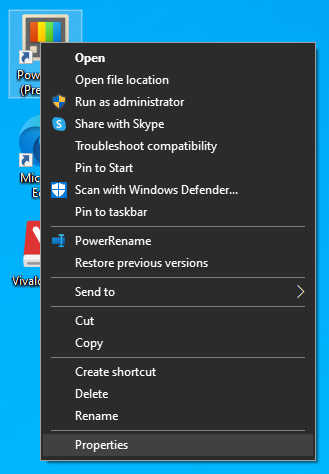
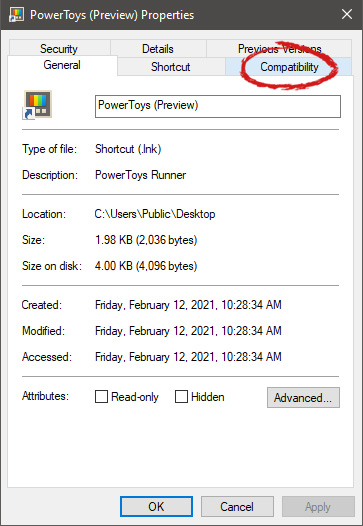
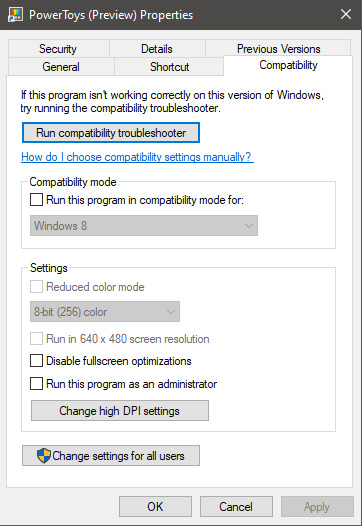
All of that being said, let's start that old app you have. First thing is to locate an executable file or shortcut of the desired application. Once it is located, right-click on it to bring up the menu, and all the way to the bottom you will find properties. Left-click on properties. file properties drop down menuThe application settings screen will open, in upper tabs locate Compatibility and left-click on it. file properties compatibility tab markedAfter the click, you will find yourself in application compatibility settings. File properties compatibility optionsIn this window, you will face different options to run the chosen application in various modes in order to make it run. How settings are self-explanatory and different applications will need different settings sadly we can not cover them all but your safest bet is to run them in an environment where they have worked. For example, if the application was working fine in Windows XP and required administrator privileges, check Run this program as an administrator and Run this program in compatibility mode for Windows XP.

Read More
Fix Unsupported video type/invalid file path
The MP4 MIME-type is a video type that is mainly configured in IIS or Internet Information console. It is the one that instructs a web browser to use the default video application when running MP4 files from websites. MIME which stands for Multipurpose Internet Mail Extensions which offers a way to identify files on the Internet-based on their format and nature. For example, when a content-type header value like MP4 is defined in an HTTP response, the browser can be configured to open the file with the proper plugin. However, there are some servers that don’t have an associated MIME type to support MP4 files and so they fail to play these files. In such cases, you will encounter the “Unsupported video type or invalid file path” error, especially when you use the Internet Explorer browser in Windows 10. To fix this problem, you may have to configure the MP4 MIME type in IIS but you might find that IIS is not enabled in Windows 10 which is why you need to turn it on or enable it first. For more details, refer to the following instructions below.

Step 1 – Enable IIS:

  • Open Control Panel and go to Programs > Programs and Features.
  • From there, select “Turn Windows features on or off” to mark its checkbox.
  • After that, select “Web Management Tools” and expand its menu and look for “IIS Management Console”.
  • Click the OK button and then wait for a couple of seconds to allow Windows to successfully apply the changes made.

Step 2 – Configure the MP4 MIME type in IIS:

  • Go to Control Panel and from there, access Administrative Tools.
  • Next, click “Internet Information Services Manager” from the list of given options.
  • Once confirmed, it will open the IIS console where you have to click the name of your IIS Server located on the left panel. This will enable several options in the central details section.
  • Now double click on the icon with the label “MIME Types”.
  • After that, you should see an “Add” link option on the right panel. Click on the link to open a configuration dialog box.
  • Then type “.mp4” in the File Name Extension field and enter “video/mp4” in the textbox of the MIME Type.
  • Click the OK button to save the changes made. This should fix the “Unsupported video type or invalid file path” error on your Windows 10 computer.

Step 3 – Reset your browsers:

Mozilla Firefox

  • Open Firefox and click the icon that looks like three stacked lines located at the top-right section of the browser.
  • Next, select the question mark icon from the drop-down menu.
  • Then select “Troubleshooting information” from the slide-out menu.
  • After that, click on the “Reset Firefox” button located at the top-right section of the newly opened web page.
  • Now select “Reset Firefox” in the confirmation pop-up window that appears.

Google Chrome

  • Open Google Chrome, then tap the Alt + F keys.
  • After that, click on Settings.
  • Next, scroll down until you see the Advanced option, once you see it, click on it.
  • After clicking the Advanced option, go to the “Restore and clean up option and click on the “Restore settings to their original defaults” option to reset Google Chrome.
  • Now restart Google Chrome.

Internet Explorer

  • Launch Internet Explorer.
  • Next, click the wrench icon for Settings.
  • Then click Internet Options.
  • After that, go to the Advanced tab.
  • From there, click the Reset button. This will reset Internet Explorer’s settings to their default condition.
  • Now click OK to save the changes made.
Read More
Fix Feature Update failed, error 0x8007000e
In every task carried out in the Windows 10 operating system, some of them don’t go smoothly and it could encounter a couple of errors along the way. One of these errors you could encounter is the Windows Update error code 0x8007000e. This particular error was reported to occur a lot when downloading and installing a Feature update via Windows Updates. And recently, it has been reported to occur a couple of times for the Windows 10 1903 May 2019 update. According to security experts, this error could be caused by a lack of memory or disk space as well as issues in the Windows Update mechanism. Whatever the cause is, troubleshooting this problem shouldn’t be hard as this post will give you some potential fixes you can check out. To fix this error, here are some options you need to consider:

Option 1 – Clear up temporary or junk files

The error could be caused by some temporary or junk files in your computer and so you need to clear them up to fix the problem. You can achieve that using the Storage Sense feature.
  • Open Setting > System > Storage from the WinX Menu.
  • From there, you will see a list of all the local and connected storage devices along with the details on the free space. Make sure that Storage Sense is on.
  • Next, find a link that says “Free Up Space” and click it to open.
  • After that, a screen which is the built-in program in Windows 10 will appear and will scan your computer for the following junk files so you can free up disk space:
    • Windows Upgrade Log Files
    • System created Windows Error Reporting Files
    • Thumbnails
    • Temporary Internet Files
    • Previous Windows Installation Files
    • Delivery Optimisation Files
    • DirectX Shader Cache
  • Choose the files you want to get rid of and then click on the remove files option. Note that you’ll have an idea of the total size as you select any of the junk files listed above.
  • Now go to the “Free Up Space Now” section and click the Clear Now button. This will get rid of all the temporary or junk files in your computer and should hopefully fix the Windows Update error 0x8007000e.

Option 2 – Reset the Windows Update components

If by any chance that the second option didn’t work, resetting the Windows Update components could also help you resolve the problem. How? Refer to the following steps:
  • Open Command Prompt with admin privileges.
  • After that, type each one of the following commands and hit Enter after you key in one after the other.
    • net stop wuauserv
    • net stop cryptsvc
    • net stop bits
    • net stop msiserver
Note: The commands you entered will stop the Windows Update components such as Windows Update service, Cryptographic services, BITS and MSI Installer.
  • After disabling WU components, you need to rename both the SoftwareDistribution and Catroot2 folders. To do that, type each one of the following commands below and don’t forget to hit Enter after you type one command after the other.
    • ren C:/Windows/SoftwareDistribution/SoftwareDistribution.old
    • ren C:/Windows/System32/catroot2/Catroot2.old
  • Next, restart the services you’ve stopped by entering another series of commands. Don’t forget to hit Enter after you key in one command after the other.
    • net start wuauserv
    • net start cryptsvc
    • net start bits
    • net start msiserver
  • Close Command Prompt and reboot your PC.

Option 3 – Try configuring the Windows Update-related Services

  • Tap the Win + R keys to open the Run dialog box.
  • Then type “cmd” in the field and tap Enter to open an elevated Command Prompt.
  • Next, execute the following commands. Note that you have to type and enter each the command one after the other.
    • SC config wuauserv start= auto
    • SC config bits start= auto
    • SC config cryptsvc start= auto
    • SC config trustedinstaller start= auto
  • The commands you executed will make sure that the Windows Update-related services are available. Once it’s done, restart your computer and see if the Windows Update error is now fixed.

Option 4 – Try running the Windows Update troubleshooter

Windows 10 have various troubleshooters that can help you resolve many system issues. So if you’re dealing with Windows Update errors like Error 0x8007000e, you can run the Windows Update troubleshooter to resolve it. To run it, go to Settings and then select Troubleshoot from the options. From there, click on Windows Update and then click the “Run the troubleshooter” button. After that, follow the next on-screen instructions and you should be good to go.

Option 5 – Try to use the Media Creation tool

The Media Creation tool in Windows allows you to use the ISO installation file to make a bootable device that you can use to install Windows on your PC. Note that this is kind of different from the usual installation process as it could erase your computer’s current settings and data on the primary drive. Thus, before you proceed, you need to backup all your data into some removable drive and then use the Media Creation tool to make a bootable drive.
  • After making the bootable drive, you need to plug it in your computer and then reboot.
  • Next, tap the F10 or Esc key to open the boot options.
  • Now set the boot priority of the removable drive the highest. Once the setup comes forth, follow the next onscreen instructions and install Windows without any problems.
Read More
Guide to Repair Error 0x80040116

What's the 0x80040116?

Ms-Outlook is the widely used and most favored program to get and to send e-mails within workplaces. In addition, it eases customers' business execution through additional features like producing schedule records to retaining track of important dates and sessions, preserving details on addresses, producing several files for handling significant e-mails and accessories, and additionally preserving drafts of emails individuals intend to send in future. Ms-Outlook helps individuals handle functions and organize with each other effectively and economically. Nevertheless, everything may suddenly halt when the problem code information screen is experienced by the Outlook user, you. This is time-consuming and annoying as it prevents you from getting into your account and could lock you away from your view e-mail account. Error code 0x80040116 is a familiar Outlook error that jumps up with no caution on the display. Besides restricting your capacity to utilize your Outlook account, it presents a critical risk to the private data you've stored inside. Additionally, there is the chance of losing parts and information preserved in your e-mail account.

Error Causes

Finding and determining error code 0x80040116 cause isn't fairly easy. The truth is that there are several distinct causes that could activate this error A few of the major causes of this error include:-
  • Broken PST list document. Ms-outlook uses this file to handle the users' requests. You can encounter this problem signal when it gets ruined.
  • 2 gigabytes limit is exceeded by the PST record. You have been incorporating data to Outlook accounts for years frequently without any erasures. When the 2GB limit is reached this error may surface.
  • PST file gets damaged. This generally occurs thanks to virus contamination to the System or sudden system shutdown.
  • Problems with account settings.

Further Information and Manual Repair

The error 0x80040116 is displayed in just one of these types:
  • "Outlook.pst cannot be accessed - 0x80040116(where "Outlook.pst" is PST file name)"
  • "Sending and receiving reported error (0x80040116): Unknown error 0x80040116"
  • "Outlook.pst cannot be accessed – 0x80040116"
When you have this error, it is advisable to correct it promptly to ensure it doesn't interfere with your productivity and work. You do not require to contact an IT expert, to solve this issue. It's graded as an error signal that's easy to repair. So you do not want need deep IT knowledge to fix it. There are two methods to remove this problem signal. Erase some memory if the error is created by excessive data. This technique functions in the event the error's cause is PST size. However, that is not likely the best method to repair it if dropping the data that is outdated is no alternative. Maybe the one that is greatest and the 2nd alternative is to install and to obtain Stellar Phoenix Outlook PST Repair. Why is this the solution that is most effective to repair and solve the problem code 0x80040116 out there is that the software can fix the malfunction no matter the trigger? What this means is you do not have to understand the nitty-gritty of determining a problem signal and then locate a unique option to fix its cause. Wait there is a lot more! Stellar Phoenix Outlook PST fix tool is compatible with all versions of Windows. Therefore, whether you've got 2007, the 2000 version, or 2010 Outlook editions, you do not have to be concerned about the compatibility like with several other repair resources out there. Also, it solves the issue in a short while as well as re-establishes each of the e-mails, contact records, and diary info. That means that if you had lost the info as a result of error code 0x80040116, it is possible to heave a sigh of relief as everything is going to be regained right back. What you need to do is click here, Download, and run Stellar Phoenix Outlook PST on your computer to recover your ms-outlook accounts now and fix error code 0x80040116.
Read More
How to Fix Error Code 0xc004f210 in Windows 10

Error Code 0xc004f210 – What is it?

Error code 0xc004f210 is one of the many activation errors that affect Windows 10 users. Users will be able to identify error code 0xc004f210 because of the following common symptoms which occur:

  • Inability to activate Windows 10 operating system
  • Message box with error code 0xc004f210

Solution

Restoro box imageError Causes

Error code 0xc004f210 usually occurs due to issues related to one’s product key or digital entitlement. Both the product key and digital entitlement are used by Microsoft to enable customers to activate the version of Microsoft that they have legitimate access to. If you enter the wrong product key or if you upgrade to Windows 10 but the current version of Windows to which you are attempting an activation does not match the edition of your digital entitlement, error code 0xc004f210 may occur. To correct this issue, you will need to implement one or more manual repair procedures. This will depend on the problem that caused the error to occur in the first place.

Further Information and Manual Repair

The methods below are simple procedures that Windows users lacking technical knowledge will be able to successfully complete. However, do contact a Windows repair technician if you have difficulty completing the manual repair methods listed below, or if the problem persists after completing these steps.

Method One: Enter Valid Product Key

In order to successfully activate your Windows 10 operating system and resolve error code 0xc004f210, you will need to enter a valid product key. Ensure you enter the 25-character code in the order it is given as making a simple mistake while typing the product key can lead to the reoccurrence of the error code. Follow the instructions below to enter the product key.

  • Step one: Click the Start button then select Settings
  • Step two: Select Update & security then Activation
  • Step three: Click the Change product key
  • Step four: Type in your valid product key with its 25 characters in the correct order

You should be able to successfully activate Windows 10 once you complete the process. However, move to the next manual method suggested below if the problem persists as error code 0xc004f210 could be due to an issue with your digital entitlement.

Method Two: Reinstall Windows 10 Edition that Matches Your Digital Entitlement

Digital entitlement, a new form of activation that doesn’t require the use of a product key, could be the real reason you are experiencing error code 0xc004f210 on your device. To combat any issues related to your digital entitlement, ensure the version of Windows 10 installed on your system matches your digital entitlement. This will require that you reinstall your operating system as well. After reinstalling Windows 10, follow the steps below to complete the process.

  • Step one: Click the Start button then select Settings
  • Step two: After selecting Settings, click Update & Security
  • Step three: Select Windows Update then the Check for updates tab
  • Step four: Activate Windows 10 update

If this method is successful, you will no longer see the error code 0xc004f210 pop up on your screen. However, contact a Windows repair technician to evaluate your system if the issue persists.

Method Three: Use an Automated Tool

This method involves the use of a powerful automated tool. But why is this important you might ask? A third-party tool is often the best solution when all manual repair efforts fail. Automated tools come equipped to tackle the most serious PC problems including error codes which can cause frustration and result in reduces PC performance.

Read More
Could not configure one or more components
If you are trying to install or upgrade your Windows 10 computer but suddenly encountered an error message saying, “Windows Could not configure one or more system components”, read on as this post will show you how you can fix the problem. You are not alone in experiencing this problem as other users also reported having the same scenario. Some of them reported getting the following error message:
“Windows could not configure one or more system components. To install Windows restart the computer with error code 0xc1900101-0x30018.”
When you check on the Windows 10 rollback log, you will see a part with the “iisetup.exe” that’s related to the abort. Usually, the upgrade process completes over 50% and gets stuck and then rolls back later on and generates the error logs. This kind of error, in most cases, appears during the upgrade of Windows 10 and is related to the Internet Information Services or IIS in Windows 10. For some unknown reason, it restricts the installation or the upgrade which causes the error to appear. To fix the “Windows could not configure one or more system components” error, you can try to remove the IIS from the Windows Features or rename the “inetsrv” folder. You could also move all the folders related to IIS to another drive. For more details, refer to the options provided below.

Option 1 – Try to remove the IIS from Windows Features

The IIS is installed from the Windows Features and you can find it at Control Panel > Programs. From there, uncheck the checkbox for the Internet Information Services. Once done, click on the OK button to save the changes. Note that this process will get rid of all the related programs, services, and folders from Windows 10. So if you want to, you can just install them later on or use an offline installer from the official site of Microsoft.

Option 2 – Try renaming the inetsrv folder

The next option you can check out to resolve the problem is to rename the “inetsrv” folder. If you have uninstalled IIS from the Windows Features, this should remove the folders as well, however, it didn’t remove the folder then you have to delete the folders that are related to the IIS by following these steps:
  • First, you have to boot into the Advanced Recovery Mode and from there, open Command Prompt.
  • Next, execute this command to rename the folder from this location, C:Windowssystem32inetsrv: rename C:/Windows/system32/inetsrv/inetsrv.old
  • Once done, boot into your computer normally and try to upgrade Windows 10 again, and check if the problem is fixed or not.

Option 3 – Try to move the folders related to IIS to a different drive

  • Tap the Win + R keys to launch the Run utility and type “services.msc” in the field and hit Enter to open the Windows Services Manager.
  • Next, look for the Application Host Helper Service from the list of services and stop it.
  • Once done, take ownership of the “WinSxS” folder and then move the *windows-iis*.*” folders to another drive. You can just search using the “*windows-iis*.*” keyword in the Start Search.
  • Next, tap the Ctrl + X keys and paste the folders to another drive.
  • After that, start the update process for Windows 10 again.
Read More
Fix Windows Activation Error 0xC004F211
If you got an Activation Error 0xC004F211 after having installed or upgraded your Windows 10 PC, then this indicates that some hardware in your computer has changed which’s causing the error to pop up. Windows might not be able to determine if the key is used on a new computer or if it’s still the same one if you have just removed or upgraded old hardware. But worry not for this post will guide you in fixing the Windows Activation Error 0xC004F211 on your Windows 10 computer. When you encounter this error, you will see the following error message on your screen:
“Cannot activate Windows 10. Try activating again later. If that doesn’t work, contact support. Error code: 0xC004F211.”
Note that although hardware changes cause this error, the minor ones don’t really cause any issues with activation, however, if you have made any significant hardware change such as replacing your motherboard, it will most likely cause the activation error. In such cases, the Windows Activation system will treat this as new hardware and you will need a new license for that. Even if your Windows 10 computer has a genuine key, it might still fail to get activated which results in the Windows Activation Error 0xC004F211. Thus, before you do other troubleshooting steps, you need to run the Windows 10 Activation Troubleshooter first. To do so, follow these steps:
  • Go to Settings and then select Activation.
  • After that, click on the Windows Activation and then troubleshoot. This will help you address most of the commonly found activation issues in Windows devices.
In addition, there is an exception offered by Microsoft – if you are connected to a Microsoft account prior to the hardware change, then you can most certainly use the same license key to reactivate Windows 10 again. Microsoft calls this an “Exception path” which should be fixed easily by the Windows Activation Troubleshooter as pointed out earlier. However, if the Windows Activation Troubleshooter isn’t able to resolve the error you can try purchasing a new license. In such rate case, even if you do have a Microsoft account available on your Windows 10 computer, and if Windows was never activated, this solution will not work. And if you haven’t connected your Microsoft account with your Windows 10 computer prior to the major hardware change, then your only option left is to purchase a new license. For you to do that here are some steps you can follow.
  • To purchase a new Windows license, the first thing you have to do is click on the Start button > Settings > Update & Security.
  • From there, go to Activation and select the “Go to Microsoft Store” option.
  • After receiving your new license, you need to go back to Update & Security then go to Activation and select the “Change product key” option.
  • Now update your Windows 10 computer using the new key and it should automatically activate your computer.
  • Next, you have to create a Microsoft account or connect your existing local account to your online account.
  • Once the system links the key and the account, you need not buy a new license in case something like this happens again.
Note: If you are an IT administrator, you need to keep in mind that there is a limit to the number of times you can reactivate Windows on your computer. Moreover, if you don’t see any option to reactivate the license, and it is a work computer, you need to contact your organization’s tech support.
Read More
1 2 3 171
Logo
Copyright © 2023, ErrorTools. All Rights Reserved
Trademark: Microsoft Windows logos are registered trademarks of Microsoft. Disclaimer: ErrorTools.com is not affiliated with Microsoft, nor claims direct affiliation.
The information on this page is provided for information purposes only.
DMCA.com Protection Status