Logo

Logitech G Cloud gaming handheld

Logitech announced the Logitech G CLOUD gaming handheld, somewhat of a STEAM Deck competitor. Somewhat, because the reason is that not like Deck this device is not packing huge power in order to run locally PC games, instead it is made with one goal in mind to connect to Cloud gaming and let you play games in that way.

Logitech G cloud gaming handheld

The device is packed with a 7-inch display featuring 1080p resolution in a 16:9 ratio with a refresh rate of 60Hz, an analog thumbstick, a D-pad, 4 action buttons, and triggers. Inside the device beats Snapdragon 720G (CPU used in most Android phones), 4GB of LPDDR4X RAM & 64GB of internal storage. As seen hardware is way less impressive than one that is packed inside the STEAM deck but as stated this handheld is not meant to run natively PC games so this hardware will suffice for its purpose.

Logitech has partnered with both Nvidia and Microsoft to add GeForce now and Xbox Cloud Gaming access to its device. If you have an account on either one of these services you can fully use them on the Logitech G Cloud gaming handheld. You can also play some Android games via the Google play store but the main goal is Cloud gaming.

The price of 350$ USD is not very impressive since STEAM Deck which is a way more capable device is running for 400$ USD, for the difference of only 50$ USD Deck has an advantage, and the price itself is a hard point for selling and if we place into this mix som retro handhelds that go as low as 100$ USD Logitech is in an awkward position. Note that Nintendo Switch is 300$ USD.

Do You Need Help with Your Device?

Our Team of Experts May Help
Troubleshoot.Tech Experts are There for You!
Replace damaged files
Restore performance
Free disk space
Remove Malware
Protects WEB browser
Remove Viruses
Stop PC freezing
GET HELP
Troubleshoot.Tech experts work with all versions of Microsoft Windows including Windows 11, with Android, Mac, and more.

Share this article:

You might also like

Chrome features that you need to use

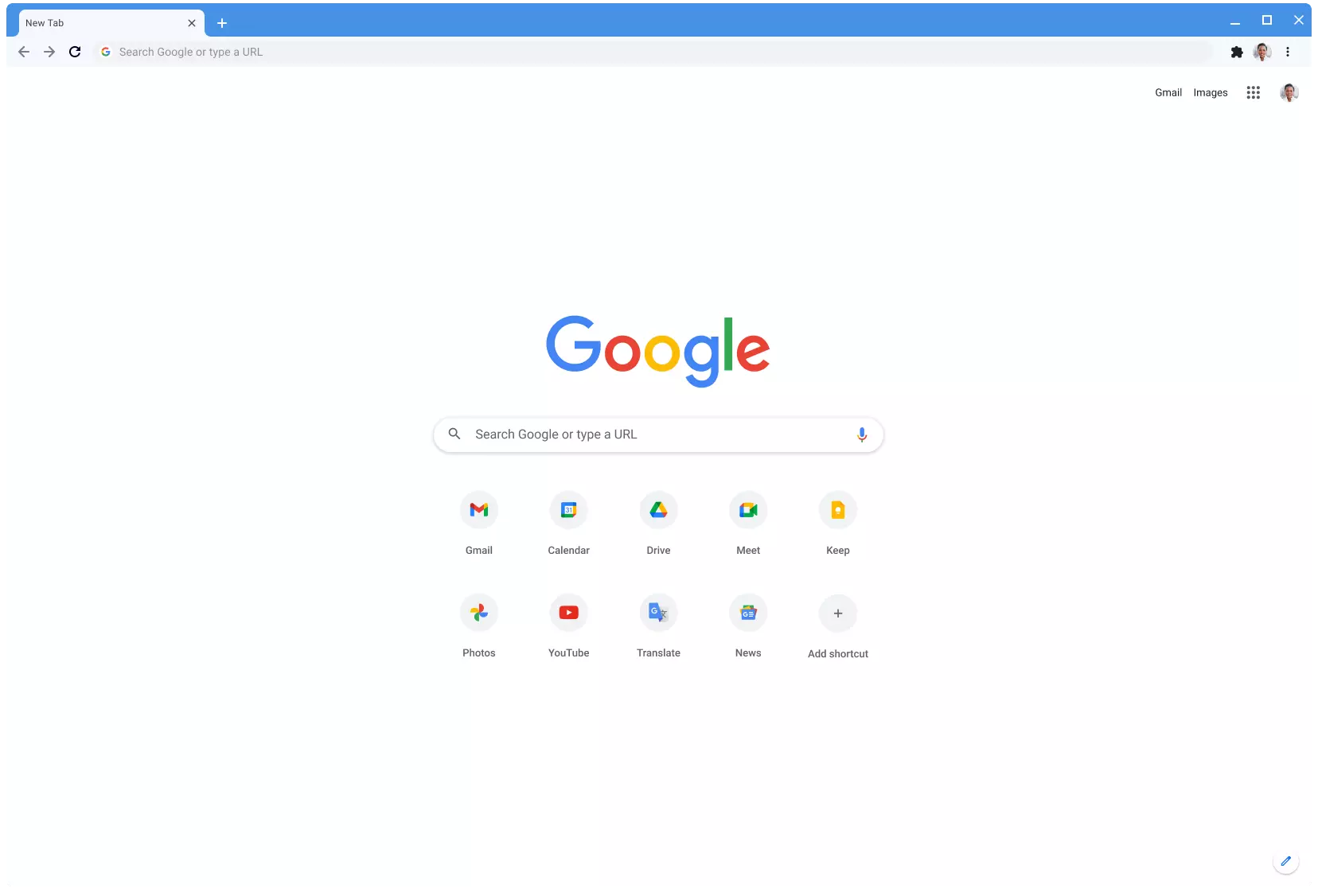
Google Chrome is the most used browser in the world with the most user downloads. Most users are using browsers how it is, open it up and just surf but Chrome offers more than just plain surfing. Here we are presenting you with some interesting features that most users do not use but should.

google chrome

Use Omnibox to search inside websites

Chrome's Omnibox, also known as the address bar got its name because it can do much more than just search the internet. You already probably know that just by typing any word you will search the internet with Google or another search engine of choice.

You can also set specific keywords inside Chrome settings to tie them with specific websites, for example, you can tie the letter E with errortools, and then just by typing E windows error you will search term windows error on website errortools. There are some already predefined things and you can add anything you want so this is a great feature in order to speed up your work skipping part of actually opening the site.

Search the internet for selected text

On any webpage, you can simply select any text and right-click on it to get a new menu entry that will say search Google for "your selected text" and by clicking on it you will automatically search the net for the selected term.

Grouping tabs

When we surf the internet some of us tend to have plenty of open tabs and over time they can clutter and shrink in width making the surfing experience an unpleasant one.

Chrome has tab groups and you really need to start using them since you can organize much better all the tabs, even color-code them.

Search all open tabs

On top right part on title bar right next to minimize button there is small arrow pointing down, once you clik on it all opened tabs will be displayed by name as a listand by clicking on it you will automatically switch to it.

Change download location

Google Chrome has its default download destination but you can change that destination and even turn on option to be asked where you would like your download to be saved each time.

Live Captions

YouTube has cations for its videos but Chrome itself has live caption option in order to provide you with automatic AI captions for any type of video or audio on any website. If you are struggling with following what is being said try this awesome option.

Extensions

Using extensions in Chrome is awesome, specialy if extensions are usefull but if you go incognito they are not active. There is an option in Chrome to turn on the extensions even in incognito mode and even better, you can even choose which ones you want to be active, you do not need to turn all of them.

Read More
Disable or Enable App Launch Tracking
The Windows 10 operating system utilizes a variety of measures in order to track your app launches so that it can boost both your start and search results. It can personalize the start menu based on the apps that you use the most on the Start menu as well as the search results. This way, the App Launch Tracking is definitely useful especially when you want to access your favorite and frequently used apps quickly in the Start menu and search results on your Windows 10 computer. On the other hand, Windows 10 provides users with the ability to control their privacy settings in order to protect the privacy of users. Windows 10 users can either opt to enable the app launch tracking to improve the start menu and search menu or opt to disable the app launch tracking in order to prevent the Windows operating system from tracking that you open if you really value your privacy that much. Whichever setting you prefer, you need to change the privacy control settings as well as make some tweaks in the Windows Registry in order to turn on or turn off the app launch tracking feature.

Option 1 – Turn off or turn on app launch tracking via Settings

  • Go to Settings and click on Privacy.
  • After that, toggle On the “Let Windows track app launches to improve Start and search results” option on the right side of the page under the General Settings to enable the app launch tracking feature.
  • And of course, if you wish to disable the app launch tracking feature, simply toggle Off the “Let Windows track app launches to improve Start and search results” option on the very same page under General Settings.
  • After that, close the Settings window.
Note: Keep in mind that when you disable the app launch tracking feature, the “Show most used app” setting will either be grayed out or labeled as “Disable” on your Windows 10 computer. Thus, if you want to keep viewing the most used apps, just re-enable the app launch tracking feature if you have disabled it.

Option 2 – Turn off or turn on app launch tracking via Windows Registry

Before you proceed, make sure to create a System Restore point
  • Tap the Win + R keys to open the Run dialog box.
  • Then type “Regedit” in the field and hit Enter or click OK to open the Registry Editor.
  • Next, navigate to the following path:
HKEY_CURRENT_USERSOFTWAREMicrosoftWindowsCurrentVersionExplorerAdvanced
  • After that, right-click on the Advanced folder and then click on New to create a new 32-bit DWORD value.
  • Name the newly created DWORD as “Start TrackProgs” and set its value to “1” to enable the app launch tracking feature.
  • If you want to disable the app launch feature, set “0” as the value instead of 1.
  • Now click OK and restart your computer.
Take note that you still have to create a 32-bit DWORD value even if you are using a 64-bit Windows computer.
Read More
Samsung Odyssey Neo G9 monitor review
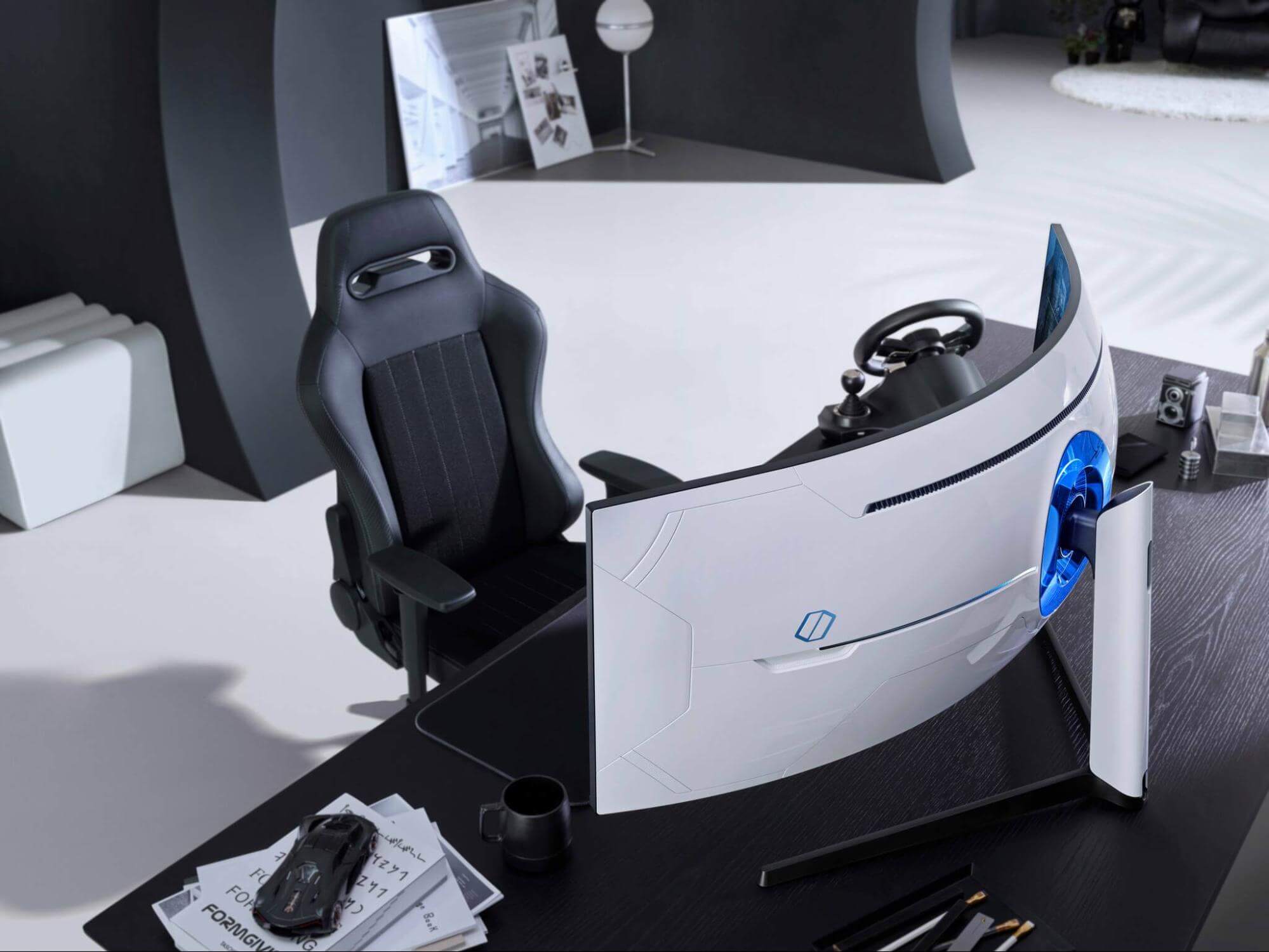
samsung Odyssey Neo G9Odyssey Neo G9 is a successor to Odyssey G9 curved gaming monitor and it is aimed again at the gaming community with its specifications but of course, it can be used for work as well. Gapping at a stunning $2500 USD price it is not really a cheap piece of hardware so it is normal to see what do you get for this kind of price and do features justify it, so let’s dive in.

Size and resolution

The first thing that you can notice about the screen is that it is big and curved, 49 inches big which is pretty big, and with it, I believe you can forget about using 2 or 3 screens because this single one will cover everything you need really. Going as far as 5120 X 1440 resolution is the strange definition, basically, this is 5K which is kind of nice but I do not see the advantage. Sure it is larger than 4K, but for the price of $2500 I expected an 8K monstrosity so if the resolution is not the main price justification then what is? Let’s move on and find out.

Odyssey tech specs

The monitor comes with HDR and 240Hz refresh rate which is very nice and coupled with 1ms pixel response time, adaptive sync, and Variable Refresh Rate you get pretty good other tech specs. All of this is very nice but the monitor's strongest selling point is Mini Led tech. Mini Led is a next-gen tech currently found only in high-end TVs. With this technology, monitors can produce truer blacks sort of speak thanks to a greater number of dimming zones. Odyssey Neo G9 is rated at 2000 nits in the brightness values and local dimming zones go to stunning 2048. It comes also with Quantum HDR that supports 10+, Freesync, and G-Sync capability. In connection, the department monitor comes with a single display 1.4 port and two HDMI 2.1 ports. It also includes a headphone jack along with two USB 3.0 ports.

Conclusion

While the resolution of the monitor is nothing impressive for the given price, its size and the rest of the tech specs surely are. Now I will not lie, the price is still a little too high but if you could afford it easily I think you should.
Read More
Enable or Disable Status Bar in File Explorer
As you know, the Windows File Explorer is quite a responsive program and contains tons of features. It allows you to do various customizations by changing Settings or changing the value of a Registry key or Group Policy modification. Either way, you will be guided on how you can enable or disable the Status Bar in File Explorer on your Windows 10 computer. The Status Bar is located at the bottom of the File Explorer and shows you how many items are inside the folder and how many items you’ve selected. In addition, it also shows you information about each item and can display items using large thumbnails with just a single click. In order to enable or disable the Status Bar in File Explorer, you can use the two given options below as reference. You can either use the Folder Options or the Registry Editor.

Option 1 – Enable or Disable Status Bar via Folder Options

  • Tap the Win + E keys on your keyboard to open File Explorer.
  • Then tap the Alt + F keys and click on Options.
  • From there, make sure that you are in the View tab and look for the “Show Status Bar” option in the list that gets populated.
  • After that, check if the Show Status Bar option is enabled or disabled. It is supposed to be enabled by default so if it is enabled and you want to disable it, just simply uncheck its checkbox otherwise, leave it as it is.
  • Now click on Apply and then OK to save the changes made

Option 2 – Enable or Disable Status Bar via Registry Editor

  • Tap the Win + R keys to open the Run dialog box.
  • Then type “Regedit” in the field and hit Enter to pull up Registry Editor.
  • Next, navigate to this registry key: HKEY_CURRENT_USERSoftwareMicrosoftWindowsCurrentVersionExplorerAdvanced
  • Afterward right-click on Advanced and select New > DWORD (32-bit) Value and then input “ShowStatusBar as the name of the newly created DWORD.
  • Now double click on the new DWORD and change its value to “0” if you want to disable Status Bar and “1” if you want to enable it.
  • Then exit the Registry Editor and restart your computer to apply the changes made.
Read More
How to Fix Windows 10 Error Code 0xc004fc03

Error Code 0xc004fc03 – What is it?

Error code 0xc004fc03 occurs when Windows users fail to activate their Windows operating system due to a networking problem. The error code’s common symptoms include the following:

  • Inability to activate Windows 10 operating system
  • Message box with error code 0xc004fc03

Solution

Restoro box imageError Causes

Error code 0xc004fc03 in Windows 10 usually occurs due to issues related to a Windows user’s network. Your computer may be having problems connecting to the Internet or your firewall may be blocking or interrupting your device’s ability to activate Windows 10. In some cases, users may simply need to wait a day or two to reattempt to activate their system using a valid product key, as there may be an issue with the Windows activation servers.  Failure to promptly fix this error code might result in other Windows 10 error messages, such as error code 0xc004f034.

Further Information and Manual Repair

To rectify the error code, Windows 10 users will need to perform manual repair procedures that fix the underlying problems causing error code 0xc004fc03. These procedures may include reconnecting to one’s network, checking your firewall settings, or activating your Windows operating system via phone. The manual repair methods are simple and do not require technical knowledge of the Windows operating system. If your attempts at manually repairing this error code fail, however, you may need to try a few other procedures.

Method One: Verify Internet Connection

To check your Internet connection, you’ll need to access the Network & Internet tab in Windows 10. Follow the instructions below to access this tab and fix Internet connectivity issues if they are preventing you from activating Windows on your machine.

  • Step one: Click the Start button and select Settings
  • Step two: Select Network & Internet
  • Step three: Click the Status section of the Network & Internet tab

If your status shows that you are not connected to a network, you will need to fix your connection. Simply use the Network Troubleshooter to troubleshoot your connection. You will be able to activate your copy of Windows once your connectivity issues are resolved.

If, however, the problem persists and error code 0xc004fc03 occurs during the activation process, this simply means that the existence of the error code is not due to connectivity or networking problems. In such a case, move to the next manual repair method listed below and follow the exact instructions given.

Method Two: Check Firewall Settings

Windows Firewall protects your PC from hackers, worms, and other malicious programs. However, in some cases, it may result in error codes like error code 0xc004fc03. If your firewall is interfering with the Windows 10 activation, you’ll be able to rectify the problem by simply adjusting your settings. Follow the steps below to check – and adjust if necessary – your Windows Firewall settings.

  • Step one: Click search bar and type firewall
  • Step two: Select Windows Firewall
  • Step three: Select Turn Windows Firewall on or off

In some cases, Windows users may not be able to adjust settings within the Windows Firewall tab, as your firewall settings may be controlled by a third party antivirus software. If this is the case, open the antivirus software and turn off the firewall if the software does not prevent you from making such changes to its settings.

Note, however, that you will need to readjust the settings as soon as you activate your version of Windows 10. This is due to the fact that turning off your firewall settings permanently may lead to exposure to worms and other malicious programs.

Method Three: Activate Windows by Phone

Activation of Windows via phone is another option for individuals experiencing error code 0xc004fc03. The activate by phone option in the Update & Security tab will be available once you fail to activate Windows 10. To complete this manual repair method, follow the steps below.

  • Step one: Select Settings
  • Step two: Click Update & security
  • Step three: Select Activate by phone
  • Step four: Follow the instructions provided thereafter.

This is one of the most effective ways to fix error code 0xc004fc03. If the issue persists, however, you can proceed to the last resort.

Method Four: Download an Automated Tool

If you wish to always have at your disposal a utility tool to fix these Windows 8 and other related issues when they do arise, download and install a powerful automated tool.

Read More
Word icon is not showing on .doc & .docx
Recently, a number of users reported seeing plain white icons on their “.docx” files instead of the Word icon. This kind of issue is mostly caused by a conflict with the default program settings in Windows which is why you may not see any Microsoft Word icon on your .docx files. So if you suddenly find that the Microsoft Word icon is either blank or missing and does not show properly on .doc and .docx document files of Office on your Windows 10 computer, then you can check out the potential solutions outlined below. Before you proceed, you can try to restart your computer as there are instances when a simple system restart can resolve some issues like this one. However, if it does not help, create a System Restore point first. This is to ensure that you can always undo the changes you are about to make in case something goes wrong. Once you have that covered, proceed to the following options.

Option 1 – Try to configure .docx files to open with “winword.exe”

You can try configuring the .docx files to open with the winword.exe in order to fix the problem.
  • Right-click on a .docx file and select the “Open with…” option.
  • After that, if a prompt appears with a message saying, “How do you want to open this file”, select the “More apps” option to proceed.
  • Next, scroll down and check the checkbox that says, “Always use this app to open .docx files” option.
  • Then click on the “Look for another app on this PC” link and choose the WINWORD.exe application from one of the following paths based on the installed Office version in your computer and click Open:
    • Word 2016 (64-bit): C:/Program Files/Microsoft Office/root/Office16
    • Word 2016 (32-bit): C:/Program Files (x86)/Microsoft Office/root/Office16
  • Now check if you can now see the Word icon on the .doc or .docx files.

Option 2 – Try changing the default Word icon via Registry Editor

  • Tap the Win + R keys to open the Run utility.
  • Then type “Regedit” in the field and hit Enter to open the Registry Editor.
  • Next, navigate to this path located in the left pane: HKEY_CLASSES_ROOTWord.Document.12DefaultIcon
  • From there, double click on the default value at the right pane and based on the Word version you are using as well as the architecture (32 bit or 64 bit) and then copy-paste the corresponding value in the Value data box:
    • For Word 2016 (64-bit) keep it as C:/Program Files/Microsoft Office/root/Office16/wordicon.exe,13
    • For Word 2016 (32-bit) Keep it as C:/Program Files (x86)/Microsoft Office/root/Office16/wordicon.exe,13
  • Once you’re done, tap Enter and then close the Registry Editor.
  • Restart your computer and see if the problem’s fixed.

Option 3 – Try to rebuild the Icon cache

You may want to rebuild the Icon cache as it could also help fix the issue.
  • Tap Win + E to open File Explorer and then click Folder Options and click Views to show Hidden System Files.
  • After that, go to C:Users%username%AppDataLocal folder and look for a file named Iconcache.db and delete it.
  • Next, go to C:Users%username%AppDataLocalMicrosoftWindowsExplorer.
  • From there, look for the following files and delete them.
    • iconcache_32.db
    • iconcache_48.db
    • iconcache_96.db
    • iconcache_256.db
    • iconcache_1024.db
    • iconcache_1280.db
    • iconcache_1600.db
    • iconcache_1920.db
    • iconcache_2560.db
    • iconcache_exif.db
    • iconcache_idx.db
    • iconcache_sr.db
    • iconcache_wide.dd
    • iconcache_wide_alternate.db
  • Restart your computer. This will purge and rebuild the icon cache.

Option 4 – Try fixing Office apps

Fixing the Office apps can help you resolve the Word icon issue. All you have to do is open Settings > Apps. From the app list, look for the Microsoft Office Desktop apps and select it and then click on the Advanced options and click Fix. After that, wait until the process is completed and restart your PC. However, if the problem still persists, repeat the steps again but this time, click on Reset instead of Fix.

Option 5 – Try to repair Office Installation

If the options given above didn’t work, you can try to repair the Office installation and see if it can fix the problem.
  • Open Control Panel and click on Programs and Features.
  • Next, right-click on the Office program that you want to repair which in this case is, Word.
  • Select Change and click Repair > Continue. After that, Office will start to repair Microsoft Word.
  • Wait until the process is done and then reboot your computer.
Read More
FreeMaps Removal Tutorial

FreeMaps is a google chrome extension by Mindspark powered by Ask or MyWay. This extension offers users a quick and easy way to find the routes or locations that they desire. While all of this may seem appealing, this extension was classified as a Browser Hijacker by many anti-virus applications and was marked for removal.

When installed FreeMaps will change your home page, new tab and default search engine to MyWay.com, it will monitor your browsing activity and send it back to Mindspark ad servers. This data is later used/sold to better display targeted ads depending on your search queries.

While browsing the internet with this extension active you will see additional pop-up ads, sponsored links, and injected ads displaying throughout your browsing sessions, and even injected into websites that should be ad-free. Due to poor code optimization, these ads can sometimes cover a part of the page, making it unreadable or inaccessible.

About Browser Hijackers

Browser hijacking is a form of unwanted software, commonly a browser add-on or extension, which then causes modifications in the web browser’s settings. Browser hijackers are capable of doing more than simply changing home pages. These are typically used to force hits to a specific site, manipulating web traffic to earn ad revenue. It could seem naive, but most of such websites aren’t legitimate and could present a major threat to your online safety. As soon as the malware attacks your laptop or computer, it begins to mess things up a whole that slows your computer down to a crawl. In the worse case, you will be forced to tackle serious malware threats too.

How you can know whether the browser is hijacked?

Signs that your web browser is hi-jacked include: your browser’s homepage is suddenly different; bookmark and the new tab are likewise modified; default web engine is modified; find new toolbars which you didn’t add; unstoppable flurries of popup adverts show up on your computer screen; your browser has instability issues or exhibits frequent errors; you cannot visit specific websites such as home pages of anti-malware software.

Exactly how browser hijacker finds its way onto your computer

A browser hijacker could be installed on your PC if you check out an infected website, click an e-mail attachment, or download something from a file-sharing website. They can also be deployed via the installation of a web browser toolbar, extension, or add-on. Some browser hijackers spread in user’s computer systems by using a deceptive software distribution method known as “bundling” (usually through freeware and shareware). Typical examples of browser hijackers include Conduit, CoolWebSearch, OneWebSearch, Coupon Server, RocketTab, Searchult.com, Snap.do, and Delta Search. Browser hijackers can record user keystrokes to gather potentially invaluable information that leads to privacy issues, cause instability on systems, drastically disrupt user’s browsing experience, and eventually slow down the system to a point where it becomes unusable.

Tips on how to remove browser hijackers

Some types of browser hijackers can be removed from your PC by deleting malicious software applications or any other recently installed shareware. Having said that, many hijackers are very tenacious and require specialized tools to eliminate them. You should think of carrying out manual repairs only if you are a tech-savvy person since there are dangers associated with messing around with the computer registry and HOSTS file. Professionals always suggest users to remove any malicious software including browser hijacker with an automatic malware removal tool, which is better, safer and faster than the manual removal procedure. One of the best tools for repairing browser hijacker malware is SafeBytes Anti-Malware. It will help you remove any pre-existing malicious software in your pc and provides you real-time monitoring and protection against the latest threats.

How To Install Safebytes Anti-Malware On An Infected Computer

All malware is inherently harmful, but certain kinds of malware do a lot more damage to your computer or laptop than others. Certain malware goes to great lengths to prevent you from downloading or installing anything on your PC, especially antivirus applications. So what should you do if malware prevents you from downloading or installing Safebytes Anti-Malware? Follow the instructions below to get rid of the malware in alternate ways.

Start Windows in Safe Mode

In the event the malware is set to run at Windows start-up, then booting in safe mode should avoid it. Only the bare minimum required programs and services are loaded when you start your PC in Safe Mode. Here are the steps you should follow to start your computer into the Safe Mode of your Windows XP, Vista, or 7 computers (visit Microsoft website for directions on Windows 8 and 10 computers). 1) Hit the F8 key repeatedly as soon as your PC boots, however, before the big Windows logo or black screen with white texts comes up. This should bring up the Advanced Boot Options menu. 2) Use the arrow keys to choose Safe Mode with Networking and press ENTER. 3) As soon as this mode loads, you will have an internet connection. Now, obtain the malware removal software you want by utilizing the internet browser. To install the program, follow the directions within the setup wizard. 4) After installation, run a full scan and let the program get rid of the threats it discovers.

Obtain the anti-malware software in a different internet browser

Some malware mainly targets specific browsers. If this sounds like your case, employ another web browser as it could circumvent the virus. If you appear to have malware attached to Internet Explorer, then switch to an alternate internet browser with built-in safety features, such as Chrome or Firefox, to download your preferred antivirus program – Safebytes.

Install antivirus on a flash drive

Here’s yet another solution which is using portable USB anti-malware software that can scan your system for viruses without the need for installation. Abide by these steps to run the anti-virus on the affected computer system. 1) Download Safebytes Anti-Malware or Microsoft Windows Defender Offline onto a virus-free PC. 2) Insert the USB drive into the clean PC. 3) Double click on the exe file to open the installation wizard. 4) Select the flash drive as the location for saving the software file. Follow activation instructions. 5) Transfer the thumb drive from the uninfected computer to the infected PC. 6) Double-click the Safebytes Anti-malware icon on the pen drive to run the program. 7) Press the “Scan Now” button to start the virus scan.

Protect your PC from Malware With SafeBytes Security Suite

In order to protect your computer from many different internet-based threats, it is important to install an anti-malware application on your laptop. However, with so many anti-malware companies out there, these days it’s tough to decide which one you should purchase for your PC. Some of them are great while some are scamware applications that pretend as legit anti-malware programs waiting around to wreak havoc on your PC. You have to be very careful not to pick the wrong product, especially if you purchase a premium application. When it comes to commercial anti-malware software options, the majority of people go with popular brands, like SafeBytes, and they are very happy with it. SafeBytes anti-malware is a highly effective and user-friendly protection tool that is designed for end-users of all levels of computer literacy. This program could easily detect, remove, and protect your PC from the latest malware intrusions including adware, spyware, trojan horses, ransomware, parasites, worms, PUPs, along with other potentially harmful software applications.

SafeBytes has fantastic features when compared with other anti-malware programs. The following are some of the great features included in the software.

Live Protection: SafeBytes gives real-time active supervision and protection from all known viruses and malware. It’ll continuously monitor your pc for hacker activity and also provides end-users with advanced firewall protection. World-class AntiMalware Protection: Safebytes is built on the best virus engine in the industry. These engines will detect and remove threats even during the initial stages of a malware outbreak. Safe Browsing: SafeBytes inspects the hyperlinks present on a web page for possible threats and tells you whether the website is safe to explore or not, through its unique safety rating system. “Fast Scan” Features: Safebytes AntiMalware, using its advanced scanning engine, gives ultra fast scanning which can quickly target any active online threat. Lowest CPU/Memory Usage: This software is lightweight and can work quietly in the background, and will not impact your computer efficiency. Premium Support: You can get 24/7 technical assistance to immediately resolve any issue with your security application. To conclude, SafeBytes Anti-Malware is really great for securing your laptop or computer against all kinds of malware threats. Now you may realize that this particular software does more than just scan and eliminate threats in your PC. If you’re searching for the best malware removal application out there, and if you don’t mind spending some dollars for it, go for SafeBytes Anti-Malware.

Technical Details and Manual Removal (Advanced Users)

If you’d like to manually get rid of FreeMaps without the use of an automated tool, it may be actually possible to do so by removing the program from the Microsoft Windows Add/Remove Programs menu, or in cases of browser extensions, going to the browser’s AddOn/Extension manager and removing it. It’s also suggested to factory reset your browser settings to their default state. If you opt to manually remove the system files and registry entries, use the following list to ensure that you know precisely what files to remove before executing any actions. Please remember that this is for professional users only and may be challenging, with incorrect file removal resulting in additional PC errors. In addition, certain malware is capable of replicating or preventing removal. Completing this task in Safe Mode is advised.

Files: %LOCALAPPDATA%\FreeMapsTooltab\TooltabExtension.dll %TEMP%\nsf516A.tmp\nsDialogs.dll %TEMP%\nsf516A.tmp\System.dll %APPDATA%\Microsoft\Windows\Cookies\[email protected][1].txt %LOCALAPPDATA%\Microsoft\Internet Explorer\Recovery\High\Active\RecoveryStore.E9B13F93-5957-11E6-93FC-0A00273BA4BE.dat %LOCALAPPDATA%\Microsoft\Windows\Temporary Internet Files\Content.IE5\T1CS2ORS\installerParams[1].jhtml %TEMP%\nsf516A.tmp\installerParams
Read More
How to Repair Error Code 8007002c in Windows 10

What is Error code 8007002c?

Users when upgrading to Windows 10 operating system from Windows 8/8.1 or Windows 7, often encounter error code 8007002c. This error occurs when there’s an attempt made in performing an overall clean boot procedure. During the installation process, it will reach a certain maximum limit, for instance, 75%, and then reverts to its original state. Sometimes, after installation, users will encounter a black screen issue and there is no cursor visible.

Solution

Restoro box imageError Causes

Misconfigured system files that create registry errors within your operating system normally cause error code 8007002c in Windows 10. This registry error happens when there are new programs being installed over old ones without the old programs uninstalled entirely. Another possible cause could be from some malicious software like spyware, adware, and viruses.

Further Information and Manual Repair

Caution: The following steps are complicated. The risk of being in a no-boot situation or data loss might be encountered. It would be best to be supervised by an experienced user, especially in using the command line.

In order to fix Error code 8007002c occurring in Windows 10 upgrade, you can follow this step-by-step manual repair method. Once the repair method is correctly executed, users will most likely quickly resolve issues such as the Error code 8007002c and be able to upgrade to Windows 10 operating system smoothly.

However, in such cases where there are complex instructions and thus need an expert, seek help from a Windows professional. You may also want to consider making use of an automated tool whenever needed.

There are several ways to fix Error code 8007002c, but here are the most effective and efficient methods:

Method One: Force Windows Update

 To be able to download and install the necessary updates, you may use the force Windows Update tool. See below for the steps:

  1. Browse to C:\Windows\Software\Distribution\Download. Afterward, delete all the files found in that folder.
  2. Press Windows key + X then click on the Command Prompt (Admin). Type exe /updatenow once the Command Prompt window appears then press Enter.
  3. Open the Control Panel. Select Windows Update. At this point, Windows 10 should now start downloading.
  4. Press again on Windows key + X to open the Command Prompt window. In the Command Prompt, Type or Copy and Paste the following commands one at a time:

NOTE: Don’t forget to hit Enter after every command.

 Dism /Online /Cleanup-Image /CheckHealth

Dism /Online /Cleanup-Image /ScanHealth Dism /Online /Cleanup-Image /RestoreHealth
  1. Input a machine name for your computer. Make sure to use a simple name, having at least 8 characters.

Here’s how you can input a machine name:

  • Click on Start and then right-click on Computer. Afterward, select For users with Windows 8 operating system, press on Windows key + X then click on System.
  • Click on Change settings under the Computer name, domain, and workgroup settings.

Method Two: Diagnose RAM Issues

Another reason why Error code 8007002c occurs is when there’s a defective and wrongly installed memory chip. Try using the Windows Memory Diagnostic to diagnose if there are RAM Issues.

  1. Press on the Windows Key + X then select
  2. Type
  3. Select Windows Memory Diagnostic, from that window, select Restart now, and check for problems

Method Three: Use Selective Startup

One more possible cause why Error code 8007002c occurs is due to third-party software. To fix this error, you can try booting up your device with Selective Startup -- a boot type where you can load a limited set of startups and services.

  1. Open the System Configuration tool. On your Taskbar, type MSCONFIG in the Search Box then hit Enter.
  2. Select the General
  3. Select Selective startup option then tick on the Load system services
  4. Ensure that Load startup items check box is unchecked.
  5. Click Apply and

Can’t seem to put up with the long and technical manual repair process? You can still fix this error by downloading and installing a powerful automated tool that will surely get the job done in a jiffy!

Read More
Mac advantages over Windows PC
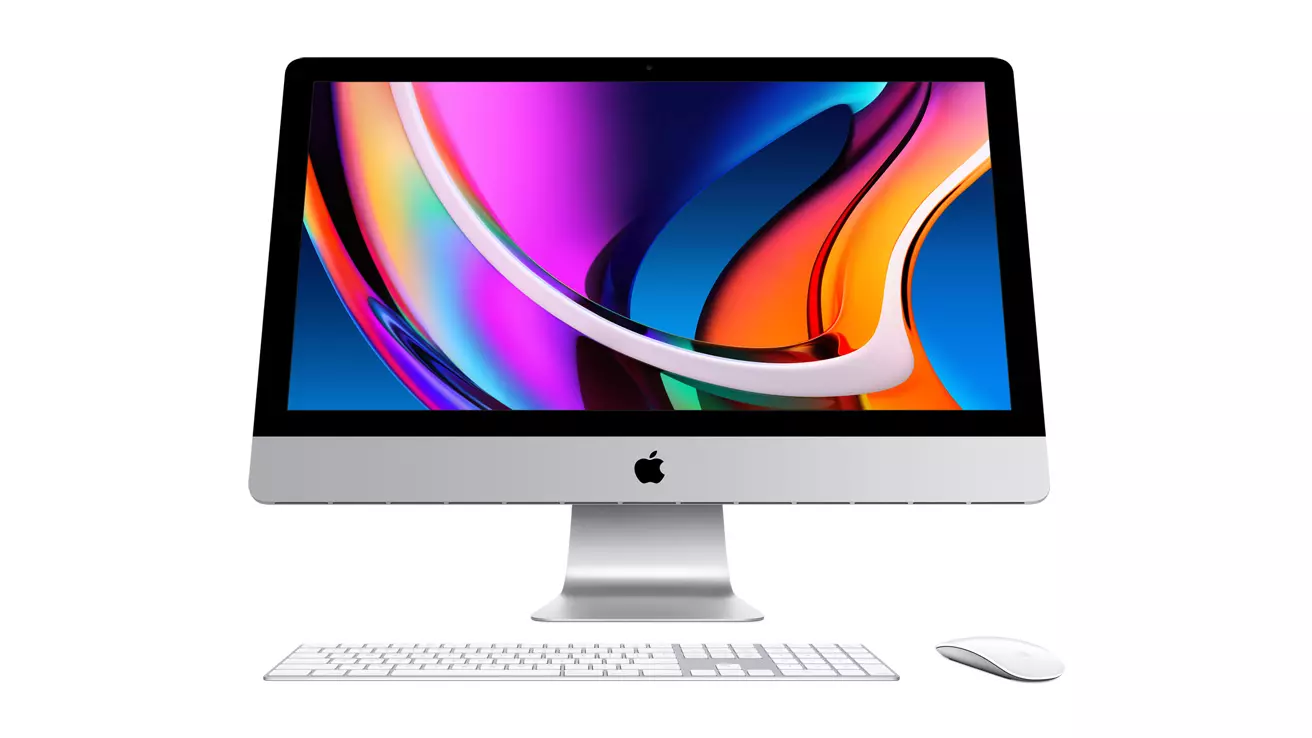
apple iMac

Mac OS

A solid reason to switch to Mac from Windows PC is Mac OS. Based on Linux, offers more stability and better security than Windows but you will not be able to find a vast array of applications on it.

Even when Mac OS X (the first big one) was first introduced, it looked and felt like ages beyond Windows (Microsoft just recently made a slick and modern design with Windows 11). Under the hood, it turned out that the operating system itself is stable and incredibly fast & responsive. If you value stability and easiness of use, Mac OS is the Operating system for you.

Apple ecosystem

This one is easy, if you are already invested in apple devices like iPhone and iPad, having an apple computer is one step forward into the apple ecosystem and one more step into easy sharing of documents and data between devices.

Calendars, emails, photos, videos, documents, and many more can easily be shared and synched between devices with a single apple ID making workflows much easier than on other operating systems.

Development

Developers all around the world say that developing on Mac is much better and smoother than on PC, this has probably to do something with OS being based on Linux but whatever the case is, it is much smoother and it just feels better. Apple laptops are often the go-to choice of developers for a reason.

Also if you are in the development business for applications and services aimed at iPhone or iPod then there is no really another way than to be into the apple ecosystem and own apple hardware.

Professional software

A lot of professional-grade software exists for both the Windows platform and Mac OS but there is some software that exists exclusively for Apple hardware like Final Cut Pro or Logic Pro. Both applications are used by professionals and are industry-standard software.

Logic pro is used by industrial audio specialists all around the world and is used in professional studios. Final Cut Pro is also used worldwide by video editors and if you are specializing in any of these two fields Mac seems like a very reasonable platform since the software can not be found on Windows. These two are examples, there are other similar applications that are only available on Mac OS

Longevity

Apple hardware is made of high-quality materials and components and it is proven over time that it lasts longer than usual. There are iPhones out there that have 13 years and they are still working, G3 and G4 Macs that are still functional.

When buying Apple products they will outlive other ones if treated properly so in the end you could be saving money by purchasing them.

Read More
How to Fix Error Code 0x80070005 in Windows 10

Error Code 0x80070005 – What is it?

Error code 0x80070005 is also known as the “Access Denied” error code because it prevents Windows users from accessing updates on their machines. This error code exists due to a lack of permissions on one’s system files or registry, permissions which are necessary for the updates via Windows Update to complete successfully. Error code 0x80070005 affects multiple versions of the Windows operating system including Windows 8, 8.1, and Windows 10.

Solution

Restoro box imageError Causes

The lack of files or registry permissions which result in the presence of error code 0x80070005 on your device may occur based on several reasons. The most common of these relates to the existence of malware programs on your machine. Malware can disrupt and change system files which are required for the update process to occur. Thus, this error code requires a systematic approach to first find missing or corrupt files, as well as cleaning up malware programs that could be preventing your machine from accessing updates.

Further Information and Manual Repair

Windows 10 users can repair error code 0x80070005 by implementing manual repair procedures. These procedures include the installation of tools like SubInACL.exe which enable users to access information about registry keys and files, thus detecting issues that may be preventing them from completing the update process in Windows Update.

These manual repair methods are listed below with clear instructions that even average Windows users can understand and follow. However, if you attempt the procedures and experience any issues that prevent you from successfully fixing error code 0x80070005, contact a Windows repair technician. Also, consider downloading an automated tool since these tools often help users fix PC performance issues that cause error codes to occur within various versions of the Windows operating system.

Method One: Log on as Administrator to Install Updates

By logging on as an administrator, Windows users may be able to access updates via Windows Update and thereby fix error code 0x80070005 in Windows 10. Follow the steps below to complete this manual repair method.

  • Step one: Click the Search bar near the Start button
  • Step two: Type User Accounts in Search
  • Step three: Select User Accounts
  • Step four: Click Manage User Accounts, then type in password if prompted to do so

Once you are logged on as an administrator, go to Settings to access Windows Update. You will be given the option to install the latest updates. Select this option and wait for the process to be completed. If error code 0x80070005 reoccurs, however, you will need to proceed to manual repair method two which requires that you scan for malware.

Method Two: Scan for Malware

This method is very simple. As you scan for malware on your machine, you will be able to detect any malicious programs that may be preventing you from installing updates on your device. This will in turn enable Windows users to clean up their system, fix the error code, and prevent others from occurring.

First, be sure you have a viable antimalware program on your machine. Scan for viruses and other harmful programs using this third-party software. Another option is to run Windows Defender on your machine.

Once you’ve completed the scan and error Code 0x80070005 moved any malware that may be present, attempt to install updates via Windows Update. If the problem causing error code 0x80070005 in Windows 10 is resolved, you will be able to install the updates. However, proceed to the next manual repair method if the error code remains on your device after you have scanned and removed malware programs.

Method Three: Install SubInACL Tool

The SubInACL tool enables Windows users to access security details and other information regarding files and registry permissions. Use this tool to fix files and registry permissions by following the instructions below.

  • Step one: Download the SubInACL tool via Microsoft’s official website
  • Step two: Run program as administrator
  • Step three: Restart machine
  • Step four: Go to Settings, Update & security, then Windows Update
  • Step five: Reattempt installation of updates

Once you’ve been able to run the SubInACL tool and fix files or registry permissions, your machine should be able to access updates. If error code 0x80070005 reoccurs, however, you may need to contact a Windows repair technician to verify if issues unrelated to permissions are causing the error code to occur.

Method Four: Download an Automated Tool

If you wish to always have at your disposal a utility tool to fix these Windows 8 and other related issues when they do arise, download and install a powerful automated tool.
Read More
1 2 3 171
Logo
Copyright © 2023, ErrorTools. All Rights Reserved
Trademark: Microsoft Windows logos are registered trademarks of Microsoft. Disclaimer: ErrorTools.com is not affiliated with Microsoft, nor claims direct affiliation.
The information on this page is provided for information purposes only.
DMCA.com Protection Status