Logo

Complete Ethernet cable guide

In today's modern world many households have internet access, most of the connection nowadays is done via Wi-Fi or wireless but there is a high probability that you have also a few devices connected via cable. There are of course many disadvantages and advantages between cable connection and wireless connection.

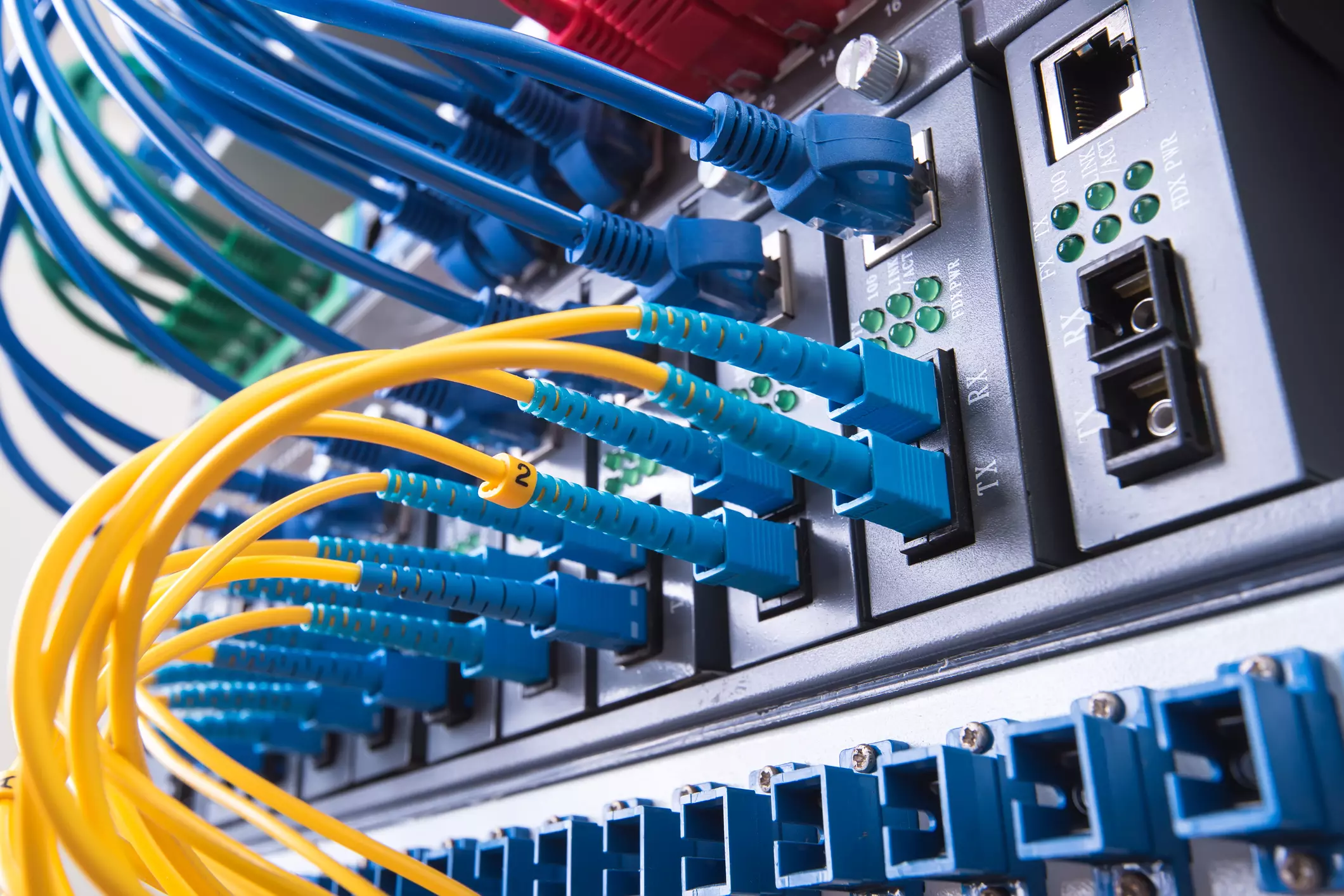
lan network cables

The main advantages of a hard cable connection are of course faster speed and stability compared to Wi-Fi. But if we look into the cables themselves there is also a big difference between them. Not all cables are the same and quality as well as speed vary a lot between them. Choosing the right cable is essential in order to make a maximum of your internet and we have some great tips and explanations of what cables do so you can make the right choice and enjoy your full internet potential.

Not all cables are the same

Cheap cables and expensive ones are not the same no matter what everyone tells you. The old proverb you get what you pay is true and more expensive cables will be made from better materials and will have a higher transfer rate.

Quality network cables are separated into different categories with proper markings and when buying one you should always look for these markings on the cables themselves, do not buy cables that do not have markings since they will often provide lower transfer rates or will not be shielded from outside influences resulting in packet drops and instability in a network.

Categories and what they mean are:

  • Cat-5 with a maximum speed of 100Mbps, typically unshielded.
  • Cat-5e with a maximum speed of 1Gbps, available in both shielded and unshielded varieties.
  • Cat-6 with a maximum speed of 10Gbps for runs under 55 meters (around 180ft), available in both shielded and unshielded varieties.
  • Cat-6a with a maximum speed of 10Gbps, shielded.
  • Cat-7 uses a proprietary GG45 connector rather than the standard RJ-45 connector seen on other cables for speeds of 10Gbps, shielded.
  • Cat-8 with a maximum speed of 25Gbps (Cat-8.1) or 40Gbps (Cat-8.2) at a distance of around 30 meters (around 100ft), shielded.

Unless stated, these standards are typically rated at their quoted speeds for a run of around 100 meters (around 330 ft) and use a standard RJ-45 Ethernet connector. Each generation of cable is designed to be compatible with the generations that came before it, so it’s possible (for example) to use a Cat-6a cable with a router that only supports speeds of 1Gbps.

Shielded cables

When purchasing higher quality cable you might not be able to choose if you have shielding or not since some standards like Cat-6a, Cat-7, and Cat-8 are always shielded. But if you do not have the need for these and you are satisfied with Cat-5e for example you can choose.

Shielded cables are a little more expensive but they will provide you with a coating that will eliminate interference from outside waves making cables more reliable. Of course, if the cable will go through a room that does not have many radio waves or some other interferences then buying a shielded cable is a waste of money.

Cable platings

Usually, there are two types of connector platings on connectors, silver, and gold, and people usually think that gold is much better but there are major differences between silver and gold platings and truth to be told there is no better one, both are different and should be considered depending on your need.

Silver plating will provide you with faster speed since its conductivity is larger than gold, but gold is slower on the oxidation front so its life span is longer. On the other hand, if your cables are always connecting and disconnecting gold will be first to be scrubbed off from the surface since the gold coating is much thinner.

Overall if you would only connect cable once and have slower internet than cable capacity gold is the way to go, in another case if you would use the cable as always connecting and switching and your internet plan is the same as cable transfer capacity you might want to go with silver one.

Cable material quality

Network cables are made from copper, your standard conduction material but even here there are differences in quality and therefore the chance of pocket losses over it. More quality less loss and more stable connection and this will depend on the purity of copper that is used in the cable itself. More purity in copper, more stability, simple as that.

Conclusion

So as you can see, there are a lot of different things that will influence your pick of proper network cable but the overall best advice is to get one that will fit well into your needs and setup. pair it up with your router and your internet plan since just simply buying something that you can not use is really a waste of money.

Do You Need Help with Your Device?

Our Team of Experts May Help
Troubleshoot.Tech Experts are There for You!
Replace damaged files
Restore performance
Free disk space
Remove Malware
Protects WEB browser
Remove Viruses
Stop PC freezing
GET HELP
Troubleshoot.Tech experts work with all versions of Microsoft Windows including Windows 11, with Android, Mac, and more.

Share this article:

You might also like

RAC Manager not working, Error 0xc0000005
If the Diagnostic Data level in your Windows 10 computer is configured manually to the non-default security setting of zero and you’ve encountered an error code of 0xc0000005, read on as this post will guide you in fixing the problem with the Remote Access Connection Manager Service. In relation to error 0xc0000005, you might also encounter an error in the Application section of Windows Logs in the Event Viewer, along with the Event ID 1000 which would most likely have a reference of “svchost.exe_RasMan” and “rasman.dll”. Before you troubleshoot the problem, keep in mind that the Remote Access Connection Manager or RasMan service is the one that manages dial-up and VPN connections from the computer to the internet as well as other remote networks. Each time you connect, the Services dials the connection or sends out a request for a VPN connection. However, the error 0xc0000005, only occurs when a VPN profile is configured as “Always On VPN or “AOVPN” connection with or without a device tunnel. There are several options you can check out to resolve this error, you can try to install the KB Update 4505903 or fix it via Group Policy. You could also try to enable Telemetry from the Settings app or enable it via Registry Editor. For more information, make sure to check out the provided options below.

Option 1 – Try installing the KB Update 4505903

The first thing you can do to fix the problem is to make sure that you’ve already installed the KB Update 4505903 in your computer. If not, then you have to go to Settings > Update & Security > Windows Update and from there select the Check for updates link. You need to get the standalone package if you are using the Microsoft Update Catalog to update your computer and for that, you have to the website of the Microsoft Update Catalog. On the other hand, if you are using the Windows Server Update Services or WSUS, then you can just manually import the KB Update 4505903 into WSUS.

Option 2 – Try to enable Telemetry in the Group Policy and run the RASMAN service

The next thing you can do to fix the problem is to enable Telemetry via Group Policy and then run the RASMAN service. To do that, follow these steps:
  • Tap the Win + R keys to open the Run dialog box and type “gpedit.msc” in the field and hit Enter to open the Group Policy Editor.
  • Next, navigate to Computer Configuration > Administrative Templates > Windows Components > Data Collection and Preview Builds > Allow Telemetry.
  • After that, open the policy and select one of the security levels like Basic, Enhanced, and Full.
  • Then click on the Apply and OK buttons to save the changes made and close the Group Policy Editor.
  • Once one, open the Run dialog box again and type “services.msc” in the field, and hit Enter to open the Windows Services Manager.
  • From there, look for the Remote Access Connection Manager Service and restart it. And then check if it resolved the problem or not...

Option 3 – Try enabling Telemetry via Settings

  • Tap the Win + I keys to open the Settings app.
  • Next, go to Privacy > Diagnostics and Feedback and select Basic or Enhanced under the Diagnostic data.
  • After that, tap the Win + R keys to launch Run and type “services.msc” in the field, and hit Enter to open the Services Manager.
  • From there, look for the Remote Access Connection Manager Service and restart it.

Option 4 – Try to enable Telemetry via Registry Editor

  • Launch the Run utility and type “regedit” in the field and tap Enter to open the Registry Editor.
  • Then navigate to this path: HKEY_LOCAL_MACHINESOFTWAREPoliciesMicrosoftWindowsDataCollection
  • From this path, look for “AllowTelemetry” and double click on it.
  • Now enter the values, 1, 2, 3 for Basic, Enhanced, Full, respectively.
  • If you can’t find AllowTelemetry, then just create a DWORD (32-bit) and name it “AllowTelemetry” and edit its value.
  • Once done, exit the Registry Editor and restart the Remote Access Connection Manager Service from the Services Manager.
Read More
Guide to Patching Error Code 34

Code 34 - What is it?

Code 34 is one of the several Device Manager error codes. This error code indicates that a hardware device on your PC is not properly configured.

This usually occurs when the device installed on your system is a non-plug and play. Non-plug and play devices don’t configure automatically and require manual configuration from the users end.

Error code 34 is usually displayed in the following format:

“Windows cannot determine the settings for this device. Code 34”

Solution

driverfix boxError Causes

Error code 34 may be triggered due to several reasons like:

  • Improper device configuration
  • Missing or outdated drivers

Device Manager error codes like code 34 are easy to fix. These error codes don’t indicate any serious PC problem, nor are they fatal like blue screen of death error codes.

Nonetheless fixing it immediately is advisable to ensure the proper functioning of the plugged-in hardware device. If you don’t resolve it, you may not be able to use the device.

Further Information and Manual Repair

When PC users experience error codes like code 34, they instantly think of hiring a professional for repair especially if they lack technical understanding.

If you are not a technical whiz and you are also thinking of hiring a professional for the repair job, then don’t! Here’s why, to begin with, Device Manager error codes can be resolved easily, better yet you can fix it by yourself without spending a dime even if you are not technically sound.

To help you, below is a list of easy and effective repair solutions for error code 34. Try them to resolve the issue.

Method 1 - Configure the Device by Using Device Manager

This is one of the best ways to resolve error code 34 on your system. The procedure will take 5 to 7 minutes. Simply follow the steps illustrated below to configure the problematic device on your PC.

  1. First off, go to the start menu
  2. Now type Device Manager in the search bar and press enter to continue
  3. Now in the Device Manager locate the problematic device and click on it
  4. Click on the resources tab to change the resource settings
  5. Now click on the Use Automatic Settings check box
  6. After that click on the Settings based on the tab and then click on the hardware configuration of the device you want to change
  7. Press resource type in the resource settings box to make further changes
  8. Once that is done, click change settings and type a new value for the resource type

Method 2 - Consult the Hardware Manufacturer for Resource Settings

You may not be able to configure resource settings for some devices in such an event it is advisable to consult your hardware manufacturer. Your hardware manufacturer can provide you with specific resource settings. Follow the manufacturer’s instructions to repair error code 34.

If the error continues to persist even after device configuration, then the problem may be linked to driver corruption. In that case, try method 3.

Method 3 - Download DriverFIX to Update Drivers Automatically

Whether code 34 is caused by outdated or corrupted drivers, simply download DriverFIX to resolve. DriverFIX is an advanced and user-friendly software program deployed with an intelligent programming system.

The software scans your PC to detect all problematic drivers. It finds and matches the latest and compatible versions and then updates the drivers accordingly that too automatically and on a regular basis.

Click here to download DriverFIX to repair Device Manager error code 34 on your PC automatically.

Read More
How to Fix Propsys.dll Error
Isn’t it annoying when you get an error message pop up stating ‘Cannot find propsys.dll” or “propsys.dll not found” when you start your computer or open a particular program? The propsys.dll file is crucial to the Windows operating system. This file is located in one of the following locations: "C:\Windows", C:\Program Files, C:\WINDOWS\system32, or C:\Program Files\Common Files". And the propsys.dll error indicates that the propsys digital library file is damaged and corrupt. The propsys.dll error may lead to a very unstable operating system. It may also hamper your ability to access many programs on your computer, lead to program and system crash and slow down the system’s performance. Therefore, to avoid these system threats, it is advisable to fix the error immediately.

Solution

Restoro box imageError Causes

The common causes of propsys.dll file error are:
  • Registry problem
  • The propsys.dll file is damaged due to a virus or spyware
  • Improper software removal
  • Hardware Failure
The propsys.dll error message is displayed in either of the following forms:
  • Propsys.dll not found
  • Cannot find [Path]propsys.dll
  • This application failed to start because propsys.dll was not found. Reinstalling the application may fix this problem
  • The propsys.dll file is missing

Further Information and Manual Repair

There are many ways to fix the propsys.dll error. However, for optimum results from the fix, you must first identify the cause of the error and then choose the solution accordingly.
  • Recommended Solution for Registry Issue
If you use your system daily the resulting wasted/invalid/junk entries may dilate the registries. This can result in registry malfunctioning which may result in a propsys.dll error on your screen. When this happens, it is advisable to use a registry cleaner to fix the problem. Registry cleaner helps clean up the junk entries and repairing the corrupted registries. For this, you will first have to download a registry cleaner repair tool. Download and install the software on your computer. After downloading it, click the start scan button to run. This helps scan and diagnose system errors on your computer in seconds. Once the scanning is complete, click on the fix button to repair the registry problem.
  • Recommended Solution for File Damage and Corruption
Use the ‘System Restore’ option to restore corrupt and damaged files.  The ‘System Restore’ function will help you get a fresh copy back and simultaneously help fix the error. Here’s how to use and access the ‘System Restore’ function on your computer: Simply go to the start menu and in the search box type restore. Once you type, it will show you the system restore option. Now select ‘choose a different restore point’. After this, you will be presented with a list of restore points. Choose a point that you believe happened before the propsys.dll error. Confirm your selection and restart. Another alternative solution for file damage is to run a virus scan of your entire system; the damage could be related to a virus or malware infection.
  • Recommended Solution for Hardware Failure
If a propsys.dll error occurs due to hardware failure, then it is advisable to update the drivers for hardware devices that you think are related to propsys.dll. For example, if you receive the propsys.dll error when you play a 3D video game, then try updating the driver for your video card.
Read More
Fix This device is currently in use, USB Error
USB storage devices, peripherals, and other devices are almost used on a daily basis. And as you know, when removing the USB storage devices, it is recommended to always use the “Safely remove the USB storage device” option in order to prevent data corruption in the USB storage device. However, there are times when you may see the following error message after you use the “Safely remove the USB storage device” option:
“Problem ejecting USB Mass Storage – This device is currently in use, close any programs or windows that might be using this device, and then try again.”
This kind of error message occurs when the device is still interacting with the operating system in the background. There are several ways you can fix this error but before you check them out below, you need to close all the open windows and programs that may be using the USB storage device and then wait for a couple of seconds and then try safely removing it again. However, if you are still getting the same error message, then here are some tips you should try:

Option 1 – Try to use the Task Manager

  • Tap the Ctrl + Shift + Esc keys on your keyboard to open the Task Manager.
  • After that, look for the running processes and programs hogging on your USB Storage device. The error could be due to a program or process that’s using the USB device. This program or process will hog onto some Disk or CPU while transferring data and interacting with the device.
  • Once you find the culprits, right-click on each one of them and select End Process or End Task. You could also try to restart the process for “Explorer.exe” and see if it fixes the problem.

Option 2 – Try using DISKPART

The next thing you can try to resolve the issue is to use DISKPART. Refer to the given steps below to do so.
  • Tap the Win + R keys to launch Run and then type “cmd” in the field and tap Enter or click OK to open an elevated Command Prompt.
  • Next, type and enter this command to execute it: diskpart
  • The command you entered will initiate the DISKPART utility. After that, type and enter this second command: list disk
  • Next, type and enter this third command: list volume
  • The commands you just executed will help you in either listing all the Disk connects or all the partitions on those disks formed and from there, you need to select one command depending on the “list” command you entered. You can execute either of the two following commands:
    • select disk #
    • select volume #
  • After that, it will select the Disk or Partition you want to select.
  • Now type either one of the following commands:
    • offline disk #offline volume #
  • The command you entered will mark the selected disk is Offline. Afterward, try to safely remove your USB Storage device. Just remember that when you plug it back in again, you have to carry out the same method except for the last given command as this time you will have to enter either of these commands in order to get your USB storage device back online:
    • online disk #
    • online volume #

Option 3– Try using the Disk Management utility

  • Tap the Win + R keys to open Run.
  • Then type “diskmgmt.msc” in the field and hit Enter to open the Disk Management utility.
  • Next, look for the entry for your USB Storage device and once you’ve found it, right-click on it and select Offline.
  • After that, try to safely remove your USB Storage device again and see if the error is fixed. Note that you need to go over the same steps again if you want to plug your USB Storage device back in but make sure to select the Online option instead of Offline to get your device back online.
Read More
How to Fix Windows Error 0x8024402f

Error Code 0x8024402f What is it?

Error code 0x8024402f is a Windows Update error indicating some sort of connectivity issue. Windows may show you the Error 0x8024402f in Windows 10 whenever you try to download and install new updates. This error is caused by small interruptions in communications between the computer to be updated and the update to be downloaded. These issues usually resolve themselves. Windows Firewall settings may also be blamed for this problem. Common symptoms
  • Error code 0x8024402f prevents you from installing the latest version of Windows 10
  • This Error prevents you from downloading new and latest updates from Microsoft

Solution

Restoro box imageError Causes

  • This error is caused by a problem with the Microsoft .NET Framework 4 Client Profile.
  • This error can occur even if no changes are made to network settings.
  • Your Firewall settings may cause this problem.
  • A high number of update requests on the Windows Update server may cause this problem.

More Information and Manual Repair

Method 1:

  1. Exit Windows Update. Wait for 10 to 15 minutes, and then restart Windows Update to check for updates. OR
  2. Turn on Windows Automatic Update so that updates are installed automatically every 24 hours.

Method 2:

Uninstall the Microsoft .NET Framework 4 Client Profile:
  1. Click Start>Control Panel>Programs and Features
  2. Locate the Microsoft .NET Framework 4 Client Profile
  3. Right-click and then select Uninstall/Change
  4. Confirm that you want this component to be uninstalled. This may take a few minutes.
  5. Reboot your computer
  6. When the system has restarted, re-run Windows Update as you normally would.

Method 3:

Check your internet connection: As mentioned earlier the error code 0x8024402f is related to connection problems with Windows Update. It means that your computer isn’t able to connect with the Microsoft Update server; therefore you’re unable to receive any new updates. So, you either have a problem with the internet connection or the Microsoft Update server is corrupted. If the problem is caused by the Microsoft Update server, you just need to wait a while because Microsoft staff will most probably solve the problem quickly.

Method 4:

But, if the issue isn’t related to your internet connection, you should perform the following method:
  1. Got to Search and enter Identify and Repair
  2. Open Identify and repair network problems
  3. Click on the Search Result.
  4. It should automatically Start the identifying process
  5. If your network has any issue then it will show you and ask you to fix it.
Now, establish your internet connection. The problem 0x8024402 should be solved by now and you’ll be able to update your Windows 10 Technical Preview to the latest 10049 builds.

Method 5:

Turn on Windows Firewall: If you have some anti-malware or antivirus on your Windows 10 PC, then it might turn off Windows Firewall on its own or create its own Firewall as default. If this is the case, you will need to turn on Windows Firewall.
  • Search for "Firewall" OR
  • Click on Windows Firewall from Control Panel.
  • On the left pane, Click on Turn Windows Firewall ON or OFF.
  • Click on Turn on Windows Firewall then Click Ok.
  • That is it. Now, try again and see if you are still getting Windows Update Error 0x8024402f in your Windows 10.

Method 6:

This is an advanced method:
  • If the above steps fail, then you might surely want to try this advanced method, which is Enabling ActiveX in your Router Firewall settings.
  • If you had turned off ActiveX in your Router Firewall settings then this must be the culprit and so Error 0x8024402f is shown whenever you try to get Windows Update.
  • All you need to do is Enable ActiveX by going to your Router Firewall settings and that should do it. The Error should be gone for good now and you will be easily able to install the Updates in your Windows 10.
If you do not possess the technical expertise required to accomplish this yourself or do not feel comfortable doing so, download and install a powerful automated tool to get the job done.
Read More
Your Windows license will expire soon
If you suddenly get a message telling you that “Your Windows license will expire soon, You need to activate Windows in Settings” on your Windows 10 computer but you know that your Windows 10 is already activated. Worry not for this post will help you get rid of that error message right away. Before you get started, make sure that you have the Windows product key with you. If you don’t, you can get it by running the following command in an elevated Command Prompt:
wmic path SoftwareLicensingService get OA3xOriginalProductKey
Take note of the product key and then proceed to the options given below.

Option 1 – Try activating Windows 10 again or use another product key

  • If you’re sure that you have the correct product key, click the Go to the Settings button.
  • After that, click the Activate button once again.
  • If you have another license key, you can also use that as well, just simply click on the Change product key.
  • Then enter the new product key and click on Activate. That should fix the problem, if it doesn’t, refer to the next option below.

Option 2 – Try to reset the licensing status

  • Click the Start button and then type “cmd” in the Search box and then tap Ctrl + Shift + Enter to open an elevated Command Prompt.
  • Next, type the “slmgr –rearm” and hit Enter to reset the licensing status.
  • Restart your computer and check if the error is now gone or not.

Option 3 – Try uninstalling the product key and re-enter it once more.

  • The first thing you have to do to uninstall the product key is to know the Activation ID of your Windows installation. To do so, open an elevated Command Prompt and type this command, and hit Enter – vbs /dlv
  • After you enter the command, you should see the licensing status and Activation ID. And to get all the Activation IDs of all the installed Windows versions, key in this command and hit Enter – vbs /dlv all
Note: The “/dlv” parameter will give you the license information for the installed operating system.
  • After you enter the second command, you should see a Windows Script Host window with all the Windows licensing and activation status. Take note of the Activation ID.
  • Next, in the same elevated Command Prompt, type this command – slmgr /upk <Activation ID>
Note: In the third given command, “/upk” stands for “uninstall product key”. This parameter uninstalls the product key of the current Windows edition.
  • Restart your PC. After that, your computer will be in an unlicensed state so you need to re-enter the product key again.

Option 4 – Try rebuilding the Tokens.dat file.

The issue might be caused by a corrupted Tokens.dat file. The Tokens.dat file is a digitally signed file that stores most of the Windows Activation files so if it is corrupted then no wonder you’re having activation issues. To rebuild the Tokens.dat file, refer to these steps:
  • From the WinX Menu, open an elevated Command Prompt.
  • After opening Command Prompt, you need to type each one of the following commands and after you type each command, hit Enter.
    • net stop sppsvc
    • cd %windir%ServiceProfilesLocalServiceAppDataLocalMicrosoftWSLicense
    • ren tokens.dat tokens.bar
    • net start sppsvc
    • exe %windir%system32slmgr.vbs /rilc
  • Now restart your computer.

Option 5 – Try running the Windows 10 Activation Troubleshooter

  • Go to Settings and then select Activation.
  • After that, click on the Windows Activation and then troubleshoot. This will help you address most of the commonly found activation issues in Windows devices.

Option 6 – Try activating Windows 10 via mobile phone

Activating Windows 10 can also be done using your phone. Just note that you have to call Microsoft to do so.
  • In the Start Search box, type in “Slui 4” and tap Enter.
  • Next, select your country and click on Next.
  • Keep the window open and call the toll-free number of the country you’re from.
  • Afterward, a confirmation ID should be given by the automated system which you must take a note of.
  • Finally, in the box on the window, type in the confirmation ID and click on the Activate button. That should do it.
Read More
Fix Error 0x80200056 during Windows Update
You might have experienced a situation where your Windows computer was interrupted due to some battery issues or power failure. It could be that the upgrade process was interrupted because you’ve signed out of your computer or you restarted it by accident. In this case, you will most likely get a Windows Update or Upgrade error 0x80200056. If you are getting this error, read on as this post will guide you in fixing it. This kind of error pops up when the upgrade process was interrupted and could be caused by anything but the baseline here is that your computer was restarted accidentally or someone could have signed out your PC. To resolve the problem, here are some fixes you ought to try:

Option 1 – Try updating or upgrading your computer again

This is the basic thing to do since the process was suddenly interrupted. Just log in to your account and restart the Windows Update or Upgrade process but make sure that your internet connection is stable and that you don’t touch anything so as not to interrupt the upgrade/update process again.

Option 2 – Check if your PC is plugged in or if the battery is full

It is always best to update your computer always when you’re really sure that the power won’t fail. If you’re using a desktop computer, make sure that everything is plugged in. And if you’re using a laptop when this error occurred, make sure that its battery is at 100% but it’s better if you just plug it into power just in case as there are times when the Windows update or upgrade gets stuck for too long like for hours so it will really help if your device is connected to power.

Option 3 – Try running the Windows Update Troubleshooter

Running the built-in Windows Update troubleshooter could also help you resolve the Windows Update errors as well as the error 0x80200056. To run it, go to Settings and then select Troubleshoot from the options. From there, click on Windows Update and then click the “Run the troubleshooter” button.

Option 4 – Delete the contents in the SoftwareDistribution folder

The Software Distribution folder in the Windows operating system is a folder that can be found in the Windows directory and is used to store files temporarily which might be required to install the Windows Update on your PC. Thus, it is required by the Windows Update and maintained by WUAgent. A lot of users tried deleting the files in this folder to fix the problem and so far it has worked. Like them, you can try clearing the Windows Update cache by simply deleting the contents of the folder named “SoftwareDistribution” since Windows apparently can’t clear and re-download the update contents once they are corrupted. Thus, deleting the contents of this folder will make Windows download the contents again which will fix the problem. To do that, follow the steps below.
  • Open the WinX Menu.
  • From there, open Command Prompt as admin.
  • Then type in the following command – don’t forget to hit Enter right after typing each one of them.
net stop wuauserv net stop bits
  • After entering these commands, it will stop the Windows Update Service and the Background Intelligent Transfer Service.
  • Next, got to the C:\Windows\Software\Distribution folder and get rid of all the folders and files thereby tapping the Ctrl + A keys to select them all and then click on Delete. Note that if the files are in use, you won’t be able to delete them.
  • Once all the contents in the Software Distribution folder are deleted, restart your PC and then go back to Command Prompt and input the following commands again.
net start wuauserv net start bits
Since the folder has already been flushed, it will be populated afresh the instant your restart your computer and open Windows Update.

Option 5 – Try running the System File Checker scan

System File Checker or SFC is a built-in command utility that helps in restoring corrupted files as well as missing files. It replaces bad and corrupted system files to good system files that might be causing the error 0x80200056. To run the SFC command, follow the steps given below.
  • Tap Win + R to launch Run.
  • Type in cmd in the field and tap Enter.
  • After opening Command Prompt, type in sfc /scannow
The command will start a system scan which will take a few whiles before it finishes. Once it’s done, you could get the following results:
  1. Windows Resource Protection did not find any integrity violations.
  2. Windows Resource Protection found corrupt files and successfully repaired them.
  3. Windows Resource Protection found corrupt files but was unable to fix some of them.

Option 6 – Run the Chkdsk utility to repair hard disk errors

You can also run the Chkdsk utility to resolve the Windows Update error 0x80200056. If your hard drive has issues with integrity, the update will really fail as the system will think that it’s not healthy and that’s where the Chkdsk utility comes in. The Chkdsk utility repairs hard drive errors that might be causing the problem.
  • Open Command Prompt with admin privileges.
  • After opening Command Prompt, execute the commands listed below, and don’t forget to hit Enter right after you type in each one of them and if you have installed Windows to some different directory, you must replace “C” with the name of the drive you’ve installed Windows with.
  • chkdsk C: /r /x
  • chkdsk C: /f

Option 7 – Run the DISM tool to repair the Windows Update client

The Windows update/upgrade error 0x80200056 might be caused by some issues in the Windows Update client so you need to run the DISM tool to repair it. Note that you have to use another computer or another Windows from a shared network to fix it.
Read More
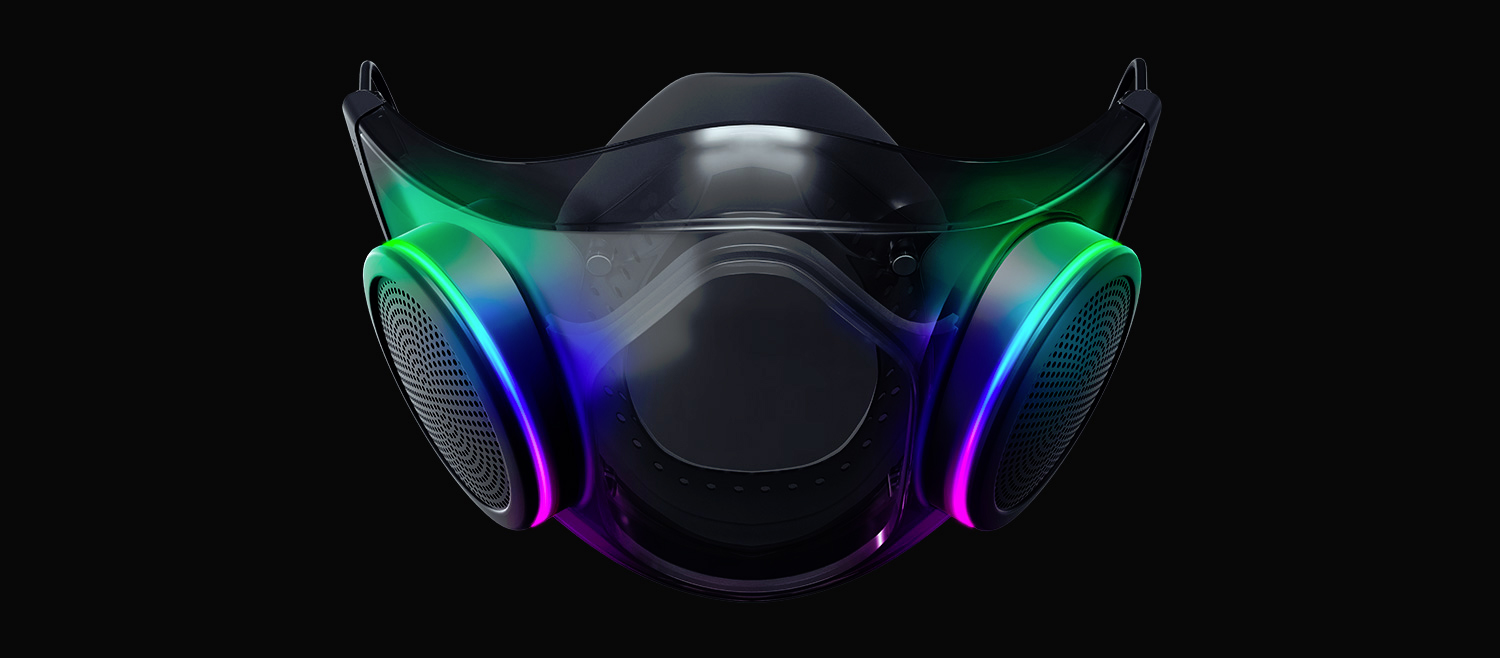
Razer Hazel, an RGB mask for max protection
Razer HazelThe world today is still sadly under pandemic and by the looks of it, COVID-19 is here to stay, well at least for some time in the near future. Razer seems to think so as well since their upcoming gear is not really what you would expect. Enter Hazel, a new and upcoming Razer smart mask.

Protection

Hazel mask has a high bacterial surgical N95 filter with fluid resistance that will protect you against large droplets and splashes. A detachable active ventilator regulates airflow and is capable of filtering around 95% of airborne particles. Mask comes with a special charging case that has an auto sterilization UV light that will kill bacteria and viruses inside the case interior while it charges. When the mask is recharging it will change color from red to green visually showing the level of the current charge. Mask of course has easy to replace filters inside ventilators and Razer is standing by that fully charged mask will last enough for full-day use. An active ventilation system brings cool air while releasing breathing heat at the same time drastically reducing CO2 inside the mask that could produce dizziness and headache. Silicon guard is on its edge gluing to around your face in order to prevent exterior air sneaking inside the mask and positioning it firmly so it does not rest on your lips in order for easier and clearer communication.

Hazel personalization and technical features

Hazel has a clear and transparent design making it better for social interaction since other people will be able to see your lips and smiles thus making it more natural. A low light mode that turns on automatically when it is dark outside is also aimed for easier communication. Speaking of communication, the mask comes with voice Amp technology that has a built-in mic and amplifier thus making your voice lines clear so you are not muffled when wearing the mask itself. Your friends and other people will be able to hear you like you are not wearing a mask at all. Thicker air loops apply less pressure on ears and can be adjusted for a more secure fit, while the mask itself can be custom-made to fit your face shape. And of course Hazel comes with 16.8 million colors and a suite of effects with Razer Chroma RBG
Read More
Connecting a Wireless Printer to a Windows PC
Although it’s easy to set up wired printers in most cases and they have their charm, you don’t have to be around the printer if you are connected to the same network. So in this post, you will be guided on how you can install and set up a wireless printer on your Windows 10 computer. The idea here is to ensure that your Wi-Fi printer and your Windows 10 computer are connected on the same network and to do that, you need to carry out the following steps:
  • You have to connect the printer to the Wi-Fi network.
  • You have to add the printer or scanner to Windows 10.
  • You have to install the printer software.
  • You have to change the default printer.
  • And troubleshoot the printer.

For more details, follow the instructions below.

Step 1: Connect your printer to the Wi-Fi network. In this step, you need to turn on your printer and look for the option to connect to a Wi-Fi network. Note that the step to connect to the Wi-Fi network depends on what kind of printer you use as well as its OEM since there will be a user interface or a Wi-Fi button that will get the job done for you. Once your printer is connected to the Wi-Fi network, you need to keep it turned on until the setup is completed. Step 2: Next, add a printer or scanner to Windows 10
  • Since you’re already connected to the Wi-Fi network, you now have to go to Settings > Devices > Printers & scanners.
  • From there, click on the Add a printer or scanner option.
  • After that, the scanning process will begin as Windows 10 looks for the printer and once it finds it, it will display the printer in the result.
  • Choose the Wi-Fi printer from the results and click on the Add device option. Once you click this option, Windows will install the drivers via Windows 10 update. Note that this process will apply to all the printers – connected, wireless, and so on.
Step 3: You have to install a printer software In this step, you need to use the driver software from the OEM even though the default printer software works since in most cases, the driver software from OEM works better compared to the default ones and offers much better functionality like ink-saving modes, and many more. Step 4: You now have to change the default printer After installing the printer software, you now have to set or change the default printer in your computer. If you have not installed any printer, the default printer in Windows is the one that saves the files. Now since you have already installed your printer, all that’s left for you to do is to change the default printer of Windows 10 to the one you installed earlier. To do that, follow these sub-steps:
  • Go to Settings and navigate to Devices > Printers & scanners.
  • From there, check the checkbox labeled, “Let Windows manage my default printer” if there are many printers. This will recommend you to use the most used printer. But if you don’t want to switch to the most used printer, then uncheck the checkbox.
  • Once done, click on the printer you want to set as the default one and go to Manage, and then click on the Set as default button.
Step 5: If you have any issues with your newly installed printer, then you need to troubleshoot it One of the first basic troubleshooting you can perform to resolve the printer issue is running the Printer Troubleshooter. This built-in troubleshooter can detect and automatically fix the problem for you. To use it, follow these steps:
  • Tap the Win + R keys to open the Run dialog box.
  • Next, type “exe /id PrinterDiagnostic” in the field and click OK or hit Enter to open the Printer Troubleshooter.
  • Then click the Next button and follow the next on-screen instructions to fix the issue with the printer.
Read More
Remove the blue and yellow shield icon
If you suddenly see a system icon or an application icon that has a blue and yellow shield or icon overlay at the corner, this indicates that the application has to run with admin privileges and each time you run these kinds of applications, a UAC or User Account Control prompt will appear to confirm if you really want to run the application. Although this kind of behavior is for security reasons, it can get quite annoying especially if you use the application on a daily basis. To make it convenient for you, this post will walk you through how you can remove the blue and yellow shield icon from an application on your Windows 10 computer. The User Account Control or UAC setting is the one that ensures no program can run with administrative privileges unless it is allowed by the user. This stops any program that could be potentially harmful to the computer from making any changes which are why keeping this setting to its default state is for the best and making any changes in its setting is not recommended unless it is really needed. So if you really have to remove the icon overlay in an application, there are several ways you can do that. You can try reinstalling the program and set Compatibility or change the UAC level. For more information, refer to every option given below.

Option 1 – Try to reinstall the application and set Compatibility

As you know, the application icons where you can see the shields are shortcuts mostly and they signify that the User Account Control will appear each time you launch the app. Thus, if you have an app that you use regularly and you’re certain that the app can be trusted, you can try to reinstall the app and set its compatibility by following these steps:
  • You need to uninstall the app first and then install its latest version. You must not run or open the app after you reinstall it, not until you’ve completed the steps.
  • Next, you have to right-click on the shortcut icon of the app, and from the menu, select Properties.
  • Afterward, go to the Compatibility tab and look for the checkbox labeled “Run this program as an administrator” and uncheck it.
  • Now click on the Apply and OK buttons to save the changes made. This should remove the shield icon from the app.

Option 2 – Try changing the UAC level

  • Tap the Win + Q to open the search bar and type UAC to see the User Account Control setting.
  • From the UAC setting, lower the UAC level by selecting the settings that say, “Notify only when apps try to make changes to my computer”.
  • After selecting that option, you shouldn’t be getting any warning now when you run the app with the shield icon. But keep in mind that this is not a temporary setting which can be risky especially if the app can’t be trusted.
Read More
1 2 3 171
Logo
Copyright © 2023, ErrorTools. All Rights Reserved
Trademark: Microsoft Windows logos are registered trademarks of Microsoft. Disclaimer: ErrorTools.com is not affiliated with Microsoft, nor claims direct affiliation.
The information on this page is provided for information purposes only.
DMCA.com Protection Status