Logo

10 Worst Computer Viruses in history

Computers viruses, worms, ransomware, etc. are kinds of malicious software that no user should take lightly. On several occasions, we have touched upon security steps that each user should take in order to protect its identity and data. Sadly sometimes even when all precautions are taken some malware can still slip through and wreak havoc. Today we are looking at some of the worst or the best, depending on your view that has indeed wreaked plenty of havoc.

viruses10 worst computer viruses in history

In the list of the 10 most famous computer viruses below, we show the costs, dates, reach, and other key facts. First a note about terms: we use the words “virus” and “worm” interchangeably because most readers search for them that way. But there’s a subtle difference that we explain after the list.

1. Mydoom – $38 billion

The worst computer virus outbreak in history, Mydoom caused estimated damage of $38 billion in 2004, but its inflation-adjusted cost is actually $52.2 billion. Also known as Novarg, this malware is technically a “worm,” spread by mass emailing. At one point, the Mydoom virus was responsible for 25% of all emails sent.
Mydoom scraped addresses from infected machines, then sent copies of itself to those addresses. It also roped those infected machines into a web of computers called a botnet that performed distributed denial of service (DDoS) attacks. These attacks were intended to shut down a target website or server.

Mydoom is still around today, generating 1% of all phishing emails. That’s no small feat considering the 3.4 billion phishing emails sent each day. By that figure, Mydoom has taken on a life of its own, infecting enough poorly-protected machines to send 1.2 billion copies of itself per year, 16 years after its creation.
Though a $250,000 reward was offered, the developer of this dangerous computer worm was never caught.
Wondering what makes the world’s most secure computers so safe? See the Tech@Work guide: Upgrade to the World's Most Secure and Manageable PC

2. Sobig – $30 billion

The 2003 Sobig computer virus is actually another worm. It is second only to the Mydoom virus in its scope. The $30 billion figure is a worldwide total, including Canada, the U.K., the U.S., mainland Europe, and Asia. Several versions of the worm were released in quick succession, named Sobig.A through Sobig.F, with Sobig.F being the most damaging.
This cybercriminal program masqueraded as legitimate computer software attached to emails. It disrupted ticketing at Air Canada and interfered with countless other businesses. Despite its widespread damage, the creator of the successful bug was never caught.

3. Klez – $19.8 billion

Klez is a close third on the list of the worst computer viruses ever created. With nearly $20 billion in estimated damages, it infected about 7.2% of all computers in 2001, or 7 million PCs. The Klez worm sent fake emails, spoofed recognized senders and, among other things, attempted to deactivate other viruses.
As with other viruses and worms, Klez was released in several variants. It infected files, copied itself, and spread throughout each victim’s network. It hung around for years, with each version more destructive than the last.
Windows has come a long way since most of the computer viruses on this list hit the web. Thankfully, built-in protection with Microsoft Defender is always on the watch.

4. ILOVEYOU – $15 billion

The year 2000’s ILOVEYOU virus worked by sending a bogus “love letter” that looked like a harmless text file. Like Mydoom, this attacker sent copies of itself to every email address in the infected machine’s contact list. Shortly after its May 4 release, it had spread to more than 10 million PCs.
The virus was created by a college student in the Philippines named Onel de Guzman. Lacking funds, he wrote the virus to steal passwords so he could log into online services he wanted to use for free. He reportedly had no idea how far his creation would spread. This virus is also known as Loveletter.
Need to up your remote work security game before there’s another entry on the list of most deadly computer viruses? See our guide: How to Work Remotely and Securely

5. WannaCry – $4 billion

The 2017 WannaCry computer virus is ransomware, a virus that takes over your computer (or cloud files) and holds them hostage. The WannaCry ransomware ripped through computers in 150 countries, causing massive productivity losses as businesses, hospitals, and government organizations that didn’t pay were forced to rebuild systems from scratch.
The malware raged like wildfire through 200,000 computers worldwide. It stopped when a 22-year-old security researcher in the U.K. found a way to turn it off. Computers with out-of-date operating systems were hit especially hard. That’s why security experts always recommend updating your systems frequently.

Ransomware strikes again

In September 2020, one of the potentially largest computer virus attacks in medical history hit Universal Health Services. The U.S. hospital chain, which has more than 400 locations, was reportedly struck by damaging ransomware. The attack forced the cancellation of surgeries and made healthcare workers switch to paper records.

6. Zeus – $3 billion

The Zeus computer virus is an online theft tool that hit the web in 2007. A whitepaper by Unisys three years later estimated that it was behind 44% of all banking malware attacks. By then, it had breached 88% of all Fortune 500 companies, 2,500 organizations total, and 76,000 computers in 196 countries.
The Zeus botnet was a group of programs that worked together to take over machines for a remote “bot master.” It originated in Eastern Europe and was used to transfer money to secret bank accounts. More than 100 members of the crime ring behind the virus, mostly in the U.S., were arrested in 2010. It’s not as prominent today, but some of the virus’ source code lives on in newer botnet viruses and worms.

Zeus caused documented damage of $100 million. But the real cost in terms of lost productivity, removal, and undocumented theft is undoubtedly much higher. A $3 billion estimate, adjusted for inflation, puts this virus at a cost of $3.7 billion in today’s dollars.

7. Code Red – $2.4 billion

First observed in 2001, the Code Red computer virus was yet another worm that penetrated 975,000 hosts. It displayed the words “Hacked by Chinese!” across infected web pages, and it ran entirely in each machine’s memory. In most cases it left no trace in hard drives or other storage.
Financial costs are pegged at $2.4 billion. The virus attacked websites of infected computers and delivered a distributed denial of service (DDoS) attack on the U.S. White House’s website, www.whitehouse.gov. In fact, the White House had to change its IP address to defend against Cod Red.
Can your printer get a virus? See our cool infographic: The State of Printer Security

8. Slammer – $1.2 billion

The SQL Slammer worm cost an estimated $750 million across 200,000 computer users in 2003. This computer virus randomly selected IP addresses, exploiting vulnerabilities and sending itself on to other machines. It used these victim machines to launch a DDoS attack on several internet hosts, significantly slowing internet traffic.
The Slammer worm hit banks in the U.S. and Canada especially hard, taking ATMs offline in many locations. Customers of Toronto’s Imperial Bank of Commerce found themselves unable to access funds. The attack reared its ugly head again in 2016, launching from IP addresses in Ukraine, China, and Mexico.

9. CryptoLocker – $665 million

Thankfully, ransomware attacks like the 2013 CryptoLocker virus have dipped since their 2017 peak. This malware attacked upwards of 250,000 machines by encrypting their files. It displayed a red ransom note informing users that “your important files encryption produced on this computer.” A payment window accompanied the note.
The virus’ creators used a worm called the Gameover Zeus botnet to make and send copies of the CryptoLocker virus. According to a report by security firm Sophos, the average ransomware attack costs a business $133,000. If we estimate that CryptoLocker hit 5,000 companies, that would put its total cost at $665 million.
Where will cybersecurity go next? See our guide: The Future of Cybersecurity

10. Sasser – $500 million

The Sasser worm was written by a 17-year-old German computer science student named Sven Jaschan. He was arrested at the age of 18 in 2004 after a $250,000 bounty was posted for the computer virus’ creator. A friend of Jaschan’s tipped authorities that the youth had penned not only the Sasser worm but also the damaging Netsky.AC attack.
Jaschan was given a suspended sentence after it was found he was a minor when he wrote the malware. The Sasser worm crashed millions of PCs, and though some reports put damages at $18 billion, the relatively low infection rate suggests a more likely cost of $500 million.
Other notable viruses

The top 10 worst computer viruses above are just the ugly tip of a gargantuan digital iceberg. With a million new malware programs popping up every 3 years, we may miss the forest for a few outstanding trees. Here are just a few more viruses that have wreaked havoc over the years:

Mimail: This worm tried to harvest data from infected machines to launch a string of DDoS attacks, but was relatively easy to remove.

Yaha: Yet another worm with several variants, thought to be the result of a cyber-war between Pakistan and India.

Swen: Written in C++, the Swen computer worm disguised itself to look like a 2003 OS update. Its financial cost has been pegged at $10.4 billion, but not reliably.

Storm Worm: This worm showed up in 2007 and attacked millions of computers with an email about approaching bad weather.

Tanatos/Bugbear: A 2002 keylogger virus that targeted financial institutions and spread to 150 countries.

Sircam: A computer worm from 2001 that used counterfeit emails with the subject line, “I send you this file in order to have your advice.”

Explorezip: This worm used fake emails to spread to every machine on thousands of local networks.

Melissa: The most dangerous computer virus in 1999, Melissa sent copies of itself that looked like NSFW pics. The U.S. FBI estimated cleanup and repair costs at $80 million.

Flashback: A Mac-only virus, Flashback infected over 600,000 Macs in 2012 and even infected Apple’s home base in Cupertino, Calif. In 2020, there’s now more malware on Macs than on PCs.

Conficker: This 2009 virus still infects many legacy systems and could do significant damage if it ever activates.

Stuxnet: This worm is reported to have destroyed Iranian nuclear centrifuges by sending damaging instructions.


Do You Need Help with Your Device?

Our Team of Experts May Help
Troubleshoot.Tech Experts are There for You!
Replace damaged files
Restore performance
Free disk space
Remove Malware
Protects WEB browser
Remove Viruses
Stop PC freezing
GET HELP
Troubleshoot.Tech experts work with all versions of Microsoft Windows including Windows 11, with Android, Mac, and more.

Share this article:

You might also like

Completely Remove MySearchDial Tutorial

MySearchDial is a browser hijacker that typically comes bundled with free software on the internet. This web platform designed for searching the internet and offers the installation of its software. This software injects itself into browsers and gains access to your settings, browsing data & user information. This data is distributed to the ad providers without limitation. While covered by their EULA, most users will be unaware of what they agree to with checkboxes selected by default. The software also adds a huge amount of registry keys and links throughout the operating system. Since the software injects itself into many personal files, removing the software results in a total reset of your browser settings. For these reasons MySearchDial is classified as potentially unwanted and is flagged for removal by a number of internet security utilities.

About Browser Hijackers

Browser hijacking is a common type of online fraud where your internet browser configuration settings are altered to allow it to carry out things you do not intend. Practically the majority of browser hijackers are created for marketing or advertising purposes. Usually, hijackers are designed for the benefit of online hackers usually through income generation that comes from forced ad clicks and website visits. Even though it may seem naive, these tools are designed by vicious individuals who always look to take full advantage of you, so that hackers can make money from your naive and distraction. Some browser hijackers are designed to make certain modifications beyond the browsers, like altering entries on the computer registry and letting other types of malware further damage your computer.

How you can know if your internet browser is hijacked

There are several symptoms that point to browser hijacking: 1. your browser’s home page has been reset to some unfamiliar website 2. your web browser is constantly being redirected to pornography websites 3. default online search engine is changed 4. discover new toolbars that you simply didn’t add 5. you observe lots of pop-ups on your computer screen 6. your internet browser has become unstable or starts running slowly 7. you’re blocked to access the websites of security solution providers.

So how exactly does a browser hijacker infect a PC

Browser hijackers can enter a computer in some way or other, including via file sharing, downloads, and e-mail also. They could also come from add-on applications, also called browser helper objects (BHO), web browser extensions, or toolbars. Other times you may have inadvertently accepted a browser hijacker as part of an application package (generally freeware or shareware). Examples of popular browser hijackers are Fireball, Ask Toolbar, GoSave, CoolWebSearch, Babylon Toolbar, and RocketTab. The existence of any browser hijacker malware on your system might significantly diminish the web browsing experience, track your internet activities that lead to severe privacy concerns, degrade overall system efficiency, and lead to software instability as well.

Getting rid of browser hijackers

Some hijackers could be removed by deleting the free software they were included with or by removing any add-ons you have recently added to your computer system. But, most hijackers are hard to remove manually. Regardless of how much you attempt to get rid of it, it can return over and over again. On top of that, manual removal needs you to execute many time-consuming and complicated actions which are very difficult to carry out for rookie computer users.

Can't Install Safebytes Anti-malware because of a Virus? Do This!

All malware is bad and the effects of the damage could differ based on the specific type of malicious software. Certain malware types alter web browser settings by adding a proxy server or change the PC’s DNS configurations. When this happens, you’ll be unable to visit certain or all sites, and therefore not able to download or install the required security software to remove the malware. If you’re reading this now, you may have probably recognized that virus infection is the reason for your blocked web traffic. So what do if you need to download and install an antivirus application like Safebytes? Although this kind of problem can be difficult to circumvent, there are a few actions you can take.

Install the anti-virus in Safe Mode

If the malware is set to run at Windows startup, then booting in Safe Mode should prevent it. Only minimal required programs and services are loaded when you start your computer or laptop in Safe Mode. To launch your Windows XP, Vista, or 7 PCs in Safe Mode with Networking, do as instructed below. 1) Press the F8 key repeatedly as soon as your computer boots, but before the big Windows logo or black screen with white texts shows up. This will bring up the Advanced Boot Options menu. 2) Use the arrow keys to choose Safe Mode with Networking and press ENTER. 3) Once you get into this mode, you should have access to the internet once again. Now, get the virus removal application you need by using the internet browser. To install the application, follow the guidelines in the installation wizard. 4) As soon as the application is installed, let the scan run to remove viruses and other malware automatically.

Utilize an alternate web browser to download an anti-malware program

Malicious program code might exploit vulnerabilities on a specific internet browser and block access to all anti-virus software websites. If you appear to have a virus attached to Internet Explorer, then switch over to an alternate browser with built-in security features, such as Chrome or Firefox, to download your favorite anti-malware program – Safebytes.

Run antivirus from a pen drive

Another approach is to download and transfer antivirus software from a clean computer to run a virus scan on the affected system. Abide by these steps to run the anti-virus on the affected computer system. 1) Make use of another virus-free computer to download Safebytes Anti-Malware. 2) Plug the Flash drive into the clean computer. 3) Run the setup program by double-clicking the executable file of the downloaded software, with a .exe file extension. 4) When asked, select the location of the USB drive as the place where you would like to store the software files. Follow the on-screen instructions to finish the installation. 5) Transfer the USB drive from the clean computer to the infected computer. 6) Double click the Safebytes Anti-malware icon on the thumb drive to run the application. 7) Click on the “Scan Now” button to start the virus scan.

SafeBytes Anti-Malware Features

In order to protect your computer or laptop from many different internet-based threats, it is very important to install an anti-malware application on your PC. However, with countless numbers anti-malware companies in the market, nowadays it is actually difficult to decide which one you should purchase for your PC. Some of them do a good job in getting rid of threats while some will damage your PC themselves. You have to choose a product that has got a good reputation and detects not just computer viruses but other sorts of malware too. When considering commercial antimalware software options, most people choose well-known brands, such as SafeBytes, and are very happy with it. SafeBytes antimalware is a highly effective and easy-to-use protection tool that is ideal for end-users of all levels of IT literacy. Using its outstanding protection system, this tool will instantly detect and remove most of the security threats, including viruses, adware, browser hijackers, PUPs, trojans, worms, and ransomware. SafeBytes carries a plethora of amazing features which can help you protect your laptop or computer from malware attack and damage. The following are some popular features found in this software program: Real-time Active Protection: SafeBytes gives complete and real-time security for your personal machine. They’re highly effective in screening and getting rid of various threats because they’re constantly revised with the latest updates and safety measures. Most Reliable AntiMalware Protection: Safebytes is made on the very best virus engine in the industry. These engines will identify and remove threats even during the early stages of a malware outbreak. Internet Security: SafeBytes gives an instant safety rating on the pages you’re going to visit, automatically blocking risky sites and making sure that you’re certain of your safety while browsing the net. Lightweight: SafeBytes provides total protection from internet threats at a fraction of the CPU load because of its advanced detection engine and algorithms. 24/7 Online Tech Support: Support service is readily available for 24 x 7 x 365 days through email and chats to answer your queries.

Technical Details and Manual Removal (Advanced Users)

If you wish to manually remove MySearchDial without the use of an automated tool, it may be possible to do so by removing the program from the Windows Add/Remove Programs menu, or in cases of browser extensions, going to the browsers AddOn/Extension manager and removing it. You will likely also want to reset your browser. To ensure the complete removal, manually check your hard drive and registry for all of the following and remove or reset the values accordingly. Please note that this is for advanced users only and may be difficult, with incorrect file removal causing additional PC errors. In addition, some malware is capable of replicating or preventing deletion. Doing this in Safe Mode is advised.

The following files, folders, and registry entries are created or modified by MySearchDial

Files: %PROGRAMFILES%Mysearchdialbhmysearchdial.dll. %PROGRAMFILES%MysearchdialescortShld.dll. %PROGRAMFILES%MysearchdialmysearchdialApp.dll. %PROGRAMFILES%MysearchdialmysearchdialEng.dll. %PROGRAMFILES%Mysearchdialmysearchdialsrv.exe. %PROGRAMFILES%MysearchdialmysearchdialTlbr.dll. %PROGRAMFILES%MysearchdialSqlite3.dll. %APPDATA%MozillaFirefoxProfilesENV(mysearchdial_path)[email protected]. %APPDATA%mysearchdialmysearchdial. %APPDATA%mysearchdial. %PROGRAMFILES%Mysearchdialbh. %PROGRAMFILES%Mysearchdial. Registry: Key HKEY_CLASSES_ROOT named esrv.mysearchdialESrvc.1 Key HKEY_CLASSES_ROOT named esrv.mysearchdialESrvc Key HKEY_CLASSES_ROOT named mysearchdial.mysearchdialappCore.1 Key HKEY_CLASSES_ROOT named mysearchdial.mysearchdialappCore Key HKEY_CLASSES_ROOT named mysearchdial.mysearchdialdskBnd.1 Key HKEY_CLASSES_ROOT named mysearchdial.mysearchdialdskBnd Key HKEY_CLASSES_ROOT named mysearchdial.mysearchdialHlpr.1 Key HKEY_CLASSES_ROOT named mysearchdial.mysearchdialHlpr Key 0400EBCA-042C-4000-AA89-9713FBEDB671 at HKEY_CLASSES_ROOTInterface. Key 0BD19251-4B4B-4B94-AB16-617106245BB7 at HKEY_CLASSES_ROOTInterface. Key 219046AE-358F-4CF1-B1FD-2B4DE83642A8 at HKEY_LOCAL_MACHINESOFTWAREMicrosoftInternet ExplorerLow RightsElevationPolicy. Key 3004627E-F8E9-4E8B-909D-316753CBA923 at HKEY_CLASSES_ROOTCLSID. Key 3281114F-BCAB-45E3-80D9-A6CD64D4E636 at HKEY_CLASSES_ROOTInterface. Key 44533FCB-F9FB-436A-8B6B-CF637B2D465A at HKEY_CLASSES_ROOTInterface. Key 44B29DDD-CF7A-454A-A275-A322A398D93F at HKEY_CLASSES_ROOTInterface. Key 4ED063C9-4A0B-4B44-A9DC-23AFF424A0D3 at HKEY_CLASSES_ROOTCLSID. Key 82E74373-58AB-47EB-B0F0-A1D82BB8EB5C at HKEY_CLASSES_ROOTCLSID. Key A4DE94DB-DF03-45A3-8A5D-D1B7464B242D at HKEY_CLASSES_ROOTInterface. Key AA0F50A8-2618-4AE4-A779-9F7378555A8F at HKEY_CLASSES_ROOTInterface. Key B2DB115C-8278-4947-9A07-57B53D1C4215 at HKEY_CLASSES_ROOTInterface. Key B97FC455-DB33-431D-84DB-6F1514110BD5 at HKEY_CLASSES_ROOTInterface. Key C67281E0-78F5-4E49-9FAE-4B1B2ADAF17B at HKEY_CLASSES_ROOTInterface. Key D40753C7-8A59-4C1F-BE88-C300F4624D5B at HKEY_CLASSES_ROOTCLSID. Key E72E9312-0367-4216-BFC7-21485FA8390B at HKEY_CLASSES_ROOTInterface. Key EF5625A3-37AB-4BDB-9875-2A3D91CD0DFD at HKEY_CLASSES_ROOTCLSID. Key EF5625A3-37AB-4BDB-9875-2A3D91CD0DFD at HKEY_LOCAL_MACHINESOFTWAREMicrosoftWindowsCurrentVersionExplorerBrowser Helper Objects. Key F6CCB6C9-127E-44AE-8552-B94356F39FFE at HKEY_CLASSES_ROOTInterface. Key FBC322D5-407E-4854-8C0B-555B951FD8E3 at HKEY_CLASSES_ROOTTypeLib. Key FFD25630-2734-4AE9-88E6-21BF6525F3FE at HKEY_CLASSES_ROOTInterface. Key mysearchdial at HKEY_CURRENT_USERSoftware. Key mysearchdial at HKEY_CURRENT_USERSoftwareInstallCore. Key mysearchdial at HKEY_LOCAL_MACHINESOFTWARE. Key mysearchdial at HKEY_LOCAL_MACHINESOFTWAREInstallCore. Value 3004627E-F8E9-4E8B-909D-316753CBA923 at HKEY_LOCAL_MACHINESOFTWAREMicrosoftInternet ExplorerToolbar.
Read More
APC_INDEX_MISMATCH  - What is it and how to fix it?
The error 0x0000001 also known as APC_INDEX_MISMATCH is one of the fatal errors that users encounter upon starting their computers. This error appears when there is a sequence mismatch in the driver or system file when it is disabling or re-enabling Asynchronous procedure calls. The mismatch happens maybe because of a virus or malware attack, not shutting down your computer properly and incomplete installation of the system files. There are many ways to fix this error. The easiest way is to download a repair utility program. The use of these programs perfectly fits those that are not so technical. All you have to do is download the program and install it on your computer. As soon as it is installed, the program will now scan and diagnose your computer for any errors. After it identifies the errors, it will then repair your PC through either manual or automatic tools. To those who are techie and enjoy the manual resolution, you may take advantage of Microsoft’s analyze debug extension which tells you the cause of the error. After determining the cause then you can now start fixing the error. Check if Hardware is functioning properly. If the cause is due to a hardware malfunction, you will have to make sure that all the pieces you are using are working. All the wires should be attached to their respective ports. Not only that, but you also must make sure that before installing the hardware, it is compatible with the Windows version that is installed into your computer. Use Compatible software. If the problem was caused by software or a driver, you can uninstall and reinstall it. Always make it a rule that whenever you install a program or new software to your computer, make sure it is compatible with your operating system and never skip a step during the installation process. You also have to see to it that the program you are installing does not contain any viruses, malware, or spyware that can be harmful to your computer. Update your Drivers Regularly. In most cases though, the cause of the APC_INDEX_MISMATCH error are outdated device drivers. To resolve this, you will have to go to your Control Panel then look for Device Manager. As soon as you are in the Device Manager window, you can now see the different devices running on your computer. You right-click on each device and check the Properties.  In the Properties window, click on the Driver Tab and look for the date when it was last updated. You can then go to the manufacturer’s website and compare the dates. For a new Windows operating system, you no longer have to go to the manufacturer's website though. All you have to do is click on Update Driver and it will automatically search for updates online. Use a Genuine Operating System. There are also cases where the 0x0000001 error won’t allow you to access your computer. In this case, we have to suspect that the problem could be in your Operating system. To resolve this, you can reinstall your Operating System or update your current operating system. Only use a genuine licensed Windows Operating System because this will not only protect you from Malware and Viruses but it allows you to get all the recent update available from Microsoft. Update your Windows 10 regularly by going to Settings > Windows Update > Check for Updates. You may also turn on the Automatic Update by going to the Advanced options is found on the Windows Update Page. You can always get help online but it really helps to know the basics and determining the root cause of the error.
Read More
How to Fix Windows 10 Error 0x80248014

Error Code 0x80248014 - What is it?

Error Code 0x80248014 is an error that is particularly associated with the Windows 10 operating system. It generally appears during the Windows Update process and can interrupt the update installation, causing it to fail.

Common symptoms include:

  • Inability to download, install, or run updates on the Windows 10 operating system
  • The vague message that appears when the error occurs
  • Inability to finalize purchases made from the Windows Store
  • Inability to run a check to see if updates need to be installed

The resolutions available for Error Code 0x80248014 include the use of the command prompt and delving into the settings for Windows. While most users should be able to navigate the resolution methods on their own if you do not feel comfortable undertaking these steps on your own or if you aren’t able to resolve the error fully using these methods, get in touch with a qualified Windows repair technician who is familiar with issues in Windows updates.

Solution

Restoro box imageError Causes

There are several common culprits that can make Error Code 0x80248014 appear on your Windows device. The most common ones include problems with your connections, interference on the server, or problems in the settings for the Windows Store itself from which the updates are downloaded.

If you believe that your error relates most specifically to the Windows Store, you may want to jump directly to method two in order to attempt to resolve the issue.

Further Information and Manual Repair

There are a number of ways that you can try to resolve Error Code 0x80248014 on your Windows 10 operating system. The first will attempt to reset the issue using the command prompt, while the second attempts to address the issues that are associated directly with the Windows Store.

If you do not feel comfortable taking the steps below, be sure to get in touch with a qualified Windows repair technician to assist you.

Here are the top two methods to resolve Error Code 0x80248014 on the Windows 10 operating system:

Method One:  Attempt to Resolve the Error Using the Command Prompt

To use this method, employ the following steps in order:

  • Step One: To begin, open up the Start menu and select the option for the Command Prompt, choosing to run it in Admin mode.
  • Step Two: Put in the commands below, hitting the Enter key after each one:
    • net stop WuAuServ
    • %windir%
  • Step Three: Open up the Windows folder on your local hard drive. Look for the folder labeled “SoftwareDistribution” and change the name to “SDold”.
  • Step Four: Go back into the Command Prompt as an administrator and enter this command:  “net start WuAuServ”.
  • Step Five: Attempt to run your check for Updates again.

You may want to reboot your computer after running the steps above to ensure that the changes that you’ve made are fully applied to your device.

Method Two:  Reset Your Windows Store Settings

In some cases, Error Code 0x80248014 can appear on a device when the settings for the Windows Store have been altered or cannot be successfully read by the machine in question. If you believe that this is the case on your machine, you can run a simple command to renew your Windows Store settings.

To attempt to reset your Windows Store settings, open up your search bar and type in the following phrase “wsreset.exe,” then hitting Enter. Running this command will reset your Windows Store settings to their defaults.

After you reset your Windows Store settings, it may be a good idea to reboot your computer to ensure that all changes have fully taken effect on your device. Once this has been done, you can open the Windows Store back up and try to download or install the programs that you were attempting to purchase when the error code occurred.

If you are still experiencing the effects on your Windows 10 operating system or if you have not been able to follow the steps above to completion, it may be time to get in touch with a qualified Windows repair technician to assist you with the error resolution process.

Method Three: Use An Automated Tool

If you wish to always have at your disposal a utility tool to fix these Windows 10 and other related issues when they do arise, download and install a powerful automated tool.

Read More
New calculator features in Windows 11 and more
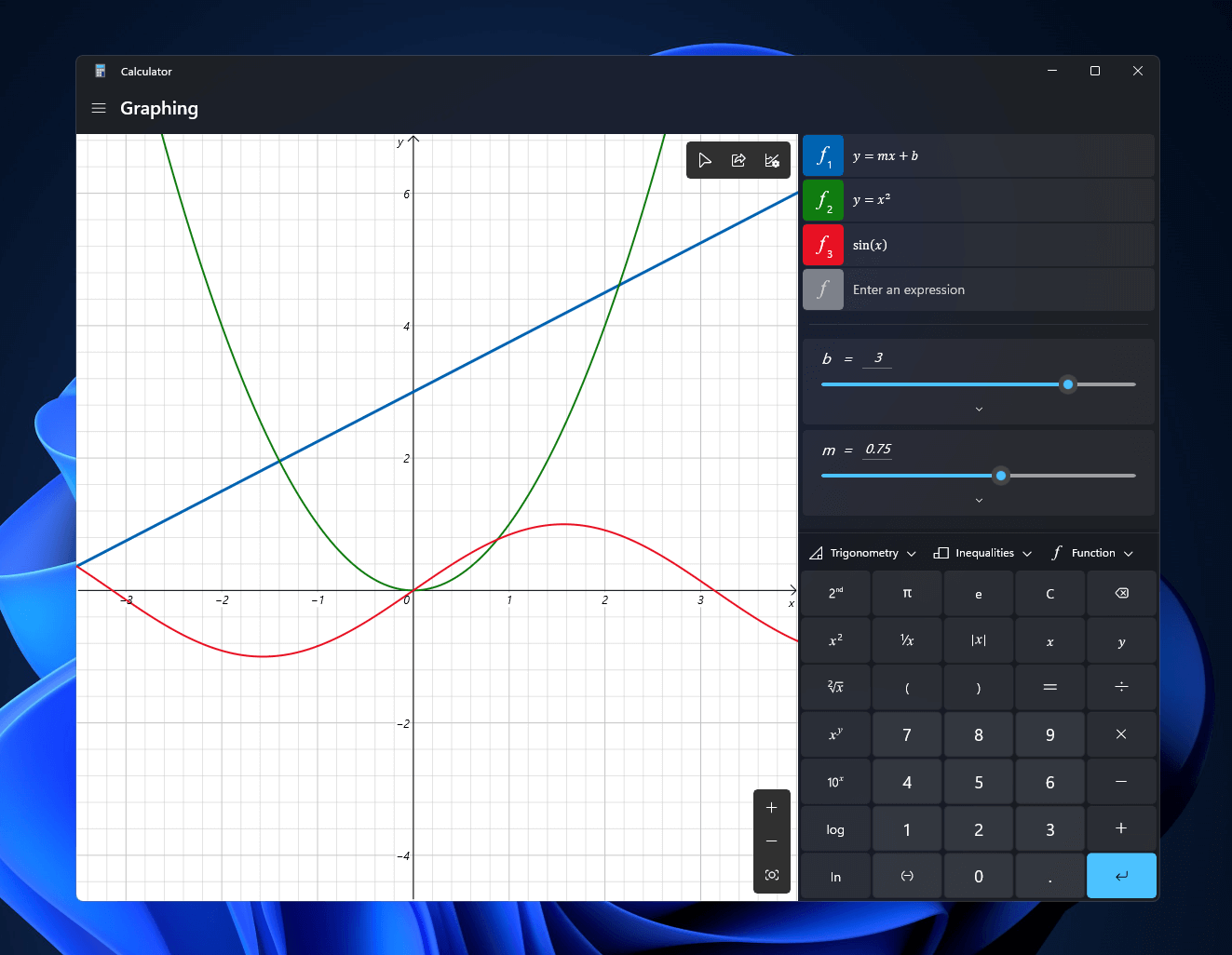
Calculator GraphingWindows 11 will bring some old applications in new looks and some will get additional features as well. One of the old apps that will get new stuff is a calculator. The calculator was always a way to go application for quick calculations but Microsoft aims to expand on that and make the calculator a little more useful. The first thing that you will notice is the calculator look, the calculator has now an application theme setting that allows you to change the look of the application. It comes in standard and professional mode as usual but this time calculator will come with features that will enable it to handle some programming and engineering tasks. The new calculator features a full graphing mode that lets you visually analyze a graph to identify key features. It also packs a deep converter that can switch between more than 100 units and currencies.


Other Windows 11 apps

A new snipping tool will be delivered with this latest update as well packed with new functionality. We have covered new features of the snipping tool in another article, if you are interested you can find the article here: https://errortools.com/windows/new-snipping-tool-redesigned-in-windows-11/ Mail and Calendar apps will also get a redesign, sadly all redesign that they will include will be of visual nature to fit in the overall Windows 11 theme, functionality will remain the same.
Read More
How to Fix the Sysfader iexplore.exe Application Error

The Sysfader iexplore.exe Application Error - What is it?

To understand Sysfader iexplore.exe application error, first, it is important to learn what is Sysfade.exe file. Sysfader.exe is basically an IE (Internet Explorer) application file that provides cool animation effects. These animation effects include fading menus in and out, animated windows and etc. It is responsible for the graphical enhancements for animated pages. The Sysfader iexplore.exe application error occurs when this file fails to execute properly and open animated websites on Internet Explorer. The error code is displayed in the following format:

“SysFader: iexplore.exe – Application Error The instruction at “0×00000000″ referenced memory at “0×00000000″. The memory could not be “read”.”

Solution

Restoro box imageError Causes

The Sysfader iexplorer.exe application error may be triggered due to many causes. These include:
  • Sysfader.exe file corrupted by malware and spyware
  • Recently upgraded Internet Explorer which resulted in the Sysfader iexplorer.exe application error due to incompatibility issues with the system program.
  • Issues with IE configuration
  • Damaged registry files
  • Damaged DLL files
  • Obsolete and bad registry entries
Due to Sysfader iexplorer.exe application error, your Internet Explorer browser may crash. Furthermore if the error is not fixed timely, it may result in even more severe PC problems like system slowdown, system crash and failure. This happens especially when Sysfader iexplorer.exe application error is related to the registry. The registry saves all the activities performed on the computer. This also includes junk files, invalid registry entries, bad registry keys, cookies, temporary internet files, and files of the programs uninstalled. If the registry is not cleaned frequently, these obsolete files overload the RAM causing great deal of damage to the registry. When you try to upgrade your browser, the installation fails and results in browser incompatibility issues because of the previous files of the uninstalled program saved in the registry. Furthermore, the error code may also pop up due to the Sysfader.exe file corrupted by malicious software like spyware and adware on your system if you don’t run an antivirus on your system regularly.

Further Information and Manual Repair

To prevent IE web browser and your PC from coming crashing, here are some solutions that you can try to resolve the Sysfader iexplorer.exe application error:
  1. Repair and restore the registry by changing the configuration settings in the Registry Editor Window. This is accessible by typing ‘Regedit’ in the Run window. However, to edit the configuration settings manually and restore the registry, you should be technically sound. If not then making the changes would be slightly complex and time-consuming for you.
  2. However, another alternative to this is to download Restoro. Restoro is a powerful, advanced, and highly functional PC repair tool that includes multiple utilities such as a registry cleaner and a system optimizer. The registry cleaning feature scans your entire PC for registry issues triggering error codes like Sysfader iexplorer.exe.It wipes out all the unnecessary and obsolete files and fixes the damaged dll files thus simultaneously restoring the registry. The antivirus utility scans for and removes viruses and spyware from your PC which as we explained earlier could be the reason for Sysfader error code.
With Restoro, it takes only a few seconds to resolve this error and repair the registry. If you have system slowdown issues, it takes care of that too. It has simple navigations and a user-friendly interface which makes it very easy to operate even if you are not technically sound. It is safe, efficient, and compatible on all Windows versions including Vista, XP, Windows 7, 8, 8.1, and 10. Click here to download Restoro and resolve Sysfader iexplorer.exe application error on your PC today!
Read More
How to Resolve Internal Error 2753

Internal Error 2753 - What is it?

Internal error 2753 is associated with Windows Installer failure. The Windows Installer is basically an in-built software program in Windows 7 and 8. It installs all programs on the system smoothly, saves the program in the computer program files and in the Windows Registry. Though this can be carried manually Windows Installer makes the installation process much easier. However, internal error 2753 can cause a great deal of distress and frustration during program installation. This error prevents you from installing your desired program successfully.

Solution

Restoro box imageError Causes

The 2 known causes for Internal Error 2753 are:
  • Viral infection
  • Windows Installer not properly registered

Further Information and Manual Repair

To resolve internal error 2753 on your system, try the methods discussed below. These methods are easy and require no technical expertise. Let’s get started:

Method 1 - Remove All Malicious Programs

Malicious programs like viruses, malware, adware, Trojan and spyware can corrupt programs on your PC like Windows Installer. If this is the underlying cause of error code 2753, then simply download a powerful antivirus on your system. Run it to scan for all such malicious programs and remove them. Once your PC is clean, try installing your desired program. This will hopefully resolve the issue. If the error still pops up then try method 2.

Method 2 - Register Windows Installer Properly

To do this, go to the start menu and then open Run and type ‘cmd’ in the box, and press OK. This will open the DOS command window. In the command prompt type "regsvr32 vbscript.dll" and then press Enter to proceed. After that, you will see a message that will read as "DllRegisterServer in vbscript.dll succeeded." This means Window Installer files have been successfully registered on your PC.  Now you can try installing your desired program again. If the installation begins and completes successfully, then the error is resolved.

Method 3 - Undo Recent Changes

If nothing works, then use the Windows System Restore Utility tool to undo recent changes. This will bring back your PC in the former state before you experienced the error 2753 on your PC. To access System Restore Utility, press Start and type System Restore in the search box. Now follow the steps in the Wizard to choose a restore point. Once you select the point, reboot your system to activate changes.
Read More
Rise of video-making AI

Recently Meta has gone viral that it is working on an AI video-making algorithm named Make a Video. AI will like in picture making AI take text input and produce a video from it.

Now, a new player enters the AI video battlefield, its name is GOOGLE!

google ai

The Google research project Imagen Video is also text to video generator similar to Meta's Make a Video with one little difference. unlike Meta's offering which includes only sign-up, Google is withholding access for now under the veil of safeguarding issues.

Google has been in the Ai space before with their Imagen, a DALL-E style generator capable of photorealistic picture generation based on text prompts. The new Google tool works in a similar way but with better functions. Ai can generate a diverse range of high-fidelity videos across different aesthetic styles and with a deep understanding of 3D models thus creating high-definition, 24-frames-per-second videos.

"With the help of progressive distillation, Imagen Video can generate high-quality videos using just eight diffusion steps per sub-model. This speeds up video generation time substantially, by a factor of ~18x,”

Jonathan Ho, author of the research paper

Despite filtering for “undesirable content”, the team admits “there is a risk that Imagen has encoded harmful stereotypes and representations”. So, until the AI - and its users - can be trusted, Google refuses to release Imagen Video without additional safeguards in place.

Read More
Android security: 9 apps stealing your data!
Due to the latest android malware security analyst, there are alarmingly 5.8 million downloads of applications that will steal your Facebook data, your Facebook login credentials! Russian anti-malware company Dr.Web has found Trojan apps that steal your Facebook login credentials by tricking users into entering their private information in order to eliminate in-app ads. All of the applications have been removed from the play store and cannot be installed anymore but please do check your phone in order to remove them from your phone as well.

List of malware applications:

If by any chance you have any application from this list, consider uninstalling it from your phone for security reasons.
  • PIP Photo
  • Processing Photo
  • Rubbish Cleaner
  • Inwell Fitness
  • Horoscope Daily
  • App Lock Keep
  • Lockit Master
  • Horoscope Pi
  • App Lock Manager
During the investigation, Dr.Web analysts found an additional Trojan app that had previously made its way onto the Google Play Store. Image editing software app EditorPhotoPip had already been removed but could be downloaded through aggregator websites.
Read More
Fixing SYNTP.SYS Blue Screen error in Windows
What is SYNTP.SYS file? it is a system file created by Synaptics Touchpad drivers that are responsible for all the gestures and tracking users’ touch on the Touchpad. However, what happens when this driver fails? Well, it’s either that your touchpad will partially stop working or it will completely stop working at all. And in such cases, you will encounter the SYNTP.SYS Blue Screen error along with any of the following error codes:
  • IRQL_NOT_LESS_EQUAL
  • KMODE_EXCEPTION_NOT_HANDLED
  • INVALID_PROCESS_ATTACH_ATTEMPT
To resolve the problem, use the instructions given below as a reference.

Option 1 – Run the Memory Diagnostic Tool to check for Memory leaks

  • Tap the Win + R keys to open Run and type exe and hit Enter to open the Windows Memory Diagnostic Tool.
  • After that, it will give two options such as:
    • Restart now and check for problems (Recommended)
    • Check for problems the next time I start my computer
  • Once your computer has restarted, perform a basic scan or you could also go for the “Advanced” options such as “Test mix” or “Pass count”. Simply tap the F10 key to start the test.
Note: After you select the option, your PC will restart and check for memory-based issues. If it finds any issues, it will automatically fix them and if there’s no issue found, then it’s most likely not a memory-based issue so you should try the other options given below.

Option 2 – Try reinstalling the Synaptics Driver

You might want to reinstall the Synaptics driver to resolve the SYNTP.SYS Blue Screen error.
  • Tap the Win + R keys to open the Run dialog box.
  • After that, type “appwiz.cpl” in the field and hit Enter to open the Programs and Features section in the Control Panel.
  • Next, you have to look for the “Synatics Point Device driver” and right-click on it, and then click on Uninstall to remove it from your computer.
  • Restart your PC and then check for updates under the Windows Update section.
  • After that, it will find the latest available and stable Synaptics driver and then install it.
  • Then click the “Check or Updates” under the Windows update section and it will automatically look for the latest available Synaptic driver and install it for you.
  • Now restart your PC and for the changes to take effect.

Option 3 – Try to run a System File Checker scan

You can also try to run a System File Checker or SFC scan in order to scan your computer for corrupted files that might be the cause behind the Error 0x80000003. Once it finds any corrupted system files, it will automatically fix them. To run System File Checker, here’s what you have to do:
  • Tap Win + R to launch Run.
  • Type in cmd in the field and tap Enter.
  • After opening Command Prompt, type in sfc /scannow
The command will start a system scan which will take a few whiles before it finishes. Once it’s done, you could get the following results:
  1. Windows Resource Protection did not find any integrity violations.
  2. Windows Resource Protection found corrupt files and successfully repaired them.
  3. Windows Resource Protection found corrupt files but was unable to fix some of them.
  • Restart your computer after the scan is completed.

Option 4 – Perform a System Restore

Performing System Restore might help you in fixing the SYNTP.SYS Blue Screen error. You can do this option either by booting into Safe Mode or in System Restore. If you are already in the Advanced Startup Options, just directly select System Restore and proceed with the next steps. And if you have just booted your PC into Safe Mode, refer to the steps below.
  • Tap the Win + R keys to open the Run dialog box.
  • After that, type in “sysdm.cpl” in the field and tap Enter.
  • Next, go to the System Protection tab then click the System Restore button. This will open a new window where you have to select your preferred System Restore point.
  • After that, follow the on-screen instructions to finish the process and then restart your computer and check if the problem is fixed or not.

Option 5 – Try to run the CHKDSK utility

Running the CHKDSK utility might also help you resolve the SYNTP.SYS errors. If your hard drive has issues with integrity, the update will really fail as the system will think that it’s not healthy and that’s where the CHKDSK utility comes in. The CHKDSK utility repairs hard drive errors that might be causing the problem.
  • Open Command Prompt with admin privileges.
  • After opening Command Prompt, execute the following command and hit Enter:
chkdsk /f /r
  • Wait for the process to be completed and then restart your computer.

Option 6 – Use the Blue Screen Troubleshooter

The Blue Screen troubleshooter is a built-in tool in Windows 10 that helps users in fixing BSOD errors like SYNTP.SYS Blue Screen error. It can be found on the Settings Troubleshooters page. To use it, refer to these steps:
  • Tap the Win + I keys to open the Settings panel.
  • Then go to Update & Security > Troubleshoot.
  • From there, look for the option called “Blue Screen” on your right-hand side and then click the “Run the troubleshooter” button to run the Blue Screen Troubleshooter and then follow the next on-screen options. Note that you might have to boot your PC into Safe Mode.
Read More
How to Resolve Socket Error 10060

Socket Error 10060 - What is it?

Socket Error 10060 is basically a connection time-out error. This error occurs when the remote FTP server does not respond to CuteFTP. This time-out error occurs after an FTP session is established but even the server doesn’t respond. The error message is displayed in the following format:
‘Connection timed out. A connection attempt failed because the connected party did not properly respond after a period of time, or established connection failed because connected host failed to respond.’

Solution

Restoro box imageError Causes

Socket Error 10060 may occur due to multiple reasons including:
  • Blocked port
  • Data connection incorrect settings
  • When the web proxy connection setting does not allow enough time to receive a response from the destination website and therefore the connection is timed-out.
  • Registry issues
  • Viral infection

Further Information and Manual Repair

Here are some of the best and quick DIY methods to resolve Socket Error 10060 on your PC.

Method 1: Troubleshoot the Web Proxy Connection

This method is workable and effective if Socket Error 10060 occurs only when the web proxy service is used. To execute it, here’s what you need to do: install the Winsock Proxy Client on your PC. Disable the web proxy settings under the LAN settings on the Connections tab of the internet options. Once you disable the settings, then try to go to the website that you giving you the error. If the site is accessible, the error is resolved.

Method 2: Increase Web Proxy Time out Settings

If disabling the web proxy settings doesn’t work, then try increasing time-out settings. To do so, you will also have to modify the registry. Remember serious problems may occur if you modify the registry incorrectly.
  • Here’s what you need to do, click start, run and then type Regedit in the dialogue box.
  • Navigate to the following registry subkey: HKEY_LOCAL_MACHINESYSTEMCurrentControlSetServicesW3ProxyParameters.
  • On the right side of the Registry Editor, right-click Request TimeoutSecs and then click Modify.
  • Click decimal, they type the number of seconds that you want the proxy service to wait until the session times out.
  • To confirm changes, click OK.
  • Now restart WWW publishing service by going to start, run and type cmd. Click OK to continue.
  • Type net stop iisadmin/y and then press enter. After that type net start iisadmin /y and then press enter. Test the new settings by going to the website that displayed the Socket Error 10060 message.

Method 3: Switch from Passive Mode to Active Port Mode

This method is effective if the error occurs due to incorrect data connection settings. CuteFTP uses passive mode by default so to ensure the error is resolved, you may have to switch from passive mode to active port mode. To make this switch, open the site manager and then click once on the name of the problem website. Now on the Type tab change the data connection type to use the port.

Method 4: Configure Firewall Settings

Sometimes the error may also occur due to Firewall.  To resolve, configure Firewall settings to allow FTP protocol.

Method 5: Download Restoro

Whether the error occurs due to viral infection or registry issues, it is advisable to download Restoro. This is an advanced and multi-functional PC fixer embedded with multiple utilities like antivirus and a registry cleaner. The registry cleaning utility removes junk files, cookies, and invalid entries damaging the registry. It cleans, repairs, and restores the registry while the antivirus removes all types of viruses like spyware and Trojans in seconds thereby resolving socket error code 10060. It is safe, user-friendly, and compatible with all Windows versions. Click here to download Restoro today.
Read More
1 2 3 171
Logo
Copyright © 2023, ErrorTools. All Rights Reserved
Trademark: Microsoft Windows logos are registered trademarks of Microsoft. Disclaimer: ErrorTools.com is not affiliated with Microsoft, nor claims direct affiliation.
The information on this page is provided for information purposes only.
DMCA.com Protection Status