CrazyForCrafts is a Browser Extension from Mindspark Interactive. This Toolbar Extension allegedly offers users tons of DIY crafting guides and tricks, however all that it does is point you in the right direction. It links you back to some of the most popular DIY Crafting websites on the internet that you can find at any time by a simple search.
While this may look useful and faster than looking around the internet for good DIY projects, remember that this extension injects itself into your browser, changing your new tab page to Search.MyWay.com and records your browsing habits, can view your internet history, and know whatever you are looking for or viewing online.
While using this extension you will see additional pop-up ads, sponsored content, and injected ads throughout your browsing sessions.
Due to its behavior this extension has been marked for removal by several anti-virus scanners, and it is recommended to remove it from your computer to prevent data leaks.
About Browser Hijackers
Browser hijackers (sometimes called hijackware) are a type of malicious software that alters web browser configuration settings without the computer owner’s knowledge or permission. These hijacks appear to be increasing at an worrying rate around the world, and it can be really nefarious and sometimes dangerous too. They’re designed to disrupt browser functions for many different reasons. These are typically used to force visitors to a specific website, manipulating web-traffic to earn ad revenue. Although it might appear naive, all browser hijackers are damaging and therefore always classified as security threats. In a much worst case, your internet browser could be hijacked to download malware that will do a great deal of damage to your computer or laptop.
How one can know whether the browser is hijacked?
Symptoms that a web browser is hi-jacked include: the browser’s homepage is changed; new bookmarks pointing to pornographic sites have been added to your favorite pages; the essential web browser settings are modified and unwanted or insecure sites are added to the trusted websites listing; you are finding new toolbars you have never found before; you might see numerous pop-up ads on your computer screen; your browser has become unstable or starts running sluggishly; Inability to navigate to certain sites, especially antivirus as well as other computer security software websites.
How browser hijacker infects computers
Browser hijackers may use drive-by downloads or file-sharing websites or perhaps an e-mail attachment to reach a targeted PC. They also come from add-on software, also called browser helper objects (BHO), browser extensions, or toolbars. Also, certain freeware and shareware can put the hijacker in your PC through “bundling”. Examples of well-known browser hijackers are Fireball, CoolWebSearch. GoSave, Ask Toolbar, RocketTab, and Babylon Toolbar.
The presence of any browser hijacker on your system might substantially diminish the web browsing experience, track your online activities that result in serious privacy concerns, develop system stability problems and eventually cause your computer to slow down or to an almost unusable condition.
How to remove a browser hijacker
Some hijackers can be easily removed by uninstalling the free software they were included with or by removing any extension you’ve recently added to your browser. But, most hijacking codes are certainly not very easy to get rid of manually, as they go much deeper into your operating system. You should consider performing manual repairs only if you’re a tech-savvy person, as potential risks are associated to tinkering with the system registry and HOSTS file.
Browser hijackers could be effectively removed by installing anti-malware software on the affected system. SafeBytes Anti-Malware can counter relentless browser hijackers and provide you with proactive PC protection against all kinds of malware. In addition to anti-virus software, a system optimizer software, like Total System Care, will help you correct Windows registry errors, remove unwanted toolbars, secure online privacy, and stabilize software programs installed on your PC.
Virus Blocking Access To Safebytes Website And Anti-Malware Downloads - What You Should Do?
Malware can cause all kinds of damage once they invade your PC, ranging from stealing your private details to deleting files on your PC. Some malware is meant to interfere with or prevent things that you wish to do on your PC. It may well not allow you to download anything from the net or it will stop you from accessing a few or all internet sites, especially the anti-malware sites. If you’re reading this, odds are you’re stuck with a malware infection which is preventing you to download or install Safebytes Anti-Malware program on your system. Although this type of issue will be difficult to get around, there are a few steps you can take.
Get rid of malware in Safe Mode
The Windows-based PC has a special mode referred to as “Safe Mode” in which only the minimum required applications and services are loaded. In the event the malware is blocking access to the internet and affecting your computer, starting it in Safe Mode enables you to download antivirus and run a scan while limiting potential damage. To enter into Safe Mode or Safe Mode with Networking, press the F8 key while the computer is booting up or run MSCONFIG and locate the “Safe Boot” options under the “Boot” tab. As soon as you restart the PC into Safe Mode with Networking, you may download, install, as well as update anti-malware software from there. Following installation, run the malware scanner to eliminate standard infections.
Obtain the antivirus software using an alternate web browser
Malicious code could exploit vulnerabilities on a particular browser and block access to all anti-virus software websites. If you appear to have a virus attached to Internet Explorer, then switch over to a different browser with built-in safety features, such as Firefox or Chrome, to download your favorite anti-malware program – Safebytes.
Make a bootable USB anti-virus drive
Here’s yet another solution which is using a portable USB anti-malware software package that can check your computer for malicious software without needing installation. To run anti-malware using a USB drive, follow these simple steps:
1) Download the anti-malware on a virus-free PC.
2) Plug the Flash drive into the uninfected computer.
3) Double click on the exe file to run the installation wizard.
4) Choose the drive letter of the pen drive as the place when the wizard asks you where you would like to install the antivirus. Follow activation instructions.
5) Remove the pen drive. You can now utilize this portable anti-malware on the affected computer system.
6) Run the Safebytes Anti-malware directly from the pen drive by double-clicking the icon.
7) Click “Scan Now” to run a complete scan on the infected computer for malware.
Features of SafeBytes Anti-Malware
If you are planning to buy anti-malware for your computer system, there are lots of brands and packages for you to consider. A few of them are great, some are ok types, and some will destroy your computer themselves! You have to be careful not to select the wrong application, especially if you buy a paid software. Amongst few good applications, SafeBytes Anti-Malware is the highly recommended tool for security-conscious people.
SafeBytes antimalware is a very effective and easy to use protection tool which is designed for end-users of all levels of computer literacy. With its cutting edge technology, this software will help you get rid of multiples types of malware which includes viruses, worms, PUPs, trojans, adware, ransomware and browser hijackers.
SafeBytes anti-malware takes PC protection to a whole new level with its enhanced features. A few of them are given as below:
Real-time Threat Response: SafeBytes offers complete and real-time security for your personal machine. This utility will constantly keep track of your PC for any suspicious activity and updates itself regularly to keep abreast of the latest threats.
World-class AntiMalware Protection: Using its advanced and sophisticated algorithm, this malware elimination tool can identify and get rid of the malware threats hiding in your computer effectively.
Web protection: SafeBytes checks the hyperlinks present on a web page for possible threats and alerts you if the website is safe to view or not, through its unique safety rating system.
Lightweight: SafeBytes is lightweight software. It use up a very small amount of processing power as it works in the background so you’re free to use your Windows-based PC the way you would like.
24/7 Support: You can get totally free 24/7 technical assistance from their computer experts on any product queries or computer security issues.
Overall, SafeBytes Anti-Malware is a solid program since it has plenty of features and could detect and remove any potential threats. Now you may realize that this tool does more than just scan and delete threats from your PC. For the best protection and the best value for money, you can’t get better than SafeBytes Anti-Malware.
Technical Details and Manual Removal (Advanced Users)
To get rid of CrazyForCrafts manually, navigate to the Add/Remove programs list in the Control Panel and choose the offending program you want to get rid of. For web browser plug-ins, go to your web browser’s Addon/Extension manager and select the plug-in you want to remove or disable. It is also suggested to reset your browser to its default condition to fix corrupt settings.
If you choose to manually delete the system files and registry entries, use the following checklist to make sure you know exactly what files to remove before undertaking any actions. Please keep in mind that this is for skilled users only and might be challenging, with incorrect file removal leading to additional system errors. Additionally, certain malicious programs have the capability to defend against its deletion. Completing this task in Safe Mode is advised.
Registry:
HKEY_LOCAL_MACHINESYSTEMCurrentControlSetServicesWpm
HKEY_CURRENT_USERSoftwareMicrosoftInternet ExplorerMain Default_Page_URL
HKEY_LOCAL_Machine\Software\Classes\[adware name]
HKEY_CURRENT_USER\Software\Microsoft\Windows\CurrentVersion\Run .exe
HKCU\Software\Microsoft\Windows\CurrentVersion\Internet Settings\random
HKEY_LOCAL_MACHINE\SOFTWARE\Microsoft\Windows\CurrentVersion\run\random
HKEY_CURRENT_USER\Software\Microsoft\Windows\CurrentVersion\Internet Settings CertificateRevocation = 0








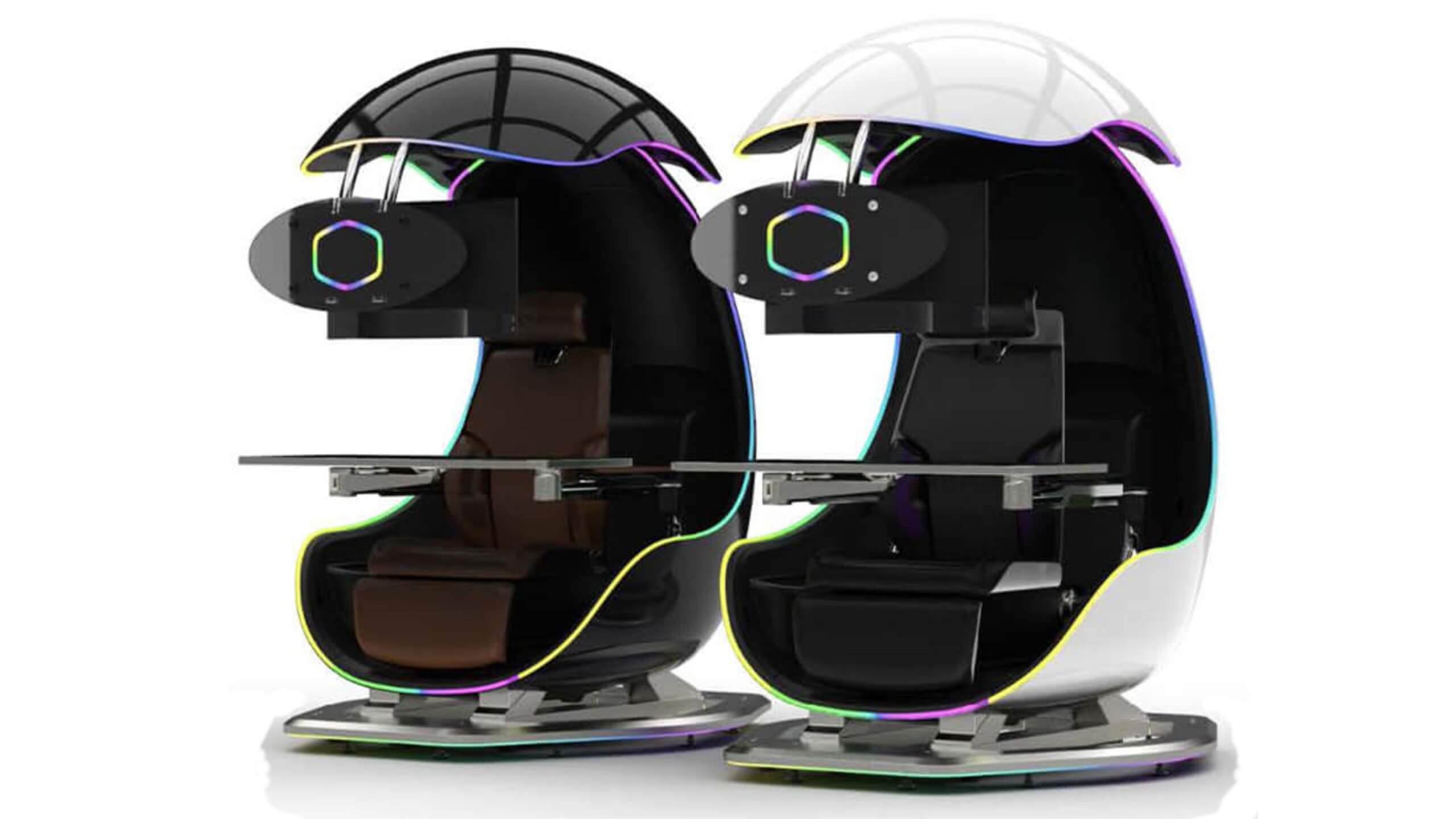 I going to admit right here that I am a big fan of Cooler Master PC cases, I like them and they are always one of the things that I consider when building a new PC, overall I like their ideas and quality so personal for me it was quite a surprise to see that they are one that is making a new generation gaming chair.
Now truth to be told Orb X is not your typical gaming chair as you can clearly see from the pictures. The chair itself will come in two colors: white or black and RGB lighting looks to be prominently featured throughout.
I going to admit right here that I am a big fan of Cooler Master PC cases, I like them and they are always one of the things that I consider when building a new PC, overall I like their ideas and quality so personal for me it was quite a surprise to see that they are one that is making a new generation gaming chair.
Now truth to be told Orb X is not your typical gaming chair as you can clearly see from the pictures. The chair itself will come in two colors: white or black and RGB lighting looks to be prominently featured throughout.
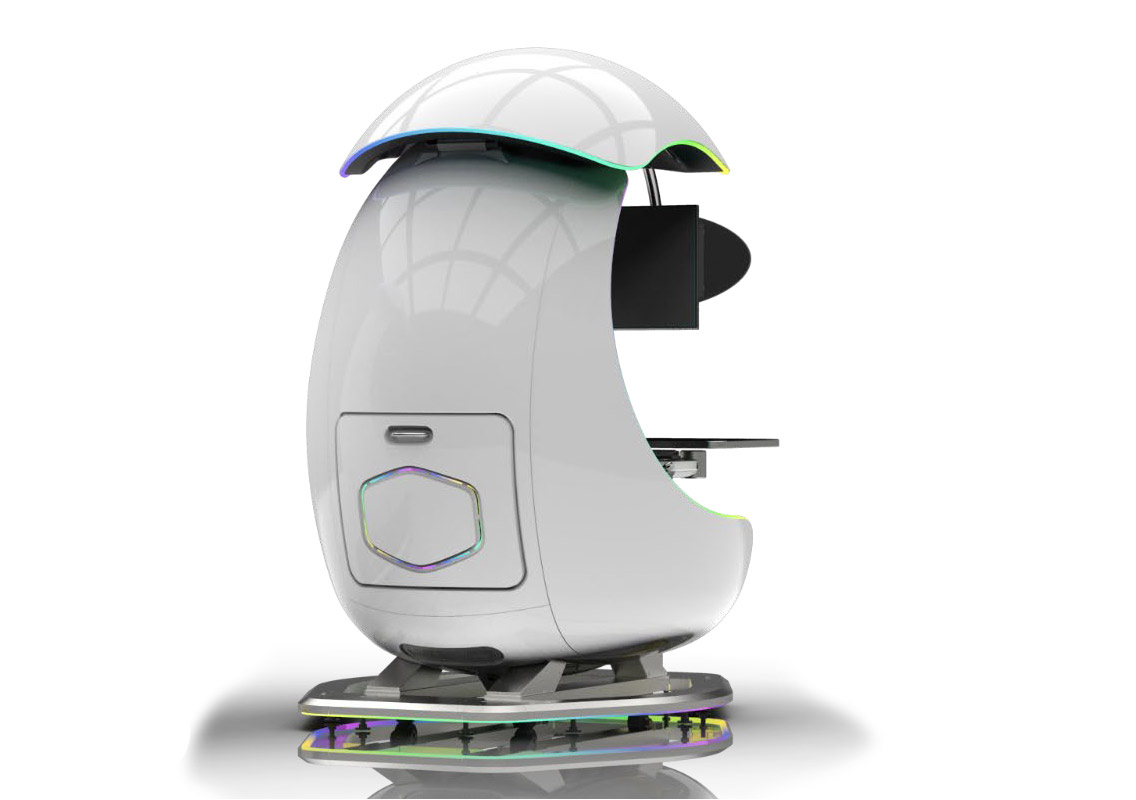 The chair itself is advertised as both meant and aimed for professional and gaming crowds but I believe the gaming crowd is in general more interested in this hardware piece.
Hardware is enclosed in a fully motorized shuttle dome which aims to maximize your privacy, it supports a single 49inch display or three 27inch monitors along with surround speakers if you do not wish to use headphones.
The chair itself is advertised as both meant and aimed for professional and gaming crowds but I believe the gaming crowd is in general more interested in this hardware piece.
Hardware is enclosed in a fully motorized shuttle dome which aims to maximize your privacy, it supports a single 49inch display or three 27inch monitors along with surround speakers if you do not wish to use headphones.
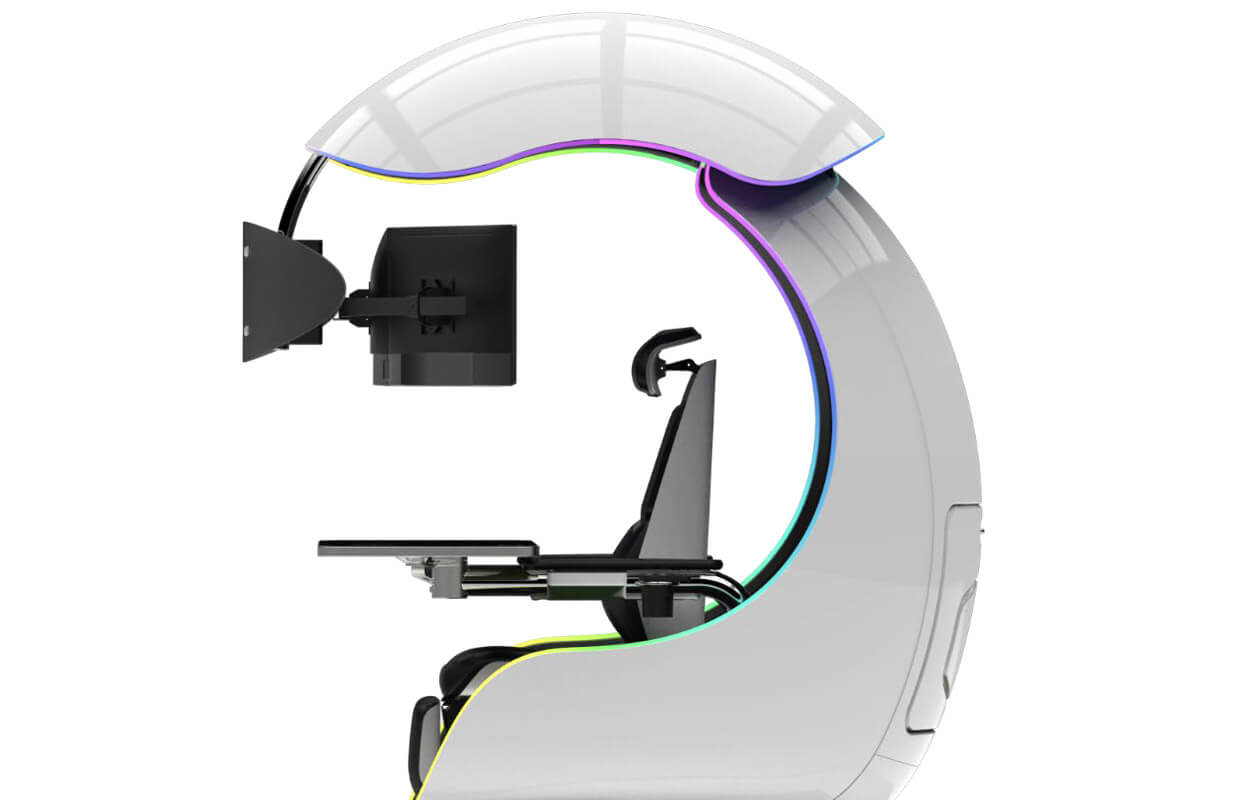 It offers an adjustable headrest, lumbar support, and footrest so you can spend some time in it and be comfortable. Controls on the chair itself allow you to raise or lower the dome for easier getting in and out of it.
Orb X also has a compartment in its backside, it folds out and has a sliding tray designed to hold your PC or console. Everything is enclosed so wiring is not the issue.
Overall Orb X seems really like the computer chair of the future, Cooler Master expects to release the Orb X by December 2021, priced around $12,000-$14,000.
It offers an adjustable headrest, lumbar support, and footrest so you can spend some time in it and be comfortable. Controls on the chair itself allow you to raise or lower the dome for easier getting in and out of it.
Orb X also has a compartment in its backside, it folds out and has a sliding tray designed to hold your PC or console. Everything is enclosed so wiring is not the issue.
Overall Orb X seems really like the computer chair of the future, Cooler Master expects to release the Orb X by December 2021, priced around $12,000-$14,000.  Microsoft just released Windows 11 ISo file, based on the latest Insider Preview Build 22000.132. Inside build, you can try all-new features like clock updated app, snip tool, and everything releases so far via various patches. You can also use Windows 11 ISO file to do a clean install on your computer, but if you go with this option all of your existing files will be deleted.
Microsoft says it added the ability to name your PC during the setup experience. You’ll also get to experience the Get Started app that’s designed to help you get going on your new Windows 11 PC (even if it’s not actually a new one).
Microsoft just released Windows 11 ISo file, based on the latest Insider Preview Build 22000.132. Inside build, you can try all-new features like clock updated app, snip tool, and everything releases so far via various patches. You can also use Windows 11 ISO file to do a clean install on your computer, but if you go with this option all of your existing files will be deleted.
Microsoft says it added the ability to name your PC during the setup experience. You’ll also get to experience the Get Started app that’s designed to help you get going on your new Windows 11 PC (even if it’s not actually a new one).
 The true cause is that there is no working Border Gateway Protocol (BGP) routes into Facebook's sites. BGP is the standardized exterior gateway protocol used to exchange routing and reachability information between the internet top-level autonomous systems (AS). Most people, indeed most network administrators, never need to deal with BGP.
Cloudflare VP Dane Knecht was the first to report the underlying BGP problem. This meant, as Kevin Beaumont, former Microsoft's Head of Security Operations Centre, tweeted,
"By not having BGP announcements for your DNS name servers, DNS falls apart = nobody can find you on the internet. Same with WhatsApp btw. Facebook has basically de-platformed themselves from their own platform."
Many people are very annoyed by this and with the fact that they cannot use their social media platforms but it seems that Facebook employees are in even bigger annoyance as it was reported that Facebook employees can't enter their buildings because their "smart" badges and doors were also disabled by this network failure. If true, Facebook's people literally can't enter the building to fix things.
Reddit user u/ramenporn, who claimed to be a Facebook employee working on bringing the social network back from the dead, reported, before he deleted his account and his messages:
"DNS for FB services has been affected and this is likely a symptom of the actual issue, and that's that BGP peering with Facebook peering routers has gone down, very likely due to a configuration change that went into effect shortly before the outages happened (started roughly 1540 UTC). There are people now trying to gain access to the peering routers to implement fixes, but the people with physical access is separate from the people with knowledge of how to actually authenticate to the systems and people who know what to actually do, so there is now a logistical challenge with getting all that knowledge unified. Part of this is also due to lower staffing in data centers due to pandemic measures."
Ramenporn also stated that it wasn't an attack, but a mistaken configuration change made via a web interface.
Both BGP and DNS are down, the "connection to the outside world is down, remote access to those tools don't exist anymore, so the emergency procedure is to gain physical access to the peering routers and do all the configuration locally."
Technicians on site don't know how to do that and senior network administrators aren't on site.
It seems that it will all be down for a couple of more hours before the issue is resolved.
The true cause is that there is no working Border Gateway Protocol (BGP) routes into Facebook's sites. BGP is the standardized exterior gateway protocol used to exchange routing and reachability information between the internet top-level autonomous systems (AS). Most people, indeed most network administrators, never need to deal with BGP.
Cloudflare VP Dane Knecht was the first to report the underlying BGP problem. This meant, as Kevin Beaumont, former Microsoft's Head of Security Operations Centre, tweeted,
"By not having BGP announcements for your DNS name servers, DNS falls apart = nobody can find you on the internet. Same with WhatsApp btw. Facebook has basically de-platformed themselves from their own platform."
Many people are very annoyed by this and with the fact that they cannot use their social media platforms but it seems that Facebook employees are in even bigger annoyance as it was reported that Facebook employees can't enter their buildings because their "smart" badges and doors were also disabled by this network failure. If true, Facebook's people literally can't enter the building to fix things.
Reddit user u/ramenporn, who claimed to be a Facebook employee working on bringing the social network back from the dead, reported, before he deleted his account and his messages:
"DNS for FB services has been affected and this is likely a symptom of the actual issue, and that's that BGP peering with Facebook peering routers has gone down, very likely due to a configuration change that went into effect shortly before the outages happened (started roughly 1540 UTC). There are people now trying to gain access to the peering routers to implement fixes, but the people with physical access is separate from the people with knowledge of how to actually authenticate to the systems and people who know what to actually do, so there is now a logistical challenge with getting all that knowledge unified. Part of this is also due to lower staffing in data centers due to pandemic measures."
Ramenporn also stated that it wasn't an attack, but a mistaken configuration change made via a web interface.
Both BGP and DNS are down, the "connection to the outside world is down, remote access to those tools don't exist anymore, so the emergency procedure is to gain physical access to the peering routers and do all the configuration locally."
Technicians on site don't know how to do that and senior network administrators aren't on site.
It seems that it will all be down for a couple of more hours before the issue is resolved.  5 Essential IT skills everybody should know