Logo

Windows 11 new features and preview

Microsoft has presented its next version of their flagship product, Windows 11, and feelings are divided among users.

Some users like it very much and eager to upgrade, some do not like the graphic overhaul it went through, but overall I think Microsoft has done a good job with it.

Here in this article, we will discuss some of the new features which Windows brings to the table, well at least ones that were showed, I am sure there are plenty more which we will see once OS has been released.

New Start menu

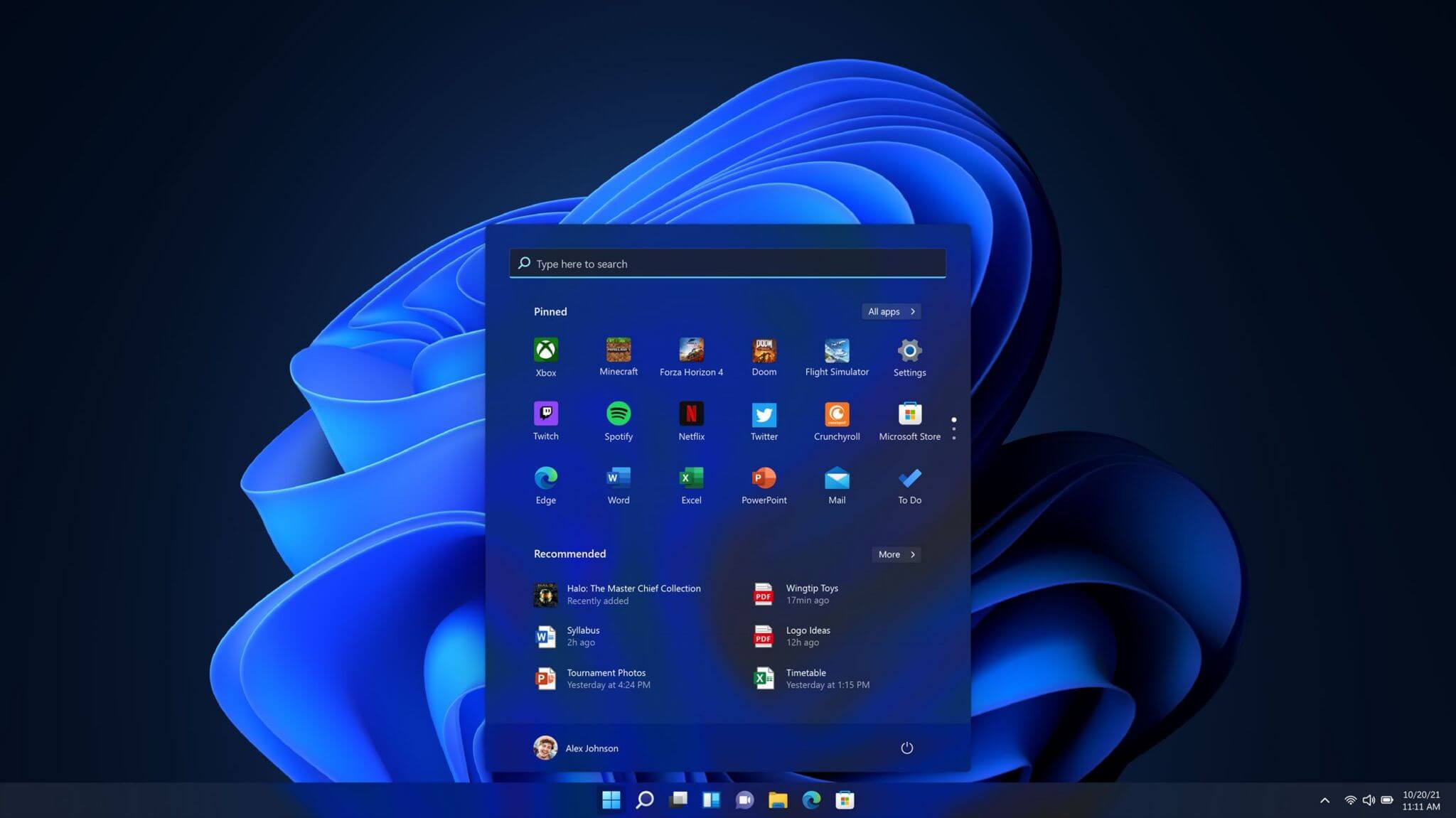
Winodws 11 start menuOne of the first things that everyone saw when Microsoft has unveiled Windows 11 is its Start menu. Funny enough this is what has caused most of the divide among users, some find it interesting, and some do not like it. Truth is, it is different, and it is centered in the middle instead of the lower left part of the screen.

It has been confirmed however that the Start menu can be moved to any part of the screen so if you want, you could place it on the lower left as it has always been.

Live tiles do not longer exist in the Start menu, instead, we have styled simple icons.

Windows 11 Snap controls are great

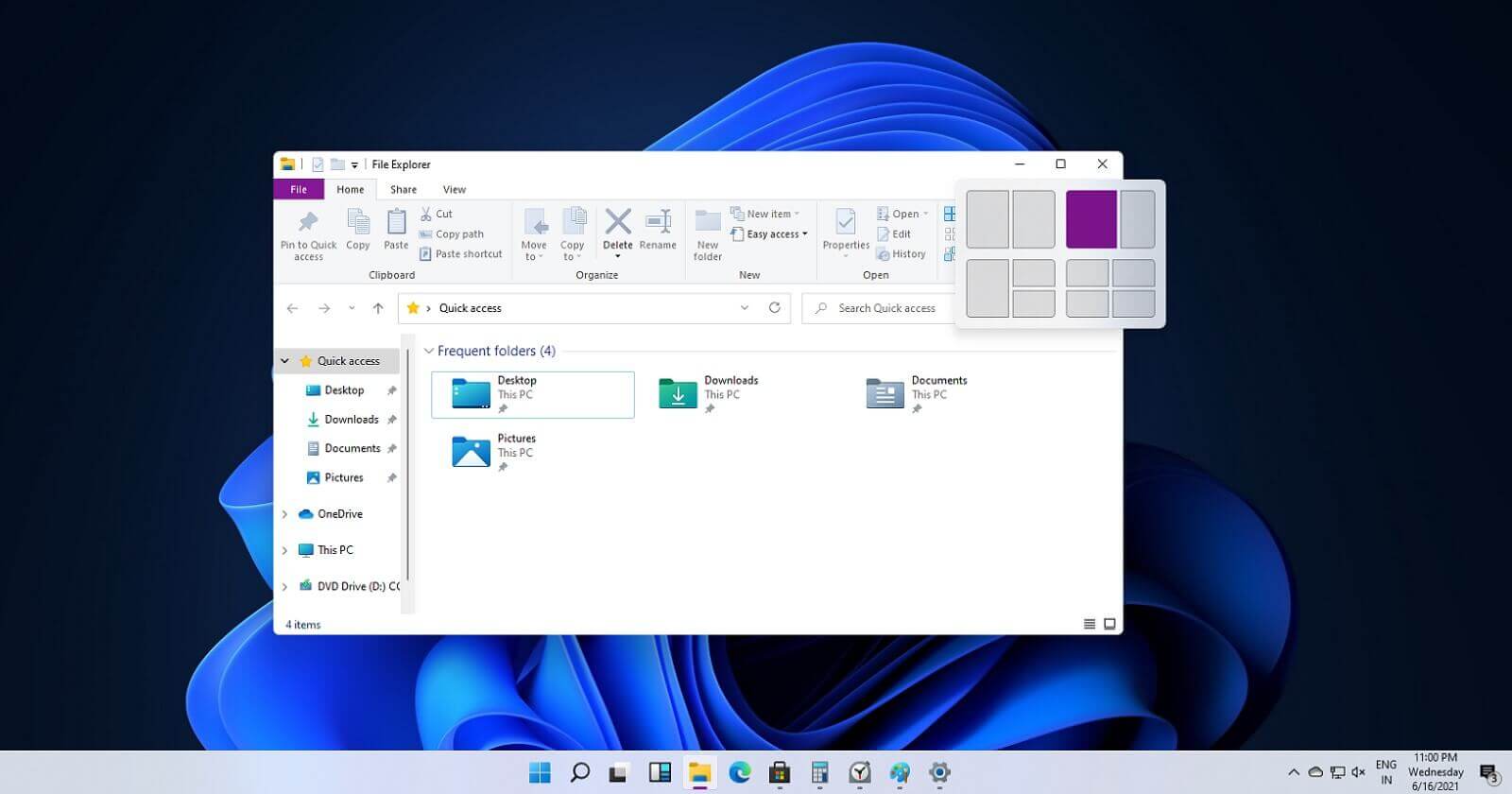
Windows 11 snap controlsIf you have used the cascade option in previous Windows versions then it is most likely that you will like the new Snap controls.

You can quickly snap windows side by side, or arrange them in sections on your desktop just by hovering over maximize button on the title bar.

Windows 11 File Explorer

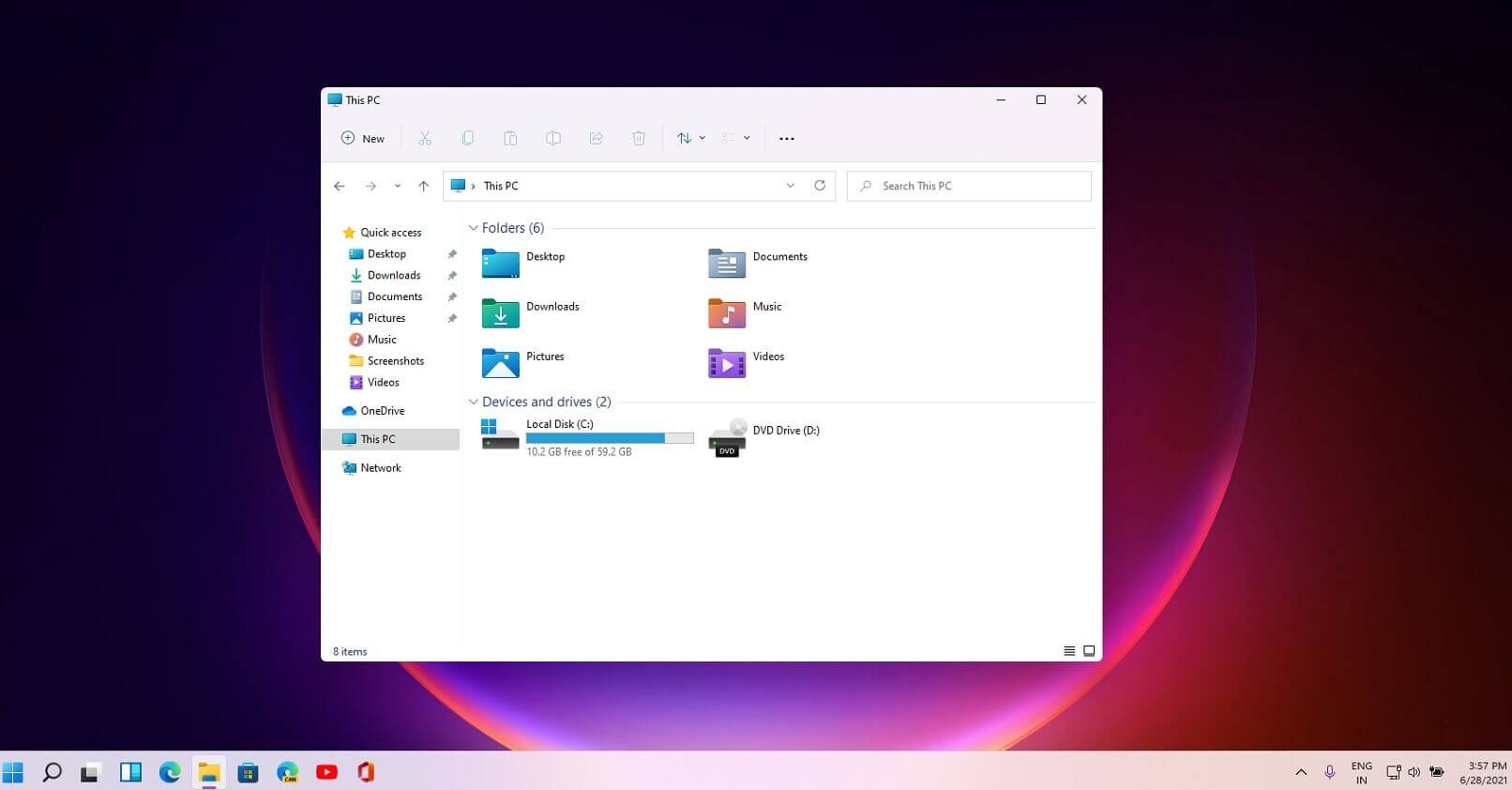
Windows 11 file explorerFile explorer has gone through some visual and design changes, the ribbon on top has been completely removed and replaced with a header-like feature with a slick and clean design.

The header contains a nice organized and designed single row of icons like cut, paste, copy, rename, delete, and new folder icons.

Settings app ovberhaul

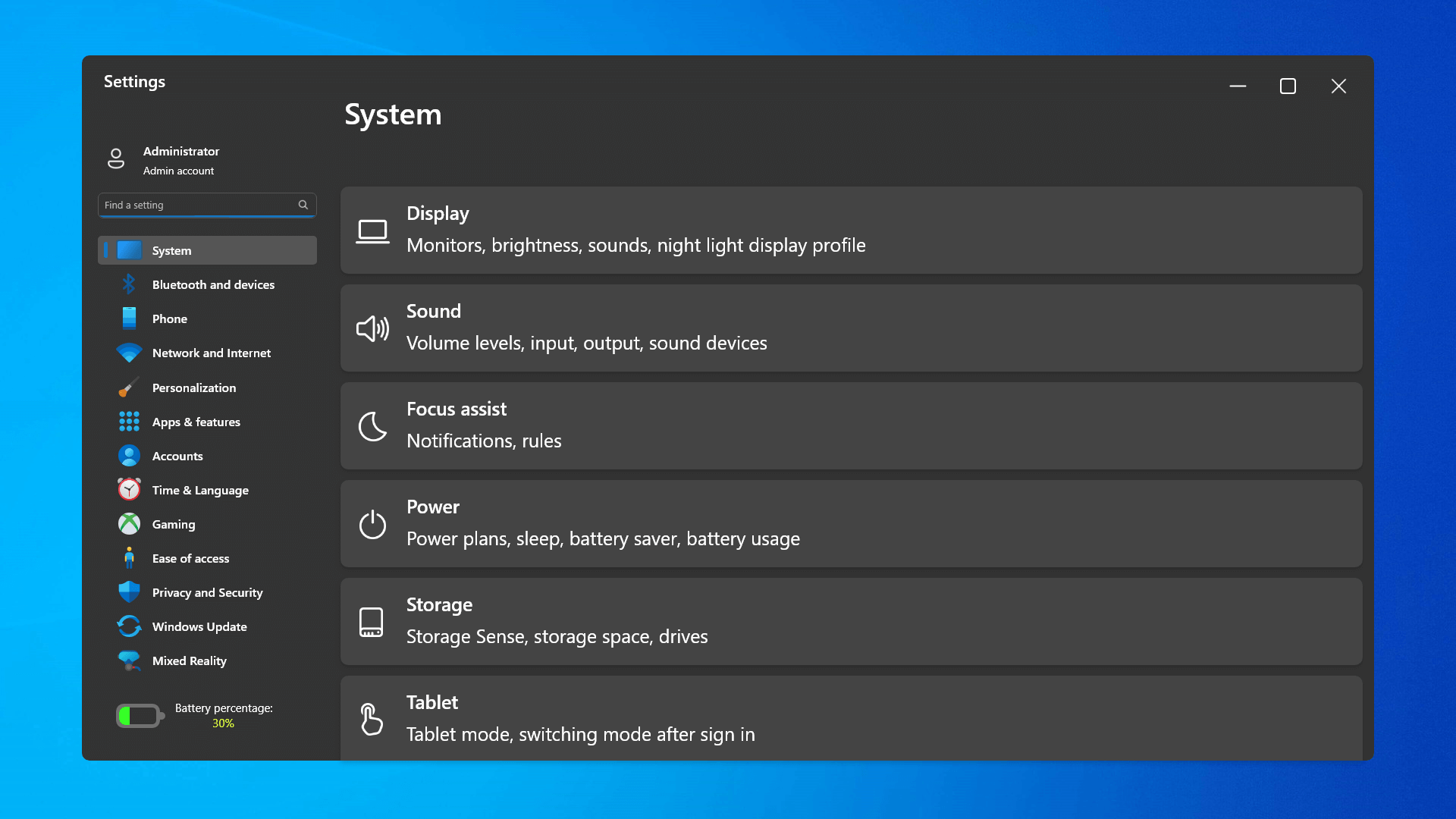
Windows 11 settings appThe settings app also has gone through visual and design changes. It has a new design that is very visually appealing and navigation has been simplified and more organized. Finding the right and desired setting is much faster and clearer now.

Widget tab makes comeback in Windows 11

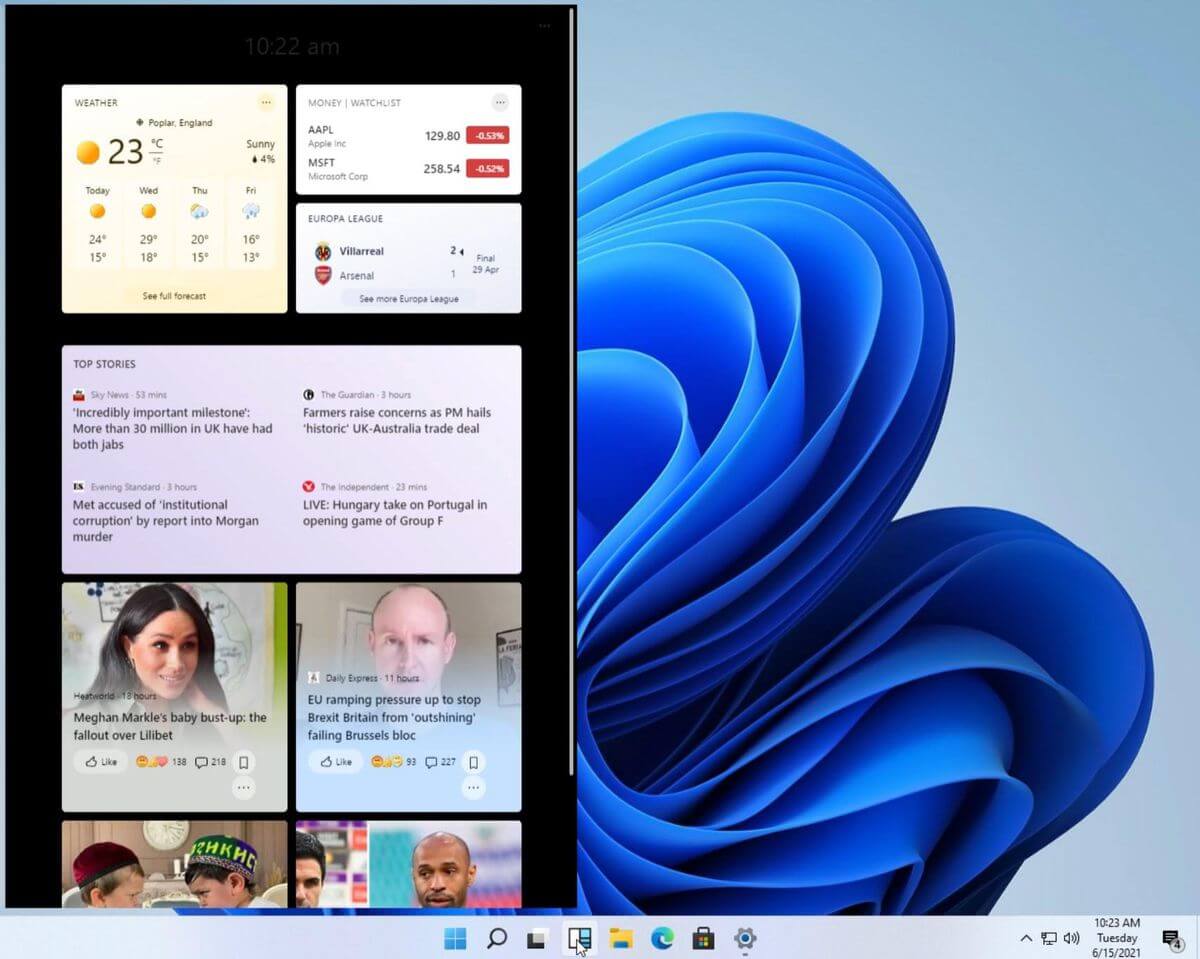
Windows 11 widgets barYes, widgets are back but not like you remember them.

Instead of being all-time present at your desktop like once they used to be, now there is a button on the taskbar which brings the widget bar up that contains desired widgets. This way they are easily accessible and do not clutter desktops.

So far we have weather, news, calendar, and stocks widget but we will see how development on these goes. I expect to have community-made widgets like in old days for all of our needs.

XBOX app

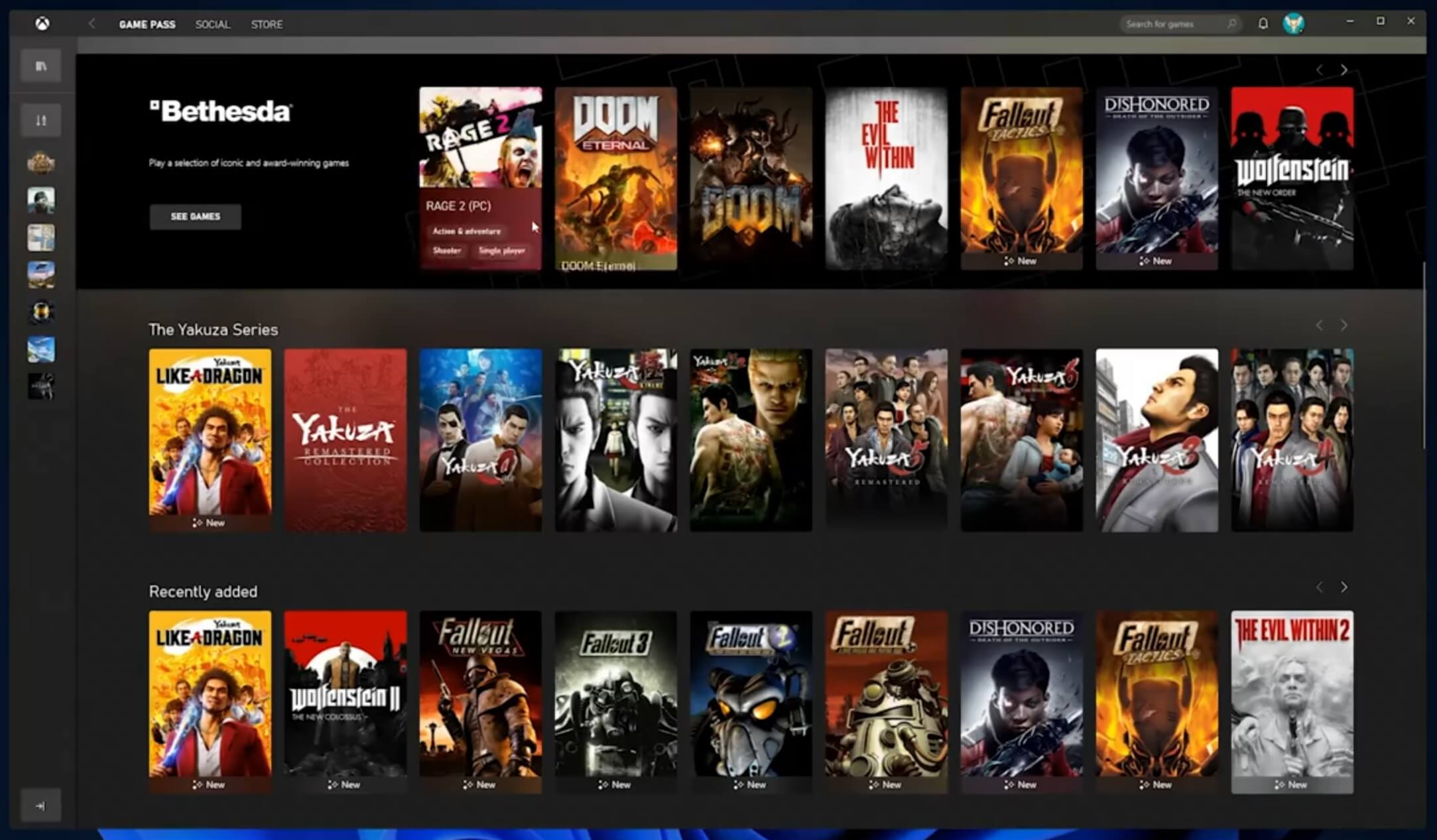
Windows 11 xbox appThe new Xbox app is now integrated into Windows 11, offering quick access to Xbox Game Pass games, the social parts of the Xbox network, and the Xbox store.

Security and TPM 2.0 in Windows 11

Windows 11As widely known by now Windows 11 will require you to have a TPM 2.0 module capable CPU in order to install it.

This system requirement has caused a lot of controversies but essentially it seems that MS's goal is to protect your personal data by using this module.

The upside of course is that your data will be protected much more than in previous Windows versions, the downside, of course, will be that you will need newer hardware to run OS on it.

and that is essentially it, keep on tuned on more Windows 11 information and overall articles tied to PC and technology here at errortools.com

Do You Need Help with Your Device?

Our Team of Experts May Help
Troubleshoot.Tech Experts are There for You!
Replace damaged files
Restore performance
Free disk space
Remove Malware
Protects WEB browser
Remove Viruses
Stop PC freezing
GET HELP
Troubleshoot.Tech experts work with all versions of Microsoft Windows including Windows 11, with Android, Mac, and more.

Share this article:

You might also like

Microsoft Office Windows 11 edition
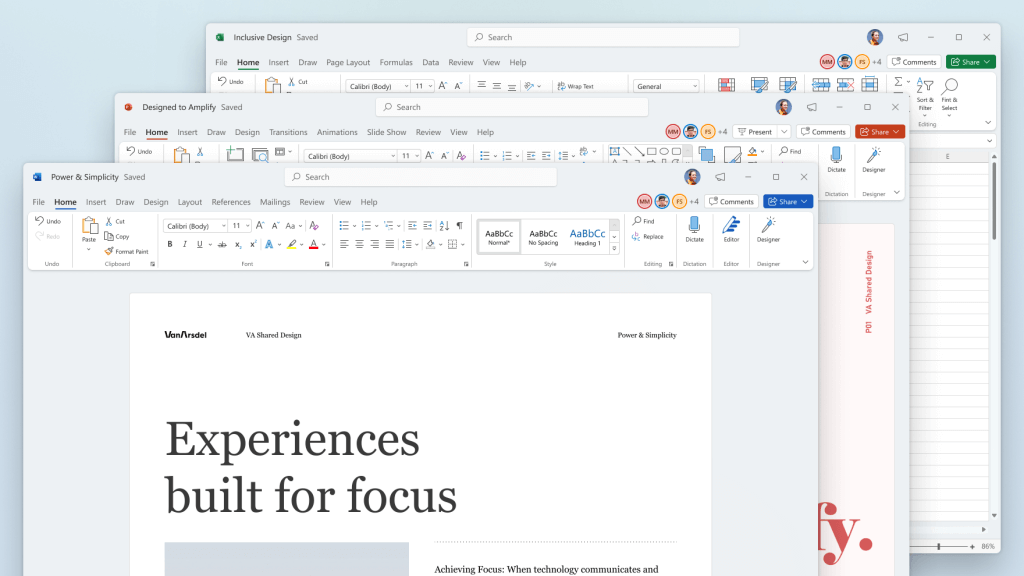
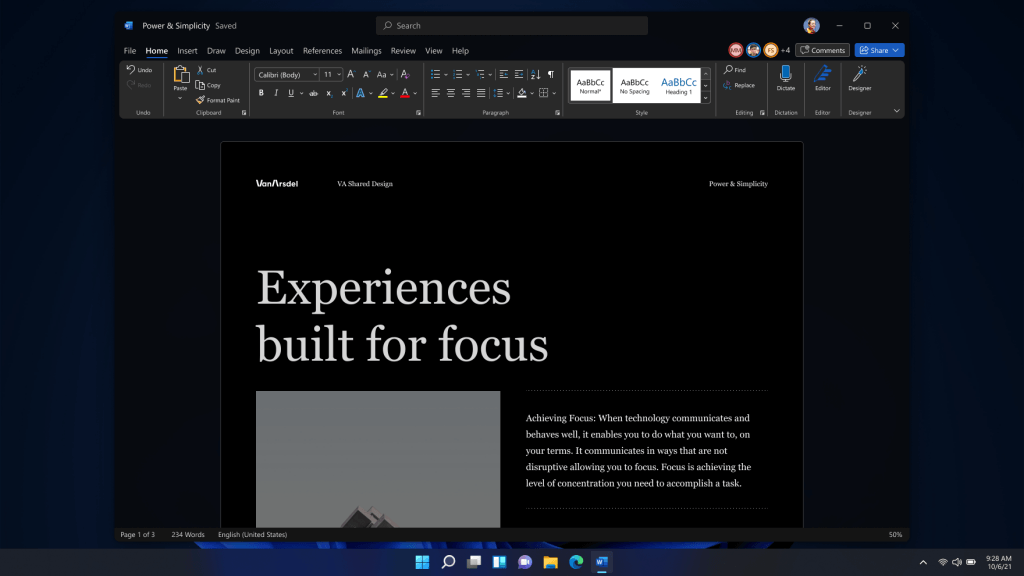
Microsoft has officially announced details about the newest upgrades to its office 365 suite moving forward along with its new OS release. It seems that Microsoft has listened to its user base and feedback since Word, Excel, and PowerPoint are getting much-needed redesign taking into account many suggestions from the community. The new office should feel more like an application suite guiding focus on the interconnection of applications themselves providing users with a much more natural experience of using them.

The new office features so far

From Microsoft themselves:
“This Office visual refresh is based on feedback from customers who asked for a more natural and consistent experience within and between your applications, specifically on Windows. With this update, we deliver an intuitive, coherent, and familiar user interface, using the Fluent Design principles, across all your applications: Word, Excel, PowerPoint, OneNote, Outlook, Access, Project, Publisher, and Visio. We aligned this visual refresh with the design of Windows 11 to provide seamless experiences on your PC.”
It is always refreshing to hear when a company listens to its user base and actually does what is needed instead of trying to invent the wheel.

office appsHow to switch

Since beta is already rolling and if you have an active 365 subscription to office suite visual refresh will be automatically available to all Office insiders running beta channel builds. It can be turned on and off using the coming soon feature in the top right corner of the menu in any application. Just click on the megaphone icon to open the coming soon pane and apply settings to all office apps. Note that The Coming Soon feature is not available in Access, Project, Publisher, or Visio. If you turn on the visual refresh in any of the 4 apps mentioned above (Work Excel, PowerPoint, or OneNote), it will also be available in these 4 apps.

Difference themselves

The Home tab menu still has a familiar look with a few tweaks. For example, accessing frequently used Word commands will be a lot easier. By navigating to Designer > Show Quick Access Toolbar, users can add a customizable shortcut ribbon to Word that houses conveniently placed options. Also, the office will not match your Windows operating system color theme so if you have a dark theme enabled, the office will also have a dark color theme. Color palettes are more neutral, corners are a bit softer but customizable ribbons are a win here for me.

office dark modeConclusion

There was not much said other than visual upgrades and small tweaks that were supposed to make your life easier but then again Windows 11 itself is in the same boat. I am not sure if this is a great update offering just some visual tweaks and focus on workflow mechanics or just being plain lazy and trying to cash in visuals as a completely new product.
Read More
Windows ImageAcquisition High CPU & Disk usage
What is Windows ImageAcquisition High CPU & Disk usage? The Windows Image Acquisition is the driver model in charge of the communication between the graphics hardware and the operating system. There are times when it causes high disk and CPU usage in Windows 10 systems which results in slow performance of the computer. To fix this issue, read on as this post will help you in addressing the problem. The cause of this problem might have something to do with the hardware or the drivers. And so if your computer becomes slow because of the Windows Image Acquisition process, here are some suggestions that might be of help. You can try to restart the Windows Image Acquisition service, run a System File Checker Scan, disconnect & reconnect imaging hardware as well as update and reinstall the drivers and updating the graphics drivers. For a complete set of instructions, follow the given options below.

Option 1 – Try restarting the Windows Image Acquisition Service

  • Tap the Win + R keys to open the Run dialog box.
  • Then type “services.msc” in the field and hit Enter to open the Windows Services Manager.
  • From there, look for the Windows Image Acquisition Service and check on its service Status.
  • If the Service Status is blank, right-click on it and select Start. And if the service Status is Running right-click on it and select Restart. After that, check if your computer’s performance is now back to normal.

Option 2 – Try running a System File Checker scan

As you know, running a System File Checker scan can help in replacing missing files as well as repair the corrupted ones which might be the reason behind the problem.
  • Tap Win + R to launch Run.
  • Type in cmd in the field and tap Enter.
  • After opening Command Prompt, type in sfc /scannow
The command will start a system scan which will take a few whiles before it finishes. Once it’s done, you could get the following results:
  1. Windows Resource Protection did not find any integrity violations.
  2. Windows Resource Protection found corrupt files and successfully repaired them.
  3. Windows Resource Protection found corrupt files but was unable to fix some of them.
  • Restart your computer after the scan is completed.

Option 3 – Try disconnecting and reconnecting the imaging hardware and then update and reinstall its drivers

It could be that the hardware that calls for the Windows Image Acquisition service has some issues which are why disconnecting and reconnecting the imaging hardware like scanners, printers, cameras can help in fixing the problem. In addition, you can also boot your computer in a Clean Boot State so that you can find the problematic hardware by hit and trial method. Refer to the steps below to do so:
  • Log onto your PC as an administrator.
  • Type in MSConfig in the Start Search to open the System Configuration utility.
  • From there, go to the General tab and click “Selective startup”.
  • Clear the “Load Startup items” check box and make sure that the “Load System Services” and “Use Original boot configuration” options are checked.
  • Next, click the Services tab and select the “Hide All Microsoft Services” check box.
  • Click Disable all.
  • Click on Apply/OK and restart your PC. (This will put your PC into a Clean Boot State. And configure Windows to use the usual startup, just simply undo the changes.)

Option 4 – Try updating the Graphics drivers

  • First, boot your computer into Safe Mode.
  • After that, tap the Win + R keys to launch Run.
  • Type in devmgmt.msc into the box and tap Enter or click OK to open the Device Manager.
  • After that, a list of device drivers will be displayed. From there, look for the Display Adapters and click on them.
  • After that, right-click on each entry under the Display Adapters and select the “Uninstall Device” option from the menu.
  • Now restart your computer.
  • After restarting your computer, go to the Settings app and Check for Updates in the Windows Update section.
Note: You also have the option to go directly to the website of your graphics card manufacturers like NVIDIA, Intel, or AMD and go to the section called Drivers then check if there’s a new available update – if there is, download and install it.
Read More
How to Fix DCOM Error 1084 on Windows
Distributed Component Object Model or DCOM is a module on Windows computers that allows computers to run programs over a network to another computer. It is a software component from Microsoft that allows COM objects to communicate with each other while that program is remotely running over the network. The COM Model is another extension of the DCOM model which both work together in order for the intended task to be executed. To make this module work, there are three components needed such as the Class Identifier or CLSID, the Programmatic Identifier or PROGID, and the Application Identifier or APPID. However, DCOM does not always work as expected as it could still encounter some errors. One of them is error 1084. Because of this error, the execution of programs in a remote computer on the network would be interrupted. So if you encounter the DCOM error 1084 when you try to start a service like running the DISM tool or in other scenarios on your Windows 10 computer, then this post could help you. Refer to the instructions given below to start troubleshooting the problem.

Option 1 – Try checking the status of DCOMLAUNCH Service or DCOM Server Process Launcher and its 3 dependencies

The DCOM Server Process Launcher service launches both COM and DCOM servers in response to object activation requests. This is why if this service is stopped or disabled, the programs that are using COM and DCOM won’t properly function. So you need to make sure that the DCOMLAUNCH service is running.
  • In the Cortana search box, type “services” and click on the Services icon to open the Services Manager. Alternatively, you can also tap the Win + R keys to launch the Run prompt and then type “services.msc” in the field and hit Enter to open the Services Manager.
  • Next, check the following services:
    • DCOM Service Process Launcher
    • Background Tasks Infrastructure Service
    • Local Session Manager
    • Remote Procedure Call (RPC)
  • Then right-click on each one of the services and click on their Properties.
  • After that, select Automatic from the drop-down menu of Startup Type and make sure that all the aforementioned services are Running.
  • Now click OK for each one of the services.

Option 2 – Troubleshoot the problem in a Clean Boot State

There are instances that some conflicting programs installed in your computer might be the one that’s causing DCOM error 1084. To identify which program is causing the problem, you need to put your computer in a Clean Boot State. To do so, follow the steps below.
  • Log onto your PC as an administrator.
  • Type in MSConfig in the Start Search to open the System Configuration utility.
  • From there, go to the General tab and click “Selective startup”.
  • Clear the “Load Startup items” check box and make sure that the “Load System Services” and “Use Original boot configuration” options are checked.
  • Next, click the Services tab and select the “Hide All Microsoft Services” check box.
  • Click Disable all.
  • Click on Apply/OK and restart your PC. (This will put your PC into a Clean Boot State. And configure Windows to use the usual startup, just simply undo the changes.)
  • From there, start to isolate the problem by checking which one of the programs you installed recently is the root cause of the problem.

Option 3 – Try to use the DISM tool

You might want to repair potentially corrupted files in your system as having them could also trigger the DCOM error 1084. To repair these corrupted system files, you can run the DISM commands:
  • Tap the Win + X keys and click on the “Command Prompt (Admin)” option.
  • After that, input each one of the commands listed below sequentially to execute them:
    • Dism /Online /Cleanup-Image /CheckHealth
    • Dism /Online /Cleanup-Image /ScanHealth
    • Dism /Online /Cleanup-Image /RestoreHealth
  • Once you’ve executed the commands given above, restart your computer and check if the DCOM error is now fixed.

Option 4 – Reset your computer

  • Tap the Win key or click on the Start button located in the Taskbar.
  • Then click on the Power button at the bottom right portion of the screen.
  • Next, press and hold the Shift key on your keyboard and then click on Restart. This will restart your Pc into the Advanced Startup options.
Note: Once you have access to the Advanced Startup options, you have to go to the setting which allows you to Reset your Windows 10 PC. All you have to do is select Troubleshoot > Reset this PC to reach the following screen Afterward, select either the “Keep my files” option and then proceed to the next on-screen instructions that follow to reset your Windows 10 computer without losing your files.
Read More
Check if your data has been stolen for free

Website breaches and stealing user data is nothing new in the world of the internet. Although a very unpleasant experience it still happens even on some high-quality websites. In this article, we will not focus on how can you not be the target of this kind of attack, because you really cannot. Weel you can kind of if you decide not to have your data on websites at all, but let's just say that is not something you are willing to do.

stolenSo, in this case, you have some social, forum, or gaming accounts but you heard that service has been breached and that your email or password might be stolen. Well in this case all you need to do is of course to login into the service and change your password. But, what happens if you are not aware at all that service has been compromised?

Mozilla foundation has asked themselves this same question it seems and they have decided to help us out. They have placed a free online service where you can just by typing in your email address find out if your email or data has been compromised in any way.

Go to https://monitor.firefox.com/ and check it out, if you find out that there is some website that you did not know was breached, change your password right away, and if you have used the same password for anything else (I hope not), change them as well.

Read More
Completely Remove SweetIM From Computer

SweetIM Toolbar for Internet Explorer is a browser add-on which adds various shortcuts to your browsers for easy access. This toolbar also changes your homepage to home.sweetim.com. The toolbar is typically bundled with the free Sweet Instant Messenger program and does not necessarily get uninstalled when Instant Messenger is removed from the user’s PC. Additionally, if the home page and search settings were modified by this toolbar, they need to be manually reverted back by the user.

This extension injects various ads into your browser search results and changes your default search engine. While you are browsing the internet, this software records your website surfing data, clicks, and possibly private information. Several Anti-virus programs have classified SweetIM Toolbar as a potentially unwanted application and are not recommended to keep.

About Browser Hijackers

Browser hijacking means that a malicious program code has power over and modified the settings of your web browser, without your approval. They are made to disrupt browser functions for many different reasons. Generally, the idea would be to force users to visit particular sites that are looking to increase their visitor traffic and produce higher ad revenue. Most people assume that such websites are legitimate and harmless but that is incorrect. Nearly every browser hijacker poses an actual threat to your online safety and it is vital to categorize them under privacy dangers. On top of that, hijackers can make the whole infected system vulnerable – other harmful malware and viruses would grab these opportunities to intrude into your system effortlessly.

Major signs that an internet browser has been highjacked

The common signs that indicate having this malicious software on your PC are: the home page of your respective browser is changed unexpectedly; bookmark and the new tab are also modified; the default search engine and the default web browser settings are altered; discover new toolbars that you didn’t add; you find lots of pop-up ads on your computer screen; web pages load very slowly and sometimes incomplete; Inability to navigate to particular sites, particularly antivirus and also other computer security software websites.

Exactly how they get into your computer or laptop

There are several ways your computer can get infected with a browser hijacker. They usually arrive by way of spam e-mail, via file sharing websites, or by a drive-by download. Many browser hijackings originate from add-on software, i.e., toolbars, browser helper objects (BHO), or extensions added to browsers to give them additional features. A browser hijacker may also come bundled up with some freeware that you unwittingly download to your computer system, compromising your internet security. A good example of some notorious browser hijackers includes Anyprotect, Conduit, Babylon, SweetPage, DefaultTab, RocketTab, and Delta Search, but the names are continually changing. Browser hijackers can record user keystrokes to gather potentially invaluable information that leads to privacy concerns, cause instability on systems, severely disrupt the user experience, and eventually slow down the PC to a stage where it becomes unusable.

Removal

Some browser hijacking could be quite easily corrected by identifying and removing the corresponding malware application through your control panel. But, many browser hijackers are hard to eliminate manually. Regardless of how much you attempt to remove it, it may keep returning over and over. You should consider doing manual repairs only if you are a tech-savvy person, as there are risks associated with tinkering around with the computer registry and HOSTS file. Browser hijackers could be effectively removed by installing the anti-malware application on the affected computer. One of the finest tools for repairing browser hijacker malware is Safebytes Anti-Malware. It will help you get rid of any pre-existing malware on your computer and gives you real-time monitoring and protection from new internet threats. Along with the antivirus tool, a PC optimizer will help you in getting rid of all related files and modifications in the registry automatically.

Can't Install Safebytes Anti-malware because of Malware? Do This!

Viruses could potentially cause a great deal of damage to your personal computer. Certain malware variants alter browser settings by including a proxy server or change the computer’s DNS settings. In such cases, you will be unable to visit certain or all internet sites, and thus unable to download or install the necessary security software to remove the infection. If you’re reading this, chances are you’re stuck with a virus infection that is preventing you to download or install Safebytes Anti-Malware software on your system. Although this kind of issue will be difficult to get around, there are some actions you can take.

Eliminate malware in Safe Mode

The Windows-based PC has got a special mode referred to as “Safe Mode” in which only the minimum required programs and services are loaded. If the malware is blocking access to the internet and affecting your computer, launching it in Safe Mode enables you to download anti-virus and run a diagnostic scan while limiting potential damage. To boot into Safe Mode, hit the “F8” key on the keyboard just before the Windows logo screen shows up; Or after normal Windows boot up, run MSCONFIG, check the Safe Boot under the Boot tab, and then click Apply. As soon as you restart the PC into Safe Mode with Networking, you can download, install, and update the anti-malware program from there. At this point, you can actually run the anti-virus scan to remove computer viruses and malware without any hindrance from another malicious application.

Switch over to an alternate browser

Malicious code could exploit vulnerabilities on a specific internet browser and block access to all antivirus software sites. If you appear to have malware attached to Internet Explorer, then switch over to an alternate internet browser with built-in safety features, such as Firefox or Chrome, to download your preferred antivirus program – Safebytes.

Make a bootable USB anti-virus drive

Another solution is to create a portable antivirus program onto your USB thumb drive. Follow these steps to run the anti-virus on the affected PC. 1) On a clean computer, install Safebytes Anti-Malware. 2) Mount the USB drive onto the same computer. 3) Double-click the Setup icon of the anti-malware software to run the Installation Wizard. 4) Pick a USB flash drive as the place when the wizard asks you exactly where you want to install the application. Follow activation instructions. 5) Disconnect the USB drive. You may now utilize this portable antivirus on the infected computer. 6) Double-click the EXE file to open the Safebytes program from the thumb drive. 7) Click “Scan Now” to run a complete scan on the infected computer for viruses.

Overview of SafeBytes Anti-Malware

Nowadays, an anti-malware program can protect your laptop or computer from different forms of online threats. But wait, how do choose the best one amongst plenty of malware protection applications that’s available on the market? You may be aware, there are numerous anti-malware companies and tools for you to consider. A few of them are good, some are ok types, and some will affect your computer themselves! You should go with a product that has gained a strong reputation and detects not just viruses but other kinds of malware as well. On the list of highly recommended applications by industry, analysts are SafeBytes Anti-Malware, a well-known security application for Windows computers. SafeBytes anti-malware is a trusted software that not only protects your system completely but is also very user-friendly for people of all ability levels. Once you’ve got installed this application, SafeBytes advanced protection system will ensure that absolutely no viruses or malicious software can seep through your PC. There are many great features you’ll get with this security product. Listed below are some of the great ones: Active Protection: SafeBytes offers complete and real-time security for your laptop or computer. This tool will constantly monitor your PC for suspicious activity and updates itself regularly to keep current with the latest threats. Antimalware Protection: With its advanced and sophisticated algorithm, this malware elimination tool can identify and remove the malware threats hiding within your computer system effectively. Web protection: Through its unique safety score, SafeBytes informs you whether a site is safe or not to visit it. This will make sure that you’re always certain of your safety when browsing the net. Lightweight Tool: This program is not “heavy” on the computer’s resources, so you’ll not see any overall performance difficulties when SafeBytes is operating in the background. 24/7 Live Expert Support: Support service is available 24 x 7 x 365 days via chat and email to answer your concerns.

Technical Details and Manual Removal (Advanced Users)

If you wish to manually remove SweetIM without the use of an automated tool, it may be possible to do so by removing the program from the Windows Add/Remove Programs menu, or in cases of browser extensions, going to the browsers AddOn/Extension manager and removing it. You will likely also want to reset your browser. To ensure the complete removal, manually check your hard drive and registry for all of the following and remove or reset the values accordingly. Please note that this is for advanced users only and may be difficult, with incorrect file removal causing additional PC errors. In addition, some malware is capable of replicating or preventing deletion. Doing this in Safe Mode is advised.

The following files, folders, and registry entries are created or modified by SweetIM

Files: File %COMMONAPPDATASweetIMMessengerconfusersmain_user_config.xml. File %COMMONAPPDATASweetIMMessengerdatacontentdbcache_indx.dat. File %PROGRAMFILESSweetIMMessengerdefault.xml. File %PROGRAMFILESSweetIMMessengermgYahooMessengerAdapter.dll. File %PROGRAMFILESSweetIMMessengermsvcp71.dll. File %PROGRAMFILESSweetIMMessengermsvcr71.dll. File %PROGRAMFILESSweetIMMessengerresourcesimagesAudibleButton.png. File %PROGRAMFILESSweetIMMessengerresourcesimagesDisplayPicturesButton.png. File %PROGRAMFILESSweetIMMessengerresourcesimagesEmoticonButton.png. File %PROGRAMFILESSweetIMMessengerresourcesimagesGamesButton.png. File %PROGRAMFILESSweetIMMessengerresourcesimagesKeyboardButton.png. File %PROGRAMFILESSweetIMMessengerresourcesimagesNudgeButton.png. File %PROGRAMFILESSweetIMMessengerresourcesimagesSoundFxButton.png. File %PROGRAMFILESSweetIMMessengerresourcesimagesWinksButton.png. File %PROGRAMFILESSweetIMMessengerSweetIM.exe. File %PROGRAMFILESSweetIMToolbarsInternet Explorerdefault.xml. File %PROGRAMFILESSweetIMToolbarsInternet Explorerresourcesabout.html. File %PROGRAMFILESSweetIMToolbarsInternet Explorerresourcesaffid.dat. File %PROGRAMFILESSweetIMToolbarsInternet Explorerresourcesbasis.xml. File %PROGRAMFILESSweetIMToolbarsInternet Explorerresourcesbing.png. File %PROGRAMFILESSweetIMToolbarsInternet Explorerresourcesclear-history.png. File %PROGRAMFILESSweetIMToolbarsInternet Explorerresourcescontent-notifier.js. File %PROGRAMFILESSweetIMToolbarsInternet Explorerresourcescontent-notifier-anim.gif. File %PROGRAMFILESSweetIMToolbarsInternet Explorerresourcescontent-notifier-anim-over.gif. File %PROGRAMFILESSweetIMToolbarsInternet Explorerresourcesdating.png. File %PROGRAMFILESSweetIMToolbarsInternet Explorerresourcesdictionary.png. File %PROGRAMFILESSweetIMToolbarsInternet Explorerresourcese_cards.png. File %PROGRAMFILESSweetIMToolbarsInternet Explorerresourceseye_icon.png. File %PROGRAMFILESSweetIMToolbarsInternet Explorerresourceseye_icon_over.png. File %PROGRAMFILESSweetIMToolbarsInternet Explorerresourcesfind.png. File %PROGRAMFILESSweetIMToolbarsInternet Explorerresourcesfree_stuff.png. File %PROGRAMFILESSweetIMToolbarsInternet Explorerresourcesgames.png. File %PROGRAMFILESSweetIMToolbarsInternet Explorerresourcesglitter.png. File %PROGRAMFILESSweetIMToolbarsInternet Explorerresourcesgoogle.png. File %PROGRAMFILESSweetIMToolbarsInternet Explorerresourceshelp.png. File %PROGRAMFILESSweetIMToolbarsInternet Explorerresourceshighlight.png. File %PROGRAMFILESSweetIMToolbarsInternet Explorerresourceslocales.xml. File %PROGRAMFILESSweetIMToolbarsInternet Explorerresourceslogo_16x16.png. File %PROGRAMFILESSweetIMToolbarsInternet Explorerresourceslogo_21x18.png. File %PROGRAMFILESSweetIMToolbarsInternet Explorerresourceslogo_32x32.png. File %PROGRAMFILESSweetIMToolbarsInternet Explorerresourceslogo_about.png. File %PROGRAMFILESSweetIMToolbarsInternet Explorerresourcesmore-search-providers.png. File %PROGRAMFILESSweetIMToolbarsInternet Explorerresourcesmusic.png. File %PROGRAMFILESSweetIMToolbarsInternet Explorerresourcesnews.png. File %PROGRAMFILESSweetIMToolbarsInternet Explorerresourcesoptions.html. File %PROGRAMFILESSweetIMToolbarsInternet Explorerresourcesphotos.png. File %PROGRAMFILESSweetIMToolbarsInternet Explorerresourcessearch-current-site.png. File %PROGRAMFILESSweetIMToolbarsInternet Explorerresourcesshopping.png. File %PROGRAMFILESSweetIMToolbarsInternet ExplorerresourcesSmileySmile.png. File %PROGRAMFILESSweetIMToolbarsInternet ExplorerresourcesSmileyWink.png. File %PROGRAMFILESSweetIMToolbarsInternet Explorerresourcessweetim_text.png. File %PROGRAMFILESSweetIMToolbarsInternet Explorerresourcestoolbar.xml. File %PROGRAMFILESSweetIMToolbarsInternet Explorerresourcesversion.txt. File %PROGRAMFILESSweetIMToolbarsInternet Explorerresourcesvideo.png. File %PROGRAMFILESSweetIMToolbarsInternet Explorerresourcesweb-search.png. File %PROGRAMFILESSweetIMToolbarsInternet Explorerresourcesweb-toolbar.js. File %PROGRAMFILESSweetIMToolbarsInternet Explorerresourcesyahoo.png. Registry: Directory %COMMONAPPDATASweetIMMessengerconfusers. Directory %COMMONAPPDATASweetIMMessengerconf. Directory %COMMONAPPDATASweetIMMessengerdatacontentdb. Directory %COMMONAPPDATASweetIMMessengerdata. Directory %COMMONAPPDATASweetIMMessengerlogs. Directory %COMMONAPPDATASweetIMMessengerupdate. Directory %COMMONAPPDATASweetIMMessenger. Directory %COMMONAPPDATASweetIMToolbarsInternet Explorercache. Directory %COMMONAPPDATASweetIMToolbarsInternet Explorer. Directory %COMMONAPPDATASweetIMToolbars. Directory %COMMONAPPDATASweetIM. Directory %PROGRAMFILESSweetIMMessengerresourcesimages. Directory %PROGRAMFILESSweetIMMessengerresources. Directory %PROGRAMFILESSweetIMMessenger. Directory %PROGRAMFILESSweetIMToolbarsInternet Explorerconf. Directory %PROGRAMFILESSweetIMToolbarsInternet ExplorerMicrosoft.VC90.CRT. Directory %PROGRAMFILESSweetIMToolbarsInternet Explorerresources. Directory %PROGRAMFILESSweetIMToolbarsInternet Explorer. Directory %PROGRAMFILESSweetIMToolbars. Directory %PROGRAMFILESSweetIM. Key HKEY_CLASSES_ROOT named SWEETIE.IEToolbar.1, plus associated values. Key HKEY_CLASSES_ROOT named SWEETIE.IEToolbar, plus associated values. Key HKEY_CLASSES_ROOT named SweetIM_URLSearchHook.ToolbarURLSearchHook.1, plus associated values. Key HKEY_CLASSES_ROOT named SweetIM_URLSearchHook.ToolbarURLSearchHook, plus associated values. Key HKEY_CLASSES_ROOT named Toolbar3.SWEETIE.1, plus associated values. Key HKEY_CLASSES_ROOT named Toolbar3.SWEETIE, plus associated values. Key 4D3B167E-5FD8-4276-8FD7-9DF19C1E4D19 at HKEY_CLASSES_ROOTTypeLib. Key 82AC53B4-164C-4B07-A016-437A8388B81A at HKEY_CLASSES_ROOTCLSID. Key A4A0CB15-8465-4F58-A7E5-73084EA2A064 at HKEY_CLASSES_ROOTCLSID. Key EEE6C35B-6118-11DC-9C72-001320C79847 at HKEY_CLASSES_ROOTCLSID. Key EEE6C35C-6118-11DC-9C72-001320C79847 at HKEY_CLASSES_ROOTCLSID. Key EEE6C35C-6118-11DC-9C72-001320C79847 at HKEY_LOCAL_MACHINESOFTWAREMicrosoftWindowsCurrentVersionExplorerBrowser Helper Objects. Key EEE6C35D-6118-11DC-9C72-001320C79847 at HKEY_CLASSES_ROOTCLSID. Key EEE6C35E-6118-11DC-9C72-001320C79847 at HKEY_CLASSES_ROOTTypeLib. Key EEE6C35F-6118-11DC-9C72-001320C79847 at HKEY_CLASSES_ROOTTypeLib. Key EEE6C360-6118-11DC-9C72-001320C79847 at HKEY_CURRENT_USERSoftwareMicrosoftInternet ExplorerSearchScopes. Key EEE6C360-6118-11DC-9C72-001320C79847 at HKEY_LOCAL_MACHINESOFTWAREMicrosoftInternet ExplorerSearchScopes. Key 878E59AD181B66344A3316549572708A at HKEY_CLASSES_ROOTInstallerProducts. Key E54D4DC11584D69448F0C2E257E2FC7B at HKEY_CLASSES_ROOTInstallerProducts. Key Install at HKEY_CURRENT_USERSoftwareSweetIM. Key Messenger at HKEY_LOCAL_MACHINESOFTWARESweetIM. Key SweetIM.exe at HKEY_LOCAL_MACHINESOFTWAREMicrosoftWindowsCurrentVersionApp Paths. Key SweetIM at HKEY_CURRENT_USERSoftware. Key SweetIM at HKEY_LOCAL_MACHINESOFTWARE. Key Toolbars at HKEY_CURRENT_USERSoftwareSweetIM. Key Toolbars at HKEY_LOCAL_MACHINESOFTWARESweetIM. Value (Default) at HKEY_LOCAL_MACHINESOFTWAREMicrosoftWindowsCurrentVersionApp PathsSweetIM.exe. Value EEE6C35B-6118-11DC-9C72-001320C79847 at HKEY_CURRENT_USERSoftwareMicrosoftInternet ExplorerToolbarWebBrowser. Value EEE6C35B-6118-11DC-9C72-001320C79847 at HKEY_LOCAL_MACHINESOFTWAREMicrosoftInternet ExplorerToolbar. Value EEE6C35D-6118-11DC-9C72-001320C79847 at HKEY_CURRENT_USERSoftwareMicrosoftInternet ExplorerURLSearchHooks. Value Path at HKEY_LOCAL_MACHINESOFTWAREMicrosoftWindowsCurrentVersionApp PathsSweetIM.exe. Value simapp_id at HKEY_CURRENT_USERSoftwareSweetIM. Value simapp_id at HKEY_LOCAL_MACHINESOFTWARESweetIM.

Read More
a New browser from DuckDuckGo is coming
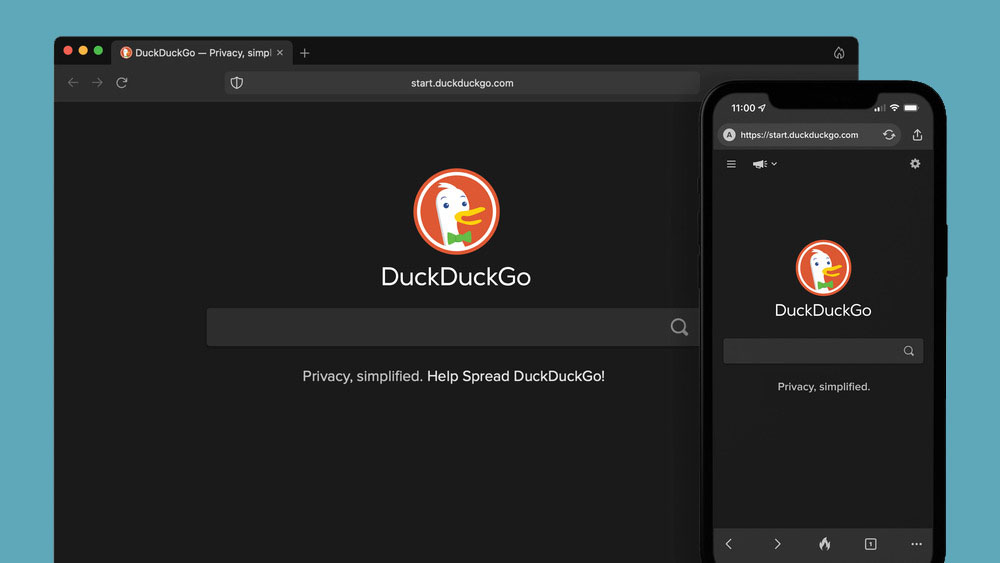
DuckGoGo a popular private search engine is releasing its first browser soon that is focused on privacy like its search engine. duckduckgo browserFrom the recent blog, Gabriel Weinberg, CEO of DuckDuckGo, has stated:
“Like we’ve done on mobile, DuckDuckGo for desktop will redefine user expectations of everyday online privacy,”
From everything that we have learned so far, the browser will be focused on making privacy super easy and simple, eliminating tons of different settings about privacy, and making the whole environment robust privacy protection all set by default. Settings will be applied in all fields, across search, browsing, email, and more. Gabriel also said that aim of the browser is not just a privacy browser, it is meant to be built and used as your everyday browser, for everyday use that protects your privacy as a bonus. One interesting thing that was stated is that browser itself is built upon OS-provided rendering engines instead of typical Chromium. DuckDuckGo says this approach will strip away a lot of the unnecessary cruft and clutter that's accumulated over the years in major browsers. Also, the company stated that when compared to Chrome, the DuckDuckGo app desktop is cleaner, way more private and that early tests have found out that it is significantly faster as well. Is this just corporate advertising or reality? We will see once the browser is released, or once it is released for public testing. Until then take care and happy holidays.
Read More
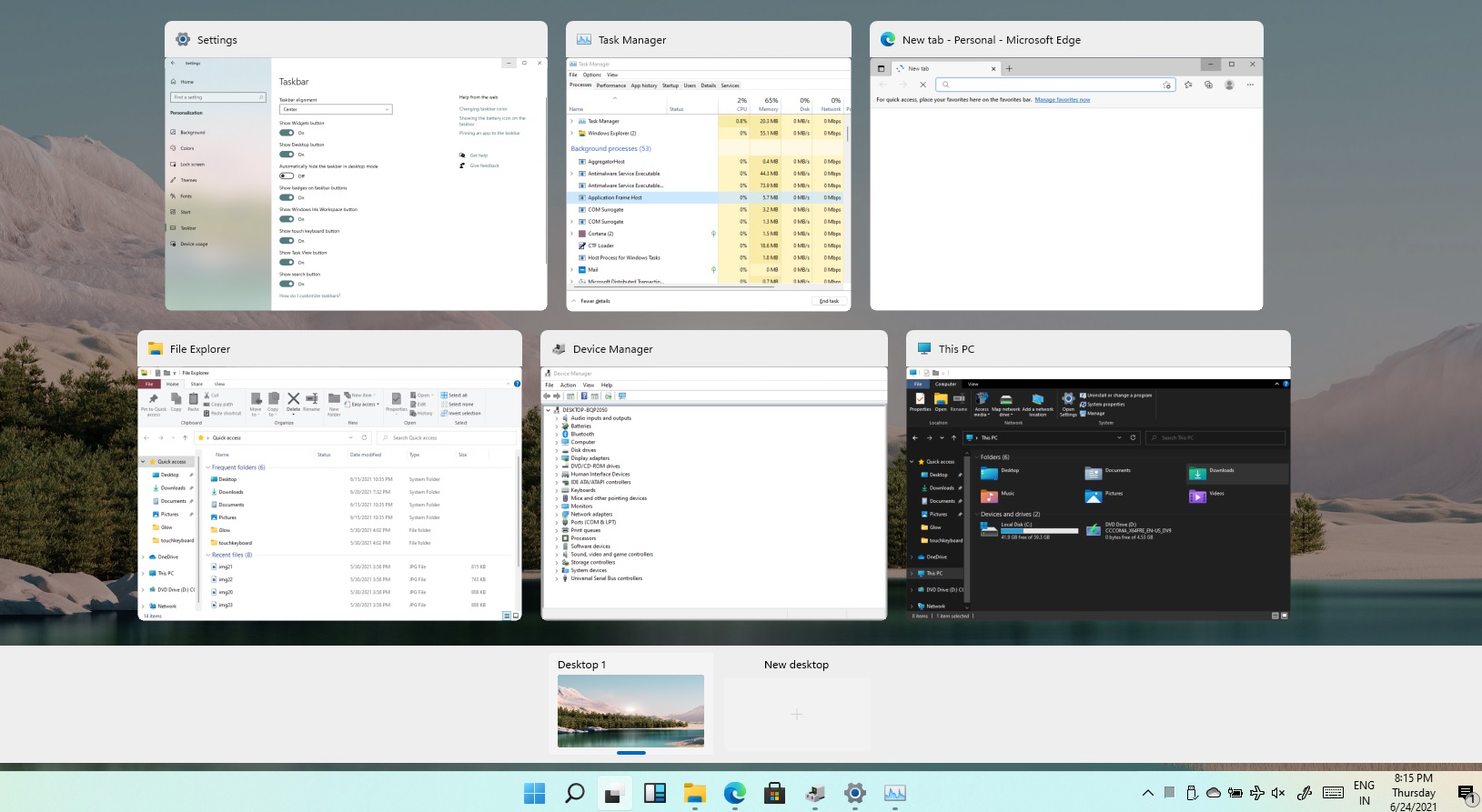
Remove Task View button from Windows 11
Task ViewTask View feature inside Windows 11 is actually a great feature, letting you quickly view open windows and virtual desktops. How Task view itself could be reached with keyboard shortcut combination of ⊞ WINDOWS + TAB some users will prefer this way of using it and thus button on the taskbar is something you do not want or need. There is a very easy way to remove mentioned button and I will show you how to do it. Right-click the taskbar button itself and click on Hide From Taskbar. That’s it, you have done it. Now in order for you to bring it back if you change your mind, you will have to do some extra steps but it is nothing difficult. Right-click on the taskbar and click on Taskbar settings, you will be lead to Personalization > Taskbar. Inside locate Taskbar Items and switch Task View to ON, you will see the Task View button right away showing itself again.

Read More
Best gifts for Gamers and PC enthusiasts
The holiday season is almost upon us and buying gifts for loved ones can sometimes present some headaches, especially if that loved one is a Gamer or PC enthusiast. We have all been there and how almost every household today has a console or PC struggles are infecting more and more people. But do not despair, we have made a nice list of potential gifts for you. giftsThe list contains some nice essential and good things but we gave our best not to break the bank so you will not find any large screens or 300$ keyboards here. Of course, you can always get expensive gifts and if you have money for it do it, it is just we want to have affordable stuff here.

A Steam gift card

For gamers, a good game is a great gift but most of the time when we are buying a game we can miss what the person wants. That is why a Steam gift card is a great gift for gamers. He can use it and buy whatever he or she wants for its value.

Xbox Game pass

This is another for those Gamers type. Xbox game pass is a great gift even if you do not own Xbox since all games will work on PC as well. Xbox Game Pass Ultimate includes the PC version, which will unlock somewhere between 300 and 350 games automatically. It’s a subscription service, so your PC gamer will have to keep up with it. The monthly price is worth it, though.

Pack of cable ties

Almost every PC user has tons of cables lying around, and most of the time they are not really tidy. Cable ties come to the rescue!!! Let us be honest, no one likes cables that are scattered all over the place, even the computer users so if they do not have this essential piece of equipment, we are sure they will like it.

Compressed air duster

Dust is enemy no.1 for computer users, it gets into the keyboard, into small spaces, etc. It is very difficult to get it out so an air duster for compressed air is a great cleaning gift for any kind of computer enthusiast. You can get it with a can of compressed air as well so everything is ready for cleaning.

New Headset

A headset is always a great gift. Over time earbuds can deteriorate and get damaged simply just by using them and when enough time passes even cables can start losing contact and overall sound quality may drop. Usually, computer users change headsets like keyboards so if your loved one has some old headsets showing their age, a new one is a perfect present.

New SSD drive

More hard disk space is always a welcome sight for any PC user and new SSD drives fueled with new technology are faster than ones of the same size in past years making them a perfect gift.

Large mouse pad

A good mouse pad can mean a lot to a gamer. Over time mouse pad deteriorates simply with its use so a new and fancy large pad is a great gift for any user. If you want a great gift, make it with RGB light.
Read More
Your Windows license will expire soon
If you suddenly get a message telling you that “Your Windows license will expire soon, You need to activate Windows in Settings” on your Windows 10 computer but you know that your Windows 10 is already activated. Worry not for this post will help you get rid of that error message right away. Before you get started, make sure that you have the Windows product key with you. If you don’t, you can get it by running the following command in an elevated Command Prompt:
wmic path SoftwareLicensingService get OA3xOriginalProductKey
Take note of the product key and then proceed to the options given below.

Option 1 – Try activating Windows 10 again or use another product key

  • If you’re sure that you have the correct product key, click the Go to the Settings button.
  • After that, click the Activate button once again.
  • If you have another license key, you can also use that as well, just simply click on the Change product key.
  • Then enter the new product key and click on Activate. That should fix the problem, if it doesn’t, refer to the next option below.

Option 2 – Try to reset the licensing status

  • Click the Start button and then type “cmd” in the Search box and then tap Ctrl + Shift + Enter to open an elevated Command Prompt.
  • Next, type the “slmgr –rearm” and hit Enter to reset the licensing status.
  • Restart your computer and check if the error is now gone or not.

Option 3 – Try uninstalling the product key and re-enter it once more.

  • The first thing you have to do to uninstall the product key is to know the Activation ID of your Windows installation. To do so, open an elevated Command Prompt and type this command, and hit Enter – vbs /dlv
  • After you enter the command, you should see the licensing status and Activation ID. And to get all the Activation IDs of all the installed Windows versions, key in this command and hit Enter – vbs /dlv all
Note: The “/dlv” parameter will give you the license information for the installed operating system.
  • After you enter the second command, you should see a Windows Script Host window with all the Windows licensing and activation status. Take note of the Activation ID.
  • Next, in the same elevated Command Prompt, type this command – slmgr /upk <Activation ID>
Note: In the third given command, “/upk” stands for “uninstall product key”. This parameter uninstalls the product key of the current Windows edition.
  • Restart your PC. After that, your computer will be in an unlicensed state so you need to re-enter the product key again.

Option 4 – Try rebuilding the Tokens.dat file.

The issue might be caused by a corrupted Tokens.dat file. The Tokens.dat file is a digitally signed file that stores most of the Windows Activation files so if it is corrupted then no wonder you’re having activation issues. To rebuild the Tokens.dat file, refer to these steps:
  • From the WinX Menu, open an elevated Command Prompt.
  • After opening Command Prompt, you need to type each one of the following commands and after you type each command, hit Enter.
    • net stop sppsvc
    • cd %windir%ServiceProfilesLocalServiceAppDataLocalMicrosoftWSLicense
    • ren tokens.dat tokens.bar
    • net start sppsvc
    • exe %windir%system32slmgr.vbs /rilc
  • Now restart your computer.

Option 5 – Try running the Windows 10 Activation Troubleshooter

  • Go to Settings and then select Activation.
  • After that, click on the Windows Activation and then troubleshoot. This will help you address most of the commonly found activation issues in Windows devices.

Option 6 – Try activating Windows 10 via mobile phone

Activating Windows 10 can also be done using your phone. Just note that you have to call Microsoft to do so.
  • In the Start Search box, type in “Slui 4” and tap Enter.
  • Next, select your country and click on Next.
  • Keep the window open and call the toll-free number of the country you’re from.
  • Afterward, a confirmation ID should be given by the automated system which you must take a note of.
  • Finally, in the box on the window, type in the confirmation ID and click on the Activate button. That should do it.
Read More
How to Fix Tcpip.sys Blue Screen Error in Windows 10
If you have received a BSOD error message that says, “Tcpip.sys”, read on as this post will show you how you can fix the problem. The “Tcpip.sys” means Transmission Control Protocol over Internet Protocol. It is a library of a set of rules that are used to interconnect different devices all over the internet. The Tcpip.sys file is a driver and if a BSOD error message includes this one, it could only mean that the driver file is corrupted or incompatible with your system or there are some conflicting programs installed in your computer. To fix this error, you can try the following workarounds. Make sure to carefully follow each one of them.

Option 1 – Check for conflicting or incompatible programs by putting your PC in a Clean Boot state

As mentioned, the “tcpip.sys” BSOD error might be caused by some problematic programs that clash with your existing operating system. Several users reported that numerous programs that are supposedly designed to enhance computer performance are causing conflict in the system instead. To identify which program is causing the problem, you need to put your computer in a Clean Boot State. To do so, follow the steps below.
  • Log onto your PC as an administrator.
  • Type in MSConfig in the Start Search to open the System Configuration utility.
  • From there, go to the General tab and click “Selective startup”.
  • Clear the “Load Startup items” checkbox and make sure that the “Load System Services” and “Use Original boot configuration” options are checked.
  • Next, click the Services tab and select the “Hide All Microsoft Services” checkbox.
  • Click Disable all.
  • Click on Apply/OK and restart your PC. (This will put your PC into a Clean Boot State. And configure Windows to use the usual startup, just simply undo the changes.)
After putting your PC in a Clean Boot State, try creating a system restore point and see if the problem still occurs. Clean Boot troubleshooting is designed to help you isolate the problem. For you to execute a clean boot troubleshooting, you must do a couple of actions (the steps are given above) and then restart your PC after every action. You might have to disable one third-party app after the other to really isolate the issue. And once you’ve narrowed down the problem, you can either disable the third-party app that’s causing the problem or remove it. Note that you must switch your PC back into the Normal Startup mode after you’re done troubleshooting the problem. Here’s how you can do it:
  • From the “Start” menu, go to System Configuration.
  • After that, switch to the General tab and click the option for “Normal Startup”.
  • Next, go to the Services tab and clear the checkbox for “Hide all Microsoft services”.
  • Then find and click “Enable all” and if prompted, you have to confirm.
  • Afterward, go to the Task Manager and enable all the Startup programs and confirm the action.
  • Restart your PC when prompted.

Option 2 – Disabling Antivirus Software

There are cases when the “tcpip.sys” BSOD error is caused by the antivirus program installed in your computer that’s blocking some essential operations. Because of this, the operating system fails which throws up the BSOD error. As you know, the antivirus program is designed to protect the computer and monitor every action in the system. However, there are instances when the antivirus program gives false positives and shuts down some modules even if it’s harmless. So this could be the case for the “tcpip.sys” error. To verify if the problem is indeed caused by the antivirus program in your computer, you need to temporarily disable it. After you’ve disabled it, restart your PC and then check if the problem’s fixed or not.

Option 3 – Try to update all your Drivers

From time to time, drivers get corrupted or outdated so it’s no surprise that they conflict with the operating system and cause errors like the “tcpip.sys” BSOD error. To fix the problem, you need to update all your drivers especially the network driver since the “tcpip.sys” error is closely related to this driver. Follow the steps below to update your drivers.
  • Tap the Win + R keys to launch Run.
  • Type in devmgmt.msc into the box and tap Enter or click OK to open the Device Manager.
  • After that, a list of device drivers will be displayed. If you see a red or yellow sign that shows up against the driver, right-click on the driver’s name and select “Update Driver Software” or “Uninstall”. And if you find any “Unknown device”, you need to update it as well.
  • Select the “Search automatically for updated driver software” option and then follow the instructions to complete the process.
  • Restart your PC.
Note: You also have the option to go directly to the website of your graphics card manufacturer and check if there’s a new update – if there is, download it. After that, you could also check if there’s a new update of the game you’re getting the issue of the black bar.
Read More
1 2 3 171
Logo
Copyright © 2023, ErrorTools. All Rights Reserved
Trademark: Microsoft Windows logos are registered trademarks of Microsoft. Disclaimer: ErrorTools.com is not affiliated with Microsoft, nor claims direct affiliation.
The information on this page is provided for information purposes only.
DMCA.com Protection Status