Logo

Checking network requirements taking too long

If your Windows 10 computer is having problems connecting to a wireless network and it takes too long to respond and only keeps on displaying the “Checking network requirements”, then you’ve come to the right place as this place will walk you through fixing the problem.

There are two things that can happen when your computer connects to a wireless network. Windows can either connect to the wireless network successfully or return an error message that says, “Cannot connect to the network. However, if none of these things happened, and it only remains at the “Checking network requirements” message, then it could be due to obsolete or incompatible drivers in your computer, particularly the network adapter drivers. To fix this problem, you can try to update or reinstall these drivers, reset the TCP/IP, or run the Network Adapter troubleshooter, as well as reset the Network. For more information, refer to the given options below.

Option 1 – Update the Network Adapter drivers

The first thing you can do to resolve the problem is to update the Network Adapter drivers by following these steps:

  • Tap the Win + R keys to launch the Run window and then type in the “devmgmt.msc” command and hit Enter to open the Device Manager window.
  • Under the Device Manager, you will see a list of drivers. From there, look for the Network Adapters and expand them.
  • Look for the Broadcom Network Adapter and right-click on it, as well as other network adapters that have an exclamation icon, and update them all.
  • Restart your PC and see if it helped in fixing the problem.

Note: If updating the network drivers didn’t help in fixing the problem, you can also try to uninstall the very same drivers and restart your Windows 10 PC. After that, the system itself will reinstall the drivers you just uninstalled. Alternatively, you can also download and install the drivers from the manufacturer’s website directly.

To reinstall the network adapter drivers, refer to these steps:

  • Open the Devices Manager from the Win X Menu.
  • Then locate the device drivers and right-click on them to open the Properties.
  • After that, switch to the Driver tab and click on the Uninstall Device button.
  • Follow the screen option to completely uninstall it.
  • Finally, restart your computer. It will just reinstall the device drivers automatically.

Option 2 – Try to reset the TCP/IP

As you know, the TCP/IP or the Internet Protocol is the most important thing if you want to use the internet on your computer. That’s why if it ends up getting corrupted, you need to reset the TCP/IP to fix the problem. To reset TCP/IP, refer to these steps:

  • In the Windows start the search, type “command prompt” and right-click on Command Prompt from the search results.
  • Then select the “Run as administrator” option to open Command Prompt with admin privileges.
  • After that, execute this command: netsh int ip reset resettcpip.txt
  • Once it’s done, exit Command Prompt and restart your computer and then check if the error is now fixed.

Option 3 – Run the Network Adapter troubleshooter

To run the Network Troubleshooter, refer to these steps:

  • Open the Search bar on your computer and type in “troubleshoot” to open the Troubleshoot settings.
  • Next, scroll down and select the “Network Adapter” option from the right pane.
  • Then click on the Run Troubleshooter” button.
  • After that, your computer will check for any possible errors and will pinpoint the root cause of the problem if possible.
  • Restart your computer.

Option 4 – Try to perform Network Reset

You can also try to perform a Network Reset to resolve the problem. This will reset the entire network configuration including your IP address. To perform Network Reset, follow these steps:

  • Tap the Win + I keys to open Settings.
  • From there, go to the Network and Internet section.
  • Next, scroll down and look for “Network Reset” under the status pane.
  • After that, click on Network Reset and then on Reset now to start resetting the network configuration. Once done, check if it is able to fix the error or not.

Do You Need Help with Your Device?

Our Team of Experts May Help
Troubleshoot.Tech Experts are There for You!
Replace damaged files
Restore performance
Free disk space
Remove Malware
Protects WEB browser
Remove Viruses
Stop PC freezing
GET HELP
Troubleshoot.Tech experts work with all versions of Microsoft Windows including Windows 11, with Android, Mac, and more.

Share this article:

You might also like

Change Keyboard Repeat Rate and Repeat Delay
In case you don’t know, Windows 10 actually allows users to set the Keyboard Repeat Rate and Repeat Delay. Both of these terms are interrelated and when you make active, any text field or an editor and then press and hold a single character key, it will quickly type the character for the first time and will show delay until the second and later characters appear. This is what you call the Keyboard Repeat Delay. On the other hand, the rate at which the later character appears is known as Keyboard Repeat Rate. There are two ways you can set the Keyboard Repeat Rate and the Keyboard Repeat Delay on Windows 10. The first one is using the Keyboard Properties while the second one is using the Registry Editor.

Option 1 – Set up Keyboard Repeat Rate and Repeat Delay via Keyboard Properties

  • First, tap the Win + R keys to open the Run dialog box and type in “control keyboard” in the field, and hit Enter to open the Keyboard Properties.
  • From there, you can use the slider to make the respective options for both Keyboard Repeat Delay and Repeat Rate shorter or whatever you prefer them to be.
  • You should also see a text field in the mini window where you can test out your preferences. Once done, click on the Apply and OK buttons to save the changes made.

Option 2 – Keyboard Repeat Rate and Repeat Delay via Registry Editor

  • Tap the Win + R keys to open the Run utility and type “Regedit” in the field and then hit Enter to open the Registry Editor.
  • Next, navigate to this registry path: HKEY_CURRENT_USERControl PanelAccessibilityKeyboard Response
  • From there, you can set your own value for both the AutoRepeatDelay and AutoRepeatRate registry keys so that you can set the Keyboard Repeat Rate and Repeat Delay in Windows 10.
  • Once you’re done, exit the Registry Editor and restart your computer to save the changes made.
Read More
How to remove Sadooma from your PC

Sadooma is a Browser Extension for Google Chrome. This extension offers users the ability to search for any trending news on the web.

This extension changes your default search engine to Yahoo, and while active it changes the displayed ads on your browser, allowing it to make revenue on every ad you click. While this is not inherently malicious, the extension redirects your search to its servers first before forwarding it to yahoo and displaying search results. The information that is sent back to the servers contains your browsing data & visited web pages. As this represents a security and privacy risk, Sadooma is classified as a browser hijacker for its potentially unwanted functions and poor user experience. From the Author:
We’ve got what you need! If you are like us, addicted to interesting viral content, you’ve reached the best place for this. Sadooma will help you to find what is trending right now on the internet in an easy and immediate way. Privacy – We don’t share your information with others. Trending Content – New viral content every day Up to Date – We update sources to keep things fresh. Made with Love – Our content is safe and suitable for all ages.

About Browser Hijackers

Browser hijacking is a type of unwanted software, commonly a browser add-on or extension, which then causes modifications in the web browser’s settings. Browser hijackers can do more than simply modifying home pages. It redirects you to the sponsored sites and inserts advertisements on the internet browser that helps its creator generate earnings. A lot of people think that these types of sites are legitimate and harmless but that is not true. Nearly all browser hijackers pose an existent threat to your online safety and it is vital to classify them under privacy dangers. In a much worst case, your web browser could be hijacked to download malicious software that will do a lot of damage to your computer.

Indications of browser hijack

There are many symptoms that point to a browser hijacking: you see unauthorized modifications to your web browser’s homepage; you get re-directed to sites you never intended to visit; default web engine is modified; you’re getting browser toolbars you haven’t noticed before; your internet browser will display constant pop-up windows; your web browser starts running slowly or presents frequent errors; You can’t access certain websites, particularly anti-virus websites.

How they get into your computer or laptop

Browser hijackers infect computers via malicious email attachments, downloaded infected computer files, or by visiting infected sites. Many web browser hijackings originate from add-on software, i.e., browser helper objects (BHO), toolbars, or extensions added to web browsers to give them extra features. Browser hijackers sneak to your computer along with free software application downloads that you unknowingly install alongside the original. An example of some well-known browser hijacker includes Conduit, Anyprotect, Babylon, SweetPage, DefaultTab, RocketTab, and Delta Search, but the names are regularly changing.

Removal

Certain browser hijacking could be quite easily stopped by finding and removing the corresponding malware application from your control panel. But, the majority of hijackers are really tenacious and require specialized applications to remove them. You should think about undertaking manual repairs only if you’re a tech-savvy individual, as potential risks are associated with fiddling with the system registry and HOSTS file. You might opt for automatic browser hijacker removal methods by simply installing and running a reliable anti-malware application. One of the top tools for correcting browser hijacker malware is SafeBytes Anti-Malware. It can help you remove any pre-existing malware in your computer and gives you real-time monitoring and protection from the latest internet threats. Together with the anti-malware tool, a system optimizer will help you in removing all linked files and modifications in the computer registry automatically.

What To Do When You Cannot Install Any Antivirus?

All malware is inherently dangerous, but certain kinds of malware do a lot more damage to your computer than others. Some malware variants modify internet browser settings by including a proxy server or change the computer’s DNS configurations. In such cases, you’ll be unable to visit some or all websites, and thus unable to download or install the required security software to clear out the computer virus. If you are reading this, you may have infected by a virus that prevents you from downloading computer security software like Safebytes Anti-Malware. Although this sort of issue will be difficult to circumvent, there are some steps you can take.

Make use of Safe Mode to resolve the problem

In Safe Mode, you could adjust Windows settings, un-install or install some programs, and eliminate hard-to-delete malware. If the malicious software is set to load immediately when the computer starts, switching into this mode may well prevent it from doing so. In order to enter into Safe Mode or Safe Mode with Networking, press the F8 key while the computer is starting up or run MSCONFIG and locate the “Safe Boot” options under the “Boot” tab. Once you are in safe mode, you can try to download and install your anti-malware software program without the hindrance of malicious software. After installation, run the malware scanner to eliminate most standard infections.

Switch to some other browser

Malicious code may exploit vulnerabilities on a specific internet browser and block access to all anti-virus software websites. When you suspect that your Internet Explorer happens to be hijacked by a computer virus or otherwise compromised by hackers, the best plan of action is to switch to a different internet browser such as Google Chrome, Mozilla Firefox, or Apple Safari to download your chosen security application – Safebytes Anti-Malware.

Install and run anti-virus from your Thumb drive

Another solution is to save and run an antivirus program entirely from a USB drive. Try these simple actions to clear up your infected PC using a portable antivirus. 1) Make use of another virus-free PC to download Safebytes Anti-Malware. 2) Plug the Flash drive into the clean computer. 3) Double-click the Setup icon of the antivirus software to run the Installation Wizard. 4) Select the drive letter of the flash drive as the location when the wizard asks you where you would like to install the anti-virus. Follow the on-screen instructions to finish the installation process. 5) Remove the pen drive. You may now use this portable anti-malware on the infected computer. 6) Double click the Safebytes Anti-malware icon on the flash drive to run the program. 7) Run Full System Scan to identify and get rid of all kinds of malware.

Let's Talk About SafeBytes Anti-Malware!

If you are looking to download the anti-malware program for your computer, there are several tools in the market to consider however, you cannot trust blindly anyone, no matter whether it is paid or free program. Some of them do a great job in getting rid of malware threats while some will affect your PC themselves. You have to purchase a tool that has got a good reputation and detects not just viruses but other sorts of malware as well. One of the recommended tools by industry analysts is SafeBytes Anti-Malware, the safest program for Microsoft Windows. SafeBytes anti-malware is a powerful, very effective protection software made to assist users of all levels of IT literacy in finding and removing malicious threats out of their personal computers. Using its cutting-edge technology, this application will help you get rid of several types of malware including computer viruses, PUPs, trojans, worms, ransomware, adware, and browser hijackers. There are many great features you’ll get with this security product. Below are some of the highlighted features included in the tool. Real-time Threat Response: SafeBytes provides round-the-clock protection for your PC restricting malware intrusions instantly. It will regularly monitor your laptop or computer for hacker activity and also provides users with advanced firewall protection. World-class AntiMalware Protection: Safebytes is made on the best virus engine in the industry. These engines will find and get rid of threats even during the early phases of a malware outbreak. Faster Scanning: This software has got one of the quickest and most effective virus scanning engines in the industry. The scans are very accurate and take a short amount of time to complete. Safe Web Browsing: SafeBytes provides an instant safety rating on the web pages you are about to check out, automatically blocking unsafe sites and make sure that you’re certain of your online safety while browsing the net. Lightweight Tool: SafeBytes is a lightweight and user-friendly anti-virus and antimalware solution. Since it uses minimal computer resources, this application leaves the computer’s power exactly where it belongs to: with you actually. 24/7 Online Technical Support: You could get high levels of support round the clock if you’re using their paid software. To sum it up, SafeBytes Anti-Malware is pretty great for securing your laptop or computer against all sorts of malware threats. There is no doubt that your computer will be protected in real-time as soon as you put this software to use. So if you’re trying to find a comprehensive antivirus program that’s still simple enough to use, SafeBytes Anti-Malware is exactly what you will need!

Technical Details and Manual Removal (Advanced Users)

If you don’t want to use malware removal software and prefer to eliminate Sadooma manually, you could do so by going to the Add/Remove Programs menu in the Control Panel and removing the offending software; in cases of browser add-ons, you may uninstall it by visiting the browser’s Add-on/Extension manager. You might even want to reset your browser settings, as well as clear your web browser cache and cookies. In order to ensure the complete removal, manually examine your hard disk and registry for all the following and eliminate or reset the values as needed. However, editing the Windows registry is actually a complicated job that only advanced users and professionals should try to fix it. In addition, certain malicious programs have the capability to defend against its deletion. You are encouraged to do this procedure in Safe Mode.
Files: %USERPROFILE%\AppData\Local\Google\ Registry: HKEY_CURRENT_USER\Software\Microsoft\Windows\CurrentVersion\Run HKEY_LOCAL_MACHINE\SOFTWARE\Microsoft\Windows\CurrentVersion\Run HKEY_LOCAL_MACHINE\SOFTWARE\Wow6432Node\Microsoft\Windows\CurrentVersion\Run

Read More
How to game on a low budget

If you are following the latest gaming trends and spend a lot of time on social media, watching streams, etc. you might be under impression that gaming as a hobby is very expensive. If you plan to play the latest games on a very large screen in their highest setting that might be true but if you do not care about that you can still play games and spend much less money on them.

gaming on a budget

That being said we are here to share with you some tips and tactics on how to play good games with minimum money spent.

Do not buy games the moment when they are released

Buying a game on its launch date is maybe the worst and most expensive thing you can do. Games have their highest price on launch day but sadly with the current state of the industry, they are in their worst state as well. Games eventually became better over time after patches are released but so does their price drops after the hype has calmed down. So if you really must have some specific game on its launch day, go for it but know that by doing so you are getting the worst version of the game for its higher price.

Wishlist games and wait for the sale

All services today have a wishlist, very good and money-saving tactic is to wishlist interesting titles and wait for them to be on the sale. Services will usually have the option of sending you an email once your wishlist titles are on sale so you will be notified once they do. A good tactic as well is to wait for large sales like for example summer, winter, easter sales, or many other seasonal ones.

Get free games

Some online stores are offering free games from time to time and some are always offering some titles as gifts in order to get customers to their platform. EPIC has become famous for gifting some great titles over the past years completely for free and there are a lot of free-to-play games on each platform that you can play.

Get second-hand PC

Having a new computer is great but if your budget is tight you might consider getting your PC as a second hand instead of the new one. Hardcore games will switch components more frequently than your typical users and usually the components will be sold cheaper and be more affordable.

Play games on some older devices in general

Many games today are available on many platforms not only just on your typical PC. Same titles are available on your mobile phones, tablets, and even on your Android TV. Many titles will not even require the latest technology or monster of a computer in order to run them. You can also lower game settings and play many games on lower hardware if you do not mind not having top graphics settings.

Play over the cloud streaming

If you are very tight on budget but want to enjoy new games in their full glory there is always the option to play games via a cloud streaming service, it is not exactly a mega cheap option since it has a monthly fee but it is cheaper than some high-end gaming computer. If you combine this with the game pass you can enjoy the latest games with high-quality settings and pay it on a monthly basis.

Read More
New focus sessions in Windows 11
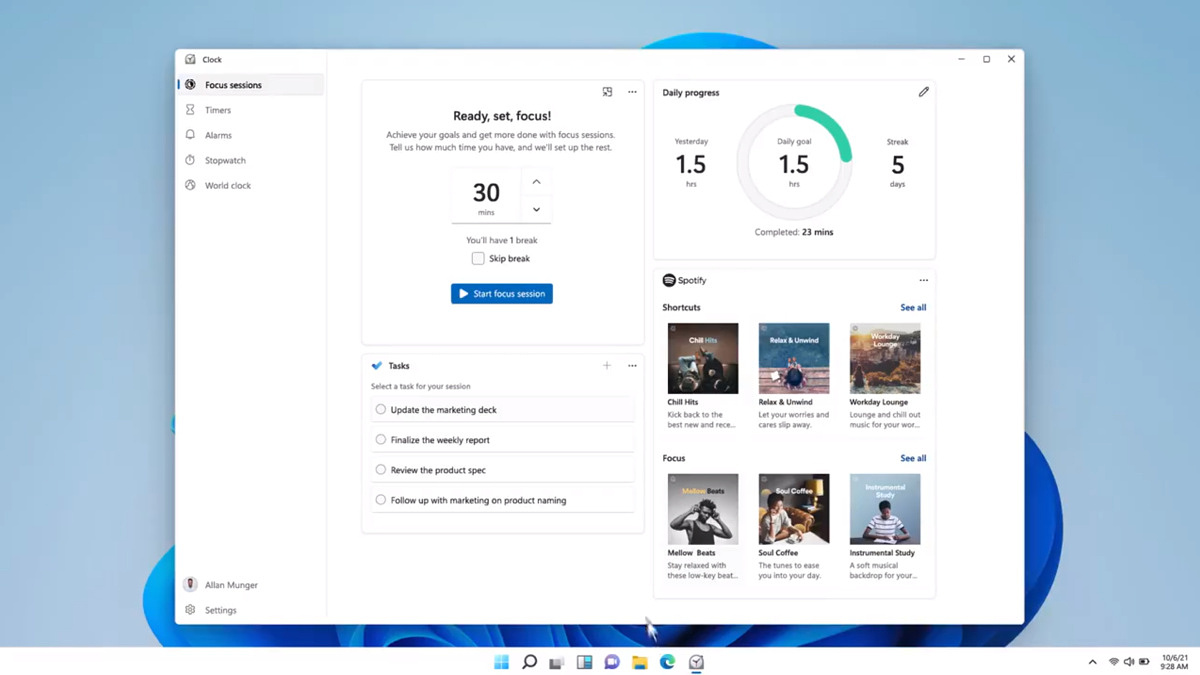
focus sessionWindows and Devices chief Panos Panay has revealed new focus sessions feature that will be in Windows 11 on his Twitter account today. He himself is referring to it as a game-changer especially with Spotify integration.

So what is a focus session?

From the video clip provided on Twitter, we can see that focus session users will be able to choose a specific task from the previously made task list, choose songs that will play in the background while the task is active, and set a timer for the chosen task with breaks. Maybe the best comparison and explanation would be a desktop google calendar task with music, basically, that’s it. A neat and good organizer inside your Windows 11 operating system. I think that this is generally a good idea and for sure it will find its audience.
Read More
Fix Chrome ERR_SOCKET_NOT_CONNECTED
Recently, a number of users reported an error in Google Chrome that says, “ERR_SOCKET_NOT_CONNECTED”. If you are one of these users, read on as this post will guide you in resolving this error. This kind of error in Chrome is kind of vague so it could be caused by a couple of factors like DNS server issues, Socket Pools, third-party plugins or extensions, and many more. Whatever the cause may be, there are several options you can check out to resolve the problem. You can try to flush the Socket Pool or change the DNS address or remove unwanted extensions or reset your Google Chrome browser.

Option 1 – Try to flush the Socket Pool

  • Open Google Chrome and in the address bar, type “chrome://net-internals/”.
  • After that, select Sockets on the left side panel.
  • Next, select Flush socket pools from the right-side panel.
  • And once it’s done, restart your Chrome browser and check if the “ERR_SOCKET_NOT_CONNECTED” is fixed or not.

Option 2 – Try to change the DNS Server

In this option, you can try changing your current DNS settings to the Google Public DNS as it could also help in fixing the “ERR_SOCKET_NOT_CONNECTED” error. To do so, follow the steps below.
  • The first thing you have to do is right-click on the network icon in the Taskbar and select Network and Sharing Center.
  • Next, click on the “Change Adapter Settings” option.
  • After that, search for the network connection that you are using to connect to the internet. Note that the option might be “Wireless Connection” or “Local Area Connection”.
  • Right-click on your network connection and click on Properties.
  • Then select the new window to choose the “Internet Protocol 4 (TCP/IPv4)” option.
  • After that, click on the Properties button and click the checkbox in the new window for the option “Use the following DNS server addresses”.
  • Type in “8.8.8.8” and “8.8.4.4” and click OK and exit.

Option 3 – Get rid of any conflicting browser extensions

  • Open Chrome and press Alt + F keys.
  • Go to More tools and click Extensions to look for any suspicious browser extensions or toolbars.
  • Click the Recycle bin and select Remove.
  • Restart Chrome and press Alt + F keys again.
  • Proceed to On Startup and mark Open a specific page or set of pages.
  • To check if the browser hijacker is still active, click Set pages, if it is active, overwrite the URL.

Option 4 – Try to reset Google Chrome

Before you proceed, make sure that the Chrome browser is not running anywhere in the background via Task Manager. Once you’ve made sure that it’s no longer running, refer to these steps:
  • Tap the Win + R keys to open the Run dialog box.
  • Then type “%USERPROFILE%AppDataLocalGoogleChromeUser Data” in the field and tap Enter to open this location.
  • From there, look for the Default folder and then tap the Shift + Delete button and if a confirmation prompt appears, click on Yes.
  • After deleting the Default folder, open Google Chrome and click on the three vertical dots icon located in the top-right corner to open the menu.
  • Next, click on Settings and scroll down and then click on Advanced to open the Advanced Settings.
  • Then scroll down until you see the “Reset and clean up” section and click the “Restore Settings to their original defaults” option.
  • After that, you will see a confirmation box and from there, click on the Reset settings button to reset your Google Chrome browser.
Read More
How to be a healthy PC gamer

Spending a large amount of time working or gaming in front of the computer can take a toll on your health. And as someone who indeed spends a large amount of time in front of the computer, I would like to share some insights about how can you be happy and healthy at the same time by incorporating some practices and habits.

gaming

Get good chair

This is first on the list because it matters the most. A proper sitting chair is essential for back health. If your budget allows it, do yourself a favor and get an anatomic sitting chair or gaming chair with lumbar support. It costs but it is worth it.

Learn to sit properly

As the important chair is, sitting properly is also as important as much. Your spine believe it or not is a very important part of your body and you need to take care of it. Sadly long periods of sitting sessions are bad for muscles around the spine that could reflect on the spine itself. Keep your back straight and keep your head not down nor up, place it in a position like when you are walking so the spine that is going from your head is in line with the spine on your back.

Stretch

By medical standards, each hour of sitting should be accompanied by a stretch session since sitting itself is placing too much pressure on certain muscles and blood circulation is lowered. Changing leg position and doing just a little stretch each hour can be really beneficial for your health in long run.

Take breaks

Yes, playing games is fun and most of the time we do not want to stop playing, especially if we are winning but taking breaks is essential for your personal health. Old saying goes that overdoing anything is bad and this applies true even to things that we do for pleasure and relaxation. Take periodic breaks to stretch, stand up and maybe even walk just a little.

Drink water

During long work hours or long gaming sessions, it is not uncommon that we are so focused on our activity that we forget to take our water intake. Approximately 2liters of water per day is needed for an adult person to function properly during that day and if you spend long times in front of a PC do not forget to drink water.

Do not neglect your daily tasks

As enjoyable as it is gaming can make us forget about our daily tasks, do not neglect your life and your tasks. Remember, gaming is only OK if it does not interfere with the daily things that you need to do. Do not postpone going for groceries because of gaming, do not switch shower for another level in the game. Do all of the things you must do first and then sit and game.

Take care of yourself mentally

Having mental health is as important as having a physical one. Playing games is fun, but playing games with someone is even better, do not forget to socialize and invite some friends so you can share some fun times together. Also, detach yourself from outcomes that will come because of gaming, this is very important for gamers that do a lot of PVP games and get annoyed and angry when they lose or when some other player is talking trash. Remember, gaming is for you to relax and enjoy, not to stress you.

Read More
How to Fix Error Code 0x80073b01

Error Code 0x80073b01 - What is it?

The 0x80073b01 is an error message that often pops up on the screen when you run Windows Defender. Windows Defender is an antispyware by Microsoft integrated into Windows Vista and Windows 7. The error code 0x80073b01 is considered to be a critical Windows error which must be fixed immediately. This error code locks you out of Windows Defender thus putting your computer at risk potential security loopholes in the Windows environment such as notorious software like spyware, adware, and viruses. This is dangerous especially if you have confidential data saved on your PC as it can be exploited easily if you don’t remove such malicious software the right way. This can lead to data breaches, cybercrime, and the worst-case scenario can be identity theft. Error code 0x80073b01 symptoms include:
  • Sluggish pc performance,
  • Problems during software installations
  • Beeping sounds
  • Unexpected shutdowns
  • Screen freeze

Solution

Restoro box imageError Causes

The error code 0x80073b01 occurs when Windows Defender gets damaged due to misconfigured files and registry corruption. It is advisable to fix this error right away to avoid serious damages.

How to Resolve the Error Code 0x80073b01?

To repair the error code 0x80073b01 on your PC you don’t necessarily have to call a professional; you can fix it on your own with the help of Restoro. It’s very easy to use and does not require you to be technically sound. Besides, it can be downloaded for free thus helping you save hundreds of dollars that you are likely to spend on hiring a technician for the error code repair job. Restoro is the latest and a multi-functional system optimizer and a repair tool. This software is integrated with highly functional features that enable you to resolve almost all types of PC-related errors including the error code 0x80073b01. It includes powerful and value-adding features like registry cleaner, system stability detector, privacy error finder with anti-virus properties, and Active X and Class issues detector. With the help of its ‘registry cleaner’, you can easily scan for 0x80073b01 error codes on your PC. It offers in-depth registry cleaning scanning all the underlying causes of registry corruption that triggers 0x80073b01 error. The underlying cause for registry corruption is the accumulation of unnecessary and malicious files in the registry like junk files, temporary internet files, and invalid entries. Restoro with the help of its registry cleaning utility clears the clutter in seconds, frees up your disk space, and repairs the registry. And since the error 0x80073b01 hampered your ability to scan for viruses and spyware with Windows Defender, your computer may be exposed to serious data security threats by such malware. However, with Restoro you can remove malware from your system too. Restoro also functions as a powerful anti-virus. With the help of its privacy error detector, it scans for malicious viruses, adware and spyware on your PC ensuring that you are safe and protected from data breaches and cybercrime. This tool resolves the error 0x80073b01 successfully while repairing your registry and simultaneously optimizing the speed of your PC. It has a user-friendly interface and a simple design. There is absolutely nothing complex about it. All you have to do is download and install Restoro on your system and run it to scan for errors. After the scanning is complete, you will see a comprehensive and detailed error report specifying the number and the types of errors your PC is inflicted with. Now all you have to do is click on the Repair button to fix the issues on your PC including the error 0x80073b01 right away. Restoro is a safe and efficient tool that helps you resolve PC issues in seconds. For optimum results, it is advisable to run it on your PC regularly. This will help you keep the registry clean, PC error-free, reduce boot time, and ensure speedy PC performance. Click here to download Restoro on your PC today!
Read More
Fix KMODE EXCEPTION NOT HANDLED e1d65x64.sys
KMODE_EXCEPTION_NOT_HANDLED seems to be connected primarily to a third-party driver, e1d65x64.sys associated with the Intel(R) Gigabit adapter, NIC/Wired network NDIS (Network Driver Interface Specification) 6.x driver. Error is known to produce the dreaded blue screen of death or BSOD. Most usually error is connected with gaming on Windows 10 computer and it manifests itself during gaming sessions. If you are unlucky and you are faced with this unfortunate error we will be happy to try to help you and present with tips and tricks in order for you to find a solution for it. Before you proceed with the provided solutions, be sure you have sufficient disk space on the Windows drive, run Disk Cleanup and then run CHKDSK.

1) Run the Blue Screen Online Troubleshooter

Open Control Panel, change the view setting to icons. Click Troubleshooting, and click “View all” in the tasks pane. Click “Blue Screen”. This opens the Blue Screen Troubleshooter.

2) Run Driver Verifier

  1. Start a Command Prompt window by selecting Run as an administrator, and type verifier to open Driver Verifier Manager.
  2. Select Create standard settings (the default task), and select Next. You can also choose to Create custom settings to select from predefined settings, or to select individual options. For more information, see Driver Verifier options and rule classes and Selecting Driver Verifier Options.
  3. Under Select what drivers to verify, choose one of the selection schemes described in the following table.
    Driver verifier table:
    Option Recommended use
    Automatically select unsigned drivers Useful for testing on computers that are running versions of Windows that do not require signed drivers.
    Automatically select drivers built for older versions of Windows Useful for testing driver compatibility with newer versions of Windows.
    Automatically select all drivers installed on this computer Provides maximum coverage in terms of the number of drivers that are tested on a system. This option is useful for test scenarios where a driver can interact with other devices or drivers on a system. This option can also exhaust the resources available for Special Pool and some resource tracking. Testing all drivers can also adversely affect system performance.
    Select driver names from a list In most cases, you will want to specify which drivers to test. Selecting all drivers in a device stack allows the Enhanced I/O Verification option to track objects and check compliance because an I/O request packet (IRP) is passed between each of the drivers in the stack, which allows for a greater level of detail to be provided when an error is detected. Select a single driver if you are running a test scenario that measures system or driver performance metrics, or if you want to allocate the greatest number of resources available for detecting memory corruption or resource tracking issues (such as deadlocks or mutexes). The Special Pool and I/O Verification options are more effective when used on one driver at a time.
  4. If you chose Select driver names from a list, select Next, and then select one or more specific drivers.
  5. Select Finish, and then restart the computer.

3) Update network device drivers

Go to the official Intel website and try to find newer versions of drivers, if there are none perhaps you will need to revert back to the previous version.

4) Scan memory for issues

Run a memory test on your system, sometimes these errors can be traced back to a faulty RAM bank.

5) Stop over-clocking your PC

If you have overclocked your PC please reverse it back to its original state and see if that would solve the issue

6) Perform System Restore to the previous restore point

If none of the previous solutions have bared fruit, roll back to a previous restore point and that should solve the issue.
Read More
Scroll bar in Chrome is missing in Windows
If you find that the scroll bar in your Google Chrome browser is missing all of a sudden, and it becomes difficult for you to scroll down the web page and see its content, worry not for this post will guide you on what you can do to resolve this problem. Usually, when the mouse cursor stays hidden in the corner and only appears when you point it to the edge of the screen. However, there are instances when it won’t appear which makes navigating the web page you are visiting quite impossible. So if you encounter this kind of strange behavior on your Google Chrome browser, there are several suggestions you can check out to resolve it. In most cases, updating the browser resolves the problem, but if it does not, you can try restoring the browser’s settings to their default state by resetting Chrome or you could also disable hardware acceleration or disable the overlay scrollbars flag. For more information, follow each one of the options provided below.

Option 1 – Reset Google Chrome

Before you proceed, make sure that the Chrome browser is not running anywhere in the background via Task Manager. Once you’ve made sure that it’s no longer running, refer to these steps:
  • Tap the Win + R keys to open the Run dialog box.
  • Then type “%USERPROFILE%AppDataLocalGoogleChromeUser Data” in the field and tap Enter to open this location.
  • From there, look for the Default folder and then tap the Shift + Delete button and if a confirmation prompt appears, click on Yes.
  • After deleting the Default folder, open Google Chrome and click on the three vertical dots icon located in the top-right corner to open the menu.
  • Next, click on Settings and scroll down and then click on Advanced to open the Advanced Settings.
  • Then scroll down until you see the “Reset and clean up” section and click the “Restore Settings to their original defaults” option.
  • After that, you will see a confirmation box and from there, click on the Reset settings button to reset your Google Chrome browser.

Option 2 – Try to disable the Hardware Acceleration

For better performance, Google Chrome uses the Hardware Acceleration by default. Unfortunately, there are just some cases when your hardware, GPU to be specific, might not be able to cope with the requirements, resulting in the black screen issue. And if this is your case, you should try to disable the hardware acceleration from your Google Chrome browser settings panel. To do so, follow the steps below.
  • Open the Google Chrome settings page.
  • Click on the Advanced button to get more options.
  • Look for the option called “Use hardware acceleration when available” and then disable it by toggling the button to the left.
  • After that, check if the screen flickering issue in Chrome is fixed.

Option 3 – Try to disable “Smooth Scrolling” in Chrome

Disabling “Smooth Scrolling” in Chrome might also help you fix the issue. To do so, follow these steps:
  • Open Chrome and type “chrome://flags” and hit Enter.
  • Next, look for a flag named “Smooth Scrolling”. You can scroll down until you find it or search it in the Search Flag bar. Note that Smooth Scrolling is enabled by default in the newer versions of Chrome.
  • After that, select the drop-down menu and select Disabled.
  • Then click on the “Relaunch Now” button.
Read More
Your computer is running low on resources
Signing in to a computer that runs a Windows 10 version OS is usually fast and straightforward. However, there are instances when signing in takes too long especially if there are a lot of programs in the Startup. So if many things are loading as soon as you log into your computer, it will slow down the sign-in process. Aside from programs in Startup, it is also possible that there are too many users that are logged in to the account. In such a case, you will most likely encounter an error that says, “Your computer is running low on resources, so no new users can sign in. Please use an account that has already been signed in”. If you’ve encountered such an error when you try to log into your computer, read on as this post will be guiding you on how you can fix it. Each time a user signs in to Windows 10, it will allocate resources in order to work smoothly. But, in many cases, the system is running low on resources which is why this error pops up and blocks a sign-in of a new user. To fix it, you can try to log out the existing users, or perform a Cold Boot, as well as run both the DISM tool and System File Checker scan.

Option 1 - Try to logout existing users

The first thing you can do is to log out the existing users. If you have a shared Windows 10 computer, you have to check if someone hasn’t logged out. It could be that some background task or there is an existing program that is still running under that account. So you have to make sure to ask the same user to log out in case there is some unsaved work. On the other hand, if that user is not around, then you reboot the computer right away.

Option 2 - Try Performing a Cold Boot

You could also try to perform a Cold Boot to fix the problem. A Cold Boot is a process that makes sure that the Windows 10 Kernel shuts down properly and releases all the resources held by any account. To perform a Cold Boot, just press and hold the physical power button on your CPU until it goes off. After that, boot your computer regularly and see if you can now log into your account without any error.

Option 3 - Try to run a System File Checker scan

System File Checker is a built-in command utility in Windows that helps in restoring corrupted files as well as missing files. It replaces bad and corrupted system files to good system files that might be the cause why you’re getting the error when you log into your computer. To run the SFC command, follow the steps given below.
  • Boot your computer into the Advanced Recovery mode and from there open Command Prompt.
  • After opening Command Prompt, type in sfc /scannow
The command will start a system scan which will take a few whiles before it finishes. Once it’s done, you could get the following results:
  1. Windows Resource Protection did not find any integrity violations.
  2. Windows Resource Protection found corrupt files and successfully repaired them.
  3. Windows Resource Protection found corrupt files but was unable to fix some of them.
 Now restart your computer and see if the problem is fixed or not.

Option 4 - run the dism tool

You might also want to run the DISM tool. This tool is known to repair potentially corrupted files in your system as having them could also system issues like the “Your computer is running low on resources, so no new users can sign in” error. To repair these corrupted system files, you can run the DISM commands:
  • Go to the Advanced Recovery mode and select Command Prompt.
  • After that, input each one of the commands listed below sequentially to execute them:
    • Dism /Online /Cleanup-Image /CheckHealth
    • Dism /Online /Cleanup-Image /ScanHealth
    • Dism /Online /Cleanup-Image /RestoreHealth
  • Once you’ve executed the commands given above, restart your computer and check if the problem is now fixed.
Read More
1 2 3 171
Logo
Copyright © 2023, ErrorTools. All Rights Reserved
Trademark: Microsoft Windows logos are registered trademarks of Microsoft. Disclaimer: ErrorTools.com is not affiliated with Microsoft, nor claims direct affiliation.
The information on this page is provided for information purposes only.
DMCA.com Protection Status