Logo

Computer is stuck on the Hi there screen

As you know, installing Windows 10 is quite a complicated process in the background even though it may look like an easy task in the foreground. There are times when the setup is stuck on the “Hi there” screen where you won’t be able to input any information in the fields given and you wouldn’t be able to do anything else since the screen does not move ahead.

There are a lot of possible reasons why this issue occurs. It could be due to a damaged setup image, invalid boot configuration, and many more. To resolve this problem, there are several options you can check out. You can try to get a new setup image or run the Automatic Repair or you could also try to recreate the Boot Configuration files or BCD. To get started in checking out these solutions, make sure to follow the instructions provided below.

Option 1 – Try to run the Automatic Repair Utility

You might also want to use Automatic Repair in fixing the error. To do so, follow the steps below.

  • You can start by creating and booting from a bootable Windows 10 USB Stick.
  • After that, click on Repair your computer located on the bottom left corner when you are on the initial Windows Startup screen.
  • Next, click on Troubleshoot, and then on the other screen, click the Startup Repair option.
  • Now select the operating system you want to repair. Once you do that, it will start to repair your operating system. Wait until the process is completed and then check if the problem’s now fixed.

Option 2 – Try to rebuild the BCD files

You can also try rebuilding the BCD files to resolve stuck screen issue in your Windows 10 computer.

  • You can start by booting into the installation environment for Windows 10 from an installation media.
  • After that, click on Repair your computer and on the blue screen, select Troubleshoot and then select the Advanced options menu.
  • From there, select Command Prompt and once you open it, enter each one of the commands given below by sequence.
    • bootrec /FixMbr
    • bootrec /FixBoot
    • bootrec /ScanOS
    • bootrec /RebuildBcd
  • Once you’re done executing the commands given above, type “exit” to close the Command Prompt window and then restart your computer and see if it fixed error code 0xc000014c.

Option 3 – Try recreating the Windows 10 installation USB

Recreating the Windows 10 installation USB might help in fixing the problem. You can use a USB drive to do so but make sure that it has a great read-write speed. Follow the steps below to recreate Windows 10 installation USB”

  • Click this link and then click the Download Tool Now button.
  • Next, click the “Use the tool to create installation media (USB flash drive, DVD, or ISO file)…” option and follow the next given instructions on the screen.
  • Now select the ISO file option in step 5.
  • After that, you should now have an ISO file.
  • Next, go to the location where you’ve downloaded the ISO file.
  • Then right-click on the Windows 10 ISO file and select the Open with option and then select File Explorer.
  • Now click on “setup.exe” and follow the next instructions that appear on the screen. When asked, you have to select either Nothing (clean install) or Keep personal files only option. Take note that you must not select the “Keep personal files, apps, and Windows settings since it doesn’t really work.

Option 4 – Try getting a new Windows image file

If none of the four given options above worked, you might want to get a newer installation image using the Windows Media Creation tool. After that, create the bootable USB drive and once completed and then try to run the Windows 10 setup again.

Do You Need Help with Your Device?

Our Team of Experts May Help
Troubleshoot.Tech Experts are There for You!
Replace damaged files
Restore performance
Free disk space
Remove Malware
Protects WEB browser
Remove Viruses
Stop PC freezing
GET HELP
Troubleshoot.Tech experts work with all versions of Microsoft Windows including Windows 11, with Android, Mac, and more.

Share this article:

You might also like

What happened to Facebook and why it is down?
Usually when online service is not working or when something goes wrong online it is DNS, well that is what most of the time is the case. And yes, DNS or Domain Name Server seems to be an issue with Facebook being completely down along with Instagram and wassap. facebook downThe true cause is that there is no working Border Gateway Protocol (BGP) routes into Facebook's sites. BGP is the standardized exterior gateway protocol used to exchange routing and reachability information between the internet top-level autonomous systems (AS). Most people, indeed most network administrators, never need to deal with BGP. Cloudflare VP Dane Knecht was the first to report the underlying BGP problem. This meant, as Kevin Beaumont, former Microsoft's Head of Security Operations Centre, tweeted, "By not having BGP announcements for your DNS name servers, DNS falls apart = nobody can find you on the internet. Same with WhatsApp btw. Facebook has basically de-platformed themselves from their own platform." Many people are very annoyed by this and with the fact that they cannot use their social media platforms but it seems that Facebook employees are in even bigger annoyance as it was reported that Facebook employees can't enter their buildings because their "smart" badges and doors were also disabled by this network failure. If true, Facebook's people literally can't enter the building to fix things. Reddit user u/ramenporn, who claimed to be a Facebook employee working on bringing the social network back from the dead, reported, before he deleted his account and his messages: "DNS for FB services has been affected and this is likely a symptom of the actual issue, and that's that BGP peering with Facebook peering routers has gone down, very likely due to a configuration change that went into effect shortly before the outages happened (started roughly 1540 UTC). There are people now trying to gain access to the peering routers to implement fixes, but the people with physical access is separate from the people with knowledge of how to actually authenticate to the systems and people who know what to actually do, so there is now a logistical challenge with getting all that knowledge unified. Part of this is also due to lower staffing in data centers due to pandemic measures." Ramenporn also stated that it wasn't an attack, but a mistaken configuration change made via a web interface. Both BGP and DNS are down, the "connection to the outside world is down, remote access to those tools don't exist anymore, so the emergency procedure is to gain physical access to the peering routers and do all the configuration locally." Technicians on site don't know how to do that and senior network administrators aren't on site. It seems that it will all be down for a couple of more hours before the issue is resolved.
Read More
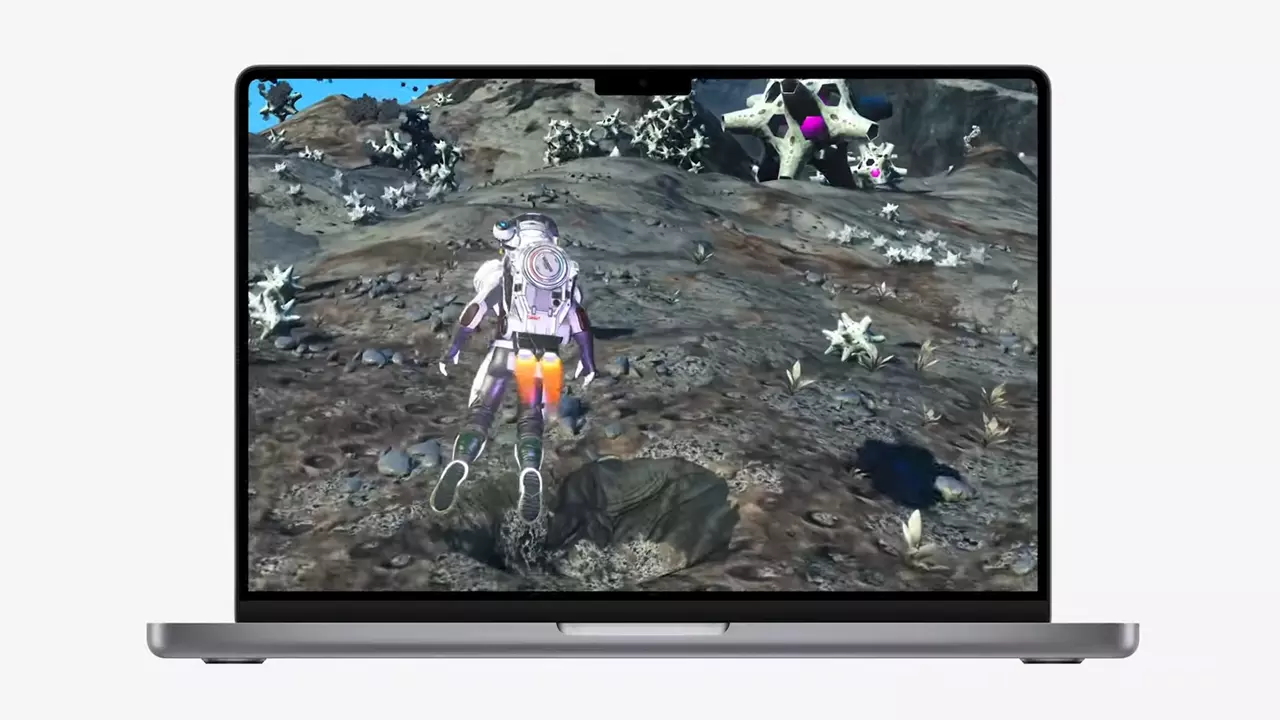
Apple gaming is coming!!!

New Apple's upscaling technology called MetalFX will place iOS and macOS devices back into the gaming world. Apple had great games back in the old days and some all-time hits like the prince of Persia have been made first for apple but along the way, it just lost it.

Same as NVIDIA's DLSS and Intel's XeSS systems, Apple MetalFX also uses AI algorithms to upscale the resolution of output game frames. So, for example, the GPU inside your MAC might render the game at 1080p, but through MetalFX and AI upscaling it will look like a 4K image but have a good frame rate since it is rendered in base resolution.

apple metalfx

The ability to make AI strike a good balance between performance and image quality is a key to technology in today's modern gaming and having this technology will help developers a ton to be able to achieve great results on Apple hardware.

The First MetalFX Games

So far three official games that will use this technology and be released natively for Appl hardware are Resident Evil 8 Village, GRID legends, and No Man's Sky. All three games have been confirmed and Resident Evil 8 Village is already sent for review people are impressed since the game can run smoothly on all Apple devices, even ones with an M1 CPU.

Apple is back into gaming

When you say Apple gaming is probably the last thing that comes to your mind but truth be told Apple makes more money from games than Microsoft, Nintendo and Sony combined. Also, Apple itself was a big player once regarding computer games as well, Myst and Prince of Persia are games that were made and have been released for Apple first. Bungie was also founded by Apple developers and Halo was originally announced as a Mac game.

Apple has been trying and pushing gaming on its platform since it kind of died down. Today all Sony, Nintendo, and Microsoft controllers work without any issues with all Apple products. Apple also has its own gaming subscription service, Apple Arcade, and its Apple TV is packed with GPU that can rival Xbox ones.

MetalFX API ties and brings it all together, it is designed to get the most performance from the hardware by minimizing overhead.

Now, computers and laptops do not hold any large numbers if we look at the user base, and that could deter developers but if we look at iPad and iPhone things are different there, much different. How same CPU power these devices and how MetalFX is available across all products it is clear that there is a market for games there. No Man's Sky is coming to iPad using these technologies and bringing full computer experience to tablets.

Read More
Fix File Explorer stuck on Working on it…
One of the most useful utilities on a Windows 10 computer is the Windows File Explorer. It is undeniably one of the File Managers out there full of features on all the platforms. However, it is not without its issues and one of the most common ones most users encounter is when you are trying to open a folder or a location on File Explorer and it displays a message saying, “Working on it…” as it tries to load the content of that location or folder. This kind of issue mainly occurs to computers that run on an HDD although that doesn’t mean that it can’t happen to other computers that run an SDD. And so if the File Explorer on your Windows 10 computer keeps getting stuck on the “Working on it…” message along with a green animation bar moving very slowly while loading the contents of the folder, then it’s best if you follow the options given below to resolve this problem.

Option 1 – Try deleting the contents of the Automatic Destinations folder

  • Tap the Win + R keys on your keyboard to open the Run utility.
  • And then type “%AppData%MicrosoftWindowsRecentAutomaticDestinations” and hit Enter to open this location.
  • From there, select all the files and tap the Shift + Delete key combination.
  • After that, you will get a prompt that will ask you if you want to delete all the files permanently, just click on Yes. This will delete all the Quick Access cache.
  • Now check if you can now open a folder or a location without the “Working on it…” message.

Option 2 – Try to rebuild the Search Index

  • First, open the Indexing Options using the Search bar.
  • Next, click on the appropriate listing, e.g. Users folder.
  • After that, click on the Advanced button. This will open a mini-sized window and from there, go to the Index Settings tab.
  • Then click on the “Rebuild” option under the Troubleshooting section.
  • Now click on OK after the rebuilding is completed. This should rebuild the search index for all the files and thus, fix the File Explorer stuck on the “Working on it…” message.

Option 3 – Try to optimize the folder for General Items

You might also want to try optimizing the folder for General Items as it can help the File Explorer to load the contents faster.
  • Just right click on the folder that takes time to load the contents in it and is showing the “Working on it…” message.
  • After that, click on Properties to open the Properties mini window.
  • From there, go to the Customize tab and click on the drop-down menu to “Optimize this folder for” under the “What kind of folder do you want?” section and then select General Items.
  • Then check the checkbox with a label that says, “Also apply this template to all subfolders” and click on the OK button to save the changes.
  • Restart File Explorer and check if the problem is now fixed or not.

Option 4 – Try performing a System Restore

Running System Restore can also help you resolve whatever issue that’s causing the “Working on it…” message. You can do this option either by booting into Safe Mode or in System Restore. If you are already in the Advanced Startup Options, just directly select System Restore and proceed with the next steps. And if you have just booted your PC into Safe Mode, refer to the steps below.
  • Tap the Win + R keys to open the Run dialog box.
  • After that, type in “sysdm.cpl” in the field and tap Enter.
  • Next, go to the System Protection tab then click the System Restore button. This will open a new window where you have to select your preferred System Restore point.
  • After that, follow the on-screen instructions to finish the process and then restart your computer and check if the problem is fixed or not.
Read More
Tailor Made Solution For Windows AppCrash Error

What is AppCrash Error?

As the name implies the AppCrash error is an error code that indicates a crashed program/application on your system. This term is used by Windows to designate an application crash. It is reported and displayed on the system as “Problem Event Name: AppCrash,” which is followed by additional technical information which unless you are a computer programmer, you may not fully decode. There are various symptoms that trigger the occurrence of this error code on your system such as:
  • Application becoming unresponsive and intermittent
  • Momentary application freezing
  • Application times out and then successfully recovers itself

Solution

Restoro box imageError Causes

The reason for AppCrash error occurrence cannot be narrowed down to a specific cause. This error code is triggered by multiple causes such as:
  • The system is stressed out. This happens when your CPU is held at 100% usage for an unacceptable length of time.
  • Lack of system resources
  • Windows version incompatibility with the application
  • Malware and viral infection
  • Poor PC maintenance
  • Registry damage and corruption
  • Data overload
No matter what the cause for the AppCrash error may be, if you experience this error on your system you must repair it right away before the damage sets in. This is a serious error posing severe consequences. If not repaired on time, it not only hampers your ability to use your desired application but also exposes your PC to fatal crashes, data loss, and system failure.

Further Information and Manual Repair

Though this is a serious Windows error, the good news is that it is an easy-to-fix error code, so resolving it is not a problem. There are three ways to fix the AppCrash error:
  • Hiring a technician, this by the way is quite costly. You may have to pay hundreds of dollars to get professional assistance to fix this error code.
  • Giving your computer adequate rest to cool down. Stressing out your PC heats the hardware which triggers such errors and eventually results in system failure. Try cooling it, and see if it fixes the error.
  • Downloading Restoro. This is by far the best, simple, quick, and money-saving way to resolve the AppCrash error on your system. Restoro is an innovative, performance-driven and multi-functional user-friendly PC Fixer that helps resolve practically all types of PC-related errors including the AppCrash error. It has an intuitive and powerful in-built registry cleaner which scans and detects all types of registry issues on your PC in seconds. It helps you clear up all the unnecessary files saved on your hard disk like junk files, internet history, invalid entries and files from the programs that you’ve uninstalled. Such files not only occupy a lot of disk space but they also lead to registry damage and corruption thus shooting error code pop-ups like the AppCrash error.

Restoro features

Restoro performs an in-depth scan and removes all these files cluttering the system and repairs the damaged registry. It resolves the error AppCrash and simultaneously boosts the speed of your PC making it easy for you to access and run applications fast and smoothly without any application errors. Sometimes malicious software programs like malware and viruses may also damage and corrupt the registry. If the underlying cause of the AppCrash error is a viral infection on your PC corrupting the registry, then don’t worry; Restoro, with the help of its built-in anti-virus program, resolves it too. It scans for viruses on your system and removes them immediately. Restoro is easy to use. Whether you are a novice or an experienced user, working around this PC Fixer is simple. It has a user-friendly interface that allows users to navigate through it without any hassle. In addition to this, it offers enhanced compatibility. It smoothly runs on all Windows versions.

Get Restoro

To get started, all you need to do is Click here to download Restoro. Once it is installed on your system, run it to scan for registry issues like the AppCrash error. This intuitive tool will detect all the errors on your PC in just a few seconds and display them on your Windows screen in the form of a comprehensive scan report. Now simply hit the repair tab to resolve. Once repairing is successfully complete, try running your desired application. You will notice two significant differences:
  1. No AppCrash error code message pop-ups
  2. The application runs fast and smoothly regardless of whether it’s Windows Media Player or any gaming application.
Read More
How to remove Converters now

Converters Now developed by Mindspark Interactive is a Browser Extension for Google Chrome and is promoted at their website like a very useful tool for converting PDF and Doc files, alongside with dictionary, and other useful tools. While this might appeal to you the extension hijacks your New Tab page, changing it to Search.MyWay.com

While active, this extension monitors user’s online activity, recording visited websites, clicked links, bought products, and other browsing information. This information is later forwarded or sold to Mindsparks ad network to better deliver user Targeted Ads.

Browsing the internet with ConvertersNow will result in displaying additional ads, sponsored content, and sometimes even pop-up ads injected into various pages or websites throughout your browsing sessions. CovertersNow has been marked as a Browser Hijacker by several anti-virus programs and it is marked for removal.

About Browser Hijackers

Browser hijacking is actually a type of unwanted software, commonly a browser add-on or extension, which then causes modifications in the web browser’s settings. There are plenty of reasons why you may experience a web browser hijack; however commercial, advertising, and marketing are the major purposes for their creation. Usually, the idea would be to force users to visit particular websites that are aiming to improve their site visitor traffic and generate higher ad income. Though it might appear harmless, these tools were created by vicious individuals who always try to take advantage of you, so that they can easily earn money from your naivety and distraction. Browser hijackers could also let other vicious programs without your knowledge further damage your PC.

How you can recognize a browser hijack

Signs that an internet browser is hijacked include: the home page of your respective web browser is changed all of a sudden; your web browser is constantly being redirected to pornography websites; default web engine is changed; you are finding new toolbars you haven’t witnessed before; unstoppable flurries of popup ads show up on your computer screen; your web browser starts running sluggishly or presents frequent glitches; Inability to navigate to certain sites, particularly anti-malware and also other security software websites.

So how does a computer get infected with a browser hijacker

Browser hijackers could use drive-by downloads or file-sharing networks or even an e-mail attachment in order to reach a targeted computer system. Many web browser hijackings come from add-on applications, i.e., browser helper objects (BHO), toolbars, or plug-ins added to browsers to provide the extra features. Also, certain freeware and shareware can put the hijacker inside your computer through the “bundling” technique. Some of the most well-known hijackers are ConvertersNow, Conduit Search, Babylon Toolbar, OneWebSearch, Sweet Page, and CoolWebSearch. Browser hijackers might record user keystrokes to collect potentially important information leading to privacy issues, cause instability on systems, drastically disrupt user’s browsing experience, and eventually slow down the PC to a stage where it becomes unusable.

Removal

Some hijackers could be removed by deleting the freeware they were included with or by eliminating any extension you’ve recently added to your computer. Having said that, most hijackers are quite tenacious and need specialized applications to eradicate them. Furthermore, manual removals require deep system knowledge and therefore can be very difficult task for beginner computer users. You might opt for automatic browser hijacker removal by just installing and running efficient anti-malware software. If you want to eliminate persistent hijackers quickly and effectively, install the top-rated, award-winning Anti-Malware tool Safebytes Anti-Malware.

What To Do If You Cannot Install Any Anti-virus?

Malware can cause several kinds of damage to computing devices, networks, and data. Certain malware goes to great lengths to prevent you from installing anything on your computer system, particularly anti-virus software. If you’re reading this article now, you might have perhaps recognized that a malware infection is the cause of your blocked web traffic. So what to do when you want to download and install an anti-malware program such as Safebytes? Although this kind of issue will be tougher to circumvent, there are some actions you can take.

Install in Safe Mode

If the malware is set to load immediately when Windows starts, entering safe mode could block the attempt. Since only the minimal applications and services start-up in Safe Mode, there are seldom any reasons for issues to occur. You will have to do the following to remove malware in Safe mode. 1) At power-on/startup, hit the F8 key in 1-second intervals. This should bring up the Advanced Boot Options menu. 2) Make use of the arrow keys to choose Safe Mode with Networking and hit ENTER. 3) When this mode loads, you will have an internet connection. Now, use your web browser to download and install Safebytes. 4) After installation, do a complete scan and let the software program remove the threats it finds.

Download the security software using a different internet browser

Certain viruses may target vulnerabilities of a specific browser that obstruct the downloading process. If you’re not able to download the security software using Internet Explorer, this means malware may be targeting IE’s vulnerabilities. Here, you must switch to another web browser like Chrome or Firefox to download the Safebytes application.

Create a portable USB antivirus for removing viruses

Another way is to download and transfer an anti-malware program from a clean PC to run a scan on the infected computer. Try these simple steps to clear up your affected computer using portable anti-malware. 1) Download Safebytes Anti-Malware or Microsoft Windows Defender Offline onto a clean PC. 2) Insert the pen drive on the same computer. 3) Double-click on the downloaded file to run the installation wizard. 4) Choose the drive letter of the USB drive as the location when the wizard asks you where you would like to install the anti-virus. Follow the instructions to complete the installation process. 5) Now, plug the pen drive into the infected system. 6) Double-click the EXE file to open the Safebytes tool from the pen drive. 7) Simply click “Scan Now” to run a complete scan on the infected computer for malware.

Benefits and Features of SafeBytes Security Suite

In order to protect your personal computer from a variety of internet-based threats, it’s important to install an anti-malware program on your personal computer. But with countless numbers of antimalware companies out there, these days it’s hard to decide which one you should buy for your personal computer. A few of them do a good job in eradicating malware threats while many will ruin your PC by themselves. You need to pick out a tool that has got a good reputation and detects not only computer viruses but other kinds of malware also. When considering trustworthy software programs, Safebytes Anti-Malware is undoubtedly the strongly recommended one. Safebytes is one of the well-established PC solutions firms, which offer this all-inclusive anti-malware program. Using its outstanding protection system, this utility will automatically detect and eliminate most of the security threats, which include viruses, adware, browser hijackers, PUPs, trojans, worms, and ransomware.

There are lots of amazing features you will get with this particular security product. Listed below are some of the highlighted features included in the product.

Anti-Malware Protection: Using a critically acclaimed anti-malware engine, SafeBytes offers multilayered protection which is designed to catch and eliminate threats which are concealed deep in your PC. Live Protection: SafeBytes provides real-time active supervision and protection from all known computer viruses and malware. It will constantly monitor your pc for hacker activity and also provides end-users with advanced firewall protection. Safe Browsing: Through its unique safety score, SafeBytes notifies you whether a website is safe or not to visit it. This will make sure that you’re always certain of your safety when browsing the world wide web. High-Speed Malware Scanning Engine: SafeBytes’s very fast malware scanning engine cuts down scan times and extends battery life. At the same time, it’ll effectively detect and remove infected files or any internet threat. Lightweight: SafeBytes is a lightweight application. It consumes a very small amount of processing power as it works in the background therefore you won’t observe any computer performance difficulties. 24/7 Online Tech Support: You can get high levels of support 24/7 if you are using their paid software. To conclude, SafeBytes Anti-Malware is pretty great for securing your computer against all sorts of malware threats. There is no doubt that your computer system will be protected in real-time once you put this software program to use. For top protection and the best value for money, you can’t get better than SafeBytes Anti-Malware.

Technical Details and Manual Removal (Advanced Users)

If you’d like to carry out the removal of ConvertersNow manually instead of employing an automated tool, you may follow these steps: Proceed to the Windows Control Panel, click on the “Add/Remove Programs” and there, choose the offending program to remove. In case of suspicious versions of web browser extensions, you can easily get rid of them via your browser’s extension manager. It’s also advised to factory reset your web browser to its default condition to fix corrupt settings. If you decide to manually delete the system files and Windows registry entries, use the following checklist to make sure you know precisely what files to remove before executing any actions. But bear in mind, this is often a tough task and only computer professionals could accomplish it safely. Furthermore, certain malicious programs are capable to defend against its removal. Doing this malware-removal process in Safe Mode is recommended.
Files: %UserProfile%\Local Settings\Application Data\ConvertersNowTooltab %LOCALAPPDATA%\Google\Chrome\User Data\Default\Sync Extension Settings\jbfdncemokhjnhoiohfdjahheefaiaec %UserProfile%\Local Settings\Application Data\Google\Chrome\User Data\Default\Sync Extension Settings\jbfdncemokhjnhoiohfdjahheefaiaec %LOCALAPPDATA%\Google\Chrome\User Data\Default\Local Extension Settings\jbfdncemokhjnhoiohfdjahheefaiaec %UserProfile%\Local Settings\Application Data\Google\Chrome\User Data\Default\Local Extension Settings\jbfdncemokhjnhoiohfdjahheefaiaec %LOCALAPPDATA%\Google\Chrome\User Data\Default\Extensions\jbfdncemokhjnhoiohfdjahheefaiaec %UserProfile%\Local Settings\Application Data\Google\Chrome\User Data\Default\Extensions\jbfdncemokhjnhoiohfdjahheefaiaec Registry: HKEY_LOCAL_MACHINE\Software\Wow6432Node\ConvertersNow HKEY_LOCAL_MACHINE\Software\ConvertersNow HKEY_LOCAL_MACHINE\Software\Google\Chrome\PreferenceMACs\Default\extensions.settings, value: jbfdncemokhjnhoiohfdjahheefaiaec HKEY_LOCAL_MACHINE\Software\Microsoft\Internet Explorer\DOMStorage\convertersnow.dl.tb.ask.com HKEY_LOCAL_MACHINE\Software\Microsoft\Internet Explorer\DOMStorage\convertersnow.dl.myway.com HKEY_LOCAL_MACHINE\Software\[APPLICATION]\Microsoft\Windows\CurrentVersion\Uninstall..Uninstaller ConvertersNowTooltab Uninstall Internet Explorer

Read More
Disable widgets menu inside Windows 11
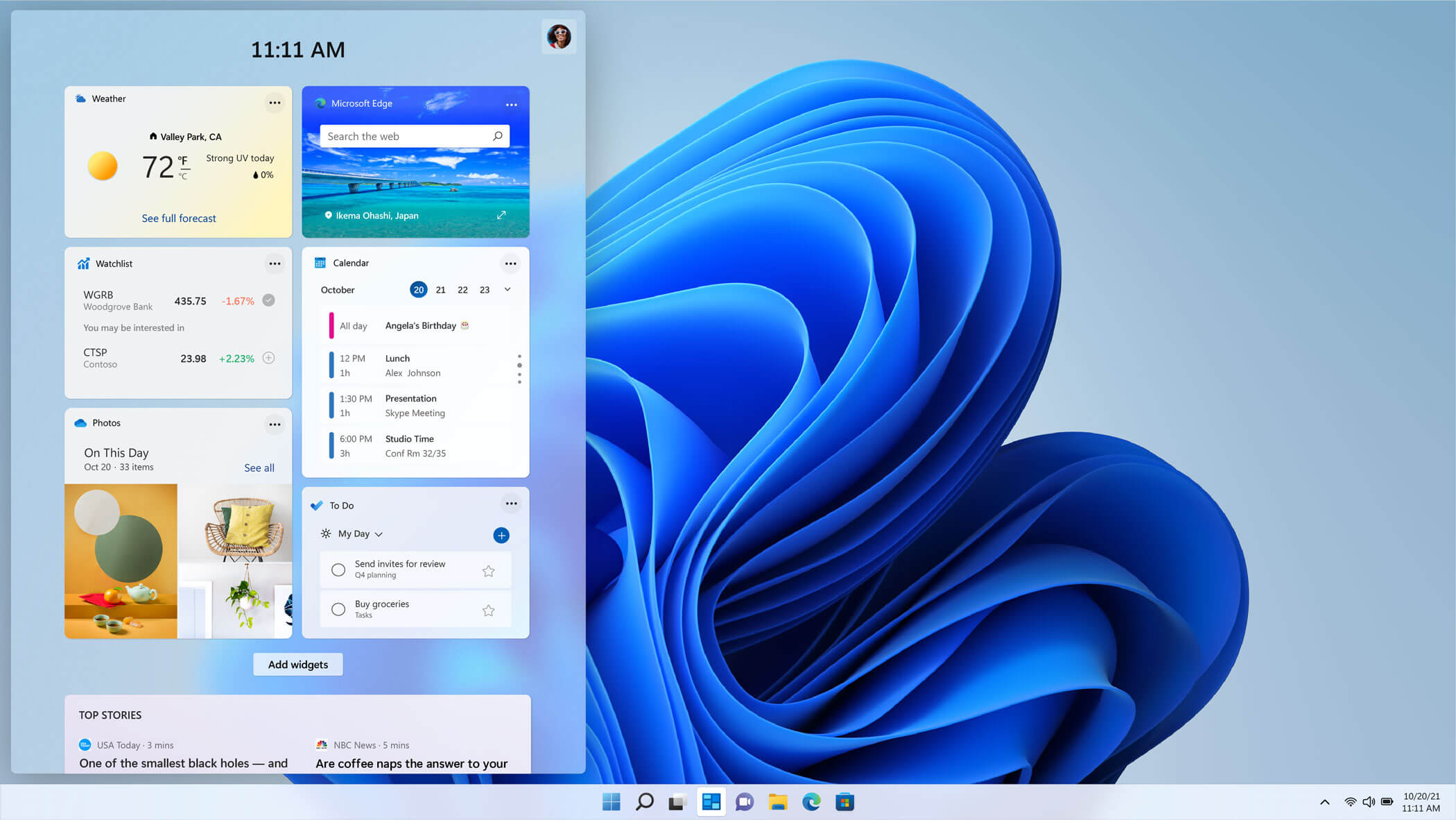
windows 11 widgets menuThe new widget's menu inside Windows 11 is generally met with a positive attitude but there are still users which prefer not to have it. Luckily for them, Microsoft included a very easy way to turn the widgets menu on or off. Follow this easy guide to see how. Right-click on the widget button in the taskbar and click on Hide from Taskbar and that’s it Alternatively, you can also turn it off via the setting app. Go to the settings app and navigate to Personalization > Taskbar > Taskbar Items and flipping the switch beside Widgets to Off. Please note that both methods will only hide the button to toggle widgets menu, at the current state there is no really a way to actually turn it off, only hide it and make it not available to bring it up.
Read More
Activision Blizzard Sued by California
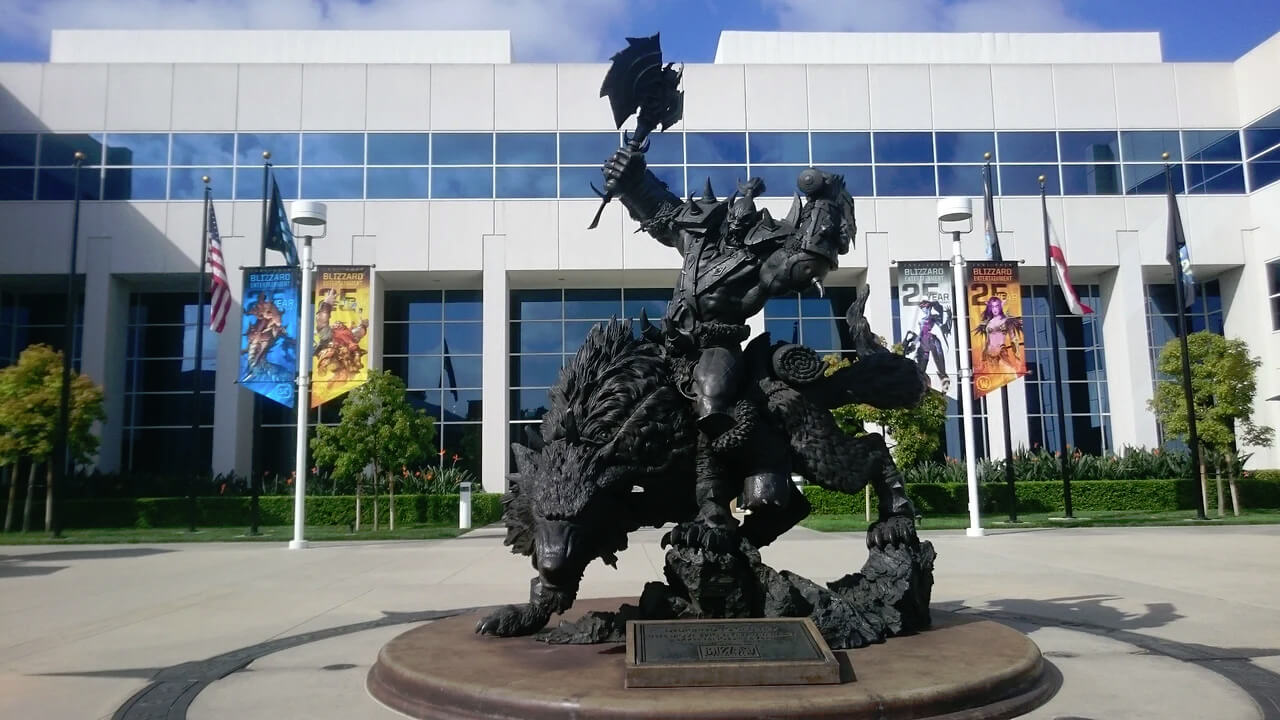
blizzard hqFollowing a two-year investigation by the California Department of Fair Employment and Housing, the state has filed a lawsuit against Activision Blizzard for fostering a "frat boy" culture in which female employees are allegedly subjected to unequal pay and sexual harassment. As reported by Bloomberg, Activision Blizzard is being accused by the state of California of discriminating against female employees at nearly all levels of employment, including in regards to compensation, promotion, assignments, and termination. The state alleges Activision Blizzard’s leadership has failed to address any of these outstanding issues or prevent them from occurring within the workplace. You can read the full details of the lawsuit here. The suit, filed Tuesday in the Los Angeles Superior Court, says Activision Blizzard, which is made up of about 20 percent women, assigns women, and women of color, to "lower paid and lower opportunity levels" with lower starting pay for similar work as their male counterparts. The documents also accuse Activision Blizzard of fostering a "pervasive 'frat boy' workplace culture in the office. Male employees are said to drink "copious amounts of alcohol" as they make their way through cubicles and "often engage in inappropriate behavior toward female employees." Male employees are said to come to work hungover, play video games during work "while delegating their responsibilities to female employees, engage in banter about their sexual encounters, talk openly about female bodies, and joke about rape." The lawsuit also cites one particular incident where a female employee, who was already subjected to intense sexual harassment at the company, committed suicide during a work trip with a male supervisor who allegedly brought inappropriate, sexual items with him on the trip. The lawsuit is asking for an injunction that will force Activision Blizzard to comply with workplace protections, as well as deliver unpaid wages, pay adjustments, back pay, and lost wages and benefits for female employees.
An Activision Blizzard spokesperson sent the following statement in response to the allegations:

We value diversity and strive to foster a workplace that offers inclusivity for everyone. There is no place in our company or industry, or any industry, for sexual misconduct or harassment of any kind. We take every allegation seriously and investigate all claims. In cases related to misconduct, the action was taken to address the issue. The DFEH includes distorted, and in many cases false, descriptions of Blizzard’s past. We have been extremely cooperative with the DFEH throughout their investigation, including providing them with extensive data and ample documentation, but they refused to inform us what issues they perceived. They were required by law to adequately investigate and to have good faith discussions with us to better understand and to resolve any claims or concerns before going to litigation, but they failed to do so. Instead, they rushed to file an inaccurate complaint, as we will demonstrate in court. We are sickened by the reprehensible conduct of the DFEH to drag into the complaint the tragic suicide of an employee whose passing has no bearing whatsoever on this case and with no regard for her grieving family. While we find this behavior to be disgraceful and unprofessional, it is, unfortunately, an example of how they have conducted themselves throughout the course of their investigation. It is this type of irresponsible behavior from unaccountable State bureaucrats that are driving many of the State’s best businesses out of California. The picture the DFEH paints is not the Blizzard workplace of today. Over the past several years and continuing since the initial investigation started, we’ve made significant changes to address company culture and reflect more diversity within our leadership teams. We’ve updated our Code of Conduct to emphasize a strict non-retaliation focus, amplified internal programs and channels for employees to report violations, including the “ASK List” with a confidential integrity hotline, and introduced an Employee Relations team dedicated to investigating employee concerns. We have strengthened our commitment to diversity, equity, and inclusion and combined our Employee Networks at a global level, to provide additional support. Employees must also undergo regular anti-harassment training and have done so for many years. We put tremendous effort into creating fair and rewarding compensation packages and policies that reflect our culture and business, and we strive to pay all employees fairly for equal or substantially similar work. We take a variety of proactive steps to ensure that pay is driven by non-discriminatory factors. For example, we reward and compensate employees based on their performance, and we conduct extensive anti-discrimination training including for those who are part of the compensation process. We are confident in our ability to demonstrate our practices as an equal opportunity employer that fosters a supportive, diverse, and inclusive workplace for our people, and we are committed to continuing this effort in the years to come. It is a shame that the DFEH did not want to engage with us on what they thought they were seeing in their investigation.

Conclusion

We will see how things work out, but I am not too optimistic for Activision Blizzard, truth to be told these reports are really bringing up some disturbing news on the sunlight. I just hope that all responsible will be brought to justice.
Read More
File or directory is corrupted and unreadable
If you encounter an error message that says, “<Drive>: is not accessible, The File or directory is corrupted and unreadable” when you try to connect your USB or external device, then the File System could have been corrupted or the external device might be infected with malware. On the other hand, it is also possible that the device might have some physical damage. To fix the “The file or directory is corrupted and unreadable” error, you can try to run Check Disk or scan your computer for malware or you could also format the destination drive. For more details, refer to each one of the given options below.

Option 1 – Run the Check Disk utility

You can also run the Check Disk utility to fix the error when you connect your USB or external device.
  • In the Windows Search box, type “command prompt” and from the search results, right click on Command Prompt and select “Run as administrator”.
  • After opening Command Prompt, type this command and tap Enter: chkdsk <Partition Letter>: /f /r /x /b
  • The command you entered will start to check for errors and fix them automatically. Else, it will throw an error message saying, “Chkdsk cannot run because the volume is in use by another process. Would you like the schedule this volume to be checked the next time the system restarts? (Y/N)”.
  • Tap the Y key to schedule Disk Check the next time your computer restarts.

Option 2 – Try to format the destination drive

Formatting the drive can also help you resolve the error. To format it, follow these steps:
  • To get started formatting your drive, tap the Win + E keys and then go the access page of the drive.
  • Next, right click on the drive and select Format.
  • After that, uncheck the “Quick Format” option and then format your drive properly.
  • Now once the formatting process is finished, unplug the drive and plug it back in afterwards.
  • Check if the error is already fixed. If the drive is not initialized, tap the Win + R keys and hit Enter.
  • After opening the Run dialog box, type “diskmgmt.msc” and hit Enter to open Disk Management.
  • From there, right click on the drive volume and select initialize Disk.
  • Next, select the correct partition type and proceed.
Option 3 – Try scanning your computer for malware using Windows Defender Your computer could be infected with malware which might have triggered the “The file or directory is corrupted and unreadable” error. To fix this, you need to scan your computer using a reliable program like Windows Defender.
  • Tap the Win + I keys to open Update & Security.
  • Then click on the Windows Security option and open Windows Defender Security Center.
  • Next, click on Virus & threat protection > Run a new advanced scan.
  • Now make sure that Full Scan is selected from the menu and then click the Scan Now button to get started.
Read More
How to Fix dxgmms2.sys BSOD in Windows
The dxgmms2.sys file is a system driver file in Windows that is associated with the Graphics Rendering capabilities of a computer. However, this file is known to cause various Blue Screen of Death errors. Some of the culprits for these errors include issues with RAM, hard disk issues, corrupted drivers, and incompatible firmware. Despite its many causes, fixing this issue is quite straightforward so it should be easier for you to fix it. Here are some of the Blue Screen errors related to the dxgmms2.sys file:
  • SYSTEM_THREAD_EXCEPTION_NOT_HANDLED
  • SYSTEM_SERVICE_EXCEPTION
  • KMODE EXCEPTION NOT HANDLED
  • PAGE FAULT IN A NONPAGED AREA
  • IRQL NOT LESS OR EQUAL
If you have recently created a System Restore point prior to getting the dxgmms2.sys Blue Screen error, then you need to perform System Restore first before you further troubleshoot the problem as it might help in resolving the Blue Screen error. Refer to the steps below to perform System Restore.
  • First, press the Win + R keys to open the Run dialog box.
  • After that, type in “sysdm.cpl” in the field and tap Enter.
  • Next, go to the System Protection tab then click the System Restore button. This will open a new window where you have to select your preferred System Restore point.
  • After that, follow the on-screen instructions to finish the process and then restart your computer and check if the problem is fixed or not.
If System Restore didn’t help in fixing the Blue Screen error, now’s the time for you to resort to the troubleshooting tips provided below but before you get started, make sure that you create a System Restore point first.

Option 1 – Reinstall the Graphics Card drivers

  • Tap the Win + R keys to launch Run.
  • Type in devmgmt.msc into the box and tap Enter or click OK to open the Device Manager.
  • After that, a list of device drivers will be displayed. From there, look for the Graphics Card drivers listed under Display Adapters.
  • Right-click on each one of the Graphics Card drivers and select Uninstall device and then follow the next on-screen instructions given to uninstall the driver.
  • Now reboot your computer. During this time, your system will automatically reinstall the Graphics card drivers.
Note: You also have the option to go directly to the website of your graphics card manufacturer and check if there’s a new update – if there is, download it. After that, you could also check if there’s a new update of the game you’re getting the issue of the black bar.

Option 2 – Try running the DirectX Diagnostic Tool

Since the dxgmms2.sys Stop error has something to do with the DirectX Graphics APIs, you can run the DirectX Diagnostic tool to resolve the problem.

Option 3 – Try updating or re-installing DirectX

If the DirectX Diagnostic tool didn’t work, you can try to update or reinstall DirectX instead. This can help in fixing the problem because when you reinstall or update DirectX, it will replace the incompatible or corrupted components of DirectX from your computer.

Option 4 – Try to update the BIOS

Updating the BIOS can help you fix the Blue Screen error related to the dxgmms2.sys file but as you know, BIOS is a sensitive part of a computer. Even though it is a software component, the functioning of the hardware depends on it largely. Thus, you must be careful when modifying something in the BIOS. So if you don’t know much about it, it’s best if you skip on this option and try the other ones instead. However, if you are well-versed in navigating the BIOS, then follow the steps below.
  • Tap the Win + R keys to open the Run dialog box.
  • Next, type “msinfo32” in the field and press Enter to open System Information.
  • From there, you should find a search field on the bottom where you have to search for the BIOS version and then press Enter.
  • After that, you should see the developer and version of the BIOS installed on your PC.
  • Go to your manufacturer’s website and then download the latest version of BIOS on your computer.
  • If you are using a laptop, make sure that you keep it plugged in until you have updated the BIOS.
  • Now double click on the downloaded file and install the new BIOS version on your computer.
  • Now restart your computer to apply the changes made.

Option 5 – Use some registry tweaks

  • Tap the Win + R keys to launch the Run utility.
  • Then type “Regedit” in the field and hit Enter to open the Registry Editor.
  • Next, navigate to this registry key: HKEY_LOCAL_MACHINESYSTEMCurrentControlSetControlGraphicsDrivers
  • From there, right-click on the right-side panel and click on New > DWORD (32-bit) Value.
  • Then set the name of the new DWORD to “TdrDelay”.
  • After that, use the next set of instructions and select the one for the Windows version you are using.

32-bit Windows:

  • Choose the DWORD (32-bit) value.
  • Then type in “TdrDelay” as the name and hit Enter.
  • After that, double click on TdrDelay and add “10” as its value and click OK. This will set the response time for your GPU to be 10 seconds.

64-bit Windows:

  • Select the QWORD (64-bit) value.
  • Next, type in “TdrDelay” as the name and hit Enter.
  • Double click on TdrDelay and type in “10” as its value data and click OK.
  • Restart your computer to apply the changes made.

Option 6 – Disable the Sleep Functionality

You might also want to disable the Sleep Functionality as it could be the reason why you’re getting the Blue Screen error. There are times when the graphics card’s drivers are being used in the background and if the display goes to sleep and is awakened, it may cause a Blue Screen error. To fix it, you can prevent your computer from going into Sleep mode.

Option 7 – Try to run the Blue Screen Troubleshooter

The Blue Screen troubleshooter is a built-in tool in Windows 10 that might help you fix any Blue Screen errors related to the dxgmms2.sys file. It can be found on the Settings Troubleshooters page. To use it, refer to these steps:
  • Tap the Win + I keys to open the Settings panel.
  • Then go to Update & Security > Troubleshoot.
  • From there, look for the option called “Blue Screen” on your right-hand side and then click the “Run the troubleshooter” button to run the Blue Screen Troubleshooter and then follow the next on-screen options. Note that you might have to boot your PC into Safe Mode.
Read More
A Quick Guide to Fix Error 0x0000001e
Error 0x0000001e is when you start the Windows XP Setup and you see a message which says something like: STOP: 0x0000001E (0x80000003, 0xBFC0304, 0x0000000, 0x0000001)

Solution

Restoro box imageError Causes

You are most likely to face this error if you restart your PC while the Windows Setup is still under process and yet to complete. Other causes of this error include any of the following conditions:
  1. The drive on which you are installing Windows has insufficient disk space to accommodate the installation.
  2. An incompatible or outdated third-party driver (or more) is installed on your PC which is conflicting with the installation. For instance, this could be a problematic video driver.
  3. The system BIOS has incompatibilities with the installation.

Further Information and Manual Repair

This error is also called the “Bug check code”. The STOP 0x1E signifies that there was an unknown or illegal processor instruction detected by the Windows XP kernel. You will see the exception address which shows up to indicate the root of the problem which is usually a driver or faulty hardware. You should note this address down as well as the link date of the faulty driver or image which includes it. If at any point it becomes impossible for you to handle and you end up contacting the Windows support center to help you out with the process then this information will help you out in making things a lot easier while the support team tries to troubleshoot the problem. The parameters included in the STOP 0x1E error message are the following:
  1. is the exception code which couldn’t be handled.
  2. shows the module’s address where the exception took place.
  3. signifies the exception’s parameter 0.
  4. represents the exception’s parameter 1.
You can use this information which usually is provided in error 0x0000001e message to pinpoint the root cause of the problem and troubleshoot it. In order to fix this error, you need to follow either one of the following procedures as needed according to your situation.

Clean Up Your Disk

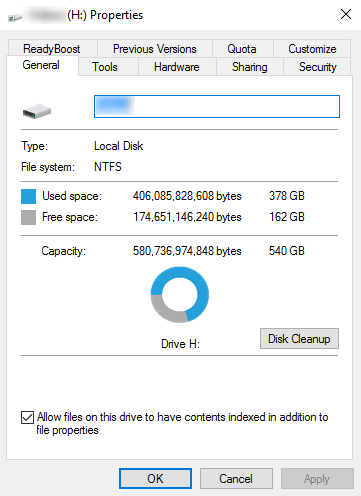
local disk propertiesIf your disk doesn’t have ample space to accommodate the installation then you should free up some of the space on your disk to make sure the Windows can be installed on it. You can also reinstall the Windows on another disk that has sufficient space.

Get Rid of the Third Party Driver

If the error 0x0000001e message gives you the name of the driver due to which the installation process is being halted, then get rid of that driver by disabling it or removing it. If the problem is resolved by this then you should contact the manufacturer of the third-party driver and ask them about any newer versions of the driver that wouldn’t conflict with the installation of Windows.

Upgrade System BIOS

Upgrading your system BIOS is something that you can’t do on your own. You will need to find out more about how you can upgrade. For this, you should contact either your PC’s manufacturer or your motherboard’s manufacturer. If nothing else works, you can always make use of the Microsoft Debugging Tools which will provide you ample information about the error message. You will find the Debugging Tools and further information about them including the downloading and installation process on Microsoft’s website.
Read More
1 2 3 171
Logo
Copyright © 2023, ErrorTools. All Rights Reserved
Trademark: Microsoft Windows logos are registered trademarks of Microsoft. Disclaimer: ErrorTools.com is not affiliated with Microsoft, nor claims direct affiliation.
The information on this page is provided for information purposes only.
DMCA.com Protection Status