This post will guide you on what to do if your keyboard shortcuts or hotkeys are not working on your Windows 10 computer. A lot of users use hotkeys as they make things easier for them as they use their computer. However, there are instances when these hotkeys suddenly stop working. It’s actually one of the most common problems with keyboards. And so to resolve this problem, you can try out some suggestions prepared on this post.
Option 1 – Clean the keyboard keys physically
Your keyboard might not be working properly due to some dirt or other corrosion. First, you need to shut down your computer and then unplug the keyboard if you are using a desktop computer and then prepare it for cleaning. After that, use a small cotton ear cleaning tool to get between the creases and clean them. You can dip it slightly in alcohol to make it more efficient in cleaning dust and dirt. And if you can, you have the option to pull apart the keyboard completely and then wipe away all the corrosion from the inside. Once you’re done, put the keyboard back together and then plug it back into your PC. Now turn your PC on and check if the hotkeys are now working.
Option 2 – Try running the Hardware and Devices Troubleshooter
The first thing you can do to fix the problem is by running the Hardware Troubleshooter. Although it won’t make much of a difference, there’s still a possibility that it could automatically fix the problem with these function keys. To use it, refer to these steps:
The first thing you need to do is click on Start and then on the gear-like icon to pull up the window for Settings.
After opening Settings, look for the Update and Security option and select it.
From there, go to the Troubleshoot option located on the left-hand side of the list.
Next, select Hardware and Devices from the list and open the Troubleshooter and run it. Once it is doing its job, wait for it to complete the process and then restart the system.
After the system restarts, check if the problem’s now fixed. If not, refer to the next option given below.
Option 3 – Try connecting the keyboard to a different USB port
The problem might have something to do with the USB port that’s currently in use by your keyboard. It could be that it’s not working so it makes sense to unplug it and attach it to another USB port. You can also clean the USB port on both ends to ensure that they are not affected by corrosion.
If you have been previously using another keyboard, it might be better if you make sure that the software for the old device has been removed since there are instances when multiple software can cause problems due to similarities in actions.
Option 5 – Update the keyboard driver
You can also update the keyboard driver to fix the problem. There are cases when an outdated or corrupted driver can fix the problem. To do so, follow the steps below.
Tap the Win + R keys to open the Run dialog box.
Then type “devmgmt.msc” in the field and hit Enter to open the Device Manager.
From there, look for the keyboard driver and click on it.
Next, right-click on the keyboard driver and select the Update driver option.
After that, click the “Search automatically for updated driver software” option to proceed.
Option 6 – Reinstall the keyboard driver
If updating the keyboard driver didn’t help, then you might want to reinstall it. How? Follow the steps below.
Tap the Win + R keys to launch Run.
Type in MSC into the box and tap Enter or click OK to open the Device Manager.
After that, a list of device drivers will be displayed. Look for keyboard driver, right-click on it and then select “Uninstall device”.
After that, unplug the device and restart your PC.
Then plug your device back in. Assuming your device is connected to your PC, open the Device Manager again.
Next, click on the Action button and click the Scan for hardware changes button. That should fix the problem.
Note: You could also completely uninstall the driver and go directly to the manufacturer’s website and download the latest driver for your hardware and then install it.
Option 7 – Enable Human Interface Device (HID) Service
Another thing to consider is the Human Interface Device Service. If this service is disabled, then no wonder why your hotkeys are not working. Thus, you need to enable this service. Refer to the following steps to do that:
Tap the Win + R key to launch the Run dialog box.
Then type “services.msc” in the field and hit Enter to open Services.
After opening Services, scroll down until you see the Human Interface Device service.
Double click on HID and make sure that its Startup Type is set to “Automatic” and then click OK.
Restart your PC and check if the hotkeys are now working or not.
Option 8 – Try resetting the keyboard
You might also want to try resetting the keyboard as it can also help in fixing the problem. Setting it back to its default state will surely help.
Being a streamer altho popular is a very demanding call, there is a lot of technical knowledge involved and one of this knowledge is setting your web camera equipment. On the internet, you can find how to install certain devices and register them in Windows but with little to no information on how to set everything for streaming. In this article, we will try to address as many of this as we can so you can start using your camera right away.
Features of the Logitech C922 Pro Stream Webcam
In the package of your Logitech C922 Pro Stream Webcam, you should have the camera itself with a USB hookup, tripod, and user manual. Tripod, of course, is meant to stabilize the camera for recording using high zoom values so visual shaking of the picture is eliminated.
The camera itself captures natural light without any distortion in full HD and if placed on top of the monitor it can accommodate the field of view to capture two people. Also when in a low-light room, autofocus will correct light and it will sharpen an image in order to compensate for lack of light. The camera also features a dual microphone for clarity of sound.
Assembling the Logitech C922 Webcam
Of course, the first thing when the camera is unpacked is to assemble it. Basically, there are two ways for the camera to be assembled:
On top of monitor and
On tripod
The next section will cover both assemblings
Mounting camera on the monitor:
The Logitech C922 Pro Stream Webcam can be used to capture up-close images or video from the top of any computer monitor or TV.
To set up your Logitech C922 Webcam on top of a monitor or TV:
Completely extend the mounting stand until it reaches the top width of your monitor or TV
Turn the bottom piece of the mounting stand, so it matches the angle of the back of your monitor or TV
Place the mounting stand on top of your monitor or TV and tighten the bars until they’re flush with each surface
Pivot the webcam up, down, or to the sides to center the camera angle
After you have securely mounted the C922 to your monitor or TV, it’s ready to be plugged in and used with any recording application on your computer.
Mounting camera on the tripod
You can set up your Logitech C922 Pro Stream Webcam to record a 78-degree view of a room for presentations or live streams by attaching it to the tripod.
To set up your Logitech C922 Webcam with a tripod:
Unfold and extend the legs of your tripod
Place the webcam on top of the tripod, aligning the swivel bolt with the webcam mounting hole
Swivel the bolt by turning a small knob on the tripod
Once you have assembled your Logitech C922 Pro Stream Webcam on your tripod, plug it into your computer and load up your favorite recording application.
How can you use your Logitech C922 Pro Stream Camera?
Altho this camera is designed and built to be used in a live stream environment it can also be used to record video offline to a file. In this next segment, we will explore further applications in which the camera is meant to be used.
Live video
The Logitech C922 Pro Stream Webcam allows content creators to share content in high definition with thousands of viewers in real-time. Stream full 1080p at 30 frames per second and 720p at 60 frames per second live on platforms such as Twitch or YouTube.
Stream video games or entertainment in real-time
Create live presentations for work, customers, or followers
Discuss matters of interest in live talk shows or podcasts
Video call family or friends on Skype, Facetime, or Google Hangouts
Capture crystal-clear, 78-degree video with the Logitech C922 autofocus lens. With two microphones attached on each end, you can stream any live video with little to no audio drops.
Offline recordings
The Logitech C922 Pro Stream Webcam can be used with desktop recording software to create professional videos or snapshots. After you’ve finished recording, you can edit specific spots in the video and add custom presentation details.
Product demonstrations and tutorials
Educational or promotional presentations
Video game or entertainment videos
Personal vlogs
Talk shows or podcasts
Desktop or laptop technical walkthroughs
Complete offline recording in high definition at 1080p. Use QuickTime Player (Mac) or Microsoft Camera App (Windows) to take photos or record videos offline.
Setting up Logitech C922 Pro Stream Camera using XSplit Broadcaster
XSplit Broadcaster offers live stream support for several platforms, which include Facebook Live, YouTube Live, and Twitch. After you hook up your webcam and create profiles for each platform, you can begin a live stream with XSplit Broadcaster.
Twitch Streaming
Enable Two-Factor Authentication on Twitch: Navigate to the settings of your profile and the Security and Privacy tab. Before you can start broadcasting with XSplit, you must set up Two-Factor Authentication.
Set Up Twitch Streaming Profile in XSplit: In XSplit Broadcaster, navigate to Broadcast > Set up a new output > Twitch. Select an account to authorize with XSplit and proceed.
XSplit automatically chooses a resolution to record based on target server connection quality.
A settings window opens before you complete the setup, which allows you to customize the server and video recording options. Once you have completed the setup, your Twitch profile is set up in XSplit. You can begin a stream by navigating back to Broadcast and clicking on the new Twitch profile.
YouTube Streaming
Enable YouTube Streaming Live: Click on your YouTube profile picture to open a dropdown and click on YouTube Studio Beta.
On the left side of the page, navigate to Other features and click on Live events in the dropdown.
Click on Enable live streaming to set up live streaming for your YouTube profile.
Set Up YouTube Streaming Profile in XSplit: In XSplit Broadcaster, navigate to Broadcast > Set up a new output > YouTube. Select an account to authorize with XSplit and proceed.
Once YouTube Live Properties window pops up, click Authorize to connect your Google account. You can also change any settings as needed before you begin a live stream. Once you’re ready to broadcast live with XSplit, navigate back to Broadcast and click your new YouTube Live profile.
Facebook Live Streaming
Set Up Facebook Live Streaming Profile in XSplit: In XSplit Broadcaster, navigate to Broadcast > Set up a new output > Facebook Live.
A prompt opens in XSplit to log in to your Facebook profile.
Log in and set up permissions and posting options as you’d like them to appear whenever you stream live on Facebook. After you’ve completed the permission process, your Facebook Live profile is ready to use in XSplit. You can navigate anytime back to Broadcast and select your new Facebook Live profile in XSplit to begin a live stream.
Using OBS with Logitech C922 Pro Stream Webcam
OBS live streaming application offers high-quality audio and video performance and video capturing in real-time. This application offers full control over every detail and it is a very good choice for both cases.
Setting up Logitech C922 with OBS
Add Logitech C922 as a Capture Device: Click the + under the Sources section. Once you are in the drop-menu, select Video Capture Device.
When this menu pops up, click Create New and hit OK.
From the Device bar, you can select your Logitech C922 as a default Video Capture Device. Set any configurations up how you want them and click OK before exiting.
Changing Resolution or Frames Per Second: With OBS open, click on Settings in the bottom-right portion of the screen and then on the Video tab on the next page. Here you can set up the screen resolution, downscale filter, and frames per second defaults for all videos recorded with OBS. Click Apply before exiting.
After you’ve finished applying the initial settings, you can begin recording or streaming in the bottom right-hand corner of the main menu.
What is PyLocky ransomware? And how does it execute its attack?
PyLocky ransomware is a file-locking malware created in order to lock important files and demand ransom from victims in exchange for data recovery. This new ransomware uses the .lockymap extension in marking the files it encrypts. It starts to execute its attack by dropping the following malicious payload in the system:
After dropping its malicious payload, this crypto-malware connects the infected computer to a remote server where it downloads more malicious files and places them on system folders. It then applies a data gathering module used to gather data about the user and the computer. The malicious files that were downloaded earlier along with the data obtained are used for another module called stealth protection. This allows PyLocky ransomware to execute its attack without detection from any security or antivirus programs installed in the system. It also modifies some registry keys and entries in the Windows Registry such as:
Once all the modifications are carried out, PyLocky ransomware will begin encrypting its targeted files using a sophisticated encryption cipher. Following the encryption, it adds the .lockymap extension to each one of the encrypted files and releases a ransom note named “LOCKY-README.txt” which contains the following content:
“Please be advised:All your files, pictures document and data has been encrypted with Military Grade Encryption RSA ABS-256.Your information is not lost. But Encrypted.In order for you to restore your files, you have to purchase a Decrypter.Follow these steps to restore your files.1* Download the Tor Browser. ( Just type in google “Download Tor“2‘ Browse to URL: http://4wcgqlckaazungm.onion/index.php3* Purchase the Decryptor to restore your files.It is very simple. If you don’t believe that we can restore your files, then you can restore 1 file of image format for free.Be aware the time is ticking. Price will be doubled every 96 hours so use it wisely.Your unique ID :CAUTION:Please do not try to modify or delete any encrypted file as it will be hard to restore it.SUPPORT:You can contact support to help decrypt your files for you.Click on support at http://4wcgqlckaazungm.onion/index.php”
How does PyLocky ransomware spread over the web?
PyLocky ransomware spreads using malicious spam email campaigns. Creators of this threat embed an infected attachment to spam emails and send them using a spambot. Crooks may even use deceptive tactics to trick you into opening the malware-laden immediately which is something you must not do. Thus, before opening any emails, make sure that you’ve thoroughly checked them.
To successfully obliterate PyLocky ransomware from your computer, refer to the removal guide laid out below.
Step 1: Launch the Task Manager by simply tapping Ctrl + Shift + Esc keys on your keyboard.
Step 2: Under the Task Manager, go to the Processes tab and look for the process named facture_4739149_08.26.2018.exe and any suspicious-looking process which takes up most of your CPU’s resources and is most likely related to PyLocky ransomware.
Step 3: After that, close the Task Manager.
Step 4: Tap Win + R, type in appwiz.cpl and click OK or tap Enter to open Control Panel’s list of installed programs.
Step 5: Under the list of installed programs, look for PyLocky ransomware or anything similar, and then uninstall it.
Step 6: Next, close the Control Panel and tap Win + E keys to launch File Explorer.
Step 7: Navigate to the following locations below and look for PyLocky ransomware’s malicious components such as facture_4739149_08.26.2018.exe and LOCKY-README.txt as well as other suspicious files, then delete all of them.
Step 11: Delete the registry keys and sub-keys created by PyLocky ransomware.
Step 12: Close the Registry Editor and empty the Recycle Bin.
Try to recover your encrypted files using the Shadow Volume copies
Restoring your encrypted files using Windows Previous Versions feature will only be effective if PyLocky ransomware hasn’t deleted the shadow copies of your files. But still, this is one of the best and free methods there is, so it’s definitely worth a shot.
To restore the encrypted file, right-click on it and select Properties, a new window will pop up, then proceed to Previous Versions. It will load the file’s previous version before it was modified. After it loads, select any of the previous versions displayed on the list like the one in the illustration below. And then click the Restore button.
In case you don’t know, Driver Verifier is a built-in utility in the Windows 10 operating system. It is the one that ensures the integrity of all the drivers in the system. It can detect any suspicious behaviors of the drivers and if it finds the driver signature of some suspicious activity during runtime, it stops the suspected action by triggering a BSOD or Blue Screen of Death error and one of these Stop errors is the DRIVER_VERIFIER_DMA_VIOLATION error. When you encounter such an error, you will see the following message on your screen:
“Your PC ran into a problem that it couldn’t handle, and now it needs to restart.If you’d like to know more, you can search online later for this error: DRIVER_VERIFIER_DMA_VIOLATION”
There are several ways you can fix this error. You can try to disable the Driver Verifier or run the Hardware troubleshooter. You could also try to update, roll back or uninstall the drivers on your computer. For more details, refer to each one of the options provided below.
Option 1 – Try to disable the Driver Verifier Manager
The Driver Verifier Manager is another tool in Windows that could help you fix driver-related issues.
Type in the keyword “Verifier” in the Cortana search box to search for Verifier in Windows 10.
After that, select the option “Create custom settings”.
Make sure that you have checked everything except the options “DDI compliance checking” and “Randomized low resources simulation”.
Next, select the option “Select driver names from a list” option.
Afterward, you have to select all the drivers from any unofficial or third-party provider. To simply put it, you have to select all the drivers that are not supplied by Microsoft.
Then click on the Finish button.
Open Command Prompt as administrator and execute this command – verifier /querysettings
The command you just executed will display the Driver Verifier settings so if you see any of the flags enabled boot your Windows 10 PC into Safe Mode.
Open the Command Prompt as admin again and run this command – verifier /reset
The command will reset the Driver Verifier. Once the process is done, restart your PC and check.
Option 2 – Try to reinstall or update device drivers of recently installed hardware
If the first few options didn’t work for you, then it’s time to either update or roll back the device drivers. It is most likely that after you updated your Windows computer that your driver also needs a refresh. On the other hand, if you have just updated your device drivers then you need to roll back the drivers to their previous versions. Whichever applies to you, refer to the steps below.
Open the Devices Manager from the Win X Menu.
Then locate the device drivers and right-click on them to open the Properties.
After that, switch to the Driver tab and click on the Uninstall Device button.
Follow the screen option to completely uninstall it.
Finally, restart your computer. It will just reinstall the device drivers automatically.
Note: You can install a dedicated driver on your computer in case you have it or you could also look for it directly from the website of the manufacturer.
Option 3 – Try running the Blue Screen Troubleshooter
The Blue Screen troubleshooter is a built-in tool in Windows 10 that helps users in fixing BSOD errors like DRIVER_VERIFIER_DMA_VIOLATION. It can be found in the Settings Troubleshooters page. To use it, refer to these steps:
Tap the Win + I keys to open the Settings panel.
Then go to Update & Security > Troubleshoot.
From there, look for the option called “Blue Screen” on your right-hand side and then click the “Run the troubleshooter” button to run the Blue Screen Troubleshooter and then follow the next on-screen options. Note that you might have to boot your PC into Safe Mode.
Note: You could also run the Hardware and Devices troubleshooter as it could also help in fixing the DRIVER_VERIFIER_DMA_VIOLATION error.
Option 4 – Try running Microsoft’s online Blue Screen Troubleshooter
If running the built-in Blue Screen Troubleshooter didn’t work, you can also try running Microsoft’s online Blue Screen Troubleshooter. All you have to do is go to Microsoft’s website and from there, you will see a simple wizard that will walk you through the troubleshooting process.
Code 18 is a typical Device Manager error code that occurs when the device driver is damaged. Device Manager is an important tool that allows Windows PC users to have an overall look at the connected hardware.
Furthermore, it also allows diagnostic testing. It is vital too and errors associated with the Device Manager such as error code 18 should and must be resolved quickly.
Error code 18 is usually presented in the following formats:
“The drivers for this device are not installed. (Code 18)”Or“Reinstall the drivers for this device.”
Solution
Error Causes
Error code 18 may be triggered due to several reasons such as:
Outdated drivers
Corrupted drivers
Improperly configured drivers
Error code 18 may cause a great deal of inconvenience. It may hamper your ability to use certain devices on your PC.
For example, if code 18 pops up due to a corrupted or improperly configured keyboard driver, then it may hamper your ability to use your keyboard and work on your PC.
Further Information and Manual Repair
The good news is that Device Manager error codes like error code 18 are easy to resolve. Below are some of the easiest and effective methods to repair error code 18 on your PC. Try one of these methods to repair error code 18 in no time:
Method 1 - Uninstall and Reinstall Device Drivers
One of the easiest ways to repair error code 18 and to ensure that this error doesn’t pop up on your PC again is to uninstall the problematic driver. For this, simply:
Now click on the device whose driver you want to uninstall.
Press right-click and then click on uninstall. Windows will prompt you to confirm the removal of the driver.
Click OK to confirm and then reboot your PC to activate changes.
Now scan for new hardware and follow the same process to reinstall the uninstalled device driver.
Method 2 - Update Drivers Automatically
Finding problematic drivers and then updating them individually can be frustrating and a time-consuming process. It can take a lot of time to perform updates and resolve the error code on your PC.
If you have projects to work on with pressing deadlines, then updating drivers on your PC separately can cause you a great deal of inconvenience and waste your precious time.
However, to avoid this situation, we advise you to set your drivers to update automatically. Automatic update installation requires only a few seconds.
And to update drivers automatically, it is recommended you download DriverFIX.
As the name suggests, this software is designed to assist programmers to upgrade device drivers automatically. In just a few clicks, you can update all your outdated drivers and repair error code 18.
DriverFIX is easy to use and an advanced program that is smoothly integrated with an intelligent programming system. This system identifies and detects all the problematic drivers on your PC and then updates each driver automatically to their latest versions.
It continues to update drivers regularly ensuring that you never come across device driver problems on your system.
Click here to download DriverFIX and repair error code 18 today!
Generated due to temporary device and Window system conflicts, Error code 14 is a typical Device Manager error. This error code can pop up anytime and usually displayed in the following format:
“This device cannot work properly until you restart your computer. (Code 14)”
Though it is not a fatal error code like the infamous Blue Screen of Death and runtime error codes, nonetheless it is still advisable to repair it immediately before any delay to avoid inconvenience.
It can lower your PC’s performance and hamper you from using certain hardware devices as a result of driver problems.
Solution
Error Causes
Error 14 is triggered when your system is unable to correctly read the files and settings which is important for running a certain piece of your PC hardware. Now this conflict may occur due to reasons like outdated, corrupted, or poorly installed drivers. Other causes may include corrupted registry entries.
Simply put, Error code 14 is a good reminder that PC users should pay attention to updating device drivers to ensure healthy systems and optimum PC performance.
Further Information and Manual Repair
The good news is that error code 14 is quite easy to resolve. You don’t have to spend hundreds of dollars to hire a professional programmer to get it fixed. To repair, simply follow the DIY methods listed below.
We have compiled some of the best, proven, and easy to perform solutions for PC users to resolve Device Manager error codes like error code 14. Follow the instructions here to resume the functionality of your PC.
Let’s get started:
Method 1 - Reboot Your System
Sometimes, an action as simple as rebooting your PC can also resolve technical problems like error code 14. So, before you try any other method, try giving this a shot.
The moment the error code pops on your screen, simply close all the programs running on your system and restart your PC. This refreshes your system settings, processes and services allowing it to run smoothly.
However, if the error still persists, then try other methods given below.
Method 2 - Delete the Corrupted Registry Entries
Corrupted registry entry can also trigger error code 14. To resolve delete the corrupted registry entries. For this, go to the start menu and type Regedit. A dialog box will open. Now navigate through the HKEY_LOCAL_MACHINE key. Expand further to locate HKEY_LOCAL_MACHINESYSTEMCurrentControlSetControlClass. Once located, now in the right pane click upper filters and then click delete on the edit menu. Click yes when prompted to confirm the deletion.
Now in the right pane, click lower filters. Repeat the same steps as performed to delete upper filters. Confirm deletion and then exit the registry editor. To activate changes, restart your PC. This will hopefully resolve the issue. If the error code pops up on your computer screen, then try method 3.
Method 3 - Update Corrupted/Outdated Drivers
Drivers are basically software applications that communicate and provide instructions to your system to operate hardware devices.
When these become corrupt or outdated, you start experiencing problems like error code 14. To resolve, locate corrupted drivers and update them. You can do it both manually and automatically. We’ll discuss both ways.
For a manual driver update, go to the start menu, control panel, and then Device Manager. Now go through all devices listed to locate problematic drivers. To identify problematic drivers, look for yellow exclamation marks next to each device. Devices with yellow exclamation marks indicate that driver issues. To repair, right-click on each hardware device and select update driver.
Method 4 - Install DriverFIX - Alternative to Manual Driver Update
Updating each driver separately and manually is a stressful and frustrating task. This can take a lot of your time. Sometimes, you may also have to download new driver versions from the internet to install perform updates. To avoid the hassle and save time, it is advisable to install a program like DriverFIX.
This user-friendly and intuitive software is based on sophisticated technology featuring an intelligent programming system that automatically detects all your PC drivers in seconds.
Once you install this software on your system, it instantly identifies problematic drivers and matches them to the latest versions. It updates PC drivers immediately thereby resolving the error code 14 problem in a few seconds. It enables accurate installations and ensures that your PC runs at its optimum level.
More importantly, with this software installed on your PC, you don’t have to worry about keeping track of your driver updates anymore. The software updates drivers on a regular basis with new and compatible versions ensuring that your PC functions properly and you don’t experience any type of Device Manager error code. It is easy to use and install. It is compatible with all Windows versions.
Click here to download DriverFIX to resolve error code 14 on your system right away.
As the name implies the AppCrash error is an error code that indicates a crashed program/application on your system.
This term is used by Windows to designate an application crash. It is reported and displayed on the system as “Problem Event Name: AppCrash,” which is followed by additional technical information which unless you are a computer programmer, you may not fully decode.
There are various symptoms that trigger the occurrence of this error code on your system such as:
Application becoming unresponsive and intermittent
Momentary application freezing
Application times out and then successfully recovers itself
Solution
Error Causes
The reason for AppCrash error occurrence cannot be narrowed down to a specific cause. This error code is triggered by multiple causes such as:
The system is stressed out. This happens when your CPU is held at 100% usage for an unacceptable length of time.
Lack of system resources
Windows version incompatibility with the application
Malware and viral infection
Poor PC maintenance
Registry damage and corruption
Data overload
No matter what the cause for the AppCrash error may be, if you experience this error on your system you must repair it right away before the damage sets in. This is a serious error posing severe consequences.
If not repaired on time, it not only hampers your ability to use your desired application but also exposes your PC to fatal crashes, data loss, and system failure.
Further Information and Manual Repair
Though this is a serious Windows error, the good news is that it is an easy-to-fix error code, so resolving it is not a problem.
There are three ways to fix the AppCrash error:
Hiring a technician, this by the way is quite costly. You may have to pay hundreds of dollars to get professional assistance to fix this error code.
Giving your computer adequate rest to cool down. Stressing out your PC heats the hardware which triggers such errors and eventually results in system failure. Try cooling it, and see if it fixes the error.
Downloading Restoro. This is by far the best, simple, quick, and money-saving way to resolve the AppCrash error on your system. Restoro is an innovative, performance-driven and multi-functional user-friendly PC Fixer that helps resolve practically all types of PC-related errors including the AppCrash error. It has an intuitive and powerful in-built registry cleaner which scans and detects all types of registry issues on your PC in seconds. It helps you clear up all the unnecessary files saved on your hard disk like junk files, internet history, invalid entries and files from the programs that you’ve uninstalled.
Such files not only occupy a lot of disk space but they also lead to registry damage and corruption thus shooting error code pop-ups like the AppCrash error.
Restoro features
Restoro performs an in-depth scan and removes all these files cluttering the system and repairs the damaged registry. It resolves the error AppCrash and simultaneously boosts the speed of your PC making it easy for you to access and run applications fast and smoothly without any application errors.
Sometimes malicious software programs like malware and viruses may also damage and corrupt the registry. If the underlying cause of the AppCrash error is a viral infection on your PC corrupting the registry, then don’t worry;
Restoro, with the help of its built-in anti-virus program, resolves it too. It scans for viruses on your system and removes them immediately.
Restoro is easy to use. Whether you are a novice or an experienced user, working around this PC Fixer is simple. It has a user-friendly interface that allows users to navigate through it without any hassle.
In addition to this, it offers enhanced compatibility. It smoothly runs on all Windows versions.
Get Restoro
To get started, all you need to do is Click here to download Restoro. Once it is installed on your system, run it to scan for registry issues like the AppCrash error.
This intuitive tool will detect all the errors on your PC in just a few seconds and display them on your Windows screen in the form of a comprehensive scan report. Now simply hit the repair tab to resolve.
Once repairing is successfully complete, try running your desired application.
You will notice two significant differences:
No AppCrash error code message pop-ups
The application runs fast and smoothly regardless of whether it’s Windows Media Player or any gaming application.
Anxiety from all these digital threats lurking everywhere? An antivirus program can help put your mind at ease.
What can a virus do to your device?
A virus is malicious software that can affect pretty much any device and does so in a variety of ways. Be it your computer, your phone or your smart lightbulb - as long as there’s access to the internet, malware can get to it.
How exactly does this kind of attack manifest itself? Well, there’s a wide variety of effects ranging from mild to severe. Among other things, they depend on which type of malware attacks your device - a virus, spyware, ransomware, adware or something else.
These are some of the things you can expect to happen:
Slow performance
System crashes
Theft of data and sensitive information
Connectivity issues
Constant browser redirects
Strange messages sent to your contacts
Interference with files
It really can be the stuff of nightmares. So, if you want to sleep peacefully knowing that your devices are completely safe, you should definitely consider getting an antivirus.
P.S. don’t let its name fool you - an antivirus does indeed protect your devices against more than just viruses.
What is antivirus software exactly?
Antivirus software is designed to help you battle and ward off malware. Basically, it scans your device to detect any suspicious activity and offers tools to get rid of the culprit.
At first, antiviruses were developed to fight against viruses only, but nowadays they cover a lot more ground. Here are some of the biggest benefits of getting yourself a powerful defender.
Advantages of antivirus software
1. It fights those pesky ads
Look, constant ads that pop up everywhere aren’t the absolute worst thing that can happen on your computer. If anything, they are annoying, like when you’re trying to sleep but that one fly in your room just won’t stop buzzing.
Now, there’s a free, well-established solution for that - installing an ad blocker. And we’re about a hundred and ten percent sure you’ve already done that on each and every browser you use.
However, “if I can’t see it, it doesn’t exist” isn’t the most ideal approach for your online safety. Ad blockers can’t block everything and they won’t protect you from potential adware. An antivirus on the other hand offers that layer of protection against malware snuck into pop-ups and spammy websites.
2. It protects you from hackers
Hackers don’t target government institutions only. They’ll target regular people too if they have something to gain.
Credit: Clint Patteron (Unsplash)
There are different types of hacking, such as phishing e-mails, transmission of malicious programs, credential reuse, denial of service and more. In any case, they take control of your device and hijack your data.
The good thing is that, as threats evolve, antiviruses evolve too and there are tons of quality programs on the market that can keep you secure for an affordable price.
3. It keeps your files and data safe
When malware enters your device, it can target pretty much any file and get access to any and all data.
Installing an antivirus program will make sure that every single file, new or old, is monitored at all times, warning you against threats immediately. That way, you can make sure to react before your other files become infected and data is lost or stolen.
Another great thing for data protection is that the best antivirus software normally comes with a password manager, so no one can use malware to steal your passwords.
4. It blocks all kinds of malware
As we already stated, malicious attacks can be performed in many ways and malware comes in in different shapes an sizes, such as:
Trojan horse
Spyware
Ransomware
Adware
Rootkit
RAT (remote access Trojan)
Keyloggers
Worms
Botnets
Credit: Growtika (Unsplash)
Nowadays, antivirus software is designed to fight against all of these types. That’s why more often than not we hear the term 'antivirus' used interchangeably with 'anti-malware,' like in this article.
5. It keeps your children protected
You can’t keep your eyes on your kid every second of the day and you can’t protect them from everything. But at least you can limit their exposure to the threats they can encounter at every corner of the digital world.
An antivirus program will block harmful or suspicious websites and ads, which is great both for you and your children. To take it a step further, though, many such programs come with special parental controls and offer monitoring as well. It’s a great solution for keeping your kids safe online without sounding like the irritating, overbearing, controlling parent who “just doesn’t get it!”
How to pick one
There are definitely lots of different antivirus programs out there, both free and paid. We recommend you look for a paid option, since free ones are unfortunately a lot more susceptible to being compromised through malicious attacks.
Now, there are a few factors to consider when choosing the right software. If you use your PC for basic things then a basic antivirus will suffice. However, the more complex your use and the more sensitive the data you deal with, the stronger it needs to be.
It’s also crucial that you take into account the features it includes. As we already mentioned, some programs have additional security options. For example, depending on the package you select, Bitdefender provides:
Some are included in plans and some are separate products, so make sure to check out all the offers.
And don’t worry if you have multiple PCs or you’re looking for protection for your smartphone or tablet as well; Bitdefender has suitable solutions for your needs. Of course, you can also just pick their classic antivirus software if you’re not in need of advanced protection.
Another important point is how regularly the software is updated and enhanced. The more frequent the updates the better, as bugs can make the program more vulnerable. Other things we advise you consider are user-friendliness, impact on performance, reputation (user reviews especially) and, of course, price.
The bottom line
Fact is: anyone can be a malware victim. Don’t let it be you.
You can’t put a price on peace and security, so don’t be reluctant to pay for yours - especially since a lot of options out there are extremely affordable. Is $159.00 a year really too much to pay for cross-platform protection for up to 10 devices? We don’t think so.
Explore your options and protect your files and data before it’s too late.
In previous versions of Windows changing the system, the font was a pretty straightforward process, but it seems Microsoft did not want this feature to keep for whatever reason and there is no option as of the time of the writing of this article to do it in standard options in Windows 10.
But do not worry, you are still able to customize your Windows and choose which font would you like to see inside it in all of its dialogs. You can choose whichever font you desire, the only prerequisite is it to be installed on your system.
This guide will require you to change values in the registry of Windows itself so please follow step-by-step instructions and always make a backup of the registry before changing it in order to prevent some permanent Windows issues.
All of that being said, let's start.
Setting new font
First thing is to open notepad, in the notepad paste the next block of code:
Windows Registry Editor Version 5.00[HKEY_LOCAL_MACHINE\SOFTWARE\Microsoft\Windows NT\CurrentVersion\Fonts]"Segoe UI (TrueType)"="""Segoe UI Bold (TrueType)"="""Segoe UI Bold Italic (TrueType)"="""Segoe UI Italic (TrueType)"="""Segoe UI Light (TrueType)"="""Segoe UI Semibold (TrueType)"="""Segoe UI Symbol (TrueType)"=""[HKEY_LOCAL_MACHINE\SOFTWARE\Microsoft\Windows NT\CurrentVersion\FontSubstitutes]"Segoe UI"="NEW_FONT"
Where in "Segoe UI"="NEW_FONT" instead of NEW_FONT you need to write the exact name of the font that you wish to use as a system font.
Once you have replaced the default system font with your desired one, go to File and save as, from file type drop-down menu, choose all files and save this file as .REG type giving it whatever name you wish.
When the file is saved, close notepad, right-click on the saved file and choose the merge option. Confirm with YES and click on OK. Reboot your system and your Windows will now use the font of your choice as its default system font.
Restoring default font
If you wish to return the old default system font as it was, follow the same steps but in your notepad paste this code:
New Windows brings new keyboard shortcuts, most of them are tied to new features and we are presenting you some new ones that are worth remembering.
⊞ WINDOWS + N - notification panel
⊞ WINDOWS + W - News and Interests feed
With the News and Interests feed, Windows 11 offers users the ability to check the latest news, the weather, and more without opening a browser window.
⊞ WINDOWS + Z - Snap Layout
Instead of the usual two windows snapping capability, Windows 11 allow users to snap their windows in a three-column layout. Users can access this by pressing Windows Key and Z to access the Snap layout.
⊞ WINDOWS + PRT SCN - taking screenshots
This one isn’t exactly new, but pressing the Windows Key and Print Screen will automatically capture the entire screen and save a copy of the image on your PC. Once the screen flashes, you will know that the screenshot has been taken, after which you can find the file saved under your Pictures folder in a subfolder called Screenshot.
⊞ WINDOWS + C - Microsoft Teams chat
Microsoft Teams app, the service allows anyone with a Microsoft account to quickly start a chat using the Windows + C shortcut.
If the Sleep option is missing from the Power Menu then this could be caused by the power settings, local group policy configuration, etc. in your computer. Based on the reports of users who experience the same problem, the issue occurred after they’ve updated or upgraded their Windows 10 computers.
As you know, the sleep mode is quite useful in certain cases and is utilized by most users. If you put your computer in sleep mode, it actually minimizes the power usage of your computer while at the same time keeps your current session running. So if sleep mode is suddenly missing, then that could be a problem but worry not for this post will give you possible fixes to resolve the issue. Make sure to follow each one of them carefully to achieve good results.
Option 1 – Check the Power settings
As mentioned, one of the reasons why the Sleep option is missing could be the power settings in your computer. To check this possibility, make sure that you’ve enabled the sleep mode in the Power options setting window. How? Refer to these steps:
First, go to the Start menu, and from there open Control Panel.
Next, set the View by Large icons and select the Power Options.
After that, click on the “Choose what the power buttons do” option on the left-hand side.
Then click on the “Change settings that are currently unavailable” option and make sure that Sleep is checked under the Shutdown settings.
Afterward, click on Save changes.
Option 2 – Modify the Local Group Policy
If the Power setting isn’t the cause of the problem, then you might want to check the Local Group Policy and modify it. There is a dedicated policy for showing the sleep option in the power menu and if this policy is disabled, then it’s no wonder why you don’t see the sleep option in the power menu. To change this policy, refer to the steps below.
Tap the Win + R keys to open the Run dialog box.
Then type “gpedit.msc” in the field and hit Enter to open the Group Policy Editor.
Next, navigate to this path: Computer Configuration -> Administrative Templates -> Windows Components -> File Explorer
Look for the “Show sleep in the power options menu” option from the right-hand side pane and double click on it.
Now change it to Enabled and click on the Apply and OK buttons to save the changes made and restart your computer.
Option 3 – Try to turn on Standby
Standby, also known as InstantGo, is a feature in Windows 8 and 10 that allows users to maintain network connectivity after a computer has been put into sleep mode. Thus, if this feature is disabled, it can cause the Sleep option to disappear from the power menu. To turn it on, follow these steps:
Tap the Win + R keys to open Run.
And type “Regedit” in the field and tap Enter to open the Registry Editor.
Next, navigate to this path: HKEY_LOCAL_MACHINESYSTEMCurrentControlSetControlPower
From this path, look for the “CsEnabled” key on the right-hand side of the pane and double-click on it.
Set its value to “1” and click OK to save the changes made.
Now reboot your PC.
Note: If you were not able to find the CsEnabled key, then this indicates that your computer does not support the Standby feature. And if that’s the case, proceed to the next given option below.
Option 4 – Try to install a Video Card driver
On the other hand, some users reported that the problem was caused by the video card driver. And if your computer lacks the video adapter driver, it can also cause the same problem. Windows 10 typically install the video card driver on its own, however, there are rare cases when it doesn’t which is why you have to do it yourself manually. All you have to do is go to your manufacturer’s website and look for the video card driver, download it and then install it. Once you’ve installed the video card driver, reboot your computer and check if it has fixed the problem.









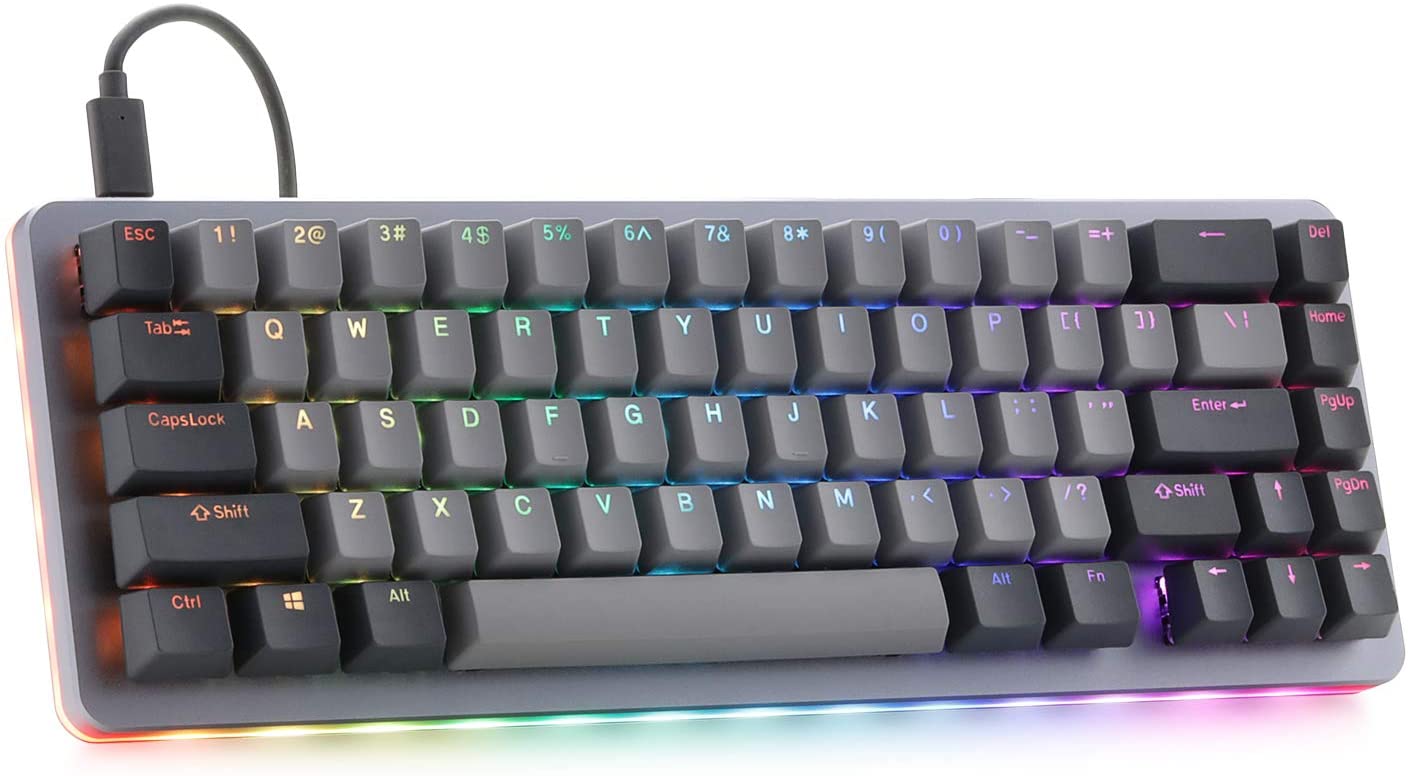 ⊞ WINDOWS + N - notification panel
⊞ WINDOWS + W - News and Interests feed
With the News and Interests feed, Windows 11 offers users the ability to check the latest news, the weather, and more without opening a browser window.
⊞ WINDOWS + Z - Snap Layout
Instead of the usual two windows snapping capability, Windows 11 allow users to snap their windows in a three-column layout. Users can access this by pressing Windows Key and Z to access the Snap layout.
⊞ WINDOWS + PRT SCN - taking screenshots
This one isn’t exactly new, but pressing the Windows Key and Print Screen will automatically capture the entire screen and save a copy of the image on your PC. Once the screen flashes, you will know that the screenshot has been taken, after which you can find the file saved under your Pictures folder in a subfolder called Screenshot.
⊞ WINDOWS + C - Microsoft Teams chat
Microsoft Teams app, the service allows anyone with a Microsoft account to quickly start a chat using the Windows + C shortcut.
⊞ WINDOWS + N - notification panel
⊞ WINDOWS + W - News and Interests feed
With the News and Interests feed, Windows 11 offers users the ability to check the latest news, the weather, and more without opening a browser window.
⊞ WINDOWS + Z - Snap Layout
Instead of the usual two windows snapping capability, Windows 11 allow users to snap their windows in a three-column layout. Users can access this by pressing Windows Key and Z to access the Snap layout.
⊞ WINDOWS + PRT SCN - taking screenshots
This one isn’t exactly new, but pressing the Windows Key and Print Screen will automatically capture the entire screen and save a copy of the image on your PC. Once the screen flashes, you will know that the screenshot has been taken, after which you can find the file saved under your Pictures folder in a subfolder called Screenshot.
⊞ WINDOWS + C - Microsoft Teams chat
Microsoft Teams app, the service allows anyone with a Microsoft account to quickly start a chat using the Windows + C shortcut. 