Logo

Truth about private and incognito browsing

Privacy is a hot topic lately in all circles so naturally themes like private or incognito browsing pop up immediately as discussion topics. Naturally, when discussing private or incognito browsing it is very important to understand what exactly private or incognito browsing is, what does it do and how it works in order to shed some light on is it really private and safe as we are told.

So, when you browse the internet normally websites have tendencies to save your browsing data, save cookies, remember passwords, etc in order to provide you with a better surfing experience next time you visit that same site. Private or incognito browsing treats you as a completely new user which is the first time visiting a given website. It clears all your data, including your browsing history, cookies, etc., on exiting. Every website you visit in private or incognito mode treats you as a new visitor, even if you have visited it before in incognito mode.

And basically, that's it. So is it really private? No, it is just a non-remembering mode of internet browsing where after your browsing session history and other data is cleared from the browser, but while you are on the internet you are pretty visible to all like any other normal user.

There are a lot of misconceptions and wrong thinking about browsing the internet in this mode so let's take a look at some typical ones.

  1. The government and other companies can not track me

    Many people think that the Government cannot trace their identity when they surf privately. This is only a myth. There are many ways by which the Government can reach you if you do something illegal. When you surf online, you are connected with an ISP of your area, which helps the officials track your location.

  2. Virus and other malware can not infect me while in private or incognito mode

    Many people think that private mode protects them from virus and malware attacks. It is not true because malware and viruses can enter your PC through a software download, phishing email, etc. To protect your PC from virus and malware attacks, you should have good security software.

  3. My IP address is hidden when I am in incognito or private browsing mode

    This is not 100% true. If you search “What is my IP” in incognito and standard mode, you will get the same results. This means that websites can view your IP address in private mode also. Using a VPN would be a good option if you want to hide your IP.

  4. I can not be tracked via ads

    Since cookies are deleted after exiting private browsing, many people think that ads cannot track them. When you surf in incognito mode, the browser saves cookies in a temporary mode, allowing ads to track you during your entire private browsing session.

  5. I am not visible when I am in incognito or private

    You may think if you sign in to your Gmail or other social media accounts in private mode, no one will see you online. This is not true. It does not matter whether you have signed into your account in normal mode or incognito mode; others can always spot you online.

In your regular browsing mode, you may have some addons, extensions, themes, etc installed and you can use them. They may track your activities. The data is deleted when you exit the browser.

When you use the private browsing mode, the browser is loaded in its original form, typically without the installed addons, extension, themes, etc. The data gets deleted when you exit the browser. This mode doesn’t save data to disk but keeps it in memory during the current session.

If you are really concerned about your privacy we have articles about using DuckDuckGo and deep web where you can be sure that your browsing sessions are encrypted.

Do You Need Help with Your Device?

Our Team of Experts May Help
Troubleshoot.Tech Experts are There for You!
Replace damaged files
Restore performance
Free disk space
Remove Malware
Protects WEB browser
Remove Viruses
Stop PC freezing
GET HELP
Troubleshoot.Tech experts work with all versions of Microsoft Windows including Windows 11, with Android, Mac, and more.

Share this article:

You might also like

How to Fix Internal Error 2771

Internal Error 2771 - What is it?

Internal Error 2771 is an internal error code associated with Kaspersky Internet Security and Antivirus software. This error pops up when Kaspersky Internet Security software fails to install on your PC successfully. Installation of the software is interrupted and therefore it ends prematurely. This happens mostly when you try to install a new build on an existing installation. Internal Error 2771 is displayed in one of the following formats:
Internal Error 2771, Sandbox Feature or Internal Error 2771, WholeProduct Feature

Solution

Restoro box imageError Causes

This error may result on your computer screen due to several reasons. Some of the most common underlying causes include:
  • A leftover Registry Key
  • Bad entries from previous Security Package
  • INFCACHE.1 file corrupted
  • Conflicts with other security software installed on your system

Further Information and Manual Repair

To successfully overcome this problem and ensure the successful installation of Kaspersky Internet Security software on your system, try the methods given below.

Method 1- Remove the Leftover Registry Key

Sometimes Internal error code 2771 may appear during installation due to the leftover registry key from the previous Kaspersky software removal. A registry key is often created when uninstalling the previous Kaspersky version from the PC. This key is left behind even after you reboot your system. This key is called AVP**_post_ uninstall, you need to delete it to ensure the new version of the Kaspersky program is installed successfully on your PC.  For this, simply go to the start menu and type Regedit in the search bar. Now navigate to HKEY_LOCAL_MACHINESOFTWAREMicrosoftWindowsCurrentVersionRun and then look here for the registry key called AVP**_post_ uninstall. In order to delete this file, right-click it and then select delete. Once uninstalled, reboot your PC and then try installing the Kaspersky Internet Security program again. Hopefully, this will resolve the issue. If the software installs smoothly, then the error is fixed, in case it still persists, then try other methods illustrated below.

Method 2 - Remove the INFCAHCE.1  Corrupt File

Another reason for the error pop-up may be INFCAHCHE.1 corruption. This file is basically used to store driver information and inf file locations. However, if it contains corrupted information, then you must remove it. To do this, go to the start menu and type cmd into the search bar. This will open a command prompt. Here type del C:\Windows\infinfcache.1. Now reboot your PC and try installing Kaspersky software on again.

Method 3 - Fix Software Conflict

Security software conflict can also result in internal error 2771 code display. And when this happens, the installation of Kaspersky prematurely ends. Security software conflict may occur if you have Comodo Firewall installed on your PC. A firewall is known to cause issues with Kaspersky software programs. The best way to resolve this issue is to uninstall all security software programs on your PC. Once all security software is removed, then install Kaspersky on your system. If the installation is successfully completed, then reinstall the other software again.

Method 4 - Download Restoro

Error 2771 can also result on your computer screen if traces of the previously installed Kaspersky software still remain in the registry despite the program removal. In such an event it is advisable to download Restoro. This is a cutting-edge and user-friendly PC Repair Tool deployed with an intuitive interface and a powerful registry cleaner. The registry cleaner scans your entire PC in seconds and detects all registry-related problems. It removes all the bad entries, invalid registry keys, traces of previously uninstalled programs, junk files, and cookies that are known for registry corruption. It takes just a few clicks to perform this process. Once all traces are removed, you can install the new version of the Kaspersky Internet Security program on your PC without interruption. Click here to download Restoro and be on your way to resolve Internal Error 2771 on your computer!
Read More
Enumerating user sessions to generate ...
There are times when the Windows Search doesn’t work and you wouldn’t have a clue as to why it happened since it does not give any error codes. In such cases, you have to check the error logs in the Event Viewer to find out more about the problem. From there, look for an error with the Event ID 3104 in the Windows error logs and if you see an error message that says, “Enumerating user sessions to generate filter pools failed”, read on as this post will guide you in fixing the problem. Apart from the error message, you might also see more information in the details section of the log that says, “(HRESULT: 0x80040210) (0x80040210)”. This kind of error is most likely caused by something that prohibits the search function from initializing. A lot of users assumed that it could be due to Cortana but it’s actually not. While some users also reported that they encounter the issue after they restarted their computers. This error was also reported with the same event ID 3104 on the Windows Server. According to security researchers, this error could be caused by problems in the Registry entry of Windows search. It could also be due to an issue with the SYSTEM account where it hasn’t been added to the DCOM Security. It is also possible that the Windows Search function has not been initialized. To fix this error, you can try to rebuild the Search Index manually or run the Search and Indexing troubleshooter. You can also check the startup type of the Windows Search service or try some registry tweak.

Option 1 – Try to rebuild the Search Index manually

The first thing you can do to fix the problem is to manually rebuild the Search Index. You can do that by going to Control Panel > Indexing Options and from there, click on Advanced. After that, go to the Index Settings tab and then click on Rebuild > OK. Once you’re done, check if it fixed the problem.

Option 2 – Try running the Search and Indexing troubleshooter

You could also run the Search and Indexing troubleshooter in Windows 10 as it checks whether the settings are in place and automatically corrects any issues with the Windows 10 search function. To run this troubleshooter, just click on the Start button and select Settings > Updates and Security > Troubleshoot. From there, select the Search and Indexing Troubleshooter. Once the troubleshooter is done, restart your computer and see if it fixed the error.

Option 3 – Try checking the startup type of the Windows Search Service

In this option, you have to check the startup type of the Windows Search service since the service won’t start. To do so, refer to these steps:
  • Tap the Win + R keys to open the Run utility and type “services.msc” in the field and then tap Enter to open the Services Manager.
  • Next, from the list of services, look for the Windows Search Service or WSearch. Once you find it, right-click on it and select Properties.
  • After that, change the Startup type to Automatic and click on the Start button if the service is in the Stop state.
  • Now click on the Apply and OK buttons to save the changes made and then restart your computer.

Option 4 – Try changing the Registry entry for Windows Search

Before you apply some registry tweak, you need to create a System Restore point first. Once you have that covered, follow these steps:
  • Tap the Win + R keys to open the Run utility and type “Regedit” in the field and tap Enter to open the Registry Editor.
  • If a User Account Control prompt appears, just click Yes to proceed.
  • After opening the Registry Editor, navigate to this registry path: HKEY_LOCAL_MACHINESOFTWAREMicrosoftWindows Search
  • From there, click on Windows Search and look for the key named “SetupCompletedSuccessfully” and change its value to “0”. Just right-click on it and select Modify.
  • Then input “0” as its value data and click on OK to save the changes made.
  • Exit the Registry Editor and restart your computer.
  • Now check if the Enumerating user sessions to generate filter pools failed is fixed or not.
Read More
How to Fix Windows 10 Error 0x800488AB

Code 0x800488AB – What is it?

The Error Code 0x800488AB will appear when a user is in the Windows 10 Mail app and has provided an Outlook.com e-mail address. The mail app will give a message that the “account information is out of date” and it does provide an option to fix the issue. After clicking the Fix button, this error code will show up to the user. Common symptoms include:
  • A dialog box will appear with the Error Code 0x800488AB
  • Microsoft Windows 10 Mail App will not retrieve (or subsequently send) mail
  • User cannot delete and re-add the Outlook email account in the Windows 10 Mail app
  • User can still access and log in to various Microsoft websites, including logging into the Outlook Mail website

Solution

Restoro box imageError Causes

This error can be caused by a few different actions of the user when they have changed a password or a PIN number to access their Outlook mail. This error does have a relatively easy fix after the cause is determined and where the break-in information has occurred. A few of the causes may be:
  • If the user changes their password on the Microsoft website and uses the alternative PIN login method to access the Mail App.
  • The log-in information on the Microsoft website does not match the login information on the Windows 10 App.
  • The login information was changed on the Microsoft website and was not updated to reflect on the Windows 10 Mail app.
The Microsoft website and Microsoft Mail app do not share the knowledge of the change in login credentials, therefore the log-in credentials appear to be incorrect when trying to access the Microsoft Mail app. It should be noted that a user may bypass the password option if they log in to the Microsoft Mail app while using the alternative PIN log-in method, thus still leaving the password undetected.

Further Information and Manual Repair

As is the case with all new technology and having a few wrinkles, the release of Microsoft Windows 10 is not left out. There have been a few discussions of errors and bugs, including Error Code 0x800488AB. As of right now, there are three different methods that can be utilized by any at-home user. These methods are rather simple and make sense when the problem has been identified.

Method 1:

Run the built-in Windows Store Apps troubleshooter:
  1. Press the Windows Key and then type ‘troubleshoot’ and hit Enter
  2. Select “View all” on the left panel and run the “Windows Store Apps” troubleshooter from the list displayed and see if it works.

Method 2:

Use the System File Checker tool to repair corrupted or missing system files:
  1. Click Start.
  2. Type cmd, and then press CTRL+SHIFT+ENTER to open the elevated command prompt (I.e. Command prompt with administrative rights).
  3. The User Account Control window should appear, be sure that the action it exhibits is correct, and then press the Continue button.
  4. Type or copy-paste the below command line into it without quotes:
“Sfc /scannow”

Method 3:

  1. Press the Windows Key
  2. Search for "Credentials Manager"
  3. Click on Windows Credentials
  4. Look for any reference to your windows account (generally your @outlook.com is listed)
  5. Delete them.
  6. Then select your account at the top of the start menu and select Log Out.
  7. If using a Pin Code, switch to type input and put your password into the box.
When you go to Mail, and select "Fix Issues" it will detect your password and your account should sync with new emails. In some cases, depending on why this particular error code was caused, you may have to use a powerful automated tool to have it resolved.
Read More
Completely Remove MySearchDial Tutorial

MySearchDial is a browser hijacker that typically comes bundled with free software on the internet. This web platform designed for searching the internet and offers the installation of its software. This software injects itself into browsers and gains access to your settings, browsing data & user information. This data is distributed to the ad providers without limitation. While covered by their EULA, most users will be unaware of what they agree to with checkboxes selected by default. The software also adds a huge amount of registry keys and links throughout the operating system. Since the software injects itself into many personal files, removing the software results in a total reset of your browser settings. For these reasons MySearchDial is classified as potentially unwanted and is flagged for removal by a number of internet security utilities.

About Browser Hijackers

Browser hijacking is a common type of online fraud where your internet browser configuration settings are altered to allow it to carry out things you do not intend. Practically the majority of browser hijackers are created for marketing or advertising purposes. Usually, hijackers are designed for the benefit of online hackers usually through income generation that comes from forced ad clicks and website visits. Even though it may seem naive, these tools are designed by vicious individuals who always look to take full advantage of you, so that hackers can make money from your naive and distraction. Some browser hijackers are designed to make certain modifications beyond the browsers, like altering entries on the computer registry and letting other types of malware further damage your computer.

How you can know if your internet browser is hijacked

There are several symptoms that point to browser hijacking: 1. your browser’s home page has been reset to some unfamiliar website 2. your web browser is constantly being redirected to pornography websites 3. default online search engine is changed 4. discover new toolbars that you simply didn’t add 5. you observe lots of pop-ups on your computer screen 6. your internet browser has become unstable or starts running slowly 7. you’re blocked to access the websites of security solution providers.

So how exactly does a browser hijacker infect a PC

Browser hijackers can enter a computer in some way or other, including via file sharing, downloads, and e-mail also. They could also come from add-on applications, also called browser helper objects (BHO), web browser extensions, or toolbars. Other times you may have inadvertently accepted a browser hijacker as part of an application package (generally freeware or shareware). Examples of popular browser hijackers are Fireball, Ask Toolbar, GoSave, CoolWebSearch, Babylon Toolbar, and RocketTab. The existence of any browser hijacker malware on your system might significantly diminish the web browsing experience, track your internet activities that lead to severe privacy concerns, degrade overall system efficiency, and lead to software instability as well.

Getting rid of browser hijackers

Some hijackers could be removed by deleting the free software they were included with or by removing any add-ons you have recently added to your computer system. But, most hijackers are hard to remove manually. Regardless of how much you attempt to get rid of it, it can return over and over again. On top of that, manual removal needs you to execute many time-consuming and complicated actions which are very difficult to carry out for rookie computer users.

Can't Install Safebytes Anti-malware because of a Virus? Do This!

All malware is bad and the effects of the damage could differ based on the specific type of malicious software. Certain malware types alter web browser settings by adding a proxy server or change the PC’s DNS configurations. When this happens, you’ll be unable to visit certain or all sites, and therefore not able to download or install the required security software to remove the malware. If you’re reading this now, you may have probably recognized that virus infection is the reason for your blocked web traffic. So what do if you need to download and install an antivirus application like Safebytes? Although this kind of problem can be difficult to circumvent, there are a few actions you can take.

Install the anti-virus in Safe Mode

If the malware is set to run at Windows startup, then booting in Safe Mode should prevent it. Only minimal required programs and services are loaded when you start your computer or laptop in Safe Mode. To launch your Windows XP, Vista, or 7 PCs in Safe Mode with Networking, do as instructed below. 1) Press the F8 key repeatedly as soon as your computer boots, but before the big Windows logo or black screen with white texts shows up. This will bring up the Advanced Boot Options menu. 2) Use the arrow keys to choose Safe Mode with Networking and press ENTER. 3) Once you get into this mode, you should have access to the internet once again. Now, get the virus removal application you need by using the internet browser. To install the application, follow the guidelines in the installation wizard. 4) As soon as the application is installed, let the scan run to remove viruses and other malware automatically.

Utilize an alternate web browser to download an anti-malware program

Malicious program code might exploit vulnerabilities on a specific internet browser and block access to all anti-virus software websites. If you appear to have a virus attached to Internet Explorer, then switch over to an alternate browser with built-in security features, such as Chrome or Firefox, to download your favorite anti-malware program – Safebytes.

Run antivirus from a pen drive

Another approach is to download and transfer antivirus software from a clean computer to run a virus scan on the affected system. Abide by these steps to run the anti-virus on the affected computer system. 1) Make use of another virus-free computer to download Safebytes Anti-Malware. 2) Plug the Flash drive into the clean computer. 3) Run the setup program by double-clicking the executable file of the downloaded software, with a .exe file extension. 4) When asked, select the location of the USB drive as the place where you would like to store the software files. Follow the on-screen instructions to finish the installation. 5) Transfer the USB drive from the clean computer to the infected computer. 6) Double click the Safebytes Anti-malware icon on the thumb drive to run the application. 7) Click on the “Scan Now” button to start the virus scan.

SafeBytes Anti-Malware Features

In order to protect your computer or laptop from many different internet-based threats, it is very important to install an anti-malware application on your PC. However, with countless numbers anti-malware companies in the market, nowadays it is actually difficult to decide which one you should purchase for your PC. Some of them do a good job in getting rid of threats while some will damage your PC themselves. You have to choose a product that has got a good reputation and detects not just computer viruses but other sorts of malware too. When considering commercial antimalware software options, most people choose well-known brands, such as SafeBytes, and are very happy with it. SafeBytes antimalware is a highly effective and easy-to-use protection tool that is ideal for end-users of all levels of IT literacy. Using its outstanding protection system, this tool will instantly detect and remove most of the security threats, including viruses, adware, browser hijackers, PUPs, trojans, worms, and ransomware. SafeBytes carries a plethora of amazing features which can help you protect your laptop or computer from malware attack and damage. The following are some popular features found in this software program: Real-time Active Protection: SafeBytes gives complete and real-time security for your personal machine. They’re highly effective in screening and getting rid of various threats because they’re constantly revised with the latest updates and safety measures. Most Reliable AntiMalware Protection: Safebytes is made on the very best virus engine in the industry. These engines will identify and remove threats even during the early stages of a malware outbreak. Internet Security: SafeBytes gives an instant safety rating on the pages you’re going to visit, automatically blocking risky sites and making sure that you’re certain of your safety while browsing the net. Lightweight: SafeBytes provides total protection from internet threats at a fraction of the CPU load because of its advanced detection engine and algorithms. 24/7 Online Tech Support: Support service is readily available for 24 x 7 x 365 days through email and chats to answer your queries.

Technical Details and Manual Removal (Advanced Users)

If you wish to manually remove MySearchDial without the use of an automated tool, it may be possible to do so by removing the program from the Windows Add/Remove Programs menu, or in cases of browser extensions, going to the browsers AddOn/Extension manager and removing it. You will likely also want to reset your browser. To ensure the complete removal, manually check your hard drive and registry for all of the following and remove or reset the values accordingly. Please note that this is for advanced users only and may be difficult, with incorrect file removal causing additional PC errors. In addition, some malware is capable of replicating or preventing deletion. Doing this in Safe Mode is advised.

The following files, folders, and registry entries are created or modified by MySearchDial

Files: %PROGRAMFILES%Mysearchdialbhmysearchdial.dll. %PROGRAMFILES%MysearchdialescortShld.dll. %PROGRAMFILES%MysearchdialmysearchdialApp.dll. %PROGRAMFILES%MysearchdialmysearchdialEng.dll. %PROGRAMFILES%Mysearchdialmysearchdialsrv.exe. %PROGRAMFILES%MysearchdialmysearchdialTlbr.dll. %PROGRAMFILES%MysearchdialSqlite3.dll. %APPDATA%MozillaFirefoxProfilesENV(mysearchdial_path)[email protected]. %APPDATA%mysearchdialmysearchdial. %APPDATA%mysearchdial. %PROGRAMFILES%Mysearchdialbh. %PROGRAMFILES%Mysearchdial. Registry: Key HKEY_CLASSES_ROOT named esrv.mysearchdialESrvc.1 Key HKEY_CLASSES_ROOT named esrv.mysearchdialESrvc Key HKEY_CLASSES_ROOT named mysearchdial.mysearchdialappCore.1 Key HKEY_CLASSES_ROOT named mysearchdial.mysearchdialappCore Key HKEY_CLASSES_ROOT named mysearchdial.mysearchdialdskBnd.1 Key HKEY_CLASSES_ROOT named mysearchdial.mysearchdialdskBnd Key HKEY_CLASSES_ROOT named mysearchdial.mysearchdialHlpr.1 Key HKEY_CLASSES_ROOT named mysearchdial.mysearchdialHlpr Key 0400EBCA-042C-4000-AA89-9713FBEDB671 at HKEY_CLASSES_ROOTInterface. Key 0BD19251-4B4B-4B94-AB16-617106245BB7 at HKEY_CLASSES_ROOTInterface. Key 219046AE-358F-4CF1-B1FD-2B4DE83642A8 at HKEY_LOCAL_MACHINESOFTWAREMicrosoftInternet ExplorerLow RightsElevationPolicy. Key 3004627E-F8E9-4E8B-909D-316753CBA923 at HKEY_CLASSES_ROOTCLSID. Key 3281114F-BCAB-45E3-80D9-A6CD64D4E636 at HKEY_CLASSES_ROOTInterface. Key 44533FCB-F9FB-436A-8B6B-CF637B2D465A at HKEY_CLASSES_ROOTInterface. Key 44B29DDD-CF7A-454A-A275-A322A398D93F at HKEY_CLASSES_ROOTInterface. Key 4ED063C9-4A0B-4B44-A9DC-23AFF424A0D3 at HKEY_CLASSES_ROOTCLSID. Key 82E74373-58AB-47EB-B0F0-A1D82BB8EB5C at HKEY_CLASSES_ROOTCLSID. Key A4DE94DB-DF03-45A3-8A5D-D1B7464B242D at HKEY_CLASSES_ROOTInterface. Key AA0F50A8-2618-4AE4-A779-9F7378555A8F at HKEY_CLASSES_ROOTInterface. Key B2DB115C-8278-4947-9A07-57B53D1C4215 at HKEY_CLASSES_ROOTInterface. Key B97FC455-DB33-431D-84DB-6F1514110BD5 at HKEY_CLASSES_ROOTInterface. Key C67281E0-78F5-4E49-9FAE-4B1B2ADAF17B at HKEY_CLASSES_ROOTInterface. Key D40753C7-8A59-4C1F-BE88-C300F4624D5B at HKEY_CLASSES_ROOTCLSID. Key E72E9312-0367-4216-BFC7-21485FA8390B at HKEY_CLASSES_ROOTInterface. Key EF5625A3-37AB-4BDB-9875-2A3D91CD0DFD at HKEY_CLASSES_ROOTCLSID. Key EF5625A3-37AB-4BDB-9875-2A3D91CD0DFD at HKEY_LOCAL_MACHINESOFTWAREMicrosoftWindowsCurrentVersionExplorerBrowser Helper Objects. Key F6CCB6C9-127E-44AE-8552-B94356F39FFE at HKEY_CLASSES_ROOTInterface. Key FBC322D5-407E-4854-8C0B-555B951FD8E3 at HKEY_CLASSES_ROOTTypeLib. Key FFD25630-2734-4AE9-88E6-21BF6525F3FE at HKEY_CLASSES_ROOTInterface. Key mysearchdial at HKEY_CURRENT_USERSoftware. Key mysearchdial at HKEY_CURRENT_USERSoftwareInstallCore. Key mysearchdial at HKEY_LOCAL_MACHINESOFTWARE. Key mysearchdial at HKEY_LOCAL_MACHINESOFTWAREInstallCore. Value 3004627E-F8E9-4E8B-909D-316753CBA923 at HKEY_LOCAL_MACHINESOFTWAREMicrosoftInternet ExplorerToolbar.
Read More
Install Windows 11 on any computer officially
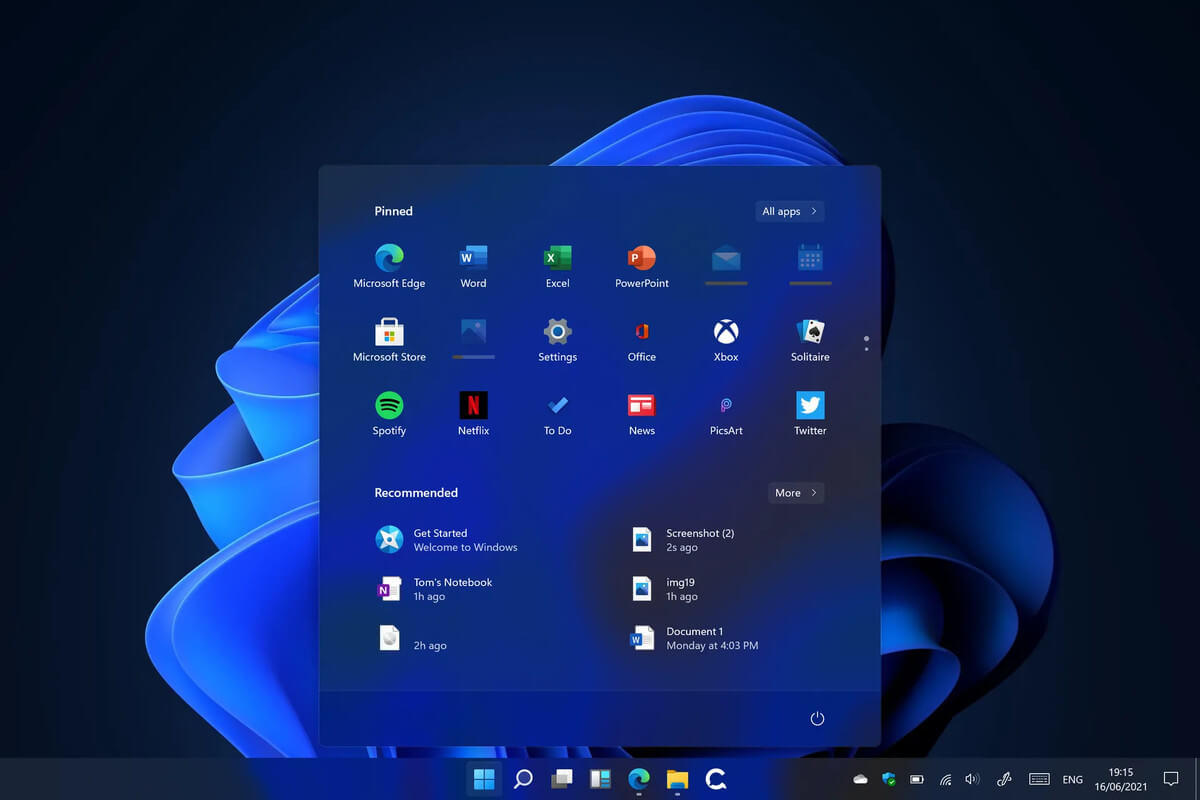
Windows 11 system requirementsMicrosoft’s initial Windows 11 hardware requirements were not really well received by users and they were not really clearly represented from the start making a lot of potential customers slowly drift away from the hype. It seems that Microsoft has acknowledged this since they have changed their tune about system hardware requirements for the upcoming Windows 11. It seems that Windows 11 will be able to be officially installed on unsupported computers but with a little inconvenience.

What is a catch?

Windows 11 will still have the same hardware requirements and if the PC meets them, that computer will be officially supported, other ones (any that can run Windows 10) that do not meet system requirements can still run Windows 11 but the system will have to be clean installed. So no upgrade option for old computer users, just a clean install. This means of course that you will need to download the ISO image and make a bootable USB in order to install it. Also since you will be doing a clean install do a backup of the hard drive since it will need to be formatted. Also, Microsoft has stated that with unofficially supported PC some driver updates might not be delivered leaving you with either older driver versions or relying on your hardware manufacturer on them. This is still not confirmed by Microsoft, just stated as an option. We will see how it goes.

Conclusion

It is very good that Microsoft has reconsidered its system requirements and will not stubbornly push its initiatives over the top requirements allowing even older computers to install new OS. I am sure over time lot of users will upgrade their hardware and drive into officially supported waters, but it is good that they will be able to use new OS on their current hardware.
Read More
NVIDIA Control Panel keeps crashing
The NVIDIA Control Panel is a useful tool for users who have NVIDIA graphics on their PCs as this tool allows users to how the graphics card is used on the computer using several controls that come with the graphics card from NVIDIA. Thus, it can be quite inconvenient when it suddenly crashes all of a sudden for some reason. This kind of problem could be due to the toggling of Output Dynamic Range is limited, or there could be some issue with the integrity of the Power Supply for the graphics card, and many more. So if you are using NVIDIA on your computer and its Control Panel keeps on crashing on your Windows 10 computer, then you’ve come to the right place as this post will guide you in sorting the problem out. For more details, refer to the guidelines laid out below.

Option 1 – Try to toggle the Output Dynamic Range

The first thing you can do to fix the problem is to toggle the Output Dynamic Range by following these steps:
  • Navigate to this path: Display > Change resolution.
  • Next, scroll a bit on the right-side panel until you see the Output Dynamic Range drop-down.
  • After that, select “Full” from the drop-down menu.
  • Apply the changes you’ve made and see if it is able to fix the problem with the NVIDIA Control Panel.

Option 2 – Try changing the Power Management and Vertical Sync settings

The next thing you can do to fix the problem is to change the Power Management, as well as the Vertical Sync settings.
  • Open the NVIDIA Control Panel and go to this path: 3D Settings > Manage 3D Settings.
  • Next, set the Power Management to be “Prefer Maximum Performance” for your processor located on the right-side panel.
  • After that, set the Vertical sync setting off and then click on the Apply button located at the bottom-right portion of the window and check if it is able to fix the problem or not.

Option 3 – Try updating the drivers from the official site of NVIDIA

If both the first and second given options didn’t work, you can also try updating the drivers from the official NVIDIA website. And in case you don’t know the type of Nvidia graphics card that your computer is on, follow the steps below:
  • Tap the Win + R keys to open the Run dialog box.
  • Next type in “dxdiag” in the field and click OK or hit Enter to open the DirectX Diagnostic Tool.
  • From there, you can see what type of Nvidia graphics card that your system is on.
  • Take note of your graphics card information and then look for the best drivers for your operating system. Once you’ve downloaded and installed the file, restart your PC.

Option 4 – Try to roll back the driver to the previous version

If updating the NVIDIA display drivers didn’t work for you, then it’s time to roll back the device drivers. It is most likely that after you updated your Windows computer that your driver also needs a refresh.
  • Tap the Win + R keys to launch the Run window and then type in the “MSC” command and hit Enter to open the Device Manager window.
  • Under the Device Manager, you will see a list of drivers. From there, look for the NVIDIA Drivers and expand it.
  • Next, select the driver entries that are labeled appropriately.
  • Then select each one of them and double click to open a new mini window.
  • After that, make sure that you’re on the Driver tab and if you are not, just navigate to it then click the Roll Back Driver button to switch back to the previous version of the NVIDIA Drivers.
  • Now restart your computer to successfully apply the changes made.
Read More
Why you should upgrade your 60Hz Screen

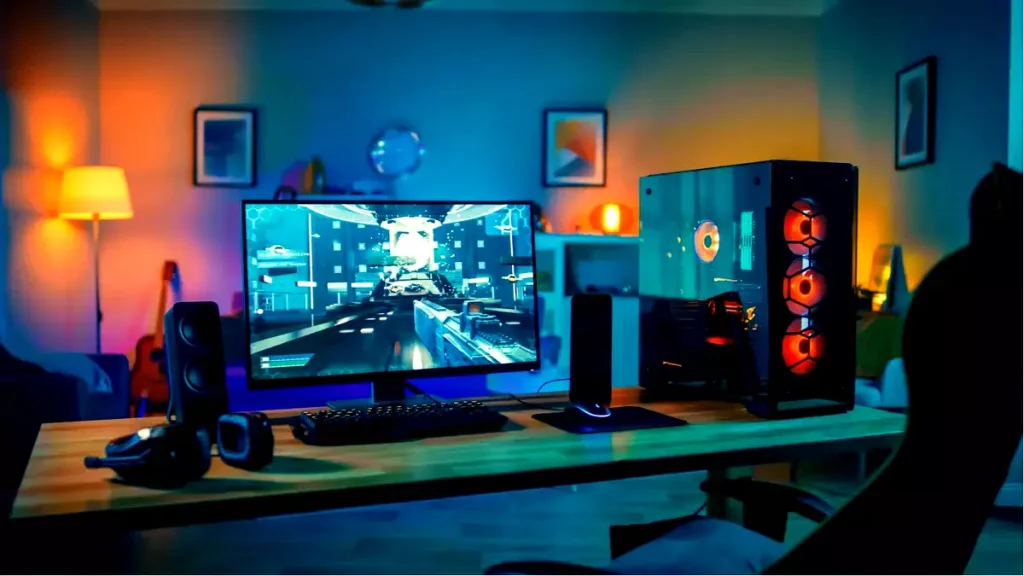
The number of Hertz is the number of how many images your screen draws in one second. So monitor with a refresh rate of 60Hz will draw 60 images each second on your screen. To most users, this will look fine and enough but actually, if you would place them in front of a 120Hz screen difference will be visible right away.

high refresh rate monitor setup

Benefits of higher refresh rates

In most simple words just looking at a screen that has a higher refresh rate will produce a more natural feel of things, although some people would argue that flickering can not be seen on 60Hz monitors and that should be enough, I would argue that they never watched the movie, played the game or used high refresh rate screen when they can state something like that.

Yes, 60Hz might be enough to look at the web page or read some documents but long exposure to 60Hz can have a tiring effect on the eyes in the long run. 120Hz and above just feel more relaxed and it is far less demanding on the eyes. Watching movies also is much better on a higher refresh screen, with way much less motion blur in fast scenes giving the overall experience a greater natural feel.

Gaming is perhaps an area where a refresh rate of 120Hz and above will show its best. Having a higher refresh rate will be easier on your eyes and can even give you a competitive edge. When for example you have twice more images per second on your screen than your opponent his movement will be more fluid and predictable because of that and overall precision will be much higher when moving the cursor in the game since more frames per second means more precision and smoother movement.

The dark side of high refresh rates

After all the positive things that were said about the advantages of high refresh rates, it is just fair to look at some negatives or in this case only negative one and that is Computer power. As said in the previous section having a 120Hz refresh rate means having 120 frames displayed on the screen per single second. Having even higher monitors like 360Hz means even more frames per second and in order to actually see all of that frames you will need to have enough computer power to back it up. Having for example screen with a refresh rate of 240Hz means nothing if your GPU and rest of the computer are able only to push 150 frames per second, in this case, you will still have 150 frames in one second despite the monitor being able to go to 240.

Conclusion

Generally and with all of my heart I would recommend moving away from 60Hz monitors, yes they are cheaper and more affordable but at the end of the day if you are someone like me who spends most of his daily time in front of the computer you would be grateful to have higher refresh rate screen and save your eyes, and after all, why not enjoy some smoother and better movie and game experience as well as saving your eyesight.

Read More
Fix MUP_FILE_SYSTEM Blue Screen Error
If you encounter the MUP_FILE_SYSTEM Blue Screen error with a value of 0c00000103, then it indicates that the multiple UNC provider or MUP has got an invalid of unexpected data. This can lead to the fact that the MUP cannot channel a remote file system request to a network redirector, the UNC, or Universal Naming Convention provider. There are several ways you can fix the MUP_FILE_SYSTEM Blue Screen Error on your Windows 10 computer, you can try to check the hardware of your computer physically, update or rollback some device drivers, run the Driver Verifier Manager, remove any hardware you’ve installed recently or fix issues related to IRQ. Use the given options below as reference to fix the MUP_FILE_SYSTEM Blue Screen Error.

Option 1 – Try to physically check the hardware

The first thing you can do is to check the physical status of the hardware in your computer. You can clean the dust off the hardware components like the Network Card of the computer. You might want to use a small blower or you could also use a soft cloth and run the components gently. Make sure that you don’t damage any parts with moisture or cause harm to any circuits while you carry out this task.

Option 2 – Try to rollback, update several device drivers

You can try to roll back, update or disable certain device drivers on your computer to resolve the MUP_FILE_SYSTEM Blue Screen error.
  • First, boot your computer into Safe Mode.
  • After that, tap the Win + R keys to launch Run.
  • Type in devmgmt.msc into the box and tap Enter or click OK to open the Device Manager.
  • After that, a list of device drivers will be displayed. From there, look for the device drivers related to the Network Card, Chipset, Disk Drive, and the Graphics Drivers and any other driver related to MUP.sys and SwapBuffers.sys system files
  • After that, right-click on each entry of the device drivers and select the “Update Device” option from the menu.
  • Now follow the next on-screen instructions that appear and then restart your computer.
  • After restarting your computer, check if the Stop error is now fixed.

Option 3 – Configure the Driver Verifier Manager

The Driver Verifier Manager is another tool in Windows that could help you fix driver-related issues. And so if you want to fix the MUP_FILE_SYSTEM Blue Screen error you need to use the Driver Verifier Manager:
  • Type in the keyword “Verifier” in the Cortana search box to search for Verifier in Windows 10.
  • After that, select the option “Create custom settings”.
  • Make sure that you have checked everything except the options “DDI compliance checking” and “Randomized low resources simulation”.
  • Next, select the option “Select driver names from a list” option.
  • Afterward, you have to select all the drivers from any unofficial or third-party provider. To simply put it, you have to select all the drivers that are not supplied by Microsoft.
  • Then click on the Finish button.
  • Open Command Prompt as administrator and execute this command – verifier /querysettings
  • The command you just executed will display the Driver Verifier settings so if you see any of the flags enabled boot your Windows 10 PC into Safe Mode.
  • Open the Command Prompt as admin again and run this command – verifier /reset
  • The command will reset the Driver Verifier. Once the process is done, restart your PC and check.

Option 4 – Try to disconnect or disable newly installed hardware

In this option, you will have to disable or remove the hardware you’ve just installed recently since external devices could be the one that’s causing the Blue Screen of Death error to appear. To do that, just disconnect any external device that’s connected to your computer physically and then check if it fixes the MUP_FILE_SYSTEM Blue Screen error.

Option 5 – Try fixing IRQ-related issues

The Stop error might have something to do with an issue related to IRQ. You can verify it by switching your PCI Cards around. Aside from that, you can also check if the IRQ2 is assigned to a COM Port that is unavailable at that time.

Option 6 – Run the Blue Screen Troubleshooter

The Blue Screen troubleshooter is a built-in tool in Windows 10 that helps users in fixing BSOD errors like MUP_FILE_SYSTEM. It can be found in the Settings Troubleshooters page. To use it, refer to these steps:
  • Tap the Win + I keys to open the Settings panel.
  • Then go to Update & Security > Troubleshoot.
  • From there, look for the option called “Blue Screen” on your right-hand side and then click the “Run the troubleshooter” button to run the Blue Screen Troubleshooter and then follow the next on-screen options. Note that you might have to boot your PC into Safe Mode.

Option 7 – Perform a System Restore

Performing System Restore might help you in fixing the Blue Screen error. You can do this option either by booting into Safe Mode or in System Restore. If you are already in the Advanced Startup Options, just directly select System Restore and proceed with the next steps. And if you have just booted your PC into Safe Mode, refer to the steps below.
  • Tap the Win + R keys to open the Run dialog box.
  • After that, type in “sysdm.cpl” in the field and tap Enter.
  • Next, go to the System Protection tab then click the System Restore button. This will open a new window where you have to select your preferred System Restore point.
  • After that, follow the on-screen instructions to finish the process and then restart your computer and check if the problem is fixed or not.
Read More
Windows is stuck on signing out screen
As you know, each time you log out of your Windows 10 computer, it will take you to the login screen where you can switch users or log back in. But there are instances where Windows 10 remains stuck on the signing out screen, along with a blue spinning circle and all you can see is the process of your computer signing out, however, it does not progress and only gets stuck there. Thus, in this post, you will be guided on how you can resolve such an issue on your Windows 10 computer. So if you are one of the users who experience the same problem, there are several fixes you can check out if your computer is stuck on the signing out screen with a blue spinning circle. You can try to force shutdown your computer or troubleshoot the problem in a Clean Boot State. You could also try to check the status of the User Profile Service or repair User Profile, as well as run System Restore. For more details, refer to each one of the suggestions provided below. But before you troubleshoot the problem, make sure that you are logged in to your computer as an administrator.

Option 1 – Try to force shutdown your computer

The first thing you can do is to force reboot your computer as this simple fix could help in fixing the problem. This option is quite simple, just make sure that before you do it, you have to save all your work.
  • First, turn on your computer and press and hold the power button for at least 30 seconds. You might notice the screen flashing or making any changes, just ignore it.
  • After that, plug out and plug in your computer and automatically turn it on.
  • Once done, check if the issue is now fixed or not.

Option 2 – Put your computer in a Clean Boot State

It is possible that some third-party application is causing your computer to get stuck in the signing out screen. So you can try putting your computer in a Clean Boot State and see if it fixes the problem.
  • Log onto your PC as an administrator.
  • Type in MSConfig in the Start Search to open the System Configuration utility.
  • From there, go to the General tab and click “Selective startup”.
  • Clear the “Load Startup items” checkbox and make sure that the “Load System Services” and “Use Original boot configuration” options are checked.
  • Next, click the Services tab and select the “Hide All Microsoft Services” checkbox.
  • Click Disable all.
  • Click on Apply/OK and restart your PC. (This will put your PC into a Clean Boot State. And configure Windows to use the usual startup, just simply undo the changes.)
  • Once your computer is in a Clean Boot State, you should now be able to sign out or sign in without any problem.

Option 3 – Try checking the status of the User Profile Service

If forcing your computer to shut down or putting your computer in a Clean Boot State didn’t fix the problem, you can try to check the status of the User Profile Service since it is the one responsible for loading and unloading user profiles. Thus, if this service is disabled or stopped, you will no longer be able to sign out or sign in successfully.
  • Tap the Win + R keys to launch the Run utility and type “services.msc” in the field and hit Enter to open the Services Manager.
  • From there, look for the User Profile Service and make sure that its Startup Type is set to Automatic and that its status is “Started”.
  • Once done, exit the Services Manager and see if the issue is resolved.

Option 4 – Try to repair your corrupted profile via Registry

In this second option, you can try to repair the corrupted profile using the Registry but before you proceed, make sure to create a System Restore Point and then follow the steps below.
  • Tap the Win + R keys to open the Run dialog box.
  • Then type “regedit” in the field and hit Enter or click OK to open the Registry Editor.
  • Next, go to this registry key: ComputerHKEY_LOCAL_MACHINESOFTWAREMicrosoftWindows NTCurrentVersionProfileList
  • Once you’ve opened the registry key, you should see a list of all the user profiles on your computer. Now click on each S-1-5 folder and look for the “ProfileImagePath” entry and double click on it to check which user account it is related to. You will see a path like “CUsersACK” where “ACK” is the username.
  • You should know which of the user account is corrupted. Just look for a key named “RefCount” and change its Value data to “0” and click OK. And if it isn’t available, simply right-click on the right pane and create it.
  • After that, double click on the key named “State” and make sure that the Value data is “0” and click OK.
  • Exit the Registry Editor and restart your computer to apply the changes made and then check if it fixed the problem or not.

Option 5 – Run System Restore

  • Tap the Win + R keys to open the Run dialog box.
  • After that, type in “sysdm.cpl” in the field and tap Enter.
  • Next, go to the System Protection tab then click the System Restore button. This will open a new window where you have to select your preferred System Restore point.
  • After that, follow the on-screen instructions to finish the process and then restart your computer and check if the problem is fixed or not.
Read More
Five Ways of Fixing Error Code 37

What is Error Code 37?

Error Code 37 is a Device Manager Error Code that you may come across when you are unable to use an installed hardware device on your PC. It will pop up on your screen with the following display:

“Windows cannot initialize the device driver for this hardware. (Code 37)”

If you receive the above message, it means that your operating system was unable to acknowledge the drivers for a particular peripheral device.

Solution

driverfix boxError Causes

Error Code 37 mainly occurs due to device driver corruption. However, there are other factors that can trigger this error code, some of which are the following:

  • Missing device drivers
  • Out-of-date device drivers
  • Presence of malware or spyware in the system
  • The particular device is not compatible with your PC

Device driver corruption or other data corruption is not uncommon and part of everyday PC use.

From an installation gone wrong to an unexpected shutdown, commonly generated data errors are considered the main culprit behind error codes.

Further Information and Manual Repair

Just like most PC error codes, Error Code 37 isn’t that difficult to get rid of. There are many DIY methods you can try to have your PC running smoothly in no time. Here are a few methods to resolve this issue:

Method 1: Restart your PC

It is possible that the display of the error code is merely due to a temporary issue with your peripheral device and not anything serious.

Therefore, the quickest and easiest method to solve the error code 37 is to simply restart your PC.

Method 2: Scan for Viruses

If restarting does not do the trick, a quick scan for viruses and removing them is another simple method you can follow to fix your PC.

Since the error code is due to corruption of data, viruses such as malware or spyware create error in your PC’s registry and eliminating them can help restore some of the corrupt data, which also speeds up your PC.

Method 3: Undo recent changes

A possible explanation for the error code may be the recent changes in your Device Manager or due to the peripheral device installation. You can thus undo the changes by either:

  • Remove or change settings of the installed peripheral device
  • Roll back the version of the driver to the one before the update.
  • Use System Restore to reverse the changes made in the Device Manager

Method 4: Manually uninstall and reinstall the drivers

If the above stated methods do not help in speeding up your PC and is still giving you an error code, you may want to manually uninstall and reinstall the corrupt or missing drivers. Here are the following steps:

  • Double-check if the installed external device is properly connected and working smoothly
  • Open Device Manager and double click on the device that is causing problems
  • When it opens, click on the ‘Driver’ tab and click ‘Update Driver’

Method 5: Use DriverFIX

However, updating the missing or corrupt drivers can be time consuming and may also require having a hardware documentation ready that contains specific details about the driver that you should download.

To avoid this time-consuming process, you can use DriverFIX software.

DriverFIX will help you to download the required driver without you having to waste your precious time and effort looking it up in a user manual. This latest software technology is embedded with its own database that tracks the missing or corrupt driver according to your PC’s motherboard version and specific details.

It is user-friendly, which means that it will relieve you from the frustration of such PC error codes appearing from time to time and enable your PC to work efficiently in no time.

Click here to download DriverFIX to resolve Device Manager error code 37 today!

Read More
1 2 3 171
Logo
Copyright © 2023, ErrorTools. All Rights Reserved
Trademark: Microsoft Windows logos are registered trademarks of Microsoft. Disclaimer: ErrorTools.com is not affiliated with Microsoft, nor claims direct affiliation.
The information on this page is provided for information purposes only.
DMCA.com Protection Status