Logo

Should you upgrade to Windows 11

Windows 11 has been rolling out for a while now so many PC users ask the question is it wise and good to upgrade your Operating System to the latest Microsoft incarnation.

No

Thank you for reading, cya tomorrow in next article.

Windows 10 vs Windows 11Jokes aside, I truly believe that choosing to upgrade your System to Windows 11 at this point in time is a bad decision and I will explain why I do believe it.

Reasons to upgrade to the new OS

First of all, let me say what is good in Windows 11 and provide reasons why you should upgrade your computer.

  1. The new fancy look made for modern computers.
    New Windows new look, Microsoft has tried their best to bring a new modern look to its flagship operating system and I must say that they have managed it. I could argue that it is a little bit late since Apple had this kind of look in years but hey, better late than never I guess.
  2. Increased security
    This point is very valid but it will play a role only if you have all system requirements including TPM 2.0. If that is the case new security features of OS are really well done and are perhaps one thing that might nudge some people in installing W11 on their system.
  3. New settings app
    The New and redesigned settings app inside Windows 11 is really great and it provides a great workflow and easy management of system settings. This is not some radical change but it will save time and make life much easier.
  4. It is better suited to the newest hardware
    Windows 11 was made with the newest hardware in mind and its performances on it are great so if you are punching the latest tech this reason is sufficient to make a switch, however, if you are still on an older system you will not gain much by switching.

Reasons to avoid Windows 11 for now

  1. Almost just a visual update to Windows 10
    Some features of Windows 11 are great but they are not plenty of them to justify a new number and new version of OS. Considering what we really got new under the hood Windows 11 could have been just a patch and update to Windows 10 since the architecture is the same.
  2. Bugs
    Each day there are new bugs reporting for Windows 11, most of them are at the moment unsolvable and are caused because hardware manufacturers' drivers and software overall is not W11 ready. This hinders the stability of some systems and introduces headaches to others.
  3. Runs poorly on unsupported hardware
    Strange behavior has been reported on some older systems, granted systems are not officially supported but the point is OS is simply not working at the top of its game on older hardware.
  4. No updates on non supported systems
    Officially stated if you install Windows 11 on non-supported hardware you will not get any security updated on in. This is a deal-breaker as far as I am concerned.
  5. It is still under development
    When Windows 11 was released, Android native apps were not working on it, it later came with an update, this is just one example but there are more features that were promised but are not delivered on release and constant updates are fixing these things. It is obvious that Windows 11 is still under active development and not the final product that was promised.
  6. Microsoft’s edge pushing
    And not just edge, some other things as well but most notably is edge pushing to borders they are risking lawsuit similar as they did in the past pushing and disabling any other browser except internet explorer.

Conclusion

Firstly I want to point that this is my personal opinion but going through facts and taking into account the current state of Windows 11, at this point, it is not worth making a switch. I am sure that in time it will become a system that will be worth upgrading to but until that time comes, my advice would be to stay with Windows 10.

Do You Need Help with Your Device?

Our Team of Experts May Help
Troubleshoot.Tech Experts are There for You!
Replace damaged files
Restore performance
Free disk space
Remove Malware
Protects WEB browser
Remove Viruses
Stop PC freezing
GET HELP
Troubleshoot.Tech experts work with all versions of Microsoft Windows including Windows 11, with Android, Mac, and more.

Share this article:

You might also like

Fix SYSTEM_PTE_MISUSE Error in Windows
If you suddenly encounter the SYSTEM_PTE_MISUSE – 0x000000DA Blue Screen error while using your Windows 10 computer, read on as this post will provide you some potential fixes to resolve this kind of Blue Screen of Death (BSOD) error. There are many potential causes for the SYSTEM_PTE_MISUSE – 0x000000DA BSOD error. However, incompatible hardware detection and hardware recognition failure are some of the topmost culprits. Another thing that could trigger this kind of BSOD error is system file corruption which means that if a system driver for particular hardware ends up getting corrupted, it won’t be able to recognize the external device and will eventually crash the system with the SYSTEM_PTE_MISUSE – 0x000000DA Blue Screen error. The SYSTEM_PTE_MISUSE bug check has a value of 0x000000DA which indicates that a page table entry or PTE routine has been improperly used. To fix this error, here are some suggestions that might help but before you get started troubleshooting the problem, make sure that you create a System Restore Point first.

Option 1 – Try to disable PIT Security in the BIOS

If you are using a Dell computer and it throws up this kind of Blue Screen error, you need to go to the BIOS and uncheck the PIT Security and see if it helps in fixing the problem.
  • Tap the F2 key during the boot phase to enter the BIOS.
  • Once you’re in the BIOS, go to the Security tab and to the PIT Security section.
  • From there, uncheck the “PIT On” box to disable PIT Security.
  • Now restart your computer and check if the Blue Screen error is fixed or not.

Option 2 – Check for any incompatible devices

The next thing you can do to troubleshoot the SYSTEM_PTE_MISUSE Stop error is to plug in and out each one of the different hardware that is connected to your computer. Doing so will help you determine which one of the hardware is the one that’s triggering the error to pop up. You will also know what hardware drivers or anything else that could be causing this error which includes external devices like mouse, keyboard, printer, as well as internally attached components like the Graphics card and so on.

Option 3 – Try to update, rollback or disable device drivers

To fix the SYSTEM_PTE_MISUSE Stop error, you can also try to roll back, or update, or disable device drivers. It is most likely that after you updated your Windows computer that your driver also needs a refresh. On the other hand, if you have just updated your device drivers then you need to roll back the drivers to their previous versions. Whichever applies to you, refer to the steps below.
  • Open the Devices Manager from the Win X Menu.
  • Then locate the device drivers and right-click on them to open the Properties.
  • After that, switch to the Driver tab and click on the Uninstall Device button.
  • Follow the screen option to completely uninstall it.
  • Finally, restart your computer. It will just reinstall the device drivers automatically.
Note: You can install a dedicated driver on your computer in case you have it or you could also look for it directly from the website of the manufacturer.

Option 4 – Run the System File Checker Scan

System File Checker or SFC is a built-in command utility that helps in restoring corrupted files as well as missing files. It replaces bad and corrupted system files to good system files. Thus, you can try running it to resolve the SYSTEM_PTE_MISUSE Blue Screen error. To do so, follow the steps given below.
  • Tap Win + R to launch Run.
  • Type in cmd in the field and tap Enter.
  • After opening Command Prompt, type in sfc /scannow
The command will start a system scan which will take a few whiles before it finishes. Once it’s done, you could get the following results:
  1. Windows Resource Protection did not find any integrity violations.
  2. Windows Resource Protection found corrupt files and successfully repaired them.
  3. Windows Resource Protection found corrupt files but was unable to fix some of them.
 Restart your computer.

Option 5 – Run the Blue Screen Troubleshooter

The Blue Screen troubleshooter is a built-in tool in Windows 10 that helps users in fixing BSOD errors like SYSTEM_PTE_MISUSE – 0x000000DA. It can be found in the Settings Troubleshooters page. To use it, refer to these steps:
  • Tap the Win + I keys to open the Settings panel.
  • Then go to Update & Security > Troubleshoot.
  • From there, look for the option called “Blue Screen” on your right-hand side and then click the “Run the troubleshooter” button to run the Blue Screen Troubleshooter and then follow the next on-screen options. Note that you might have to boot your PC into Safe Mode.
Read More
Headphone jack is not working on a laptop
In some cases, a couple of Windows 10 laptops, especially the newer ones that run the NVIDIA RTX series GPUs have been experiencing some problems, particularly with their headphone jacks which seem to be malfunctioning even though the internal speakers works just fine. And despite having all the drivers updated to their latest versions, the problem still occurs. According to security experts, this kind of problem occurs on laptop computers that are manufactured by MSI and since there is still no workaround or reliable fix released by the company, in this post you will be guided on how you can resolve the problem with the headphone jack. So if you are using a laptop made by MSI and are experiencing the same issue, then you’ve come to the right place. There are several potential fixes you can check out to resolve the problem, you can try to force reboot your computer or clean your headphone jack and then plug it back in properly. In addition, you could also try to update your Audio drivers or set your headphone as default. For more information, follow each one of the given options below.

Option 1 – Try to force reboot your computer

The first thing you can do is to force reboot your computer as this simple fix could help in fixing the problem. This option is quite simple, just make sure that before you do it, you have to save all your work.
  • First, turn on your computer and press and hold the power button for at least 30 seconds. You might notice the screen flashing or making any changes, just ignore it.
  • After that, plug out and plug in your computer and automatically turn it on.
  • Once done, check if the headphone jack is now working fine.

Option 2 – Try to clean the headphone jack and plug it properly

The next thing you can do to fix the problem is to clean your headphone jack and plug it back in properly. Make sure that you use a cotton swab in cleaning the headphone jack as there are instances where some dust might have settled in the port which results in issues like your headphone jack no working.

Option 3 – Try to update, rollback or reinstall the Audio driver

If the glitch in your audio has something to do with software, chances are it might be related to the audio driver – it could be that the newest version of your Windows 10 does not work well with the old version of the driver. This is why you have to update your audio driver to the newest available version.
  • Tap the Win + R keys to open the Run dialog box and then type in MSC and tap Enter or click OK to open the Device Manager.
  • Expand the section for the outdated device drivers.
  • And then select the outdated driver(s) and right-click on it/them.
  • From the drop-down menu, select the Update Driver option and follow the on-screen instructions to install the latest version of the driver.
  • Then also click on the option, “Search automatically for updated driver software.
  • Restart your PC after the installation.
Note: If updating or reinstalling the Audio driver didn’t work, you can go to the website of MSI and look for the support section where you can download the drivers for your computer. You just need to take note of your PC’s correct model and model number so you can find the appropriate driver.

Option 4 – Try to set the headphone as the default device manually

There are times when you plug a headphone, it does not toggle the default audio device. Thus, to fix this issue, you have to set the default audio device to the headphones manually. To do that, follow these steps:
  • First, right-click on the volume icon located on the system tray.
  • Next, select the Open sound settings option to open the Sound section in the Windows 10 Settings app.
  • From there, select the Control Panel for Sound on the rightmost column. This will open a new mini window.
  • After that, select your headphone under the Playback tab and click on the Set default button.
  • Once done, click on Apply and then OK buttons to save the changes made.

Option 5 – Try to run the Playing Audio Troubleshooter

Since the Windows 10 operating system has the Playing Audio Troubleshooter, you can use this troubleshooter to try and fix the problem with the headphones. You can access this tool in the Control Panel or in the Taskbar Search and even on the Troubleshooters page of Windows 10.
Read More
APC_INDEX_MISMATCH  - What is it and how to fix it?
The error 0x0000001 also known as APC_INDEX_MISMATCH is one of the fatal errors that users encounter upon starting their computers. This error appears when there is a sequence mismatch in the driver or system file when it is disabling or re-enabling Asynchronous procedure calls. The mismatch happens maybe because of a virus or malware attack, not shutting down your computer properly and incomplete installation of the system files. There are many ways to fix this error. The easiest way is to download a repair utility program. The use of these programs perfectly fits those that are not so technical. All you have to do is download the program and install it on your computer. As soon as it is installed, the program will now scan and diagnose your computer for any errors. After it identifies the errors, it will then repair your PC through either manual or automatic tools. To those who are techie and enjoy the manual resolution, you may take advantage of Microsoft’s analyze debug extension which tells you the cause of the error. After determining the cause then you can now start fixing the error. Check if Hardware is functioning properly. If the cause is due to a hardware malfunction, you will have to make sure that all the pieces you are using are working. All the wires should be attached to their respective ports. Not only that, but you also must make sure that before installing the hardware, it is compatible with the Windows version that is installed into your computer. Use Compatible software. If the problem was caused by software or a driver, you can uninstall and reinstall it. Always make it a rule that whenever you install a program or new software to your computer, make sure it is compatible with your operating system and never skip a step during the installation process. You also have to see to it that the program you are installing does not contain any viruses, malware, or spyware that can be harmful to your computer. Update your Drivers Regularly. In most cases though, the cause of the APC_INDEX_MISMATCH error are outdated device drivers. To resolve this, you will have to go to your Control Panel then look for Device Manager. As soon as you are in the Device Manager window, you can now see the different devices running on your computer. You right-click on each device and check the Properties.  In the Properties window, click on the Driver Tab and look for the date when it was last updated. You can then go to the manufacturer’s website and compare the dates. For a new Windows operating system, you no longer have to go to the manufacturer's website though. All you have to do is click on Update Driver and it will automatically search for updates online. Use a Genuine Operating System. There are also cases where the 0x0000001 error won’t allow you to access your computer. In this case, we have to suspect that the problem could be in your Operating system. To resolve this, you can reinstall your Operating System or update your current operating system. Only use a genuine licensed Windows Operating System because this will not only protect you from Malware and Viruses but it allows you to get all the recent update available from Microsoft. Update your Windows 10 regularly by going to Settings > Windows Update > Check for Updates. You may also turn on the Automatic Update by going to the Advanced options is found on the Windows Update Page. You can always get help online but it really helps to know the basics and determining the root cause of the error.
Read More
How to Fix ISDone.dll Error in Windows
As you know, games with good graphics and fast play are definitely resource-intensive and can consume a lot of storage space on your computer. Because of that, they have to be compressed before it gets downloaded to your computer and then unpacked to the hard drive before it gets installed. However, if an error occurs in your computer’s RAM during the installation process or if your hard disk does not have enough memory to handle the process, then you might encounter the isDone.dll error which states:
“An error occurred when unpacking, Unarc.dll returned error code -1, ERROR: archive data corrupted (decompression fails).”
If you encounter the isDone.dll error message on your Windows 10 computer, then read on as this post will show you how you can fix it. This error has something to do with the incomplete installation of PC games or files of larger size. The ISDone.dll error appears due to faulty Unarc.dll file residing in the System32 folder on 32-bit operating systems and the SysWOW64 folder on 64-bit systems. So, if you see this error message, then, it means your computer was not able to read installation archive files.

What is Unarc.dll file?

Unarc.dll is a dynamic link library for Windows. Some applications or games require this file to function properly. So, if it goes missing or, an error occurs when you start a game or an application, you may get various kinds of errors. ISDone.dll error while playing games on PC

Option 1 – Try to reinstall the game

The isDone.dll error could also be caused by the installation of an unknown application. Or it could also be caused by an outdated or corrupted application. In other words, if the game you are trying to install is broken or corrupted, then it’s no wonder why you’re getting the isDone.dll error. To fix this, make sure that you download the latest updated version of the game and then try to install it again and see if the problem is resolved or not.

Option 2 – Try to re-register the .dll file using the Regsvr32 tool

  • The first thing you have to do is to locate the DLL file named dll on your computer and rename it to Unarc-bak.dll.
  • Next, copy the Unarc.dll file from another well-functioning computer and save it on your desktop.
  • After that, move the DLL file you just copied to the System32 folder if you are using a 32-bit operating system, or the SysWOW64 folder if you are using a 64-bit operating system.
  • Now you have to register the new DLL file and you can do that using Windows PowerShell.
  • Open Windows PowerShell and then execute this command if you have placed the DLL file in the System32 folder: regsvr32 %systemroot%System32unarc.dll
  • On the other hand, if you have placed the DLL file in the SysWOW64 folder, then execute this command: regsvr32 %systemroot%SysWOW64unarc.dll
  • Once you’re done, a message will be displayed saying that the DLL file was registered.
  • Restart your computer and check if the problem is now fixed.

Option 3 – Troubleshoot the isDone.dll error in a Clean Boot State

You can also troubleshoot the isDone.dll error in a Clean Boot state. It could be that there are some third-party applications in your computer that're preventing the application from getting installed and to isolate this possibility, you need to boot your computer in a Clean Boot State and then try installing the program again. Putting your computer in this state can help you identify which program is the culprit and thus isolates the problem. In a Clean Boot state, your computer will start using only the pre-selected minimal set of drivers and startup programs. Note that you have to disable and enable one process at a time.
  • Log onto your PC as an administrator.
  • Type in MSConfig in the Start Search to open the System Configuration utility.
  • From there, go to the General tab and click “Selective startup”.
  • Clear the “Load Startup items” check box and make sure that the “Load System Services” and “Use Original boot configuration” options are checked.
  • Next, click the Services tab and select the “Hide All Microsoft Services” check box.
  • Click Disable all.
  • Click on Apply/OK and restart your PC. (This will put your PC into a Clean Boot State. And configure Windows to use the usual startup, just simply undo the changes.)
  • After you’ve set your computer into a Clean Boot State, make sure that you’re signed in as administrator and then try to install the application again.

Option 4 – Try updating or reinstalling your Graphics drivers

Updating or reinstalling the Graphics drivers in your computer can also help in resolving compatibility issues between the operating system and the driver that might have caused the isDone.dll error.
  • First, boot your computer into Safe Mode.
  • After that, tap the Win + R keys to launch Run.
  • Type in devmgmt.msc into the box and tap Enter or click OK to open the Device Manager.
  • After that, a list of device drivers will be displayed. From there, look for the Display Adapters and click on them.
  • After that, right-click on each entry under the Display Adapters and select the “Uninstall Device” option from the menu.
  • Now restart your computer.
  • After restarting your computer, go to the Settings app and Check for Updates in the Windows Update section.
Note: You also have the option to go directly to the website of your graphics card manufacturers like NVIDIA, Intel, or AMD and go to the section called Drivers then check if there’s a new available update – if there is, download and install it.

Option 5 – Try scanning your computer using Windows Defender

The isDone.dll error might also be infected with malware or virus and to eliminate it, you have to scan your computer using security programs like Windows Defender.
  • Tap the Win + I keys to open Update & Security.
  • Then click on the Windows Security option and open Windows Defender Security Center.
  • Next, click on Virus & threat protection > Run a new advanced scan.
  • Now make sure that Full Scan is selected from the menu and then click the Scan Now button to get started.
Read More
VideoDownload Converter removal guide

Video Download Converter is a potentially unwanted toolbar distributed by Mindspark Interactive network. This toolbar offers users the ability to download and convert youtube and other online videos.

While this may seem useful at the start, this toolbar monitors user browsing activity and records visited websites, clicked links, and even personal data, that it later uses to display injected ads through your browsing session. When the toolbar is installed, it will automatically hijack your home page and search engine setting them to MyWay.com. This search engine uses google to display your search results, however, it injects ads into the search results to generate ad revenue. Several anti-virus scanners have detected VideoDownloadManager as a Browser Hijacker, and are therefore not recommended to keep on your computer.

About Browser Hijackers

Browser hijacking is actually a form of unwanted software, commonly a browser add-on or extension, which then causes modifications in the browser’s settings. There are lots of reasons why you might experience a browser hijack; however commercial, marketing, and advertising are definitely the key purposes for their creation. Usually, it will force users to predetermined sites which are looking to increase their advertising campaign earnings. It may seem naive, but the majority of these sites are not legitimate and can pose a major threat to your online safety. Browser hijackers can also allow other harmful programs without your knowledge to further damage the computer. How to determine if your browser has been hijacked There are many symptoms that indicate the internet browser has been hijacked: the home page of your browser is changed suddenly; you find yourself constantly directed to a different web page than the one you intended; the main web browser settings are modified and unwanted or insecure resources are added to the trusted websites listing; unsolicited new toolbars are added to your web browser; you may find numerous pop-up adverts on your computer screen; your browser has instability issues or exhibits frequent errors; you can’t navigate to certain websites, such as computer security software related websites.

So how does a PC get infected with a browser hijacker?

Browser hijackers can enter a PC by some means or other, for example via file sharing, downloads, and e-mail too. Many web browser hijackings originate from add-on applications, i.e., toolbars, browser helper objects (BHO), or extensions added to browsers to provide them additional features. Some browser hijackers spread in user’s computers using a deceptive software distribution method called “bundling” (commonly through freeware and shareware). Some of the popular hijackers are VideoDownload Converter, Babylon Toolbar, Conduit Search, OneWebSearch, Sweet Page, and CoolWebSearch. Browser hijackers might record user keystrokes to gather potentially invaluable information leading to privacy concerns, cause instability on computers, drastically disrupt user’s browsing experience, and eventually slow down the PC to a point where it becomes unusable.

The best ways to remove browser hijackers

Certain kinds of browser hijackers can be easily removed from your PC by uninstalling malicious software programs or any other recently added shareware. However, many hijacking codes are not very easy to get rid of manually, since they go deeper into the operating system. Moreover, manual removal demands you to do many time-consuming and complex procedures which are very difficult to carry out for beginner computer users. You can go for automatic browser hijacker removal by simply installing and running reliable anti-malware software. Safebytes Anti-Malware has a cutting-edge anti-malware engine to help you prevent browser hijacker infection in the first place, and clean up any pre-existing issues. Together with anti-malware, a PC optimizer tool, similar to Total System Care, could help you resolve registry errors, remove unwanted toolbars, secure online privacy, and improve overall system performance.

What to Do if Malware Stops You From Downloading Or Installing Anything?

Every malware is detrimental and the magnitude of the damage will vary greatly depending on the type of malware. Some malware sits in between your PC and the internet connection and blocks a few or all internet sites which you want to visit. It would also block you from adding anything to your system, particularly anti-malware software. If you are reading this article, chances are you’re stuck with a malware infection that is preventing you to download and install the Safebytes Anti-Malware program on your computer. There are a few steps you can take to circumvent this problem.

Eliminate viruses in Safe Mode

In the event the malware is set to load at Windows startup, then booting in safe mode should prevent it. Just bare minimum required programs and services are loaded when you boot your computer into Safe Mode. Here are the steps you need to follow to take out viruses in Safemode. 1) After switching on the computer, press the F8 key before the Windows splash screen begins to load. This would invoke the “Advanced Boot Options” menu. 2) Make use of the arrow keys to select Safe Mode with Networking and hit ENTER. 3) When you are into this mode, you should have an internet connection once again. Now, utilize your web browser to download and install Safebytes Anti-malware. 4) Right after installation, run a complete scan and let the software remove the threats it detects.

Obtain the security program using a different browser

Some malware mainly targets particular browsers. If this sounds like your situation, employ another web browser as it could circumvent the virus. If you appear to have a trojan attached to Internet Explorer, then switch over to a different browser with built-in security features, such as Firefox or Chrome, to download your favorite anti-malware program – Safebytes.

Install security software on a USB drive

Here’s yet another solution which is utilizing portable USB anti-malware software that can scan your computer for viruses without the need for installation. Adopt these measures to use a USB drive to fix your corrupted computer system. 1) Download Safebytes Anti-Malware or Windows Defender Offline onto a clean PC. 2) Mount the pen drive on the same PC. 3) Double click on the downloaded file to run the installation wizard. 4) Choose a thumb drive as the location when the wizard asks you where you wish to install the application. Follow the on-screen instructions to complete the installation. 5) Transfer the pen drive from the uninfected computer to the infected computer. 6) Double-click the EXE file to run the Safebytes program from the thumb drive. 7) Click on the “Scan” button to run a full system scan and remove viruses automatically.

Detect And Remove Viruses With SafeBytes Anti-Malware

If you’re looking to purchase anti-malware for your computer system, there are lots of brands and applications for you to consider. Some of them are good and some are scamware applications that pretend as legit anti-malware programs waiting around to wreak havoc on your personal computer. Make sure you choose a company that builds industry-best anti-malware and it has attained a reputation as reliable. One of the recommended software by industry analysts is SafeBytes Anti-Malware, the most dependable program for Windows computers. SafeBytes anti-malware is really a powerful, highly effective protection tool made to help users of all levels of IT literacy in detecting and removing harmful threats from their PC. Using its cutting-edge technology, this application will assist you to remove several types of malware including computer viruses, trojans, PUPs, worms, ransomware, adware, and browser hijackers. SafeBytes has got a plethora of amazing features which can help you protect your computer from malware attack and damage. Here are some of the features you will like in SafeBytes. Active Protection: SafeBytes offers a completely hands-free real-time protection that is set to monitor, block and kill all computer threats at its very first encounter. It will continuously monitor your computer for hacker activity and also provides end-users with sophisticated firewall protection. World-class AntiMalware Protection: This deep-cleaning anti-malware application goes much deeper than most antivirus tools to clean out your computer system. Its critically acclaimed virus engine locates and disables hard-to-remove malware that conceals deep inside your personal computer. Fast Scan: SafeBytes Anti-Malware possesses a multi-thread scan algorithm that works up to 5 times faster than any other antivirus software. Web Protection: Through its unique safety ranking, SafeBytes tells you whether a website is safe or not to visit it. This will make sure that you’re always certain of your safety when browsing the web. Light-weight: This software is not “heavy” on the computer’s resources, so you’ll not find any performance troubles when SafeBytes is working in the background. 24/7 Support: You could get high levels of support around the clock if you are using their paid software. To sum it up, SafeBytes Anti-Malware is pretty great for securing your computer against all sorts of malware threats. There is no doubt that your PC will be protected in real-time once you put this software program to use. So if you’re looking for the best anti-malware subscription for your Windows-based PC, we suggest the SafeBytes Anti-Malware software program.

Technical Details and Manual Removal (Advanced Users)

If you do not want to use malware removal software and like to remove VideoDownload Converter manually, you may do so by going to the Add/Remove Programs menu in the control panel and deleting the offending software; in cases of web browser extensions, you could uninstall it by going to the browsers Add-on/Extension manager. You may even want to reset your internet browser settings, and also delete temporary files, browsing history, and cookies. Finally, examine your hard disk for all of the following and clean your registry manually to remove leftover application entries following an uninstallation. Please keep in mind that this is for advanced users only and could be difficult, with wrong file removal causing additional PC errors. Furthermore, certain malware is capable of replicating or preventing removal. Doing this malware-removal process in Safe Mode is recommended.
Files: LOCALAPPDATA\VideoDownloadConverterTooltab\TooltabExtension.dll Folders: LOCALAPPDATA\Google\Chrome\User Data\Default\Extensions\ikgjglmlehllifdekcggaapkaplbdpje LOCALAPPDATA\Google\Chrome\User Data\Default\Local Extension Settings\ikgjglmlehllifdekcggaapkaplbdpje LOCALAPPDATA\Google\Chrome\User Data\Default\Sync Extension Settings\ikgjglmlehllifdekcggaapkaplbdpje LOCALAPPDATA\VideoDownloadConverterTooltab Registry: key VideoDownloadConverter at HKEY_CURRENT_USER\Software\ key VideoDownloadConverterTooltab Uninstall Internet Explorer at HKEY_LOCAL_MACHINE\Software\Microsoft\Windows\CurrentVersion\Uninstall\

Read More
Fix ATTEMPTED_WRITE_TO_READONLY_MEMORY
This post will help you fix the ATTEMPTED_WRITE_TO_READONLY_MEMORY Blue Screen issue with an error code 0x000000BE. If you encounter this kind of BSOD error when you try to boot into your Windows 10 computer, note that there are various possible causes for this error. It could be caused by an error with a device driver, hardware issues, or some error in the BIOS of your computer. The ATTEMPTED_WRITE_TO_READONLY_MEMORY Blue Screen error with a bug check of 0x000000BE appears when a driver tries to write a read-only memory segment. You’ll be able to see the name of the driver in the Blue Screen error if the driver that’s causing the error can be identified. You can also see it in memory at the location (PUNICODE_STRING) KiBugCheckDriver. In most cases, this kind of error is usually caused by various files such as iusb3hub.sys, ntkrnlpa exe or vhdmp.sys, ntoskrnl.exe, ntfs.sys, dxgkrnl.sys, tcpip.sys, atikmdag.sys, and win32k.sys. There are several possible fixes you can try to fix this issue but the main issue lies within booting into Windows since the error occurs as soon as you boot into your Windows 10 computer. Refer to each one of the options provided below to resolve the ATTEMPTED_WRITE_TO_READONLY_MEMORY Blue Screen error.

Option 1 – Try to rollback, update or disable drivers

The first thing you can do to fix the ATTEMPTED_WRITE_TO_READONLY_MEMORY Stop error is to roll back, or update, or disable device drivers. It is most likely that after you updated your Windows computer that your driver also needs a refresh. On the other hand, if you have just updated your device drivers then you need to roll back the drivers to their previous versions. Whichever applies to you, refer to the steps below.
  • Open the Devices Manager from the Win X Menu.
  • Then locate the device drivers and right-click on them to open the Properties.
  • After that, switch to the Driver tab and click on the Uninstall Device button.
  • Follow the screen option to completely uninstall it.
  • Finally, restart your computer. It will just reinstall the device drivers automatically.
Note: You can install a dedicated driver on your computer in case you have it or you could also look for it directly from the website of the manufacturer.

Option 2 – Try running the Memory Diagnostic Tool

The Memory Diagnostic tool in windows can help resolve the ATTEMPTED_WRITE_TO_READONLY_MEMORY Blue Screen error by checking and automatically fixing any memory-based issues. To run it, refer to these steps:
  • Tap the Win + R keys to open Run and type exe and hit Enter to open the Windows Memory Diagnostic Tool.
  • After that, it will give two options such as:
    • Restart now and check for problems (Recommended)
    • Check for problems the next time I start my computer
  • Once your computer has restarted, perform a basic scan or you could also go for the “Advanced” options such as “Test mix” or “Pass count”. Simply tap the F10 key to start the test.
Note: After you select your preferred option, your computer will restart and check for memory-based issues. If it finds any issues, it will automatically fix them and if there’s no issue found, then it’s most likely not a memory-based issue so you should try the other options given below.

Option 3 – Try to update the BIOS

Updating the BIOS can help you fix the ATTEMPTED_WRITE_TO_READONLY_MEMORY BSOD error but as you know, BIOS is a sensitive part of a computer. Even though it is a software component, the functioning of the hardware depends on it largely. Thus, you must be careful when modifying something in the BIOS. So if you don’t know much about it, it’s best if you skip on this option and try the other ones instead. However, if you are well-versed in navigating the BIOS, then follow the steps below.
  • Tap the Win + R keys to open the Run dialog box.
  • Next, type “msinfo32” in the field and press Enter to open System Information.
  • From there, you should find a search field on the bottom where you have to search for the BIOS version and then press Enter.
  • After that, you should see the developer and version of the BIOS installed on your PC.
  • Go to your manufacturer’s website and then download the latest version of BIOS on your computer.
  • If you are using a laptop, make sure that you keep it plugged in until you have updated the BIOS.
  • Now double click on the downloaded file and install the new BIOS version on your computer.
  • Now restart your computer to apply the changes made.

Option 4 – Try disabling BIOS Memory Options

Disabling the BIOS Memory options such as Caching and Shadowing can help you in fixing the ATTEMPTED_WRITE_TO_READONLY_MEMORY Stop error. All you have to do is enter the BIOS first and then use the Arrow and Enter keys to select your choices. And if you can’t seem to find it, look for specific instructions from your OEM or you could also look out for instructions from the manufacturer of your motherboard.

Option 5 – Try running the Blue Screen Troubleshooter

The Blue Screen troubleshooter is a built-in tool in Windows 10 that helps users in fixing BSOD errors like ATTEMPTED_WRITE_TO_READONLY_MEMORY. It can be found on the Settings Troubleshooters page. To use it, refer to these steps:
  • Tap the Win + I keys to open the Settings panel.
  • Then go to Update & Security > Troubleshoot.
  • From there, look for the option called “Blue Screen” on your right-hand side and then click the “Run the troubleshooter” button to run the Blue Screen Troubleshooter and then follow the next on-screen options. Note that you might have to boot your PC into Safe Mode.
Read More
Mail and Calendar not working with Cortana
Mail and Calendar not working with Cortana? As you know, Cortana was first launched way back in 2014 with an emphasis on its tight integration with both the Windows Mail and Calendar apps. This integration has been one of the highlighting features of this Personal Digital Assistant. However, there are some users who reported that the Calendar and Mail integration with Cortana is not working on their Windows 10 computers. This kind of problem could be due to several factors like the loose integration between the services, incompatible versions of the components, and many more. According to the users who experienced the issue, the features affected are the syncing of calendar appointments, sending emails via Cortana, and so on. To fix this problem, there are several options you can try. You can try to restart Cortana’s processor run the Windows Store Apps troubleshooter. You could also try to relink your Microsoft account or reinstall the Mail and Calendar apps, as well as reinstall Cortana.  For more details, follow the suggestions given below.

Option 1 – Restart Cortana’s process in the Task Manager

Restarting Cortana’s process in the Task Manager could also help you resolve the problem. Refer to the steps given below to do so.
  • Tap the Ctrl + Alt + Del keys to open the Security options window.
  • From there, look for the Task Manager in the given list and open it.
  • Next, look for the process of Cortana and right-click on it, and then select the End Task option to end its process.
  • After that, the Cortana process will restart by itself and re-initialize.

Option 2 – Run the Windows Store App troubleshooter

The Windows 10 Store Apps Troubleshooter will help you in fixing the Web Preview problem in Cortana. This is a great built-in tool from Microsoft that helps users fix any app issues. To use the Windows Store Apps Troubleshooter, follow the steps below.
  • Tap Win + I keys again to open the Windows Settings panel.
  • Go to Update & Security and then go to Troubleshoot.
  • Under the Troubleshoot section, on your left-hand side, scroll down to find Window Store Apps.
  • Then click on the Run the troubleshooter option and follow the on-screen instructions and then see if it fixes the problem.

Option 3 – Try to relink your Microsoft Account

You might also want to relink your account in Microsoft using the Windows 10 Settings app.
  • Open the Windows 10 Settings app.
  • Next, navigate to Accounts > Email & Accounts and from there, go to the section of Accounts used by Email, Calendar, and Contacts.
  • After that, select your email account and select Manage.
  • Once done, a new panel will come up where you have to click on the “Delete account from this device” link.
  • Once you get a confirmation, select Delete and then relink the same account. This should resolve the problem.

Option 4 – Try to reinstall or update the Mail and Calendar apps

  • Open Windows PowerShell as admin.
  • Next, execute this command: Get-AppxPackage *windowscommunicationsapps* | Remove-AppxPackage
  • Once done, restart your computer and go to the Microsoft Store page to get the latest updates for both Windows Mail and Calendar apps.

Option 5 – Try to reset Cortana via Settings

  • Launch the Windows 10 Settings app and go to Apps > Apps & Features.
  • Next, look for the entry of Cortana on the right-side panel and select it.
  • After that, select the Advanced options and then select the Terminate button under the Terminate section.
  • Once done, click on the Reset button under the Reset section.
  • Restart your PC.
  • After your computer boots, launch Cortana again and check.

Option 6 – Try to reinstall Cortana

If none of the options given above works, you must consider reinstalling Cortana.
  • First, right-click on the Taskbar and select the Task Manager.
  • Next, select File menu > Run new task and type “Powershell” in the field and then select the “Create this task with administrative privileges” option.
  • Click on OK to open the PowerShell console.
  • After that, type the following command and hit Enter to execute it:
Get-AppXPackage -Name Microsoft.Windows.Cortana | Foreach {Add-AppxPackage -DisableDevelopmentMode -Register "$($_.InstallLocation)AppXManifest.xml"}
  • Restart your computer and check if the problem is now fixed.
Read More
Rocketbook Fusion smartbook review

In today's age of smart gadgets and complete replacement of even some simple things with their smart counterpart, it is not really a surprise to see some strange innovations that try to take advantage of modern technology.

rocketbook

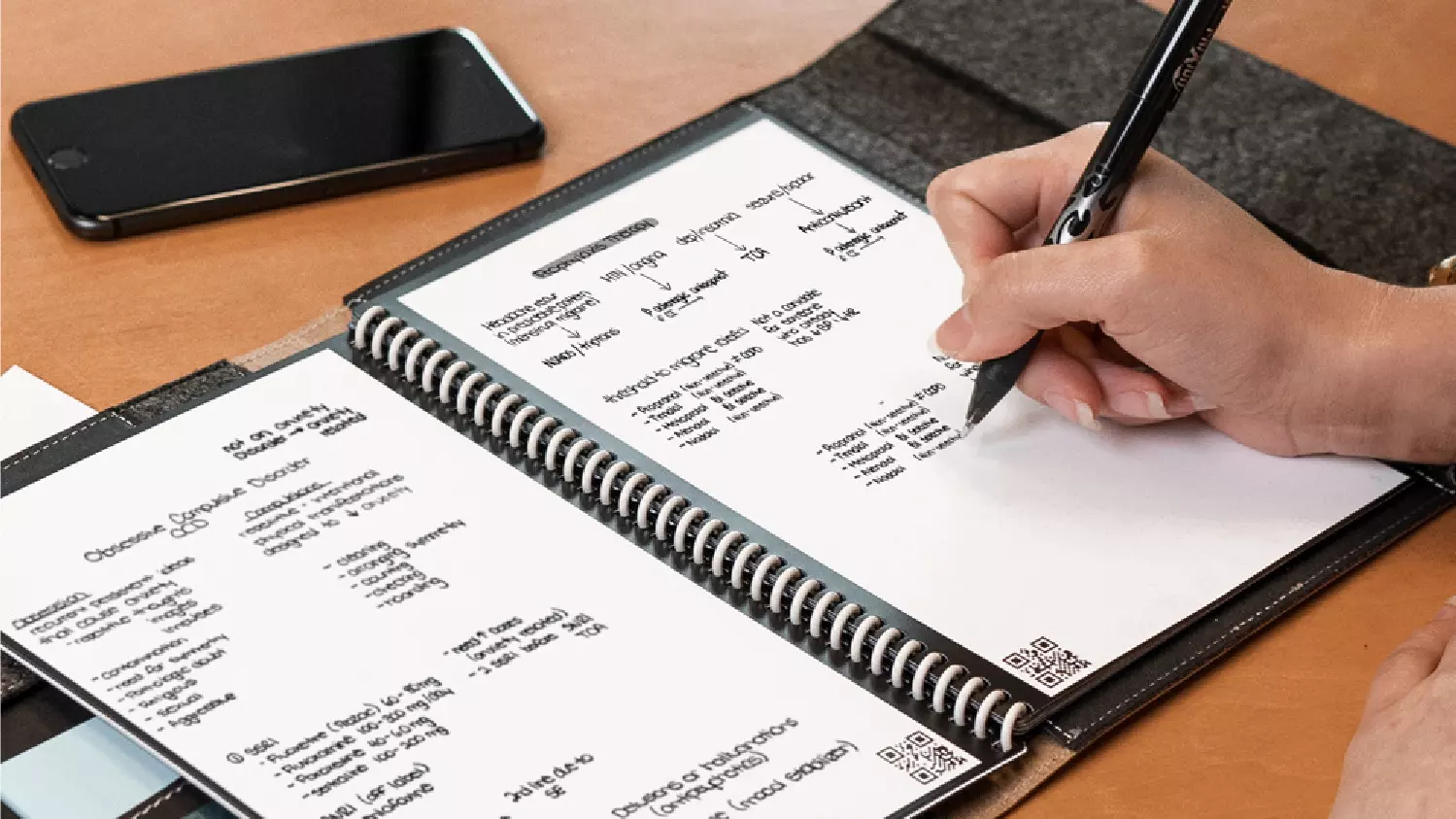
One of these innovations is a smart book, or to be more precise smart note, a reusable notebook that could be connected to your phone.

Why Rocketbook Fusion smartbook

One thing that could justify, well it should justify buying Rocketbook is the preservation of trees and the environment since it can be reused. The second argument would be its price since it is not expensive considering what it offers.

On top of all, you also have a free application for your phone in order to take full advantage of it.

What is a smartbook?

Imagine this scenario, you have a notebook of 42 pages with several different page styles inside. You write in it and after it is filled you upload its content to your email or cloud service of your choice, get a cloth, erase everything and start again from zero.

So as mentioned notebook comes with 42 pages of various page styles. Most of the pages are either lined or dotted but the notebook also includes a monthly calendar, two-week detailed calendar pages, and three pages for project or idea tracking. Since everything can be erased this is enough variety to cover all basis and eliminate any need for another workbook ever.

When you feel like you want to save work or once it is filled you can easily upload and save the workbook from the scan page option in the free Rocketbook app. Once scanned pages can be uploaded to your preferred cloud service or sent to your email.

Now in order to write and be able to erase any of Rocketbook's notebooks, you will have to use Pilot's Frixion writing pens. They will dry around 15s on the page and can be of course easily wiped with a damp microfiber cloth that is included with the purchase. One pen also comes with a workbook when purchased.

Application

Application has cool features, of course, the most important and most useful one is setting your upload scan destination so when you scan your pages they get automatically uploaded to your chosen destination.

In the application settings, you can also toggle some handwriting recognition features that will allow you to easily search your uploaded documents. For example, you can search through documents just by writing now or two words. There is also a Smart List feature as well that will take your checklist and make it into a virtual checklist.

The app also has a fun Explore section where you can find all sorts of fun hacks and different ideas on how to use your Rocketbook.

Read More
Fix Broadcom BCM20702A0 driver error
In recent times, some Windows 10 users have seen an error code BCM20702A0, when using Bluetooth and they are concerned as to what it is all about. We can say for certain that it has something to do with your Bluetooth driver. The error message in question is:
The drivers for this device are not installed. There are no compatible drivers for this device.
The problem here tends to no longer allow specific Bluetooth components to properly communicate with your Windows 10 operating system. It also affects laptops that do not have native Bluetooth support; therefore, the manufacturer installed a dongle on the inside to deliver the service. This is not the best way to do things because native support is always better. On the other hand, maybe you’re using a Broadcom USB Bluetooth dongle that is acting up, and as such, the error is showing. Below are solutions provided for this particular error and how to eliminate it.
  1. Run the Bluetooth Troubleshooter

    Press ⊞ WINDOWS to open the menu and select settings In settings choose Update & Security Go to troubleshoot and on the right panel click on additional troubleshooters Click on Bluetooth Select Run the troubleshooter, then sit back and allow the tool to do its thing. Once you’ve completed the task, click on Apply this fix if any repairs are needed Reboot your computer
  2. Install Broadcom driver from official website

    Windows drivers for Broadcom Bluetooth devices are no longer posted on their website. They should be available through Microsoft’s Windows Update service. If drivers were not downloaded automatically by Windows Update, use Device Manager to refresh the driver from Windows Update. However, the Broadcom Bluetooth drivers seem to be available here on the Lenovo website. To fix the BCM20702A0 driver error, you may download and install them. After downloading it, right-click on the downloaded item, and select Run as administrator. After installation, restart your computer, then check again if it works.
  3. Remove all Bluetooth drivers and USB controllers

    If previous solutions did not work, go to device manager and remove all Bluetooth devices along with all USB controllers. Reboot your computer and Windows will automatically reinstall and set all devices.
Read More
Windows 11 was released in beta for all
windows 11 betaMicrosoft has released Windows 11 as a public beta release for all the people that are not willing to be in the insider program. Beta release as of this moment is identical to Insider Preview build 22000.100. and updates will not roll so fast as in insider preview and it is marked as unstable release, same as insider build. I would not install Windows 11 beta on the main PC since some drivers still have issues and may lead to some blue screens. Be aware that the beta build will have all Windows 11 system requirements including TPM 2.0. This is a big difference from insider build which can be installed on systems lacking official requirements. So basically if you have a spare PC that could run Windows 11 install it so you can see what it brings and feel it so you can make a decision will upgrade once it is released later this year.

Read More
1 2 3 171
Logo
Copyright © 2023, ErrorTools. All Rights Reserved
Trademark: Microsoft Windows logos are registered trademarks of Microsoft. Disclaimer: ErrorTools.com is not affiliated with Microsoft, nor claims direct affiliation.
The information on this page is provided for information purposes only.
DMCA.com Protection Status