Logo

Setting up USB tethering in Windows

In this post, you will be guided on how you can set up the USB tethering feature on your Windows 10 computer and share your mobile device’s mobile data so other devices can also access the internet. Tethering is usually known as Wi-Fi tethering which allows users to share mobile data to any device with Wi-Fi, laptops included. This is really useful especially when you have no other way to access the internet. For instance, if you are using a desktop computer and there is no way for you to connect to the Ethernet, and you have no Wi-Fi adapter that you can use to connect to a router as well, you can use USB tethering instead to access the internet. It is almost similar to Wi-Fi tethering except that it works over a USB connection instead of a Wi-Fi adapter.

USB tethering is almost quite the same as an Ethernet connection except that it’s faster compared to Wi-Fi tethering as well as Bluetooth tethering. Just like Wi-Fi tethering, USB tethering is free unless your network carrier has blocked it. Thus, it’s better if you make that clear with your operator. Once you have that covered,

Follow the instructions provided below to set up USB tethering on your Windows 10 computer.

Step 1: First, connect your mobile device to your Windows 10 computer using a USB cable.

Step 2: If it asks you to enable the file transfer feature, just cancel it. A prompt that says, “Tethering or Hotspot active—Tap to setup” should be available as soon as you get connected – tap on it.

Note: If there is no prompt, just go to Settings > Network and Internet > Hotspot and Tethering and from there, toggle on the USB tethering option.

Step 3: Afterwards, the setup will create a new network adapter in Windows 10 automatically and your computer should now be connected to the internet using USB tethering.

Note: You have to make sure that the Wi-Fi connection in your mobile device is turned off and if it is connected to an existing network, the USB tethering will be disabled but if you see its status as enabled, then the USB tethering setup is successfully done. In addition, keep in mind that the location of tethering can be different for every phone, especially on a customized operating system such as RealMe, Redmi, Samsung, and any other mobile device although they are clubbed in the section of Mobile and Data Network.

In case you encounter some problems when using USB tethering in your Windows 10 computer, there are troubleshooting tips you should follow. The NDIS-based Internet Sharing Device network adapter is what Windows 10 uses to make USB tethering possible so if it stops working, follow the options provided below.

Option 1 – Perform basic check

The first thing you can do if you encounter problems in USB tethering is to do a basic check like checking if Wi-Fi is enabled automatically as well as check if the USB cable is disconnected or if you’ve turned off USB tethering accidentally.

Option 2 – Try installing or updating the USB RNDIS adapter

RNDIS or Remote Network Driver Interface Specification can also help you resolve any USB tethering problem. If the pre-installed driver does not help you in connecting to the internet, then you can try installing the USB RNDIS driver that is, if it’s not installed yet. If it is already installed, you can try to update it instead.

  • Tap the Win + R keys to open Run and type “devmgmt.msc” in the field and hit Enter to open the Device Manager.
  • Next, expand the Network adapters section and look for the Remote NDIS based Internet Sharing Device. But if you are using a Samsung smartphone, you might see “Samsung” instead of under Network adapters.
  • Right-click on it and then select the “Update driver” option.
  • Then select the “Browse my computer for driver software” option.
  • After that, select the “Let me pick from a list of available drivers on my computer” option.
  • Now uncheck the checkbox for “Show compatible hardware”.
  • From the given list on your left-hand side, look for Microsoft and then select the Remote NDIS based Internet Sharing Device on your right-hand side.
  • Click on Next. A new popup will appear where you have to click on Yes. This will install the driver.
  • Now click on the Close button and restart your computer.

Do You Need Help with Your Device?

Our Team of Experts May Help
Troubleshoot.Tech Experts are There for You!
Replace damaged files
Restore performance
Free disk space
Remove Malware
Protects WEB browser
Remove Viruses
Stop PC freezing
GET HELP
Troubleshoot.Tech experts work with all versions of Microsoft Windows including Windows 11, with Android, Mac, and more.

Share this article:

You might also like

How to turn off auto brightness

Windows 10 and Windows 11 have automatic dynamic screen brightness depending on the surrounding light inside the room. Please take note that this option is available only on devices with build-in screens like laptops, tablets, and all in one desktop PC. If you are connected with your PC via an external monitor you will not have these settings available and probably feature is not even working.

screen brightness

Some computers will also allow automatic brightness changes also on what is displayed on the screen. This option is meant to save battery life on devices. Microsoft calls this automatic brightness feature Content adaptive brightness control. In order to change this setting, we will go to settings inside Windows.

Disabling automatic brightness inside Windows

Open Settings inside Windows, in Windows 11 press WINDOWS + I to open settings, then click on the system in the sidebar and then go to Display. Click on the small arrow beside the Brightness slider in order to expand a small menu and then uncheck Help improve battery by optimizing the content show and brightness. If you see Change brightness automatically when lighting changes, uncheck that as well. Close the settings and you are good to go, now brightness will always be as set in settings.

Inside Windows 10, go to Settings and then go to System and then in Display under the Brightness and Color section look below and locate the box that says Automatically adjust contrast based on the displayed content to help improve battery and uncheck it, if the box below with text Change brightness automatically when lighting changes exists, uncheck it as well. Close settings and you are done.

Read More
Error occurred while checking for updates in VLC
There is no doubt that the VLC media player is one of the best kinds of media players available today. However, it is not without any issues and one of the common issues encountered by users is VLC’s inability to be updated. And when you try to update VLC, you only get an error message saying, “An error occurred while checking for updates”. This inability to update VLC can be quite a headache for many users especially the ones who are facing other issues in VLC and has to update it in order to resolve them. So how will you update VLC and fix its issues when you can’t even update it in the first place? Worry not as this post will help you out. Refer to the suggestions laid out below to resolve the issue in updating VLC.

Option 1 – Check if VLC is not being blocked by the Firewall

There are instances when the Firewall like the Windows Defender Firewall blocks VLC for some unknown reason without your knowledge. Thus, you need to allow VLC to get past the Firewall in order for you to fix the issue else you won’t be able to send out a network communication. To do that, follow the steps below.
  • Tap the Windows key + I to open the Settings app.
  • Then click on the Update & Security option.
  • After that, click on Windows Security and click the Open Windows Defender Security Center option. This will open the Windows Defender antivirus and antimalware program.
  • From there, click on Firewall & network protection.
  • Next, click on Allow an app through Firewall. You should see a list of programs. Scroll down until you see VLC and make sure that all the boxes are ticked including the Public and Private ones.
  • Once you’re done, restart your PC and then try updating VLC again.
  • Just open VLC and select the Help menu and click on Check for Updates.

Option 2 – Try running the VLC media player as an administrator

There are programs designed for Windows 10 that won’t work fully unless some parameters are met. In most cases, starting the program as an admin should resolve the problem, thus, that’s what you have to do to try and fix the “An error occurred while checking for updates” in VLC.
  • First, right-click on the VLC Media Player desktop icon and then select the “Run as administrator” option or you could also right-click on the icon and click on Properties.
  • After that, click the Compatibility tab and then tick the box labeled “Run this program as an administrator”.
  • Next, click the OK button and then open VLC again and try updating it. That should fix the problem.
Read More
Delete last 15 min of browsing history on phone
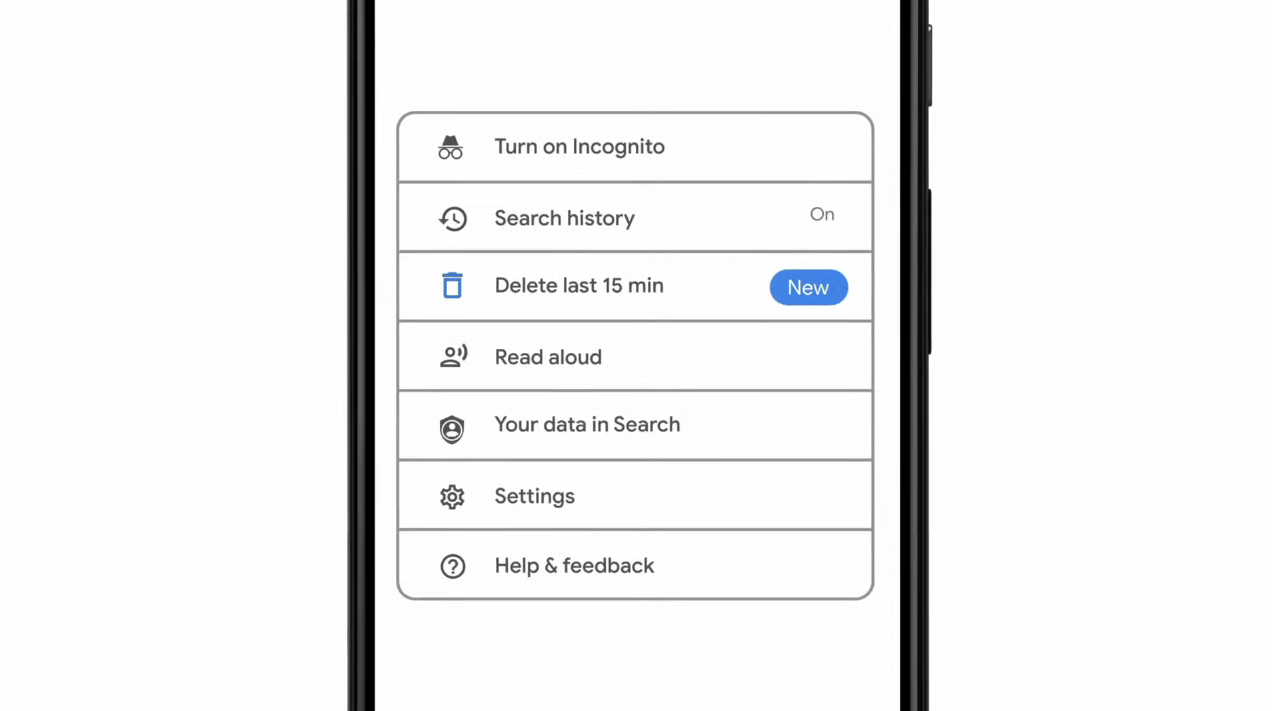
google browsing 15min history deleteAs previously announced by Google feature to quickly delete the last 15min of browsing history via one button is rolling out now. For now, only Apple users will be available to use this feature but the Android update is scheduled for later this year, a strange move by Google but it is what it is. For anyone who is unfamiliar with this feature, basically, Google wants a quick way to remove the last 15min of browsing history as a supposedly stated request to make deleting browsing history much easier. Google came up with this idea so you can keep the previous history intact but remove just 15min time frame, no additional explanation was given on why 15 but I presume it is some round number that came up as the middle one with research, read telemetry info. Using quick delete requires being signed into Search with a Google account. Users can access the option by simply tapping on the avatar icon to access the settings then choosing "Delete last 15 minutes."
Read More
User account control notifications in Windows
Hello and welcome to our user account notifications in Windows 10 tutorial where we will dive a little more into how you can control notification and behavior settings for your or someone else's user account in your Windows 10. If you are annoyed with confirmation windows each time you start a new application or install one please keep reading and I am sure you will find just the right setting for you. User account options are a little hidden and not so obvious, well at least not in Windows 10 compared to previous Windows versions. Since we will not be able to find them under typical and standard settings we will need to do few tricks in order to get to them.

Opening control panel

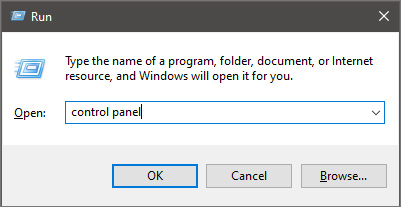
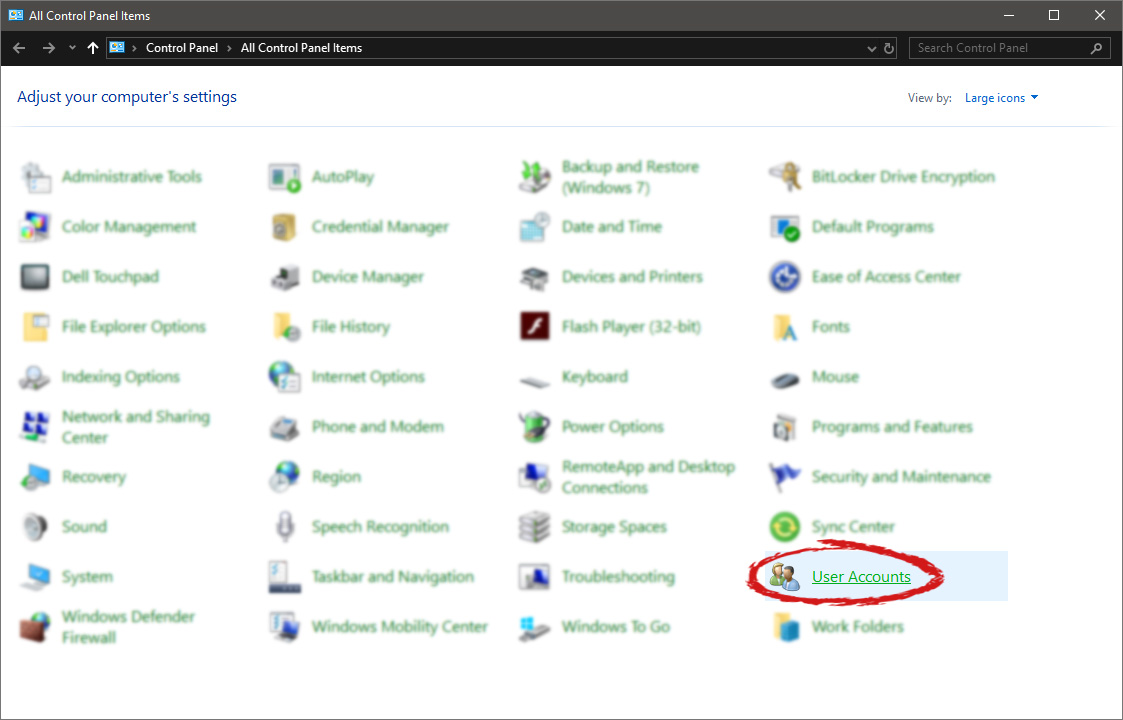
First thing is to press ⊞ WINDOWS + R on your keyboard so the run dialog window pops up on your desktop. keyboard with windows and r markedOnce run dialog is shown type in it control panel as shown in the picture and press OK run dialog with control panel typed inIf you have followed the steps precisely, you should be now in the control panel of Windows 10. Click on the top-right view and choose large icons. The Control panel will switch to a grid-like view, in the current view go to the far-right and almost bottom icon where it says User Accounts and click on it.

control panel with user account selectedUser account settings

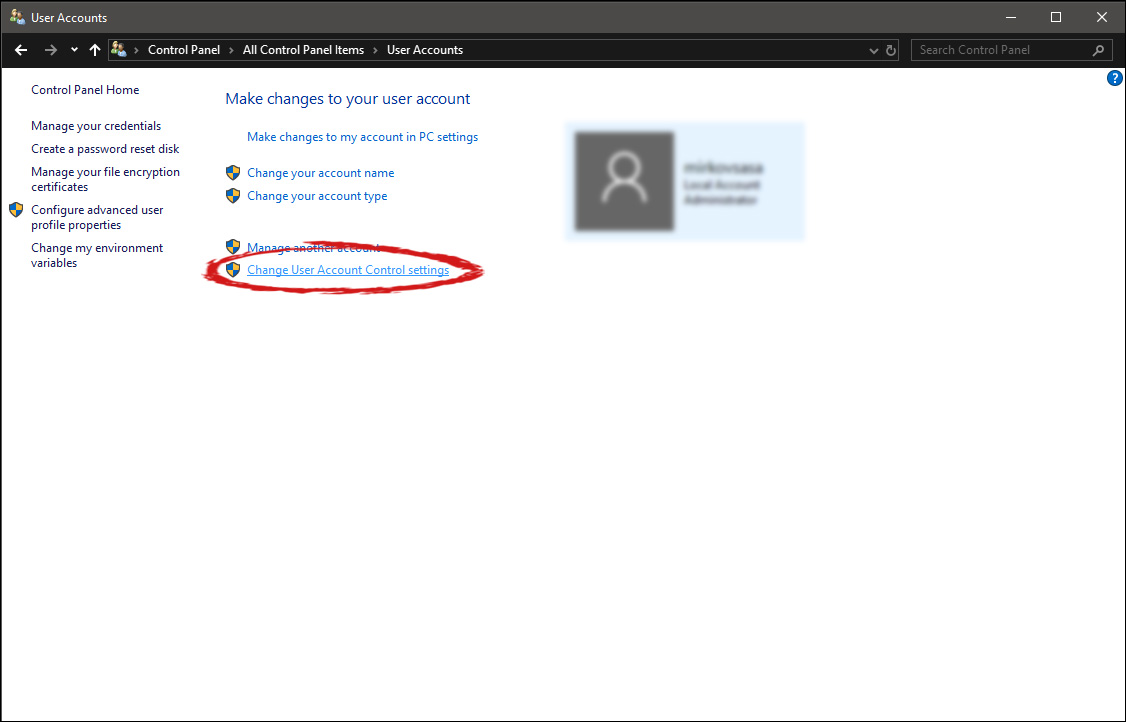
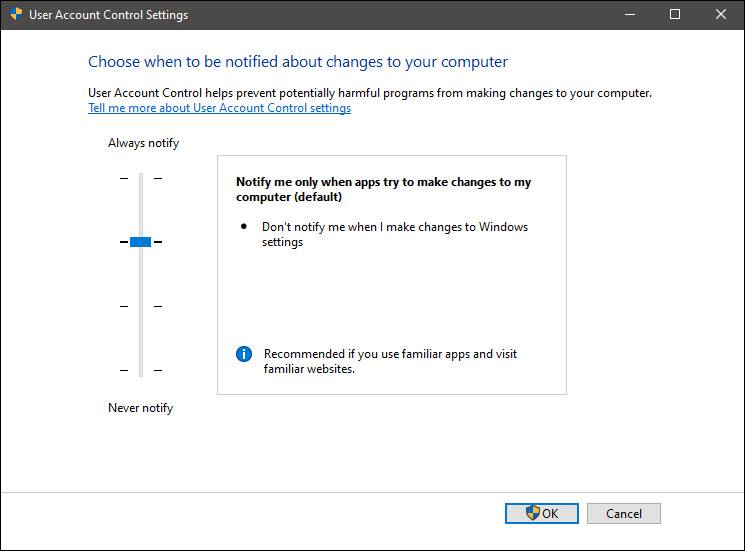
Once the user account opens click on the bottom link which says Change User Account Control settings. Please note that you will need to be logged in as an administrator or have administrator privileges in order to change this setting. user account change user accountOnce you click on the link you will be presented with a User account control slider on the left and a brief explanation on the right user account settingsHere in the picture, we see Windows default setting and an explanation of when and how he will notify you. If you wish to turn all notifications linked to programs changing computer or you making windows changes, click on the left slider and bring it all the way to the bottom where it says never notify me. If you prefer some notifications try to find which of the remaining 3 settings best suit your needs. Once you are done and satisfied with your choice click on OK.
Read More
Windows 10 Setup says I need to uninstall a program or utility in order to continue setup. I cannot find program it ask for or it was already uninstalled

What is this particular error?

One common issue when trying to upgrade to Windows 10 from Windows 7 or 8 is incompatible software. Any installed software or app that isn’t compatible with Windows 10 will prevent you from continuing with the set-up. Normally, you’ll get an error message “What needs your attention” and it will ask you to uninstall a list of apps manually. Unfortunately, some users reported that they couldn’t find the app it asks to uninstall. In some cases, users said they’ve already uninstalled the app but it still won’t start the Windows 10 Setup.

Solution

Restoro box imageError Causes

This type of issue normally occurs because of the following:

  • Incompatible software/apps
  • Corrupted software/apps
  • Incomplete uninstallation

Further Information and Manual Repair

Here are some steps you can take whenever you encounter this error.

Note: Before taking any steps, make sure that you’re highly equipped to do so. Some steps might affect the system and even do more damage to your computer. You might also want to consider using an automated tool instead.

Method 1 – Perform a clean boot, then retry upgrading

A clean boot is normally done to start Windows using the least set of drivers and startup programs available. By doing this, it eliminates possible software issues that happen when installing or uninstalling a program in Windows 10.

Before performing a clean boot, make sure to take note of the following:

  • You need administrative privileges in order to perform this action.
  • When doing this, your computer might lose temporarily functionality. However, it will return after start-up.
  • It is highly advisable to not use the System Configuration to change advanced boot options.

Here are the steps to perform a clean boot.

  • Step 1 – Go to Start and search for msconfig
  • Step 2 – Go to System Configuration
  • Step 3 – Under Services tab, click on the “Hide all Microsoft services” checkbox. Then, choose to Disable all
  • Step 4 – Go to the System Configuration’s Startup tab. Then, click on “Open Task Manager”
  • Step 5 – In the Task Manager dialog box, you will see a Startup tab. Choose items that you want to disable and then click the Disable button
  • Step 6 – Close the Task Manager dialog box.
  • Step 7 – Go back to the Startup tab of the System Configuration box. Click “Ok” then proceed with restarting.

Method 2 – Manually uninstall programs from the Program Files folders

Instead of using the “add or remove programs” feature in Windows, you might need to manually install the program directly from the C drive. To do this, follow the steps below:

  • Step 1 – Go to the C drive, and look for the Program Files folders. For 32-bit users, you can find it at C:\Program Files. If you’re using the 64-bit version of Windows, go to C:\Program Files (x86) folder.
  • Step 2 – Find the “uninstall” application file
  • Step 3 – Right-click, and run the file as administrator. Wait for the uninstallation to finish. In some software, you need to restart your system before the uninstallation will take effect.

Note: In some cases, you may also need to search for files related to the program. You can use the search bar under Drive C to do this. Delete those files as well.

Method 3 – Create a new user account

Before upgrading to Windows 10, create a new user account. Make sure it has administrative privileges. From there, run the upgrade.

Method 4 – Use third-party uninstaller services

If you still can’t run Windows 10 Setup after the above methods, you might need to rely on a third-party service. Microsoft recommends Revouninstaller that can help you.

Before using this software, reinstall the application or utility that Windows 10 wants you to install. Then, use Revouninstaller to delete the program completely.

Method 5 – Disable third-party antivirus software

Some users who experienced this issue reported that it was solved after disabling or completely uninstalling the anti-virus software installed in their system.

Method 6 – Use a trusted automated tool

If after trying the above methods, the problem still persists, it might be best to use a trusted automated tool to fix the issue.

Read More
3 Methods To Fix Qtcore4.dll Error

Qtcore4.dll Error - What is it?

Qtcore4.dll is a dynamic link library file that helps Microsoft Windows in loading several key components of the system. The Qtcore4.dll error occurs when the Qtcore4.dll file cannot be loaded to run the application supported by this .dll file. The Qcore4.dll missing error message may occur while booting your system or launching a certain program. It is a blue screen of death error type. The Qtcore4.dll error code is often displayed as:

BLUE SCREEN ERROR - QtCore4.dll Not Found

Filei386QtCore4.dll could not be loaded. The error code is 7. Setup cannot continue. Press any key to exit.

Solution

Restoro box imageError Causes

This error code is triggered by a variety of reasons such as:
  • Windows file allocation file gets damaged
  • Your computer BIOS (Basic Input/Output System) are misconfigured
  • The Qtcore4.dll file gets corrupt
  • Registry gets damaged and corrupt
  • Non-Microsoft program not running in tandem with Windows
  • Malware attack
  • Improper hardware driver software
It is advisable to fix the Qtcore4.dll error code immediately as this error can pose serious threats to your system. Qtcore4.dll error can lead to system breakdown.

Further Information and Manual Repair

Here are some ways of fixing the Qtcore4.dll error on your system:

1. Re-install the Program Causing Qtcore4.dll error message to pop up

As dll files are shared files sometimes due to program deletion and installation .dll file settings can get misconfigured, damaged, and corrupt. In such a scenario, you can try reinstalling the program that is causing Qtcore4.dll error message to appear on the screen.

2. Reconfigure your Mis-configured BIOS

If BIOS misconfiguration is the cause of this error code on your system, then try reconfiguring your system’s misconfigured BIOS.
  • To do this boot the computer and then press the BIOS designated keys to enter the BIOS. The keys may vary from manufacture to manufacture but typically, the setup keys are F2, F10, F12, and Del.
  • Once you figure out the setup keys, press them rapidly when booting the computer.
  • After successfully hitting the setup keys, the BIOS will load and you will see the BIOS setting menu on your screen. Adjust settings. Go to SATA Operation and change RAID AHCI to RAID ATA. Save changes and then exit.

3. Scan Your PC with a Registry Cleaner and an Antivirus

However, after adjusting the BIOS if the error still pops up on your screen, then this indicates the problem is bigger than you think. It triggers either malware attack or registry corruption. If these are the underlying causes for the Qtcore4.dll error on your system then you need to scan your PC with a registry cleaner and an antivirus. Registry is the main database of your system; if this gets corrupt it is most likely to result in system failure and valuable data loss. And as for malware, the biggest concern is data security threats. Today’s advanced and lethal malware like viruses and spyware can give easy access to hackers to enter your system from a remote location, browse through your confidential and private data and manipulate it to their advantage. This has led to a surge in various types of cyber crime, data breaches, and identity theft cases over the years. To avoid all this while resolving the error code Qtcore4.dll on your PC, registry cleaning and repair and antivirus scan are needed. You can either download 2 separate tools on your system to scan your PC which by the way will take a lot of time and increase your chances of the system slow down or you can download Restoro.

Why Restoro?

  • Total System Care is an advanced, user-friendly, high, and multi-functional repair.
  • It is deployed with a powerful and intuitive registry cleaner. It also functions as a system optimizer. It spares you from downloading numerous tools to address and resolve different errors on your PC.
  • It is your one-stop solution for not only Qtcore4.dll problems but practically all PC-related issues.
  • The registry cleaner utility detects all the malicious, unnecessary, and obsolete files overloading and corrupting your RAM.
  • This includes junk and temporary files. It wipes them out thus clearing your disk space. Simultaneously, it also repairs the damaged and misconfigured dll files including the Qtcore4.dll file, and fixes the corrupt registry.
  • The privacy error utility has the properties of an antivirus. It detects and removes malware, viruses adware, and spyware from your system in seconds.
  • Total System Care resolves the Qtcore4.dll error on your system and boosts the performance of your system. It has a simple and neat interface which makes it quite easy for users to operate it, even those who are not technically adept.
  • It is compatible with all Windows versions
Click here to download Restoro and repair the Qtcore4.dll error on your PC.
Read More
How to Deal With Error Code 42

Code 42 - What is it?

Code 42 Error is referred to as a Device Manager Error code. Before we explain what this code indicates, it is important to understand what ‘Device Manager’ is and its functions.

Device Manager is basically a Windows tool that helps manage devices attached to the system such as the Printer, Scanner and the USB Device. The Device Manager Error code 42 occurs when a duplicate device is detected.

Error Code 42 is displayed in the following format:

“Windows cannot load the device driver for this hardware because there is a duplicate device already running in the system. Code 42”

Solution

driverfix boxError Causes

Narrowing down to one particular cause for error code 42 is not virtually possible because it may be triggered due to many underlying reasons. These include:

  • When a bus driver incorrectly generates and creates 2 identically named devices
  • When a device with a serial number is found in a new location without being removed from its original location
  • Mis-configured drivers

No matter what the reason for this error code,, to avoid inconvenience and to ensure proper hardware performance, it is advisable to fix it right away without any delay.

Further Information and Manual Repair

If you’re not technically sound, the code 42 message display can panic you. But don’t worry, the error message sounds complex but it is quite easy to fix.

To resolve code 42 in a few minutes, simply try the methods given below. These methods are easy-to-perform, effective and more importantly require no technical expertise.

Method 1 - Restart Your System

Code 42 can pop up due to some temporary glitch in the Device Manager. By simply restarting your PC, you can resolve this problem.

Therefore, first things first, restart your system. However, in case it doesn’t work out, try other methods.

Method 2 - Launch the Troubleshooting Wizard

Launch the troubleshooting wizard to find the underlying problem and resolve it accordingly. To do this, proceed with the following steps:

  • Go to the start menu
  • Type Device Manager in the search bar and press enter
  • Now click on the ‘General Tab’
  • Then click on ‘Trouble Shoot’ to launch the Troubleshooting Wizard
  • After that follow the instructions in this Wizard to diagnose the problem and resolve it.

Method 3 - Restore Your PC to its Previous State

Another method to fix code 42 is to use the System Restore tool to restore your PC to its previous working state before the error popped up. To do this,

  • Go to the start menu
  • Type System Restore in the search bar and press enter
  • Now click on ‘Restore my computer to an earlier time’ and then click ‘Next’
  • After that select the restore point on the restore point list and confirm settings
  • Restart your PC to activate changes
  • Before restoring your PC to its previous state, create a backup. By creating data backup you can avoid data loss issues, which are likely to occur during this process.

Creating backup manually can be time-consuming and a painstaking task. The best way to create backup and restore your PC to its normal state is to download DriverFIX.

It is a user-friendly device driver management software that helps create data backup automatically and simultaneously restores your PC back to its normal working state in a few seconds.

This software is compatible with all Windows versions.

Click here to download DriverFIX on your system to resolve error code 42.

Read More
Raptor Lake is promising much

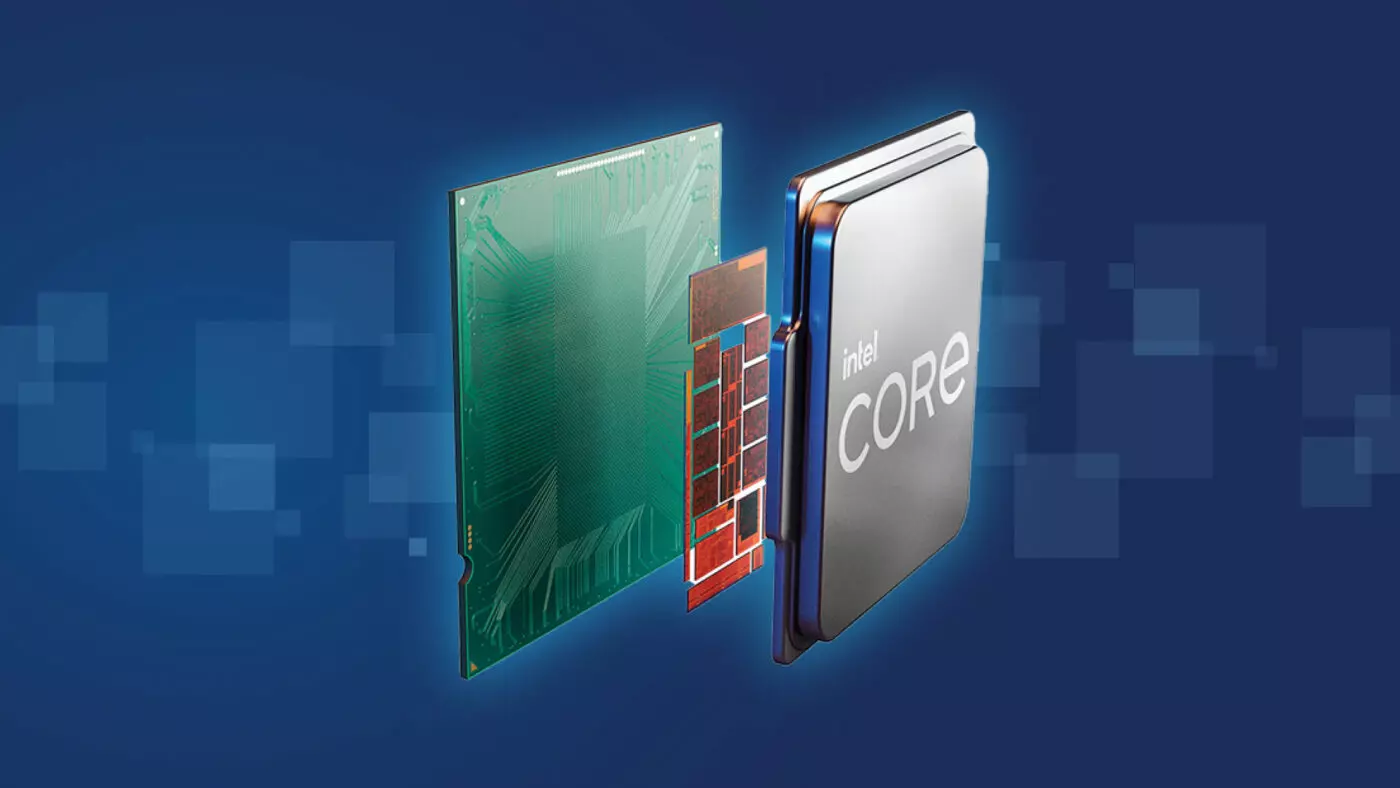
Raptor Lake, a new and upcoming Intel 13th generation CPU will break the 6GHz barrier for the first time ever in normal working mode, overclocked mode in Intel words will go as high as 8GHz. CPU will be 15% faster than Alder lake in single-threaded tasks and a stunning 41% faster in multi-threaded workloads.

The current world record for overclocking is 8.72GHz done with AMD FX-8370 and Intel is aiming at breaking that record with Raptor Lake, of course, this kind of extreme overclocking will require some top-of-the-line nitrogen cooling systems.

raptor lake

Raptor Lake will run on the current LGA 1700 socket, so you will not need to buy another motherboard for CPU and they will also be manufactured on a 10nm process which means that you will need to take care of cooling and power supply if they really go over 6GHz.

Mid-range Intel Core i5-13600K processor will come with 14 cores inside and 20 threads running at a maximum P-core frequency of 5.1GHz, while Core i7-13700K will have 16 cores and 24 threads and run on 5.3GHz max P-core frequency. Best i9-13900K will come packed with 24 cores, 8 of them will be P-cores, and the rest 16 are E-cores, and 32 threads. It will reach 5.4GHz frequency but it was stated it can go to 5.8GHz with Thermal Velocity Boost.

After this statement, we can clearly see that the 6GHz breaker CPU will probably be an i9 special KS variant. In other words, specially tested and picked existing i9 running at higher speeds as was with Alder Lake as well where normal i9-12900K ran at 5.2GHz while i9-12900KS was running at 5.5GHz.

Read More
Valve Steam Deck is Compatible with Windows 11
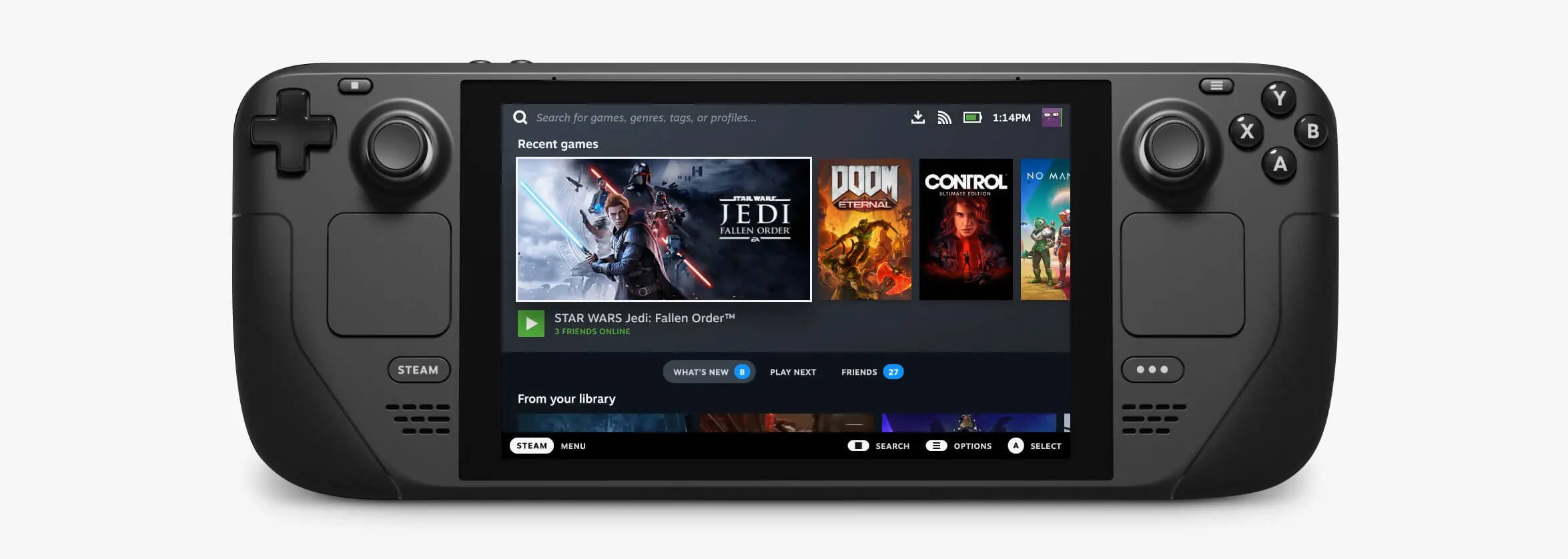
Steam DeckValve has officially announced that Steam Deck will be compatible with Windows 11 despite TPM 2.0 Microsoft requirements. From the beginning, Deck was announced like a mini handheld PC device. Powered with new Steam OS 3.0 based on Linux. However, besides out-of-the-box OS it was also stated that Deck will be a personal device meaning that other PC-based operating systems could be installed on it and even run your typical applications in it. Since Microsoft announced Windows 11 hardware requirements, specifically the TPM 2.0 requirement many users voiced concern that Steam Deck will not be able to connect to Windows 11 TPM 2.0 is something that Microsoft requires for every internal and hardware component that is to connect on a Windows 11 device. This is to ensure that only trusted devices would be included in the array of a PC setup and avoid any problems like malicious hardware injecting software into a system. This would also minimize the compromise Windows would have, as unverified or untrusted devices connect to a Windows PC. However, Valve and AMD are ensuring us that Deck will not have any issue connecting to a PC running Windows 11 or even if you wish to transform Deck itself into a Device running Windows 11.
Read More
Best free & paid eMail clients in 2021
Having an eMail in today's modern world is no longer a privilege or being geeky, it has surely become a necessity. From Facebook to LinkedIn or Steam many services today require you to have an account in order to use them, and in order to create an account, you need working eMail. That being said many people today have several eMail accounts, one for social media, one for work, maybe even one for very close friends and family. How creating eMail today is completely free we might end up with several eMail accounts. eMail clients have also evolved much since their first days and became more than just applications for receiving eMails, today they can take various different tasks having additional features built into them like calendar, batch eMail processing, etc. Taking all of said into account I am presenting to you within my personal opinion some of the best eMail clients starting with free ones.

Best free eMail clients

Google Gmail

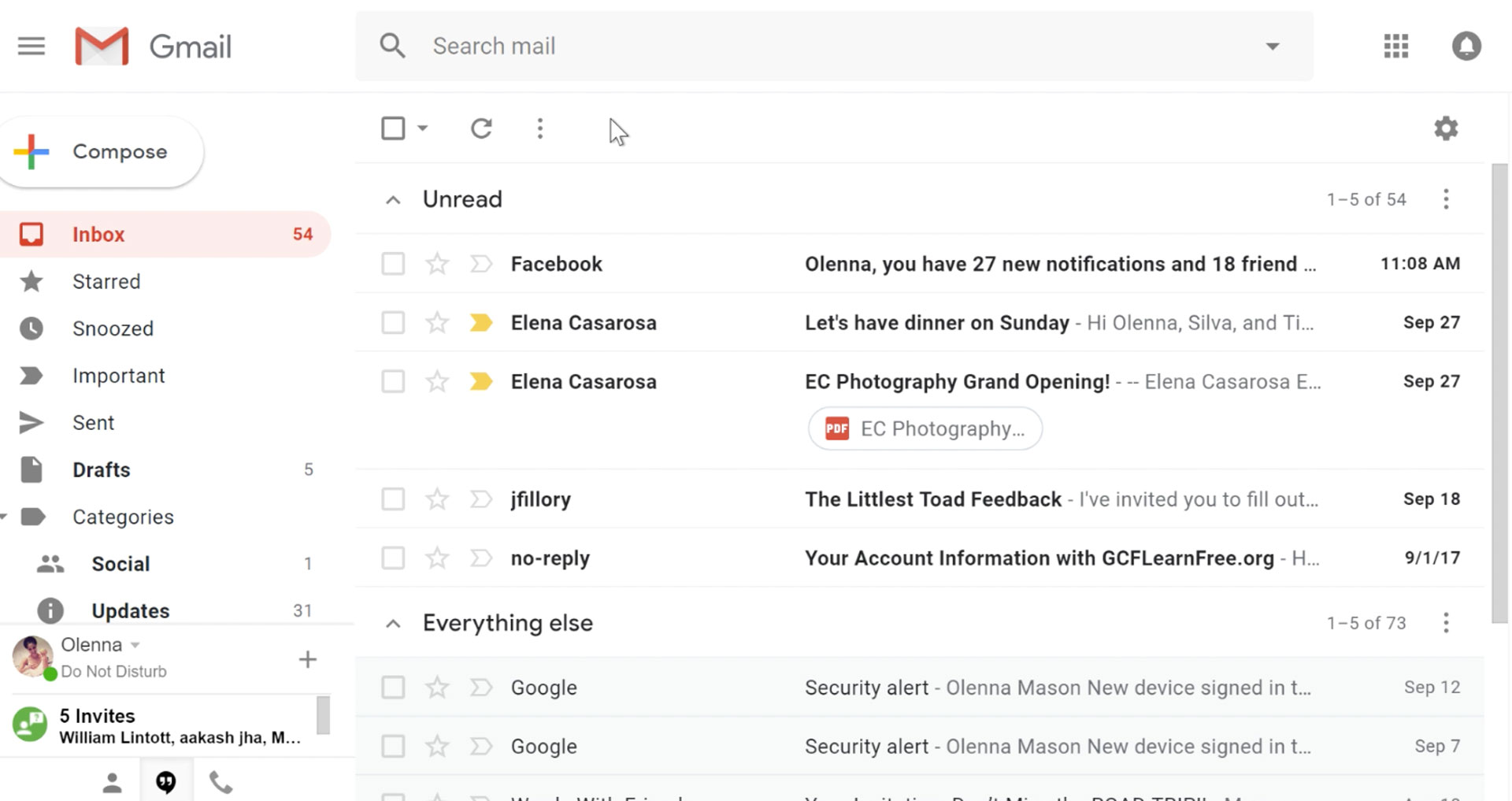
https://gmail.com gmail eMail clientIt would be very difficult to even start a free eMail list without mentioning Google's Gmail. Introduced all the way back in 2004 as an invite-only service it became over time the most popular email platform largely due to the fact Google is offering free eMail accounts. There are a lot of good things to be said about Gmail itself, most of the area is clutter-free and the largest space is reserved for eMail itself letting users focus on what is important. WEB client itself means that you do not need to have any application installed on your device, altho via Google chrome, you can use Gmail offline offering you flexibility if needed. The ability to connect and manage other accounts like Outlook, Yahoo, etc is just making Gmail even more attractive, and the snooze feature is a really neat little detail that will pause eMail notifications if you need to focus on other things. Lack of organizing messages into folders is a little confusing since Gmail offers its own unique label system but sometimes I need to have old reliable save eMail to folder. All in all, Gmail is a great service and it offers a great eMail on the go experience.
Mail eMail client

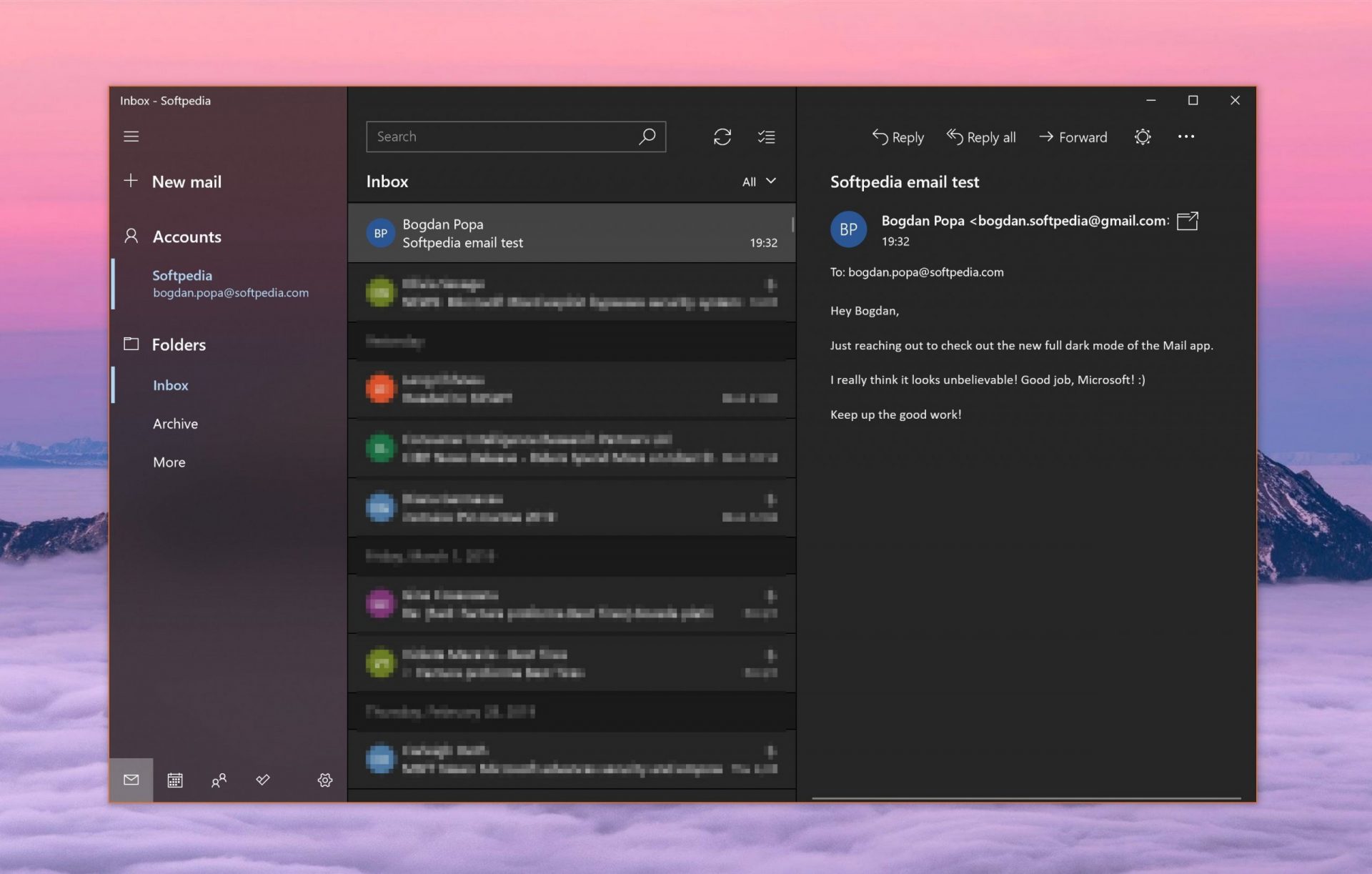
https://www.microsoft.com/en-us/p/mail-and-calendar/ mail eMail appFree Windows eMail client simply called Mail is what was once outlook express. Mail itself has the ability to work with other popular accounts like Google Gmail account, Yahoo, iCloud etc. How it comes with Windows OS and it integrates very well with Microsoft Calendar, this eMail client is for many the first choice. On the negative side, I might say this is a strip-down version of Outlook which is paid solution so some features are missing if we would compare the two. Overall, a simple and nice eMail client worth your time, especially if you are on the Windows platform.
Mozilla Thunderbird

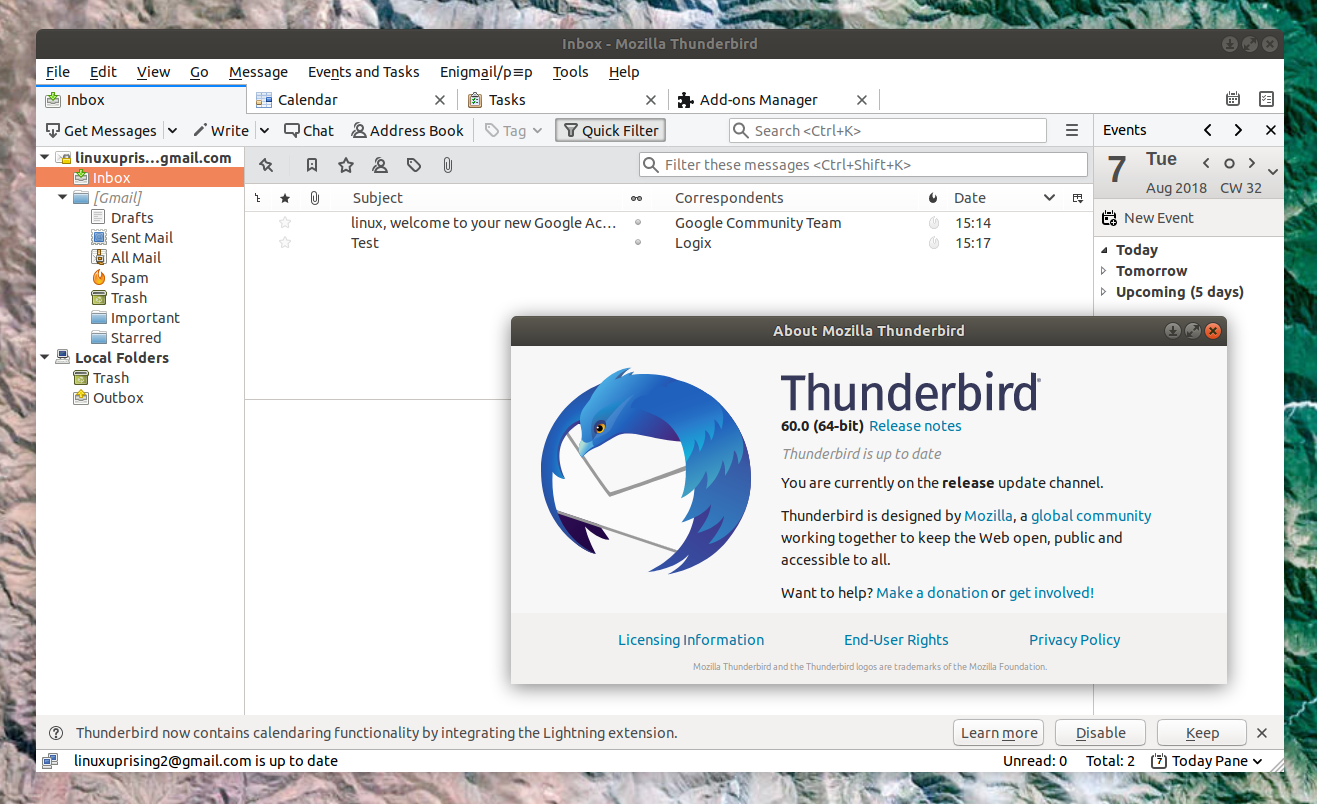
https://www.thunderbird.net mozilla thunderbird eMailGreat eMail client matching in functions against paid and premium solutions of big tech companies. Fueled with plenty of customization options and reskinning ones this eMail client offers a lot for its free price tag. It is also fueled by Mozilla community focusing on privacy and security. It can work with any mail service and it is lightweight with a clean look, altho the look itself can be heavily customized. The bad side is that client itself relies on email services to provide cloud-based emails, so if you are receiving your email via a service that does not have a cloud-based service in itself all of your received emails will be locked to the computer where you have received them. Also customizing it can be sometimes a little too technical for the average computer user. All in all, Thunderbird is one great eMail client and it would be a shame not to use it because of its technical side, if you need a reliable and secure eMail client on a single machine, look no further than Thunderbird.
Paid eMail clients

Microsoft Outlook

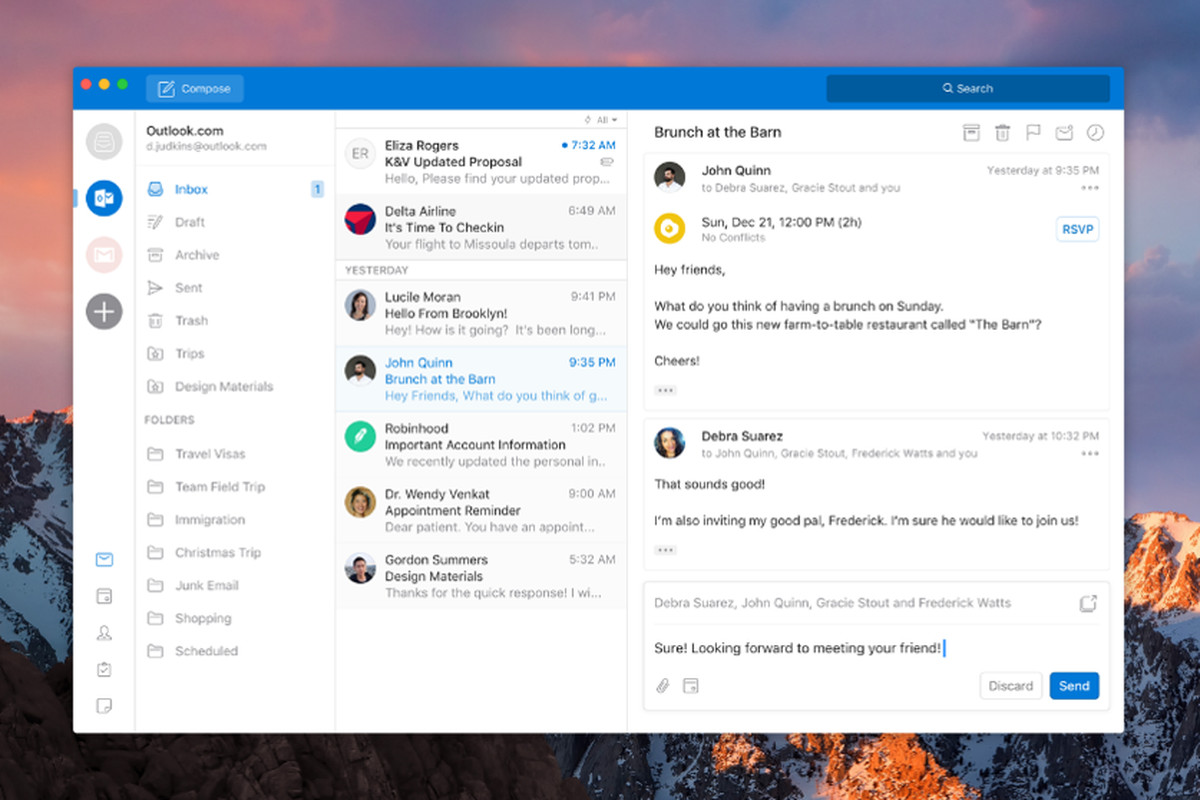
https://www.microsoft.com/en-us/microsoft-365/ microsoft outlookOutlook comes as a part of the Microsoft Office suite and as one of the oldest eMail clients, it is still widely popular and adopted through many users and businesses. It has tight integration with all Microsoft services and full integration with Calendar making it one of the if not the best eMail client out there. Outlook also has a free online service completely free for personal use as well. The downside is that you can not get it as a separate product if you want a business version other than as a part of the Office suite. The final verdict would be that this is perhaps the best eMail client out but the big downside is that there is no desktop version outside the Office suite.
eM Client

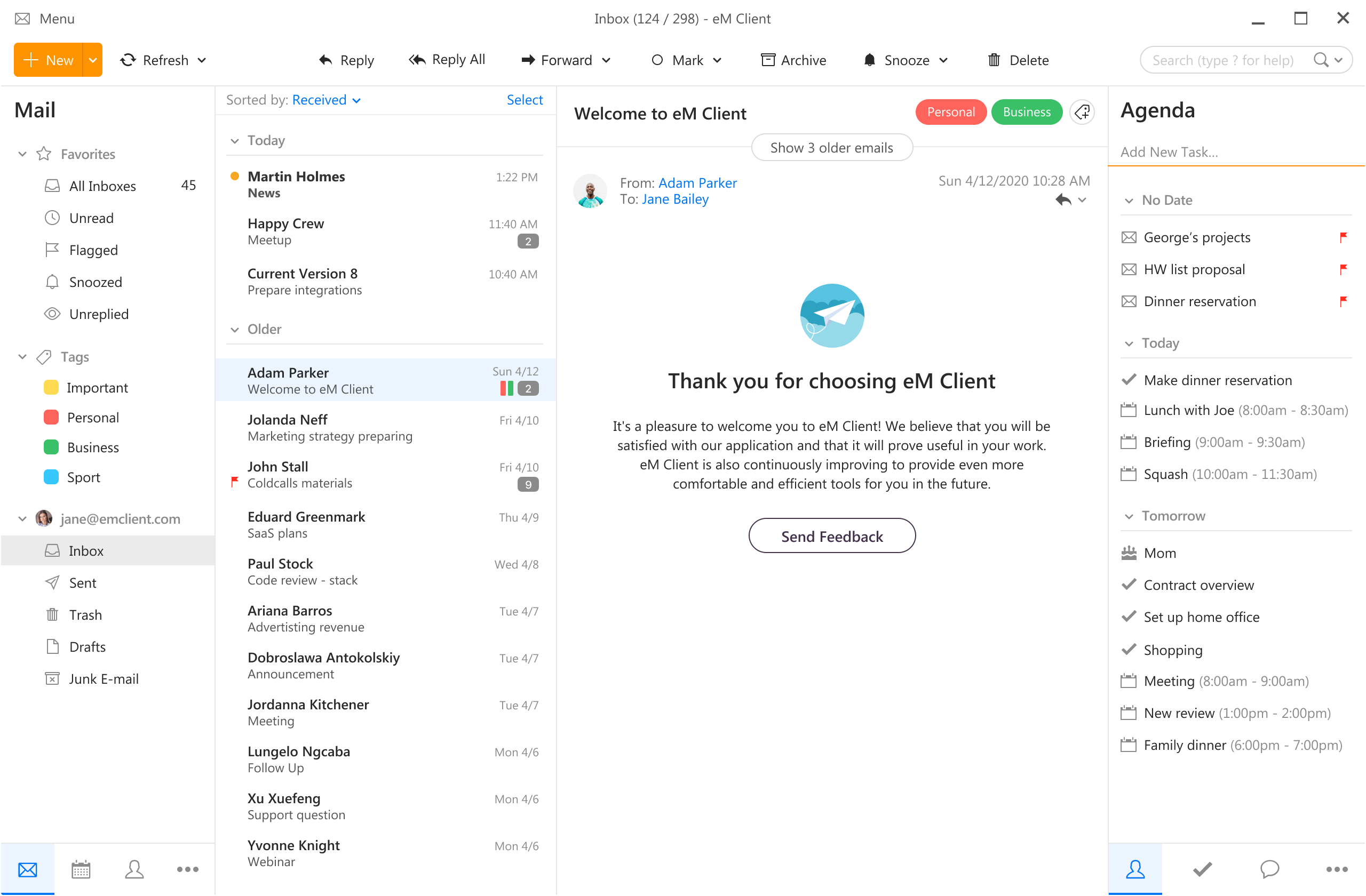
https://www.emclient.com/ em clienteM Client offers a wide array of features, including a calendar, contacts, and chat. Support is provided for all the major email services including Gmail, Yahoo, iCloud, and Outlook.com. The latest version also offers PGP encryption, live backup, basic image editing capabilities, and auto-replies for Gmail. Its automatic system makes it very easy to get emails from other services since there is no manual setting, all that is needed is to type in your email and eM Client will do everything else automatically. A one-time purchase is not pricy and it could offer some features that some free clients are missing. Go check it out with a free trial and see if it is for you.
Mailbird

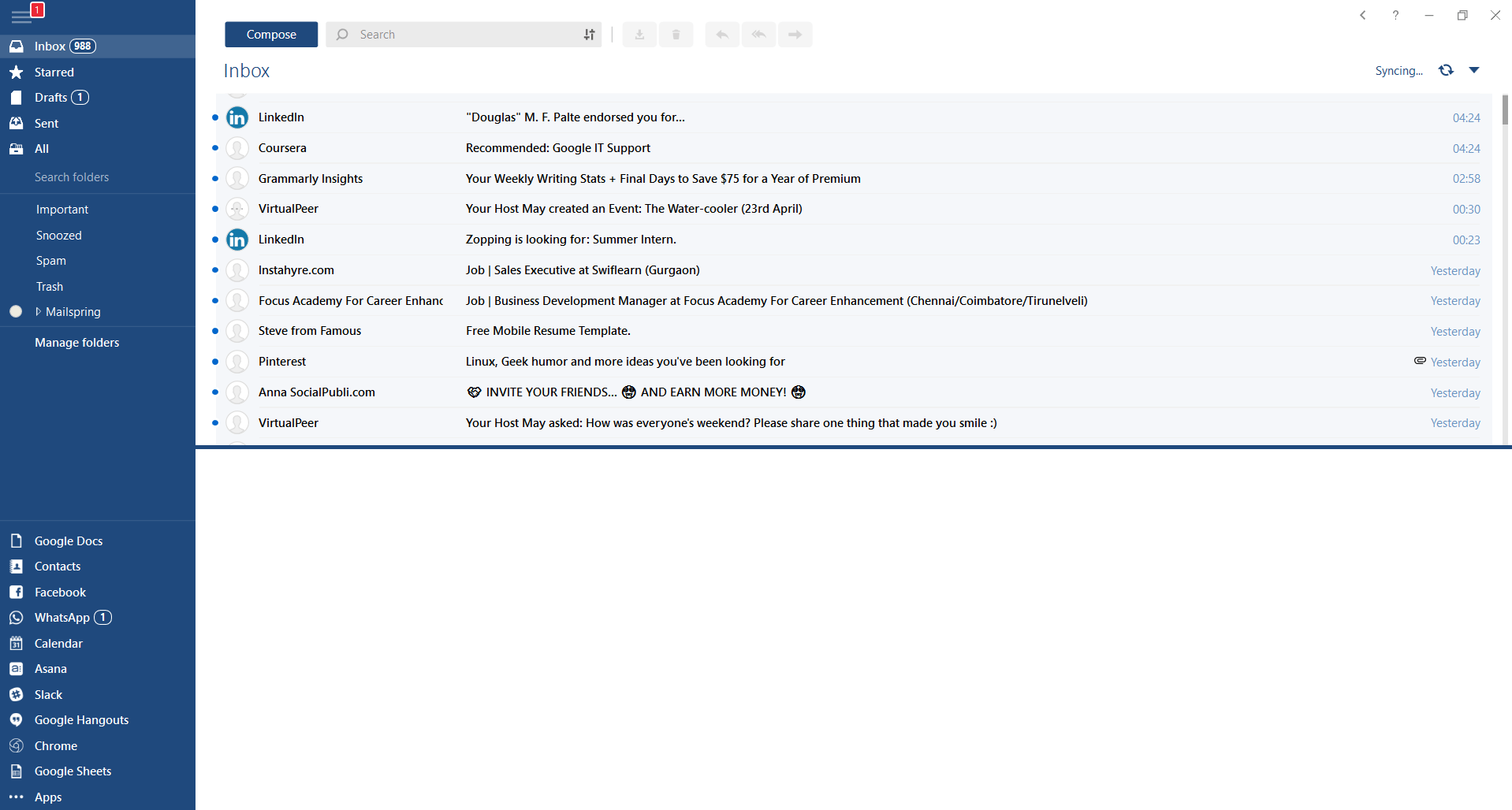
https://www.getmailbird.com mailbirdThis eMail client's main focus is the simplicity of use with visual appeal while tackling multiple eMail accounts. It has many built-in apps along with a customizable interface. Unlike some more Microsoft-centric email clients, Mailbird Business supports a diverse range of integrated apps, including WhatsApp, Google Docs, Google Calendar, Facebook, Twitter, Dropbox, and Slack, all making for a better-streamlined workflow. The downside of this client is the yearly subscription plan. I think people, in general, want to get away from software subscription plans so I will include this as a downside but bear in mind it is downside just in terms of a business plan not in the client itself.
Inky

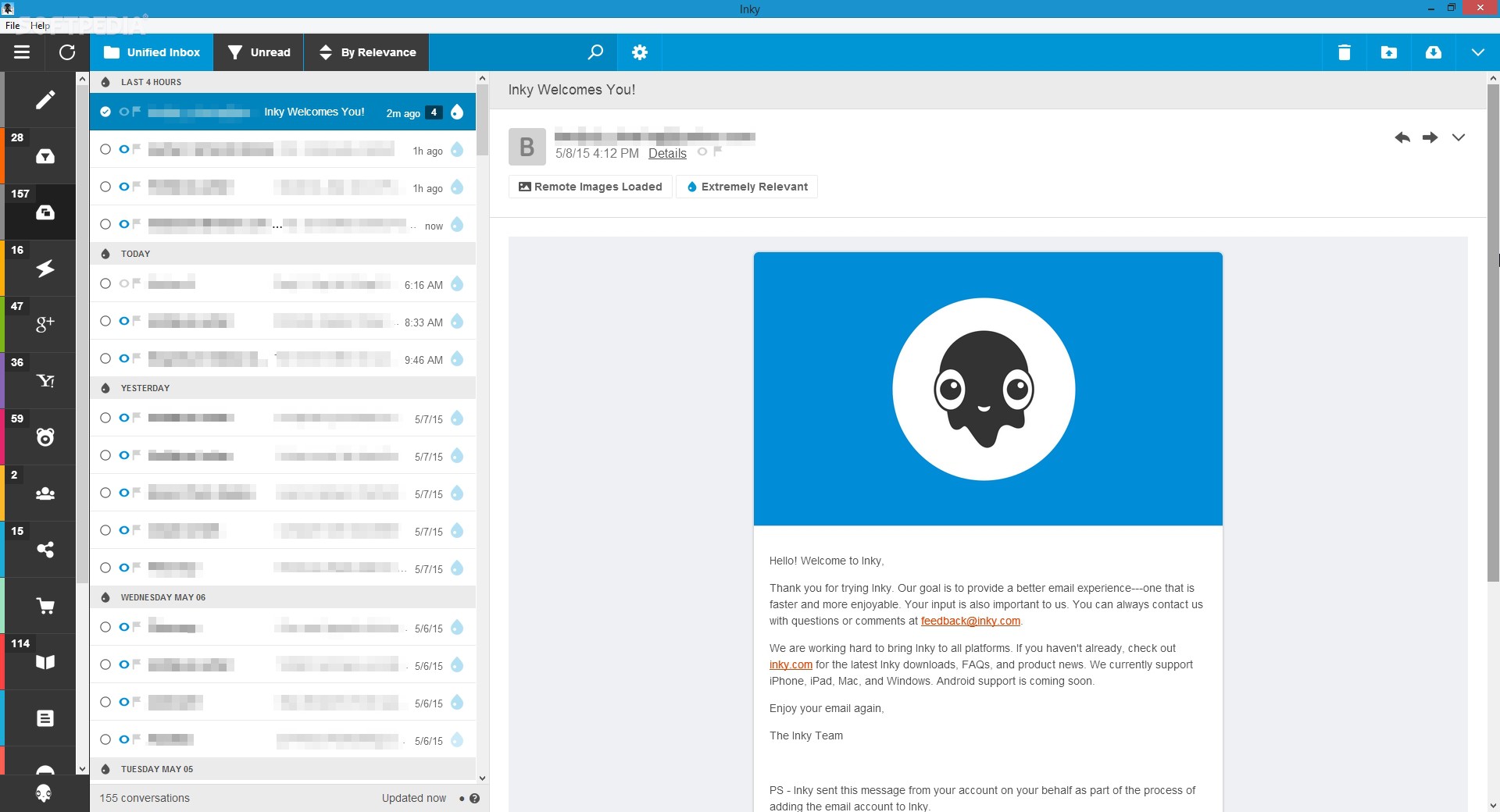
https://www.inky.com/ inky eMail clientInky is eMail client if you are looking for security. It uses AI along with machine learning in order to block all types of phishing attacks that can get through to other clients. The proprietary machine learning technology can literally read an email to determine if it has phishing content, and then is able to quarantine the email or deliver it with the malicious links disabled. It also takes things a step further and offers an analytics dashboard, which allows an administrator to see patterns of attacks based on dates, or targeted users. The downside is that client itself is so much focused on security that sometimes some nonsecurity features get overlooked and provide a poor experience but if you need a good and greatly secured eMail client Inky is one to check out.

Read More
1 2 3 171
Logo
Copyright © 2023, ErrorTools. All Rights Reserved
Trademark: Microsoft Windows logos are registered trademarks of Microsoft. Disclaimer: ErrorTools.com is not affiliated with Microsoft, nor claims direct affiliation.
The information on this page is provided for information purposes only.
DMCA.com Protection Status