How to remove "program" from startup

Instaling and removing applications from your Windows can sometimes leave some traces that are unpleasant and can cause annoyances. One of these annoyances is the program in the startup section of the task manager.

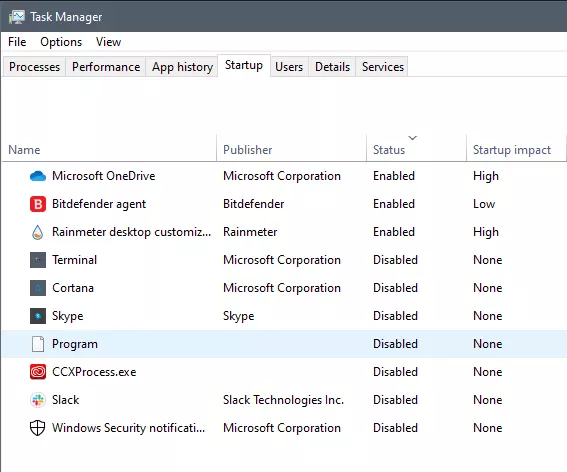
If you ever opened task manager and went into the startup section trying to disable some of the startup items on your Windows boot there might be a chance that you have experienced and seen a program without any icon or information about it just sitting there.

Program inside task manager

This is due to some applications being removed from the system but for some reason, it still shows itself in startup and it is quite annoying. So here we will show you how to get rid of this annoyance so your startup is clean again without junk in it.

Removing a program from startup

Locating the source of the issue

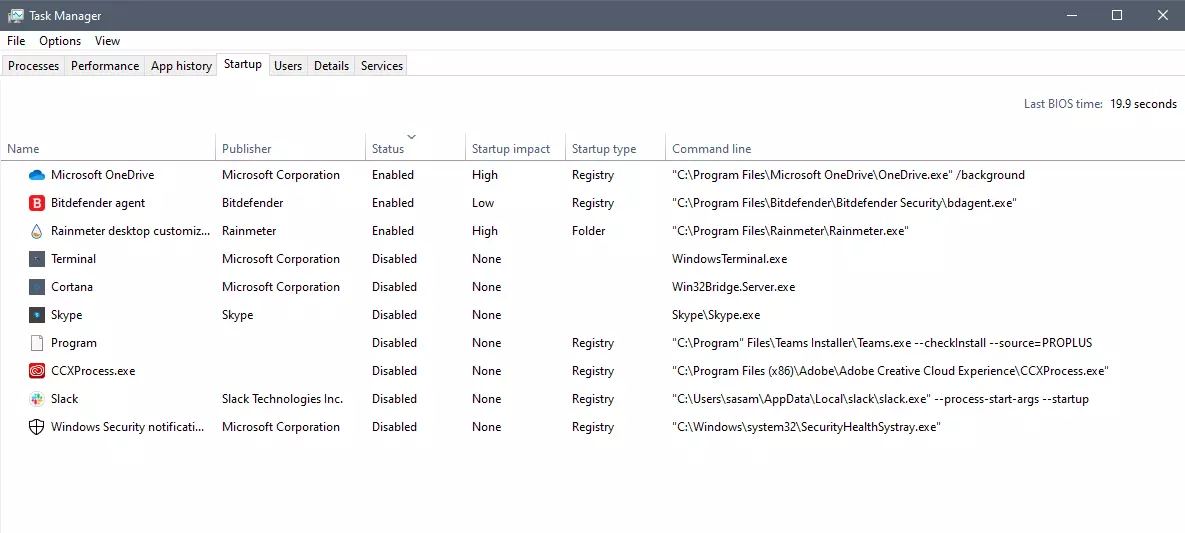
The first thing of course is to open the task manager itself and navigate to the startup tab. Inside the startup tab right-click on the column header and tick or enable Startup type and command line. Now you will see the location of the supposed file (that is missing or you could just go there by right-clicking on the item, but here it is greyed).

program in task manager with details

99% of the time startup type will be registry since the file is missing, if it was a file fix would be just to simply delete the file in the folder but since it was installed and not properly removed registry key is still present but the file cannot be found. After confirmation that the file is indeed missing and that the startup type is registry open the registry editor by typing Regedit in search and pressing enter.

Removing the key from registry

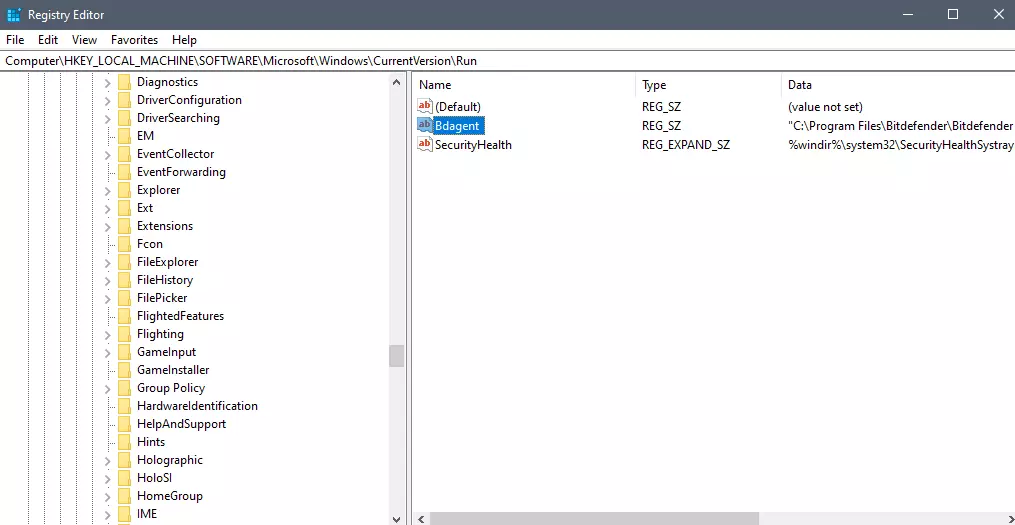
Inside Registry editor navigate to: HKEY_CURRENT_USER\SOFTWARE\Microsoft\Windows\CurrentVersion\Run. Inside on right part, you will see all auto-start entries added by installed applications.

regirsty editor

Locate one that is causing issues by comparing its path with the path inside the task manager command line and delete the key. Once the key is deleted right-click on RUN on the left part and choose HKEY_LOCAL_MACHINE to quickly jump on that key location and repeat the process of key deletion if needed. HKEY_LOCAL_MACHINE will delete startup entry for all users and sometimes entry will not be present here since the application is not installed for all users or there are no other users on the machine.

After the procedure is finished, reboot your systems in order to apply changes.

Do You Need Help with Your Device?

Our Team of Experts May Help
Troubleshoot.Tech Experts are There for You!
Replace damaged files
Restore performance
Free disk space
Remove Malware
Protects WEB browser
Remove Viruses
Stop PC freezing
GET HELP
Troubleshoot.Tech experts work with all versions of Microsoft Windows including Windows 11, with Android, Mac, and more.

Share this article:

You might also like

Remove or join a Domain from Windows
As you know, networks that are domain-based are common in organizations and companies. These domain-based networks require multiple computers to be controlled through a single node known as a server. And the one that sets certain policies and restrictions on every system that is joined to the domain is the server administrator. So if you want to add your computer to a domain, you need to have the following information available:
  • The domain name
  • A user account name that’s registered in the active directory associated with the server
  • Windows Enterprise, Pro, or education version
In this post, you will be guided on how you can join or remove a domain. To get started, follow the given instructions below.

Option 1 – Joining a domain

  • First, you need to connect your computer to the network associated with the server since your computer and the server have to be on the same network.
  • Next, click the Start button and then click on the gear-like icon for Settings to open it.
  • After that, navigate to this path: Accounts > Access work or school.
  • Then click on Connect. This will open a new dialog box and from there, select the “Join this device to a local Active Directory domain” option.
  • Afterward, you will be asked to enter the username and password of your domain account.
  • Now select your Account type and when you proceed, you have to restart your computer. Your domain account should now be created.

Option 2 – Removing a domain

  • You need to open the Windows 10 Settings app.
  • And from there, go to this path: Accounts > Access work and school.
  • Next, select the account you want to remove from the domain and then click on Disconnect.
  • A prompt will then appear that says, “Are you sure you want to remove this account? This will remove your access to resources like email, apps, network, and all content associated with it. Your organization might also remove some data stored on this device”. Just click on Yes.
  • This will give you a Disconnect from the organization prompt.
  • Now click on Disconnect and select Restart now to restart your computer. This will complete the removal process of the domain.
Read More
Fix An unspecified error 0x800700b7
If you receive an error that says, “An unspecified error occurred during System Restore (0x800700b7)” when you tried to restore your Windows 10 PC, worry not, for this post will help you resolve the problem. This kind of error typically occurs when System Restore was not completed successfully and fails instead with this error. Before you start, you must not abruptly shut down your computer and wait for the error to occur. You may receive this error due to many possible reasons. It could be caused by your antivirus program that’s not letting the process complete or corrupted system files which causes the failure or it could also be caused by an unsuccessful installation of a Windows Update. Here are some fixes you can check out if you can still boot into your computer:

Option 1 – Try to disable your antivirus program

Disabling the antivirus program or any security software installed in your computer is always a good idea you can try when the System Restore process does not go smoothly. So before you try updating your computer again, make sure to disable the antivirus or security program and then run System Restore again, don’t forget to enable the antivirus program back again.

Option 2 – Run the DISM tool

The next thing you can do is run the DISM tool. This tool is known to repair potentially corrupted files in your system as having them could also system issues like the blank dialog boxes. To repair these corrupted system files, you can run the DISM commands:
  • Tap the Win + X keys and click on the “Command Prompt (Admin)” option.
  • After that, input each one of the commands listed below sequentially to execute them:
    • Dism /Online /Cleanup-Image /CheckHealth
    • Dism /Online /Cleanup-Image /ScanHealth
    • Dism /Online /Cleanup-Image /RestoreHealth
  • Once you’ve executed the commands given above, restart your computer and check if the problem is now fixed.

Option 3 – Run the System File Checker

System File Checker or SFC is a built-in command utility that helps in restoring corrupted files as well as missing files. It replaces bad and corrupted system files to good system files that might be the cause why you’re getting the errors 0x8024a11a and 0x8024a112. To run the SFC command, follow the steps given below.
  • Type “cmd” in the Start search and then right-click on the appropriate search result.
  • Next, select “Run as administrator” to open Command Prompt with admin privileges.
  • After opening Command Prompt, type in sfc /scannow
The command will start a system scan which will take a few whiles before it finishes. Once it’s done, you could get the following results:
  1. Windows Resource Protection did not find any integrity violations.
  2. Windows Resource Protection found corrupt files and successfully repaired them.
  3. Windows Resource Protection found corrupt files but was unable to fix some of them.
  • Now restart your computer and see if the problem is fixed or not.

Option 4 – Try to run the System Restore in a Clean Boot State

If the first three given options didn’t work and the service still keeps on failing even though the service is running, you can try putting your computer in a Clean Boot State and then try to run System Restore again.
  • Log onto your PC as an administrator.
  • Type in MSConfig in the Start Search to open the System Configuration utility.
  • From there, go to the General tab and click “Selective startup”.
  • Clear the “Load Startup items” check box and make sure that the “Load System Services” and “Use Original boot configuration” options are checked.
  • Next, click the Services tab and select the “Hide All Microsoft Services” check box.
  • Click Disable all.
  • Click on Apply/OK and restart your PC. (This will put your PC into a Clean Boot State. And configure Windows to use the usual startup, just simply undo the changes.)
  • Now try to run System Restore again and see if the process goes smoothly.

Option 5 – Run the Windows Update Troubleshooter

You might also want to run the Windows Update Troubleshooter as it could also help in fixing the problem with System Restore. To run it, go to Settings and then select Troubleshoot from the options. From there, click on Windows Update and then click the “Run the troubleshooter” button. After that, follow the next on-screen instructions and you should be good to go. On the other hand, if you can’t boot into your Windows 10 computer, here are some fixes you can try instead:

Option 6 – Try running System Restore in Advanced Startup Options

If you cannot boot into your Windows 10 computer, you can try to run System Restore again in the Advanced Startup Options.
  • Boot your computer into the Advanced Startup Options screen.
  • From there, you will see some options to troubleshoot when you can’t log in to Windows in the usual way.
  • Now select Troubleshoot > Advanced Options > Command Prompt.
  • After that, type “rstrui” and hit Enter to execute the command which will start the System Restore process.

Option 7 – Run the SFC scan and DISM via Advanced Startup Options

Like what you did in the first given option, you can use the Advanced Startup Options to run both System File Checker and DISM. All you have to do is boot into the Advanced Startup Options and from there select Troubleshoot > Advanced Options > Command Prompt. After accessing Command Prompt, you can run the System File Checker scan first by entering the “sfc /scannow”. As for DISM, you can run the “Dism /Online /Cleanup-Image /RestoreHealth” command.

Option 8 – Try to run the Automatic Repair Utility

You might also want to use Automatic Repair in fixing the error. To do so, follow the steps below.
  • You can start by creating and booting from a bootable Windows 10 USB Stick.
  • After that, click on Repair your computer located in the bottom left corner when you are on the initial Windows Startup screen.
  • Next, click on Troubleshoot, and then on the other screen, click the Startup Repair option.
  • Now select the operating system you want to repair. Once you do that, it will start to repair your operating system. Wait until the process is completed and then check if the problem’s now fixed.
Read More
How to Fix Hal.dll Error Code

Hal.dll Error - What is it?

Hal.dll error is a type of dynamic link library error that is common in Windows. Hal.dll is the critical file in all Windows installations and the error occurs when this file cannot be correctly loaded. Hal is the abbreviation for ‘Hardware Abstraction Layer’. Communication between Windows and different PC hardware is facilitated with this file. The error causes inconvenience and hampers your ability to use the hardware. The error message is displayed in either one of the following formats:
  • "Windows could not start because the following file is missing or corrupt: C:Windowssystem32hal.dll. Please re-install a copy of the above file."
  • "Cannot find WindowsSystem32hal.dll"
  • "C:WindowsSystem32Hal.dll missing or corrupt: Please re-install a copy of the above file."

Solution

Restoro box imageError Causes

Hal.dll error occurs due to multiple reasons. These include:
  • BIOS are not configured properly
  • Damaged hard drive
  • Hal.dll file is missing, damaged, or corrupt
  • Viral Infection

Further Information and Manual Repair

To fix and resolve the Hal.dll error code on your system, you don’t always have to hire a professional technician for the job. Though Hal.dll error is critical but easy to resolve, here are some solutions that you can try to fix it right away even if you don’t have any technical expertise.

1) Restart Your PC

Sometimes this can be a temporary error, so try restarting your PC. If the error is resolved then that’s great. However, if it still persists, then try other solutions.

2) Change the Boot Order

The underlying cause for the Hal.dll error is often not properly configured BIOS; if this is the cause, simply change the boot order of the bootable devices like your hard drive. The BIOS setup utility is used to change boot order settings. This can be done by restarting your PC. Once you restart, press F2 to enter the setup. Now go to SATA operation and change RAID AHCI to RAID ATA. Save changes and then exit. By doing so, you will be able to re-configure the BIOS and resolve the error.

3) Use BOOTMGR

Another way to resolve is to update the volume boot code to use BOOTMGR. To do this, access advanced startup options, open the command prompt and type bootsect command and then press Enter. Run the command and then you’ll get the following message: C: (\?Volume{37a450c8-2331-11e0-9019-806e6f6e6963}) Successfully updated NTFS filesystem bootcode. Bootcode was successfully updated on all targeted volumes. After that close the command prompt. This is most likely to resolve the error.

4) Repair Registry With Restoro.

In case the error is still not fixed, then this means that the problem is bigger than you thought. It may be due to hard drive failure, viral infection, or sometimes because of hal.dll file corruption. In the event of these error causes, it is recommended to download Restoro. Restoro is an advanced, next-generation, and multi-functional PC repair tool embedded with numerous utilities like a registry cleaner, an antivirus, and a system optimizer. The registry cleaner utility:
  • Scans for all registry issues
  • Wipes out the unnecessary files saved in the hard drive like the junk files, cookies, internet history, and temporary files
  • Cleans the disk
  • Repairs damaged and corrupt files
  • Restores the registry
The antivirus utility scans and removes all malicious software from your PC including viruses, Trojans, malware, adware, and spyware. Simultaneously, it also boosts the speed of your system. It is safe and efficient PC repair software. It has simple navigation and a user-friendly interface. Whether you are using Windows 7, 8 or Vista, it is compatible with all. It can also be used on Windows XP. Click here to download Restoro and resolve the Hal.dll error today!
Read More
How to Fix the Dnssd.dll Error Code

What is Dnssd.dll Error Code?

Dnssd.dll is a type of dynamic link library. It is developed for Windows Operating System by Apple Computer Inc. The latest version of fnssd.dll is 3.0.0.10 used in Windows Vista.  This file also functions like a typical dynamic link library.  DDL files are small programs similar to executable files which are used by multiple programs to load and run properly. Dnssd.dll error occurs when the dnssd.dll file fails to function properly and load to run the desired application/program.  The error may occur most often during computer startup and program startup. The dnssd.dll error message may be displayed on your PC on either one of the following formats:
  • "Dnssd.dll not found."
  • "Dnssd.dll Access Violation."
  • "Cannot register dnssd.dll."
  • "The file dnssd.dll is missing."
  • "Cannot find C:WindowsSystem32\dnssd.dll."
  • "This application failed to start because dnssd.dll was not found. Re-installing the application may fix this problem."
  • "Cannot start Bonjour. A required component is missing: dnssd.dll. Please install Bonjour again."

Solution

Restoro box imageError Causes

To narrow down the cause of the dnssd.dll error is difficult virtually because there are multiple reasons why this error occurs on your system. However, here are the most common causes for this error:
  • Missing  Dnssd.dll file
  • Corrupt and damaged Dnssd.dll file
  • Invalid  dnssd.dll registry entry
  • Viral Infection
  • Improperly shutting down your PC
  • Poor PC maintenance
  • Broken registry keys
  • Hardware failure
  • Dnssd.dll file deleted when uninstalling another program
It is advisable to fix this error right away, as it can create many troublesome problems on your PC such as slow system performance, computer freeze up, blue screen of death errors, system failure, and crash.

Further Information and Manual Repair

Here are some of the best and easiest DIY solutions that you can try to resolve this issue on your PC without hiring a professional.

1. Use System Restore Function

Since this error largely indicates poor PC maintenance, it is advisable to use the System Restore function built-in Windows to resolve the Dnssd.dll file error. It will help you restore the system back to its previous healthy status. It can also help you get a fresh copy of damaged and corrupted files. Here’s what you need to do:
  • Go to the start menu of Windows, type restore in the search box.
  • Choose the option that says ‘choose a different restore point’ this presents customizable options for users.
  • Here you will be presented with a list of restore points, choose the one that you believe has most likely caused the dnssd.dll error.
  • Confirm your selection.
This will help resolve the error. Now restart to see changes made. If the error still persists then try other solutions given below.

2. Reinstall the Program Causing the Dnssd.dll Error to Pop Up

As dll files are shared files, there is a possibility that the file got deleted when you tried to uninstall a certain program. Therefore, if this is the reason, then try to reinstall the program that is causing the error message. By doing so, you can set up the dnssd.dll file again on your PC.

3. Scan for Viruses and Registry Issues

Other reasons for the error are associated with viral infection and registry issues. Therefore it is advisable to download software to scan for these issues and remove them from your PC. Viruses can also corrupt dll files. On the other hand, dll errors like Dnssd.dll can also occur if the registry is not cleaned frequently. The registry becomes corrupt due to the accumulation of invalid/wasted and irrelevant files. This also causes disk defragmentation and hard disk problems which can also lead to hardware failure and dll file damage and corruption. Now to repair it you can either download 2 different programs, an antivirus, and a registry cleaner, or you can install multi-functional and advanced software, Restoro. Downloading 2 separate programs can reduce your PC performance even furthermore. Therefore we recommend you opt for Restoro. This is a one-stop solution for all your PC problems. It includes multiple utilities like an antivirus that detects all malicious software including spyware, malware, adware, Trojans, and viruses. A powerful registry cleaner that resolves all registry issues, wipes out bad registry entries and repairs broken registry keys, damaged dll files like Dnssd.dll, and restores the registry back to its optimum health. This software also functions as a system optimizer that boosts the speed of your PC dramatically. It is safe, bug-free, and efficient. All PC issues are resolved in seconds in just a few clicks. It is user-friendly and compatible with all Windows versions. Click here to download Restoro and resolve the dnssd.dll file error right away!
Read More
Fix Feature Update failed, error 0x8007000e
In every task carried out in the Windows 10 operating system, some of them don’t go smoothly and it could encounter a couple of errors along the way. One of these errors you could encounter is the Windows Update error code 0x8007000e. This particular error was reported to occur a lot when downloading and installing a Feature update via Windows Updates. And recently, it has been reported to occur a couple of times for the Windows 10 1903 May 2019 update. According to security experts, this error could be caused by a lack of memory or disk space as well as issues in the Windows Update mechanism. Whatever the cause is, troubleshooting this problem shouldn’t be hard as this post will give you some potential fixes you can check out. To fix this error, here are some options you need to consider:

Option 1 – Clear up temporary or junk files

The error could be caused by some temporary or junk files in your computer and so you need to clear them up to fix the problem. You can achieve that using the Storage Sense feature.
  • Open Setting > System > Storage from the WinX Menu.
  • From there, you will see a list of all the local and connected storage devices along with the details on the free space. Make sure that Storage Sense is on.
  • Next, find a link that says “Free Up Space” and click it to open.
  • After that, a screen which is the built-in program in Windows 10 will appear and will scan your computer for the following junk files so you can free up disk space:
    • Windows Upgrade Log Files
    • System created Windows Error Reporting Files
    • Thumbnails
    • Temporary Internet Files
    • Previous Windows Installation Files
    • Delivery Optimisation Files
    • DirectX Shader Cache
  • Choose the files you want to get rid of and then click on the remove files option. Note that you’ll have an idea of the total size as you select any of the junk files listed above.
  • Now go to the “Free Up Space Now” section and click the Clear Now button. This will get rid of all the temporary or junk files in your computer and should hopefully fix the Windows Update error 0x8007000e.

Option 2 – Reset the Windows Update components

If by any chance that the second option didn’t work, resetting the Windows Update components could also help you resolve the problem. How? Refer to the following steps:
  • Open Command Prompt with admin privileges.
  • After that, type each one of the following commands and hit Enter after you key in one after the other.
    • net stop wuauserv
    • net stop cryptsvc
    • net stop bits
    • net stop msiserver
Note: The commands you entered will stop the Windows Update components such as Windows Update service, Cryptographic services, BITS and MSI Installer.
  • After disabling WU components, you need to rename both the SoftwareDistribution and Catroot2 folders. To do that, type each one of the following commands below and don’t forget to hit Enter after you type one command after the other.
    • ren C:/Windows/SoftwareDistribution/SoftwareDistribution.old
    • ren C:/Windows/System32/catroot2/Catroot2.old
  • Next, restart the services you’ve stopped by entering another series of commands. Don’t forget to hit Enter after you key in one command after the other.
    • net start wuauserv
    • net start cryptsvc
    • net start bits
    • net start msiserver
  • Close Command Prompt and reboot your PC.

Option 3 – Try configuring the Windows Update-related Services

  • Tap the Win + R keys to open the Run dialog box.
  • Then type “cmd” in the field and tap Enter to open an elevated Command Prompt.
  • Next, execute the following commands. Note that you have to type and enter each the command one after the other.
    • SC config wuauserv start= auto
    • SC config bits start= auto
    • SC config cryptsvc start= auto
    • SC config trustedinstaller start= auto
  • The commands you executed will make sure that the Windows Update-related services are available. Once it’s done, restart your computer and see if the Windows Update error is now fixed.

Option 4 – Try running the Windows Update troubleshooter

Windows 10 have various troubleshooters that can help you resolve many system issues. So if you’re dealing with Windows Update errors like Error 0x8007000e, you can run the Windows Update troubleshooter to resolve it. To run it, go to Settings and then select Troubleshoot from the options. From there, click on Windows Update and then click the “Run the troubleshooter” button. After that, follow the next on-screen instructions and you should be good to go.

Option 5 – Try to use the Media Creation tool

The Media Creation tool in Windows allows you to use the ISO installation file to make a bootable device that you can use to install Windows on your PC. Note that this is kind of different from the usual installation process as it could erase your computer’s current settings and data on the primary drive. Thus, before you proceed, you need to backup all your data into some removable drive and then use the Media Creation tool to make a bootable drive.
  • After making the bootable drive, you need to plug it in your computer and then reboot.
  • Next, tap the F10 or Esc key to open the boot options.
  • Now set the boot priority of the removable drive the highest. Once the setup comes forth, follow the next onscreen instructions and install Windows without any problems.
Read More
Guide to Correcting Error Code 46

Error Code 46 – What is it?

Error Code 46 is a device driver error that occurs when Windows fails to access the connected peripheral device to the computer as Windows is in a process of shutting down.

Users experience this error on any Windows 2000 and later operating system versions and usually see a pop-up with the following message:

“Windows cannot gain access to this hardware device because the operating system is in the process of shutting down. (Code 46)”

Solution

driverfix boxError Causes

Error Code 46 is caused when there is a temporary problem with windows system files which prompts that the system is undergoing a shut down when in fact is it not.

This prevents access to the connected devices. This error may also be caused by a registry issue in which case it has either become corrupted or damaged.

Further Information and Manual Repair

Unlike all other Windows error codes, code 46 is relatively easy to fix with the right knowledge and does not pose any serious threat to the well-being of your PC. Here is how you can do it.

Method 1 – Restart your PC

The simplest method to resolve Error Code 46 is to run a restart of your computer.

The error is most commonly a temporary registry glitch that prevents you from accessing the device connected to your computer. Upon restarting your computer, it will resume working properly as before.

There is no need to run a troubleshooting wizard, use system restore, or run anti-virus software to scan and remove malware or spyware. A simple restart is all that is needed.

Method 2 – Install DriverFIX

Although the error code can be resolved upon restarting the computer, there’s a possibility of damaged or corrupted Windows registry files. This can be fixed by using a program like DriverFIX.

DriverFIX, with its user-friendly approach to help you fix your PC issues, comes with an integrated database that detects which drivers you need to reconfigure within just a few seconds and downloads it automatically.

It further ensures that your drivers are installed in their entirety leaving no room for any corrupted or damaged registry.

Error Code 46 may not be much of an issue, however, to prevent any risk of a Windows system corruption can be disastrous for your computer.

DriverFIX helps you fix your PC registry and device driver problems with user-friendly software and an integrated database. The database which consists of detailed information on what device driver needs to be installed will automatically download the required device driver without you need to refer to your hardware instruction manual.

Registry problems resulting from incomplete program installations and viruses such as malware and spyware damaged registry files. This affects your PC in serious ways.

DriverFIX further has an automatic backup and restoration system that helps create system ‘checkpoints’ which allow you to roll back to a healthier state and resume operations. This can help you avert any Windows error codes in the future.

Click here to download DriverFIX now!

Read More
Guide to Quickly Fixing the Thorconnwndclass
Thorconnwndclass error is an Outlook error that has recently reared its head. Known to create several problems in the proper functioning of the Outlook application, this error is essentially a constituent of the Norton Antivirus Crash Guard Symantec component. That’s why those using the Norton Antivirus program are most likely to encounter this error.

Solution

Restoro box imageError Causes

When the Thorconnwndclass error occurs, the Outlook closes unexpectedly, users encounter problems while sending or receiving emails and, performance of Outlook is degraded and this happens because issues arise while accessing the PST file. Because of this damaged PST file, stored data is unavailable for access. Other factors that trigger the Thorconnwndclass error are listed below.
  • Corrupt or damaged Outlook Add-ins
  • Corrupt or damaged Outlook bar
  • Unfinished Outlook installation
  • Faulty settings
  • Thorconnwndclass Norton is being used with Outlook
Regardless of the underlying factors that lead up to the occurrence of this error, it's of paramount importance that workarounds are implemented to ensure desired performance of Outlook in the long run.

Further Information and Manual Repair

While there are several ways to rectify this error, some of the most common ones are listed below as follows.
  • The most effective solution is the PST file repair tools available online. These tools use a complex algorithm and thoroughly scan the PST file and repair it as needed. This resolves the Thorconnwndclass error that one encounters in Outlook. Usually such software have an easy to use interface and can easily be used, without the need for the user to have a strong technical background. Another advantage of using these software available online is that they not only repair the file, but they often play a pivotal role in retrieving inaccessible or lost data.
Some other tips for manually resolving this problem are listed below as follows.
  • First and foremost, disable your Norton Antivirus program if it’s installed on your system. Now, open the Outlook application in Safe Mode. Since this problem may also be triggered by damaged or corrupt Outlook add-ins, it is strongly advised that you disable or uninstall them. Now, you will come across some .dat files. Rename them by changing the existing .dat files to new .dat.
  • Another useful approach is to employ the Inbox Repair tool offered by Outlook.
  • Finally, one can also use the scanpst.exe file to fix any problem or error that resides within the  Outlook application.
Read More
How to Fix QTCF.dll Error

What is QTCF.dll Error?

Sometimes you may experience QTCF.dll error on your computer either during installation or while upgrading applications like iTunes and QuickTime. This error indicates that the installation or the upgrading of the desired application was unsuccessful. The QTCF.dll error is recognized by the Apple Support Community and they have provided a solution to fix this error easily.

Solution

Restoro box imageError Causes

QTCF.dll error occurs because the computer overloads with too much data which corrupts and damages registry files. And therefore the desired program fails to download and start on your PC. When this happens you see a pop up on your screen and the QTCF.dll error message that is usually displayed as:
  • QTCF.dll not found
  • QTCF.dll file is missing
Such message display hinders your ability to use iTunes or QuickTime applications on your PC. Furthermore, it also slows the performance of your system and you may encounter startup and shutdown problems. Therefore, it is advisable to repair the problem and fix the QTCF.dll error right away.

Further Information and Manual Repair

The good news is that you don’t need to go to a professional or be an IT expert in order to fix the QTCF.dll error. Since this error means that the installation or the attempt to upgrade the system was unsuccessful therefore you need to reinstall the fresh copy of the application. Here’s how you can easily fix the problem by yourself and install a fresh copy of the application: Step 1: First close all the applications running on your computer. Step 2: Now uninstall the application that you were trying to install such as iTunes or QuickTime.  To do this, go to the start menu, click on settings, control panel, and programs. Now click on the application you want to remove. Step 3: Once the application is uninstalled and removed from your computer, then restart it again. Step 4: Now download a fresh version of the application (iTunes or QuickTime) from Apple’s official website http://www.apple.com/quicktime/download/. Step 5: Run the installer. If reinstalling doesn’t work, then it is advisable to download the QTCF.dll repair tool. This repair tool will scan your PC for errors in seconds. Once the scanning is complete, click on the ‘fix all’ button to repair your computer. Once the error is fixed, restart your computer and then try reinstalling the desired application one more time.

A Word of Advice

For regular PC users, it is advisable to install an anti-virus and malware scanner and run it every time you use your computer. This helps you keep informed about the viruses or errors that your computer might be exposed to. And you can take timely actions before you experience file corruption and damage.
Read More
Fix Display driver failed to start Error
Recently, a number of users reported an error when they tried to open graphic-intensive apps like video games. According to users, when they tried to open an app, they get the “Display driver failed to start” error instead. Thus, if you encounter the same error, then you’ve come to the right place as this post will guide you on how exactly you can fix it. Here’s the full content of the error message:
“Display driver failed to start; using Microsoft Basic Display Driver instead. Check Windows Update for a newer display driver.”
This kind of error could be due to several factors. It is possible that it could be a result of a corrupted or outdated graphics driver. Aside from that, it could also be due to some issues with the system settings. Worry not though for there are potential fixes that can help you fix the problem. But before you troubleshoot the problem, you need to update your Windows 10 computer first and if it didn’t help fix the problem, then here are the potential fixes that should help resolve the “Display driver failed to start” error.

Option 1 – Try to restart the Graphics driver

Although Windows 10 can recover the graphics driver on its own when it crashes, there are times when it fails to do its job. To restart the graphics driver in your computer, simply tap the Win + Ctrl + Shift + B key combination. After that, the graphics driver will be back in less than a second.

Option 2 – Try running the Hardware and Devices troubleshooter

Running the built-in hardware and devices troubleshooter can also help you in fixing the “Display driver failed to start” error.
  • The first thing you need to do is click on Start and then on the gear-like icon to pull up the window for Settings.
  • After opening Settings, look for the Update and Security option and select it.
  • From there, go to the Troubleshoot option located on the left-hand side of the list.
  • Next, select Keyboard from the list and open the Troubleshooter and run it. Once it is doing its job, wait for it to complete the process and then restart the system.
  • After the system restarts, check if the problem’s now fixed. If not, refer to the next option given below.

Option 3 – Try to update or rollback the Graphics driver

You can try to update your Graphics card driver using the Device Manager in your computer to resolve the “Display driver failed to start” error or you can also go directly to the website of your graphics card manufacturers like NVIDIA, Intel, or AMD and go to the section called Drivers then check if there’s a new available update – if there is, download and install it. To update your Graphics driver via Device Manager, refer to these steps:
  • First, boot your computer into Safe Mode.
  • After that, tap the Win + R keys to launch Run.
  • Type in devmgmt.msc into the box and tap Enter or click OK to open the Device Manager.
  • After that, a list of device drivers will be displayed. From there, look for the Display Adapters and click on them.
  • After that, right-click on each entry under the Display Adapters and select the “Uninstall Device” option from the menu.
  • Now restart your computer.
  • After restarting your computer, go to the Settings app and Check for Updates in the Windows Update section.

Option 4 – Try setting your system for maximum performance

If the first three options didn’t fix the error, you can try setting your computer for maximum performance since Windows 10 allows you to choose the effects you want to activate your system and you can do this by adjusting the performance ratio. Adjusting the performance ratio can be done via a certain setting in your computer – and this setting should be set to “Maximum Performance” to resolve the error.
  • In the Windows Search bar, type in “performance” and from the search results that appear, select the “Adjust the appearance and performance of Windows” option.
  • Next, a mini window will appear and from there, click on the radio button that says, “Adjust for best performance”.
  • Once done, click on the Apply and OK buttons to save the changes made. This should resolve the problem.
Read More
Malware Guide: How to Remove Solimba

What is Solimba?

Solimba is a bundled executable program. It was created to be launched as a promotional tool to get advertisements loaded on a user’s system, upon installation. As a bundle, Solimba offers installation of various programs, with the objective of promoting various products and services. It utilizes unethical techniques, as in the case with adware tactics to influence or for want of a better word, hijack an Internet Browser to affect a website’s result on a search results page. In this assessment, Solimba distributed ads on Internet Explorer, Chrome, and Mozilla browsers, by hijacking various Internet Browsers to change the user's experience. (Images are shown below) Technical details about Solimba PUP include:
Digital Signature:  POPELER SYSTEM, S.L. Entry Point:   0x0000C1DC

Assessment of Solimba Potentially Unwanted Program

Solimba PUP is all about the ads. Once this executable is installed, it penetrates your computer system and sends ads all over your Internet Browser – Chrome, Internet Explorer, Mozilla Firefox, and the likes. For this assessment of Solimba.exe PUP, two installations were carried through. In layman's terms, I actually installed Solimba on two occasions to decipher the true nature of the PUP. It was shocking to find that both installations revealed different bundled programs and advertisements. In the first instance (as shown below), Solimba proved more aggressive in featuring ads for revenue advancements.
 Solimba employed aggressive advertising techniques
It’s important to note that hijacked results resulting from the installation of Solimba. This affected the results of the website on the Internet browser to boost its ranking, even without the use of a search engine. The advertisement displayed on the Internet Explorer search page routes the user to a software installation website. The utility tool in question was a “Windows 8.1 PC Repair” tool used to identify threats present on the Windows 8.1 OS.Advertisement shown on Chrome after Solimba Installation The advertisement displayed on the Chrome Browser search page routes the user to a health and beauty magazine website. This site advocates health and beauty, especially issues concerning weight loss. Several ads were visible on-site, displaying products to assist people in losing weight. During my installation of Solimba, the installation wizard underscored that four programs would be downloaded. These programs included N8Fanclub.com_KinoniRemoteDesktop, Lolliscan, PaceItUp, and SearchProtect. Interestingly, only two programs from the list were apparent or obvious. An N8Fanclub.com_KinoniRemoteDesktop file was made on the Desktop and SearchProtect was seen in “All Programs”, along with files stored on the computer’s Local Drive. The other programs that were “supposedly” installed remained concealed. A test was done to determine whether these were counted as extensions or add-ons to the varying web browsers but nothing was found on any of the tested browsers – Google Chrome, Internet Explorer, and Mozilla Firefox.

Description of 4 Installed Files

N8Fanclub.com_KinoniRemoteDesktop

When this file was initially found on the Desktop, a rootkit came to mind. A rootkit was used as a means to an end. Whoever was on the receiving end of this unwanted file would be able to connect to an infiltrated system without the knowledge of the user. After running the file to determine its behavior, nothing much happened. A message appeared indicating that the software couldn’t execute on the computer. That was pretty tricky since, to begin with, I didn’t place that specific file on the desktop but it came along with the territory and so I had to accept it. Further research online into N8Fanclub.com_KinoniRemoteDesktop proved very rewarding. A search of the entire file name was not able to do the trick so I had to do research on both terms separately. After landing on N8Fanclub.com, I was nicely asked to disable my adblocker. There seemed nothing harmful about the site. However, due to the fact that it was not what I initially installed, the program was an unwanted program. That’s exactly what Solimba does. It installs several other programs that were not requested by the user in an attempt to make money from advertising. The mere fact that this program got installed meant that it was to promote an online service.

KinoniRemoteDesktop

was a separate program. It was combined with N8Fanclub as a way to allow users to use their PC computer “as if they were sitting in front of it.” A user would be able to make use of a full web browser, watch Flash videos, play games, and even use office applications. This would be done from the user’s Nokia device. This is an advertisement at its best.

Lolliscan

This program did not allow me to see much since it didn’t leave a physical trace behind. However, during the installation, Lolliscan was listed as one of the four programs that would be installed. Overall, Lolliscan supposedly should be able to save people money since this form of the ad focuses on showing coupons when visiting sites such as Amazon. While this seems like a good deal, this ad will invade your personal space and distribute pop-ups at the most inopportune times.

PaceItUp

As the name states, PaceItUp is software added to a browser with the intent to speed your computer. Quite the contrary, PaceItUp does the total opposite since it installs bundled programs that slow down a computer system. PaceItUp is also known for displaying ads and tracking what the user does on his/her computer system.

SearchProtect

It’s known for hijacking your computer’s homepage. In fact, this addition is very stubborn and often possesses a challenge when a request to uninstall is made.

Further Information on Solimba

The second installation of Solimba also had its own dose of bundles to display. In comparison to the first installation, two programs from the bundle were different while two remained the same. two additional programs were installed along with the second installation of this bundle. These were dubbed Optimizer Pro and GamesDesktop. SearchProtect and N8Fanclub.com_KinoniRemoteDesktop remained triumphant and unbeatable. They were repeated within the installation. To completely remove Solimba from your computer, click here to download and install Spyhunter.
Read More
1 2 3 171
Logo
Copyright © 2023, ErrorTools. All Rights Reserved
Trademark: Microsoft Windows logos are registered trademarks of Microsoft. Disclaimer: ErrorTools.com is not affiliated with Microsoft, nor claims direct affiliation.
The information on this page is provided for information purposes only.
DMCA.com Protection Status