Logo

How to remove "program" from startup

Instaling and removing applications from your Windows can sometimes leave some traces that are unpleasant and can cause annoyances. One of these annoyances is the program in the startup section of the task manager.

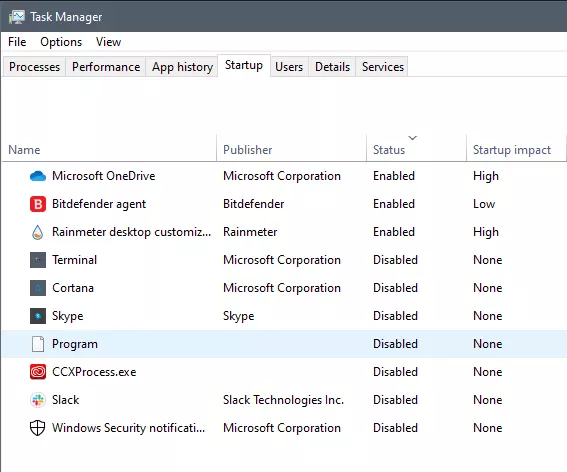
If you ever opened task manager and went into the startup section trying to disable some of the startup items on your Windows boot there might be a chance that you have experienced and seen a program without any icon or information about it just sitting there.

Program inside task manager

This is due to some applications being removed from the system but for some reason, it still shows itself in startup and it is quite annoying. So here we will show you how to get rid of this annoyance so your startup is clean again without junk in it.

Removing a program from startup

Locating the source of the issue

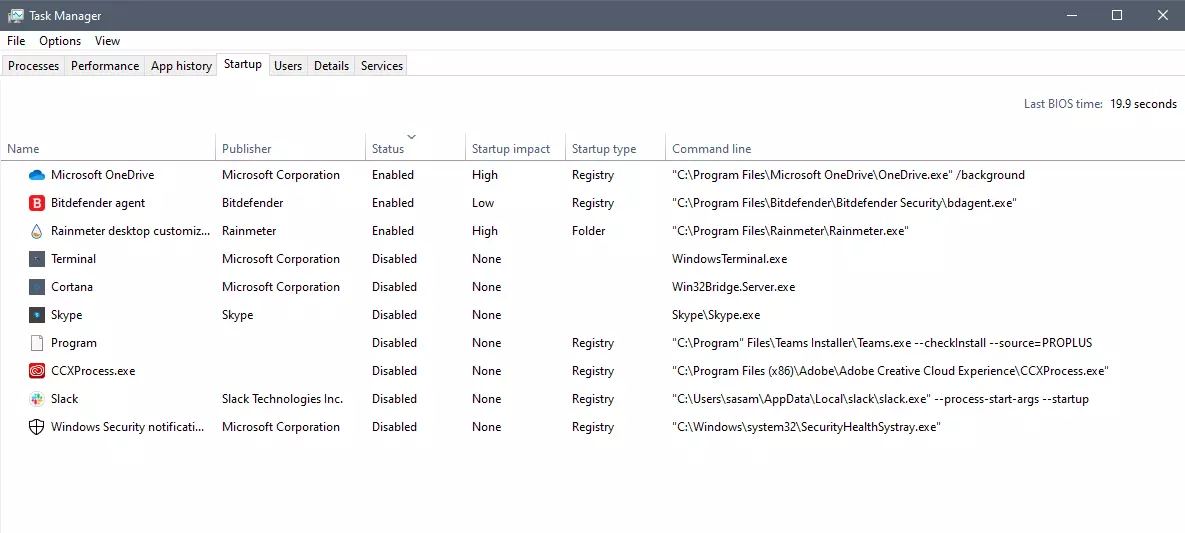
The first thing of course is to open the task manager itself and navigate to the startup tab. Inside the startup tab right-click on the column header and tick or enable Startup type and command line. Now you will see the location of the supposed file (that is missing or you could just go there by right-clicking on the item, but here it is greyed).

program in task manager with details

99% of the time startup type will be registry since the file is missing, if it was a file fix would be just to simply delete the file in the folder but since it was installed and not properly removed registry key is still present but the file cannot be found. After confirmation that the file is indeed missing and that the startup type is registry open the registry editor by typing Regedit in search and pressing enter.

Removing the key from registry

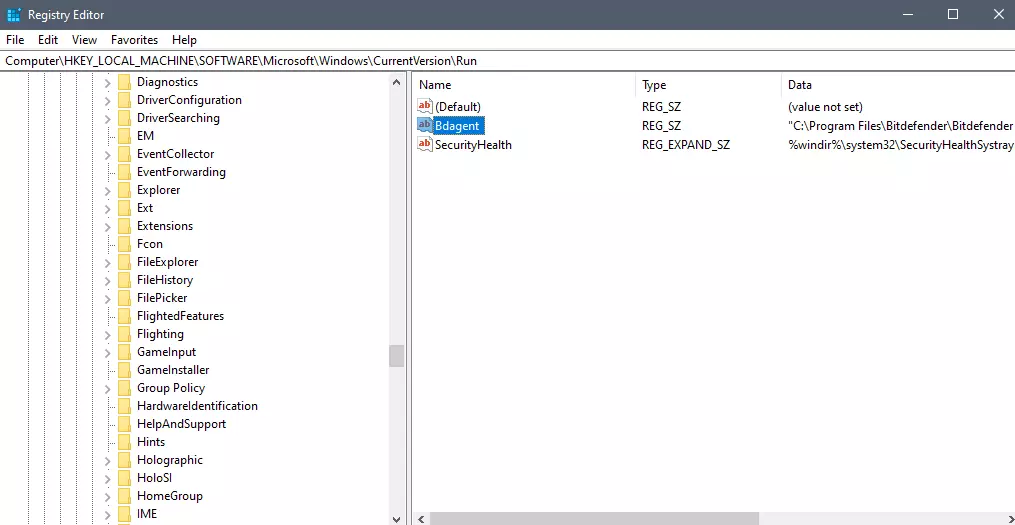
Inside Registry editor navigate to: HKEY_CURRENT_USER\SOFTWARE\Microsoft\Windows\CurrentVersion\Run. Inside on right part, you will see all auto-start entries added by installed applications.

regirsty editor

Locate one that is causing issues by comparing its path with the path inside the task manager command line and delete the key. Once the key is deleted right-click on RUN on the left part and choose HKEY_LOCAL_MACHINE to quickly jump on that key location and repeat the process of key deletion if needed. HKEY_LOCAL_MACHINE will delete startup entry for all users and sometimes entry will not be present here since the application is not installed for all users or there are no other users on the machine.

After the procedure is finished, reboot your systems in order to apply changes.

Do You Need Help with Your Device?

Our Team of Experts May Help
Troubleshoot.Tech Experts are There for You!
Replace damaged files
Restore performance
Free disk space
Remove Malware
Protects WEB browser
Remove Viruses
Stop PC freezing
GET HELP
Troubleshoot.Tech experts work with all versions of Microsoft Windows including Windows 11, with Android, Mac, and more.

Share this article:

You might also like

Installing Wi-Fi drivers in Windows
If you don’t have the required drivers installed in your computer, the hardware that you try to connect to your computer will most likely fail. In order to keep the operating system running on your computer, manufacturers develop drivers that can work harmoniously with your devices and applications. However, internet Wi-Fi connections can fail if suitable drivers are not installed. Worry not though for this post will guide you in installing Wi-Fi drivers on your Windows 10 computer. As you know, a driver is an essential piece of software designed for a specific operating system like Windows 10, Linux, and many more. The operating system uses it to communicate with other hardware devices such as printers and mice. Most hardware manufacturers feature a support page of their own product where you can look for the necessary drivers available for download. You will see that the Windows operating system has a set of drivers that are already installed and you do not have to do anything except plug in the device. So if the driver is not locally available, it will pull it down from its web server and automatically install it for you after you connect the device. However, there are instances when you might encounter some issues while using your Wi-Fi and during these times, you might have to reinstall your Wi-Fi drivers so read on as this post will provide you guidelines in installing Wi-Fi drivers in Windows 10. Refer to the steps below to do so. Step 1: First, go to your manufacturer’s website and look for the right driver you want to install to download your Wi-Fi driver. Step 2: After that, you have to download the correct Wi-Fi driver if it’s available. You have to know the exact name and version of the driver so that you can download it and this information can be found from the Device Manager. Just make sure that you have the right wireless adapter driver downloaded. Step 3: Once done, open the setup of the new driver that you’ve downloaded earlier and run the file and then follow the next on-screen instructions that appear right after. Step 4: You’re not done yet as you need to verify if you have downloaded and installed the correct Wi-Fi driver. Refer to the sub-steps below to do so:
  • First, right-click on the Start button and select the Device Manager to open it.
  • From there, look for the Network Adapters and expand its category to make all the network adapters visible including the wireless adapter.
  • You can easily spot the wireless adapter as it has the “wireless” term in its entry.
  • Next, right-click on the wireless driver entry in the Device Manager and select Network adapters, and then click on Properties to check the version number of the driver.
  • Now select the Driver tab and view the details. If it looks well then it means that you have the right version of the driver installed.
Step 5: Restart your computer.
Read More
Blue Screen of Death in Windows

Symptoms of Blue Screen of Death Errors

Symptoms of a blue screen of death problem are easy to identify: if you have a blue screen error, then your computer will display a blue screen. Also known as the infamous “Blue Screen of Death”, this screen will pop up when something goes horribly wrong with your computer. The screen displays cryptic information about the problem before automatically restarting the system.

Bluescreen Of Death Errors Solution

Download Available To Completely Repair Blue Screen of Death Errors

Recommended: Download the Automatic Repair Utility to correct this and other PC performance issues.

Restoro box imageBluescreen Error Causes

This one can be a bit more complex: blue screens are caused by hundreds of different things. In fact, any miscommunication between the hardware and software of the computer can lead to the dreaded Blue Screen of Death, blue screens reference a communication problem between the Windows operating system and the hardware in your PC.

Why do computer blue screens of death errors occur?

Most computer users have experienced a blue screen of death at least once in their life. But have you ever stopped to wonder why they occur? Blue screens of death can occur for a number of different reasons, but the most common reason is that your PC’s hardware failed to properly communicate with its software, resulting in a fatal error. If your video card, processor, hard drive, or any other vital system component encountered a serious communication error with your operating system, then your PC may automatically display the blue screen and shut down for its own safety. Blue screens can also occur as a self-protection mechanism if the PC is overheated.

Further Information and Manual Repair

Where do Windows blue screen errors come from?

Blue screen errors come from many different sources on your computer. However, the majority of blue screen errors seem to come from the Windows Registry, which contains important configuration information about the programs, data, and personal files on your PC. Windows constantly rely on the registry in order to operate normally, but since the registry is incredibly complex (it holds hundreds of thousands of files), errors naturally develop over time. Fortunately, registry errors are fixable. They can be repaired using special registry cleaning software. During a scan, registry cleaning software looks for any registry entries that have errors. Once these entries are found, the software automatically repairs each entry. In many cases, this can permanently repair the blue screen error and prevent blue screens from ever appearing again.

Blue screen Windows 7

Windows 7, despite being Microsoft’s most popular operating system to date, is not immune to blue screen errors. It’s more stable than previous versions of Windows, although many users will inevitably encounter blue screen errors in Windows 7. No matter which version of Windows you’re currently using, the error remains the same: the hardware on your computer has trouble communicating with the software, forcing the system to display the blue error message we all love to hate.

“Blue Screen of Death”

There’s a reason this error message is famously called the “blue screen of death.” Immediately after displaying a blue screen, the Windows computer will ‘die’, which means that it restarts itself. Another reason why the error could be called the blue screen of death is that it is often displayed at the end of a PC’s life cycle. As PCs get older and their hardware starts to fail, blue screen errors become more and more common. In real life, death isn’t reversible. In the computer world, blue screens of death certainly are. With the right software support – like Restoro – even the most novice computer technician can fix their blue screen errors and restore their PC to healthy working conditions.

Benefits Of Using Restoro, BSOD Error Codes

Restoro is one of the world’s most popular PC optimization programs. Used by professional PC technicians around the world, Restoro is a feature-rich software suite that has helped many PC users breathe new life into an old PC. Restoro optimizes computer performance in hundreds of different ways. It looks through the registry and repairs any erroneous entries it finds. It also hunts down and eliminates malware and goes to work with the press of a button. And most importantly for you – it’s also amazingly effective at repairing blue screen errors. Ready to experience the Restoro difference? Here are a few more advantages of our favorite software program:
  • Easy for anyone to use: A few years ago, only the most tech-savvy individuals could optimize their computer’s performance.  Everybody else had to pay for expensive tech support or simply buy a new computer. Thankfully, the software development community has come up with innovations like Restoro which are easy for anyone to use. Just click a button and your computer will be clean within minutes. The process could not be easier.
  • Surprisingly fast: There are hundreds of thousands of files in the Windows Registry. In spite of that fact, Restoro goes to work incredibly quickly. It scans the depths of your PC in an effort to uncover whatever is causing your blue screen errors. The entire scan is complete within just a few minutes, making it easy for anyone to scan their computer on a regular basis.
  • Free trial: It’s good to be skeptical. And if you don’t think Restoro will fix any of the errors your computer is experiencing, then that’s okay. However, when you download the free Restoro, you can instantly scan your computer for errors. If any errors are found during this scan, then you can repair these problems with the click of a button.
  • Fixes frustrating errors: Blue screen errors are incredibly frustrating. You can’t get any work done on your computer when experiencing a blue screen problem. For that reason, Restoro helps alleviate some of the most frustrating PC problems in the world today.
  • More than just blue screen repairs: Sure, blue screens are annoying. But they’re only one of many different errors that a PC can develop over time. Fortunately, Restoro does more than just fix blue screen errors. The software also identifies and repairs other problem areas on your PC, making it easy to optimize performance.
Ready to get rid of your blue screen errors – permanently? Restoro today!
Read More
Could not start Diagnostic Policy Service
If you are trying to run a Windows Service like the Diagnostic Policy Service and encounter an error instead that says, “Windows could not start the Diagnostic Policy Service”, worry not for this post will guide you on what you can do of the Diagnostic Policy Service is not running in your Windows 10 computer. As you know, the Diagnostic Policy Service enables problem detection, troubleshooting, and resolution for Windows components on your Windows operating system. When you encounter this kind of problem, you will also see the “Access is denied” error message. This occurs when the “MpsSvc” process does not have the permissions needed for the Registry keys. This kind of problem happens when the TrustedInstaller account is missing the permissions for a Registry key and so to fix this issue, you need to take full control and ownership of the Registry keys. You need to create a System Restore point first before you get started. This way, you can always undo the changes you’re about to make in case anything goes wrong. Once you’re done creating a System Restore point, refer to the following instructions to fix the “Windows could not start the Diagnostic Policy Service” error. Step 1: Tap the Win + R key combination to open the Run utility. Step 2: Type in “Regedit” in the field and tap Enter to open the Registry Editor. Step 3: After opening the Registry Editor, navigate to this registry path:
HKEY_LOCAL_MACHINESYSTEMCurrentControlSetServicesDPSParameters
Step 4: After that, look for the “Parameters” registry key and select Permissions. Step 5: Now select your account under Group or user names. Step 6: Next, make sure that the “Full Control” and “Read” boxes are both checked, and then click on the Apply and OK buttons to save the changes. Step 7: Afterwards, navigate to this registry key: HKEY_LOCAL_MACHINESYSTEMCurrentControlSetControlWDIConfig Step 8: From there, look for the Config key and right-click on it and select Permissions and then click on Add and type “NT Service/DPS in the box and click OK. Step 9: Now select “DPS” and check the Full control box, click OK and exit the Registry Editor. Step 10: Reboot your computer and check if the error is now fixed.
Read More
Purchased Adobe CC applications show as trial
Buying a product and then finding out that is not working is one of the most annoying and disappointing things that a consumer can experience. It is no secret that Adobe software and services online can malfunction or detect somewhat false information and behave accordingly placing buyers in an awkward position. Adobe no matter how huge and great can also still sometimes has software that can misbehave in this way and sometimes downloading their suite and buying it after can not be 100% registered and even after the money is transferred and purchase has been completed you can still have a trial status for your adobe cloud applications. In this guide, we will address this issue and see how we can fix it so you can get back to your creative work in no time. Follow this guide as it is presented step by step.
  1. Wait an hour

    No, seriously, wait an hour. Sometimes transaction and registration of transaction along with activation can take up to one hour of time. If you just made a purchase and you are still under trial in the launcher, give it a little time to detect the purchase and adjust accordingly.
  2. Check to see if your subscription is active

    Sign in to https://account.adobe.com/plans. If you have more than one account, make sure you sign in with the proper one. Under My plans, select Manage plan. In the Plan Information section, check to make sure that your subscription is active. If it’s expired, it's likely why you’re seeing messaging that indicates you are in trial mode or that your trial has expired. If your subscription is showing as active, then an out-of-date payment method may be the issue. To see if your payment information is current, in the Plan information section, select Manage payment. If your payment method isn’t current, update your credit card information in the pop-up window and select Save. Your new payment method will take effect in the next billing cycle.
  3. Sing out and then sign back in

    Open the Creative Cloud desktop app. (Select the icon in your Windows taskbar or the macOS menu bar.) Select the Account icon in the upper right, and then select Sign out. In the confirmation dialog box, select Sign Out. The Creative Cloud apps and services associated with your account are deactivated on the computer. Sign in again to your Adobe account. Launch any Creative Cloud app included in your membership, such as Photoshop or Illustrator. If prompted, sign-in on the next screen.
  4. Update creative cloud applications

    Open the Creative Cloud desktop app. (Select the icon in your Windows taskbar or the macOS menu bar.) Depending on your version of the Creative Cloud desktop app, do one of the following: On the Help menu, select Check for updates. or
    Select the three vertical dots icon in the upper-right corner of the app. Choose Check for App Updates from the menu. If you aren’t using the latest version of your Creative Cloud app, an update prompt appears next to it on the apps list. Select Update.
  5. Remove entries in the HOSTS file

    If the previous solutions do not work, your computer could have trouble connecting to Adobe's activation servers. This could be because of an incorrectly configured Operating System hosts file (Operating system hosts files map host names to IP addresses). To solve this issue, try removing Adobe-related entries from the hosts file. You can remove the Adobe-related entries from the hosts file in two ways: Automatically repair the hosts file using the Limited Access Repair tool: Repair the hosts file using the Limited Access Repair tool. With this method, you do not have to manually edit the hosts file -- the tool automatically repairs the file. Reset the hosts file manually: If the issue is not fixed even after you run the Limited Access Repair tool, reset the hosts file manually: To reset the hosts file on Windows, do the following: Navigate to C:\WINDOWS\System32\drivers\etc. Open the hosts file with a text editor such as Notepad. Check for any Adobe-related entries in the hosts file. If there are Adobe-related entries in the hosts file, move the file to the desktop, for example by dragging. Delete the Adobe-related entries from the hosts file. Make sure that you do not delete any other entries. Save the hosts file that you edited in the previous step. The updated hosts file should not have any Adobe-related entries. Move the file from desktop to the original location: C:\WINDOWS\System32\drivers\etc. When moving the file, select the Replace option. To reset the hosts file on macOS, do the following: To find the hosts file, open Finder and then choose to Go > Go to Folder. In the box, type the following location and then press Return: /private/etc/hosts If you are unable to locate the file, it means that the hosts file is hidden. Type the following command in terminal to unhide the file, and then repeat Step 1. chflags nohidden /etc/hosts Open the hosts file using a text editor such as Text Edit. Check for any Adobe-related entries in the hosts file. If there are Adobe-related entries in the hosts file, move the file to the desktop, for example by dragging. Delete the Adobe-related entries from the hosts file. Make sure that you do not delete any other entries. Save the hosts file that you edited in the previous step. Move the file from the desktop to the original location: /private/etc/hosts. When moving the file, select the Replace option.
Read More
Signs of a dying graphic card
Can graphic cards wear out over a longer period of time? Recent studies and experience from crypto miners say no but they can die due to different reasons like improper use, low cleaning habits, factory mistakes, etc. Many gamers and people who use GPU intense applications tend to think that some glitches and hiccups in the software are a sign that graphic card is dying out and that it is time to be replaced. Altho this could be true in many cases these kinds of behavior are mostly due to old drivers and software issues. Older cards can produce these kinds of results due to their old age and new software is often more demanding than these cards can handle. So in order to diagnose and be sure that your GPU is indeed dying out lookout for these signs.

The Main Signs of a Dying GPU:

The Computer Crashes and Won’t Reboot

If your computer shutdown while working in the graphic application or while playing the game and the monitor loses signal there is a high chance the graphic card is soon going to be gone. Some motherboards have hardware detection failure and can signal immediate fail. If when turning your computer ON you are greeted with a blue screen with the message that the signal can not be found or you do not have picture at all it is most likely that GPU has failed.

Graphic Glitches While Playing Games

If you are playing the game and all of sudden you get off-color pixels, screen flickering, strange graphic behaviors, random artifacts, or similar and that keeps repeating in multiple games it is likely that GPU days are coming to an end.

Abnormal Fan Noise or Performance

Fans are an essential part of cooling the GPU and over time if they are intensively used they could wear out and need replacing. If however you have not noticed and have not replaced the fans card can sustain overheating damage. Many cards have cooling fans that are designed to spin at a higher RPM only when the GPU is under load. It prevents bearings in the fans from dying prematurely, so don’t worry if one of your fans is inactive while you are browsing the web. However, when you play games that utilize software that your card isn’t built to support, the bearings in the fans wear out faster. Once the fans stop working under load, the graphics card can quickly die.

How to Diagnose a Dying Graphics Card

Presented next are essential steps in order to recognize a dying graphic card.

Check Motherboard Error Codes

Many motherboards today completely shut down a component that is no longer working. If your graphics card has died completely, this may be one of the easiest ways to tell. If your motherboard doesn’t have display codes, you can try testing the card in a new system.
  • Open the computer case: Use your screwdriver to remove screws on the side panel and gently slide it back.
  • Locate the error code display on your motherboard: If you have a motherboard with error codes, they should appear near an outer corner.
  • Try to reboot your computer: Record each error number you see after you boot your computer.
  • Consult the motherboard manufacturer manual for error codes: Open the manual and locate the list for your error codes. If the code matches a graphics processing unit error, your video card could have died.

Check Hardware for Damage or Debris

A graphics card that has damage or debris on the physical parts might quickly overheat and kill the card.
  • Remove the screws holding the GPU in place: There are typically one or two screws holding the card to a bracket on the case.
  • Unhook the power cords from the GPU and pull the release tab: Remove the power cords from your GPU by pushing in their tabs and gently rocking them out. Once you remove each cord, gently push or pull up on the release tab near the motherboard.
  • Inspect the GPU for damage/debris: Check the card for any dirt or debris buildup and clean it out with a Q-tip. You can replace broken fan pieces from the manufacturer.

Test Your GPU Under Load

Download GPU stress-testing and heat-monitoring software.
  • With the card installed, run a stress test.
  • As you are running the stress test, run heat-monitoring software: With the stress test running, check your heat-monitoring software for GPU overheating. Any reading over 80 degrees Celsius is too hot.
  • Check device manager for outdated drivers: If your GPU is clean, but still running too hot, your software drivers are not installed correctly. To check, type in “device manager” at the bottom of your desktop and click on Device Manager. Find your display adapter and right-click on it to see if it’s working. If your drivers are not working correctly, it is indicated here usually. However, the driver may appear to be functioning even if it says otherwise in the properties.

Keep your graphic card drivers updated

When you don’t have the right driver installed, graphics cards can quickly burn up, and their cooling components may fail faster. That’s why you should always keep drivers updated for each new game you install or play. Older games may also release new software patches, so your GPU drivers should be updated accordingly.
Read More
How to fix Windows 10 Update error 0x8024a000

Error Code 0x8024a000 – What is it?

The error code 0x8024a000 is related to Windows Update. You might see this error when you try to update Windows from the Microsoft site to use the latest and new features and technologies. A connection interruption between your computer and the Windows Update server may be the cause of this error. Operating system overload or corrupt registry may also cause this error. Check your modem, router, cable, etc. to be sure that these components are working well. Common symptoms
  • You are trying to update Windows and its components such as system driver. The process suddenly stops and shows the error code 0x8024a000.
  • Your PC frequently crashes with Error 0x8024A000 when running the same program.
  • Windows runs sluggishly and responds slowly to mouse or keyboard input.
  • You cannot connect to the Windows update server and the update will not start.
  • You may also receive the error message saying that some files could not be updated.

Solution

Restoro box imageError Causes

There may be various causes for this error. Some of which are:
  • No Internet connection
  • Windows operating system is overloaded with invalid system references
  • Corrupt download or incomplete installation of Windows Update software.
  • Faulty cable, router or modem
  • Windows update services are missing
  • The system is infected with malicious programs
  • Corrupted or deleted system registry files. PC registry errors occur over time because of constant writing, editing, moving, and deleting of information and files from your computer's registry time as programs are installed, modified, and removed.

Further Information and Manual Repair

We are going to discuss some easiest ways to fix up such issues and get your PC working so that you can install new updates.

Method 1:

  1. Press the Windows button + W on your keyboard
  2. In the search box type “troubleshooting”
  3. In the troubleshooting box, select the View all tab
  4. Run the troubleshooter for these services, and then try installing updates

Method 2:

Since most of the installation-related errors can be fixed by System File Checker System File Checker is a very efficient way to fix errors. Most of the installation-related errors can be fixed by a System File Checker. To use this tool follow instructions below: Swipe in from the right edge of the screen, and then tap Search. If you are using a mouse, point to the upper-right corner, move the pointer down, and then click Search. OR On the keyboard, press the Windows + W key. A search box will appear. Type cmd in the search box.
  1. On the command prompt, type sfc/scannow
  2. This will scan the system files and fix any error
  3. Reboot the computer and try to install updates
OR
In the command prompt type sfc/scannow.
This will scan the system files and fix any errors. Reboot the computer and try to install updates.

Method 3:

  1. Press Windows + R
  2. A run dialog box will appear
  3. type services.msc and press OK
  4. Then in Services window, look for Background Intelligent Transfer Service. Click on it.
  5. If it is the Services issue, then it will stop the service. Click on Start in the window below, and then click Apply and OK.
  6. Reboot your machine and retry installing updates.

Method 4:

  1. Click Start or open search box
  2. Type cmd
  3. Right-click on cmd in start menu and select ‘Run as Administrator’
  4. Type net stop wuauserv
  5. Hit Enter
  6. Type ren c:windowsSoftwareDistribution softwaredistribution.old
  7. Hit Enter
  8. Type Exit
  9. Hit Enter

Method 5:

Your PC is always accumulating junk files from normal web surfing and computer usage. If these junk files aren’t occasionally cleaned, it can cause Windows Update to respond slowly and display an error message 0x8024A000, possibly due to conflict with files or an overloaded hard drive. Cleaning up these temporary files will not only solve this problem, but it will also speed up PC performance. Follow the steps below to clean up this junk:
  1. Click Start
  2. Type "command" in the search box and DO NOT hit ENTER yet!
  3. While holding CTRL-Shift on your keyboard, hit ENTER.
  4. You will be prompted with a permission dialog box.
  5. Click Yes.
  6. A black box will open with a blinking cursor.
  7. Type "cleanmgr" and hit ENTER.
  8. Disk Cleanup will begin calculating how much occupied space you can get back.
  9. The Disk Cleanup dialog box will show a series of checkboxes to select. In most cases, the "Temporary Files" category will occupy the most disk space.
  10. Check the boxes of the categories you want to clean and click OK.
If you do not possess the technical expertise required to accomplish this yourself or do not feel comfortable doing so, download and install a powerful automated tool to get the job done.
Read More
How to Fix Plugin.dll Error

Plugin.dll Error - What is it?

Plugin.dll is a dynamic link library file associated with Adobe Photoshop CC powered by Adobe Systems Incorporated for the Windows Operating System. DLL are small programs similar to ‘exe’ files which allow multiple software programs to share the same functionality. It is used to call commands, load applications, and successfully execute applications. Plugin.dll error messages may appear during program installation, while a plugin.dll related software program (Adobe Photoshop CC) is running, during startup and shutdown.

Solution

Restoro box imageError Causes

Plugin.dll errors may occur due to multiple reasons such as:
  • Missing or corrupt Plugin.dll files
  • Viral infection
  • Issues in the Windows registry
  • Broken registry keys
Plugin.dll errors may appear on a Windows-based computer as the following:
  1. “Plugin.dll not found."
  2. “The file Plugin.dll is missing."
  3. “Cannot register Plugin.dll."
  4. "Cannot start Adobe Photoshop CC. A required component is missing: Plugin.dll. Please install Adobe Photoshop CC again."
All the causes of the plugin.dll error code are associated with the registry. It is advisable to repair this error before it causes serious damages to your system.

Further Information and Manual Repair

To repair the plugin.dll error on you system, you don’t have to hire a technician or be adept at computer programming. The best way to resolve this error code is to download Restoro. This is a new, innovative, high and multi-functional PC fixer integrated with powerful and performance-driven multiple utilities. It includes a registry cleaner, and system stability scanner. So, whether the cause of the error code Plugin.dll error on your system is missing DLL files or even broken registry keys, Restoro can help you repair all these issues in no time. It is user-friendly and can be operated by users of all levels. Dll files go missing and registry gets corrupt because of the data overload in the RAM/the hard disk. This happens due to poor PC maintenance. The registry tends to save all the activities performed on the PC this includes even the junk files, invalid registry entries and files from uninstalled programs. If the registry is not cleaned regularly, such files accumulate a lot of disk space which leads to registry malfunctioning. It damages .dll files and eventually corrupts the registry. By scanning your PC with a powerful registry cleaner, you can easily wipe out the files cluttering your PC and clear your disk space. Additionally, it also repairs the damaged plugin.dll files, fragmented disk and corrupt registry.  Thereby restoring your PC to its normal condition and resolving the plugin.dll error code on your system. Besides this, you can also run Restoro on your PC to resolve speed issues and Active X and class errors. It is safe, efficient and compatible with all Windows versions. Click here to download Restoro and resolve the plugin.dll error.
Read More
How to remove GoodShop Landing

GoodShopLanding is a browser extension for Google Chrome, Mozilla Firefox, and Safari. This extension offers the latest coupons from a range of variety stores. While this may seem useful, this extension only offers coupons from sponsored stores, not all coupons available, so the only coupons that you will get are from the Extensions Ad network. You may see additional new tabs opening randomly while browsing the internet, these tabs are opened by GoodShopLanding and usually contain last-minute store deals.

As it is often distributed via potentially unwanted advertising, and impacts browser performance in a way that many users do not want, it is classified as a Browser Hijacker and thus flagged for optional removal. From the Author:
Shop online? Here’s your free automatic coupon finder, Gumdrop. Never miss a coupon again Gumdrop automatically applies the best coupons for you at checkout. Get the best deals anywhere With over 500,000 coupons, Gumdrop finds deals for thousands of stores, including Amazon, Expedia, and Papa John’s.

About Browser Hijackers

Browser hijackers (sometimes called hijackware) are a kind of malicious software that alters internet browser configurations without the computer owner’s knowledge or consent. These hijacks appear to be increasing at an astonishing rate around the globe, and it could be truly nefarious and sometimes harmful too. There are numerous reasons why you may have a browser hijack; but commercial, marketing, and advertising are definitely the primary purposes for their creation. Often, hijackers will force hits to sites of their choice either to increase traffic generating higher advertisement revenue, or to gain a commission for every user visiting there. However, it isn’t that harmless. Your web safety is jeopardized and it is extremely irritating. They not only mess up your web browsers, but browser hijackers can also modify the system registry, leaving your computer vulnerable to various other attacks.

Indications of browser hijack

There are many symptoms that indicate the browser is highjacked: your homepage is reset to some mysterious site; bookmark and the new tab are likewise changed; The default search page of web browser is changed; unwanted new toolbars are added to your web browser; you may see never-ending pop-up ads on your computer screen; web pages load very slowly and sometimes incomplete; you’re disallowed access to certain webpages, such as the site of an antimalware software developer like SafeBytes.

How they get into the computer

A browser hijacker can be installed on your computer if you go to an infected website, click an e-mail attachment, or download something from a file-sharing website. They can also be deployed via the installation of an internet browser toolbar, add-on, or extension. Browser hijackers sneak into your pc along with free software application downloads that you unknowingly install along with the original. A good example of some well-known browser hijackers includes Babylon, Anyprotect, Conduit, DefaultTab, SweetPage, RocketTab, and Delta Search, but the names are often changing. Browser hijackers may record user keystrokes to collect potentially invaluable information that leads to privacy issues, cause instability on computers, significantly disrupt user’s browsing experience, and finally slow down the computer to a stage where it will become unusable.

How you can get rid of browser hijackers

Certain browser hijacking can be simply corrected by identifying and removing the corresponding malware program from your control panel. Unfortunately, most of the software programs utilized to hijack a web browser are intentionally designed to be hard to remove or detect. Moreover, manual removal requires you to carry out many time-consuming and intricate steps which are tough to conduct for new computer users. Installing and running anti-malware software on the affected computer can automatically delete browser hijackers as well as other malicious applications. If you want to remove persistent browser hijackers quickly and effectively, install the top-rated Anti-Malware program Safebytes Anti-Malware. Along with anti-virus software, a system optimizer program can help you fix registry errors, get rid of unwanted toolbars, secure internet privacy, and enhance overall computer performance.

What you can do if Malware Stops You From Downloading Anti-virus?

Malware could cause all kinds of damage when they invade your system, from stealing your private information to deleting data files on your computer. Some malware sits in between the computer and the internet connection and blocks some or all sites that you really want to visit. It could also block you from adding anything to your machine, especially antivirus applications. If you are reading this, you may have got infected by malware that stops you from installing a computer security application like Safebytes Anti-Malware. Do as instructed below to get rid of the malware in alternate ways.

Download the application in Safe Mode with Networking

If the malware is set to load immediately when Microsoft Windows starts, entering Safe Mode could very well block the attempt. Since only the bare minimum applications and services start-up in safe mode, there are seldom any reasons for issues to take place. Here are the steps you should follow to boot into the Safe Mode of your Windows XP, Vista, or 7 computers (go to Microsoft site for instructions on Windows 8 and 10 computers). 1) At power-on/startup, press the F8 key in 1-second intervals. This will conjure up the “Advanced Boot Options” menu. 2) Use the arrow keys to select Safe Mode with Networking and hit ENTER. 3) When this mode loads, you should have internet access. Now, use your internet browser normally and navigate to https://safebytes.com/products/anti-malware/ to download Safebytes Anti-Malware. 4) Immediately after installation, do a full scan and allow the program to delete the threats it discovers.

Switch over to an alternate browser

Malicious program code could exploit vulnerabilities in a particular internet browser and block access to all anti-virus software sites. If you seem to have a virus attached to Internet Explorer, then switch over to an alternate web browser with built-in safety features, such as Firefox or Chrome, to download your favorite antivirus program – Safebytes.

Create a portable antivirus for removing malware

Another solution is to make a portable antivirus program on your USB stick. Adopt these measures to use a USB flash drive to fix your corrupted computer system. 1) Download Safebytes Anti-Malware or MS Windows Defender Offline onto a virus-free computer system. 2) Plug the USB drive into the clean PC. 3) Double-click the Setup icon of the antivirus software package to run the Installation Wizard. 4) Pick a USB flash drive as the location when the wizard asks you where you intend to install the software. Follow the directions to complete the installation process. 5) Remove the USB drive. You may now utilize this portable antivirus on the infected computer system. 6) Double click the Safebytes Anti-malware icon on the thumb drive to run the program. 7) Click the “Scan Now” button to begin the virus scan.

Let's Talk About SafeBytes Anti-Malware!

If you’re looking to download anti-malware software for your PC, there are numerous tools in the market to consider nonetheless, you cannot trust blindly anyone, regardless of whether it is paid or free program. Some of them are good but there are several scamware applications that pretend as legit anti-malware programs waiting to wreak havoc on your personal computer. When looking for antimalware software, pick one that provides solid, efficient, and total protection against all known computer viruses and malware. When thinking about reliable software programs, Safebytes AntiMalware is undoubtedly the highly recommended one. SafeBytes anti-malware is a powerful, highly effective protection tool made to help users of all levels of IT literacy in identifying and eliminating harmful threats from their personal computers. Once you’ve got installed this tool, SafeBytes superior protection system will ensure that no viruses or malicious software can seep through your PC. SafeBytes carries a variety of amazing features which can help you protect your PC from malware attack and damage. Listed below are some of the good ones: Real-time Threat Response: SafeBytes delivers complete and real-time security for your PC. It’ll monitor your personal computer for suspicious activity at all times and safeguards your PC from unauthorized access. Robust, Anti-malware Protection: With a critically acclaimed malware engine, SafeBytes gives multilayered protection which is made to catch and eliminate viruses and malware that are hidden deep inside your computer’s operating system. Fast Scan: Safebytes Anti-Malware, using its enhanced scanning engine, offers extremely fast scanning which can promptly target any active online threat. Safe Browsing: SafeBytes inspects the links present on a webpage for possible threats and alerts you if the site is safe to visit or not, through its unique safety rating system. Light-weight Tool: This software program is not “heavy” on the computer’s resources, so you’ll not see any performance troubles when SafeBytes is working in the background. 24/7 Online Technical Support: For any technical issues or product guidance, you could get 24/7 professional assistance through chat and email. To sum it up, SafeBytes Anti-Malware provides excellent protection combined with very low system resource usage with both great malware detection and prevention. You can be sure that your computer system will be protected in real-time once you put this software program to use. So if you’re searching for the absolute best malware removal application out there, and when you don’t mind shelling out some money for it, go for SafeBytes Anti-Malware.

Technical Details and Manual Removal (Advanced Users)

If you wish to do the removal of GoodShop Landing manually instead of employing an automated tool, you can follow these measures: Navigate to the Windows Control Panel, click the “Add or Remove Programs” and there, select the offending program to remove. In cases of suspicious versions of browser extensions, you can actually get rid of it through your browser’s extension manager. You will likely also want to reset your browser. To be certain of complete removal, find the following registry entries on your computer and remove them or reset the values appropriately. Please note that this is for professional users only and might be difficult, with wrong file removal leading to additional system errors. Additionally, certain malicious programs are capable to defend against its deletion. Doing this malware-removal process in Safe Mode is suggested.
Read More
Seven Windows 10 security basics
Hello everyone and welcome to our Windows 10 security basics where we will provide you with common practices you should aim to follow in order not to cough some viruses, malware, keylogger, worm, etc. As you are all aware, we live in a digital age where we are surrounded by luxuries of unlimited information, video chats all over the globe, free calls via the internet, applications that track stuff for us, and many many more things that make our lives easier. Sadly with this kind of technology comes risks of cyber attacks that aim to steal your information, credit card numbers, or any other relevant stuff which could be used illegally in order to make purchases, loans, and other theft in your name so ones doing that could not get caught. Think of data stealers the same as you think of armed robbers in a dark alley, just this time their pray is data about your life so they can make purchases for themselves more than once. This article aims to provide you with some common logic, tips, and tricks of what should you do and where should you pay attention in order not to provide wrong people with your crucial information and data. we hope that you will find reading informative and helpful.
  1. Keep Windows updated.

    Microsoft is working hard on their Windows defender and firewall to provide protection to its users and fixing any introduced security leaks which are found in Windows itself. By updating and keeping Windows updated you make sure that every security leak that is found is patched and removed from Windows and that you have the latest database of known malware inside the firewall and defender. This common practice, however, should not be limited to Windows only, you should update every application you are using for the same reasons.
  2. Use antivirus, anti-malware, and firewall

    These applications exist for a reason and that reason is to protect your data. Dedicated applications specifically made for purposes of defending your data are better than any kind of I am careful mentality since sometimes is enough to just visit a website or just click on some link and you are compromised. You can use Windows Defender and firewall if you wish, they are already in Windows but if you are serious about your data and like to surf the internet some better protection is worth the investment.
  3. Get a dedicated password manager

    Your password is bad, if you use the same password everywhere then it is even worse. Computers have come a long way in the last 50 years and so have cyber attack applications which make your commonsense passwords extremely vulnerable and all of your accounts open to cyber attacks. Dedicated password managers that can hash passwords and automate them are your safest bet that your passwords will not be compromised, get one, and get it today.
  4. Do not click on anything inside emails

    Cyber attacks come in vast variety and one of them is sending you emails informing you that for example your Paypal or anything else has been hacked and that you must click this link to reset your password. These you do not click, no matter how convincing they sound or how good they look, if you need to update your information on a specific service or website, you delete email, open browser and go to that service and change stuff. The same goes with different offers, discounts, women seeking you, men seeking you, prince sending you 1 billion in gold. Only click on links in emails from a trusted and verified source.
  5. Do not click on pop-ups

    Similar to clicking on links in emails you should not click on pop-ups, the same rules, same stuff apply as with emails.
  6. Be careful what you are downloading

    Be careful from where you download your software and be careful what are you downloading and stop using pirated software, any kind of malicious applications, keyloggers, viruses, etc could be hidden in these downloads, and by downloading them you are opening doors to your private information. Only use legal software from trusted sources.
  7. Never leave your phone or computer unattended

    You can never tell who can implement malicious software or get some crucial information from unattended devices, lock them all time and take them with you.
There you go, 7 common tips and tricks for the basic security of your computer. Thank you for reading and I hope to see you again on our site.
Read More
Fix Gah, Your tab just crashed in Firefox
If you notice that your tabs in your Firefox browser keep on crashing recently, then there might be something wrong with your browser. Every time any of your tabs crashes, you might encounter an error message saying, “Gah, Your tab just crashed”. If you encounter this kind of error message then it is most likely that your Firefox Profile is having some issues with the existing installation of Firefox. The “Gah, Your tab just crashed” error rarely happens but when it does, it can get quite annoying as you won’t get to browse the internet peacefully. So to fix it, here are some suggestions you could check out.

Option 1 – Try disabling multi-process tabs in Firefox

Since Mozilla has one process for Firefox itself, while one process handles all the tabs, you have the option to disable these multi-process tabs in Firefox. To do that, follow these steps:
  • In the address bar of Firefox, type “about: config” and hit Enter.
  • Next, look for the following configurations and set them to false.
    • tabs.remote.autostart = false
    • tabs.remote.autostart.2 = false
  • After that, double-click on the toggle switch between true and false.

Option 2 – Try checking your Add-ons

In this option, you need to start Firefox in Safe Mode and then check if the problem is fixed. If it is, you may have to check your Firefox add-ons as well as extensions as one of them might be the one that's causing the “Gah, Your tab just crashed” error.

Option 3 – Downgrade the Firefox version you’re using

It could be that the current version of Firefox you’re using has some issues so you might have to downgrade it, especially if you are already using the latest version. To downgrade your Firefox browser, go to the directory of the other versions and languages and select an older version that worked for you. After that, you have to disable automatic Firefox updates.
  • First, click the menu button and select Preferences.
  • Next, go to the Firefox Updates section under the General panel.
  • Then select the radio button labeled “Check for updates but let you choose to install them”. This will ensure that you will not have the same issue with the new update.
Note that this is only a temporary fix since updating your programs, including browsers.

Option 4 – Try sending Crash Reports

You might want to send crash reports to Mozilla. This way, Mozilla might come up with some fix to resolve the problem. All you have to do is type “about: crashes” in the address bar. This will list all the crash reports. Now send it to Mozilla using the built-in interface. Although this won’t instantly fix the problem, a lot of user finds it useful. And besides, the issue will get fixed in future releases or with minor updates.
Read More
1 2 3 171
Logo
Copyright © 2023, ErrorTools. All Rights Reserved
Trademark: Microsoft Windows logos are registered trademarks of Microsoft. Disclaimer: ErrorTools.com is not affiliated with Microsoft, nor claims direct affiliation.
The information on this page is provided for information purposes only.
DMCA.com Protection Status