




Logo

How to Fix Unknown Hard Error in Windows 10

The “Unknown Hard” error that keeps on appearing in Windows 10 can put users in an unpleasant situation. This kind of error leads to the freezing of the taskbar, blackening of the screen, and sudden disappearance of the icons on the Desktop. And each time you try to open Windows, the system will only give you an error message saying that it’s a critical error and some applications like Start and Cortana won’t work.

Upon analysis, it seems that the “sihost.exe” is not responding and that it is the one that’s causing the c000021a Unknown Hard error to pop up. Sihost.exe files represent the Shell Infrastructure Host which is an essential component in the Windows operating system. The Windows Shell Infrastructure Host is primarily responsible for handling some graphical elements of the operating system interface such as the Start menu and the taskbar transparency. And so if the Shell Infrastructure or Sihost.exe has stopped, has been removed, or corrupted, you will most likely have issues with the overall functionality of the Windows operating system and you’ll get the Unknown Hard error

In addition, the ctfmom.exe Unknown Hard error may also occur due to incompatible drivers installed on your PC. Ctfmom is a process that identifies inputs such as handwriting, languages, and many more. It’s the one that controls the functions of background behavior. To resolve this issue, you need to first try to identify which application is the one that’s running the sihost.exe file. And if needed, you need to either update or reinstall or completely uninstall the problematic application.

Option 1 – Try to run the System File Checker

The SFC Scan or System File Checker, us a built-in utility in Microsoft Windows that can be found in the C:\Windows\System32 folder. This tool allows users to scan and restore any corrupted system files in Windows that might be causing the Unknown Hard error to appear. Before you use this tool, make sure to find out whether the sihost.exe on your computer is a Trojan that you have to remove or if it’s a file that belongs to a trusted Windows application. Once you have that sorted out, follow the steps below.

  • Tap Win + R to launch Run.
  • Type in cmd in the field and tap Enter.
  • After opening Command Prompt, type in sfc /scannow

The command will start a system scan which will take a few whiles before it finishes. Once it’s done, you could get the following results:

  1. Windows Resource Protection did not find any integrity violations.
  2. Windows Resource Protection found corrupt files and successfully repaired them.
  3. Windows Resource Protection found corrupt files but was unable to fix some of them.

Option 2 – Try to use System Restore

You can also try using System Restore. This is one of the ways you can use it to back up your PC. Since restore points are created automatically each week by System Restore, you can use System Restore to restore your computer back to an earlier good point in time.

Option 3 – Try to troubleshoot the error in a Clean Boot State

Putting your PC in a Clean Boot state can help you diagnose and troubleshoot the issues in your system. During this state, you can start the system with a minimum number of drivers and startup programs that will surely help you in isolating the root cause of the Unknown Hard Error.

  • Log onto your PC as an administrator.
  • Type in MSConfig in the Start Search to open the System Configuration utility.
  • From there, go to the General tab and click “Selective startup”.
  • Clear the “Load Startup items” checkbox and make sure that the “Load System Services” and “Use Original boot configuration” options are checked.
  • Next, click the Services tab and select the “Hide All Microsoft Services” checkbox.
  • Click Disable all.
  • Click on Apply/OK and restart your PC. (This will put your PC into a Clean Boot State. And configure Windows to use the usual startup, just simply undo the changes.)

After putting your PC in a Clean Boot State, try creating a system restore point and see if the problem still occurs. Clean Boot troubleshooting is designed to help you isolate the problem. For you to execute a clean boot troubleshooting, you must do a couple of actions (the steps are given above) and then restart your PC after every action. You might have to disable one third-party app after the other to really isolate the issue. And once you’ve narrowed down the problem, you can either disable the third-party app that’s causing the problem or remove it. Note that you must switch your PC back into the Normal Startup mode after you’re done troubleshooting the problem. Here’s how you can do it:

  • From the “Start” menu, go to System Configuration.
  • After that, switch to the General tab and click the option for “Normal Startup”.
  • Next, go to the Services tab and clear the checkbox for “Hide all Microsoft services”.
  • Then find and click “Enable all” and if prompted, you have to confirm.
  • Afterward, go to the Task Manager and enable all the Startup programs and confirm the action.
  • Restart your PC when prompted.

Do You Need Help with Your Device?

Our Team of Experts May Help
Troubleshoot.Tech Experts are There for You!
Replace damaged files
Restore performance
Free disk space
Remove Malware
Protects WEB browser
Remove Viruses
Stop PC freezing
GET HELP
Troubleshoot.Tech experts work with all versions of Microsoft Windows including Windows 11, with Android, Mac, and more.

Share this article:

You might also like

What Is Phishing And How Can You Protect Yourself From It?

Ever gotten an e-mail offer that seemed just a little bit too good to be true? Might’ve been a phishing attempt! These are everywhere and can come in many different forms. 

So what’s phishing exactly, how can you detect it and how can you keep safe?

What is phishing?

Phishing (pronounced like fishing) is a type of cyberattack that tricks the user into trusting the source and revealing sensitive information. Fishing being the perfect analogy, the bait is a legitimate-looking site, e-mail or file and when you take a bite, your identity, banking information and much more can be revealed and stolen.

Phishing Illustration
Credit: Anne Nygård on Unsplash

Some phishing attempts are incredibly obvious, others are super elaborate. Like with most types of malware, cybercriminals have become extremely well-versed in phishing and anyone can fall for it. To help you recognize and avoid it, we’ll take you through a couple of phishing types and give you tips on what to do if faced with them.

Phishing techniques

E-mail phishing

This is actually the most common type of phishing. A cybercriminal creates an e-mail containing stuff like attractive offers, legitimate-looking attachments or links and makes it appear as though it’s coming from a trusted source.
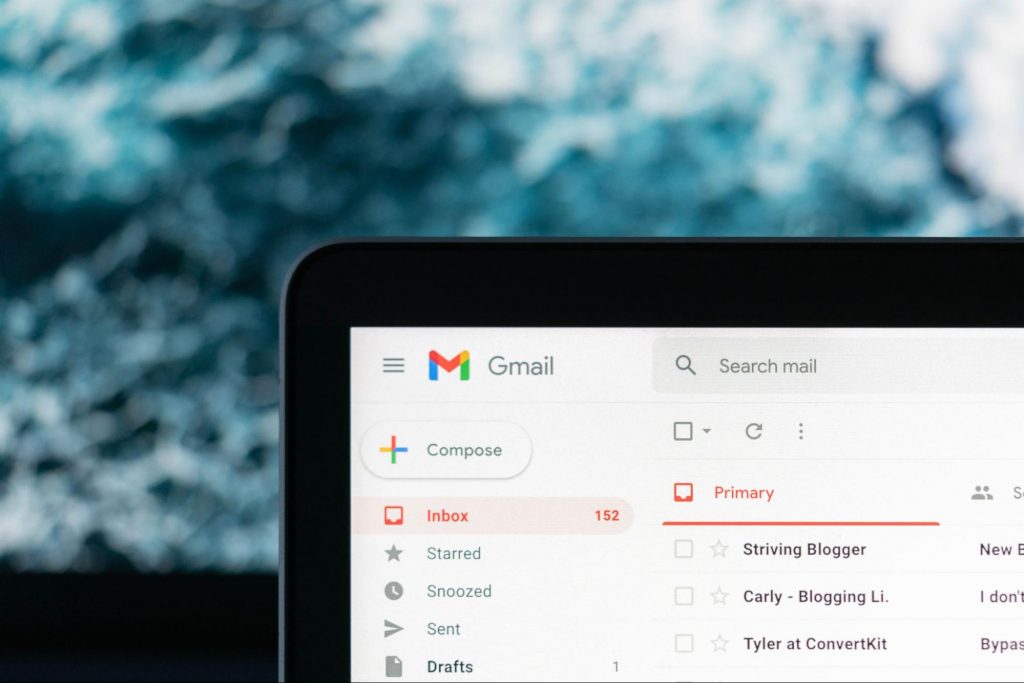
Illustration of Email Phishing
Credit: Justin Morgan on Unsplash

For example, it looks like it’s coming from your bank or your favorite retailer. The logo looks legit and the structure of the e-mail seems familiar, so you might get tricked into clicking on whatever clickable content is in it.

Unfortunately this exposes your device to malware that hands your data off to the hacker, who can decide what to do with it further.

SMS and social media phishing

Like the above example, you could be approached with lucrative offers or links via text messages or social media messages. Typically, the messages seem relevant to the user as they will be made to look like they’re related to apps or services you’re using.

Voice phishing

Voice phishing attacks are schemes that appear as though they’re coming from a credible number. Normally, you’ll get a call about something related to credit cards or taxes to get you into a state of worry, leading you to disclose personal information on the phone.

Spear phishing, whaling and BEC

Spear phishing normally targets specific individuals within a company who are likely to have access to sensitive data. Spear phishers spend time collecting information they can use to reach out to the individual looking as trustworthy as possible. They’ll typically lead with something relevant, for example mentioning an upcoming company event, and make a seemingly legitimate request.

Whaling is a more elaborate form of spear phishing, which targets people in even stronger positions such as executives or high-value individuals. The ultimate goal is to get them to transfer financial or other sensitive information that can be used to compromise the entire business.

Spear Phishing Illustration
Credit: Azamat E on Unsplash

BEC, or Business e-mail compromise, is a specific spear phishing technique carried out via e-mail. While there are many ways this is done, most commonly you’ll see instances where the phisher poses as a CEO or similar executive, or as a lower-level employee in specific positions (e.g. sales managers or financial controllers).

In the first situation, the impersonator reaches out to employees requesting them to transfer certain files or pay invoices. In the second situation, the phisher takes control of the employee’s e-mail account and sends false instructions to other employees in order to obtain data and information from them.

What can you do?

There are many ways you can be aware and spot a phishing attempt. Here are some tips:

  • Always check the sender’s address in your e-mails, even when they seem to come from a familiar source.
  • In any instance where payment information is requested, be very, very careful.
  • If you are receiving attachments you never asked for and definitely didn’t expect, better not click on them. 
  • Beware of content that transmits a sense of urgency (sales deals, urgent updates to login credentials, etc.).
  • Bad spelling and grammar are usually a telltale sign of phishing.
  • Links that look shortened (e.g. Bit.ly) or just suspicious in general - if you have a bad feeling, do not click on them.
  • If you are receiving threats, you probably shouldn’t be clicking on anything in that message.
  • Always examine first-time senders in detail.
  • Block suspicious e-mail addresses, numbers and social media accounts.
  • If you are receiving a coupon for free stuff… You aren’t.
  • If you’re being asked to update your payment details by a service you use, such as Netflix, chances are it’s an impersonator.

Those are some of the ways to identify and prevent phishing attacks. However, sometimes phishers disguise themselves a little too well or a misclick happens and there you go - you’ve been exposed to malware.
Illustration of a Lock on Keyboard Keys
Credit: FLY:D on Unsplash

This won’t happen if you invest in powerful protection software from the get-go, though. A good antivirus program like Bitdefender will keep you safe from becoming a victim of phishing scams. In fact, it will protect you from malicious attacks overall.

Be it your household or your business you’re concerned about, there are a bunch of different packages and options available, providing different kinds of cybersecurity services. That’s the only way you can ever really be sure you aren’t at risk of a digital attack.

Summary

Have you ever been targeted by phishers and didn’t know that’s what it was until you read this article? Many can relate. Protect yourself before it’s too late!

Read More
The device is not ready trying to connect USB
External hard drives have become essentials as they store data. However, they are also prone to issues and one of them is the “The device is not ready”. You could encounter this error when you try to access your connected hard drive. This error won’t allow you to access the contents of your hard drive so unless you fix it, you won’t be able to access any of the files on your hard drive. One of the most likely causes of this error is a hardware defect. Aside from that, it could also be due to loose connections, obsolete device drivers, as well as compatibility issues between the operating system and the hard drive. Before you start troubleshooting the problem, you need to determine if you were able to access your hard drive before you encountered the error or not. If not, you need to check the compatibility of the device with your operating system as it could be the reason why you’re getting the error. There are several potential fixes you can check out to fix this error. You can try to check the hardware connections, run the built-in Hardware and Devices troubleshooter, as well as the USB troubleshooter. You could also run the CHKDSK utility or update the drivers of the device or the USB drivers.

Option 1 – Try checking the hardware connections

The first thing you have to do before you further troubleshoot the problem is to check the hardware connections of your computer and see if there are damaged ones, just like with USB ports, it would also affect the overall connectivity of the device with the computer. So if you notice some irregularities in the connecting cable physically, you might have to buy another one and replace it and then see if it fixes the problem or not.

Option 2 – Run the Hardware and Devices Troubleshooters

  • The first thing you need to do is click on Start and then on the gear-like icon to pull up the window for Settings.
  • After opening Settings, look for the Update and Security option and select it.
  • From there, go to the Troubleshoot option located on the left-hand side of the list.
  • Next, select Hardware and Devices from the list and open the Troubleshooter and run it. Once it is doing its job, wait for it to complete the process and then restart the system.
  • After the system restarts, check if the problem’s now fixed. If not, refer to the next option given below.
Note: You could also try to run the USB troubleshooter as it could also resolve the problem.

Option 3 – Run the CHKDSK utility

As you know, the CHKDSK utility can help you in identifying the bad sectors in a drive and fix them automatically. Thus, you can run it to fix the “The device is not ready” error when you connect your USB drive to your computer.
  • Open Command Prompt with admin privileges.
  • Next, type and enter this command to execute it: chkdsk /f <drive>
  • Now, wait until the process is completed and exit Command Prompt.
  • Restart your computer and try connecting the USB drive again and see if the error is fixed.

Option 4 – Try to update the drivers of the device

Although you can always update the device drivers using the Device Manager, you might want to try downloading the latest set of drivers directly from the manufacturer’s website. Once you’ve downloaded them, install them right away and then correct the external hard drive.

Option 5 – Update or reinstall the Universal Serial Bus Controller driver

If updating the drivers of the device did not fix the “The device is not ready” error, you can try to update or reinstall the Universal Serial Bus Controller drivers instead of using the Device Manager. Refer to the following steps:
  • First, click the Start button and type “device manager”.
  • Then click on the “Device Manager” from the search results to open it.
  • From there, look for the “Universal Serial Bus controllers” option and then right-click on each one of the USB drivers and select the Update Driver from the menu.
Note: If it is a regular USB drive, then it will be listed as a USB Mass Storage Device but if you have a USB 3.0 device, then look for a USB 3.0 Extensible Host Controller.
  • Restart your PC and then click the “Search automatically for updated driver software” option.
Note: If updating the USB Controller drivers didn’t work, you can try to reinstall them instead.

Option 6 – Restart your computer in a Clean Boot State

If the first three given options didn’t work and you still see the error when you connect external devices, you can try putting your computer in a Clean Boot State and then try connecting them again.
  • Log onto your PC as an administrator.
  • Type in MSConfig in the Start Search to open the System Configuration utility.
  • From there, go to the General tab and click “Selective startup”.
  • Clear the “Load Startup items” check box and make sure that the “Load System Services” and “Use Original boot configuration” options are checked.
  • Next, click the Services tab and select the “Hide All Microsoft Services” check box.
  • Click Disable all.
  • Click on Apply/OK and restart your PC. (This will put your PC into a Clean Boot State. And configure Windows to use the usual startup, just simply undo the changes.)
  • Now try to connect the external devices and check if the error is now gone.
Read More
WeatherBlink Malware Removal Guide

WeatherBlink is an extension for google chrome, Mozilla, and internet explorer. It allows users to check out the weather anywhere in the world at any time. This might seem like a convenient feature, however, this toolbar also displays unwanted ads, hijacks your browser home page, collects personal data about your web surfing habits, visits, and clicks. From the author: Access local weather forecasts, weather radar, allergy, and pollen reports, and worldwide weather news – all in one convenient spot! This extension configures your New Tab page to WeatherBlink™ to provide these features.

Be prepared with instant weather forecasts. Access FREE and accurate weather forecasts with one click!

About Browser Hijackers

Browser hijack is a very common type of online fraud where your web browser settings are modified to make it do things you do not intend. Browser hijackers can do more than simply modifying home pages. It redirects you to the sponsored internet sites and inserts ads on the internet browser that helps its creator generate ad revenue. A lot of people assume that these kinds of websites are legitimate and harmless but that is not true. Nearly every browser hijacker poses an actual threat to your online safety and it is necessary to classify them under privacy dangers. In a worst-case scenario, your internet browser could be hi-jacked to open up your computer to a host of additional computer infections.

Indications of browser hijack

Below are some symptoms that indicate you’ve been hijacked: 1. the browser’s home page is changed 2. bookmark and the new tab are also modified 3. default online search engine is modified 4. you see unwanted new toolbars added 5. you notice a lot of pop-ups on your computer screen 6. web pages load very slowly and often incomplete 7. you’ve disallowed entry to particular web pages, for example, the website of an antimalware software firm like SafeBytes.

So how exactly does a browser hijacker infect a computer?

A browser hijacker could be installed on your PC when you go to an infected website, click an email attachment, or download something from a file-sharing website. They also come from add-on applications, also referred to as browser helper objects (BHO), browser extensions, or toolbars. Sometimes you may have mistakenly accepted a browser hijacker as part of a software program bundle (usually freeware or shareware). Typical examples of browser hijackers include CoolWebSearch, Conduit, RocketTab, OneWebSearch, Coupon Server, Searchult.com, Snap.do, and Delta Search.

Tips on how to remove browser hijackers

Certain browser hijacking can be easily stopped by discovering and eliminating the corresponding malware application from your control panel. However, certain hijackers are more difficult to find or eliminate as they might get themselves associated with certain crucial system files that enable it to work as a necessary operating-system process. You should think about carrying out manual repairs only if you’re a tech-savvy person because there are possible risks associated with fiddling around with the system registry and HOSTS file.

How One Can Eliminate Malware that is Blocking Websites or Preventing Downloads

Malware could potentially cause several different types of damage to PCs, networks, and data. Certain malware goes to great lengths to prevent you from downloading or installing anything on your PC, especially anti-malware applications. If you’re reading this, you probably have got infected by a virus that prevents you from downloading security software like Safebytes Anti-Malware. There are a few fixes you could try to get around with this issue.

Start Windows in Safe Mode

Safe Mode is actually a unique, basic version of Windows where just essential services are loaded to counteract malware as well as other problematic programs from loading. In the event the malware is blocking access to the internet and affecting your PC, launching it in Safe Mode enables you to download anti-virus and run a diagnostic scan while limiting possible damage. To start the computer into Safe Mode, hit the “F8” key on your keyboard right before the Windows logo screen comes up; Or after normal Windows boot up, run MSCONFIG, check Safe Boot under Boot tab, and click Apply. Once you restart into Safe Mode with Networking, you may download, install, as well as update anti-malware software from there. At this point, you could run the anti-malware scan to eliminate computer viruses and malware without any interference from another application.

Switch over to an alternate browser

Some malware may target vulnerabilities of a specific browser that block the downloading process. The most effective solution to avoid this problem is to pick a browser that is renowned for its security features. Firefox has built-in Phishing and Malware Protection to help keep you secure online.

Install antivirus on a thumb drive

To effectively remove the malware, you have to approach the problem of running an anti-malware software program on the affected computer from a different angle. Adopt these measures to run the anti-virus on the affected computer. 1) Download Safebytes Anti-Malware or Windows Defender Offline onto a virus-free computer system. 2) Plug the USB drive into the clean PC. 3) Double-click the Setup icon of the anti-malware program to run the Installation Wizard. 4) When asked, choose the location of the USB drive as the place in which you would like to store the software files. Follow activation instructions. 5) Unplug the flash drive. You may now utilize this portable anti-virus on the infected computer. 6) Double-click the Safebytes Anti-malware icon on the flash drive to run the program. 7) Press the “Scan Now” button to begin the virus scan.

SafeBytes Anti-Malware: Lightweight Malware Protection for Windows Computer

Do you want to install the best anti-malware software for your computer system? There are plenty of applications available in the market which comes in paid and free versions for Microsoft Windows computers. A few of them are good, some are ok types, while some will damage your computer themselves! You need to be careful not to select the wrong application, particularly if you purchase a paid application. On the list of recommended software programs is SafeBytes AntiMalware. SafeBytes has a very good track record of top-quality service, and customers seem to be very happy with it. SafeBytes can be described as a powerful, real-time anti-spyware application that is made to assist the common computer end user in safeguarding their PC from malicious internet threats. Using its cutting-edge technology, this application can assist you to get rid of multiples types of malware which include computer viruses, PUPs, trojans, worms, ransomware, adware, and browser hijackers. SafeBytes has a variety of features that can help you protect your PC from malware attacks and damage. Below are a few of the great ones: Antimalware Protection: With a critically acclaimed anti-malware engine, SafeBytes gives multi-layered protection which is intended to find and eliminate viruses and malware that are concealed deep in your computer’s operating system. Real-time Threat Response: SafeBytes provides round-the-clock protection for your PC restricting malware intrusions in real-time. It’ll regularly monitor your laptop or computer for hacker activity and also gives users sophisticated firewall protection. Quick Multi-threaded Scanning: SafeBytes’s high-speed malware scanning engine lessens scan times and extends the life of the battery. At the same time, it’ll effectively detect and get rid of infected computer files or any internet threat. Internet Security: Safebytes allots all sites a unique safety score that helps you to get an idea of whether the website you’re just about to visit is safe to browse or known to be a phishing site. Low CPU/Memory Usage: SafeBytes is well known for its minimal influence on computer resources and great detection rate of numerous threats. It works quietly and efficiently in the background so you are free to utilize your computer or laptop at full power all the time. 24/7 Customer Support: You will get 24/7 technical support to promptly resolve any problem with your security tool.

Technical Details and Manual Removal (Advanced Users)

To remove WeatherBlink manually, go to the Add or Remove programs list in the Control Panel and select the program you want to get rid of. For internet browser plug-ins, go to your browser’s Addon/Extension manager and select the plug-in you want to remove or disable. You will probably also want to reset your internet browser. Finally, examine your hard drive for all of the following and clean your registry manually to remove leftover application entries after uninstallation. Please remember that only experienced users should try to manually edit the registry because incorrect file deletion results in a major problem or perhaps a PC crash. Furthermore, certain malware is capable of replicating or preventing deletion.

Carrying out this malware-removal process in Safe Mode is recommended.

Files: C:Program FilesWeatherBlink C:ProgramDataWeatherBlink C:UsersYOUR_USERAppDataRoamingWeatherBlink Registry: Key HKLMSOFTWAREClassesWeatherBlink.DynamicBarButton Key HKLMSOFTWAREClassesWeatherBlink.FeedManager Key HKLMSOFTWAREClassesWeatherBlink.HTMLMenu Key HKLMSOFTWAREClassesWeatherBlink.HTMLPanel Key HKLMSOFTWAREClassesWeatherBlink.MultipleButton Key HKLMSOFTWAREClassesWeatherBlink.PseudoTransparentPlugin Key HKLMSOFTWAREClassesWeatherBlink.Radio Key HKLMSOFTWAREClassesWeatherBlink.RadioSettings Key HKLMSOFTWAREClassesWeatherBlink.ScriptButton Key HKLMSOFTWAREClassesWeatherBlink.SettingsPlugin Key HKLMSOFTWAREClassesWeatherBlink.SkinLauncher Key HKLMSOFTWAREClassesWeatherBlink.SkinLauncherSettings Key HKLMSOFTWAREClassesWeatherBlink.ThirdPartyInstaller Key HKLMSOFTWAREClassesWeatherBlink.ToolbarProtector Key HKLMSOFTWAREClassesWeatherBlink.UrlAlertButton Key HKLMSOFTWAREClassesWeatherBlink.XMLSessionPlugin Key HKLMSOFTWAREMicrosoftWindowsCurrentVersionExplorerBrowser Helper Objects9b9dcae3-be34-424c-8d73-75e305a9e091 Key HKLMSOFTWAREMicrosoftWindowsCurrentVersionExplorerBrowser Helper Objectsdc9051c2-8f55-479a-97a4-747980d9047f Key HKLMSOFTWAREMicrosoftWindowsCurrentVersionUninstallWeatherBlinkbar Uninstall Firefox Key HKLMSOFTWAREMicrosoftWindowsCurrentVersionUninstallWeatherBlinkbar Uninstall Internet Explorer Key [email protected]/Plugin Key HKLMSOFTWAREWeatherBlink Key HKLMSOFTWAREMicrosoftWindowsCurrentVersionRunValue: WeatherBlink Search Scope Monitor Data: C:PROGRA~1WEATHE~2bar.bingcsrchmn.exe Key HKLMSOFTWAREMicrosoftWindowsCurrentVersionRunValue: WeatherBlink Browser Plugin Loader Data: C:PROGRA~1WEATHE~2bar.bingcbrmon.exe
Read More
Fix Failed to create a graphics device Error
As you know, the Windows 10 operating system has support for a dedicated high-end graphics processor that brings in capabilities inside to support Graphics Cards from NVIDIA or AMD. This helps the operating system to function in a much better way by segregating the graphics-intensive operations from the CPU to a dedicated processor. However, there are times when it also experiences some issues that lead to some errors like the “Failed to create a graphics device” error. It is possible that your computer has more than one screen or graphics card which is why you’re getting this error. To fix it, you need to try reinstalling DirectX or reinstall the Graphics Card driver. You could also try to manually check the hardware or power cycle of your computer. To start troubleshooting the “Failed to create a graphics device” error, follow the given suggestions below.

Option 1 – Try running the DirectX Diagnostic Tool

Since the error has something to do with the DirectX Graphics APIs, you can run the DirectX Diagnostic tool to resolve the problem.

Option 2 – Try updating or re-installing DirectX

If the DirectX Diagnostic tool didn’t work, you can try to update or reinstall DirectX instead. This can help in fixing the problem because when you reinstall or update DirectX, it will replace the incompatible or corrupted components of DirectX from your computer.

Option 3 – Update or reinstall the Graphics card drivers

  • First, boot your computer into Safe Mode.
  • After that, tap the Win + R keys to launch Run.
  • Type in MSC into the box and tap Enter or click OK to open the Device Manager.
  • After that, a list of device drivers will be displayed. From there, look for the Display Adapters and click on them.
  • After that, right-click on each entry under the Display Adapters and select the “Uninstall Device” option from the menu.
  • Now restart your computer.
  • After restarting your computer, go to the Settings app and Check for Updates in the Windows Update section.
Note: You also have the option to go directly to the website of your graphics card manufacturers like NVIDIA, Intel, or AMD and go to the section called Drivers then check if there’s a new available update – if there is, download and install it.

Option 4 – Try to physically check the hardware of your computer

You might also want to check the physical status of the hardware in your computer. You can clean the dust off the hardware components like the Graphics Card of the computer. In doing so, you have to use a small blower or you could also use a soft cloth and run the components gently. Make sure that you don’t damage any parts with moisture or cause harm to any circuits while you carry out this task.

Option 5 – Try to power cycle your computer

You could also try to power cycle your computer to fix the error. To do that, you have to turn off your computer in a way that the power is completely cut off and all the fresh configurations of files are loaded when your computer is booted up. The first thing you have to do is to shut down your computer and if you are using a laptop with a removable battery, you must remove the battery for a couple of minutes before you plug it back in and boot your laptop. On the other hand, if you are using a desktop computer, press and hold the power button until the CPU goes off and take out the power cable for a minute or so and then plug it back in. Boot your computer and see if the error has been resolved.
Read More
Quick Fix for Error Code 100

What is Error Code 100?

Error Code 100?? Whenever a Setup error contains error codes in the message, this indicates what the setup was operating on, let’s say copying files. The text in the error message will determine whether that it is fatal or not. An error code 100 is a system error that is displayed as ‘ERROR_TOO_MANY_SEMAPHORES’ or as a value 0x64. This error means that the system ‘cannot create another system semaphore.’ A semaphore is used in controlling access to parallel programming or a multi-user platform through multiple processes. This error can prevent certain features of your Windows to perform properly, like trying to get a print, copying files, deleting files, or any other routine computer activities.

Solution

Restoro box imageError Causes

Error code 100 can affect a wide range of activities that you normally perform on your PC. This error can occur for a number of reasons, of which some of the common ones include:
  • When the Microsoft SQL Server fails to start the service
  • When the account used for starting AOS does not match the database in SQL Server
  • When the AOS licenses have exceeded their limit
  • When the SQL Server database is incorrectly case sensitive
Though these are the common causes for error code 100, there can be other ways through which this error can occur. To find out the specific cause for error code 100, follow these steps:
  • Go to Start and select All Programs. Go to Administrative Tools and click Even Viewer
  • Click Application in Even Viewer
  • Locate the error message in the right pane by scrolling down
  • Click on the error message and see if the message applies to the error code.

Further Information and Manual Repair

In order to manually repair this error, you will have to work with your Network Administrator as they will have security privileges to take the steps. However, there are more than one ways to resolve this issue, for instance:
  1. Starting SQL Server Service
    • A likely cause of an error code 100 can be that your SQL Server service is not started. To activate it, follow these steps:
    • Got to Start and Click on All Programs, go to Administrative Tools and click on Services
    • Find SQL/MSSQLServer service
    • Right Click on it and click Start to activate the service
  2. Network Resolve
If you are connected to a network, then you can work with your network administrator to fix error code 100. Follow these steps to resolve this error:
  • Got to Start and then Run. Type dcomcnfg and press Enter
  • Locate Default Security and click it
  • Find Default Access Permissions and click Edit Default
  • You should locate System and Interactive, listed in the Allow Access. If they’re not listing, you can add them by clicking Add
  • Find the local computer in the list and click on Allow Access
  • Click Ok on the following three steps
  • Log off the computer and log in again.
Read More
Airplane Mode turns on by itself in Windows
As you know, Airplane mode is the one that gets devices in such a state where all the wireless connections are turned off. However, recently, there are some reports from users claiming that the Airplane Mode turns on by itself in their Windows 10 computers. This kind of problem could be due to an error with the Network driver, third-party applications, and many other factors. Other users also reported that the Airplane Mode automatically flickers, while some stated that they aren’t able to toggle the option for Airplane mode. There are several options you can try to resolve this problem. You can try to configure the Power Management settings for the driver or run the Network troubleshooter. You could also roll back, reinstall or update the Network driver, as well as troubleshoot the problem in a Clean Boot State. For more details, follow each one of the given options below.

Option 1 – Try configuring the Power Management settings for the driver

The first thing you can do to fix the problem is to try configuring the Power Management settings for the driver. How? Refer to these steps:
  • Tap the Win + X keys to open the WinX menu and from there, select the Device Manager to open it.
  • Next, expand the Network adapters and select the entry for your Wi-Fi hardware.
  • After that, right-click on it and select Properties.
  • From there, go to the Power Management tab and uncheck the “Allow the computer to turn off this device to save power” option.
  • Once done, restart your computer and see if it has fixed the problem.

Option 2 – Try to run the Network troubleshooter

To run the Network Troubleshooter, refer to these steps:
  • Open the Search bar on your computer and type in “troubleshoot” to open the Troubleshoot settings.
  • Next, scroll down and select the “Network Adapter” option from the right pane.
  • Then click on the Run Troubleshooter” button.
  • After that, your computer will check for any possible errors and will pinpoint the root cause of the problem if possible.
  • Restart your computer.

Option 3 – Try to update, rollback or reinstall the Network adapter drivers

The next thing you can do to resolve the problem is to update the Network Adapter drivers by following these steps:
  • Tap the Win + R keys to launch the Run window and then type in the “devmgmt.msc” command and hit Enter to open the Device Manager window.
  • Under the Device Manager, you will see a list of drivers. From there, look for the Network Adapters and expand them.
  • Look for the Broadcom Network Adapter and right-click on it, as well as other network adapters that have an exclamation icon, and update them all.
  • Restart your PC and see if it helped in fixing the problem.
Note: If updating the network drivers didn’t help in fixing the problem, you can also try to roll back the very same drivers from their previous versions and restart your Windows 10 PC. After that, the system itself will reinstall the drivers you just uninstalled. Alternatively, you can also download and install the drivers from the manufacturer’s website directly. To reinstall the network adapter drivers, refer to these steps:
  • Open the Devices Manager from the Win X Menu.
  • Then locate the device drivers and right-click on them to open the Properties.
  • After that, switch to the Driver tab and click on the Uninstall Device button.
  • Follow the screen option to completely uninstall it.
  • Finally, restart your computer. It will just reinstall the device drivers automatically.

Option 4 – Try to reset the Network Adapter

You can also try to perform a Network Reset to resolve the problem. This will reset the entire network configuration including your IP address. To perform Network Reset, follow these steps:
  • Tap the Win + I keys to open Settings.
  • From there, go to the Network and Internet section.
  • Next, scroll down and look for “Network Reset” under the status pane.
  • After that, click on Network Reset and then on Reset now to start resetting the network configuration. Once done, check if it is able to fix the error or not.

Option 5 – Try putting your computer in a Clean Boot State

You can also troubleshoot the problem in a Clean Boot state. It could be that there are some third-party applications in your computer that are causing the Airplane Mode to behave in a strange way. So, to isolate this possibility, you need to boot your computer in a Clean Boot State be using these steps:
  • Log onto your PC as an administrator.
  • Type in MSConfig in the Start Search to open the System Configuration utility.
  • From there, go to the General tab and click “Selective startup”.
  • Clear the “Load Startup items” check box and make sure that the “Load System Services” and “Use Original boot configuration” options are checked.
  • Next, click the Services tab and select the “Hide All Microsoft Services” check box.
  • Click Disable all.
  • Click on Apply/OK and restart your PC. (This will put your PC into a Clean Boot State. And configure Windows to use the usual startup, just simply undo the changes.)
  • After you’ve set your computer into a Clean Boot State, try to observe if the Airplane mode is now back to normal or not.
Read More
Regular vs Gaming mouse comparison

You have probably heard a lot of good things about gaming mice, how they are better feeling, better in any way possible and it is all true, everything you heard is actually true, they are superior in any way to a regular mouse but with one big disadvantage, and that would be the price. While you can find a regular mouse for pocket change, a gaming mouse is in comparison very expensive even for entry-level ones.

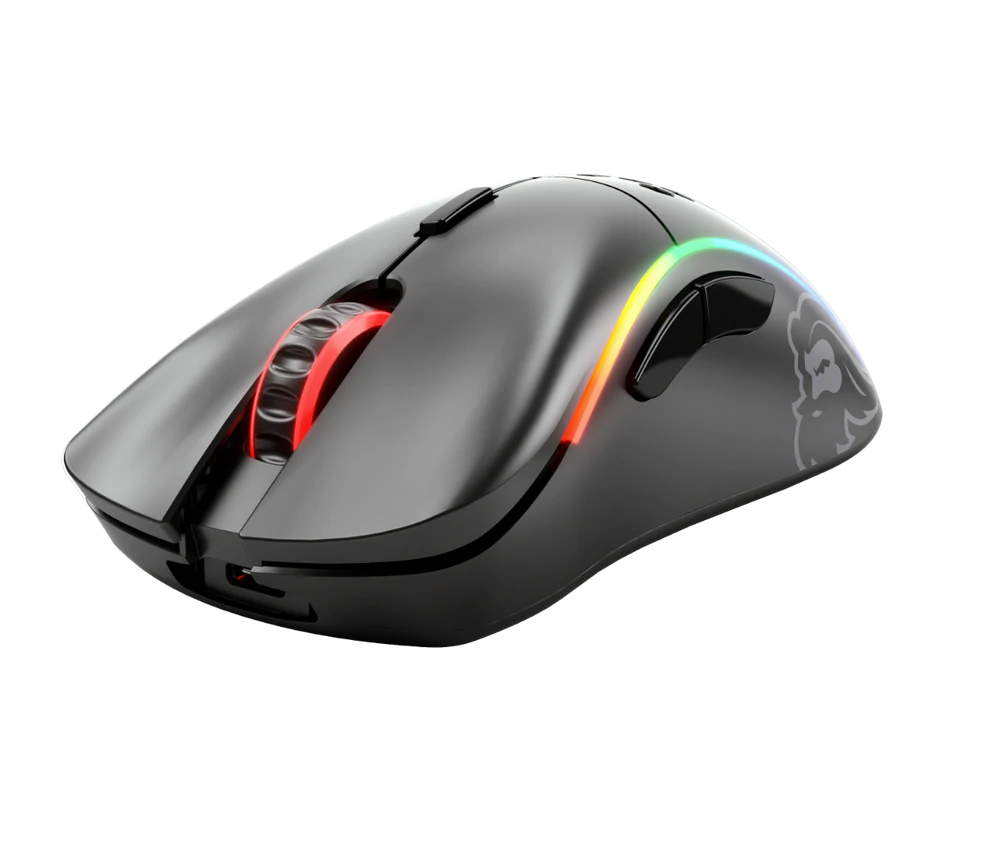
gaming mouse

In this article we will explore all advantages and compare it with the regular one so you can come up with your own conclusion about do you really need one for yourself or if you are fine with regular.

Price

As stated price is one factor that does not favor gaming mice. Regular mouse for a personal computer goes around 10 or 20 USD, while entry-level in gaming one will be 40 USD and can go up to 250 USD, this large gap in price is usually determining factor why people pick up regular one. If you are on a really tight budget go for the regular one, but if you can afford a gaming one get it without second thoughts.

Software

This is where you will see the big difference between mice. Regular ones when connected are recognized and the driver is automatically installed and you can use it, same goes with gaming ones but with one big difference, you have an option to install additional manufacturers' software specially tailored for your mouse. In the application, you will be able to access some features that are specific to the mouse model that you could not set in typical Windows mouse properties. Beside more options software can also have features like setting your profiles and saving them to be recalled when you need them on the fly.

Sensitivity of mouse

The sensitivity of the mouse is measured in dots per one inch or short DPI, this is directly shown on your screen by how fast your mouse can move, higher sensitivity means your mouse will move faster across the screen and lower means it will move slower. All gaming mice come with buttons and settings that will allow you to change DPI on the fly and you can choose precise DPI settings in the software.

The regular mouse comes with DPI around 800 and goes to 1200 typically and does not have usually the option to change this while gaming mice start at 400 and can go as high as 26000 with the option to change it. Some regular mice can have only 1 option of DPI, usually very cheap ones.

Polling rates in mice

Pooling rate is the measurement of how often your mouse reports where it is positioned on the computer. The higher the pooling rate, the more responsive your mouse will be and vice versa. It is measured in hertz (Hz) and regular mice have them around 125Hz that is enough if you are using a computer for office, internet, and mail work.

If you are working in design or gaming you will need more than 125Hz polling rate, luckily gaming mice come with a minimum of 500Hz as an entry point and some hi-end models are going as far as 8000Hz. This very high pooling rate will get some extra load on your CPU but the mouse itself will be maximally responsive and will respond even to the smallest moves.

Ergonomics

Regular mice are well just mice, they are typical shape and size, gaming mice are made with ergonomics in mind. How they are made for extensive daily use of several hours per day they are constructed in a way to offer a pleasant and pain-free experience.

If you work on a computer for long periods of time consider gaming an ergonomic mouse since it will take the strain from hands and place them in a more natural position.

Macro keys

Gaming mice most of the time come with more keys compared with regular ones and good thing is that via its software you can tie certain actions to these extra keys making work or gaming more pleasant and quicker.

Components and material quality

In order to make regular mice more affordable and cheaper materials and quality of components had to suffer. Gaming mice have millions of guaranteed clicks by companies that make them before they break and regular ones usually do not guarantee a single one. This is due of course quality of materials that have been used in constructing these devices.

In the long term, if you use a gaming mouse for typical daily tasks it will outlive your regular one and on the side offer you more pleasant and responsive use along the way.

Read More
Fix 0x80071AC3, Volume is dirty error message
If you are trying to copy a folder or a file but encountered an error that says, “An unexpected error is keeping you from copying the folder. If you continue to receive this error, you can use the error code to search for help with this problem”, read on as this post will guide you on how you can fix this error. This kind of error is a CHKDSK error. It is the “Volume is dirty” error message with error code 0x80071AC3 which indicates that the CHKDSK operation on your computer did not go through due to some corrupted sector of your hard drive, data corruption, corrupted system files, malware infection, as well as improper installation of an application that left some residual folders and files and many more. To fix the Error 0x80071AC3, here are some potential fixes you can check out to resolve it:

Option 1 – Run the Check Disk utility

You can also run the Check Disk utility to fix the error when you connect your USB or external device.
  • In the Windows Search box, type “command prompt” and from the search results, right-click on Command Prompt and select “Run as administrator”.
  • After opening Command Prompt, type this command and tap Enter: chkdsk /r /f <PARTITION LETTER>
  • The command you entered will start to check for errors and fix them automatically. Else, it will throw an error message saying, “Chkdsk cannot run because the volume is in use by another process. Would you like the schedule this volume to be checked the next time the system restarts? (Y/N)”.
  • Tap the Y key to schedule Disk Check the next time your computer restarts.

Option 2 – Try to check if a particular volume is dirty and exclude it

The next thing you can do to fix the problem is to check if the particular volume is dirty and exclude it. To do so, follow these steps:
  • In the Start Search, type “command prompt” in the field and right-click on Command Prompt from the search results, and then select the “Run as administrator” option.
  • After opening Command Prompt with admin privileges, execute this command: fsutil dirty query <PARTITION LETTER>
  • After that, you will see either of the following results of the command you just executed:
    • “Volume <PARTITION LETTER> is dirty”
    • “Volume <PARTITION LETTER> is not dirty”
  • If you see the “Volume <PARTITION LETTER> is dirty” message, then you can just skip checking the drive for errors by executing this command: CHKNTFS /X <PARTITION LETTER>

Option 3 – Try to format the destination drive

If the first two options above didn’t work, then you might want to try formatting the drive can also help you resolve the error. To format it, follow these steps:
  • To get started formatting your drive, tap the Win + E keys and then go to the access page of the drive.
  • Next, right-click on the drive and select Format.
  • After that, uncheck the “Quick Format” option and then format your drive properly.
  • Now once the formatting process is finished, unplug the drive and plug it back in afterward.
  • Check if the error is already fixed. If the drive is not initialized, tap the Win + R keys and hit Enter.
  • After opening the Run dialog box, type “diskmgmt.msc” and hit Enter to open Disk Management.
  • From there, right-click on the drive volume and select initialize disk.
  • Next, select the correct partition type and proceed.
Read More
Easy Remove PCPerformer From Windows

PC Performer is a registry cleaner made by PerformerSoft. The purpose of this program is to remove redundant items from the Windows registry. Registry cleaners remove broken links, missing references within the Windows registry. PC performer is designed to automatically optimize your registry and clean it up.

PC Performer adds registry entries for the current user that allow it to run automatically each time the system is rebooted. It adds a scheduled task to Windows Task Scheduler in order to run at various times. The software connects to the internet, therefore it creates a Windows Firewall exception that allows it to connect without interference. Multiple anti-virus programs detected this software as Malware, it typically comes bundled with other software or is distributed through a pay-per-install bundle.

About Potentially Unwanted Applications

People have encountered it – you download and install a piece of free software application, you then see some unwanted applications on your computer or discover a strange toolbar has been added to your browser. You didn’t install them, so how did they turn up? These unwanted programs, technically known as Potentially Unwanted Programs (PUPs), often come bundled along with other software and install themselves on user’s PC without their knowledge. They perhaps might not look like viruses to some individuals, but they can produce major annoyances and bring about serious trouble for users. The idea of PUP was coined to define this downloadable crapware as something other than malicious software. Much like malware, PUPs create problems when downloaded and placed on your computer, but what makes a PUP different is that you provide consent to download it – the fact is vastly different – the software installation bundle actually tricks you into agreeing to the installation. Still, there isn’t any doubt that PUPs are still bad news for computer users as they can be incredibly damaging to your computer in lots of ways.

What do PUPs look like?

The unwanted software programs after installation display loads of annoying pop-up adverts, create fake alerts, and quite often it even pushes the user to buy the software. Likewise, the majority of free software applications these days come with quite a few unwanted add-ons; in most cases a web browser toolbar or browser modification such as a homepage hijacker. Not only they needlessly use up space on your screen, but toolbars can also manipulate search engine results, watch your browsing activities, decrease your web browser’s performance, and decelerate your net connection to a crawl. PUPs employ aggressive distribution techniques to get in your computer. Some might include information gathering program code that could collect and send your private information back to third parties. Due to this unwanted program, your application may freeze, your security protections may get disabled that might leave the computer susceptible, your system may get ruined, and the list goes on and on.

Tips on how to prevent ‘crapware’

• Read cautiously before agreeing to the license agreement as it may have a clause about PUPs. • Usually, when setting up a program you will get two options, ‘Standard Installation (recommended)’ and ‘Custom Installation’. Don’t select ‘Standard’ as PUPs could be installed that way! • Use good anti-malware software. Try Safebytes Anti-Malware which will find PUPs and handle them as malware by flagging them for removal. • Be alert when you install freeware, open-source software, or shareware. Avoid downloading browser extensions and programs you are not familiar with. • Only download applications from the original providers’ sites. Avoid download portals as they use their own download manager to pack additional programs with the initial download.

What you can do if Virus Stops You From Downloading Or Installing Anything?

Malware could potentially cause several kinds of damage to computer systems, networks, and data. Certain malware goes to great lengths to stop you from installing anything on your PC, especially antivirus applications. If you’re reading this right now, you have perhaps recognized that a malware infection is a reason for your blocked web traffic. So what to do if you need to install an antivirus program like Safebytes? There are a few actions you can take to get around this problem.

Eliminate malware in Safe Mode

If the virus is set to load automatically when Microsoft Windows starts, getting into Safe Mode could very well block the attempt. Since just the bare minimum programs and services start-up in safe mode, there are hardly any reasons for issues to happen. The following are the steps you should follow to remove malware in Safemode. 1) At power on/start-up, hit the F8 key in 1-second intervals. This will bring up the Advanced Boot Options menu. 2) Select Safe Mode with Networking using arrow keys and hit ENTER. 3) Once you get into this mode, you should have an internet connection again. Now, obtain the malware removal application you need by using the browser. To install the software, follow the directions in the installation wizard. 4) After installation, do a complete scan and let the software delete the threats it detects.

Switch to an alternate browser

Web-based viruses can be environment-specific, targeting a particular web browser or attacking particular versions of the browser. The best solution to overcome this issue is to opt for a browser that is well known for its security features. Firefox contains built-in Phishing and Malware Protection to keep you safe online.

Install and run anti-virus from a USB drive

To successfully eliminate the malware, you will need to approach the issue of installing an anti-virus program on the infected PC from a different angle. Adopt these measures to employ a USB flash drive to fix your corrupted computer. 1) Use another virus-free computer to download Safebytes Anti-Malware. 2) Insert the pen drive into the clean computer. 3) Double-click the Setup icon of the antivirus program to run the Installation Wizard. 4) When asked, choose the location of the pen drive as the place where you would like to put the software files. Follow the on-screen instructions to complete the installation process. 5) Now, insert the pen drive into the infected computer. 6) Double-click the EXE file to open the Safebytes program right from the flash drive. 7) Click “Scan Now” to run a scan on the infected computer for malware.

Highlights of SafeBytes Anti-Malware

Do you want to install the best anti-malware software program for your computer system? There are various applications in the market that comes in paid and free versions for Microsoft Windows systems. A few of them are great and some are scamware applications that pretend as legit anti-malware software waiting around to wreak havoc on your computer. While looking for anti-malware software, select one which gives dependable, efficient, and full protection against all known computer viruses and malware. On the list of recommended software is SafeBytes Anti-Malware. SafeBytes carries a really good track record of top-quality service, and clients are happy with it. SafeBytes anti-malware is a highly effective and easy-to-use protection tool that is suitable for users of all levels of computer literacy. With its cutting-edge technology, this application will let you remove multiples types of malware which include viruses, worms, PUPs, trojans, ransomware, adware, and browser hijackers. SafeBytes anti-malware provides an array of advanced features which sets it apart from all others. Listed here are a few of the great ones: Anti-Malware Protection: Built on a highly acclaimed anti-virus engine, this malware removal tool is able to detect and remove many obstinate malware threats such as browser hijackers, potentially unwanted programs, and ransomware that other typical anti-virus programs will miss. Real-time Active Protection: SafeBytes offers an entirely hands-free real-time protection that is set to check, prevent and remove all threats at its first encounter. It’ll check your PC for suspicious activity continuously and shields your PC from unauthorized access. Faster Scan: SafeBytes’s virus scan engine is one of the quickest and most efficient in the industry. Its targeted scanning seriously increases the catch rate for malware that is embedded in various computer files. Safe Browsing: Safebytes assigns all sites a unique safety ranking that helps you to have an idea of whether the webpage you’re going to visit is safe to view or known to be a phishing site. Low CPU Usage: SafeBytes is renowned for its minimal influence on processing power and great detection rate of countless threats. It runs silently and efficiently in the background so you’re free to use your computer at full power all the time. 24/7 Customer Support: SafeBytes provides 24/7 technical support, automatic maintenance, and software upgrades for the best user experience.

Technical Details and Manual Removal (Advanced Users)

If you wish to manually remove PCPerformer without the use of an automated tool, it may be possible to do so by removing the program from the Windows Add/Remove Programs menu, or in cases of browser extensions, going to the browsers AddOn/Extension manager and removing it. You will likely also want to reset your browser. To ensure the complete removal, manually check your hard drive and registry for all of the following and remove or reset the values accordingly. Please note that this is for advanced users only and may be difficult, with incorrect file removal causing additional PC errors. In addition, some malware is capable of replicating or preventing deletion. Doing this in Safe Mode is advised.

The following files, folders, and registry entries are created or modified by PCPerformer

Files: File at LOCALAPPDATAPCPerformerSetupPCPerformerSetup.exe. File at PROGRAMFILESPC PerformerPCPerformer.exe. File at PROGRAMFILESPC PerformerPSCheckUp.exe. File at PROGRAMFILESPC PerformerRegistryDefrag.exe. File at WINDIRTasksPC Performer Daily Check.job. File at WINDIRTasksPC Performer Scheduled Scan.job. Registry: Key PC Performer at HKEY_CURRENT_USERSoftwarePerformerSoft. Key PC Performer at HKEY_LOCAL_MACHINESOFTWAREPerformerSoft. Key PCPerformer_is1 at HKEY_LOCAL_MACHINESoftwareMicrosoftWindowsCurrentVersionUninstall.
Read More
How to Resolve Error Code 0xd0000272 in Windows 10

Error Code 0xd0000272 – What is it?

Error code 0xd0000272 is an activation error code that occurs when Windows users are unable to activate their Windows operating system. This error code features common symptoms which include the following:

  • Inability to activate Windows 10 operating system
  • Message box with error code 0xd0000272

Solution

Restoro box imageError Causes

When error code 0xd0000272 occurs in Windows 10, it is usually due to issues related to the Windows activation servers. In such a case where the error code occurs due to an activation server that is temporarily unavailable, users may need to wait for a few hours until the activation server is available. Their copy of Windows will then be automatically activated. Once the activation process is not done accordingly, you might encounter other Windows 10 errors such as error code 0xc004f034

Further Information and Manual Repair

As is the case with many activation error codes, Windows 10 users can perform several manual repair methods to determine the cause as well as fix the error code affecting their device. Instead of passively waiting to see if your activation error code will be fixed on its own, resolve error code 0xd0000272 through the manual repair methods available. Below are simple instructions that when followed can lead to your success.

Method One: Verify Internet Connection

Check Settings to verify if your machine is connected to the Internet. This is one of the causes of various error codes which affect Windows 10. Also, this manual method is a simple process that can help Windows users recognize or eliminate factors that may or may not be affecting their system. To check your Internet connection, follow the simple instructions below.

  • Step one: Click the Start button and select Settings
  • Step two: Select Network & Internet
  • Step three: Click the Status section of the Network & Internet tab

Once you’ve been able to verify an Internet connection or troubleshoot any issues related to your network, go to Update & security. Make an attempt to activate your system. If you are successful, you will be able to access all the features and benefits offered via your copy of Windows. However, move to the next manual method below if error code 0xd0000272 reoccurs.

Method Two: Run Windows Update Troubleshooter

Your inability to activate Windows 10 may be related to an issue with Windows Update. To verify whether or not Windows Update is functioning properly, run Windows Update Troubleshooter.

You’ll need to visit the Microsoft website to access their Windows Update Troubleshoot tool. Once you’ve downloaded the troubleshooter, run the tool. After running the tool, check if you are able to access Windows Update services as well as activate Windows 10.  If the problem with error code 0xd0000272 persists, however, follow the instructions provided for manual repair method three detailed below.

Method Three: Disable Proxy Settings

Another option available to individuals experiencing error code 0xd0000272 in Windows 10 is to manually disable their machine’s proxy settings. After disabling the proxy settings, remember to open the Windows Update tab to complete the activation process. See the instructions provided below to disable proxy settings.

  • Step one: Press Windows key + R
  • Step two: Type control then click OK
  • Step three: Select Settings then go to Network & Internet
  • Step four: View connection settings
  • Step five: Click on the Network tab
  • Step six: Click Proxy -- turn off proxy

Once you have successfully disabled your proxy settings, open Windows Update. Select the activation option to access your copy of Windows 10. If you are unable to complete the activation process, however, contact a Windows repair technician.

Method Four: Use an Automated Tool

Error codes in Windows often occur due to poor maintenance of one’s PC. To improve your system and reduce your machine’s risk of experiencing error codes, download a powerful automated tool. This tool is both powerful and user-friendly, making its benefits accessible to even the most non-technical Windows users.
Read More
1 2 3 171
Logo
Copyright © 2023, ErrorTools. All Rights Reserved
Trademark: Microsoft Windows logos are registered trademarks of Microsoft. Disclaimer: ErrorTools.com is not affiliated with Microsoft, nor claims direct affiliation.
The information on this page is provided for information purposes only.
DMCA.com Protection Status
