Logo

Fix The drive is not a valid backup location

USB storage devices are used to store small and even big files, depending on their sizes. Usually, the sizes of the USB vary from 2GB up to 16GB. And as time passes, they have advanced quite a bit and now it’s common to find USB sticks with a capacity of 32GB, 64GB, or even 128GB. And since they now have large capacities, USB storage devices are often used for storing backups of system data as well as creating an image. However, there are times when you might encounter an error message while trying to create a backup or image on your USB device. The error message states:

“The drive is not a valid backup location.”

One of the causes of this problem is that Windows was not able to recognize the USB drives as a valid backup location since USB storage devices weren’t previously large enough to store system images. To fix this error, here are some possible solutions that might help.

Option 1 – Try creating a sub-folder in the USB drive and backup all the images there

The first thing you can try to do is to create a sub-folder on your USB device. This is one good way you can bypass the USB drive limitation. How? Refer to the steps below.

  • First, right-click on the USB storage device and select Format.
  • Next, select NTFS as the File System and check the box next to Quick Format.
  • After that, click on Start to initiate the formatting process.
  • Once the formatting process is completed, open the USB drive and right-click anywhere inside its main drive window, and then select New > Folder.
  • Then name the folder to be created as “Image (or anything you please)”.
  • Afterward, right-click on the folder and select Properties.
  • From there, go to the Sharing tab and click on Share.
  • Now check if the Permission level on the System owner which should be your username is labeled as “Owner”.
  • Then try to back up your files again using your USB drive while keeping the sub-folder as the backup location.

Option 2 – Update the USB Controller Drivers

  • First, click the Start button and type “device manager”.
  • Then click on the “Device Manager” from the search results to open it.
  • From there, look for the “Universal Serial Bus controllers” option and then right-click on each one of the USB drivers and select the Update Driver from the menu.
  • Restart your PC and then click the “Search automatically for updated driver software” option.

You also have the option to update the motherboard and the USB driver from the manufacturer’s official website.

Option 3 – Run CHKDSK utility to check the drive for errors

When it comes to some issues concerning the hard drive or removable devices, there is a utility in Windows that might help which is called “chkdsk”. To use it, follow the steps below.

  • Tap the Win + S keys to open the Search box.
  • Then type “command prompt” in the field and from the search results that appear, right-click on Command Prompt and select “Run as administrator”.
  • After opening an elevated command prompt, copy and paste the following command and hit Enter:

CHKDSK [volume [[path] filename]] [/F] [/V] [/R] [/X] [/C] [: size]]

Note: In the command given above, “[/F]” will try to fix the system errors while “[/R]” will be the one to fix the bad sectors.

  • Now if you are prompted to run CHKDSK after your reboot your PC, just tap Y and reboot your PC.
  • If CHKDSK is not able to find any errors, tap the Win + E keys and navigate the access window. From there, right-click on the concerned drive and click on Properties.
  • After opening Properties, click on the tab Tools and then click on the “Check” button under the Error-checking section.
  • Wait until the process is completed and then restart your computer.

Do You Need Help with Your Device?

Our Team of Experts May Help
Troubleshoot.Tech Experts are There for You!
Replace damaged files
Restore performance
Free disk space
Remove Malware
Protects WEB browser
Remove Viruses
Stop PC freezing
GET HELP
Troubleshoot.Tech experts work with all versions of Microsoft Windows including Windows 11, with Android, Mac, and more.

Share this article:

You might also like

How to Fix Error Code 0x80073b01

Error Code 0x80073b01 - What is it?

The 0x80073b01 is an error message that often pops up on the screen when you run Windows Defender. Windows Defender is an antispyware by Microsoft integrated into Windows Vista and Windows 7. The error code 0x80073b01 is considered to be a critical Windows error which must be fixed immediately. This error code locks you out of Windows Defender thus putting your computer at risk potential security loopholes in the Windows environment such as notorious software like spyware, adware, and viruses. This is dangerous especially if you have confidential data saved on your PC as it can be exploited easily if you don’t remove such malicious software the right way. This can lead to data breaches, cybercrime, and the worst-case scenario can be identity theft. Error code 0x80073b01 symptoms include:
  • Sluggish pc performance,
  • Problems during software installations
  • Beeping sounds
  • Unexpected shutdowns
  • Screen freeze

Solution

Restoro box imageError Causes

The error code 0x80073b01 occurs when Windows Defender gets damaged due to misconfigured files and registry corruption. It is advisable to fix this error right away to avoid serious damages.

How to Resolve the Error Code 0x80073b01?

To repair the error code 0x80073b01 on your PC you don’t necessarily have to call a professional; you can fix it on your own with the help of Restoro. It’s very easy to use and does not require you to be technically sound. Besides, it can be downloaded for free thus helping you save hundreds of dollars that you are likely to spend on hiring a technician for the error code repair job. Restoro is the latest and a multi-functional system optimizer and a repair tool. This software is integrated with highly functional features that enable you to resolve almost all types of PC-related errors including the error code 0x80073b01. It includes powerful and value-adding features like registry cleaner, system stability detector, privacy error finder with anti-virus properties, and Active X and Class issues detector. With the help of its ‘registry cleaner’, you can easily scan for 0x80073b01 error codes on your PC. It offers in-depth registry cleaning scanning all the underlying causes of registry corruption that triggers 0x80073b01 error. The underlying cause for registry corruption is the accumulation of unnecessary and malicious files in the registry like junk files, temporary internet files, and invalid entries. Restoro with the help of its registry cleaning utility clears the clutter in seconds, frees up your disk space, and repairs the registry. And since the error 0x80073b01 hampered your ability to scan for viruses and spyware with Windows Defender, your computer may be exposed to serious data security threats by such malware. However, with Restoro you can remove malware from your system too. Restoro also functions as a powerful anti-virus. With the help of its privacy error detector, it scans for malicious viruses, adware and spyware on your PC ensuring that you are safe and protected from data breaches and cybercrime. This tool resolves the error 0x80073b01 successfully while repairing your registry and simultaneously optimizing the speed of your PC. It has a user-friendly interface and a simple design. There is absolutely nothing complex about it. All you have to do is download and install Restoro on your system and run it to scan for errors. After the scanning is complete, you will see a comprehensive and detailed error report specifying the number and the types of errors your PC is inflicted with. Now all you have to do is click on the Repair button to fix the issues on your PC including the error 0x80073b01 right away. Restoro is a safe and efficient tool that helps you resolve PC issues in seconds. For optimum results, it is advisable to run it on your PC regularly. This will help you keep the registry clean, PC error-free, reduce boot time, and ensure speedy PC performance. Click here to download Restoro on your PC today!
Read More
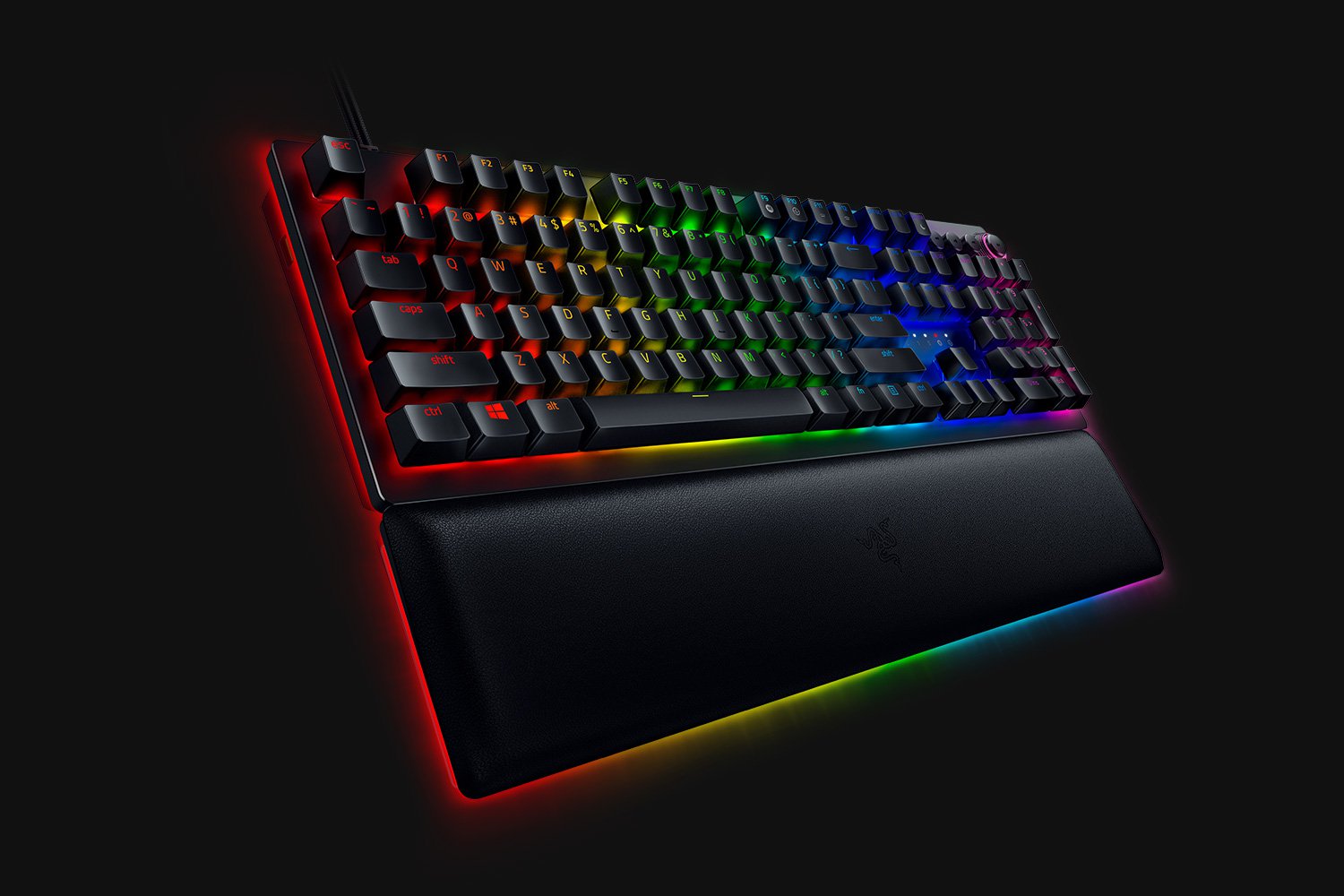
Razer Huntsman V2 mechanical keyboard
Razer huntsmanWhen it comes to computer peripherals first thing that comes to people's minds is probably Mouse and Keyboard. Also when discussing peripherals brands, Razer is not a stranger and over the years it has built its name and cult following. Razer’s mechanical keyboards have been always in the upper field of quality and trust from users and Huntsman is no different.

Tech specifics of Huntsman keyboard

  1. Mechanical optical switches Razer has introduced their new optical technology switch with this keyboard. These switches are faster and more accurate than typical mechanical switches and if tests are to be believed this is the fastest keyboard currently on the market.
  2. Multi-functional digital dial A multi-function digital dial with three tactile media keys gives you instant access to everything from brightness to volume in seconds. All programmable and customizable through Synapse 3, so you can set your preferred configurations right at your fingertips.
  3. 10-key rollover Anti-ghosting technology that enables 10-key simultaneous presses at the same time
  4. 4-side underglow with Razer chroma Go crazy and personalize lighting effects any way you want with a full 4-side underglow and 38 customization zones. Powered by Razer Chroma

Feel and noise

In the department of noise, well it is the mechanical keyboard so naturally, it will be louder than membrane ones but in terms of comparing it to other mechanical keyboards it is within the same noise range, maybe just a tiny bit silenced. The keyboard comes with 2 different types of switches, purple clicky ones that are louder and have that *click* sound for sound feedback, and red ones, that are not equipped with clicky sound but are linear providing slightly faster performance. If you choose the Huntsman elite model of the keyboard it will come with a nice hand resting mat that is very comfortable and feels right. Using a keyboard feels like using a Razer keyboard, it is responsive and gives that superior mechanical feeling.

Conclusion

Razer Huntsman mechanical keyboard is not the cheapest nor the best on the market but it is the fastest one out. It is in the top tier of keyboards and worth the investment.
Read More
Jzip PUP Easy Removal Tutorial

jZip is a software utility published by Bandoo Media and is classified as a Potentially Unwanted Program. The software is an archive tool that used to compress and extract files in the rar, zip, and other formats. The program is typically bundled upon installation with other unwanted applications and is itself often installed in co-bundles. As of publication time, over 40 AntiViruses have flagged jZip as malicious or potentially unwanted.

It injects itself in Windows shell, providing quick access to the program by right-clicking on any file. jZip displays it's advertising in your browser, instead of the default search results, to better do this, it collects information about your browsing history and your current browsing session, so it can better target ads. This software, upon install, defines an auto-start registry key in your system, this allows the software to launch every time your computer is rebooted, no matter what Windows account you log in to, it also adds Windows Tasks, to allow it to launch by itself at random times, even when closed.

About Potentially Unwanted Applications

If you have ever downloaded software programs from the internet (shareware, freeware, etc,), odds are high you’ve unintentionally installed unwanted programs on your personal computer. Potentially Unwanted Programs (PUP), also referred to as Potentially Unwanted Applications (PUA), are applications that you never wanted in the first place and quite often come bundled with freeware software. Once installed, most of these applications can be hard to remove and become more of a nuisance rather than a necessity. The idea of PUP was actually coined to define this crapware as something other than malware. The primary reason for this is that most PUPs get into users’ computers not because they exploit security vulnerabilities, for instance, but because the users grant consent to install it – unwittingly in many instances. Nevertheless, there isn’t any doubt that PUPs are still bad news for PC users as they could be incredibly damaging to the computer in lots of ways.

What do PUPs do on your computer, precisely?

The unwanted programs after installation display a lot of annoying pop-up advertisements create fake alerts, and quite often it even pushes the end-user to buy the software. PUPs which come as browser add-ons and toolbars are widely identifiable. Not just they needlessly take up space on your computer screen, toolbars could also manipulate search results, monitor your browsing activities, decrease your internet browser’s overall performance, and slow your net connection to a crawl. They might seem innocent but PUPs tend to be spyware. The worst part of setting up a PUP is the spyware, adware, and keystroke loggers that might lurk inside. Even if the PUPs aren’t inherently malicious, these programs still do absolutely nothing good on your PC – they will take valuable system resources, slow down your computer or laptop, weaken your device’s security, and make your PC more susceptible to trojans.

Some tips on protecting yourself from unwanted software

• Read the EULA meticulously. Look for clauses that say that you have to accept advertisements and pop-ups or bundled programs from the company. • Typically, when setting up a program you will get two options, ‘Standard Installation (recommended)’ and ‘Custom Installation’. Don’t pick ‘Standard’ as unwanted programs will automatically be installed that way! • Have a solid anti-virus program such as Safebytes Anti-Malware that will protect your personal machine from PUPs. Once you install this software, the defense against viruses and PUPs is already switched on. • Avoid installing freeware software you will not utilize. Turn off or get rid of toolbars and internet browser extensions you don’t really need. • Only download programs from the original providers’ websites. Avoid download portals since they use their own download manager to bundle extra programs along with the initial download.

Can't Install Safebytes Anti-malware because of a Virus? Do This!

Malware may cause several kinds of damage to computers, networks, and data. Some malware types alter browser settings by including a proxy server or change the computer’s DNS configuration settings. In such cases, you will be unable to visit some or all of the websites, and therefore unable to download or install the required security software to clear out the infection. So what to do if malicious software keeps you from downloading or installing Safebytes Anti-Malware? Follow the instructions below to eliminate malware in alternate ways.

Make use of Safe Mode to fix the issue

In Safe Mode, you are able to modify Windows settings, un-install or install some software, and eliminate hard-to-delete viruses. In case the virus is set to load immediately when the computer starts, switching to this particular mode may well prevent it from doing so. In order to get into Safe Mode or Safe Mode with Networking, press the F8 key while the system is booting up or run MSConfig and find the “Safe Boot” options in the “Boot” tab. After you restart the PC into Safe Mode with Networking, you may download, install, and update the anti-malware program from there. After installation, run the malware scanner to remove most standard infections.

Download the security program using an alternate internet browser

Web-based viruses can be environment-specific, aiming for a particular web browser or attacking particular versions of the browser. The most effective solution to avoid this issue is to opt for an internet browser that is known for its security measures. Firefox contains built-in Phishing and Malware Protection to help keep you safe online.

Create a portable USB antivirus for eliminating viruses

Another solution is to save and run an anti-malware software tool completely from a USB drive. Adopt these measures to employ a USB drive to clean your corrupted system. 1) Download Safebytes Anti-Malware or MS Windows Defender Offline onto a clean computer. 2) Plug the Flash drive into the uninfected computer. 3) Double-click the exe file to open the installation wizard. 4) When asked, choose the location of the USB drive as the place in which you want to store the software files. Follow the activation instructions. 5) Now, plug the thumb drive into the corrupted PC. 6) Run the Safebytes Anti-malware directly from the pen drive by double-clicking the icon. 7) Run Full System Scan to detect and clean-up up all kinds of malware.

SafeBytes Anti-Malware Features

These days, anti-malware software can protect your laptop or computer from different kinds of internet threats. But how to select the right one among several malware protection application that is available in the market? Perhaps you might be aware, there are many anti-malware companies and tools for you to consider. Some of them are good, some are decent, while some will ruin your computer themselves! You must pick one that is dependable, practical, and has a good reputation for its malware source protection. On the list of recommended software programs is SafeBytes Anti-Malware. SafeBytes carries a superb track record of top-quality service, and customers seem to be happy with it. Safebytes is one of the well-established PC solutions companies, which offer this comprehensive anti-malware program. Once you’ve got installed this software program, SafeByte's state-of-the-art protection system will ensure that absolutely no viruses or malicious software can seep through your computer. SafeBytes anti-malware comes with a myriad of enhanced features which sets it aside from all others. Here are a few typical features found in this application: Active Protection: SafeBytes provides real-time active monitoring service and protection against all known computer viruses and malware. This software will constantly monitor your PC for any suspicious activity and updates itself continuously to keep current with the newest threats. Most effective AntiMalware Protection: By using a critically acclaimed malware engine, SafeBytes offers multilayered protection that is designed to catch and remove viruses and malware which are concealed deep in your computer system. Safe Browsing: SafeBytes gives an instant safety rating about the web pages you are about to check out, automatically blocking harmful sites and make sure that you’re certain of your safety while browsing the world wide web. Fast Multithreaded Scanning: Safebytes Anti-Malware, using its enhanced scanning engine, gives super-fast scanning which can promptly target any active internet threat. Minimal CPU Usage: SafeBytes is a lightweight tool. It consumes a really small amount of processing power as it works in the background which means you won’t observe any computer performance issues. 24/7 Customer Support: You will get 24/7 technical support to quickly resolve any issue with your security application.

Technical Details and Manual Removal (Advanced Users)

If you wish to manually remove Jzip without the use of an automated tool, it may be possible to do so by removing the program from the Windows Add/Remove Programs menu, or in cases of browser extensions, going to the browsers AddOn/Extension manager and removing it. You will likely also want to reset your browser. To ensure the complete removal, manually check your hard drive and registry for all of the following and remove or reset the values accordingly. Please note that this is for advanced users only and may be difficult, with incorrect file removal causing additional PC errors. In addition, some malware is capable of replicating or preventing deletion. Doing this in Safe Mode is advised.

The following files, folders, and registry entries are created or modified by Jzip

Files: File APPDATAjziptoolbaruninstallIE.dat. File APPDATAMozillaExtensions1FD91A9C-410C-4090-BBCC-55D3450EF433. File COMMONDESKTOPEmoticons for your messenger!.url. File LOCALSETTINGSTempinstallhelper.dll. File LOCALSETTINGSTempnsb2.tmp.exe. File LOCALSETTINGSTempSetupDataMngr_jZip.exe. File PROGRAMFILESMozilla Firefoxextensions1FD91A9C-410C-4090-BBCC-55D3450EF433. File PROGRAMFILESMozilla FirefoxsearchpluginsjZipWebSearch.xml. Directory APPDATAjzipband. Directory APPDATAjziptoolbar. Directory APPDATAMozillaFirefoxProfilesENV(jZip_ff_profile)extensions1e48c56f-08cd-43aa-a6ef-c1ec891551ab. Directory APPDATAMozillaFirefoxProfilesENV(jZip_ff_profile)jziptoolbar. Directory PROGRAMFILESWindows jZip ToolbarDatamngr. Directory PROGRAMFILESWindows jZip ToolbarToolBar. Registry: Key in HKEY_CLASSES_ROOT named JzipIEHelper.DNSGuard.*, plus associated values. Key in HKEY_CLASSES_ROOT named JzipIEHelper.DNSGuard, plus associated values. Key 1e48c56f-08cd-43aa-a6ef-c1ec891551ab at HKEY_CLASSES_ROOTCLSID. Key 1e48c56f-08cd-43aa-a6ef-c1ec891551ab at HKEY_LOCAL_MACHINESOFTWAREMicrosoftWindowsCurrentVersionExplorerBrowser Helper Objects. Key 41C4AA37-1DDD-4345-B8DC-734E4B38414D at HKEY_CLASSES_ROOTCLSID. Key 41C4AA37-1DDD-4345-B8DC-734E4B38414D at HKEY_LOCAL_MACHINESOFTWAREMicrosoftWindowsCurrentVersionExplorerBrowser Helper Objects. Key 99D9640D-7DD9-4AB1-946C-AD779E1EABE0 at HKEY_CLASSES_ROOTTypeLib. Key jZipMediabarTb at HKEY_LOCAL_MACHINESOFTWARE. Key jziptoolbar at HKEY_CURRENT_USERSoftware. Value 1e48c56f-08cd-43aa-a6ef-c1ec891551ab at HKEY_LOCAL_MACHINESOFTWAREMicrosoftInternet ExplorerToolbar. Value <$PROGRAMFILES>Windows jZip ToolbarToolBardtUser.exe at HKEY_LOCAL_MACHINESYSTEMControlSet001ServicesSharedAccessParametersFirewallPolicyStandardProfileAuthorizedApplicationsList. Value <$PROGRAMFILES>Windows jZip ToolbarToolBardtUser.exe at HKEY_LOCAL_MACHINESYSTEMControlSet002ServicesSharedAccessParametersFirewallPolicyStandardProfileAuthorizedApplicationsList. Value <$PROGRAMFILES>Windows jZip ToolbarToolBardtUser.exe at HKEY_LOCAL_MACHINESYSTEMControlSet003ServicesSharedAccessParametersFirewallPolicyStandardProfileAuthorizedApplicationsList. Value <$PROGRAMFILES>Windows jZip ToolbarToolBardtUser.exe at HKEY_LOCAL_MACHINESYSTEMCurrentControlSetServicesSharedAccessParametersFirewallPolicyStandardProfileAuthorizedApplicationsList. Remove <$PROGRAMFILES>WINDOW~4Datamngrdatamngr.dll <$PROGRAMFILES>WINDOW~4DatamngrIEBHO.dll from registry value AppInit_DLLs at HKEY_LOCAL_MACHINESOFTWAREMicrosoftWindows NTCurrentVersionWindows.

Read More
Five Ways of Fixing Error Code 37

What is Error Code 37?

Error Code 37 is a Device Manager Error Code that you may come across when you are unable to use an installed hardware device on your PC. It will pop up on your screen with the following display:

“Windows cannot initialize the device driver for this hardware. (Code 37)”

If you receive the above message, it means that your operating system was unable to acknowledge the drivers for a particular peripheral device.

Solution

driverfix boxError Causes

Error Code 37 mainly occurs due to device driver corruption. However, there are other factors that can trigger this error code, some of which are the following:

  • Missing device drivers
  • Out-of-date device drivers
  • Presence of malware or spyware in the system
  • The particular device is not compatible with your PC

Device driver corruption or other data corruption is not uncommon and part of everyday PC use.

From an installation gone wrong to an unexpected shutdown, commonly generated data errors are considered the main culprit behind error codes.

Further Information and Manual Repair

Just like most PC error codes, Error Code 37 isn’t that difficult to get rid of. There are many DIY methods you can try to have your PC running smoothly in no time. Here are a few methods to resolve this issue:

Method 1: Restart your PC

It is possible that the display of the error code is merely due to a temporary issue with your peripheral device and not anything serious.

Therefore, the quickest and easiest method to solve the error code 37 is to simply restart your PC.

Method 2: Scan for Viruses

If restarting does not do the trick, a quick scan for viruses and removing them is another simple method you can follow to fix your PC.

Since the error code is due to corruption of data, viruses such as malware or spyware create error in your PC’s registry and eliminating them can help restore some of the corrupt data, which also speeds up your PC.

Method 3: Undo recent changes

A possible explanation for the error code may be the recent changes in your Device Manager or due to the peripheral device installation. You can thus undo the changes by either:

  • Remove or change settings of the installed peripheral device
  • Roll back the version of the driver to the one before the update.
  • Use System Restore to reverse the changes made in the Device Manager

Method 4: Manually uninstall and reinstall the drivers

If the above stated methods do not help in speeding up your PC and is still giving you an error code, you may want to manually uninstall and reinstall the corrupt or missing drivers. Here are the following steps:

  • Double-check if the installed external device is properly connected and working smoothly
  • Open Device Manager and double click on the device that is causing problems
  • When it opens, click on the ‘Driver’ tab and click ‘Update Driver’

Method 5: Use DriverFIX

However, updating the missing or corrupt drivers can be time consuming and may also require having a hardware documentation ready that contains specific details about the driver that you should download.

To avoid this time-consuming process, you can use DriverFIX software.

DriverFIX will help you to download the required driver without you having to waste your precious time and effort looking it up in a user manual. This latest software technology is embedded with its own database that tracks the missing or corrupt driver according to your PC’s motherboard version and specific details.

It is user-friendly, which means that it will relieve you from the frustration of such PC error codes appearing from time to time and enable your PC to work efficiently in no time.

Click here to download DriverFIX to resolve Device Manager error code 37 today!

Read More
Fixing “Could not find this item. This is no longer located in [Path]. Verify the item’s location and try again” Error in Windows 10
If you are trying to access a particular file on your Windows 10 computer either to open, rename or delete it, and you suddenly encounter an error stating, “Could not find this item. This is no longer located in [Path]. Verify the item’s location and try again”, read on for this post will help you out in resolving this issue. If you are able to find and view a file on your computer, you should have clear access to it. And since you are seeing an error message when you try to do something about this file, you are not able to do anything with the file. There are times when this error pops up with the files created by third-party services and that the file’s extension is not defined properly. On the other hand, there are also other obscure causes for this error. To fix it, here are some suggestions you can try.

Option 1 – Delete the file using Command Prompt

If you wish to delete the problematic file and weren’t to, you can use Command Prompt.
  • In the Start menu, type in “Command Prompt” to search for it or you could also click the search button right next to the Start menu and then right-click on the related result and select the option “Run as administrator”.
  • Once you’ve opened Command Prompt, copy and paste the command given below and tap Entre after you do so. You also have to make sure that you key in the correct path where the file is located as well as its name.
rd /s \?X:badfolderpath Note: In the command above, “X” is the placeholder letter so you must input the letter that corresponds to the drive’s letter where the file is located.
  • After that, you will see the “Operation completed successfully” message on your screen. If you don’t, check if you’ve really inputted the correct location of the file or its name.

Option 2 – Use a Command Prompt tweak to rename the file

If you don’t want to delete the file and only want to rename it, you can apply some tweaks using the Command Prompt. Make sure to follow the steps carefully.
  • In the Start menu, type in “Command Prompt” to search for it or you could also click the search button right next to the Start menu and then right-click on the related result and select the option “Run as administrator”.
  • After opening Command Prompt, type in “cd” followed by the path where the file is located with this format – “C:\Folder1\Folder2\Folder3”. However, you have to omit the problematic file this time. To put it simply, the last folder in the command must be the folder where the file is located.
  • After inputting the command, tap Enter on your keyboard and then use the set of commands given below. Note that each command is a new line so you need to tap Enter after copying each line.
    • DIR /A /X /P
    • RENAME (the current name of the problematic file) (a non-problematic name)
    • EXIT
Note: Make sure that you only input the current name and the new name separated by a space. You must not write the brackets in the command. If everything goes well, you will now be able to operate the file like you used to before.

Option 3 – Use Command Prompt to delete the file without any extension

This option applies to cases where the affected file does not have any viable extension which means that Windows does not really know what to do with it and it only displays the “Could not find this item. This is no longer located in [Path]. Verify the item’s location and try again” error message. It usually occurs with the files created by browser plugins that are mostly from Mozilla Firefox. To delete these kinds of files, here’s what you have to do:
  • Follow the first two steps from the previous option above so you can navigate to the location of the file accurately just be careful in inputting the folders.
  • Don’t forget to tap Enter right after each command and then use the next command below so you can delete the affected file which has no extension:
del *.*
  • After you’re done, open the File Explorer and then check if the file is now deleted or not.

Option 4 – Try using another workaround without using Command Prompt

This option is a lot like a workaround but it definitely gets the job done for you. It’s ideal for you if you do not want to deal with Command Prompt and only want to do everything in a graphical environment. To get started, follow the steps below.
  • Look for the affected file or folder on your PC using File Explorer. Once you found it, right-click on it and select the “Add to archive” option from the context menu.
  • Once the archiving options window pops up, look for the “Delete files after archiving” option and make sure that you select it then click OK to start archiving the folder or file. After that, you should now notice the file no longer exists.
  • After that, delete the archive file as well.
Read More
INET_E_RESOURCE_NOT_FOUND
The previous Windows versions all came with Microsoft's browser Internet Explorer. A lot of users love it because not only that it is easy to use. It is also very fast. Users didn’t have to worry about compatibility because it is almost always compatible with its Windows Version. When they introduced Windows 10, they changed the name of the browser from Internet Explorer to Microsoft Edge. It is faster and more user-friendly compared to its predecessors. But after the Creator Update, some experienced receiving the inet_e_resource_not_found error code. In contrary to what everyone expects, you actually don’t have to uninstall and reinstall the Microsoft Edge App. What you can do is reset the browser in your Apps & Features Settings in your Microsoft Settings.

To reset the browser you can follow the steps below:

  1. Click on the Windows icon and go to settings.
  2. Click on Apps and this will bring you to the Apps & Features page. Look for Microsoft Edge from the list of Apps and click on it.
  3. Choose Advance Option
  4. Scroll down then Under Reset, click on repair or reset. When you repair it will fix the existing problem but the data that caused the problem may still be present and can still cause problems. If you click on reset, it will delete all the cache and cookies that are installed in your browser but it will save your Favorites as well as your bookmarks.

Another way to resolve this is by disabling the feature TCP Fast Open on Microsoft Edge. To disable this, go ahead and follow the steps below:

  1. Open the Microsoft Edge browser.
  2. Type in about: flags on the Address (URL) bar.
  3. Under Networking, uncheck the Enable TCP Fast Open.
  4. Close your Microsoft Edge browser and open a new one.
Flushing the DNS also worked for other Users. Sometimes, the error code the inet_e_resource_not_found is caused by a corrupted DNS cache. There are 2 ways to flush your DNS. The first option is to use the command prompt to run the command.
  1. To access the Command prompt or CMD, you can search for it on Cortana or you can click on the Windows icon to access the Programs, scroll down to the Windows System folder and click on it.
  2. A drop-down menu will show up, click on Command Prompt which is the first on the list.
  3. Type in the code ipconfig /flushdns and press enter.
  4. There will be a message that will show that says Windows IP configuration successfully flushed the DNS Resolver Cache
  5. Exit the CMD by typing exit and press enter.
The easiest way to do this is to Press the keys Window + R on your keyboard. Type in ipconfig /flushdns in the search box and hit enter or click on OK. These are only some of the ways to resolve the inet_e_resource_not_found. There are other ways to further troubleshoot this issue such as reinstalling your Wifi Adapter Driver or adjusting the DNS Server Address. But most of the time, users are able to resolve the issue with the steps provided above.
Read More
Fix VSS Error Code 0x8004231f in Windows 10
VSSControl: 2147467259 Backup jobs failed. Cannot create a shadow copy of the volumes containing the writer’s data. VSS asynchronous operation is not completed. Code: [0x8004231f]
This message pops up when you are creating a snapshot system restore, usually, the issue is tied with insufficient space or service stopping. We will go into detail about how to fix both so you can finish the operation without any issue.
  1. Check Volume Shadow Copy Services

    Easier and faster fix than the next one. Launch Services from the Start Menu, look for Volume Shadow Copy, double-click on it, and check the Service status. If it is stopped, click on the Start button. If it’s running, restart it by clicking Stop > Start.
  2. Increase Shadow Storage Space

    If the first fix didn’t resolve the issue then you need to increase Shadow Storage Space. Launch Command Prompt as an administrator. Now, type the following command to check your Shadow Storage Space. vssadmin list shadowstorage Now, type the following command to allocate more storage (you can change 10GB with the amount of space you want to allocate) vssadmin resize shadowstorage /For=C: /On=C: /MaxSize=10GB
Read More
How to Fix Error Code 22

Error Code 22 - What is it?

Code 22 is a type of Device Manager Error code. Device manager errors are reported by the drivers causing the problem. It indicates that the devices are disabled in the Device Manager. This error code is displayed in the following format:
This device is disabled. (Code 22)
It looks like a very simple matter to enable a device from the Device Manager interface but if the device fails to load then there are likely greater underlying problems with the drivers. Drivers allow hardware devices to communicate with other hardware devices and the operating system. Drivers contain instructions and operating procedures for devices. Without a driver, a hardware device will not function and may not even appear in the Device Manager.

Solution

driverfix boxError Causes

Common causes of error code 22 are:
  • Device is disabled
  • Driver is outdated
  • The driver is missing or corrupt
  • The previous attempt to update the driver failed
  • Device is damaged
  • The device is not configured as the default device
This means that though the error code 22 typically indicates that the device reporting the error is disabled but other causes can also be associated with the error occurrence.

Further Information and Manual Repair

Here are some of the best and easy do-it-yourself methods to resolve error 22 on your PC. Try these methods to repair the issue.

Method 1

If the error code 22 is triggered due to a disabled device, then all you need to do to resolve the issue is enable the device. To enable the disabled device, follow these steps. Simply go to the start menu and type Device Manager in the search bar. Now click on the Device Manager and then click Actions. After you Click Actions, double click Enable Device. The Enable Device Wizard will pop up. Follow all the prompts from the Enable Device Wizard. This will hopefully resolve the issue.

Method 2

If method 1 doesn’t work then this means the problem is deeper than you think.  The problem can be triggered by the missing, corrupted, or outdated driver for the device reporting the error. In such a situation it is advisable to reinstall the driver for the device. To do this first uninstall the driver for the device reporting error code 22 then reinstall the driver.
  • For this simply click the Start menu, go to the control panel and then click Performance and Maintenance, and then System.
  • In the new window, you will then see a tab called Hardware and the Device Manager.
  • Double click on the device whose driver you need to uninstall.
  • Click on the properties window with a tab marked driver. Then click on the driver you want to uninstall.
To activate changes reboot your PC. Now reinstall the latest and updated version of the driver uninstalled using the Plug and Play feature.

Method 3

Sometimes devices can also get damaged due to registry issues. In such an event, install Restoro. It is a PC Fixer deployed with a registry cleaner. The registry cleaner wipes out all the unnecessary and obsolete files damaging the registry and repairs them in a few minutes. Click here to download Restoro.
Read More
How to Fix Windows 10 Error 0xC1900200, 0x20008

Error Code 0xC1900200, 0x20008 (Code 0xC1900202 – 0x20008)   – What is it?

Error Code 0xC1900200, 0x20008 (Code 0xC1900202 – 0x20008)  is an error that occurs when you attempt to upgrade to Microsoft Windows 10, but the minimum requirements have not been met by your computer. You will therefore be unable to upgrade to Microsoft Windows 10 until your computer is updated or upgraded to meet those requirements. Common symptoms include:
  • When attempting to upgrade a dialog box with Code 0xC1900200 – 0x20008 (Code 0xC1900202 – 0x20008) is displayed.
  • Your computer is unable to begin the Microsoft Windows 10 upgrade process.

Solution

Restoro box imageError Causes

Error Code 0xC1900200 – 0x20008 (Code 0xC1900202 – 0x20008)  occurs when you are unable to begin the Microsoft Windows 10 upgrade because your computer does not meet the minimum requirements to run Microsoft Windows 10.
  • You are unable to begin the upgrade because your computer does not meet the required system or hardware specifications.
  • You are not running the correct version of Microsoft Windows to be able to begin the upgrade.
  • You are not running the latest updated version of Microsoft Windows 7 SP1 or Microsoft Windows 8.1.
Error Code 0xC1900200 – 0x20008 (Code 0xC1900202 – 0x20008) as stated, simply means your computer does not meet the requirements to update and does not indicate a permanent problem or inability to continue to use your computer. This error only means that you will not be able to upgrade to Microsoft Windows 10 until your computer is made to meet these requirements.

Further Information and Manual Repair

There are several solutions that the user can complete at home that should fix the problem resulting in a manifestation of Error Code 0xC1900200 – 0x20008 (Code 0xC1900202 – 0x20008). Below are several options that should resolve this error.

Method 1:

Verify what version of Microsoft Windows you are currently running, older, outdated, or no longer supported versions of Microsoft Windows are not able to upgrade to Microsoft Windows 10. If you are not running one of the following versions you will have to update before being able to upgrade.
  • The most current version of Microsoft Windows 7 SP1
  • The most current version of Microsoft Windows 8.1

Method 2:

Your computer's system specifications do not meet the requirements to be able to upgrade to and run Microsoft Windows 10. To check your system specifications do the following.
  1. Click on the start button in the bottom left corner, then locate the control panel on the menu, click on it to open.
  2. Once it opens, locate system and security on the menu and click to open, click on system and this will show you your amount of RAM and processor speed.
  3. Find device manager on the left-hand side click this then select display adapter, and it will show you your current video card.
  4. Click on the start button again, then click on the computer in the menu, this will show you your hard drive size, and available space.
If you have the option available you can simply run the get Microsoft Windows 10 app to check compatibility. Once you have your system specs make sure they meet or exceed the following.
  • 1 GHz or higher processor or SoC
  • 1 gig of RAM for 32 bit and 2 gigs of RAM for 64 bit
  • 16 GB available hard drive space for 32 bit, 20 GB for 64 bit
  • Minimum of DirectX9 that has 1.0 WDDM
  • At least an 800x600display
If your computer does not meet these minimum requirements, upgrade the components necessary to meet them. If you do not possess the technical expertise required to accomplish this yourself or do not feel comfortable doing so, download and install a powerful automated tool to get the job done.

Method 3:

Your computer might not meet the aforementioned requirements to make an upgrade because of insufficient hard drive space or resources. Learn how to create or make space on your computer here.

Method 4:

Many people hold on to and use the same computer for a very long time. It is possible that your computer cannot be upgraded to meet the requirements, or that the cost to do so would be so high that a new computer would be cheaper. If that is the case, your only option may be to replace your computer.
Read More
How Critical is the Toolbar.Dll Error?
Toolbar.Dll is one of the most destructive software you will encounter on your Personal Computer. For every report out there you read about threats to your Windows PC, a significant number speak about Toolbar.Dll. Technically, this is non-essential to the functioning of your computer yet poses great dangers to your computer's security. It can cause massive destruction if not properly resolved.

Solution

Restoro box imageError Causes

As suggested below, the sources of Toolbar.Dll are many and broad: a) Misconfigured System: Nothing causes this malfunction on your own Computer a lot more than having a misconfigured system. You ought to anticipate this malfunction and repair the situation before it gets worse. Especially if you have Toolbar.Dll files on your computer. More often than not the situation can only get worse. b) Broken Windows OS File: the 2nd trigger of Toolbar.Dll, and that is linked to the primary aforementioned one, is a broken Windows OS file. Fix it as soon as you realize its existence. c) Installation Issues: If you poorly install Windows on your PC, you generate a loophole by which Toolbar.Dll malfunction might appear. You essentially provide a massive possibility to the Toolbar.dll error to affect your Computer, if you neglect to finish an install or uninstall procedure. d) Removing Programs and Hardware Incorrectly: When you decide to remove programs and hardware, you need to exercise caution. Should you be rash with this specific procedure, you raise the odds of striking the Toolbar.Dll malfunction on your Personal Computer. e) Incorrect Shut-Down: unless you want to strike this malfunction, ensure that you shut down your Computer procedurally. Regardless of what hurry you might be in, always power down your computer correctly.

Further Information and Manual Repair

In the event you strike the Toolbar.Dll malfunction on your Personal Computer, you shouldn't get frightened. But, prior to starting considering of ways that to fix this malfunction, you should look for the signs, to be able to recognize it. The malfunction exists in your Computer in circumstances where software programs can't load properly. The situation might be repaired in numerous methods, as revealed below:
  • Switch on your computer, and log in as the superuser/admin. Next, select All Programs, subsequently go to Accessories. Under Accessories, choose System Tools. Click on System Restore from the menu.
  • A fresh window will appear. In the new window, find the choice designated "Restore My Pc To An Earlier Time", before you click next.
  • Search for the newest System Restore update from "On This List, Click a Restore Point" before you click Next once more.
  • Pick Next when a verification window appears on the screen. After the complete procedure is done, reboot the pc and the Toolbar.Dll malfunction will soon be no further.
Each of the measures suggested previously, are for advanced pc users. You must obtain the very best software on the web to eliminate this malfunction, in case you are a non-techie. Alternately, contact a tech to help fixing the problem.
Read More
1 2 3 171
Logo
Copyright © 2023, ErrorTools. All Rights Reserved
Trademark: Microsoft Windows logos are registered trademarks of Microsoft. Disclaimer: ErrorTools.com is not affiliated with Microsoft, nor claims direct affiliation.
The information on this page is provided for information purposes only.
DMCA.com Protection Status