Logo

The device is not ready trying to connect USB

External hard drives have become essentials as they store data. However, they are also prone to issues and one of them is the “The device is not ready”. You could encounter this error when you try to access your connected hard drive. This error won’t allow you to access the contents of your hard drive so unless you fix it, you won’t be able to access any of the files on your hard drive.

One of the most likely causes of this error is a hardware defect. Aside from that, it could also be due to loose connections, obsolete device drivers, as well as compatibility issues between the operating system and the hard drive. Before you start troubleshooting the problem, you need to determine if you were able to access your hard drive before you encountered the error or not. If not, you need to check the compatibility of the device with your operating system as it could be the reason why you’re getting the error.

There are several potential fixes you can check out to fix this error. You can try to check the hardware connections, run the built-in Hardware and Devices troubleshooter, as well as the USB troubleshooter. You could also run the CHKDSK utility or update the drivers of the device or the USB drivers.

Option 1 – Try checking the hardware connections

The first thing you have to do before you further troubleshoot the problem is to check the hardware connections of your computer and see if there are damaged ones, just like with USB ports, it would also affect the overall connectivity of the device with the computer. So if you notice some irregularities in the connecting cable physically, you might have to buy another one and replace it and then see if it fixes the problem or not.

Option 2 – Run the Hardware and Devices Troubleshooters

  • The first thing you need to do is click on Start and then on the gear-like icon to pull up the window for Settings.
  • After opening Settings, look for the Update and Security option and select it.
  • From there, go to the Troubleshoot option located on the left-hand side of the list.
  • Next, select Hardware and Devices from the list and open the Troubleshooter and run it. Once it is doing its job, wait for it to complete the process and then restart the system.
  • After the system restarts, check if the problem’s now fixed. If not, refer to the next option given below.

Note: You could also try to run the USB troubleshooter as it could also resolve the problem.

Option 3 – Run the CHKDSK utility

As you know, the CHKDSK utility can help you in identifying the bad sectors in a drive and fix them automatically. Thus, you can run it to fix the “The device is not ready” error when you connect your USB drive to your computer.

  • Open Command Prompt with admin privileges.
  • Next, type and enter this command to execute it: chkdsk /f <drive>
  • Now, wait until the process is completed and exit Command Prompt.
  • Restart your computer and try connecting the USB drive again and see if the error is fixed.

Option 4 – Try to update the drivers of the device

Although you can always update the device drivers using the Device Manager, you might want to try downloading the latest set of drivers directly from the manufacturer’s website. Once you’ve downloaded them, install them right away and then correct the external hard drive.

Option 5 – Update or reinstall the Universal Serial Bus Controller driver

If updating the drivers of the device did not fix the “The device is not ready” error, you can try to update or reinstall the Universal Serial Bus Controller drivers instead of using the Device Manager. Refer to the following steps:

  • First, click the Start button and type “device manager”.
  • Then click on the “Device Manager” from the search results to open it.
  • From there, look for the “Universal Serial Bus controllers” option and then right-click on each one of the USB drivers and select the Update Driver from the menu.

Note: If it is a regular USB drive, then it will be listed as a USB Mass Storage Device but if you have a USB 3.0 device, then look for a USB 3.0 Extensible Host Controller.

  • Restart your PC and then click the “Search automatically for updated driver software” option.

Note: If updating the USB Controller drivers didn’t work, you can try to reinstall them instead.

Option 6 – Restart your computer in a Clean Boot State

If the first three given options didn’t work and you still see the error when you connect external devices, you can try putting your computer in a Clean Boot State and then try connecting them again.

  • Log onto your PC as an administrator.
  • Type in MSConfig in the Start Search to open the System Configuration utility.
  • From there, go to the General tab and click “Selective startup”.
  • Clear the “Load Startup items” check box and make sure that the “Load System Services” and “Use Original boot configuration” options are checked.
  • Next, click the Services tab and select the “Hide All Microsoft Services” check box.
  • Click Disable all.
  • Click on Apply/OK and restart your PC. (This will put your PC into a Clean Boot State. And configure Windows to use the usual startup, just simply undo the changes.)
  • Now try to connect the external devices and check if the error is now gone.

Do You Need Help with Your Device?

Our Team of Experts May Help
Troubleshoot.Tech Experts are There for You!
Replace damaged files
Restore performance
Free disk space
Remove Malware
Protects WEB browser
Remove Viruses
Stop PC freezing
GET HELP
Troubleshoot.Tech experts work with all versions of Microsoft Windows including Windows 11, with Android, Mac, and more.

Share this article:

You might also like

How to Fix the Error Code 3

Error Code 3 - What is it?

Error code 3 is a type of PC windows error that can occur on any Windows version including Windows XP, Vista, Windows 7, or 8. This error code means that the system cannot find the path specified. The error 3 messages are displayed in the following format: “Error_ Path_Not_Found” or it may sometimes be displayed with the value 3 in this format:  (0x80070003: Error_Path_Not_Found)

Solution

Restoro box imageError Causes

The error code 3 indicates poor PC maintenance. It is a critical sign of an unstable system. The causes of this error code are:
  • Missing or broken system files
  • Registry issues
This error code poses serious system threats and should be resolved immediately before the damage is done. If you don’t address this error timely, your PC may be exposed to risks like system failure and crash. And this may lead to valuable data loss.

Further Information and Manual Repair

To resolve this error on your system, you don’t have to hire a technician or be technically sound yourself. What you simply need to do is clean the registry. Here are 2 ways to clean the registry:

1. Manually by Launching Registry Editor

First, launch the Windows registry editor by clicking the start button and selecting run. In the text box type, 'Regedit' and press enter and click OK. Before you make changes to the registry, make sure you create a backup of your existing registry. This is advisable because if you accidentally lose important data during the cleaning process you can also recover the lost data. Once you create a backup, now get started with the cleaning process. Expand HKEY_CURRENT_USER" key, then click on the software key and look for applications that you think could have corrupted the registry. Now delete them. After that, remove the unwanted start-up items, by accessing this link:  My Computer HKEY_LOCAL_MACHINE SOFTWARE Microsoft Windows Current Version. Now click on the run tab and delete invalid entries/ values. This process may be time-consuming and for some, it may be slightly technical to identify unwanted start-up items.

2. Download Restoro Registry Cleaner

Another way to clean and repair the registry is to download Restoro. This is an innovative and a highly-functional registry cleaner. It is embedded with an intuitive algorithm that detects all the registry issues instantly and removes them right away in just a few simple clicks. It removes all the unnecessary and obsolete files, repairs the registry, and fixes the damaged dll and system files. It has a user-friendly interface and simple navigation which makes it easy for all levels of users to work around it. This software is compatible with all Windows versions. Besides functioning as a registry cleaner, Restoro also functions as an antivirus and a system optimizer. It scans and removes all kinds of malicious software and simultaneously boosts the speed of your PC. Click here to download Restoro and resolve error 3 “Entry_Path_Not_Found” on your PC now!
Read More
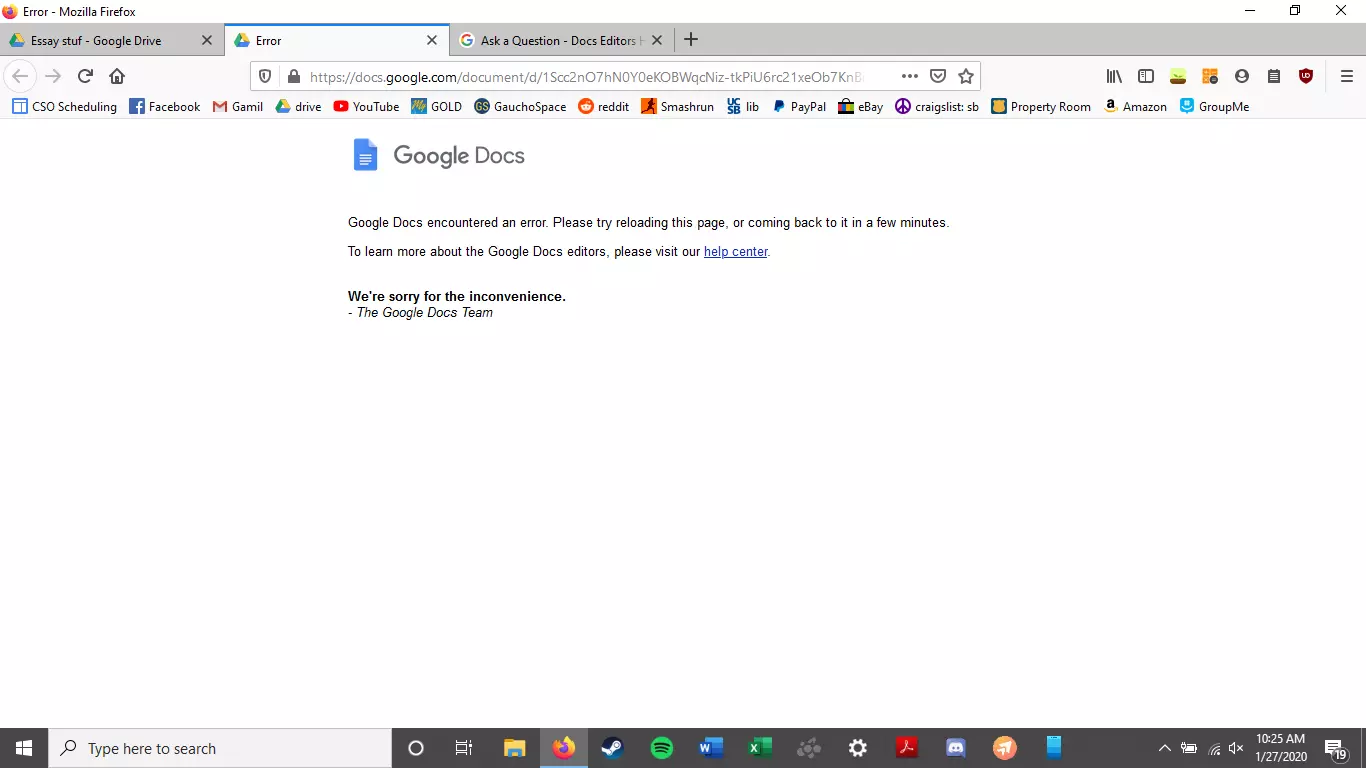
Google docs crush with repeating a word

A newfound bug in Google docs is causing it to crush and upon reopening it will crush again making it very difficult to re-access your document. The bug is manifested when a series of the same word is typed into a document and Show grammar suggestion is turned on.

google doc bug

How was it found

A Google Docs user, Pat Needham brought up the issue on Google Docs Editors Help forum.

"I've only tried in Google Chrome, with documents from three separate Google accounts (personal, G Suite Basic, and work one which might be enterprise). All three experience this same issue".

"It's case-sensitive. So trying with 'and. and. And. and. And.' doesn't cause it to crash."

While Needham publicly reported the bug, it appears that the issue was discovered by Eliza Callahan who was writing a poem novel for her novel using Google Docs.

Needham's findings have also been confirmed by other users running Firefox 99.0.1

Another user, Sergii Dymchenko, said strings like "But. But. But. But. But." triggered the same response. Some also noticed putting any of the terms like "Also, Therefore, And, Anyway, But, Who, Why, Besides, However," in the same format achieved the outcome.

A YCombinator HackerNews reader suspected the cause to be the "Show grammar suggestion" option in Google Docs.

A Google spokesperson confirmed the presence of the issue adding, "we're aware of this issue and the team is working on a fix."

How to recover your document

First thing first, turn off Show grammar suggestions so you do not run into issue by accident. In order to turn it off go to Tools and then into Spelling and grammar and untick Show grammar suggestions.

Now, if you already have a document that has been crushed, fear not because there is a workaround to access it. For some strange reason this bug does not manifest on Google Docs mobile app, so you can open the crushed document in the mobile app, delete words that have caused the bug and reopen the document on your desktop.

Until Google comes up with the solution this is currently the only way to address the issue.

Read More
How to Resolve Error Code 0x80070422 on Windows 10

Error Code 0x80070422

Error code 0x80070422 is a Windows-based error code occurring in various versions of Windows including Windows 7, Windows 8 and Windows 8.1, and Windows 10. It usually occurs when users attempt to update Windows. A message box will appear stating that the error code has occurred.  Users will notice the following common symptoms:

  • Inability to complete Windows updates
  • Error message occurring during use of Windows Update service

The error code, if left unresolved, can cause serious problems for PC users as they will be unable to access the latest updates to the Windows operating system. Such a situation can expose their system to vulnerabilities. Thus, fixing Windows 10 error code is of utmost importance.

Solution

Restoro box imageError Causes

Among the many reasons Error code 0x80070422  is encountered includes:

  • Corrupted or missing registry and DLL files
  • Badly or poorly installed software. The software could also be infected by a virus or Trojan
  • Outdated or poorly installed drivers

Further Information and Manual Repair

Fixing Windows-based error codes can be a simple process. However, in some cases, it requires specialized skills. In the case of Windows 10 error code 0x80070422 consider the two (2) main solutions available through manual repair. You may also need to consider help from a certified Windows repair technician or the use of an automated tool if you are not confident you have the skills to perform the solutions below.

Method 1: Check if Windows Update is Running Properly

One of the main reasons for error code 0x80070422 is a Windows Update service that is not running on the right settings. To verify if an issue with your Windows Update service is the source of the problem applies the following steps:

  1. Type “Windows Update” in the search bar near the Windows home button.
  2. Select “Windows Update settings” when this option appears. (You may also click the home button, then “Settings” followed by “Update and Security”.)
  3. Select “Advanced Options”
  4. (You will be given an option to choose how updates are installed.) Select Automatic.
  5. Save settings and restart the computer.

Once these settings are in place Windows will be able to download updates automatically. This enables your machine to run more smoothly. However, if after applying the steps above, Windows 10 error code 0x80070422 is not resolved, you may proceed to solution two (2).

Method 2: Disable Internet Protocol Version 6 (IPv6)

IPv6 is the latest or most current version of Internet Protocol (IP). This provides your machine with an IP address, a crucial aspect of all communications related to the Internet. By disabling this IP some users have been able to successfully resolve Windows 10 error code 0x80070422.

Like many tasks involving Windows, there are more than one ways in which you can attempt to disable IPv6. These require different types of skills and must be approached with care, as mistakes can lead to serious issues with your machine. Methods include using Command Prompt, Registry Editor, or Control Panel.

If your experience with Windows 10 is quite limited and you are not certain of your skills choose the simplest approach as listed below.

  1. Select Control Panel.
  2. Choose “Network and Internet”, then “Network and Sharing Center”.
  3. Right-click your Internet Connection. The name of your connection will be listed underneath the heading – “View your basic network connection and set up connections”.
  4. Select “Properties” then uncheck Internet Protocol version 6 (IPv6)
  5. Save settings by clicking OK.
  6. Restart the computer and check if the 0x80070422 error code has been corrected.

Method 3: Using An Automated Tool

If the issue persists despite following the solutions above, the best step to take is to use an automated tool. This may not be your preferred course of action, especially since it can be difficult to ascertain the safety of certain tools found online. For this reason, choose a reputable source offering automated tools which are designed to specifically fix Windows 10 error code including error code 0x80070422.

Download and install a powerful automated tool to access the best Windows 10 error code solutions. The process is simple and includes clear instructions which enable even average Windows users to completely resolve complicated errors on their machine.

How to Stop Future Error Codes from Occurring

Though it is hard to predict when an error code will occur, each Windows 10 user can take precautionary steps to prevent other errors from occurring. This includes the following:

  • Ensure you download software from reputable sources to avoid viruses and other forms of malware.
  • Clean your registry often. The registry stores settings across all applications. Regular cleaning will your machine function more efficiently as it reduces the likelihood of issues such as crashes or system errors.

Read More
How to turn the game mode off in Windows 11
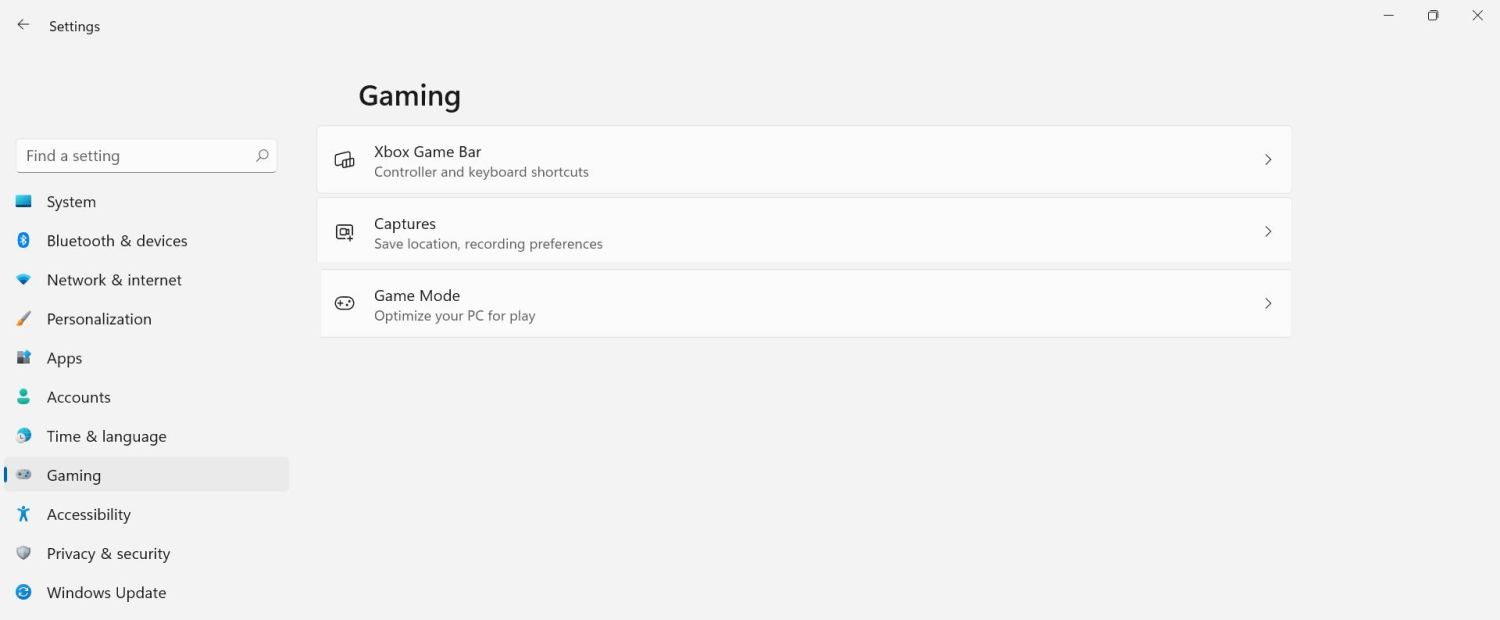
Among other things and innovations, Windows 11 brings to the table is the game mode. The game mode is a system designed to release some resources and optimize your system when Windows 11 detects that you are playing games. It also turns off automatic updates while the game is active. game mode in Windows 11The game mode is active at all times and usually, everything works great but in some instances, it can sadly cause some performance issues. If you are one of these unlucky people where game mode is not working as supposed to do, don’t panic, we have a quick guide for you on how to turn it off.

  1. Press ⊞ WINDOWS + I to open settings
  2. Inside click on Gaming
  3. Select Game mode
  4. Click switch beside Game mode to turn it off
  5. Close settings
Everything will be automatically saved and applied and you should not have any issues from now on. If for any reason you wish to turn game mode back ON, just follow the same steps and turn the switch to ON.
Read More
Fix VSS Error Code 0x8004231f in Windows 10
VSSControl: 2147467259 Backup jobs failed. Cannot create a shadow copy of the volumes containing the writer’s data. VSS asynchronous operation is not completed. Code: [0x8004231f]
This message pops up when you are creating a snapshot system restore, usually, the issue is tied with insufficient space or service stopping. We will go into detail about how to fix both so you can finish the operation without any issue.
  1. Check Volume Shadow Copy Services

    Easier and faster fix than the next one. Launch Services from the Start Menu, look for Volume Shadow Copy, double-click on it, and check the Service status. If it is stopped, click on the Start button. If it’s running, restart it by clicking Stop > Start.
  2. Increase Shadow Storage Space

    If the first fix didn’t resolve the issue then you need to increase Shadow Storage Space. Launch Command Prompt as an administrator. Now, type the following command to check your Shadow Storage Space. vssadmin list shadowstorage Now, type the following command to allocate more storage (you can change 10GB with the amount of space you want to allocate) vssadmin resize shadowstorage /For=C: /On=C: /MaxSize=10GB
Read More
Fix error 0x00000709 when connecting a Printer
One of the most common and bothersome issues with a printer is when it refuses to get configured or set up on your computer. Thus when your printer has some configuration issues, you will most likely encounter the error 0x00000709. This occurs if there is already a default printer set and configured or Windows does not want to configure the new printer at all. The operation could not be completed (error 0x00000709), Double check the printer name and make sure that the printer is connected to the network. Today, we will try two fixes that may help you get rid of this error.

Option 1 – Run the Printer Troubleshooter

One of the first basic troubleshooting you can perform to resolve the printer issue is running the Printer Troubleshooter. This built-in troubleshooter can detect and automatically fix the problem for you. To use it, follow these steps:
  • Tap the Win + R keys to open the Run dialog box.
  • Next, type “exe /id PrinterDiagnostic” in the field and click OK or hit Enter to open the Printer Troubleshooter.
  • Then click the Next button and follow the next on-screen instructions to fix the issue with the printer.

Option 2 – Try to use some Registry tweaks to add the Printer

You might want to use some tweaks to add the Printer but before you proceed, make sure to create a System Restore Point so that if anything goes out of hand, you can always undo the changes you’ve made.
  • Tap the Win + R keys to open the Run dialog box.
  • Next, type “Regedit” in the field and hit Enter to open the Registry Editor.
  • When a UAC or User Account Control prompt appears, click Yes.
  • Once you’ve opened the Registry Editor, go to the following key location:
HKEY_CURRENT_USERSoftwareMicrosoftWindows NTCurrentVersionWindows
  • From there, double click on the file named “Device on the right side pane under the Windows folder.
  • Now add the name of your printer in the Value Data field as you can see below and then click the OK button.
Note: As you can see on the image above, you must not change the “.winspool.Ne02:” part and only the first one which is the name of your printer.
  • After that, you will get a message that says, “Cannot edit Device: Error writing the value’s new contents, simply click on OK again. You have to take note of the existing permissions before you proceed to the next step. Once you’ve added the Printer, make sure to reverse the changes you’ve made to the Permissions.
  • Now right click on the Windows folder located on the left pane and click on Permission.
  • Select Restricted under the Group or user names section.
  • Then check the checkboxes for “Full Control”, “Read” and “Special Permissions” under the Permissions for RESTRICTED section.
  • After that click the Apply button and then OK to save the changes made.
  • Next, right-click on the file named “UserSelectdDefault” and select Rename to rename it to your printer’s name.
  • Now restart your computer to successfully apply the changes made.
  • After the printer is added, don’t forget to reverse the Permission changes you’ve made early on.

Option 3 – Try updating the Printer drivers

You might also want to try updating your printer drivers. All you have to do is locate the USB Composite Device. For complete details, follow the steps below.
  • First, click the Start button and type “device manager”.
  • Then click on the “Device Manager” from the search results to open it.
  • From there, look for the USB Composite Device option and right-click on it, and select the Update Driver from the options.
  • Restart your PC and then click the “Search automatically for updated driver software” option.
Note: You also have the option to download the latest version of your Printer from the manufacturer’s website.
Read More
How to Fix Error 0x800CCC90

Error 0x800CCC90 - What is it?

Error 0x800CCC90 is a typical Outlook error. This error indicates that Outlook has failed to connect to the mail server that handles and manages the incoming and outgoing emails. The error message is displayed in the following format:

“There was a problem logging onto your mail server. Your User Name was rejected.”

This error limits your ability to send and receive emails on Outlook. If you largely communicate at the workplace using your Outlook account, this error may slow down your work productivity and performance dramatically. Therefore it is advisable to fix it immediately.

Solution

Restoro box imageError Causes

The error 0x800CCC90 is triggered several reasons including but not limited to:
  • Authentication issues
  • Failure of POP 3 Server
  • PST File Corruption
  • Registry issues- Invalid Entries
  • Viral infection

Further Information and Manual Repair

To resolve error 0x800CCC90, try the methods given below:

Method 1 - Adjust the Authentication Settings

To resolve the error 0x800CCC90, adjust the authentication settings. Here’s what you need to do:
  • First, go to the ‘Tools’ tab and select the ‘Accounts’ option.
  • Once you select the account option, an internet accounts box will appear on the computer screen.
  • Simply double click on the account property box after that go to the server tab and click on it.
  • Check the box that says ‘My Server Requires Authentication’.
  • Click on apply to accept changes tab to save changes and close the window.
  • To activate changes made, restart Outlook and then try sending emails again.

Method 2 - Download a PST Repair Tool

If the error is triggered by PST file corruption, then the best way to resolve it is to download the PST repair tool. Download the PST repair tool from a trusted website. Run it on your system to fix PST file issues and resolve error 0x800CCC90.

Method 3 - Scan for Viruses

Another way to resolve this error is to scan for viruses. Viruses usually enter computer systems through phishing emails or while downloading attachments. You may not know this but viruses may be affecting your PC. Due to viruses, errors like error 0x800CCC90 can also be triggered. Therefore install an antivirus to scan and remove errors on your PC.

Method 4 - Clean the Registry and Remove Invalid Entries

Due to poor PC maintenance, misconfigured and invalid registry entries may be stored in the registry. Such entries may lead to Outlook errors too. Thus to resolve you must clean the registry and remove these entries right away. Download a registry cleaner to fix the error. Whether the error is triggered by viral infection or registry issues, it is recommended you download only Restoro. This is the one-stop solution to resolve all PC related errors. This software is deployed with 6 scanners including a registry cleaner, an antivirus, and a system optimizer. It is user-friendly and has simple navigation. It is compatible with all Windows versions. In just a few clicks this software resolves practically all types of PC-related errors including error 0x800CCC90. Click here to download Restoro today!
Read More
NVIDIA Control Panel keeps crashing
The NVIDIA Control Panel is a useful tool for users who have NVIDIA graphics on their PCs as this tool allows users to how the graphics card is used on the computer using several controls that come with the graphics card from NVIDIA. Thus, it can be quite inconvenient when it suddenly crashes all of a sudden for some reason. This kind of problem could be due to the toggling of Output Dynamic Range is limited, or there could be some issue with the integrity of the Power Supply for the graphics card, and many more. So if you are using NVIDIA on your computer and its Control Panel keeps on crashing on your Windows 10 computer, then you’ve come to the right place as this post will guide you in sorting the problem out. For more details, refer to the guidelines laid out below.

Option 1 – Try to toggle the Output Dynamic Range

The first thing you can do to fix the problem is to toggle the Output Dynamic Range by following these steps:
  • Navigate to this path: Display > Change resolution.
  • Next, scroll a bit on the right-side panel until you see the Output Dynamic Range drop-down.
  • After that, select “Full” from the drop-down menu.
  • Apply the changes you’ve made and see if it is able to fix the problem with the NVIDIA Control Panel.

Option 2 – Try changing the Power Management and Vertical Sync settings

The next thing you can do to fix the problem is to change the Power Management, as well as the Vertical Sync settings.
  • Open the NVIDIA Control Panel and go to this path: 3D Settings > Manage 3D Settings.
  • Next, set the Power Management to be “Prefer Maximum Performance” for your processor located on the right-side panel.
  • After that, set the Vertical sync setting off and then click on the Apply button located at the bottom-right portion of the window and check if it is able to fix the problem or not.

Option 3 – Try updating the drivers from the official site of NVIDIA

If both the first and second given options didn’t work, you can also try updating the drivers from the official NVIDIA website. And in case you don’t know the type of Nvidia graphics card that your computer is on, follow the steps below:
  • Tap the Win + R keys to open the Run dialog box.
  • Next type in “dxdiag” in the field and click OK or hit Enter to open the DirectX Diagnostic Tool.
  • From there, you can see what type of Nvidia graphics card that your system is on.
  • Take note of your graphics card information and then look for the best drivers for your operating system. Once you’ve downloaded and installed the file, restart your PC.

Option 4 – Try to roll back the driver to the previous version

If updating the NVIDIA display drivers didn’t work for you, then it’s time to roll back the device drivers. It is most likely that after you updated your Windows computer that your driver also needs a refresh.
  • Tap the Win + R keys to launch the Run window and then type in the “MSC” command and hit Enter to open the Device Manager window.
  • Under the Device Manager, you will see a list of drivers. From there, look for the NVIDIA Drivers and expand it.
  • Next, select the driver entries that are labeled appropriately.
  • Then select each one of them and double click to open a new mini window.
  • After that, make sure that you’re on the Driver tab and if you are not, just navigate to it then click the Roll Back Driver button to switch back to the previous version of the NVIDIA Drivers.
  • Now restart your computer to successfully apply the changes made.
Read More
Disable password asking in Windows 10
To turn password login in Windows 10 you will need approximately one minute of your time. So let's do it fast and efficient Press ⊞ WINDOWS + X to open the secret menu keyboard with windows and x markedClick on command prompt (admin) Windows menu command prompt adminType in command prompt following:
powercfg /SETDCVALUEINDEX SCHEME_CURRENT SUB_NONE CONSOLELOCK 0
press ENTER
powercfg /SETACVALUEINDEX SCHEME_CURRENT SUB_NONE CONSOLELOCK 0
press ENTER And you are done! Next time when you open your laptop from sleep you will no longer need to type in the password.
Read More
Fix Err Connection Timed Out issue in Chrome
If you are using Google Chrome browser in surfing the web, you might have experienced a situation where you’re trying to connect to a website but were unable to since Chrome failed to fetch the website to the browser and throws an error that says, This webpage is not available – Err Connection Timed Out. Aside from an issue with the network connection, there are also other reasons why this error suddenly shows up, read on to fix it. There are times when the Windows computer is responsible for this kind of issue. And it can happen not just to Google Chrome but to other browsers as well. To resolve this issue, here are some suggestions that might be of help.

Option 1 – Try checking the network cables and then restart your router and reconnect

The first thing you can do is to check if all the network cables are properly connected be it to your computer or to the router. And if your computer is connected via Wi-Fi, you need to restart your router once. And of course, you can always opt to forget the Wi-Fi details and then reconnect again just make sure that you know the password.

Option 2 – Check the Windows Host file

You can also try to cross-check the Windows Hosts file to find out if the website you are trying to open has been blocked because if it is, then it’s no wonder why you’re getting the ERR CONNECTION TIMED OUT error in Chrome. There are instances when some third-party application modifies the file and adds some websites to the blocklists. So if the website is indeed blocked, you need to remove it from the list.

Option 3 – Try removing Proxy

Removing the Proxy might also help you in fixing the ERR CONNECTION TIMED OUT error. Here’s how you can do it:
  • Tap the Win + R keys to open the Run dialog box.
  • Then type “inetcpl.cpl” in the field and hit Enter to pull up the Internet Properties.
  • After that, go to the Connections tab and select the LAN settings.
  • From there. Uncheck the “Use a Proxy Server” option for your LAN and then make sure that the “Automatically detect settings” option is checked.
  • Now click the OK and the Apply buttons.
  • Restart your PC.
Note: If you are using a third-party proxy service, you have to disable it.

Option 4 – Try to clear the browsing data of Google Chrome

If your browsing data in Chrome hasn’t been cleared for some time now then that might be the reason why you’re suddenly getting the ERR CONNECTION TIMED OUT error when you browse the web. To fix this error, you need to clear your web browsing data. Refer to the following steps to do so.
  • Tap the Ctrl + Shift + Delete buttons to go to the Clear browsing data section in Chrome.
  • Next, set the time range to “All time” and tick all the boxes and then click on the Clear data button.
  • After that, restart the Chrome browser and try to open the website you were trying to open earlier.

Option 5 – Flush the DNS and reset TCP/IP

You might also want to flush the DNS and reset TCP/IP as it could help in fixing the ERR CONNECTION TIMED OUT error. To do so, refer to these steps:
  • Click the Start button and type in “command prompt” in the field.
  • From the search results that appear, right-click on Command Prompt and select the “Run as administrator” option.
  • After opening Command Prompt, you have to type each one of the commands listed below. Just make sure that after you type each command, you hit Enter
    • ipconfig /release
    • ipconfig /all
    • ipconfig /flushdns
    • ipconfig /renew
    • netsh int ip set dns
    • netsh winsock reset
After you key in the commands listed above, the DNS cache will be flushed and the Winsock, as well as the TCP/IP, will reset.
  • Now restart your computer and open Google Chrome then try opening the website you were trying to open earlier.

Option 6 – Run the built-in Malware Scanner and Cleanup Tool in Chrome

In case you don’t know, there is actually a built-in malware scanner and cleanup tool in Chrome that helps you get rid of any unwanted ads, pop-ups, and even malware, as well as unusual startup pages, toolbars, and other things that could affect the performance of the browser.

Option 7 – Reset Chrome

Resetting Chrome can also help you get rid of the ERR CONNECTION TIMED OUT error. Resetting Chrome means restoring its default settings, disabling all the extensions, add-ons, and themes. Aside from that, the content settings will be reset as well and the cookies, cache, and site data will also be deleted. To reset Chrome, here’s what you have to do:
  • Open Google Chrome, then tap the Alt + F keys.
  • After that, click on Settings.
  • Next, scroll down until you see the Advanced option, once you see it, click on it.
  • After clicking the Advanced option, go to the “Restore and clean up the option and click on the “Restore settings to their original defaults” option to reset Google Chrome.
  • Now restart Google Chrome.
Read More
1 2 3 171
Logo
Copyright © 2023, ErrorTools. All Rights Reserved
Trademark: Microsoft Windows logos are registered trademarks of Microsoft. Disclaimer: ErrorTools.com is not affiliated with Microsoft, nor claims direct affiliation.
The information on this page is provided for information purposes only.
DMCA.com Protection Status