Logo

Fix Power surge on the USB port

USB ports, just like any other ports, also comes with a power rating. The default power output of a standard USB port is 0.5 amperes and if you notice, mobile phones charge slowly on USB ports which explains why. There are times when Windows may throw an error or warning that says, “Power surge on the USB port”. This kind of error occurs when a connected device tried to draw more power and the error comes as a part of that notification so when you select it, it will say,

“A USB device has malfunctioned and exceeded the power limits of its hub port. You should disconnect the device”.

To easily fix the problem, you can try to disconnect the device and click on Reset and if you click on Close, the port will not work until you unplug it and then restart your computer.

On the other hand, if disconnecting the device did not resolve the problem, you can try running the Hardware & USB troubleshooter or use a USB hub. You can also try to reinstall, uninstall or roll back the USB drivers or run the OEM diagnostics. For more information, refer to each one of the potential fixes provided below.

Option 1 – Try to run the Hardware & USB troubleshooter

  • The first thing you need to do is click on Start and then on the gear-like icon to pull up the window for Settings.
  • After opening Settings, look for the Update and Security option and select it.
  • From there, go to the Troubleshoot option located on the left-hand side of the list.
  • Next, select Hardware and Devices from the list and open the Troubleshooter and run it. Once it is doing its job, wait for it to complete the process and then restart the system.
  • After the system restarts, check if the problem’s now fixed. If not, refer to the next option given below.

Note: You could also try to run the USB troubleshooter as it could also resolve the problem.

Option 2 – Try to use a USB hub

If you’ve encountered the error on a specific device, then it is possible that the device requires more voltage. To fix this error, you can try to use the same device on another computer and if you still got the same error, you might want to use a USB hub that comes with its power source. USB hubs come with high-speed charging ports that should be able to supply the power needed for the device.

Option 3 – Update, rollback or reinstall the Universal Serial Bus Controller driver

If updating the drivers of the device did not fix the “The device is not ready” error, you can try to update, rollback, or reinstall the Universal Serial Bus Controller drivers instead of using the Device Manager. Refer to the following steps:

  • First, click the Start button and type “device manager”.
  • Then click on the “Device Manager” from the search results to open it.
  • From there, look for the “Universal Serial Bus controllers” option and then right-click on each one of the USB drivers and select the Update Driver from the menu.

Note: If it is a regular USB drive, then it will be listed as a USB Mass Storage Device but if you have a USB 3.0 device, then look for a USB 3.0 Extensible Host Controller.

  • Restart your PC and then click the “Search automatically for updated driver software” option.

Note: If updating the USB Controller drivers didn’t work, you can try to reinstall them instead.

Option 4 – Try running OEM Diagnostics if you have any

If the laptop or desktop computer you are using is a branded one, OEMs usually include software to diagnose issues in the computer like the USB port error. So if you have this software, try to run it for diagnosis and use any given suggestions to fix the error.


Do You Need Help with Your Device?

Our Team of Experts May Help
Troubleshoot.Tech Experts are There for You!
Replace damaged files
Restore performance
Free disk space
Remove Malware
Protects WEB browser
Remove Viruses
Stop PC freezing
GET HELP
Troubleshoot.Tech experts work with all versions of Microsoft Windows including Windows 11, with Android, Mac, and more.

Share this article:

You might also like

What to do if the Windows 10 Control Panel is not opening
The Control Panel is one of the most important tools in Windows which allows users to control and change various settings. However, there are cases when it experiences some problems like when users aren’t able to open it. Recently, a lot of users complained about not being able to open the Control Panel. To be more specific, users were able to open it but only lasted for a second, and then it’s gone. This is not just some issue you can ignore as this will prevent you from accessing some major settings in your computer and you won’t be able to perform some important task without it. According to security experts, this issue is most likely caused by a bug in the Windows Update. If you have installed an update recently, then it’s most likely the culprit. Aside from the Windows Update, there are also other things that can cause this issue. Some of them are the IDT audio panel and a control panel file that causes conflicting issues with the control panel that leads to this problem. Aside from these aforementioned cases, the Windows Error reporting services could also be one of the causes of this issue. As you can see, since there are a lot of possible causes for this problem, this post prepared a lot of options as well which you have to check out. Follow each one of them and see which one worked best for you.

Option 1 – Try updating your Windows 10 PC

If you haven’t updated your PC to the latest version of Windows 10, then you should. A lot of users found that the issue with the Control Panel was fixed right after they updated their Windows 10 PCs. This is probably because Microsoft has probably released a fix on one of the latest updates.

Option 2 – Try uninstalling the IDT Audio Panel

For some users, uninstalling the IDT Audio Panel from their PCs did the trick. You can also try doing the same thing to fix the vanishing Control Panel. According to these users. The IDT audio panel was the one that’s causing the issue. To uninstall the IDT audio panel, here’s what you have to do:
  • Tap the Win + R keys at the same time to open the Run dialog box.
  • Then type in “appwiz.cpl” in the field and tap Enter to open the “Uninstall or change a program” screen of the Control Panel.
  • From there, look for the IDT audio panel, select it and then select the Uninstall option and follow the next on-screen instructions that appear.
Note: If you are unable to locate the IDT audio panel or you simply can’t access the Uninstall or change program screen or you can’t keep Control Panel open for a long time, here’s what you can do:
  • Tap the Win + R keys at the same time once again to open the Run dialog box.
  • And in the field, type in “devmgmt.msc” and hit Enter to open the Device Manager.
  • After opening the Device Manager, look for the “Sound, video and game controllers” option and double-click on it.
  • From there, locate the IDT audio panel or “IDT High Definition CODEC” and select Uninstall and follow the next instructions that appear.

Option 3 – Try deleting or renaming IDTNC64.cpl

IDTNC64.cpl is a control file in the control panel. However, it might be the one that’s causing the problem as it could be conflicting with the control panel. As a result, the control panel crashes after a second or more. Many users have fixed the problem by either renaming or deleting this file – the safer option would be is renaming it.
  • Tap the Win + E keys to open File Explorer.
  • In the address bar located at the top, type in “C:\Windows\System32” and tap Enter to open this folder.
  • From there, look for the IDTNC64.cpl file, right-click on it and select the Rename option.
  • You can name the file anything you want but it’s better if you rename it to “oldcpl”.
  • After you rename the file, try opening the Control Panel again. It should work fine now.

Option 4 – Try to disable the Windows Error Reporting Service

As mentioned earlier, the Windows Error Reporting Service is also known to cause the issue so some users disable it and got the issue fixed.
  • Tap the Win + R keys.
  • In the field, type in “MSConfig” and hit Enter to open System Configuration.
  • After opening System Configuration, go to the Services tab and look for the Windows Error Reporting Service and uncheck its checkbox.
  • Click the Apply button and click OK. You should now see a date in the Disable Date column. Then check if the Control Panel is now working properly if not, restart your computer and check once more. That should fix the problem.

Option 5 – Try opening Control Panel via Run

This option is more of a workaround than a solution as it does not really fix the issue with the Control Panel but rather helps you in accessing the controls at the very least.
  • Tap the Win + R keys to open Run.
  • Type in “appwiz.cpl” in the field and tap Enter to open the Uninstall or change program screen of the Control Panel.
  • Next, copy and paste “Control panel all control panel items” on the address bar located at the top-mid part of your screen. You must not type the given address and simply copy and paste it. After that, you will see a list of control panel controls you can use.
Read More
nslookup works but ping fails in Windows
nslookup is a command-line tool that helps in finding the DNS records of a website. It sends a name server query to the DNS and obtains the corresponding IP address. Aside from that, it can also perform some complex functionality such as finding details about FTP server, Mail server and many more but most of them are used by administrators. The best thing about nslookup is that it queries the DNS server directly and it does not rely on the cache. On the other hand, there is another tool called PING that is used to verify connectivity. PING sends a packet of information to the IP address or Domain and gets back a response in the form of packets. So if everything goes well, all packets are received but if not, it will help you find out where the delay in the network exactly is. However, the ping command does not always attempt a DNS lookup which means that it might be using the DNS cache and use the IP address available in that table. Although both nslookup and PING help you in identifying the host or IP address, however, they don’t always work and sometimes fail. So if your nslookup works but ping fails on your Windows 10 PC when querying the IP address of a website then it could be caused by many reasons. It could be that the nslookup queries work for you but when you try to use PING, it fails. For instance, if you open the abc.com website, here’s how it will look like:
nslookup xyz.com Server: dns.company.com Address: 192.168.1.38 C:> ping xyz.com Ping request could not find host xyz.com. Please check the name and try again.
The domain is converted into an IP address and then data is sent to that IP address when you use PING. So when a reply comes back it means that the data is going back and forth to that domain without any problem. However, if the DNS fails to resolve the IP address of the website or if your PC does not attempt a DNS lookup, you will receive a similar error message that says, “Could not find host” and so on. To resolve this issue, here are some options that might help.

Option 1 – Reset Winsock, TCP/IP & Flush DNS

Resetting Winsock, TCP/IP, and flushing DNS might help you resolve the issue with nslookup and PING. To do so, follow these steps:
  • Right-click on the Start button and click on Command Prompt (administrator) so you can pull up an elevated Command Prompt.
  • After that, execute each one of the commands listed below. And after you typed in one after the other, you have to hit Enter.
  1. netsh winsock reset – type in this command to reset Winsock
  2. netsh int ip reset resettcpip.txt – type in this command to reset TCP/IP
  3. ipconfig /flushdns – type in this command to flush the DNS cache
  • Next, restart your PC and check if the problem’s fixed.

Option 2 – Force Windows to do a DNS lookup using FQDN

  • Go to Settings > Network & Internet > Status > Change adapter options.
  • From there, right-click on the network and select Properties.
  • Next, in case you’re using IPv6, from the list of connections available in the list, select Internet Protocol Version 4.
  • Then click on Properties and click Advanced.
  • After that, switch to the DNS tab and select “Append these DNS suffixes (in order)” and click on the Add button and then add “.” as a suffix so that each time you query using PING and another tool, it will add a “.” at the end and will force the lookup.

Option 3 – Make sure that there is only one default gateway

If your computer has more than one NIC connected and there are multiple default gateways, then it will most likely create confusion which is why you need to remove the default gateway from the configuration of all NICs and make sure that there is only one default gateway.

Option 4 – Use the Google Public DNS

You might want to change your DNS to Google Public DNS as it could also help you in fixing the nslookup and PING issues. To do so, follow the steps below.
  • The first thing you have to do is right-click on the network icon in the Taskbar and select Network and Sharing Center.
  • Next, click on the “Change Adapter Settings” option.
  • After that, search for the network connection that you are using to connect to the internet. Note that the option might be “Wireless Connection” or “Local Area Connection”.
  • Right-click on your network connection and click on Properties.
  • Then select the new window to choose the “Internet Protocol 4 (TCP/IPv4)” option.
  • After that, click on the Properties button and click the checkbox in the new window for the option “Use the following DNS server addresses”.
  • Type in “8.8.8.8” and “8.8.4.4” and click OK and exit.

Option 5 – Check the Windows Host file

You can also try to cross-check the Windows Hosts file to find out if the website you are trying to open has been blocked, because if it is, then it’s no wonder why PING fails even when nslookup works. There are instances when some third-party application modifies the file and adds some websites to the blocklists. So if the website is indeed blocked, you need to remove it from the list.

Option 6 – Delete the WLAN Profiles

Deleting the WLAN Profiles might be a good idea if you are not able to connect to the internet on your computer and if you’re using Wi-Fi. It could be that the networks that were connected previously have gone rogue which is why it is not connecting properly. And so deleting the WLAN profiles might help you in fixing the issue with nslookup and PING.

Option 7 – Reinstall the Network Adapter Drivers

  • Tap the Win + R keys to launch the Run window and then type in the “msc” command and hit Enter to open the Device Manager window.
  • Under the Device Manager, you will see a list of drivers. From there, look for the Network Adapters and expand it.
  • Then right-click on each one of the Network drivers and select “Uninstall device”.
  • Restart your PC.
Read More
Fix Black border or bar on Monitor
If you suddenly see a black border in your computer’s display then you might be wondering how come this happened but worry not for this post will give you a couple of suggestions that could help you resolve the problem. The black bar could appear at the bottom or just the sides of the screen. Whichever it may be, there are options you can check out. Refer to the options givens below and make sure to follow them carefully.

Option 1 – Try checking the screen resolution

You might want to try checking the resolution of your screen.
  • Open the Windows 10 Settings and go to Display.
  • Next, go for the “100% (Recommended)” option under Scale and layout for the size of the text, apps, and other items.
  • After that, select the Recommended setting again under Resolution.
Now check to see if the black bars are still there. They should be gone at this point, but if for some strange reason nothing has changed, then attempt the steps below.

Option 2 – Try updating Graphics & Monitor drivers

You might want to try updating your graphics and monitor drivers if you haven’t updated them for some time now. To do that, refer to these steps:
  • First, boot your computer into Safe Mode.
  • After that, tap the Win + R keys to launch Run.
  • Type in devmgmt.msc into the box and tap Enter or click OK to open the Device Manager.
  • After that, a list of device drivers will be displayed. From there, look for the Graphics drivers or the Monitor drivers and then click each one of them.
  • After that, right-click on each entry and select the “Uninstall Device” option from the menu.
  • Now restart your computer.
  • After restarting your computer, go to the Settings app and Check for Updates in the Windows Update section.
Note: You can also try to roll back the graphics and monitor drivers back to their previous versions if updating them didn’t work. You can also try visiting the manufacturer’s website and download the graphics or monitor driver setup for your operating system.

Option 3 – Try to run the DISM tool

You can also run the DISM Tool as it might also help in getting rid of the black border or bar on your Windows 10 computer. Using this built-in tool, you have various options such as the “/ScanHealth”, “/CheckHealth”, and “/RestoreHealth” which could help you resolve the problem.
  • Open the Command Prompt with admin privileges.
  • Then type in the following commands and make sure to hit Enter right after you type each one of them:
    • Dism /Online /Cleanup-Image /CheckHealth
    • Dism /Online /Cleanup-Image /ScanHealth
    • exe /Online /Cleanup-image /Restorehealth
  • Do not close the window if the process takes a while as it will probably take a few minutes to finish.

Option 4 – Troubleshot the problem in a Clean Boot State

There are some instances that some conflicting programs installed in your computer might be the one that’s causing the Black border issue. To identify which program is causing the problem, you need to put your computer in a Clean Boot State. To do so, follow the steps below.
  • Log onto your PC as an administrator.
  • Type in MSConfig in the Start Search to open the System Configuration utility.
  • From there, go to the General tab and click “Selective startup”.
  • Clear the “Load Startup items” check box and make sure that the “Load System Services” and “Use Original boot configuration” options are checked.
  • Next, click the Services tab and select the “Hide All Microsoft Services” check box.
  • Click Disable all.
  • Click on Apply/OK and restart your PC. (This will put your PC into a Clean Boot State. And configure Windows to use the usual startup, just simply undo the changes.)
  • From there, start to isolate the problem by checking which one of the programs you installed recently is the root cause of the problem.
Read More
Truth about private and incognito browsing
Privacy is a hot topic lately in all circles so naturally themes like private or incognito browsing pop up immediately as discussion topics. Naturally, when discussing private or incognito browsing it is very important to understand what exactly private or incognito browsing is, what does it do and how it works in order to shed some light on is it really private and safe as we are told. So, when you browse the internet normally websites have tendencies to save your browsing data, save cookies, remember passwords, etc in order to provide you with a better surfing experience next time you visit that same site. Private or incognito browsing treats you as a completely new user which is the first time visiting a given website. It clears all your data, including your browsing history, cookies, etc., on exiting. Every website you visit in private or incognito mode treats you as a new visitor, even if you have visited it before in incognito mode. And basically, that's it. So is it really private? No, it is just a non-remembering mode of internet browsing where after your browsing session history and other data is cleared from the browser, but while you are on the internet you are pretty visible to all like any other normal user. There are a lot of misconceptions and wrong thinking about browsing the internet in this mode so let's take a look at some typical ones.
  1. The government and other companies can not track me

    Many people think that the Government cannot trace their identity when they surf privately. This is only a myth. There are many ways by which the Government can reach you if you do something illegal. When you surf online, you are connected with an ISP of your area, which helps the officials track your location.
  2. Virus and other malware can not infect me while in private or incognito mode

    Many people think that private mode protects them from virus and malware attacks. It is not true because malware and viruses can enter your PC through a software download, phishing email, etc. To protect your PC from virus and malware attacks, you should have good security software.
  3. My IP address is hidden when I am in incognito or private browsing mode

    This is not 100% true. If you search “What is my IP” in incognito and standard mode, you will get the same results. This means that websites can view your IP address in private mode also. Using a VPN would be a good option if you want to hide your IP.
  4. I can not be tracked via ads

    Since cookies are deleted after exiting private browsing, many people think that ads cannot track them. When you surf in incognito mode, the browser saves cookies in a temporary mode, allowing ads to track you during your entire private browsing session.
  5. I am not visible when I am in incognito or private

    You may think if you sign in to your Gmail or other social media accounts in private mode, no one will see you online. This is not true. It does not matter whether you have signed into your account in normal mode or incognito mode; others can always spot you online.
In your regular browsing mode, you may have some addons, extensions, themes, etc installed and you can use them. They may track your activities. The data is deleted when you exit the browser. When you use the private browsing mode, the browser is loaded in its original form, typically without the installed addons, extension, themes, etc. The data gets deleted when you exit the browser. This mode doesn’t save data to disk but keeps it in memory during the current session. If you are really concerned about your privacy we have articles about using DuckDuckGo and deep web where you can be sure that your browsing sessions are encrypted.
Read More
Windows ImageAcquisition High CPU & Disk usage
What is Windows ImageAcquisition High CPU & Disk usage? The Windows Image Acquisition is the driver model in charge of the communication between the graphics hardware and the operating system. There are times when it causes high disk and CPU usage in Windows 10 systems which results in slow performance of the computer. To fix this issue, read on as this post will help you in addressing the problem. The cause of this problem might have something to do with the hardware or the drivers. And so if your computer becomes slow because of the Windows Image Acquisition process, here are some suggestions that might be of help. You can try to restart the Windows Image Acquisition service, run a System File Checker Scan, disconnect & reconnect imaging hardware as well as update and reinstall the drivers and updating the graphics drivers. For a complete set of instructions, follow the given options below.

Option 1 – Try restarting the Windows Image Acquisition Service

  • Tap the Win + R keys to open the Run dialog box.
  • Then type “services.msc” in the field and hit Enter to open the Windows Services Manager.
  • From there, look for the Windows Image Acquisition Service and check on its service Status.
  • If the Service Status is blank, right-click on it and select Start. And if the service Status is Running right-click on it and select Restart. After that, check if your computer’s performance is now back to normal.

Option 2 – Try running a System File Checker scan

As you know, running a System File Checker scan can help in replacing missing files as well as repair the corrupted ones which might be the reason behind the problem.
  • Tap Win + R to launch Run.
  • Type in cmd in the field and tap Enter.
  • After opening Command Prompt, type in sfc /scannow
The command will start a system scan which will take a few whiles before it finishes. Once it’s done, you could get the following results:
  1. Windows Resource Protection did not find any integrity violations.
  2. Windows Resource Protection found corrupt files and successfully repaired them.
  3. Windows Resource Protection found corrupt files but was unable to fix some of them.
  • Restart your computer after the scan is completed.

Option 3 – Try disconnecting and reconnecting the imaging hardware and then update and reinstall its drivers

It could be that the hardware that calls for the Windows Image Acquisition service has some issues which are why disconnecting and reconnecting the imaging hardware like scanners, printers, cameras can help in fixing the problem. In addition, you can also boot your computer in a Clean Boot State so that you can find the problematic hardware by hit and trial method. Refer to the steps below to do so:
  • Log onto your PC as an administrator.
  • Type in MSConfig in the Start Search to open the System Configuration utility.
  • From there, go to the General tab and click “Selective startup”.
  • Clear the “Load Startup items” check box and make sure that the “Load System Services” and “Use Original boot configuration” options are checked.
  • Next, click the Services tab and select the “Hide All Microsoft Services” check box.
  • Click Disable all.
  • Click on Apply/OK and restart your PC. (This will put your PC into a Clean Boot State. And configure Windows to use the usual startup, just simply undo the changes.)

Option 4 – Try updating the Graphics drivers

  • First, boot your computer into Safe Mode.
  • After that, tap the Win + R keys to launch Run.
  • Type in devmgmt.msc into the box and tap Enter or click OK to open the Device Manager.
  • After that, a list of device drivers will be displayed. From there, look for the Display Adapters and click on them.
  • After that, right-click on each entry under the Display Adapters and select the “Uninstall Device” option from the menu.
  • Now restart your computer.
  • After restarting your computer, go to the Settings app and Check for Updates in the Windows Update section.
Note: You also have the option to go directly to the website of your graphics card manufacturers like NVIDIA, Intel, or AMD and go to the section called Drivers then check if there’s a new available update – if there is, download and install it.
Read More
Fix Remote Desktop: Your credentials ...
Experiencing issues while using Remote Desktop connections is not uncommon. One of the issues that users encountered recently while trying to connect to their Remote Desktop network is the error saying, “Your credentials did not work, The login attempt failed”. If you are one of these users, then you’ve come to the right place as this post will walk you through fixing the problem. When facing this kind of problem, the first thing you can try before you do some troubleshooting steps is to verify the credentials. But if you are certain that you’ve entered the correct credentials just like what other users reported, then it’s completely a different matter. Based on the reports, this error is common on newly installed versions of Windows 10 or after reinstalling the operating system which could mean that the problem might be due to the Windows security policies or the username might have been recently modified. The latter case is a possibility especially if you’ve reinstalled Windows 10 and had entered a new username. In such a case, you will really have a difficult time connecting to your Remote Desktop connection since its credentials do not really automatically change. If you’ve verified that your credentials are correct, then now’s the time you troubleshoot the problem with the help of the potential fixes provided below. Just make sure that you follow each one of them in sequence.

Option 1 –Try to run the Network Adapter troubleshooter

To run the Network Troubleshooter, refer to these steps:
  • Open the Search bar on your computer and type in “troubleshoot” to open the Troubleshoot settings.
  • Next, scroll down and select the “Network Adapter” option from the right pane.
  • Then click on the Run Troubleshooter” button.
  • After that, your computer will check for any possible errors and will pinpoint the root cause of the problem if possible.
  • Restart your computer.

Option 2 – Try to change the network profile from public to private

According to some reports, this error occurs on systems where the network profile was set to public. Thus, you need to change the network profile to private to resolve the problem. How? Refer to these steps:
  • Go to Start and from there click on Settings > Network & Internet > Status.
  • Next, click on the “Change connection properties” option.
  • After that, set the radio button of Network Profile from Public to Private.
  • Wait for a couple of seconds until the system is done applying the changes you’ve made and then see if you can now connect to the Remote Desktop connection.

Option 3 – Try changing the account username

As mentioned, one of the possible causes for this error is the reinstallation of the operating system. You might have changed the username for the system but it does not really change the username of the Remote Desktop connection as well. Thus, you have to change the username back to what it was before you’ve reinstalled Windows 10.

Option 4 – Try modifying the Windows Security Policy

You can also try to edit the Windows Security Policy as it could help in resolving the error. This Windows Security Policy, when enabled, will not allow non-admin users to log on to the Remote Desktop connection. So if you want to allow non-admin users to use the Remote Desktop connection, then you need to modify this policy. Note that you can only do that if you are the admin of the system yourself.
  • Tap the Win + R keys to open the Run utility.
  • Then type “secpol.msc” in the field and tap Enter or click OK to open the Local Security Policy.
  • After opening the Local Security Policy window, select Local Policies > User Rights Agreement located on the left pane.
  • Next, double click on “Allow log on through Remote Desktop Services” located in the right pane.
  • And in the next window that appears, select Add user or group.
  • After that, type in the username of the intended non-admin user under the “Enter the object names to select” column.
  • Once done, click on the Check Names button to fix the username and then click OK to save the changes made.
  • Restart your computer.

Option 5 – Use the Group Policy Editor

  • Tap the Win + R keys to open the Run dialog box and then type “gpedit.msc” in the field and tap Enter to open the Group Policy Editor.
  • Next, navigate to this path: Computer Configuration > Administrative Templates > System > Credentials Delegation.
  • Double click on the “Allow delegating default credentials with NTLM-only server authentication” policy setting located on the right pane to edit it.
  • After that, shift its radio button to Enabled and click on Show.
  • Then type “TERMSRV/*” in the Value box and click OK.
  • Now repeat the same for the following policy settings:
    • “Allow delegating default credentials”
    • “Allow delegating saved credentials”
    • “Allow delegating saved credentials with NTLM-only server authentication”
  • Once you’re done, restart your computer and see if the problem is fixed.
Read More
How to Manually Fix 0x8004210A Error Code on Your System

Error 0x8004210A - What is it?

0x8004210A is a typical POP3 email error message. This error may sometimes occur when you try to check your Post Office Protocol 3 (POP3) email account. 0x8004210A error code hampers your ability to both send and receive e-mails on your Outlook account. Error 0x8004210A is displayed in any one of the following formats on your PC:
The operation timed out waiting for a response from the receiving (POP) server 0x8004210a Task 'SMTP server name - Sending and Receiving reported error' (0x8004210A): 'The operation timed out waiting for a response from the receiving (POP) server. If you continue to receive this message, contact your server administrator or Internet service provider (ISP).'

Error Causes

Error 0x8004210A occurs due to several reasons. However, some of the most common reasons include:
  • Wrong port number for the POP incoming server
  • Your connection to the mail server is too slow
  • Incoming and outgoing emails are being scanned and stopped by an antivirus installed on your system
  • The Outlook send and receive job is being blocked by Firewall
  • You are sending and receiving large series of emails or large email attachments
  • Registry issues
No matter what the cause of this error is, to resume email communication via Outlook and to ensure your work productivity is not affected, it is recommended that you resolve this 0x8004210A error code on your PC immediately.

Further Information and Manual Repair

To fix error 0x8004210A, here are some of the most efficient and easy manual methods that you can try:

Method 1

If the cause of the error is related to the internet connection then here’s what you need to do. Try freeing up your internet connection by closing any other online activities in progress or downloads being carried on your system.

Method 2

Try to increase your server time-out periods. To do this, go to the Outlook File menu and choose account settings. Now double click on your email account and more settings. Now click advanced and increase your server timeout period to resolve.

Method 3

If you are trying to send or receive large and heavy emails on your Outlook account, the error 0x8004210A may pop up. This happens because when transferring heavy files the email account automatically locks until the task is complete, however, if it takes more time the next Send and Receive job starts while the first one is still not complete. In such an event, the email server then times out and shows you the error. Therefore to resolve, you will have to show patience. Simply wait for the large email to be sent or received before you start sending another email.

Method 4

If the antivirus installed on your system is the reason for the error pop up, then disable it for a while until the operation is complete. Then enable it once the task is performed successfully.

Method 5

Similarly, if the Firewall installed on your system is preventing Outlook from reaching your mail server, then simply disable the Firewall to resolve.
Read More
CD/DVD icon is not showing in File Explorer
In the past, CDs, DVDs, and floppy drivers used to be the primary sources of external storage for many users – that is until the USB storage devices took over. These days, a lot of devices no longer have a built-in CD or DVD writer or reader as it contributes to the thickness of the device. On the other hand, there are still various devices that still come with a built-in CD or DVD writer or reader. However, recently, users who still use CD or DVD on their devices reported a problem where the CD or DVD icon is not visible in the File Explorer as well as in “This PC” or the My Computer page. The cause of this issue is still unknown at the time of writing, but there are still some potential fixes you can try to fix it. You can try to update or roll back the device drivers or apply some tweaks in the Registry Editor. For more details, refer to the given options below.

Option 1 – Try to update or rollback device drivers

The first thing you can try to fix the missing CD or DVD icon is to either update or roll back the device drivers. It is most likely that after you updated your Windows computer that your driver also needs a refresh. On the other hand, if you have just updated your device drivers then you need to roll back the drivers to their previous versions. Whichever applies to you, refer to the steps below.
  • Open the Devices Manager from the Win X Menu.
  • Then locate the device drivers and right-click on them to open the Properties. Note that the concerned drivers will be listed under the DVD/CD-ROM drives section as well as the IDE/ATAPI Controllers section.
  • From there, look for the following drivers:
    • ATA Channel 0.
    • ATA Channel 1.
    • Standard Dual Channel PCI IDE Controller.
  • Now, right-click on each one of the listed drivers and update them all. You could also try to roll them back to their previous versions.
Note: You can also directly download the relevant drivers of your computer from the manufacturers’ website. So if you have an SSD, the issue might be due to an old storage driver.

Option 2 – Try to use the Registry Editor

  • Tap the Win + R keys to open the Run dialog box and type “Regedit” in the field and then tap Enter to open the Registry Editor.
  • Next, navigate to this registry key: HKEY_LOCAL_MACHINESYSTEMCurrentControlSetControlClass{4D36E965-E325-11CE-BFC1-08002BE10318}
  • After that, look for the DWORD values named “UpperFilters” and “LowerFilters”.
  • Right-click on each one of these DWORD values and select Delete.
  • Now restart your computer and see if it fixes the problem.

Option 3 – Try creating a new Registry entry

There is another option you can try in the Windows Registry to fix the missing icon of the CD/DVD. You can try adding a new entry. How? Refer to these steps:
  • Tap the Win ­+ R keys to open the Run dialog box and type “Regedit” in the field and hit Enter to open the Registry Editor.
  • After that, navigate to this registry path: HKEY_LOCAL_MACHINESYSTEMCurrentControlSetServicesatapi
  • From there, right-click on “ATAPI” and select New > Key.
  • After that, name it is “Controller0” and right-click on the sub-key and then select New > DWORD (32-bit) Value.
  • Now name it as “EnumDevice1” and double click on it and then set its value data to “1”.
  • Click OK and restart your computer to apply the changes made successfully.
Read More
Best VR headsets in 2021 so far
Virtual Reality is slowly becoming standard in gaming. More and more affordable headsets are coming out lowering entry prices and making them affordable for all. But in a sea of new VR headsets, it is important to at least purchase a decent one that will perform nicely and hopefully last longer. Therefore in today’s article, we will address some of the best options currently available on the market,

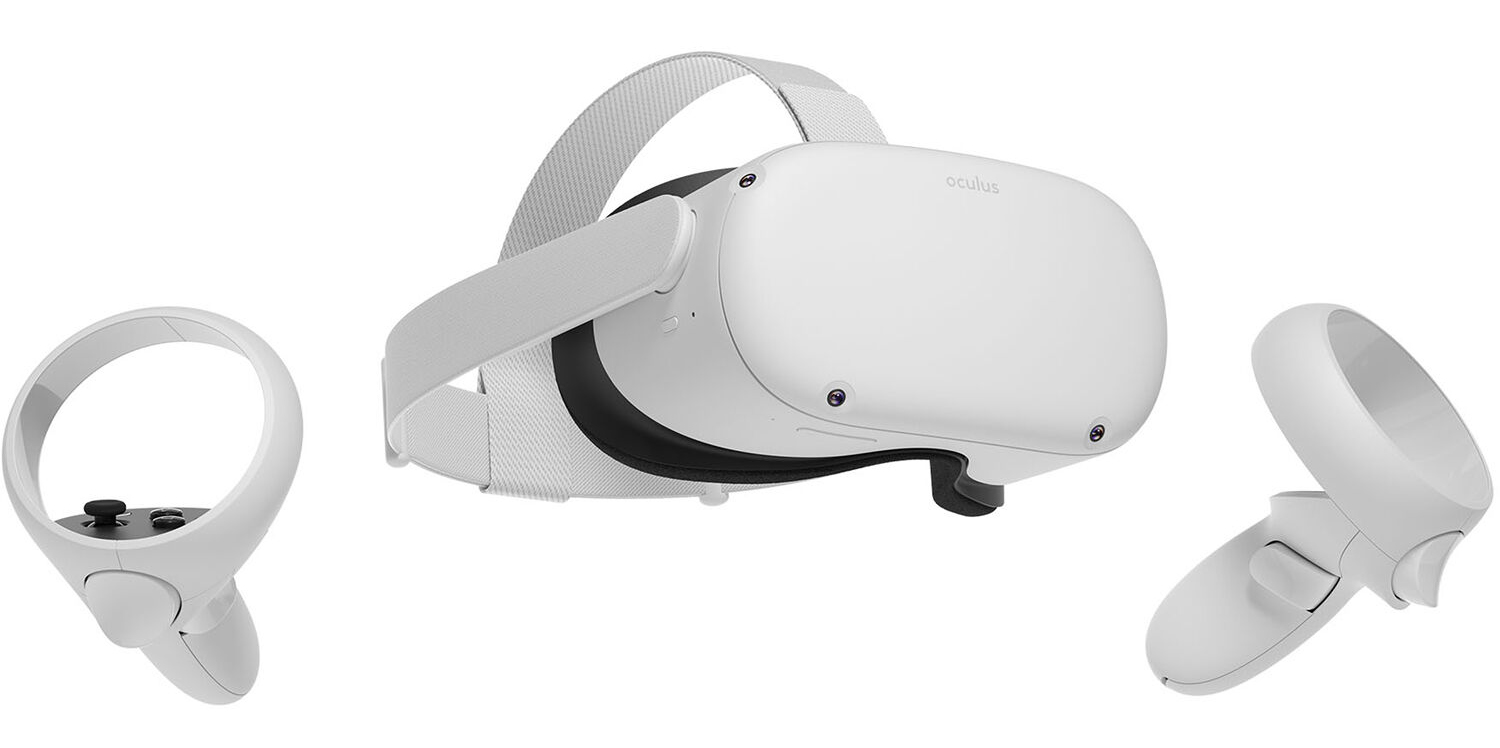
Oculus Quest 2

occulus quest 2 VRWith its Rift model, Oculus set itself as a big player in VR. Now the company is slowly bowing out of the dedicated, tethered VR headset with its latest Quest 2 designed to primarily be a standalone headset. In case you do not know, tethered headset means that the headset itself is connected to your PC and is using its power to drive your VR experience. Now technical specifications of Quest 2 are pretty OK and it can drive stuff pretty decently and if you want you can purchase the dedicated cable to connect it to your PC for the full experience of games requiring more capable hardware. Oculus Quest 2 is the cheapest headset on this list and with its stable performance, is highly recommended.
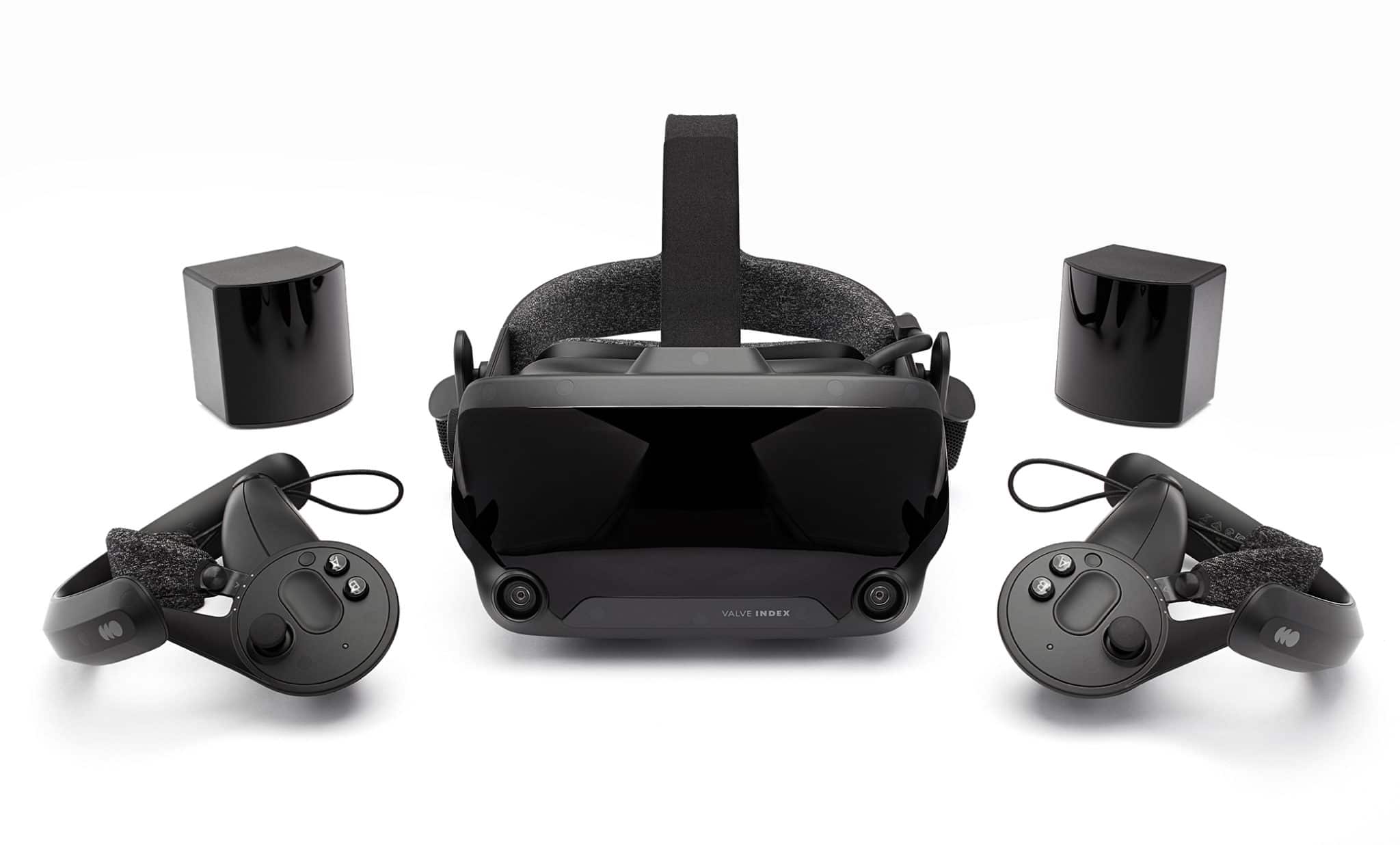
Valve Index VR

valve index vrAlthough the headset itself is nothing revolutionary or special its controllers are. They can track individual finger movements, making games (that take advantage of them) much more immersive than the standard trigger grips on other controllers. The Index's higher refresh rate makes for smoother action, as well, which is another nice bonus. If you already have an HTC Vive or Vive Cosmos Elite, and their base stations (not the regular Cosmos), you can buy only the controllers.
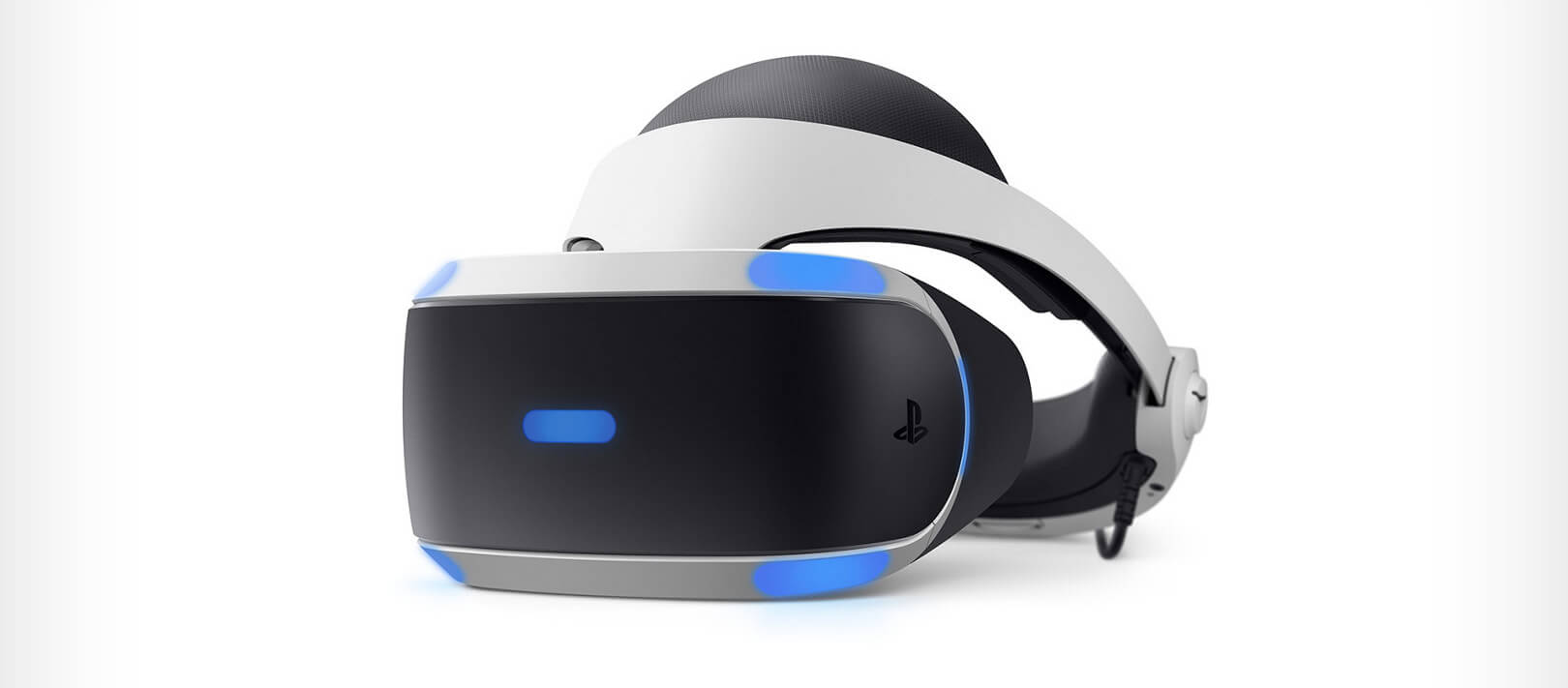
Sony PlayStation VR

playstation vrThe PlayStation VR is compelling thanks to Sony backing its development, plus the PlayStation 4's affordability and availability compared with gaming PCs. All you need is the headset, a PlayStation 4, and a PlayStation Camera (now included with most PlayStation VR bundles). Not really the best of the bunch but still one of the top ones for console gaming. Sony is working on a new PlayStation VR system for the PlayStation 5, with redesigned controllers. The new headset hasn't been revealed yet, but the company has released a preview of the new controllers.
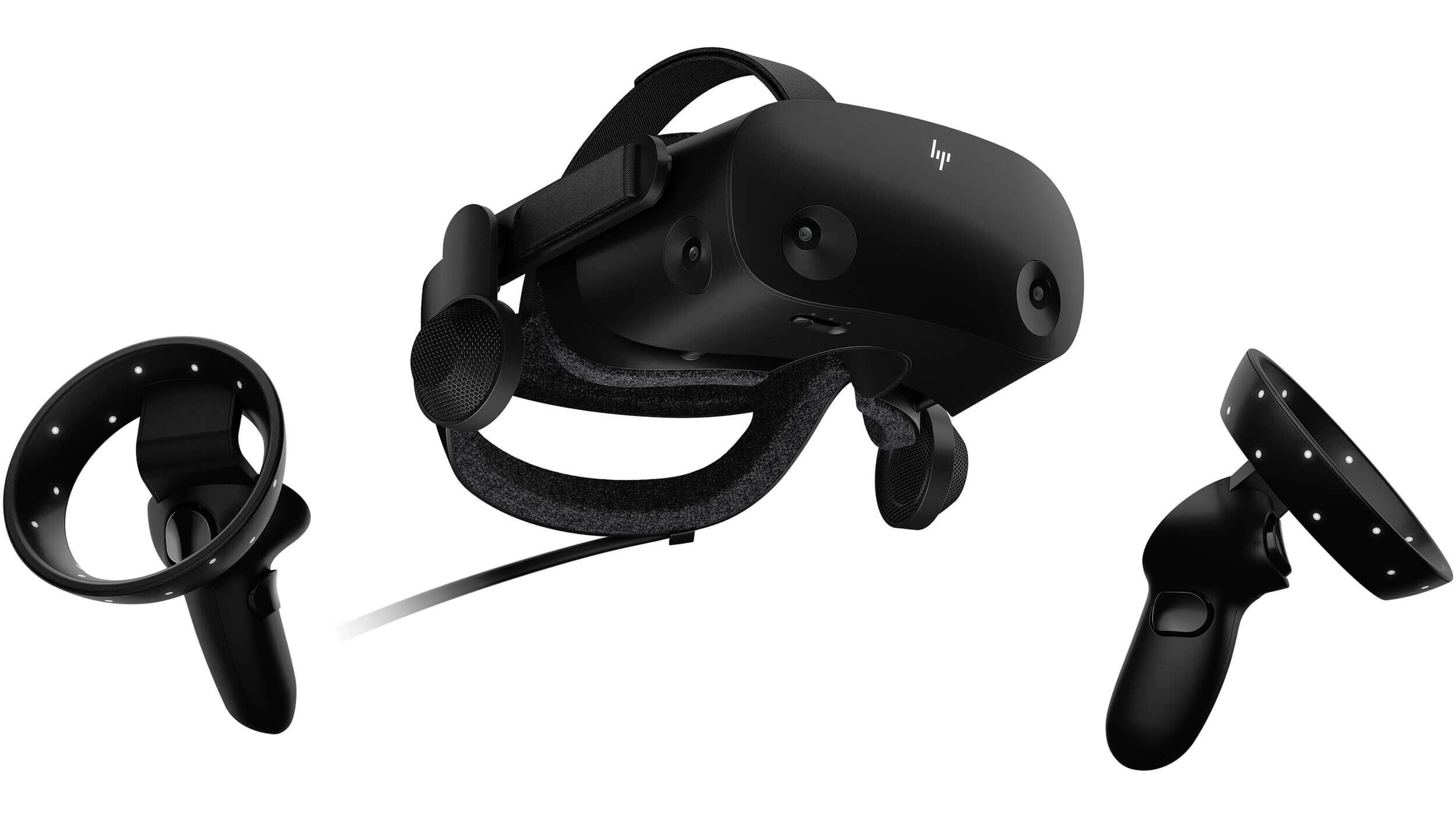
HP Reverb G2 VR

HP Reverb G2HP headset is one which you get if you want the best image quality in VR headset, sadly controllers did not follow the same quality of headset itself. But this is still a pretty decent headset overall and worth the purchase.
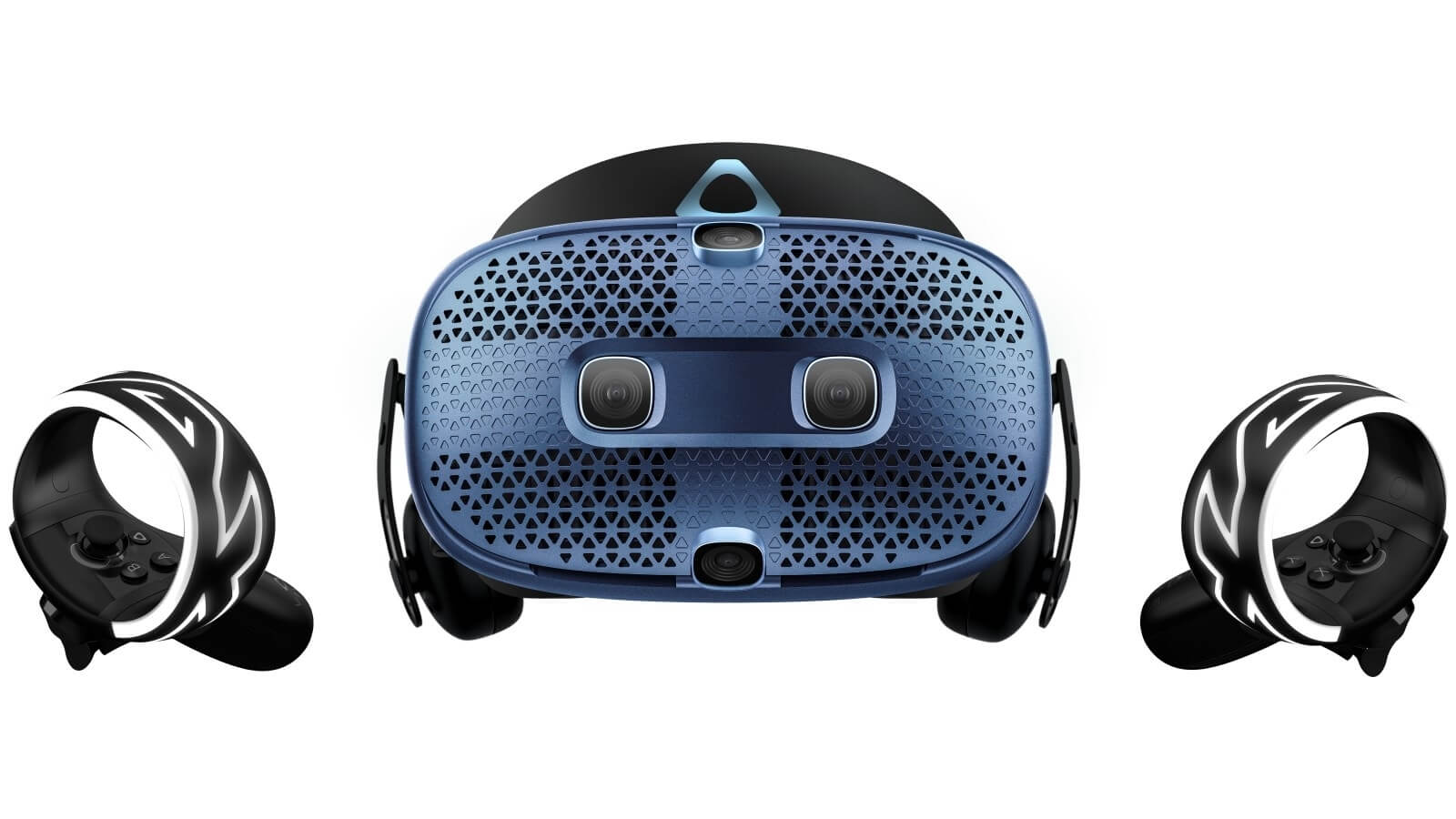
HTC Vive Cosmos

HTC Vive CosmosHTC's Vive Cosmos is the upgraded version of the Vive. It features a higher resolution and replaces the external base stations with outward-facing cameras for motion tracking. It's a comprehensive package for whole-room VR. HTC recently released the Vive Pro 2, a high-end VR headset targeting both enterprise users and consumers. This new headset features a 2,448-by-2,448 resolution display for each eye, making it the highest-resolution headset currently available. It's also more expensive than the Cosmos Elite. Sadly one thing that is bringing this headset down is the price.

Read More
NVIDIA GameStream is not working
The GameStream is an NVIDIA service that allows users to stream games from their Windows 10 computers to other supported devices which includes the NVIDIA SHIELD devices. However, a number of users reported that the NVIDIA GameStream is not working on their Windows 10 computers. This kind of issue is most likely caused by improper installation, some glitches with the network, and many more. To fix this issue in the NVIDIA GameStream, there are several options you need to check out to fix the problem. You can try to lo logout of GameStream and try logging back in again. You could also try to update or uninstall and reinstall the drivers related to NVIDIA or fix some network glitches or update the NVIDIA SHIELD device. For more details, you can refer to each one of the given potential fixes below.

Option 1 – Try to logout and log back into NVIDIA GameStream

The first thing you can do is to log out and then log back into NVIDIA GameStream. Some users claimed that by doing this simple task, they were able to resolve the problem. This is probably because with the re-login, the entire cache of the system and service is rebuilt and any bad sectors of that data will be replaced with the fresh one so this should resolve the problem with the NVIDIA GameStream, if not, refer to the other given options below.

Option 2 – Try updating the drivers from the official site of NVIDIA

If both the first and second given options didn’t work, you can also try updating the drivers from the official NVIDIA website. And in case you don’t know the type of Nvidia graphics card that your computer is on, follow the steps below:
  • Tap the Win + R keys to open the Run dialog box.
  • Next type in “dxdiag” in the field and click OK or hit Enter to open the DirectX Diagnostic Tool.
  • From there, you can see what type of Nvidia graphics card that your system is on.
  • Take note of your graphics card information and then look for the best drivers for your operating system. Once you’ve downloaded and installed the file, restart your PC.

Option 3 – Try to roll back the driver to the previous version

If updating the NVIDIA display drivers didn’t work for you, then it’s time to roll back the device drivers. It is most likely that after you updated your Windows computer that your driver also needs a refresh.
  • Tap the Win + R keys to launch the Run window and then type in the “MSC” command and hit Enter to open the Device Manager window.
  • Under the Device Manager, you will see a list of drivers. From there, look for the NVIDIA Drivers and expand it.
  • Next, select the driver entries that are labeled appropriately.
  • Then select each one of them and double click to open a new mini window.
  • After that, make sure that you’re on the Driver tab and if you are not, just navigate to it then click the Roll Back Driver button to switch back to the previous version of the NVIDIA Drivers.
  • Now restart your computer to successfully apply the changes made.

Option 4 – Try fixing your network

The next thing you can do to fix the problem with the NVIDIA GameStream is to fix the glitches in your network. Make sure that you connect both of your devices to a 5 GHz Wi-Fi network and you also have to ensure that the Wi-Fi connection you’re connected to is strong enough for both the devices for the latency to go down. Once you’ve covered all of these things with your network, restart your computer and change the Wi-Fi channel both devices are connected to. This should resolve the problem.

Option 5 – Try to update the NVIDIA SHIELD device

You might also want to update the NVIDIA SHIELD device. There are times when an outdated NVIDIA SHIELD device can result to several issues like the problem with the NVIDIA GameStream. Thus, you need to update NVIDIA SHIELD and check if it fixes the problem or not.
Read More
1 2 3 171
Logo
Copyright © 2023, ErrorTools. All Rights Reserved
Trademark: Microsoft Windows logos are registered trademarks of Microsoft. Disclaimer: ErrorTools.com is not affiliated with Microsoft, nor claims direct affiliation.
The information on this page is provided for information purposes only.
DMCA.com Protection Status