Logo

How to Fix Error 0199, Security password retry

The errors that are caused by the BIOS of your computer can get annoying as they can be hard to fix for they are really dangerous and won’t be resolved by simple fixes. This is because of the fact that these kinds of errors do not even allow you to load your operating system as it throws the error even before you can access your computer. One of these errors is the “Error 0199: System Security – Security password retry count exceeded”. Fixing this error can be quite tricky but you need not worry for you will be guided in doing so. Simply follow the given instructions below.

Option 1 – Try to update the BIOS

Updating the BIOS can help you fix the “Error 0199, Security password retry count exceeded” error but as you know, BIOS is a sensitive part of a computer. Even though it is a software component, the functioning of the hardware depends on it largely. Thus, you must be careful when modifying something in the BIOS. So if you don’t know much about it, it’s best if you skip on this option and try the other ones instead. However, if you are well-versed in navigating the BIOS, then follow the steps below.

  • Tap the Win + R keys to open the Run dialog box.
  • Next, type “msinfo32” in the field and press Enter to open System Information.
  • From there, you should find a search field on the bottom where you have to search for the BIOS version and then press Enter.
  • After that, you should see the developer and version of the BIOS installed on your PC.
  • Go to your manufacturer’s website and then download the latest version of BIOS on your computer.
  • If you are using a laptop, make sure that you keep it plugged in until you have updated the BIOS.
  • Now double click on the downloaded file and install the new BIOS version on your computer.
  • Now restart your computer to apply the changes made.

Option 2 – Try resetting the BIOS

If updating the BIOS didn’t help in fixing Error 0199, you can try to reset the BIOS instead.

  • Start your computer and tap the F10 key during the booting process to enter the BIOS. If it does not work, you can try tapping the F1 or F2 key as well as the Del key.
  • Once you’re already in the BIOS, tap the F9 key to get the prompt to RestoreLoad default configuration now for the BIOS.
  • Next, click on Yes and then follow the next on-screen instructions that appear to set the BIOS back to its default settings.
  • Once you’re done restoring the default settings of the BIOS, restart your computer and then check if it now boots properly.

Do You Need Help with Your Device?

Our Team of Experts May Help
Troubleshoot.Tech Experts are There for You!
Replace damaged files
Restore performance
Free disk space
Remove Malware
Protects WEB browser
Remove Viruses
Stop PC freezing
GET HELP
Troubleshoot.Tech experts work with all versions of Microsoft Windows including Windows 11, with Android, Mac, and more.

Share this article:

You might also like

Fix PAGE_FAULT_IN_NONPAGED_AREA 0x00000050
If you suddenly encounter the PAGE_FAULT_IN_NONPAGED_AREA Blue Screen error then it means that your computer is under a heavy load. And if you look closely, you’ll see that it has a bug check value of 0x00000050. This kind of Blue Screen error also indicates that invalid system memory has been referenced. It could be that the memory address is wrong, or that it is pointing at freed memory. The PAGE_FAULT_IN_NONPAGED_AREA Blue Screen error occurs when the requested data is not found in the memory. As a result, the system generates a fault which normally indicates that the system is looking for data in the paging file. However, in this case, the missing data is identified as being located within an area of memory that cannot be paged out to the disk. This Stop error might be caused by a buggy system service, antivirus program, a corrupted NTFS volume, or faulty hardware. So if you’ve recently added hardware, you can try removing it and then check. If the problem still persists, refer to the suggestions given below to fix the problem.

Option 1 – Run Memory Check to test your memory

  • Tap the Win + R keys to open Run and type exe and hit Enter to open the Windows Memory Diagnostic Tool.
  • After that, it will give two options such as:
    • Restart now and check for problems (Recommended)
    • Check for problems the next time I start my computer
  • Select the option you prefer and afterward, check if the Blue Screen error is now fixed.

Option 2 – Run a System File Checker scan

You can also try to run a System File Checker or SFC scan in order to scan your computer for corrupted files that might be the cause behind the PAGE_FAULT_IN_NONPAGED_AREA Blue Screen error. Once it finds any corrupted system files, it will automatically fix them. To run System File Checker, here’s what you have to do:
  • Tap Win + R to launch Run.
  • Type in cmd in the field and tap Enter.
  • After opening Command Prompt, type in sfc /scannow
The command will start a system scan which will take a few whiles before it finishes. Once it’s done, you could get the following results:
  1. Windows Resource Protection did not find any integrity violations.
  2. Windows Resource Protection found corrupt files and successfully repaired them.
  3. Windows Resource Protection found corrupt files but was unable to fix some of them.
  • Restart your computer after the scan is completed.

Option 3 – Disable Automatic Paging File Size Management

  • Right-click on This PC located on your desktop.
  • Next, click on Properties and then click on the Advanced System Settings.
  • Go to the Advanced tab and then click on the Settings button under the Performance section.
  • Afterward, a new mini window will appear and from there, go to the Advanced tab.
  • Then click the Change button under the Virtual Memory section. Once you do, another mini window will appear.
  • Now uncheck the “Automatically manage paging file size for all drives” option.
  • After that, you have to increase the Page File size by doubling the amount of memory allocated by default in the text field. For instance, the paging size given is a minimum of 16MB and so you have to change it to 32MB. And since the recommended value is 1907MB, you can make its maximum size around 4000MB. By doing so, it will allocate more space for paging into individual drivers.
  • Now click OK, close all the open windows and then restart your PC.

Option 4 – Update the Device Drivers

Updating the Device drivers can also help you fix the PAGE_FAULT_IN_NONPAGED_AREA Blue Screen error. To do so, follow the steps below.
  • Tap the Win + R keys to launch Run.
  • Type in devmgmt.msc into the box and tap Enter or click OK to open the Device Manager.
  • After that, a list of device drivers will be displayed. If you see a red or yellow sign that shows up against the driver, right-click on the driver and select “Update Driver Software”.
  • Select the “Search automatically for updated driver software” option and then follow the instructions to complete the process.
  • Restart your PC and then check if the Blue Screen error is now fixed or not.

Option 5 – Perform a System Restore

Performing System Restore might help you in fixing the PAGE_FAULT_IN_NONPAGED_AREA error. You can do this option either by booting into Safe Mode or in System Restore. If you are already in the Advanced Startup Options, just directly select System Restore and proceed with the next steps. And if you have just booted your PC into Safe Mode, refer to the steps below.
  • Tap the Win + R keys to open the Run dialog box.
  • After that, type in “sysdm.cpl” in the field and tap Enter.
  • Next, go to the System Protection tab then click the System Restore button. This will open a new window where you have to select your preferred System Restore point.
  • After that, follow the on-screen instructions to finish the process and then restart your computer and check if the problem is fixed or not.

Option 6 – Try disabling your antivirus programs

There are instances when antivirus programs trigger Stop errors like PAGE_FAULT_IN_NONPAGED_AREA. Thus, you can try disabling your antivirus programs like Windows Defender or other third-party programs if you’re using one.

Option 7 – Use the Blue Screen Troubleshooter

The Blue Screen troubleshooter is a built-in tool in Windows 10 that helps users in fixing BSOD errors like PAGE_FAULT_IN_NONPAGED_AREA error. It can be found on the Settings Troubleshooters page. To use it, refer to these steps:
  • Tap the Win + I keys to open the Settings panel.
  • Then go to Update & Security > Troubleshoot.
  • From there, look for the option called “Blue Screen” on your right-hand side and then click the “Run the troubleshooter” button to run the Blue Screen Troubleshooter and then follow the next on-screen options. Note that you might have to boot your PC into Safe Mode.

Option 8 – Disable Memory caching in the BIOS

You can also disable memory caching in the BIOS to fix the PAGE_FAULT_IN_NONPAGED_AREA error.
  • Open the BIOS Setup screen.
  • Next, go to Advanced > Cache Memory and then disable it.
  • Tap the F10 key to save the changes made and restart your computer.
Read More
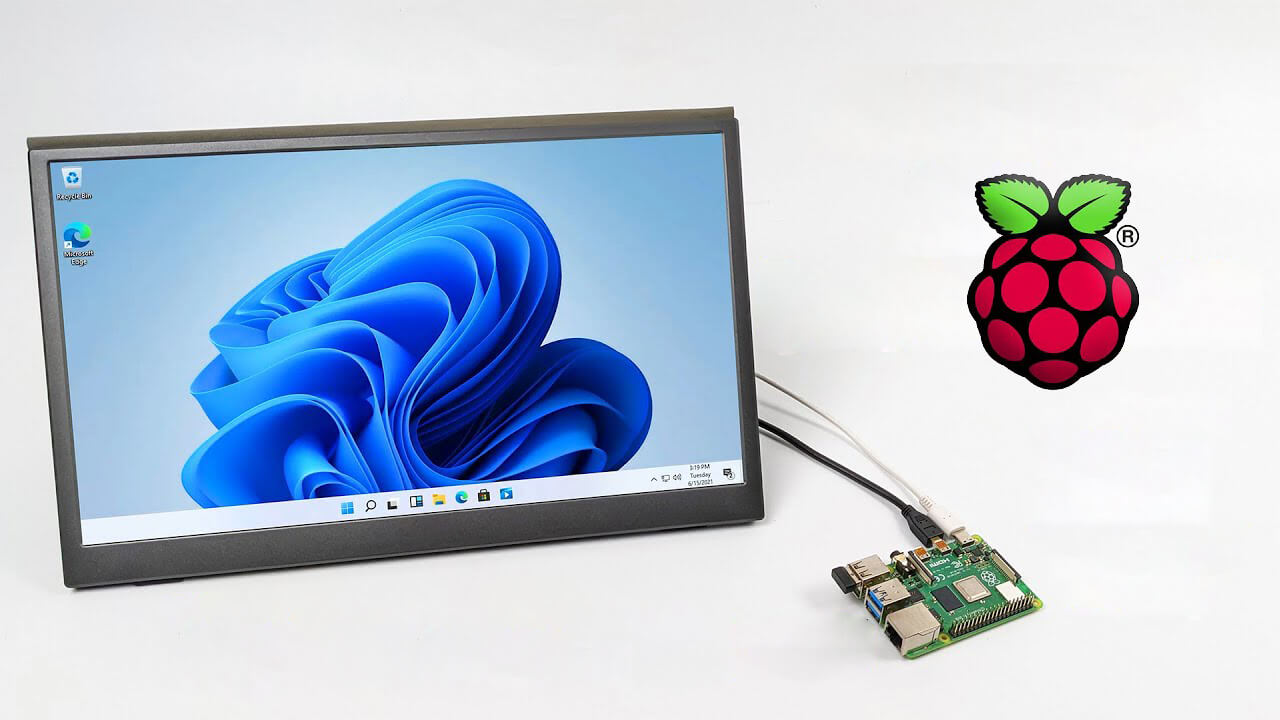
Installing Windows 11 on Raspberry Pi 4
A lot of controversies and mixed emotions have come from statements about Windows 11 minimum system requirements, especially ones linked to TPM. Naturally, each time some software company giant announces how things are must have there are people who go out and prove them wrong. This time Raspberry Pi community was one which demonstrated that not only Raspberry Pi does not have a TPM module, it can run the full desktop version of Windows 11

Windows 11 on Raspberry Pi 4Raspberry Pi 4 and things you need for Windows 11 installation

In order to actually install Windows 11 on your Pi, there are certain things that you will need. Check out the below list and prepare everything.
  • Raspberry Pi 4 4GB or 8GB
  • A 32GB or larger SSD via a USB 3 caddy. Best for performance or 16GB or larger microSD card
  • USB boot enabled, see below.
  • A micro SD card with the latest Raspberry Pi OS
  • Windows 10 PC
  • USB to Ethernet or WiFi dongle
  • Bluetooth dongle (if you want Bluetooth)
  • Keyboard, mouse, HDMI, and power for your Raspberry Pi

Configuring Pi to boot from SSD

In order to boot from SSD be sure that firmware and bootloader are up to date on the latest version and upgrade if needed. Be aware that this firmware update can only be performed using the official Raspberry Pi OS. Also if you are eager and want to use a standard microSSD card instead of an SSD to run Windows 11 feel free to skip this entire section.
  1. Boot from microSSD with the latest Raspberry Pi OS on it.
  2. Update firmware and OS using the terminal by typing sudo apt update sudo apt full-upgrade sudo rpi-update
  3. Reboot your Pi
  4. Install the latest version of bootloader again using the terminal with the command sudo rpi-eeprom-update -d – a
  5. Reboot Pi
  6. Launch raspi-config on your Pi via terminal with sudo raspi-config
  7. Select option 3 (Boot options – Configure options for start-up) from boot options
  8. Select Boot ROM version and press ENTER
  9. Select latest and then OK
  10. Select NO when prompted to reset boot ROM to defaults on the latest version boot ROM selected screen. Press OK
  11. Select Boot order and press ENTER
  12. Select USB Boot and click on OK and remove microSD card from Pi
  13. Select Finish and click on NO when prompted to reboot

Creating Windows 11 installation image for Pi 4

In order to install Windows 11 on our Pi, we must create an installation image, follow the steps below explaining the process.
  1. Go to https://uupdump.net/
  2. Search for Windows 11 Arm
  3. Select the latest build for arm64
  4. Select Language on which you would like installer and Windows
  5. Pick Windows edition you would like
  6. Set download method to Download and convert to ISO and click on Create download package
  7. Extract downloaded content into win11 folder and go into it
  8. Double click on uup_download_windows.cmd
  9. On the security warning screen click on More info and then on Run anyway
  10. Wait for the process to finish completely
  11. Once the process is finished, press 0 to close the prompt

Installing image on microSSD or SSD

If previous steps of instruction were follower precisely you now have an ISO image that can be installed onto microSSD or SSD
  1. Connect SSD or insert microSSD card into your PC
  2. Go to https://www.worproject.ml/downloads
  3. Download Windows on Raspberry imager and extract it into the win11 folder
  4. Open Imager and allow it to make changes to your computer, set your language, and click on next
  5. Select storage drive where you would like to install Windows
  6. Set device type and click on next
  7. Select our Windows 11 ISO image we created and click on next
  8. On the drivers screen select Use the latest driver package available on the server
  9. On UEFI firmware select screen choose Use the latest firmware available on the server
  10. On configuration screen click on next
  11. Check your setting on the installation overview and if everything is ok click on install
  12. Wait for the whole process to be finished
  13. Once the process is completed, close Windows on Raspberry imager, take out SSD or microSSD card from PC and connect it on your Pi along with Pi peripherals.

Setting Windows 11 on Pi

In order to actually use Windows 11 on our Raspberry Pi we now have to set up the Windows 11 install using the standard post-installation setup sequence.
  1. Power up Pi and press ESC when prompted
  2. Go to Device manager and press ENTER
  3. Select Raspberry Pi Configuration
  4. Select Advanced configuration
  5. Set Limit RAM to 3GB to a disabled state, press F10 to save, and ESC to exit.
  6. Select Display configuration
  7. Set the resolution to desired option and press ENTER, F10 to save, and ESC to exit
  8. Go to CPU configuration
  9. Check if the CPU clock is set to default, if not set it
  10. Press ESC to go back all the way to the main menu
  11. Select Continue to exit BIOS and boot your Raspberry Pi with Windows 11 on it
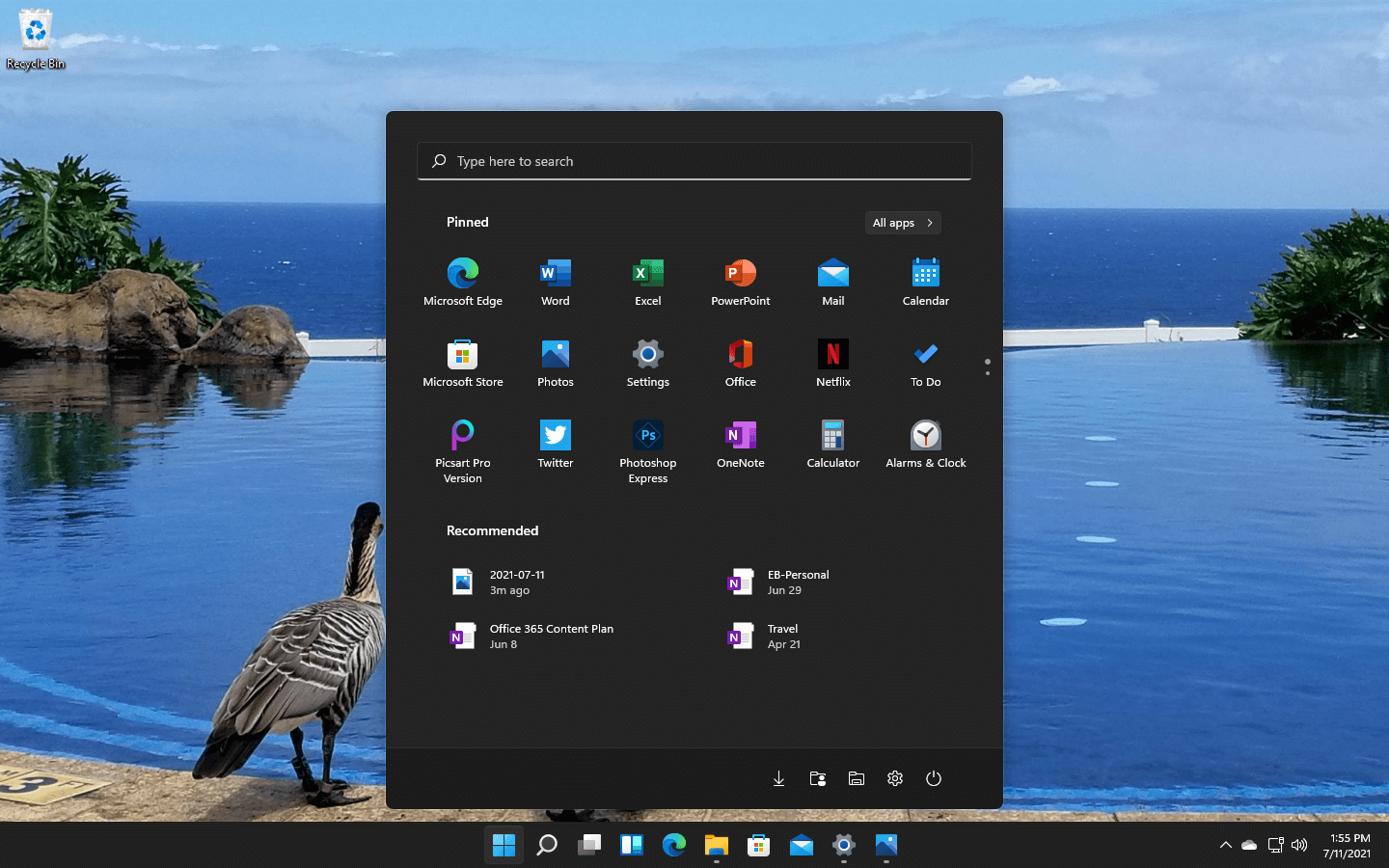
And there you have it, fully working Windows 11 OS on Raspberry Pi despite what Microsoft says Note that due to lack of some drivers performance can be less than optimal, for example, full HD videos will not work since there are no compatible graphic drivers for Pi and some other stuff like Wi-Fi will also cause some issues but overall Windows 11 is working pretty well.
Read More
Disable Windows 11 animations for fast work
windows 11 animationsWindows 11 has some cool animations including fading effects which make working in it feels nice and futuristic but the cost of this is that there is a slight delay to certain actions performed. If you want the snap fast feature in Windows 11 and do not care about this eye candy there is an easy way to turn animations off inside it.
  • First, open Windows Settings by pressing ⊞ Windows + I on your keyboard
  • Alternatively, click on Start, search for Settings, and then click its icon.
  • When Settings appears, look in the sidebar and select Accessibility.
  • In Accessibility settings, click on Visual Effects.
  • In Visual Effects, switch Animation Effects to Off.
That’s it, changes will be applied automatically, you can close settings and continue working inside Windows 11 without animations and fades. You can always switch animations back On via settings if you change your mind.
Read More
Fix nVIDIA driver issues in Windows 10
nVIDIA is one of the behemoths of the GPU world, but that not means that they are perfect and that they do not make mistakes, throw WIndows in the mix, and sometimes you have issues with your nVIDIA display drivers for various reasons which could get very unpleasant. But do not worry, we have your back and in this article, we will focus and help you to resolve common nVIDIA driver issues. So sit back and let's start with the repairs.
  1. Rollback to the previous driver and stop automatic updates.

    nVIDIA sometimes publishes really messy drivers which can really cause some serious issues, if by any chance you managed to be unlucky enough to get this kind of driver, do not despair, roll back to the previous working version and wait for the fix. To stop Windows from doing automatic driver updates, navigate to Control Panel > System & Security > System > Advanced System Settings > Hardware > Device Installation Settings. Then choose "No (your device might not work as expected)". Once you have turned off automatic driver updates, uninstall your current driver and install the previous version from the official nVIDIA website. Reboot your system
  2. Reinstall nVIDIA driver

    Reinstalling the driver might fix the issue if by any chance driver files got corrupted during download for example. First, you will need to delete some files in order to perform a clean installation. Log in as administrator if you are not one and delete following files and folders: C:\Windows\System32\DriverStore\FileRepository\nvdsp.inf fileC:\Windows\System32\DriverStore\FileRepository\nv_lh fileC:\Windows\System32\DriverStore\FileRepository\nvoclock fileC:\Program Files\NVIDIA Corporation\C:\Program Files (x86)\NVIDIA Corporation\Reboot your system Start driver installation again, choose custom installation, then clean install.
  3. Update driver in the Device Manager

    If driver updates for any reason can not work via the official install package from nVDIDA, try updating the driver in the Device Manager Navigate to Device Manager, expand graphic adapters, right-click on your nVIDIA device and click on update driver. Reboot your system
That's it, 3 solutions on how to remove, reinstall and update your nVIDIA driver, thank you for reading and I hope to see you again.
Read More
A Guide to Quickly Fixing Error 103

What Is Error 103?

Error 103 is an error that is usually encountered by those who use Google Chrome. This error is usually generated because of a conflict arising between Google Chrome and the antivirus program running on the user’s computer. Primarily, error 103 is an incompatibility issue. It is not critical in nature. However, since it will disrupt the smooth functioning of the browser, it is strongly advised to rectify this error that is generated due to any temporary conflicts between the logic of the two programs namely Google Chrome and antivirus. In layman's terms, it would be only justified to say that this error has a lot to do with the way programs react to each other in real-time.

Solution

Restoro box imageError Causes

When the error is displayed to the user, it usually states something like ‘chrome error 103 connection aborted’, ‘chrome error 103 err_connection_aborted’ or ‘Error 103 (net: ERR_CONNECTION_ABORTED): Unknown error. This begs the question, what triggers this error? Here it is important to understand that Google Chrome constantly applies to upgrade. In most instances, the upgrades almost go unnoticed. In the meanwhile, there are other programs running on any system such as firewall, Antispyware, or antivirus programs. All such programs govern the functionality of the web browser. Now, when the web browser attempts to update and any programs on the system view the update as a threat, the connection to the internet will be terminated. It is also important to understand that these programs will keep you from upgrading or from doing anything with your browser.

Further Information and Manual Repair

google chrome error 103Before we move on to the discussion of fixing the underlying causes for error 103, it is important to understand all those programs that are most likely to generate this error. A list of all such programs is outlined below as follows.
  • Kaspersky Pure 3.0
  • Kaspersky ONE
  • Kaspersky small office security 2013
  • Kaspersky internet security 2013
  • Kaspersky antivirus 2013
A downside associated with error 103 is that it won’t disappear on its own. That’s why it is important to make some manual changes as there are no tools available online to rectify this error automatically. Follow the steps listed below to easily fix the problem.
  • Click on the Start button.
  • In the search box, enter ‘expand.exe’.
  • Right-click on the file that appears and select the option ‘Open Folder Location’.
  • Now, copy the file and paste it at the destination ‘C:\Windows\System32’.
  • If you are not able to find the file, it is advised you copy it from Windows Installation Disk.
  • Now, click on the ‘Start’ button again.
  • Find and select ‘Run’.
  • Now enter ‘C: ’ in the search box and press Ok.
  • Now right-click anywhere on the screen, select new, and then select folder.
  • Rename this folder. Change the name from ‘New Folder’ to ‘Temp’.
  • Now go to the Start button again.
  • Select ‘Run’ once again.
  • Type ‘cmd.exe’ in the command prompt and press Ok.
  • Now type Command. Press enter.
  • Now type this code as it is: ‘set TMP=C:temp’ and press enter.
  • Now restart the browser.
  • If it fails, install Google Chrome once again.
  • Just make sure everything is in sync to avoid any data loss.
Read More
How to remove Search Donkey

Search Donkey is a Potentially Unwanted Program for Windows developed by Western Web Applications, LLC. This program may inject ads into your browsing sessions, giving you false search results and advertisements.

As described by Western Web Applications: “Search Donkey is entirely free to use. To keep Search Donkey free, we’ve partnered with high-quality ad providers and you may see additional ads when Search Donkey is installed.

While installed, Search Donkey will keep track of your web search queries, allowing it to let you know what pages you already visited, however, this data is also used to better target personal unwanted ads.

Search Donkey has been flagged as a Potentially Unwanted Program (PUP) by several anti-virus scanners, and their website is blacklisted by Google, giving warning to whoever visits it, and due to the nature of this application, it is not recommended to keep on your computer.

About Adware

Exactly what is Adware? If you have ever owned a computer, then you’ve probably heard the word numerous times, but it is still beneficial to define it. The term “adware” is actually a short form of advertising-supported software and it includes programs that are solely designed to display ads on a computer. A kind of malware, it will come bundled right in with the software package that a user either installs or accesses. Shareware or freeware programs are often times packaged with adware. If adware penetrates your system without you knowing and sends information about you or your PC to 3rd parties, then it is spyware. Quite often, adware changes your web browser settings to open pop-up adverts or modifies browser homepage and default internet search engine to some unwanted website. Adware is a common problem that affects a large number of PCs around the globe. If your computer doesn’t have any anti-malware software then it’s very likely it could get infected with adware as well as other malware.

Adware and its effects on your PC:

Adware could generate and display plenty of ads of all sorts which in turn disrupt the functions of your personal computer while browsing the net. Pop-ups might also show up on your computer’s desktop even when you’re not online. Adware results in a reduction of available memory and processing power, or resources. It also causes a slow net connection because adware consumes bandwidth whenever it retrieves adverts from the internet. Adware was originally created to support companies to generate income when they offer the software away free of charge. However, adware nowadays displays hundreds of adverts which will cause your PC to slow down and even crash.

Adware prevention:

As we discussed, adware could potentially be harmful to your computer, generally not by itself, but by bringing other problems to you. A top-quality antivirus program has the capability of permanently removing adware. We recommend Safebytes Anti-Malware, one of the top-rated anti-malware programs by world-renowned industry experts. It will act either as a preventative tool stopping websites or software installations that contain adware or as a removal tool for an already infected computer. To prevent adware, download software from websites that you trust. Never download from websites that you have never been aware of or tried before; Always study the end-user license agreement (EULA) of any application you want to install; You need to avoid freeware and shareware where possible; Lastly, watch out for ActiveX, since many adware and spyware companies make use of the technology to install their wares onto your computer system

Malware Blocking Internet And All Anti-Malware Software? Do This!

All malware is bad and the consequences of the damage will vary based on the specific type of malware. Some malware variants alter browser settings by adding a proxy server or modify the PC’s DNS settings. In these instances, you will be unable to visit some or all internet sites, and thus not able to download or install the required security software to eliminate the malware. So what to do when malicious software prevents you from downloading or installing Anti-Malware? There are a few options you could try to get around with this problem.

Remove viruses in Safe Mode

In Safe Mode, you can actually change Windows settings, un-install or install some program, and eliminate hard-to-delete viruses and malware. If the malware is blocking access to the internet and affecting the computer, launching it in Safe Mode will let you download antivirus and run a diagnostic scan while limiting possible damage. To enter into Safe Mode or Safe Mode with Networking, press the F8 key while the PC is starting up or run MSConfig and look for the “Safe Boot” options under the “Boot” tab. Once you’re in safe mode, you can attempt to install your anti-malware program without the hindrance of the malicious software. At this point, you could run the anti-malware scan to eliminate viruses and malware without hindrance from another application.

Switch over to an alternate browser

Some malware only targets certain browsers. If this sounds like your case, use another web browser as it could circumvent the malware. If you suspect that your Internet Explorer has been hijacked by malware or otherwise compromised by hackers, the ideal approach is to switch over to a different internet browser like Firefox, Chrome, or Safari to download your chosen computer security software – Safebytes Anti-Malware.

Create a portable USB antivirus for eliminating malware

Another solution is to make a portable antivirus program on your USB flash drive. Adopt these measures to run the anti-malware on the affected computer system. 1) Download the anti-malware program on a virus-free PC. 2) Connect the flash drive to a USB slot on the clean computer. 3) Run the setup program by double-clicking the executable file of the downloaded software, which has a .exe file format. 4) Select the flash drive as the destination for saving the software file. Follow the directions to complete the installation process. 5) Transfer the pen drive from the clean computer to the infected computer. 6) Double-click the Safebytes Anti-malware icon on the thumb drive to run the software. 7) Hit the “Scan Now” button to start the virus scan.

Detect And Remove Viruses With SafeBytes Anti-Malware

Today an anti-malware tool can protect the computer from different types of online threats. But wait, how to decide on the best one amongst countless malware protection application that’s available out there? As you might be aware, there are many anti-malware companies and products for you to consider. A few are well worth your money, but many aren’t. You need to choose one that is reliable, practical, and has a strong reputation for its malware source protection. Amongst few good applications, SafeBytes Anti-Malware is the strongly recommended software for the security-conscious individual. SafeBytes anti-malware is a trustworthy tool that not only secures your PC permanently but is also very easy to use for people of all ability levels. With its outstanding protection system, this tool will easily detect and remove most of the security threats, including adware, viruses, browser hijackers, ransomware, trojans, worms, and PUPs.

SafeBytes has outstanding features when compared to other anti-malware programs. Below are some of the great ones:

Real-time Threat Response: SafeBytes provides 100 % hands-free real-time protection and is set to check, block, and eliminate all threats at its very first encounter. They’re very effective in screening and getting rid of different threats because they’re constantly revised with new updates and safety measures. Robust, Anti-malware Protection: With its enhanced and sophisticated algorithm, this malware removal tool can identify and get rid of the malware threats hiding in the PC effectively. Internet Security: SafeBytes gives an instant safety rating about the pages you’re about to visit, automatically blocking harmful sites and ensure that you’re certain of your safety while browsing the world wide web. “Fast Scan” Abilities: SafeBytes’s virus scan engine is one of the fastest and most efficient within the industry. It's targeted scanning seriously increases the catch rate for viruses which is embedded in various computer files. Low CPU and Memory Usage: This program is not “heavy” on your computer’s resources, so you’ll not see any overall performance issues when SafeBytes is working in the background. 24/7 Customer Support: You can obtain totally free 24/7 technical support from their computer experts on any product queries or computer security concerns. Overall, SafeBytes Anti-Malware is a solid program as it has lots of features and could identify and remove any potential threats. Malware problems will become a thing of the past once you put this software to use. So if you’re searching for the best malware removal application out there, and if you don’t mind paying out some money for it, opt for SafeBytes Anti-Malware.

Technical Details and Manual Removal (Advanced Users)

If you don’t want to use malware removal software and prefer to get rid of Search Donkey manually, you could do so by going to the Windows Add/Remove Programs menu in the control panel and deleting the offending program; in cases of web browser plug-ins, you may remove it by visiting the browsers Add-on/Extension manager. You’ll probably also want to reset your internet browser. To ensure the complete removal, manually examine your hard disk and registry for all of the following and remove or reset the values accordingly. But bear in mind, editing the Windows registry can be a complicated job that only experienced users and professionals should attempt to fix it. Furthermore, some malware keeps replicating which makes it tough to eliminate. It is advised that you do the removal procedure in Windows Safe Mode.
Files: % Program Files% \Search Donkey.exe %UserProfile%\Desktop\ Search Donkey.lnk %UserProfile%\Start Menu \ Search Donkey C:\Users\%CurrentUserName%\AppData\Local\Temp\nst2A8A.tmp\nsDialogs.dll (21 bytes) C:\ProgramData\SearchDonkey\Firefox\chrome\content\overlay.xul (391 bytes) C:\Users\%CurrentUserName%\AppData\Local\Temp\nst2A8A.tmp\System.dll (23 bytes) C:\ProgramData\SearchDonkey\IE\common.dll (11359 bytes) C:\ProgramData\SearchDonkey\Chrome\common.crx (5843 bytes) C:\Users\%CurrentUserName%\AppData\Local\Temp\nst2A8A.tmp\modern-wizard.bmp (4232 bytes) C:\Users\%CurrentUserName%\AppData\Local\Temp\nst2A8A.tmp\util_ex.dll (21609 bytes) C:\ProgramData\SearchDonkey\Firefox\chrome\content\main.js (17 bytes) C:\ProgramData\SearchDonkey\app.dat (172455 bytes) C:\Users\%CurrentUserName%\AppData\Local\Temp\nst2A8A.tmp\Helper.dll (27542 bytes) C:\Users\%CurrentUserName%\AppData\Local\Temp\nst2A8A.tmp\version.dll (14 bytes) C:\Users\%CurrentUserName%\AppData\Local\Temp\nst2A8A.tmp\Processes.dll (1772 bytes) C:\ProgramData\SearchDonkey\Firefox\chrome.manifest (196 bytes) C:\ProgramData\SearchDonkey\Uninstall.exe (12729 bytes) C:\ProgramData\SearchDonkey\Firefox\install.rdf (955 bytes) C:\ProgramData\SearchDonkey\SearchDonkey.ico C:\ProgramData\SearchDonkey\Chrome\common.crx C:\ProgramData\SearchDonkey\Firefox\chrome.manifest C:\ProgramData\SearchDonkey\Firefox\chrome\content\main.js C:\ProgramData\SearchDonkey\Firefox\chrome\content\overlay.xul C:\ProgramData\SearchDonkey\Firefox\install.rdf C:\ProgramData\SearchDonkey\IE\common.dll C:\ProgramData\SearchDonkey\SearchDonkey.ico C:\ProgramData\SearchDonkey\Uninstall.exe C:\ProgramData\SearchDonkey\app.dat Registry: HKEY_CURRENT_USER\Software\Microsoft\Windows\CurrentVersion\Uninstall\SearchDonkey \DisplayIcon %AppData%\%RANDOM CHARACTERS%\%RANDOM CHARACTERS%.exe,0 HKEY_CURRENT_USER\Software\Microsoft\Windows\CurrentVersion\Uninstall\SearchDonkey HKEY_CURRENT_USER\Software\Microsoft\Windows\CurrentVersion\Uninstall\SearchDonkey\UninstallString %AppData%%RANDOMCHARACTERS%\%RANDOM CHARACTERS%.exe

Read More
FreeDownloadManager Removal Tutorial

Free Download Manager is a software program developed by FreeDownloadManager.ORG. According to the publisher:

This software downloads files and converts videos. Its features include integration with all browsers, support of downloads from RapidShare, BitTorrent support, adjusting traffic usage, resuming broken downloads, and adds BitTorrent support, flash video download, upload manager, portable mode, and remote control.

During setup, the program creates a startup registration point in Windows in order to automatically start when any user boots the PC. It adds a browser extension to help it cache files you are downloading over your browser. The software is designed to connect to the internet and adds a Windows Firewall exception in order to do so without being interfered with. It also hooks up to start automatically and cache every download even if it's turned off.

This software comes bundled with video converters that some anti-virus programs marked as malware and therefore it is considered a potentially unwanted program.

About Potentially Unwanted Applications

If you’ve ever downloaded freeware or shareware, odds are high that your computer can get installed with a bunch of unwanted programs. These unwanted applications, officially known as Potentially Unwanted Programs (PUPs), often come bundled with other software and install themselves on user’s computers without their knowledge. They might not look like computer viruses to some individuals, but they can create huge annoyances and lead to serious difficulties for users. It’s clear by its name – unwanted programs – but did not really constitute “malware” in the traditional sense. What makes a PUP different from malware is the fact that when you download one, you’re doing it with your approval – even though in most cases unconsciously and unwillingly. Nevertheless, there is no doubt that PUPs continue to be bad news for PC users as they can be incredibly detrimental to your computer in several ways.

How does unwanted software affect you?

Unwanted programs come in various forms. Usually, they could be found in adware bundlers that are known to use aggressive and deceptive advertising. The majority of bundlers install multiple adware applications from a number of companies, each of which has its own EULA policy. Safebytes Anti-Malware entirely eliminates this threat and safeguards your PC against PUP or adware infection. They will also come in the form of web browser extension add-ons and toolbars. Not just they needlessly fill up space on your computer screen, toolbars could also manipulate search results, keep an eye on your web browsing activities, decrease your internet browser’s efficiency, and slow down your net connection to a crawl. Potentially unwanted programs utilize aggressive distribution methods to get in your computer. They will often include things like information gathering code that will collect and send your private information to other companies. Due to this unwanted program, your application may freeze, your security protections may get turned off that can leave your computer susceptible, your system could get damaged, and this list goes on and on.

Tips to prevent PUPs

• Always read the license agreement and privacy statement. Don’t agree unless you understand exactly what you are acknowledging. • Always choose “Custom” or “Advanced” installation and don’t blindly click the Next button, which will allow you to uncheck any foistware software programs you do not want. • Install an ad blocker/pop-up blocker; Add anti-malware products such as Safebytes Anti-Malware. These applications could establish a wall between the computer and cybercriminals. • Be alert if you install freeware, open-source programs, or shareware. Nowadays ‘freeware’ is not really freeware – but ‘crapware’ bundling nonsense. • Always download software from trusted sources like official websites instead of untrustworthy sharing space. Avoid file-hosting sites wherever possible.

Can't Install Safebytes Anti-malware due to the presence of Malware? Do This!

Malware could cause plenty of damage to your PC. Some malware types modify browser settings by including a proxy server or change the PC’s DNS configurations. In these cases, you’ll be unable to visit certain or all of the internet sites, and thus not able to download or install the required security software to remove the infection. If you are reading this article, you may have got infected by malware that stops you from installing a computer security program such as Safebytes Anti-Malware. There are some fixes you can attempt to get around with this obstacle.

Get rid of viruses in Safe Mode

In the event the malware is set to load at Windows startup, then booting in safe mode should avoid it. Only minimal required programs and services are loaded whenever you boot your PC in Safe Mode. To launch your Windows XP, Vista, or 7 computers in Safe Mode with Networking, do as instructed below. 1) Tap the F8 key continuously as soon as your PC boots, however, before the large Windows logo appears. This would conjure up the Advanced Boot Options menu. 2) Choose Safe Mode with Networking using arrow keys and hit Enter. 3) Once you get into this mode, you should have an internet connection once again. Now, use your browser normally and navigate to https://safebytes.com/products/anti-malware/ to download and install Safebytes Anti-Malware. 4) Following installation, run a complete scan and let the software program remove the threats it discovers.

Obtain the anti-malware program using an alternate browser

Web-based viruses could be environment-specific, targeting a particular web browser or attacking particular versions of the web browser. In case you suspect that your Internet Explorer has been hijacked by a computer virus or otherwise compromised by online hackers, the most effective thing to do would be to switch to a different browser like Chrome, Firefox, or Safari to download your chosen computer security program – Safebytes Anti-Malware.

Run antivirus from your pen drive

Here’s yet another solution which is creating a portable USB antivirus software package that can scan your computer for malicious software without the need for installation. Try these simple steps to clear up your infected computer by using a portable antivirus. 1) On a virus-free PC, download and install Safebytes Anti-Malware. 2) Put the pen drive into the clean PC. 3) Double click on the downloaded file to open the installation wizard. 4) Choose the drive letter of the flash drive as the location when the wizard asks you where you want to install the antivirus. Follow the directions to finish the installation process. 5) Unplug the pen drive. Now you can utilize this portable anti-virus on the affected computer system. 6) Run the Safebytes Anti-malware directly from the USB drive by double-clicking the icon. 7) Click on “Scan Now” to run a scan on the infected computer for malware.

Features and Benefits of SafeBytes Anti-Malware

If you are looking to purchase anti-malware for your computer system, there are numerous brands and applications for you to consider. A few of them do a good job in getting rid of malware threats while some will ruin your PC by themselves. You must choose a product that has gained a good reputation and detects not only viruses but other kinds of malware too. Among few good programs, SafeBytes Anti-Malware is the strongly recommended software for the security-conscious user. SafeBytes anti-malware is a very effective and easy-to-use protection tool that is created for users of all levels of IT literacy. Once you’ve got installed this software program, SafeBytes superior protection system will make sure that no viruses or malware can seep through your computer. SafeBytes anti-malware provides an array of advanced features that sets it aside from all others. The following are some of the good ones: World-class AntiMalware Protection: Safebytes is made on the very best virus engine in the industry. These engines can detect and remove threats even during the early stages of a malware outbreak. Real-time Active Protection: SafeBytes provides complete and real-time security for your personal machine. It will monitor your personal computer for suspicious activity at all times and shields your PC from unauthorized access. Fast Multi-threaded Scanning: Safebytes Anti-Malware, using its advanced scanning engine, provides super-fast scanning that can immediately target any active online threat. Safe Web Browsing: Through its unique safety rating, SafeBytes notifies you whether a website is safe or not to access it. This will ensure that you’re always certain of your safety when browsing the online world. Lowest Memory/CPU Usage: This software is lightweight and will work silently in the background, and that does not have an effect on your PC efficiency. 24/7 Live Expert Support: You can obtain high levels of support round the clock if you’re using their paid software.

Technical Details and Manual Removal (Advanced Users)

If you wish to manually remove FreeDownloadManager without the use of an automated tool, it may be possible to do so by removing the program from the Windows Add/Remove Programs menu, or in cases of browser extensions, going to the browsers AddOn/Extension manager and removing it. You will likely also want to reset your browser. To ensure the complete removal, manually check your hard drive and registry for all of the following and remove or reset the values accordingly. Please note that this is for advanced users only and may be difficult, with incorrect file removal causing additional PC errors. In addition, some malware is capable of replicating or preventing deletion. Doing this in Safe Mode is advised.

The following files, folders, and registry entries are created or modified by FreeDownloadManager

Files: C:WINDOWSsystem32netmsg.dll C:DocumentsUserLocalTempfdminst.exe C:DocumentsUserLocalTempis-FJKMF.tmpfdminst.tmp C:WINDOWSsystem32msctfime.ime C:DocumentsUserLocalTempis-FN3E3.tmp_isetup_shfoldr.dll C:WINDOWSsystem32shfolder.dll C:DocumentsUserLocalTempis-FN3E3.tmpfdminno.dll C:DocumentsUserLocalTempis-FN3E3.tmpnsProcessW_modified.dll C:WINDOWSsystem32shell32.dll C:Documents and SettingsUserStart Menudesktop.ini C:Documents and SettingsUserStart MenuProgramsdesktop.ini C:WINDOWSRegistrationR000000000007.clb C:WINDOWSwin.ini Registry: HKEY_CURRENT_USERSoftwareCodeGearLocales HKEY_LOCAL_MACHINESoftwareCodeGearLocales HKEY_CURRENT_USERSoftwareBorlandLocales HKEY_CURRENT_USERSoftwareBorlandDelphiLocales HKEY_LOCAL_MACHINESoftwareMicrosoftWindows NTCurrentVersionIMM HKEY_USERSS-1-5-21-1547161642-507921405-839522115-1004SoftwareMicrosoftWindows NTCurrentVersionAppCompatFlagsLayers HKEY_CURRENT_USERSOFTWAREMicrosoftCTF HKEY_LOCAL_MACHINESoftwareMicrosoftCTFSystemShared HKEY_LOCAL_MACHINESOFTWAREMicrosoftWindows NTCurrentVersionFontSubstitutes HKEY_LOCAL_MACHINESoftwareMicrosoftWindowsCurrentVersion HKEY_LOCAL_MACHINESOFTWAREMicrosoftWindows NTCurrentVersion HKEY_CURRENT_USERSoftwareFreeDownloadManager.ORGFree Download Manager 5 HKEY_LOCAL_MACHINESoftwareMicrosoftWindowsCurrentVersionPoliciesExplorer HKEY_CURRENT_USERSoftwareMicrosoftWindowsCurrentVersionPoliciesExplorer HKEY_LOCAL_MACHINESOFTWAREMicrosoftWindowsCurrentVersionShellCompatibilityObjects20D04FE0-3AEA-1069-A2D8-08002B30309D HKEY_CLASSES_ROOTHKEY_LOCAL_MACHINESoftwareClassesCLSID20D04FE0-3AEA-1069-A2D8-08002B30309DInProcServer32 HKEY_CLASSES_ROOTDriveshellexFolderExtensions HKEY_CLASSES_ROOTDriveshellexFolderExtensionsfbeb8a05-beee-4442-804e-409d6c4515e9 HKEY_CURRENT_USERSoftwareMicrosoftWindowsCurrentVersionExplorerUser Shell Folders HKEY_LOCAL_MACHINESoftwareMicrosoftWindowsCurrentVersionExplorerUser Shell Folders HKEY_LOCAL_MACHINESystemCurrentControlSetControlSession Manager HKEY_CURRENT_USERSoftwareMicrosoftWindowsCurrentVersionExplorerShell Folders HKEY_CURRENT_USERSoftwareMicrosoftWindowsCurrentVersionExplorerMountPoints2CPCVolume HKEY_CURRENT_USERSoftwareMicrosoftWindowsCurrentVersionExplorerMountPoints2CPCVolume475c7950-e3d2-11e0-8d7a-806d6172696f HKEY_CURRENT_USERSoftwareMicrosoftWindowsCurrentVersionExplorerMountPoints2CPCVolume475c7952-e3d2-11e0-8d7a-806d6172696f HKEY_CURRENT_USERSoftwareMicrosoftWindowsCurrentVersionExplorerMountPoints2475c7952-e3d2-11e0-8d7a-806d6172696f HKEY_CURRENT_USERSoftwareMicrosoftWindowsCurrentVersionExplorerMountPoints2475c7950-e3d2-11e0-8d7a-806d6172696f HKEY_CLASSES_ROOTDirectory HKEY_CLASSES_ROOTDirectoryCurVer HKEY_CLASSES_ROOTDirectory HKEY_CURRENT_USERSoftwareMicrosoftWindowsCurrentVersionExplorer HKEY_CURRENT_USERSoftwareMicrosoftWindowsCurrentVersionExplorer HKEY_CURRENT_USERSoftwareMicrosoftWindowsCurrentVersionPoliciesSystem HKEY_CURRENT_USERSoftwareMicrosoftWindowsCurrentVersionExplorerAdvanced HKEY_CLASSES_ROOTDirectoryShellExIconHandler HKEY_CLASSES_ROOTDirectoryClsid HKEY_CLASSES_ROOTFolder HKEY_CLASSES_ROOTFolderClsid HKEY_CURRENT_USERSoftwareMicrosoftwindowsCurrentVersionExplorerAutoComplete HKEY_LOCAL_MACHINESoftwareMicrosoftwindowsCurrentVersionExplorerAutoComplete HKEY_CURRENT_USERSoftwareMicrosoftWindowsCurrentVersionExplorerAutoComplete HKEY_LOCAL_MACHINESoftwareMicrosoftWindowsCurrentVersionExplorerAutoComplete HKEY_LOCAL_MACHINESoftwareMicrosoftCOM3 HKEY_USERSS-1-5-21-1547161642-507921405-839522115-1004_Classes HKEY_LOCAL_MACHINESoftwareClassesREGISTRYUSER HKEY_LOCAL_MACHINESoftwareClassesHKEY_LOCAL_MACHINESoftwareClassesCLSID0BB2765-6A77-11D0-A535-00C04FD7D062 HKEY_LOCAL_MACHINESoftwareClassesHKEY_LOCAL_MACHINESoftwareClassesCLSID0BB2765-6A77-11D0-A535-00C04FD7D062TreatAs HKEY_LOCAL_MACHINESoftwareClassesHKEY_LOCAL_MACHINESoftwareClassesCLSID0BB2765-6A77-11D0-A535-00C04FD7D062 HKEY_LOCAL_MACHINESoftwareClassesHKEY_LOCAL_MACHINESoftwareClassesCLSID0BB2765-6A77-11D0-A535-00C04FD7D062InprocServer32 HKEY_LOCAL_MACHINESoftwareClassesHKEY_LOCAL_MACHINESoftwareClassesCLSID0BB2765-6A77-11D0-A535-00C04FD7D062InprocServerX86 HKEY_LOCAL_MACHINESoftwareClassesHKEY_LOCAL_MACHINESoftwareClassesCLSID0BB2765-6A77-11D0-A535-00C04FD7D062LocalServer32 HKEY_LOCAL_MACHINESoftwareClassesHKEY_LOCAL_MACHINESoftwareClassesCLSID0BB2765-6A77-11D0-A535-00C04FD7D062InprocHandler32 HKEY_LOCAL_MACHINESoftwareClassesHKEY_LOCAL_MACHINESoftwareClassesCLSID0BB2765-6A77-11D0-A535-00C04FD7D062InprocHandlerX86 HKEY_LOCAL_MACHINESoftwareClassesHKEY_LOCAL_MACHINESoftwareClassesCLSID0BB2765-6A77-11D0-A535-00C04FD7D062LocalServer HKEY_CLASSES_ROOTHKEY_LOCAL_MACHINESoftwareClassesCLSID0BB2765-6A77-11D0-A535-00C04FD7D062 HKEY_CLASSES_ROOTHKEY_LOCAL_MACHINESoftwareClassesCLSID0BB2765-6A77-11D0-A535-00C04FD7D062TreatAs HKEY_LOCAL_MACHINESoftwareClassesHKEY_LOCAL_MACHINESoftwareClassesCLSID3C036F1-A186-11D0-824A-00AA005B4383 HKEY_LOCAL_MACHINESoftwareClassesHKEY_LOCAL_MACHINESoftwareClassesCLSID3C036F1-A186-11D0-824A-00AA005B4383TreatAs HKEY_LOCAL_MACHINESoftwareClassesHKEY_LOCAL_MACHINESoftwareClassesCLSID3C036F1-A186-11D0-824A-00AA005B4383 HKEY_LOCAL_MACHINESoftwareClassesHKEY_LOCAL_MACHINESoftwareClassesCLSID3C036F1-A186-11D0-824A-00AA005B4383InprocServer32 HKEY_LOCAL_MACHINESoftwareClassesHKEY_LOCAL_MACHINESoftwareClassesCLSID3C036F1-A186-11D0-824A-00AA005B4383InprocServerX86 HKEY_LOCAL_MACHINESoftwareClassesHKEY_LOCAL_MACHINESoftwareClassesCLSID3C036F1-A186-11D0-824A-00AA005B4383LocalServer32 HKEY_LOCAL_MACHINESoftwareClassesHKEY_LOCAL_MACHINESoftwareClassesCLSID3C036F1-A186-11D0-824A-00AA005B4383InprocHandler32 HKEY_LOCAL_MACHINESoftwareClassesHKEY_LOCAL_MACHINESoftwareClassesCLSID3C036F1-A186-11D0-824A-00AA005B4383InprocHandlerX86 HKEY_LOCAL_MACHINESoftwareClassesHKEY_LOCAL_MACHINESoftwareClassesCLSID3C036F1-A186-11D0-824A-00AA005B4383LocalServer HKEY_CLASSES_ROOTHKEY_LOCAL_MACHINESoftwareClassesCLSID3C036F1-A186-11D0-824A-00AA005B4383 HKEY_CLASSES_ROOTHKEY_LOCAL_MACHINESoftwareClassesCLSID3C036F1-A186-11D0-824A-00AA005B4383TreatAs HKEY_LOCAL_MACHINESoftwareClassesCLSID0BB2763-6A77-11D0-A535-00C04FD7D062 HKEY_LOCAL_MACHINESoftwareClassesCLSID0BB2763-6A77-11D0-A535-00C04FD7D062TreatAs HKEY_LOCAL_MACHINESoftwareClassesCLSID0BB2763-6A77-11D0-A535-00C04FD7D062 HKEY_LOCAL_MACHINESoftwareClassesCLSID0BB2763-6A77-11D0-A535-00C04FD7D062InprocServer32 HKEY_LOCAL_MACHINESoftwareClassesCLSID0BB2763-6A77-11D0-A535-00C04FD7D062InprocServerX86 HKEY_LOCAL_MACHINESoftwareClassesCLSID0BB2763-6A77-11D0-A535-00C04FD7D062LocalServer32 HKEY_LOCAL_MACHINESoftwareClassesCLSID0BB2763-6A77-11D0-A535-00C04FD7D062InprocHandler32 HKEY_LOCAL_MACHINESoftwareClassesCLSID0BB2763-6A77-11D0-A535-00C04FD7D062InprocHandlerX86 HKEY_LOCAL_MACHINESoftwareClassesCLSID0BB2763-6A77-11D0-A535-00C04FD7D062LocalServer HKEY_CLASSES_ROOTHKEY_LOCAL_MACHINESoftwareClassesCLSID0BB2763-6A77-11D0-A535-00C04FD7D062 HKEY_CLASSES_ROOTHKEY_LOCAL_MACHINESoftwareClassesCLSID0BB2763-6A77-11D0-A535-00C04FD7D062TreatAs HKEY_CLASSES_ROOTHKEY_LOCAL_MACHINESoftwareClassesCLSID3C036F1-A186-11D0-824A-00AA005B4383InProcServer32 HKEY_CLASSES_ROOTHKEY_LOCAL_MACHINESoftwareClassesCLSID0BB2763-6A77-11D0-A535-00C04FD7D062InProcServer32 HKEY_CURRENT_USERsoftwareMicrosoftWindowsCurrentVersionExplorerAdvanced HKEY_LOCAL_MACHINEsoftwareMicrosoftWindowsCurrentVersionExplorerAdvanced HKEY_LOCAL_MACHINESoftwareMicrosoftWindows NTCurrentVersionFontSubstitutes HKEY_USERSS-1-5-21-1547161642-507921405-839522115-1004 HKEY_LOCAL_MACHINESOFTWAREMicrosoftWindows NTCurrentVersionLanguagePackSurrogateFallback HKEY_CURRENT_USERSoftwareMicrosoftWindowsCurrentVersionUninstallFree Download Manager_is1 HKEY_LOCAL_MACHINESoftwareMicrosoftWindowsCurrentVersionUninstallFree Download Manager_is1 HKEY_CURRENT_USERSoftwareFreeDownloadManager.ORGFree Download ManagerSettingsCommunity HKEY_CURRENT_USERSoftwareFreeDownloadManager.ORGFree Download ManagerSettingsNetworkBittorrent HKEY_CURRENT_USERKeyboard LayoutToggle HKEY_CURRENT_USERSOFTWAREMicrosoftCTFLangBarAddIn HKEY_LOCAL_MACHINESOFTWAREMicrosoftCTFLangBarAddIn
Read More
Guide to Fixing Error 0x800CCC0E

Error Code 0x800CCC0E - What is it?

The error code 0x800CCC0E is an Outlook error that appears while using either Microsoft Outlook or Outlook Express. The error message hampers your ability to send and receive emails.

Solution

Restoro box imageError Causes

0x800CCC0E Outlook error code is triggered by multiple reasons including:
  • Improper connection with SMTP (Simple Mail Transfer Protocol) server
  • Damaged files
  • Registry corruption
In most cases, it’s the registry that gets corrupted which leads to the occurrence of 0x800CCC0E error code display. This typically happens when you try to update your Outlook/Outlook Express version. When updating, you need to remove all the software files of the previous Outlook version which includes the registry too. If the files are not removed from the registry, the new version update will often fail. The junk files of the old version are likely to damage and corrupt the registry.

Further Information and Manual Repair

It is advisable to repair the error code 0x800CC0E right away to avoid inconvenience and system failure and fatal crashes which can lead to valuable data loss.

Cause: Improper connection with SMTP (Simple Mail Transfer Protocol) server

Solution: If the cause of the 0x800CCC0E is SMTP server connection failure, then the best way to resolve the error is to reconfigure your email account settings. Make sure that port 25 is being used in the SMTP area. Port 25 is the standard outgoing mail port. If the SMTP setting is on port 25 then another reason for the error 0x800CCC0E can be your anti-virus or firewall software enabled on your PC. Turn it off for a moment and then try sending emails from your Outlook.

Cause: Damaged Files and Registry Corruption

Solution: If the error code is triggered due to registry corruption and file damage, then the best way to resolve it is to download Restoro. Restoro is a safe, efficient, and highly functional inbox cleaner and a system optimizer embedded with numerous powerful utilities designed to repair multiple PC-related errors including the error code 0x800CCC0E when triggered by registry corruption. This cutting inbox cleaner scans your PC entirely and detects all the unnecessary and malicious files saved in your system’s registry like junk files, internet history, invalid entries, and files of the uninstalled programs. These files take up most of the registry disk space thus causing the registry files to get damaged and corrupt and triggering error codes like 0x800CCC0E. With the help of Restoro,  you can easily wipe out all such files from your system in just one click. After scanning for errors all you need to do is click the repair tab to make your registry disk clutter-free. Once the clutter is removed, update the new version of the Outlook/ Outlook Express again on your system and then try sending emails. You’ll see two noticeable differences after repairing your PC with Restoro. One is that you will be able to install the new version and send emails smoothly from your Outlook account without any 0x800CCC0E error pop-ups. And the second difference you’ll see is the change in your PC performance. This tool optimizing your PC speed and reduces boot time. This tool is very simple and easy to use. It has a neat design layout and a user-friendly interface which makes it easy for all levels of users to use Restoro smoothly with zero complexity. In just a few clicks the error message 0x800CCC0E is resolved. What makes this tool a favorite among users is that it does not require any skills or technical know-how. To get started here’s what you need to do:
  1. Click here to download Restoro software on your PC
  2. Once the download is complete, run it to scan for 0x800CC0E error
  3. After the scanning is successfully complete, click on the Repair button to fix the error right away.
  4. Then install the new version of Outlook/ Outlook Express again on your system
Read More
Computer makes a beeping noise when you turn it on
Recently, a few users reported that they were unable to turn on their computers for some reason and at the same time their computers Computer makes a beeping noise couple of times or continuously whenever they try to turn them on. The sounds the computers are making can be quite annoying and it also signifies that there is something wrong with them. The problem might have something to do with the hardware inside of the computer system rather than Windows 10 itself. As you know, a computer is designed to deliver audible error sounds every time some part of the hardware is not properly working. For instance, if you hear a single beep, this indicates that your GPU is having some issues and if you’re hearing two beeps, it indicates that your RAM is not working properly, whereas three beeps that repeat after a pause when you turn on your computer means that there is something wrong with the system memory. On the other hand, if your computer is beeping continuously, this means that the problem lies with the processor. To fix this issue, here are some suggestions that might help but before you proceed, make sure that you know how to manage your computer’s hardware, if not, better have some expert do it for you.

Option 1 – Try checking the RAM

One of the basic things you can do in this kind of case is to check the RAM. Prepare some screwdrivers and dig into your PC and then look for the RAM slots and ensure that they are attached firmly. There are times when moving around your computer daily can cause certain components in your computer to become loose. Worst case scenario is that the RAM might be broken so really have to replace it.

Option 2 – Try checking the graphics card

After digging into your computer, check the graphics card and give it some good cleaning. As you know, you have to remove certain components like the graphics card regularly and clean them to help increase their lifespan and avoid errors in a startup. And if it turns out that the graphics card is broken, you have to replace it with a new one to fix the problem.

Option 3 – Try checking the processor

The processor is the brain of every computer so if it ends up not working, everything else is useless. Thus, you need to check it to see if it’s firmly attached and see if it needs some cleaning of dust and other debris. After that, try turning on your computer again. If it doesn’t work, then you might have to take your system to a technician to resolve the problem for you.
Read More
Fix ERR TUNNEL CONNECTION FAILED error
One of the errors you can encounter while browsing the web using your Google Chrome browser is the ERR_TUNNEL_CONNECTION_FAILED error. If you happen to encounter this error, then this post could help you resolve it. This kind of error in Chrome can occur due to incorrect website domain configuration, conflicting browser data, incorrect proxy settings, and DNS connection issues. To resolve the ERR_TUNNEL_CONNECTION_FAILED error in Chrome, here are some suggestions you can check out.

Option 1 – Try disabling the proxy server for your LAN

If your PC was just attacked by some adware or malware as of late, it is possible that it has changed the network settings in the system and might display spam advertisements. Thus, you have to disable the proxy server for your LAN. To do that, refer to these steps:
  • Tap the Win + R keys to open the Run dialog box.
  • Then type “inetcpl.cpl” in the field and hit Enter to pull up the Internet Properties.
  • After that, go to the Connections tab and select the LAN settings.
  • From there. Uncheck the “Use a Proxy Server” option for your LAN and then make sure that the “Automatically detect settings” option is checked.
  • Now click the OK and the Apply buttons.
  • Restart your PC.
Note: If you are using a third-party proxy service, you have to disable it.

Option 2 – Try to reset Winsock, TCP/IP & Flush DNS

Resetting Winsock, TCP/IP, and flushing DNS might help you resolve the ERR_TUNNEL_CONNECTION_FAILED error. To do so, follow these steps:
  • Right-click on the Start button and click on Command Prompt (administrator) so you can pull up an elevated Command Prompt.
  • After that, execute each one of the commands listed below. And after you typed in one after the other, you have to hit Enter.
  1. netsh winsock reset – type in this command to reset Winsock
  2. netsh int ip reset resettcpip.txt – type in this command to reset TCP/IP
  3. ipconfig /flushdns – type in this command to flush the DNS cache
  • Next, restart your PC and check if the problem’s fixed.

Option 3 – Try using a VPN connection

There are instances when the network that your computer is logged on might have blocked your access to the website you are trying to open and so to fix it, you can try to use a VPN connection. Once you’ve connected using VPN, try to open the website again and see if you can now access it.

Option 4 – Try clearing browser data

There are times when some data in the browser is conflicting with the loading of the website and triggers errors like ERR_TUNNEL_CONNECTION_FAILED. And so you can try to clear your browser’s data. This might be a very basic solution but oftentimes it works in fixing this kind of error in Google Chrome. Follow the steps below to clear the data in your browser.
  • Open your Google Chrome browser.
  • After that, tap the Ctrl + H keys. Doing so will open a new panel that allows you to delete the browsing history and other data in your browser.
  • Now select every checkbox that you see and click on the Clear browsing data button.
  • Then restart your Chrome browser and check if you can now open any website or not.

Option 5 – Get rid of any conflicting browser extensions

  • Open Chrome and press Alt + F keys.
  • Go to More tools and click Extensions to look for any suspicious browser extensions or toolbars.
  • Click the Recycle bin and select Remove.
  • Restart Chrome and press Alt + F keys again.
  • Proceed to On Startup and mark Open a specific page or set of pages.
  • To check if the browser hijacker is still active, click Set pages, if it is active, overwrite the URL.
Note: If removing the browser extensions or toolbars didn’t work, you can also try to reset your Google Chrome browser.
  • Open Google Chrome, then tap the Alt + F keys.
  • After that, click on Settings.
  • Next, scroll down until you see the Advanced option, once you see it, click on it.
  • After clicking the Advanced option, go to the “Restore and clean up option and click on the “Restore settings to their original defaults” option to reset Google Chrome.
  • Now restart Google Chrome.
Read More
1 2 3 171
Logo
Copyright © 2023, ErrorTools. All Rights Reserved
Trademark: Microsoft Windows logos are registered trademarks of Microsoft. Disclaimer: ErrorTools.com is not affiliated with Microsoft, nor claims direct affiliation.
The information on this page is provided for information purposes only.
DMCA.com Protection Status