Logo

How to Delete your data from the internet

The Internet has come a long way from its infant stages and has become so large and huge that it has gained the status of basic human rights. There are very useful information and a lot of great content on it and among them, there are social media websites and other types of websites where you have, most likely placed some personal pictures or other information.

One day you might want to cancel some of the services or you would like to take a break from it all. In this guide we will show you how to do exactly that, to delete and remove your data from the internet.


How to Delete Your Google Account

Google is arguably one of the most visited places on the Web. It stores a huge amount of data for delivering personalized content. It saves personal information, web searches, watched videos, location data, etc. You can view a summary of the data saved by different Google services by visiting your Google Dashboard.

To delete personal data from Google, go to myactivity.google.com. Select the Delete activity by from the left menu to start deleting activities.

Select All time to delete all of your activities from different Google services. You can also delete files saved to Google services, such as Google Photos, Google Drive, and Keep. Just visit the site, select the files, and delete them.

Note that Google retains some information even after you delete all data. They do this to meet business needs and legal requirements. These will be deleted when you delete your Google account altogether.


How to Delete Your Facebook Account

Facebook stores a huge amount of data for each user. Some of the personal information stored in Facebook’s databases includes name and email, check-ins, location, images, videos, events, etc. You can view and download all of your personal data using Facebook’s information download tool. However, you will need to delete your account altogether for removing your personal data from Facebook.

Follow the below steps to delete your Facebook account.

  1. Log in to your Facebook account and go to Settings & privacy > Setttings.
  2. Select Your Facebook Information.
  3. Select Deactivation and Deletion.
  4. Select Delete Account.
  5. Select Continue to Account Deletion.
  6. Select Delete Account.
  7. Enter your password and click Continue.

It can take up to 90 days for Facebook to delete your personal data from the Internet. You will not be able to access any of the data once the deletion starts. However, you can cancel this within the first 30 days.


How to Delete Your Twitter Account

Twitter has also followed in the footsteps of Facebook when it comes to harvesting your personal data. It utilizes this information for delivering personalized ads and tweets. You can download an archive of all of your personal data from Twitter. It makes it easy to monitor what information is available to the platform.

Click the More button from the left menu and head over to Settings and privacy. Follow the below steps to download your personal information.

  1. Select Download an archive of your data from the Your Account section.
  2. Select Request archive from under the Twitter data section. Enter your password when prompted.
  3. It will take some time for Twitter to make the data available to you. You’ll receive an email once the data is ready to be downloaded.

It would be best if you also restrict data sharing and off-site activities. Head over to Privacy and safety and inspect the options under the Data sharing and off-Twitter activity section.

Look in the Interests and Your advertiser list sections from the Ads preferences tab. You can disable Twitter from tracking you in the Off-Twitter activity tab. Uncheck the options from the Data sharing with business partners and Location information tabs.

Finally, you need to deactivate your account for deleting all personal information from Twitter. You’ll have 30 days to reactivate the account. After that, Twitter will begin erasing your information from its systems. Note that they can still retain some information subjected to platform regulations.


How to Delete Your Instagram Account

Instagram has risen to prominence in the last couple of years. The company collects a huge amount of personal information from its users, including media, name, email, and much more. You’ll need to deactivate your account altogether if you want to delete everything Instagram knows about you.

Head over to the Delete your account page and select the reason you want to delete it. Enter your Instagram password to verify your identity, then click on the Delete button. Instagram will hide your account details for the next 30 days and delete all personal data after the given period.


How to Delete Your TikTok Account

TikTok is another emerging platform that has become quite popular among millennials. Users share a lot of personal information through personalized music videos. You need to delete your TikTok account permanently to remove all personal data from TikTok.

To do this, head over to Me, then tap on the icon in the top-right corner of the window. Select Delete account from under the Manage Account section. Follow the instructions provided there to continue deactivating your account. Like Instagram, TikTok also offers a 30-day time period to allow users to change their minds. It will delete your personal data from the Internet after this period.


How to Delete Your Snapchat Account

  1. Go to Snapchat’s Accounts Portal and log in with your name and password.
  2. Select the Delete My Account option.
  3. You’ll be taken to the Delete Account page directly.
  4. Retype your password once more.
  5. Click on the yellow Continue button.

Do keep in mind that Snapchat will hold on to your data for another 30 days, just in case you change your mind and decide to return. If you do decide to come back, all you need to do is visit the Accounts Portal again and log in to your account. This will reactivate your account. While your account is in this deactivated phase, your friends will not be able to contact you or interact with you in any manner on Snapchat. After the 30-day period has elapsed, your account will be permanently deleted.


Do You Need Help with Your Device?

Our Team of Experts May Help
Troubleshoot.Tech Experts are There for You!
Replace damaged files
Restore performance
Free disk space
Remove Malware
Protects WEB browser
Remove Viruses
Stop PC freezing
GET HELP
Troubleshoot.Tech experts work with all versions of Microsoft Windows including Windows 11, with Android, Mac, and more.

Share this article:

You might also like

Windows 11 new features and preview
Microsoft has presented its next version of their flagship product, Windows 11, and feelings are divided among users. Some users like it very much and eager to upgrade, some do not like the graphic overhaul it went through, but overall I think Microsoft has done a good job with it. Here in this article, we will discuss some of the new features which Windows brings to the table, well at least ones that were showed, I am sure there are plenty more which we will see once OS has been released.

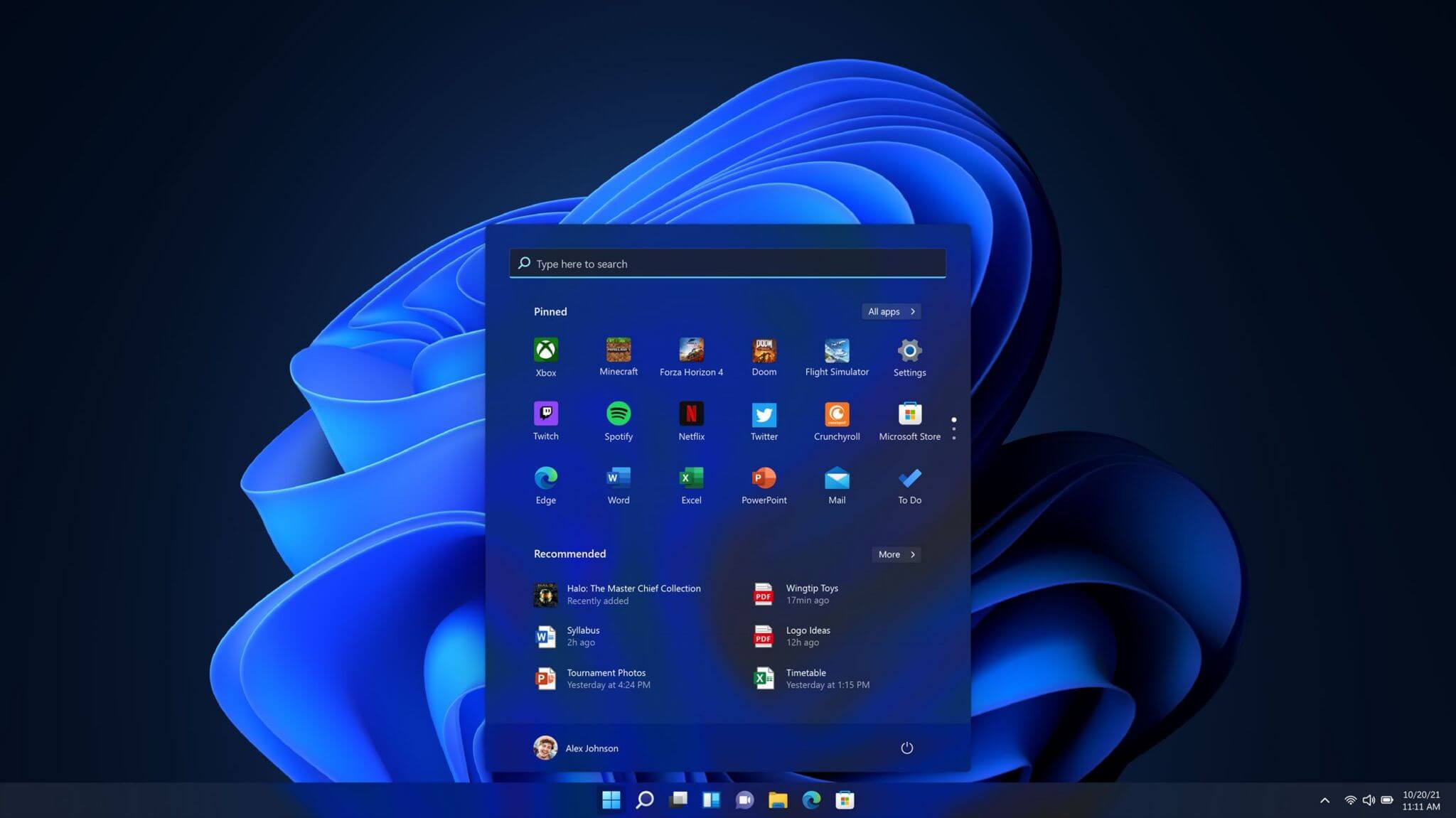
New Start menu

Winodws 11 start menuOne of the first things that everyone saw when Microsoft has unveiled Windows 11 is its Start menu. Funny enough this is what has caused most of the divide among users, some find it interesting, and some do not like it. Truth is, it is different, and it is centered in the middle instead of the lower left part of the screen. It has been confirmed however that the Start menu can be moved to any part of the screen so if you want, you could place it on the lower left as it has always been. Live tiles do not longer exist in the Start menu, instead, we have styled simple icons.
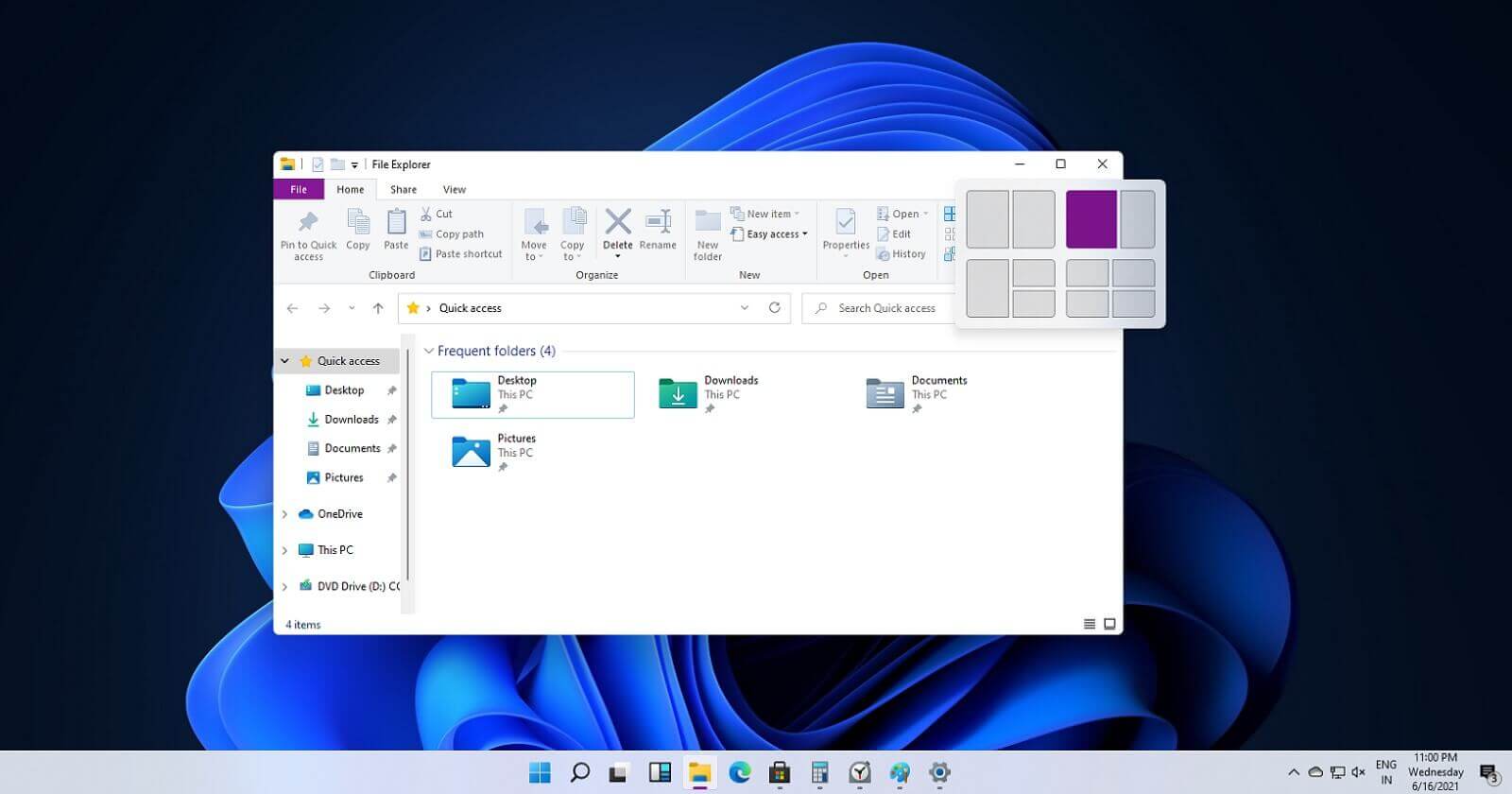
Windows 11 Snap controls are great

Windows 11 snap controlsIf you have used the cascade option in previous Windows versions then it is most likely that you will like the new Snap controls. You can quickly snap windows side by side, or arrange them in sections on your desktop just by hovering over maximize button on the title bar.
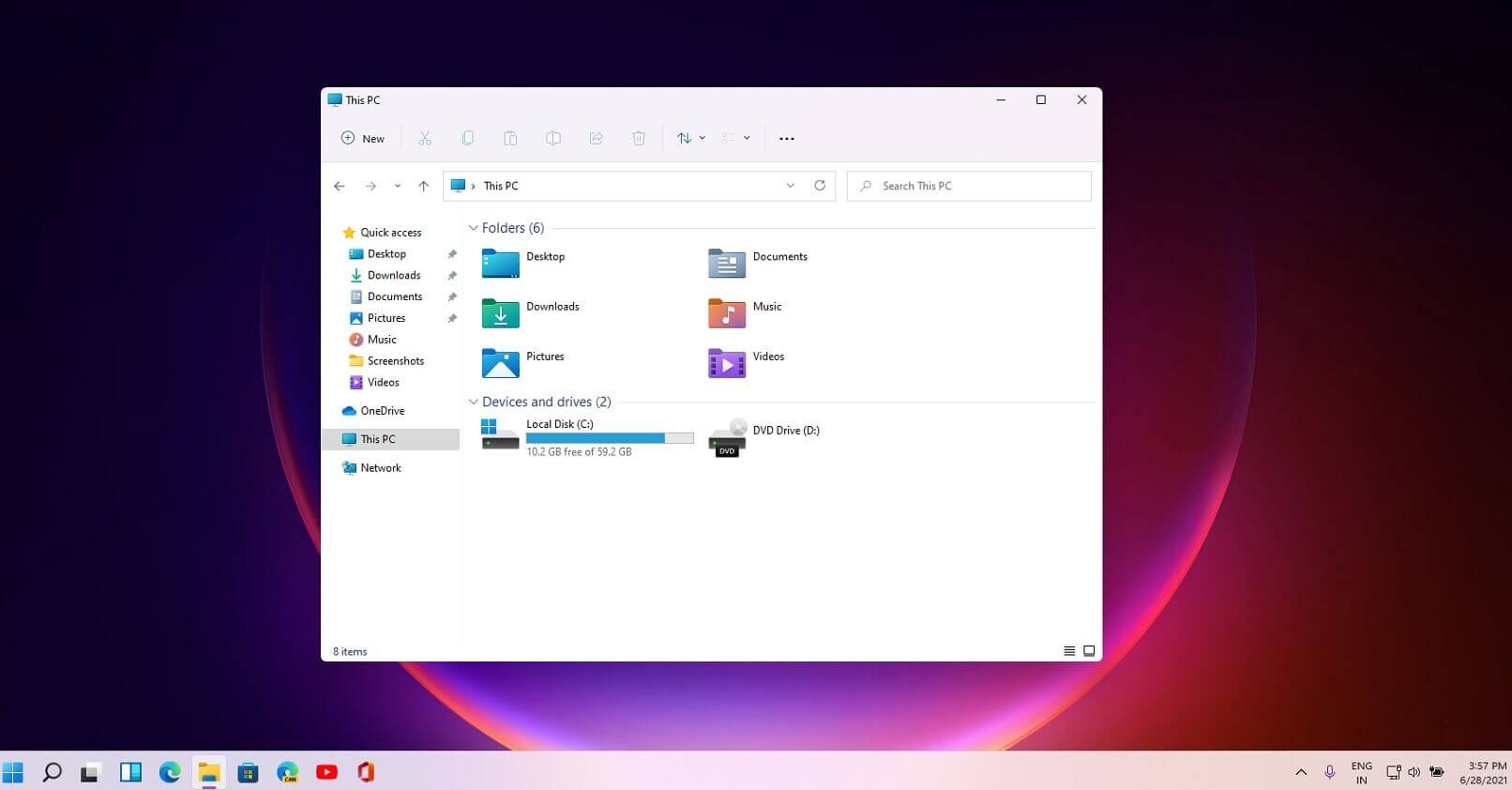
Windows 11 File Explorer

Windows 11 file explorerFile explorer has gone through some visual and design changes, the ribbon on top has been completely removed and replaced with a header-like feature with a slick and clean design. The header contains a nice organized and designed single row of icons like cut, paste, copy, rename, delete, and new folder icons.
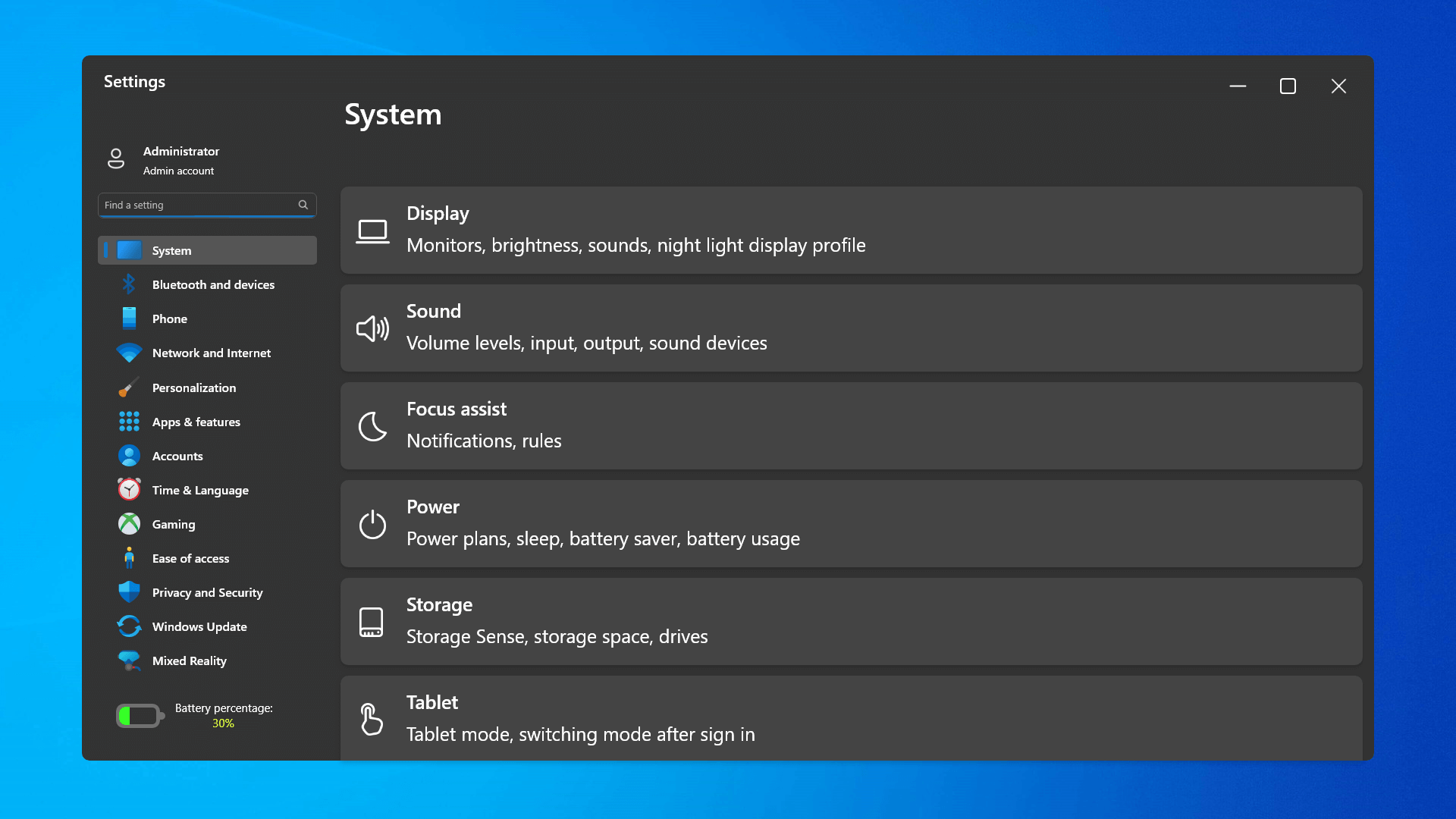
Settings app ovberhaul

Windows 11 settings appThe settings app also has gone through visual and design changes. It has a new design that is very visually appealing and navigation has been simplified and more organized. Finding the right and desired setting is much faster and clearer now.
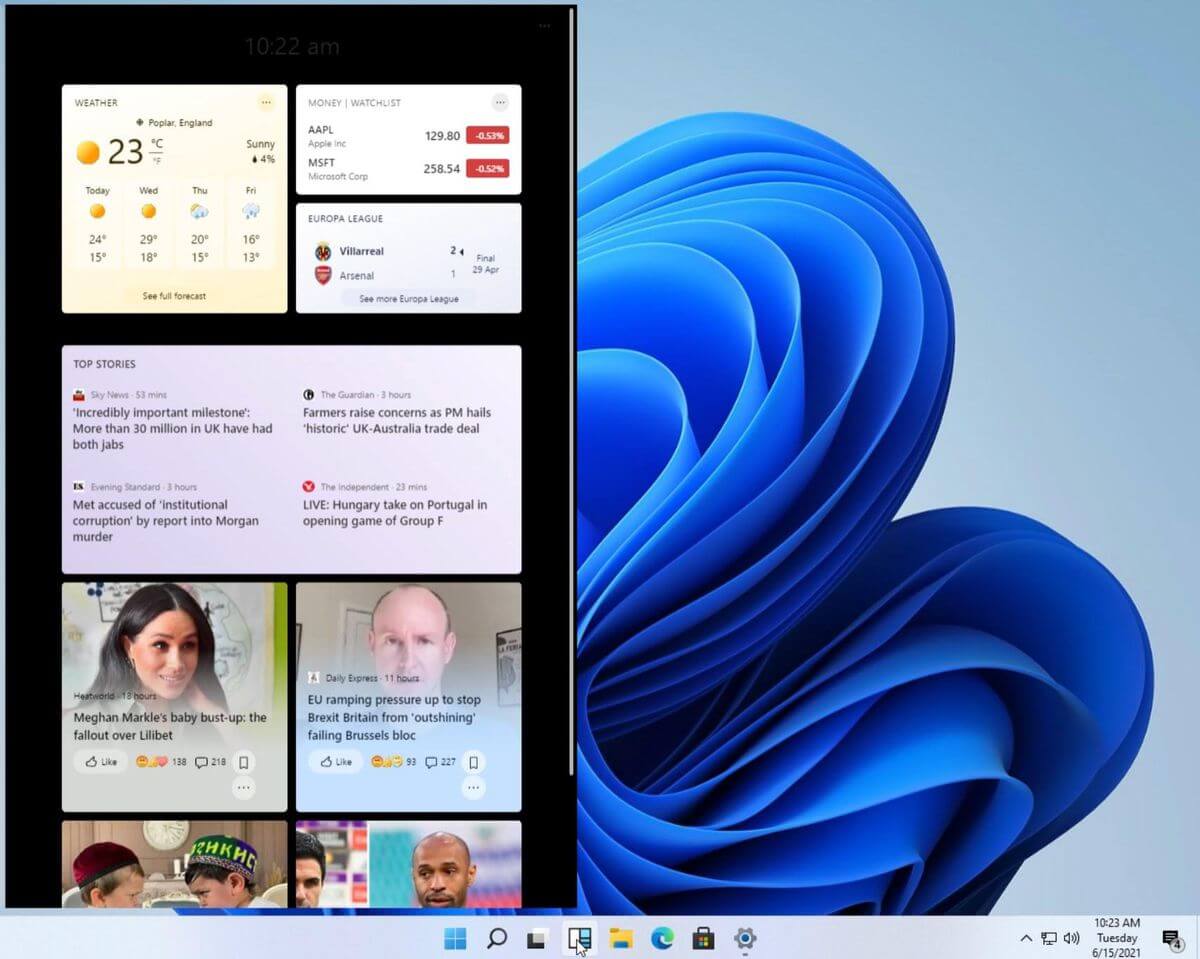
Widget tab makes comeback in Windows 11

Windows 11 widgets barYes, widgets are back but not like you remember them. Instead of being all-time present at your desktop like once they used to be, now there is a button on the taskbar which brings the widget bar up that contains desired widgets. This way they are easily accessible and do not clutter desktops. So far we have weather, news, calendar, and stocks widget but we will see how development on these goes. I expect to have community-made widgets like in old days for all of our needs.
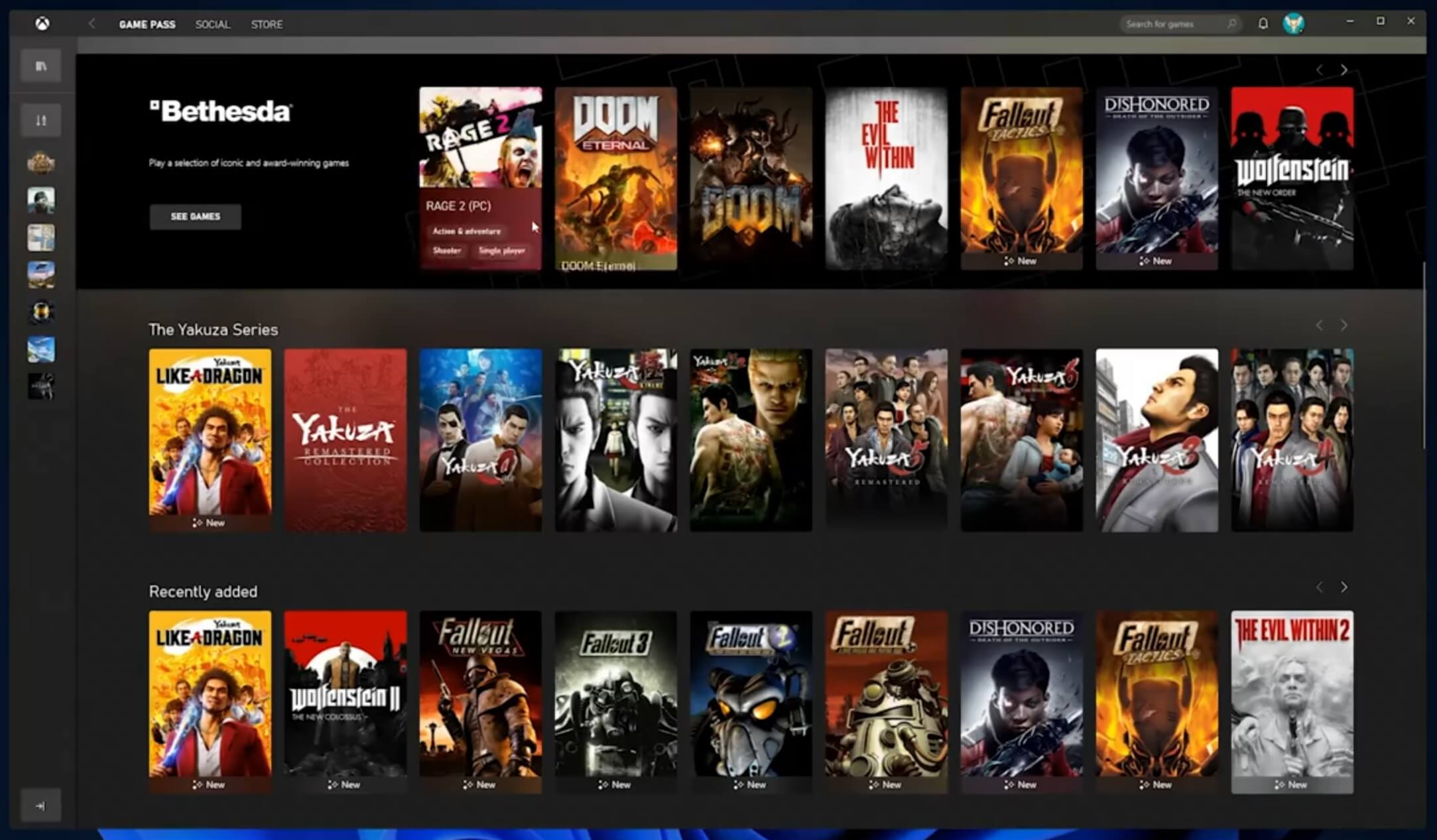
XBOX app

Windows 11 xbox appThe new Xbox app is now integrated into Windows 11, offering quick access to Xbox Game Pass games, the social parts of the Xbox network, and the Xbox store.
Security and TPM 2.0 in Windows 11

Windows 11As widely known by now Windows 11 will require you to have a TPM 2.0 module capable CPU in order to install it. This system requirement has caused a lot of controversies but essentially it seems that MS's goal is to protect your personal data by using this module. The upside of course is that your data will be protected much more than in previous Windows versions, the downside, of course, will be that you will need newer hardware to run OS on it. and that is essentially it, keep on tuned on more Windows 11 information and overall articles tied to PC and technology here at errortools.com

Read More
A Quick Guide to Fixing Error 577

Error 577 - What is it?

This is a typical system error code. It stops your ability to run or load programs on your PC. The error message is displayed in the following format:
‘Windows cannot verify the digital signature for this file.
A recent hardware or software change might have installed a file that is signed incorrectly or damaged, or that might be malicious software from an unknown source.’

Solution

Restoro box imageError Causes

Error 577 may be triggered due to several reasons. However, the most common causes of this error include:
  • Device Driver Conflicts
  • Hardware Malfunction
  • Viral Infection
  • Windows Registry Corruption or Damage
  • Software File Corruption or Damage
Error 577 can prove to be fatal if the underlying causes are related to viral infection or registry corruption.

Further Information and Manual Repair

To resolve error 577 on your PC, you don’t have to hire a professional and spend hundreds of dollars on repair. The process for fixing this error is simple and easy. Here are some of the best and efficient methods to repair error 577 - no technical expertise is required.

Method 1 - Check and Update Device Drivers

If the problem is triggered by the outdated or corrupted driver for the device reporting the error then it is advisable to update the driver. To do this, first, uninstall the corrupted driver and then reinstall the latest version. For this simply click the start menu, go to the control panel and then click Performance and Maintenance, and then System. In the new window, you will then see a tab called Hardware and the Device Manager. Double click on the device whose driver you need to uninstall. Click on the properties window with a tab marked driver. Then click on the driver you want to uninstall. To activate changes reboot your PC. Now reinstall the latest and updated version of the driver uninstalled using the Plug and Play feature.

Method 2 - Scan For Viruses

System error codes like 577 can also pop up if your PC is infected by viruses. Viruses enter through phishing emails and downloadable files from unreliable websites. If the reason for error 577 is a viral infection, then simply install a powerful antivirus, run it to scan your entire PC. Remove all the viruses and malicious programs immediately to resolve. If the issue still persists, then try method 3.

Method 3 - Repair the Registry

Sometimes registry corruption can be the underlying cause for error 577. The registry is the part that saves all activities performed on the system. It stores both important and unnecessary files like junk files, cookies, and bad registry entries. If these files are not removed from the registry frequently, they accumulate and corrupt the registry which then generates system error codes. To resolve and repair the registry in seconds, simply download Restoro. This is a user-friendly PC Repair Tool embedded with a registry cleaner. It wipes away all unnecessary files corrupting the registry and repairs it. Click here to download Restoro.
Read More
INET_E_RESOURCE_NOT_FOUND
The previous Windows versions all came with Microsoft's browser Internet Explorer. A lot of users love it because not only that it is easy to use. It is also very fast. Users didn’t have to worry about compatibility because it is almost always compatible with its Windows Version. When they introduced Windows 10, they changed the name of the browser from Internet Explorer to Microsoft Edge. It is faster and more user-friendly compared to its predecessors. But after the Creator Update, some experienced receiving the inet_e_resource_not_found error code. In contrary to what everyone expects, you actually don’t have to uninstall and reinstall the Microsoft Edge App. What you can do is reset the browser in your Apps & Features Settings in your Microsoft Settings.

To reset the browser you can follow the steps below:

  1. Click on the Windows icon and go to settings.
  2. Click on Apps and this will bring you to the Apps & Features page. Look for Microsoft Edge from the list of Apps and click on it.
  3. Choose Advance Option
  4. Scroll down then Under Reset, click on repair or reset. When you repair it will fix the existing problem but the data that caused the problem may still be present and can still cause problems. If you click on reset, it will delete all the cache and cookies that are installed in your browser but it will save your Favorites as well as your bookmarks.

Another way to resolve this is by disabling the feature TCP Fast Open on Microsoft Edge. To disable this, go ahead and follow the steps below:

  1. Open the Microsoft Edge browser.
  2. Type in about: flags on the Address (URL) bar.
  3. Under Networking, uncheck the Enable TCP Fast Open.
  4. Close your Microsoft Edge browser and open a new one.
Flushing the DNS also worked for other Users. Sometimes, the error code the inet_e_resource_not_found is caused by a corrupted DNS cache. There are 2 ways to flush your DNS. The first option is to use the command prompt to run the command.
  1. To access the Command prompt or CMD, you can search for it on Cortana or you can click on the Windows icon to access the Programs, scroll down to the Windows System folder and click on it.
  2. A drop-down menu will show up, click on Command Prompt which is the first on the list.
  3. Type in the code ipconfig /flushdns and press enter.
  4. There will be a message that will show that says Windows IP configuration successfully flushed the DNS Resolver Cache
  5. Exit the CMD by typing exit and press enter.
The easiest way to do this is to Press the keys Window + R on your keyboard. Type in ipconfig /flushdns in the search box and hit enter or click on OK. These are only some of the ways to resolve the inet_e_resource_not_found. There are other ways to further troubleshoot this issue such as reinstalling your Wifi Adapter Driver or adjusting the DNS Server Address. But most of the time, users are able to resolve the issue with the steps provided above.
Read More
Disable or Enable App Launch Tracking
The Windows 10 operating system utilizes a variety of measures in order to track your app launches so that it can boost both your start and search results. It can personalize the start menu based on the apps that you use the most on the Start menu as well as the search results. This way, the App Launch Tracking is definitely useful especially when you want to access your favorite and frequently used apps quickly in the Start menu and search results on your Windows 10 computer. On the other hand, Windows 10 provides users with the ability to control their privacy settings in order to protect the privacy of users. Windows 10 users can either opt to enable the app launch tracking to improve the start menu and search menu or opt to disable the app launch tracking in order to prevent the Windows operating system from tracking that you open if you really value your privacy that much. Whichever setting you prefer, you need to change the privacy control settings as well as make some tweaks in the Windows Registry in order to turn on or turn off the app launch tracking feature.

Option 1 – Turn off or turn on app launch tracking via Settings

  • Go to Settings and click on Privacy.
  • After that, toggle On the “Let Windows track app launches to improve Start and search results” option on the right side of the page under the General Settings to enable the app launch tracking feature.
  • And of course, if you wish to disable the app launch tracking feature, simply toggle Off the “Let Windows track app launches to improve Start and search results” option on the very same page under General Settings.
  • After that, close the Settings window.
Note: Keep in mind that when you disable the app launch tracking feature, the “Show most used app” setting will either be grayed out or labeled as “Disable” on your Windows 10 computer. Thus, if you want to keep viewing the most used apps, just re-enable the app launch tracking feature if you have disabled it.

Option 2 – Turn off or turn on app launch tracking via Windows Registry

Before you proceed, make sure to create a System Restore point
  • Tap the Win + R keys to open the Run dialog box.
  • Then type “Regedit” in the field and hit Enter or click OK to open the Registry Editor.
  • Next, navigate to the following path:
HKEY_CURRENT_USERSOFTWAREMicrosoftWindowsCurrentVersionExplorerAdvanced
  • After that, right-click on the Advanced folder and then click on New to create a new 32-bit DWORD value.
  • Name the newly created DWORD as “Start TrackProgs” and set its value to “1” to enable the app launch tracking feature.
  • If you want to disable the app launch feature, set “0” as the value instead of 1.
  • Now click OK and restart your computer.
Take note that you still have to create a 32-bit DWORD value even if you are using a 64-bit Windows computer.
Read More
How to Fix Error Code 0xc1900106 on Windows 10

Error Code 0xc1900106  – What is it?

One of the most common errors encountered by Microsoft users upgrading from Windows 7 or Windows 8/8.1 to Windows 10 is the Error Code 0xc1900106. Microsoft users experience a failure in the installation process. Either they will be notified that the installation process was ended but failed or that Windows is not able to install the update.

Solution

Restoro box imageError Causes

More and more Windows users are having trouble upgrading their operating system to Windows 10. There are a lot of errors being encountered by users and one of them is the Error Code 0xc1900106. This error is normally due to the misconfigured system files. If a Windows user encounters this error, most likely their device has some registry problems.

Further Information and Manual Repair

Fixing error code-related issues could be best resolved to do manual repair methods. Applying repair methods manually can help Windows users address the root causes of the errors they encounter, as well as apply definite solutions to rectify the issue.

Most Windows users can be able to implement manual repair methods themselves but there are some cases where help from a Windows professional is needed. If you’re not a very tech-savvy person and not confident performing the manual repair methods yourself, it would be advisable to seek help from a professional Windows technician who is knowledgeable enough to address the errors or problems you are encountering. However, if you don’t want to resort to seeking help from a professional, you can also consider using a powerful automated tool.

In trying to fix Error Code 0xc1900106, here are the following manual repair methods you can take:

Method One: Custom Installation

  1. Make a backup of your personal files
  2. Users of Windows 8/8.1 should Refresh first then proceed to upgrade.
  3. If the Refresh process does not work, reset your device then try again.
  4. If resetting your device still does not work, you can proceed with a custom installation.
  5. When your Windows installation media is ready, you need to choose to boot from CD, DVD, or USB drive to begin setup. (For example purposes, this article will discuss booting from DVD).
  6. When your device is all set to boot from DVD, you will be prompted to Press any key to boot from CD or DVD…
  7. Once you’ve pressed any key, the screen will show the Windows logo which might take a while. No need to worry though, as long as you can see the indicator, you’re good.
  8. Choose your Language, Time, and Keyboard method from the drop-down menu then hit Next.
  9. Click on the Install Now button then wait until Setup begins.
  10. Tick on the I accept the license terms check box then select Next.
  11. Choose Custom: Install Windows only (advanced)
  12. Choose the Primary partition then select Next. You will be prompted by the following warning: The partition you selected might contain files from a previous Windows Installation. If it does, these files and folders will be moved to a folder named Windows.old. You will be able to access the information in Windows.old, but you will be able to use your previous version of Windows. Just click the OK button then wait as the Windows continue to install. Windows will restart once this phase of the setup completes and will reboot into setup once again.
  13. At this point, Windows will detect and install your hardware. Once this finishes, Windows will restart again.

Method Two: Reset Windows Update Components

  1. From your device’s desktop, hit Windows key + X to open the command prompt as admin.
  2. Once the command prompt window appears, you can type or copy and paste the following commands (all at once):

net stop wuauserv net stop cryptSvc net stop bits net stop msiserver ren C:WindowsSoftwareDistribution SoftwareDistribution.old ren C:WindowsSystem32catroot2 catroot2.old net start wuauserv net start cryptSvc net start bits net start msiserver pause

  1. Exit the command prompt.
  2. After you reset the Windows Update components, see if you receive Windows Updates which includes the firmware updates for your computer.

Method Three: Ensure Windows is Updated

  1. If you have an antivirus, make sure to disable it during the upgrade process.
  2. Run Windows Update to check if the system is updated.
  3. Ensure that the latest firmware and drivers are installed. To be able to do this, go to the computer manufacturer’s website or you can also try contacting company support.
Read More
Fix ntkrnlmp.exe Blue Screen in Windows
The ntkrnlmp.exe file is a file associated with the Windows operating system’s NT Kernel and other system processes. It is also related to the “CRITICAL PROCESS DIED” error. So if you encounter a Blue Screen of Death error that’s related to this file, then you’ve come to the right place as this post will guide you in fixing the ntkrnlmp.exe Blue Screen error. This kind of Blue Screen error might be caused by the file getting corrupted or infected with some malware. Aside from these causes, the error might also be due to the corruption and malfunction of the graphics card drivers. Before you troubleshoot the problem, you might want to try performing System Restore especially if you tend to create a System Restore point every now and then. Performing System Restore could help you resolve the ntkrnlmp.exe Stop error. You can do this option either by booting into Safe Mode or in System Restore. If you are already in the Advanced Startup Options, just directly select System Restore and proceed with the next steps. And if you have just booted your PC into Safe Mode, refer to the steps below.
  • Tap the Win + R keys to open the Run dialog box.
  • After that, type in “sysdm.cpl” in the field and tap Enter.
  • Next, go to the System Protection tab then click the System Restore button. This will open a new window where you have to select your preferred System Restore point.
  • After that, follow the on-screen instructions to finish the process and then restart your computer and check if the problem is fixed or not.
If System Restore didn’t help, then proceed to the given options below.

Option 1 – Disable the C-states and EIST in the BIOS

The first thing you can do is try to disable the C-states and EIST in the BIOS. To do that, refer to the steps given below.
  • Go to the BIOS and from there look for an option named CPU Configuration which can usually be found under the Advanced menu.
  • Next, look for CPU Power Management and under that section, disable both the “Intel EIST” and “Intel C-state” options.
  • After you disable them, save the changes you’ve made and exit the BIOS.
  • Now restart your computer and check if the ntkrnlmp.exe BSOD error is now fixed.

Option 2 – Try to update, rollback or disable drivers

If the first option didn’t help in fixing the ntkrnlmp.exe Blue Screen error the next thing you can do is to roll back, or update, or disable device drivers in your computer. It is most likely that after you updated your Windows computer that your driver also needs a refresh. On the other hand, if you have just updated your device drivers then you need to roll back the drivers to their previous versions. Whichever applies to you, refer to the steps below.
  • Open the Devices Manager from the Win X Menu.
  • Then locate the device drivers and right-click on them to open the Properties.
  • After that, switch to the Driver tab and click on the Uninstall Device button.
  • Follow the screen option to completely uninstall it.
  • Finally, restart your computer. It will just reinstall the device drivers automatically.
Note: You can install a dedicated driver on your computer in case you have it or you could also look for it directly from the website of the manufacturer.

Option 3 – Configure the Driver Verifier Manager

The Driver Verifier Manager is another tool in Windows that could help you fix driver-related issues. And so if you want to fix the ntkrnlmp.exe Blue Screen error you need to use the Driver Verifier Manager:
  • Type in the keyword “Verifier” in the Cortana search box to search for Verifier in Windows 10.
  • After that, select the option “Create custom settings”.
  • Make sure that you have checked everything except the options “DDI compliance checking” and “Randomized low resources simulation”.
  • Next, select the option “Select driver names from a list” option.
  • Afterward, you have to select all the drivers from any unofficial or third-party provider. To simply put it, you have to select all the drivers that are not supplied by Microsoft.
  • Then click on the Finish button.
  • Open Command Prompt as administrator and execute this command – verifier /querysettings
  • The command you just executed will display the Driver Verifier settings so if you see any of the flags enabled boot your Windows 10 PC into Safe Mode.
  • Open the Command Prompt as admin again and run this command – verifier /reset
  • The command will reset the Driver Verifier. Once the process is done, restart your PC and check.

Option 4 – Run the Blue Screen Troubleshooter

The Blue Screen troubleshooter is a built-in tool in Windows 10 that helps users in fixing BSOD errors like ntkrnlmp.exe. It can be found on the Settings Troubleshooters page. To use it, refer to these steps:
  • Tap the Win + I keys to open the Settings panel.
  • Then go to Update & Security > Troubleshoot.
  • From there, look for the option called “Blue Screen” on your right-hand side and then click the “Run the troubleshooter” button to run the Blue Screen Troubleshooter and then follow the next on-screen options. Note that you might have to boot your PC into Safe Mode.
Read More
Enable Touch Keyboard in Windows 11
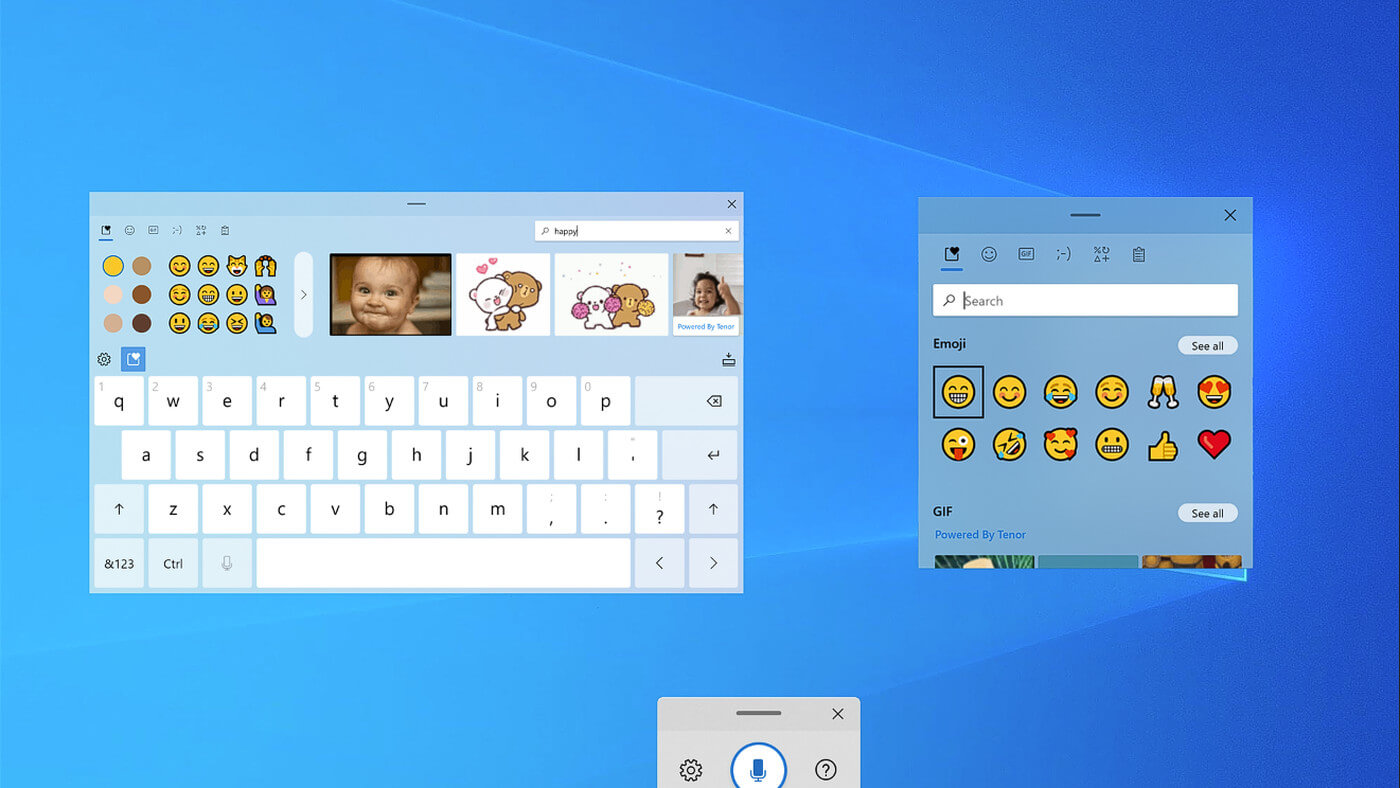
Touch KeyboardIf by any chance you are working on a touchscreen PC, tablet, or any similar device and have no access to a hardware keyboard there is a way to place Touch Keyboard on your screen for easy typing, and you can enable icon on the taskbar for easy access.

Enabling the Touch Keyboard

  1. Right-click on the Taskbar
  2. Select Taskbar Settings
  3. Go to Personalization > Taskbar
  4. Click on Taskbar Corner Icons to expand it
  5. Click on the switch next to Touch Keyboard to turn it ON
  6. Close settings
The icon will immediately appear on the Taskbar in the lower right corner. Clicking the icon virtual keyboard will appear on the lower part of the screen. You can use this keyboard to type in applications the same as you were typing on hardware one. By taping on X in the upper right corner, you will hide the keyboard. Tap on the icon in Taskbar to bring it up again.

Hide the Taskbar icon

If you do not want to use Touch Keyboard anymore you can easily hide the icon:
  1. Right-click on the Taskbar
  2. Select Taskbar Settings
  3. Go to Personalization > Taskbar
  4. Click on Taskbar Corner Icons to expand it
  5. Click on the switch next to Touch Keyboard to turn it OFF
  6. Close settings
Read More
Repairing a corrupt Group Policy in Windows
If you recently made some changes in your Windows 10 computer using the Group Policy Editor but they were not reflected and you got errors instead, it could be that your Windows computer wasn’t able to read the Group Policy file (registry.pol). To resolve this kind of issue, you have to repair the potentially corrupted Group Policy using the options given in this post. .As you know, Group Policy is a feature in the Microsoft Windows Active Directory which allows an admin to make changes in the features on Windows PCs that are on the network. So if the modifications you just made weren’t successfully applied, then there could be something wrong with the registry.pol file on the client or it could also be that the Group Policy folder is missing. To fix this issue in the Group Policy, you need to refer to the given suggestions below and make sure that you have admin privileges as you execute them.

Option 1 – Try to delete or recreate the missing registry.pol file

The entire settings of the Group Policy are stored in the registry.pol file so if it went missing, all the changes you make will not be reflected. The good thing is that you can recreate it but if the file exists and is corrupted, you need to delete it first before you recreate it.
  • First, go to the C:/Windows/System32/GroupPolicy/Machine location.
  • And from there, check if the registry.pol file exists or not. If it’s there, just delete it permanently by tapping the Shift + Delete keys.
  • Now it’s time to recreate the file. Just open Windows PowerShell with admin privileges by tapping Win + X + A keys.
  • After opening PowerShell, type this command: gpupdate /force
  • The command you entered will recreate the registry.pol file and will refresh the Group Policy. Restart your computer.

Option 2 – Try recreating the secedit.sdb file

The security settings of Group Policy are stored in the secedit.sdb file so if you made some changes to security and they weren’t reflected, you can try to delete and recreate the secedit.sdb file instead of deleting the Group Policy file. All you have to do is navigate to the C:/WINDOWS/security/Database folder and look for the secedit.sdb file and rename it or move it to another folder. After that, restart your computer. Once your computer has restarted, the secedit.sdb file will be created again.

Option 3 – Try to reset the Group Policy to default

You can also try to reset the Group Policy back to its default state. There are several ways you can do that. You can either use the gpupdate or the secedit command in the Windows PowerShell to do that. Resetting the Group Policy will resolve any issues that could be caused by its current settings.

Option 4 – Try to perform System Restore

System Restore can also help resolve the Group Policy issue. It could be that prior to the issue, you’ve made some changes in the system that might have affected the Group Policy. To undo these changes, perform System Restore.
  • First, tap the Win + R keys to open the Run dialog box.
  • After that, type in “sysdm.cpl” in the field and tap Enter.
  • Next, go to the System Protection tab then click the System Restore button. This will open a new window where you have to select your preferred System Restore point.
  • After that, follow the on-screen instructions to finish the process and then restart your computer and check if the problem is fixed or not.

Option 5 – Use the DISM tool

You can also try running the Deployment Imaging and Servicing Management or DISM tool. This tool will repair the Windows System Image as well as the Windows Component Store in your Windows 10 computer. So if there are any missing or corrupted folders and files, the DISM tool can restore and repair them. As a result, any system consistencies and corruptions will be fixed. To run this tool, follow these steps:
  • Tap the Win + X keys and click on the “Command Prompt (Admin)” option.
  • After that, input each one of the commands listed below sequentially to execute them:
    • Dism /Online /Cleanup-Image /CheckHealth
    • Dism /Online /Cleanup-Image /ScanHealth
    • Dism /Online /Cleanup-Image /RestoreHealth
  • Once you’ve executed the commands given above, restart your computer.
Read More
A Quick Guide to Resolving Error 0x80070003

Error 0x80070003 - What is it?

Error 0x80070003 is a type of Windows file backup and restore error code. This error occurs when you copy files or try to create backup and restore files and folders by using Windows Backup and Restore. This error stops you from using browse for files or folders. It hampers your ability to browse and restore files in the File Restore Wizard on your PC.

Solution

Restoro box imageError Causes

Error 0x80070003 may occur due to numerous reasons such as:
  • Registry files are corrupted and damaged
  • Missing directories
  • Boot sector corrupted
  • Outdated drivers
  • Faulty software installation
  • Malware infection
  • Improper maintenance and incomplete installation

Further Information and Manual Repair

Here are some manual and easy do-it-yourself methods that you can try at home and resolve the issue on your own and save hundreds of dollars that you would be otherwise spending to hire a professional for the job.

Method 1 - Use Search Functionality in the File Restore Wizard to restore files

To work out and resolve error 0x80070003 on your system simply use the search functionality in the File Restore Wizard to locate and restore the files. This can be done by going to the start menu and then click on search. Now enter the keywords in the search for box and then click search again. Click to select the files that you want to restore from the list and then click OK. This will help you restore the files and resolve the issue.

Method 2 - Recreate the Missing Directory

If the re-parse point is deleted, then you will have to recreate the missing directory. The deletion of the re-parse point can be identified if the error code is displayed in this format ‘Filename: C:\Myfolder\11111.txt, Error: the system cannot find the path specified (0x80070003)’. To resolve, simply follow the path that is pointed out in the error and create the corresponding folder. Create the folder Myfolder in Drive C. Then try the restore operation again. Now click to clear the Restore the files to their original subfolders check box and then run the File Restore Wizard. This is most likely going to resolve the issue.

Method 3 - Scan for Viruses

Sometimes error 0x80070003 may occur due to malware. This stops you from creating file backup and restore files. If this is the cause then simply download and run an antivirus to remove malware programs on your PC.

Method 4 - Clean and Repair the Corrupted Registry

Error 0x80070003 can be triggered due to registry corruption. If this is the cause then simply download Restoro. This is a user-friendly and powerful multi-functional PC Fixer integrated with a registry cleaner. The registry cleaner scans for all registry-related errors, wipe out all unnecessary and junk files, and also cleans and repairs the damaged registry in seconds. Click here to download Restoro and resolve error 0x80070003 today!
Read More
Fix Error opening file for writing
If you got encounter an error message saying, “Error opening file for writing” while running a setup file to install some program on your computer, read on as this post will give you some suggestions on how you can fix it. You can encounter this error when running a setup file for installing a program like GlassWire, Notepad++, VLC, Steam, OBS, Mod Organizer, WinpCap, NSIS, FileZilla, BSPlayer, Kodi, Wireshark, rtcore64, qt5core.dll, MSI Afterburner, GWCtlSrv.exe, npf.sys, vcredist_86 and many more. And so when this error pops up while you run a setup file, refer to the steps given below which might help resolve the problem. Step 1: First, you have to make sure that there is no other installation in progress as multiple installations can most likely cause this error to show up. You can restart your computer and try to run the setup file again. Step 2: If you still got the error even after your restart your computer, click on Retry to try again and if it does nothing, click Abort to terminate the installation. After that, go to the folder where you’ve placed the setup file and then delete it. Step 3: Make sure that you have enough disk space on your computer. You can use the Windows 10 Storage Sense feature which can clean all the temporary files from your computer and help you save storage space. To use Storage Sense, follow the steps below.
  • Open Setting > System > Storage from the WinX Menu.
  • From there, you will see a list of all the local and connected storage devices along with the details on the free space.
  • Now make sure that the Storage Sense feature is turned On then go find a link that says “Free Up Space” and click it to open.
  • After that, a screen which is the built-in program in Windows 10 will appear and will scan your computer for the following junk files so you can free up disk space:
  • Windows Upgrade Log Files
  • The system created Windows Error Reporting Files
  • Thumbnails
  • Temporary Internet Files
  • Previous Windows Installation Files
  • Delivery Optimisation Files
  • DirectX Shader Cache
Note: Once you’re done freeing up space on your drive, try to run the setup file again. Step 4: If freeing up space didn’t help, you can just delete the setup file and download another one from the official homepage of the program. From there download the setup file and place it in a different location. After that, run the setup file once again. Step 5: Make sure that you have downloaded the correct setup file according to your operating system, i.e. x64 or x86. Step 6: Restart your computer once more and make sure that you sign in as administrator. After that, right-click on the setup file and click “Run as administrator”. If it still didn’t help, you might want to take ownership of the folder where you saved the setup file. How? Follow the steps below but before you do that, you have to create a System Restore Point first, once that’s done, proceed.
  • First, locate the concerned folder and right-click on it then select Properties.
  • Next, click on the Edit button in the Properties window and click OK to confirm if you got a User Account Control elevation request.
  • After that, select user/group from the permission windows or click on the Add button to add another user or group. It would be best if you add “Everyone” to give permission.
  • Then check “Full Control” under the “Allow” column to assign full access rights control permissions.
  • Now edit the permission to Full Control for “Everyone”.
  • Click OK to save the changes made and then exit.
Read More
1 2 3 171
Logo
Copyright © 2023, ErrorTools. All Rights Reserved
Trademark: Microsoft Windows logos are registered trademarks of Microsoft. Disclaimer: ErrorTools.com is not affiliated with Microsoft, nor claims direct affiliation.
The information on this page is provided for information purposes only.
DMCA.com Protection Status