Logo

Change Legacy to UEFI without reinstalling

There are some new generation motherboards for laptops and PCs that bring in support for both the Unified Extensible Firmware Interface or UEFI as well as the Basic Input Output System or BIOS. The main advantage of UEFI over the traditional BIOS is the fact that UEFI supports a hard drive that has a capacity of more than 2 terabytes. However, the disadvantage of UEFI is that it only supports the x64 Windows operating system versions and that the hard drive is supposed to use the GPT structure. So if your PC is compatible with and supports UEFI and you want to change from Legacy to UEFI, then you’ve come to the right place as this post will guide you on how you can exactly do that without having to reinstall it.

There are two ways to change Legacy to UEFI. You can convert MBR to GPT using either the built-in utilities in Windows or using the Recovery Environment. Before you proceed, make sure that your computer fulfills the following prerequisites:

  • Your PC’s motherboard should support both Legacy and UEFI.
  • Your PC should be running at least the 1703 Windows 10 version or newer on an MBR partition.

Once you’ve made sure that your computer covers the aforementioned prerequisites, refer to the given options below.

Option 1 – Convert MBR to GPT via Windows built-in utilities

  • In the Windows Search box, type “command prompt” and from the search results that appear, right-click on Command Prompt and select the “Run as administrator” option.
  • After that, execute this command: exe /convert /allowfullOS
  • Now, wait until the process is completed since you can track its process on your screen.
  • Once it’s done, go to Settings > Update & Security > Advanced Startup options and from there, click on Restart Now. This will restart your computer and give you advanced options.
  • Next, select Troubleshoot > Advanced Options where you will see further options including System Restore, Startup Repair, Go back to the previous version, Command Prompt, System Image Recovery, and UEFI Firmware Settings.
  • Now select the UEFI Firmware Settings. This will take you to the BIOS. Boot Mode is typically available under Boot > Boot Configuration. Once you’re there, set it to UEFI and then save the changes you’ve made. After that, your computer will restart.

Option 2 – Convert MBR to GPT via the Recovery Environment

  • When the message appears on your screen while running Windows Setup, you need to tap the Shift + F10 keys to open Command Prompt.
  • Make sure to run Command Prompt as admin and then execute this command: exe /convert
  • After that, wait until the process is completed. When it’s done, you have to go to the BIOS just like in the first given option above.
  • As mentioned, you can usually find the Boot Mode under Boot > Boot Configuration. Once you’re there, set it to UEFI.
  • Now save the changes made and exit as your computer will restart.

Do You Need Help with Your Device?

Our Team of Experts May Help
Troubleshoot.Tech Experts are There for You!
Replace damaged files
Restore performance
Free disk space
Remove Malware
Protects WEB browser
Remove Viruses
Stop PC freezing
GET HELP
Troubleshoot.Tech experts work with all versions of Microsoft Windows including Windows 11, with Android, Mac, and more.

Share this article:

You might also like

How to Fix Socket Error 10013

Socket Error 10013 - What is it?

Socket error 10013 is an error code that often pops on the screen when you try to access the server. This error code restricts your permission to access. It shows that your permission request was denied. The error message is displayed in the following format:
“Socket.error: [Errno 10013] an attempt was made to access a socket in a way forbidden by its access permissions”

Solution

Restoro box imageError Causes

Narrowing down a particular reason for the cause of socket error 10013 is difficult, typically because this error code can be generated due to several reasons. Here are some of the common reasons for its occurrence on your PC:
  • High-security set up- Firewall or an antivirus program
  • Too many functions tied to the same driver confuses the socket
  • Outdated drivers
  • Malware
The good news is that the socket error 10013 is not fatal. However, it is advisable to fix and resolve the issue to avoid inconvenience.

Further Information and Manual Repair

Here are some of the best, quickest and easiest methods to work around the problem and resolve socket error 10013 without any hassle or delay.

Method 1 - Turn off Firewall

Believe it or not, a high level of internet security measures like Firewalls and anti-virus programs are a common cause of socket error 10013. Firewalls are made to protect a computer from harmful connections but sometimes it may also restrict server connections, considering them as a threat to your system security. Due to this, permission access is adamantly denied. To resolve this issue on your PC, the best way to go about is to turn off your Firewall or any other anti-virus programs installed on your system. Once you turn off these programs, try accessing the server again. The majority of the time the issue is resolved by carrying this step. Nonetheless, if the error still persists, try the methods given below.

Method 2 - Check the Permissions section of the Firewall Program

Another way to resolve this is to check the permission section of the Firewall program and check for the server. If the server is not listed, contact the Internet Service Provider (ISP) and ask for help in adding the server to the list.

Method 3 - Update Drivers

The outdated driver may sometimes be the reason for the socket error 10013.  The socket may no longer use the drivers installed on your PC which is why permission to access the server is not granted. When this is the reason, try updating the drivers to resolve. For new drivers, visit the software manufacturers’ website, download, and install.

Method 4 - Scan for Viruses and Malware

Another alternative is to scan for viruses and malware. Sometimes the cause for the error is a viral infection. Therefore, remove them to resolve. The best way is to download Restoro. This is a user-friendly and next-generation PC Fixer embedded with 6 scanners including a powerful anti-virus. It scans your entire PC and removes all types of viruses including malware, adware, spyware, and Trojans in seconds. Click here to download Restoro.
Read More
Windows 10 Setup says I need to uninstall a program or utility in order to continue setup. I cannot find program it ask for or it was already uninstalled

What is this particular error?

One common issue when trying to upgrade to Windows 10 from Windows 7 or 8 is incompatible software. Any installed software or app that isn’t compatible with Windows 10 will prevent you from continuing with the set-up. Normally, you’ll get an error message “What needs your attention” and it will ask you to uninstall a list of apps manually. Unfortunately, some users reported that they couldn’t find the app it asks to uninstall. In some cases, users said they’ve already uninstalled the app but it still won’t start the Windows 10 Setup.

Solution

Restoro box imageError Causes

This type of issue normally occurs because of the following:

  • Incompatible software/apps
  • Corrupted software/apps
  • Incomplete uninstallation

Further Information and Manual Repair

Here are some steps you can take whenever you encounter this error.

Note: Before taking any steps, make sure that you’re highly equipped to do so. Some steps might affect the system and even do more damage to your computer. You might also want to consider using an automated tool instead.

Method 1 – Perform a clean boot, then retry upgrading

A clean boot is normally done to start Windows using the least set of drivers and startup programs available. By doing this, it eliminates possible software issues that happen when installing or uninstalling a program in Windows 10.

Before performing a clean boot, make sure to take note of the following:

  • You need administrative privileges in order to perform this action.
  • When doing this, your computer might lose temporarily functionality. However, it will return after start-up.
  • It is highly advisable to not use the System Configuration to change advanced boot options.

Here are the steps to perform a clean boot.

  • Step 1 – Go to Start and search for msconfig
  • Step 2 – Go to System Configuration
  • Step 3 – Under Services tab, click on the “Hide all Microsoft services” checkbox. Then, choose to Disable all
  • Step 4 – Go to the System Configuration’s Startup tab. Then, click on “Open Task Manager”
  • Step 5 – In the Task Manager dialog box, you will see a Startup tab. Choose items that you want to disable and then click the Disable button
  • Step 6 – Close the Task Manager dialog box.
  • Step 7 – Go back to the Startup tab of the System Configuration box. Click “Ok” then proceed with restarting.

Method 2 – Manually uninstall programs from the Program Files folders

Instead of using the “add or remove programs” feature in Windows, you might need to manually install the program directly from the C drive. To do this, follow the steps below:

  • Step 1 – Go to the C drive, and look for the Program Files folders. For 32-bit users, you can find it at C:\Program Files. If you’re using the 64-bit version of Windows, go to C:\Program Files (x86) folder.
  • Step 2 – Find the “uninstall” application file
  • Step 3 – Right-click, and run the file as administrator. Wait for the uninstallation to finish. In some software, you need to restart your system before the uninstallation will take effect.

Note: In some cases, you may also need to search for files related to the program. You can use the search bar under Drive C to do this. Delete those files as well.

Method 3 – Create a new user account

Before upgrading to Windows 10, create a new user account. Make sure it has administrative privileges. From there, run the upgrade.

Method 4 – Use third-party uninstaller services

If you still can’t run Windows 10 Setup after the above methods, you might need to rely on a third-party service. Microsoft recommends Revouninstaller that can help you.

Before using this software, reinstall the application or utility that Windows 10 wants you to install. Then, use Revouninstaller to delete the program completely.

Method 5 – Disable third-party antivirus software

Some users who experienced this issue reported that it was solved after disabling or completely uninstalling the anti-virus software installed in their system.

Method 6 – Use a trusted automated tool

If after trying the above methods, the problem still persists, it might be best to use a trusted automated tool to fix the issue.

Read More
Runtime Error How to Fix

A runtime error is commonly an error that's created after the PC is operating software and encounters a problem of some form. For instance, a runtime error like run-time error code 7 reveals an "out of memory" dilemma.

Solution

Error Cause

Run-time errors are normally brought on by clashes with TSR (Terminate and Stay Resident) applications or additional operating applications, software problems, storage problems, or pc viruses.

Troubleshooting a Run-time Error

First, enter the run-time error signal into a search engine to see what info you will get about the precise runtime issue you are receiving. Next, end - job all running applications and TSRs to make sure these aren't the origin of the issue. You can certainly do so by obtaining the job manager by striking Control Alt Delete.

In case your issue is regularly occurring with a unique program, go to that system programmer's site and obtain any upgrades and patches. If unavailable, try uninstalling the application involved and reinstalling it.

In the event the issue is occurring with the os, you may consider reinstalling it although it is a huge commitment. A much better idea would be to try a fix for both Windows XP or Windows 2,000. It is possible to fix and scan files by typing : sfc / scannow, heading to the Begin switch, Run, and then pushing enter. Make certain to put an area between sfc and the reduce.

You might have an equipment or storage dilemma if these measures have not resolved your run-time errors. If that is the situation, contact the support of the application under consideration for potential support accompanied by the pc or motherboard manufacturer.

Many run-time problems can be solved by upgrading the application that's creating the problem. This is only because the programmer's frequently releasing patches and improvements for their applications as insects are found and repaired.

Storage problems may frequently be fixed by rebooting the pc. Consider a reboot a short-term repair. Rebooting clears the memory but in case your COMPUTER does not have adequate memory for your applications you're operating, or sufficient hard-drive space you'll immediately run out of memory again. Something less than this sum may cause memory issues since the computer's swap file isn't in a position to expand in dimension as required.

To assess the quantity of free area, available My Computer and right-click on the HDD, generally the D: drive. Select Attributes in the menu and see the disc's ability. Perform the disk clean-up function by following prompts and pressing the Disk Clean-up button, if the room is reduced.

You may be getting run-time errors, in case your storage chip is really failing. Eliminating and changing the awful memory chip will solve the difficulty. If you're encountering other runtime-related errors, like an install runtime issue, try cleaning away the portions of the registry with some software solution. 

Read More
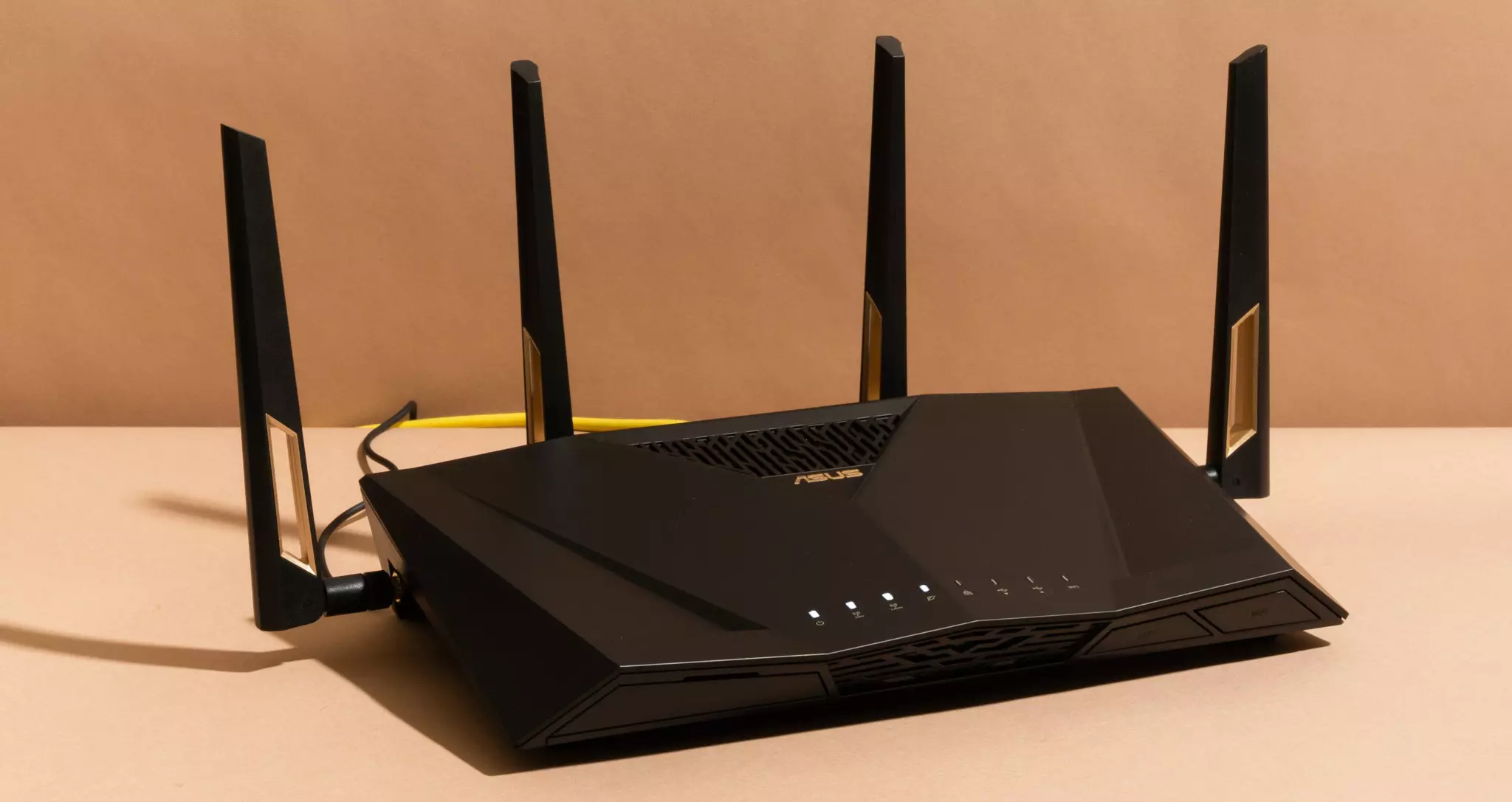
Things that are killing your WI-FI signal

A surprisingly large amount of things present at your home can and do interfere with your wi-fi signal making it weak so devices are dropping it, having trouble connecting, or being slow.

Hello and welcome to our latest article where we will take a look at all things that are present in a lot of homes but are very bad for your WI-Fi signal.

wi-fi router

Bad router placement

Having a router in a bad position can have some really large effects on WI-Fi signal strength and its availability. Usually, we do not give great attention to where we are placing our router but it has been proved over and over again that being close to certain objects does indeed have a great influence on the wireless signal strength and performance.

So, what are these objects and bad positions where we could place the router and effectively kill his Wi-Fi capabilities?

Fish Tanks

Water will block all radio waves including Wi-FI signals and waves themselves, so having a router next to the aquarium or any large source of water is a bad idea. You should always look at water as something bad for your Wi-Fi and move your router away from it as far as possible.

Bookshelves

Paper is another story and example of the dampening effect on radio waves. Did you know that various patterns of paper are used in silent rooms and recording studios in order to eliminate sound reflection from surfaces? Well besides absorbing sound waves, the paper also absorbs Wi-Fi signals and if you have a large bookshelf with a lot of books packed one beside another you just have a great wall of signal absorbing.

Mirrors

The problem with mirrors is in their coating that goes over the glass in order to turn it into the mirror, that coating is metal and as such, it is absorbing signals in large amounts. If you have an old or high-quality mirror that has a silver coating things are even worse since silver will absorb even more waves than modern cheap ones.

TV

Yup, TV is also on this list and for a similar reason as a mirror, although TV does not have coatings of metal, they have something even worse: a large metal plating on the back. Metal plating is there to produce structural integrity of the TV set and provide it with shielding from electromagnetic waves and as such it will prevent Wi-Fi waves as well. Do not place the router behind your TV.

Things that influence signals in homes

Any kind of metal decoration

Now when we covered mirrors and TV because of the metal they have, we must take a look at the metal itself. Any kind of metal stuff that you might have like baskets, figures, statues, frames, etc will effectively block your signal.

Kitchen appliances and Home utilities

Kitchen appliances like refrigerators, microwaves, ovens, stoves, etc. along with home appliances and utilities like dishwashers, washing machines, dryers, etc are large metal objects enclosed in a metal cage that will block signals from spreading further and it is no secret that most kitchens have weaker Wi-Fi because of this reason.

Home gyms

This is a logical conclusion as to everything explained so far if you have a workout room or small gym at home it is probably filled with weights that are metal and have mirrors inside, all of that will interfere and block signals.

Things blocking your Wi-Fi that you have no easy control over

Walls

Thick walls will dampen signals, thick walls from bricks will dampen even more and concrete walls will kill it almost completely. Any kind of metal reinforcement wiring inside walls will reduce and kill signals as well.

Floors and ceiling

This is somewhat important if you have a floor beneath or under the room where is your router located, but for the same reason how walls are blocking your signal floor and ceiling can do it as well, especially since most of the time they are made of some stronger material like concrete with metal fence inside.

Heating systems

If you have a heating system that is composed of metal radiators with water inside, then in terms of Wi-Fi signal strength you have an aquarium but in a metal box, and as such it will greatly reduce signal strength.

Read More
Calculator is not working in Windows
As you know, one of the basic apps in the Windows 10 operating system is the calculator and it can even be extended to a scientific calculator which makes it really useful for users. However, there are instances when you might encounter some issues while using this app. One of the issues about the Calculator app that’s been reported recently is that the Calculator app is not working. If you encounter the same problem, then you’ve come to the right place as this post will guide you on what you can do to fix the problem. Based on the reports, users claimed that the issue with the Calculator app occurred right after they’ve installed a feature update, while other users claimed that the Calculator app never really worked on their computers and there are also cases where the app opens but it either freezes or crashes. According to researchers, the main causes of the problem include a feature update that could’ve altered the settings. It could also be due to problems with the login account or corrupted and missing files, or the problem could also with the calculate app itself. To resolve this problem, here are some suggestions you can follow.

Option 1 – Run the System File Checker Scan

System File Checker or SFC is a built-in command utility that helps in restoring corrupted files as well as missing files. It replaces bad and corrupted system files to good system files that might be the reason why the calculator app is not working properly. To run the SFC command, follow the steps given below.
  • Tap Win + R to launch Run.
  • Type in cmd in the field and tap Enter.
  • After opening Command Prompt, type in sfc /scannow
The command will start a system scan which will take a few whiles before it finishes. Once it’s done, you could get the following results:
  1. Windows Resource Protection did not find any integrity violations.
  2. Windows Resource Protection found corrupt files and successfully repaired them.
  3. Windows Resource Protection found corrupt files but was unable to fix some of them.
  • Reboot your computer.

Option 2 – Run the DISM tool

You can also run the DISM Tool as it helps in repairing the Windows System Image as well as the Windows Component Store in Windows 10. Using this built-in tool, you have various options such as the “/ScanHealth”, “/CheckHealth”, and “/RestoreHealth” that could help in fixing the Calculator app.
  • Open the Command Prompt with admin privileges.
  • Then type in the following commands and make sure to hit Enter right after you type each one of them:
    • Dism /Online /Cleanup-Image /CheckHealth
    • Dism /Online /Cleanup-Image /ScanHealth
    • Dism (.)exe /Online /Cleanup-image /Restorehealth
  • Do not close the window if the process takes a while as it will probably take a few minutes to finish.

Option 3 – Try logging into your computer using a different User Account

You might want to try logging into a different User Account since it is possible that the issue could have something to do with your log-in account. Thus, you can isolate this possibility by logging into a different user account. If you don’t have any other user account, simply create a new one by clicking on the Start icon and then go to Settings > Account > Family & other users. From there, go to the Other user's section and click on the Add someone else to this PC option, and then inputs all the needed information and restarts your computer. Once your computer has restarted, log into your computer using the newly created user account.

Option 4 – Try to reset or reinstall the Calculator app

If the first three given options didn’t work, you might want to reset or reinstall the Calculator app. To do that, follow these steps:
  • Click on the Start button and go to Settings > Apps > Apps and features.
  • Next, look for the Calculator app from the app list and click on it to see its other options.
  • After that, select the Advanced options and go to the Reset section and then click on the Reset button to reset the Calculator app.
Note: You also have the option to reinstall the Calculator app. All you have the option to visit Microsoft Store and from there, uninstall the Calculator app.
Read More
The device is not ready trying to connect USB
External hard drives have become essentials as they store data. However, they are also prone to issues and one of them is the “The device is not ready”. You could encounter this error when you try to access your connected hard drive. This error won’t allow you to access the contents of your hard drive so unless you fix it, you won’t be able to access any of the files on your hard drive. One of the most likely causes of this error is a hardware defect. Aside from that, it could also be due to loose connections, obsolete device drivers, as well as compatibility issues between the operating system and the hard drive. Before you start troubleshooting the problem, you need to determine if you were able to access your hard drive before you encountered the error or not. If not, you need to check the compatibility of the device with your operating system as it could be the reason why you’re getting the error. There are several potential fixes you can check out to fix this error. You can try to check the hardware connections, run the built-in Hardware and Devices troubleshooter, as well as the USB troubleshooter. You could also run the CHKDSK utility or update the drivers of the device or the USB drivers.

Option 1 – Try checking the hardware connections

The first thing you have to do before you further troubleshoot the problem is to check the hardware connections of your computer and see if there are damaged ones, just like with USB ports, it would also affect the overall connectivity of the device with the computer. So if you notice some irregularities in the connecting cable physically, you might have to buy another one and replace it and then see if it fixes the problem or not.

Option 2 – Run the Hardware and Devices Troubleshooters

  • The first thing you need to do is click on Start and then on the gear-like icon to pull up the window for Settings.
  • After opening Settings, look for the Update and Security option and select it.
  • From there, go to the Troubleshoot option located on the left-hand side of the list.
  • Next, select Hardware and Devices from the list and open the Troubleshooter and run it. Once it is doing its job, wait for it to complete the process and then restart the system.
  • After the system restarts, check if the problem’s now fixed. If not, refer to the next option given below.
Note: You could also try to run the USB troubleshooter as it could also resolve the problem.

Option 3 – Run the CHKDSK utility

As you know, the CHKDSK utility can help you in identifying the bad sectors in a drive and fix them automatically. Thus, you can run it to fix the “The device is not ready” error when you connect your USB drive to your computer.
  • Open Command Prompt with admin privileges.
  • Next, type and enter this command to execute it: chkdsk /f <drive>
  • Now, wait until the process is completed and exit Command Prompt.
  • Restart your computer and try connecting the USB drive again and see if the error is fixed.

Option 4 – Try to update the drivers of the device

Although you can always update the device drivers using the Device Manager, you might want to try downloading the latest set of drivers directly from the manufacturer’s website. Once you’ve downloaded them, install them right away and then correct the external hard drive.

Option 5 – Update or reinstall the Universal Serial Bus Controller driver

If updating the drivers of the device did not fix the “The device is not ready” error, you can try to update or reinstall the Universal Serial Bus Controller drivers instead of using the Device Manager. Refer to the following steps:
  • First, click the Start button and type “device manager”.
  • Then click on the “Device Manager” from the search results to open it.
  • From there, look for the “Universal Serial Bus controllers” option and then right-click on each one of the USB drivers and select the Update Driver from the menu.
Note: If it is a regular USB drive, then it will be listed as a USB Mass Storage Device but if you have a USB 3.0 device, then look for a USB 3.0 Extensible Host Controller.
  • Restart your PC and then click the “Search automatically for updated driver software” option.
Note: If updating the USB Controller drivers didn’t work, you can try to reinstall them instead.

Option 6 – Restart your computer in a Clean Boot State

If the first three given options didn’t work and you still see the error when you connect external devices, you can try putting your computer in a Clean Boot State and then try connecting them again.
  • Log onto your PC as an administrator.
  • Type in MSConfig in the Start Search to open the System Configuration utility.
  • From there, go to the General tab and click “Selective startup”.
  • Clear the “Load Startup items” check box and make sure that the “Load System Services” and “Use Original boot configuration” options are checked.
  • Next, click the Services tab and select the “Hide All Microsoft Services” check box.
  • Click Disable all.
  • Click on Apply/OK and restart your PC. (This will put your PC into a Clean Boot State. And configure Windows to use the usual startup, just simply undo the changes.)
  • Now try to connect the external devices and check if the error is now gone.
Read More
Assigning Multiple IP Addresses to Adapter
There are times when an IT admin has to set up multiple IP addresses to the same network adapter. Setting up multiple IP addresses in scenarios like hosting various SSL sites, speed up traffic exchanges can help in avoiding being blacklisted in the SPAM filters, and so on. So in this post, you will be guided on how exactly you can assign multiple IP addresses to the network adapter in your Windows 10 computer. There are several ways to assign multiple IP addresses in a network adapter. You can do it using the Network Adapter settings or using the Netsh utility, as well as the Windows PowerShell utility. To get started, refer to each one of the options provided below.

Option 1 – Assign multiple IP addresses via Network Adapter settings

  • Go to Settings first and from there, select Network & Internet, and then click on the Change adapter options. This will show you a list of both the physical and virtual network adapters in your computer.
  • Next, double click on the Ethernet adapter where you want to assign the multiple IP addresses and then click on the Properties button.
  • After that, you should see the Ethernet properties where you have to select the “TCP/IPv4” or “TCP/IPv6”.
  • Once done, click on the Properties button and then select the “Use the following IP address” option under the General tab.
  • Now you have to add an IP address, subnet, and default gateway to the network adapter and then click on the Advanced button.
  • This will open the Advanced TCP/IP settings where you have to click on the Add button so you can add an IP address. From here, you can keep adding multiple IP addresses to the network adapter. You also have the option to add multiple gateways or DNS IP addresses.
  • Once done, if you execute the “ipconfig” command, you should see all the secondary IP addresses listed.

Option 2 – Assign multiple IP addresses using the Netsh command

Another way to assign multiple IP addresses to your network adapter is via the Netsh command.
  • In the Start Search, type “command prompt” and from the search results that appear, right-click on Command Prompt and then select the “Run as administrator” to open it with admin privileges.
  • If a User Account Control or UAC prompt pops up, just click on Yes.
  • After that, run this command: Netsh int ipv4 add address name="Local Area Connection" 192.168.100.100 255.255.255.0 SkipAsSource=True
Note: You have the option to set “SkepAsSource” since it depends on your needs using the Netsh command. When it is configured as true, the IP address won’t be used by the OS for outbound connections.

Option 3 – Assign multiple IP addresses via Windows PowerShell

  • Tap the Win + X key combination and click on the “Windows PowerShell (Admin)” option.
  • After opening Windows PowerShell as admin, use the NetIPAddress command so you can add more IP addresses. Execute this command: Get-NetIPAddress | ft IPAddress, InterfaceAlias, SkipAsSource
  • Next, assign an IP address to a network adapter by executing this command: New-NetIPAddress –IPAddress 192.168.100.100 –PrefixLength 24 –InterfaceAlias “vEthernet” –SkipAsSource $True
  • Now to modify the “SkipAsSource” parameter, use this command: Get-NetIPAddress 192.168.100.100 | Set-NetIPAddress -SkipAsSource $False
Read More
How to get rid of YourTemplateFinder from PC

YourTemplateFinder is a browser extension developed by Mindspark for Google Chrome. This extension allows users to browse and download various templates that can be used for all kinds of occasions.

When installed, it changes your default search engine and home page to MyWay.com. During your browsing sessions, YourTemplateFinder will monitor user activity, recording website visits, user information, product purchases, etc. This data is later used to target better ads to users.

While browsing the internet with this extension active you will see additional ads displayed throughout your browsing sessions. Sponsored content such as links, banners, and pop-up ads will appear on websites sometimes even covering the website content.

This extension has been marked for removal by several anti-virus applications and has been classified as a Browser Hijacker due to its aggressive behavior and ad injections. It is flagged for optional removal.

About Browser Hijackers

Browser hijacking is a common type of online fraud where your web browser settings are altered to make it carry out things you never intend. There are various reasons why you might experience a browser hijack; however commercial, advertising, and marketing are the main reasons for their creation. It redirects you to the sponsored websites and inserts adverts on your web browser that helps its creator generate revenue. However, it is not that innocent. Your online safety is jeopardized and it is also extremely irritating. As soon as the program attacks your PC, it begins to mess things up a whole that slows your system down to a crawl. In the worse case, you may be forced to deal with serious malware threats too.

How to know whether the browser is hijacked?

Symptoms that your internet browser is hi-jacked include: 1. the home page of your browser is changed unexpectedly 2. you observe new unwanted favorites or bookmarks added, typically directed to advertisement-filled or porn sites 3. the default browser settings are changed and/or your default web engine is altered 4. you see unsolicited new toolbars added 5. you’ll find random pop-ups start occurring frequently 6. webpages load slowly and sometimes incomplete 7. you can’t navigate to specific websites, like security software-related sites.

How they infect computer systems

There are a number of ways your computer or laptop could become infected by a browser hijacker. They generally arrive by way of spam e-mail, via file-sharing networks, or by a drive-by-download. They can also come from any BHO, extension, toolbar, add-on, or plug-in with malicious intent. A browser hijacker can also be installed as a part of freeware, demoware, shareware, and fake programs. Well-known examples of browser hijackers include CoolWebSearch, Conduit, RocketTab, OneWebSearch, Coupon Server, Delta Search, Searchult.com, and Snap.do. Browser hijackers can affect the user’s browsing experience greatly, track the websites visited by users and steal personal information, cause problems in connecting to the internet, and eventually create stability problems, causing applications and computers to freeze.

How you can get rid of a browser hijacker

Certain hijackers can be removed by simply uninstalling the corresponding freeware or add-ons through the Add or Remove Programs in the Microsoft Windows Control Panel. However, most browser hijackers are hard to remove manually. Irrespective of how much you try to get rid of it, it could come back over and over. Furthermore, manual removals demand deep system understanding and thus can be a very difficult job for novices. Installing and running anti-malware software on the affected system could automatically erase browser hijackers and also other malicious applications. If you’d like to eliminate persistent hijackers effectively, install the award-winning Anti-Malware program Safebytes Anti-Malware.

Can't Install Safebytes Anti-malware due to the presence of a Virus? Try This!

All malware is bad and the level of the damage will differ greatly depending on the type of infection. Some malware variants modify browser settings by including a proxy server or change the PC’s DNS settings. In such cases, you will be unable to visit some or all sites, and therefore not able to download or install the necessary security software to get rid of the infection. If you’re reading this right now, you have probably realized that virus infection is the reason for your blocked internet traffic. So what to do if you need to download and install an antivirus program such as Safebytes? There are a few solutions you can attempt to get around with this particular obstacle.

Install in Safe Mode with Networking

Safe Mode is actually a special, basic version of Microsoft Windows in which only the bare minimum services are loaded to prevent viruses and also other troublesome applications from loading. In the event the malware is obstructing the internet connection and affecting your computer, running it in Safe Mode will let you download antivirus and run a diagnostic scan while limiting potential damage. To enter into Safe Mode or Safe Mode with Networking, press the F8 key while the system is booting up or run MSConfig and locate the “Safe Boot” options in the “Boot” tab. Once you are in safe mode, you can attempt to download and install your antivirus software program without the hindrance of the virus. Now, you are able to run the antivirus scan to get rid of viruses and malware without interference from another application.

Switch to some other web browser

Malicious code can exploit vulnerabilities in a specific web browser and block access to all anti-virus software sites. In case you suspect that your Internet Explorer has been hijacked by malware or otherwise compromised by cybercriminals, the ideal approach would be to switch to an alternate internet browser like Mozilla Firefox, Google Chrome, or Apple Safari to download your chosen security software – Safebytes Anti-Malware.

Create a portable USB antivirus for eliminating malware

Here’s another solution which is using portable USB anti-virus software that can scan your computer for viruses without the need for installation. Try these simple steps to clean up your infected computer by using a portable antivirus. 1) Make use of another virus-free computer system to download Safebytes Anti-Malware. 2) Insert the USB drive into the uninfected computer. 3) Double-click the Setup icon of the anti-malware program to run the Installation Wizard. 4) Select the USB stick as the destination for saving the file. Follow activation instructions. 5) Now, plug the USB drive into the infected computer. 6) Double-click the antivirus program EXE file on the thumb drive. 7) Simply click “Scan Now” to run a complete scan on the infected computer for malware.

SafeBytes AntiMalware Overview

These days, an anti-malware program can protect the computer from different forms of internet threats. But wait, how to choose the right one among various malware protection software that’s available out there? Perhaps you might be aware, there are lots of anti-malware companies and tools for you to consider. Some are good ones, some are ok types, while some are simply just fake anti-malware programs that could harm your personal computer themselves! You must select one that is efficient, practical, and has a good reputation for its malware source protection. Among few good programs, SafeBytes Anti-Malware is the highly recommended software for the security-conscious individual. SafeBytes anti-malware is a powerful, very effective protection software made to help end-users of all levels of computer literacy in identifying and eliminating malicious threats out of their PC. With its outstanding protection system, this software will quickly detect and remove the majority of the security threats, including adware, viruses, browser hijackers, ransomware, trojans, worms, and PUPs.

SafeBytes anti-malware takes computer protection to a totally new level with its enhanced features. Let us discuss a few of the great ones:

World-class AntiMalware Protection: Safebytes is built on the best virus engine within the industry. These engines can identify and remove threats even during the initial phases of a malware outbreak. Real-time Protection: SafeBytes offers real-time active monitoring and protection against all known computer viruses and malware. It will inspect your computer system for suspicious activity at all times and shields your personal computer from illegal access. Web Security: SafeBytes checks the links present on a webpage for possible threats and informs you if the website is safe to look at or not, through its unique safety rating system. Low CPU and Memory Usage: The program is lightweight and will run silently in the background, and that does not impact your PC efficiency. 24/7 Customer Service: Support service is available 24 x 7 x 365 days via email and chats to answer your queries. SafeBytes has created an amazing anti-malware solution that can help you conquer the latest malware threats and virus attacks. You can rest assured that your PC will be protected in real-time once you put this software program to use. So if you are looking for the best anti-malware subscription for your Windows-based PC, we recommend the SafeBytes Anti-Malware application.

Technical Details and Manual Removal (Advanced Users)

To remove YourTemplateFinder manually, go to the Add or Remove programs list in the Windows Control Panel and select the program you want to remove. For internet browser extensions, go to your web browser’s Addon/Extension manager and select the add-on you intend to remove or disable. You will probably also want to reset your web browser. Finally, examine your hard disk for all of the following and clean your computer registry manually to remove leftover application entries following uninstalls. Please note that only advanced computer users should try to manually edit the registry because removing any single critical system file results in a serious problem or even a system crash. Also, some malware is capable of replicating itself or preventing its removal. You are encouraged to do this process in Windows Safe Mode.
Files: %LOCALAPPDATA%\YourTemplateFinder_br %UserProfile%\Local Settings\Application Data\YourTemplateFinder_br %UserProfile%\Local Settings\Application Data\Google\Chrome\User Data\Default\Extensions\jadhamcfimejpbemfkgoeijaimpciehj %LOCALAPPDATA%\Google\Chrome\User Data\Default\Extensions\jadhamcfimejpbemfkgoeijaimpciehj %PROGRAMFILES%\YourTemplateFinder_br %PROGRAMFILES(x86)%\YourTemplateFinder_br Registry: HKEY_CURRENT_USER\Software\Microsoft\Internet Explorer\SearchScopes\42f6cdef-be6a-48e4-b6ef-bc987c64fed9 HKEY_LOCAL_MACHINE\SOFTWARE\Wow6432Node\Microsoft\Internet Explorer\SearchScopes\42f6cdef-be6a-48e4-b6ef-bc987c64fed9 HKEY_CURRENT_USER\Software\Microsoft\Internet Explorer\DOMStorage\free.yourtemplatefinder.com HKEY_CURRENT_USER\Software\Microsoft\Internet Explorer\Approved Extensions, value: F724FE0B-8C05-4498-B99E-9192CF2AECF4 HKEY_CURRENT_USER\Software\Microsoft\Internet Explorer\Approved Extensions, value: 4D283A70-2D2F-4CBB-81DA-C75B8DF410CC HKEY_CURRENT_USER\Software\Microsoft\Internet Explorer\Approved Extensions, value: 3C417C00-968B-48B7-822E-407A82A47AE1 HKEY_LOCAL_MACHINE\SOFTWARE\Microsoft\Internet Explorer\DOMStorage\yourtemplatefinder.dl.tb.ask.com HKEY_LOCAL_MACHINE\SOFTWARE\Microsoft\Internet Explorer\DOMStorage\yourtemplatefinder.com

Read More
Fix Mfplat.dll missing on Windows 10
Recently, a number of users reported that they were not able to run PLEX and other similar streaming services ever since a Windows Update was automatically installed in the system. The error in these streaming services has something to do with a missing Mfplat.dll DLL file from the Windows Media Feature Pack. On the other hand, some users also reported that the mfplat.dll error occurred on several games as well which used the Media Feature Pack. Usually, the mfplat.dll error is caused by the missing Media Feature Pack in Windows 10. Although most of the time the Media Feature Pack is installed by the application that needs it or through Windows Update automatically, there are just certain installers that do not have it. It could be that the Media Playback service was disabled by a particular Windows Update. Aside from that, the error might be because your computer is using Windows 10 N – a Windows 10 version that does not include the Media Feature Pack by default. Whatever the cause may be, you can troubleshoot the problem with the help of the options given below. But before you go on, keep in mind that downloading the missing DLL file and copying it to the folder of the program where you encounter the error won’t really help and will only make things even more complicated.

Option 1 – Install the Media Feature Pack for Windows 10 N version

As mentioned, the Windows 10 N version does not come with Windows Media Player. Meaning to say, the Media Feature Pack is also not installed by default or won’t be updated by the Windows Update component. So if you are not quite sure what Windows 10 version you currently have installed, refer to these steps:
  • Tap the Windows key + S and then type “about” in the search box.
  • From the search results, click on the “About your PC” to open the About tab of the Settings app.
  • Afterward, scroll down to the Windows specifications and check your Windows version under Edition.
Note: If you’ve determined that your computer is using the Windows 10 N version, you need to install the appropriate Media Feature Pack for your computer. How? Refer to the steps below:
  • Click this link to download and install the Media Feature Pack from Microsoft’s official website.
  • Upon installation, select the edition you want to install using the drop-down menu and then click on Confirm. Take note that there are few reasons why you’d want to install the older version since most streaming services like PLEX and most games usually require version 1803.
  • After that, wait until the request is validated. The download should begin in a few minutes automatically.
  • Once the download is completed, open the installation executable file and follow the next on-screen instructions to install the Media Feature Pack on your computer.
  • Restart your computer. After your computer has rebooted, open the application where you’re getting the mfplat.dll missing error and then check if the problem is now fixed.

Option 2 – Enable Media Playback via Command Prompt

If you encounter the mfplat.dll missing error when you attempt to run PLEX or other similar streaming service and you’ve already verified that the Media Feature Pack is indeed installed, you might want to try enabling it using an elevated Command Prompt. There are cases when a particular Windows Update ends up disabling the feature and creates the grounds which results in the mfplat.dll missing error. Thus, you can have to enable the feature via Command Prompt.
  • Tap the Win + R keys to open the Run dialog box.
  • Then type “cmd” in the field and hit Enter to open an elevated Command Prompt.
  • Next, click on Yes if a User Account Control prompt pops up.
  • After opening Command Prompt, copy and paste the following command and hit Enter to execute it:
dism /online /enable-feature /featurename:MediaPlayback
  • Close Command Prompt and then open the app once again to check if the problem is now fixed.

Option 3 – Try extracting a copy of the mfplat.dll file from the windows.old directory

If you encounter the error shortly after you just upgraded to Windows 10 from an older version, the best thing you can do to resolve the problem is to use windows.old directory to fetch an old copy of the mfplat.dll file. To do so, follow the steps below.
  • Go to the Windows drive and then look for the windows.old directory where it preserves a copy of your old operating system as well as associated files in case something goes out of hand during the upgrade process.
  • After that, open the windows.old folder and then go to the syswow64 folder.
  • Next, from the syswow64 folder, copy the mfplat.dll file and paste it to C: windows syswow64.
  • Restart your computer and check if the error is now resolved or not.
Read More
APC_INDEX_MISMATCH  - What is it and how to fix it?
The error 0x0000001 also known as APC_INDEX_MISMATCH is one of the fatal errors that users encounter upon starting their computers. This error appears when there is a sequence mismatch in the driver or system file when it is disabling or re-enabling Asynchronous procedure calls. The mismatch happens maybe because of a virus or malware attack, not shutting down your computer properly and incomplete installation of the system files. There are many ways to fix this error. The easiest way is to download a repair utility program. The use of these programs perfectly fits those that are not so technical. All you have to do is download the program and install it on your computer. As soon as it is installed, the program will now scan and diagnose your computer for any errors. After it identifies the errors, it will then repair your PC through either manual or automatic tools. To those who are techie and enjoy the manual resolution, you may take advantage of Microsoft’s analyze debug extension which tells you the cause of the error. After determining the cause then you can now start fixing the error. Check if Hardware is functioning properly. If the cause is due to a hardware malfunction, you will have to make sure that all the pieces you are using are working. All the wires should be attached to their respective ports. Not only that, but you also must make sure that before installing the hardware, it is compatible with the Windows version that is installed into your computer. Use Compatible software. If the problem was caused by software or a driver, you can uninstall and reinstall it. Always make it a rule that whenever you install a program or new software to your computer, make sure it is compatible with your operating system and never skip a step during the installation process. You also have to see to it that the program you are installing does not contain any viruses, malware, or spyware that can be harmful to your computer. Update your Drivers Regularly. In most cases though, the cause of the APC_INDEX_MISMATCH error are outdated device drivers. To resolve this, you will have to go to your Control Panel then look for Device Manager. As soon as you are in the Device Manager window, you can now see the different devices running on your computer. You right-click on each device and check the Properties.  In the Properties window, click on the Driver Tab and look for the date when it was last updated. You can then go to the manufacturer’s website and compare the dates. For a new Windows operating system, you no longer have to go to the manufacturer's website though. All you have to do is click on Update Driver and it will automatically search for updates online. Use a Genuine Operating System. There are also cases where the 0x0000001 error won’t allow you to access your computer. In this case, we have to suspect that the problem could be in your Operating system. To resolve this, you can reinstall your Operating System or update your current operating system. Only use a genuine licensed Windows Operating System because this will not only protect you from Malware and Viruses but it allows you to get all the recent update available from Microsoft. Update your Windows 10 regularly by going to Settings > Windows Update > Check for Updates. You may also turn on the Automatic Update by going to the Advanced options is found on the Windows Update Page. You can always get help online but it really helps to know the basics and determining the root cause of the error.
Read More
1 2 3 171
Logo
Copyright © 2023, ErrorTools. All Rights Reserved
Trademark: Microsoft Windows logos are registered trademarks of Microsoft. Disclaimer: ErrorTools.com is not affiliated with Microsoft, nor claims direct affiliation.
The information on this page is provided for information purposes only.
DMCA.com Protection Status