Logo

Fixing Windows Update Error 80244019

As you know, Windows Update is the source for everything latest for Windows from Microsoft. Your computer receives essential updates frequently because of the Windows Update service and this Windows Update mechanism depends on various services such as Background Intelligent Transfer Service or BITS, Windows Server Update Service, Windows Update service, and many more. Although it may seem like a complex delivery system, it is a very efficient one. However, it is not without its issues as it still encounters errors every now and then. One of these errors is 80244019 which applies only to the Windows Server operating systems and to resolve it, you need to determine its cause.

The Windows Update Error 80244019 is most likely caused by faulty and corrupted DLL files or Registry Entries, connectivity issues, and outdated configuration of Windows Update service on the client end. Moreover, the error can also be caused by malware or if a file is not found on the server. This error can lead to a number of system issues like Startup and shutdown issues, software installation errors, external devices connection, system lags, unexpected application, and program issues, and many more. To resolve the problem, refer to the options given below.

Option 1 – Restart some Windows Update services

The first thing you have to do is to restart Windows Update-related services. Refer to the steps below to do so.

  • Open the WinX Menu.
  • From there, open Command Prompt as admin.
  • Then type in the following command – don’t forget to hit Enter right after typing each one of them.

net stop wuauserv

net stop bits

  • After entering these commands, it will stop the Windows Update Service and the Background Intelligent Transfer Service.
  • Next, go to the C:/Windows/SoftwareDistribution folder and get rid of all the folders and files there by tapping the Ctrl + A keys to select them all and then click on Delete. Note that if the files are in use, you won’t be able to delete them.
  • Once all the contents in the Software Distribution folder are deleted, restart your PC and then go back to Command Prompt and input the following commands again.

net start wuauserv

net start bits

 Since the folder has already been flushed, it will be populated afresh the instant your restart your computer and open Windows Update.

Option 2 – Try turning on the Data Execution Prevention or DEP

The problem might be caused by disabled Data Execution Prevention which is why you have to make sure that it’s turned on.

Option 3 – Run the Windows Update Troubleshooter

You might also want to run the Windows Update Troubleshooter as it could also help in fixing Windows Update Error 80244019. To run it, go to Settings and then select Troubleshoot from the options. From there, click on Windows Update and then click the “Run the troubleshooter” button. After that, follow the next on-screen instructions and you should be good to go.

Option 4 – Try reconfiguring the Windows Update Settings

You can also try to reconfigure the settings in the Windows Update section to resolve the error.

  • Tap the Win + I keys to open the Windows Settings.
  • Next, click on Update & Security > Windows Updates > Update Settings and from there, click on the Advanced Options.
  • After that, uncheck the “Give me updates for other Microsoft Products when I update Windows” option.
  • Now restart your computer to successfully apply the changes made and then check if the Windows Update error is now fixed.

Option 5 – Try to manually install the Windows Updates

Windows Update Error 80244019 might be due to a Windows Update that has failed. So if it is not a feature update and only a cumulative update, you can download the Windows Update and install it manually. But first, you need to find out which update has failed, and to do so, refer to the following steps:

  • Go to Settings and from there go to Update and Security > View Update History.
  • Next, check which particular update has failed. Note that Updates that have failed to install will be displayed under the Status column which has a label of “Failed”.
  • After that, go to the Microsoft Download Center and look for that update using its KB number and once you find it, download and then install it manually.

Note: You can also use the Microsoft Update Catalog, a service from Microsoft that provides a list of software updates that can be distributed over a corporate network. With the help of this service, it can be easier for you to find Microsoft software updates, drivers as well as fixes.

Do You Need Help with Your Device?

Our Team of Experts May Help
Troubleshoot.Tech Experts are There for You!
Replace damaged files
Restore performance
Free disk space
Remove Malware
Protects WEB browser
Remove Viruses
Stop PC freezing
GET HELP
Troubleshoot.Tech experts work with all versions of Microsoft Windows including Windows 11, with Android, Mac, and more.

Share this article:

You might also like

Change Legacy to UEFI without reinstalling
There are some new generation motherboards for laptops and PCs that bring in support for both the Unified Extensible Firmware Interface or UEFI as well as the Basic Input Output System or BIOS. The main advantage of UEFI over the traditional BIOS is the fact that UEFI supports a hard drive that has a capacity of more than 2 terabytes. However, the disadvantage of UEFI is that it only supports the x64 Windows operating system versions and that the hard drive is supposed to use the GPT structure. So if your PC is compatible with and supports UEFI and you want to change from Legacy to UEFI, then you’ve come to the right place as this post will guide you on how you can exactly do that without having to reinstall it. There are two ways to change Legacy to UEFI. You can convert MBR to GPT using either the built-in utilities in Windows or using the Recovery Environment. Before you proceed, make sure that your computer fulfills the following prerequisites:
  • Your PC’s motherboard should support both Legacy and UEFI.
  • Your PC should be running at least the 1703 Windows 10 version or newer on an MBR partition.
Once you’ve made sure that your computer covers the aforementioned prerequisites, refer to the given options below.

Option 1 – Convert MBR to GPT via Windows built-in utilities

  • In the Windows Search box, type “command prompt” and from the search results that appear, right-click on Command Prompt and select the “Run as administrator” option.
  • After that, execute this command: exe /convert /allowfullOS
  • Now, wait until the process is completed since you can track its process on your screen.
  • Once it’s done, go to Settings > Update & Security > Advanced Startup options and from there, click on Restart Now. This will restart your computer and give you advanced options.
  • Next, select Troubleshoot > Advanced Options where you will see further options including System Restore, Startup Repair, Go back to the previous version, Command Prompt, System Image Recovery, and UEFI Firmware Settings.
  • Now select the UEFI Firmware Settings. This will take you to the BIOS. Boot Mode is typically available under Boot > Boot Configuration. Once you’re there, set it to UEFI and then save the changes you’ve made. After that, your computer will restart.

Option 2 – Convert MBR to GPT via the Recovery Environment

  • When the message appears on your screen while running Windows Setup, you need to tap the Shift + F10 keys to open Command Prompt.
  • Make sure to run Command Prompt as admin and then execute this command: exe /convert
  • After that, wait until the process is completed. When it’s done, you have to go to the BIOS just like in the first given option above.
  • As mentioned, you can usually find the Boot Mode under Boot > Boot Configuration. Once you’re there, set it to UEFI.
  • Now save the changes made and exit as your computer will restart.
Read More
Premiere Download Manager removal guide for Windows PC

Premiere Download Manager is a Browser Extension that comes bundled with Premiere Download Manager Potentially unwanted program, and other unwanted applications and extensions. This program was developed by Mindspark Interactive and offers users the ability to download files off the internet through the Download Manager provided. It also changes the home page and defaults the search engine to Myway.com.

This bundle monitors the user’s activity, and while the extension has access to your browsing activity, clicked links, visited pages, etc. the application itself has access to all the files that you downloaded, and have on your computer. This gathered data is later sent back to Mindspark’s servers where it is used to better target ads for users.

While installed, you will run into additional, sponsored links, and even pop-up ads while browsing the internet. Though it is not considered malware, it contains many behaviors disliked by users and is labeled as potentially unwanted. This bundle has been marked as a Browser Hijacker by several anti-virus applications and is therefore recommended to remove from your PC.

About Browser Hijackers

Browser hijacking is actually a form of unwanted software program, commonly a browser add-on or extension, which causes modifications in web browser’s settings. Browser hijacker malware is designed for many different reasons. Often, hijackers will force hits to sites of their preference either to increase web traffic producing higher ad revenue, or to obtain a commission for each and every user visiting there. Although it may seem naive, these tools are made by malicious people who always attempt to take full advantage of you, so that they can earn money from your naivety and distraction. Some browser hijackers are designed to make particular modifications beyond the web browsers, like changing entries in the computer registry and permitting other types of malware to further damage your computer.

Key symptoms that your internet browser has been hijacked

There are numerous symptoms that indicate your web browser is highjacked: the home page of the browser is changed all of a sudden; your browser is constantly being redirected to pornography sites; the default web engine has been changed and the browser security settings have been lowered without your knowledge; you’re getting browser toolbars you have never noticed before; you find lots of pop-up ads on your screen; your browser gets slow, buggy, crashes very often; You can’t access certain sites, in particular anti-virus websites.

Exactly how they get into your computer or laptop

There are several ways your computer or laptop can become infected by a browser hijacker. They generally arrive through spam email, via file-sharing networks, or by a drive-by download. They may also originate from any BHO, extension, toolbar, add-on, or plug-in with malicious purpose. Sometimes you may have mistakenly accepted a browser hijacker as part of an application bundle (usually freeware or shareware). Browser hijackers could affect the user’s web browsing experience significantly, monitor the websites frequented by users and steal financial information, cause difficulty in connecting to the net, and then finally create stability issues, making applications and computers freeze.

Removing browser hijackers

Certain browser hijacking can be quite easily reversed by finding and removing the corresponding malware application through your control panel. However, many hijackers are extremely tenacious and require specialized applications to eradicate them. Also, browser hijackers might modify the Computer registry therefore it could be very hard to restore all of the values manually, especially when you are not a very tech-savvy person. Installing and running antivirus applications on the affected system could automatically delete browser hijackers and also other unwanted applications. SafeBytes Anti-Malware discovers all types of hijackers – including Premier Download Manager – and removes every trace efficiently and quickly.

What To Do When You Cannot Install Safebytes Anti-Malware?

All malware is bad and the degree of the damage will differ greatly with regards to the type of malware. Certain malware variants modify internet browser settings by including a proxy server or modify the computer’s DNS configurations. When this happens, you’ll be unable to visit certain or all of the internet sites, and thus unable to download or install the required security software to get rid of the infection. If you are reading this article now, you have probably realized that virus infection is the cause of your blocked internet connectivity. So what to do when you want to download and install an anti-virus program such as Safebytes? There are some options you could try to get around with this particular issue.

Make use of Safe Mode to resolve the issue

In Safe Mode, you may change Windows settings, uninstall or install some applications, and get rid of hard-to-delete viruses and malware. In case the malware is set to load automatically when the computer starts, shifting into this mode could prevent it from doing so. To boot into Safe Mode, hit the “F8” key on the keyboard right before the Windows boot screen comes up; Or right after normal Windows boot up, run MSConfig, check the Safe Boot under the Boot tab, and click Apply. Once you are in Safe Mode, you can try to install your antivirus program without the hindrance of the malware. At this point, you can actually run the anti-malware scan to get rid of viruses and malware without interference from another application.

Switch to some other web browser

Some malware only targets certain internet browsers. If this sounds like your situation, employ another web browser as it can circumvent the computer virus. If you’re not able to download the anti-malware program using Internet Explorer, it means malware is targeting IE’s vulnerabilities. Here, you should switch over to a different internet browser like Chrome or Firefox to download Safebytes software.

Make a bootable USB anti-virus drive

Another option is to create a portable antivirus program onto your USB stick. To run anti-malware using a pen drive, follow these simple steps: 1) Download the anti-malware on a virus-free computer. 2) Plug the pen drive into the uninfected computer. 3) Double click on the downloaded file to run the installation wizard. 4) When asked, choose the location of the pen drive as the place where you want to store the software files. Do as instructed on the computer screen to finish up the installation process. 5) Transfer the USB drive from the clean computer to the infected PC. 6) Double-click the antivirus software EXE file on the USB flash drive. 7) Hit the “Scan Now” button to start the malware scan.

SafeBytes Anti-Malware: Lightweight Malware Protection for Windows PC

In order to protect your PC from many different internet-based threats, it is important to install anti-malware software on your computer system. But with countless numbers of anti-malware companies out there, nowadays it is hard to decide which one you should buy for your personal computer. Some of them are good and some are scamware applications that pretend as legit anti-malware software waiting around to wreak havoc on your computer. You have to be careful not to pick the wrong application, particularly if you buy a premium application. While considering the highly regarded applications, Safebytes AntiMalware is certainly the highly recommended one. SafeBytes anti-malware is a very effective and user-friendly protection tool that is suitable for end-users of all levels of computer literacy. Through its cutting-edge technology, this software will help you protect your personal computer against infections caused by different types of malware and similar threats, including adware, spyware, trojans, worms, computer viruses, keyloggers, ransomware, and potentially unwanted program (PUPs).

SafeBytes has great features when compared to other anti-malware programs. The following are a few of the great ones:

Active Protection: SafeBytes gives you round-the-clock protection for your personal computer limiting malware intrusions in real-time. It will regularly monitor your pc for hacker activity and also gives users sophisticated firewall protection. Antimalware Protection: With its advanced and sophisticated algorithm, this malware elimination tool can detect and get rid of the malware threats hiding in your computer system effectively. High-Speed Malware Scanning Engine: Safebytes AntiMalware, with its enhanced scanning engine, offers extremely fast scanning which can immediately target any active internet threat. Website Filtering: SafeBytes checks and gives a unique safety ranking to every website you visit and block access to webpages known to be phishing sites, thus protecting you from identity theft, or known to contain malicious software. Low CPU Usage: SafeBytes gives you complete protection from online threats at a fraction of the CPU load due to its advanced detection engine and algorithms. 24/7 Support: You could get high levels of support around the clock if you’re using their paid version. SafeBytes will keep your computer safe from the latest malware threats automatically, thus keeping your online experience safe and secure. Once you’ve downloaded and installed SafeBytes Anti-Malware, you will no longer have to bother about malware or other security concerns. So if you’re looking for the best anti-malware subscription for your Windows-based PC, we highly recommend SafeBytes Anti-Malware software.

Technical Details and Manual Removal (Advanced Users)

If you wish to carry out the removal of Premier Download Manager manually instead of employing an automated tool, you may follow these simple steps: Go to the Windows Control Panel, click the “Add or Remove Programs” and there, select the offending program to remove. In cases of suspicious versions of web browser plug-ins, you can easily get rid of it through your web browser’s extension manager. It is also suggested to reset your web browser to its default state to fix corrupt settings. Lastly, examine your hard drive for all of the following and clean your computer registry manually to remove leftover application entries following an uninstallation. Having said that, editing the registry is usually a difficult task that only experienced computer users and professionals should attempt to fix it. Also, certain malware is capable of replicating itself or preventing its deletion. It is advised that you do the removal process in Safe Mode.
Files: C:\Program Files\PremierDownloadManager_agEI\Installr.bin\NPagEISb.dl_ C:\Program Files\PremierDownloadManager_agEI\Installr.bin\NPagEISb.dll C:\Program Files\PremierDownloadManager_agEI\Installr.bin\agEIPlug.dl_ C:\Program Files\PremierDownloadManager_agEI\Installr.bin\agEIPlug.dll C:\Program Files\PremierDownloadManager_agEI\Installr.bin\agEZSETP.dl_ C:\Program Files\PremierDownloadManager_agEI\Installr.bin\agEZSETP.dll %PROGRAM FILES%\PREMIERDOWNLOADMANAGER\PDMANAGER_IE.DLL: %PROGRAM FILES%\PREMIERDOWNLOADMANAGER\PDMANAGER_IE.DLL Malware %PROGRAM FILES%\PREMIERDOWNLOADMANAGER\PDMANAGER_IE.DLL Dangerous %PROGRAM FILES%\PREMIERDOWNLOADMANAGER\PDMANAGER_IE.DLL High Risk %program files%\premierdownloadmanager\pdmanager_ie.dll %PROGRAM FILES%\PREMIERDOWNLOADMANAGER\PDMANAGER_IE.DLL %PROGRAM FILES%\PREMIERDOWNLOADMANAGER\PDM.ICO %PROGRAM FILES%\PREMIERDOWNLOADMANAGER\PDMANAGER.EXE %PROGRAM FILES%\PREMIERDOWNLOADMANAGER\PDMANAGER_IE.DLL %PROGRAM FILES%\PREMIERDOWNLOADMANAGER\PDMANAGER_IE.TLB %PROGRAM FILES%\PREMIERDOWNLOADMANAGER\REGASM.EXE Registry: key HKLM\Software\Classes\CLSID\819D045F-E9A2-39E0-B495-D615AD1A9471\InprocServer32.0.0.1\CodeBase: file:///C:/Program Files/PremierDownloadManager/PDManager_ie.DLL key HKLM\Software\Classes\CLSID\819D045F-E9A2-39E0-B495-D615AD1A9471\InprocServer32\CodeBase: file:///C:/Program Files/PremierDownloadManager/PDManager_ie.DLL key HKLM\Software\Classes\CLSID\87D1BD5F-0174-4AB2-FFC4-9E3A451F17EB\InprocServer32.0.0.1\CodeBase: file:///C:/Program Files/PremierDownloadManager/PDManager_ie.DLL key HKLM\Software\Classes\CLSID\87D1BD5F-0174-4AB2-FFC4-9E3A451F17EB\InprocServer32\CodeBase: file:///C:/Program Files/PremierDownloadManager/pdmanager_ie.dll key HKLM\Software\Classes\Record\EDF1D497-05B5-37F6-AAAC-3EB5E67D4DC2.0.0.1\CodeBase: file:///C:/Program Files/PremierDownloadManager/PDManager_ie.DLL key HKCU\SOFTWARE\PREMIERDOWNLOADMANAGER\INTERNET EXPLORER: %PROGRAM FILES%\PREMIERDOWNLOADMANAGER\PDMANAGER_IE.DLL

Read More
Blue Screen of Death in Windows

Symptoms of Blue Screen of Death Errors

Symptoms of a blue screen of death problem are easy to identify: if you have a blue screen error, then your computer will display a blue screen. Also known as the infamous “Blue Screen of Death”, this screen will pop up when something goes horribly wrong with your computer. The screen displays cryptic information about the problem before automatically restarting the system.

Bluescreen Of Death Errors Solution

Download Available To Completely Repair Blue Screen of Death Errors

Recommended: Download the Automatic Repair Utility to correct this and other PC performance issues.

Restoro box imageBluescreen Error Causes

This one can be a bit more complex: blue screens are caused by hundreds of different things. In fact, any miscommunication between the hardware and software of the computer can lead to the dreaded Blue Screen of Death, blue screens reference a communication problem between the Windows operating system and the hardware in your PC.

Why do computer blue screens of death errors occur?

Most computer users have experienced a blue screen of death at least once in their life. But have you ever stopped to wonder why they occur? Blue screens of death can occur for a number of different reasons, but the most common reason is that your PC’s hardware failed to properly communicate with its software, resulting in a fatal error. If your video card, processor, hard drive, or any other vital system component encountered a serious communication error with your operating system, then your PC may automatically display the blue screen and shut down for its own safety. Blue screens can also occur as a self-protection mechanism if the PC is overheated.

Further Information and Manual Repair

Where do Windows blue screen errors come from?

Blue screen errors come from many different sources on your computer. However, the majority of blue screen errors seem to come from the Windows Registry, which contains important configuration information about the programs, data, and personal files on your PC. Windows constantly rely on the registry in order to operate normally, but since the registry is incredibly complex (it holds hundreds of thousands of files), errors naturally develop over time. Fortunately, registry errors are fixable. They can be repaired using special registry cleaning software. During a scan, registry cleaning software looks for any registry entries that have errors. Once these entries are found, the software automatically repairs each entry. In many cases, this can permanently repair the blue screen error and prevent blue screens from ever appearing again.

Blue screen Windows 7

Windows 7, despite being Microsoft’s most popular operating system to date, is not immune to blue screen errors. It’s more stable than previous versions of Windows, although many users will inevitably encounter blue screen errors in Windows 7. No matter which version of Windows you’re currently using, the error remains the same: the hardware on your computer has trouble communicating with the software, forcing the system to display the blue error message we all love to hate.

“Blue Screen of Death”

There’s a reason this error message is famously called the “blue screen of death.” Immediately after displaying a blue screen, the Windows computer will ‘die’, which means that it restarts itself. Another reason why the error could be called the blue screen of death is that it is often displayed at the end of a PC’s life cycle. As PCs get older and their hardware starts to fail, blue screen errors become more and more common. In real life, death isn’t reversible. In the computer world, blue screens of death certainly are. With the right software support – like Restoro – even the most novice computer technician can fix their blue screen errors and restore their PC to healthy working conditions.

Benefits Of Using Restoro, BSOD Error Codes

Restoro is one of the world’s most popular PC optimization programs. Used by professional PC technicians around the world, Restoro is a feature-rich software suite that has helped many PC users breathe new life into an old PC. Restoro optimizes computer performance in hundreds of different ways. It looks through the registry and repairs any erroneous entries it finds. It also hunts down and eliminates malware and goes to work with the press of a button. And most importantly for you – it’s also amazingly effective at repairing blue screen errors. Ready to experience the Restoro difference? Here are a few more advantages of our favorite software program:
  • Easy for anyone to use: A few years ago, only the most tech-savvy individuals could optimize their computer’s performance.  Everybody else had to pay for expensive tech support or simply buy a new computer. Thankfully, the software development community has come up with innovations like Restoro which are easy for anyone to use. Just click a button and your computer will be clean within minutes. The process could not be easier.
  • Surprisingly fast: There are hundreds of thousands of files in the Windows Registry. In spite of that fact, Restoro goes to work incredibly quickly. It scans the depths of your PC in an effort to uncover whatever is causing your blue screen errors. The entire scan is complete within just a few minutes, making it easy for anyone to scan their computer on a regular basis.
  • Free trial: It’s good to be skeptical. And if you don’t think Restoro will fix any of the errors your computer is experiencing, then that’s okay. However, when you download the free Restoro, you can instantly scan your computer for errors. If any errors are found during this scan, then you can repair these problems with the click of a button.
  • Fixes frustrating errors: Blue screen errors are incredibly frustrating. You can’t get any work done on your computer when experiencing a blue screen problem. For that reason, Restoro helps alleviate some of the most frustrating PC problems in the world today.
  • More than just blue screen repairs: Sure, blue screens are annoying. But they’re only one of many different errors that a PC can develop over time. Fortunately, Restoro does more than just fix blue screen errors. The software also identifies and repairs other problem areas on your PC, making it easy to optimize performance.
Ready to get rid of your blue screen errors – permanently? Restoro today!
Read More
Middle mouse button is not working
If you suddenly find the middle mouse button not working as you use it on your Windows 10 computer, then you’ve come to the right place as this post will provide some suggestions that can help you fix the issue. This kind of problem can affect your experience in using your computer as the middle mouse button helps you in scrolling through long web pages and screens with a lot of data. So if that stops, you will end up using your keyboard instead which is kind of a hassle compared to using the middle mouse button. It is possible that this problem could have something to do with either the hardware or software. To isolate the possibility of a hardware failure, you can try to connect the mouse to a different computer and see if it works just fine there or if it still has the same problem. If the mouse works properly on a different computer, then the issue is software-related. It is possible that a software update, especially gaming software, could have been misconfigured in a way that the middle button does not respond like it’s supposed to. To resolve the problem, you might want to try reinstalling or updating the mouse drivers or run the Hardware and Devices troubleshooter. You can also install OEM-specific mouse drivers or modify some entries in the Windows Registry.

Option 1 – Reinstall or update the Mouse driver

The problem may be caused by a corrupted or an outdated mouse driver. To fix it, you have to update or reinstall the mouse driver. How? Follow these steps:
  • Open the Devices Manager from the Win X Menu.
  • Then locate the Mouse and other pointing devices and right-click on the mouse driver to open the Properties.
  • After that, switch to the Driver tab and click on the Uninstall Device button.
  • Follow the screen option to completely uninstall it.
  • Finally, disconnect the mouse and plug it back in to reinstall the mouse driver.
Note: You can install a dedicated driver on your computer in case you have it or you could also look for it directly from the website of the manufacturer.

Option 2 – Try running the Hardware Troubleshooter

The next thing you can do to fix the problem is by running the Hardware Troubleshooter. Although it won’t make much of a difference, there’s still a possibility that it could automatically fix the problem with these function keys. To use it, refer to these steps:
  • The first thing you need to do is click on Start and then on the gear-like icon to pull up the window for Settings.
  • After opening Settings, look for the Update and Security option and select it.
  • From there, go to the Troubleshoot option located on the left-hand side of the list.
  • Next, select Hardware and Devices from the list and open the Troubleshooter and run it. Once it is doing its job, wait for it to complete the process and then restart the system.
  • After the system restarts, check if the problem’s now fixed. If not, refer to the next option given below.

Option 3 – Try to install OEM specific mouse drivers

Aside from updating or reinstalling the mouse drivers, you might also want to try installing OEM-specific mouse drivers. When you install Windows, it will use a generic driver for all its components. The disadvantage of generic drivers for the mouse is that it limits its functionality. In fact, some also configure the middle mouse button to respond to specific action which does not work without the correct drivers. In such cases, you need to visit the website of your computer’s manufacturers to download and install the latest drivers and then open the software and configure it the way it was before. Keep in mind that some OEMs also offer gestures, so you also have to check on that.

Option 4 – Try to modify some entries in the Registry

If a Windows Update is the one that caused the problem, you could correct it by making some modifications in the Registry but before you proceed, make sure that you create a System Restore point first.
  • Tap the Win + R keys to open the Run utility.
  • Then type “Regedit” in the field and hit Enter to open the Registry Editor.
  • Next, navigate to this registry path: HKEY_CURRENT_USERControl PanelDesktop
  • After that, double click on the “WheelScrollLines” entry on the right pane to open its Properties.
  • Now change its value data to “3” and exit the Registry Editor and then see if the issue with the middle mouse button is fixed or not.
Read More
What is Trojan Kryptik and what does it do
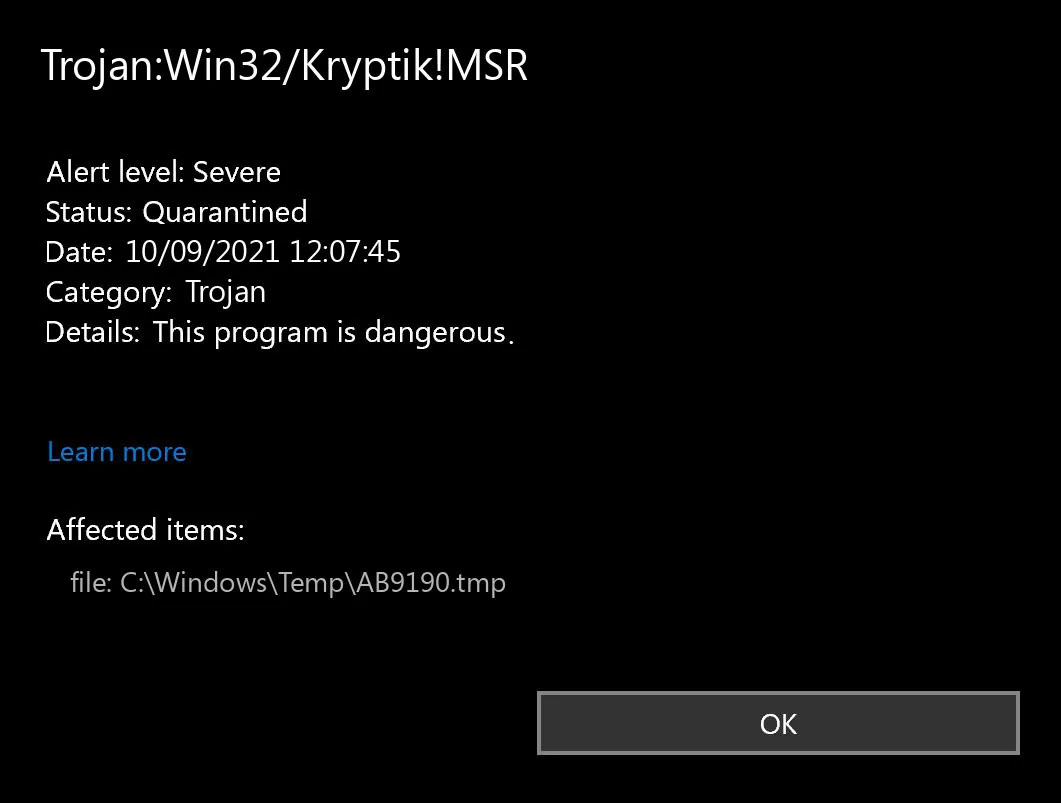
Trojan. Kryptik is a malicious computer infection known as a Trojan horse. Trojan. Kryptik can load at startup and recreate itself which makes it difficult to manually remove from the infected computer. Trojan. Kryptik can compromise the infected system by allowing a remote hacker to gain access without the user's permission or knowledge. Trojan. Kryptik can also lead to the infection of other unknown malware parasites.

trojan krypticTrojan.Kryptik creates the following registry entry or registry entries:
Directory %ALLUSERSPROFILE%\windrivgr 19.7 %LOCALAPPDATA%\DsHcaJnIIz File name without path scaalqtw.exe Regexp file mask %ALLUSERSPROFILE%\sqldump.exe %APPDATA%\b[NUMBERS].exe %APPDATA%\Microsoft\Windows\Start Menu\Programs\Startup\[RANDOM CHARACTERS].com.url %APPDATA%\Origin\update.vbe %APPDATA%\Stanfind.exe %APPDATA%\vpn gui.exe %LOCALAPPDATA%\Microsoft\Windows\Symbols\wvfilters.sys %TEMP%\nvc.exe %TEMP%\system.exe %TEMP%\winsrvcs32.exe
Read More
Shutdown your PC properly

So, you have finished with work, game, movie, music, email, or whatever on your PC, you look at the clock, it is late, you decide to go to sleep or outside, you click on the power button and choose shutdown. Now when a PC is shut down you feel good and go with your business but the next time you power it up you get the same error like the computer never really shut down in the first place. You wonder why and reboot it, just in case and all of the sudden error is gone.

If something similar has happened to you or you had the feeling that after shutting down your computer has not really felt like shutting it down, do not seek professional help, everything is OK with you because when you click on shut down, your computer does not really shut down!

Truth is that Microsoft has changed how to shut down works and how rebooting works in Windows with an update but has not publicly said anything about it so some users may experience this feeling of not shutdown phenomenon and might even think there is something wrong with their PC.

Why this change?

A few years ago shutdown button and option in Windows were really shutting down OS, but things changed when Microsoft wanted to increase boot-up speed. Now when that decision was made shutdown option was changed. So, what was changed? Well in order to increase Windows booting time, the shutdown will now turn off power to PC components and it will look like everything is indeed shutdown but the Windows kernel will actually be saved to a hard drive with all settings and just awaken once the PC is turned back ON. This will result in all errors and other stuff being just still present same as they were once the system was instructed to be turned off.

Rebooting your PC will now clear kernel and file from the hard drive and you will get a clean system startup without any issues tied with the kernel itself.

Workaround

Now that we know why and what change has been made to Windows logical question is can we shut down our PC at all properly? Luckily for us, the answer is yes and we will not need any external application to do it, we can still do it inside Windows itself and it is quite quick and easy.

Bringing back the old shutdown

In order to bring the old shutdown functionality of your PC please follow the instructions but be aware that by doing this your PC will boot a little bit slower since it will have to load the kernel from scratch each time computer is turned ON.

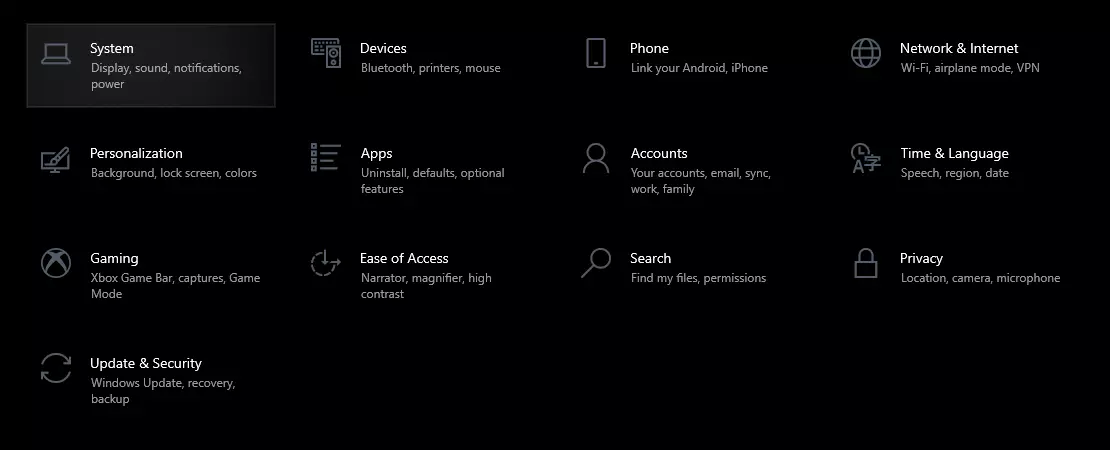
First thing is to go to settings and go to System

system settings

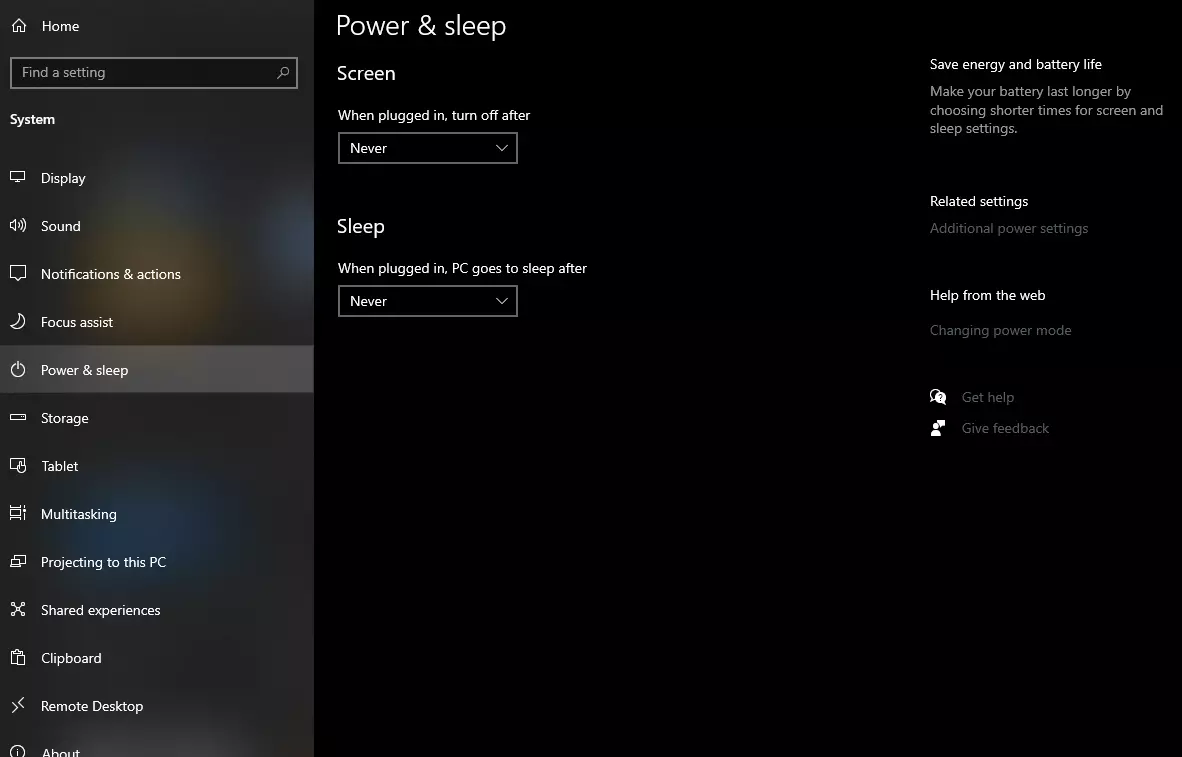
Then once you are inside the system, navigate to the power and sleep and click on it to select it. Once you have it selected to all the way to the right and click on additional power settings.

power and sleep options

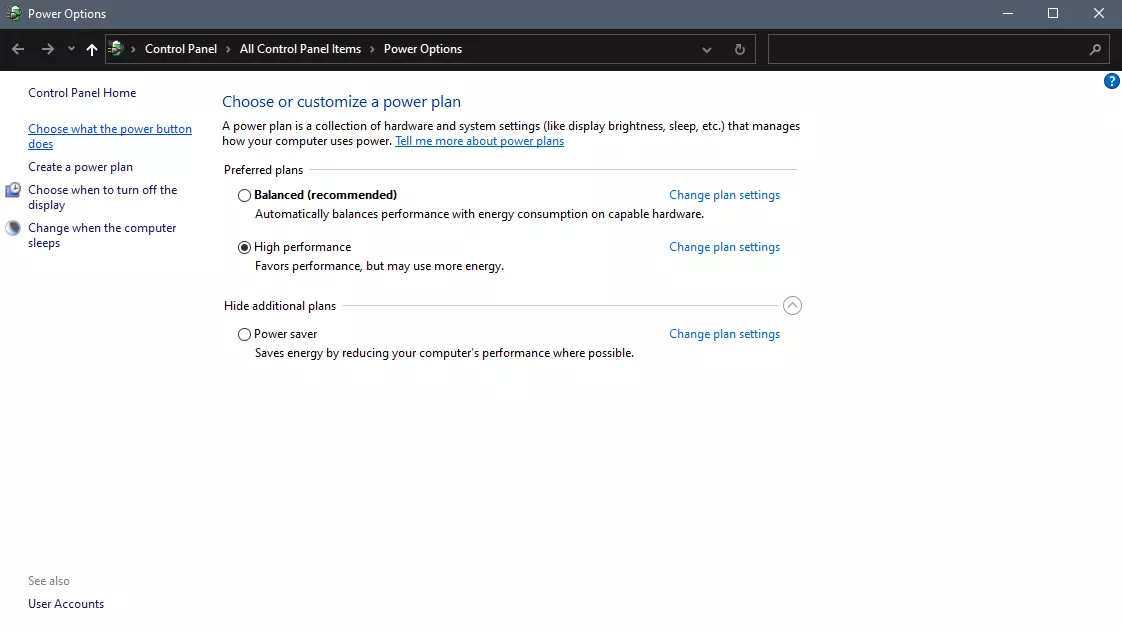
When you click on advanced power settings you should be led to the control panel's power options. Inside this panel click on top left link where it says Choose what the power button does.

power options in control panel

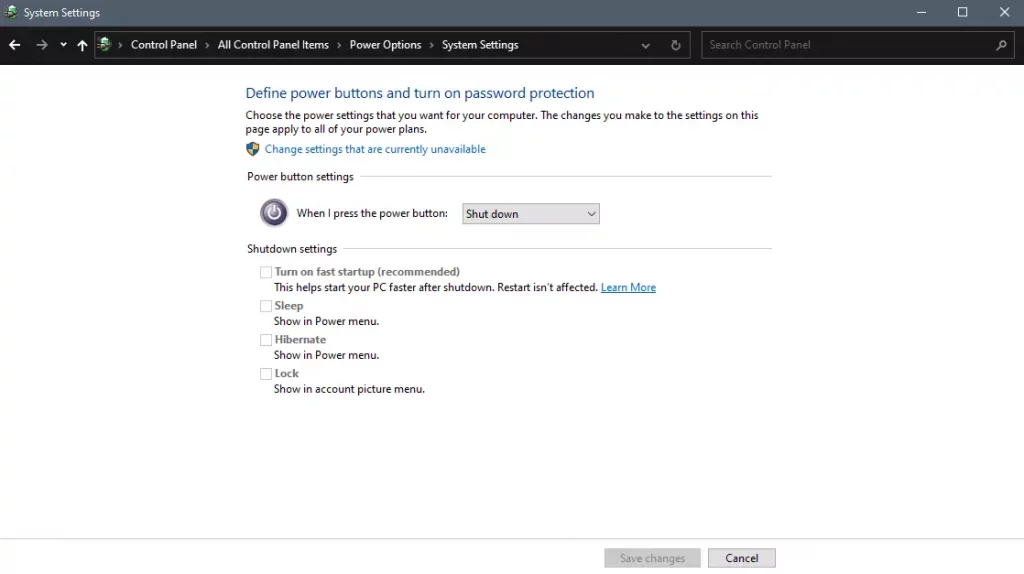
Inside options, you will need to untick the box next to Turn on fast startup (recommended), this option has been ticked ON by the Windows update and probably without notifying you. Option means exactly what was described, it will save kernel state on the hard drive for faster boot time but sadly it can cause some issues since it will never be reloaded from 0.

If you are unable to uncheck the box click on the text beside the shield icon that says: Change settings that are currently unavailable (you will have to be logged in as administrator).

shutdown options for power buttons

Conclusion

Altho turning off fast startup and shutting down the PC completely will for sure extend your bootup time I still believe that it is the right choice since sometimes a lot of clutter and bad things accumulate over time inside the OS and can cause a vast variety of problems in a long run. So stay safe and shut down that PC as it used to be in the past.

Read More
A Quick Guide to Fixing Error 404

Error 404 - What is it?

Error 404 is a HTTP status code. You may come across the error code 404 while browsing online. The message indicates the web page you are trying to log on to couldn’t be found on the server. This error code is frequently customized by individual websites. Most of the time it is displayed by:
  • “404 Error"
  • "404 Not Found"
  • "Error 404"
  • "404 File or Directory Not Found"
  • "HTTP 404 Not Found”
  • "The requested URL [URL] was not found on this server."
  • "HTTP 404"
  • "404 Page Not Found"
  • “Error 404 Not Found"
The error message 404 can occur in any browser including Firefox, Internet Explorer and Google Chrome. It can also occur is any operating system. In addition to this, the error 404 may also occur during Windows updates.

Solution

Restoro box imageError Causes

Technically, the error 404 is a client-side error that implies you couldn’t access the desired web page because either you typed the wrong URL or either the page has been removed from the website. Other causes of this error code include:
  • Junk files in the browser
  • Junk registry entries
  • Browser cache issues
  • DNS server problems

Further Information and Manual Repair

If the error code does not occur due to web page removal from the owner of the website, then this means there is some other underlying issue from the error code 404. To avoid inconvenience and to access the website, it is advisable to resolve the error right away. To help you resolve the error 404 on your PC, we have listed some of the best and easy DIY solutions. Try these methods to fix the issue on your system:

Method 1

Press F5 to retry accessing the web page. F5 is the refresh/reload button. If the error is temporary this will resolve the issue immediately.

Method 2

Check the URL - ‘The error 404 not found’ may also appear because the URL was typed wrong. Search for the page on the popular search engines. Insert the correct URL for the web page you want to access. This will most likely fix the error.

Method 3

Clear your browser’s cache – For this, simply go to the history and clear up your browser’s cookies.

Method 4

Change the DNS Servers - If the entire website you want to access is giving you error 404 and if the site is available to others on different servers then you might want to try changing your DNS server. 404 errors are not particularly common unless your ISP or government filters or censors websites.

Method 5

Remove Junk files and Junk registry entries - Another way to resolve the error is to clean the registry. The underlying cause of the error could be accumulation of the junk, invalid and bad registry entries. You can remove them manually, but that process will require technical expertise and will be quite time-consuming. Nonetheless, the easy and efficient way to clean up the registry is to download Restoro. This is an advanced, highly functional and next-generation Registry Cleaner.

Why Use Restoro?

  • It is deployed with a cutting-edge and intuitive algorithm that detects, scans, and removes all the registry issues on your entire PC in seconds.
  • This registry cleaner wipes out all bad entries and junk files saved on the disk immediately, fixes the damaged and corrupt files, and restores the registry back to normal.
  • Besides functioning as a registry cleaner, this software is also integrated with several other utilities such as an antivirus that removes all kinds of malicious software from your system, a system optimizer for optimum PC functioning, and Active X controls and Class ID scanner.
  • It is safe to download, user-friendly and efficient. This error tool is compatible with all Windows versions.
To resolve error 404 on your PC, click here to download Restoro today!
Read More
DiskPart has encountered an error
As you know, Diskpart is a useful utility that helps in managing the disks in a computer. It is a very useful tool that even when the GUI-based disk management tools in Windows 10 operating system fails, the Diskpart utility still tends to work. However, it also does not mean that this utility does not experience issues as it still does, from time to time. One of the issues you may encounter when using the Diskpart utility is when you encounter an error message that says, “DiskPart has encountered an error, Access is denied”. This kind of error in the Diskpart utility could be caused by a number of factors. For one, it could be that the Write-Protection is enabled on the drive where the operating is being performed or it could also be that the Command Prompt terminal does not have administrator-level permissions to carry out the command. Thus, you can try to run the Diskpart utility again but this time with admin privileges or you could also remote the Write-Protection from the concerned drive. For more details, refer to the instructions given below.

Option 1 – Try running Command Prompt with Administrator-level permissions

  • In the Start Search, type “command prompt” and from the search results that appear, look for Command Prompt.
  • Once you found it, right-click on it and select the “Run as administrator” option.
  • After that, try to execute the Diskpart operation once again and see if you still encounter the same error.

Option 2 – Try to remove the Write Protection from the drive

As mentioned, removing the Write-Protection on the concerned drive could also help you fix the problem and there are two ways to get rid of the write protection – you can either use the Diskpart utility or the Registry Editor. How? Refer to the following steps.

Via Diskpart utility:

  • Open Command Prompt with admin privileges and then type the “diskpart” command and tap Enter to execute it.
  • Next, type “list disk” and tap Enter to get the list of all the Disk connects or all the partitions that are formed on those disks.
  • After that, you need to choose one command depending on the list of commands you entered. Type “select disk #” and tap Enter to select the disk or partition you want to select.
  • Then type “attribute disk clear readonly” and tap Enter to Disable the Write Protection on the selected disk or partition.

Via Registry Editor:

  • Tap the Win + R keys to open the Run utility and type “Regedit” in the field and then tap Enter to open the Registry Editor.
  • Next, navigate to the following registry key:
ComputerHKEY_LOCAL_MACHINESYSTEMCurrentControlSetControlStorageDevicePolicies
  • After that, look for the DWORD named “WriteProtect” and double click on it, and then set its Value Data to “0”.
  • Now restart your computer and see if the problem is now fixed or not.
Read More
Fix Windows defender 0x800700AA Error
Windows defender error 0x800700AA, service can not be started comes when the user is trying to run Windows defender scan on their system. This kind of behavior happens for two reasons mostly, third-party application conflict or corrupted system files. In this article, we will tackle both scenarios and provide you with solutions in both cases.

Third-party application conflict

In this rare scenario when Windows defender can not start scan due to conflict with installed service or application in the system solution is quite simple. Restart your PC into safe mode and run the scan from there. In a safe mode environment, minimum drivers and services are only loaded eliminating any conflicts that might occur when everything is booted. If Windows defender can not run the scan in safe mode and you get the same 0x800700AA error then you can eliminate application conflict as a reason and move to the next solution which will tackle corrupted system files. If you, however, managed to run a scan then you have a rare third-party application conflict, you can boot normally into windows and try to eliminate one by one to see which one is causing the issue. The safest bet would be to start with security software because most of the time that is what causes conflicts in running services and applications.

Corrupted system files

If the previous solution has not provided you with results then you have system file corruption that needs to be fixed. Move from one solution to another as presented below:
  1. Run SFC scan

    SFC scan is a built-in Windows tool for solving corrupted system files issues, it is fully automated and does not require from the user any kind of knowledge or information. To run it and scan the system do the following: Press ⊞ WINDOWS + X to open the secret menu Left-click on the command prompt (admin) In command prompt type SFC /SCANNOW and press ENTER Wait for the process to finish, do not interrupt it and once it is done, restart your computer
  2. Run DISM scan

    DISM scan is similar to SFC scan but it tackles different types of system file corruption and it is recommended to run it also after SFC has been completed. Please note that for DISM scan to be successful you will need a stable internet connection since DISM will replace corrupted files with new ones downloaded from Microsoft. To run it do the following: Press ⊞ WINDOWS + X to open the secret menu Left-click on the command prompt (admin) inside command prompt type: exe /online /cleanup-image /scanhealth followed by ENTER, then type: Dism.exe /online /cleanup-image /restorehealth also followed with ENTER. Leave scan to finish and reboot your PC
Read More
The Best Way to Recover Lost MS Outlook Password

What's the PST record?

Do you often use MS-Outlook for communicating in your work environment? If so, you should be aware that all e-mails messages you send and receive, attachments, contacts, and schedule items you be, the files you create and the details you include are all stored within an Outlook Data File folder. This includes 2 kinds of files .OST and .PST. OST is the offline Storage Table that allows Outlook users to gain access to the e-mail account with no internet access. But this document is vulnerable to corruption. So you need to change it into the PST (Personal Storage Table) file structure. This document keeps data protected and saves all of the data in your view e-mail accounts including e-mails, calendar items, contact info, notifications, and accessories in your local hard drive securely. For security and privacy purposes password protection is necessary.

How can the PST File get locked?

However, with a lot of work to do, a lot of people frequently have a tendency to overlook and easily forget the Outlook password. This affects the user's capability to gain access to the account and execute the associated e-mail features. That is very difficult for those who have contacts stored in it and significant e-mails which one would like to see instantly. In this case, there is also the threat of losing the data that was significant in the long term. Sadly, Outlook will not provide an easy method without removing all of your own personal data to regain this password.

Why Should I Use Stellar Phoenix Outlook PST Repair Tool

Stellar Phoenix Outlook PST Repair tool may be the best fix software out there. It's easy to use, secure, dependable, and quick. You do not have to be a pro to use it. In just a couple of clicks, your password can be recovered, without losing any of your crucial data, including associates contacts and e-mail communications. This repair tool is full of special characteristics. It's compatible with most if not all variants of Windows, including 2000 and Vista, Win7, Windows 2003. Additionally, it helps fix all MS-outlook versions like 2010 and 2000, 2002, 2003, 2007.

Here is what you should do

Just click here Download and install Stellar Phoenix Outlook PST Repair tool in your computer. Run it to regain all of your data within your e-mail account and to regain your lost MS-Outlook PST File Password.
Besides assisting you to regain your PST file password, it can be utilized to solve malfunctions in the PST Files and any other associated problems. For instance, this repair tool can help to fix damaged and corrupted PST file size limit errors as well as PST files. If you use MS Outlook 2002 version on your PC and you use it quite often and prefer not to delete emails in it, then you might come across the PST file size 2GB limit error. This error occurs when you reach or exceed the 2 gigabytes memory limit. If this happens, your ability to send and receive emails through your MS-Outlook account is greatly hindered. You can't add new contacts either. In instances such as these, Stellar Phoenix Outlook PST Repair Tool is useful. It helps increase the GB limit twice as much as normal. This means that your memory limit rises from 2-4GB making Stellar PST Outlook Repair a crucial tool for all MS Outlook users.
Read More
1 2 3 171
Logo
Copyright © 2023, ErrorTools. All Rights Reserved
Trademark: Microsoft Windows logos are registered trademarks of Microsoft. Disclaimer: ErrorTools.com is not affiliated with Microsoft, nor claims direct affiliation.
The information on this page is provided for information purposes only.
DMCA.com Protection Status