Logo

How to Fix Socket Error 10013

Socket Error 10013 - What is it?

Socket error 10013 is an error code that often pops on the screen when you try to access the server. This error code restricts your permission to access. It shows that your permission request was denied.

The error message is displayed in the following format:

“Socket.error: [Errno 10013] an attempt was made to access a socket in a way forbidden by its access permissions”

Solution

Restoro box imageError Causes

Narrowing down a particular reason for the cause of socket error 10013 is difficult, typically because this error code can be generated due to several reasons. Here are some of the common reasons for its occurrence on your PC:

  • High-security set up- Firewall or an antivirus program
  • Too many functions tied to the same driver confuses the socket
  • Outdated drivers
  • Malware

The good news is that the socket error 10013 is not fatal. However, it is advisable to fix and resolve the issue to avoid inconvenience.

Further Information and Manual Repair

Here are some of the best, quickest and easiest methods to work around the problem and resolve socket error 10013 without any hassle or delay.

Method 1 - Turn off Firewall

Believe it or not, a high level of internet security measures like Firewalls and anti-virus programs are a common cause of socket error 10013.

Firewalls are made to protect a computer from harmful connections but sometimes it may also restrict server connections, considering them as a threat to your system security.

Due to this, permission access is adamantly denied. To resolve this issue on your PC, the best way to go about is to turn off your Firewall or any other anti-virus programs installed on your system.

Once you turn off these programs, try accessing the server again. The majority of the time the issue is resolved by carrying this step. Nonetheless, if the error still persists, try the methods given below.

Method 2 - Check the Permissions section of the Firewall Program

Another way to resolve this is to check the permission section of the Firewall program and check for the server. If the server is not listed, contact the Internet Service Provider (ISP) and ask for help in adding the server to the list.

Method 3 - Update Drivers

The outdated driver may sometimes be the reason for the socket error 10013.  The socket may no longer use the drivers installed on your PC which is why permission to access the server is not granted.

When this is the reason, try updating the drivers to resolve. For new drivers, visit the software manufacturers’ website, download, and install.

Method 4 - Scan for Viruses and Malware

Another alternative is to scan for viruses and malware. Sometimes the cause for the error is a viral infection. Therefore, remove them to resolve.

The best way is to download Restoro. This is a user-friendly and next-generation PC Fixer embedded with 6 scanners including a powerful anti-virus. It scans your entire PC and removes all types of viruses including malware, adware, spyware, and Trojans in seconds.

Click here to download Restoro.

Do You Need Help with Your Device?

Our Team of Experts May Help
Troubleshoot.Tech Experts are There for You!
Replace damaged files
Restore performance
Free disk space
Remove Malware
Protects WEB browser
Remove Viruses
Stop PC freezing
GET HELP
Troubleshoot.Tech experts work with all versions of Microsoft Windows including Windows 11, with Android, Mac, and more.

Share this article:

You might also like

Fix Call of Duty 4 crashes in Windows 10
Call of Duty is a fun and good game, a great time killer with a squad of friends, however sometimes the game crashes, and fun is interrupted. In this guide, we will address and solve this unpleasant issue.
  1. Scan game files

    inside launcher choose options and under them, choose scan and repair game files This process can take 5-30 minutes, as the game is 60GB large. This will look through all your game files and make sure they’re all valid and that none are corrupted, which may cause crashes. When it’s complete, you’ll get a notification that the game is now playable. Try again and see if your crashes continue.
  2. Update drivers

    Keeping drivers updated is crucial for the game to run smoothly, GPU drivers are possibly important. Go to your GPU manufacturer's website and get the latest drivers.
  3. Lower graphic settings

    Intensive graphic requirements can overload GPU and cause crashes, try lowering details in-game and see if this will fix the issue.
  4. Disable overlays

    If you’re using a program like Discordthat has an overlay, you’ll want to disable it as it may be causing the graphic error
Read More
FromDocToPDF Step by Step Removal Guide

FromDocToPDF Toolbar is a browser extension published by Mindspark InteractiveNetwork, that usually comes bundled with other potentially unwanted programs. The toolbar is distributed heavily through advertising networks.

This toolbar automatically sets your default search engine to MyWebSearch, it also sets your new tab to the DocToPDF welcome page. This toolbar ads startup registration tasks that allow it to start automatically with Windows, it gathers website traffic, clicks, data, and personal information and sends it to its ad network. Multiple anti-virus programs have detected FromDocToPDF as a browser hijacker and therefore is potentially unwanted and recommended for optional removal

About Browser Hijackers

Browser hijacking is actually a form of unwanted software, commonly a web browser add-on or extension, which causes modifications in the web browser’s settings. Browser hijacker malware is developed for numerous reasons. Often, hijackers will force hits to internet sites of their preference either to increase traffic producing higher advertisement earnings, or to gain a commission for every user visiting there. While it might seem naive, these tools were created by vicious individuals who always attempt to take full advantage of you, so that they could make money from your naive and distraction. Furthermore, hijackers could make the whole infected system vulnerable – other dangerous malware and viruses will seize these opportunities to get into your computer system very easily.

Key signs that your web browser has been highjacked

There are several signs that could indicate a browser hijacking: home-page is changed; you see new unwanted favorites or bookmarks added, typically directed to ad-filled or porn websites; the default online search engine is changed and your browser security settings have been cut down without your knowledge; unwanted new toolbars are added to your browser; your browser will display constant pop-up ads; your web browser starts running slowly or exhibits frequent errors; You can’t access specific sites, in particular anti-malware websites.

Precisely how browser hijacker infects PCs

A browser hijacker could be installed on your PC when you visit an infected website, click on an email attachment, or download something from a file-sharing website. Many browser hijackings originate from add-on applications, i.e., browser helper objects (BHO), toolbars, or plug-ins added to browsers to give them additional functionality. A browser hijacker could also come bundled up with some free software that you unknowingly download and install, compromising your PC security. Typical examples of browser hijackers include CoolWebSearch, Conduit, OneWebSearch, Coupon Server, RocketTab, Delta Search, Searchult.com, and Snap.do. The presence of any browser hijacker on your system might significantly diminish the browsing experience, track your online activities that lead to serious privacy concerns, degrade overall system efficiency, and lead to software instability also.

Tips on how to get rid of browser hijackers

Certain browser hijacking could be simply stopped by discovering and eliminating the corresponding malware application through your control panel. However, most hijackers will be more difficult to locate or eliminate as they might get themselves connected with some important computer files that enable it to operate as a necessary operating system process. Novice computer users should never try for the manual form of removal, as it demands comprehensive system knowledge to carry out fixes on the system registry and HOSTS file.

How One Can Get rid of a Virus that is Blocking Websites or Preventing Downloads

Malware could cause all kinds of damage if they invade your computer, starting from stealing your private details to deleting data files on your computer. Some malware sits in between your computer and the internet connection and blocks a few or all websites that you would like to check out. It might also prevent you from installing anything on your PC, particularly anti-malware software. If you are reading this now, you may have perhaps recognized that virus infection is the reason behind your blocked net traffic. So what to do if you want to download and install anti-malware software like Safebytes? Although this kind of issue will be harder to circumvent, there are some actions you can take.

Download the antivirus in Safe Mode with Networking

If the malware is set to load at Windows startup, then booting in Safe Mode should prevent it. Since just the minimum programs and services start-up in “Safe Mode”, there are seldom any reasons for conflicts to take place. You will have to do the following to get rid of malware in Safe mode. 1) At power on/start-up, tap the F8 key in 1-second intervals. This should bring up the Advanced Boot Options menu. 2) Select Safe Mode with Networking using arrow keys and press Enter. 3) When you are into this mode, you should have access to the internet once again. Now, make use of your web browser normally and go to https://safebytes.com/products/anti-malware/ to download Safebytes Anti-Malware. 4) After the application is installed, allow the scan run to eliminate trojans and other threats automatically.

Switch to some other internet browser

Some malware only targets particular web browsers. If this is your situation, employ another internet browser as it might circumvent the malware. If you’re not able to download the antivirus software using Internet Explorer, this means the virus is targeting IE’s vulnerabilities. Here, you need to switch over to another web browser such as Chrome or Firefox to download Safebytes software.

Create a portable USB antivirus for removing viruses

Another solution is to create a portable anti-malware program on your USB stick. To run anti-malware using a flash drive, follow these simple steps: 1) Download Safebytes Anti-Malware or MS Windows Defender Offline onto a clean computer system. 2) Plug the USB drive into the uninfected computer. 3) Double-click on the downloaded file to open the installation wizard. 4) Choose a USB drive as the place when the wizard asks you exactly where you intend to install the application. Follow the instructions on the screen to finish off the installation process. 5) Transfer the flash drive from the uninfected computer to the infected computer. 6) Double click the Safebytes Anti-malware icon on the thumb drive to run the program. 7) Click on “Scan Now” to run a scan on the infected computer for viruses.

Ensure the Safety of Your PC by Installing SafeBytes Anti-Malware Software

If you are planning to purchase anti-malware for your laptop or computer, there are lots of brands and packages for you to consider. A few of them do a good job in getting rid of threats while some will harm your PC themselves. You should look for a product that has obtained a good reputation and detects not just computer viruses but other kinds of malware as well. One of the recommended software programs is SafeBytes Anti-Malware. SafeBytes carries a superb track record of top-quality service, and customers are very happy with it. SafeBytes is a powerful, real-time anti-malware application that is designed to assist the everyday computer end user in safeguarding their computer from malicious internet threats. With its cutting-edge technology, this software will let you remove multiples types of malware including viruses, trojans, PUPs, worms, ransomware, adware, and browser hijackers. SafeBytes anti-malware comes with a plethora of enhanced features that sets it apart from all others. Let’s take a look at a few of them below: Live Protection: SafeBytes gives real-time active supervision and protection from all known viruses and malware. It’ll constantly monitor your laptop or computer for hacker activity and also provides users with superior firewall protection. World-class AntiMalware Protection: Built upon a greatly acclaimed antivirus engine, this malware removal application can find and remove many obstinate malware threats like browser hijackers, PUPs, and ransomware that other common antivirus applications will miss. Quick Multithreaded Scanning: SafeBytes’s very fast malware scanning engine reduces scan times and extends battery life. At the same time, it’ll effectively identify and eliminate infected computer files or any online threat. Web Protection: Safebytes allots all sites a unique safety ranking that helps you to get an idea of whether the website you’re about to visit is safe to view or known to be a phishing site. Lightweight: SafeBytes is a lightweight and easy-of-use antivirus and antimalware solution. As it utilizes very low computer resources, this application leaves the computer power exactly where it belongs to: with you. 24/7 Live Expert Support: You can get 24/7 technical support to immediately resolve any issue with your security software.

Technical Details and Manual Removal (Advanced Users)

If you wish to manually remove FromDocToPDF without the use of an automated tool, it may be possible to do so by removing the program from the Windows Add/Remove Programs menu, or in cases of browser extensions, going to the browsers AddOn/Extension manager and removing it. You will likely also want to reset your browser. To ensure the complete removal, manually check your hard drive and registry for all of the following and remove or reset the values accordingly. Please note that this is for advanced users only and may be difficult, with incorrect file removal causing additional PC errors. In addition, some malware is capable of replicating or preventing deletion. Doing this in Safe Mode is advised.

The following files, folders, and registry entries are created or modified by FromDocToPDF

Files: C:Users%USERAppDataLocalGoogleChromeUser DataDefaultLocal Storagehttp_fromdoctopdf.dl.tb.ask.com_0.localstorage C:Users%USERAppDataLocalGoogleChromeUser DataDefaultLocal Storagehttp_fromdoctopdf.dl.tb.ask.com_0.localstorage-journal C:Users%USERAppDataLocalGoogleChromeUser DataDefaultLocal Storagehttp_fromdoctopdf.dl.myway.com_0.localstorage C:Users%USERAppDataLocalGoogleChromeUser DataDefaultLocal Storagehttp_fromdoctopdf.dl.myway.com_0.localstorage-journal Registry: HKEY_CURRENT_USERSoftwareFromDocToPDF..Uninstaller HolidayPhotoEditTooltab Uninstall Internet Explorer

Read More
Valve Steam Deck is Compatible with Windows 11
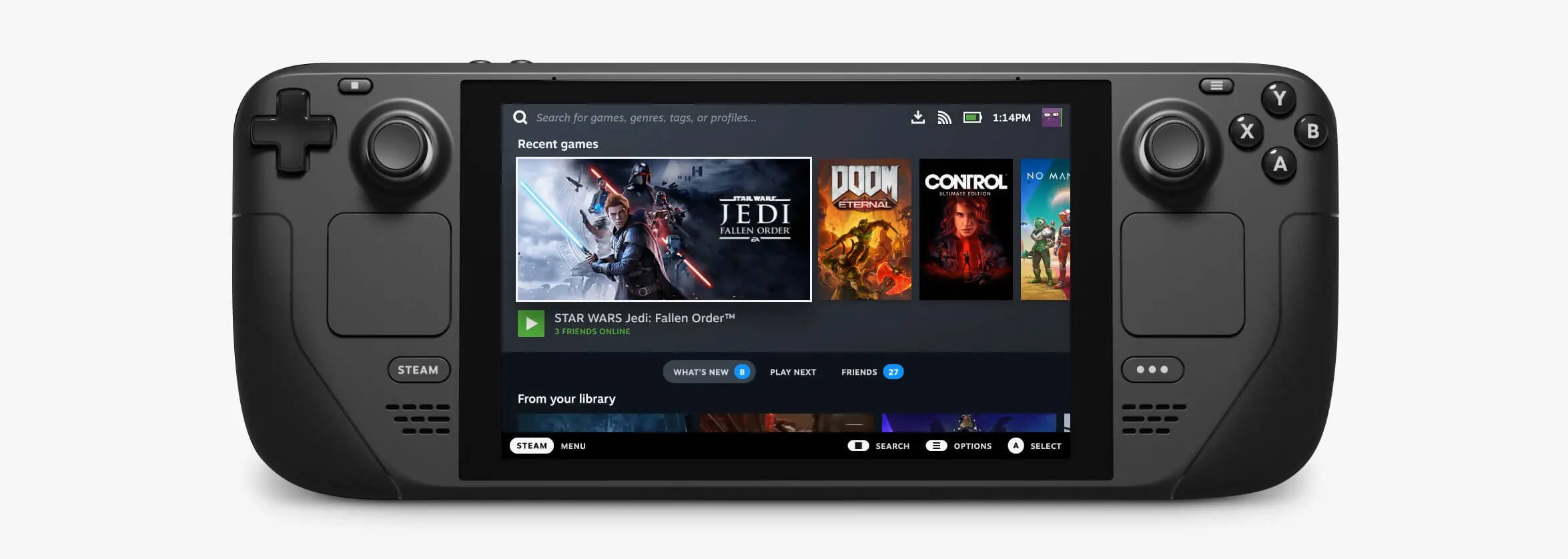
Steam DeckValve has officially announced that Steam Deck will be compatible with Windows 11 despite TPM 2.0 Microsoft requirements. From the beginning, Deck was announced like a mini handheld PC device. Powered with new Steam OS 3.0 based on Linux. However, besides out-of-the-box OS it was also stated that Deck will be a personal device meaning that other PC-based operating systems could be installed on it and even run your typical applications in it. Since Microsoft announced Windows 11 hardware requirements, specifically the TPM 2.0 requirement many users voiced concern that Steam Deck will not be able to connect to Windows 11 TPM 2.0 is something that Microsoft requires for every internal and hardware component that is to connect on a Windows 11 device. This is to ensure that only trusted devices would be included in the array of a PC setup and avoid any problems like malicious hardware injecting software into a system. This would also minimize the compromise Windows would have, as unverified or untrusted devices connect to a Windows PC. However, Valve and AMD are ensuring us that Deck will not have any issue connecting to a PC running Windows 11 or even if you wish to transform Deck itself into a Device running Windows 11.
Read More
Get a Custom URL for Your YouTube Channel
Having a youtube channel nowadays is quite an easy task, you just need to create a free google account and there you go, you can start uploading videos to your YouTube channel. All you need in today's world is some applications for manipulating video material, creation of titles and graphics, some charisma and ideas for content and you could be a well-known YouTuber. For some guidance on software needed for this kind of creativity, we urge you to check our article about open source free software alternatives to paying ones here. So now that we have technicality out of way there is one more prerequisite that is needed in order for you to have your unique custom URL for your channel.
  • The channel must be at least 30 days old.
  • The channel must have a profile picture and a banner image.
  • The channel must have at least 100 subscribers.
You need to fulfill all three prerequisites in order to change your typical URL to something nicer and personal like youtube.com/myGREATchannel So if you have everything needed let's get that custom URL for your channel.
  1. Sign in to your YouTube channel
  2. On the top-right corner of the YouTube window, click on your profile picture.
  3. From the drop-down menu, select YouTube Studio.
  4. From the list on the right side of the YouTube Studio page, select Customization.
  5. Under Channel customization, select Basic info.
  6. Under Channel URL, click on Set a custom URL for your channel.
  7. Your custom URL will appear in the box below. You can change it as you desire.
  8. Click on the Publish button on the top-right corner of the window to set your custom URL.

WORD OF WARNING:

Once the custom URL is set, it can neither be changed nor transferred to someone else so make sure that channel name is really something that you want for the long run.
Read More
Fix Windows Activation Error Code 0x8007007B in Windows 10
If you recently upgraded your computer or if you’ve just switched to a new Windows 10 PC, the most common errors you might encounter are the Windows Activation errors. This issue boils down to the Windows Activation server which has either failed to validate or recognize the license tied to the digital account. In this post, you will be guided on how to fix an activation error in an organization with an error code 0x8007007B. It contains this exact error message: “We can’t activate Windows on this device as we can’t connect to your organization’s activation server. Make sure that you’re connected to your organization’s network and try again. If you continue having problems with activation, contact your organization’s support person. Error code 0x8007007B.” Various computers are activated via the KMS licensing (Key Management Server) in organizations. Computers that are activated using this process do not get a permanent activation and have to stay connected to the organization instead of for at least 7 months or 180 days. It is common in Pro and Enterprise versions that are deployed in bulk for at least hundreds or thousands of computers. So imagine a user with a personal computer in the office who decided to leave the organization but will still have an activated Windows key. And so to prevent that from happening, organizations use the KMS licensing. Another possible cause of the error is in case some user used an organization key and later on, the PC just got upgraded or downgraded to a version that is not compatible with that copy of Windows. To fix this Windows Activation error, here are some suggestions that might help.

Option 1 – You can try connecting to the organization’s network and activate the computer. But before that, you need to first check if the computer actually belongs to an organization or not.

  • Tap the Win + R keys to open the Run dialog box.
  • Type “cmd” and hit Enter to open an elevated Command Prompt.
  • After that type the vbs /dlv command and hit Enter to execute it.
  • Next, check if the Product Key Channel says “GVLK”. If it does, then it means that your computer was activated using volume licensing.

Option 2 – Change Licence Key

If you’ve recently left an organization then it’s best if you buy another copy of Windows 10 and then change the license key. This time, make sure that the license key is for the same version of Windows. However, if it’s different, you need to format your computer.

Option 3 – You can try activating Windows 10 using a mobile phone

Activating Windows 10 can also be done using your phone. Just note that you have to call Microsoft to do so.
  • In the Start Search box, type in “Slui 4” and tap Enter.
  • Next, select your country and click on Next.
  • Keep the window open and call the toll-free number of the country you’re from.
  • Afterward, a confirmation ID should be given by the automated system which you must take a note of.
  • Finally, in the box on the window, type in the confirmation ID and click on the Activate button. That should do it.

Option 4 – If you think that the issue is caused by some hardware changes, you can try using the Activation Troubleshooter.

There are times when users already have the license keys and were able to activate Windows. However, it doesn’t last long and only works for a while and it’s suddenly throwing up an activation error like this one. To use the Windows Activation Troubleshooter, just go to Settings and to Activation and then run the troubleshooter from there. If you've made some modifications to your hardware, you have to click the “I changed hardware on this device recently” option for further suggestions.
Read More
How to be a healthy PC gamer

Spending a large amount of time working or gaming in front of the computer can take a toll on your health. And as someone who indeed spends a large amount of time in front of the computer, I would like to share some insights about how can you be happy and healthy at the same time by incorporating some practices and habits.

gaming

Get good chair

This is first on the list because it matters the most. A proper sitting chair is essential for back health. If your budget allows it, do yourself a favor and get an anatomic sitting chair or gaming chair with lumbar support. It costs but it is worth it.

Learn to sit properly

As the important chair is, sitting properly is also as important as much. Your spine believe it or not is a very important part of your body and you need to take care of it. Sadly long periods of sitting sessions are bad for muscles around the spine that could reflect on the spine itself. Keep your back straight and keep your head not down nor up, place it in a position like when you are walking so the spine that is going from your head is in line with the spine on your back.

Stretch

By medical standards, each hour of sitting should be accompanied by a stretch session since sitting itself is placing too much pressure on certain muscles and blood circulation is lowered. Changing leg position and doing just a little stretch each hour can be really beneficial for your health in long run.

Take breaks

Yes, playing games is fun and most of the time we do not want to stop playing, especially if we are winning but taking breaks is essential for your personal health. Old saying goes that overdoing anything is bad and this applies true even to things that we do for pleasure and relaxation. Take periodic breaks to stretch, stand up and maybe even walk just a little.

Drink water

During long work hours or long gaming sessions, it is not uncommon that we are so focused on our activity that we forget to take our water intake. Approximately 2liters of water per day is needed for an adult person to function properly during that day and if you spend long times in front of a PC do not forget to drink water.

Do not neglect your daily tasks

As enjoyable as it is gaming can make us forget about our daily tasks, do not neglect your life and your tasks. Remember, gaming is only OK if it does not interfere with the daily things that you need to do. Do not postpone going for groceries because of gaming, do not switch shower for another level in the game. Do all of the things you must do first and then sit and game.

Take care of yourself mentally

Having mental health is as important as having a physical one. Playing games is fun, but playing games with someone is even better, do not forget to socialize and invite some friends so you can share some fun times together. Also, detach yourself from outcomes that will come because of gaming, this is very important for gamers that do a lot of PVP games and get annoyed and angry when they lose or when some other player is talking trash. Remember, gaming is for you to relax and enjoy, not to stress you.

Read More
Fix AMD driver crashing Windows 10
Graphic cards are essential to our computers but from time to time in the race to make better GPU and to grab a large portion of the market bad drivers get released and can create really unwanted and unpleasant experiences, from Windows freezes to the black screen of death, to AMD driver Windows crashing down and many more. This article will cover basic troubleshooting with AMD drivers and offer you solutions on how to fix them.
  1. Rollback the previous version of the driver.

    Installing the new driver version is the reason for this particular error, so naturally rolling back the previous version which was stable and did not cause issues will solve the problem. To roll back the previous version of drivers follow the next steps: Open Start menu and click on settings, go to system and choose Apps and features Find: AMD Catalyst Install Manager, right-click on it, and choose to uninstall Go to AMD official website and download the previous driver version, install it on your computer Turn off automatic driver updates and reboot your system
  2. Reinstall the driver

    Sometimes it is not a bug in the released driver, it is a corruption of files because of file transfer or any other specific reason. The reinstalling driver will fix an issue if this is the case. To reinstall the driver Press ⊞ WINDOWS + X and choose Device Manager Expand Display adapters, right-click on AMD device and choose to uninstall Go to the official AMD website, download the latest driver and install it Reboot your system
  3. Disable browser extensions

    Some users have reported that error occurs only when they are watching videos online, if this is your case, go to your browser options and disable extensions to see if this will remove the problem.
  4. Remove Lucid Virty MVP

    If by any chance have this relic installed on your system, go to Applications and remove it. It is an old program shipped with old drivers and it is usually present in your Windows that was upgraded from 8.1 to 10. Uninstall it and see if this fixes your issue.
  5. Clean your graphic card

    Sometimes this error can happen due to excessive dust on your GPU, if you have the expertise, clean it or take it somewhere to be cleaned.
Read More
Fix UTCSVC high CPU and Disk usage in Windows
There is a lot of high resource utilization by any process that slows down a Windows operating system and one of the services that could cause such a thing is the utcsvc.exe process. This particular process at times can cause high CPU and disk usage. So if you are currently facing this problem, read on as this post will guide you on how you can resolve the problem. UTC which stands for Universal Telemetry Client is a software that runs a service named Diagnostic Tracking Service or DiagTrak. This service is used by Microsoft to collect customer feedback, analyze customer’s problems, and push resolution via updates in order to make the Windows 10 operating system better. This service is an executable file that could be translated to Service Host and even though the process does not usually cause problems, there are actually times when it does especially if it results in high resource utilization. In such cases, you might want to consider disabling it to fix its high CPU and disk usage.

According to Microsoft:

“We collect information about you, your devices, applications and networks, and your use of those devices, applications, and networks. Examples of data we collect include your name, email address, preferences, and interests; browsing, search and file history; phone call and SMS data; device configuration and sensor data; and application usage.”
There are several ways you can disable the utcsvc.exe process. You can disable it using the Service Manager, Registry Editor, and Group Policy Editor. For more details, refer to the instructions laid out below.

Option 1 – Disable the Connected User Experience & Telemetry Service via Service Manager

Note that this option is for standalone systems, so if you’re not using one, refer to the next given options below.
  • Tap the Win + R keys to open the Run dialog box.
  • Then type “services.msc” in the field and tap Enter or click OK to open the Services Manager.
  • From the given list of services, look for the Connected User Experience service. Once you found it, click on it and you’ll see its description which states:
“The Connected User Experiences and Telemetry service enables features that support in-application and connected user experiences. Additionally, this service manages the event-driven collection and transmission of diagnostic and usage information (used to improve the experience and quality of the Windows Platform) when the diagnostics and usage privacy option settings are enabled under Feedback and Diagnostics.”
  • Next, right-click on it and select Properties.
  • Now, change its Startup Type to Disabled and click on the Apply and OK buttons to save the changes made.

Option 2 – Disable the Connected User Experience & Telemetry Service via Registry Editor

  • Tap the Win + R keys to launch the Run utility and type “Regedit” in the field and click OK to open the Registry Editor.
  • Next, navigate to this registry path: HKEY_LOCAL_MACHINESOFTWAREPoliciesMicrosoftWindowsDataCollection
  • After that, right-click on the folder named “DataCollection” and select New > DWORD (32-bit) Value.
  • Now name the new value “AllowTelemetry” and make sure that its Value data is “0” and then click on OK to save the changes made.
  • Restart your computer.

Option 3 – Disable the Connected User Experience & Telemetry Service via Group Policy Editor

If you have to disable the service related to the Universal Telemetry Client for company-managed systems, then you can do that using the Group Policy Editor.
  • Tap the Win + R keys to open the Run utility and type “gpedit.msc” in the field and hit Enter to open the Group Policy Editor.
  • Next, navigate to this path: Computer Configuration > Administrative Templates > Windows Components> Data Collection and Preview Build
  • After that, double-click on Data Collection and Preview Build to open its settings.
  • From there, look for the “Allow Telemetry” item and double click on it to open its Properties.
  • Next, set the radio button to Disabled and then click on the Apply button to save the changes made.
  • Restart your computer.

Option 4 – Run the Hardware and Devices Troubleshooter or the Performance Troubleshooter

Hardware and Devices Troubleshooter:

  • The first thing you need to do is click on Start and then on the gear-like icon to pull up the window for Settings.
  • After opening Settings, look for the Update and Security option and select it.
  • From there, go to the Troubleshoot option located on the left-hand side of the list.
  • Next, select Hardware and Devices from the list and open the Troubleshooter and run it. Once it is doing its job, wait for it to complete the process and then restart the system.
  • After the system restarts, check if the problem’s now fixed. If not, refer to the next option given below.

Performance Troubleshooter:

  • Tap the Win + R keys to open the Run dialog box.
  • Type “exe /id PerformanceDiagnostic” in the field and hit Enter to open the Performance troubleshooter.
  • Then click on Next to get started. Wait until the process is completed.
Read More
Fix 0xd00000e5, 0x8007139f, 0x80090030 PIN
The quickest and easiest way to log into your computer is when you use the PIN feature in Windows 10. Even though it is a bit slower compared to biometric logins such as Fingerprint and Iris scanning that comes under Windows Hello, the PIN feature is definitely less complicated. However, just like any other module of the software, it is also prone to some errors. In this post, you will be guided in fixing several PIN errors such as 0xd00000e5, 0x8007139f, and 0x8009003. These errors could be caused at different points in time like when you change or create a PIN or when you log into your computer. To fix the 0xd00000e5, 0x8007139f and 0x8009003 PIN errors, there are various solutions you can try. You may empty the contents of the NGC folder or remove and change the PIN or the password. You could also use the Group Policy Editor or reset the ACLs in the NGC folder as well as run built-in tools like System File Checker and the DISM tool.

Option 1 – Take ownership of the NGC folder and delete its contents

  • Boot your computer first into Safe Mode.
  • Next, you need to take ownership of the Ngc folder first and you can do that using Command Prompt.
  • Type “command prompt” in the Windows Search bar and then right-click on the relevant search result and select “Run as administrator”.
  • After that, if a User Account Control or UAC prompt appears, just click on Yes to proceed.
  • Next, type and enter this command: TAKEOWN /F C:WindowsServiceProfilesLocalServiceAppDataLocalMicrosoftNgc
  • Note that the <path> is the location of the folder or file in File Explorer.
  • Now type and enter this second command: ICACLS C:WindowsServiceProfilesLocalServiceAppDataLocalMicrosoftNgc /grant administrators:F
  • Finally, once the command has been executed, restart your computer.
  • Once your computer has restarted, delete all the contents in the Ngc folder and check if the error is now fixed.

Option 2 – Try to remove and change the PIN or password

The 0xd00000e5, 0x8007139f, and 0x8009003 PIN errors could be caused by some conflicting issues with the PIN or password you have set for the User Account of your computer. Thus, you have to remove or change the PIN or password to fix these PIN errors.
  • Remove the PIN by going to Settings > Accounts > Sign-in options.
  • From there, go to the PIN section and click on the Remove button.
  • You will be asked to verify your account to proceed in removing the PIN, enter your credentials.
  • Restart your computer and then set up a new PIN.
  • Once you’re done, restart your computer and check if the error is gone now.

Option 3 – Try to use the Group Policy Editor

  • Tap the Win + R keys to open the Run utility and type “gpedit.msc” in the field and tap Enter to open the Group Policy Editor.
  • Next, navigate to this policy setting: Computer Configuration > Administrative Templates > System > Logon
  • After that, double click on the “Turn on convenience PIN Sign-in” option located on the right-side panel.
  • Then set its radio button to Enabled. You will see the following description when you do so:
“This policy setting allows you to control whether a domain user can sign in using a convenience PIN. If you enable this policy setting, a domain user can set up and sign in with a convenience PIN. If you disable or don’t configure this policy setting, a domain user can’t set up and use a convenience PIN. Note: The user’s domain password will be cached in the system vault when using this feature. To configure Windows Hello for Business, use the Administrative Template policies under Windows Hello for Business.”
  • After setting the radio button to Enabled, it will turn on the Logins in your computer using the PIN.
  • Close the Group Policy Editor and restart your computer for the changes to take effect.

Option 4 – Try to reset the ACLs in the Ngc folder

  • Type “command prompt” in the Windows Search bar and then right-click on the relevant search result and select “Run as administrator”.
  • After opening Command Prompt with admin privileges, execute this command: C:/Windows/Service/Profiles/Local/Service/AppData/Local/MicrosoftNgc /T /Q /C /RESET
  • The command you entered will start checking for errors and fix them automatically.

Option 5 – Run the System File Checker scan and the DISM tool

System File Checker:

  • Tap Win + R to launch Run.
  • Type in cmd in the field and tap Enter.
  • After opening Command Prompt, type in sfc /scannow
The command will start a system scan which will take a few whiles before it finishes. Once it’s done, you could get the following results:
  1. Windows Resource Protection did not find any integrity violations.
  2. Windows Resource Protection found corrupt files and successfully repaired them.
  3. Windows Resource Protection found corrupt files but was unable to fix some of them.
  • Now restart your computer.

DISM tool:

  • Open Command Prompt.
  • Then type in the following commands and make sure to hit Enter right after you type each one of them:
    • Dism /Online /Cleanup-Image /CheckHealth
    • Dism /Online /Cleanup-Image /ScanHealth
    • Dism /Online /Cleanup-image /Restorehealth
  • After that, wait until the process is finished and do not close the window as the process will probably take a couple of minutes.
  • Once it’s done, restart your computer.
Read More
Solution for Error 0x000000d1

What Is 0x000000D1 Error?

Error code 0x000000D1 is a serious error that is displayed when Windows automatically shuts down to protect the system against further damage.

Usually, when this error occurs, the message displayed to the users states something like STOP 0x000000D1 DRIVER_IRQL_NOT_LESS_OR_EQUAL.

Solution

Restoro box imageWhat Causes 0x000000D1 Error?

Usually, the STOP 0x000000D1 error code is caused by issues like incompatibilities, third-party drivers, driver conflicts, outdated drivers, malicious drivers, and other related problems.

Speaking technically, the message displayed to the user actually means that the kernel-mode driver has tried to gain access to memory at an unreasonably high process IRQL.

If left unfixed, STOP 0x000000D1 error can become quite serious. Increased frequency of occurrence may not only lead to data loss but can cause system corruption as well. That’s why it is crucial to fix it and to resolve the underlying issues causing it as soon as possible.

Further Information and Manual Repair

There are different ways of quickly fixing this error, some of which are briefly listed below as follows.
  • The solution advised for advanced users is to start the system and log on to it as the administrator. Then do to Start button. Click on All Programs -> Accessories-> System Tools->  System Restore. Here you will find the option, “Restore my computer to an earlier time”. Click on it and select ‘Next’. A list of restore points will appear in front of you. Select the latest restore point and then click on ‘Next’. The confirmation window will appear again. Click on the Next button again. Restart your computer. Congratulations, you have successfully restored your computer.
  • Another way that’s more suitable for novice users goes as follows. Download a repair utility tool. Now install the program. You are most likely to come across a Scan button. Once that happens, choose the Fix/Repair button. Your scan will be completed. The error will be removed. You can then restart your computer again to ensure the error is no longer displayed.
Some other suggestions to keep your computer from encountering these problems in the future are outlined below.
  • Update all your drivers. Obsolete or old hardware or software drivers may also trigger this STOP 0x000000D1 error.
  • If you have recently installed or modified a driver or hardware and the error has occurred afterward, it is highly likely that the installation or modification has caused it. Revert back to the original settings to steer clear of this driver in the future.
Read More
1 2 3 171
Logo
Copyright © 2023, ErrorTools. All Rights Reserved
Trademark: Microsoft Windows logos are registered trademarks of Microsoft. Disclaimer: ErrorTools.com is not affiliated with Microsoft, nor claims direct affiliation.
The information on this page is provided for information purposes only.
DMCA.com Protection Status