Logo

Fix Sechost.dll missing error in Windows 10

If you are facing a missing sechost.dll error in your Windows 10, welcome, you have come to the right place to solve it and get back your computer in working order. Sechost.dll is a file that allows other programs to function and complete their tasks as well as control and change the behavior of other programs.

The file is found in Windows subfolder System32, it is a completely safe file and should not be deleted. Sometimes however various other reasons can corrupt it or delete it. This guide will lead you to common solutions on how to get file back up and running.

  1. Update device driver

    Have you installed a new device and all of a sudden you get the error message that Sechost is missing? Update device driver, it is possible that the file has been corrupted or replaced with an older version and therefore reported as missing. Update device driver to lastest version and issue should run away.

  2. Re-register file via command prompt

    If Sechost got corrupted re-registering will solve the issue, press ⊞ WINDOWS + X and choose Command prompt (administrator), click on it.
    type regsvr32 sechost.dll and press ENTER
    Reboot your PC

  3. Reinstall application

    Usually, Sechost gone bad or missing is due to the installation of another application that corrupts the file. Reinstall the application to try to solve errors. In order to properly reinstall the application first use the control panel to remove it completely from the system and then install it again, hopefully, this time correct version of Sechost.dll will be installed in the system.

  4. Check your hard drive

    In some cases, a hard drive malfunction can cause several files to be corrupted or gone missing. To eliminate hard drive malfunction run check disk from Windows on C drive to check it and find if there are any errors.

  5. Uninstall Windows update

    Same as with some application, even Windows update could corrupt some files due to update not being properly downloaded. Try uninstalling the latest update and revert to the previous Windows state, then update it again.

Do You Need Help with Your Device?

Our Team of Experts May Help
Troubleshoot.Tech Experts are There for You!
Replace damaged files
Restore performance
Free disk space
Remove Malware
Protects WEB browser
Remove Viruses
Stop PC freezing
GET HELP
Troubleshoot.Tech experts work with all versions of Microsoft Windows including Windows 11, with Android, Mac, and more.

Share this article:

You might also like

UEFI Firmware settings goes missing
When it comes to booting an operating system on a computer, one of the most essential pieces of software you can use is the UEFI. In fact, a lot of users now prefer to use UEFI instead of BIOS. It also depends on whether the UEFI or the BIOS is supported on the motherboard. Recently, a number of users reported an issue with UEFI where they were unable to find it under the Advanced Options screen where it’s supposed to be located. The missing UEFI Firmware settings in the Advanced Options could be caused by several reasons. It is possible that the access to the UEFI menu is blocked or it could also be due to the Extra Fast Startup feature being enabled. It is also possible that the operating system is installed in Legacy mode. There are several options to try to fix this issue. You need to check if your computer supports UEFI or you could also try to disable Fast Startup or bypass the Extra Fast Startup feature. You can also use a boot to UEFI shortcut as well as check the CMOS battery.

Option 1 – Try checking if your computer supports UEFI

The first thing you have to do is to verify if your computer supports UEFI. If your computer does not support UEFI, then it’s no wonder why you don’t see the UEFI Firmware settings in the Advanced Options.

Option 2 – Try turning off Fast Startup

  • First, boot your computer in Safe Mode.
  • Once your computer is booted in Safe Mode, tap the Win + R keys to open the Run dialog box and type in “control” to open the Control Panel.
  • Next, click on the Hardware and Sound section and click on Power Options.
  • Afterward, select the “Choose what the power buttons do” option from the left side menu pane.
  • Now click on Change settings that are currently unavailable and uncheck the entry that says, “Turn on fast startup (Recommended)”.
  • Then click on Save Changes and restart your computer and see if it has fixed the problem or not.

Option 3 – Try bypassing the Extra Fast Startup feature

As mentioned, the missing UEFI Firmware settings could be due to the Extra Fast Startup feature. To fix it, you have to disable this feature. All you have to do is tap and hold the Shift key and click on the Shutdown button from the Start button. This will boot your PC with the UEFI booting from the beginning and then use the hotkey for your motherboard to boot into the UEFI setup.

Option 4 – Try using a boot to UEFI shortcut

  • Right-click on any empty space on your Desktop and select New > Shortcut.
  • This will open a new mini window. And here, you have to type this in the text field: shutdown /r /fw
  • After that, click on Next and name the desktop shortcut and then click on Finish.
  • Next, right-click on the newly created shortcut and select Properties.
  • Click on the Advanced button and select the “Run as administrator” option.
  • Now click OK to save the changes made. Each time you execute this shortcut, your computer will automatically be booted to the UEFI Firmware Settings.

Option 5 – Try to check the CMOS battery

Another thing you can do is check the CMOS battery physically on the motherboard and see if it has to be replaced since a damaged CMOS battery can also cause the issue with the missing UEFI Firmware settings.

Option 6 – Set your computer from Legacy to UEFI

If applicable, you can try to set your computer from Legacy to UEFI to resolve the problem.
  • In the Windows Search box, type “command prompt” and from the search results that appear, right-click on Command Prompt and select the “Run as administrator” option.
  • After that, execute this command: mbr2gpt.exe /convert /allowfullOS
  • Now, wait until the process is completed since you can track its process on your screen.
  • Once it’s done, go to Settings > Update & Security > Advanced Startup options and from there, click on Restart Now. This will restart your computer and give you advanced options.
  • Next, select Troubleshoot > Advanced Options where you will see further options including System Restore, Startup Repair, Go back to the previous version, Command Prompt, System Image Recovery, and UEFI Firmware Settings.
  • Now select the UEFI Firmware Settings. This will take you to the BIOS. Boot Mode is typically available under Boot > Boot Configuration. Once you’re there, set it to UEFI and then save the changes you’ve made. After that, your computer will restart.
Read More
Fixing corrupted system files in Windows
Windows has a lot of built-in tools that help you fix tons of system-related issues. One of them is the System File Check which is the tool you can use to conveniently replace potentially corrupted or missing system files with good ones. But what happens when it does not work? Well, you’ve come to the right place as in this post, you will be guided on how you can replace a corrupted single Windows system file manually with a known good copy of the file if the System File Checker scan is not working. When you encounter this issue with the System File Checker, it will be unable to replace the corrupted system files and returns an error message instead. And so to fix and replace corrupted system files in your Windows 10 computer without the help of System File Checker, you can refer to the instructions provided below. Step 1: First, you need to open the log files listed below and identify which particular file has been corrupted:
  • %userprofile%Desktopsfcdetails.txt
  • Log %WinDir%LogsCBSCBS.log
Step 2: You will see all the details on the given log files. Once you find out the name and the path of the file, you have to take ownership of this corrupted system file. Step 3: To take ownership of the corrupted file, you need to pull up Command Prompt by tapping Win + R keys on your keyboard and then type “cmd” and tap Enter. Step 4: After opening Command Prompt, type and enter the command below to execute it:
takeown /f FileNameAndPath
Note: In the given command, “FileNameAndPath” represents the name and the path of the corrupted file. For instance, the corrupted file is named “wuapi.dll”, then you need to type “takeown /f C:/Windows/System32/wuapi.dll” Step 5: Next, you need to grant administrators full access & control to the corrupted file and you can do that via Command Prompt again. Step 6: In the elevated Command Prompt, type and enter the following command to execute it:
icacls FileNameAndPath /GRANT ADMINISTRATORS:F
Note: We’re going to use the wuapi.dll again as an example. So the command should be like this: icacls “C:/Windows/System32/wuapi.dll /grant administrators: F”. Step 7: Now all that’s left to do is replace the corrupted system file with a good copy from a trusted source. Once you have a copy, open an elevated Command Prompt again and execute the following command:
copy NewFileLocation FileNameAndPath
Note: In the command given above, the “NewFileLocation” is the location where you have saved the copy of the file. For instance, if you’ve saved it on your desktop, this is how it should look: “copy C:/Users/<username>/Desktop/wuapi.dll C:/windows/system32/wuapi.dll”
Read More
A Guide to Quick Fixing the Error Code 1723

What is Error 1723?

Error Code 1723 is a peculiar error type common in Windows PC. It is related to the Windows Installer package. This error is displayed in the following format:
"Error 1723- There is a problem with this Windows Installer package. A DLL required for this install could not be run. Contact your support personnel or package vendor...”
You are most likely to come across the error code 1723 if the Java installation is not completed successfully. In other words, the error indicates that the installation process has failed.

Solution

Restoro box imageError Causes

The 1723 error may occur due to several reasons, the most common being:
  • Corrupted installers
  • Files are not extracted successfully
  • Registry problems
  • Missing DLL files

Further Information and Manual Repair

To resolve this issue on your PC, you don’t always have to hire a professional technician and pay hundreds of dollars to get it fixed. The error code 1723 may not be a common Windows PC error but it is easy to fix. Here we have listed some of the best and easiest DIY ways to resolve this error on your system. These solutions are so easy to perform that even if you are not a computer programmer or technically adept, you can work through them and resolve the error in just a few simple clicks. So, let’s get started:

Solution 1: Install the latest Java Version

If the Java version previously installed on your system is not working properly and showing 1723 error messages then it is advisable to install the latest Java version. However, to do this first you will have to uninstall the old version and then download the latest Java version on your PC from a trusted website to ensure it does not contain malicious viruses and malware.

Solution 2: Ensure the Required Files are extracted in the ‘Temp’ Folder for Installers

Another method to resolve the 1723 error code is to check whether the required files are extracted in the temp folder for installers or not. The error may occur if the location is incorrect and the account is not permitted to extract files in the temp folder. In this scenario, the best way to resolve the issue is to change the permissions of the temp folder. This can be done by logging in to your account and opening file explorer or ‘My Computer’. Now copy and paste this link address in the address bar: DL:UsersUSERNAMEAppDataLocal. Please note, here DL is the drive letter of the Windows drive, and in the username insert the username of the account that you are using. Now right-click the ‘temp’ folder. Select properties and click on the Security tab. After that click edit below the list and press add. Again type the username here and click OK. The next step is to select the added account from the list and tick ‘FULL CONTROL’ box under ‘Permissions for Username’. Click OK and then close the properties. Once this process is complete, now try running the installer again. This will most likely resolve the issue. Nonetheless, if the error still persists, then this means the underlying cause of the error is deeper than you think. The error may be related to registry issues. In such situations, try solution 3 to fix the error 1723 on your system.

Solution 3: Download Restoro.

When the error code 1723 is triggered due to registry issues, then it is advisable to scan your PC with Restoro. Registry issues should be resolved immediately because they pose serious threats to your system. It can lead to system failure, crash and valuable data loss. Registry basically saves practically all the information and activities performed on your PC including the unnecessary and obsolete files like junk files, cookies, temporary files, and invalid entries. If these files are not removed they can corrupt the registry, damage dll files and installers thereby generating error codes like 1723 on your system. The easiest way to repair and clean the registry in seconds is to run Restoro on your PC. It is a smart, intuitive, advanced, and multi-functional PC repair tool. It is embedded with multiple powerful utilities and is a one-stop solution for all PC related issues. This software is compatible with all Windows versions. It is deployed with a highly functional registry cleaner that scans and detects all registry issues on your PC and removes them right away. It wipes out the unwanted files, repairs the damaged dll files and restores the registry. Other powerful utilities that are embedded in this software include an antivirus, a system optimizer and Active X controls and class modules. To resolve 1723 error code on your PC today, click here to download Restoro.
Read More
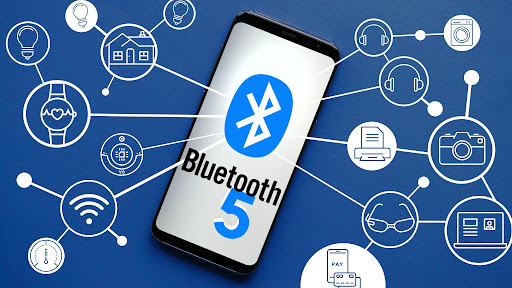
Bluetooth flaw, Android and Windows in danger
bluetoothResearchers have discovered 16 vulnerabilities in Bluetooth connections that could be exploited and make from minor to some serious damage to your device. The flaw can be used on chips manufactured by Intel, Qualcomm, and Texas Instruments while connecting to external devices like speakers, headphones, keyboards, mice, etc.

Who is affected?

Mentioned chips are used by many in a vast range of devices including big players with their products like Microsoft Surface laptops, Dell desktops, Samsung Phones, Google Pixel, and OnePlus handsets. The Bluetooth bug affects a wide range of devices, including smartphones, laptops as well as smart home gadgets. In total, more than one billion devices that rely on Bluetooth are believed to be impacted.

What is the damage?

The amount of damage possible with this flaw depends on the type of device with the chipset. Some devices can only be crashed after a specially crafted packet is sent to the flawed chip. If that's the case with your gadget, it can be easily resolved with a simple restart. With other devices, hackers can take advantage of the Bluetooth Classic flaw to remotely run malicious code. That could allow malware to be installed remotely. Researchers say vendors were informed about these issues months ago before the findings were published. The good news is this should have given plenty of time for the relevant patches to be pushed out that remedy the flaws. However, you'll need to make sure that you're running the latest version of the operating system to be protected by the patch crafted by the manufacturers.

Android Bluetooth threat

The researchers emphasize the lack of basic tests in Bluetooth certification to validate the security of Bluetooth Low Energy (BLE) devices. The BrakTooth family of vulnerabilities revisits and reasserts this issue in the case of the older, but yet heavily used Bluetooth classic (BR/EDR) protocol implementations. We would also advise users to disable Bluetooth on devices that do not need it. This way you can prevent attackers from sending you malformed LMP packets. Since BrakTooth is based on the Bluetooth Classic protocol, an adversary would have to be in the radio range of the target to execute the attacks. So, in a safe environment Bluetooth can be enabled.
Read More
Fix Element Not Found for Bootrec /Fixboot
One of the most useful utilities for advanced users in Windows is the Windows command line or Command Prompt. It is efficient in fixing system files, checking the disk for errors as well as other intensive tasks that are made convenient using this. One of the tasks you can carry out using Command Prompt is repairing the Windows bootup process if it encounters any issues. However, if you tried running the “bootrec/fixboot” command and you receive an error message saying, “Element not found”, read on as this post will guide you in fixing this error. This kind of error in the command line could be due to a damaged BCD or MBE, inactive system partition, or it could also be that there is no drive letter being assigned to the EFI partition. Whichever the case is, here are some possible fixes that should help you resolve the problem.

Option 1 – Try to repair BCD

As mentioned the error could be caused by a damaged BCD and so to fix the problem, you need to repair BCD by following these steps:
  • First, make sure that you have a bootable Windows 10 USB drive with you and use it to boot your computer.
  • Once you’re on the Welcome Screen, click on Next.
  • After that, click on Repair your computer located at the bottom-left portion of the window.
  • Then select Troubleshoot > Advanced Options > Command Prompt.
  • After you open the Command Prompt window, execute the following command:
bootrec /fixboot
  • Afterward, enter the next command below to rename the BCD file:
ren BCD BCD.bak
  • Next, type the following command and make sure to replace “b:” with the letter of your bootable drive attached to your computer.
bcdboot c:Windows /l en-us /s b: /f ALL
  • Now, wait until the process is completed and restart your computer to successfully apply the changes made.

Option 2 – Try assigning the drive letter to the EFI partition

  • Tap the Win + X keys or right-click on the Start button and click on Command Prompt (Admin) to open Command Prompt with admin privileges.
  • Then type the following command to start the Diskpart utility:
diskpart
  • After that, if you receive a UAC prompt, just click on Yes to proceed.
  • Next, type the following command to list all the volumes created on your PC including both types of partitions that are visible to a normal user in the File Explorer as well as the ones created by Windows 10 by default which helps it in storing the boot files and other important system files:
list volume
  • Now type the following command to select the desired volume:
select volume number
  • Then type the following command to assign a letter to the selected volume:
assign letter=<LETTER>
Note: Make sure to replace “<LETTER>” with the letter you want to allocate to that partition. Afterward, it will assign a letter to the selected volume.
  • Reboot your PC to apply the changes made.

Option 3 – Try setting the System Partition to Active

Like the first given option, you also have to make sure that you have a bootable Windows 10 USB drive before you proceed to set the System Partition to Active. Once you have it covered, refer to these steps:
  • Boot your computer using the bootable Windows 10 USB drive.
  • Next, click Next when you get to the Welcome Screen.
  • Then click on Repair your computer located at the bottom left part of the window and select Troubleshoot > Advanced Options > Command Prompt.
  • After opening Command Prompt, type the following command and hit Enter to start the Diskpart utility. It is a command line-based utility just like Command Prompt but has a UAC prompt once you provoke it. So if you encounter a UAC prompt, just click on Yes to proceed.
diskpart
  • Now type the following command:
list disk
  • From there, select your primary disk by typing the following command:
select disk number
  • After that, list all the partitions on the selected disk by entering the following command:
list partition
  • The command you just entered will list all the partitions created on your PC including both types of partitions that are visible to a normal user in the File Explorer as well as the ones created by Windows 10 by default which helps it in storing the boot files and other important system files.
  • Now type the following command to select the partition that is usually around 100 MB in size:
select partition number
  • Finally, type the following command to mark the partition active:
active
  • Then type the “exit” command to exit the disk part utility.
Read More
Diagnosing your PC/Preparing Automatic Repair
Windows 10 is has a lot of features that help a user in optimizing a computer. So when the operating system encounters a problem, it is able to provide users with proper resources to get the problem fixed. There are even times when a user is not notified and an issue is either being repaired or dodged in the background. This kind of feature is known as the Diagnosis of the Automatic Repair feature that starts when your computer is booting. In such times, you will either see the “Diagnosing your PC” or “Preparing Automatic Repair” message on your screen. Although this feature is useful and has proven to be effective, some users reported that the process gets stuck. If you experience the same problem, read on as this post will guide you on what to do to fix it but before you start troubleshooting the problem, you might want to perform a Hard Boot first. All you have to do is to power down your computer, remove the battery and the AC adapter and then reconnect them. After that, tap and hold the power button for about 20 seconds and see if your computer boots up properly. If it doesn’t, follow the given fixes below.

Option 1 – Try disabling the automatic Startup Repair

The Automatic Startup Repair window will automatically open during boot when you have some system driver-related problem. So if you think that this is where the problem lies, you can try to disable the automatic Startup Repair.
  • Click on Troubleshoot and go to the Advanced options.
  • After that, select Command Prompt and execute the following command:
bcdedit /set recoveryenabled NO
  • Restart your computer after that and then check.

Option 2 – Run the System File Checker

System File Checker or SFC is a built-in command utility that helps in restoring corrupted files as well as missing files. It replaces bad and corrupted system files to good system files that might be the cause why you’re facing this problem. To run the SFC command, follow the steps given below.
  • Type “cmd” in the Start search and then right-click on the appropriate search result.
  • Next, select “Run as administrator” to open Command Prompt with admin privileges.
  • After opening Command Prompt, type in sfc /scannow
The command will start a system scan which will take a few whiles before it finishes. Once it’s done, you could get the following results:
  1. Windows Resource Protection did not find any integrity violations.
  2. Windows Resource Protection found corrupt files and successfully repaired them.
  3. Windows Resource Protection found corrupt files but was unable to fix some of them.
  • Now restart your computer and see if the problem is fixed or not.

Option 3 – Run CHKDSK to check your disk for errors

When it comes to some issues concerning the hard drive or removable devices, there is a utility in Windows that might help which is called “chkdsk”. This error check utility can help with several issues in the system.
  • Tap the Win + S keys to open the Search box.
  • Then type “command prompt” in the field and from the search results that appear, right-click on Command Prompt and select “Run as administrator”.
  • After opening an elevated command prompt, copy and paste the following command and hit Enter:
chkdsk /r /f
  • Now if you are prompted to run CHKDSK after your reboot your computer, just tap Y and reboot your PC.
  • If CHKDSK is not able to find any errors, tap the Win + E keys and navigate the access window. From there, right-click on the concerned drive and click on Properties.
  • After opening Properties, click on the tab Tools and then click on the “Check” button under the Error-checking section.
  • Wait until the process is completed and then restart your computer.
  • Once your computer has restarted, try accessing the file and check if the error persists.

Option 4 – Run the DISM tool

The next thing you can do is run the DISM tool. This tool is known to repair potentially corrupted files in your system as having them could also system issues like your computer getting stuck in the “Diagnosing your PC” or “Preparing Automatic Repair” screen.
  • Tap the Win + X keys and click on the “Command Prompt (Admin)” option.
  • After that, input each one of the commands listed below sequentially to execute them:
    • Dism /Online /Cleanup-Image /CheckHealth
    • Dism /Online /Cleanup-Image /ScanHealth
    • Dism /Online /Cleanup-Image /RestoreHealth
  • Once you’ve executed the commands given above, restart your computer and check if the problem is now fixed.

Option 5 – Try to use installation media to boot and repair your computer

Another thing you can try to resolve the issue is to use the Windows installation bootable media so you can boot and repair the operating system. To use it, follow these steps:
  • You need to first create an installation media which has the dame version of the operating system installed in your computer.
  • After that, once you reach the Install Windows screen, click on the “Repair your computer” link.
  • Wait until the repair is completed and then shut down your computer
  • Now once your computer has restarted, check if it can now boot properly.
Read More
Fix Windows Update Error Code 0x8024402c
Connecting to Microsoft’s Windows Update servers does not always go smoothly since you could run into a number of errors. One of these errors is the error code 0x8024402c. You can see this error code when you check for Windows Updates. This kind of Windows Update error occurs when the proxy or the firewall settings are incorrectly configured. As a result, the client’s connection to the Windows Update servers fails. There are two things you can do to resolve error code 0x8024402c. First, you can try to fix the Proxy Settings. Second, you can set up Automatically Detect the connection settings. In addition, you can also try to perform System Restore as it could also help in fixing the problem. Performing System Restore might help you in fixing the error code 0x8024402C. Refer to the steps below to use System Restore.
  • Tap the Win + R keys to open the Run dialog box.
  • After that, type in “sysdm.cpl” in the field and tap Enter.
  • Next, go to the System Protection tab then click the System Restore button. This will open a new window where you have to select your preferred System Restore point.
  • After that, follow the on-screen instructions to finish the process and then restart your computer and check if the problem is fixed or not.
If performing System Restore didn’t help in fixing the problem, then try the two given options below.

Option 1 – Try fixing the Proxy Settings

  • In the Cortana search box, search for Internet Explorer and then click on the related search result.
  • After that, tap the Win + T keys on your keyboard and click on Internet Options.
  • Next, navigate to the Connections tab and click on LAN Settings.
  • Then click on the Advanced button and delete all the entries in the list generated in the Exceptions section. And if the Advanced button is disabled because the “Use a proxy server for your LAN (These settings will not apply to dial-up or VPN connections)” option is disabled then you are good to go. Now proceed to the next step.
  • Tap the Win + X keys or right-click on the Start button and select Command Prompt (Admin) or you could also search for “cmd” in the Cortana search box and right-click on Command Prompt from the search results and select the “Run as administrator” option.
  • If a User Account Control appears, click on Yes to proceed. After that, type each one of the commands listed below, and don’t forget to hit Enter after you type each one of them.
    • netsh winhttp reset proxy
    • net stop wuauserv
    • net start wuauserv
  • Now restart your computer and check if the problem is fixed or not by checking for Windows Updates again.

Option 2 – Try setting up Automatically Detect the connection settings

  • Type in “internet options” in the Cortana search box and then click on the related search result.
  • After that, navigate to the Connections tab.
  • Next, click on the LAN Settings button located under the Local Area Network (LAN) settings section.
  • Then uncheck the “Use a proxy server for your LAN (These settings will not apply to dial-up or VPN connections)” option under the Proxy Server section and click OK.
  • Now restart your computer to apply the changes made successfully.
Read More
New toys in new PowerToys for Windows
A new update to popular Microsoft PowerToys has brought a few new features that are aimed at speeding up the workflow. PowerToysThe first new feature that was slid in is Always on top utility. With this cool utility, you can keep the window as the name suggests, always on top of other windows. To enable this cool feature all you have to do is press the key combination of ⊞ WINDOWS + CTRL + T and an active window will be now always on top of all other windows. To reverse and unlock this window from being always on top just press key combination again. A second new feature is a really great one and my favorite thing to happen in power toys. Often we are making the search in our browsers to find stuff, things, maybe some explanations, information, etc. The newest update in power toys brings this to a whole new dimension. While you are on PC you just simply need to type ?? followed by questions like: ?? When doctor strange 2 is coming out and that will launch your default browser with your chosen search engine and provide you with the answer. Third and final thing is G-code support in the file explorer preview pane and thumbnails, meaning that if you work with CNC equipment you can now have a thumbnail preview of the code itself inside File Explorer. And that’s it for now, thank you for coming and reading, Take care and I hope to see you next time.
Read More
How to remove Nectar Toolbar from your Windows PC

Nectar Toolbar is a Browser addon for Internet Explorer developed by AIMIA Coalition Loyalty. This addon changed your default search provider to Yahoo UK. While installed, you might see additional unwanted ads and sponsored links injected in the search results.

From the Author: We all search the web every day for information from handy how-to’s, must know news about shopping. So wouldn’t it be great if you could collect extra Nectar points just for doing something you do already? Like to shop online? Nectar Search will also tell you when you’re on a shopping website (like Argos, Debenhams, Next, Play.com, and Apple) where you can collect points too.

Several anti-virus scanners have marked this addon as a Browser Hijacker and are therefore not recommended to keep on your computer.

About Browser Hijackers

Browser hijacking means a malicious program code has power over and modified the settings of your browser, without your permission. Browser hijackers could do more than just changing home pages. In general, hijackers are developed for the benefit of online hackers often through income generation that comes from forced ad mouse clicks and website visits. Nonetheless, it isn’t that harmless. Your web safety is compromised and it is also really annoying. In a much worst case, your browser could be hijacked to download malicious software that will do a great deal of damage to your computer.

Key symptoms that your browser has been hijacked

When your browser is hi-jacked, the following can happen: you notice unauthorized changes to your internet browser’s homepage; you observe new unwanted favorites or bookmarks added, usually directed to advertisement-filled or porn websites; the default browser configurations have been changed and/or your default web engine is altered; unwanted new toolbars are added to your internet browser; you might notice numerous pop-up adverts on your computer screen; your browser has instability issues or exhibits frequent errors; You can’t access particular websites, especially anti-malware websites.

Exactly how they invade computers

A browser hijacker can be installed on your computer or laptop when you go to an infected site, click on an e-mail attachment, or download something from a file-sharing site. Many internet browser hijackings originate from add-on programs, i.e., browser helper objects (BHO), toolbars, or plug-ins added to browsers to provide them additional features. Other times you might have accidentally accepted a browser hijacker as part of a software bundle (generally freeware or shareware). Popular examples of browser hijackers include CoolWebSearch, Conduit, OneWebSearch, Coupon Server, RocketTab, Delta Search, Searchult.com, and Snap.do. Browser hijacking can bring about serious privacy problems and even identity theft, affect your web browsing experience by taking control over outgoing traffic, drastically slows down your computer or laptop by depleting lots of resources, and lead to system instability also.

Browser hijacker removal methods

Some browser hijacking can be easily stopped by identifying and eliminating the corresponding malware software from your control panel. However, most hijackers are quite tenacious and require specialized applications to get rid of them. Moreover, browser hijackers could modify the Windows registry so it can be extremely tough to fix manually, particularly when you are not a tech-savvy person. Browser hijackers can be effectively removed by installing and running an anti-malware application on the affected computer. To get rid of any browser hijacker out of your computer, you could download this particular top-notch malware removal application – SafeBytes Anti-Malware. Together with anti-malware, a PC optimizer software, similar to Total System Care, could help you correct Windows registry errors, remove unwanted toolbars, secure your internet privacy, and stabilize programs installed on your computer.

Find Out How To Install Safebytes Anti-Malware On An Infected Computer system

All malware is bad and the consequences of the damage will vary based on the specific type of malicious software. Certain malware goes to great lengths to stop you from downloading or installing anything on your computer system, particularly anti-virus programs. If you are reading this, you probably have infected by a virus that stops you from installing a security program like Safebytes Anti-Malware. Follow the instructions below to remove malware through alternative methods.

Install in Safe Mode with Networking

Safe Mode is a unique, simplified version of Windows where just essential services are loaded to counteract malware and other problematic programs from loading. In case the malicious software is set to load immediately when the PC boots, switching to this mode could prevent it from doing so. To boot into Safe Mode, hit “F8” key on the keyboard right before Windows logo screen appears; Or right after normal Windows boot up, run MSCONFIG, look over Safe Boot under Boot tab, and then click Apply. Once you are in Safe Mode, you can try to install your anti-malware application without the hindrance of the malware. After installation, run the malware scanner to eliminate standard infections.

Download the anti-malware program in a different internet browser

Some malware only targets particular internet browsers. If this is your case, employ another browser as it might circumvent the computer virus. In case you suspect that your Internet Explorer happens to be hijacked by a computer virus or otherwise compromised by online hackers, the most effective course of action is to switch over to a different web browser such as Mozilla Firefox, Google Chrome, or Apple Safari to download your favorite security application – Safebytes Anti-Malware.

Make a bootable USB anti-virus drive

Another solution is to save and run an anti-malware software program entirely from a Thumb drive. To run antivirus from a thumb drive, follow these simple steps: 1) On a clean computer, install Safebytes Anti-Malware. 2) Plug the USB drive into the clean computer. 3) Double-click the Setup icon of the anti-malware software to run the Installation Wizard. 4) Select the drive letter of the pen drive as the location when the wizard asks you where you would like to install the anti-virus. Follow the onscreen instructions to finish the installation. 5) Now, insert the USB drive into the corrupted PC. 6) Run the Safebytes Anti-malware directly from the pen drive by double-clicking the icon. 7) Simply click “Scan Now” to run a complete scan on the affected computer for malware.

SafeBytes Anti-Malware Features

To protect your laptop or computer from various internet-based threats, it’s important to install anti-malware software on your personal computer. However, with countless numbers antimalware companies out there, these days it is hard to decide which one you should buy for your laptop. Some of them do a great job in eliminating malware threats while some will damage your PC by themselves. You must be careful not to pick the wrong product, especially if you buy a paid application. On the list of strongly recommended software by industry leaders is SafeBytes Anti-Malware, the most dependable program for Microsoft Windows. SafeBytes anti-malware is a trustworthy tool that not only secures your PC permanently but is also quite user-friendly for people of all skill levels. Once you’ve got installed this application, SafeByte's sophisticated protection system will ensure that no viruses or malware can seep through your PC.

SafeBytes anti-malware provides an array of enhanced features that sets it aside from all others. Some of them are listed as below:

Real-Time Protection: SafeBytes gives you round-the-clock protection for your PC limiting malware intrusions in real-time. This utility will constantly monitor your computer for suspicious activity and updates itself continuously to keep abreast of the constantly changing threat landscape. Most effective AntiMalware Protection: Built on a greatly acclaimed anti-virus engine, this malware removal application can find and get rid of numerous stubborn malware threats such as browser hijackers, potentially unwanted programs, and ransomware that other common anti-virus applications will miss. Website Filtering: Safebytes allots all websites a unique safety score that helps you to have an idea of whether the webpage you’re just about to visit is safe to browse or known to be a phishing site. Fast Multi-threaded Scanning: Safebytes Anti-Malware, with its advanced scanning engine, offers extremely fast scanning which can promptly target any active online threat. Low CPU/Memory Usage: SafeBytes is well known for its low influence on processing power and great detection rate of various threats. It operates silently and efficiently in the background so you’re free to utilize your PC at full power all of the time. 24/7 Customer Service: For any technical concerns or product assistance, you could get 24/7 professional assistance through chat and email. Put simply, SafeBytes has created a meaningful anti-malware solution that is aimed to protect you against all manner of malware. You now may understand that this particular software does more than just scan and eliminate threats from your PC. So if you’re searching for the absolute best malware removal application out there, and when you don’t mind shelling out a few bucks for it, opt for SafeBytes Anti-Malware.

Technical Details and Manual Removal (Advanced Users)

To eliminate Nectar Toolbar manually, go to the Add or Remove programs list in the Windows Control Panel and choose the program you want to remove. For browser extensions, go to your web browser’s Addon/Extension manager and select the add-on you want to remove or disable. You’ll probably also want to reset your internet browser to its default settings. Finally, check your hard disk for all of the following and clean your computer registry manually to get rid of leftover application entries after uninstallation. But bear in mind, this can be a tough task and only computer professionals can perform safely. In addition, certain malicious programs have the capability to defend against its removal. Completing this task in Safe Mode is suggested.
Files: C:\Program Files (x86)\Nectar Toolbar C:\Program Files (x86)\Nectar Toolbar\tbunsg7A.tmp\AimiaPoints.png C:\Program Files (x86)\Nectar Toolbar\tbunsg7A.tmp\AimiaPointsAct.png C:\Program Files (x86)\Nectar Toolbar\tbunsg7A.tmp\AimiaToolbar.css C:\Program Files (x86)\Nectar Toolbar\tbunsg7A.tmp\ArrowDown.png C:\Program Files (x86)\Nectar Toolbar\tbunsg7A.tmp\ArrowRight.png C:\Program Files (x86)\Nectar Toolbar\tbunsg7A.tmp\ArrowUp.png C:\Program Files (x86)\Nectar Toolbar\tbunsg7A.tmp\arrow_refresh.png C:\Program Files (x86)\Nectar Toolbar\tbunsg7A.tmp\background.html C:\Program Files (x86)\Nectar Toolbar\tbunsg7A.tmp\background.js C:\Program Files (x86)\Nectar Toolbar\tbunsg7A.tmp\basis.xml C:\Program Files (x86)\Nectar Toolbar\tbunsg7A.tmp\BrowserTweak.css C:\Program Files (x86)\Nectar Toolbar\tbunsg7A.tmp\btn-background-grey.png C:\Program Files (x86)\Nectar Toolbar\tbunsg7A.tmp\CanCollect.png C:\Program Files (x86)\Nectar Toolbar\tbunsg7A.tmp\CanCollectAct.png C:\Program Files (x86)\Nectar Toolbar\tbunsg7A.tmp\closeIcon.png C:\Program Files (x86)\Nectar Toolbar\tbunsg7A.tmp\cog.png C:\Program Files (x86)\Nectar Toolbar\tbunsg7A.tmp\Collecting.png C:\Program Files (x86)\Nectar Toolbar\tbunsg7A.tmp\CollectingAct.png C:\Program Files (x86)\Nectar Toolbar\tbunsg7A.tmp\computer_delete.png C:\Program Files (x86)\Nectar Toolbar\tbunsg7A.tmp\eShopsMenu.html C:\Program Files (x86)\Nectar Toolbar\tbunsg7A.tmp\eShopsMenu.js C:\Program Files (x86)\Nectar Toolbar\tbunsg7A.tmp\help.png C:\Program Files (x86)\Nectar Toolbar\tbunsg7A.tmp\HelpMenu.html C:\Program Files (x86)\Nectar Toolbar\tbunsg7A.tmp\HelpMenu.js C:\Program Files (x86)\Nectar Toolbar\tbunsg7A.tmp\icon-128.png C:\Program Files (x86)\Nectar Toolbar\tbunsg7A.tmp\icon-16.png C:\Program Files (x86)\Nectar Toolbar\tbunsg7A.tmp\icon-48.png C:\Program Files (x86)\Nectar Toolbar\tbunsg7A.tmp\icons.bmp C:\Program Files (x86)\Nectar Toolbar\tbunsg7A.tmp\icons.png C:\Program Files (x86)\Nectar Toolbar\tbunsg7A.tmp\ie7vista.png C:\Program Files (x86)\Nectar Toolbar\tbunsg7A.tmp\ie7xp.png C:\Program Files (x86)\Nectar Toolbar\tbunsg7A.tmp\ie8bg.png C:\Program Files (x86)\Nectar Toolbar\tbunsg7A.tmp\IE8GuardWorkaround.exe C:\Program Files (x86)\Nectar Toolbar\tbunsg7A.tmp\info.txt C:\Program Files (x86)\Nectar Toolbar\tbunsg7A.tmp\InstIcon.ico C:\Program Files (x86)\Nectar Toolbar\tbunsg7A.tmp\jquery-1.7.2.min.js C:\Program Files (x86)\Nectar Toolbar\tbunsg7A.tmp\jquery.placeholder.min.js C:\Program Files (x86)\Nectar Toolbar\tbunsg7A.tmp\JSON.js C:\Program Files (x86)\Nectar Toolbar\tbunsg7A.tmp\main.js C:\Program Files (x86)\Nectar Toolbar\tbunsg7A.tmp\menu.js C:\Program Files (x86)\Nectar Toolbar\tbunsg7A.tmp\nectar-icon-32×32.png C:\Program Files (x86)\Nectar Toolbar\tbunsg7A.tmp\PIE.htc C:\Program Files (x86)\Nectar Toolbar\tbunsg7A.tmp\PIE.js C:\Program Files (x86)\Nectar Toolbar\tbunsg7A.tmp\SearchHist.html C:\Program Files (x86)\Nectar Toolbar\tbunsg7A.tmp\SearchHist.js C:\Program Files (x86)\Nectar Toolbar\tbunsg7A.tmp\search_glass.png C:\Program Files (x86)\Nectar Toolbar\tbunsg7A.tmp\separator.png C:\Program Files (x86)\Nectar Toolbar\tbunsg7A.tmp\separator_arrows.png C:\Program Files (x86)\Nectar Toolbar\tbunsg7A.tmp\TbCommonUtils.dll C:\Program Files (x86)\Nectar Toolbar\tbunsg7A.tmp\tbcore3.dll C:\Program Files (x86)\Nectar Toolbar\tbunsg7A.tmp\TbHelper2.exe C:\Program Files (x86)\Nectar Toolbar\tbunsg7A.tmp\tbhelperU.dll C:\Program Files (x86)\Nectar Toolbar\tbunsg7A.tmp\uninstall.exe C:\Program Files (x86)\Nectar Toolbar\tbunsg7A.tmp\UninstIcon.ico C:\Program Files (x86)\Nectar Toolbar\tbunsg7A.tmp\update.exe C:\Program Files (x86)\Nectar Toolbar\tbunsg7A.tmp\version.txt C:\Program Files (x86)\Nectar Toolbar\tbunsg7A.tmp\Yahoo.ico C:\Program Files (x86)\Nectar Toolbar\tbunsg7A.tmp\yahoo.png C:\Program Files (x86)\Nectar Toolbar\tbunsg7A.tmp\your_logo.png Registry: HKEY_CURRENT_USER\Software376694984709702142491016734454 HKEY_CURRENT_USER\Software\Microsoft\Windows\CurrentVersion\Run 13376694984709702142491016734454

Read More
Turn On/Off and Clear Windows Clipboard
Windows 10 has a Cloud Clipboard feature that allows users to have a list of multiple copied text in place so that they can reuse it. And each time the computer restarts, the Clipboard Data is cleared. However, you can actually do it manually. How? Read on as this post will walk you through how you can turn on or off as well as clear the Clipboard history in Windows 10. This kind of feature is already available in Windows 10 v1903. In the previous versions of Windows, there was no feature to turn off history in the clipboard and users have to use other ways to clear the clipboard history. And now it seems that Microsoft has put an end to this dilemma as it now allows users to clear the clipboard history. To turn on or off or clear the Clipboard history, here are some instructions you need to follow: Step 1: Tap the Win + X keys to open the power menu and select Settings. Step 2: After that, navigate to Settings > System > Clipboard. Step 3: From there, turn off the toggle button under the Clipboard history section. This will turn off the Cloud Clipboard feature. As a result, the default clipboard will hold one last item and will not display the data on the clipboard. Note: When you tap the Win + V keys to invoke the clipboard manager, you will see a prompt that says, “Can’t show history, See all copied items in place, Turn on clipboard history”. You have the option to turn it back on by simply clicking on the available button. Doing so would only hide the existing data and makes sure that no copy of the data is kept.

Conclusion

On the other hand, if you want to clear the clipboard without affecting its history data, you have to make sure to pin the items on the clipboard that you want to stay. After that, click on the three-dotted icon for the menu and click on the “clear all” option. This will delete all the entries but will keep the pinned items on your clipboard.
Read More
1 2 3 171
Logo
Copyright © 2023, ErrorTools. All Rights Reserved
Trademark: Microsoft Windows logos are registered trademarks of Microsoft. Disclaimer: ErrorTools.com is not affiliated with Microsoft, nor claims direct affiliation.
The information on this page is provided for information purposes only.
DMCA.com Protection Status