When we purchase a computer, usually it is meant to be used by one person. Sometimes we would like to share our computer with other people, with friends and family members but we would also like to keep some privacy for ourselves in the process. Lucky for us Windows 10 will let us create multiple user accounts which then can be used by other persons with their own settings, documents, etc. The only requirement is to already have one user account which is automatically created when Windows is installed.
This guide will lead you step by step in the creation of a new user account within Windows 10, so grab your favorite drink, and let's begin.
Creating new account
First thing is to click on the windows icon on the bottom left and open start menu, from start menu click once on settings.
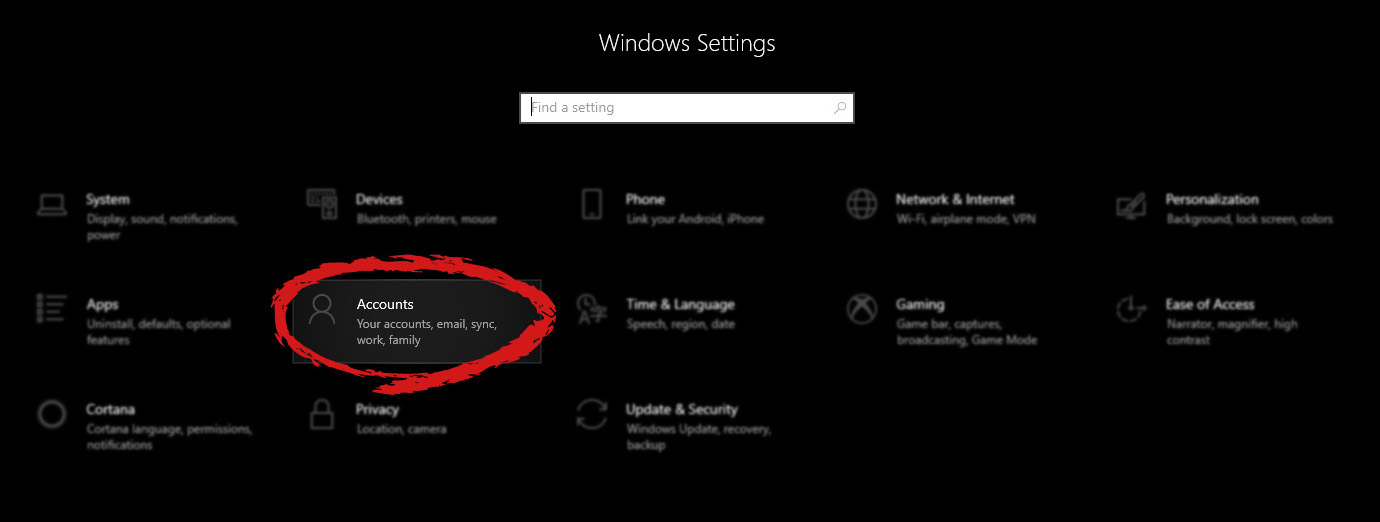
When the settings window opens, choose ACCOUNTS on it.
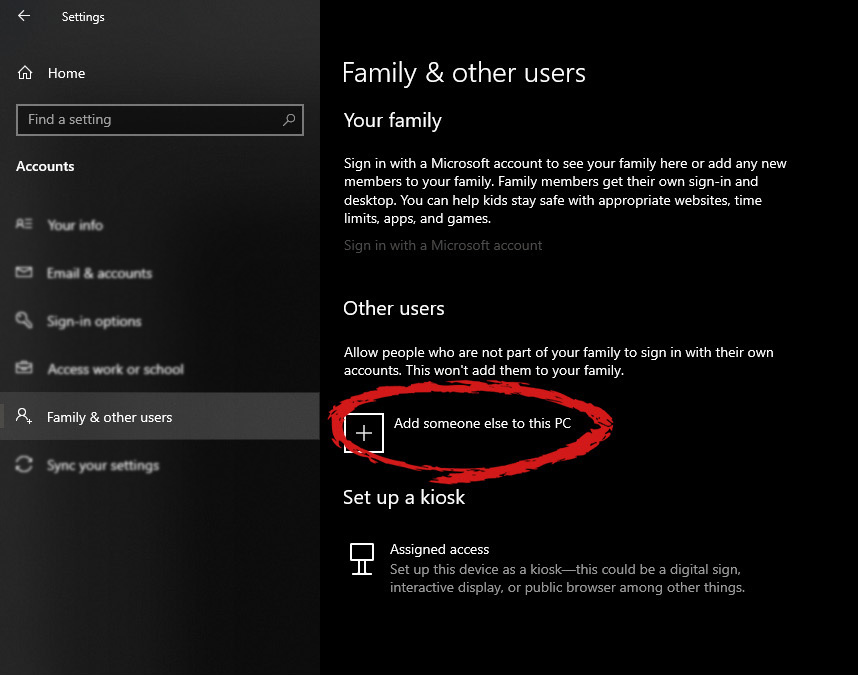
Windows will then go to the accounts settings page. Within that page, click on the Family & other users to open the setting for the chosen section on right. On the right settings, screen navigate to the lower section and click once with the left button on add someone else to this PC
When add someone else to this PC is clicked, pop up window will appear which will ask you to provide the persons email address and later on the password of his/her Microsoft account, after the required information is provided you are done, a new user has been added and he can use his Microsoft credentials on the login screen to use this computer.
Setting up a user without Microsoft ID
However, if you do not wish to add a new user via his Microsoft login credentials or the person does not have them, on the pop-up window click on I don't have this person's sign-in information.
This will open yet another pop-up giving you the option to create a Microsoft account for this person, to use a phone number instead of a Microsoft account, or to create a new email address for the user. Any of these options will create a new user for this computer with provided credentials but there is the last option at bottom of the pop-up which will allow you to create a local user only without a Microsoft account. This user will be able to use this computer, will not be able to transfer his document through various devices like he/she would if using a valid Microsoft account but it could use the computer and personalize it fully to his/her liking.
Once the link is clicked, you will be presented with a floating window requiring you to input needed information in order for the account to be created. You will need to provide username, password, and answers to 3 security questions.
Once all information has been provided, click on next and your new non-Microsoft local user has been created. Now when you click on Family & other users you will see that Windows has added a new user with the provided name to this computer. If you wish, you can add another user in the same manner, following the previous steps. Microsoft Windows does not have a limit for how many users can be on one computer so feel free to create as many as you like.
User account options
Now, clicking on the existing created user will open user options. From there you will have options to remove the user, therefore removing him/her from this computer, note that removing the local user will remove permanently his/her settings and they would not be able to be restored, or you can change the user account type.
Click on Change account type.
Under account type, you will have the option to promote this user to an administrator if you wish or you can leave it as a standard user.
A computer with no internet connection is like a mobile phone that can’t call nor text though you can still use it for other things. So if you are having problems with your computer’s internet connection, worry not as there are some basic things you can try before you go over the actual troubleshooting. Just make sure that you really have working internet. To verify it, try connecting your other devices. Aside from that, you must also make sure that your computer is connected properly over cable or connected to the router over the Wi-Fi. Once you have all these things covered, now’s the time to start troubleshooting the problem with the help of the instructions prepared below. To be more specific, this guide will walk you through what you can do when you encounter a particular internet connection problem where you get the Media State Media disconnected error message on your Windows 10 computer.
Before you troubleshoot the problem, you need to first check the internet connection status on your computer. To do that, follow these steps:
Type in “cmd” in the Cortana search box.
From the search results, right-click on Command Prompt and select “Run as administrator” from the context menu.
After opening Command Prompt with administrator privileges, type in the ipconfig /all command and hit Enter.
After you enter the command, you will see a list of all the connected media like the Ethernet, Wi-Fi along with its status, and more. From there, you need to check everything closely. I notice a message that says, “Media State . . . . . Media disconnected”, then your internet connection is indeed having issues.
Refer to the options below to fix the Media State Media disconnected error message on your Windows 10 PC.
Option 1 – Try resetting WINSOCK and IP Stack
Type in “cmd” in the Cortana search box.
From the search results, right-click on Command Prompt and select “Run as administrator” from the context menu.
After opening Command Prompt, type in each one of the commands listed below
netsh winsock reset catalog – This command will reset the WINSOCK entries.
netsh int ipv4 reset reset.log – This command will reset the IPv4 TCP/IP stack.
netsh int ipv6 reset reset.log – This command will reset the IPv6 TCP/IP stack
Once you’ve executed the commands listed above, restart your PC to successfully apply the changes made.
Option 2 – Check if your Network Adapter is disabled
If you’ve disabled the network adapters on your computer, then it’s most likely the reason why you’re getting the Media State Media disconnected error message. Thus, you need to enable it back.
Open Settings and go to Network and Internet > Select Ethernet > Change adapter options.
From there, right-click on the adapter and enable it.
Option 3 – Check the Wi-Fi Properties
Though this case is not common, Wi-Fi sharing has actually caused issues for some users. That’s why you need to check the Wi-Fi properties. Go to Network Connections and right-click on Wi-Fi and select Properties. From Properties, go to the Sharing tab and select the first option and click OK.
Option 4 – Try updating the Network driver
Tap the Win + R keys to open the Run dialog box and then type in devmgmt.msc and tap Enter or click OK to open the Device Manager.
Expand the section for the outdated device drivers.
And then select the Network driver or any other outdated driver(s) and right-click on it/them.
From the drop-down menu, select the Update Driver option and follow the on-screen instructions to install the latest version of the driver.
Then also click on the option, “Search automatically for updated driver software.
Restart your PC after the installation.
Note: If updating the Network driver didn’t work, you can go to the website of your PC manufacturer and look for the support section where you can download the drivers for your computer. You just need to take note of your PC’s correct model and model number so you can find the appropriate driver.
There are instances when instead of fixing problems the Windows Update brings you problems on your Windows 10 computer. You might even see some pending Windows Updates which for some reason, refuse to install no matter what you do. The good thing is you won’t have to deal with those failed and pending updates that are incompletely downloaded to your PC as you can actually delete them.
Follow the instructions prepared below to delete the failed and pending Windows Updates.
Step 1: The first thing you have to do is delete all the contents in the Temporary folder
Tap the Win + R keys to open the Run dialog box.
Next, type in “%temp%” in the field and hit Enter or click OK to open the Temporary folder.
From there, select all the folders and files within the Temporary folder and then delete them all.
Note: %temp% is one of the many environment variables in Windows that could open the designated folder by Windows as the Temporary folder which is usually located at C:\Users[username]AppDataLocalTemp.
Step 2: Next, remove the pending.xml file
Go to the C:\Windows WinSxS folder.
Once you’ve opened the folder, look for a file named “pending.xml” file and right-click on it and you can either rename it or delete it.
After that, the Windows Update should delete the pending tasks and build a fresh new update.
Step 3: Delete all the contents of the SoftwareDistribution folder
The Software Distribution folder in the Windows operating system is a folder that can be found in the Windows directory and is used to store files temporarily which might be required to install the Windows Update on your PC. Thus, it is required by the Windows Update and maintained by WUAgent. Aside from that, it also contains all the Windows Update History files and once you delete them, you will most likely lose the Update history. As a result, the next time you run the Windows Update, it may result in a longer detection time.
Open the WinX Menu.
From there, open Command Prompt as admin.
Then type in the following command – don’t forget to hit Enter right after typing each one of them.
net stop wuauservnet stop bits
After entering these commands, it will stop the Windows Update Service and the Background Intelligent Transfer Service.
Next, got to the C:\Windows\Software\Distribution folder and get rid of all the folders and files thereby tapping the Ctrl + A keys to select them all and then click on Delete. Note that if the files are in use, you won’t be able to delete them.
Once all the contents in the Software Distribution folder are deleted, restart your PC and then go back to Command Prompt and input the following commands again.
net start wuauservnet start bits
Since the folder has already been flushed, it will be populated afresh the instant your restart your computer and open Windows Update.
Step 4: Try resetting the catroot2 folder
You can also try resetting the catroort2 folder as it is known to fix tons of Windows Update issues. Both the Catroot and catroot2 are Windows operating system folders that are required for the Windows update process. So when you run the Windows Update, the catroort2 folders stores the signatures of the Windows Update package and helps it in the installation. It makes use of the “%windir%System32catroot2edb.log” file in the updating process. Afterward, the updates are stored in the SoftwareDistribution folder which is used then by the Automatic Updates in order to execute the updating process. Keep in mind that you must not rename or delete the Catroot folder. Although the Catroot2 folder is recreated automatically by Windows, the Catroot folder isn’t.
Each time you execute a command on your computer, it takes into account a number of files and space for the code in the background for the command to be executed. Thus, executing the command is not that easy which is why you could encounter some errors along the way due to various limitations or poor allocation of memory, and so on. One of the errors you might encounter when executing a command on Windows 10 and Windows Server is the “Not enough storage is available to process this command”.
There are several potential fixes you can check out to fix this error. To fix this error, you can try to delete the temporary files in your computer, run the DISM tool or apply some registry tweaks. For more details, refer to each one of the given options below.
Option 1 – Try to delete the temporary files
The error could be caused by some temporary or junk files in your computer and so you need to clear them up to fix the problem. You can achieve that using the Storage Sense feature.
Open Setting > System > Storage from the WinX Menu.
From there, you will see a list of all the local and connected storage devices along with the details on the free space. Make sure that Storage Sense is on.
Next, find a link that says “Free Up Space” and click it to open.
After that, a screen which is the built-in program in Windows 10 will appear and will scan your computer for the following junk files so you can free up disk space:
Windows Upgrade Log Files
System created Windows Error Reporting Files
Thumbnails
Temporary Internet Files
Previous Windows Installation Files
Delivery Optimisation Files
DirectX Shader Cache
Choose the files you want to get rid of and then click on the remove files option. Note that you’ll have an idea of the total size as you select any of the junk files listed above.
Now go to the “Free Up Space Now” section and click the Clean now button. This will get rid of all the temporary or junk files in your computer and should hopefully fix Error 1310.
Option 2 – Run the DISM tool
You can also run the DISM Tool as it could also help in fixing the “Not enough storage is available to process this command” error in Windows 10. Using this built-in tool, you have various options such as the “/ScanHealth”, “/CheckHealth”, and “/RestoreHealth” that could help in fixing error 0x80246019.
You can run the DISM tool via Advanced Startup Options or you could boot your computer into a Clean Boot State and then select Command Prompt.
Open the Command Prompt with admin privileges.
Then type in the following commands and make sure to hit Enter right after you type each one of them:
Dism /Online /Cleanup-Image /CheckHealth
Dism /Online /Cleanup-Image /ScanHealth
exe /Online /Cleanup-image /Restorehealth
Do not close the window if the process takes a while as it will probably take a few minutes to finish. Once it’s done, restart your computer and try again. If it didn’t work, you can try to use the “/StartComponentCleanup” parameter: Dism /Online /Cleanup-Image /StartComponentCleanup
Option 3 – Try to use the Registry Editor
The memory range allocated for the tasks and commands to be executed is associated with the IRPStackSize DWORD. Thus, to fix the error, you need to extend the range by applying some registry tweak. Before you proceed, make sure that you create a System Restore point first. Once you’re done, follow these steps:
Tap the Win + R keys to open the Run dialog box and type “Regedit” in the field and tap Enter to open the Registry Editor.
Next, navigate to this registry key: ComputerHKEY_LOCAL_MACHINESYSTEMCurrentControlSetServicesLanmanServerParameters
From there, look for the DWORD named “IRPStackSize” and right-click on it. If you can’t find this DWORD, just right-click on any empty space and select New > DWORD (32-bit) Value.
Input “IRPStackSize” as the DWORD name and double click on it and set its Value data to be greater than its default value. Note that the maximum value allowed is “0xc” and the range starts from “0x1”.
Now click on OK and exit the Registry Editor and then restart your computer and see if the error is fixed.
OpenCandy is an application that downloads and installs software, including other Internet Browsers to a computer system. Used as a bundle, this application installs additional programs that you may knowingly or unknowingly agree to install. Since most users don’t accept the challenge of reading the EULA in its entirety, they tend to download bundled applications unknowingly.
Assessment of OpenCandy PUP
During the initial assessment of OpenCandy, I was a little skeptical about what to look out for or expect. In fact, I had to install the OpenCandy.exe file twice to discern its behavior. I’m not sure how this application got its name but I do believe it has something to do with the fact that it supposedly helps Internet users open a new world of Internet browsing. That conclusion was arrived at after realizing that OpenCandy.exe installed mostly Internet browsers along with a tune-up tool on the test computer. However, as a result of the system requirements, there was a pop-up message indicating that Internet Explorer 8 was not compatible with the computer system in question.
In comparison to the malware I’ve encountered since I started researching malware, OpenCandy is everything but malicious. In fact, this application is only categorized as malware because of its’ subtle covert nature of installing bundled programs unsolicited by the user.
Additionally, OpenCandy coerces users into changing their Internet Browsers by installing those unrequested by the user. In fact, it’s no shock that OpenCandy chose to install the Internet Browser ‘Opera’ as a part of this bundle since it’s one of the least used browsers according to the Federal Government. Clearly, this was a smoothly disguised advertisement or promotion to force users into using the Opera Browser, along with Internet Explorer 8.0.
While these aforementioned browsers in themselves aren’t malicious and are in no way considered malware, they were installed as a promotional tool and without the request of the user. Despite being mentioned within the EULA, advertisers are capitalizing on this since most users do not bother to read the agreements when installing a program.
Furthermore, OpenCandy, like most other bundled applications I’ve dealt with, threw in a tune-up tool as a part of the promotion. I found this tune-up application annoying since I had to hassle my way into getting it to close from the computer screen. I can only imagine the hassle users would go through trying to remove this software.
Image 7: Depiction of a scan performed by Tuneup Utilities. The scan detected that several areas on the test PC could be optimized/tuned up.
Image 8: After a scan was completed using the Tuneup utility program, I was given an option to buy the full version. Nothing is wrong with this marketing strategy. In fact, most utility tools if not all will scan your computer to detect threats or loopholes, but they won't exactly allow you to fix those problems unless you buy the full version. It's not unfair, it's just business.
Programs installed during the installation of OpenCandy include:
Web Companion: Developed by Lavasoft, Web Companion is said to be an application that serves as a security defense for your Internet browsers by preventing unauthorized changes (see image below)
Tuneup Utilities: Tuneup Utilities does exactly as it says. It cleans up a computer system, whereby preventing unused programs from slowing it down.
Opera Stable 30.01.1835.88: Opera is a fast, simple, and effective Internet browser that allows users to get around on the web.
All in all, the intent of installing an application such as OpenCandy is to unleash a world of promotion or advertisements on your computer. They are pretty annoying and in some cases difficult to remove. Furthermore, as a user, you want to control what gets installed on your computer without being dictated to or coerced in some EULA that you probably overlook.
To completely remove OpenCandy PUP from your computer, click here to download and install Spyhunter.
What software are you using to keep your information and all your files and memories safe?
None? Yikes. Let’s hope no damage has been done to your data yet then. Because with how the digital world has evolved, your data might be getting leaked and you have no idea.
Why do you need to invest in security software?
There’s really no good excuse not to purchase a quality platform for PC protection. Especially since top security solutions are available at such affordable prices nowadays, your wallet would barely even notice it.
At this point, only people who barely use their PCs and have zero sensitive information on them can get away with simply using the built-in Windows 10/11 security software. But we guarantee that those people are extremely hard to find and that you’re not one of them, and here’s why.
Even if you don’t use your computer for things that are very obviously sensitive, such as internet banking, you still have some personal data at risk of being stolen. How so? Well, think about the data you enter into your social media profiles, for example. How devastating would it be if somebody got a hold of any of it? Yep, that’s what we thought.
Credit: FLY:D on Unsplash
In the hands of a skilled cybercriminal, your phone number alone could put you at risk of scams, ransomware, identity theft and more. Also think about the stuff you share in texts and social media chats. Think about the websites you visit and how many times you may have accidentally clicked on an ad, which could very well contain malicious software. Those all seem harmless until someone’s actually used them against you.
Now imagine the dangers involved when you actually store truly confidential data on your PC and browsers. Sends shivers down your spine, doesn’t it?
In the case of a successful cyberattack of whatever type (virus, phishing, worms, etc.), there’s so much that is at stake. Businesses/legal persons will suffer from financial loss and damaged reputation, at the very least. Natural persons may be threatened or exploited, get their banking or medical information and even their identity stolen, etc. And that’s just the tip of the iceberg.
These are our biggest reasons for investing in Windows PC protection software:
Cyberthreats are constantly evolving to the point where built-in or free software won’t cut it anymore.
Those working remotely can have peace of mind knowing both personal and business data is completely secure.
Businesses using top security solutions ensure their customers trust them.
Data breaches are a pain in the you-know-what to handle. Fighting a cyberattack and going back to normal is a demanding process, and not to mention the stress it’ll cause. We’d rather prevent all that by using trustworthy security products!
It helps parents worry a little less about their children’s safety in the online world.
Added bonus: with most products, you get an ad-free browsing experience!
Obviously, there are a lot more reasons to get your PC secured. But we think you get it. So let’s cut to the chase and take a look at our 6 favorite protection solutions and the wonders they can do for you.
*Note that in this article we’re looking at products primarily suited for households and home offices, some for small businesses. No enterprise solutions will make the list today, but stay tuned for a future article on those.
Top 6 best PC protection solutions
1. Bitdefender Total & Internet Security\
One of the biggest security product vendors out there, Bitdefender offers several awesome solutions. We want to introduce two of our favorites, Bitdefender Total Security and Bitdefender Internet Security.
Bitdefender Total Security is great for both households and smaller offices. You can choose to protect 5 or 10 devices, and not necessarily just Windows devices. It also works for macOS, Android and iOS. It offers a range of powerful features, such as:
Real-time data protection
Webcam and microphone protection
Device optimization options
Anti-phishing/-fraud/-spam technology
Ransomware protection
Anti-loss and anti-theft tools
VPN and privacy firewall
Anti-tracking technology
Parental controls
24/7 support
Bitdefender Internet Security shares almost all of these features, but there are a few important differences to note. Unlike Total Security, Internet Security has more options in terms of the number of protected devices: 1, 3, 5 or 10. However it’s only compatible with the Windows platform and it doesn’t offer device optimization tools or anti-theft options. Whether or not this is a deal-breaker depends on your needs alone - we still find it a great security tool.
Credit: Firmbee.com on Unsplash
2. ESET Internet Security
An award-winning Windows security product, ESET Internet Security is essential on this list. It has an outstanding protection rate of 99.9% and a range of amazing options you’ll definitely want to make use of. It can be installed on up to 10 devices, making it an awesome tool for your household, home office or a small business. It’s also compatible with macOS and Android.
These are ESET Internet Security’s best features:
Protection against ransomware and spyware
Protection against malware specifically designed to avoid detection
In-depth scans when the computer is not in use
Firewall to prevent unauthorized access to your PC
Anti-spam tool
Anti-phishing and botnet protection technologies
Tool to scan your router and smart devices for vulnerabilities
Special browser for secure internet banking
Parental controls
Prevention of unauthorized webcam access
If you ask us, ESET has it all!
Credit: rupixen.com on Unsplash
3. Kaspersky Total & Internet Security
Having a deja vu? Didn’t you just read Total Security and Internet Security somewhere? Oh, that’s right - the first entry on our list! But here we’re talking about Kaspersky, a vendor you’ve also definitely heard about before.
Just like Bitdefender, Kaspersky is another one of those renowned names in the cybersecurity world that always make it to every ‘best of’ list. And for good reason - its products really fulfill their purpose. So let’s take a closer look at the two we chose.
These are the features both Kaspersky Total Security and Kaspersky Internet Security have in common:
Real-time virus and spyware blocking
Webcam protection
Wi-Fi security notifications
Advanced identity theft protection
Free technical support on several channels
Remote security management
Multiple devices (up to 10)
The main difference between Kaspersky Total Security and Internet Security is that the former offers more capabilities. These are the features KTS offers that KIS does not:
System cleanup
File shredding
Password management
Data backup and encryption
Both are excellent security tools, though we do prefer KTS a little more because of these additional options.
4. Norton 360 Deluxe
Of course one of the industry-leading solutions makes the list. Norton 360 Deluxe can protect up to 5 devices, be it Windows, iOS, macOS or Android. It’s worth noting that its features are best developed for Windows. Here’s what you get with Norton 360 Deluxe:
Protection against viruses, hackers, malware
100% virus protection promise
VPN included for all devices
Unlimited VPN on Windows
Password manager
Parental controls
So is there anything aside from these standard protection features that makes it such a favorite among us techies? Let us tell you! Norton added a little bit of spice here with two really powerful capabilities. The Deluxe product offers 50GB of cloud backup and dark web monitoring. The latter means the software notifies you if any of your personal information is found on the dark web, which helps protect you against identity theft.
Credit: Luke Peters on Unsplash
5. McAfee Antivirus
Don’t be misled by the name of this product. Antivirus software may have started as protection against viruses only, but it’s developed quite a lot. The name simply stuck. All that to say that McAfee Antivirus - another award-winning security solution - protects you against several different threats.
The basic and essential plan allow 1 and 5 devices respectively, while McAfee+ Premium and Advanced work on an unlimited number of devices. The latter two also offer more capabilities, as you can imagine. Here’s what you can expect from all of them:
Secure unlimited VPN
File shredder to delete sensitive files completely
Ultimate safety while browsing
Protection against hackers
100% virus protection promise
Advanced firewall to block dangerous traffic
Online support from specialists
Protection score (shows how safe you are and detects vulnerabilities)
Identity monitoring (notifies you if any of your information is on the dark web)
Password management
Unlike the previous products, McAfee Antivirus does not offer parental controls. Otherwise it’s a pretty strong and comprehensive protection tool and might just be the right choice for you!
6. Trend Micro Maximum Security
Last but definitely not least, we’ve got Maximum Security by Trend Micro. And yes, you guessed it, Trend Micro is also an award winner in terms of cybersecurity. Its products have been recognized as industry-leading security solutions by AV-Test since 2003. Among all its fantastic solutions, our favorite for households or small offices is Maximum Security.
You can use Trend Micro Maximum Security to protect 3-5 devices for a year or two years before needing to renew your license. Aside from Windows, it’s compatible with iOS, Android, Mac and Chromebook devices. Here’s what you can expect from this protection software:
Powerful malware protection
Phishing detection and prevention (email)
Password management and protection
Maximum security for online banking and shopping
System optimization
Social media privacy protection
Parental controls
24/7 technical support
No notifications during gaming
It’s truly one of the most effective platforms out there dedicated to protecting your digital life. Using this product, ransomware, identity thieves and malicious websites don’t stand a chance.
The bottom line
If you’ve made it all the way here, congratulations, you’ve made the right choice: to invest in securing your valuable data! Now the question is: which one of these 6 awesome antivirus/antimalware products to select?
The paradox of choice is a very real thing - we feel you. As mentioned, it comes down to what your specific needs are. So before you go ahead and purchase your security software, make sure to explore all options.
And if you really can’t handle the decision-making anxiety, feel free to reach out. We’ll happily assist you in finding the right product to keep your digital life secure!
As you know, all the web browsers come with the support of auto-updates which include both Google Chrome and Mozilla Firefox. However, with these updates, the browser comes with the support of a new web APIs and better rendering. Although there could be a lot of problems that may arise due to these updates. These problems consist of depreciation of features, incompatibility with some websites, to name a few.
It includes incompatibility with some websites, depreciation of features, and more. This might push someone to stop the auto-updates of these web browsers. So, in this guide, we will be checking out how to stop auto-update in Google Chrome and Mozilla Firefox on Windows 10. Thus, if you want to be rid of these issues, then you can disable the Chrome & Firefox auto-update and you can do that by either using the Windows Services Manager and the System Configuration utility.
Option 1 – Disable Chrome & Firefox auto-update via Windows Services Manager
The first thing you can do to disable the Chrome auto-update is through the Windows Services Manager. To do so, follow these steps:
First, tap the Win + R keys to open the Run dialog box.
Next, type “services.msc” in the field and hit Enter to open the Windows Services Manager.
After that, you will see a list of services and from there, look for the Google Update Services (gupdate) and Google Update Service (gupdatem).
Once you find these services, right-click on each one of them and select Properties and then make sure that the Service Status is set to be Stopped.
You should also select the Startup Type to Disabled and click on the Apply and OK buttons.
Now restart your computer. This should stop the automatic update of the Chrome browser.
Option 2 – Disable Chrome & Firefox auto-update via System Configuration utility or MSConfig
Tap the Win + R keys to open the Run utility and type “msconfig” in the field and tap Enter to open the System Configuration.
After that, go to the Services tab and uncheck the two entries, namely Google Update Service (gupdate) and Google Update Service (gupdatem).
Next, click on the Apply and OK buttons to save the changes made.
Restart your computer.
Note: Now that you’ve stopped the auto-update in Firefox, it’s time for you to stop the auto-update in Mozilla Firefox. To get started, follow the steps below.
Open the Mozilla Firefox browser and click on the hamburger menu located on the top-right portion of the screen.
After that, select Options and under the General panel and then go to the Firefox Updates section.
Next, click on the radio button for updates but select the option to let you install them.
You also have to uncheck the options named “Use a background service to install updates” and “Automatically update search engines”.
Once done, restart the Firefox browser. This should stop the automatic update.
This post will guide you in what to do if the DisplayLink in Windows 10 is not working. There are several users who reported that their DisplayLink device has stopped working with the Windows 20 Anniversary or the Creators update all of a sudden. According to users, this issue occurs right after they finish installing a big Windows Update like the Anniversary Update or the Creators Update or right when the DisplayLink driver is updated using Windows Update.
DisplayLink is a graphics transport technology that allows users to connect to any computer that supports USB or Wi-Fi. Aside from that, it is also an excellent universal docking solution to any platform which makes it a great solution for enabling multiple displays. Thus, it can be quite annoying when DisplayLink suddenly stops working. There really is no actual error message when it happens. The only telltale sign is that all the devices that use the DisplayLink technology will also stop functioning. There could be tons of reasons why DisplayLink stopped working. It could be due to an incompatible driver, or the DisplayLink driver itself is corrupted or is connected to a USB 2.0 port. In addition, the problem could also be due to the Nvidia Share (ShadowPlay) that conflicts with DisplayLink or that the Universal Serial Bus is broken. To resolve the issue, refer to the following options laid out below.
Option 1 – Run the Hardware and Devices troubleshooter
As you know, Windows comes with a built-in tool that you can use to troubleshoot the problem with DisplayLink. You can find it in Settings > Update & Security > Troubleshoot. For further instructions, follow these steps:
The first thing you need to do is click on Start and then on the gear-like icon to pull up the window for Settings.
After opening Settings, look for the Update and Security option and select it.
From there, go to the Troubleshoot option located on the left-hand side of the list.
Next, select Hardware and Devices from the list and open the Troubleshooter and run it. Once it is doing its job, wait for it to complete the process and then restart the system.
After the system restarts, check if the problem’s now fixed. If not, refer to the next option given below.
Option 2 – Try to uninstall DisplayLink and reconnect the docking station
If the Hardware and Device troubleshooter is of no help, you can try uninstalling DisplayLink and reconnecting the docking station. To do so, follow these steps:
Disconnect the docking station or any other device that uses DisplayLink.
Tap the Win + R keys to open the Run dialog box.
Then type “cpl” and hit Enter to open Programs and Features.
From there, look for DisplayLink, right-click on it and click Uninstall.
After that, follow the next on-screen instructions that appear on your screen to completely remove DisplayLink from your computer.
Once you’ve uninstalled DisplayLink, click this link to download and install DisplayLink again.
Now reconnect the docking station as well as other devices that use DisplayLink and follow the next on-screen instructions to reinstall the required drivers in your computer.
Restart your computer and then check if DisplayLink is now working fine or not.
Option 3 – Try using a USB 3.0 port
If you are experiencing this issue with DisplayLink with a monitor that you’re trying to connect using DisplayLink, then you have to make sure that you are using a USB 3.0 port. Based on some reports, there are certain monitors that will not work with DisplayLink while connected to a USB 2.0 port since they have insufficient power to run the monitor.
Like pointed out earlier, the problem with DisplayLink might have something to do with the Nvidia ShadowPlay. This streaming feature was often reported to crash the DisplayLink monitors which is why you might want to try disabling it for a while to check if it’s really true. Once you’ve disabled Nvidia ShadowPlay, restart your computer and check if your DisplayLink monitor now works.
Option 5 – Reinstall the Universal Serial Bus controller
You can also reinstall the Universal Serial Bus controller to fix DisplayLink since a malfunctioning USB port can sometimes cause issues with DisplayLink.
Tap the Win + R keys to open the Run dialog box.
Then type “msc” in the field and hit Enter to open the Device Manager.
From there, look for the Universal Serial Bus controllers and expand its drop-down menu.
Next, right-click on every Host Controller and then click on Uninstall Device.
After uninstalling every entry, restart your computer to force your system to reinstall the drivers you’ve just uninstalled.
Once your computer has rebooted, wait until the drivers are reinstalled and then try opening DisplayLink again.
Option 5 – Reinstall the Universal Serial Bus controller
You can also try to perform a System Restore as it can also help you fix DisplayLink. You can do this option either by booting into Safe Mode or in System Restore. If you are already in the Advanced Startup Options, just directly select System Restore and proceed with the next steps. And if you have just booted your PC into Safe Mode, refer to the steps below.
Tap the Win + R keys to open the Run dialog box.
After that, type in “sysdm.cpl” in the field and tap Enter.
Next, go to the System Protection tab then click the System Restore button. This will open a new window where you have to select your preferred System Restore point.
After that, follow the on-screen instructions to finish the process and then restart your computer and check if the problem is fixed or not.
Lately, Microsoft has trying to fix Print Nightmare with various methods and patches. The last patch has seemingly fixed Print Nightmare but it has broken the Alt-tab key combination.
It has been reported that the latest patch has broken famous key combinations for quickly switching from window to window. It seems that combination is not working or it is switching to desktop, even going to blank screen if switching from the full-screen game.
Fixing the issue
Luckily this issue is easily fixable.
The first and easier fix for this issue is surprising to turn off the news and info widget, right-click on it and choose News and interests and then click on turn off.
The second solution would be to uninstall the update. Go to Settings, then to Update & Security, and from there view Update History and remove the update.
This post will guide you on what to do if your keyboard shortcuts or hotkeys are not working on your Windows 10 computer. A lot of users use hotkeys as they make things easier for them as they use their computer. However, there are instances when these hotkeys suddenly stop working. It’s actually one of the most common problems with keyboards. And so to resolve this problem, you can try out some suggestions prepared on this post.
Option 1 – Clean the keyboard keys physically
Your keyboard might not be working properly due to some dirt or other corrosion. First, you need to shut down your computer and then unplug the keyboard if you are using a desktop computer and then prepare it for cleaning. After that, use a small cotton ear cleaning tool to get between the creases and clean them. You can dip it slightly in alcohol to make it more efficient in cleaning dust and dirt. And if you can, you have the option to pull apart the keyboard completely and then wipe away all the corrosion from the inside. Once you’re done, put the keyboard back together and then plug it back into your PC. Now turn your PC on and check if the hotkeys are now working.
Option 2 – Try running the Hardware and Devices Troubleshooter
The first thing you can do to fix the problem is by running the Hardware Troubleshooter. Although it won’t make much of a difference, there’s still a possibility that it could automatically fix the problem with these function keys. To use it, refer to these steps:
The first thing you need to do is click on Start and then on the gear-like icon to pull up the window for Settings.
After opening Settings, look for the Update and Security option and select it.
From there, go to the Troubleshoot option located on the left-hand side of the list.
Next, select Hardware and Devices from the list and open the Troubleshooter and run it. Once it is doing its job, wait for it to complete the process and then restart the system.
After the system restarts, check if the problem’s now fixed. If not, refer to the next option given below.
Option 3 – Try connecting the keyboard to a different USB port
The problem might have something to do with the USB port that’s currently in use by your keyboard. It could be that it’s not working so it makes sense to unplug it and attach it to another USB port. You can also clean the USB port on both ends to ensure that they are not affected by corrosion.
If you have been previously using another keyboard, it might be better if you make sure that the software for the old device has been removed since there are instances when multiple software can cause problems due to similarities in actions.
Option 5 – Update the keyboard driver
You can also update the keyboard driver to fix the problem. There are cases when an outdated or corrupted driver can fix the problem. To do so, follow the steps below.
Tap the Win + R keys to open the Run dialog box.
Then type “devmgmt.msc” in the field and hit Enter to open the Device Manager.
From there, look for the keyboard driver and click on it.
Next, right-click on the keyboard driver and select the Update driver option.
After that, click the “Search automatically for updated driver software” option to proceed.
Option 6 – Reinstall the keyboard driver
If updating the keyboard driver didn’t help, then you might want to reinstall it. How? Follow the steps below.
Tap the Win + R keys to launch Run.
Type in MSC into the box and tap Enter or click OK to open the Device Manager.
After that, a list of device drivers will be displayed. Look for keyboard driver, right-click on it and then select “Uninstall device”.
After that, unplug the device and restart your PC.
Then plug your device back in. Assuming your device is connected to your PC, open the Device Manager again.
Next, click on the Action button and click the Scan for hardware changes button. That should fix the problem.
Note: You could also completely uninstall the driver and go directly to the manufacturer’s website and download the latest driver for your hardware and then install it.
Option 7 – Enable Human Interface Device (HID) Service
Another thing to consider is the Human Interface Device Service. If this service is disabled, then no wonder why your hotkeys are not working. Thus, you need to enable this service. Refer to the following steps to do that:
Tap the Win + R key to launch the Run dialog box.
Then type “services.msc” in the field and hit Enter to open Services.
After opening Services, scroll down until you see the Human Interface Device service.
Double click on HID and make sure that its Startup Type is set to “Automatic” and then click OK.
Restart your PC and check if the hotkeys are now working or not.
Option 8 – Try resetting the keyboard
You might also want to try resetting the keyboard as it can also help in fixing the problem. Setting it back to its default state will surely help.
You can prevent starting of app installations files if they have not come from the MS store inside Windows 11.
This can make your PC more secure because all apps in the store will have to be digitally signed and overall it can provide you with more control over what will be installed.
Follow the guide below to find out how can you easily turn this feature ON.
Press ⊞ WINDOWS + I to open Windows settings
Select Apps and then choose Apps & Features
Click on Choose where to get apps to bring a drop-down menu
Select The Microsoft Store only (Recommended)
Close settings
Settings will apply changes immediately and you continue using Windows right away.
With these settings turned ON if you want to install a downloaded application or run the installer you will not be able to, and message The app you’re trying to install isn’t a Microsoft-verified app will show on your screen.
You can always reverse this setting by choosing Anywhere in settings instead of Microsoft store only.

 When the settings window opens, choose ACCOUNTS on it.
 Windows will then go to the accounts settings page. Within that page, click on the Family & other users to open the setting for the chosen section on right. On the right settings, screen navigate to the lower section and click once with the left button on add someone else to this PC
 When add someone else to this PC is clicked, pop up window will appear which will ask you to provide the persons email address and later on the password of his/her Microsoft account, after the required information is provided you are done, a new user has been added and he can use his Microsoft credentials on the login screen to use this computer.
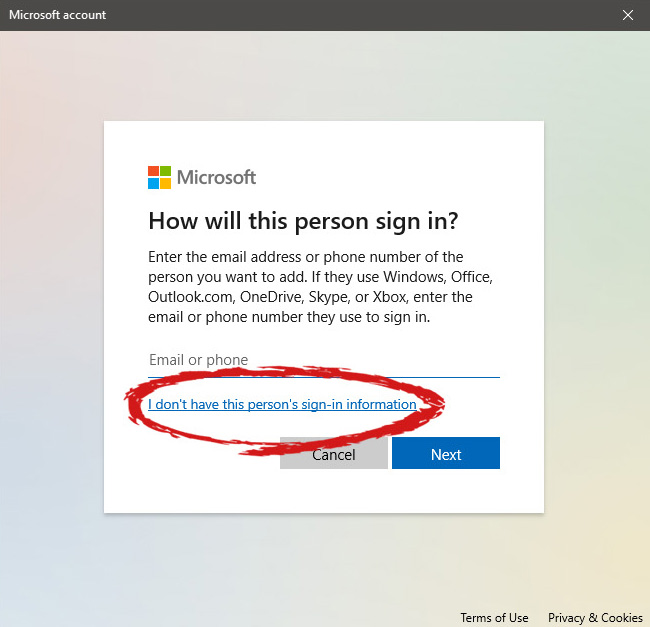 This will open yet another pop-up giving you the option to create a Microsoft account for this person, to use a phone number instead of a Microsoft account, or to create a new email address for the user. Any of these options will create a new user for this computer with provided credentials but there is the last option at bottom of the pop-up which will allow you to create a local user only without a Microsoft account. This user will be able to use this computer, will not be able to transfer his document through various devices like he/she would if using a valid Microsoft account but it could use the computer and personalize it fully to his/her liking.
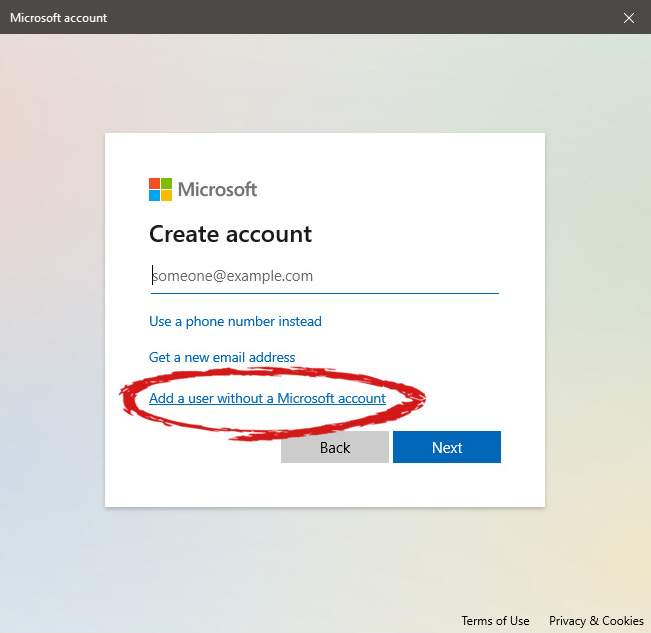 Once the link is clicked, you will be presented with a floating window requiring you to input needed information in order for the account to be created. You will need to provide username, password, and answers to 3 security questions.
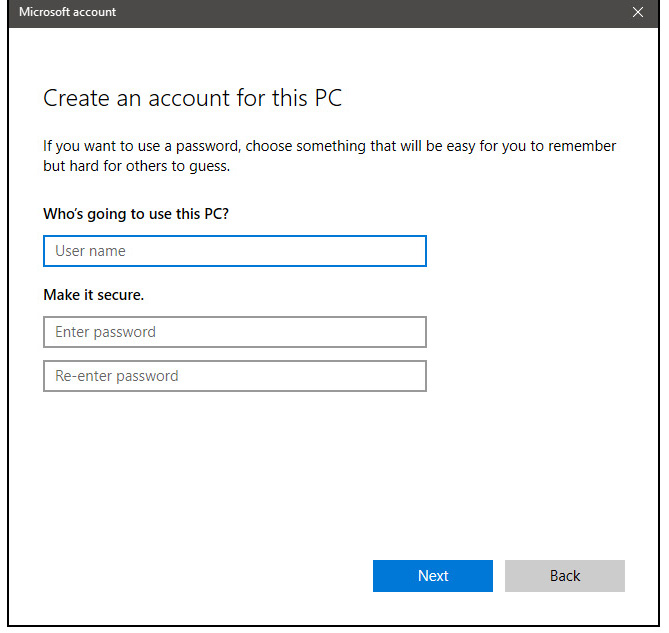 Once all information has been provided, click on next and your new non-Microsoft local user has been created. Now when you click on Family & other users you will see that Windows has added a new user with the provided name to this computer. If you wish, you can add another user in the same manner, following the previous steps. Microsoft Windows does not have a limit for how many users can be on one computer so feel free to create as many as you like.
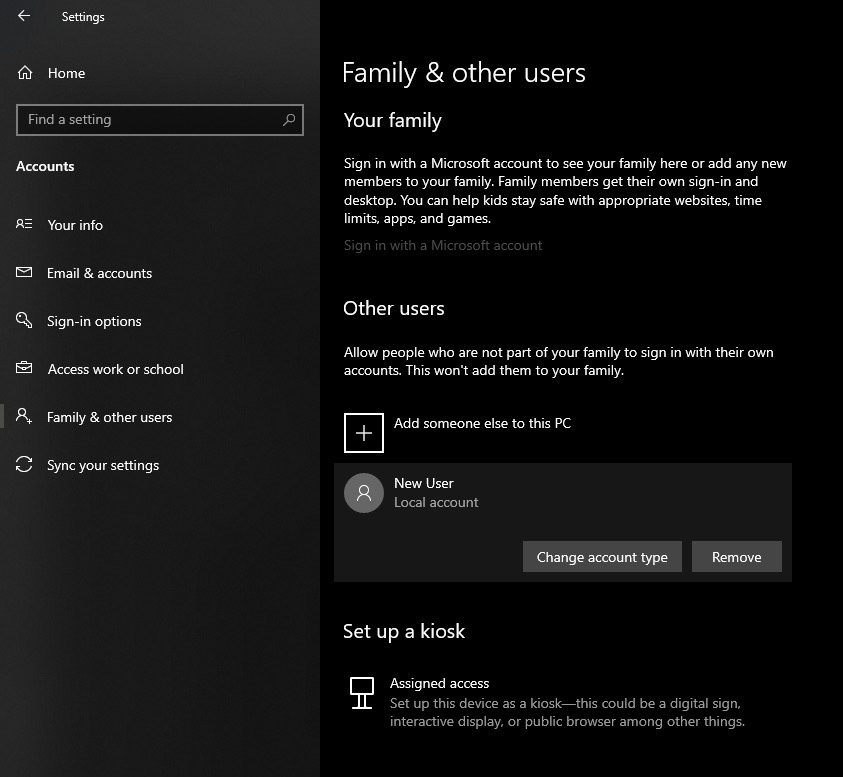 Click on Change account type.
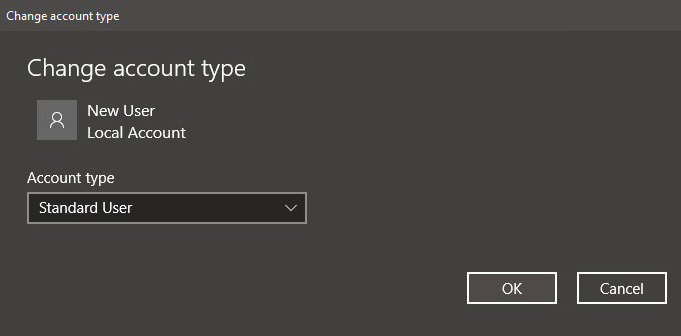 Under account type, you will have the option to promote this user to an administrator if you wish or you can leave it as a standard user.









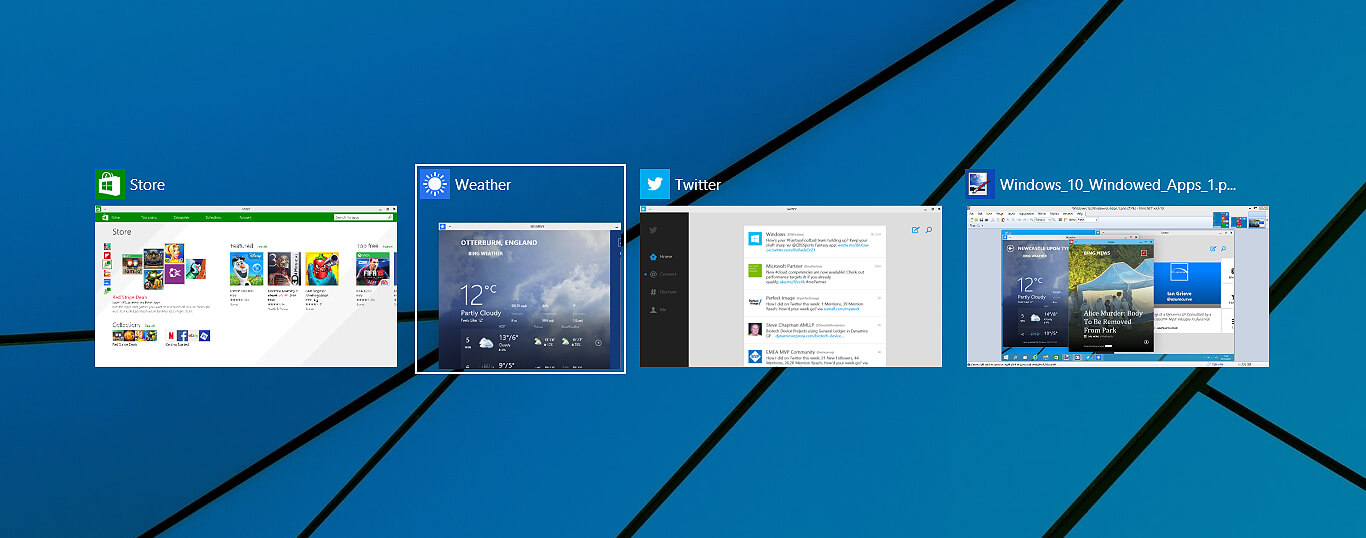 Lately, Microsoft has trying to fix Print Nightmare with various methods and patches. The last patch has seemingly fixed Print Nightmare but it has broken the Alt-tab key combination.
It has been reported that the latest patch has broken famous key combinations for quickly switching from window to window. It seems that combination is not working or it is switching to desktop, even going to blank screen if switching from the full-screen game.
Lately, Microsoft has trying to fix Print Nightmare with various methods and patches. The last patch has seemingly fixed Print Nightmare but it has broken the Alt-tab key combination.
It has been reported that the latest patch has broken famous key combinations for quickly switching from window to window. It seems that combination is not working or it is switching to desktop, even going to blank screen if switching from the full-screen game.
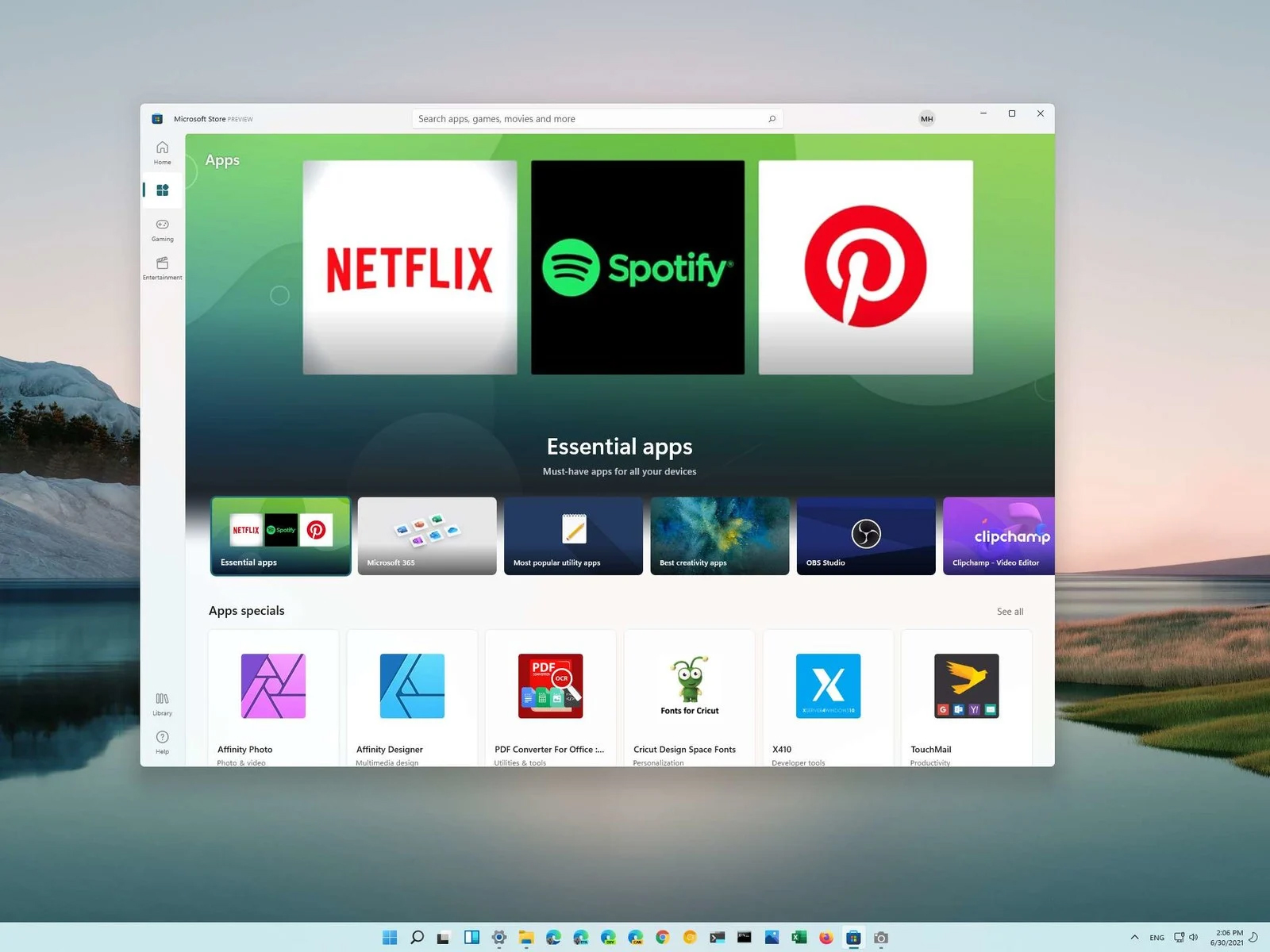 You can prevent starting of app installations files if they have not come from the MS store inside Windows 11.
This can make your PC more secure because all apps in the store will have to be digitally signed and overall it can provide you with more control over what will be installed.
Follow the guide below to find out how can you easily turn this feature ON.
You can prevent starting of app installations files if they have not come from the MS store inside Windows 11.
This can make your PC more secure because all apps in the store will have to be digitally signed and overall it can provide you with more control over what will be installed.
Follow the guide below to find out how can you easily turn this feature ON.
