Copy & Paste text between devices

If you have multiple products with Windows on them, Copy & Paste text between them is easy as 1,2,3 and we will be happy to tell you how can you do it.

Hello and welcome everyone, today we will see how can we share text information between 2 devices using Windows 10 in instant. In order for you to be able to share text information between devices, there are two prerequisites that you must meet. The first is that all devices must be connected to the internet, the second is that you must have a Microsoft account.

If you have both of these things continue with the tutorial, if you do not have a Microsoft account go to Microsoft website and create one for free.

Also, know that this option needs to be turned ON on all devices in order to work. So steps we will explain will have to be done on each device, if you already have some device logged in and connected to Microsoft account, you can skip setting it up.

Click on ⊞ WINDOWS and click on settings.

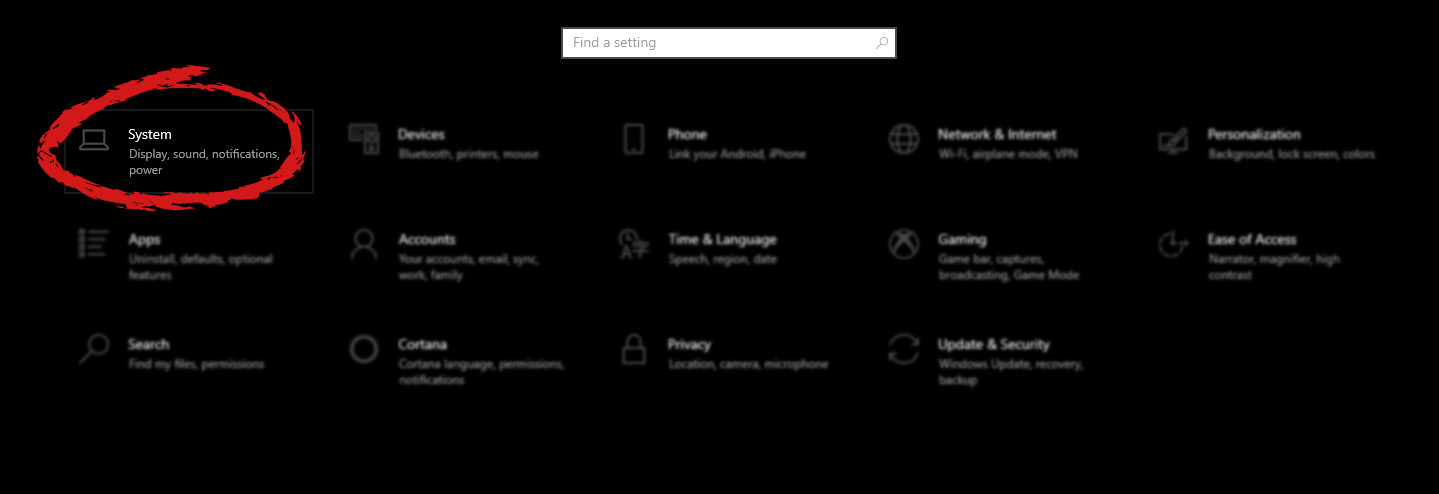
Windows 10 Star menu with marked settings iconThen click on System.

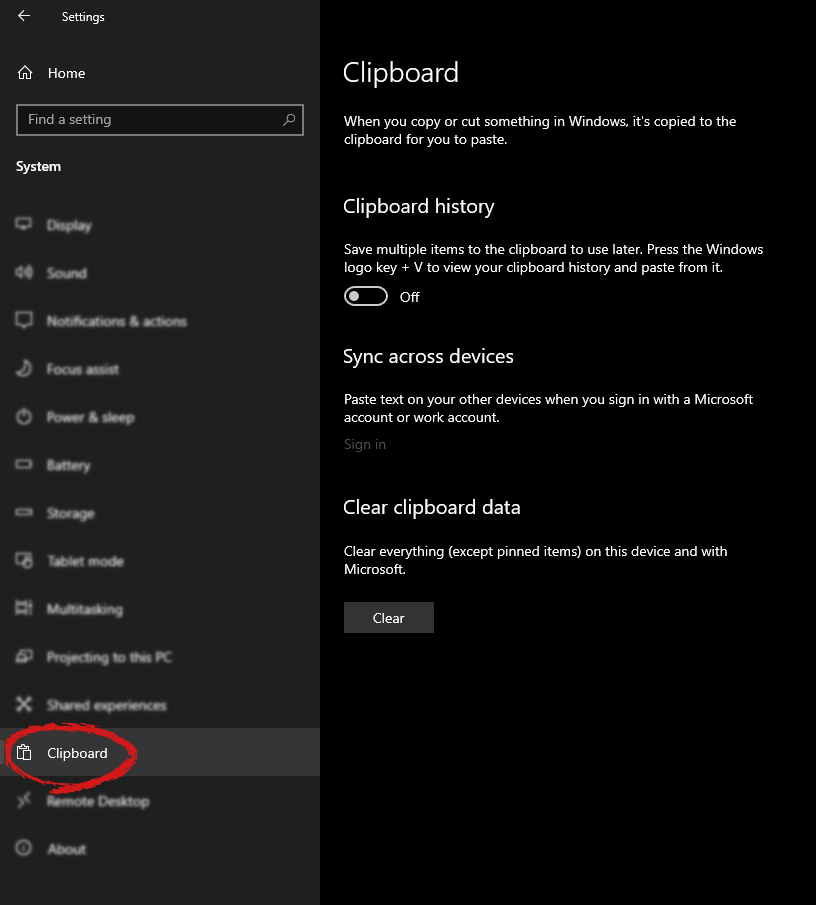
Windows settings system markedOnce you are in the system, on the left tabs find and click on Clipboard.

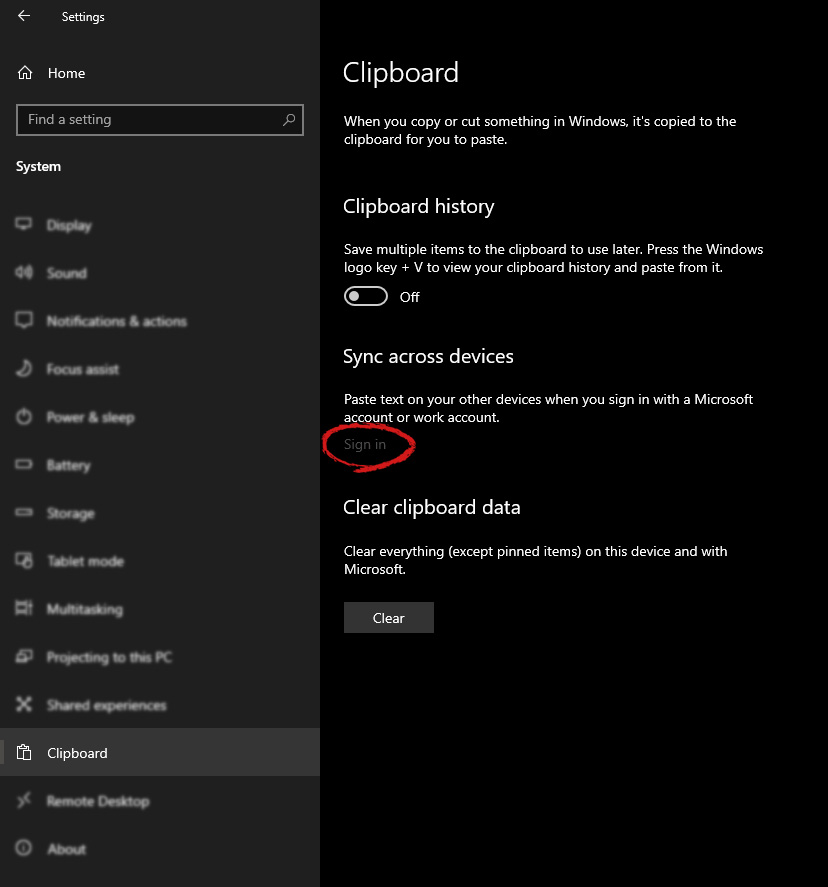
windows settings clipboardIf you are not logged in to your Microsoft account do so on the right panel by locating Sync across devices and click on sign in.

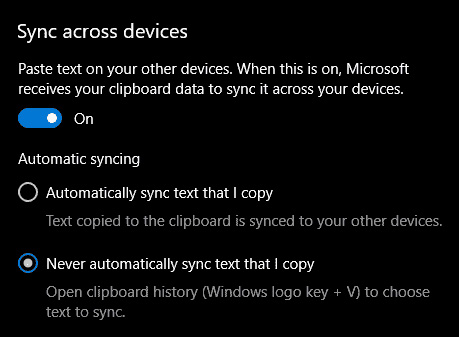
clipboard sign inWhen you are signed in click on the option to turn it on.

sync across devicesOne option is turned ON, you will be greeted with two choices, to copy everything from the clipboard automatically or to choose text which you want to sync and paste it with ⊞ WINDOWS + V. Choose whatever better suits your needs, and you are done.

Repeat these steps for other devices and you are done.

Do You Need Help with Your Device?

Our Team of Experts May Help
Troubleshoot.Tech Experts are There for You!
Replace damaged files
Restore performance
Free disk space
Remove Malware
Protects WEB browser
Remove Viruses
Stop PC freezing
GET HELP
Troubleshoot.Tech experts work with all versions of Microsoft Windows including Windows 11, with Android, Mac, and more.

Share this article:

You might also like

A Guide to Fixing Error 0x80004005

Error 0x80004005 - What is it?

Error 0x80004005 is a typical Outlook error. This error code occurs either when sending emails or receiving them. The error message may be displayed in either of the following formats:
‘Sending and receiving reported error "0x80004005": The operation failed.’ ‘This message could not be sent. Try sending the message again or contact your network administrator. The client operation failed. Error is [OX80004005- 0X0004B9-OXOO501].’

Error Causes

There are several causes for the error 0x80004005 such as:
  • The Script Blocking Feature Enabled While Using Norton Antivirus
  • Spyware
  • Viruses
  • Registry problems-Missing or corrupt registry keys
It is advisable to repair and resolve error 0x80004005 immediately as it may cause a great deal of inconvenience to you. This error may hamper your ability to receive and send emails from your Outlook account and lower your productivity too as you may be unable to communicate with your peers.

Further Information and Manual Repair

To fix error 0x80004005, you don’t have to wait for the network personnel or be a technical expert yourself. This may be a critical error but the good news is that it is easy to resolve. Here are some effective methods and quick fixes to resolve the error 0x80004005 instantly.

Method 1: Disable Script Blocking Feature in Norton Antivirus

After installing Norton Antivirus on your PC, if you start experiencing the Outlook error 0x80004005, then the best way to resolve it is to simply disable the script blocking feature. However, the downside of this is that by disabling this feature your PC will become vulnerable to viruses and malware.

Method 2: Disable the New-Mail Notification Feature in MS Outlook

If you don’t have Norton Antivirus downloaded on your PC, then try method 2. This method involves disabling the new-mail notification feature in MS Outlook. The error code 0x80004005 is often resolved by switching off this feature. Try it to see if it works. To disable the new-mail feature all you have to do is open your Outlook account and then go to the Tools menu, then go to Options and then select the ‘Preferences’ tab. After that click on the ‘Emails Options’ tab and then simply uncheck the check-box against ‘Display a notification message when new mail arrives’. To confirm changes press OK.

Method 3: Scan for Viruses

The error 0x80004005 may also be triggered due to viral infection or spyware. Such malicious software enters your PC through phishing emails and while downloading files and attachments. You may not be aware of this but your PC may be infected by viruses. It is important you remove them immediately as they can expose you to serious risks including privacy issues, identity thefts, data breaches, and more.
Read More
Windows can’t stop your Generic volume device
One of the issues with external storage devices is that unplugging them right away without using the “Safely Remove Hardware” feature is not safe and doing so could lead to data corruption and data loss. However, in some cases, even when you use the “Safely Remove Hardware” feature, you could get an error that says:
“Windows can’t stop your ‘Generic volume’ device because a program is still using it. Close any programs that might be using the device, and then try again later.”
It is possible that the system is still using the external device – for instance, a copy operation might still be in progress, or Windows is still indexing the contents of the drive in the background or it could also be that the drive is not configured to be quickly removed. To fix this error, there are a couple of suggestions you can try. You can try to close all the open programs and file explorer windows, or you could also configure the Device Removal Policy or change its file system to FAT32. In addition, you can also try to change its drive letter or use the DISKPART utility to get the drive to be offline or simply manage the hogging process that prevents it from being safely removed. Follow each one of the given potential fixes below to resolve the error when using the Safely Remove Hardware feature.

Option 1 – Close all the open programs and File Explorer windows

The first thing you have to do to resolve the error is to close any open programs as well as File Explorer windows. This is because there are some programs and File Explorer instances that could be using the external device in the background which explains why you’re getting the error when you try to safely remove your device.

Option 2 – Try to configure the Device Removal Policy

The next thing you can do is to configure the Device Removal Policy. How? Refer to these steps:
  • Open File Explorer and right-click on the drive where you encountered the error.
  • Next, select Properties from the context menu.
  • After that, navigate to the Hardware tab and select the disk drive where you got the error under the “All disk drives” section.
  • Then select Properties under the Device Properties section. This will open a new mini window and from there, select Change Settings on the bottom portion of the window.
  • Now navigate to the Policies tab and select the “Quick Removal (default)” option under the Removal Policy section.
  • Click on the OK and Apply buttons to save the changes made and then see if the error is now fixed.

Option 3 – Try to manage the hogging process

You could also try managing the hogging process to get rid of the error.
  • Tap the Ctrl + Shift + Esc key combination to open the Task Manager.
  • Then look for the running processes and programs that are hogging your USB storage device. If there is a program that’s using your device, it will hog on some Disk or CPU while transferring data and interacting with the device which is why you’re getting an error when you safely remove the device.
  • Next, select the concerned processed and right-click on each one of them, and then select the End Task or End Process option. You can also restart the Explorer.exe process and see if that helps.

Option 4 – Try to change the drive letters

  • Tap the Win + R keys to open the Run utility and then type “diskmgmt.msc” in the field and click OK or tap Enter to open Disk Management.
  • Next, look for your USB storage device using the drive letter that’s assigned to it. Right-click on your device and select the “Change Drive Letter and Paths…” option.
  • This will open a mini window and from there select the drive letter you want to change and click on the Change button.
  • After that, another smaller window will appear where you’ll have to select the new drive letter from the drop-down menu.
  • Click OK and if you got a warning prompt, just click on Yes.
  • Now restart your computer.

Option 5 – Try using DISKPART utility to get the drive to be offline

The next thing you can try to resolve the issue is to use DISKPART. Refer to the given steps below to do so.
  • Tap the Win + R keys to launch Run and then type “cmd” in the field and tap Enter or click OK to open an elevated Command Prompt.
  • Next, type and enter this command to execute it: diskpart
  • The command you entered will initiate the DISKPART utility. After that, type and enter this second command: list disk
  • Next, type and enter this third command: list volume
  • The commands you just executed will help you in either listing all the Disk connects or all the partitions on those disks formed and from there, you need to select one command depending on the “list” command you entered. You can execute either of the two following commands:
    • select disk #
    • select volume #
  • After that, it will select the Disk or Partition you want to select.
  • Now type either one of the following commands:
    • offline disk #offline volume #
  • The command you entered will mark the selected disk is Offline. Afterward, try to safely remove your USB Storage device. Just remember that when you plug it back in again, you have to carry out the same method except for the last given command as this time you will have to enter either of these commands in order to get your USB storage device back online:
    • online disk #
    • online volume #

Option 6 – Try to change the file system to FAT32

If you keep getting this error on a particular USB device, you might have to format the disk and change its file system to FAT32. Make sure that you copy its contents safely into another location before you format the disk. Keep in mind that formatting the disk will remove all the contents of your drive.
  • Open File Explorer and right-click on the drive where you got the error and then select Format from the context menu.
  • Next, in the newly opened mini window, select the FAT32 (Default) option from the drop-down menu under File System.
  • Now check the Quick Format checkbox and then click on the Start button to start formatting your drive.
Read More
What to do if Cortana Search Box turned white
A lot of Windows 10 users prefer the black theme on their computers and when you see anything but black it can get quite annoying. Such as is the case of the Taskbar which, as you know, is usually dark, however, when you take a look at the Cortana search bar, instead of seeing black, you’ll see that it has turned white. To fix this issue, read on as we will provide you some options you can try to set the Cortana search bar back to black. Before you proceed, take note that the options provided below will change all white search boxes to black and that one of these options needs administrative privileges.

Option 1 – Try changing the default App mode

As you know, Windows 10 has two modes, namely the Light and the Dark. Thus, you can switch to the Dark mode so that your Cortana search bar will be black as well. However, remember that it will completely change everything into dark mode so there will be no more Light mode elsewhere.
  • First, you need to click on the Start button and then click on the cog icon to open the Windows 10 Settings.
  • Next, from the Settings Menu, select Personalization and then select Colours from the left pane.
  • Then scroll down until you see the “Choose your default app mode” option and select “Dark”.
After you apply the changes, it will change the Cortana search bar into black instantly. Aside from that, you will also see the User Interface changing into dark mode.

Option 2 – Try changing the Registry value

If you are well-versed in editing registry keys, then you need to try this option. But before you go over the steps below, make sure that you create a System Restore point first so that if anything goes wrong, you can always go back to how it was before the changes were applied.
  • Tap the Win + R keys to open the Run prompt.
  • Then in the field, type in “regedit” and hit Enter to open the Registry Editor. If a User Account Control prompt appears, just click Yes.
  • Now that you’ve opened the Registry Editor, navigate to the following key:
HKEY_CURRENT_USERSoftwareMicrosoftWindowsCurrentVersionSearchFlightingWhiteSearchBox
  • After that, double-click on the “Value” key located on the right pane and set the value to “0” instead of “1” and then click Ok to save the changes made. You should now see a black or grey text box color instead of white.

Option 3 – Try changing the Region

In some forums, a lot of users stated that changing the Region also worked out for them in changing the white Cortana search bar to white. Thus, you need to change the region settings of your computer temporarily. To do so, follow the steps below.
  • Type in “Regional Settings” in the box and then click it as soon as it appears from the search results.
  • Next, make sure to select a region where Cortana is not available.
  • Then select apply to that region. After that, it will change the Cortana search bar color to black.
  • Now sign out and sign back in and revert to the original settings. But the changes you made earlier in Cortana will still remain.
Read More
Fix fatal device hardware error on Windows
This post will help you fix the request that failed due to a fatal device hardware error on your Windows 10 PC. You can encounter this error when that hard drive/SSD on your computer is damaged physically and the system is either unable to access or perform read/write operations in it. Aside from hard drive/SSD, this error can also happen to removable drives. This kind of error is not uncommon and in most cases, the hardware is physically damaged due to which you are not able to perform operations. However, there are a couple of fixes that you can try to resolve the problem before you go ahead and back up your data and move them to a different drive. What exactly causes this error? It’s actually self-explanatory and it gives you an idea that the drive is either corrupted or in a bad state. To resolve the error, follow the given options below carefully and see which one worked best for you.

Option 1 – Verify the hard drive using SMART attributes

In case you don’t know, Windows has a built-in feature of SMART analysis which analyzes the hard drive/SSD and checks all the parameters by performing some minor operations. To use it, follow these steps:
  • Tap the Win + S keys and type “command prompt” in the field then right-click on the related search result and select the “Run as administrator” option.
  • After opening Command Prompt as admin, type the “wmic diskdrive get status” command and hit Enter.
  • You should get a result after that, and if you see that it’s “normal”, proceed to the next option below.

Option 2 – Use the CHKDSK utility

When it comes to some issues concerning the hard drive or removable devices, there is a utility in Windows that might help which is called “chkdsk”. This error check utility can help with several issues in the system.
  • Tap the Win + S keys to open the Search box.
  • Then type “command prompt” in the field and from the search results that appear, right-click on Command Prompt and select “Run as administrator”.
  • After opening an elevated command prompt, copy and paste the following command and hit Enter:
CHKDSK [volume [[path] filename]] [/F] [/V] [/R] [/X] [/C] [: size]]
Note: In the command given above, “[/F]” will try to fix the system errors while “[/R]” will be the one to fix the bad sectors.
  • Now if you are prompted to run CHKDSK after your reboot your PC, just tap Y and reboot your PC.
  • If CHKDSK is not able to find any errors, tap the Win + E keys and navigate the access window. From there, right-click on the concerned drive and click on Properties.
  • After opening Properties, click on the tab Tools and then click on the “Check” button under the Error-checking section.
  • Wait until the process is completed and then restart your computer.

Option 3 – Format your drive

You can try formatting your drive since this problem also occurs on removable hard drives. In addition, if your drive is not properly initialized, this error will really pop up. Thus, you need to make sure that the hard drive is initialized and that the correct partition style is selected.
  • To get started formatting your drive, tap the Win + E keys and then go to the access page of the drive.
  • Next, right-click on the drive and select Format.
  • After that, uncheck the “Quick Format” option and then format your drive properly.
  • Now once the formatting process is finished, unplug the drive and plug it back in afterward.
  • Check if the error is already fixed. If the drive is not initialized, tap the Win + R keys and hit Enter.
  • After opening the Run dialog box, type “diskmgmt.msc” and hit Enter to open Disk Management.
  • From there, right-click on the drive volume and select Initialize Disk.
  • Next, select the correct partition type and proceed.
That should fix the problem, if not, follow the next advanced option below.
Read More
isapnp.sys, gv3.sys, storahci.sys, myfault.sys
One of the common causes of Blue Screen of Death or BSOD errors is system driver files due to varying reasons. So if you encounter a Stop error caused by some system driver files such as isapnp.sys, gv3.sys, storahci.sys, or myfault.sys, on your Windows 10 PC, then this post should help you fix the problem. These system driver files are associated with different error codes. The isapnp.sys file is related to the following error codes:
  • SYSTEM SERVICE EXCEPTION
  • PAGE FAULT IN A NONPAGED AREA
  • KERNEL DATA INPAGE
  • SYSTEM THREAD EXCEPTION NOT HANDLED
  • IRQL NOT LESS EQUAL
  • KMODE EXCEPTION NOT HANDLED.
While the gv3.sys file is related to the following BSOD error codes:
  • IRQL NOT LESS EQUAL
  • KMODE EXCEPTION NOT HANDLED
  • PAGE FAULT IN NONPAGED AREA.
On the other hand, the storahci.sys file is related to these error codes:
  • IRQL NOT LESS EQUAL
  • KMODE EXCEPTION NOT HANDLED
  • PAGE FAULT IN NONPAGED AREA.
And the myfault.sys file is associated with this error code: SYSTEM SERVICE EXCEPTION. Although this system driver file causes different kinds of Blue Screen errors, some of their potential fixes are quite the same so you need not carry out tons of troubleshooting steps. But before you troubleshoot the problem, you might want to check out System Restore first, especially if you create a System Restore point from time to time. To perform System Restore, follow these steps:
  • Tap the Win + R keys to open the Run dialog box.
  • After that, type in “sysdm.cpl” in the field and tap Enter.
  • Next, go to the System Protection tab then click the System Restore button. This will open a new window where you have to select your preferred System Restore point.
  • After that, follow the on-screen instructions to finish the process and then restart your computer and check if the problem is fixed or not.

If System Restore didn’t help in fixing the Blue Screen error, now’s the time for you to resort to the troubleshooting tips provided below but before you get started, make sure that you create a System Restore point first and boot your computer into Safe Mode.

Option 1 – Use the System Configuration utility

Note that this first fix is only applicable for Blue Screen errors associated with the myfault.sys file.
  • In the Cortana Search box, type “MSConfig” and click on the “System Configuration” entry to open it.
  • After opening System Configuration, go to the Processes tab.
  • Then scroll down and look for the “Digital Line Detection” process and disable it.
  • Now restart your computer and check if the Stop error is fixed or not.

Option 2 – Try to update, rollback or disable related device drivers

Incompatible and outdated drivers can also cause computer malfunctioning or crashing as well as Blue Screen errors. To fix that, you can update, roll back or disable the device drivers in your computer.
  • Tap the Win + R keys to launch the Run window and then type in the “devmgmt.msc” command and hit Enter to open the Device Manager window.
  • After opening the Device Manager, from the list of device drivers, look for the “WIN ISA Bus Driver” if you are facing a Stop error related to the isapnp.sys file. While you have to look for the Sony Recovery CDs PCG-Z1RAP Series device drivers if you face a Stop error concerning the gv3.sys file. For the storahci.sys, on the other hand, look for any outdated drivers and update them.
  • To update or roll back or disable these drivers, just right-click on each one of them, and depending on your preference, you can either select “Update driver”, “Disable device” or “Uninstall device”.
  • After that, restart your PC and see if it helped in fixing the Blue Screen error.

Option 3 – Use System File Checker

One of the built-in tools in Windows that you can use to fix Blue Screen errors is the System File Checker. This built-in command utility can help you restore corrupted or missing files as well as replace bad and corrupted system files. Chances are, any of the aforementioned system driver files might be corrupted so to fix them, use System File Checker.
  • First, right-click on the Start button and click on the “Command Prompt (Admin) option.
  • Next, type in the sfc /scannow command and hit Enter to execute it.
The command will start a system scan which will take a few whiles before it finishes. Once it’s done, you could get the following results:
  1. Windows Resource Protection did not find any integrity violations.
  2. Windows Resource Protection found corrupt files and successfully repaired them.
  3. Windows Resource Protection found corrupt files but was unable to fix some of them.
  • Now restart your computer.

Option 4 – Run the Blue Screen Troubleshooter

Troubleshooting Blue Screen of Death errors wouldn’t be complete without the Blue Screen troubleshooter. As you know, it is a built-in tool in Windows 10 that helps users in fixing BSOD errors. You can find it in Settings, under the Troubleshooters page. To use it, refer to these steps:
  • Tap the Win + I keys to open the Settings panel.
  • Then go to Update & Security > Troubleshoot.
  • From there, look for the option called “Blue Screen” on your right-hand side and then click the “Run the troubleshooter” button to run the Blue Screen Troubleshooter and then follow the next on-screen options.
  • Note that you might have to boot your PC into Safe Mode.
Read More
MS releases ISO for Windows 10 build 21354
On April 7th Microsoft has released Windows build 21354 for their flagship OS and updates are rolling. Alongside the new update builds Microsoft has decided to create and release Windows 21354 build as an installable ISO image for anyone who wishes to do a clean installation of Windows without the need to update it after the installation. We have not seen this move by Microsoft in a long time and honestly, we are welcoming it, it is always great to have updated ISO Windows build than to install the old version and sit through an hour or more of updates. If you are interested in getting this ISO image and you are part of the insider program you can download it from here. If you would like to read more helpful articles and tips about various software and hardware visit errortools.com daily.
Read More
Fix NMI_HARDWARE_FAILURE in Windows
If you encounter the NMI_HARDWARE_FAILURE Blue Screen error while using your Windows 10 computer, then read on as this post will guide you in resolving this kind of Blue Screen of Death error. NMI HARDWARE FAILURE or “Non-Maskable Interrupt” Blue Screen error occurs when there is some hardware malfunction in your computer. When you encounter this Blue Screen error, you may get a stop code of 0x00000080 which can randomly occur while you use your computer. However, a lot of users reported encountering this error while they were trying to update or install their Graphics Card drivers. The stop code that you may get for this BSOD error is 0x00000080. The error can occur randomly during your usage of the computer – but a large number of users have reported this error while they are updating or installing their Graphics Card drivers. In this post, we will be covering all the possible fixes for this error. NMI_HARDWARE_FAILURE error on Windows The NMI_HARDWARE_FAILURE bug check has a value of 0x00000080. This bug check indicates that a hardware malfunction has occurred. There are various hardware malfunctions that can cause this kind of Blue Screen error. However, pinpointing the exact cause is quite difficult. Worry no more for the following fixes provided below can help you resolve the NMI_HARDWARE_FAILURE Blue Screen error no matter what the cause of the problem is.

Option 1 – Try removing hardware or drivers that you’ve installed recently

If you have recently installed some hardware or drivers, you might want to disable or remove them since external devices are proven to be one of the factors that trigger Blue Screen errors like NMI_HARDWARE_FAILURE. All you have to do is physically disconnect any external devices that are connected to your computer and then check if it fixes the BSOD error or not.

Option 2 – Try to rollback, update, or disable the Graphics card drivers

Since the NMI_HARDWARE_FAILURE Blue Screen error has something to do with Graphics card drivers, you can either roll back, update or disable them depending on your preference in order to resolve the error.
  • First, boot your computer into Safe Mode.
  • After that, tap the Win + R keys to launch Run.
  • Type in devmgmt.msc into the box and tap Enter or click OK to open the Device Manager.
  • After that, a list of device drivers will be displayed. From there, look for the Display Adapters and click on them.
  • After that, right-click on each entry under the Display Adapters and select the “Uninstall Device” option from the menu.
  • Now restart your computer.
  • After restarting your computer, go to the Settings app and Check for Updates in the Windows Update section.
Note: You also have the option to go directly to the website of your graphics card manufacturers like NVIDIA, Intel, or AMD and go to the section called Drivers then check if there’s a new available update – if there is, download and install it.

Option 3 – Make sure that all memory modules have the same type

This third option is quite technical and tricky. If you often use multiple physical RAMS on your Windows 10 computer, then you have to check first if they are of the same frequency. After that, the first thing you should verify is if the chip is properly compatible or not. And if the sockets are attached using some kind of adapter or non-recommended device, it could cause some issues while giving a performance hit to your computer.  If you were able to find such a setup, you have to undo it or install the proper and recommended as well as compatible hardware.

Option 4 – Try to run the Blue Screen Troubleshooter

As you know, the Blue Screen troubleshooter is a built-in tool in Windows 10 that helps users in fixing BSOD errors like the NMI_HARDWARE_FAILURE error. It can be found on the Settings Troubleshooters page. To use it, refer to these steps:
  • Tap the Win + I keys to open the Settings panel.
  • Then go to Update & Security > Troubleshoot.
  • From there, look for the option called “Blue Screen” on your right-hand side and then click the “Run the troubleshooter” button to run the Blue Screen Troubleshooter and then follow the next on-screen options. Note that you might have to boot your PC into Safe Mode.
Read More
Chkdsk Error - How to fix It In Seconds

What is Chkdsk Error?

Chkdsk (Check Disk) is a built-in Microsoft Windows O/S utility tool.

This tool is designed to verify the integrity of data stored on the hard drive. In addition to this, it resolves and finds errors that may corrupt and damage stored data on your system and affect your PC’s performance.

This tool is intended to keep your PC’s Windows database clean.

However, this tool has certain limitations. It prevents the hard disk from getting damaged but if it gets damaged and corrupt then this tool is no good. It fails to disk check and repair. As a result, you may come across Chkdsk error pop-ups.

In such an event, it is not advisable to run the malfunctioned Chkdsk utility on your PC as it may damage your system beyond repair making you lose all your valuable data saved on your system.

Solution

Restoro box imageError Causes

Chkdsk errors are triggered by multiple reasons:

  • Viruses
  • Hard Drive failure
  • Registry Corruption Due to Data Overload
  • Poor PC Maintenance

Chkdsk errors may cause PC to freeze and lag and also result in data loss as we discussed above.

Further Information and Manual Repair

To avoid serious damages that the Chkdsk error code can cause to your system, it is advisable to fix it. You can either hire a professional or install Restoro. The latter is not just the best way but also a time and money-saving option. It is fast, user-friendly and you can download it for free thus saving hundreds of dollars that you would be paying for professional services.

Why Use Restoro?

Restoro is an advanced PC repair tool embedded with multiple features such as a registry cleaner, anti-virus, system optimizer, and Active X and Class error scanner. It helps resolve practically all types and kinds of PC-related errors including the most notorious ones like the Chkdsk errors.

It has an automated and intuitive interface smoothly integrated with the latest technology that enables this software to scan your entire PC and detect errors in seconds.

With the help of its super functional registry cleaner, Restoro detects errors registry issues triggering Chkdsk errors on your system. It cleans all the unnecessary files like junk files, bad and invalid registry entries, and internet files that are stored in your hard disk and taking a lot of space. It removes the clutter and frees up your disk space and repairs the damaged registry.

It boosts the speed of your system and ensures that programs run smoothly on your PC and there are no hang-ups or system freezes.

The privacy error detector functions as a powerful anti-virus. With the help of this feature, Restoro identifies and scans for viruses and malware infecting your system. These are removed right away.

Restoro is 100% safe and efficient. It has a backup feature that enables users to create backup copies. This is carried for safety purposes. In case you lose your data during the repair of the Chkdsk error, you can always recover and restore the lost files without any hassle.

With some registry cleaners and repair tools you may often have to struggle with compatibility issues but not with this PC Fixer.

Restoro is compatible with all Windows versions. It is simple and very easy to use. From beginners, intermediate to experienced, all levels of users can use it with ease.

Here are the steps to get started:

  1. Click here to install Restoro on your computer
  2. Once the installation is complete, run the fixer for a scan. You have the option to either scan some portions of the PC or the entire PC.
  3. Scanning will take a few seconds
  4. Once the scanning is complete, Restoro will display the scan results. This is presented in a comprehensive report showing you errors found including the Chkdsk error and errors related to it.
  5. After that, all you need to do is press the repair button to resolve the error(s) promptly.
  6. Once the error is resolved, try running the Chkdsk utility again.
Read More
DISM Error 14098, component store corrupted
As you know, one of the useful and efficient utilities in Windows 10 is the DISM tool. It can be used with the Command Prompt command line which allows users to carry out various tasks. However, there are instances when the DISM tool could encounter some errors when you try to execute a command. One of these errors is the one that states, “The component store has been corrupted”. This kind of DISM error is due to an error in the image file. When you encounter the DISM Error 14098 when running the DISM tool, you will see the following content in the command line:
“C:>Dism /Online /Cleanup-Image /RestoreHealth /Source:c:testmountwindows /LimitAccess Deployment Image Servicing and Management tool Version: 10.0.10586.0 Image Version: 10.0.10586.0 [==========================100.0% Error: 14098 The component store has been corrupted. The DISM log file can be found at C:WINDOWSLogsDISMdism.log C:>”
There are several fixes you can check out to fix the DISM Error 14098, “The component store has been corrupted”. You can try to run the Restore Health command or reset the Windows Update components, or whitelist the dism.exe in your antivirus program, as well as try to uninstall any recently installed updates. Follow the options provided below for more details.

Option 1 – Run the Restore Health command in a Clean Boot State

  • First, you need to put your computer in a Clean Boot State.
  • Type in MSConfig in the Start Search to open the System Configuration utility.
  • From there, go to the General tab and click “Selective startup”.
  • Clear the “Load Startup items” check box and make sure that the “Load System Services” and “Use Original boot configuration” options are checked.
  • Next, click the Services tab and select the “Hide All Microsoft Services” check box.
  • Click Disable all.
  • Click on Apply/OK and restart your PC. (This will put your PC into a Clean Boot State. And configure Windows to use the usual startup, just simply undo the changes.)
  • Now open Command Prompt with admin privileges.
  • Then type and enter this command to execute it: Dism /Online /Cleanup-Image /RestoreHealth
  • Wait until the process is completed and restart your computer.
Note: If the Restore Health command fails, you can use the “/StartComponentCleanup parameter” by executing this command: Dism /Online /Cleanup-Image /StartComponentCleanup

Option 2 – Try to reset the Windows Update components

If by any chance that the second option didn’t work, resetting the Windows Update components could also help you resolve the problem. How? Refer to the following steps:
  • Open Command Prompt with admin privileges.
  • After that, type each one of the following commands and hit Enter after you key in one after the other.
    • net stop wuauserv
    • net stop cryptsvc
    • net stop bits
    • net stop msiserver
Note: The commands you entered will stop the Windows Update components such as Windows Update service, Cryptographic services, BITS, and MSI Installer.
  • After disabling WU components, you need to rename both the SoftwareDistribution and Catroot2 folders. To do that, type each one of the following commands below, and don’t forget to hit Enter after you type one command after the other.
    • ren C:/Windows/SoftwareDistribution/SoftwareDistribution.old
    • ren C:/Windows/System32/catroot2/Catroot2.old
  • Next, restart the services you’ve stopped by entering another series of commands. Don’t forget to hit Enter after you key in one command after the other.
    • net start wuauserv
    • net start cryptsvc
    • net start bits
    • net start msiserver
  • Close Command Prompt and reboot your PC.

Option 3 – Whitelist the “dism.exe” in your antivirus program

The DISM error 14098 might also be caused by your antivirus program which could be interfering it from running. To fix this, you have to whitelist dism.exe. How? Refer to these steps:
  • Open the Windows Defender Security Center from the system tray area.
  • Next, click the “Virus & threat protection” option and then open the “Virus and threat protection settings”.
  • After that, scroll down until you find the “Exclusions” and click on the “Add or remove exclusions” option.
  • Then click the plus button and select the type of exclusion you want to add and from the drop-down list, select Folder.
  • Next, navigate to this path and select the WinSxS folder: C:/Windows/WinSxS
  • When a User Account Control or UAC prompt, just click on Yes to proceed.

Option 4 – Try to uninstall recently installed updates

There are times when some Windows Updates affect some mechanism internally when you update your Windows 10 computer. As a result, it causes issues with other components of the operating system which could be the reason why you’re getting the DISM error 14098.
  • Go to Settings and select Update and Security > Windows Update.
  • From there, click on the “View update history” option and then click on the “Uninstall Updates” option.
  • This will open a new window that contains the list of installed Windows Updates.
  • Now right click on the Windows Update you wish to uninstall and click Uninstall.
Read More
How to Fix Windows 10 Error Code 0x8024001b

Error Code 0x8024001b- What is it?

At its most basic level, Error Code 0x8024001b is an error that can cause problems with the installation and updates of software and operating system updates. The most common version of this error appears in Windows 10, but a similar error with a matching code number has been present in previous versions of the operating system, back through Windows 7.

Common symptoms include:

  • Programs freezing or locking up during use
  • The appearance of an error message regarding installation difficulties
  • Computer shutting down or freezing during operation
  • Difficulty in running multiple programs at the same time

Solution

Restoro box imageError Causes

There are two main causes for Error Code 0x8024001b, both of which are fairly simple:  Updates needed for the Windows Update tool itself and software that causes Windows Update to fail during installations through conflicts in system files. While these may seem like technical issues, these problems are actually easily resolved with a few simple steps. The average user can use the methods listed below to fix the problems on their own.

Further Information and Manual Repair

For users who want to address Error Code 0x8024001b for themselves, the steps below can be followed to address the two primary causes for the error. If you have difficulty in completing these steps or are not confident in your computing skills and ability to follow the listed steps, contact a Windows repair technician.

Here are the top methods to resolve Error Code 0x8024001b on your own:

Method One:  Check for Updates to Windows Update

In some cases, the Windows Update tool may need an update for itself. When you attempt to run updates or install wizards for other software, it can cause conflicts with the Windows Update process, slowing down your computer or causing it to freeze.

If you are attempting to run multiple installations or updates at the same time, it may also cause Error Code 0x8024001b to arise on your computer.

To resolve this issue, close out all programs, with the exception of the Windows Update tool. Within the tool, select “Check for Updates” and install any updates that are needed. When finished, you should restart your computer to ensure that all updates have been fully applied before attempting any other installations or updates.

Method Two:  Uninstall Conflicting Software

Another problem that can cause Error Code 0x8024001b is the presence of conflicting software. If Error Code 0x8024001b has only recently appeared on your computer, consider removing any software that has been added to your computer, running the Windows Update process, and restarting your computer before attempting to reinstall the problem software.

With any method that you use, it is important to remember to keep your Windows Updates current at all times. This is the best way to avoid the appearance of Error Code 0x8024001b and similar errors in the future, as stacked up updates are more likely to cause issues and conflicts with your other installed software and operating system.

While there are some tools out there that claim to be able to fix Error Code 0x8024001b for you, it is important to always thoroughly investigate the publisher and distributor of such software, as some of the tools available on the Internet will actually introduce malware and adware on your computer in the name of “protecting” your computer or resolving an error.

If you have tried to use both methods above and have not fully resolved Error Code 0x8024001b, get in touch with someone who is a qualified computer repair professional and is familiar with your particular version of the Windows operating system to assist you in finalizing your resolution.

Method Three: Use An Automated Tool

If you wish to always have at your disposal a utility tool to fix these Windows 10 and other related issues when they do arise, download and install a powerful automated tool.

Read More
1 2 3 171
Logo
Copyright © 2023, ErrorTools. All Rights Reserved
Trademark: Microsoft Windows logos are registered trademarks of Microsoft. Disclaimer: ErrorTools.com is not affiliated with Microsoft, nor claims direct affiliation.
The information on this page is provided for information purposes only.
DMCA.com Protection Status