Logo

Changing color of START menu in Windows 10

The new Windows 10 update has brought some fixes, improvements, and little things to personalize our computer more. One of these personalization updates we have received is that we can now finally change the color of our START menu and taskbar and it is easy as 1,2,3.

In order to change and personalize your START menu and/or title bars all you have to do is click on your windows icon to bring the start menu up and then click on settings.

Windows 10 Start menu with marked settings iconOnce you are in setting windows go to personalization settings.

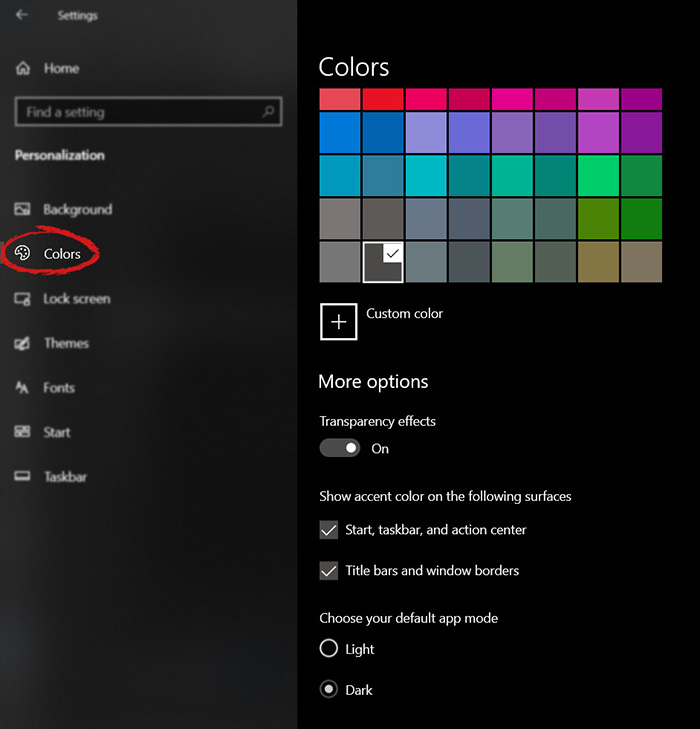
Windows 10 settings menu with marked Personalization groupWhen the personalization setting opens go-to color tab on left and scroll down until you find 2 checkboxes under "show accent color on the following surfaces:"

Windows 10 Color settings marked with optionscheck ones you wish to apply the effect to and you are done. Now your START menu and/or title bars are using the color scheme of your choice.

Do You Need Help with Your Device?

Our Team of Experts May Help
Troubleshoot.Tech Experts are There for You!
Replace damaged files
Restore performance
Free disk space
Remove Malware
Protects WEB browser
Remove Viruses
Stop PC freezing
GET HELP
Troubleshoot.Tech experts work with all versions of Microsoft Windows including Windows 11, with Android, Mac, and more.

Share this article:

You might also like

A Quick Guide to Fixing Ntdll.dll Error Code

Ntdll.dll Error - What is it?

Ntdll.dll is a type of DLL (Dynamic Link Library) error. DLL errors are some of the most common but complicated errors to troubleshoot and resolve by PC users. The Ntdll.dll error message is displayed in the following formats:
  • "STOP: 0xC0000221 unknown hard error C:WinntSystem32Ntdll.dll
  • "NTDLL.DLL Error!"
  • "STOP: C0000221 unknown hard error SystemRootSystem32ntdll.dll"
  • "[PROGRAM NAME] caused a fault in module NTDLL.DLL at [ANY ADDRESS]"
  • "AppName: [PROGRAM NAME] ModName: ntdll.dll"
  • "Crash caused in ntdll.dll!"
  • "Unhandled exception at [ANY ADDRESS] (NTDLL.DLL)"
You may come across the ‘Ntdll.dll error’ pop-up either when you try to run a program or after using it or while the program is running. It may also appear when Windows starts or shutdowns or even during Windows installation.

Solution

Restoro box imageError Causes

The Ntdll.dll error code can be triggered due to numerous reasons such as:
  • DLL file corruption due to hard drive bad entries
  • Missing DLL files
  • Corrupt hardware drivers
  • Viruses
  • DLL file misconfiguration
It is recommended to resolve this error code immediately on your PC to avoid inconvenience and serious PC damages like program lockouts, system failure, freeze, and crash

Further Information and Manual Repair

All the causes for ‘Ntdll.dll’ are linked with the registry. The registry is the main database of your system. It saves all the activities and files on your PC including the important data file and unnecessary files such as the junk files, temporary internet files, and obsolete files, files of the programs installed, bad entries, invalid registry keys, and cookies. These files take up also hard drive space thereby causing dll file damage, disk fragmentation, and data overload. Ntdll.dll error may also occur to due viral infection and malware attack. There are 2 ways to resolve the Ntdll.dll error. One is to install 2 separate tools, the registry cleaner, and antivirus, and run them separately to scan for errors. This option is time-consuming and running an antivirus can also slow down the speed of your computer. Therefore we recommend that you opt for the second alternative that is to download Restoro.

Why Restoro.

  • This is an advanced, innovative, and multi-functional PC repair tool embedded with several powerful PC repair utilities like a registry cleaner, an antivirus, and a system optimizer. This is a one-stop solution for all your PC errors.
  • It is user-friendly, safe, efficient, and compatible with all Windows versions. The registry cleaning feature scans for all registry issues.
  • It wipes out all the unnecessary files from the hard drive, repairs the damaged dll files, and restores the registry, thereby resolving the Ntdll.dll error code right away.
  • The privacy error utility functions like an antivirus. It detects and removes all the malicious software like viruses, malware, Trojans, and spyware. Simultaneously, the system optimizer feature boosts the PC speed.
Click here to download Restoro and resolve the Ntdll.dll error on your PC today!
Read More
Adobe Express review

Social media is here to stay it seems, from Facebook, Instagram, Twitter, etc each site has its users and its rules. Companies, bloggers, public figures, and people, in general, are using them on a daily basis and some are posting cool ads, nice graphics, videos, and many more in order to gain followers or just to share something that they think is worth.

adobe express

Making your post look good is somewhat essential if you plan on reaching a larger audience and Adobe's Express aims to fill that gap. It is the latest Adobe product that is purposely made for graphic and video creation for social media.

Adobe is well known in the world of professional design in all spheres like print, web, and motion, with this application, they want to take over social media design with Express. The direct competitor to Spark and canva, Express is filled with high-quality adobe templates and some great stuff found in photoshop like automatic background removal which gives it an edge over other applications.

The good thing about Express is that there is a completely free version and premium, like its competitors but with some benefits that clearly show that Adobe is determined to place its application on top of the game. The free plan includes:

  • Thousands of unique templates, design assets, and Adobe Fonts.
  • A limited collection of royalty-free Adobe Stock-free collection photos.
  • Basic editing and photo effects including remove background and animate.
  • Create on both web and mobile.
  • 2GB of storage.

For 10 USD per month of 100 USD prepaid annual fee, you get a premium plan that includes:

  • All premium templates and design assets.
  • The entire collection of over 160 million royalty-free Adobe Stock collection* photos.
  • Over 20,000 licensed Adobe Fonts, curved type, grids, and font pairs.
  • Premium features like refine cutout, resize, and graphic groups.
  • Plan, schedule, and publish social media content across multiple channels.
  • Add your branding, logo, colors, and fonts in one tap.
  • Convert & export to and from PDFs and other file types.
  • Create, manage, and share your templates and assets with Creative Cloud Libraries.
  • Create on both web and mobile.
  • 100GB of storage.

The application itself is incredibly easy to learn and to work with and literally, anyone can pick it up and start creating immediately. No matter are you just starting with social media or using Canva or Spark, give Express a go, make a free account and try it, I guarantee that you will find some features amazing, and its ease of use relaxing.

Read More
Fix Hello Errors 0x801c004d or 0x80070490
As you know, Windows Hello offers you quick access to computers since you can log in to your Windows devices three times faster compared to passwords with the help of the camera via Face recognition and fingerprint reader. This way, Windows Hello will recognize you right away. However, there are also times when you might encounter some problems when using Windows Hello. For one, if you are trying to add the PIN method to Windows Hello on your Windows 10 computer but you suddenly encountered an error code of 0x801c004d or if you are trying to use your existing pin and you encounter an error code of 0x80070490 along with an error message that says, “Not recognized”, then read on as this post will guide you on how you can fix both of these errors. Here is the complete content for both errors:
  • 0x801c004d – Unable to enroll a device to use a PIN for login”
  • 0x80070490 - Not recognized, Pin and fingerprint are no longer options for signing in”
If you got any of these two errors, there are several potential fixes you can check out to resolve them. You can try to check for any Windows Updates or create the PIN again or check the CNG Key Isolation Service. You could also try to reset the TPM or create a new User Account. For more information, follow the instructions provided below.

Option 1 – Try checking for any available Windows Updates

The first thing you can do is to check for any available Windows Updates. It is possible that your computer may be outdated and is the reason why you’re having troubles with Windows Hello. To check for Windows Updates, just go to Settings and from there, head over to the Update and Security section and click on Windows Updates located on the left pane, and then click on the Check for Updates option. Wait until the process of checking updates is completed and if it finds new updates, install it. After you install the new Windows Updates, check if you can now add the PIN on Windows Hello or not.

Option 2 – Try creating the PIN again

The next thing you can do is to create the PIN again by signing out and signing in again and then try creating the PIN once more. If this does not work, you can try restarting your computer and creating the PIN again. You could also try removing the PIN and then change it.
  • Remove the PIN by going to Settings > Accounts > Sign-in options.
  • From there, go to the PIN section and click on the Remove button.
  • You will be asked to verify your account to proceed in removing the PIN, enter your credentials.
  • Restart your computer and then set up a new PIN.
  • Once you’re done, restart your computer and check if the error is gone now.

Option 3 – Try checking the CNG Key Isolation Service

The CNG Key Isolation Service is the one that stores and uses long-lived keys in a secure process complying with the common criteria requirements and it is possible that the error could be related to this service. This service is hosted in the LSA processes and provides key process isolation to private keys and associated cryptographic operations as required by the common criteria. Thus, you need to check this service to see if it’s the one that’s causing the error.
  • Tap the Win + R keys to open the Run dialog box and type “services.msc” in the field and hit Enter to open the Windows Services Manager.
  • Next, locate the “CNG Key Isolation Service” and once you find it, double click on it to open its Properties box.
  • After opening its Properties, check its Startup type and select Manual. This is the default setting and if it is Disabled, then it’s no wonder why you’re getting errors with Windows Hello, thus, you need to enable it.
  • Once done, restart your computer and check if you can now add the PIN to Windows Hello. If you still get the error, then you might want to try setting the CNG Key Isolation Service from Manual to Automatic and then click on the Start button and see if it fixes the error or not.

Option 4 – Try to reset the Trusted Platform Module or TPM

You might also want to try resetting the Trusted Platform Module or TPM to fix the error. You can do this by opening Windows PowerShell and then executing the “Clear-Tpm” command. After that, check if the error is now resolved.

Option 5 – Try to create a new User Account

You could also try to create a new User Account on your Windows 10 computer to fix the Windows Hello error. Once you have created a new local user or administrator account in Windows 10, check if you are now able to add the PIN from this newly created user account.
Read More
Fix DRIVER_CORRUPTED_EXPOOL Error
If you suddenly encounter the DRIVER_CORRUPTED_EXPOOL Blue Screen of Death error when using your computer, then there might be some issues with the device drivers on your Windows 10 computer. This kind of BSOD error can occur at any point while you are using your PC. Its main cause is due to some error in the System Pool where a driver becomes incompatible with the operating system or when the configuration files get corrupted for some reason. If you are one of the users who are currently inconvenienced by the DRIVER_CORRUPTED_EXPOOL error, worry not, as this post will give you some potential fixes that might help resolve the problem.

Option 1 – Perform a System Restore

Performing System Restore might help you in fixing the DRIVER_CORRUPTED_EXPOOL Blue Screen error. You can do this option either by booting into Safe Mode or in System Restore. If you are already in the Advanced Startup Options, just directly select System Restore and proceed with the next steps. And if you have just booted your PC into Safe Mode, refer to the steps below.
  • Tap the Win + R keys to open the Run dialog box.
  • After that, type in “sysdm.cpl” in the field and tap Enter.
  • Next, go to the System Protection tab then click the System Restore button. This will open a new window where you have to select your preferred System Restore point.
  • After that, follow the on-screen instructions to finish the process and then restart your computer and check if the problem is fixed or not.

Option 2 – Run the Blue Screen Troubleshooter

The Blue Screen troubleshooter is a built-in tool in Windows 10 that helps users in fixing BSOD errors like DRIVER_CORRUPTED_EXPOOL error. It can be found on the Settings Troubleshooters page. To use it, refer to these steps:
  • Tap the Win + I keys to open the Settings panel.
  • Then go to Update & Security > Troubleshoot.
  • From there, look for the option called “Blue Screen” on your right-hand side and then click the “Run the troubleshooter” button to run the Blue Screen Troubleshooter and then follow the next on-screen options. Note that you might have to boot your PC into Safe Mode.

Option 3 – Update the Device drivers

The device driver installed in your computer might be incompatible with your operating system which is the reason why the DRIVER_CORRUPTED_EXPOOL Blue Screen error occurs. To fix that, you have to update your device drivers.
  • Tap the Win + R keys on your keyboard to open the Run dialog box.
  • After that, type “msc” in the field and hit Enter or click OK to open the Device Manager.
  • After opening the Device Manager, update all the outdated Device drivers on your computer.
  • Next, right-click on all the driver entries that are appropriately labeled, and then click the Update driver option.
  • Now restart your PC and check if the BSOD error is fixed or not.

Option 4 – Uninstall any faulty device drivers

  • Tap the Win + R keys on your keyboard to open the Run dialog box.
  • After that, type “msc” in the field and hit Enter or click OK to open the Device Manager.
  • From there, look for any device driver which has a yellow exclamation mark which indicates that something is wrong with them.
  • And then right-click on each one of them and click on Uninstall.
  • Once you’re done uninstalling the faulty drivers, restart your computer and allow your computer to reinstall the drivers you just uninstalled.

Option 5 – Try running the System File Checker

System File Checker or SFC is a built-in command utility that helps in restoring corrupted files as well as missing files. It replaces bad and corrupted system files with good system files that might be causing the Machine Check Exception BSOD error. To run the SFC command, follow the steps given below.
  • Tap Win + R to launch Run.
  • Type in cmd in the field and tap Enter.
  • After opening Command Prompt, type in sfc /scannow
The command will start a system scan which will take a few whiles before it finishes. Once it’s done, you could get the following results:
  1. Windows Resource Protection did not find any integrity violations.
  2. Windows Resource Protection found corrupt files and successfully repaired them.
  3. Windows Resource Protection found corrupt files but was unable to fix some of them.

Option 6 – Try updating the BIOS

As you know, the BIOS is a sensitive part of a computer. Even though it is a software component, the functioning of the hardware depends on it largely. Thus, you must be careful when modifying something in the BIOS. So if you don’t know much about it, it’s best if you skip on this option and try the other ones instead. However, if you are well-versed in navigating the BIOS, then follow the steps below.
  • Tap the Win + R keys to open the Run dialog box.
  • Next, type “msinfo32” in the field and press Enter to open System Information.
  • From there, you should find a search field on the bottom where you have to search for the BIOS version and then press Enter.
  • After that, you should see the developer and version of the BIOS installed on your PC.
  • Go to your manufacturer’s website and then download the latest version of BIOS on your computer.
  • If you are using a laptop, make sure that you keep it plugged in until you have updated the BIOS.
  • Now double click on the downloaded file and install the new BIOS version in your computer.
  • Now restart your computer to apply the changes made.

Option 7 – Try resetting Windows 10

To fix this BSOD error, you can try resetting Windows 10. Doing so won’t get rid of any file in your system – instead of erasing all your media files and documents, this reset option resets all the system settings and files.
Read More
Automatically backup files & folders
If you are a person which spends a lot of time in front of the computer doing work, then you are aware of the importance of having a proper backup of your archive so if anything bad happens you will lose almost none of the work. We can never tell when we might experience HDD failures or when we might be a victim of cyber attacks, natural disasters,s and other unpredictable circumstances where we could lose all of our data in a matter of minutes. Having a backup of our data is very important but sometimes we are too busy or not around and we miss that data backup we wanted to do, and if in this case disaster strikes we are out of luck and data is lost. To avoid such circumstances, you can set up automatic Windows Backups at a scheduled time. This way it will help to have the loss of important files and documents from unexpected hazards. in order to create automatic backups of your files, you have several options, and below we will explore each one in hopes that you will find one that best suits your needs.
  1. Create automatic file backup with OneDrive

    This is probably the best way to do it because each time when you sign in OneDrive files get backed up right away, files are stored in the cloud and can be accessed on any device via a Microsoft account. To get started, open the Settings app first. Click on the Update & Security category Select the Backup tab from the left pane. Move to the right page and click on the Back up files button that is available under Back up files to OneDrive. Select the folders you want to backup in the cloud, and remove those ones you don’t want to backup. On the next page, click the Start backup button to start the procedure.
  2. Create a backup using File History

    File History is an inbuilt feature that allows users to create automatic file backup on Windows 10. File History allows the users to back up their files in an external or cloud drive at different intervals of time. To create automatic file backup using File History: Press the ⊞ WINDOWS + I to open the Settings app. Click on the Update & Security category and then select the Backup tab from the left pane. Under the Back up using File History section, click on Add a drive button. Now choose the drive to store the backup files. Windows will use this drive for File History. Then turn on the toggle button under Automatically back up my files. This will back up your data to the drive automatically whenever you connect it to the system. Below the toggle button, click on the “More options” link to set how frequently File History will back up. Use the Keep my backups drop-down menu to get the option to configure the time for how long you want to keep your backups. By default, it will keep your backups forever. Under the section Back up these folders, tap on the Add a folder button in order to add one more folder to the backup. Then click on the Add a folder button, under Exclude these folders. This will exclude the files that you don’t want to back up. You can stop the drive from storing backup files to change the backup storage location. To do this, click the Stop using drive option under the Back up to a different drive category.
  3. Backup using Windows backup & restore tool

    Open Control Panel Click on the System and Security option Scroll down and select the Backup and Restore (Windows 7) button Next click on the Set up backup button, available under the Back up or restore your files section Under the Save backup on section, select the Backup Destination where you want your backup files to get stored On the “Set up backup” page, Windows will ask you to choose the way to backup, check Let me choose checkbox, and then hit the Next button Under the section Computer, select the files and folders you want to backup. Then uncheck the box next to the Include a system image of drives option, and then hit the Next button Now click on the Change schedule link. Set the time and check the box beside Run backup on a schedule button Click OK then select the Save settings and run backup option
Read More
How to Fix the File Too Large Error in Windows 10
If you are trying to copy large files that are over 4GB to a USB flash drive or SD card, but you suddenly get an error message saying, “File Too Large, The file is too large for the destination file system”, read on as this post will help you fix this problem. A user recently reported that while trying to copy a 4.8GB zipped file from a Windows 10 PC to a new 8GB USB drive but only got the File Too Large error message instead. If you share the same problem with this user and you know that there is more than enough available space for the file in your USB drive or SD card, continue reading until you get to the instructions provided in this post so that you will be able to copy the file successfully. It is most likely that the USB drive has been FAT32 formatted which is why you’re unable to copy the file and got an error. The FAT32 file system has a built-in limitation on the size of the individual file that it may contain. For instance, it’s 4GB so even though collectively, it may have files or even 1TB individually it shouldn’t be more than 4GB. Thus, you need to change the file system from FAT32 to NTFS. To do that, carefully follow the instructions provided below.
  • Step 1: Connect the USB drive and open the Windows File Explorer.
  • Step 2: Afterwards, right-click on the USB drive letter and select Format from the context menu.
  • Step 3: Next, select NTFS instead of FAT32 the instant a dialog box appears from the drop-down menu for the file system.
  • Step 4: Now click on the Quick Format option and then click the Start button to reformat the USB drive.
Note: There is also another way you can change the file system. In this alternative way, you need to open an elevated Command Prompt and type the convert X: /fs:ntfs /nosecurity command, and hit Enter to execute it. Remember that in this command, “X” is the letter of your USB drive so whatever the letter of your drive is, you need to make sure to put it instead of “X”. Once the process is completed, try copying the file again.
Read More
How to remove Ammyy Admin

What is Ammyy Admin

AmmyyAdmin is a software developed by Ammy. This software allows you to manage network computers and servers remotely without complicated NAT settings adjustments or Firewall problems. The program is similar in marketed function to TeamViewer or LogMeIn. This software does not require installation and it lets you control other computers or share files over the software. It usually comes bundled with other software. This software copes files into your computer and sometimes creates new startup keys that allow it to start each time your computer is restarted. AmmyAdmin might display additional ads in your browser as well as pop-up ads. Due to its ability to silently install and run remote administration, it could be used maliciously by those who intend to damage your computer or steal data. AmmyyAdmin is flagged for optional removal, and if you did not intentionally install it, removal is highly recommended

What is a Potentially Unwanted Program (PUP)?

If you’ve ever downloaded freeware or shareware, odds are high that your computer can get installed with a bunch of unwanted programs. A PUA / PUP (potentially unwanted application / potentially unwanted program) is a software program that comes bundled with freeware/shareware and you agree to install it on your computer system. These are programs you definitely don’t want on your system simply because it does not give any beneficial service. PUP doesn’t involve malware in the traditional sense. One simple difference between malware and PUP is distribution. Malware is typically dropped through vulnerability exploitation and in contrast, PUP gets installed with the consent of the end-user, who consciously or unknowingly authorizes the PUP installation on their computer. A PUP might not be viewed as malicious or harmful but nonetheless, it is a common cause of clunky operating systems; some PUPs are a lot more aggressive by deliberately slowing down your PC.

How PUPs affect you?

Potentially Unwanted Programs appear in different forms and varieties, but most times, they are adware programs that exhibit irritating pop-up adverts and advertisements on web pages you explore. In addition, most free software nowadays comes with quite a few unwanted add-ons; in many instances a web browser toolbar or browser modification like a homepage hijacker. They’ll modify browser settings, change default search provider, substitute the default home page with their very own websites, decelerate internet speed, and will damage your computer as well. They could look harmless but PUPs are usually spyware. Some might carry dialers, keyloggers, web browser hijackers, and tracking components that will collect system details, or tracks customer habits and relays these records to third-party organizations. Because of this unwanted program, your application might freeze, your security protections could get disabled which may leave the computer susceptible, your system may get damaged, and the list goes on and on.

Tips on protecting yourself from unwanted software

• When installing anything on your PC, always read the fine print, including the EULA. Do not accept terms of use that are for bundled programs. • Select the “custom” install whenever downloading a software program. Particularly, pay attention to those small boxes which have been checked as default, where you might ‘agree’ to receive advertisements or install software bundlers. • Use anti-PUP software. Security applications like Safebytes Anti-Malware offer the very best real-time protection from PUPs and also other malware. • Be alert if you download and install freeware, open-source programs, or shareware. Avoid downloading and installing browser extensions and programs you are not knowledgeable about. • Use only official product sites for downloading applications. Avoid download websites completely since the majority of websites force users to download the software using their own download manager, which is often bundled with some kind of unwanted program.

Safebytes Anti-Malware scans and detects malware for free. To complete removal, and ensure full PC protections, a paid license key is required.

Malware could potentially cause a lot of damage to your computer. Some malware sits in between the computer and the net connection and blocks a few or all internet sites that you would like to check out. It could also block you from installing anything on your computer, particularly anti-virus programs. If you are reading this article now, you’ve perhaps recognized that a malware infection is a reason behind your blocked net connectivity. So what do if you need to download and install an anti-virus application like Safebytes? There are a few solutions you can attempt to get around with this issue.

Boot Windows in Safe Mode

The Windows-based PC includes a special mode called “Safe Mode” where only the minimum required programs and services are loaded. In the event the malware is blocking internet connection and affecting your PC, running it in Safe Mode enables you to download antivirus and run a scan while limiting potential damage. To enter into Safe Mode or Safe Mode with Networking, press F8 while the system is booting up or run MSCONFIG and locate the “Safe Boot” options in the “Boot” tab. Once you’re in Safe Mode, you can try to download and install your anti-malware software program without the hindrance of the malicious software. Following installation, run the malware scanner to eliminate most standard infections.

Obtain the security program in an alternate web browser

Certain malware may target vulnerabilities of a specific web browser that obstruct the downloading process. If you seem to have a virus attached to Internet Explorer, then switch over to an alternate browser with built-in security features, such as Firefox or Chrome, to download your favorite antivirus program – Safebytes.

Create a portable anti-malware for removing malware

Here’s another solution which is utilizing a portable USB antivirus software that can check your system for malicious software without the need for installation. Adopt these measures to run the anti-malware on the infected computer system. 1) On a clean computer, install Safebytes Anti-Malware. 2) Plug the Thumb drive into the uninfected computer. 3) Double-click the exe file to run the installation wizard. 4) Pick a USB flash drive as the location when the wizard asks you where you want to install the program. Follow the on-screen instructions to finish the installation process. 5) Remove the flash drive. Now you can utilize this portable anti-virus on the affected computer system. 6) Double-click the anti-malware program EXE file on the flash drive. 7) Run Full System Scan to identify and clean-up up all sorts of malware. These days, an anti-malware program can protect your computer from different forms of online threats. But how to select the right one amongst countless malware protection software that is available in the market? As you might be aware, there are numerous anti-malware companies and products for you to consider. Some of them are great, some are ok types, while some will ruin your computer themselves! You have to choose one that is reliable, practical, and has a strong reputation for its malware source protection. One of the strongly recommended software is SafeBytes AntiMalware. SafeBytes has a superb reputation for quality service, and customers appear to be very happy with it. SafeBytes can be described as a highly effective, real-time anti-malware application that is created to assist everyday computer users in safeguarding their computers from malicious internet threats. Using its cutting-edge technology, this application will assist you to eradicate multiples types of malware like computer viruses, PUPs, trojans, worms, ransomware, adware, and browser hijackers. There are many wonderful features you will get with this security product. Below are some typical features found in this software: Robust, Anti-malware Protection: Built on a highly acclaimed anti-virus engine, this malware removal application has the capacity to find and get rid of various obstinate malware threats like browser hijackers, PUPs, and ransomware that other common antivirus software will miss. Real-time Protection: Malware programs attempting to get into the system are identified and stopped as and when detected by the SafeBytes active protection shields. They are very effective in screening and eliminating different threats because they’re constantly improved with the latest updates and alerts. Internet Security: Safebytes assigns all sites a unique safety score that helps you to get an idea of whether the webpage you’re going to visit is safe to browse or known to be a phishing site. Light-weight: This software program is not “heavy” on the computer’s resources, so you’ll not notice any performance problems when SafeBytes is working in the background. 24/7 Online Support: Skilled technicians are at your disposal 24/7! They will promptly resolve any technical issues you might be experiencing with your security software. SafeBytes has come up with a wonderful anti-malware solution that can help you conquer the latest malware threats and virus attacks. Once you’ve installed SafeBytes Anti-Malware, you will no longer need to bother about malware or other security worries. To ensure the complete removal, manually check your hard drive and registry for all of the following and remove or reset the values accordingly. Please note that this is for advanced users only and may be difficult, with incorrect file removal causing additional PC errors. In addition, some malware is capable of replicating or preventing deletion. Doing this in Safe Mode is advised.
Files: %APPDATA%AMMYY C:%DOCUMENTS%%%USER%%LocalTemp$inst.tmp C:%DOCUMENTS%%%USER%%LocalTemp$insttemp_0.tmp C:%DOCUMENTS%%%USER%%LocalTempAA_v3.exe C:%DOCUMENTS%%%USER%%LocalTempencrypted.exe C:Documents and Settings%USER%Application DataCasablanca C:Documents and Settings%USER%Application DataBl 430 493 557.ADO C:Documents and Settings%USER%Application DataDakar C:Documents and Settings%USER%Application DataMegaloblast.a C:Documents and Settings%USER%Application DataCrypto.dll C:%DOCUMENTS%%%USER%%LocalTempnsh2.tmpSystem.dll Key: HKUS-1-5-21-1801674531-413027322-2147225017-500SoftwareAmmyy Key: HKLMSOFTWAREAmmyy

Read More
A Quick Guide to Fix Error 0x0000001e
Error 0x0000001e is when you start the Windows XP Setup and you see a message which says something like: STOP: 0x0000001E (0x80000003, 0xBFC0304, 0x0000000, 0x0000001)

Solution

Restoro box imageError Causes

You are most likely to face this error if you restart your PC while the Windows Setup is still under process and yet to complete. Other causes of this error include any of the following conditions:
  1. The drive on which you are installing Windows has insufficient disk space to accommodate the installation.
  2. An incompatible or outdated third-party driver (or more) is installed on your PC which is conflicting with the installation. For instance, this could be a problematic video driver.
  3. The system BIOS has incompatibilities with the installation.

Further Information and Manual Repair

This error is also called the “Bug check code”. The STOP 0x1E signifies that there was an unknown or illegal processor instruction detected by the Windows XP kernel. You will see the exception address which shows up to indicate the root of the problem which is usually a driver or faulty hardware. You should note this address down as well as the link date of the faulty driver or image which includes it. If at any point it becomes impossible for you to handle and you end up contacting the Windows support center to help you out with the process then this information will help you out in making things a lot easier while the support team tries to troubleshoot the problem. The parameters included in the STOP 0x1E error message are the following:
  1. is the exception code which couldn’t be handled.
  2. shows the module’s address where the exception took place.
  3. signifies the exception’s parameter 0.
  4. represents the exception’s parameter 1.
You can use this information which usually is provided in error 0x0000001e message to pinpoint the root cause of the problem and troubleshoot it. In order to fix this error, you need to follow either one of the following procedures as needed according to your situation.

Clean Up Your Disk

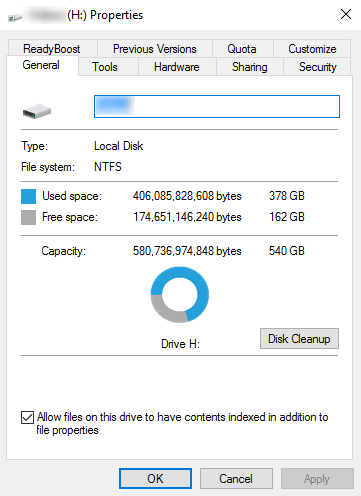
local disk propertiesIf your disk doesn’t have ample space to accommodate the installation then you should free up some of the space on your disk to make sure the Windows can be installed on it. You can also reinstall the Windows on another disk that has sufficient space.

Get Rid of the Third Party Driver

If the error 0x0000001e message gives you the name of the driver due to which the installation process is being halted, then get rid of that driver by disabling it or removing it. If the problem is resolved by this then you should contact the manufacturer of the third-party driver and ask them about any newer versions of the driver that wouldn’t conflict with the installation of Windows.

Upgrade System BIOS

Upgrading your system BIOS is something that you can’t do on your own. You will need to find out more about how you can upgrade. For this, you should contact either your PC’s manufacturer or your motherboard’s manufacturer. If nothing else works, you can always make use of the Microsoft Debugging Tools which will provide you ample information about the error message. You will find the Debugging Tools and further information about them including the downloading and installation process on Microsoft’s website.
Read More
How to Fix the Dnssd.dll Error Code

What is Dnssd.dll Error Code?

Dnssd.dll is a type of dynamic link library. It is developed for Windows Operating System by Apple Computer Inc. The latest version of fnssd.dll is 3.0.0.10 used in Windows Vista.  This file also functions like a typical dynamic link library.  DDL files are small programs similar to executable files which are used by multiple programs to load and run properly. Dnssd.dll error occurs when the dnssd.dll file fails to function properly and load to run the desired application/program.  The error may occur most often during computer startup and program startup. The dnssd.dll error message may be displayed on your PC on either one of the following formats:
  • "Dnssd.dll not found."
  • "Dnssd.dll Access Violation."
  • "Cannot register dnssd.dll."
  • "The file dnssd.dll is missing."
  • "Cannot find C:WindowsSystem32\dnssd.dll."
  • "This application failed to start because dnssd.dll was not found. Re-installing the application may fix this problem."
  • "Cannot start Bonjour. A required component is missing: dnssd.dll. Please install Bonjour again."

Solution

Restoro box imageError Causes

To narrow down the cause of the dnssd.dll error is difficult virtually because there are multiple reasons why this error occurs on your system. However, here are the most common causes for this error:
  • Missing  Dnssd.dll file
  • Corrupt and damaged Dnssd.dll file
  • Invalid  dnssd.dll registry entry
  • Viral Infection
  • Improperly shutting down your PC
  • Poor PC maintenance
  • Broken registry keys
  • Hardware failure
  • Dnssd.dll file deleted when uninstalling another program
It is advisable to fix this error right away, as it can create many troublesome problems on your PC such as slow system performance, computer freeze up, blue screen of death errors, system failure, and crash.

Further Information and Manual Repair

Here are some of the best and easiest DIY solutions that you can try to resolve this issue on your PC without hiring a professional.

1. Use System Restore Function

Since this error largely indicates poor PC maintenance, it is advisable to use the System Restore function built-in Windows to resolve the Dnssd.dll file error. It will help you restore the system back to its previous healthy status. It can also help you get a fresh copy of damaged and corrupted files. Here’s what you need to do:
  • Go to the start menu of Windows, type restore in the search box.
  • Choose the option that says ‘choose a different restore point’ this presents customizable options for users.
  • Here you will be presented with a list of restore points, choose the one that you believe has most likely caused the dnssd.dll error.
  • Confirm your selection.
This will help resolve the error. Now restart to see changes made. If the error still persists then try other solutions given below.

2. Reinstall the Program Causing the Dnssd.dll Error to Pop Up

As dll files are shared files, there is a possibility that the file got deleted when you tried to uninstall a certain program. Therefore, if this is the reason, then try to reinstall the program that is causing the error message. By doing so, you can set up the dnssd.dll file again on your PC.

3. Scan for Viruses and Registry Issues

Other reasons for the error are associated with viral infection and registry issues. Therefore it is advisable to download software to scan for these issues and remove them from your PC. Viruses can also corrupt dll files. On the other hand, dll errors like Dnssd.dll can also occur if the registry is not cleaned frequently. The registry becomes corrupt due to the accumulation of invalid/wasted and irrelevant files. This also causes disk defragmentation and hard disk problems which can also lead to hardware failure and dll file damage and corruption. Now to repair it you can either download 2 different programs, an antivirus, and a registry cleaner, or you can install multi-functional and advanced software, Restoro. Downloading 2 separate programs can reduce your PC performance even furthermore. Therefore we recommend you opt for Restoro. This is a one-stop solution for all your PC problems. It includes multiple utilities like an antivirus that detects all malicious software including spyware, malware, adware, Trojans, and viruses. A powerful registry cleaner that resolves all registry issues, wipes out bad registry entries and repairs broken registry keys, damaged dll files like Dnssd.dll, and restores the registry back to its optimum health. This software also functions as a system optimizer that boosts the speed of your PC dramatically. It is safe, bug-free, and efficient. All PC issues are resolved in seconds in just a few clicks. It is user-friendly and compatible with all Windows versions. Click here to download Restoro and resolve the dnssd.dll file error right away!
Read More
How to Fix Error Code 0x80073b01

Error Code 0x80073b01 - What is it?

The 0x80073b01 is an error message that often pops up on the screen when you run Windows Defender. Windows Defender is an antispyware by Microsoft integrated into Windows Vista and Windows 7. The error code 0x80073b01 is considered to be a critical Windows error which must be fixed immediately. This error code locks you out of Windows Defender thus putting your computer at risk potential security loopholes in the Windows environment such as notorious software like spyware, adware, and viruses. This is dangerous especially if you have confidential data saved on your PC as it can be exploited easily if you don’t remove such malicious software the right way. This can lead to data breaches, cybercrime, and the worst-case scenario can be identity theft. Error code 0x80073b01 symptoms include:
  • Sluggish pc performance,
  • Problems during software installations
  • Beeping sounds
  • Unexpected shutdowns
  • Screen freeze

Solution

Restoro box imageError Causes

The error code 0x80073b01 occurs when Windows Defender gets damaged due to misconfigured files and registry corruption. It is advisable to fix this error right away to avoid serious damages.

How to Resolve the Error Code 0x80073b01?

To repair the error code 0x80073b01 on your PC you don’t necessarily have to call a professional; you can fix it on your own with the help of Restoro. It’s very easy to use and does not require you to be technically sound. Besides, it can be downloaded for free thus helping you save hundreds of dollars that you are likely to spend on hiring a technician for the error code repair job. Restoro is the latest and a multi-functional system optimizer and a repair tool. This software is integrated with highly functional features that enable you to resolve almost all types of PC-related errors including the error code 0x80073b01. It includes powerful and value-adding features like registry cleaner, system stability detector, privacy error finder with anti-virus properties, and Active X and Class issues detector. With the help of its ‘registry cleaner’, you can easily scan for 0x80073b01 error codes on your PC. It offers in-depth registry cleaning scanning all the underlying causes of registry corruption that triggers 0x80073b01 error. The underlying cause for registry corruption is the accumulation of unnecessary and malicious files in the registry like junk files, temporary internet files, and invalid entries. Restoro with the help of its registry cleaning utility clears the clutter in seconds, frees up your disk space, and repairs the registry. And since the error 0x80073b01 hampered your ability to scan for viruses and spyware with Windows Defender, your computer may be exposed to serious data security threats by such malware. However, with Restoro you can remove malware from your system too. Restoro also functions as a powerful anti-virus. With the help of its privacy error detector, it scans for malicious viruses, adware and spyware on your PC ensuring that you are safe and protected from data breaches and cybercrime. This tool resolves the error 0x80073b01 successfully while repairing your registry and simultaneously optimizing the speed of your PC. It has a user-friendly interface and a simple design. There is absolutely nothing complex about it. All you have to do is download and install Restoro on your system and run it to scan for errors. After the scanning is complete, you will see a comprehensive and detailed error report specifying the number and the types of errors your PC is inflicted with. Now all you have to do is click on the Repair button to fix the issues on your PC including the error 0x80073b01 right away. Restoro is a safe and efficient tool that helps you resolve PC issues in seconds. For optimum results, it is advisable to run it on your PC regularly. This will help you keep the registry clean, PC error-free, reduce boot time, and ensure speedy PC performance. Click here to download Restoro on your PC today!
Read More
1 2 3 171
Logo
Copyright © 2023, ErrorTools. All Rights Reserved
Trademark: Microsoft Windows logos are registered trademarks of Microsoft. Disclaimer: ErrorTools.com is not affiliated with Microsoft, nor claims direct affiliation.
The information on this page is provided for information purposes only.
DMCA.com Protection Status