Logo

Automatically restart apps when you sign back

If you wish to continue where you have left off when you signed out of Windows follow this guide and learn how to continue your work after signing in, restart apps in your Windows.

You can set Windows 10 to Automatically save your restartable apps when you sign out and restart them after you sign in. Here’s how:

  1. Right-click on the Windows logo to open the secret menu
  2. Select Settings
  3. Click open Accounts
  4. From the left side, select Sign-in options
  5. Scroll down till you see Restart apps setting
  6. Toggle the Automatically save your restartable apps when you sign out and restart them after you sign in setting to On position

Do You Need Help with Your Device?

Our Team of Experts May Help
Troubleshoot.Tech Experts are There for You!
Replace damaged files
Restore performance
Free disk space
Remove Malware
Protects WEB browser
Remove Viruses
Stop PC freezing
GET HELP
Troubleshoot.Tech experts work with all versions of Microsoft Windows including Windows 11, with Android, Mac, and more.

Share this article:

You might also like

How to Fix Jp2klib.dll Error Code

Jp2klib.dll Error - What is it?

Jp2klib.dll is a type of Dynamic Link Library. This file is developed by Adobe Systems Inc and associated with CS2 (Creative Suite 2 Premium). Like all DLL files, this file also contains small programs that support programs developed by Adobe Systems on your PC. The function of Jp2klib.dll is to load and run programs. Jp2klib.dll error occurs when it fails to do so. It occurs during program startup. Jp2klib.dll error is displayed in several different formats depending on the cause of the error. Here are some common error messages that you may come across:
  • "JP2KLib.dll not found."
  • "Cannot find C:\WindowsSystem32\JP2KLib.dll."
  • "Cannot start Creative Suite 2 Premium. A required component is missing: JP2KLib.dll. Please install Creative Suite 2 Premium again."
  • "Cannot register JP2KLib.dll."
  • "The file JP2KLib.dll is missing."
  • "This application failed to start because JP2KLib.dll was not found. Re-installing the application may fix this problem."
  • JP2KLib.dll Access Violation."

Solution

Restoro box imageError Causes

There are several causes for the Jp2klib.dll error code pop-up. These include:
  • Hardware failure
  • Jp2klib.dll file not properly registered
  • Viral infection
  • Deleted, missing, or corrupted Jp2klib.dll file
  • Registry problems
  • Another program overwrote the Jp2klib.dll file
The good news is that this is not a fatal error code like the blue screen of death errors. However, it is still advisable to resolve it right away to avoid inconvenience.  This error may limit your ability to access your desired program.

Further Information and Manual Repair

Follow these methods to resolve Jp2klib.dll error code on your PC in a few minutes without any professional assistance or technical know-how:

Method 1 - Re-register the Jp2klib.dll file

Sometimes Jp2klib.dll error may occur if the DLL file is not registered properly. In such a situation "JP2KLib.dll not registered" error message will pop on your computer screen. To resolve, all you need to do is register this file. Follow these steps to register the Jp2klib.dll file on your PC:
  1. Go to the start menu, type the command in the search box. Don’t press enter yet.
  2. First, hold CTRL-SHIFT and then press it. This action will prompt a permission dialog box. Click yes to proceed.
  3. You will be asked to enter a command, here simply type regsvr32 /u JP2KLib.dll and then press enter.
  4. This will first unregister the previous Jp2klib.dll file. Now type regsvr32 /i JP2KLib.dll and press enter to re-register the same file.
  5. After this, close the command window and reboot your PC to activate changes.

Method 2 - Check the Recycle Bin and Restore the Jp2klib.dll file

If you come across this error message "JP2KLib.dll not found”, this indicates a missing Jp2klib.dll file. This usually happens if you recently uninstalled a program on your system which was also supported by the Jp2klib.dll file due to which the file was also deleted. But don’t worry! Check your recycle bin to retrieve the accidentally deleted file on your system. If you find it restore, but if you don’t then simply download it from a reliable DLL website.

Method 3 - Scan for Viruses

Install and run an antivirus to detect viruses. Viruses are malicious programs that damage and corrupt DLL files like the Jp2klib.dll file. Scan for all viruses on your PC and remove them to fix the problem.

Method 4 - Repair the Registry

If you don’t clean the registry often it becomes accumulated with obsolete files like bad and broken entries, cookies, and junk files. These files corrupt the registry and damage system and DLL files also stored in the same location. It then leads to such error message pop-ups. To resolve, download Restoro. This is an advanced PC Fixer deployed with a registry cleaner. It is easy to use and in just a few clicks can repair the Jp2klib.dll error on your PC. The registry cleaner scans and removes all obsolete files. It cleans the registry and repairs the damaged system and DLL files. Click here to download Total System Care and fix the Jp2klib.dll error.
Read More
Windows Update service could not be stopped
If you are running the Windows Update service but decided to stop it but you encountered an error message instead that says, “The Windows Update service could not be stopped”, read on as this post will help you fix the problem. This kind of error appears when you use the Command Prompt to stop the Windows Update service, especially if you are using cmd without admin privileges. A lot of users reported that they were not able to disable the automatic Windows Update in Windows 10 using Command Prompt. The command used to stop the Windows Update service is the “net stop wuauserv” command. However, when some users executed this command, they got the error message. So if you are one of these users that can’t stop the Windows Update Service via Command Prompt, you can try to fix that using PID as well as checking the Service dependencies. For more details, follow the given options below.

Option 1 – Try to stop the Windows Update service via PID

In case you don’t know, each running service or process has its own unique ID or PID and you can find it in the Task Manager. You can use it to stop the Windows Update service. How? Refer to these steps:
  • Tap the Ctrl + Shift + Esc keys to open the Task Manager.
  • Next, go to the Services tab and look for the service named “wuauserv” and get its PID.
  • After that, type “cmd” in the Windows Start search and right-click on Command Prompt from the search results and then select the “Run as administrator” option.
  • After opening Command Prompt with admin privileges, execute this command: taskkill /f /pid <PID>
Note: You need to replace “<PID>” with the PID of the “wuauserv” service. For instance, the PID is 6676, then this is how the command should be “taskkill /f /pid 6676”.
  • After you execute the command, you will this message on your screen, “SUCCESS: The process with PID 6676 has been terminated” which indicates that you have stopped the Windows Update service successfully.

Option 2 – Try to check the Service dependencies

Dependencies of a Windows Service in Windows 10 are when windows services depend on other services. Such is the case with the Windows Update service – it also depends on three different services such as the Remote Procedure Call or RPC service, DCOM Server Process Launcher, and the RPC Endpoint Mapper. Meaning to say, if two of these services are not working as expected, then the dependant service will also be affected. This could be the reason why the Windows Update service could not start.
  • Tap the Win + R keys to open the Run dialog box.
  • Next, type “services.msc” in the field and hit Enter to open Windows Services.
  • From the list of Services, look for the following services:
    • Remote Procedure Call (RPC) Service
    • DCOM Server Process Launcher
    • RPC Endpoint Mapper
  • After you find these services, double click on each one of them and check whether the Startup type for all is set to Automatic and the Service status is set to Running or not.
  • If the service status is not running, then click the Start button. Afterward, check if you can now run the Windows Update service.
Read More
How to fix 502 Bad Gateway error in Windows
Browsing the internet doesn’t always go smoothly, you might encounter ads, pop-ups, viruses, malware, and even errors. In this post, we’ll walk you through how you can fix the 502 Bad Gateway error that you might encounter in browsing the internet. This kind of error suggests the server which is the one that’s acting as a gateway to facilitate in taking your request to the server and bring some response back has received an invalid response or even no response at all. It could be that the connection is broken or that there is an issue on the server-side that returns an invalid response. Even though the 502 Bad Gateway error is a server-related error, there are still a few things you can try that might help resolve it, if tapping the Ctrl + F5 keys does not resolve the problem. Keep in mind that it doesn’t matter what website you open as this error can appear on any website. To resolve the problem, you need to follow the options prepared below.

Option 1 – Check the network cable connections and restart your router

As with other connection problems, this is the most basic thing to do before you try other troubleshooting options because the root cause of the problem might be as simple as a cable not connected properly or a router that just needs to be restarted. Thus, checking the network cable connection to see if there is anything out of order can help as well as restarting your router.

Option 2 – Reset Winsock, TCP/IP & Flush DNS

Resetting Winsock, TCP/IP, and flushing DNS might help you resolve the issue. To do so, follow these steps:
  • Right-click on the Start button and click on Command Prompt (administrator) so you can pull up an elevated Command Prompt.
  • After that, execute each one of the commands listed below. And after you typed in one after the other, you have to hit Enter.
  1. netsh winsock reset – type in this command to reset Winsock
  2. netsh int ip reset resettcpip.txt – type in this command to reset TCP/IP
  3. ipconfig /flushdns– type in this command to flush the DNS cache
  • Next, restart your PC and check if the problem’s fixed.

Option 3 – Change the DNS

Changing the DNS server for your network can also help you fix the 502 Bad Gateway error. You can use a public DNS like the Google Public DNS, Open DNS, Yandex DNS, Comodo Secure DNS, and many more. All you have to do is to override the default DNS settings on your PC so that you can specify which DNS server is used as well as which IP address should be used for a specific domain.

Option 4 – Try updating the Network Adapter Driver

Follow the steps below to update your Network Adapter Driver:
  • Tap the Win + R keys to launch the Run window and then type in the “devmgmt.msc” command and hit Enter to open the Device Manager window.
  • From there, expand the list of all the network drives and update each one of them.
Note: If updating the network drivers didn’t help in fixing the problem, you can also try to uninstall the very same drivers and restart your Windows 10 PC. After that, the system itself will reinstall the drivers you just uninstalled. Alternatively, you can also download and install the drivers from the manufacturer’s website directly.

Option 5 – Try a Network Reset

When all else fails, you might have to consider resetting your entire network settings. Simply follow the steps below to do so.
  • Click on the Start button and then click on the gear-like icon for Settings to open it.
  • Next, select Network and Internet.
  • Then scroll down and look for “Network Reset” – click on it and then click on the Reset now button.
Read More
How to get rid of Gardening Enthusiast Toolbar

The Gardening Enthusiast toolbar is another product that is advertised as a helpful addition to your browsing experience when it is really nothing more than the software you should remove as soon as possible. It is touted as a toolbar that will provide you with a lot of useful gardening tips. That is the hook to get you to install it. But, in truth, the only thing that it does is provide you with links to popular gardening websites that you can easily find on any search engine.

When installed the extension will change your default search engine and home page to MyWay.com

While browsing the internet with this extension you will see additional sponsored ads and links throughout your browsing session.

Anti-virus applications have marked this extension as a Browser Hijacker and are therefore marked for removal. While not considered malware, the fact that many users find it to hinder browser performance has led to its detection and flag for optional removal.

About Browser Hijackers

Browser hijacking means a malicious program code has control over and modified the settings of your browser, without your permission. Practically all browser hijackers are made for marketing or advertising purposes. Usually, hijackers will force hits to internet sites of their preference either to increase web traffic producing higher ad earnings, or to obtain a commission for every user visiting there. Nevertheless, it isn’t that harmless. Your internet safety is jeopardized and it is extremely annoying. Once the malware attacks your laptop or computer, it starts to mess things up a whole that slows your PC down to a crawl. In the worse case, you will be forced to tackle serious malware threats too.

Browser hijacking symptoms

The typical symptoms that suggest having this malware on your PC are: your home page has been reset to some unfamiliar website; you see new unwanted favorites or bookmarks added, usually directed to ad-filled or pornography sites; the default online search engine has been changed and the web browser security settings have been lowered without your knowledge; find new toolbars that you didn’t add; you notice lots of pop-up ads on your screen; your web browser gets sluggish, buggy, crashes quite often; Inability to navigate to certain sites, especially anti-malware and also other security software webpages.

Exactly how browser hijacker finds its way to your PC

A browser hijacker can be installed on your computer when you go to an infected site, click an e-mail attachment, or download something from a file-sharing website. They could be included with toolbars, BHO, add-ons, plug-ins, or browser extensions. Other times you might have accidentally accepted a browser hijacker as part of a software program package (generally freeware or shareware). Examples of popular browser hijackers are Fireball, Ask Toolbar, GoSave, CoolWebSearch, Babylon Toolbar, and RocketTab. Browser hijackers can record user keystrokes to gather potentially invaluable information that leads to privacy issues, cause instability on computers, significantly disrupt user’s browsing experience, and ultimately slow down the PC to a point where it will become unusable.

Removing browser hijackers

Certain browser hijacking could be easily reversed by identifying and eliminating the corresponding malware application from your control panel. Unfortunately, many of the software products used to hijack an internet browser are deliberately designed to be hard to detect or get rid of. You should think of undertaking manual fixes only if you are a tech-savvy person, as risks are associated with tinkering with the computer registry and HOSTS file. Browser hijackers can be effectively removed by installing anti-malware software on the affected PC. If you need to remove persistent hijackers effectively, install the award-winning anti-malware tool Safebytes Anti-Malware. And employ a system optimizer, like Total System Care, to eliminate all related files in the registry and fix browser issues.

How To Get Eliminate Malware That Is Preventing Anti-Malware Installation?

All malware is inherently harmful, but certain kinds of malicious software do more damage to your computer or laptop than others. Certain malware types alter internet browser settings by including a proxy server or change the computer’s DNS configuration settings. When this happens, you’ll be unable to visit certain or all of the sites, and thus unable to download or install the necessary security software to get rid of the computer virus. If you are reading this, chances are you’re stuck with a virus infection that is preventing you to download and/or install Safebytes Anti-Malware software on your computer. Even though this sort of problem can be harder to get around, there are some steps you can take.

Remove viruses in Safe Mode

Safe Mode is a special, basic version of Microsoft Windows where only the bare minimum services are loaded to prevent viruses as well as other problematic applications from loading. In the event, the malware is set to load immediately when PC boots, shifting to this particular mode can prevent it from doing so. To enter into Safe Mode or Safe Mode with Networking, press F8 while the PC is starting up or run MSCONFIG and locate the “Safe Boot” options under the “Boot” tab. Once you reboot into Safe Mode with Networking, you could download, install, as well as update anti-malware software from there. At this point, you can run the antivirus scan to eliminate viruses and malware without any interference from another application.

Switch over to an alternate internet browser

Malicious code might exploit vulnerabilities on a specific browser and block access to all antivirus software websites. In the event you suspect that your Internet Explorer happens to be hijacked by a virus or otherwise compromised by cybercriminals, the most effective thing to do would be to switch over to a different browser like Firefox, Chrome, or Safari to download your chosen computer security software – Safebytes Anti-Malware.

Install security software on a flash drive

To successfully get rid of the malware, you need to approach the problem of installing the anti-malware program on the affected computer system from a different perspective. To run antivirus from a USB drive, follow these simple measures: 1) Make use of another virus-free computer to download Safebytes Anti-Malware. 2) Plug the USB drive into the clean computer. 3) Double click on the downloaded file to open the installation wizard. 4) When asked, select the location of the pen drive as the place in which you want to store the software files. Follow the activation instructions. 5) Unplug the pen drive. You may now use this portable antivirus on the infected computer. 6) Double-click the anti-malware program EXE file on the pen drive. 7) Click on “Scan Now” to run a complete scan on the affected computer for viruses.

Benefits and Features of SafeBytes Security Suite

If you’re planning to purchase anti-malware for your desktop, there are numerous brands and utilities for you to consider. Some are well worth your money, but most aren’t. You must select a company that creates industry-best anti-malware and has earned a reputation as trustworthy. Among few good applications, SafeBytes Anti-Malware is the highly recommended software program for security-conscious people. SafeBytes anti-malware is a very effective and easy-to-use protection tool that is designed for end-users of all levels of IT literacy. Using its cutting-edge technology, this application will help you get rid of several types of malware like viruses, worms, PUPs, trojans, adware, ransomware, and browser hijackers.

SafeBytes anti-malware takes PC protection to a totally new level with its enhanced features. Here are some of the features you will like in SafeBytes.

Anti-Malware Protection: Built upon a highly acclaimed anti-virus engine, this malware removal tool can detect and remove several stubborn malware threats such as browser hijackers, potentially unwanted programs, and ransomware that other typical antivirus programs will miss. Real-time Threat Response: SafeBytes offers real-time active supervision and protection from all known viruses and malware. It will constantly monitor your computer for hacker activity and also gives end-users sophisticated firewall protection. Safe Browsing: Safebytes allots all sites a unique safety ranking that helps you to have an idea of whether the website you’re about to visit is safe to browse or known to be a phishing site. Lightweight: SafeBytes is renowned for its low impact on processing power and great detection rate of countless threats. It works silently and efficiently in the background so you are free to make use of your personal computer at full power all the time. 24/7 Premium Support: You will get 24/7 technical support to quickly resolve any issue with your security software. SafeBytes will keep your personal computer safe from the latest malware threats automatically with hardly any input needed from you again. Malware problems will become a thing of the past once you put this software to use. You’ll get the best all-around protection for the money you spend on SafeBytes Anti-Malware subscription, there is no doubt about it.

Technical Details and Manual Removal (Advanced Users)

If you do not wish to use malware removal software and like to remove Gardening Enthusiast manually, you could do so by going to the Add/Remove Programs menu in the Control Panel and deleting the offending program; in cases of browser add-ons, you may uninstall it by visiting the browsers Add-on/Extension manager. You might also want to reset your home page and search engine providers, and also delete browsing history, temporary files, and internet cookies. To make sure of complete removal, find the following Windows registry entries on your computer and remove them or reset the values appropriately. However, editing the Windows registry is really a difficult job that only experienced computer users and professionals should attempt to fix the problem. In addition, certain malware keeps replicating which makes it difficult to eliminate. Completing this task in Safe Mode is advised.
Folders: C:\Program Files\GardeningEnthusiast_7j Files: Search and Delete: 7jbar.dll 7jhighin.exe 7jmedint.exe 7jregfft.dll 7jregiet.dll 7jhkstub.dll 7jreghk.dll 7jSrcAs.dll 7jSrchMn.exe NP7jStub.dll 7jPlugin.dll 7jauxstb.dll 7jbprtct.dll 7jdlghk.dll 7jradio.dll 7jieovr.dll INSTALL.RDF

Read More
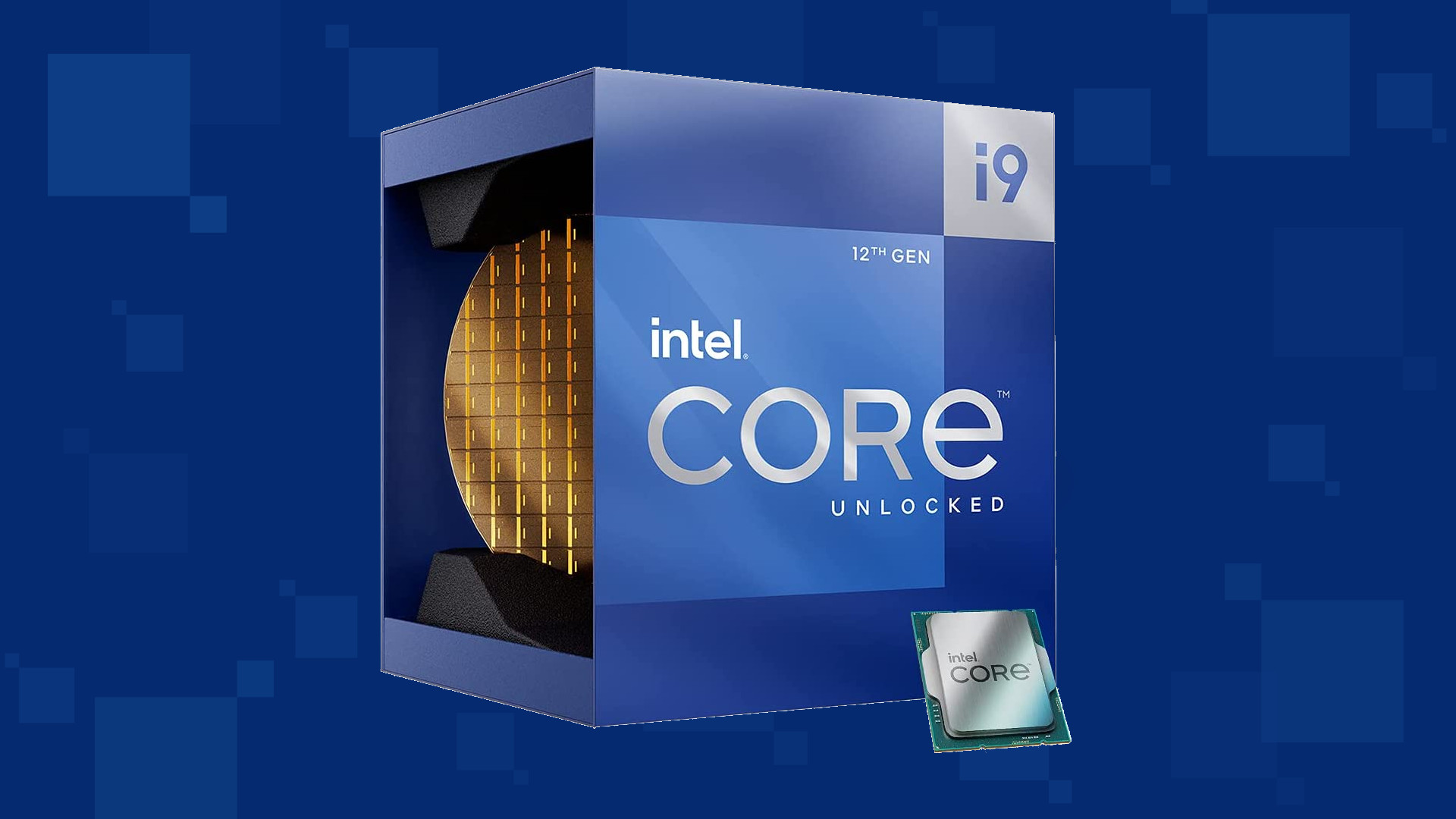
Intel & MS fixed DRM issue with alder lake
Due to its hybrid core technology, the Alder Lake line of processors had some DRM issues with some game titles where DRM protection software detected hybrid core design switching via manager as a hack attempt and prevented the game from working properly. Over 50 titles were affected by this issue, now only 3 remain still affected but it is being worked on them so that can be also resolved. alder lake drmIntel says that the remedy to the issue for these games is the scroll lock fix which can be done so by enabling Legacy Game Compatibility mode from the BIOS of your motherboard. When running the said games, you can press scroll lock to park the E-cores on Intel's Alder Lake Desktop CPUs to get rid of DRM issues. Certain motherboard manufacturers such as MSI and Gigabyte have made this even easier through software tools with which you don't have to access the BIOS. All you need to do is select a button in the tool which works on both Windows 11 and Windows 10 operating systems and you will enable compatibility mode.

Read More
A Simple Guide to Fixing Error Code 0x80070424

Error Code 0x80070424 - What is it?

The error code 0x80070424 is a Windows PC error. It may occur when using Windows Update, Microsoft Update or while trying to change Windows Firewall settings. This error does not allow you to enable or disable the Firewall on your PC. It is quite common on Windows 7 and Vista. Symptoms of error code 0x80070424 include Windows Firewall may not be listed on Services.msc, inability to change Windows Firewall settings and you may come across this error message when restarting your PC, “Base Filtering Engine Service could not be found in the system”.

Solution

Restoro box imageError Causes

Some of the common causes of the error code 0x80070424 include:
  • Base Filtering Engine Service file corruption
  • Registry issues
When you encounter this error code on your system, it is recommended to fix it immediately as this error can lead to serious PC damages.

Further Information and Manual Repair

To resolve the error code 0x80070424 here are some of the best DIY solutions for you. By following these solutions, you can fix the error all by yourself. These are simple, easy, and quick PC fixers that require no technical expertise. Just follow the simple steps and the error will be resolved in the shortest time.

Re-Install Windows Firewall & Filtering Engine

If the underlying cause of the error 0x80070424 is Base Filtering Engine Service file corruption, then the best way to resolve it is to download the Firewall and register file from a reliable website. Once you download it extract the zip on your desktop.
  • Double click on both files one by one to confirm their installation on your PC. Once installed, restart your PC and click on the start button. Search file type and run and then press enter.
  • When the Run window opens, type REGEDIT and click OK. After that, from the left sidebar navigate to HKEY_LOCAL_MACHINESYSTEMCurrentControlSetservicesBFE.
  • Now simply right-click on BFE folder and choose permission. Once that’s done, click on add button and type everyone then press OK to confirm settings.  Here you will see the ‘everyone’ added field.
  • After that in the below permission panel, tick the box that says Full Control and confirm. Now close the window and go to the menu and type services MSC.
This will open the service window. From the list search for ‘Base Filtering engine file’ right-click on it. Now search for Windows Firewall and see if you can change the settings. This procedure is most likely to resolve the error code 0x80070424 on your PC. It is time-consuming but worth it.

Use a Registry Cleaner

None the less, if the error is triggered by registry issues, then it is advisable to download Restoro. This is an advanced and highly functional PC fixer integrated with multiple utilities including a powerful registry cleaner. The registry cleaner utility detects all registry issues on your system and fixes them in seconds. It wipes out the excess, unnecessary, and obsolete registry entries and files corrupting your system cleans, and restores the registry. It is user-friendly and compatible with all Windows versions. So whether you are using Windows 7, 8, XP or Vista, you can run it on all versions with ease and resolve the error code 0x80070424 generated by registry issues. This software also includes other functional and value-added features like antivirus and a system optimizer. Click here to download Restoro and resolve error code 0x80070424  on your PC today!
Read More
A Quick Guide to Resolving Error 2738

Error 2738 - What is it?

The error code 2738 typically occurs either when you attempt to install a program or uninstall it on Windows Vista and 7. The error message is displayed in the following format:
“Error 2738. Could not access VBScript run time for custom action.”
It is a type of runtime error associated with VB (Visual Basic) Script. It indicates that the VB script engine is not correctly registered on your computer.

Solution

Restoro box imageError Causes

The error 2738 may occur due to multiple reasons. These include:
  • Windows VB Script engine is not properly installed or is disabled on your PC
  • Registry keys are incorrect
  • Corrupt registry entries
  • Poor PC maintenance
As this error code may be generated due to registry issues, it is advisable to fix it immediately as it may pose serious threats to your system like system failure, crash and valuable data loss. And complete data retrieval is often the hardest task.

Further Information and Manual Repair

To avoid such threats and to resolve the error 2738 on your PC immediately, here are some solutions that you can try:

Register the VB Script Engine Correctly on Your PC

This can be done by running the command prompt as administrator:-
  • Simply go to the start menu, click all programs, and select accessories.
  • Right-click on Command Prompt and select ‘run as Administrator’.
  • Navigate to the folder that contains the DLL. If you are using Windows 32 bit version, then type cd %windir%system32 into the Command Prompt and then press enter.
Nonetheless, if you are using 64-bit version Windows then type the following command: regsvr32 vbscript.dll and then press enter. This will help you register the VB script engine correctly and resolve the issue.

Download and Run Restoro

If the error still persists, then this means the underlying cause of the error 2738 could be invalid and corrupt registry keys. To resolve either of the causes in seconds, it is advisable to install and run Restoro. Restoro is an advanced, innovative, and multi-functional PC Fixer. This tool is embedded with multiple utilities including a powerful registry cleaner, an antivirus and a system optimizer.  The registry cleaner is a powerful utility that instantly detects all registry issues and resolves them right away. The registry saves all activities performed on the PC. It stores all types of files including invalid registry keys, cookies, internet history, junk files and temporary files. If these unnecessary files are not removed and cleared from the PC, it not only takes a lot of disk space but also damages the registry and dll files. The registry cleaning utility detects all such files and removes them. It wipes out all invalid registry entries and bad keys clean the registry and restores it. In addition to this, this tool can also be used to remove viruses and optimize the system speed. It is a user-friendly and highly functional PC repair tool. It is compatible with all Windows versions Click here to download Restoro on your PC and resolve error 2738 right away!
Read More
Easy Remove FreeRideGames PUP Removal Tutorial

Free Ride Games is a desktop casual game program and potentially unwanted application. It sets its player to run in startup boot with Windows and installs additional files outside of its designated installation folders. The software reads PC information to display targeted advertising and runs a background process that cannot be shut down even by exiting the FreeRide Player. The player runs in full screen with no visible window controls to exit or minimize, and contains unskippable advertising in its function. While not malicious, the FreeRide Player possesses many traits that as of publication time have caused some AntiVirus programs to designate it as potentially unwanted adware. It has also been associated with adware distribution toolbars such as GameVance.

About Browser Hijackers

Browser hijacking means a malicious code has power over and modified the settings of your browser, without your consent. Browser hijacker malware is created for a variety of reasons. Typically, hijackers will force hits to websites of their preference either to increase web traffic generating higher ad earnings, or to gain a commission for each and every user visiting there. Many people think that such websites are legitimate and harmless but that is incorrect. Nearly every browser hijacker poses an actual threat to your online safety and it is vital to categorize them under privacy risks. When the malware attacks your computer or laptop, it begins to mess things up a whole that slows your system down to a crawl. In the worse case, you will be pushed to deal with serious malware threats as well.

Browser hijacking signs

There are numerous signs that could indicate a browser hijacking: 1. you find unauthorized modifications to your Internet browser’s home-page 2. when you enter a URL, you find yourself regularly directed to some other website than the one you actually intended 3. the default web engine and the default browser settings are modified 4. discover new toolbars that you didn’t add 5. you might find numerous pop-up adverts on your computer screen 6. your internet browser has become unstable or starts running sluggishly 7. you are blocked to access those sites of security solution providers.

How it infects your computer

Browser hijackers could use drive-by downloads or file-sharing websites or even an email attachment to reach a targeted computer. They can also come from any BHO, extension, toolbar, add-on, or plug-in with malicious objectives. Also, certain freeware and shareware can put the hijacker in your computer through the “bundling” technique. An example of some notorious browser hijacker includes Conduit, Anyprotect, Babylon, DefaultTab, SweetPage, Delta Search, and RocketTab, but the names are constantly changing. Browser hijacking can lead to serious privacy issues and also identity theft, affect your web browsing experience by taking control of outbound traffic, substantially slows down your personal computer by depleting a lot of resources and lead to system instability as well.

How to remove a browser hijacker

Some hijackers could be removed by just uninstalling the related freeware or add-ons through the Add or Remove Programs in the Windows Control Panel. However, most hijackers are difficult to eliminate manually. Regardless of how much you attempt to get rid of it, it might keep returning again and again. Furthermore, manual removals demand in-depth system knowledge and therefore can be an extremely difficult task for beginner computer users.

Can't Install Safebytes Anti-malware due to the presence of Malware? Try This!

Malware can cause all kinds of damage when they invade your system, from stealing your personal details to erasing files on your computer system. Some malware sits in between the computer and your net connection and blocks a few or all internet sites that you really want to check out. It might also prevent you from adding anything on your PC, particularly anti-malware applications. If you are reading this, chances are you’re stuck with a malware infection that is preventing you to download and/or install the Safebytes Anti-Malware program on your system. Even though this sort of problem can be harder to get around, there are a few actions you can take.

Install the anti-virus in Safe Mode

If the virus is set to load automatically when Microsoft Windows starts, entering Safe Mode could block the attempt. Only minimal required applications and services are loaded when you boot your computer or laptop into Safe Mode. To launch your Windows XP, Vista, or 7 PCs in Safe Mode with Networking, please do as instructed below. 1) At power on, hit the F8 key while the Windows splash screen begins to load. This will bring up the Advanced Boot Options menu. 2) Select Safe Mode with Networking with arrow keys and hit ENTER. 3) When you are into this mode, you should have online access once again. Now, get the malware removal application you want by using the browser. To install the software, follow the directions in the setup wizard. 4) Following installation, run a complete scan and let the program delete the threats it discovers.

Download the antivirus program in an alternate browser

Web-based viruses could be environment-specific, aiming for a specific web browser or attacking specific versions of the browser. If you appear to have malware attached to Internet Explorer, then switch over to a different web browser with built-in safety features, such as Firefox or Chrome, to download your favorite antivirus program – Safebytes. Make a bootable USB antivirus drive Another option is to save and operate an anti-malware software program entirely from a USB drive. To run anti-malware from a USB drive, follow these simple steps: 1) Download the anti-malware program on a virus-free PC. 2) Plug in the pen drive into the clean computer. 3) Run the setup program by double-clicking the executable file of the downloaded application, which has a .exe file extension. 4) Select flash drive as the location when the wizard asks you exactly where you wish to install the application. Follow the directions to complete the installation process. 5) Remove the flash drive. Now you can use this portable antivirus on the infected computer. 6) Double-click the Safebytes Anti-malware icon on the thumb drive to run the software. 7) Click on the “Scan” button to run a full computer scan and remove viruses automatically. How SafeBytes Anti-Malware Keep your Machine Virus Free"]If you are planning to buy anti-malware for your desktop, there are numerous brands and applications for you to consider. Some are very good ones, some are decent, while some are merely bogus anti-malware applications that will damage your computer themselves! You have to look for a tool that has gained a strong reputation and detects not just viruses but other types of malware also. Among few good applications, SafeBytes Anti-Malware is the highly recommended program for the security-conscious end user. SafeBytes anti-malware is really a powerful, highly effective protection tool made to assist end-users of all levels of computer literacy in detecting and removing malicious threats from their PC. After you have installed this tool, SafeBytes sophisticated protection system will make sure that no viruses or malicious software can seep through your PC. SafeBytes has excellent features when compared to other anti-malware programs. The following are some typical features found in this software: Active Protection: SafeBytes provides complete and real-time security for your personal machine. It will check your computer system for suspicious activity continuously and its unrivaled firewall protects your PC from unauthorized access by the outside world. Most effective AntiMalware Protection: Using its enhanced and sophisticated algorithm, this malware removal tool can detect and eliminate the malware threats hiding in your computer system effectively. Web Protection: SafeBytes checks and gives a unique safety rating to each and every website you visit and block access to webpages considered to be phishing sites, thus safeguarding you from identity theft, or known to contain malicious software. Faster Scanning: Safebytes Anti-Malware, using its advanced scanning engine, provides extremely fast scanning which can quickly target any active online threat. Light-weight: This software is lightweight and will work silently in the background, and that does not have an effect on your computer efficiency. 24/7 Online Tech Support: You can get 24/7 technical support to promptly resolve any concern with your security tool.

Technical Details and Manual Removal (Advanced Users)

If you wish to manually remove FreeRideGames without the use of an automated tool, it may be possible to do so by removing the program from the Windows Add/Remove Programs menu, or in cases of browser extensions, going to the browsers AddOn/Extension manager and removing it. You will likely also want to reset your browser. To ensure the complete removal, manually check your hard drive and registry for all of the following and remove or reset the values accordingly. Please note that this is for advanced users only and may be difficult, with incorrect file removal causing additional PC errors. In addition, some malware is capable of replicating or preventing deletion. Doing this in Safe Mode is advised.

The following files, folders, and registry entries are created or modified by FreeRideGames.

Files: C:21984fa691bd80870e3e3f15cc83121a5862cef4abf2989844d858b2c64b0f C:DOCUME1USER1LOCALS1TempSDM143C:21984fa691bd80870e3e3f15cc83121a5862cef4abf2989844d858b2c64b0f C:DOCUME1USER1LOCALS1TempSDM143%#MANIFEST#%01235B C:DOCUME1USER1LOCALS1TempSDM143cmhelper.exe C:DOCUME1USER1LOCALS1TempSDM143ExentCtlInstaller.dll C:DOCUME1USER1LOCALS1TempSDM143Free Ride Games.exe C:DOCUME1USER1LOCALS1TempSDM143resourceDll.dll C:WINDOWSRegistrationR000000000007.clb C:WINDOWSsystem32msxml3r.dll C:21984fa691bd80870e3e3f15cc83121a5862cef4abf2989844d858b2c64b0f C:DOCUME1USER1LOCALS1TempSDM143%#MANIFEST#%01235B C:WINDOWSRegistrationR000000000007.clb C:DOCUME1USER1LOCALS1TempSDM143Free Ride Games.exe C:DOCUME1USER1LOCALS1Temp_uninsep.bat C:WINDOWSsystem32rsaenh.dll C:Documents and SettingsUSERLocal SettingsTemp_uninsep.bat C:WINDOWSsystem32shdocvw.dll C:WINDOWSsystem32stdole2.tlb c:autoexec.bat C:DOCUME1USER1LOCALS1TempSDM143%#MANIFEST#%01235B C:DOCUME1USER1LOCALS1TempSDM143cmhelper.exe C:DOCUME1USER1LOCALS1TempSDM143ExentCtlInstaller.dll C:DOCUME1USER1LOCALS1TempSDM143Free Ride Games.exe C:DOCUME1USER1LOCALS1TempSDM143resourceDll.dll C:DOCUME1USER1LOCALS1Temp_uninsep.bat C:DOCUME1USER1LOCALS1TempSDM143SDMLog.log C:DOCUME1USER1LOCALS1TempSDM143SDM_DB_143.xml C:DOCUME1USER1LOCALS1TempSDM143FreeRideGames.exe C:DOCUME1USER1LOCALS1Temp_uninsdm.bat C:DOCUME1USER1LOCALS1Temppft3.tmpIKernel.ex_ C:DOCUME1USER1LOCALS1TempIEC4.tmp C:Program FilesCommon FilesInstallShieldEngineIntel 32temp.000 C:Program FilesCommon FilesInstallShieldEngineIntel 32IKernel.exe C:DOCUME1USER1LOCALS1TempSDM143Free Ride Games.exe C:DOCUME1USER1LOCALS1Temp_uninsep.bat C:DOCUME1USER1LOCALS1TempSDM143FreeRideGames.exe C:DOCUME1USER1LOCALS1TempSDM143FreeRideGames.exe C:DOCUME1USER1LOCALS1Temp_uninsdm.bat C:DOCUME1USER1LOCALS1Temppft3.tmpSetup.exe C:Program FilesCommon FilesInstallShieldEngineIntel 32IKernel.exe -RegServer01235B C:DOCUME1USER1LOCALS1TempSDM143cmhelper.exe C:DOCUME1USER1LOCALS1TempSDM143ExentCtlInstaller.dll C:DOCUME1USER1LOCALS1TempSDM143Free Ride Games.exe C:DOCUME1USER1LOCALS1TempSDM143resourceDll.dll C:WINDOWSRegistrationR000000000007.clb C:WINDOWSsystem32msxml3r.dll C:21984fa691bd80870e3e3f15cc83121a5862cef4abf2989844d858b2c64b0f C:DOCUME1USER1LOCALS1TempSDM143C:21984fa691bd80870e3e3f15cc83121a5862cef4abf2989844d858b2c64b0f C:DOCUME1USER1LOCALS1TempSDM143%#MANIFEST#%01235B C:DOCUME1USER1LOCALS1TempSDM143cmhelper.exe C:DOCUME1USER1LOCALS1TempSDM143ExentCtlInstaller.dll C:DOCUME1USER1LOCALS1TempSDM143Free Ride Games.exe C:DOCUME1USER1LOCALS1TempSDM143resourceDll.dll C:WINDOWSRegistrationR000000000007.clb C:WINDOWSsystem32msxml3r.dll C:21984fa691bd80870e3e3f15cc83121a5862cef4abf2989844d858b2c64b0f C:DOCUME1USER1LOCALS1TempSDM143%#MANIFEST#%01235B C:WINDOWSRegistrationR000000000007.clb C:DOCUME1USER1LOCALS1TempSDM143Free Ride Games.exe C:DOCUME1USER1LOCALS1Temp_uninsep.bat C:WINDOWSsystem32rsaenh.dll C:Documents and SettingsUSERLocal SettingsTemp_uninsep.bat C:WINDOWSsystem32shdocvw.dll C:WINDOWSsystem32stdole2.tlb c:autoexec.bat C:DOCUME1USER1LOCALS1TempSDM143%#MANIFEST#%01235B C:DOCUME1USER1LOCALS1TempSDM143cmhelper.exe C:DOCUME1USER1LOCALS1TempSDM143ExentCtlInstaller.dll C:DOCUME1USER1LOCALS1TempSDM143Free Ride Games.exe C:DOCUME1USER1LOCALS1TempSDM143resourceDll.dll C:DOCUME1USER1LOCALS1Temp_uninsep.bat C:DOCUME1USER1LOCALS1TempSDM143SDMLog.log C:DOCUME1USER1LOCALS1TempSDM143SDM_DB_143.xml C:DOCUME1USER1LOCALS1TempSDM143FreeRideGames.exe C:DOCUME1USER1LOCALS1Temp_uninsdm.bat C:DOCUME1USER1LOCALS1Temppft3.tmpIKernel.ex_ C:DOCUME1USER1LOCALS1TempIEC4.tmp C:Program FilesCommon FilesInstallShieldEngineIntel 32temp.000 C:Program FilesCommon FilesInstallShieldEngineIntel 32IKernel.exe C:DOCUME1USER1LOCALS1TempSDM143Free Ride Games.exe C:DOCUME1USER1LOCALS1Temp_uninsep.bat C:DOCUME1USER1LOCALS1TempSDM143FreeRideGames.exe C:DOCUME1USER1LOCALS1TempSDM143FreeRideGames.exe C:DOCUME1USER1LOCALS1Temp_uninsdm.bat C:DOCUME1USER1LOCALS1Temppft3.tmpSetup.exe C:Program FilesCommon FilesInstallShieldEngineIntel 32IKernel.exe -RegServer01235B C:WINDOWSRegistrationR000000000007.clb C:DOCUME1USER1LOCALS1TempSDM143Free Ride Games.exe C:DOCUME1USER1LOCALS1Temp_uninsep.bat C:WINDOWSsystem32rsaenh.dll C:Documents and SettingsUSERLocal SettingsTemp_uninsep.bat C:WINDOWSsystem32shdocvw.dll C:WINDOWSsystem32stdole2.tlb c:autoexec.bat C:DOCUME1USER1LOCALS1TempSDM143C:21984fa691bd80870e3e3f15cc83121a5862cef4abf2989844d858b2c64b0f C:DOCUME1USER1LOCALS1TempSDM143%#MANIFEST#%01235B C:DOCUME1USER1LOCALS1TempSDM143cmhelper.exe C:DOCUME1USER1LOCALS1TempSDM143ExentCtlInstaller.dll C:DOCUME1USER1LOCALS1TempSDM143Free Ride Games.exe C:DOCUME1USER1LOCALS1TempSDM143resourceDll.dll C:WINDOWSRegistrationR000000000007.clb C:WINDOWSsystem32msxml3r.dll C:21984fa691bd80870e3e3f15cc83121a5862cef4abf2989844d858b2c64b0f C:DOCUME1USER1LOCALS1TempSDM143%#MANIFEST#%01235B C:WINDOWSRegistrationR000000000007.clb C:DOCUME1USER1LOCALS1TempSDM143Free Ride Games.exe C:DOCUME1USER1LOCALS1Temp_uninsep.bat C:WINDOWSsystem32rsaenh.dll C:Documents and SettingsUSERLocal SettingsTemp_uninsep.bat C:WINDOWSsystem32shdocvw.dll C:WINDOWSsystem32stdole2.tlb c:autoexec.bat C:DOCUME1USER1LOCALS1TempSDM143%#MANIFEST#%01235B C:DOCUME1USER1LOCALS1TempSDM143cmhelper.exe C:DOCUME1USER1LOCALS1TempSDM143ExentCtlInstaller.dll C:DOCUME1USER1LOCALS1TempSDM143Free Ride Games.exe C:DOCUME1USER1LOCALS1TempSDM143resourceDll.dll C:DOCUME1USER1LOCALS1Temp_uninsep.bat C:DOCUME1USER1LOCALS1TempSDM143SDMLog.log C:DOCUME1USER1LOCALS1TempSDM143SDM_DB_143.xml C:DOCUME1USER1LOCALS1TempSDM143FreeRideGames.exe C:DOCUME1USER1LOCALS1Temp_uninsdm.bat C:DOCUME1USER1LOCALS1Temppft3.tmpIKernel.ex_ C:DOCUME1USER1LOCALS1TempIEC4.tmp C:Program FilesCommon FilesInstallShieldEngineIntel 32temp.000 C:Program FilesCommon FilesInstallShieldEngineIntel 32IKernel.exe C:DOCUME1USER1LOCALS1TempSDM143Free Ride Games.exe C:DOCUME1USER1LOCALS1Temp_uninsep.bat C:DOCUME1USER1LOCALS1TempSDM143FreeRideGames.exe C:DOCUME1USER1LOCALS1TempSDM143FreeRideGames.exe C:DOCUME1USER1LOCALS1Temp_uninsdm.bat C:DOCUME1USER1LOCALS1Temppft3.tmpSetup.exe C:Program FilesCommon FilesInstallShieldEngineIntel 32IKernel.exe -RegServer01235B C:DOCUME1USER1LOCALS1TempSDM143cmhelper.exe C:DOCUME1USER1LOCALS1TempSDM143ExentCtlInstaller.dll C:DOCUME1USER1LOCALS1TempSDM143Free Ride Games.exe C:DOCUME1USER1LOCALS1TempSDM143resourceDll.dll C:DOCUME1USER1LOCALS1Temp_uninsep.bat C:DOCUME1USER1LOCALS1TempSDM143SDMLog.log C:DOCUME1USER1LOCALS1TempSDM143SDM_DB_143.xml C:DOCUME1USER1LOCALS1TempSDM143FreeRideGames.exe C:DOCUME1USER1LOCALS1Temp_uninsdm.bat C:DOCUME1USER1LOCALS1Temppft3.tmpIKernel.ex_ C:DOCUME1USER1LOCALS1TempIEC4.tmp C:Program FilesCommon FilesInstallShieldEngineIntel 32temp.000 C:Program FilesCommon FilesInstallShieldEngineIntel 32IKernel.exe C:DOCUME1USER1LOCALS1TempSDM143Free Ride Games.exe C:DOCUME1USER1LOCALS1Temp_uninsep.bat C:DOCUME1USER1LOCALS1TempSDM143FreeRideGames.exe C:DOCUME1USER1LOCALS1TempSDM143FreeRideGames.exe C:DOCUME1USER1LOCALS1Temp_uninsdm.bat C:DOCUME1USER1LOCALS1Temppft3.tmpSetup.exe C:Program FilesCommon FilesInstallShieldEngineIntel 32IKernel.exe -RegServer
Read More
EasyPDFCombine Complete Removal Guide

EasyPDFCombine is a browser extension by Mindspark Inc. This extension claims to offer users an easy and fast way to combine different PDF documents into a single file for easy access and sharing.

When installed this extension changes your default search engine to MyWay.com, it also hijacks your home page and new tab page, also changing it to search powered by MyWay. While browsing the internet with this extension you will see additional pop-up ads, injected ads in search results, and sponsored content throughout your browsing sessions. This extension has been marked as a Browser Hijacker by several anti-virus programs and it is not recommended to keep on your computer.

About Browser Hijackers

Browser hijack is a common type of internet fraud where your web browser settings are altered to allow it to carry out things you do not intend. Browser hijacker malware is developed for a variety of reasons. In general, browser hijacking is used for earning ad revenue from forced advert clicks and website visits. While it may seem harmless, these tools were created by malicious individuals who always look to take full advantage of you, so that hackers could make money from your naivety and distraction. They not only screw up your web browsers, but browser hijackers can also modify the system registry, making your computer susceptible to other malicious programs.

How to know whether the web browser is hijacked?

There are many symptoms of browser hijacking. Here are a few of them: 1. the browser’s homepage is modified 2. you find yourself regularly directed to a different webpage than the one you intended 3. the main web browser settings are modified and undesirable or insecure resources are put into the trusted sites list 4. you are finding new toolbars you haven’t witnessed before 5. you see a lot of pop-up ads on your computer screen 6. your web browser gets sluggish, buggy crashes often 7. Inability to navigate to certain websites, especially antivirus as well as other security software websites.

How browser hijacker infects computers

Browser hijackers attack computers via malicious email attachments, downloaded infected computer files, or by checking out infected sites. They may also originate from any BHO, browser extension, add-on, toolbar, or plug-in with the malicious objectives. Also, certain shareware and freeware can put the hijacker in your computer through the “bundling” technique. A good example of a well-known browser hijacker is the most recent Chinese malicious software known as “Fireball”, which has infected 250 million computers around the world. It acts as a hijacker but can be turned into a fully functioning malware downloader later on. The presence of any browser hijacker malware on your system can drastically diminish the web browsing experience, monitor your internet activities that result in severe privacy concerns, develop system stability issues and ultimately cause your PC to slow down or to a practically unusable condition. How you can remove browser hijackers Certain browser hijacking can be easily stopped by finding and removing the corresponding malware program from your control panel. At times, it could be a challenging job to identify and delete the malicious program because the associated file will be running as part of the operating system process. You should think of doing manual repairs only if you’re a tech-savvy individual since there are risks associated with tinkering around with the system registry and HOSTS file. Browser hijackers could be effectively removed by installing and running anti-malware software on the affected PC. Among the best tools for fixing browser hijacker infections is SafeBytes Anti-Malware. It helps you remove any pre-existing malicious software in your computer and gives you real-time monitoring and protection from the latest threats.

What you can do if Virus Stops You From Downloading Or Installing Antivirus?

Malware could potentially cause all kinds of damage when they invade your system, starting from stealing your personal details to erasing data files on your PC. Some malware is meant to hinder or prevent things that you’d like to do on your PC. It may not allow you to download anything from the web or prevent you from accessing a few or all websites, especially antivirus sites. If you’re reading this, odds are you’re stuck with a malware infection that is preventing you to download and/or install Safebytes Anti-Malware software on your PC. Follow the instructions below to remove malware through alternate ways.

Download the anti-virus in Safe Mode with Networking

If the malware is set to run automatically when Windows starts, entering Safe Mode may block this attempt. Since only the minimal programs and services launch in safe mode, there are rarely any reasons for issues to occur. The following are the steps you need to follow to start into the Safe Mode of your Windows XP, Vista, or 7 computers (check out Microsoft site for instructions on Windows 8 and 10 computers). 1) At power-on/startup, hit the F8 key in 1-second intervals. This would conjure up the Advanced Boot Options menu. 2) Choose Safe Mode with Networking using arrow keys and hit ENTER. 3) When this mode loads, you will have an internet connection. Now, get the malware removal application you need by using the web browser. To install the program, follow the directions in the setup wizard. 4) After installation, do a complete scan and let the software program delete the threats it discovers.

Utilize an alternate internet browser to download antivirus software

Some viruses might target vulnerabilities of a specific browser that block the downloading process. If you appear to have a virus attached to Internet Explorer, then switch to an alternate web browser with built-in security features, such as Firefox or Chrome, to download your favorite anti-malware program – Safebytes.

Install anti-malware on a USB drive

To successfully remove the malware, you should approach the problem of installing anti-virus software on the affected PC from a different angle. To run antivirus using a USB pen drive, follow these simple measures: 1) Download Safebytes Anti-Malware or MS Windows Defender Offline onto a virus-free PC. 2) Insert the USB drive onto the same computer. 3) Run the setup program by double-clicking the executable file of the downloaded application, with a .exe file format. 4) When asked, choose the location of the USB drive as the place where you would like to store the software files. Do as instructed on the screen to finish up the installation process. 5) Unplug the USB drive. Now you can utilize this portable anti-malware on the affected computer. 6) Double click the Safebytes Anti-malware icon on the pen drive to run the program. 7) Click on the “Scan Now” button to start the virus scan.

SafeBytes Anti-Malware - More Protection For You

In order to protect your PC from various internet-based threats, it is important to install an anti-malware program on your computer system. But with countless numbers anti-malware companies in the market, these days it is hard to decide which one you should purchase for your personal computer. A few are really worth your money, but many aren’t. While looking for anti-malware software, choose one that offers solid, efficient, and complete protection against all known viruses and malware. Among few good applications, SafeBytes Anti-Malware is the highly recommended program for the security-conscious individual. SafeBytes is a powerful, real-time antivirus application that is made to assist the common computer end user in safeguarding their PC from malicious internet threats. This program could easily detect, remove, and protect your personal computer from the most advanced malware threats including adware, spyware, trojan horses, ransomware, PUPs, worms, parasites as well as other potentially harmful software applications.

There are lots of great features you will get with this security product. Below are some of the features you may like in SafeBytes.

Live Protection: SafeBytes offers 100 % hands-free live protection and is set to observe, prevent and eliminate all threats at its very first encounter. It will continuously monitor your computer for hacker activity and also gives users superior firewall protection. World-class AntiMalware Protection: Using its enhanced and sophisticated algorithm, this malware removal tool can find and remove the malware threats hiding in your computer effectively. “Fast Scan” Abilities: This software has got one of the fastest and most efficient virus scanning engines in the industry. The scans are very accurate and take a little time to complete. Web Security: SafeBytes checks and gives a unique safety rating to every single website you visit and block access to web pages known to be phishing sites, thus protecting you against identity theft, or known to contain malware. Very Low CPU and RAM Usage: SafeBytes gives total protection from internet threats at a fraction of the CPU load because of its advanced detection engine and algorithms. Premium Support: SafeBytes gives you 24/7 technical support, automatic maintenance, and upgrades for the best user experience. SafeBytes can keep your personal computer protected from most advanced malware threats automatically with little or no input needed from you again. There is no doubt that your computer system will be protected in real-time as soon as you put this software program to use. So if you are looking for the best anti-malware subscription for your Windows-based PC, we suggest the SafeBytes Anti-Malware application.

Technical Details and Manual Removal (Advanced Users)

If you’d like to manually remove EasyPDFCombine without the use of an automated tool, it might be possible to do so by deleting the program from the Microsoft Windows Add/Remove Programs menu, or in cases of browser extensions, going to the browser’s AddOn/Extension manager and removing it. You’ll probably also want to reset your internet browser. Finally, check your hard drive for all of the following and clean your Windows registry manually to get rid of leftover application entries following an uninstallation. Please keep in mind that only experienced users should try to manually edit the system files simply because deleting any single vital registry entry results in a major problem or even a computer crash. Additionally, certain malware is capable of replicating itself or preventing deletion. It is advised that you carry out the removal process in Safe Mode.
Files: %LOCALAPPDATA%\Google\Chrome\User Data\Default\Local Extension Settings\kpocjpoifmommoiiiamepombpeoaehfh %UserProfile%\Local Settings\Application Data\Google\Chrome\User Data\Default\Local Extension Settings\kpocjpoifmommoiiiamepombpeoaehfh %LOCALAPPDATA%\Google\Chrome\User Data\Default\Sync Extension Settings\kpocjpoifmommoiiiamepombpeoaehfh %UserProfile%\Local Settings\Application Data\Google\Chrome\User Data\Default\Sync Extension Settings\kpocjpoifmommoiiiamepombpeoaehfh %UserProfile%\Local Settings\Application Data\EasyPDFCombine_ce %LOCALAPPDATA%\EasyPDFCombine_ce %USERPROFILE%\Application Data\easypdfcombine_ceIE %USERPROFILE%\AppData\LocalLow\easypdfcombine_ce %PROGRAMFILES%\easypdfcombine_ceEI %LOCALAPPDATA%\Google\Chrome\User Data\Default\Extensions\eoijigimapijneedmehmjccmmdknkbef %UserProfile%\Local Settings\Application Data\Google\Chrome\User Data\Default\Extensions\eoijigimapijneedmehmjccmmdknkbef %UserProfile%\Local Settings\Application Data\Google\Chrome\User Data\Default\Extensions\kpocjpoifmommoiiiamepombpeoaehfh chrome-extension_eoijigimapijneedmehmjccmmdknkbef_0.localstorage %UserProfile%\Local Settings\Application Data\EasyPDFCombineTooltab %LOCALAPPDATA%\EasyPDFCombineTooltab Registry: HKEY_CURRENT_USER\Software\AppDataLow\Software\easypdfcombine_ce HKEY_CURRENT_USER\Software\Microsoft\Internet Explorer\Approved Extensions, value: 0D159187-1DDE-426D-8D17-74B6CEF7D9E3 HKEY_CURRENT_USER\Software\Microsoft\Internet Explorer\Approved Extensions, value: 1930D4C0-D0E6-4CF1-B6A4-A09140F88475 HKEY_CURRENT_USER\Software\Microsoft\Internet Explorer\Approved Extensions, value: 4E8A04A7-E70B-4391-9AF3-1C0CC98AE8DA HKEY_LOCAL_MACHINE\SYSTEM\CurrentControlSet\services\easypdfcombine_ceService HKEY_LOCAL_MACHINE\SYSTEM\ControlSet001\services\easypdfcombine_ceService HKEY_LOCAL_MACHINE\SYSTEM\ControlSet002\services\easypdfcombine_ceService HKEY_LOCAL_MACHINE\SOFTWARE\Wow6432Node\Microsoft\Windows\CurrentVersion\Run, value: EasyPDFCombine AppIntegrator 32-bit HKEY_LOCAL_MACHINE\SOFTWARE\Wow6432Node\Microsoft\Windows\CurrentVersion\Run, value: easyPDFCombine AppIntegrator 64-bit HKEY_LOCAL_MACHINE\SOFTWARE\Wow6432Node\Microsoft\Windows\CurrentVersion\Run, value: easyPDFCombine EPM Support HKEY_LOCAL_MACHINE\SOFTWARE\Microsoft\Windows\CurrentVersion\Run, value: EasyPDFCombine AppIntegrator 64-bit HKEY_LOCAL_MACHINE\SOFTWARE\Microsoft\Windows\CurrentVersion\Run, value: EasyPDFCombine EPM Support HKEY_LOCAL_MACHINE\SOFTWARE\Microsoft\Windows\CurrentVersion\Run, value: EasyPDFCombine Search Scope Monitor HKEY_LOCAL_MACHINE\SOFTWARE\Wow6432Node\Microsoft\Internet Explorer\Toolbar, value: 4e8a04a7-e70b-4391-9af3-1c0cc98ae8da HKEY_LOCAL_MACHINE\SOFTWARE\Microsoft\Internet Explorer\Toolbar, value: 4e8a04a7-e70b-4391-9af3-1c0cc98ae8da HKEY_LOCAL_MACHINE\SOFTWARE\Wow6432Node\Microsoft\Windows\CurrentVersion\explorer\Browser Helper Objects\1930d4c0-d0e6-4cf1-b6a4-a09140f88475 HKEY_LOCAL_MACHINE\SOFTWARE\Microsoft\Windows\CurrentVersion\explorer\Browser Helper Objects\1930d4c0-d0e6-4cf1-b6a4-a09140f88475 HKEY_LOCAL_MACHINE\SOFTWARE\Microsoft\Internet Explorer\LowRegistry\DOMStorage\easypdfcombine.dl.myway.com HKEY_LOCAL_MACHINE\SOFTWARE\Microsoft\Internet Explorer\DOMStorage\easypdfcombine.dl.myway.com HKEY_LOCAL_MACHINE\Software\Microsoft\Internet Explorer\DOMStorage\easypdfcombine.dl.tb.ask.com HKEY_LOCAL_MACHINE\SOFTWARE\Microsoft\Internet Explorer\LowRegistry\DOMStorage\easypdfcombine.dl.tb.ask.com HKEY_LOCAL_MACHINE\SOFTWARE\Wow6432Node\EasyPDFCombine
Read More
Setup has failed to determine install choices
Running the Windows Setup does not always go smoothly as you could encounter some errors along the way. One of these errors is the “Something happened, Setup has failed to determine supported install choices” error. The only given option in such cases is to click the Close button and exit the setup. This kind of error in Windows setup can occur when you try to downgrade to the previous version of Windows using the built-in mechanism. This error could be caused by a corrupted image or it is also possible that the set of files are incomplete. Aside from that, it could also be due to compatibility issues or that the module used to downgrade the Windows operating system is not configured properly. To fix this error, you have to run the Windows Setup program in compatibility mode so that you can downgrade Windows. You could also use the image for the lower version of Windows that’s available on the official site of Microsoft. But before you do any of these, make sure that you’re logged in as an administrator. To fix the “Something happened, Setup has failed to determine supported install choices” error, follow the given options below sequentially.

Option 1 – Try to run the Installer of the downgraded version in Compatibility Mode

This is the first thing you can try to resolve the issue instead of going right ahead on making a bootable device. So if you are downgrading Windows, you can try to run the installer in the compatibility mode for that specific Windows version.
  • Look for the setup file.
  • Once you find it, right-click on it and select Properties from the context menu.
  • After that, go to the Compatibility tab and mark the checkbox for “Run this program in compatibility mode for:” and from the drop-down list, select either Windows 7 or Windows 8.
  • You also have to check the “Run as administrator” option.
  • Now click the Apply button and then click OK to save the changes made and check if it has resolved the issue or not.

Option 2 – Try to troubleshoot compatibility

This option is almost the same as the first one except it is an alternative way of fixing the “Setup has failed to determine supported install choices” error in case the first one didn’t work. In this option, you will troubleshoot the compatibility issue.
  • Look for the setup file.
  • Then right-click on it and select the “Troubleshoot compatibility” from the context menu.
  • After that, click on the “Try recommended setting” option. Once the process is done, the error message should be gone.

Option 3 – Run the DISM tool

You can run the DISM tool as well to help fix the error code 0x80244022 during Windows Update. Using this built-in tool, you have various options such as the “/ScanHealth”, “/CheckHealth”, and “/RestoreHealth”.
  • Open the Command Prompt with admin privileges.
  • Then type in the following commands and make sure to hit Enter right after you type each one of them:
    • Dism /Online /Cleanup-Image /CheckHealth
    • Dism /Online /Cleanup-Image /ScanHealth
    • exe /Online /Cleanup-image /Restorehealth
  • Do not close the window if the process takes a while as it will probably take a few minutes to finish.

Option 4 – Try using the image from the official site of Microsoft

If none of the options given above worked, you can try to use the image from Microsoft’s official site. This would help, especially if the error is caused by a corrupted image or image folder with incomplete files.
Read More
1 2 3 171
Logo
Copyright © 2023, ErrorTools. All Rights Reserved
Trademark: Microsoft Windows logos are registered trademarks of Microsoft. Disclaimer: ErrorTools.com is not affiliated with Microsoft, nor claims direct affiliation.
The information on this page is provided for information purposes only.
DMCA.com Protection Status