Logo

How to Fix Error 421

What is the Error 421?

Error 421 is a common SMTP (Simple Mail Transfer Protocol) Outlook error message. MS Outlook is one of the best and popular email applications widely used by PC Windows users for sending and receiving emails within and outside workplaces.

It is most commonly used in offices by professionals for faster communication.

This error may occur while sending and receiving emails on the server. The error 421 messages is displayed in either of the following formats:

“An unknown error has occurred: Server error 421”

"Could not send your message. Error 421"

421 4.2.1 : (DYN:T1) http://postmaster.info.aol.com/errors/421dynt1.html

421 4.3.1 Out of disk space for temp file

421 4.3.2 All server ports are busy

421 Downstream server error

421 Fork failed

421 Greylisting enabled, please try later

“An unknown error has occurred. Subject ‘Testing’, Account: ‘pop.charter.net’, Server: ‘mail.charter.net’, Protocol: SMTP, Server Response:

’421 Message rejected’, Port: 25, Secure(SSL): No, Server Error: 421, Error Number: 0x800CCC67”

Solution

Restoro box imageError Causes

Some common causes for this critical Outlook error are:

  • PST storage size exceeds 2GB file size
  • Improper ISP settings
  • Slow internet connection
  • PST file corruption
  • Trojan attack and viral infection

This is a critical Outlook error that should be resolved timely. If you delay, it may cause you a great deal of inconvenience.

The error code 421 hampers your ability to access your email account, send and receive emails, add new contacts, view emails, calendar entries, and journals. In other words, it just brings your email activities to a standstill locking you out of the account.

Further Information and Manual Repair

To resolve this error code on your system, you don’t always have to hire a professional or call the network personnel to do the job. It may be a critical error but the good news is that it is quite easy to fix. Even if you don’t have technical expertise, you can still repair it.

Here are some of the best methods to repair this issue on your system:

1. Change the Server Settings to its Maximum Limit

Try changing your server settings. Here set the inbound connections limit at the maximum limit.

  • To do this, open the Microsoft Exchange Server Administrator utility. The access path of this utility will vary depending on the installation procedure used to set up Exchange Server.
  • Once you open the MS Exchange Server Administrator utility, click the ‘Connections’ icon in the left side navigation pane. Now double click the internet mail service icon in the right side pane. As you click it, the Properties window will open.
  • Now click the ‘Connections’ tab in the Properties window and then click the ‘Advanced’ button. This will open the configuration window.
  • Here reset the number for ‘Maximum Number of Inbound Connections’ to a high number, its maximum limit. After changing the settings, close all open Exchange Server Administrator program windows to successfully complete the process.

After the process is complete, try accessing your Outlook email account again; if it works, then that’s great the error 421 is resolved. However, if it doesn’t, then the problem could be related to viral infection.

2. Download a PST Repair Tool

If the cause of the error is PST files corruption, then not only will you be locked out of your email account, you are also at risk of losing all the data stored in your email account.

However, the best way to resolve the error and ensure full data recovery is to download a reliable PST repair tool. By running a PST repair tool on your system, you can resolve the error 421 right away. It recovers your data, repairs corrupt and damaged PST files.

3. Scan Your PC with Restoro.

If viral infection and Trojans are causing the error 421 to pop up on your system, then it is recommended to download and scan your PC with Restoro.

This is an advanced, intuitive, and user-friendly PC fixer. It is not just an antivirus but also a system optimizer and a registry cleaner.

Unlike common antivirus software that only removes viruses and simultaneously slows down the system’s speed, Restoro removes all types of malicious software on your PC including malware, spyware, Trojans, and viruses, and also boosts the speed of your PC significantly.

It is safe, easy to operate, and a quick fixer. It is compatible with all Windows versions.

Click here to download Restoro and resolve error 421 today!

Do You Need Help with Your Device?

Our Team of Experts May Help
Troubleshoot.Tech Experts are There for You!
Replace damaged files
Restore performance
Free disk space
Remove Malware
Protects WEB browser
Remove Viruses
Stop PC freezing
GET HELP
Troubleshoot.Tech experts work with all versions of Microsoft Windows including Windows 11, with Android, Mac, and more.

Share this article:

You might also like

How to Fix MULTIPROCESSOR_CONFIGURATION_NOT_SUPPORTED error in Windows 10
If you are using a Windows 10 PC that has different processors clubbed together, chances are you might encounter an error saying, “MULTIPROCESSOR CONFIGURATION NOT SUPPORTED” during a Windows upgrade or software installation. This error is actually caused by a bug check with a value of 0x0000003E. This error also indicates that the processors in your computer are asymmetric in relation to one another. So if you want to upgrade you need to have all the processors of the same type and level. But worry not for this guide will help you in fixing this error. The MULTIPROCESSOR_CONFIGURATION_NOT_SUPPORTED error can occur in several cases such as during an installation of Windows 10, or when the driver is loaded, or when Windows Start or Shutdown and the chances of you getting a blue screen is very much high. To fix this error, refer to the options given below and make sure to follow them carefully.

Option 1 – Try to disable the Hyper-Threading in your BIOS

Hyper-Threading in the BIOS lets a processor (multi-threaded) run various tasks in a simultaneous manner. To disable this, here’s what you have to do:
  • Restart your computer and boot into it right after. To do that, tap the F2 key.
  • Once you’re in the BIOS, locate the Hyper-Threading option which should be located under the Performance section along with other options like Multi-core support, Rapid Start technology, and many more.
  • Disable Hyper-Threading and then make sure to save the changes and exit BIOS.
Note: Although Hyper-Threading is only used when necessary, there are some OEMS that don’t have the option to disable it and if that’s the case, you need to try other options given below.

Option 2 – Try to disable the Virtualization in the BIOS

Virtualization in the BIOS allows users to run a single physical resource such as the server or storage device to appear that it is running as multiple logical resources. It is also properly termed as “HYPER-V”.  To disable it, refer to these steps:
  • Boot into the BIOS as you did earlier.
  • Then look for the Security options.
  • After that, from Security options, look for Virtualization Technology or VTX among the options given.
  • Then turn it off and restart your computer.
Note: Although Windows 10 offers features such as the Device Security for Core Isolation and Memory Integrity, if you turn them off at the software level, it will not help at all. If you’re able to resolve the error, you can do some further research and see what software or hardware you can use to further help you.

Option 3 – Try checking if there are any BIOS updates available for your PC

Updating the BIOS may help you resolve the MULTIPROCESSOR CONFIGURATION NOT SUPPORTED error. You can just go to the OEM’s website as they offer utility software that can download BIOS firmware and update it without any problem. BIOS updates usually offer enhancements and fixes to some issues like this one.
Read More
How to map a network drive in Windows 11
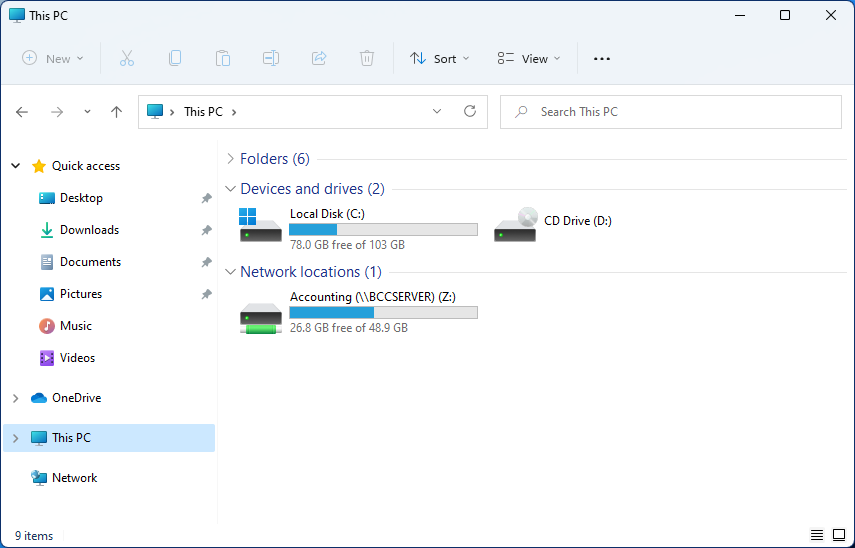
windows 11 network driveMapping network drive has many benefits in terms of speed and ease of access of files via network. It lets you access the hard drive over the whole network like it was the hard drive inside your PC case. In order to easily and quickly map a folder as a network drive follow the guide below.
  1. Open File Explorer
  2. Click on the three dots icon in the Toolbar
  3. Select Map Network Drive
  4. Click the Drive drop-down menu
  5. Select a driver letter that you wish to assign as a network drive
  6. In the folder field enter network device and share name (click on browse to see all devices on local network)
  7. Check the box beside Reconnect at sign-in if you wish to automatically connect to a network drive on Windows startup
  8. Check Connect Using Different Credentials if you wish to connect to a network drive using different credentials that one used to login into Windows.
  9. Click Finish
After finishing setting Windows 11 will try to connect to the network drive and if successful drive icon will appear inside File Explorer and the drive will open up to see its content. If for any reason it cannot connect try checking user credentials, cables, network adapters, etc.
Read More
INET_E_RESOURCE_NOT_FOUND
The previous Windows versions all came with Microsoft's browser Internet Explorer. A lot of users love it because not only that it is easy to use. It is also very fast. Users didn’t have to worry about compatibility because it is almost always compatible with its Windows Version. When they introduced Windows 10, they changed the name of the browser from Internet Explorer to Microsoft Edge. It is faster and more user-friendly compared to its predecessors. But after the Creator Update, some experienced receiving the inet_e_resource_not_found error code. In contrary to what everyone expects, you actually don’t have to uninstall and reinstall the Microsoft Edge App. What you can do is reset the browser in your Apps & Features Settings in your Microsoft Settings.

To reset the browser you can follow the steps below:

  1. Click on the Windows icon and go to settings.
  2. Click on Apps and this will bring you to the Apps & Features page. Look for Microsoft Edge from the list of Apps and click on it.
  3. Choose Advance Option
  4. Scroll down then Under Reset, click on repair or reset. When you repair it will fix the existing problem but the data that caused the problem may still be present and can still cause problems. If you click on reset, it will delete all the cache and cookies that are installed in your browser but it will save your Favorites as well as your bookmarks.

Another way to resolve this is by disabling the feature TCP Fast Open on Microsoft Edge. To disable this, go ahead and follow the steps below:

  1. Open the Microsoft Edge browser.
  2. Type in about: flags on the Address (URL) bar.
  3. Under Networking, uncheck the Enable TCP Fast Open.
  4. Close your Microsoft Edge browser and open a new one.
Flushing the DNS also worked for other Users. Sometimes, the error code the inet_e_resource_not_found is caused by a corrupted DNS cache. There are 2 ways to flush your DNS. The first option is to use the command prompt to run the command.
  1. To access the Command prompt or CMD, you can search for it on Cortana or you can click on the Windows icon to access the Programs, scroll down to the Windows System folder and click on it.
  2. A dropdown menu will show up, click on Command Prompt which is the first on the list.
  3. Type in the code ipconfig /flushdns and press enter.
  4. There will be a message that will show that says Windows IP configuration successfully flushed the DNS Resolver Cache
  5. Exit the CMD by typing exit and press enter.
The easiest way to do this is to Press the keys Window + R on your keyboard. Type in ipconfig /flushdns in the search box and hit enter or click on OK. These are only some of the ways to resolve the inet_e_resource_not_found. There are other ways to further troubleshoot this issue such as reinstalling your Wifi Adapter Driver or adjusting the DNS Server Address. But most of the time, users are able to resolve the issue with the steps provided above.
Read More
Antivirus software review 2022

As we near the end of 2022 we look at the current best antivirus software for popular platforms, why they are the best, and why you should get them.

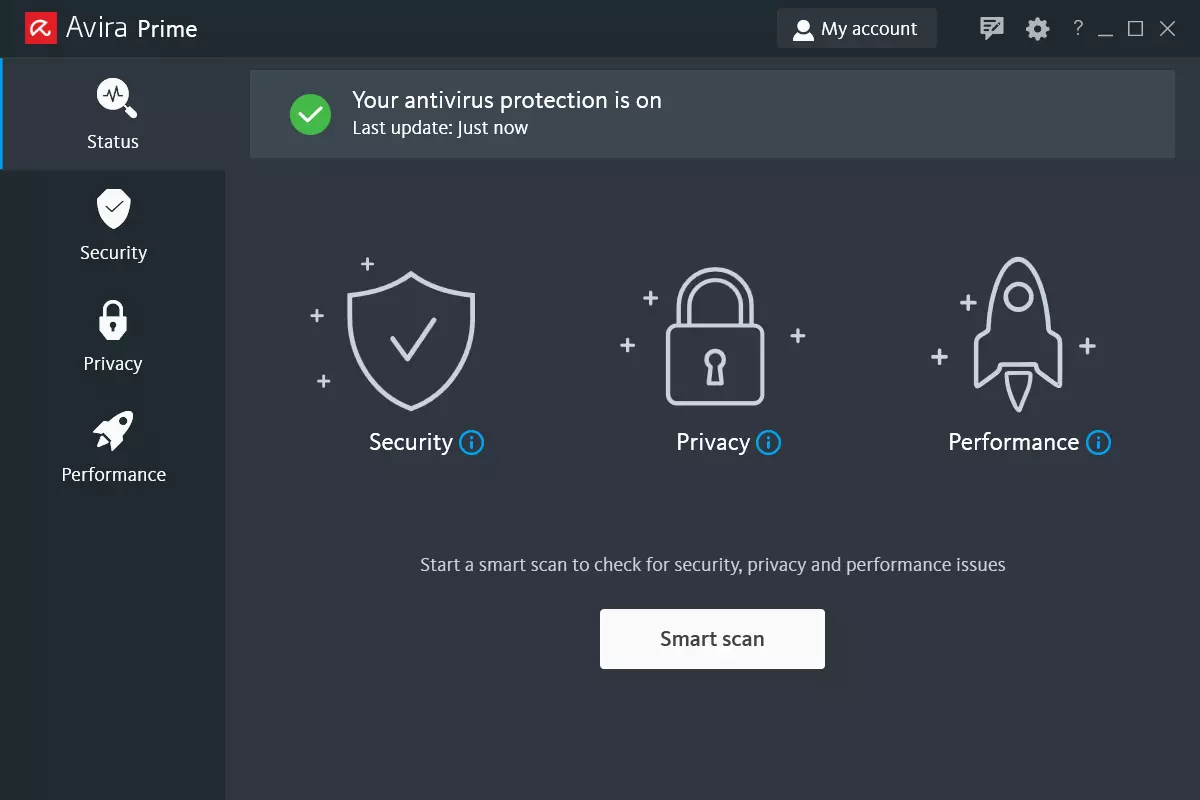
Avira, a great free Antivirus

Avira has been around a long time with its free antivirus version of the larger protection suite. It had its ups and downs but the latest versions are really great. With high-speed scans and low system impact, Avira antivirus is really one of the best free antivirus software currently on the market.

Avira screen

The software itself has also received UI & UX updates making it straightforward and easy to use. The virus scanning engine is the same as in paid version that ranks among the top engines in the world for this type of work. The package also gives you some great browser protection and a good firewall as well, there is really no excuse to skip on this if you want a free solution.

The only thing that we would say is not so great in Avira is reporting some false positives, sometimes even for MS updates, it is rare but it can happen.

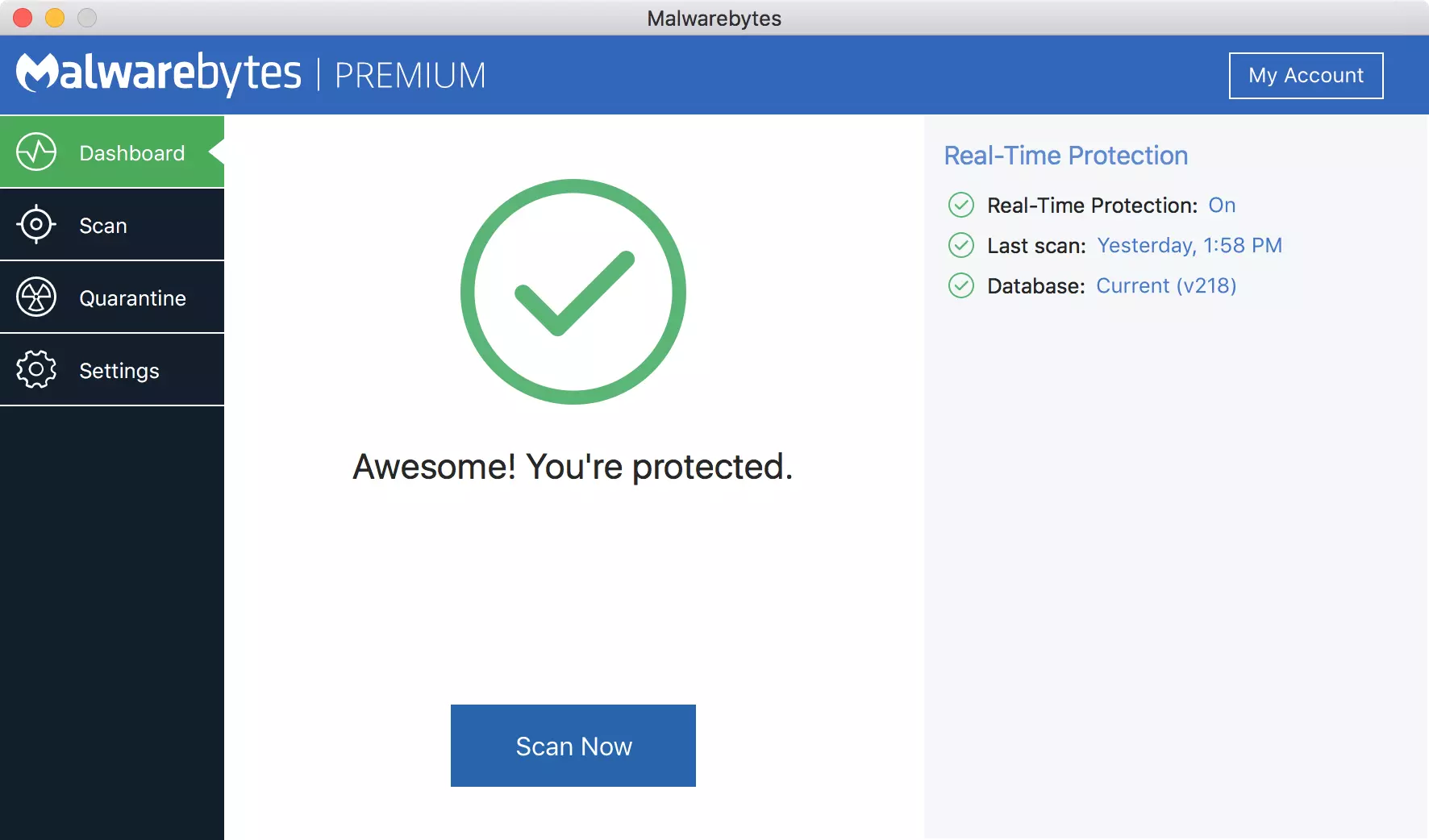
Malwarebytes, a powerful Windows antivirus

Malwarebytes Premium is easy to use, simple antivirus solution that shies away from complicated UI, and simply put, it just works. Its scanning engine is well-known and places among the top and best in the world often finding some malware that other can miss.

malwarebytes screen

Another great thing is its integration with Windows itself, it is one of the rare applications that can and will work incredibly well beside your typical Windows protection tools so you can have both of them running at the same time.

Installation and running are really simple and every typical PC user will find it as easy as walking in the park. On the other hand, sadly system impact is a little high and it will have issues running on lower-end systems due to its memory requirements.

Intego MAC Internet Security X9, the best Mac antivirus

Gone are the days when MAC had no virus issues, since MAC rose in popularity among the users, also rose the number of viruses and malware. The system itself has some great protection built it inside but for more security and better control of it, you will need a third-party dedicated solution.

Intego was made by Mac antivirus experts who have been building this kind of software last 25 years. The interface is easy to use and premade presets are really helpful, but the security suite can also be customized to fit your needs and desires.

intego screen

Since this is only available as a security suite, you are getting a firewall and some other security tools along with your antivirus that will run as a part of it.

The bad side is that scans can sometimes run slow, most of the time they are OK in terms of speed but occasionally they can switch to slower speeds and impact scanning time to some annoying times. Also, there is no webcam protection nor VPN service included where others on this list have them.

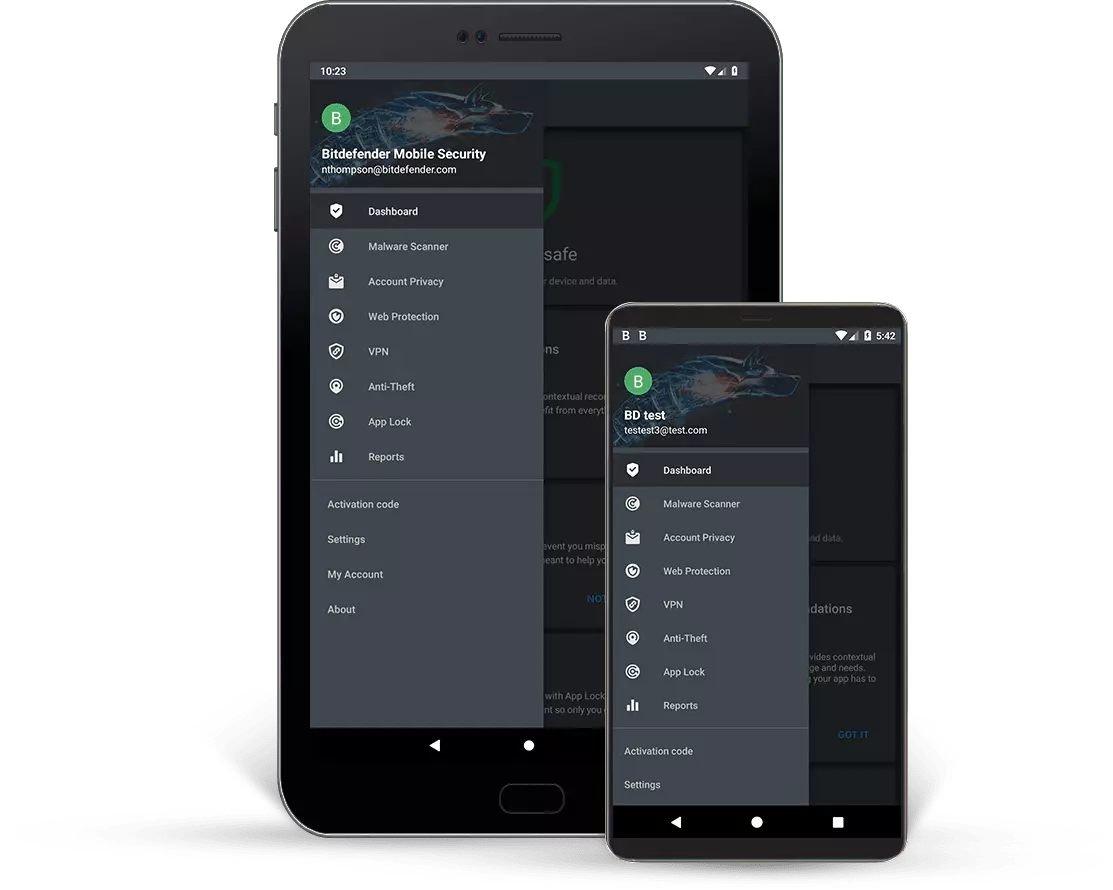
Bitdefender mobile security: best Android protection

While protection is not only needed for your gaming or workstation, software suites that are dealing with mobile and tablet security exist. The best of them is the Bitdefender antivirus mobile suite. Low on system resources and low on performance impact with the really great virus detection rate Bitdefender is at the top of suites for your phone.

bitdefender mobile

Consistent high virus detection packed with low battery impact is great but the suite comes with tons of other tools as well like browser security tools, email protection, and real-time link and notification protection.

The application will always scan each file and newly installed application in the background and alert and cut off any found threat. App itself is easy to install and use and most of the time it will do everything in the background for you but offer you customization if you need it.

The package also includes VPN and application lock that will let you protect the critical applications from being accessed as well as an online account scanner. Anti-theft and anti-loss tools, which allow you to find, remotely lock or wipe a stolen or lost device, add yet another layer of protection.

One thing that is missing from this great package is fraudulent call protection. Newer Android phones have this feature inside but it would be nice if Bitdefender had it as well.

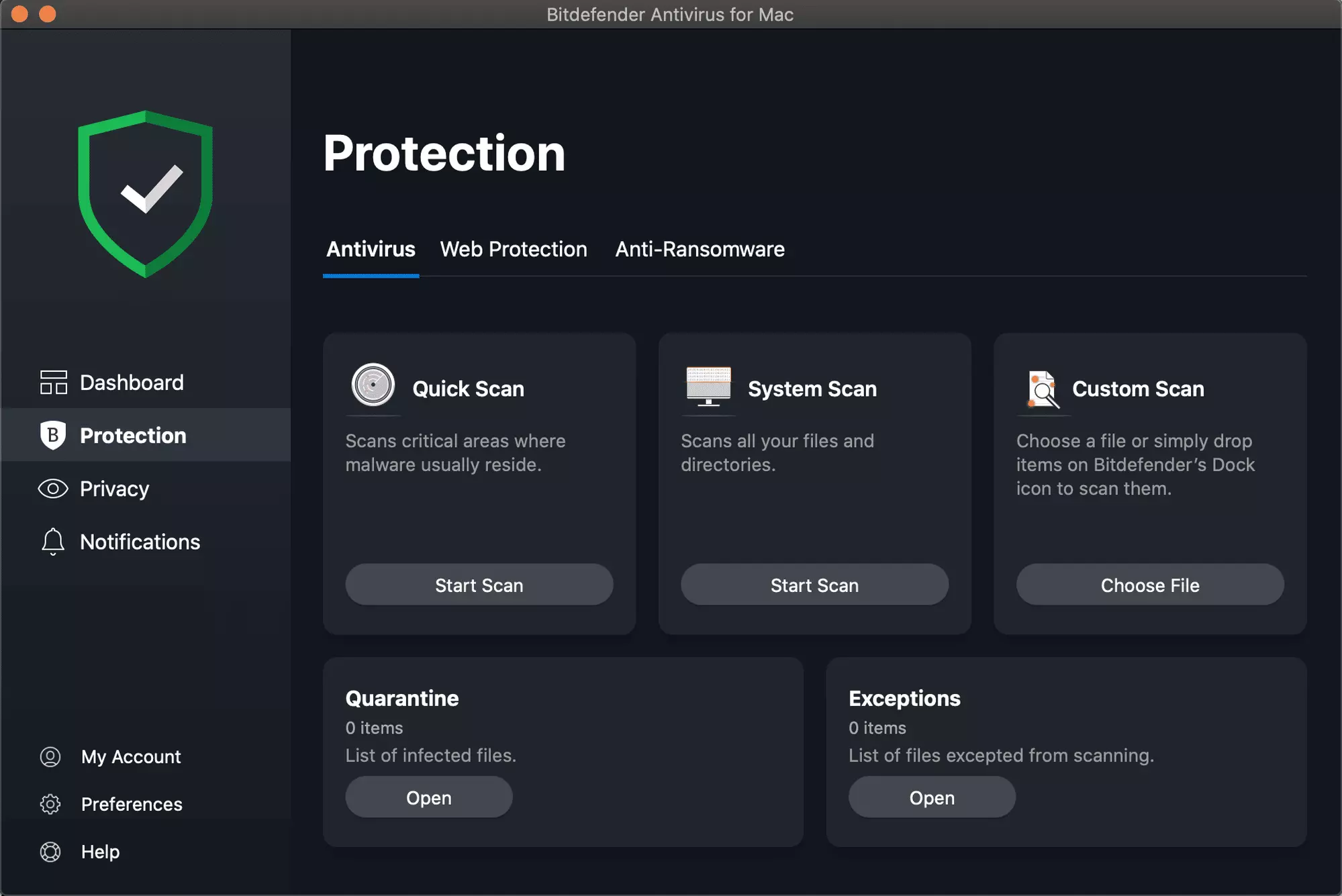
Bitdefender, the best antivirus software

Now that we have covered specific cases of each platform, there is one player that has all of them covered and with a quality product, that player is BitDefender and it is great. Personally, this is my protection suite of choice and as I type this it is running in the background.

Bitdefender has it all, low system impact, as a matter of fact, it is one, if not, the lowest performance impact engine on the market currently and that is packed with a great and highly consistent virus & malware detection suite. Along with real-time malware protection, browser security, and anti-spam tools, you also get anti-phishing defenses, ransomware protection, and a strong firewall.

bitdefender screen

Bitdefender scores are very high in both the zero-day threat and real-world protection tests at AV-Test, an established organization that tests antivirus software. Despite being tested against tens of thousands of well-known and widespread malware threats, the software consistently achieves a 100% blocking rate.

The suite also comes with a restricted free VPN and with parental controls as well. Webcam and microphone protection are also included in the suite and on top of all, it has great pricing plans and constant discounts.

BitDefender is really a great package and it might sound too good, but after years and years of personally using it I have not had single malware or virus issue, the only thing that I would put as a negative is that system is severely slowed down when system scans are performed so be sure to run or schedule them when you are not using your computer. This, of course, can put some people off and I will admit it is a serious drawback but for me, the security of my workstation is more important than leaving the computer for 20 or so minutes in order to perform a full scan of the system.

Read More
The server did not register with DCOM
There are times when after you upgrade your Windows operating system, the System Logs under the Event Viewer will display an error message saying, “Event ID 10010 error – The server did not register with DCOM within the required timeout”. What is DCOM? DCOM stands for “Distributed Component Object Model”. It is a proprietary Microsoft technology that allows the Component Object Model or COM software to communicate across a network. You can consider it as an extension of COM which is equipped with the capability of solving a couple of inherent problems related to the COM model to the better use over a network. COM is a tool that’s used for advanced configuration and troubleshooting in Windows 10. Developers usually use it to configure routine components and application behavior like participation in transactions and object pooling and so on. The Component Services needs the DCOM wire protocol in order to communicate with the Component Object Model components on other computers. By default, in a Windows-based system, the network computers are configured initially to enable DCOM. There are also some components in Windows that might require registering themselves with DCOM. However, if they fail to do so, you will encounter the “The server did not register with DCOM within the required timeout” error. To fix this, here are some suggestions you can check out.

Option 1 – Try to use the Component Services

  • Tap the Win + R keys to open the Run dialog box.
  • Then type “dcomcnfg” in the field and tap Enter to pull up Component Services.
  • Next, double click on the Computers folder located in the right pane and right-click on My Computer, and select the Properties option.
  • After that, switch to the COM Security tab under My Computer Properties and then go to the Access Permissions section.
  • From there, click the Edit Default button and in the new window that appears, apply the correct permission to objects under the Group or user names section.
  • Once you’re done, click OK and exit. This should fix the error.

Option 2 – Make sure that Function Discovery Resource Publication Properties Services is running

  • In the Cortana search box, type “services” and click on the Services icon to open the Services Manager. Alternatively, you can also tap the Win + R keys to launch the Run prompt and then type “services.msc” in the field and hit Enter to open the Services Manager.
  • Next, scroll down and look for the “Function Discovery Resource Publication” entry and double click on it.
  • Then switch to the General tab and from there, make sure that the Startup Type is set to “Manual (Triggered).
  • You also have to make sure that the service is running so if it’s not, just click on the Start button to start the service.
  • Now click on Apply to save the changes made.

Option 3 – Try resetting the default DCOM permissions

  • Tap the Win + R keys to open the Run dialog box.
  • Then type “dcomcnfg” in the field and tap Enter to pull up Component Services.
  • After that, expand Component Services > Computers and right-click on My Computer, and then select Properties.
  • Next, go to the Default Properties tab, and in the Default Distributed COM Communication Properties section, make sure that:
    • Default Authentication Level is set to Connect
    • Default Impersonation Level is set to Identify.
Read More
A Guide to Fixing STOP 0x00000000 Error Code

STOP 0x00000000 Error Code - What is it?

Stop 0x00000000 error code is a type of a Stop error popularly known as a blue screen of death error code. This is a critical error. It can pop up while loading or using the Windows program on your PC. When this error occurs, the computer screen turns blue and you, the user, get locked out of the program. Furthermore, it can also result in sudden system shut down or system freeze. If not fixed timely, the error may start to pop up more and more frequently which then may lead to complete system corruption and system crash.

Solution

Restoro box imageError Causes

The two most common causes for the STOP 0x00000000 error code are:
  • Malware infection
  • Registry corruption
This is a fatal system error and must be resolved immediately. Delay may lead to system crashes and data loss. And recovering lost data is not easy.

Further Information and Manual Repair

Though this is a fatal error the good news is that it is easy to resolve. To repair the STOP 0x00000000 error on your system, here are some methods that you can try:

Method 1 - Use System Restore to Bring Your Computer Back to its Previous State

To resolve this error on your system, try using the System Restore tool. Use this tool to bring your computer back to its previous state. The Windows System Restore utility is one of the most valuable recovery tools. To use it, simply type System Restore in the search box. Once you find it, click on it and select a restore point to bring your PC back to its normal state. To activate changes, reboot the PC.

Method 2 - Scan for Viruses

If the underlying cause of the Stop 0x00000000 error code is related to malware infection, then you must download a powerful antivirus to resolve it. Run it to scan your entire PC. Make sure you remove all types of malware including adware, spyware, viruses, and Trojan. Once your PC is malware-free, the error will be fixed in no time.

Method 3 - Clean and Repair the Registry

The registry is an important part of the PC. It stores practically all the activities you perform on your system. It saves all the files including both important and unnecessary files such as junk files, cookies, internet history, bad and invalid entries. If these obsolete and unnecessary files are not deleted frequently and keep on accumulating it takes up all the registry space and corrupts it. This results in registry errors like runtime and BSoD errors and sometimes may also lead to disk fragmentation. To resolve it is advisable to repair the registry. This can be done manually but that will take too much time and also require technical expertise. However, another way to resolve it is to download Restoro. This is a user-friendly PC Fixer with a powerful registry cleaner. It removes all obsolete and unnecessary files, cleans the registry and repairs the damaged files, thereby removing the error right away. Click here to download Restoro and resolve Stop 0x00000000 today!
Read More
Easy Remove FoxTab From Windows

FoxTab Toolbar is a browser hijacking toolbar add-on for IE, Firefox, Chrome, and Opera browsers that claims that it allows you to access your favorite sites faster, and improving your overall search and browsing experience. 1-click access to search results, most popular websites, and web services directly from our Foxtab browser toolbar.

Fox tab will integrate itself into your browser, modifying the search engine, welcome page, and new tab. This toolbar may change some browser settings, display unwanted ads, and sometimes displays additional ads from its ad sponsor. Some of the settings that this toolbar changes can lower the security of your browser.

Upon installation the toolbar ads scheduled tasks in Windows, allowing it to run with your browser every time, and to automatically update itself. Several anti-virus programs have flagged this software as Malware and therefore it is classified as a browser hijacker and recommended for optional removal.

About Browser Hijackers

Browser hijackers (sometimes called hijackware) are a type of malicious software that modifies internet browser settings without the user’s knowledge or approval. These types of hijacks are rising at an astonishing rate across the world, and they can be actually nefarious and sometimes dangerous too. They are created to interfere with web browser programs for many different reasons. Often, hijackers will force hits to internet sites of their choice either to increase targeted traffic generating higher ad revenue, or to gain a commission for every user visiting there. Although it might appear harmless, these tools are made by malicious people who always try to take full advantage of you, so that hackers can earn money from your naivety and distraction. What’s more, hijackers can make the whole infected system fragile – other destructive malware and viruses will take hold of these opportunities to get into your computer system effortlessly.

How to know whether the browser is hijacked?

Symptoms that your internet browser is hijacked include: 1. your home page has been reset to some unknown webpage 2. bookmark and the new tab are also changed 3. default web engine is changed 4. you see unwanted new toolbars added 5. you’ll notice random pop-ups start showing regularly 6. your web browser starts running sluggishly or exhibits frequent glitches 7. Inability to navigate to particular sites, particularly anti-malware as well as other computer security software webpages.

How it infects your PC

Browser hijackers infect PCs in numerous ways, including via a file-share, a drive-by download, or an infected email. They can also be deployed via the installation of an internet browser toolbar, extension, or add-on. Also, certain shareware and freeware can put the hijacker in your PC through “bundling”. Browser hijackers can record user keystrokes to collect potentially invaluable information that leads to privacy issues, cause instability on systems, drastically disrupt the user experience, and ultimately slow down the PC to a point where it becomes unusable.

Tips on how to get rid of browser hijackers

Certain kinds of browser hijackers can be removed from your computer by deleting malicious applications or any other recently added freeware. Often, it can be a tough task to find and eliminate the malicious component because the associated file might be running as part of the operating system process. Also, manual removals require in-depth system understanding and thus can be a very difficult task for beginner computer users. Professionals always suggest users remove any malicious software including browser hijacker by using an automatic removal tool, which is easier, safer, and quicker than the manual removal process. Safebytes Anti-Malware detects all kinds of hijackers – including FoxTab – and eliminates every trace efficiently and quickly. Employ a pc optimizer along with your antivirus software to solve various computer registry problems, eliminate system vulnerabilities, and boost your computer performance.

Malware Blocking Access To Safebytes Website And Anti-Malware Downloads - What You Should Do?

Malware may cause many different types of damage to computer systems, networks, and data. Some malware is meant to interfere with or prevent things that you wish to do on your PC. It may well not permit you to download anything from the internet or prevent you from accessing some or all of the sites, particularly the anti-malware sites. If you’re reading this, you may have affected by a virus that stops you from downloading a computer security program like Safebytes Anti-Malware. There are a few steps you can take to get around this problem.

Download the software in Safe Mode with Networking

If any virus is set to load automatically when Microsoft Windows starts, getting into Safe Mode could very well block the attempt. Just the minimum required programs and services are loaded when you start your PC in Safe Mode. To start your Windows XP, Vista, or 7 computers in Safe Mode with Networking, please do as instructed below. 1) Tap the F8 key repeatedly as soon as your system boots, but before the large windows logo comes up. This would conjure up the Advanced Boot Options menu. 2) Choose Safe Mode with Networking using arrow keys and hit ENTER. 3) When this mode loads, you will have the internet. Now, get the virus removal software you want by utilizing the internet browser. To install the software, follow the guidelines within the setup wizard. 4) Immediately after installation, do a complete scan and let the program remove the threats it finds.

Download the antivirus program in a different web browser

Some malware mainly targets particular browsers. If this is your situation, employ another web browser as it could circumvent the computer virus. In the event you suspect that your Internet Explorer has been hijacked by malware or otherwise compromised by online hackers, the ideal course of action would be to switch over to a different browser like Chrome, Firefox, or Safari to download your favorite computer security application – Safebytes Anti-Malware. Create a bootable USB anti-virus drive Another option is to make a portable anti-malware program onto your USB flash drive. Try these simple measures to clean up your infected PC using a portable antivirus. 1) Make use of another virus-free computer to download Safebytes Anti-Malware. 2) Insert the pen drive into the clean PC. 3) Double-click the Setup icon of the antivirus software to run the Installation Wizard. 4) When asked, choose the location of the USB drive as the place in which you would like to store the software files. Follow the on-screen instructions to finish the installation. 5) Disconnect the USB drive. You may now utilize this portable anti-virus on the affected computer system. 6) Run the Safebytes Anti-malware directly from the thumb drive by double-clicking the icon. 7) Hit the “Scan Now” button to start the malware scan.

Protect Your PC and Privacy With SafeBytes Anti-Malware

Do you want to install the best anti-malware software for your computer? There are plenty of applications on the market that comes in free and paid versions for Windows computers. Some are very good ones, some are decent, and some are simply just bogus anti-malware software that will damage your PC themselves! You need to be very careful not to pick the wrong product, particularly if you buy a paid application. On the list of recommended software programs is SafeBytes AntiMalware. SafeBytes has a very good reputation for excellent service, and clients seem to be happy with it. SafeBytes anti-malware is a trusted tool that not only protects your computer system permanently but is also quite easy to use for people of all skill levels. After you have installed this application, SafeBytes' superior protection system will make sure that absolutely no viruses or malware can seep through your computer. SafeBytes has great features when compared with other anti-malware programs. Below are some of the great features included in the application. Active Protection: SafeBytes offers real-time active monitoring service and protection against all known viruses and malware. It’ll monitor your computer system for suspicious activity regularly and its unparalleled firewall guards your PC against illegal access by the outside world. World-class AntiMalware Protection: Built on a highly acclaimed anti-virus engine, this malware removal tool is able to detect and remove numerous obstinate malware threats such as browser hijackers, potentially unwanted programs, and ransomware that other common antivirus software will miss. Safe Browsing: SafeBytes checks and provides a unique safety rating to every single site you visit and block access to web pages known to be phishing sites, thus protecting you from identity theft, or known to contain malicious software. Low Memory/CPU Usage: This software is lightweight and will run quietly in the background, and that does not have an effect on your PC efficiency. 24/7 Online Technical Support: SafeBytes provides you with 24/7 technical support, automatic maintenance, and updates for the best user experience. Overall, SafeBytes Anti-Malware is a solid program since it has plenty of features and can detect and remove any potential threats. There is no doubt that your computer will be protected in real-time as soon as you put this software program to use. If you’re looking for the absolute best malware removal tool out there, and if you don’t mind shelling out some money for it, go for SafeBytes Anti-Malware.

Technical Details and Manual Removal (Advanced Users)

If you wish to manually remove FoxTab without the use of an automated tool, it may be possible to do so by removing the program from the Windows Add/Remove Programs menu, or in cases of browser extensions, going to the browsers AddOn/Extension manager and removing it. You will likely also want to reset your browser. To ensure the complete removal, manually check your hard drive and registry for all of the following and remove or reset the values accordingly. Please note that this is for advanced users only and may be difficult, with incorrect file removal causing additional PC errors. In addition, some malware is capable of replicating or preventing deletion. Doing this in Safe Mode is advised.

The following files, folders, and registry entries are created or modified by FoxTab

Registry: HKEY_CURRENT_USERSoftwareMicrosoftWindowsCurrentVersionRunrandom.exe HKEY_CURRENT_USERSoftwareMicrosoftWindowsCurrentVersionUninstallFoxTab HKEY_CURRENT_USERSoftwareMicrosoftWindowsCurrentVersionUninstallFoxTabDisplayIcon %AppData%[RANDOM CHARACTERS][RANDOM CHARACTERS].exe HKEY_CURRENT_USERSoftwareMicrosoftWindowsCurrentVersionUninstallFoxTabDisplayName Trojan horse name HKEY_CURRENT_USERSoftwareMicrosoftWindowsCurrentVersionRunOnce[RANDOM CHARACTERS] %AppData%RANDOM CHARACTERS[RANDOM CHARACTERS].exe
[/section][/vc_column_text][/vc_column][/vc_row][/vc_section]

Read More
How to Fix Error Code 0x80073b01

Error Code 0x80073b01 - What is it?

The 0x80073b01 is an error message that often pops up on the screen when you run Windows Defender. Windows Defender is an antispyware by Microsoft integrated into Windows Vista and Windows 7. The error code 0x80073b01 is considered to be a critical Windows error which must be fixed immediately. This error code locks you out of Windows Defender thus putting your computer at risk potential security loopholes in the Windows environment such as notorious software like spyware, adware, and viruses. This is dangerous especially if you have confidential data saved on your PC as it can be exploited easily if you don’t remove such malicious software the right way. This can lead to data breaches, cybercrime, and the worst-case scenario can be identity theft. Error code 0x80073b01 symptoms include:
  • Sluggish pc performance,
  • Problems during software installations
  • Beeping sounds
  • Unexpected shutdowns
  • Screen freeze

Solution

Restoro box imageError Causes

The error code 0x80073b01 occurs when Windows Defender gets damaged due to misconfigured files and registry corruption. It is advisable to fix this error right away to avoid serious damages.

How to Resolve the Error Code 0x80073b01?

To repair the error code 0x80073b01 on your PC you don’t necessarily have to call a professional; you can fix it on your own with the help of Restoro. It’s very easy to use and does not require you to be technically sound. Besides, it can be downloaded for free thus helping you save hundreds of dollars that you are likely to spend on hiring a technician for the error code repair job. Restoro is the latest and a multi-functional system optimizer and a repair tool. This software is integrated with highly functional features that enable you to resolve almost all types of PC-related errors including the error code 0x80073b01. It includes powerful and value-adding features like registry cleaner, system stability detector, privacy error finder with anti-virus properties, and Active X and Class issues detector. With the help of its ‘registry cleaner’, you can easily scan for 0x80073b01 error codes on your PC. It offers in-depth registry cleaning scanning all the underlying causes of registry corruption that triggers 0x80073b01 error. The underlying cause for registry corruption is the accumulation of unnecessary and malicious files in the registry like junk files, temporary internet files, and invalid entries. Restoro with the help of its registry cleaning utility clears the clutter in seconds, frees up your disk space, and repairs the registry. And since the error 0x80073b01 hampered your ability to scan for viruses and spyware with Windows Defender, your computer may be exposed to serious data security threats by such malware. However, with Restoro you can remove malware from your system too. Restoro also functions as a powerful anti-virus. With the help of its privacy error detector, it scans for malicious viruses, adware and spyware on your PC ensuring that you are safe and protected from data breaches and cybercrime. This tool resolves the error 0x80073b01 successfully while repairing your registry and simultaneously optimizing the speed of your PC. It has a user-friendly interface and a simple design. There is absolutely nothing complex about it. All you have to do is download and install Restoro on your system and run it to scan for errors. After the scanning is complete, you will see a comprehensive and detailed error report specifying the number and the types of errors your PC is inflicted with. Now all you have to do is click on the Repair button to fix the issues on your PC including the error 0x80073b01 right away. Restoro is a safe and efficient tool that helps you resolve PC issues in seconds. For optimum results, it is advisable to run it on your PC regularly. This will help you keep the registry clean, PC error-free, reduce boot time, and ensure speedy PC performance. Click here to download Restoro on your PC today!
Read More
How to Fix Registry Error Code 19

What is the Registry Error Code 19?

Code 19 is a Windows PC error code that indicates a damaged or corrupt registry. This code usually appears when trying to start a connected device, the DVD/ CD ROM drive. Code 19 is a type of Device Manager Error code. When you experience Code 19, the error message is displayed on your Windows screen in either of the following formats:

"Windows cannot start this hardware device because its configuration information (in the registry) is incomplete or damaged. To fix this problem you should uninstall and then reinstall the hardware device. (Code 19)"

"Windows cannot start this hardware device because its configuration information (in the registry) is incomplete or damaged. To fix this problem you can first try running a Troubleshooting Wizard. If that does not work, you should uninstall and then reinstall the hardware device. (Code 19)"

You might encounter other error messages such as error code 42.

Error Causes

Typically the underlying cause of this error code is problems in the registry. The error should be fixed timely without any delays before the damage sets in. Registry issues are critical PC errors. If not resolved it can lead to system freeze, crash, and failure. You are most likely to lose all your important data.

Further Information and Manual Repair

If you have come across this error on your computer, you don’t need to panic. Though this is a serious issue the good news is that it is easy to resolve. You don’t have to be a computer programmer, technically sound or hire a technician to fix the error on your system. Here are a couple of ways to work your way out of this problem:

1. Uninstall and then Reinstall the  DVD/CD ROM Drive

For this here’s what you need to do: simply click on the start menu, and type Device Manager in the search box, and press enter. When the device manager window opens locate the DVD/CD ROM drives. Click on the + sign to expand it. Now right click on the DVD drive click uninstall. After doing this, restart your PC. On the restart, Windows should automatically detect and reinstall the DVD driver. Once the driver installation is complete now see if the DVD drive works. If the error still appears, then you need to repair the registry by deleting the corrupt registry entries. You can download drivers automatically by using a tool such as Restoro.

2. Trouble Shooting Method to Delete the Corrupt Registry Entries

To remove the corrupt registry entries, go to Start and select Run. Type ‘Regedit and press enter to open the registry editor windows. To continue you may be asked to enter the administrator password, insert it to proceed. Now the registry window will be displayed. Here locate the registry key HKEY_LOCAL_MACHINE, then navigate to the following sub registry key HKEY_LOCAL_MACHINESYSTEMCurrentControlSetControlClass{4D36E965-E325-11CE-BFC1-08002BE10318} Here you will see the upper filters registry entry in the right pane. Right-click on the upper filter and select delete. You will be prompted for the confirmation for deletion. Click on the yes tab to confirm. Exit the editor and restart your computer. If you are not technically sound, this may be a little confusing for you, and besides it does not guarantee to resolve all the registry issues on your PC so chances are that Code 19 error may reappear in a short time. To resolve registry issues for the longest time and ensure that errors like Code 19 don’t pop up every now and then, you need to perform proper and in-depth registry cleaning. For this, it is advisable to download Restoro.
Read More
How to Delete your data from the internet
The Internet has come a long way from its infant stages and has become so large and huge that it has gained the status of basic human rights. There are very useful information and a lot of great content on it and among them, there are social media websites and other types of websites where you have, most likely placed some personal pictures or other information. One day you might want to cancel some of the services or you would like to take a break from it all. In this guide we will show you how to do exactly that, to delete and remove your data from the internet.

How to Delete Your Google Account

Google is arguably one of the most visited places on the Web. It stores a huge amount of data for delivering personalized content. It saves personal information, web searches, watched videos, location data, etc. You can view a summary of the data saved by different Google services by visiting your Google Dashboard.
To delete personal data from Google, go to myactivity.google.com. Select the Delete activity by from the left menu to start deleting activities.
Select All time to delete all of your activities from different Google services. You can also delete files saved to Google services, such as Google Photos, Google Drive, and Keep. Just visit the site, select the files, and delete them. Note that Google retains some information even after you delete all data. They do this to meet business needs and legal requirements. These will be deleted when you delete your Google account altogether.

How to Delete Your Facebook Account

Facebook stores a huge amount of data for each user. Some of the personal information stored in Facebook’s databases includes name and email, check-ins, location, images, videos, events, etc. You can view and download all of your personal data using Facebook’s information download tool. However, you will need to delete your account altogether for removing your personal data from Facebook. Follow the below steps to delete your Facebook account.
  1. Log in to your Facebook account and go to Settings & privacy > Setttings.
  2. Select Your Facebook Information.
  3. Select Deactivation and Deletion.
  4. Select Delete Account.
  5. Select Continue to Account Deletion.
  6. Select Delete Account.
  7. Enter your password and click Continue.
It can take up to 90 days for Facebook to delete your personal data from the Internet. You will not be able to access any of the data once the deletion starts. However, you can cancel this within the first 30 days.

How to Delete Your Twitter Account

Twitter has also followed in the footsteps of Facebook when it comes to harvesting your personal data. It utilizes this information for delivering personalized ads and tweets. You can download an archive of all of your personal data from Twitter. It makes it easy to monitor what information is available to the platform. Click the More button from the left menu and head over to Settings and privacy. Follow the below steps to download your personal information.
  1. Select Download an archive of your data from the Your Account section.
  2. Select Request archive from under the Twitter data section. Enter your password when prompted.
  3. It will take some time for Twitter to make the data available to you. You’ll receive an email once the data is ready to be downloaded.
It would be best if you also restrict data sharing and off-site activities. Head over to Privacy and safety and inspect the options under the Data sharing and off-Twitter activity section.
Look in the Interests and Your advertiser list sections from the Ads preferences tab. You can disable Twitter from tracking you in the Off-Twitter activity tab. Uncheck the options from the Data sharing with business partners and Location information tabs.
Finally, you need to deactivate your account for deleting all personal information from Twitter. You’ll have 30 days to reactivate the account. After that, Twitter will begin erasing your information from its systems. Note that they can still retain some information subjected to platform regulations.

How to Delete Your Instagram Account

Instagram has risen to prominence in the last couple of years. The company collects a huge amount of personal information from its users, including media, name, email, and much more. You’ll need to deactivate your account altogether if you want to delete everything Instagram knows about you.
Head over to the Delete your account page and select the reason you want to delete it. Enter your Instagram password to verify your identity, then click on the Delete button. Instagram will hide your account details for the next 30 days and delete all personal data after the given period.

How to Delete Your TikTok Account

TikTok is another emerging platform that has become quite popular among millennials. Users share a lot of personal information through personalized music videos. You need to delete your TikTok account permanently to remove all personal data from TikTok.
To do this, head over to Me, then tap on the icon in the top-right corner of the window. Select Delete account from under the Manage Account section. Follow the instructions provided there to continue deactivating your account. Like Instagram, TikTok also offers a 30-day time period to allow users to change their minds. It will delete your personal data from the Internet after this period.

How to Delete Your Snapchat Account

  1. Go to Snapchat’s Accounts Portal and log in with your name and password.
  2. Select the Delete My Account option.
  3. You’ll be taken to the Delete Account page directly.
  4. Retype your password once more.
  5. Click on the yellow Continue button.
Do keep in mind that Snapchat will hold on to your data for another 30 days, just in case you change your mind and decide to return. If you do decide to come back, all you need to do is visit the Accounts Portal again and log in to your account. This will reactivate your account. While your account is in this deactivated phase, your friends will not be able to contact you or interact with you in any manner on Snapchat. After the 30-day period has elapsed, your account will be permanently deleted.
Read More
1 2 3 171
Logo
Copyright © 2023, ErrorTools. All Rights Reserved
Trademark: Microsoft Windows logos are registered trademarks of Microsoft. Disclaimer: ErrorTools.com is not affiliated with Microsoft, nor claims direct affiliation.
The information on this page is provided for information purposes only.
DMCA.com Protection Status