Logo

Remove EmailAccountLogin PUP Removal Tutorial

EmailAccountLogin is a browser extension for Google Chrome, Mozilla, and Internet Explorer. This extension enables you one-click access to your favorite email providers, allowing you to easily check your email without typing the web address.

From the author: One-Click Access to quick links to the most popular email providers.

The Email Account Login new tab extension provides convenient, one-click access to several popular email services including Gmail, Yahoo, Facebook, Outlook, and Live mail along with providing direct access to a web search.

EmailAccountLogin is a browser hijacker, this extension hijacks your home page and replaces it with its own search engine. While active this extension monitors your website visits, links, clicks, and personal information. This information is later sold/forwarded to better server ads across its network. While using EmailAccountLogin you will see additional unwanted ads injected into your search results, sponsored links, and even sometimes pop-up ads.

Several anti-virus scanners have categorized EmailAccountLogin as a Browser Hijacker and therefore, for security reasons, it is not recommended to keep it on your computer.

About Browser Hijackers

Browser hijack is a very common type of online fraud where your internet browser configuration settings are modified to make it do things you don’t intend. Browser hijacker malware is developed for many different reasons. It redirects you to the sponsored sites and inserts advertisements on the browser that helps its developer generate earnings. It may seem harmless, but most of these sites are not legitimate and could present a significant threat to your online safety. As soon as the program attacks your laptop or computer, it starts to mess things up a whole that slows your PC down to a crawl. In the worst-case scenario, you may be pushed to tackle serious malware threats as well.

Browser hijacking signs and symptoms

Signs that your internet browser is hijacked include:
1. your homepage has been reset to some mysterious webpage
2. when you key in a URL, you find yourself regularly directed to a different webpage than the one you actually meant
3. default web engine is modified
4. you’re getting new toolbars you haven’t witnessed before
5. you notice numerous ads pop up on your browsers or display screen
6. your web browser starts running slowly or displays frequent errors
7. you are blocked to access the websites of computer security solution providers.

How they get into your PC

Browser hijackers may use drive-by downloads or file-sharing networks or perhaps an e-mail attachment in order to reach a targeted computer. Many browser hijackings originate from add-on applications, i.e., toolbars, browser helper objects (BHO), or extensions added to web browsers to provide them additional functionality. A browser hijacker may also come bundled up with some freeware that you inadvertently download to your computer, compromising your internet security. A good example of some notorious browser hijackers includes Anyprotect, Conduit, Babylon, SweetPage, DefaultTab, Delta Search, and RocketTab, but the names are constantly changing.

Browser hijacking can bring about severe privacy issues and even identity theft, disrupt your browsing experience by taking control over outbound traffic, considerably slows down your computer by depleting lots of resources and result in system instability also.

How to repair a browser hijack

Certain hijackers can be removed by simply uninstalling the corresponding free software or add-ons from the Add or Remove Programs in the Microsoft Windows control panel. Yet, some hijackers are far harder to find or get rid of as they might get themselves connected with some critical system files which allow it to operate as a necessary operating-system process. Furthermore, manual removal demands you to execute several time-consuming and complex actions which are very difficult to do for novice computer users.

Browser hijackers can be effectively removed by installing and running anti-malware software on the affected PC. Safebytes Anti-Malware has a cutting-edge anti-malware engine to help you avoid browser hijacking in the first place, and mop up any existing issues. Along with anti-virus software, a PC optimizer tool will help you repair Windows registry errors, eliminate unwanted toolbars, secure your internet privacy, and improve overall system performance.

Find Out How To Install Safebytes Anti-Malware On An Infected Computer system

All malware is bad and the effects of the damage can vary according to the specific type of malware. Some malware variants modify browser settings by adding a proxy server or change the PC’s DNS configurations. In these cases, you will be unable to visit some or all of the websites, and thus unable to download or install the necessary security software to get rid of the malware. So what should you do if malicious software keeps you from downloading or installing Safebytes Anti-Malware? Follow the instructions below to get rid of malware through alternate methods.

Install the anti-malware in Safe Mode

In Safe Mode, you may adjust Windows settings, un-install or install some software, and eradicate hard-to-delete malware. In the event, the malware is set to load automatically when the PC starts, shifting to this mode may well prevent it from doing so. To start the computer into Safe Mode, hit the “F8” key on the keyboard just before the Windows logo screen comes up; Or right after normal Windows boot up, run MSConfig, look over the Safe Boot under the Boot tab, and then click Apply. After you restart into Safe Mode with Networking, you may download, install, as well as update the anti-malware program from there. At this point, you could run the antivirus scan to eliminate viruses and malware without any interference from another application.

Utilize an alternate internet browser to download security software

Some malware might target vulnerabilities of a specific browser that obstruct the downloading process. When you suspect that your Internet Explorer happens to be hijacked by a virus or otherwise compromised by online hackers, the most effective plan of action is to switch over to a different web browser such as Chrome, Firefox, or Safari to download your chosen computer security software – Safebytes Anti-Malware.

Install and run anti-virus from your flash drive

Another option is to save and run an antivirus software program entirely from a USB drive. Do these simple measures to clear up your affected PC using portable anti-malware.
1) On a virus-free PC, install Safebytes Anti-Malware.
2) Plug the Flash drive into the uninfected computer.
3) Double-click the Setup icon of the antivirus program to run the Installation Wizard.
4) Choose the drive letter of the pen drive as the location when the wizard asks you where you would like to install the anti-virus. Follow activation instructions.
5) Transfer the flash drive from the uninfected computer to the infected computer.
6) Double-click the antivirus software EXE file on the thumb drive.
7) Click on “Scan Now” to run a complete scan on the infected computer for malware.

If no other method of downloading and installing an anti-malware program works, then you’ve no other choice than to hit the final resort: a full Windows reinstallation, which can get rid of that nasty virus and help you regain internet access. If you’re unsure which method to use, simply contact our toll-free number 1-844-377-4107 to speak to our technical team. Our experts will take you step-by-step through the malware removal process on the phone and also restore your computer remotely.

SafeBytes Anti-Malware: Lightweight Malware Protection for Windows PC

If you’re looking to download an anti-malware application for your computer, there are numerous tools out there to consider nonetheless, you just cannot trust blindly anyone, irrespective of whether it is paid or free software. Some of them are excellent, some are ok types, and some will harm your PC themselves! You need to choose one that is dependable, practical, and has a strong reputation for its malware source protection. On the list of recommended software programs is SafeBytes Anti-Malware. SafeBytes has a very good history of top-quality service, and customers are very happy with it.

SafeBytes anti-malware is a very effective and easy-to-use protection tool that is made for end-users of all levels of IT literacy. With its cutting-edge technology, this application can help you get rid of multiples types of malware including computer viruses, worms, PUPs, trojans, adware, ransomware, and browser hijackers.

There are numerous great features you will get with this particular security product. The following are some of the features you might like in SafeBytes.

Robust Anti-malware Protection: This deep-cleaning antimalware software goes much deeper than most anti-virus tools to clean your computer system. Its critically acclaimed virus engine locates and disables hard to remove malware that conceals deep inside your computer.

Real-time Active Protection: SafeBytes offers real-time active monitoring and protection from all known computer viruses and malware. This software will always keep track of your computer for any suspicious activity and updates itself regularly to keep current with the latest threats.

Fast Scan: This computer software has one of the fastest and most efficient virus scanning engines in the industry. The scans are highly accurate and take a little time to complete.

Internet Security: SafeBytes gives an instant safety rating on the web pages you are going to check out, automatically blocking harmful sites and making sure that you’re certain of your safety while browsing the net.

Lightweight: This application is not “heavy” on the computer’s resources, so you’ll not notice any overall performance problems when SafeBytes is operating in the background.

24/7 Guidance: You can obtain high levels of support round the clock if you’re using their paid software.

Technical Details and Manual Removal (Advanced Users)

If you wish to manually remove EmailAccountLogin without the use of an automated tool, it may be possible to do so by removing the program from the Windows Add/Remove Programs menu, or in cases of browser extensions, going to the browsers AddOn/Extension manager and removing it. You will likely also want to reset your browser.

To ensure the complete removal, manually check your hard drive and registry for all of the following and remove or reset the values accordingly. Please note that this is for advanced users only and may be difficult, with incorrect file removal causing additional PC errors. In addition, some malware is capable of replicating or preventing deletion. Doing this in Safe Mode is advised.

The following files, folders, and registry entries are created or modified by EmailAccountLogin

Files:
C:Program FilesEmail Account Login
C:UserAppDataRoamingEmail Account Login
C:ProgramDataEmail Account Login
C:UsersUserAppDataLocalEmail Account Login
%TEMP%CF49E01A-6F41-4B56-9743-DBC375176677emailaccountlogin.exe
%LOCALAPPDATA%MicrosoftInternet ExplorerRecoveryHighActiveRecoveryStore.E2864823-7CB8-11E7-989D-0A00278A626A.dat
%LOCALAPPDATA%MicrosoftInternet ExplorerRecoveryHighActiveE2864824-7CB8-11E7-989D-0A00278A626A.dat
%LOCALAPPDATA%MicrosoftInternet Explorerframeiconcache.dat
%TEMP%CF49E01A-6F41-4B56-9743-DBC375176677Commondbg.js
%TEMP%CF49E01A-6F41-4B56-9743-DBC375176677Commonimggreen-btn.png
%TEMP%CF49E01A-6F41-4B56-9743-DBC375176677Commonimggrey-btn.png
%TEMP%CF49E01A-6F41-4B56-9743-DBC375176677Commonjquery.min.js
%TEMP%CF49E01A-6F41-4B56-9743-DBC375176677Commonjson3.min.js
%TEMP%CF49E01A-6F41-4B56-9743-DBC375176677Commonstats.js
%TEMP%CF49E01A-6F41-4B56-9743-DBC375176677Finish.zip
%TEMP%CF49E01A-6F41-4B56-9743-DBC375176677Finishindex.html
%TEMP%CF49E01A-6F41-4B56-9743-DBC375176677Finishscript.js
%TEMP%CF49E01A-6F41-4B56-9743-DBC375176677Finishstyles.css
%TEMP%CF49E01A-6F41-4B56-9743-DBC375176677IES.zip
%TEMP%CF49E01A-6F41-4B56-9743-DBC375176677IESie.png

Registry:
HKEY_LOCAL_MACHINESYSTEMCurrentControlSetServicesWpm
HKCUSoftwareMicrosoftWindowsCurrentVersionInternet Settingsrandom
HKEY_LOCAL_MachineSoftwareClasses[adware name]
HKEY_CURRENT_USERSoftwareMicrosoftWindowsCurrentVersionRun .exe
HKEY_CURRENT_USERSoftwareMicrosoftWindowsCurrentVersionInternet Settings CertificateRevocation = 0
HKEY_LOCAL_MACHINESOFTWAREMicrosoftWindowsCurrentVersionrunrandom
HKEY_CURRENT_USERSoftwareMicrosoftInternet ExplorerMain Default_Page_URL

Do You Need Help with Your Device?

Our Team of Experts May Help
Troubleshoot.Tech Experts are There for You!
Replace damaged files
Restore performance
Free disk space
Remove Malware
Protects WEB browser
Remove Viruses
Stop PC freezing
GET HELP
Troubleshoot.Tech experts work with all versions of Microsoft Windows including Windows 11, with Android, Mac, and more.

Share this article:

You might also like

How to Fix Error 0x0000007E

What is 0x0000007E?

 Error 0x0000007E is a Windows Stop error message that is displayed on a blue screen. This may appear when browsing the internet, listening to music on some media player application or while working on an important document on MS Word or Excel.  This message strikes terror as the screen goes blue without any warning.

Solution

Restoro box imageError Causes

The error code 0x0000007E is triggered because of:

Further Information and Manual Repair

If you experience this error on your PC, you don’t have to panic and call a professional. This error is rated as an easy fix. And you can easily resolve the issue even if you don’t have a piece of strong technical knowledge about computers. Here are some quick fixes to repair the error 0x0000007E on your PC in the shortest time and without any hassle:
  • Cause: Faulty Hard Drive

Solution: In the event of a faulty hard drive, it is best to create a backup of all your data and get a new hard drive. However, first, it is advisable to use the Windows tool called Chkdsk (Check Disk) to identify and determine if the hard drive is faulty or not. To do so, click on the start menu and type CMD into the search box. Click on it to run. Now a black box will be displayed on the screen, simply type the command Chkdsk and run it to find out if your hard drive is faulty and damaged. If so, then get a new hard drive.
  • Cause: Hard Drive is full

Solution: Error 0x0000007E may also occur if the hard drive is full. To check the storage space on your hard drive, go to My Computer. If the space is full, then it is advisable to delete some files or uninstall heavy and recently installed programs to free up some space.
  • Cause:  BIOS not updated

Solution: You may come across this blue screen error if your BIOS is not updated. To update your BIOS, restart your computer and press F2 to enter setup.  Now go to SATA Operation and change RAID AHCI to RAID ATA. Save changes and then exit. By doing so, you can update your BIOS and fix the error 0x0000007E immediately. It’s that easy!
Read More
How to Remove MovieGoat - Malware Removal Guide

MovieGoat is a browser extension that allegedly lets you search for your favorite videos using its simple search engine. From the author:

Search for your favorite movies online, stay updated with the latest news and trends, and keep an eye on what’s up and coming in the world of cinema.

Simply type goat+ SpaceTab + query at the chrome search bar.
MovieGoat hijacks your browser, replacing your default search engine, displaying sponsored videos when you use its search and will display pop-up ads during your browsing experience. This extension has been detected as a Browser Hijacker by several anti-virus scanners and is not recommended to keep on your computer, especially because it serves no other purpose than to display pop-up ads and negatively impact your browsing experience.

About Browser Hijackers

Browser hijack is a common type of internet fraud where your internet browser configuration settings are modified to make it carry out things you never intend. There are numerous reasons why you may have an internet browser hijack; however commercial, advertising, and marketing are definitely the primary reasons for their creation. Usually, hijackers are made for the benefit of cyber hackers usually through income generation from forced ad clicks and site visits. Most people assume that these types of websites are legitimate and harmless but that is incorrect. Almost every browser hijacker poses an actual threat to your online safety and it’s important to categorize them under privacy risks. Some browser hijackers are designed to make particular modifications beyond the web browsers, like altering entries on the system registry and permitting other types of malware to further damage your PC.

How you can recognize a browser hijack

When your browser is hijacked, the following could happen: your homepage has been reset to some unfamiliar webpage; you find yourself regularly directed to some other site than the one you meant; The default search page of web browser is altered; you are finding new toolbars you have never witnessed before; you’ll notice random pop-ups start showing regularly; websites load very slowly and sometimes incomplete; Inability to navigate to particular websites, particularly anti-malware as well as other computer security software websites.

How it infects your computer

Browser hijackers can get into a computer in some way or other, for example via downloads, file sharing, and email too. They may also be deployed through the installation of a web browser toolbar, add-on, or extension. A browser hijacker can also come bundled up with some freeware which you unwittingly download and install the browser hijack, compromising your computer security. A good example of some infamous browser hijackers includes Anyprotect, Conduit, Babylon, SweetPage, DefaultTab, Delta Search, and RocketTab, however, the names are constantly changing. Browser hijacking can bring about severe privacy problems and even identity theft, affect your browsing experience by taking control over outbound traffic, substantially slows down your computer by consuming lots of resources, and cause system instability also.

Removal

One thing you could try to eliminate a browser hijacker is to locate the malicious software within the “Add or Remove Programs” list of the Windows Control Panel. It might or might not be there. If it is, uninstall it. But, most browser hijackers are hard to eliminate manually. Irrespective of how much you attempt to get rid of it, it could come back again and again. On top of that, manual removal demands you to carry out several time-consuming and complicated procedures which are very hard to complete for new computer users.

What you can do if Virus Prevents You From Downloading Or Installing Antivirus?

Malware can cause all sorts of damage if they invade your PC, ranging from stealing your personal information to erasing files on your computer. Some malware is created to restrict or block things that you want to do on your PC. It may not allow you to download anything from the net or it will prevent you from accessing a few or all of the internet sites, particularly the antivirus sites. If you’re reading this article, odds are you’re stuck with a virus infection that is preventing you to download or install Safebytes Anti-Malware software on your computer system. There are a few solutions you can attempt to get around with this particular obstacle.

Boot your computer in Safe Mode

If the malware is set to load automatically when Microsoft Windows starts, entering safe mode could block this attempt. Just the minimum required applications and services are loaded whenever you boot your computer or laptop in Safe Mode. Here are the steps you need to follow to boot into the Safe Mode of your Windows XP, Vista, or 7 computers (visit Microsoft site for directions on Windows 8 and 10 PCs). 1) At power on, hit the F8 key before the Windows splash screen begins to load. This would conjure up the Advanced Boot Options menu. 2) Select Safe Mode with Networking using arrow keys and hit Enter. 3) Once you get into this mode, you will have internet access once again. Now, obtain the malware removal program you want by using the internet browser. To install the software, follow the directions in the installation wizard. 4) Following installation, do a complete scan and allow the program to remove the threats it detects.

Use an alternate web browser to download security software

Malicious code could exploit vulnerabilities in a particular browser and block access to all antivirus software websites. If you are not able to download the anti-virus software program using Internet Explorer, it means malware may be targeting IE’s vulnerabilities. Here, you need to switch over to another web browser such as Chrome or Firefox to download Safebytes Anti-malware software.

Install and run anti-malware from a USB drive

Here’s yet another solution which is utilizing a portable USB antivirus software package that can check your computer for viruses without the need for installation. Follow these steps to use a USB flash drive to clean your corrupted computer system. 1) Download Safebytes Anti-Malware or Windows Defender Offline onto a clean PC. 2) Insert the USB drive into the clean computer. 3) Double-click the exe file to run the installation wizard. 4) When asked, choose the location of the USB drive as the place in which you would like to store the software files. Follow the on-screen instructions to complete the installation. 5) Disconnect the flash drive. You can now utilize this portable anti-malware on the affected computer system. 6) Double-click the antivirus program EXE file on the USB flash drive. 7) Hit the “Scan” button to run a full computer scan and remove viruses automatically.

Protect your PC from Malware With SafeBytes Security Suite

If you are looking to install anti-malware software for your computer, there are plenty of tools on the market to consider nonetheless, you should not trust blindly anyone, no matter whether it is a paid or free software. A few are good ones, some are ok types, and some are simply just bogus anti-malware applications that can damage your personal computer themselves! You need to pick one that is efficient, practical, and has a strong reputation for its malware protection. On the list of strongly recommended software by industry analysts is SafeBytes Anti-Malware, the safest program for Microsoft Windows. SafeBytes anti-malware is a trusted software that not only secures your computer permanently but is also very user-friendly for people of all ability levels. With its outstanding protection system, this tool will automatically detect and remove most of the security threats, including browser hijackers, viruses, adware, ransomware, PUPs, and trojans. SafeBytes possesses a plethora of amazing features that can help you protect your PC from malware attack and damage. Here are a few of the best ones: Most effective AntiMalware Protection: Using its enhanced and sophisticated algorithm, this malware removal tool can identify and eliminate the malware threats hiding within your computer system effectively. Active Protection: Malware programs trying to get into the system are identified and stopped as and when detected by the SafeBytes active protection shields. It will constantly monitor your laptop or computer for hacker activity and also gives users advanced firewall protection. Web Protection: SafeBytes checks and provides a unique safety rating to every single website you visit and block access to web pages considered to be phishing sites, thus safeguarding you against identity theft, or known to contain malware. High-Speed Malware Scanning Engine: This tool has got one of the fastest and most efficient virus scanning engines in the industry. The scans are very accurate and take a little time to complete. Lowest CPU and Memory Usage: SafeBytes is a lightweight tool. It consumes a very small amount of processing power as it operates in the background so you are free to use your Windows-based PC the way you really want. 24/7 Online Support: For any technical queries or product support, you can get 24/7 expert assistance through chat and e-mail.

Technical Details and Manual Removal (Advanced Users)

If you wish to manually remove MovieGoat without the use of an automated tool, it may be possible to do so by removing the program from the Windows Add/Remove Programs menu, or in cases of browser extensions, going to the browsers AddOn/Extension manager and removing it. You will likely also want to reset your browser. To ensure the complete removal, manually check your hard drive and registry for all of the following and remove or reset the values accordingly. Please note that this is for advanced users only and may be difficult, with incorrect file removal causing additional PC errors. In addition, some malware is capable of replicating or preventing deletion. Doing this in Safe Mode is advised.

The following files, folders, and registry entries are created or modified by MovieGoat

Files: %Documents and Settings%All UsersApplication DataMovie Goat virus %program files %internet explorer Movie Goat[random].mof %program files (x86)%common filesspeechengines %programData%suspicious folders %windows%system32drivermessy code.dll %AppData%[malware program name]toolbar uninstallStatIE.dat %app data% Movie Goat virus Registry: [HKEY_LOCAL_MACHINESOFTWAREMicrosoftMATSWindowsInstallerEAF386F0-7205-40F2-8DA6-1BABEEFCBE8914.07.30.07.52.18]”ProductName”=”Movie Goat” [HKEY_LOCAL_MACHINESOFTWAREWow6432NodeMicrosoftTracingMuvic_RASAPI32] [HKEY_LOCAL_MACHINESOFTWAREWow6432NodeMicrosoftTracingMuvic_RASMANCS] [HKEY_LOCAL_MACHINESOFTWAREWow6432NodeMicrosoftWindowsCurrentVersionUninstallEAF386F0-7205-40F2-8DA6-1BABEEFCBE89] “DisplayName”=”Movie Goat” [HKEY_USERSS-1-5-21-3825580999-3780825030-779906692-1001SoftwareMicrosoftWindowsCurrentVersionUninstall50f25211-852e-4d10-b6f5-50b1338a9271] “DisplayName”=”Movie Goat”
Read More
Activision Blizzard Sued by California
blizzard hqFollowing a two-year investigation by the California Department of Fair Employment and Housing, the state has filed a lawsuit against Activision Blizzard for fostering a "frat boy" culture in which female employees are allegedly subjected to unequal pay and sexual harassment. As reported by Bloomberg, Activision Blizzard is being accused by the state of California of discriminating against female employees at nearly all levels of employment, including in regards to compensation, promotion, assignments, and termination. The state alleges Activision Blizzard’s leadership has failed to address any of these outstanding issues or prevent them from occurring within the workplace. You can read the full details of the lawsuit here. The suit, filed Tuesday in the Los Angeles Superior Court, says Activision Blizzard, which is made up of about 20 percent women, assigns women, and women of color, to "lower paid and lower opportunity levels" with lower starting pay for similar work as their male counterparts. The documents also accuse Activision Blizzard of fostering a "pervasive 'frat boy' workplace culture in the office. Male employees are said to drink "copious amounts of alcohol" as they make their way through cubicles and "often engage in inappropriate behavior toward female employees." Male employees are said to come to work hungover, play video games during work "while delegating their responsibilities to female employees, engage in banter about their sexual encounters, talk openly about female bodies, and joke about rape." The lawsuit also cites one particular incident where a female employee, who was already subjected to intense sexual harassment at the company, committed suicide during a work trip with a male supervisor who allegedly brought inappropriate, sexual items with him on the trip. The lawsuit is asking for an injunction that will force Activision Blizzard to comply with workplace protections, as well as deliver unpaid wages, pay adjustments, back pay, and lost wages and benefits for female employees.
An Activision Blizzard spokesperson sent the following statement in response to the allegations:

We value diversity and strive to foster a workplace that offers inclusivity for everyone. There is no place in our company or industry, or any industry, for sexual misconduct or harassment of any kind. We take every allegation seriously and investigate all claims. In cases related to misconduct, the action was taken to address the issue. The DFEH includes distorted, and in many cases false, descriptions of Blizzard’s past. We have been extremely cooperative with the DFEH throughout their investigation, including providing them with extensive data and ample documentation, but they refused to inform us what issues they perceived. They were required by law to adequately investigate and to have good faith discussions with us to better understand and to resolve any claims or concerns before going to litigation, but they failed to do so. Instead, they rushed to file an inaccurate complaint, as we will demonstrate in court. We are sickened by the reprehensible conduct of the DFEH to drag into the complaint the tragic suicide of an employee whose passing has no bearing whatsoever on this case and with no regard for her grieving family. While we find this behavior to be disgraceful and unprofessional, it is, unfortunately, an example of how they have conducted themselves throughout the course of their investigation. It is this type of irresponsible behavior from unaccountable State bureaucrats that are driving many of the State’s best businesses out of California. The picture the DFEH paints is not the Blizzard workplace of today. Over the past several years and continuing since the initial investigation started, we’ve made significant changes to address company culture and reflect more diversity within our leadership teams. We’ve updated our Code of Conduct to emphasize a strict non-retaliation focus, amplified internal programs and channels for employees to report violations, including the “ASK List” with a confidential integrity hotline, and introduced an Employee Relations team dedicated to investigating employee concerns. We have strengthened our commitment to diversity, equity, and inclusion and combined our Employee Networks at a global level, to provide additional support. Employees must also undergo regular anti-harassment training and have done so for many years. We put tremendous effort into creating fair and rewarding compensation packages and policies that reflect our culture and business, and we strive to pay all employees fairly for equal or substantially similar work. We take a variety of proactive steps to ensure that pay is driven by non-discriminatory factors. For example, we reward and compensate employees based on their performance, and we conduct extensive anti-discrimination training including for those who are part of the compensation process. We are confident in our ability to demonstrate our practices as an equal opportunity employer that fosters a supportive, diverse, and inclusive workplace for our people, and we are committed to continuing this effort in the years to come. It is a shame that the DFEH did not want to engage with us on what they thought they were seeing in their investigation.

Conclusion

We will see how things work out, but I am not too optimistic for Activision Blizzard, truth to be told these reports are really bringing up some disturbing news on the sunlight. I just hope that all responsible will be brought to justice.
Read More
Hide application and features in control panel
Program and features are Control panel section where once accessed contains all programs installed on the operating system. From these windows, any logged-in user can modify applications, uninstall them, etc. If for whatever reason you want to limit this access to users and remove this group from the control panel please do keep reading as we show you how you can achieve this desired result using two methods: via policy editor or registry editor. Feel free to use any provided method as both works (except on Windows 10 Home edition) and achieve the same thing, it all comes down to preferred preference on how you wish to do things.

Local group policy editor method

This method is more straightforward and easier perhaps than its counterpart but it has one significant drawback, it will not work on Windows 10 Home edition which does not have in itself a policy editor included. If you are using Windows 10 Home edition then feel free to skip this method and do it via registry editor. That being said let's start:
  • Press ⊞ WINDOWS + R to open the run dialog
  • Inside run dialog type in gpedit.msc followed by ENTER to open Group policy editor
  • Go to User Configuration\ Administrative Templates\ Control Panel\ Programs\
  • Double-click on the setting named Hide Programs and Features page
  • Change the toggle option from Not Configured to Enabled
  • Click on the Apply button and then the Ok button to save the changes
  • at this point, everything is supposed to be applied and your changes should take effect immediately. However, it has come to our attention that sometimes this is not the case. If you are one of these users which for whatever reason have not experienced applying to set momentarily do not despair and follow this quick guide on how to refresh settings and apply them right away.
  • Press ⊞ WINDOWS + X to open the hidden menu
  • Click on command prompt (admin)
  • In command prompt type in gpupdate /force and press ENTER in order to force update and set setting right away

Registry editor method

The registry editor method is a more complex one but it will be your only way of doing it if as mentioned you are running Windows 10 Home edition. As always it is highly recommended to make a backup of the Windows registry before tempering with it.
  • Press ⊞ WINDOWS + R to open the run dialog
  • Inside run dialog type in regedit and press ENTER to open the registry editor
  • If you would like to make a backup of the Windows registry go to File > Export and save the backup on a secure location naming it as you wish
  • Locate the following key inside the registry editor HKEY_CURRENT_USER\Software\Microsoft\Windows\CurrentVersion\Policies\Programs
  • Right-click on the right pane of the Programs key and choose the New > DWORD (32-bit) Value option
  • Name the value as NoProgramsAndFeatures
  • Double-click on the NoProgramsAndFeatures value to open it
  • Change the value data to 1
  • Save the changes
  • Reboot the computer in order for changes to take effect.
note: you can always change values back in order to show again panel by changing the value to 0 in registry editor or choosing Not Configured or Disabled in the local group policy editor
Read More
Setting up USB tethering in Windows
In this post, you will be guided on how you can set up the USB tethering feature on your Windows 10 computer and share your mobile device’s mobile data so other devices can also access the internet. Tethering is usually known as Wi-Fi tethering which allows users to share mobile data to any device with Wi-Fi, laptops included. This is really useful especially when you have no other way to access the internet. For instance, if you are using a desktop computer and there is no way for you to connect to the Ethernet, and you have no Wi-Fi adapter that you can use to connect to a router as well, you can use USB tethering instead to access the internet. It is almost similar to Wi-Fi tethering except that it works over a USB connection instead of a Wi-Fi adapter. USB tethering is almost quite the same as an Ethernet connection except that it’s faster compared to Wi-Fi tethering as well as Bluetooth tethering. Just like Wi-Fi tethering, USB tethering is free unless your network carrier has blocked it. Thus, it’s better if you make that clear with your operator. Once you have that covered,

Follow the instructions provided below to set up USB tethering on your Windows 10 computer.

Step 1: First, connect your mobile device to your Windows 10 computer using a USB cable. Step 2: If it asks you to enable the file transfer feature, just cancel it. A prompt that says, “Tethering or Hotspot active—Tap to setup” should be available as soon as you get connected – tap on it. Note: If there is no prompt, just go to Settings > Network and Internet > Hotspot and Tethering and from there, toggle on the USB tethering option. Step 3: Afterwards, the setup will create a new network adapter in Windows 10 automatically and your computer should now be connected to the internet using USB tethering. Note: You have to make sure that the Wi-Fi connection in your mobile device is turned off and if it is connected to an existing network, the USB tethering will be disabled but if you see its status as enabled, then the USB tethering setup is successfully done. In addition, keep in mind that the location of tethering can be different for every phone, especially on a customized operating system such as RealMe, Redmi, Samsung, and any other mobile device although they are clubbed in the section of Mobile and Data Network. In case you encounter some problems when using USB tethering in your Windows 10 computer, there are troubleshooting tips you should follow. The NDIS-based Internet Sharing Device network adapter is what Windows 10 uses to make USB tethering possible so if it stops working, follow the options provided below.

Option 1 – Perform basic check

The first thing you can do if you encounter problems in USB tethering is to do a basic check like checking if Wi-Fi is enabled automatically as well as check if the USB cable is disconnected or if you’ve turned off USB tethering accidentally.

Option 2 – Try installing or updating the USB RNDIS adapter

RNDIS or Remote Network Driver Interface Specification can also help you resolve any USB tethering problem. If the pre-installed driver does not help you in connecting to the internet, then you can try installing the USB RNDIS driver that is, if it’s not installed yet. If it is already installed, you can try to update it instead.
  • Tap the Win + R keys to open Run and type “devmgmt.msc” in the field and hit Enter to open the Device Manager.
  • Next, expand the Network adapters section and look for the Remote NDIS based Internet Sharing Device. But if you are using a Samsung smartphone, you might see “Samsung” instead of under Network adapters.
  • Right-click on it and then select the “Update driver” option.
  • Then select the “Browse my computer for driver software” option.
  • After that, select the “Let me pick from a list of available drivers on my computer” option.
  • Now uncheck the checkbox for “Show compatible hardware”.
  • From the given list on your left-hand side, look for Microsoft and then select the Remote NDIS based Internet Sharing Device on your right-hand side.
  • Click on Next. A new popup will appear where you have to click on Yes. This will install the driver.
  • Now click on the Close button and restart your computer.
Read More
Perform Voice Activation Troubleshooting
One of the smoother things that Microsoft did with the Windows 10 operating system is to separate Cortana from Search. This means that Cortana is strictly now a voice assistant and many users have seen it coming since not everyone uses Cortana. In addition, it also paved the way for other virtual assistants like Alexa to get on board with Windows 10. And now in the newly released Windows 10 v1903, Windows has brought the Voice Activation under Privacy. In this post, you will be guided on how to perform the Voice Activation troubleshooting on your Windows 10 computer. To use Voice Activation in Windows 10, follow, in the Start Search, type “voice activation” and click on “Voice activation privacy settings” listed in the search results. And from there, you can choose to allow apps to use Microphone, like listen in the background as well as select which app can access it. Each time enabled voice assistants continue to listen via microphone for the voice keyword, the app will activate itself for the keyword and will react depending on what you ask it. So if you are using a voice assistant and it didn’t respond when you speak the keyword, just go to Settings > Privacy > Voice Activation and follow these steps:

Option 1: Check the App permission to use the voice activation feature.

You have to make sure that the toggle button for the Voice activation feature is turned on globally. It can be found under the “Allow apps to use voice activation” section. You also have to ensure that the microphone is available for apps that use this feature.

Option 2: Voice activation is not working under the lock screen.

If you tend to use the voice assistant even when your computer is locked, Microsoft has a specific setting that you have to turn on. You need to make sure that the toggle button for the “Allow apps to use voice activation when this device is locked” option is turned on. However, keep in mind that the voice assistants are not locked to only recognize your voice as they also answer to anyone who will use the voice keyword.

Option 3: Check the individual permissions of apps.

If the voice assistant is not working, you have to check each one of the apps’ permissions for voice keyword, and the option to work under locked condition works.

Option 4: Run the Microphone troubleshooter.

If you’ve verified that the settings are in place, then you have to run the Microphone troubleshooter by simply going to Settings > Privacy > Microphone. From there, make sure that the toggle button for the following options is turned on:
  • Allow apps to access your microphone
  • Enable microphone access for the voice assistant
And if it’s a desktop app, you have to enable the toggle on at the end.
Read More
Fix Error 0x80070057 in Windows
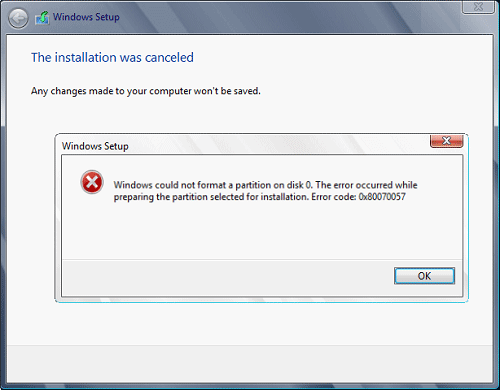
Hello and welcome to another problem-solving tutorial on errortools.com. Today we will be solving error 0x80070057, we could not format the selected partition which occurs during setup and installation when performing a clean install of Windows from a USB drive. So, you have backed up your files and decided to format and do clean WIndows installation, you have your USB ready, you reboot the system, plug in USB, start Windows setup, choose the hard drive on which you want to do a clean install and then this happens. error 0x80070057This error is very frustrating and it annoys pretty much anyone who encountered it but do not worry we have a solution for you. First thing is to confirm the error prompt, Click on the OK button and then on X to exit Windows 10 installation wizard. Click on yes to confirm that you want to exit the setup. You will find yourself in original installation windows. On that screen choose and click on Repair your computer. Choose an option screen that will pop up, click on Troubleshoot. In the advanced options, click on the command prompt. Once you are in command prompts type DISKPART and hit ENTER In the diskpart prompt type LIST DISK and hit ENTER again. type SELECT DISK #, where # is listed disk number where you would like to install Windows. type LIST VOLUME in order to list volumes in the selected disk and hit ENTER You need to select the volume on which you would like to place your WINDOWS, to do this type in SELECT VOLUME #, where # is the listed number of the volume Finally, type FORMAT FS=NTFS and hit ENTER You have successfully formated a given volume, you can now exit DISKPART and return to setup, to exit DISKPART simply type exit and hit ENTER. Leave command prompt as well by again typing exit and hitting ENTER You will be returned to Choose an option screen, click on Turn off your PC. Your drive has been successfully formatted and it is ready for clean Windows installation, you can now restart your Windows 10 installation and the process will complete without errors.

Read More
Watch old game intros in 4k or 8K hi-definition
AI and neural networks are more and more being used in all parts of our lives. From face detections to deep fakes it is both amusing and frightening to watch at the same time. From some really bad uses of neural networks and AI overall, looking at you deep fakes, upscaling videos or images are mostly harmless pieces of work not harming anyone. There is one cool YouTube channel, well there are more but this one seems to have most of the videos on it and if I am wrong I apologize. https://www.youtube.com/channel/UC33rC3GO1UZFAkMcCCwjyWg So upscale is like previously mentioned a YouTube channel that hosts old game trailers and into videos but in full 4K or 8K video resolution, fully upscaled using neural networks. There are some videos that are not maybe top-notch but the large quantity of them is pretty well upscaled and they do indeed look great. So if you have some time and want that old nostalgia fix, go and check it out. You might find something that will bring that old you out and you might even drop a smile or two remembering old good days, I know I have.
Read More
Fix GWXUX has stopped working in Windows
If your Windows 10 computer is downloading or installing updates but suddenly an error pops up saying, “GWXUX has stopped working”, read on as this post will show you what you can do to resolve the problem. GWXUX is a process responsible for downloading and installing Windows updates and is installed on your computer via Windows Updates. That particular update is known as “KB3035583”. Through this process, the “Get Windows 10” pop-ups are installed and initiated by Microsoft. This process is also capable of checking the compatibility of your PC to run Windows 10 as well as preparing it for installation. However, this process might also result in excessive usage of Disk and sometimes, CPU. So in this post, you will be guided on how you can fix the issue with the GWXUX. Follow the instructions given below carefully.

Option 1 – Disable GWXUX in the Task Scheduler

You will have to disable the gwxux.exe process to run from the Task Scheduler. Thus, you need to follow the steps below to do so.
  • Open the Cortana Search box and then type “task scheduler” in the field.
  • Then click on Task Scheduler from the related search results that appear to open it.
  • After opening the Task Scheduler, navigate to Microsoft > Windows > Setup > gwx on the left panel from the Task Scheduler Library.
  • Once you select the GWX folder, you will see two tasks that are listed under that folder. Select both of these tasks and permanently disable them.
  • Restart your computer to apply the changes made and check if the issue is now fixed or not.

Option 2 – Uninstall the KB3035583 Windows Update

  • To uninstall the KB3035583 Windows Update, you need to go to Control Panel, and for you to do that, type “control panel” in the Cortana Search box.
  • After that, click on Control Panel from the related search results given.
  • Once Control Panel is pulled up, search for “View Installed Updates” in the search field from the top right part of the window.
  • Next, click on a link labeled, “View Installed Updates” under the Programs and Features menu.
  • After clicking the link, you will see the list of all the installed updates in your computer from the Windows Updates.
  • Now look for an update named “KB3035583” and select it.
  • You should notice the Uninstall button located at the top portion of the sub-menu ribbon as you can see on the snippet below. Click on that button to uninstall the KB3035583 Windows Update.
  • After uninstalling the update, make sure to restart your computer to apply the changes made.

Option 3 – Try using the System File Checker

System File Checker or SFC is a built-in command utility that helps in restoring corrupted files as well as missing files. It replaces bad and corrupted system files with good system files that might be causing the error 0x80200056. To run the SFC command, follow the steps given below.
  • Tap Win + R to launch Run.
  • Type in cmd in the field and tap Enter.
  • After opening Command Prompt, type in sfc /scannow
The command will start a system scan which will take a few whiles before it finishes. Once it’s done, you could get the following results:
  1. Windows Resource Protection did not find any integrity violations.
  2. Windows Resource Protection found corrupt files and successfully repaired them.
  3. Windows Resource Protection found corrupt files but was unable to fix some of them.
After running the System File Checker, restart your computer and check if the error with the GWXUX.exe file is now fixed or not.
Read More
Command prompt tips and tricks
Hello and welcome to errortools articles. Today we will talk about some great and awesome tips and tricks for the command prompt. Commands which can make your life easier and your workday more pleasant. That being said let's dive in right into muddy waters and swim out with new knowledge.

Tip 1: Read Motherboard information

There are a lot of reasons why you would like to read information from your motherboard, maybe you would like to upgrade your BIOS, perhaps you would like to know the serial number, maybe even the version number. Well, you can, type the following code into the command prompt and you will receive all information about your motherboard.
wmic baseboard get product,version,serialnumber,product

Tip 2: Copy command output to clipboard

Getting information from the command prompt to a word processor, into an email or any other medium can be somewhat troublesome, usually, people tend to screenshot or write from a command prompt into another destination, which could induce errors, and let's be honest, it is not practical. You can copy command output directly into the clipboard ready for pasting it anywhere with | clip. So for example if you would like to paste the directory structure of your c drive command would look like: dir c: | clip, now output would be placed into the clipboard ready to be pasted anywhere needed.

Tip 3: Erase data permanently

When you delete data on your hard drive, what really happens is that files are marked with a marker which marks that space for new data writing, but the data itself is still present and can be brought back. This sometimes could impose problems but if you would type: cipher /w:c Windows will write random data over each marked file deleting it forever without means to be brought back.

Tip 4: Manage your IP address

If you would like to play with your IP address and do fancy stuff with it do the following: ipconfig /release to release your IP address ipconfig /renew to renew your IP address ipconfig /flushdns to flush down DNS information and enjoy a new browsing start.

Tip 5: Check to see are packets reaching the desired location

You installed a new LAN printer, or a new switch, maybe you want to check if your new site is up and running. Use ping destination in order to see if TCP packets are reaching desired information, you can use it with a specific address like ping 192.168.1.1 or you can type a web address, for example, ping google.com and see if a connection can be established.

Tip 6: Get information about a specific command

So you learned some command prompt commands, but you do not know all of their configuration or switches? No worries, just type command/? to get a list of available switches for it. For example ipconfig/? will write you a list of available switches for ipconfig command.

Tip 7: Link and execute multiple commands one after another.

Let us say that for example, you would like to copy files into a different folder, then rename some and delete others and you need to do a couple of times. Instead of writing command after command once each one is finished link them with && and they will execute one after another.

Tip 8: Scan and repair files.

In order to scan files and repair broke or corrupted ones write in the command prompt: sfc /scannow. Please know that this command can take a long time since it is solely dependant on the number of files, their size, and the power of the computer.

Tip 9: Manage and configure your computer energy

Command powercfg will let you manage and see the power configuration of your computer. Just write powercfg/? and see what you need and want to change or get information about.

Tip 10: Associate files with applications

Windows already has some file associations defined, and some applications take over some type of files but if you want to take control into your own hand use assoc command. For example assoc.txt= "APPLICATION NAME" will associate txt files with the provided application.

Tip 11: Hide files and folder.

Do you have some folder or file with information that you do not want to be seen when someone opens file explorer? Use attrib +h <name of file> and hide file or attrib +h /D <folder name> to hide folder.

Tip 12: Get a list of installed computer drivers

Want to know which drivers are installed in your system? Use driverquery and take a look.

Tip 13: Find and locate shared folders

have you shared a folder but forgot which one and where? Do not bang your head on the wall, we have a simple solution for you. just type in command prompt net share and see everything.

Tip 14: Run commands as an administrator

You do not have administrator privileges? Do you want to bypass common blockades?
runas /user:yourdomainadministrator command
That is all that we have for you today, I certainly hope you have found something useful here and that we have managed to teach you some valuable things.
Read More
1 2 3 171
Logo
Copyright © 2023, ErrorTools. All Rights Reserved
Trademark: Microsoft Windows logos are registered trademarks of Microsoft. Disclaimer: ErrorTools.com is not affiliated with Microsoft, nor claims direct affiliation.
The information on this page is provided for information purposes only.
DMCA.com Protection Status