Logo

EasyPDFCombine Complete Removal Guide

EasyPDFCombine is a browser extension by Mindspark Inc. This extension claims to offer users an easy and fast way to combine different PDF documents into a single file for easy access and sharing.

When installed this extension changes your default search engine to MyWay.com, it also hijacks your home page and new tab page, also changing it to search powered by MyWay.
While browsing the internet with this extension you will see additional pop-up ads, injected ads in search results, and sponsored content throughout your browsing sessions.
This extension has been marked as a Browser Hijacker by several anti-virus programs and it is not recommended to keep on your computer.

About Browser Hijackers

Browser hijack is a common type of internet fraud where your web browser settings are altered to allow it to carry out things you do not intend. Browser hijacker malware is developed for a variety of reasons. In general, browser hijacking is used for earning ad revenue from forced advert clicks and website visits. While it may seem harmless, these tools were created by malicious individuals who always look to take full advantage of you, so that hackers could make money from your naivety and distraction. They not only screw up your web browsers, but browser hijackers can also modify the system registry, making your computer susceptible to other malicious programs.

How to know whether the web browser is hijacked?

There are many symptoms of browser hijacking. Here are a few of them:
1. the browser’s homepage is modified
2. you find yourself regularly directed to a different webpage than the one you intended
3. the main web browser settings are modified and undesirable or insecure resources are put into the trusted sites list
4. you are finding new toolbars you haven’t witnessed before
5. you see a lot of pop-up ads on your computer screen
6. your web browser gets sluggish, buggy crashes often
7. Inability to navigate to certain websites, especially antivirus as well as other security software websites.

How browser hijacker infects computers

Browser hijackers attack computers via malicious email attachments, downloaded infected computer files, or by checking out infected sites. They may also originate from any BHO, browser extension, add-on, toolbar, or plug-in with the malicious objectives. Also, certain shareware and freeware can put the hijacker in your computer through the “bundling” technique. A good example of a well-known browser hijacker is the most recent Chinese malicious software known as “Fireball”, which has infected 250 million computers around the world. It acts as a hijacker but can be turned into a fully functioning malware downloader later on.

The presence of any browser hijacker malware on your system can drastically diminish the web browsing experience, monitor your internet activities that result in severe privacy concerns, develop system stability issues and ultimately cause your PC to slow down or to a practically unusable condition.

How you can remove browser hijackers
Certain browser hijacking can be easily stopped by finding and removing the corresponding malware program from your control panel. At times, it could be a challenging job to identify and delete the malicious program because the associated file will be running as part of the operating system process. You should think of doing manual repairs only if you’re a tech-savvy individual since there are risks associated with tinkering around with the system registry and HOSTS file.

Browser hijackers could be effectively removed by installing and running anti-malware software on the affected PC. Among the best tools for fixing browser hijacker infections is SafeBytes Anti-Malware. It helps you remove any pre-existing malicious software in your computer and gives you real-time monitoring and protection from the latest threats.

What you can do if Virus Stops You From Downloading Or Installing Antivirus?

Malware could potentially cause all kinds of damage when they invade your system, starting from stealing your personal details to erasing data files on your PC. Some malware is meant to hinder or prevent things that you’d like to do on your PC. It may not allow you to download anything from the web or prevent you from accessing a few or all websites, especially antivirus sites. If you’re reading this, odds are you’re stuck with a malware infection that is preventing you to download and/or install Safebytes Anti-Malware software on your PC. Follow the instructions below to remove malware through alternate ways.

Download the anti-virus in Safe Mode with Networking

If the malware is set to run automatically when Windows starts, entering Safe Mode may block this attempt. Since only the minimal programs and services launch in safe mode, there are rarely any reasons for issues to occur. The following are the steps you need to follow to start into the Safe Mode of your Windows XP, Vista, or 7 computers (check out Microsoft site for instructions on Windows 8 and 10 computers).

1) At power-on/startup, hit the F8 key in 1-second intervals. This would conjure up the Advanced Boot Options menu.
2) Choose Safe Mode with Networking using arrow keys and hit ENTER.
3) When this mode loads, you will have an internet connection. Now, get the malware removal application you need by using the web browser. To install the program, follow the directions in the setup wizard.
4) After installation, do a complete scan and let the software program delete the threats it discovers.

Utilize an alternate internet browser to download antivirus software

Some viruses might target vulnerabilities of a specific browser that block the downloading process. If you appear to have a virus attached to Internet Explorer, then switch to an alternate web browser with built-in security features, such as Firefox or Chrome, to download your favorite anti-malware program – Safebytes.

Install anti-malware on a USB drive

To successfully remove the malware, you should approach the problem of installing anti-virus software on the affected PC from a different angle. To run antivirus using a USB pen drive, follow these simple measures:
1) Download Safebytes Anti-Malware or MS Windows Defender Offline onto a virus-free PC.
2) Insert the USB drive onto the same computer.
3) Run the setup program by double-clicking the executable file of the downloaded application, with a .exe file format.
4) When asked, choose the location of the USB drive as the place where you would like to store the software files. Do as instructed on the screen to finish up the installation process.
5) Unplug the USB drive. Now you can utilize this portable anti-malware on the affected computer.
6) Double click the Safebytes Anti-malware icon on the pen drive to run the program.
7) Click on the “Scan Now” button to start the virus scan.

SafeBytes Anti-Malware - More Protection For You

In order to protect your PC from various internet-based threats, it is important to install an anti-malware program on your computer system. But with countless numbers anti-malware companies in the market, these days it is hard to decide which one you should purchase for your personal computer. A few are really worth your money, but many aren’t. While looking for anti-malware software, choose one that offers solid, efficient, and complete protection against all known viruses and malware. Among few good applications, SafeBytes Anti-Malware is the highly recommended program for the security-conscious individual.

SafeBytes is a powerful, real-time antivirus application that is made to assist the common computer end user in safeguarding their PC from malicious internet threats. This program could easily detect, remove, and protect your personal computer from the most advanced malware threats including adware, spyware, trojan horses, ransomware, PUPs, worms, parasites as well as other potentially harmful software applications.

There are lots of great features you will get with this security product. Below are some of the features you may like in SafeBytes.

Live Protection: SafeBytes offers 100 % hands-free live protection and is set to observe, prevent and eliminate all threats at its very first encounter. It will continuously monitor your computer for hacker activity and also gives users superior firewall protection.

World-class AntiMalware Protection: Using its enhanced and sophisticated algorithm, this malware removal tool can find and remove the malware threats hiding in your computer effectively.

“Fast Scan” Abilities: This software has got one of the fastest and most efficient virus scanning engines in the industry. The scans are very accurate and take a little time to complete.

Web Security: SafeBytes checks and gives a unique safety rating to every single website you visit and block access to web pages known to be phishing sites, thus protecting you against identity theft, or known to contain malware.

Very Low CPU and RAM Usage: SafeBytes gives total protection from internet threats at a fraction of the CPU load because of its advanced detection engine and algorithms.

Premium Support: SafeBytes gives you 24/7 technical support, automatic maintenance, and upgrades for the best user experience.

SafeBytes can keep your personal computer protected from most advanced malware threats automatically with little or no input needed from you again. There is no doubt that your computer system will be protected in real-time as soon as you put this software program to use. So if you are looking for the best anti-malware subscription for your Windows-based PC, we suggest the SafeBytes Anti-Malware application.

Technical Details and Manual Removal (Advanced Users)

If you’d like to manually remove EasyPDFCombine without the use of an automated tool, it might be possible to do so by deleting the program from the Microsoft Windows Add/Remove Programs menu, or in cases of browser extensions, going to the browser’s AddOn/Extension manager and removing it. You’ll probably also want to reset your internet browser.

Finally, check your hard drive for all of the following and clean your Windows registry manually to get rid of leftover application entries following an uninstallation. Please keep in mind that only experienced users should try to manually edit the system files simply because deleting any single vital registry entry results in a major problem or even a computer crash. Additionally, certain malware is capable of replicating itself or preventing deletion. It is advised that you carry out the removal process in Safe Mode.


Files:
%LOCALAPPDATA%\Google\Chrome\User Data\Default\Local Extension Settings\kpocjpoifmommoiiiamepombpeoaehfh
%UserProfile%\Local Settings\Application Data\Google\Chrome\User Data\Default\Local Extension Settings\kpocjpoifmommoiiiamepombpeoaehfh
%LOCALAPPDATA%\Google\Chrome\User Data\Default\Sync Extension Settings\kpocjpoifmommoiiiamepombpeoaehfh
%UserProfile%\Local Settings\Application Data\Google\Chrome\User Data\Default\Sync Extension Settings\kpocjpoifmommoiiiamepombpeoaehfh
%UserProfile%\Local Settings\Application Data\EasyPDFCombine_ce
%LOCALAPPDATA%\EasyPDFCombine_ce
%USERPROFILE%\Application Data\easypdfcombine_ceIE
%USERPROFILE%\AppData\LocalLow\easypdfcombine_ce
%PROGRAMFILES%\easypdfcombine_ceEI
%LOCALAPPDATA%\Google\Chrome\User Data\Default\Extensions\eoijigimapijneedmehmjccmmdknkbef
%UserProfile%\Local Settings\Application Data\Google\Chrome\User Data\Default\Extensions\eoijigimapijneedmehmjccmmdknkbef
%UserProfile%\Local Settings\Application Data\Google\Chrome\User Data\Default\Extensions\kpocjpoifmommoiiiamepombpeoaehfh
chrome-extension_eoijigimapijneedmehmjccmmdknkbef_0.localstorage
%UserProfile%\Local Settings\Application Data\EasyPDFCombineTooltab
%LOCALAPPDATA%\EasyPDFCombineTooltab

Registry:
HKEY_CURRENT_USER\Software\AppDataLow\Software\easypdfcombine_ce
HKEY_CURRENT_USER\Software\Microsoft\Internet Explorer\Approved Extensions, value: 0D159187-1DDE-426D-8D17-74B6CEF7D9E3
HKEY_CURRENT_USER\Software\Microsoft\Internet Explorer\Approved Extensions, value: 1930D4C0-D0E6-4CF1-B6A4-A09140F88475
HKEY_CURRENT_USER\Software\Microsoft\Internet Explorer\Approved Extensions, value: 4E8A04A7-E70B-4391-9AF3-1C0CC98AE8DA
HKEY_LOCAL_MACHINE\SYSTEM\CurrentControlSet\services\easypdfcombine_ceService
HKEY_LOCAL_MACHINE\SYSTEM\ControlSet001\services\easypdfcombine_ceService
HKEY_LOCAL_MACHINE\SYSTEM\ControlSet002\services\easypdfcombine_ceService
HKEY_LOCAL_MACHINE\SOFTWARE\Wow6432Node\Microsoft\Windows\CurrentVersion\Run, value: EasyPDFCombine AppIntegrator 32-bit
HKEY_LOCAL_MACHINE\SOFTWARE\Wow6432Node\Microsoft\Windows\CurrentVersion\Run, value: easyPDFCombine AppIntegrator 64-bit
HKEY_LOCAL_MACHINE\SOFTWARE\Wow6432Node\Microsoft\Windows\CurrentVersion\Run, value: easyPDFCombine EPM Support
HKEY_LOCAL_MACHINE\SOFTWARE\Microsoft\Windows\CurrentVersion\Run, value: EasyPDFCombine AppIntegrator 64-bit
HKEY_LOCAL_MACHINE\SOFTWARE\Microsoft\Windows\CurrentVersion\Run, value: EasyPDFCombine EPM Support
HKEY_LOCAL_MACHINE\SOFTWARE\Microsoft\Windows\CurrentVersion\Run, value: EasyPDFCombine Search Scope Monitor
HKEY_LOCAL_MACHINE\SOFTWARE\Wow6432Node\Microsoft\Internet Explorer\Toolbar, value: 4e8a04a7-e70b-4391-9af3-1c0cc98ae8da
HKEY_LOCAL_MACHINE\SOFTWARE\Microsoft\Internet Explorer\Toolbar, value: 4e8a04a7-e70b-4391-9af3-1c0cc98ae8da
HKEY_LOCAL_MACHINE\SOFTWARE\Wow6432Node\Microsoft\Windows\CurrentVersion\explorer\Browser Helper Objects\1930d4c0-d0e6-4cf1-b6a4-a09140f88475
HKEY_LOCAL_MACHINE\SOFTWARE\Microsoft\Windows\CurrentVersion\explorer\Browser Helper Objects\1930d4c0-d0e6-4cf1-b6a4-a09140f88475
HKEY_LOCAL_MACHINE\SOFTWARE\Microsoft\Internet Explorer\LowRegistry\DOMStorage\easypdfcombine.dl.myway.com
HKEY_LOCAL_MACHINE\SOFTWARE\Microsoft\Internet Explorer\DOMStorage\easypdfcombine.dl.myway.com
HKEY_LOCAL_MACHINE\Software\Microsoft\Internet Explorer\DOMStorage\easypdfcombine.dl.tb.ask.com
HKEY_LOCAL_MACHINE\SOFTWARE\Microsoft\Internet Explorer\LowRegistry\DOMStorage\easypdfcombine.dl.tb.ask.com
HKEY_LOCAL_MACHINE\SOFTWARE\Wow6432Node\EasyPDFCombine

Do You Need Help with Your Device?

Our Team of Experts May Help
Troubleshoot.Tech Experts are There for You!
Replace damaged files
Restore performance
Free disk space
Remove Malware
Protects WEB browser
Remove Viruses
Stop PC freezing
GET HELP
Troubleshoot.Tech experts work with all versions of Microsoft Windows including Windows 11, with Android, Mac, and more.

Share this article:

You might also like

Apple gaming is coming!!!

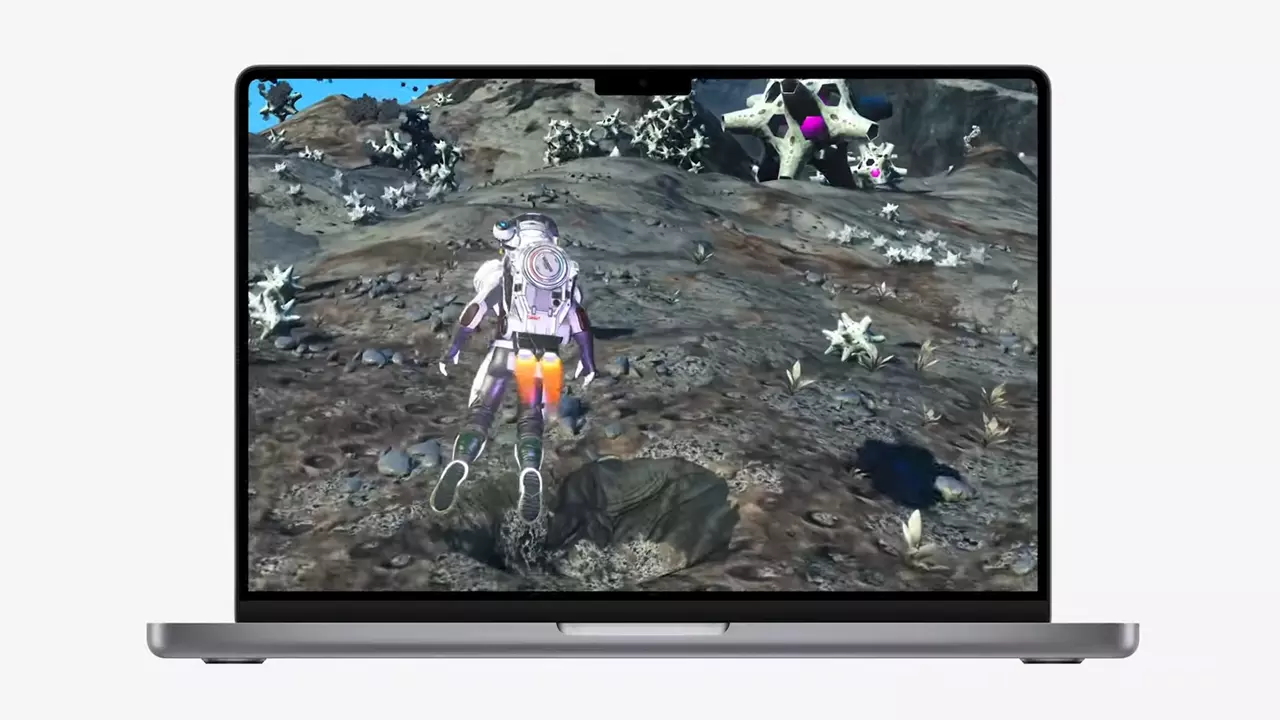
New Apple's upscaling technology called MetalFX will place iOS and macOS devices back into the gaming world. Apple had great games back in the old days and some all-time hits like the prince of Persia have been made first for apple but along the way, it just lost it.

Same as NVIDIA's DLSS and Intel's XeSS systems, Apple MetalFX also uses AI algorithms to upscale the resolution of output game frames. So, for example, the GPU inside your MAC might render the game at 1080p, but through MetalFX and AI upscaling it will look like a 4K image but have a good frame rate since it is rendered in base resolution.

apple metalfx

The ability to make AI strike a good balance between performance and image quality is a key to technology in today's modern gaming and having this technology will help developers a ton to be able to achieve great results on Apple hardware.

The First MetalFX Games

So far three official games that will use this technology and be released natively for Appl hardware are Resident Evil 8 Village, GRID legends, and No Man's Sky. All three games have been confirmed and Resident Evil 8 Village is already sent for review people are impressed since the game can run smoothly on all Apple devices, even ones with an M1 CPU.

Apple is back into gaming

When you say Apple gaming is probably the last thing that comes to your mind but truth be told Apple makes more money from games than Microsoft, Nintendo and Sony combined. Also, Apple itself was a big player once regarding computer games as well, Myst and Prince of Persia are games that were made and have been released for Apple first. Bungie was also founded by Apple developers and Halo was originally announced as a Mac game.

Apple has been trying and pushing gaming on its platform since it kind of died down. Today all Sony, Nintendo, and Microsoft controllers work without any issues with all Apple products. Apple also has its own gaming subscription service, Apple Arcade, and its Apple TV is packed with GPU that can rival Xbox ones.

MetalFX API ties and brings it all together, it is designed to get the most performance from the hardware by minimizing overhead.

Now, computers and laptops do not hold any large numbers if we look at the user base, and that could deter developers but if we look at iPad and iPhone things are different there, much different. How same CPU power these devices and how MetalFX is available across all products it is clear that there is a market for games there. No Man's Sky is coming to iPad using these technologies and bringing full computer experience to tablets.

Read More
Increase your Internet Speed in Windows 10
If you are dissatisfied with your internet speed on your computer but do not want to shell out more money for a faster package or simply there is not a faster package, lay down and enjoy this article where we will go through some common practices and tweaks which will result in increasing your internet speed. Please note that this guide will not be able to go beyond the limits of your internet provider's physical speed, this guide is made you can squeeze the maximum from your existing plan and eliminate speed drops.
      1. Modify IRPStackSize

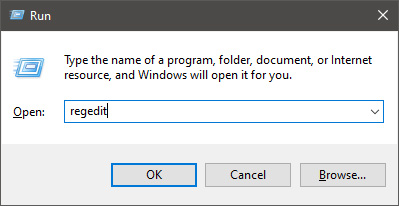
        Press ⊞ WINDOWS + R to open the run dialog keyboard with windows and r markedIn run dialog type RegEdit and press ENTER run dialog with regeditIn registry editor find HKEY_LOCAL_MACHINE\SYSTEM\CurrentControlSet\Services\LanmanServer\Parameters Right-click on Parameters> New> DWORD 32 Name it IRPStackSize and change the value to 32 Save and reboot your computer.

      2. Add a Default TTL

        Press ⊞ WINDOWS + R to open the run dialog keyboard with windows and r markedIn run dialog type RegEdit and press ENTER run dialog with regeditIn registry editor find a key Computer\HKEY_LOCAL_MACHINE\SYSTEM\CurrentControlSet\Services\Tcpip\Parameters Right-click on Parameters> New> DWORD 32 Name it DefaultTTL and change the value to 64 Save and Reboot
      3. Close Background Applications which are using the internet

        If some applications are running in the background that are using the internet, your speed will be much lower. CLose them to gain speed.
      4. Modify the TCP1323Opts value

        Press ⊞ WINDOWS + R to open the run dialog keyboard with windows and r markedIn run dialog type RegEdit and press ENTER run dialog with regeditIn registry editor find a key Computer\HKEY_LOCAL_MACHINE\SYSTEM\CurrentControlSet\Services\Tcpip\Parameters There should be a DWORD Value, TCP1323Opts, if not, then create it. Right-click on Parameters> New> DWORD (32-bit) Value. Double-click on it and change its value to 1 Save and reboot
      5. Scan system for Viruses and other malware

        Viruses and malware applications can not only slow your entire system, but they can also reduce your internet speed as well. Do a complete scan of your system to be sure you do not have any malicious software on it.
Read More
Change screenshot location

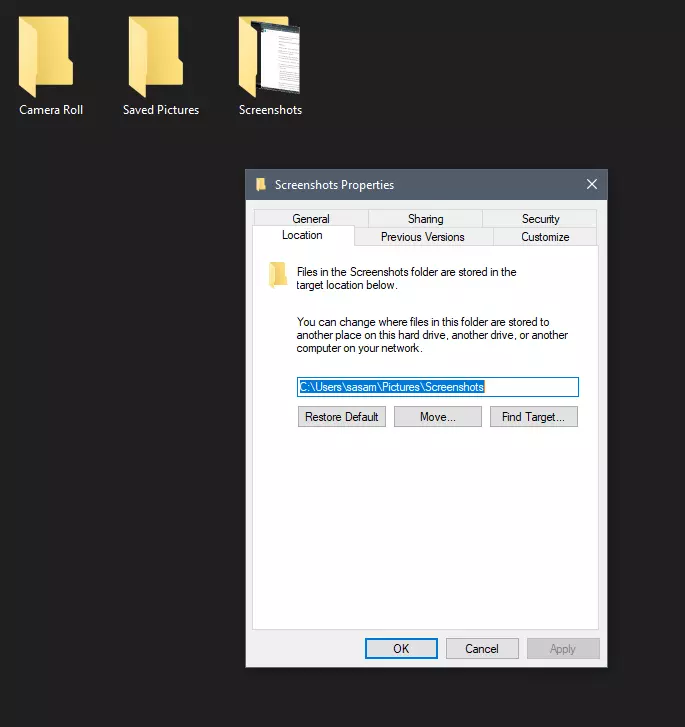
Each time when you press WINDOWS + PrtScn key on your keyboard a screenshot is taken and saved on your Hard drive, to be more precise, it is saved in a specific folder which is in c:\Users\Your user name\Pictures\Screenshots. Now, this specific location is not anything that's bad but it is a little deep and not so user-friendly for quick access.

screenshot properties

Luckily this default location can be changed into any folder that you like.

Changing location

First thing is to open File Explorer and then navigate to your PC. Once you go to your PC, go to Pictures, and inside right-click on the Screenshots folder. If there is no screenshots folder inside, this means that since Windows was installed no screenshots were taken with WINDOWS + PrtScn key combination. Please note that just by pressing PrtScn you will create a screenshot but you will place it inside the clipboard ready to be pasted somewhere, with WINDOWS + PrtScn you are saving the screenshot directly in a file on your hard drive.

So once you clicked on the Screenshots folder, go to the bottom and click on properties. Inside properties go to the Location tab. In the location, tab clicks on MOVE and browse to your new location where you would like screenshots to be saved. Once you select the folder for screenshots, click on the Select Folder button and confirm with OK. After this, Windows will ask you would you like to move existing screenshots into the chosen folder. Click YES or NO, depending on your preference.

After this easy setup, all of your new screenshots will be placed now inside the chosen folder.

Thank you for reading and I hope to see you tomorrow. Take care.

Read More
An Easy Guide to Fixing Mingwm10.dll Error Code

Mingwm10.dll Error Code - What is it?

Mingwm10.dll is a dynamic link library file. This file is associated with the gaming program called the Adventures of Tintin developed for Windows OS by Ubisoft. Like all other DLL files, Mingwm10.dll file also contains small programs that are used to load and run this gaming program on your PC and several other programs developed by Ubisoft. Mingwm10.dll error code may occur when this file fails to run and load the Adventures of Tintin, the game on your PC. This error may appear on your PC in different formats such as:
  • "Mingwm10.dll not found."
  • "The file mingwm10.dll is missing."
  • "Cannot register mingwm10.dll."
  • "Cannot find C:\Windows\System32\mingwm10.dll."
  • "Mingwm10.dll Access Violation."
  • "Cannot start The Adventures of Tintin The Game. A required component is missing: mingwm10.dll.Please install The Adventures of Tintin The Game again."
  • "This application failed to start because mingwm10.dll was not found. Re-installing the application may fix this problem."

Solution

Restoro box imageError Causes

Mingwm10.dll error code is triggered due to a plethora of reasons. These include causes like:
  • Registry damage or corruption
  • Viral infection
  • Hardware failure
  • Corrupt or missing Mingwm10.dll file
Though this error is not fatal nonetheless it is advisable to fix it promptly to ensure you are able to access your desired program successfully without any restriction. Please note, this error can become a major PC threat as the underlying causes are registry corruption or viral infection.

Further Information and Manual Repair

Listed below are some of the best, proven, and easy DIY methods to help you resolve the Mingwm10.dll error code on your system. These are simple methods and require no technical expertise or know-how.

Method 1 - Restore the Missing File

As mentioned above DLL are shared files, there is a possibility that you accidentally deleted the Mingwm10.dll file on your system while uninstalling a program developed by Ubisoft. In such an event, the best and the easiest way to fix the error is to check your recycle bin and restore the deleted Mingwm10.dll file on your system.

Method 2 - Download Mingwm10.dll File from a Reliable Website

If you are unable to locate the missing Mingwm10.dll file in the recycle bin, then another method to fix the issue can be to download the Mingwm10.dll file from a trusted website. The reason why we say trusted is that viruses often enter computer systems when users download files from unreliable websites. So, to avoid bigger problems first make sure the site you select to download the Mingwm10.dll file is authorized and trusted.

Method 3 - Update Outdated Drivers

Hardware failure is related to outdated drivers. If the cause of the Mingwm10.dll error code is hardware failure, simply update the outdated drivers to resolve. Since the Mingwm10.dll file is used to run and load Adventures of Tintin, a gaming software program, then most probably the error is caused because of the outdated video card driver. Therefore update it to fix the issue. For this, go to the start menu, type Device Manager in the search bar. Once it opens use the driver update wizard to make updates. The wizard will walk you through the entire process, making the driver update task easy.

Method 4 - Repair the Corrupt Registry

The registry is the part that stores all the information and activities performed on your system. From important files to obsolete files it saves everything. If the obsolete files like the junk files, bad entries, invalid registry keys, and cookies are not removed from the registry frequently, these files accumulate in the registry and corrupt important system files like DLL files, popping error codes like Mingwm10.dll error. To resolve, download Restoro. It is a PC Fixer embedded with a  registry cleaner. The registry cleaner scans and removes all the obsolete files. It cleans the registry and the corrupted system files in just a few clicks, thereby fixing the problem. Click here to download Restoro to resolve the Mingwm10.dll error code on your PC
Read More
Not enough storage is available to process...
Each time you execute a command on your computer, it takes into account a number of files and space for the code in the background for the command to be executed. Thus, executing the command is not that easy which is why you could encounter some errors along the way due to various limitations or poor allocation of memory, and so on. One of the errors you might encounter when executing a command on Windows 10 and Windows Server is the “Not enough storage is available to process this command”. There are several potential fixes you can check out to fix this error. To fix this error, you can try to delete the temporary files in your computer, run the DISM tool or apply some registry tweaks. For more details, refer to each one of the given options below.

Option 1 – Try to delete the temporary files

The error could be caused by some temporary or junk files in your computer and so you need to clear them up to fix the problem. You can achieve that using the Storage Sense feature.
  • Open Setting > System > Storage from the WinX Menu.
  • From there, you will see a list of all the local and connected storage devices along with the details on the free space. Make sure that Storage Sense is on.
  • Next, find a link that says “Free Up Space” and click it to open.
  • After that, a screen which is the built-in program in Windows 10 will appear and will scan your computer for the following junk files so you can free up disk space:
    • Windows Upgrade Log Files
    • System created Windows Error Reporting Files
    • Thumbnails
    • Temporary Internet Files
    • Previous Windows Installation Files
    • Delivery Optimisation Files
    • DirectX Shader Cache
  • Choose the files you want to get rid of and then click on the remove files option. Note that you’ll have an idea of the total size as you select any of the junk files listed above.
  • Now go to the “Free Up Space Now” section and click the Clean now button. This will get rid of all the temporary or junk files in your computer and should hopefully fix Error 1310.

Option 2 – Run the DISM tool

You can also run the DISM Tool as it could also help in fixing the “Not enough storage is available to process this command” error in Windows 10. Using this built-in tool, you have various options such as the “/ScanHealth”, “/CheckHealth”, and “/RestoreHealth” that could help in fixing error 0x80246019.
  • You can run the DISM tool via Advanced Startup Options or you could boot your computer into a Clean Boot State and then select Command Prompt.
  • Open the Command Prompt with admin privileges.
  • Then type in the following commands and make sure to hit Enter right after you type each one of them:
    • Dism /Online /Cleanup-Image /CheckHealth
    • Dism /Online /Cleanup-Image /ScanHealth
    • exe /Online /Cleanup-image /Restorehealth
  • Do not close the window if the process takes a while as it will probably take a few minutes to finish. Once it’s done, restart your computer and try again. If it didn’t work, you can try to use the “/StartComponentCleanup” parameter: Dism /Online /Cleanup-Image /StartComponentCleanup

Option 3 – Try to use the Registry Editor

The memory range allocated for the tasks and commands to be executed is associated with the IRPStackSize DWORD. Thus, to fix the error, you need to extend the range by applying some registry tweak. Before you proceed, make sure that you create a System Restore point first. Once you’re done, follow these steps:
  • Tap the Win + R keys to open the Run dialog box and type “Regedit” in the field and tap Enter to open the Registry Editor.
  • Next, navigate to this registry key: ComputerHKEY_LOCAL_MACHINESYSTEMCurrentControlSetServicesLanmanServerParameters
  • From there, look for the DWORD named “IRPStackSize” and right-click on it. If you can’t find this DWORD, just right-click on any empty space and select New > DWORD (32-bit) Value.
  • Input “IRPStackSize” as the DWORD name and double click on it and set its Value data to be greater than its default value. Note that the maximum value allowed is “0xc” and the range starts from “0x1”.
  • Now click on OK and exit the Registry Editor and then restart your computer and see if the error is fixed.
Read More
Change default audio output for Narrator
For PC users that are blind or have low vision, the Narrator accessibility feature in Windows 10, lets you use your PC without a display or mouse to complete common tasks – it reads and interacts with things on the screen, like text and buttons. The narrator can be used to read and write an email, browse the internet, and work with documents. In Windows 10, there are a lot of options for Narrator that you can customize. You can change its keyboard shortcuts, personalize Narrator’s voice, enable Caps Lock warnings, and more. You can choose the voice for the Narrator, adjust the speaking rate, pitch, and volume. To change the default audio output device used to play the voice of the Narrator in Windows 10:
  • Press the ⊞ WINDOWS + I
  • From the Settings menu, click Ease of Access.
  • Click Narrator on the left pane.
  • In the Narrator window, on the right pane, toggle the button to On to enable Narrator if required.
  • Scroll down to the Personalize Narrator’s voice section.
  • For the Select where you hear Narrator’s voice option, click the drop-down and select the audio output device you want from the list. Please know that you will not be able to choose if you do not have multiple audio output devices connected to your Windows 10 computer.
  • Exit Settings when done.
If you would like to read more helpful articles and tips about various software and hardware visit errortools.com daily.
Read More
Fix SearchUI.exe errors inside your Windows
The SearchUI.exe file is the one that manages the search feature of Cortana. However, a number of users have recently reported that this feature stops responding within minutes of booting their Windows 10 computer. This kind of problem could be caused by missing system files or some issues with the Cortana program itself. And so if the SearchUI.exe file is not responding, then you wouldn’t be able to use the search feature of Cortana. But worry not for this post will walk you through fixing this problem. Before you troubleshoot the problem, you can try to restart your computer and see if it helps, if it doesn’t, then proceed to the given options below.

Option 1 – Try to run the Search and Indexing troubleshooter

You might also want to run the Search and Indexing troubleshooter in Windows 10 as it checks whether the settings for Cortana are in place and automatically corrects any issues if the update or software installation has changed the settings. To run it just click on the Start button and select Settings > Updates and Security > Troubleshoot. From there, select the Search and Indexing Troubleshooter.

Option 2 – Restart Cortana’s process in the Task Manager

Restarting Cortana’s process in the Task Manager could also help you resolve the problem. Refer to the steps given below to do so.
  • Tap the Ctrl + Alt + Del keys to open the Security options window.
  • From there, look for the Task Manager in the given list and open it.
  • Next, look for the process of Cortana and right-click on it, and then select the End Task option to end its process.
  • After that, the Cortana process will restart by itself and re-initialize.

Option 3 – Try resetting Cortana

  • Open Cortana and go to the Settings section where you’ll see the “Turning off Cortana clears what Cortana knows on this device, but won’t delete anything from the Notebook. After Cortana is off, you can decide what you’d like to do with anything still stored in the cloud” option. Turn this option off.
  • Restart your PC.
  • After your computer boots, launch Cortana again and check.

Option 4 – Try running the DISM tool

You can try running the Deployment Imaging and Servicing Management or DISM tool to fix the Windows Upgrade problem. Using this built-in tool, you have various options such as the “/ScanHealth”, “/CheckHealth”, and “/RestoreHealth”.
  • Open the Command Prompt with admin privileges.
  • Then type in the following commands and make sure to hit Enter right after you type each one of them:
    • Dism /Online /Cleanup-Image /CheckHealth
    • Dism /Online /Cleanup-Image /ScanHealth
    • exe /Online /Cleanup-image /Restorehealth
  • Do not close the window if the process takes a while as it will probably take a few minutes to finish.

Option 5 – Try to reinstall Cortana

If none of the options given above works, you must consider reinstalling Cortana.
  • First, right-click on the Start button and click on the Windows Powershell (Admin) option from the list.
  • Next, type the following command and hit Enter to execute it:
Get-AppXPackage -Name Microsoft.Windows.Cortana | Foreach {Add-AppxPackage -DisableDevelopmentMode -Register "$($_.InstallLocation)AppXManifest.xml"}
  • Restart your computer and check if Cortana is now able to connect.

Option 6 – Try troubleshooting the problem in a Clean Boot State

There are instances that some conflicting programs installed in your computer might be the one that’s causing some issues with Cortana or causing the SearchUI.exe process to stop. To identify which program is causing the problem, you need to put your computer in a Clean Boot State. To do so, follow the steps below.
  • Log onto your PC as an administrator.
  • Type in MSConfig in the Start Search to open the System Configuration utility.
  • From there, go to the General tab and click “Selective startup”.
  • Clear the “Load Startup items” check box and make sure that the “Load System Services” and “Use Original boot configuration” options are checked.
  • Next, click the Services tab and select the “Hide All Microsoft Services” check box.
  • Click Disable all.
  • Click on Apply/OK and restart your PC. (This will put your PC into a Clean Boot State. And configure Windows to use the usual startup, just simply undo the changes.)
  • From there, start to isolate the problem by checking which one of the programs you installed recently is the root cause of the problem.
Read More
Fix ERR_UNSAFE_PORT error on Chrome
As you know, one of the most useful web browsers all over the globe is Google Chrome. However, it is not without flaws as you could encounter errors while using it. One of these errors is the ERR_UNSAFE_PORT error. This kind of error is caused by the data being accessed using a port that isn’t recommended. When you encounter this kind of error in Chrome, you will see the following error message on your screen:
“The webpage is not available, The webpage at <Address> might be temporarily down or it may have moved permanently to a new address. Error code: ERR_UNSAFE_PORT”
In this post, you will be guided on how you can fix the ERR_UNSAFE_PORT error in Google Chrome on your Windows 10 computer. You can try to set allowed ports or reset or reinstall Google Chrome. For more details, refer to the given options below.

Option 1 – Try to set allowed ports

  • To get started, open Google Chrome.
  • After that, go to the Shortcut tab and type the following after the whole address in the field named Target: --explicitly-allowed-ports=xxx
  • It should look like this “C:/Documents and Settings/User/Local Settings/Application Data/Google/Chrome/Applicationchrome.exe --explicitly-allowed-ports=6666”.
  • Now click on Apply and click OK to save the changes made.

Option 2 – Reset Chrome

Resetting Chrome can also help you fix the error. This means that you will be restoring its default settings, disabling all the extensions, add-ons, and themes. Aside from that, the content settings will be reset as well and the cookies, cache, and site data will also be deleted. To reset Chrome, here’s what you have to do:
  • Open Google Chrome, then tap the Alt + F keys.
  • After that, click on Settings.
  • Next, scroll down until you see the Advanced option, once you see it, click on it.
  • After clicking the Advanced option, go to the “Restore and clean up option and click on the “Restore settings to their original defaults” option to reset Google Chrome.
  • Now restart Google Chrome

Option 3 – Try to clean reinstall Chrome

There are instances when programs leave files behind after you’ve uninstalled them and the same thing can happen to Chrome so before you reinstall Chrome, you have to make sure that you have deleted the User Data folder. To do so, refer to the following steps:
  • Hit the Win + R keys to open the Run dialog box.
  • Next, type “%USERPROFILE%AppDataLocalGoogleChromeUser Data” in the field and hit Enter to open the User Data folder.
  • From there, rename the default folder and name it something else, e.g. “Default.old”.
  • After that, install Google Chrome again and check if the issue is now fixed.
Read More
Webpage was blocked (ERR_BLOCKED_BY_CLIENT)
If you are browsing the web but suddenly encountered the ERR_BLOCKED_BY_CLIENT error on your Chrome browser in Windows 10, read on as this post will guide you in fixing this problem. This kind of error has already been reported by a number of Chrome users and it seems that the problem has something to do with a plugin or extension. Here’s the exact content of the error:
“This webpage was blocked by an extension (ERR_BLOCKED_BY_CLIENT)”
This kind of error, as pointed out, could be caused by an extension or plugin on Chrome that is blocking the web page. It is also possible that the version of Chrome is obsolete or that there could be more than 100 bookmarks in the Bookmark Manager. Before you troubleshoot the problem, make sure that you download the latest version of Google Chrome and see if it fixes the error. If it didn’t, then you can try opening a web page in Incognito Mode or disable and remove the extension that’s causing the problem. You could also try to remove any surplus bookmarks.

Option 1 – Try to open the web page in Incognito Mode

The first thing you can do to fix the problem is to try opening the web page in Incognito Mode. When your browser is in this mode, it will work without extensions. This would help in fixing the problem especially if it was caused by some extension or toolbar in your browser. All you have to do is open any web page in Chrome and tap the Ctrl + Shift + N key combination to open a window in Incognito Mode.

Option 2 – Try to disable and get rid of the problematic extension

After you’ve isolated the problem and have determined that an extension is the one that’s causing it, then the next thing you have to do is to disable or get rid of that extension.
  • Open Chrome and press Alt + F keys.
  • Go to More tools and click Extensions to look for any suspicious browser extensions or toolbars.
  • Click the Recycle bin and select Remove.
  • Restart Chrome and press Alt + F keys again.
  • Proceed to On Startup and mark Open a specific page or set of pages.
  • To check if the browser hijacker is still active, click Set pages, if it is active, overwrite the URL.
Note: If removing the browser extensions or toolbars didn’t work, you can also try to reset your Google Chrome browser.
  • Open Google Chrome, then tap the Alt + F keys.
  • After that, click on Settings.
  • Next, scroll down until you see the Advanced option, once you see it, click on it.
  • After clicking the Advanced option, go to the “Restore and clean up option and click on the “Restore settings to their original defaults” option to reset Google Chrome.
  • Now restart Google Chrome.

Option 3 – Try removing surplus bookmarks

If your Chrome browser is already supporting more than 100 bookmarks, you might want to consider deleting them as it could also be one of the reasons why you’re getting the ERR_BLOCKED_BY_CLIENT error. To remove these bookmarks, just open the bookmark library by typing this address “chrome://bookmarks/” in the address bar of Chrome and tap Enter and press Shift and then select the surplus bookmarks by using the arrow keys. After that, click Delete to get rid of them.

Option 4 – Try clearing browser data

There are times when some data in the browser is conflicting with the loading of the website and triggers errors like ERR_BLOCKED_BY_CLIENT. And so you can try to clear your browser’s data. This might be a very basic solution but oftentimes it works in fixing this kind of error in Google Chrome. Follow the steps below to clear the data in your browser.
  • Open your Google Chrome browser.
  • After that, tap the Ctrl + H keys. Doing so will open a new panel that allows you to delete the browsing history and other data in your browser.
  • Now select every checkbox that you see and click on the Clear browsing data button.
  • Then restart your Chrome browser and check if you can now open any website or not.
Read More
How to Enable Last Active Click feature
Microsoft has started to use group along with every open window in the Taskbar ever since the release of Windows 10. Early on, they used to show an individual entry for each one of the windows after grouping them which makes the taskbar look cleaner and organized. However, the main issue lies in the fact that you have to hover on your desired window to get on to them. At the time of writing, you need to tap the Ctrl key and click on the taskbar icon to open the last active window but you have to only click on the program’s taskbar icon after you apply the tweak given in this post for the last active window to open. Take note that the “Last Active” windows feature will only work if the taskbar buttons are combined. Before you get started doing the instructions given below, you need to create a System Restore Point first since you will be dealing with registry files and modifying some of the critical settings in Windows 10. Once you’ve done this, proceed to the given steps below. Step 1: Tap the Win + R keys to open the Run dialog box and then type “Regedit” in the field and hit Enter to open the Registry Editor. Step 2: If a User Account Control or UAC prompt appears, just click on Yes to proceed to open the Registry Editor. Step 3: Next, navigate to the following registry path:
HKEY_CURRENT_USERSoftwareMicrosoftWindowsCurrentVersionExplorerAdvanced
Step 4: From there, right-click on the right side of the panel and select New > DWORD (32-bit) and then name it “LastActiveClick”. Step 5: After that, double click on the newly created DWORd to modify its value. Put “1” as its value data. Step 6: Then click OK and close the Registry Editor. Step 7: Now restart your computer to successfully apply the changes made. Note: In case you want to revert back to the default configuration, all you have to do is set the value data of LastActiveClick to “0” or simply delete that DWORD and restart your computer to successfully apply the changes made.
Read More
1 2 3 171
Logo
Copyright © 2023, ErrorTools. All Rights Reserved
Trademark: Microsoft Windows logos are registered trademarks of Microsoft. Disclaimer: ErrorTools.com is not affiliated with Microsoft, nor claims direct affiliation.
The information on this page is provided for information purposes only.
DMCA.com Protection Status