Logo

Fix Qualcomm Atheros Qca61x4a Driver Issue

Qualcomm Atheros Qca61x4a Driver is a software driver used in WI FI communication between OS and device itself. When this driver stops working usually it means loss of connection and no internet available.

This error knows to comes frequently and repeat itself over long periods of time which makes it quite annoying. If you are one of the unlucky users of Windows who get this error please keep reading in order to eliminate it and continue working on your computer normally.

  1. Disable & Enable the Qualcomm Adapter Driver

    Press ⊞ WINDOWS + X to open the secret menu, click on the device manager.
    In device manager expand network adapters.
    Right-click on Qualcomm Atheros Qca61x4a wireless network adapter and click on disable
    Right-click on Qualcomm Atheros Qca61x4a wireless network adapter and click on enable

  2. Rollback the Qualcomm Adapter driver

    Press ⊞ WINDOWS + X to open the secret menu, click on the device manager.
    In device manager expand network adapters.
    Right-click on Qualcomm Atheros Qca61x4a wireless network adapter and click on properties
    Under properties, window click on Driver tab and left-click on Roll Back driver (if the option is greyed there is no previous driver, follow next step)
    Choose your reason and click on OK

  3. Update Qualcomm Atheros driver to the latest version

    Press ⊞ WINDOWS + X to open the secret menu, click on the device manager.
    In device manager expand network adapters.
    Right-click on Qualcomm Atheros Qca61x4a wireless network adapter and click on Update Driver

  4. Install the new driver in compatibility mode

    Right-click on the installer package and choose properties
    Go to the compatibility tab
    Choose compatibility settings and install.

Do You Need Help with Your Device?

Our Team of Experts May Help
Troubleshoot.Tech Experts are There for You!
Replace damaged files
Restore performance
Free disk space
Remove Malware
Protects WEB browser
Remove Viruses
Stop PC freezing
GET HELP
Troubleshoot.Tech experts work with all versions of Microsoft Windows including Windows 11, with Android, Mac, and more.

Share this article:

You might also like

How to Fix File System Error 2147219196
If you receive an error message saying, “File System Error 2147219196” when trying to open a picture, access a file or when moving a folder on your Windows 10 computer then read on as this post will help you resolve this error. According to experts, this error started to appear right after the Windows Update v1803 was released. Users who installed the new Windows version faced the same dilemma. This error might be caused by a corrupted disk or it could be due to some broken Windows components or due to file system encryptions. Before you troubleshoot the problem, make sure that you are logged in as an administrator.

Option 1 – Update Windows

The first thing you can do to Resolve File System Error -2147219196 is to update Windows. Since Microsoft is already aware of this issue, they might have already released a fix for this in one of their new updates so make sure to check for any available updates on your computer and have it installed right away.
  • Tap Win + S to open Search then type “update” in the field and from the search results that appear, click on Windows Update.
  • After that, it will open Windows Update under Settings and from there click the Check for Updates button and let Windows check for any available updates.
  • And if there are any updates available, download and install them on your Windows 10 computer.
  • Restart your PC and check if the error is now fixed or not.

Option 2 – Run CHKDSK to check your disk for errors

When it comes to some issues concerning the hard drive or removable devices, there is a utility in Windows that might help which is called “chkdsk”. This error check utility can help with several issues in the system including File System Error -2147219196.
  • Tap the Win + S keys to open the Search box.
  • Then type “command prompt” in the field and from the search results that appear, right-click on Command Prompt and select “Run as administrator”.
  • After opening an elevated command prompt, copy and paste the following command and hit Enter:
chkdsk /r /f
  • Now if you are prompted to run CHKDSK after your reboot your PC, just tap Y and reboot your PC.
  • If CHKDSK is not able to find any errors, tap the Win + E keys and navigate the access window. From there, right-click on the concerned drive and click on Properties.
  • After opening Properties, click on the tab Tools and then click on the “Check” button under the Error-checking section.
  • Wait until the process is completed and then restart your computer.
  • Once your computer has restarted, try accessing the file and check if the error persists.

Option 3 – Disable the File System Encryption

File System Encryption allows you to encrypt drives to protect them from being accessed from another computer. This is the standard practice in various organizations in order to protect their data. However, there are times when the file encryption system caused issues for users in accessing files and throws the File System Error -2147219196 instead which is why you need to temporarily disable it to access your file. To do so, follow the steps below.
  • Tap the Win + R keys to open the Run dialog box.
  • Then type “control” in the field to open Control Panel.
  • From there, navigate to Security and select the BitLocker Drive Encryption option from the list.
  • After that, make sure that all your drives are not encrypted and if any of them are encrypted, turn off encryption by selecting Turn off BitLocker.
  • Reboot your computer for the changes to take effect.

Option 4 – Run SFC scan

  • Tap Win + R to launch Run.
  • Type in cmd in the field and tap Enter.
  • After opening Command Prompt, type in sfc /scannow
  • Restart your computer once the scan is completed.
Read More
My device used to work, but now it doesn’t
So you just have turned your computer ON only to find out that your device which was working perfectly yesterday is not working anymore. This situation can be very stressful and disappointing but do not despair, before you toss your device through the window know that this kind of behavior can be traced back to a software issue. In this article, we will give you hints on what to do and where to pay attention when something like this happens so you get the device back in working order.
  1. Check if it not a hardware malfunction

    To save yourself time and unnecessary frustration with juggling through Windows first inspect the device to be sure that indeed it is working properly, check all led lamps which could indicate that the device is working and receiving power, and if it is an internal device try opening the case and visually check if there are signs of working like rotating fans or led lamps on it.
  2. Check Cables

    If it is an external device that has stopped working try checking power cables and cables which go to your computer, see if they are tightly connected. If it is an internal device also check cables, nudge them and if possible disconnect and clean them.
  3. Disconnect and reconnect the device

    Try this solution to see will Windows register the device again and start it.
  4. Update Windows

    If there is a Windows update not installed, install it and see if the device will start working.
  5. Update device drivers

    Go to device manager and update the device driver to its latest version or go to the manufacturer's site and download the latest driver version.
  6. Reinstall the device

    In the device manager, uninstall the device driver and reboot Windows. When Windows boots it will recognize the device and install the necessary drivers for it.
  7. Disable antivirus and firewall

    Sometimes antivirus can prevent certain devices from working properly, especially if they rely on some system files to which antivirus or firewall has cut access. Try disabling your PC protection to see if this will resolve the issue.
  8. Use dedicated error software

    Use DRIVERFIX to automatically search and fix driver issues.
Read More
How to Turn Bluetooth ON in Windows 11
Windows 11 BluetoothBluetooth perhaps is slowly becoming an outdated feature but sometimes you can really used it and need it. By default, in Windows 11 Bluetooth is turned OFF so if you need it, you will need to turn it ON first. Luckily turning it ON is easy and we will guide you through the process

Turning Bluetooth using the Quick Settings menu

The easiest and fastest way to turn the Bluetooth ON is using the quick setting menu:
  1. Click on indicator icons located left of date and time in Taskbar
  2. Click on the Bluetooth icon (if the icon is not displayed, click on the pencil icon, then click on Add and add Bluetooth icon from the list)
  3. Right-click on the Bluetooth icon and select go to Settings
  4. Go to Adding a Bluetooth Device to Windows 11 section

Switch it ON via Windows Settings

  1. Open Windows settings by using ⊞ WINDOWS + I combination
  2. Click on Bluetooth & Devices
  3. Inside settings turn Switch to ON beside Bluetooth
  4. Click + Add Device large button on top
  5. Click Bluetooth
  6. Select device in the list of found devices (make sure device is turned ON, it has Bluetooth sharing ON, and that it is in pairing mode)
  7. If the device needs the password, type it in
  8. When the message Your device is ready to go is showed on the screen click on the Done

Advice on Bluetooth devices

Note that the Bluetooth devices you connect to Windows 11 stay linked to your PC unless you pair them with a different PC, smartphone, or tablet later. After a time, most Bluetooth devices power down automatically to save battery life. To continue where you left off, either power the Bluetooth device up (if it has a power button) or press a button on a keyboard or mouse, and it should automatically turn on and reconnect with your PC. If you’re having trouble connecting your Bluetooth device, make sure that Windows 11 is fully updated and that you’ve installed any drivers that came with your device. Make sure that the device is fully charged or that it has a fresh set of batteries. while Windows is searching. You’ll need to remove the device from Windows 11 first and then attempt to pair it with your PC again.

Removing devices

If you need to remove (un-pair) a Bluetooth device, just open Windows Settings and navigate to Bluetooth & Devices. Locate the name of the device that you want to remove, click the three dots button in the corner of its square and select Remove Device.
Read More
A Quick Guide to Fixing the Error 0x800ccc7d

0x800ccc7d - What is it?

0x800ccc7d is an SSL (Secure Sockets Layer) error message code that occurs in applications like Microsoft Outlook or Outlook Express. The error message is displayed as: ‘ unknown error 0x800ccc7d- secure sockets layer ’. Many offices use Microsoft Outlook for email communication and sending instant messages within the office. This is a highly functional application that enables users to interact with peers efficiently, manage contacts, journals, and reminders. However, the error 0x800ccc7d may hamper your ability to send and receive emails efficiently. Therefore it is advisable to repair it right away.

Solution

Restoro box imageError Causes

The error 0x800ccc7d is triggered by the following causes:
  • Damaged profile in Outlook
  • Incorrect email account settings
  • The Outlook installation is corrupt and damaged. This usually happens due to issues in hard disk storage.
  • The outgoing SMTP server does not support secure connections

Further Information and Manual Repair

If you come across 0800ccc7d error code while using Microsoft Outlook or Outlook Express, then don’t you worry! This problem can be easily resolved. In fact, it is so easy to repair that you can do it by yourself even if you are not a technical expert. Here are some ways to fix the 0800ccc7d SSL Outlook error:

Solution 1: Use Scanpst.exe

You may not know this but Microsoft offers an inbuilt Outlook Repair tool. This tool is technically known as Scanpst.exe. This tool is useful when you need to repair Basic header corruption. However, it may not be the best choice if the problem is big and complex.

Solution 2: Reset Your Outlook Settings

Sometimes this error message may occur when the STMP server requires authentication or does not recognize the senders' email addresses. In this scenario, you should check your Outlook settings to make sure that your STMP username and server are correct. For this follow this procedure:
  • Go to the Tools menu and then click on Accounts
  • Now click on your email account then check its properties
  • Click general and make sure that your email address is created in your account’s control panel. If not, then edit and create.
  • Next, click servers and see if the box next to the option that says My server requires authentication is checked or not. If not, then check it to resolve the error.

Solution 3: Disable any Anti-Virus

Another alternative to resolve this error is to disable any Anti-virus or Firewall you have installed on your PC. Once you disable it then try sending or receiving the email again. This usually works.

Solution 4: Download 0x800ccc7d Repair Tool

The fourth solution available to resolve this issue is by downloading the 0x800ccc7d repair tool. Though it is similar to Microsoft Outlook built-in scanpst.exe tool, but as compared to it the 0x800ccc7d repair tool is a highly functional tool. There are many 0x800ccc7d repair tools available but we recommend you to Restoro. This tool is a third-party tool that can deal, scan, and fix 0x800cc7d error in no time. What makes this repair tool an excellent choice is that it can repair all broken PST files and emails, recover Outlook items, retrieve deleted files, recover password-protected data, split files to recover oversize PST files, and more. To access and install the 0x800ccc7d repair tool all you need to do is download it here and install it on your PC. Now run it to scan errors. Once the errors are scanned, hit the repair tab to resolve. So, next time when you experience the error 0x800ccc7d, try using these solutions to fix the problem right away!
Read More
A Guide to Fixing Error 0x8007007e on Windows 10

Error Code 0x8007007e – What is it?

Error code 0x8007007e often occurs when users attempt to use Windows Update but are unable to access updates or webpages. To resolve this issue, you will need to use tools that detect and correct corrupted files as this is usually the main reason for the error.

Solution

Restoro box imageError Causes

Once this error code is encountered, it's a clear indication that your Operating System has malfunctioned. This could be a consequence of an incorrect or failed installation of software. The software might leave invalid entries in the Windows registry. Improper shut down of your system and a malware attack are also causes of error code 0x8007007e. Additionally, someone with little or no technical knowledge might have deleted a system file by accident. Missing system files can also equate to other error codes such as registry error code 19.

You may not always be able to prevent issues from affecting your computer, but proper measures can be taken to limit your risk of experiencing problems like error code 0x8007007e. See the following suggestions below:

  • Ensure proper system maintenance by regularly using your automated tool. This will ensure your system is in good shape and error-free. It will also clean your system regularly leading to a boost in PC performance
  • Keep antivirus software up-to-date. Antivirus software if crucial for the proper functioning of your computer. Keeping your antivirus updated is one of the best ways you can avoid problems with your PC.

Further Information and Manual Repair

Method One: System File Checker

System File Checker is a Windows tool that allows users to check their system for corrupt or bad system files. The utility scans for corrupt files and repairs them as well as files that may have gone missing.

Depending on the type of Windows operating system on your computer, you may need to follow varying instructions. However, note that Windows operating systems including Windows 10 and Windows 8 or 8.1 and Windows Vista all provide access to System File Checker via Command Prompt.

Once you run System File Checker, the tool should be able to repair and replace corrupted files. However, in cases where the repair process does not take place, you can attempt a manual repair by replacing the corrupt file the tool identifies with a good file. The process may require technical knowledge of Command Prompt so consider help from a Windows repair technician or consider contacting Windows for instructions based on your computer’s operating system.

Method Two: Run System Restore Tool

The System Recovery Options menu in Windows contains many tools which can enable users to resolve serious errors. In the case of Error Code 0x8007007e, one of the best tools in this menu is System Restore.

When an error occurs which inhibits users from accessing key functions on their system, System Restore enables the user to restores the computer to an earlier period without causing harm to files, photos, or documents.

However, once you run this tool, you will only be able to access files available within the period to which your computer is restored. For this reason, carefully consider which period is best suited to your purposes. Also, ensure you restore the system to a time when error code 0x8007007e was not present on your machine.

If System Restore does not resolve the error, you may undo the restoration changes. Ensure you have sufficient free space on your machine hard disk before you proceed (300 MB at least for hard drives above 500MB or at least 50 MB for smaller sized disks).

Method Three: Download Automated Software

When it comes to resolving error codes, it can often be a frustrating and tricky venture, especially when you are attempting to fix the problem manually. The Internet is awash with bits and pieces of instruction, some misleading at best with uncertain success rates.

But what if there was a one-stop-shop or better yet a tool that offered solutions for error codes including 0x8007007e?  Download a powerful automated tool that offers easy and effective, user-friendly solutions for users with varying error code problems.

Read More
File Record Segment is Unreadable in Windows 10
If you suddenly encounter an error message saying, “ File Record Segment is Unreadable ” on a blue screen while booting your PC, it means that your hard drive is in an error state. This particular blue screen of death error might have a lot of bad sectors or might have reached its end. The workarounds you can try to resolve the issue is by locating the bad sectors or checking your hard drive for any discrepancies in the mapping and fix them. Follow the detailed instructions laid out below for these workarounds.

Option 1 – Try to check for any bad sectors and wrong configurations in your hard drive

The first thing you have to check is the boot files on your PC. As you know, your PC boots from these files and if there is anything wrong with any one of them or if one of them ends up getting corrupted, you will most likely see the blue screen of death error or a prompt with an error message saying, “File record segment is unreadable”. According to some users who reported this issue, new hard drives aren’t exempted from this error. That’s why it is recommended that you carry out this solution no matter what kind of scenario you are in. You will have to launch the Command Prompt in recovery mode and see if you can fix the problem by executing the check disk commands.
  • Upon booting, restart your PC and tap F11 to go to the recovery environment then select Troubleshoot.
  • Next, click Advanced from the given options and select Command Prompt.
  • After opening Command Prompt, execute the commands listed below, and don’t forget to hit Enter right after you type in each one of them and if you have installed Windows to some different directory, you must replace “C” with the name of the drive you’ve installed Windows with.
  • chkdsk C: /r /x
  • chkdsk C: /f
Note: The Chkdsk function might take a while before it finishes its operations so you need to be patient and wait until the entire process is completed. And depending on the situation, it might even take a day at most so patience is really the key here.

Option 2 – Try connecting the hard drive to a different computer

If option 1 didn’t work for you and you’re still seeing the error, you can try connecting the hard drive to a different computer and then copy the data first. Make it a priority to salvage the data just in case the hard drive won’t make it in the future. After replicating your hard drive, you can then try running the chkdsk commands that are listed in option 1 above in the new computer you’re connecting your hard drive to and make sure that you key in the correct drive letter that’s assigned to the hard drive you’re using. After executing the chkdsk commands, plug your hard drive back into the previous computer and then check if you can now boot it without any issues.

Option 4 – Replace the faulty hard drive

If none of the options provided above really worked out then maybe it’s time to consider getting a replacement for your hard drive. In about 50% of the cases about this error, some unfortunate users were left with no choice but to replace the hard drive since the problem is with the hard drive itself. Hard drives have a complex running mechanism which includes a head and the disk that rotates accordingly so you can check if the cables connected to the hard drive are connected properly and if it is in a correct position or not. In addition, you also have to make sure that the SATA adapters where the hard drive is connected are working properly. If the drive is showing problems in the I/O operation, there is little chance for you to use it as a normal hard drive. If the hard drive is in warranty, get it checked and replace it. If not, you might consider taking it to the service center for the specialists to take a look into it.
Read More
Rollback any driver in Windows 10
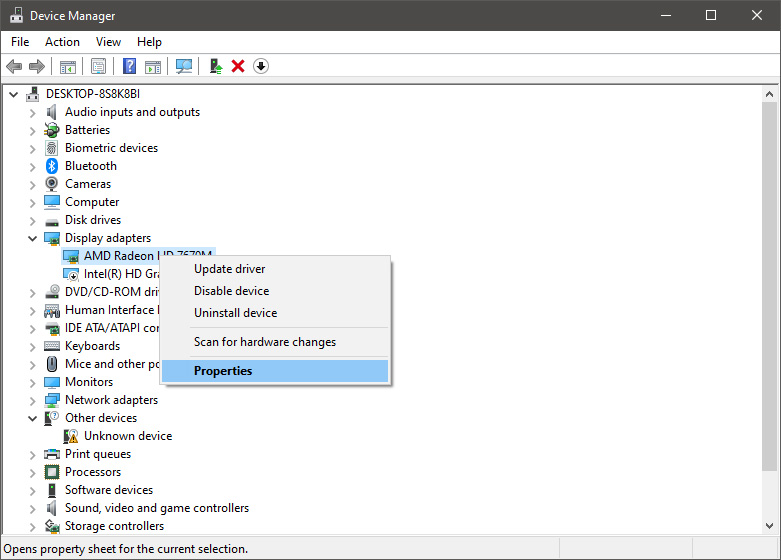
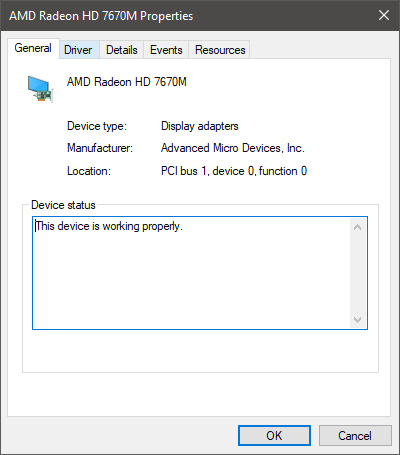
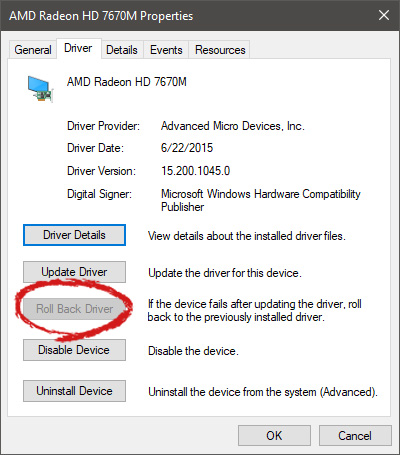
Installing Windows updates, installing a new driver from the manufacturer, or even just installing an application or game can cause sometimes certain components of your computer to stop working properly or introduce issues that were not present just before mentioned installation. Luckily for all of us, Microsoft seems aware of this potential issue and we have the option to roll back an older driver which performed well and had no issues at all. In order to do this first press ⊞ WINDOWS + X to open the hidden start menu and click on Device Manager. keyboard with windows and x markedFrom the Device Manager choose the troublesome device and right-click on it, choose properties. AMD device driver inside device managerDevice properties floating Window will appear. AMD driver properties WindowClick on the top tab which says, Driver. From the Driver tab, click on Roll Back Driver. AMD driver rollback markedNote that if the device is working properly, the Roll Back Driver button will be greyed out and you will not be able to click on it meaning that chosen device is not the issue. If the device is not working properly and you can click on Roll Back driver, do it, choose the previous version, and reboot your computer. You can use this method to get back to the previous driver version for any device that is causing issues in your computer.
Read More
Nostalgic gaming with Retroid pocket 2
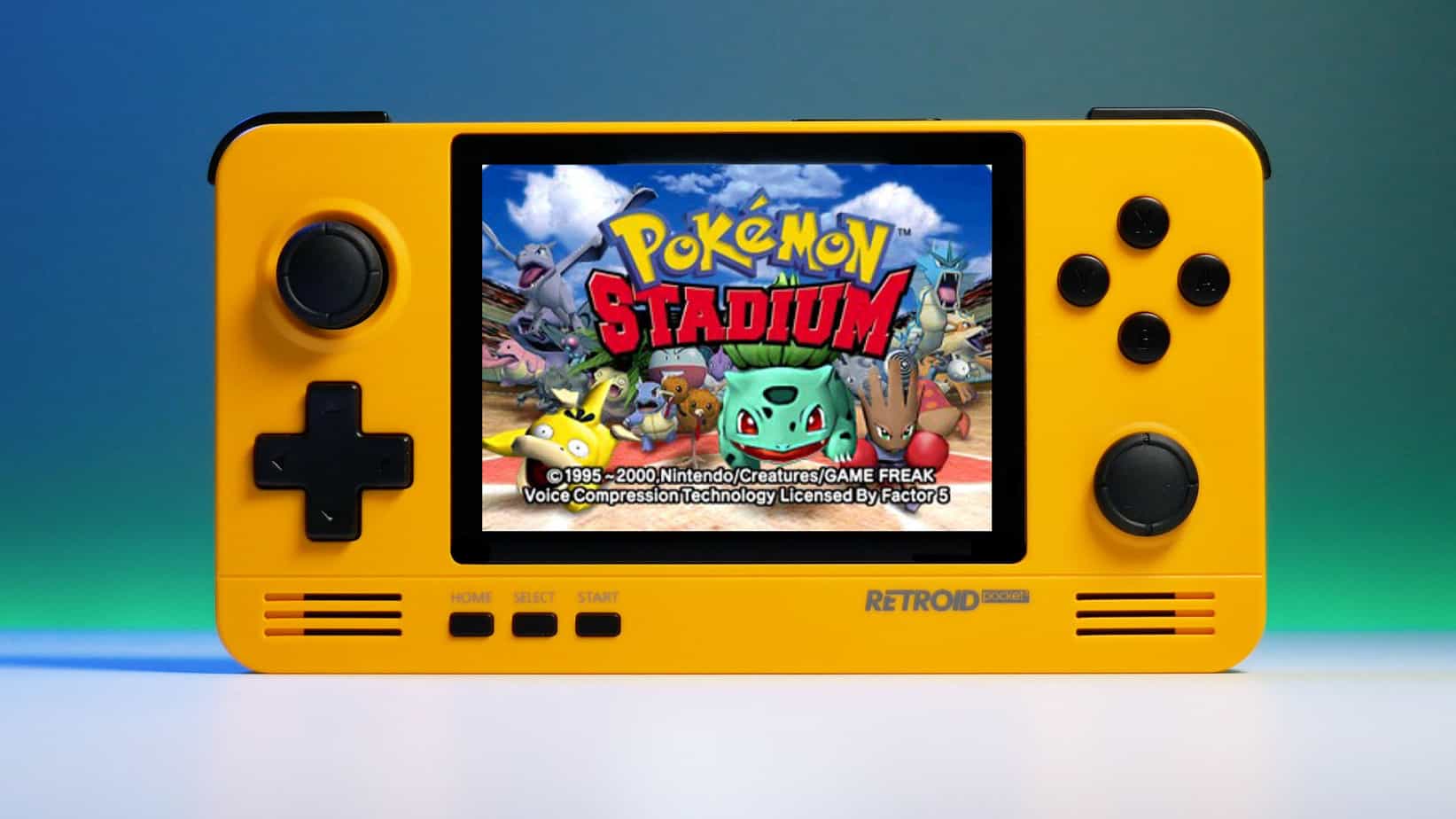
We have talked about gaming on old computers and have covered new and upcoming Steam deck handheld console. Today we are combining old gaming with a handheld console and our target of talk is Retroid pocket 2. This product is packed with really high-quality plastic and with some great features in it. retroid pocket 2So let's dive into this cool handheld in more detail and find out why we like it so much.

Good manufacturing quality

Plastic and overall manufacturing quality are really, really good. The battery is great, packing 4000mAh that can hold over 3 hours of nonstop gaming, and all buttons and joysticks are great. The screen is a 640 x 480 60Hz 3.5″ IPS screen (4:3 aspect ratio) that performs really great for its purpose, retro gaming. There is a Digital D-Pad and dual analog joysticks. The right joystick is the lower profile to avoid being accidentally moved when pressing the four gaming buttons. There are three buttons at the bottom which are Home, Start, and Select. On either side are good-quality stereo speakers. On the bottom of the device are a Micro SD Card slot and a 3.5mm headphone port. On the top of the device are Left and Right shoulder and trigger buttons. There are the power button and volume adjustments. There are a USB Type-C OTG port and a Micro HDMI output for connection to a TV.

Good technical statistics

Good, not great but then again since this is retro handheld you cannot really expect some crazy stuff like alder lake inside. So the console is punching ARM Cortex A7 CPU with 2 cores and a clock of 1.5GHz paired with ARM Mali 400-MP2 500MHz GPU. The console has 1GB LPDDR3 RAM memory and 8GB eMMC Storage where 5GB is freely available, the rest is taken for OS. As mentioned before the display is 640x480 resolution with a size of 3.5″. The battery is Lithium-Ion with a power of 4000mAh and on the handheld, there is a USB Type-C connector, 3.5mm headphone jack, and Micro-HDMI. It also has Wifi/Bluetooth 4.0

Retroid Pocket 2 OS and support

Pocket 2 comes with Android 6 but you can update its firmware to the 8.1 version on the official site that I would highly recommend. New versions of the handheld will come with 8.1 on it from the box. Having Android as OS opens many possibilities like you can download Android apps such as Steam Link, allowing you to play actual PC games on your Retroid Pocket 2. Not just that, if it does get a newer version of Android it could even have the ability to use xCloud, Xbox’s cloud gaming service. Of course, hardware will not be able to handle modern games but the option is still there and for some old PC titles available on steam like Commander Keen, for example, this is a great option. The console can emulate basically everything up to Dreamcast, including N64, PSP, and Playstation 1. It can emulate Nintendo DS also, but it can only do so with one screen. The only problem with this console is you will need to install and update Apps. You’ll need to learn about RetroArch, an app that lets you download emulators or cores to play games.

Retroid price

The last thing on the list is the price of the console itself. Going just under the 100$ mark this really makes it an affordable option for plenty of people that would like to experience retro handheld gaming or for ones like me, nostalgic gamers wanting to relive some era of playing games on the road.

Conclusion

Among Chinese handheld devices for retro gaming, Retroid Pocket 2 is really on top of what the market can offer. If you are looking for a great handheld retro console and are not afraid of little dive-ins into the OS and various configurations, Pocket 2 will reward you with plenty and wide emulation support.
Read More
Easy Remove FreeRideGames PUP Removal Tutorial

Free Ride Games is a desktop casual game program and potentially unwanted application. It sets its player to run in startup boot with Windows and installs additional files outside of its designated installation folders. The software reads PC information to display targeted advertising and runs a background process that cannot be shut down even by exiting the FreeRide Player. The player runs in full screen with no visible window controls to exit or minimize, and contains unskippable advertising in its function. While not malicious, the FreeRide Player possesses many traits that as of publication time have caused some AntiVirus programs to designate it as potentially unwanted adware. It has also been associated with adware distribution toolbars such as GameVance.

About Browser Hijackers

Browser hijacking means a malicious code has power over and modified the settings of your browser, without your consent. Browser hijacker malware is created for a variety of reasons. Typically, hijackers will force hits to websites of their preference either to increase web traffic generating higher ad earnings, or to gain a commission for each and every user visiting there. Many people think that such websites are legitimate and harmless but that is incorrect. Nearly every browser hijacker poses an actual threat to your online safety and it is vital to categorize them under privacy risks. When the malware attacks your computer or laptop, it begins to mess things up a whole that slows your system down to a crawl. In the worse case, you will be pushed to deal with serious malware threats as well.

Browser hijacking signs

There are numerous signs that could indicate a browser hijacking: 1. you find unauthorized modifications to your Internet browser’s home-page 2. when you enter a URL, you find yourself regularly directed to some other website than the one you actually intended 3. the default web engine and the default browser settings are modified 4. discover new toolbars that you didn’t add 5. you might find numerous pop-up adverts on your computer screen 6. your internet browser has become unstable or starts running sluggishly 7. you are blocked to access those sites of security solution providers.

How it infects your computer

Browser hijackers could use drive-by downloads or file-sharing websites or even an email attachment to reach a targeted computer. They can also come from any BHO, extension, toolbar, add-on, or plug-in with malicious objectives. Also, certain freeware and shareware can put the hijacker in your computer through the “bundling” technique. An example of some notorious browser hijacker includes Conduit, Anyprotect, Babylon, DefaultTab, SweetPage, Delta Search, and RocketTab, but the names are constantly changing. Browser hijacking can lead to serious privacy issues and also identity theft, affect your web browsing experience by taking control of outbound traffic, substantially slows down your personal computer by depleting a lot of resources and lead to system instability as well.

How to remove a browser hijacker

Some hijackers could be removed by just uninstalling the related freeware or add-ons through the Add or Remove Programs in the Windows Control Panel. However, most hijackers are difficult to eliminate manually. Regardless of how much you attempt to get rid of it, it might keep returning again and again. Furthermore, manual removals demand in-depth system knowledge and therefore can be an extremely difficult task for beginner computer users.

Can't Install Safebytes Anti-malware due to the presence of Malware? Try This!

Malware can cause all kinds of damage when they invade your system, from stealing your personal details to erasing files on your computer system. Some malware sits in between the computer and your net connection and blocks a few or all internet sites that you really want to check out. It might also prevent you from adding anything on your PC, particularly anti-malware applications. If you are reading this, chances are you’re stuck with a malware infection that is preventing you to download and/or install the Safebytes Anti-Malware program on your system. Even though this sort of problem can be harder to get around, there are a few actions you can take.

Install the anti-virus in Safe Mode

If the virus is set to load automatically when Microsoft Windows starts, entering Safe Mode could block the attempt. Only minimal required applications and services are loaded when you boot your computer or laptop into Safe Mode. To launch your Windows XP, Vista, or 7 PCs in Safe Mode with Networking, please do as instructed below. 1) At power on, hit the F8 key while the Windows splash screen begins to load. This will bring up the Advanced Boot Options menu. 2) Select Safe Mode with Networking with arrow keys and hit ENTER. 3) When you are into this mode, you should have online access once again. Now, get the malware removal application you want by using the browser. To install the software, follow the directions in the setup wizard. 4) Following installation, run a complete scan and let the program delete the threats it discovers.

Download the antivirus program in an alternate browser

Web-based viruses could be environment-specific, aiming for a specific web browser or attacking specific versions of the browser. If you appear to have malware attached to Internet Explorer, then switch over to a different web browser with built-in safety features, such as Firefox or Chrome, to download your favorite antivirus program – Safebytes. Make a bootable USB antivirus drive Another option is to save and operate an anti-malware software program entirely from a USB drive. To run anti-malware from a USB drive, follow these simple steps: 1) Download the anti-malware program on a virus-free PC. 2) Plug in the pen drive into the clean computer. 3) Run the setup program by double-clicking the executable file of the downloaded application, which has a .exe file extension. 4) Select flash drive as the location when the wizard asks you exactly where you wish to install the application. Follow the directions to complete the installation process. 5) Remove the flash drive. Now you can use this portable antivirus on the infected computer. 6) Double-click the Safebytes Anti-malware icon on the thumb drive to run the software. 7) Click on the “Scan” button to run a full computer scan and remove viruses automatically. How SafeBytes Anti-Malware Keep your Machine Virus Free"]If you are planning to buy anti-malware for your desktop, there are numerous brands and applications for you to consider. Some are very good ones, some are decent, while some are merely bogus anti-malware applications that will damage your computer themselves! You have to look for a tool that has gained a strong reputation and detects not just viruses but other types of malware also. Among few good applications, SafeBytes Anti-Malware is the highly recommended program for the security-conscious end user. SafeBytes anti-malware is really a powerful, highly effective protection tool made to assist end-users of all levels of computer literacy in detecting and removing malicious threats from their PC. After you have installed this tool, SafeBytes sophisticated protection system will make sure that no viruses or malicious software can seep through your PC. SafeBytes has excellent features when compared to other anti-malware programs. The following are some typical features found in this software: Active Protection: SafeBytes provides complete and real-time security for your personal machine. It will check your computer system for suspicious activity continuously and its unrivaled firewall protects your PC from unauthorized access by the outside world. Most effective AntiMalware Protection: Using its enhanced and sophisticated algorithm, this malware removal tool can detect and eliminate the malware threats hiding in your computer system effectively. Web Protection: SafeBytes checks and gives a unique safety rating to each and every website you visit and block access to webpages considered to be phishing sites, thus safeguarding you from identity theft, or known to contain malicious software. Faster Scanning: Safebytes Anti-Malware, using its advanced scanning engine, provides extremely fast scanning which can quickly target any active online threat. Light-weight: This software is lightweight and will work silently in the background, and that does not have an effect on your computer efficiency. 24/7 Online Tech Support: You can get 24/7 technical support to promptly resolve any concern with your security tool.

Technical Details and Manual Removal (Advanced Users)

If you wish to manually remove FreeRideGames without the use of an automated tool, it may be possible to do so by removing the program from the Windows Add/Remove Programs menu, or in cases of browser extensions, going to the browsers AddOn/Extension manager and removing it. You will likely also want to reset your browser. To ensure the complete removal, manually check your hard drive and registry for all of the following and remove or reset the values accordingly. Please note that this is for advanced users only and may be difficult, with incorrect file removal causing additional PC errors. In addition, some malware is capable of replicating or preventing deletion. Doing this in Safe Mode is advised.

The following files, folders, and registry entries are created or modified by FreeRideGames.

Files: C:21984fa691bd80870e3e3f15cc83121a5862cef4abf2989844d858b2c64b0f C:DOCUME1USER1LOCALS1TempSDM143C:21984fa691bd80870e3e3f15cc83121a5862cef4abf2989844d858b2c64b0f C:DOCUME1USER1LOCALS1TempSDM143%#MANIFEST#%01235B C:DOCUME1USER1LOCALS1TempSDM143cmhelper.exe C:DOCUME1USER1LOCALS1TempSDM143ExentCtlInstaller.dll C:DOCUME1USER1LOCALS1TempSDM143Free Ride Games.exe C:DOCUME1USER1LOCALS1TempSDM143resourceDll.dll C:WINDOWSRegistrationR000000000007.clb C:WINDOWSsystem32msxml3r.dll C:21984fa691bd80870e3e3f15cc83121a5862cef4abf2989844d858b2c64b0f C:DOCUME1USER1LOCALS1TempSDM143%#MANIFEST#%01235B C:WINDOWSRegistrationR000000000007.clb C:DOCUME1USER1LOCALS1TempSDM143Free Ride Games.exe C:DOCUME1USER1LOCALS1Temp_uninsep.bat C:WINDOWSsystem32rsaenh.dll C:Documents and SettingsUSERLocal SettingsTemp_uninsep.bat C:WINDOWSsystem32shdocvw.dll C:WINDOWSsystem32stdole2.tlb c:autoexec.bat C:DOCUME1USER1LOCALS1TempSDM143%#MANIFEST#%01235B C:DOCUME1USER1LOCALS1TempSDM143cmhelper.exe C:DOCUME1USER1LOCALS1TempSDM143ExentCtlInstaller.dll C:DOCUME1USER1LOCALS1TempSDM143Free Ride Games.exe C:DOCUME1USER1LOCALS1TempSDM143resourceDll.dll C:DOCUME1USER1LOCALS1Temp_uninsep.bat C:DOCUME1USER1LOCALS1TempSDM143SDMLog.log C:DOCUME1USER1LOCALS1TempSDM143SDM_DB_143.xml C:DOCUME1USER1LOCALS1TempSDM143FreeRideGames.exe C:DOCUME1USER1LOCALS1Temp_uninsdm.bat C:DOCUME1USER1LOCALS1Temppft3.tmpIKernel.ex_ C:DOCUME1USER1LOCALS1TempIEC4.tmp C:Program FilesCommon FilesInstallShieldEngineIntel 32temp.000 C:Program FilesCommon FilesInstallShieldEngineIntel 32IKernel.exe C:DOCUME1USER1LOCALS1TempSDM143Free Ride Games.exe C:DOCUME1USER1LOCALS1Temp_uninsep.bat C:DOCUME1USER1LOCALS1TempSDM143FreeRideGames.exe C:DOCUME1USER1LOCALS1TempSDM143FreeRideGames.exe C:DOCUME1USER1LOCALS1Temp_uninsdm.bat C:DOCUME1USER1LOCALS1Temppft3.tmpSetup.exe C:Program FilesCommon FilesInstallShieldEngineIntel 32IKernel.exe -RegServer01235B C:DOCUME1USER1LOCALS1TempSDM143cmhelper.exe C:DOCUME1USER1LOCALS1TempSDM143ExentCtlInstaller.dll C:DOCUME1USER1LOCALS1TempSDM143Free Ride Games.exe C:DOCUME1USER1LOCALS1TempSDM143resourceDll.dll C:WINDOWSRegistrationR000000000007.clb C:WINDOWSsystem32msxml3r.dll C:21984fa691bd80870e3e3f15cc83121a5862cef4abf2989844d858b2c64b0f C:DOCUME1USER1LOCALS1TempSDM143C:21984fa691bd80870e3e3f15cc83121a5862cef4abf2989844d858b2c64b0f C:DOCUME1USER1LOCALS1TempSDM143%#MANIFEST#%01235B C:DOCUME1USER1LOCALS1TempSDM143cmhelper.exe C:DOCUME1USER1LOCALS1TempSDM143ExentCtlInstaller.dll C:DOCUME1USER1LOCALS1TempSDM143Free Ride Games.exe C:DOCUME1USER1LOCALS1TempSDM143resourceDll.dll C:WINDOWSRegistrationR000000000007.clb C:WINDOWSsystem32msxml3r.dll C:21984fa691bd80870e3e3f15cc83121a5862cef4abf2989844d858b2c64b0f C:DOCUME1USER1LOCALS1TempSDM143%#MANIFEST#%01235B C:WINDOWSRegistrationR000000000007.clb C:DOCUME1USER1LOCALS1TempSDM143Free Ride Games.exe C:DOCUME1USER1LOCALS1Temp_uninsep.bat C:WINDOWSsystem32rsaenh.dll C:Documents and SettingsUSERLocal SettingsTemp_uninsep.bat C:WINDOWSsystem32shdocvw.dll C:WINDOWSsystem32stdole2.tlb c:autoexec.bat C:DOCUME1USER1LOCALS1TempSDM143%#MANIFEST#%01235B C:DOCUME1USER1LOCALS1TempSDM143cmhelper.exe C:DOCUME1USER1LOCALS1TempSDM143ExentCtlInstaller.dll C:DOCUME1USER1LOCALS1TempSDM143Free Ride Games.exe C:DOCUME1USER1LOCALS1TempSDM143resourceDll.dll C:DOCUME1USER1LOCALS1Temp_uninsep.bat C:DOCUME1USER1LOCALS1TempSDM143SDMLog.log C:DOCUME1USER1LOCALS1TempSDM143SDM_DB_143.xml C:DOCUME1USER1LOCALS1TempSDM143FreeRideGames.exe C:DOCUME1USER1LOCALS1Temp_uninsdm.bat C:DOCUME1USER1LOCALS1Temppft3.tmpIKernel.ex_ C:DOCUME1USER1LOCALS1TempIEC4.tmp C:Program FilesCommon FilesInstallShieldEngineIntel 32temp.000 C:Program FilesCommon FilesInstallShieldEngineIntel 32IKernel.exe C:DOCUME1USER1LOCALS1TempSDM143Free Ride Games.exe C:DOCUME1USER1LOCALS1Temp_uninsep.bat C:DOCUME1USER1LOCALS1TempSDM143FreeRideGames.exe C:DOCUME1USER1LOCALS1TempSDM143FreeRideGames.exe C:DOCUME1USER1LOCALS1Temp_uninsdm.bat C:DOCUME1USER1LOCALS1Temppft3.tmpSetup.exe C:Program FilesCommon FilesInstallShieldEngineIntel 32IKernel.exe -RegServer01235B C:WINDOWSRegistrationR000000000007.clb C:DOCUME1USER1LOCALS1TempSDM143Free Ride Games.exe C:DOCUME1USER1LOCALS1Temp_uninsep.bat C:WINDOWSsystem32rsaenh.dll C:Documents and SettingsUSERLocal SettingsTemp_uninsep.bat C:WINDOWSsystem32shdocvw.dll C:WINDOWSsystem32stdole2.tlb c:autoexec.bat C:DOCUME1USER1LOCALS1TempSDM143C:21984fa691bd80870e3e3f15cc83121a5862cef4abf2989844d858b2c64b0f C:DOCUME1USER1LOCALS1TempSDM143%#MANIFEST#%01235B C:DOCUME1USER1LOCALS1TempSDM143cmhelper.exe C:DOCUME1USER1LOCALS1TempSDM143ExentCtlInstaller.dll C:DOCUME1USER1LOCALS1TempSDM143Free Ride Games.exe C:DOCUME1USER1LOCALS1TempSDM143resourceDll.dll C:WINDOWSRegistrationR000000000007.clb C:WINDOWSsystem32msxml3r.dll C:21984fa691bd80870e3e3f15cc83121a5862cef4abf2989844d858b2c64b0f C:DOCUME1USER1LOCALS1TempSDM143%#MANIFEST#%01235B C:WINDOWSRegistrationR000000000007.clb C:DOCUME1USER1LOCALS1TempSDM143Free Ride Games.exe C:DOCUME1USER1LOCALS1Temp_uninsep.bat C:WINDOWSsystem32rsaenh.dll C:Documents and SettingsUSERLocal SettingsTemp_uninsep.bat C:WINDOWSsystem32shdocvw.dll C:WINDOWSsystem32stdole2.tlb c:autoexec.bat C:DOCUME1USER1LOCALS1TempSDM143%#MANIFEST#%01235B C:DOCUME1USER1LOCALS1TempSDM143cmhelper.exe C:DOCUME1USER1LOCALS1TempSDM143ExentCtlInstaller.dll C:DOCUME1USER1LOCALS1TempSDM143Free Ride Games.exe C:DOCUME1USER1LOCALS1TempSDM143resourceDll.dll C:DOCUME1USER1LOCALS1Temp_uninsep.bat C:DOCUME1USER1LOCALS1TempSDM143SDMLog.log C:DOCUME1USER1LOCALS1TempSDM143SDM_DB_143.xml C:DOCUME1USER1LOCALS1TempSDM143FreeRideGames.exe C:DOCUME1USER1LOCALS1Temp_uninsdm.bat C:DOCUME1USER1LOCALS1Temppft3.tmpIKernel.ex_ C:DOCUME1USER1LOCALS1TempIEC4.tmp C:Program FilesCommon FilesInstallShieldEngineIntel 32temp.000 C:Program FilesCommon FilesInstallShieldEngineIntel 32IKernel.exe C:DOCUME1USER1LOCALS1TempSDM143Free Ride Games.exe C:DOCUME1USER1LOCALS1Temp_uninsep.bat C:DOCUME1USER1LOCALS1TempSDM143FreeRideGames.exe C:DOCUME1USER1LOCALS1TempSDM143FreeRideGames.exe C:DOCUME1USER1LOCALS1Temp_uninsdm.bat C:DOCUME1USER1LOCALS1Temppft3.tmpSetup.exe C:Program FilesCommon FilesInstallShieldEngineIntel 32IKernel.exe -RegServer01235B C:DOCUME1USER1LOCALS1TempSDM143cmhelper.exe C:DOCUME1USER1LOCALS1TempSDM143ExentCtlInstaller.dll C:DOCUME1USER1LOCALS1TempSDM143Free Ride Games.exe C:DOCUME1USER1LOCALS1TempSDM143resourceDll.dll C:DOCUME1USER1LOCALS1Temp_uninsep.bat C:DOCUME1USER1LOCALS1TempSDM143SDMLog.log C:DOCUME1USER1LOCALS1TempSDM143SDM_DB_143.xml C:DOCUME1USER1LOCALS1TempSDM143FreeRideGames.exe C:DOCUME1USER1LOCALS1Temp_uninsdm.bat C:DOCUME1USER1LOCALS1Temppft3.tmpIKernel.ex_ C:DOCUME1USER1LOCALS1TempIEC4.tmp C:Program FilesCommon FilesInstallShieldEngineIntel 32temp.000 C:Program FilesCommon FilesInstallShieldEngineIntel 32IKernel.exe C:DOCUME1USER1LOCALS1TempSDM143Free Ride Games.exe C:DOCUME1USER1LOCALS1Temp_uninsep.bat C:DOCUME1USER1LOCALS1TempSDM143FreeRideGames.exe C:DOCUME1USER1LOCALS1TempSDM143FreeRideGames.exe C:DOCUME1USER1LOCALS1Temp_uninsdm.bat C:DOCUME1USER1LOCALS1Temppft3.tmpSetup.exe C:Program FilesCommon FilesInstallShieldEngineIntel 32IKernel.exe -RegServer

Read More
Fix Chrome is Waiting for cache in Windows
There are times when you may encounter some glitches on your Google Chrome browser in your Windows 10 computer. One of these glitches is when the connection status of Chrome keeps on saying “Waiting for cache” which is displayed at the bottom-left side of the browser in the Status bar. At the time of writing, it isn’t clear yet what could be causing this problem. Although it is possible that it’s caused by browser cache, some extensions in the browser. On the other hand, it could also be caused by the browser profile or due to some fragmented files or that the SSD is occupied. Whatever the cause is, you can check out each one of the given options below to fix the problem.

Option 1 – Try clearing browser cache

There are times when some data in the browser is conflicting with the loading of the website and triggers some problems like “Waiting for cache”. And so you can try to clear your browser’s data. This might be a very basic solution but oftentimes it works in fixing this kind of error in Google Chrome. Follow the steps below to clear the data in your browser.
  • Open your Google Chrome browser.
  • After that, tap the Ctrl + H keys. Doing so will open a new panel that allows you to delete the browsing history and other data in your browser.
  • Now select every checkbox that you see and click on the Clear browsing data button.
  • Then restart your Chrome browser and check if you can now open any website or not.

Option 2 – Try to disable writing of Cache files to the SSD

You can also disable the writing of Cache files to the SSD to stop Google Chrome’s dependency on the SSD to gather all the cache files.

Option 3 – Delete the User Profile in Chrome

You can also try deleting the User Profile folder in Chrome. To do so, follow these steps:
  • You need to first end every single process of Google Chrome. To do so, right-click on the Taskbar then select the Task Manager. And if the Task Manager is not responding, you can just use the Alt + Ctrl + Del keys and then select the Task Manager.
  • After opening the Task Manager, under Processes, look for Google Chrome’s process which would most likely be named “chrome.exe”.
  • Right-click on Google Chrome’s process and then select the End task option.
  • Next, tap the Win + R keys to open the Run dialogue box.
  • Then copy and paste “%USERPROFILE%AppDataLocalGoogleChromeUser Data” and hit Enter.
  • From there, look for a folder named “Default folder” and then copy the folder to another drive as a backup.
  • After creating a copy of the folder, delete the Default folder.
  • Next, open Google Chrome again and go to Settings > Advanced > Reset.

Option 4 – Reset Chrome

Resetting Chrome can also help you fix the error. This means that you will be restoring its default settings, disabling all the extensions, add-ons, and themes. Aside from that, the content settings will be reset as well and the cookies, cache, and site data will also be deleted. To reset Chrome, here’s what you have to do:
  • Open Google Chrome, then tap the Alt + F keys.
  • After that, click on Settings.
  • Next, scroll down until you see the Advanced option, once you see it, click on it.
  • After clicking the Advanced option, go to the “Restore and clean up option and click on the “Restore settings to their original defaults” option to reset Google Chrome.
  • Now restart Google Chrome.

Option 5 – Try to clean reinstall Chrome

There are instances when programs leave files behind after you’ve uninstalled them and the same thing can happen to Chrome so before you reinstall Chrome, you have to make sure that you have deleted the User Data folder. To do so, refer to the following steps:
  • Hit the Win + R keys to open the Run dialog box.
  • Next, type “%LOCALAPPDATA%GoogleChromeUser Data” in the field and hit Enter to open the User Data folder.
  • From there, rename the default folder and name it something else, e.g. “Default.old”.
  • After that, install Google Chrome again and check if the issue is now fixed.
Read More
1 2 3 171
Logo
Copyright © 2023, ErrorTools. All Rights Reserved
Trademark: Microsoft Windows logos are registered trademarks of Microsoft. Disclaimer: ErrorTools.com is not affiliated with Microsoft, nor claims direct affiliation.
The information on this page is provided for information purposes only.
DMCA.com Protection Status