Logo

Steam proton to run Windows games on Linux

Steam protonDespite popular belief, there are a lot of users running Linux OS. Linux offers great security and working environment and 96.3% of the world's top 1 million servers run on Linux. 90% of all cloud infrastructure operates on Linux and practically all the best cloud hosts use it. But gaming on Linux is limited, enter Steam proton a Valve’s gaming solution.

What is Steam proton?

Proton is a WINE fork with some extra capabilities, to play games and run applications not native and not made to run natively under Linux OS. It is supposed to bridge the Gaming issues for PC users and let them more freedom in choosing an operating system to game on.

Find out if your game supports Proton

Although there are a lot of titles that nowadays run natively on Linux some will still need proton in order to run at all and sadly some of them will not be able to run on Linux even via proton but seeing how Valve is busy and it is trying to push its ideas and technology slowly this gap is closing.

In order to see how the game you want to play performs and behaves on Linux and proton environment visit https://www.protondb.com/ and find out. As soon as the site loads you will be greeted with statistics and a search option to find out the status of the desired game with one of the given statuses: Borked, Bronze, Silver, Gold, Platinum, and Native.

As you probably guessed native means that the game will work on Linux out of the box and borked will probably not work at all. Platinum and gold status means that game will run on proton without any input or tweaks from the user while silver and bronze means that it will work but might need some tweaks in order to make it work.

How to get Steam proton?

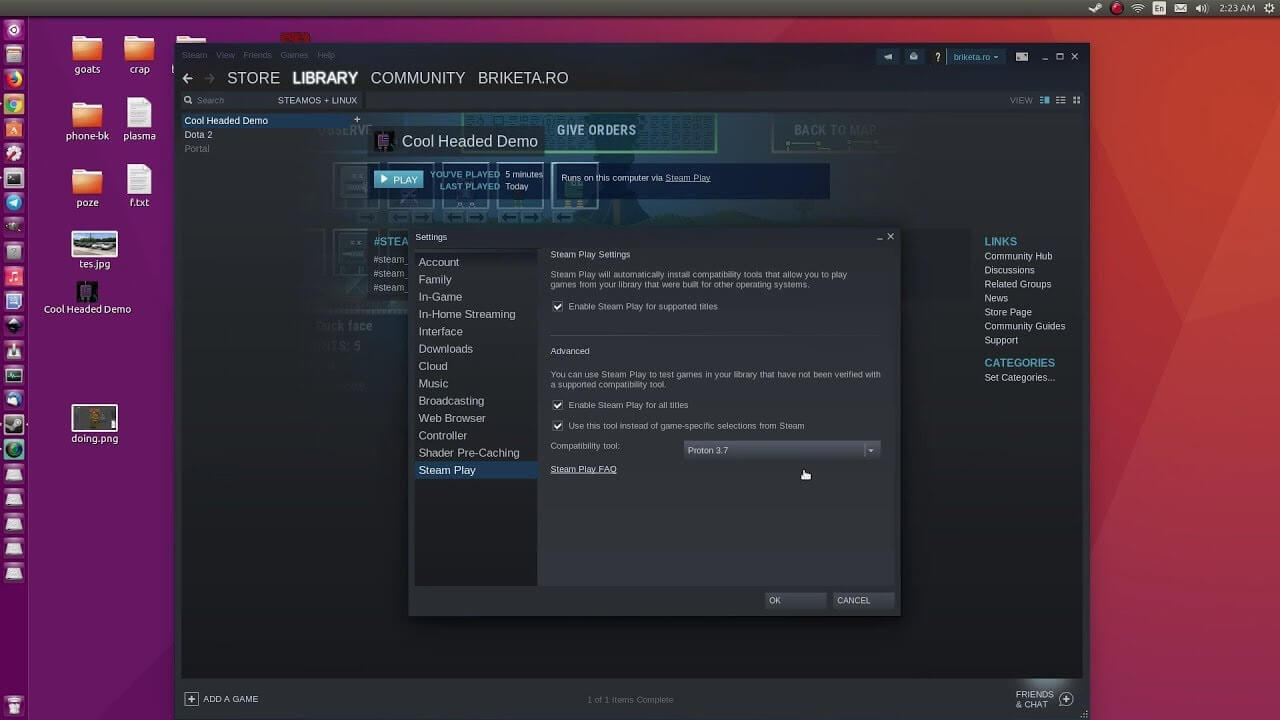
In order to run games under proton inside Linux, you will need firstly a Steam client which luckily works naturally on Linux. Unlocking/activating Steam Proton on your Linux-based system is easy. Just head over to Steam > Settings > Steam Play and toggle the option “Enable Steam Play for Supported Titles”.

Valve has tested and fixed some Steam titles and you will now be able to play those titles. However, if you wish to go even further beyond, and play titles that even Valve has not tested, toggle the option “Enable Steam Play for all titles”.

Conclusion

Even we are not there yet, native gaming on Linux is gaining a foothold each day. Will Steam’s OS with proton technology be one that will turn the tide from Windows or some other tech we cannot tell but one thing is for sure, more choices mean better products so I am hopeful for a bright future.

Do You Need Help with Your Device?

Our Team of Experts May Help
Troubleshoot.Tech Experts are There for You!
Replace damaged files
Restore performance
Free disk space
Remove Malware
Protects WEB browser
Remove Viruses
Stop PC freezing
GET HELP
Troubleshoot.Tech experts work with all versions of Microsoft Windows including Windows 11, with Android, Mac, and more.

Share this article:

You might also like

Quick Solution Guide to Error Code 40

Error Code 40 – What is it?

Error Code 40 is a device driver error that users encounter on any Windows 2000 and later operating systems. It occurs when the peripheral device that you connect to your PC cannot be accessed due to a change in the system registry.

This is due to the presence of invalid sub-keys of the device driver in the system registry. It is a common error that users come across and appears on your PC with either of the following messages:

“Information in the registry entry for this driver is invalid”

OR

"Windows cannot access this hardware because its service key information in the registry is missing or recorded incorrectly. (Code 40)"

Solution

driverfix boxError Causes

As mentioned above, the error code is triggered when the device driver’s invalid sub-keys appear in the registry, effectively changing it. This happens when the windows system files get damaged due to the following factors:

  • An incomplete program uninstallation
  • An incomplete program installation
  • Hardware is not removed properly
  • System recovery from viruses
  • An improper system shut down

Factors such as incomplete installations or uninstallations or an improper system shut down can cause files to become damaged that threaten the health of your computer.

Removing viruses from the computer is also another factor as it removes the entries in the Windows system files which contain the viruses including spyware or malware

Further Information and Manual Repair

Fixing Error Code 40 is similar to fixing other device manager error codes. Here are a few methods you can try.

Method 1 – Use System Restore

You can use system restore to eliminate the problem. Here is how you can use it:

  • Log in using an Administrator account
  • Click ‘Start’ button and select All Programs > Accessories > System Tools > System Restore
  • Click ‘Restore my computer to an earlier time’ and click ‘Next’
  • Select the last Windows restore point from the ‘On this list, click a restore point’ list, and click ‘Next’
  • Click ‘Next’ on the confirmation window to proceed
  • Restart your PC after restoration is complete
By restoring the system via a last saved system checkpoint, you can obtain undamaged Windows system registry files that can help avert the error code.

Method 2 – Manually uninstall then reinstall the device driver

If using system restore also does not work in removing the error code, you may have to resort to manually uninstalling and then reinstalling the device driver causing the problem.

This would be necessary since the remaining incomplete files due to a partial removal or installation of programs is what contributes to the error code. By uninstall and reinstalling the device driver program, it would lead to the completion of the files.

You can do this by firstly logging in as Administrator and open Device Manager. Select the device that is causing the problem and double click it and make sure that the peripheral is connected properly to the PC. Upon opening, click on the ‘Driver’ tab and then select ‘Update Driver’.

Make sure to refer to the system documentation that you received with your PC or computer to check for the motherboard details and driver specifics.

Method 3 – Use software to automatically download the driver

Manually uninstalling and reinstalling the driver will do the trick, however, it may be time-consuming especially when you would have to resort to your hardware user manual.

Therefore, using a program such as DriverFIX can save you a lot of time and frustration in having your device work properly on your computer.

DriverFIX, with its user-friendly approach to help you fix your PC issues, comes with an integrated database that detects which drivers you need to reconfigure within just a few seconds and downloads it automatically.

It further ensures that your drivers are installed in their entirety leaving no room for any incomplete files to remain that create Error Code 40.

It also has the added advantage of being able to backup and restores your files should there be the slightest possibility of system file damage.

Thus, registry damage can be averted by letting the software roll back the system files to an earlier healthy checkpoint. Driver Assist is the answer to fixing your PC error codes accurately and quickly.

Click here to download DriverFIX to fix Error Code 40 quickly and effectively!
Read More
How to Remove FileShareFanatic

FileShareFanatic is a browser extension developed by Mindspark Inc. This extension offers users the ability to quickly access some of the most popular file-sharing websites. While this may sound tempting and useful at start, using this extension might prove more annoying then useful.

When installed FileShareFanatic hijacks your new tab page changing your default search engine to search.myway.com. Additionally it monitors user activity, recording visited websites, clicked links, viewed products, and whatever other information that can be used by the Ad network to display targeted Ads.

While browsing the internet with this extension you will notice an increase of ads on pages, especially in search results. This extension injects additional ads, sponsored links, and even displays pop-up ads in order to gain revenue.

FileShareFanatic has been marked as a Browser Hijacker by several top anti-virus scanners, and is scheduled for deletion.

About Browser Hijackers

Browser hijacking is considered the web’s constant danger that targets browsers. It is a kind of malicious software that modifies your internet browser’s configuration settings so that you are redirected to websites or pages that you had no intention of visiting. Browser hijackers can do more than simply modifying homepages. It redirects you to the sponsored sites and inserts advertisements on your browser which helps its developer generate earnings. It might appear naive, but most of these websites are not legitimate and will pose a major risk to your online safety. Browser hijackers can even let other vicious programs without your knowledge to further damage your PC.

Symptoms of browser hijack

There are numerous symptoms of browser hijacking: 1. you see unauthorized modifications to your internet browser’s homepage 2. you get re-directed to internet sites you never meant to visit 3. default online search engine is modified 4. discover new toolbars which you did not add 5. you observe lots of pop-ups on your screen 6. your web browser gets slow, buggy, and crashes frequently 7. Inability to navigate to certain sites, especially anti-malware as well as other security software webpages.

How they infect computers

Browser hijackers attack computers via malicious email attachments, downloaded infected documents, or by visiting infected internet sites. Many internet browser hijackings originate from add-on software, i.e., browser helper objects (BHO), toolbars, or extensions added to browsers to give them extra features. A browser hijacker could also be installed as a part of freeware, demoware, shareware and pirated programs. Browser hijackers can interrupt the user’s web browsing experience significantly, track the websites visited by users and steal sensitive information, cause difficulty in connecting to the internet, and eventually create stability problems, making software programs and computer to crash.

Removal

The one thing you can try to get rid of a browser hijacker is to find the malware within the “Add or Remove Programs” list in the Microsoft Windows Control Panel. It may or may not be there. If it is, try to uninstall it. But, most hijacking codes aren’t very easy to eliminate manually, as they go deeper into your operating system. Besides, browser hijackers could modify the Computer registry so that it could be very hard to repair manually, especially when you’re not a very tech-savvy individual. You can choose automatic browser hijacker removal by just installing and running reliable anti-malware software. If you need to get rid of persistent browser hijackers effectively, install the top-rated Anti-Malware software Safebytes Anti-Malware.

Find Out How To Install Safebytes Anti-Malware On An Infected PC

Malware can cause a lot of damage to your PC. Some malware types alter internet browser settings by including a proxy server or change the PC’s DNS configuration settings. When this happens, you’ll be unable to visit certain or all of the sites, and thus unable to download or install the required security software to remove the infection. If you are reading this, you may have infected by a virus that prevents you from downloading a security program such as Safebytes Antimalware on your PC. There are some actions you can take to circumvent this issue.

Download the application in Safe Mode with Networking

If the virus is set to load immediately when Microsoft Windows starts, entering Safe Mode could very well block the attempt. Since only the bare minimum programs and services launch in safe mode, there are hardly any reasons for conflicts to occur. To start your Windows XP, Vista or 7 computer in Safe Mode with Networking, please do as instructed below. 1) At power on, hit the F8 key before the Windows splash screen starts to load. This will bring up the Advanced Boot Options menu. 2) Choose Safe Mode with Networking with arrow keys and hit ENTER. 3) Once this mode loads, you will have the internet. Now, utilize your browser to download and install Safebytes Anti-malware. 4) As soon as the application is installed, allow the scan run to eliminate viruses and other malware automatically.

Switch to an alternate internet browser

Web-based viruses can be environment-specific, aiming for a particular web browser or attacking specific versions of the browser. The best solution to avoid this problem is to opt for a browser that is known for their security measures. Firefox comprises built-in Phishing and Malware Protection to keep you safe online.

Run antivirus from a USB drive

Another option is to make a portable antivirus program onto your USB thumb drive. To run antivirus from a thumb drive, follow these simple steps: 1) Download Safebytes Anti-Malware or Microsoft Windows Defender Offline onto a clean computer system. 2) Plug the Thumb drive into the uninfected computer. 3) Double-click the Setup icon of the anti-malware software to run the Installation Wizard. 4) Select the drive letter of the USB drive as the place when the wizard asks you exactly where you would like to install the anti-virus. Follow the directions to finish the installation process. 5) Unplug the pen drive. Now you can utilize this portable antivirus on the affected computer. 6) Double-click the anti-malware program EXE file on the thumb drive. 7) Simply click “Scan Now” to run a complete scan on the infected computer for malware.

SafeBytes Anti-Malware Features

To protect your personal computer from many different internet-based threats, it’s important to install an anti-malware application on your computer system. However, with countless numbers of anti-malware companies in the marketplace, nowadays it is challenging to decide which one you should purchase for your PC. Some are good ones, some are decent, and some are simply just fake anti-malware applications that could harm your personal computer themselves! You should choose one that is trustworthy, practical and has a strong reputation for its malware source protection. On the list of strongly recommended software by industry analysts is SafeBytes Anti-Malware, the most dependable program for Windows computers. SafeBytes anti-malware is a powerful, very effective protection application made to help users of all levels of computer literacy in finding and eliminating malicious threats from their computer. Once you’ve installed this program, SafeBytes state-of-the-art protection system will ensure that absolutely no viruses or malware can seep through your PC.

SafeBytes anti-malware takes PC protection to a totally new level with its enhanced features. These are some of the highlighted features included in the software.

World-class AntiMalware Protection: Built on a greatly acclaimed anti-virus engine, this malware removal tool can identify and get rid of several obstinate malware threats such as browser hijackers, potentially unwanted programs, and ransomware that other typical antivirus programs will miss. Real-time Threat Response: Malware programs attempting to get into the computer are discovered and stopped as and when detected by the SafeBytes active protection shields. It’ll examine your PC for suspicious activity at all times and its unrivaled firewall protects your computer from unauthorized access by the outside world. Safe Browsing: Safebytes assigns all sites a unique safety ranking that helps you to get an idea of whether the webpage you’re just about to visit is safe to browse or known to be a phishing site. Lowest Memory/CPU Usage: SafeBytes is a lightweight tool. It consumes a really small amount of processing power as it operates in the background therefore you will not see any computer performance difficulties. 24/7 Guidance: SafeBytes provides 24/7 technical support, automatic maintenance and updates for best user experience. All in all, SafeBytes Anti-Malware is a solid program as it has lots of features and could identify and remove any potential threats. Once you have downloaded and installed this software, you no longer need to worry about malware or any other security worries. So if you’re searching for the best anti-malware subscription for your Windows-based computer, we recommend SafeBytes Anti-Malware tool.

Technical Details and Manual Removal (Advanced Users)

If you wish to carry out the removal of FileShareFanatic manually instead of using an automated software tool, you may follow these measures: Proceed to the Windows Control Panel, click the “Add or Remove Programs” and there, choose the offending application to uninstall. In cases of suspicious versions of web browser plug-ins, you can easily get rid of it via your web browser’s extension manager. You’ll probably also want to reset your browser. To be certain of complete removal, find the following registry entries on your computer and remove it or reset the values appropriately. Having said that, editing the registry can be a complicated job that only advanced users and professionals should try to fix it. Furthermore, some malware is capable of replicating or preventing removal. It is advisable that you carry out the removal process in Windows Safe Mode.
Files: %UserProfile%\Local Settings\Application Data\FileShareFanaticTooltab %LOCALAPPDATA%\FileShareFanaticTooltab Registry: HKEY_LOCAL_MACHINE\Software\Microsoft\Internet Explorer\Approved Extensions, value: FB8C7587-6C03-425D-821D-65339B3E249E HKEY_CURRENT_USER\SOFTWARE\Wow6432Node\Microsoft\Windows\CurrentVersion\explorer\Browser Helper Objects\FB8C7587-6C03-425D-821D-65339B3E249E HKEY_CURRENT_USER\SOFTWARE\Microsoft\Windows\CurrentVersion\explorer\Browser Helper Objects\FB8C7587-6C03-425D-821D-65339B3E249E HKEY_CURRENT_USER\SOFTWARE\Wow6432Node\Microsoft\Windows\CurrentVersion\explorer\Browser Helper Objects\EA89EC10-2255-42A6-9AA7-84B4441C2DCA HKEY_CURRENT_USER\SOFTWARE\Microsoft\Windows\CurrentVersion\explorer\Browser Helper Objects\EA89EC10-2255-42A6-9AA7-84B4441C2DCA HKEY_LOCAL_MACHINE\Software\Microsoft\Windows\CurrentVersion\Ext\Stats\FB8C7587-6C03-425D-821D-65339B3E249E HKEY_LOCAL_MACHINE\Software\Microsoft\Windows\CurrentVersion\Ext\Stats\EA89EC10-2255-42A6-9AA7-84B4441C2DCA HKEY_LOCAL_MACHINE\Software\Microsoft\Windows\CurrentVersion\Ext\Settings\6E4DF5E6-A1D8-48E0-BA5A-91C5DBD6AAF1 HKEY_CURRENT_USER\SOFTWARE\Wow6432Node\Microsoft\Internet Explorer\SearchScopes\BDF4A303-E4F0-42F0-B235-351F6C8F6C1A HKEY_LOCAL_MACHINE\Software\Microsoft\Internet Explorer\SearchScopes\BDF4A303-E4F0-42F0-B235-351F6C8F6C1A HKEY_CURRENT_USER\SOFTWARE\Wow6432Node\Microsoft\Tracing\FileShareFanatic_RASMANCS HKEY_CURRENT_USER\SOFTWARE\Microsoft\Tracing\FileShareFanatic_RASMANCS HKEY_CURRENT_USER\SOFTWARE\Wow6432Node\Microsoft\Tracing\FileShareFanatic_RASAPI32 HKEY_CURRENT_USER\SOFTWARE\Microsoft\Tracing\FileShareFanatic_RASAPI32 HKEY_CURRENT_USER\SOFTWARE\Microsoft\Internet Explorer\DOMStorage\filesharefanatic.dl.myway.com HKEY_LOCAL_MACHINE\Software\FileShareFanatic
Read More
Can’t connect to this network Windows issue
Can’t connect to this network Internet connectivity issues present a complex problem with simple solutions for PC and laptop users. First, it is usually recommended that users rule out problems with the internet connection, router, and Wi-Fi settings before proceeding to troubleshoot settings on your PC/laptop. Once the rest are ruled out, we can then proceed with the following troubleshooting steps and guidelines to fix your wifi connection issue: The first step is to update your windows network adapter driver. Connectivity problems may arise if your network driver is not updated or if it is incompatible with the network adapter. To do so, you may resort to any third-party driver scanning and installing programs found online. This solution should have resorted if users don’t want the hassle of perusing through windows settings that users may not be familiar with. However, this solution requires a pre-existing internet connection other than wifi, so it is recommended you have a backup internet connection via ethernet.

The second step is to uninstall the driver for your network adapter. This solution is to be reported if there is an issue with the driver as restarting the PC after the following steps let windows reinstall the driver again:

  • Open the quick access menu on your keyboard by pressing the Windows key and X key at the same time and select “Device Manager” from the menu list.
  • From the list of devices, select “Network Adapters”
  • Usually on the top of the list is the Wireless Network Adapter
  • Right-click the Wireless Network Adapter and select the option to “Uninstall device”
  • You will be given a confirmation in a new separate window to proceed. Click “Uninstall” to proceed.
  • After completing the previous steps, try rebooting your Windows PC and reconnecting to see if it works.

A third step is to disable the 802.1 1n modes of your network adapter by following the next steps:

  • First press the Windows logo key and the X key at the same time to bring up the quick-access menu. And like the previous step, select “Device Manager”
  • From the list of devices, select “Network Adapters”
  • Right-click the Wireless Network Adapter from the drop-down menu and select properties
  • Under properties, select the “Advanced” tab then select the 802.1 1n Mode. To the right drop-down menu change the option to  “Disabled” and click “Ok”
  • After, try to re-establish the connection to see if the steps have worked.
In the event that any of the preceding did not fix your problem, it helps to take a second look at the router and network settings using the interface provided by your ISP. A simple reset to the back of your router often fixes the issue. Also, try to check if you have any other administrative capabilities over the network to determine whether your device, in particular, has been MAC filtered or if the frequency of your wireless adapter is not compatible with the broadcast frequency of your router.
Read More
InboxAce Removal Tutorial

InboxAce is a browser extension for Google Chrome developed by Mindspark and gives users easy access to the most popular email clients with just 1 click away. This extension changes your default search engine, as well as your home page to MyWay.com. Several anti-virus scanners have marked this extension as a Browser Hijacker due to its information mining nature.

While installing this extension monitors user browsing activities. It logs the website you visit, the links you click, the products you buy, basically everything that you do in a browser. This information is later used to display unwanted targeted ads that are injected into your search results.

About Browser Hijackers

Browser hijacking means that a malicious code has power over and modified the settings of your internet browser, without your consent. Browser hijacker malware is designed for many different reasons. Typically, it will drive users to particular websites which are looking to increase their advertising campaign revenue. Many people believe that these kinds of sites are legitimate and harmless but that is incorrect. Almost every browser hijacker poses an actual threat to your online safety and it is vital to classify them under privacy risks. Browser hijackers can also permit other malicious programs without your knowledge to further damage the computer.

How to determine if your browser has been hijacked

Signs that an internet browser is hijacked include: the home page of your respective browser is changed unexpectedly; you observe new unwanted favorites or bookmarks added, usually directed to ad-filled or pornography sites; default online search engine is modified; find new toolbars which you did not add; unstoppable flurries of popup advertisements show up on your computer screen; your browser gets slow, buggy, crashes very often; Inability to navigate to particular sites, especially anti-malware and also other security software sites.

How it infects your PC

Browser hijackers might use drive-by downloads or file-sharing websites or an e-mail attachment in order to reach a targeted computer. They also come from add-on applications, also known as browser helper objects (BHO), browser extensions, or toolbars. Other times you may have unintentionally accepted a browser hijacker as part of a software bundle (usually freeware or shareware). A good example of some notorious browser hijackers includes Conduit, Anyprotect, Babylon, DefaultTab, SweetPage, Delta Search, and RocketTab, but the names are continually changing. Browser hijackers can disrupt the user’s web surfing experience greatly, record the websites frequented by users and steal private information, cause problems in connecting to the internet, and then finally create stability problems, making applications and systems crash.

Tips on how to get rid of browser hijackers

Some types of browser hijackers can be effortlessly removed from your PC by deleting malicious software or any other recently installed freeware. But, most hijackers are extremely tenacious and need specialized applications to eliminate them. And there’s no denying the very fact that the manual repairs and removal methods could be a difficult job for a novice PC user. On top of that, there are many risks connected with tinkering around with the system registry files. Anti-malware software is very effective with regards to picking up and eliminating browser hijackers that normal anti-virus application has overlooked. SafeBytes Anti-Malware will counter persistent browser hijackers and provide you real-time computer protection against all types of malware. In addition to anti-malware, a system optimizer program, similar to Total System Care, could help you fix Windows registry errors, get rid of unwanted toolbars, secure your online privacy, and increase overall computer performance.

Find Out How To Install Safebytes Anti-Malware On An Infected PC

Malware can cause all sorts of damage once they invade your computer, starting from stealing your personal details to deleting files on your computer system. Some malware goes to great lengths to stop you from installing anything on your computer system, particularly antivirus programs. If you’re reading this, odds are you’re stuck with a malware infection that is preventing you to download or install the Safebytes Anti-Malware program on your PC. There are a few fixes you could try to get around with this particular problem.

Remove viruses in Safe Mode

If any virus is set to run automatically when Windows starts, entering Safe Mode could very well block this attempt. Just the minimum required programs and services are loaded when you start your PC into Safe Mode. The following are the steps you have to follow to boot into the Safe Mode of your Windows XP, Vista, or 7 computers (visit Microsoft website for instructions on Windows 8 and 10 computers). 1) At power-on/startup, tap the F8 key in 1-second intervals. This will bring up the Advanced Boot Options menu. 2) Use the arrow keys to choose Safe Mode with Networking and press ENTER. 3) When you are into this mode, you should have online access once again. Now, make use of your browser normally and navigate to https://safebytes.com/products/anti-malware/ to download and install Safebytes Anti-Malware. 4) After installation, do a full scan and let the program eliminate the threats it finds.

Switch over to an alternate web browser

Some viruses may target vulnerabilities of a particular web browser that block the downloading process. If you’re not able to download the security software using Internet Explorer, this means malware could be targeting IE’s vulnerabilities. Here, you must switch to another browser such as Firefox or Chrome to download Safebytes software.

Make a bootable USB anti-virus drive

Another option is to save and operate an anti-malware program completely from a Thumb drive. Adopt these measures to run the antivirus on the affected computer. 1) On a clean computer, install Safebytes Anti-Malware. 2) Plug the Thumb drive into the clean computer. 3) Double click on the exe file to open the installation wizard. 4) When asked, select the location of the USB drive as the place where you would like to put the software files. Follow activation instructions. 5) Unplug the pen drive. You may now utilize this portable anti-virus on the affected computer system. 6) Double click the EXE file to open the Safebytes tool right from the pen drive. 7) Simply click “Scan Now” to run a complete scan on the affected computer for viruses.

A Look at the Best AntiMalware Program

If you are looking to download the anti-malware program for your PC, there are various tools in the market to consider but you just cannot trust blindly anyone, irrespective of whether it is paid or free program. Some are very good ones, some are ok types, and some are just bogus anti-malware programs that could ruin your computer themselves! You should select one that is dependable, practical, and has a strong reputation for its malware source protection. When considering commercial antimalware tool options, many people select well-known brands, such as SafeBytes, and they are quite happy with it. SafeBytes is a powerful, real-time anti-malware application that is designed to assist the typical computer end user in safeguarding their computer from malicious internet threats. When you have installed this software, SafeByte's state-of-the-art protection system will make sure that no viruses or malware can seep through your personal computer.

SafeBytes anti-malware takes PC protection to a totally new level with its enhanced features. Here are some of the features you will like in SafeBytes.

World-class AntiMalware Protection: Built on a greatly acclaimed anti-virus engine, this malware removal application can detect and remove numerous obstinate malware threats like browser hijackers, PUPs, and ransomware that other typical antivirus programs will miss. Active Protection: SafeBytes gives you round-the-clock protection for your computer limiting malware intrusions instantly. This software will constantly keep track of your computer for suspicious activity and updates itself continuously to keep abreast of the constantly changing threat landscape. Extremely Speed Scanning: SafeBytes’s virus scan engine is one of the fastest and most efficient in the industry. Its targeted scanning highly increases the catch rate for malware that is embedded in various computer files. Safe Web Browsing: SafeBytes checks and gives a unique safety rating to each and every website you visit and block access to web pages known to be phishing sites, thus protecting you from identity theft, or known to contain malicious software. Light-weight: SafeBytes gives total protection from online threats at a fraction of the CPU load because of its advanced detection engine and algorithms. Premium Support: Skilled technicians are at your disposal 24/7! They will promptly resolve any technical issues you might be experiencing with your security software. On the whole, SafeBytes Anti-Malware is a solid program as it has lots of features and could detect and remove any potential threats. You can rest assured that your PC will be protected in real-time as soon as you put this tool to use. You will get the very best all-around protection for the money you spend on SafeBytes anti-malware subscription, there is no doubt about it.

Technical Details and Manual Removal (Advanced Users)

If you’d like to manually get rid of InboxAce without the use of an automated tool, it may be actually possible to do so by removing the program from the Microsoft Windows Add/Remove Programs menu, or in cases of web browser plug-ins, going to the browsers AddOn/Extension manager and removing it. It is also highly recommended to factory reset your browser settings to their default state. If you choose to manually delete the system files and registry entries, utilize the following list to ensure that you know precisely what files to remove before executing any actions. But bear in mind, this can be a tricky task and only computer professionals could accomplish it safely. Also, certain malware is capable of replicating itself or preventing deletion. You’re urged to do this process in Safe Mode.
Files: Search and Delete: 1gauxstb.dll 1gbar.dll 1gbarsvc.exe 1gbprtct.dll 1gbrmon.exe 1gbrstub.dll 1gdatact.dll 1gdlghk.dll 1gdyn.dll 1gfeedmg.dll 1ghighin.exe 1ghkstub.dll 1ghtmlmu.dll 1ghttpct.dll 1gidle.dll 1gieovr.dll 1gimpipe.exe 1gmedint.exe 1gmlbtn.dll 1gmsg.dll 1gPlugin.dll 1gradio.dll 1gregfft.dll 1greghk.dll 1gregiet.dll 1gscript.dll 1gskin.dll 1gsknlcr.dll 1gskplay.exe 1gSrcAs.dll 1gSrchMn.exe 1gtpinst.dll 1guabtn.dll AppIntegrator64.exe AppIntegratorStub64.dll BOOTSTRAP.JS chromegffxtbr.jar CHROME.MANIFEST CREXT.DLL CrExtP1g.exe DPNMNGR.DLL EXEMANAGER.DLL Hpg64.dll INSTALL.RDF installKeys.js LOGO.BMP NP1gStub.dll T8EXTEX.DLL T8EXTPEX.DLL T8HTML.DLL T8RES.DLL T8TICKER.DLL VERIFY.DLL s_pid.dat 1gEIPlug.dll 1gEZSETP.dll NP1gEISb.dll 000653A1.exe Folders: %APPDATA%\InboxAce_1g\ %PROGRAMFILES%\InboxAce_1g\ %PROGRAMFILES%\InboxAce_1gEI\ Registry: Key HKLM\SOFTWARE\Classes\InboxAce_1g.DynamicBarButton Key HKLM\SOFTWARE\Classes\InboxAce_1g.DynamicBarButton\CLSID Key HKLM\SOFTWARE\Classes\InboxAce_1g.DynamicBarButton\CurVer Key HKLM\SOFTWARE\Classes\InboxAce_1g.DynamicBarButton.1 Key HKLM\SOFTWARE\Classes\InboxAce_1g.DynamicBarButton.1\CLSID Key HKLM\SOFTWARE\Classes\InboxAce_1g.FeedManager Key HKLM\SOFTWARE\Classes\InboxAce_1g.FeedManager\CLSID Key HKLM\SOFTWARE\Classes\InboxAce_1g.FeedManager\CurVer Key HKLM\SOFTWARE\Classes\InboxAce_1g.FeedManager.1 Key HKLM\SOFTWARE\Classes\InboxAce_1g.FeedManager.1\CLSID Key HKLM\SOFTWARE\Classes\InboxAce_1g.HTMLMenu Key HKLM\SOFTWARE\Classes\InboxAce_1g.HTMLMenu\CLSID Key HKLM\SOFTWARE\Classes\InboxAce_1g.HTMLMenu\CurVer Key HKLM\SOFTWARE\Classes\InboxAce_1g.HTMLMenu.1 Key HKLM\SOFTWARE\Classes\InboxAce_1g.HTMLMenu.1\CLSID Key HKLM\SOFTWARE\Classes\InboxAce_1g.HTMLPanel Key HKLM\SOFTWARE\Classes\InboxAce_1g.HTMLPanel\CLSID Key HKLM\SOFTWARE\Classes\InboxAce_1g.HTMLPanel\CurVer Key HKLM\SOFTWARE\Classes\InboxAce_1g.HTMLPanel.1 Key HKLM\SOFTWARE\Classes\InboxAce_1g.HTMLPanel.1\CLSID Key HKLM\SOFTWARE\Classes\InboxAce_1g.MultipleButton Key HKLM\SOFTWARE\Classes\InboxAce_1g.MultipleButton\CLSID Key HKLM\SOFTWARE\Classes\InboxAce_1g.MultipleButton\CurVer Key HKLM\SOFTWARE\Classes\InboxAce_1g.MultipleButton.1 Key HKLM\SOFTWARE\Classes\InboxAce_1g.MultipleButton.1\CLSID Key HKLM\SOFTWARE\Classes\InboxAce_1g.PseudoTransparentPlugin Key HKLM\SOFTWARE\Classes\InboxAce_1g.PseudoTransparentPlugin\CLSID Key HKLM\SOFTWARE\Classes\InboxAce_1g.PseudoTransparentPlugin\CurVer Key HKLM\SOFTWARE\Classes\InboxAce_1g.PseudoTransparentPlugin.1 Key HKLM\SOFTWARE\Classes\InboxAce_1g.PseudoTransparentPlugin.1\CLSID Key HKLM\SOFTWARE\Classes\InboxAce_1g.Radio Key HKLM\SOFTWARE\Classes\InboxAce_1g.Radio\CLSID Key HKLM\SOFTWARE\Classes\InboxAce_1g.Radio\CurVer Key HKLM\SOFTWARE\Classes\InboxAce_1g.Radio.1 Key HKLM\SOFTWARE\Classes\InboxAce_1g.Radio.1\CLSID Key HKLM\SOFTWARE\Classes\InboxAce_1g.RadioSettings Key HKLM\SOFTWARE\Classes\InboxAce_1g.RadioSettings\CLSID Key HKLM\SOFTWARE\Classes\InboxAce_1g.RadioSettings\CurVer Key HKLM\SOFTWARE\Classes\InboxAce_1g.RadioSettings.1 Key HKLM\SOFTWARE\Classes\InboxAce_1g.RadioSettings.1\CLSID Key HKLM\SOFTWARE\Classes\InboxAce_1g.ScriptButton Key HKLM\SOFTWARE\Classes\InboxAce_1g.ScriptButton\CLSID Key HKLM\SOFTWARE\Classes\InboxAce_1g.ScriptButton\CurVer Key HKLM\SOFTWARE\Classes\InboxAce_1g.ScriptButton.1 Key HKLM\SOFTWARE\Classes\InboxAce_1g.ScriptButton.1\CLSID Key HKLM\SOFTWARE\Classes\InboxAce_1g.SettingsPlugin Key HKLM\SOFTWARE\Classes\InboxAce_1g.SettingsPlugin\CLSID Key HKLM\SOFTWARE\Classes\InboxAce_1g.SettingsPlugin\CurVer Key HKLM\SOFTWARE\Classes\InboxAce_1g.SettingsPlugin.1 Key HKLM\SOFTWARE\Classes\InboxAce_1g.SettingsPlugin.1\CLSID Key HKLM\SOFTWARE\Classes\InboxAce_1g.SkinLauncher Key HKLM\SOFTWARE\Classes\InboxAce_1g.SkinLauncher\CLSID Key HKLM\SOFTWARE\Classes\InboxAce_1g.SkinLauncher\CurVer Key HKLM\SOFTWARE\Classes\InboxAce_1g.SkinLauncher.1 Key HKLM\SOFTWARE\Classes\InboxAce_1g.SkinLauncher.1\CLSID Key HKLM\SOFTWARE\Classes\InboxAce_1g.SkinLauncherSettings Key HKLM\SOFTWARE\Classes\InboxAce_1g.SkinLauncherSettings\CLSID Key HKLM\SOFTWARE\Classes\InboxAce_1g.SkinLauncherSettings\CurVer Key HKLM\SOFTWARE\Classes\InboxAce_1g.SkinLauncherSettings.1 Key HKLM\SOFTWARE\Classes\InboxAce_1g.SkinLauncherSettings.1\CLSID Key HKLM\SOFTWARE\Classes\InboxAce_1g.ThirdPartyInstaller Key HKLM\SOFTWARE\Classes\InboxAce_1g.ThirdPartyInstaller\CLSID Key HKLM\SOFTWARE\Classes\InboxAce_1g.ThirdPartyInstaller\CurVer Key HKLM\SOFTWARE\Classes\InboxAce_1g.ThirdPartyInstaller.1 Key HKLM\SOFTWARE\Classes\InboxAce_1g.ThirdPartyInstaller.1\CLSID Key HKLM\SOFTWARE\Classes\InboxAce_1g.ToolbarProtector Key HKLM\SOFTWARE\Classes\InboxAce_1g.ToolbarProtector\CLSID Key HKLM\SOFTWARE\Classes\InboxAce_1g.ToolbarProtector\CurVer Key HKLM\SOFTWARE\Classes\InboxAce_1g.ToolbarProtector.1 Key HKLM\SOFTWARE\Classes\InboxAce_1g.ToolbarProtector.1\CLSID Key HKLM\SOFTWARE\Classes\InboxAce_1g.UrlAlertButton Key HKLM\SOFTWARE\Classes\InboxAce_1g.UrlAlertButton\CLSID Key HKLM\SOFTWARE\Classes\InboxAce_1g.UrlAlertButton\CurVer Key HKLM\SOFTWARE\Classes\InboxAce_1g.UrlAlertButton.1 Key HKLM\SOFTWARE\Classes\InboxAce_1g.UrlAlertButton.1\CLSID Key HKLM\SOFTWARE\Classes\InboxAce_1g.XMLSessionPlugin Key HKLM\SOFTWARE\Classes\InboxAce_1g.XMLSessionPlugin\CLSID Key HKLM\SOFTWARE\Classes\InboxAce_1g.XMLSessionPlugin\CurVer Key HKLM\SOFTWARE\Classes\InboxAce_1g.XMLSessionPlugin.1 Key HKLM\SOFTWARE\Classes\InboxAce_1g.XMLSessionPlugin.1\CLSID Key HKLM\SOFTWARE\MozillaPlugins\@InboxAce_1g.com/Plugin Key HKLM\SOFTWARE\InboxAce_1g Key HKLM\SYSTEM\CurrentControlSet\Enum\Root\LEGACY_INBOXACE_1GSERVICE Key HKLM\SYSTEM\CurrentControlSet\Enum\Root\LEGACY_INBOXACE_1GSERVICE%#MANIFEST#%00 Key HKLM\SYSTEM\CurrentControlSet\Enum\Root\LEGACY_INBOXACE_1GSERVICE%#MANIFEST#%00\Control Key HKLM\SYSTEM\CurrentControlSet\Services\InboxAce_1gService Key HKLM\SYSTEM\CurrentControlSet\Services\InboxAce_1gService\Security Key HKLM\SYSTEM\CurrentControlSet\Services\InboxAce_1gService\Enum Key HKCU\Software\InboxAce_1g Key HKLM\SOFTWARE\Microsoft\Windows\CurrentVersion\Run\ Value: InboxAce Search Scope Monitor Data: C:\PROGRA~1\INBOXA~2\bar.bingsrchmn.exe /m=2 /w /h Key HKLM\SOFTWARE\Microsoft\Windows\CurrentVersion\Run\ Value: InboxAce_1g Browser Plugin Loader Data: C:\PROGRA~1\INBOXA~2\bar.bingbrmon.exe00\Control Key HKLM\SYSTEM\CurrentControlSet\Services\InboxAce_1gService Key HKLM\SYSTEM\CurrentControlSet\Services\InboxAce_1gService\Security Key HKLM\SYSTEM\CurrentControlSet\Services\InboxAce_1gService\Enum Key HKCU\Software\InboxAce_1g Key HKLM\SOFTWARE\Microsoft\Windows\CurrentVersion\Run\ Value: InboxAce Search Scope Monitor Data: C:\PROGRA~1\INBOXA~2\bar.bingsrchmn.exe /m=2 /w /h Key HKLM\SOFTWARE\Microsoft\Windows\CurrentVersion\Run\ Value: InboxAce_1g Browser Plugin Loader Data: C:\PROGRA~1\INBOXA~2\bar.bingbrmon.exe

Read More
Can't Connect to Blizzard Battle.net App
Blizzard is one of the most beloved game company which brought some of the most and greatest titles in PC gaming. Blizzard has released its own launcher in which you can launch games, sadly sometimes launcher does not want to work and fails to connect. If this happens to you be sure to:
  1. Reset your network devices to make sure your router hasn't become flooded with data.

    Power cycling your modem and router allows them to reset and re-establish a connection to your ISP. Follow these steps to completely power cycle the devices in your network connection:Note: If your modem has a battery backup, you will need to take the battery out or use the reset button on the modem.
    1. Shut down all computers connected to the modem/router.
    2. Power down and unplug the modem and the router if you're using one.
    3. Allow to sit for 60 seconds unplugged.
    4. Plug in and turn on the modem and router, and allow them to completely boot up until the front panel connection lights on the modem show a steady connection.
    5. Start the computer and allow it to completely boot up.
  2. If you're using a wireless connection, optimize your internet connection to rule out a connection issue.

    If you're experiencing issues with your low-speed or wireless internet connection, follow the steps below to troubleshoot the problem.
    1. Try plugging your computer directly into your modem.
    2. Shut down other programs that access the internet, such as other games or download programs.
    3. Satellite, mobile phone, and WiMax internet connections are not stable connections and may cause further connection issues when playing Blizzard games. If possible, consider switching to a more stable connection.
  3. Update your drivers and operating system to resolve any compatibility issues.

    Out-of-date drivers and operating systems can cause a variety of issues and are one of the first things to check when a game is having problems. The instructions below will help you check and update your drivers.
    • Even new computers can have out-of-date drivers and operating systems because updates are released routinely.
    • Some games and programs might run fine on a system with old drivers, but outdated drivers can still create technical issues with specific games or programs.
    • Check our supported video cards articles to make sure your hardware is compatible:
    Refer to the steps below to update drivers and software for your operating system.
  4. Release and renew your IP and flush your DNS to resolve any network conflicts.

    1. While on the desktop, press Windows Key and type CMD.
    2. Right-click Command Prompt and select Run as administrator.
    3. Type ipconfig /release in the command prompt.
    4. Wait a few seconds for a reply that the IP address has been released.
    5. Type ipconfig /renew in the command prompt.
    6. Wait a few seconds for a reply that the IP address has been re-established.
    7. Type ipconfig /flushdns in the command prompt.
    8. Close the command prompt and attempt to make a connection.
  5. Close all other applications to resolve software conflicts and free up resources.

    Before trying the steps below, close unnecessary programs and restart your computer. Identify Problematic Startup Items
    1. Press Ctrl+Shift+Esc to open the Task Manager.
    2. Click More Details.
    3. Select the Startup tab.
    4. Right-click on each item and select Disable.
    5. Restart the computer.
    If this resolves the issue, enable the startup application one at a time to determine which one is causing the problem. You will need to restart between each application you enable. Note: To re-enable startup applications, follow steps 1-4 and select Enable.
  6. Delete the Battle.net Tools folder to automatically rebuild outdated or corrupt files.

    1. Close Blizzard processes.
      1. Press Ctrl + Shift + Esc to bring up the Task Manager.
      2. Click the Processes tab.
      3. Select all Agent, Blizzard Battle.net desktop app, and game processes, and click End Process.
    2. Navigate to the folder containing the Battle.net directory:
      1. Press Windows Key + R to open the Run dialogue.
      2. Type C:\ProgramData\ into the Open field and press Enter.
    3. Delete the Battle.net folder.
    4. Run Battle.net and update the game to see if the issue persists.
    If the error persists after you try these steps, another program may be causing the problem. Restart your computer and delete the Battle.net folder one more time.
    Note: The above steps may cause the Blizzard Battle.net desktop app to forget game install locations. If your games can’t be found, you will see Install on the Blizzard Battle.net desktop app game tab instead of Play. To find your installation, click Locate this game or run the game launcher.
Read More
Windows 11 ISO Insider Preview Build 22000.132
windows 11Microsoft just released Windows 11 ISo file, based on the latest Insider Preview Build 22000.132. Inside build, you can try all-new features like clock updated app, snip tool, and everything releases so far via various patches. You can also use Windows 11 ISO file to do a clean install on your computer, but if you go with this option all of your existing files will be deleted. Microsoft says it added the ability to name your PC during the setup experience. You’ll also get to experience the Get Started app that’s designed to help you get going on your new Windows 11 PC (even if it’s not actually a new one).
Download ISO

  • Go to the Windows Insider Downloads page. You will need to sign in with a Microsoft account registered with the Insider Program.
  • Scroll down to Select Edition and select the build you want to download. You will most likely want the one at the top from the developer channel, as this is where Windows 11 should arrive first. So far, only Windows 10 builds are available. Click confirm.
  • Select your preferred language. Not all languages ​​available for Windows are compatible with the Insider program, so you may have to stop depending on where you are from.
  • Click the download button and the ISO file will start downloading.
  • This is definitely an easier method, but unfortunately, it is not available yet. We will update this article once Windows Insider ISOs are available. Later, once Windows 11 64 bit is available to everyone, you can also download the stable build of Windows 11 iso. Microsoft offers the Media Creation Tool and Upgrade Assistant, which usually do just that. It will be some time before Windows 11 versions of the tools are available, as the operating system is only getting closer to this holiday.
Read More
Fix Update Standalone Installer 0x80096002
If you are using a Windows Update Standalone Installer to install Windows Updates in your Windows 10 computer but you suddenly encounter an error saying, “Installer encountered an error: 0x80096002, The certificate for the signer of the message is invalid or not found”, read on as this post will guide you on how you can fix it. This kind of error could be due to the vendor’s certificate that might have become invalid, compromised, or pulled. Aside from that, it is also possible that the update is not targeted at your OS version. You could get this error when you try to install an incompatible update or software on your computer. This error can also appear due to misconfigured system files or when you try to install BitLocker To Go Drive Encryption or BitLocker Drive Preparation Tool. To fix this error, you can try to run the standalone installer in Compatibility mode or enable the Windows Identity Foundation or run the Windows Update troubleshooter. Make sure to check if the error was resolved after every suggestion. It will help you learn what fixed the problem.

Option 1 – Try to run the installer in Compatibility mode

  • Look for the setup file.
  • Once you find it, right-click on it and select Properties from the context menu.
  • After that, go to the Compatibility tab and mark the checkbox for “Run this program in compatibility mode for:” and from the drop-down list, select the Windows OS version you want the installer to run on.
  • You also have to check the “Run as administrator” option.
  • Now click the Apply button and then click OK to save the changes made and check if it has resolved the issue or not.

Option 2 – Try to troubleshoot compatibility

This option is almost the same as the first one except it is an alternative way of fixing the error 0x80096002 in case the first one didn’t work. In this option, you will troubleshoot the compatibility issue.
  • Look for the setup file.
  • Then right-click on it and select the “Troubleshoot compatibility” from the context menu.
  • After that, click on the “Try recommended setting” option. Once the process is done, the error message should be gone.

Option 3 – Try to enable the Windows Identity Foundation

You might also want to enable the Windows Identity Foundation as some users reported that it helped in resolving the error for them. To do so, follow these steps:
  • In the Windows Start Search, type “Turn Windows features on or off” and click on the matching result.
  • This will open a list of Windows Features and from there, look for the Windows Identity Foundation.
  • Once you found it, click on its checkbox and click OK to enable it and save the changes made.
  • Now see if it has fixed the error or not. If not, you have to disable the feature.

Option 4 – Run the Windows Update Troubleshooter

Running the built-in Windows Update troubleshooter is one of the things you can first check out as it is known to automatically resolve any Windows Update errors like error 0x80096002. To run it, go to Settings and then select Troubleshoot from the options. From there, click on Windows Update and then click the “Run the troubleshooter” button. After that, follow the next on-screen instructions and you should be good to go.
Read More
Videos folder missing from File Explorer
As you know, the Videos folder can be found under “This PC” by default on your Windows 10 computer. However, as per the reports of some users, there are a few occasions where it somehow gets replaced by the Documents folder. In other words, the Videos folders are replaced by a duplicated copy of the Documents folder. Out of the two Documents folder, one Document folder will contain all the usual files and subfolders while the second one is empty. Although when you click the Documents icon on your Desktop (if you have a shortcut), it will still take you to the right Documents folder. To fix this particular issue and get the Videos folder back in the File Explorer, here are some potential fixes that should help.

Option 1 – Run System Restore

The first thing you can try to do to resolve the problem is to run System Restore. This can help you go back to the previous state of your computer before the issue with the Videos and Documents folder.
  • Tap the Win + R keys to open the Run dialog box.
  • After that, type in “sysdm.cpl” in the field and tap Enter.
  • Next, go to the System Protection tab then click the System Restore button. This will open a new window where you have to select your preferred System Restore point.
  • After that, follow the on-screen instructions to finish the process and then restart your computer and check if the problem is fixed or not.

Option 2 – Try to restore Defaults

The next thing you can do is to restore Defaults. How? Refer to these steps:
  • Open File Explorer and then right-click on any of the two Documents folders.
  • After that, select the Properties option from the context menu and switch to the Location tab and click on Find target.
  • Next, copy the address and paste it in the field above the “Find target” option, and then click the “Restore Default” button.

Option 3 – Try to change the Registry Path

  • Tap the Win + R keys to open the Run dialog box.
  • Then type “Regedit” in the field and tap Enter to open the Registry Editor.
  • Next, navigate to this registry path: HKEY_CURRENT_USERSoftwareMicrosoftWindowsCurrentVersionExplorerUser Shell Folders
  • After that, edit the path for {35286A68-3C57-41A1-BBB1-0EAE73d76C95} under the “User Shell Folders” key to match the path shown for My Videos: %USERPROFILE%Videos.
  • Once you’re done, open the folder under “This PC” that has the Documents icon and tap Shift + right-click in the folder background, and then select the “Open PowerShell window here” option to fix the naming of the Documents folder. The path should read: “C:users<UserName>Documents.
  • Next, execute this command: ri desktop.ini –force
  • The command you entered will delete the files and folders and so when added for Documents, it will get rid of the empty Documents folder.
  • Now all you that’s left to do is to find where the target location is going to be for both folders and check if anyone foes to the user name location.
  • Then delete the one which goes to the incorrect location.
Read More
Cleaning your PC for better performance
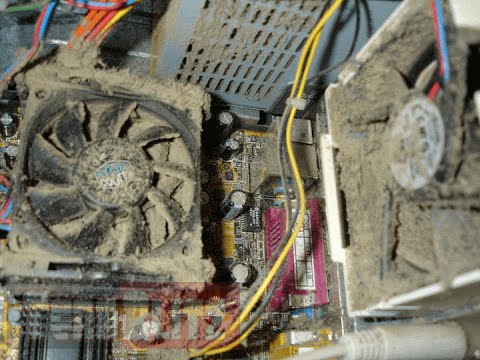
Hello everyone, last time we were talking about disk cleanup and its benefits, but as you need to keep your System clean you should also clean and keep your hardware clean as well. Many system issues could be traced and could happen due to dirty PC. In this article, we will give you tips on how to perform safely cleaning on your computer and hopefully point good sides to it so you can develop a healthy habit of regularly cleaning it and keeping it tidy. dirty PC that needs cleaningKeeping your PC clean is not rocket science and you can do it with things you already and probably have in your house. One thing that I would recommend tho to purchase is antistatic gloves since they could prevent any kind of electrostatic discharges thus protecting your electric components. If you have the option to disconnect your PC and get it outdoors, I would highly recommend this approach since all the dust will be dusted outside and not in the room where your computer is. If you can not it is still ok, but since some portion of dust will be set in the room, you might need to dust your room after cleaning your computer.

Cleaning outside case & redusting inside

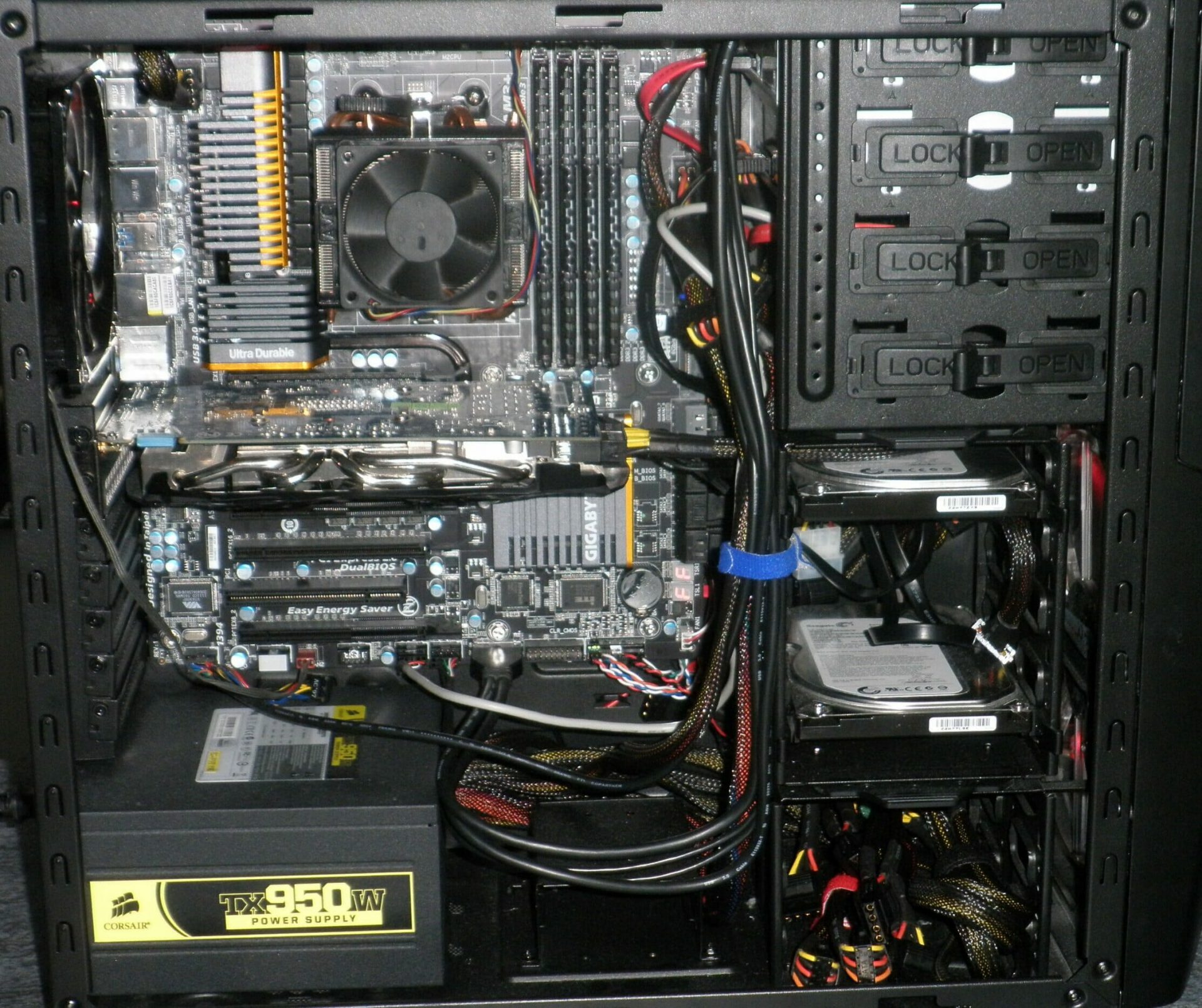
The first thing after disconnecting your computer is to dust it from outside, here you will need a vacuum cleaner and a brush, gently brush outside dust from your casing and vacuum it with your vacuum cleaner. You can use dustcloth for larger parts but use the brush for fans and connectors. After you have done cleaning the outside part, open the side of your computer casing, put on your antistatic gloves, and get a fine and soft brush, repeat dusting and vacuuming of the inner parts of your computer. If your computer is not regularly been cleaned this part will take a little longer since there would be excess dust inside and it will take a longer time to vacuum it all but keep going until you are left with no dirt.

Cleaning it inside

Fans are troublesome to clean since they will rotate when brushed and that could make you miss certain sports, in order to battle this get a tape and stick the fan into one position, brush areas that you can reach, then unstick it, rotate the head, stick it again in another position and dust off remaining areas which you could not reach before. If your computer is very dirty and some hard dirt is at bottom of the connectors, disconnect desired component and clean the connection properly. plug it back in immediately after cleaning to avoid connecting it somewhere else. Harder stains that could not be dusted could be cleaned with little alcohol. Get your dustcloth just a little wet with alcohol, just a corner, and gently wipe out sticky dust or spills if they are present. Leave it 10 minutes for alcohol to evaporate before plugging it back into an electric socket.

Thermal paste and cable management

If you have money and expertise, every 2 years would be a good idea to change the thermal paste on your processor, all you need to do is buy it from your local computer store online, remove the CPU fan clean the CPU and bottom of the fan and apply new thermal paste, place fan back and lock it. If you do not have expertise in this area, call someone who has to show you how it is done. When cleaning it would be a good idea if you do not have any cable management to do it now, nice and tidy cables not only look good, they also improve your air circulation inside your casing making your computer cooling better. once you are done with it, close back the casing side and plug it back in the wall.

Peripherals

When you are cleaning your computer, do yourself a favor and clean your keyboard, mouse, and screen as well. the keyboard can be quickly cleaned with compressed air in the can and screen and mouse with dustcloth. That's it, remember, keep your PC clean and tidy and enjoy the benefits of non-hardware malfunctions caused by dirt and dust. cleaned PC
Read More
How to Fix Error 1007

Error Code 1007 - What is it?

This is a typical system error.  This error means the requested operation cannot be performed in full-screen mode. It hampers your ability to run your desired program on Windows PC. It is displayed on computer screens in the following format:
"ERROR_FULLSCREEN_MODE" and/or as the hexadecimal value 0x3EF.”

Solution

Restoro box imageError Causes

The system error code 1007 can be triggered due to several reasons. This includes but is not limited to:
  • Windows registry damage or corruption
  • Device driver conflicts
  • Spyware or viral infection
  • Hardware malfunction
  • Software file damage or corruption
Unlike the blue screen of death error codes, this error is not fatal. But it may hamper your ability to run and work on your desired program. To avoid the inconvenience, it is advisable to fix it immediately.

Further Information and Manual Repair

Try these easy and effective do it yourself methods to repair the system error code 1007 on your PC:

Method 1 - Scan Your System for Viruses

If the underlying cause of error 1007 on your system is viral and spyware infection, then it is advisable to download a powerful antivirus and scan your entire PC. An antivirus not only detects but also removes all types of viruses including spyware, Trojans and adware. Once removed, try running your desired program again, if the program runs successfully, this means the error is resolved.

Method 2 - Update the Drivers

When the error code 1007 occurs due to driver conflict, then it is advisable to update the drivers. To do so simply use the driver update wizard from within Device Manager. The wizard will guide you through the entire driver update process, making it extremely simple for you to update the drivers in minutes.

Method 3 - Clean and Repair the Registry

You may experience the error 1077 because of registry damage or corruption. If this is the reason, then it is suggested you download Restoro. This is a user-friendly and multi-functional PC Fixer deployed with a powerful registry cleaner. It scans your entire system for registry related errors and issues, removes all unnecessary and obsolete files like cookies, junk files and bad registry entries, notorious for registry corruption. In addition to this, it also repairs the registry and damaged system files, thereby resolving the system error code 1007 immediately. Click here to download Restoro on your PC and fix system error code 1007 today!
Read More
1 2 3 171
Logo
Copyright © 2023, ErrorTools. All Rights Reserved
Trademark: Microsoft Windows logos are registered trademarks of Microsoft. Disclaimer: ErrorTools.com is not affiliated with Microsoft, nor claims direct affiliation.
The information on this page is provided for information purposes only.
DMCA.com Protection Status