Logo

New Chrome update brings surveillance debate

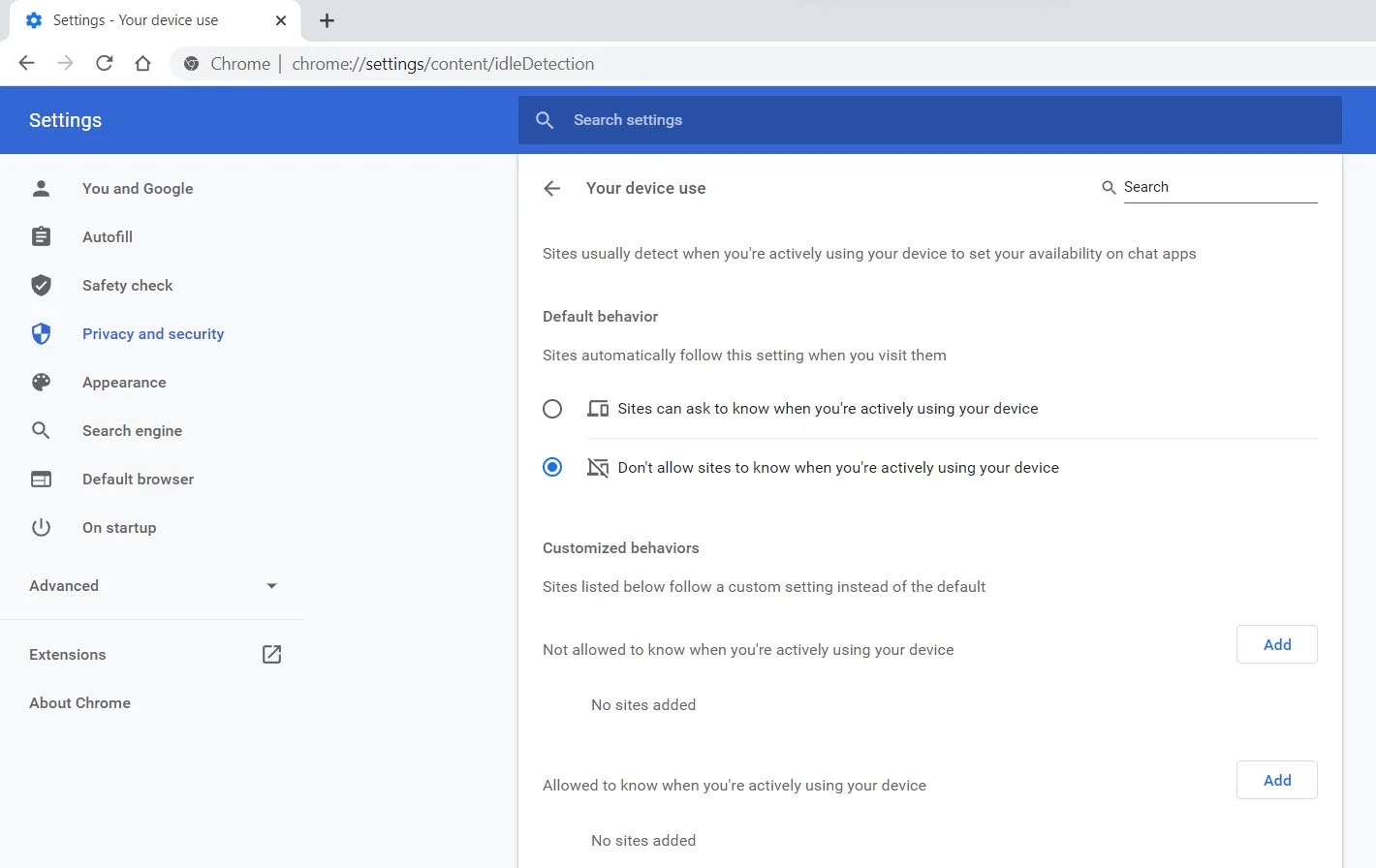
Google Chrome 94 is here and it has introduced a controversial idle detection API. For those people that do not know what idle detection API is, well basically Chrome can be asked by a website to report when a user of the site has a site open and is idle on the device. The issue that people have with this is that this particular feature can be used to report when the user is not using a computer at all.

chrome idle detection featureGood thing is that website or web application will prompt you to allow it to use this feature like when a site/application wants to use your microphone or web camera. Developers are on board with this feature since it can provide them with more telemetric data on how users are interacting with their website/application but there are some that are strongly voicing against this.

Tantek Çelik, Mozilla Standards Lead, commented on GitHub, saying:

As it is currently specified, I consider the Idle Detection API too tempting of an opportunity for surveillance capitalism motivated websites to invade an aspect of the user’s physical privacy, keep long-term records of physical user behaviors, discerning daily rhythms (e.g. lunchtime), and using that for proactive psychological manipulation (e.g. hunger, emotion, choice)…

Thus I propose labeling this API harmful and encourage further incubation, perhaps reconsidering simpler, less-invasive alternative approaches to solve the motivating use-cases.

Others who have spoken against this feature are people from the WebKit development team inside Apple. Ryosuke Niwa, an Apple software engineer who works on WebKit said:

That doesn’t seem like a strong enough use case for this API. For starters, there is no guarantee that the user won’t immediately come back to the device. Also, who is such a service supposed to know what another device user might be using at any given point? We’re definitely not going to let a website know all the devices a given user might be using at any given point. That’s a very serious breach of the said user’s privacy. It seems to me that such a suppression/distribution mechanism is best left for the underlying operating systems/web browsers to handle.

Of course, technology itself as always can be used for good or for bad and time will tell if this feature has brought good stuff or it has paved another brick in surveillance and privacy manipulation. As said for now option will prompt for agreement and let's hope that it will be used for good causes from this day into the future.

Do You Need Help with Your Device?

Our Team of Experts May Help
Troubleshoot.Tech Experts are There for You!
Replace damaged files
Restore performance
Free disk space
Remove Malware
Protects WEB browser
Remove Viruses
Stop PC freezing
GET HELP
Troubleshoot.Tech experts work with all versions of Microsoft Windows including Windows 11, with Android, Mac, and more.

Share this article:

You might also like

BringMeSports Removal Malware Removal Tutorial

BringMeSports is a browser extension developed by Mindspark Inc. that lets you watch live sports streams, follow sports scores, and catch up on the latest news from the sports world. BringMeSports installs an extension into your browser that replaces your default home page with the MyWebSearch starting page, it also replaces your default search engine, shows additional ads, and while running, collects personal and web browsing data that is later sent back to be Sold / Forwarded to serve ads. While browsing the internet with this extension installed, you will see additional ads and sponsored links appear in your search results. It may even show pop-up ads. Several anti-virus scanners have marked this extension as a Browser Hijacker and are therefore not recommended to keep on your computer.

About Browser Hijackers

Browser hijacking is a type of unwanted software, commonly a web browser add-on or extension, which causes modifications in web browser’s settings. Browser hijacker malware is created for many different reasons. The idea would be to force users to visit particular websites that are trying to increase their website visitor traffic and produce higher ad income. Although it might appear naive, all browser hijackers are damaging and therefore always regarded as security risks. Browser hijackers can even allow other harmful programs without your knowledge to further damage your personal computer.

Signs of browser hijack

There are various symptoms of browser hijacking. Here are a few of them: 1. you notice unauthorized changes to your Internet browser’s homepage 2. you find re-directed to websites you never meant to visit 3. the default search engine is changed and the web browser security settings have been lowered without your knowledge 4. you’re finding new toolbars you have never seen before 5. you observe numerous ads pop up on the browsers or computer screen 6. your web browser gets slow, buggy crashes frequently 7. you are blocked to access those sites of computer security solution providers.

Precisely how browser hijacker infects computers

Browser hijackers attack computer systems through malicious email attachments, downloaded infected computer files, or by going to infected internet sites. They could also come from add-on programs, also called browser helper objects (BHO), web browser extensions, or toolbars. A browser hijacker could also be installed as a part of freeware, shareware, demoware, and pirated programs. Common examples of browser hijackers include CoolWebSearch, Conduit, Coupon Server, OneWebSearch, RocketTab, Snap.do, Delta Search, and Searchult.com. The existence of any browser hijacker malware on your computer might drastically diminish the web browsing experience, track your online activities that result in troublesome privacy concerns, create system stability problems and eventually cause your computer to slow down or to a practically unusable state.

How you can remove browser hijackers

Some hijackers could be removed by deleting the free software they were included with or by removing any extension you have recently added to your system. Having said that, many hijackers are quite tenacious and need specialized tools to eliminate them. And there’s no denying the very fact that the manual fixes and removal methods can certainly be a complicated job for a novice PC user. Also, there are plenty of risks associated with fiddling around with the system registry files.

What To Do If You Cannot Install Any Anti-Malware?

Every malware is bad and the consequences of the damage could vary based on the specific kind of malware. Certain malware variants alter internet browser settings by including a proxy server or modify the computer’s DNS configurations. In these instances, you will be unable to visit certain or all of the websites, and therefore unable to download or install the required security software to remove the infection. If you are reading this, odds are you’re stuck with a malware infection that is preventing you to download or install Safebytes Anti-Malware software on your system. Although this type of issue will be difficult to circumvent, there are a few actions you can take.

Install in Safe Mode

In Safe Mode, you could change Windows settings, uninstall or install some programs, and remove hard-to-delete malware. If the malicious software is set to load automatically when the computer starts, switching to this particular mode may prevent it from doing so. To enter into Safe Mode or Safe Mode with Networking, press F8 while the PC is starting up or run MSCONFIG and look for the “Safe Boot” options in the “Boot” tab. Once you are in Safe Mode, you can try to install your antivirus software application without the hindrance of the malware. After installation, run the malware scanner to get rid of most standard infections.

Utilize an alternate internet browser to download the anti-malware application

Web-based viruses could be environment-specific, aiming for a particular browser or attacking particular versions of the browser. The most effective way to overcome this issue is to select a web browser that is renowned for its security features. Firefox comprises built-in Malware and Phishing Protection to keep you safe online. Create a portable anti-malware for removing viruses Another option is to create a portable anti-malware program onto your USB stick. To run anti-virus using a USB flash drive, follow these simple steps: 1) Download the anti-malware on a virus-free PC. 2) Insert the USB drive on the same system. 3) Run the setup program by double-clicking the executable file of the downloaded software, which has a .exe file format. 4) Select the drive letter of the pen drive as the place when the wizard asks you exactly where you want to install the anti-malware. Do as instructed on the screen to complete the installation process. 5) Transfer the flash drive from the uninfected PC to the infected PC. 6) Run the Safebytes Anti-malware directly from the flash drive by double-clicking the icon. 7) Click the “Scan” button to run a full system scan and remove malware automatically.

Protect Your PC & Privacy With SafeBytes Anti-Malware

If you are looking to buy anti-malware for your PC, there are lots of brands and packages for you to consider. A few of them do a great job in getting rid of malware threats while some will affect your PC themselves. You need to be careful not to pick the wrong product, especially if you buy a premium program. One of the recommended software is SafeBytes AntiMalware. SafeBytes carries a very good reputation for top-quality service, and clients appear to be very happy with it. Safebytes is among the well-established computer solutions firms, which provide this complete anti-malware application. Using its cutting-edge technology, this application will assist you to eliminate multiples types of malware such as viruses, PUPs, trojans, worms, ransomware, adware, and browser hijackers. SafeBytes has got a variety of features that can help you protect your computer from malware attacks and damage. Let’s check out a few of them below: Robust Anti-malware Protection: With a critically acclaimed malware engine, SafeBytes offers multilayered protection which is intended to catch and get rid of viruses and malware which are hidden deep in your computer system. Active Protection: SafeBytes provides real-time active checking and protection against all known viruses and malware. It’ll continuously monitor your laptop or computer for hacker activity and also provides users with superior firewall protection. “Fast Scan” Abilities: SafeBytes Anti-Malware has a multi-thread scan algorithm that works up to 5 times faster than any other anti-malware software. Internet Security: Safebytes assigns all sites a unique safety score that helps you to have an idea of whether the webpage you are going to visit is safe to view or known to be a phishing site. Lightweight Utility: SafeBytes is a lightweight and user-friendly anti-virus and anti-malware solution. Since it utilizes negligible computer resources, this application leaves the computer’s power exactly where it belongs: with you actually. Premium Support: Support service is available for 24 x 7 x 365 days via email and chats to answer your queries.

Technical Details and Manual Removal (Advanced Users)

If you wish to manually remove BringMeSports without the use of an automated tool, it may be possible to do so by removing the program from the Windows Add/Remove Programs menu, or in cases of browser extensions, going to the browsers AddOn/Extension manager and removing it. You will likely also want to reset your browser. To ensure the complete removal, manually check your hard drive and registry for all of the following and remove or reset the values accordingly. Please note that this is for advanced users only and may be difficult, with incorrect file removal causing additional PC errors. In addition, some malware is capable of replicating or preventing deletion. Doing this in Safe Mode is advised. The following files, folders, and registry entries are created or modified by BringMeSports
Files: C:Program Filesbringmesports_1c chrome extensionbarBringMeSportsCrxSetup.exe C:Program Filesbringmesports_1c chrome extensiont8sql.dll C:Program Filesbringmesports_1c chrome extensionBringMeSportsCrxSetup.exe C:Program Filesbringmesports_1c chrome extensionBringMeSportsCrxSetup.05F72CDF-5595-450B-9BAB-B1F6C606AAEC.exe C:Program Filesbringmesports_1c chrome extensionBringMeSportsCrxSetup.1E4C7E0D-19E7-4C18-ADB3-3D45FC4BE84C.exe C:Program Filesbringmesports_1c chrome extensionBringMeSportsCrxSetup.85D40F0D-233C-463F-8BAB-F6D446902D65.exe C:Program Filesbringmesports_1c chrome extensionBringMeSportsCrxSetup.A94A3339-330B-4B96-B05A-B909E6BB85A1.exe C:Program Filesbringmesports_1c chrome extensionBringMeSportsCrxSetup.EEE1FB37-85E3-49E8-BC44-36CC97CE3B73.exe C:Program Filesbringmesports_1c chrome extensionsqlite3.dll C:Program Files (x86)BringMeSports_1cEI C:Program Files (x86)BringMeSports_1c C:Users%USERNAME%AppDataLocalBringMeSports_1c C:Users%USERNAME%AppDataLocalIAC C:Users%USERNAME%AppDataLocalLowBringMeSports_1cEI C:Users%USERNAME%AppDataLocalLowBringMeSports_1c C:Users%USERNAME%AppDataRoamingMozillaFirefoxProfilesXXX.defaultextensionscffxtbr@BringMeSports_1c.com C:Users%USERNAME%AppDataLocalGoogleChromeUserDataDefaultExtensionsllkjooekcinmdmojmfdjhidbakfpepod Registry: HKEY_CURRENT_USERMicrosoftInternet ExplorerApproved Extensions, value: F653D037-97FA-4755-98C1-7F382EEB59A7 HKEY_CURRENT_USERMicrosoftInternet ExplorerApproved Extensions, value: CC53BD19-7B23-43B0-AB7C-0E06C708CCED HKEY_CURRENT_USERMicrosoftInternet ExplorerApproved Extensions, value: 002D1BA6-4766-4D7D-82B8-F49439C66F97 HKEY_CURRENT_USERMicrosoftInternet ExplorerToolbar, value: cc53bd19-7b23-43b0-ab7c-0e06c708cced HKEY_CURRENT_USERWow6432NodeMicrosoftInternet ExplorerToolbar, value: cc53bd19-7b23-43b0-ab7c-0e06c708cced HKEY_CURRENT_USERMicrosoftWindowsCurrentVersionExtPreApprovedbc61ca7a-6b81-47ec-b62d-ae1a236cadb9 HKEY_CURRENT_USERMicrosoftWindowsCurrentVersionExtPreApproved82c7004a-078e-468c-9c0f-2243618ff7cb HKEY_CURRENT_USERMicrosoftWindowsCurrentVersionExtPreApproved6285c254-4465-4f8b-a009-5f42ab02c291 HKEY_CURRENT_USERMicrosoftWindowsCurrentVersionExtPreApprovedA8CC25D-66FF-41DF-B3B4-416079EF8F87 HKEY_CURRENT_USERMicrosoftWindowsCurrentVersionexplorerBrowser Helper Objectsf653d037-97fa-4755-98c1-7f382eeb59a7 HKEY_CURRENT_USERMicrosoftWindowsCurrentVersionexplorerBrowser Helper Objects02d1ba6-4766-4d7d-82b8-f49439c66f97 HKEY_CURRENT_USERWow6432NodeMicrosoftWindowsCurrentVersionExtPreApprovedf0c8ccc2-baaa-4236-ad0a-22b5a401b9ef HKEY_CURRENT_USERWow6432NodeMicrosoftWindowsCurrentVersionExtPreApprovedA8CC25D-66FF-41DF-B3B4-416079EF8F87 HKEY_CURRENT_USERWow6432NodeMicrosoftWindowsCurrentVersionexplorerBrowser Helper Objectsf653d037-97fa-4755-98c1-7f382eeb59a7 HKEY_CURRENT_USERWow6432NodeMicrosoftWindowsCurrentVersionexplorerBrowser Helper Objects02d1ba6-4766-4d7d-82b8-f49439c66f97 HKEY_CURRENT_USERMicrosoftInternet ExplorerLow RightsElevationPolicyfa460720-7b38-421d-981c-66f0ae288fb9 HKEY_CURRENT_USERMicrosoftInternet ExplorerLow RightsElevationPolicya2b4da91-a53c-4a84-b486-40080de13a9b HKEY_CURRENT_USERMicrosoftInternet ExplorerLow RightsElevationPolicy89b7ae32-9c52-41d6-a64d-14d7bdec9c58 HKEY_CURRENT_USERMicrosoftInternet ExplorerLow RightsElevationPolicy32a63172-5bcc-4d7e-9fe8-072eee6c287e HKEY_CURRENT_USERWow6432NodeMicrosoftInternet ExplorerLow RightsElevationPolicya2b4da91-a53c-4a84-b486-40080de13a9b HKEY_CURRENT_USERWow6432NodeMicrosoftInternet ExplorerLow RightsElevationPolicy89b7ae32-9c52-41d6-a64d-14d7bdec9c58 HKEY_CURRENT_USERWow6432NodeMicrosoftInternet ExplorerLow RightsElevationPolicy32a63172-5bcc-4d7e-9fe8-072eee6c287e HKEY_CURRENT_USERWow6432NodeMicrosoftInternet ExplorerLow RightsElevationPolicy1856a7bd-de8c-488b-aa7a-5682d13166fc HKEY_CURRENT_USERWow6432NodeMicrosoftInternet ExplorerLow RightsElevationPolicy164ea1fc-b0a0-4202-8c65-e4ba4d54a3ae HKEY_CURRENT_USERMicrosoftWindowsCurrentVersionExtStatsF653D037-97FA-4755-98C1-7F382EEB59A7 HKEY_CURRENT_USERMicrosoftWindowsCurrentVersionExtStatsCC53BD19-7B23-43B0-AB7C-0E06C708CCED HKEY_CURRENT_USERMicrosoftWindowsCurrentVersionExtSettingsCC53BD19-7B23-43B0-AB7C-0E06C708CCED HKEY_CURRENT_USERMicrosoftWindowsCurrentVersionExtSettings02D1BA6-4766-4D7D-82B8-F49439C66F97 HKEY_CURRENT_USERWow6432NodeMicrosoftInternet ExplorerSearchScopes8c9ef753-beb6-4582-b653-93ac59274437 HKEY_CURRENT_USERMicrosoftInternet ExplorerSearchScopes8c9ef753-beb6-4582-b653-93ac59274437 HKEY_CURRENT_USERMicrosoftInternet ExplorerDOMStoragebringmesports.com HKEY_CURRENT_USERMicrosoftInternet ExplorerDOMStoragebringmesports.dl.tb.ask.com HKEY_CURRENT_USERBringMeSports HKEY_CURRENT_USERMicrosoftInternet ExplorerDOMStoragebringmesports.dl.myway.com HKEY_LOCAL_MACHINEHKEY_CURRENT_USER[APPLICATION]MicrosoftWindowsCurrentVersionUninstall..Uninstaller BringMeSports_1cbar Uninstall Internet Explorer BringMeSports_1cbar Uninstall Firefox BringMeSportsTooltab Uninstall Internet Explorer
Read More
A Guide to Fixing Magcore.dll Error on Your PC

Magcore.dll Error - What is it?

Magcore.dll is a type of Dynamic Link Library. This file is associated with software developed by ArcSoft, a renowned multimedia application developer. Magcore.dll consists of small programs that help load and run software developed by ArcSoft on your system smoothly. This file virtually comes into function when you use certain audio and video features incorporated in ArcSoft programs for example ArcSoft Media converter. However, you may experience Magcore.dll error code on when this DLL file fails to run and load programs. The error may hamper your ability to access ArcSoft programs on your system and cause you a great deal of inconvenience. Magcore.dll error is often displayed in any one of the following formats:
“The file magcore.dll is missing” “MagCore.dll cannot be found” "Cannot find [PATH]magcore.dll" “This application has failed to start because MagCore.dll was not found. Reinstalling the application may fix the error.”

Solution

Restoro box imageError Causes

This DLL file is known to be prone to errors. MagCore.dll error occurs due to several reasons such as:
  • Missing or damaged MagCore.dll file
  • Hardware failure
  • Viral infection
  • Registry issues
If you experience MagCore.dll error on your system, it is advisable to fix it right away. Though it is not fatal, but if you don’t repair it, you may not be able to access practically all ArcSoft programs on your PC.

Further Information and Manual Repair

Here are some of the efficient and easy manual methods to resolve error MagCore.dll on your PC:

Method 1 - Scan and Remove Malware

MagCore.dll error can be triggered by viral or other malware infection. Malware can easily damage DLL files and masquerade as the MagCore.dll file. To resolve, simply download a powerful antivirus on your system. Run it to scan your entire PC for viruses and remove them right away.

Method 2 - Update the Drivers for Hardware Devices

As we mentioned above the error may be related to hardware failure too. In times like these, it is advisable to update the drivers for hardware devices. For example if you try to play a 3D video game and it fails to run showing you MagCore.dll error message, then simply try updating the drivers for your video card. Drivers can be updated in Windows by using a driver update wizard from within Device Manager.

Method 3 - Use System Restore to Undo Recent System Changes

After trying method 1 and 2, if the error code still persists, then it is opt for method 3. Use Windows System Restore utility to undo recent system changes and bring your PC to its normal previous condition before the error occurred. To restore, simply go to the start menu, type System Restore. Now click on System Restore and just pick a point in the past called a restore point to return important Windows files and settings.

Method 4 - Repair the Registry

If the underlying cause of the MagCore.dll error code is related to registry issues, then simply repair the registry. You can fix it manually but it is a little complicated and time-consuming. You may find it difficult if you are not a technical whiz. Nonetheless to resolve and repair it in seconds, download Restoro. This is a powerful and a user-friendly PC Fixer embedded with a registry cleaner and several other highly functional scanners. Run it to scan your entire PC for registry problems. The registry cleaner utility removes all bad and invalid entries, cleans up the registry space, and repairs the damaged files. Click here to download Restoro and repair MagCore.dll error code on your PC.
Read More
Edge DevTools An error occurred while ...
In case you don’t know, Microsoft Edge, the new default browser of Windows 10, is equipped with the essential tools that are needed to help web developers in testing their websites in the Edge browser. However, it is not without its flaws as there are instances when you could also encounter some errors when using DevTools. One of these errors is the “An error occurred while starting the profiling session” error. You can see this error message in the DevTools Memory Panel, worry not for this post will help you resolve it. A memory panel is one that primarily measures your memory resource usage and compares heap snapshots in different states of code execution. The Memory panel also provides profiling of three different types, such:
  • Head Snapshot
  • Record Allocation timeline
  • Record Allocation profiles
Using a memory panel, you can find issues that affect the page performance in the most common scenarios like bloats and memory leaks. There are two steps you need to carry out to fix this error that’s associated with the Memory Panel of Microsoft Edge (Chromium) DevTools. First, you need to access the Microsoft (R) Diagnostics Hub Standard Collector Service. Second, you need to restart this service. For detailed steps, follow the instructions provided below. Step 1: Access the Microsoft (R) Diagnostic Standard Collector Service To access the Microsoft (R) Diagnostic Standard Collector Service, follow these steps:
  • Tap the Win + R keys to open the Run dialog box.
  • Then type “services.msc” in the field and hit Enter or click OK.
  • This will open the Services Manager. Here, look for the Microsoft (R) Diagnostic Service from the Services panel that opens on the right-hand side.
Step 2: Now restart the Microsoft (R) Diagnostic Hub Standard Collector Service
  • After accessing the Microsoft (R) Diagnostic Standard Collector Service, right-click on it and select the Restart option.
  • Once it’s done, exit the Microsoft Edge Developer Tools as well as the tab.
  • Next, open a new tab and navigate to your page and tap the F12 key.
  • Now, try to check if profiling begins.
Read More
How to Fix Error Code 0x8007267C on Your PC

Error Code 0x8007267C – What is it?

Error code 0x8007267C is specific to Windows 10. This error is triggered when no DNS server is currently configured in your network settings during the Activation process. If you are fairly confident in your ability to address command-line tools and networking issues, you can follow the steps below to try to remedy the error code on your own. If not, you may need to contact a qualified technician in order to resolve the error successfully.

Solution

Restoro box imageError Causes

The cause of Error Code 0X8007267C within the Window 10 system is fairly straightforward. Windows Activation requires a valid DNS server to be configured in order to complete the Activation process; if one is not available or properly configured, then you may see this error code and Activation will fail.

Further Information and Manual Repair

The following methods may help you to resolve this error, but you’ll need to have some familiarity with command-line tools to complete the steps successfully. If these methods do not work or if you are uncomfortable in using the command prompt, you may need to consult a technician to fully resolve this particular error code on the Windows 10 system.

Method 1: Register a DNS server within your network properties and test the connection.

In order to resolve this error code, client connectivity to a DNS server must first be established. The following steps may help you to determine the root problem with your connectivity status:

  1. Open a command prompt, after which you'll run IPCONFIG /all
  2. Verify the following values: The IP address that has been assigned, the DNS server, the subnet mask, and the default gateway. Compare each to ensure that all are set with the values that correspond to your specific environment
  3. Check for basic IP connectivity to the DNS server using the PING command. In using the PING command, utilize the address of the DNS server found in Step 1

ping <DNS Server IP address>

If basic connectivity to the DNS server in question is failing, then you will need to resolve that issue before going further in the process.

After troubleshooting the above basic connectivity issues to the DNS server, you can reattempt Windows Activation by using the command below from within an Elevated Command selection:

cscript windowssystem32slmgr.vbs -ato

If the steps above did not work for you, you may want to try the steps found in method 2.

Method 2: Use phone-based authentication with a MAK (multiple activation key).

If a DNS server is not connected to your network, you can use an alternative method to complete the Windows Activation process. Bypass Method 1 by using a MAK product key instead to activate the volume license installation. Certain MAK product key providers have a variation on the specific key numbers that you will need to use. If you are using TechNet media or MSDN media, you will have to change the product key listed to the product key provided. The product keys provided by either TechNet media or MSDN media for Windows Server 2008 or for Windows Vista Enterprise will be the MAK product key that you will enter in a later step.

Like the previous method, you will need to have some familiarity or confidence in your ability to operate Command Line tools before proceeding. Once you have found your MAK product key, you’ll need to open a command prompt and use the following command to change the product key to match the MAK product key, which should look something like the example below:

            slmgr –ipk xxxxx-xxxxx-xxxxx-xxxxx-xxxxx-xxxxx

After completing the product key change, use the following command to initiate the phone activation wizard, thereby completing the activation of the system:

            slui 04

The activation wizard should be able to walk you through the remainder of the process in a step-by-step manner. In addition to appearing as an error code in Windows 10, this particular error may apply to multiple versions of Windows, including:

  • Windows 7 Enterprise
  • Windows 7 Enterprise E
  • Windows 7 Enterprise N
  • Windows 7 Professional
  • Windows 7 Professional E
  • Windows 7 Professional N

Steps to address the error code may be different in any of these other versions of Windows. If you have difficulty in resolving the error effectively, seek professional technical help.

Read More
Common Outlook Errors

Most Common Microsoft Outlook errors

When you have a program, you know before you even start to use it or even know how that you are going to have problems with it. There are always going to be error messages and things that don’t work on any program you buy or download; guaranteed. Even some of the most famous program developers in the world make mistakes from time to time and it is a small price to pay for the programs you get and that is a fact. Microsoft Outlook is like any other program; it has its errors. Here are some of the most common errors for Microsoft Outlook on your computer.

1. Problem receiving emails

Sometimes you can be waiting on really important emails. It is really infuriating when you know that they have been sent, however every time you check your email box, there is nothing there! Your inbox is empty and your patience is wearing thin, so could it possibly be an error with Microsoft Outlook? There is a high probability that this is the problem. The program can be a bit slow on receiving emails sometimes, often even by days. This can be caused by any number of things, from having too many emails coming through or having too many emails in your inbox. If you click ‘send and receive’ at the top, it should speed up your emails coming through, however, so give that a try if you’re waiting on anything to come through. If this doesn’t work, however, your inbox may be full. Try permanently deleting some useless messages and then click ‘send and receive’ again. All your emails should come through then!

2. General slow performance

Outlook, while it has its advantages, can often be very slow. It is probably slower than some other email programs that require a browser but it is quicker to access, which may make up for this fact. However, sometimes sluggish performance can be really irritating, so it may be wise to try and fix it if you can. One of the reasons it may be acting slow is if you have too many other Windows applications open. Applications that may interfere with your Outlook’s speed could be anything from Microsoft Word to Windows Live Messenger. If any of these are open, try closing them and see if that helps with the speed problem.

3. Corrupt files

.dbx files are not accessible by Microsoft Outlook. Therefore, they can cause problems with your emails if you have them within them. To solve this problem, you may have to delete all of your attached email accounts and then reattach them before you can open your emails again. These corrupt files can also cause you to be unable to delete emails. You will need to transfer these deleted corrupt files into a separate deletion folder as this is usually caused by the folder being corrupt. Of all the other most frequent problems with Microsoft Outlook, however, this is probably the least likely to happen, which shows how few problems there actually are with this application after all that!

Conclusion

So there are the most common problems with Microsoft Outlook! Not much wrong at all, is there?
Read More
Could not start Diagnostic Policy Service
If you are trying to run a Windows Service like the Diagnostic Policy Service and encounter an error instead that says, “Windows could not start the Diagnostic Policy Service”, worry not for this post will guide you on what you can do of the Diagnostic Policy Service is not running in your Windows 10 computer. As you know, the Diagnostic Policy Service enables problem detection, troubleshooting, and resolution for Windows components on your Windows operating system. When you encounter this kind of problem, you will also see the “Access is denied” error message. This occurs when the “MpsSvc” process does not have the permissions needed for the Registry keys. This kind of problem happens when the TrustedInstaller account is missing the permissions for a Registry key and so to fix this issue, you need to take full control and ownership of the Registry keys. You need to create a System Restore point first before you get started. This way, you can always undo the changes you’re about to make in case anything goes wrong. Once you’re done creating a System Restore point, refer to the following instructions to fix the “Windows could not start the Diagnostic Policy Service” error. Step 1: Tap the Win + R key combination to open the Run utility. Step 2: Type in “Regedit” in the field and tap Enter to open the Registry Editor. Step 3: After opening the Registry Editor, navigate to this registry path:
HKEY_LOCAL_MACHINESYSTEMCurrentControlSetServicesDPSParameters
Step 4: After that, look for the “Parameters” registry key and select Permissions. Step 5: Now select your account under Group or user names. Step 6: Next, make sure that the “Full Control” and “Read” boxes are both checked, and then click on the Apply and OK buttons to save the changes. Step 7: Afterwards, navigate to this registry key: HKEY_LOCAL_MACHINESYSTEMCurrentControlSetControlWDIConfig Step 8: From there, look for the Config key and right-click on it and select Permissions and then click on Add and type “NT Service/DPS in the box and click OK. Step 9: Now select “DPS” and check the Full control box, click OK and exit the Registry Editor. Step 10: Reboot your computer and check if the error is now fixed.
Read More
Bluetooth Headset in Windows gets disconnected
Many Windows 10 users use a Bluetooth headset as these kinds of Audio devices, as you know, lack wires since wires tend to get entangled and break which could get quite inconvenient. This is why using a wireless headphone is more preferable since it’s much simpler, however, using a wireless headphone also means it comes with a charging requirement and if it fails to charge, there is no music or audio or anything that you need a Bluetooth headphone for. However, wireless headphones are also susceptible to problems as you might encounter some problems when connecting your wireless headphone to your Windows 10 computer. One of these problems include when you try to get sound from the wireless device but nothing happened. This indicates that the Bluetooth headphone is disconnected in some way for some unknown reason even if you’ve already plugged it in. Thus, if you encounter this scenario, then there are several options you need to check out to fix the problem. To start troubleshooting the problem, here are the options you need to use as a reference.

Option 1 – Try turning off the device and turning it back on

The first thing you can do to resolve the problem is to turn off your wireless audio device and wait for a couple of seconds before you turn it back on. In most cases, this should fix the problem. In fact, you can also try to unpair and pair the Bluetooth audio device and see if it fixes the problem or not.

Option 2 – Try to set the headphone as the default device manually

There are times when you plug a headphone, it does not toggle the default audio device. Thus, to fix this issue, you have to set the default audio device to the headphones manually. To do that, follow these steps:
  • First, right-click on the volume icon located on the system tray.
  • Next, select the Open sound settings option to open the Sound section in the Windows 10 Settings app.
  • After that, go to the Output section and select Headphones for the “Choose your output device” option. This should fix the problem for you.

Option 3 – Try running the Bluetooth Troubleshooter

As you know, Windows 10 has various troubleshooters with user-friendly interfaces where you can utilize them to fix issues in your PC. And since you’re dealing with some Bluetooth problem, you have to run the built-in Bluetooth Troubleshooter. To do this, follow these steps:
  • Open the Windows 10 Settings.
  • Then go to Update & Security > Troubleshoot.
  • You should find the option for Bluetooth on your right-hand side – click on it then click on the “Run the troubleshooter” option.
  • Now follow the next screen options.

Option 4 – Try to update or reinstall the Bluetooth driver

The issue might have something to do with the Bluetooth drivers. It could be that it is outdated and needs to be updated or that you recently updated it and since then you have trouble in removing the Bluetooth devices and so to fix the issue, you can update, roll back or uninstall the Bluetooth drivers. How? Follow the steps below.
  • Tap the Win + X keys to open the Device Manager.
  • Next, look for the Bluetooth device and right-click on it.
  • Select the option “Update driver”.
  • After that, a new popup window will appear. In there, select the option, “Search automatically for updated driver software”.
Note: Checking the update may take a few minutes so you’ll have to wait until it finishes. If it is able to find an update, you must install it. And if you want to reinstall the Bluetooth driver, just select the “Uninstall driver” option and follow the next on-screen instructions that follow.
Read More
Pixel's fast emergency dialer

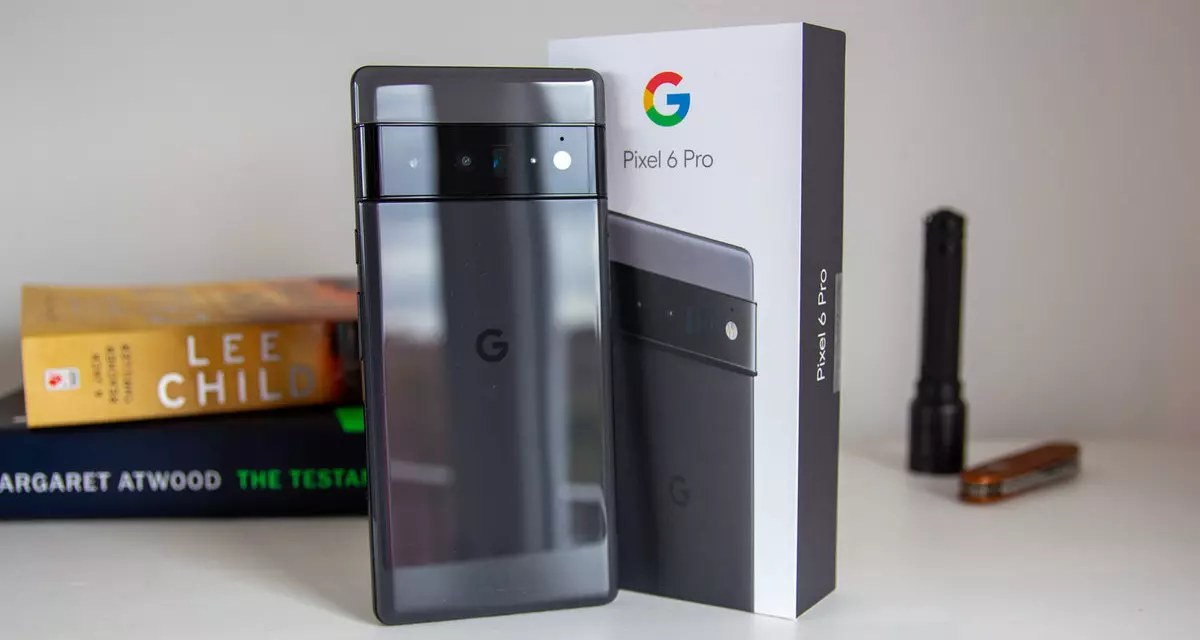
Google's Pixel smartphone is one if not the best Android smartphone on the market. It regularly gets updates and Google is really trying to keep it as a top choice for Android smartphone users. One of the new things that Google has released for its smartphone series is a new emergency dialer.

google pixel 6

With an emergency dialer, you will be able to quickly access local contact information for police, fire, and medical services. This dialer is able to contact before mentioned services even when the phone is locked and when you are traveling.

The idea is to quickly access the default emergency number no matter in which country you are currently in, service will find the appropriate number and set it as default so if you need it there is no delay in searching for the appropriate number and dialing it.

Once the service is enabled on the device you can swipe up and tap Emergency call without unlocking your phone or you can press and hold the power button for five seconds and tap Emergency.

If you have a Pixel smartphone go to the Google support page and follow instructions on how to enable this service. It costs nothing and it could potentially even save your life.

Read More
Should you use the Faraday bag

Faraday bag is a new take on security and privacy for people using a lot of electronic devices and credit cards. So what is exactly a Faraday bag?

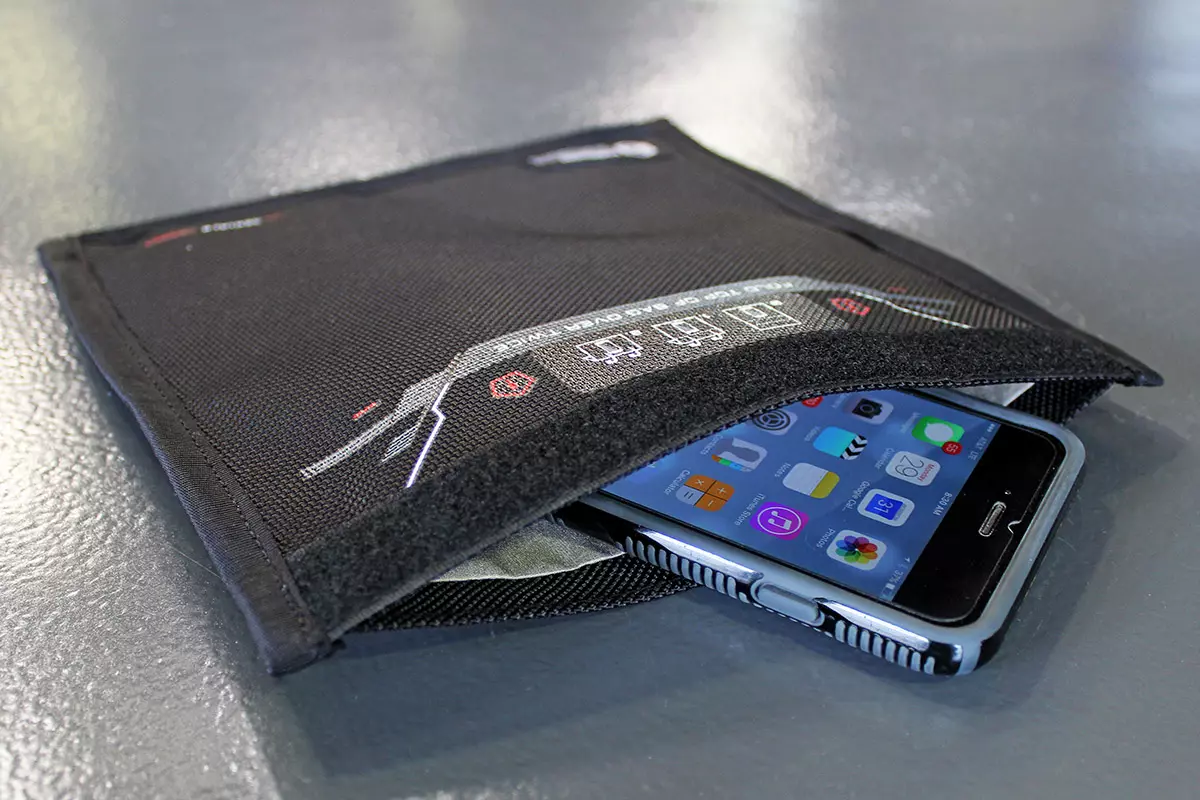
faraday bag

Faraday bag explained

Faraday bag is designed in the same manner as the Faraday cage which was invented by Michael Faraday, who was an English scientist who contributed to the study of electromagnetism and electrochemistry. His main discoveries include the principles underlying electromagnetic induction, diamagnetism, and electrolysis.

The idea of the Faraday cage is that anything inside a cage that is made of specific grid size is completely isolated from outside current and magnetic fields since the cage itself will pick up everything upon itself. This means that for example, a human could be inside a cage that is struck by lightning and be perfectly safe and fine.

This idea led to the Faraday bag design, which takes this concept and places a wiring pattern inside clothing in order to isolate all magnetic fields from the outside so your devices and cards are completely cut off from any kind of influence and electromagnetic waves. If the pattern and quality of material for the bag are good, you have a fully safe placeholder for your stuff.

Advantages of Faraday bag

The main advantages, of course, are the privacy and safety of mobile phones and credit cards from outside influences and this is why this bag has been designed in the first place. If the bag is designed properly your phone would not be able to be hacked nor accessed from any outside source, GPS tracking will also be disabled and your phone location will not be visible. Credit cards will also be completely safe from any malicious attack via wi-fi signals.

Disadvantages of bag

Well, the disadvantage of using this bag is a very simple one, since your phone is isolated from outside influence that will also mean that you will not be able to take messages or calls on it while it is in the bag. Notifications from the internet would also be disabled so it is security vs usability deal.

Read More
Why you should upgrade your 60Hz Screen

The number of Hertz is the number of how many images your screen draws in one second. So monitor with a refresh rate of 60Hz will draw 60 images each second on your screen. To most users, this will look fine and enough but actually, if you would place them in front of a 120Hz screen difference will be visible right away.

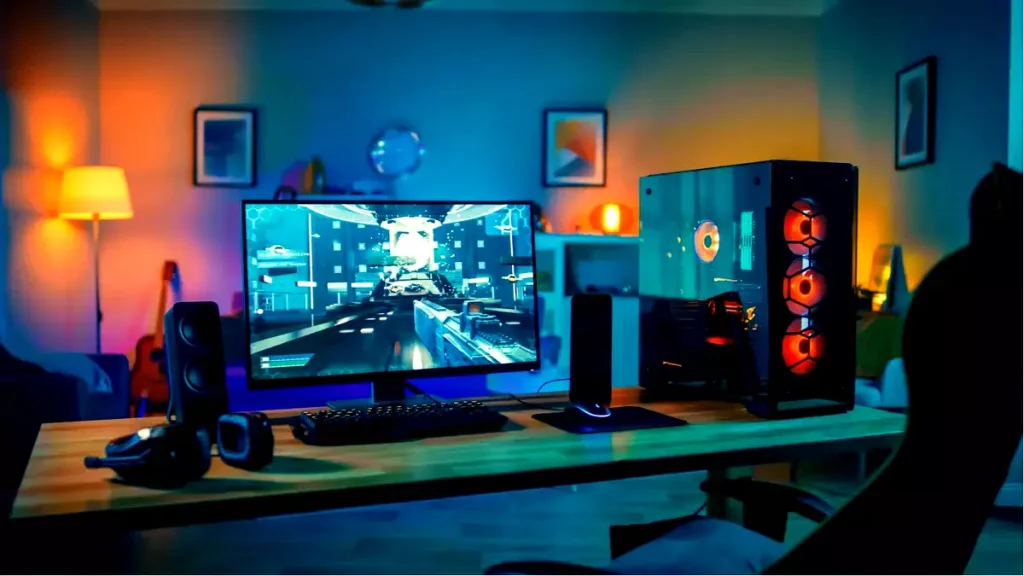
high refresh rate monitor setup

Benefits of higher refresh rates

In most simple words just looking at a screen that has a higher refresh rate will produce a more natural feel of things, although some people would argue that flickering can not be seen on 60Hz monitors and that should be enough, I would argue that they never watched the movie, played the game or used high refresh rate screen when they can state something like that.

Yes, 60Hz might be enough to look at the web page or read some documents but long exposure to 60Hz can have a tiring effect on the eyes in the long run. 120Hz and above just feel more relaxed and it is far less demanding on the eyes. Watching movies also is much better on a higher refresh screen, with way much less motion blur in fast scenes giving the overall experience a greater natural feel.

Gaming is perhaps an area where a refresh rate of 120Hz and above will show its best. Having a higher refresh rate will be easier on your eyes and can even give you a competitive edge. When for example you have twice more images per second on your screen than your opponent his movement will be more fluid and predictable because of that and overall precision will be much higher when moving the cursor in the game since more frames per second means more precision and smoother movement.

The dark side of high refresh rates

After all the positive things that were said about the advantages of high refresh rates, it is just fair to look at some negatives or in this case only negative one and that is Computer power. As said in the previous section having a 120Hz refresh rate means having 120 frames displayed on the screen per single second. Having even higher monitors like 360Hz means even more frames per second and in order to actually see all of that frames you will need to have enough computer power to back it up. Having for example screen with a refresh rate of 240Hz means nothing if your GPU and rest of the computer are able only to push 150 frames per second, in this case, you will still have 150 frames in one second despite the monitor being able to go to 240.

Conclusion

Generally and with all of my heart I would recommend moving away from 60Hz monitors, yes they are cheaper and more affordable but at the end of the day if you are someone like me who spends most of his daily time in front of the computer you would be grateful to have higher refresh rate screen and save your eyes, and after all, why not enjoy some smoother and better movie and game experience as well as saving your eyesight.

Read More
1 2 3 171
Logo
Copyright © 2023, ErrorTools. All Rights Reserved
Trademark: Microsoft Windows logos are registered trademarks of Microsoft. Disclaimer: ErrorTools.com is not affiliated with Microsoft, nor claims direct affiliation.
The information on this page is provided for information purposes only.
DMCA.com Protection Status