Logo

MS will release single office apps in MS Store

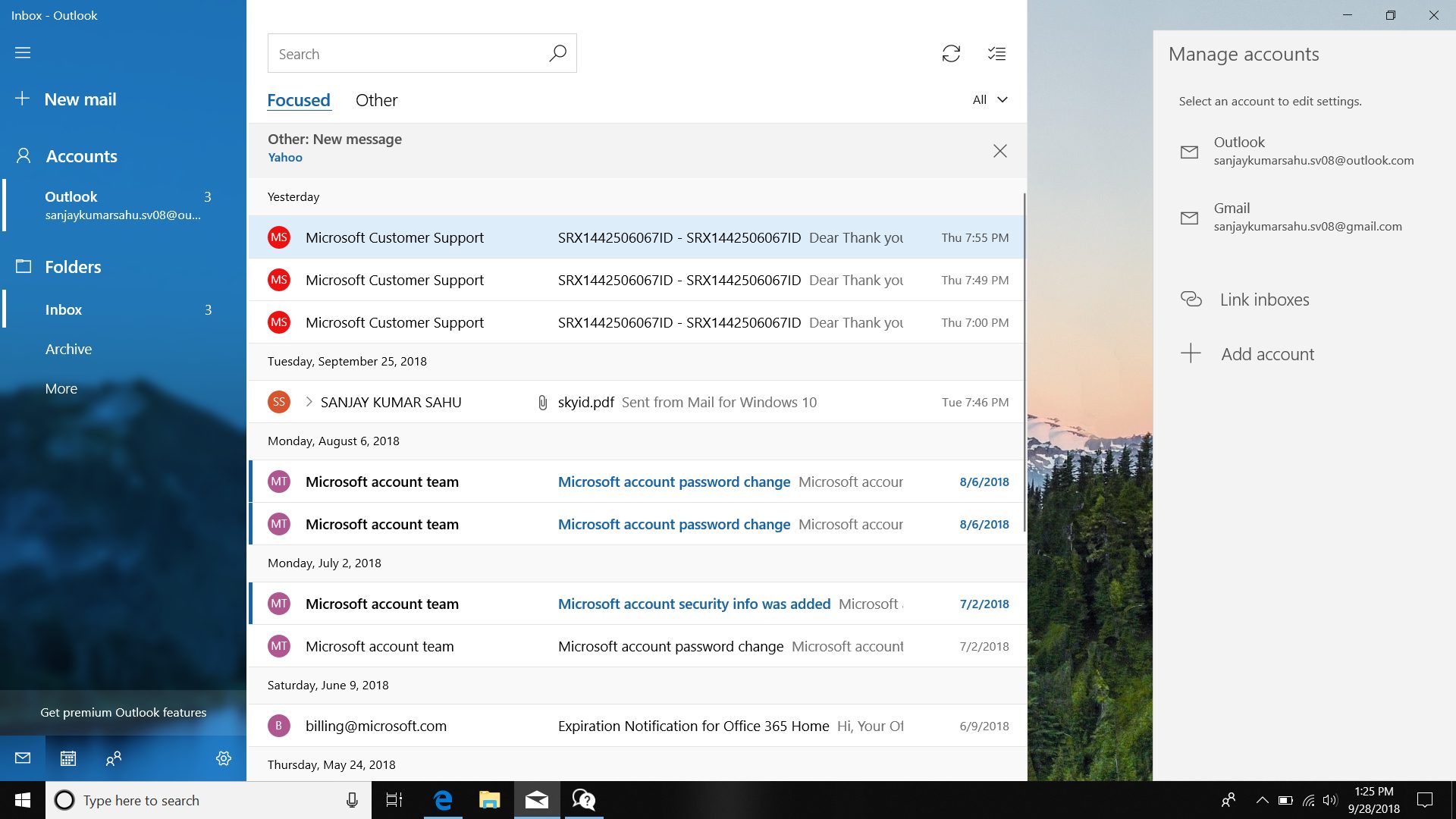
It seems that Microsoft is going to offer subscription and sales of individual office applications in the Windows Store. The office package will still be available as a package but for the first time, we will get single applications as standalone ones available for purchase.

ms officeThis is a very interesting decision by Microsoft and I fully support it, this time users will be able to pay less and to choose only applications that they need instead of paying for the whole package and not using it.

Do You Need Help with Your Device?

Our Team of Experts May Help
Troubleshoot.Tech Experts are There for You!
Replace damaged files
Restore performance
Free disk space
Remove Malware
Protects WEB browser
Remove Viruses
Stop PC freezing
GET HELP
Troubleshoot.Tech experts work with all versions of Microsoft Windows including Windows 11, with Android, Mac, and more.

Share this article:

You might also like

Fix AMD driver crashing Windows 10
Graphic cards are essential to our computers but from time to time in the race to make better GPU and to grab a large portion of the market bad drivers get released and can create really unwanted and unpleasant experiences, from Windows freezes to the black screen of death, to AMD driver Windows crashing down and many more. This article will cover basic troubleshooting with AMD drivers and offer you solutions on how to fix them.
  1. Rollback the previous version of the driver.

    Installing the new driver version is the reason for this particular error, so naturally rolling back the previous version which was stable and did not cause issues will solve the problem. To roll back the previous version of drivers follow the next steps: Open Start menu and click on settings, go to system and choose Apps and features Find: AMD Catalyst Install Manager, right-click on it, and choose to uninstall Go to AMD official website and download the previous driver version, install it on your computer Turn off automatic driver updates and reboot your system
  2. Reinstall the driver

    Sometimes it is not a bug in the released driver, it is a corruption of files because of file transfer or any other specific reason. The reinstalling driver will fix an issue if this is the case. To reinstall the driver Press ⊞ WINDOWS + X and choose Device Manager Expand Display adapters, right-click on AMD device and choose to uninstall Go to the official AMD website, download the latest driver and install it Reboot your system
  3. Disable browser extensions

    Some users have reported that error occurs only when they are watching videos online, if this is your case, go to your browser options and disable extensions to see if this will remove the problem.
  4. Remove Lucid Virty MVP

    If by any chance have this relic installed on your system, go to Applications and remove it. It is an old program shipped with old drivers and it is usually present in your Windows that was upgraded from 8.1 to 10. Uninstall it and see if this fixes your issue.
  5. Clean your graphic card

    Sometimes this error can happen due to excessive dust on your GPU, if you have the expertise, clean it or take it somewhere to be cleaned.
Read More
Fix Office Activation error 0x80070426
In case you don’t know, Microsoft Office uses a separate mechanism than the Windows operating system for specific purposes such as Updates and Activation which brings in the content dependencies of this mechanism on different services and processes. Thus, in such cases, you could encounter errors like the error code 0x80070426. When you get this error, you will see the following error message on your screen:
“An unexpected error has occurred. Your request cannot be processed at this time. Please try again later. (0x80070426)”
This kind of error is caused by various supporting processes and services that are not working or are not being triggered as they were supposed to. If you are currently facing this issue, worry not for this post will guide you in fixing it. There are two potential fixes you can try – you can either check the responsible services or manually run the Activation Script. For more details refer to the given options below.

Option 1 – Try checking the responsible Services

  • In the Start search, type “services.msc” in the field and tap Enter or click OK to open the Windows Services Manager.
  • If a User Account Control or UAC prompt appears, just click on Yes to proceed to the Windows Services Manager utility window.
  • After that, look for the “Software Licensing Service” service entry from the given list of services inside the window.
  • Then right-click on it and select Properties and from there, make sure that its Startup Type is set to Automatic.
  • Once done, click on the Start button to start the service and then exit the Services Manager.
  • Next, tap the Win + R keys to open the Run utility and then type “cmd” in the field and tap Enter to open an elevated Command Prompt.
  • After that, type and enter each command below one after the other.
    • net start slsvc
    • sc qc slsvc
    • sc queryex slsvc
    • sc qprivs slsvc
    • sc qsidtype slsvc
    • sc sdshow slsvc
  • Now check if the problem is fixed or not.

Option 2 – Try to manually run the Activation Script

  • In the Start search, type “cmd” and right-click on Command Prompt from the given search results and then select the “Run as administrator” option to open Command Prompt with admin privileges.
  • Next, navigate to the following location inside the Command Prompt command-line utility if you are using Office 16.
    • x86: C:/Program Files (x86)/Microsoft Office/Office16
    • x64: C:/Program Files/Microsoft Office/Office16
  • On the other hand, if you are using an older version, go to the following location instead.
    • x86: C:/Program Files (x86)/Microsoft Office/OfficeXX
    • x64: C:/Program Files/Microsoft Office/OfficeXX
  • Once you’re in the location, type the following command to run the Activation Script and then tap Enter.
cscript ospp.vbs/act
  • The command you just entered will activate your copy of Microsoft Office.
Read More
Truth about private and incognito browsing
Privacy is a hot topic lately in all circles so naturally themes like private or incognito browsing pop up immediately as discussion topics. Naturally, when discussing private or incognito browsing it is very important to understand what exactly private or incognito browsing is, what does it do and how it works in order to shed some light on is it really private and safe as we are told. So, when you browse the internet normally websites have tendencies to save your browsing data, save cookies, remember passwords, etc in order to provide you with a better surfing experience next time you visit that same site. Private or incognito browsing treats you as a completely new user which is the first time visiting a given website. It clears all your data, including your browsing history, cookies, etc., on exiting. Every website you visit in private or incognito mode treats you as a new visitor, even if you have visited it before in incognito mode. And basically, that's it. So is it really private? No, it is just a non-remembering mode of internet browsing where after your browsing session history and other data is cleared from the browser, but while you are on the internet you are pretty visible to all like any other normal user. There are a lot of misconceptions and wrong thinking about browsing the internet in this mode so let's take a look at some typical ones.
  1. The government and other companies can not track me

    Many people think that the Government cannot trace their identity when they surf privately. This is only a myth. There are many ways by which the Government can reach you if you do something illegal. When you surf online, you are connected with an ISP of your area, which helps the officials track your location.
  2. Virus and other malware can not infect me while in private or incognito mode

    Many people think that private mode protects them from virus and malware attacks. It is not true because malware and viruses can enter your PC through a software download, phishing email, etc. To protect your PC from virus and malware attacks, you should have good security software.
  3. My IP address is hidden when I am in incognito or private browsing mode

    This is not 100% true. If you search “What is my IP” in incognito and standard mode, you will get the same results. This means that websites can view your IP address in private mode also. Using a VPN would be a good option if you want to hide your IP.
  4. I can not be tracked via ads

    Since cookies are deleted after exiting private browsing, many people think that ads cannot track them. When you surf in incognito mode, the browser saves cookies in a temporary mode, allowing ads to track you during your entire private browsing session.
  5. I am not visible when I am in incognito or private

    You may think if you sign in to your Gmail or other social media accounts in private mode, no one will see you online. This is not true. It does not matter whether you have signed into your account in normal mode or incognito mode; others can always spot you online.
In your regular browsing mode, you may have some addons, extensions, themes, etc installed and you can use them. They may track your activities. The data is deleted when you exit the browser. When you use the private browsing mode, the browser is loaded in its original form, typically without the installed addons, extension, themes, etc. The data gets deleted when you exit the browser. This mode doesn’t save data to disk but keeps it in memory during the current session. If you are really concerned about your privacy we have articles about using DuckDuckGo and deep web where you can be sure that your browsing sessions are encrypted.
Read More
Fix Origin code 10.0 Error in Windows 10
Gaming on the computer has become one of the most used past-time activities among people of all ages. And since we are still in pandemic it has only risen as activity. People can acquire a lot of games at various discounts on various platforms and enjoy them at the leisure of their home. Among many game platforms and stores, Electronic art's Origin is one of the bigger ones, and having some titles that could not be found anywhere else coupled with the ability to have access to almost the whole game catalog with one monthly subscription make it one of the most used clients. Sadly as with every piece of software Origin's client is not perfect by any means and it can behave strangely from time to time. Hello everyone and welcome to errortools.com, today we will fix Origin error code 10 which oddly enough can appear out of nowhere and can even appear on the very end of installation for the chosen game. If you have managed to come by this error you are in luck to be here because we have a couple of fixes for it. I know that you might be excited to play the game so let's go and do some fixing

Check Server status

Before diving into technicality and before we start deleting files and fixing things you should check the Server status. This seems maybe like something you should not do but if the server has experienced some kind of downtime or it is in maintenance Origin will throw this error in the client. Unexpected situations can cause various server issues all of a sudden and the first thing is to check are servers online and working. There are various ways to check server status from official origin website to Electronic arts twitter channel to Reddit and many more online server status websites. If it turns out that the server is to be blamed for this error then sit back and wait for EA to resolve the issue, there is not much you can do anyway.

Delete OriginThinSetupInternal.exe

  • After some research, it has come to light that originthinsetupinternal.exe can cause this specific error. The best solution is to delete the file and then run Origin as administrator so the file is remade new.
  • First, make sure that Origin is fully closed, check the taskbar and if it lurks there right-click on it and click on quit
  • Run file explorer and go into the folder where Origin is installed, by default it is C:\Program Files (x86)\Origin
  • Locate OriginThinSetupInternal.exe and delete it
  • Then locate origin.exe and right-click on it and then click on Run as administrator

Reinstall Origin client

If the previous solution has not solved the issue then Origin might have some corrupted files inside it. It is known that the Origin client can produce some bad files if the installation has been forcefully canceled. The best thing is to reinstall the completely whole client.
  • Press ⊞ WINDOWS + R to open the run dialog
  • Inside run dialog type in Control panel and press ENTER
  • In the control panel locate programs and features group and double click on it
  • Locate Origin, click to select it, and on top click on uninstall
  • After uninstall process is completed start file explorer and go to the folder where Origin was installed, by default it is C:\Program Files (x86). Locate the Origin folder and delete it.
  • Go to the official origin website and download the new client installation.
  • After the download is finished double click on it and follow onscreen instructions.

Disable antivirus

If every solution so far has not been able to remove error then obviously something else is interfering with the origin client and installation functioning. Altho not advisable, turn OFF your security suite including both firewall and antivirus and try installing the game again. There is the possibility that the origin client or some game file has been marked as false positive by security software thus preventing it from executing properly.
Read More
How to Fix Kernel_Data_Inpage_Error

Kernel_Data_Inpage_Error - What is it?

Kernel_Data_Inpage_Error is a BSOD (blue screen of death) error. Also, know as a 0x0000007A Stop error. This bug check indicates that the requested page of kernel data from the paging file failed to be read into memory. In simple words, this means that Windows has trouble reading from the memory. This can apply to both kinds of memory: stored memory on your hard drive and also the dynamic memory in your RAM. The Kernel_Data_Inpage_Error turns your computer screen all blue, stops the program being executed, and sometimes even leads to abrupt system shut down.

Error Causes

Kernel_Data_Inpage_Error may occur due to numerous reasons. The exact cause of this error can easily be found by going through the code displayed in the parameter of 0x00000007A. Let’s take a look at Kernel_Data_Inpage_Error parameter codes and the underlying causes of its occurrence:
  • 0xC0000009A- This parameter code triggers missing nonpaged pool resources
  • 0xC0000009C- This represents the installed hard disk drive has bad sectors.
  • 0xC0000000E- This indicates a hardware failure or an incorrect drive configuration

Further Information and Manual Repair

No matter what the cause for Kernel_Data_Inpage_Error may be, it is advisable to fix it immediately as blue screen of death error codes are considered to be critical PC errors that can cause serious damages and even result in valuable data loss. Here are a couple of ways to repair this issue on your system:

1. Call the ‘Chkdsk’ (check disk) command on your system.

Windows XP, Vista, and 7 users can call this command, by pressing Windows Key +F and type in ‘chkdsk’ and run. However, you can’t run it while actively using Windows but you can always schedule it to start automatically the next time your computer turns on. Wrap up what you need and then reboot. Chkdsk disk checking process can take a long time, especially on large and slow hard drives. To run this command on Windows 8, open Windows search by pressing Windows Key+ F and then type ‘cmd’. Then right-click on the command prompt and choose the option ‘Run as Administrator’. To continue with the disk checking process, here you will be prompted to provide your administrator authentication. Once you insert the administrator authentication, type the command ‘Chkdsk C:/f/r/x” where the letter ‘C’ indicates the drive you want to examine and repair. Run it to scan for Kernel_Data_Inpage_Errors on your system. Chkdsk command will detect and repair errors on the hard drive and then automatically reboot.

Limitations to this Solution:

‘Chkdsk’ is a value-adding inbuilt disk checking tool in PC new Window versions; nonetheless, this command has certain limitations. It is time-consuming. You may have to wait for a long time for it to scan your system. Also when disk check is running, you will have to stop all other activities on your system. Furthermore, Chkdsk does not scan and fix all registry errors and other PC-related errors. So, you can’t be 100% sure that it will resolve all the Kernel_Data_Inpage_Errors on your PC.
Read More
Fix ndis.sys failed BSOD error on Windows 10
NDIS or Network Driver Interface Specification is a programming interface for the network interface cards that aids in the proper functioning of a system driver in a computer network. The NDIS helps the computer system in order to communicate with other connected devices and hardware components on a computer network. In relation, the ndis.sys file is a critical system file developed by Microsoft for the Windows operating system. As you know, sys files or system files are important parts of the Windows operating system as well as a repository of system driver settings used by Windows to communicate with the connected hardware and devices. The ndis.sys files are stored mostly in a driver folder at C:/Windows/System32/drivers and as mentioned, these files are essential for the system to function properly. Although the presence of ndis.sys system file is not yet known to affect the normal functioning of the Windows OS, some of the Windows 10 users reported that they encountered ndis.sys blue screen errors on their PCs. Blue Screen of Death errors or Stop errors usually occurs when you open a program or a function. Moreover, it could also occur when the driver gets loaded during the system startup or during system shutdown. It isn’t yet clear what really causes the ndis.sys blue screen error. However, like other Stop errors, it may occur due to corrupted files, misconfigured device drivers, bad drivers, corrupted Windows Registry, missing or damaged system files, and malicious programs. Aside from the aforementioned reasons, the ndis.sys blue screen error might also occur if your hard disk is damaged and if the RAM is corrupted. In such cases, a lot of users usually disable the ndis.sys file. However, it won’t really resolve the issue since the file is required for the normal functioning of the operating system and even when you disable the file, it’s pretty useless as the file will start all over again. In addition, you might want to disable security programs or firewalls and antivirus programs in the meantime to check if these programs are the ones that are causing the error. And if you’ve determined that none of the security programs or firewalls and antivirus programs are to blame, refer to the options below that might help you resolve the DRIVER_IRQL_NOT_LESS_OR_EQUAL or ndis.sys Blue Screen of Death error.

Option 1 – Try to update or reinstall the PC device driver

The Ndis.sys Blue screen error can occur when the device driver in your computer is outdated or corrupted. Thus, you either have to update or reinstall it to fix the issue.
  • Tap the Win + R keys to launch Run.
  • Type in devmgmt.msc into the box and tap Enter or click OK to open the Device Manager.
  • After that, a list of device drivers will be displayed. If you see a red or yellow sign that shows up against the driver, right-click on the driver’s name and select “Update Driver Software” or “Uninstall”. And if you find any “Unknown device”, you need to update it as well.
  • Select the “Search automatically for updated driver software” option and then follow the instructions to complete the process.
  • Restart your PC.

Option 2 – Rollback your Network drivers

If you have updated the driver software as of late and you suddenly got this BSOD error, you might have to roll back the device driver – in other words, switch back to the previous working version. To do that, follow these steps:
  • Tap the Win + R keys to launch the Run window and then type in the “devmgmt.msc” command and hit Enter to open the Device Manager window.
  • Under the Device Manager, you will see a list of drivers. From there, look for the Network Adapters and expand it.
  • Next, select the driver entries that are labeled appropriately other than anything in the context of the WAN Miniport.
  • Then select each one of them and double-click to open a new mini window.
  • After that, make sure that you’re on the Driver tab and if you are not, just navigate to it then click the Roll Back Driver button to switch back to the previous version of your Network adapters.
  • Now restart your computer to successfully apply the changes made.

Option 3 – Try running the System File Checker

The SFC or System File Checker scan could detect and automatically repair damaged system files that could be causing the ndis.sys Blue Screen of Death error. SFC is a built-in command utility that helps in restoring corrupted files as well as missing files. It replaces bad and corrupted system files with good system files. To run the SFC command, follow the steps given below.
  • Tap Win + R to launch Run.
  • Type in cmd in the field and tap Enter.
  • After opening Command Prompt, type in sfc /scannow and hit Enter.
The command will start a system scan which will take a few whiles before it finishes. Once it’s done, you could get the following results:
  1. Windows Resource Protection did not find any integrity violations.
  2. Windows Resource Protection found corrupt files and successfully repaired them.
  3. Windows Resource Protection found corrupt files but was unable to fix some of them.

Option 4 – Try running the CHKDSK utility

Running the CHKDSK utility might also help you resolve the Netwtw04.sys failed BSOD error. If your hard drive has issues with integrity, the update will really fail as the system will think that it’s not healthy and that’s where the CHKDSK utility comes in. The CHKDSK utility repairs hard drive errors that might be causing the problem.
  • Open Command Prompt with admin privileges.
  • After opening Command Prompt, execute the following command and hit Enter:
chkdsk /f /r
  • Wait for the process to be completed and then restart your computer.

Option 5 – Run the DISM Tool

The DISM tool is another command-line tool in the Windows operating system that could help users fix various corrupted system files. To use it, follow these steps:
  • Open the Command Prompt as admin.
  • Then type in this command: DISM /Online /Cleanup-Image /RestoreHealth
  • The DISM command you entered will repair the corrupted system image. Do not close the window if the process takes a while as it will probably take a few minutes to finish.
  • Restart your PC.

Option 6 – Perform a System Restore

Performing a System Restore on your computer can also help you fix the ndis.sys Blue Screen of Death error. You can do this option either by booting into Safe Mode or in System Restore. If you are already in the Advanced Startup Options, just directly select System Restore and proceed with the next steps. And if you have just booted your PC into Safe Mode, refer to the steps below.
  • Tap the Win + R keys to open the Run dialog box.
  • After that, type in “sysdm.cpl” in the field and tap Enter.
  • Next, go to the System Protection tab then click the System Restore button. This will open a new window where you have to select your preferred System Restore point.
  • After that, follow the on-screen instructions to finish the process and then restart your computer and check if the problem is fixed or not.
Read More
Fix Minecraft Realms Internal Server Error 500
Many Minecraft players are experiencing Realms internal server error 500, luckily for all of that players, we are offering you solutions.

Preliminary Fixes

Before heading towards the fixes here it is suggested to try some quick tweaks that might work in your case to fix Minecraft Internal Server Error 500. Restart your PC – Very first it is suggested to shut down your computer and after that restart the system. This worked for many players to get rid of the server outages issue. Update your Windows version – Check if you are running an outdated Windows version then make sure to install the latest Windows update and then run the game. Update Your Game Version – Also make sure you are running an updated version of Minecraft Realms. Installing the latest updates not only makes the game more stable but also helps you to solve common glitches and issues with the game. So, check if any recent updates are available to make sure to download and install them Modify the Game Settings – Check if you have tweaked some of the game settings then this might be the reason for the problem. So try to reconfigure the settings to default. This may work for you. Now after following the preliminary solutions check if the Minecraft Realms Internal Server Error 500 is resolved or else head to the next solution.

Check your Internet Connection

As said above if the internet connection is not working properly or it is preventing you from accessing the servers, then this can also cause the Internal Server Error 500 in the Minecraft server. So, very first make sure your internet connection is stable and working properly. Also if you are using Wi-Fi then use a wired connection to get a stable network. Moreover, if your internet connection is working fine then there is a possibility that your internet connection is causing interruption and preventing you from accessing the Minecraft Realms server. So, if this is the case then here it is suggested to use a VPN connection to get exceptionally fast & reliable speeds without getting detected.

Check for the Minecraft Server Outage

Well, there is a possibility the Minecraft servers are down and if this is the case then you don’t have any other option than just waiting for the servers to get restarted and the service becomes available again. Also, the service outages can affect the ability of the game and as a result, you are unable to play the game. Additionally, you can also inquire about Minecraft’s server status by visiting the Downdetector website. But if you find the services are running fine then the issue is from your side.

Disable Background Applications

If you are still getting the Minecraft Realms Internal Server Error 500, then there are chances that other applications running in the background are causing a limit to your internet bandwidth. It is suggested to disable the internet-connected apps and after that try connecting to Microsoft Realms again.
  • Hit CTRL + SHIFT + ESC keys > to open the Task Manager.
  • Then under the Process tab,> right-click on unwanted background process, > click on the End Task 
After disabling the applications running in the background, relaunch Minecraft and check if the internal server error 500 still appears or not.

Delete UUID Files in Minecraft

If you are still getting the Minecraft Realms Internal Server Error 500 then here it is suggested to delete the UUID files in Minecraft.
  • First, visit the website by clicking the https://mcuuid.net/ and enter all the credentials to get the player’s UUID
  • Then login to the server > proceed to server files > head to the world
  • Here locate the PlayerData folder > click to open it.
  • And from here choose the file containing the same name like the player’s Username or UUID > after that hit the Delete
  • Lastly, restart your server to save the changes

Remove Resource Packs & Mods

If you are getting the Minecraft realms internal server error 500 after the installation of a particular mod or the resource pack then this is what causing the issue while playing the realm. So, here it is suggested to delete it immediately, also uninstall the mod as well as the resource pack you installed recently. It is estimated this works for you but if you have a doubt related to any specific mod or the resource pack causing an error you should uninstall then also and check if the Minecraft internal error 500 is fixed.

Disable the Plugins

If you are still encountering the error then check for the plugins installed on your PC. Many times the installed plugin starts causing issues with the game as they are not compatible with the game version. So here it is recommended to try disabling the plugins on the PC and check if this works for you.
  • On your system > open the plugin window > rename the plugins files from “[plugin name].jar to [plugin name].jar.disabled”.
  • Next restart the server and check if the Minecraft Realms Internal Server Error 500 problem is resolved or not.

Uninstall & Reinstall Minecraft

If none of the above-given solutions works for you then here it is suggested to uninstall and reinstall Minecraft. Well, it is suggested to uninstall the game using the third-party uninstaller. Manually uninstalling the program won’t remove it completely, some of its registry entries, junk files are left behind and causes interruption when the next time you install it. If you are looking to uninstall it manually then follow the steps given:
  • Hit Window + R key > to open the Run box
  • And in the run box type appwiz.cpl command > hit Enter
  • Now the application manager window pops up on your screen > locate the Minecraft application > right-click to Uninstall
And as the uninstalling process is completed > head to the Minecraft official website and tries downloading and installing the game. Check if the Minecraft Realms Internal Server Error 500 is resolved or not.

Contact Support Center

If after trying all the solutions given you are still unable to fix the error then the only option left is to contact the Customer Support Center and fill the form in the link and describe the problem in a detailed way. And within few days you will get feedback from them to fix Minecraft Realms internal error 500.
Read More
Media Player cannot burn some of the files
If you encounter an error while trying to burn files to a CD or disk on your Windows 10 computer, stating, “Windows Media Player cannot burn some of the files”, read on as this post will guide you in fixing the error. Here’s the complete error message:
“Windows Media Player cannot burn some of the files. To investigate the problem, click the icon next to the files in the burn list.”
As you know, the Windows Media Player helps you burn songs or audio files to CD or disk but it does not always end up successfully as you could encounter some setbacks such as this particular error. Usually, this kind of issue occurs if an audio file does not comply with some restrictions so the Windows Media Player pops up this error instead. You can encounter this error message if:
  • You include a file that’s not an audio file.
  • If the total time limit exceeds 80 minutes (even though a CD has 700 MB storage capacity, you can’t burn audio of more than 80 minutes long)
To resolve the error, you have to remove the unsupported files from the burning list, change the burning speed or execute some tweaks in the Privacy settings. For more details, refer to the instructions provided below.

Option 1 – Get rid of the unsupported files from the burning list

You must get rid of the unsupported files from the list of files to burn. This list can be found on the right-hand side of the Windows Media Player. One of the indications that a file is causing problems is when there is a white cross in a red circle next to the file. You can simply click on that icon to remove the file from the burning list. Once you’ve gotten rid of all the unsupported files, try to burn your files to the CD or disk once more.

Option 2 – Try to modify the Privacy settings

In case you don’t know, the Windows Media Player comes with privacy settings that help you in various situations. However, on rare occasions, those settings could also trigger errors and this might be the one that’s causing the “Windows Media Player cannot burn some of the files” to pop up. Thus, you can try disabling these options to resolve the error. How? Refer to these steps:
  • Open the Windows Media Player.
  • Then go to Tools > Options. If you aren’t able to find the Tools menu, just tap the Ctrl + M keys. On the other hand, you can also tap the Alt key to display the menu options.
  • Once you’ve opened the Options window, go to the Privacy tab where you can the “Enhanced Playback and Device Experience” section.
  • In this section, you can find the following options. Make sure to disable them all.
    • Display media information from the Internet
    • Update music files by retrieving media info from the Internet
    • Download usage rights automatically when I play or sync a file
    • Automatically check if protected files need to be refreshed
    • Set clock on devices automatically
  • After you disable the options listed above, click on the Apply and OK buttons to save the changes made and then try to burn the files again.

Option 3 – Try to change the burning speed

Since the burning speed is set to fastest by default, you can try to change the burning speed to resolve the problem. All you have to do is open the Options window and then go to the Burn tab. From there, select either Medium or Slow burning speed and save the changes made. Now try to burn your files to the CD or disk once again.
Read More
How to Fix Error 80070103 in Windows 10

Error Code 80070103 –What is it?

Error code 80070103 affects Windows users who attempt to access the latest updates for hardware drivers using Windows Update. Windows 10 users who are affected by this error code will be unable to complete the upgrade process. This error code usually occurs due to the Windows Update attempts to download an incompatible version of a driver or a driver that is already downloaded on one’s device.

Solution

Restoro box imageError Causes

The cause of error code 80070103 in Windows 10 is usually easy to determine. This is due to the fact that the error code only affects users who attempt to access updates related to hardware drivers. In such cases, the error code will only occur if the Windows Update website or tool on your machine attempts to install a driver that is already present on one’s machine or the version of the driver is unsuitable for one’s machine due to lower compatibility.

Further Information and Manual Repair

Manual repair methods are very effective in helping Windows users fix problems related to error code 80070103 as well as other errors. These repair methods can usually be implemented by users with very limited technical skills. In some cases, however, you may need to contact a Windows repair technician, i.e. if you have problems following the manual repair method instructions provided or if the repair methods prove unsuccessful.

In the case of error code 80070103, the problem can be rectified by either hiding the update or reinstalling the hardware driver. Windows users can hide an update on the Windows Update website or via Windows Update within their machine’s Settings. However, users will need to contact their device manufacturer to reinstall hardware drivers in most instances. See below for further details regarding these manual repair methods.

Method One: Hide the Update

In the case where you are informed via an error message box that a driver, for instance, your graphics driver, is incompatible you may need to consider hiding the update to prevent error code 80070103 from reoccurring on your machine.

The incompatible issues will come about when the Windows Update website attempts to download a driver that is already on the device or one with a lower compatibility. When you hide the update, it is in essence, preventing Windows Update from offering this driver in the future. To complete this manual repair method, follow the steps below:

  • Step one: Visit the Microsoft Update site 
  • Step two: Select Custom on the Welcome page after completing the scan for the updates process
  • Step three: Select Hardware, Optional.
  • Step four: Open the second update for the graphics card, then select Don't show this update again check box.
  • Step five: Review and install updates.

You may also complete this process by opening Windows Update within your computer’s settings, then selecting the Optional update or available link. Once you’ve done this, you may then select the updates you would like to install and hide the update that has resulted in the occurrence of error code 80070103.

Method Two: Reinstall Hardware Driver

In the case where you need to install a hardware driver, you will need to contact the manufacturer of your device. Once you’ve contacted the manufacturer or visit the manufacturer’s official website, you can then install the latest device drivers manually. Read the instructions for the installation of the latest drivers carefully. This will ensure you avoid any problems and improve your chances of successfully fixing error code 80070103.

After you’ve contacted your device manufacturer and completed the process of reinstalling the hardware driver, check Windows Update to see whether or not error code 80070103 has been rectified. If the problem was related to your hardware driver and you successfully reinstalled the driver, the error code will not reoccur when you attempt to download the latest updates for your hardware drivers.

However, you may need to take another approach if this manual repair method fails to fix error code 80070103. For instance, consider getting help from a Windows repair technician who is equipped with the skills and expertise necessary to offer a detailed inspection of your machine. Though the error code is related to one’s drivers, the fact that a Windows error code occurred may mean that your system needs a thorough evaluation as other issues may be present.

Method Three: Download an Automated Tool

If you wish to always have at your disposal a utility tool to fix these Windows 10 and other related issues when they do arise, download and install a powerful automated tool.

Read More
Windows 10 exploit using App installer
Scammers have decided to target Windows’s 10 App installer process in order to infect your computer and steal your data. windows 10 mail exploitAs in most usual online scams, everything starts with a strange email containing threats and other poorly written and composed speech. At the end of the given email, there would be a link claiming that you, of course, need to read it and follow instructions about the threat, if you click the link it will open a web page where you will have an innocent-looking PDF file with more information about the threat itself. If you click on a seemingly innocent PDF file it will summon Windows 10's AppInstaller.exe tool, kickstarting a download-and-run process that'll put you in a bad place very quickly. From there, you'll have to deal with the dangers of malware BazarBackdoor, including data and credential theft. This kind of scam is nothing new but the interesting thing here is that it uses App installer and by clicking on a link you are opening and giving permission for a malicious crook to use it. So, stay safe and do not click on any links from unknown emails no matter what.

Read More
1 2 3 171
Logo
Copyright © 2023, ErrorTools. All Rights Reserved
Trademark: Microsoft Windows logos are registered trademarks of Microsoft. Disclaimer: ErrorTools.com is not affiliated with Microsoft, nor claims direct affiliation.
The information on this page is provided for information purposes only.
DMCA.com Protection Status