Logo

Chrome features that you need to use

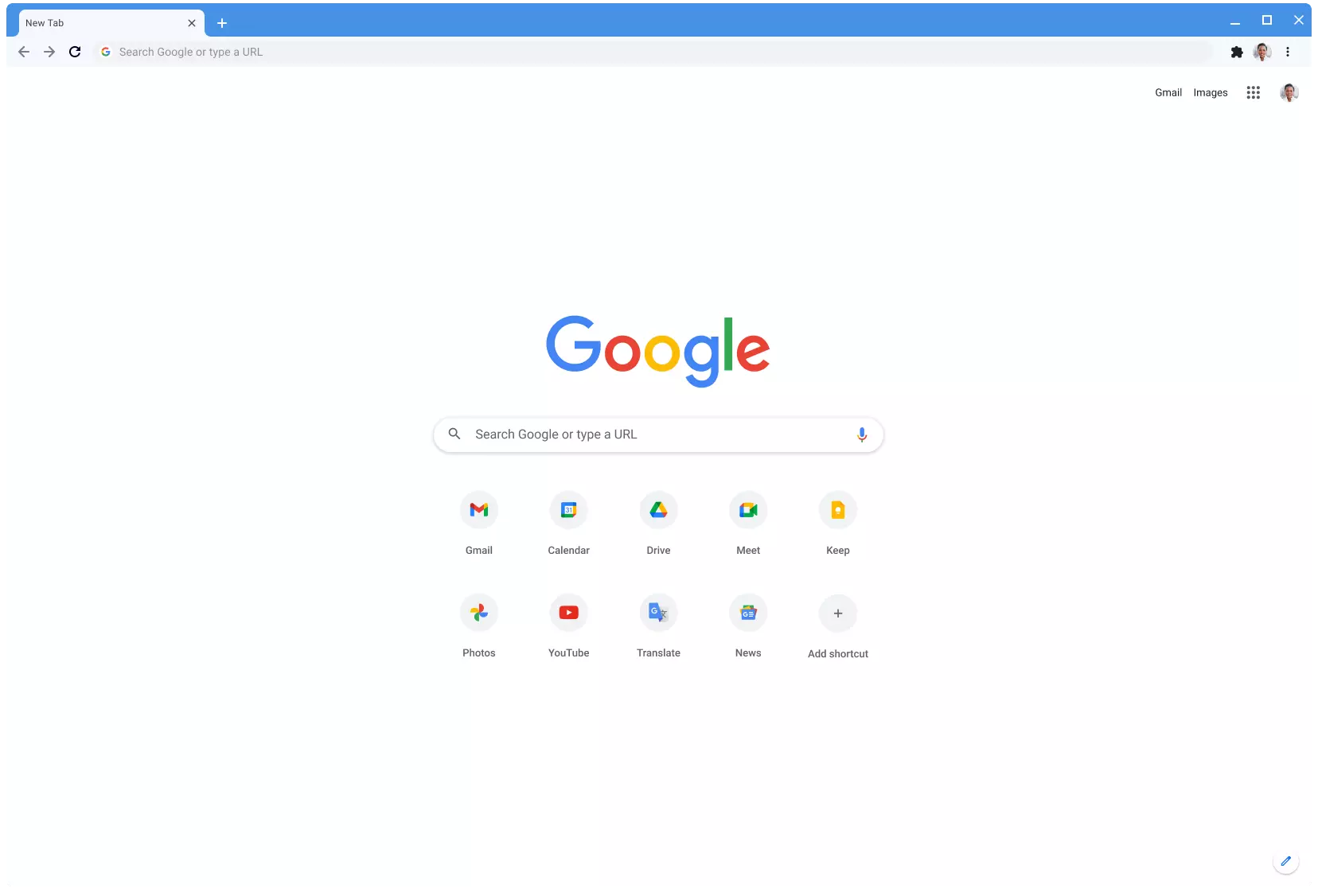
Google Chrome is the most used browser in the world with the most user downloads. Most users are using browsers how it is, open it up and just surf but Chrome offers more than just plain surfing. Here we are presenting you with some interesting features that most users do not use but should.

google chrome

Use Omnibox to search inside websites

Chrome's Omnibox, also known as the address bar got its name because it can do much more than just search the internet. You already probably know that just by typing any word you will search the internet with Google or another search engine of choice.

You can also set specific keywords inside Chrome settings to tie them with specific websites, for example, you can tie the letter E with errortools, and then just by typing E windows error you will search term windows error on website errortools. There are some already predefined things and you can add anything you want so this is a great feature in order to speed up your work skipping part of actually opening the site.

Search the internet for selected text

On any webpage, you can simply select any text and right-click on it to get a new menu entry that will say search Google for "your selected text" and by clicking on it you will automatically search the net for the selected term.

Grouping tabs

When we surf the internet some of us tend to have plenty of open tabs and over time they can clutter and shrink in width making the surfing experience an unpleasant one.

Chrome has tab groups and you really need to start using them since you can organize much better all the tabs, even color-code them.

Search all open tabs

On top right part on title bar right next to minimize button there is small arrow pointing down, once you clik on it all opened tabs will be displayed by name as a listand by clicking on it you will automatically switch to it.

Change download location

Google Chrome has its default download destination but you can change that destination and even turn on option to be asked where you would like your download to be saved each time.

Live Captions

YouTube has cations for its videos but Chrome itself has live caption option in order to provide you with automatic AI captions for any type of video or audio on any website. If you are struggling with following what is being said try this awesome option.

Extensions

Using extensions in Chrome is awesome, specialy if extensions are usefull but if you go incognito they are not active. There is an option in Chrome to turn on the extensions even in incognito mode and even better, you can even choose which ones you want to be active, you do not need to turn all of them.

Do You Need Help with Your Device?

Our Team of Experts May Help
Troubleshoot.Tech Experts are There for You!
Replace damaged files
Restore performance
Free disk space
Remove Malware
Protects WEB browser
Remove Viruses
Stop PC freezing
GET HELP
Troubleshoot.Tech experts work with all versions of Microsoft Windows including Windows 11, with Android, Mac, and more.

Share this article:

You might also like

Assigning Multiple IP Addresses to Adapter
There are times when an IT admin has to set up multiple IP addresses to the same network adapter. Setting up multiple IP addresses in scenarios like hosting various SSL sites, speed up traffic exchanges can help in avoiding being blacklisted in the SPAM filters, and so on. So in this post, you will be guided on how exactly you can assign multiple IP addresses to the network adapter in your Windows 10 computer. There are several ways to assign multiple IP addresses in a network adapter. You can do it using the Network Adapter settings or using the Netsh utility, as well as the Windows PowerShell utility. To get started, refer to each one of the options provided below.

Option 1 – Assign multiple IP addresses via Network Adapter settings

  • Go to Settings first and from there, select Network & Internet, and then click on the Change adapter options. This will show you a list of both the physical and virtual network adapters in your computer.
  • Next, double click on the Ethernet adapter where you want to assign the multiple IP addresses and then click on the Properties button.
  • After that, you should see the Ethernet properties where you have to select the “TCP/IPv4” or “TCP/IPv6”.
  • Once done, click on the Properties button and then select the “Use the following IP address” option under the General tab.
  • Now you have to add an IP address, subnet, and default gateway to the network adapter and then click on the Advanced button.
  • This will open the Advanced TCP/IP settings where you have to click on the Add button so you can add an IP address. From here, you can keep adding multiple IP addresses to the network adapter. You also have the option to add multiple gateways or DNS IP addresses.
  • Once done, if you execute the “ipconfig” command, you should see all the secondary IP addresses listed.

Option 2 – Assign multiple IP addresses using the Netsh command

Another way to assign multiple IP addresses to your network adapter is via the Netsh command.
  • In the Start Search, type “command prompt” and from the search results that appear, right-click on Command Prompt and then select the “Run as administrator” to open it with admin privileges.
  • If a User Account Control or UAC prompt pops up, just click on Yes.
  • After that, run this command: Netsh int ipv4 add address name="Local Area Connection" 192.168.100.100 255.255.255.0 SkipAsSource=True
Note: You have the option to set “SkepAsSource” since it depends on your needs using the Netsh command. When it is configured as true, the IP address won’t be used by the OS for outbound connections.

Option 3 – Assign multiple IP addresses via Windows PowerShell

  • Tap the Win + X key combination and click on the “Windows PowerShell (Admin)” option.
  • After opening Windows PowerShell as admin, use the NetIPAddress command so you can add more IP addresses. Execute this command: Get-NetIPAddress | ft IPAddress, InterfaceAlias, SkipAsSource
  • Next, assign an IP address to a network adapter by executing this command: New-NetIPAddress –IPAddress 192.168.100.100 –PrefixLength 24 –InterfaceAlias “vEthernet” –SkipAsSource $True
  • Now to modify the “SkipAsSource” parameter, use this command: Get-NetIPAddress 192.168.100.100 | Set-NetIPAddress -SkipAsSource $False
Read More
Fix 0x800704C8 Error in Windows 10
When you receive Error 0x800704C8 when trying to move a file inside Windows 10 operation is stopped and it can not continue leaving you with the file in its original location without a copy. Several issues can be the cause of this type of behavior and error and after some digging and analyzing we are bringing you various solutions for this error and how to fix it.

Ownership issues

It turns out that not having ownership of fie can cause this error and prevent you from copying it. For some reason, Windows can assume that file is owned or used by another application or process and thus prevents you from making a copy since you do not have ownership of it. Resolving this particular issue will require you to install a third-party application that is tailored for this kind of task. After some talk and research, we found out that there is a freeware application that can solve this issue quite fastly. Unlocker is the name and the download link is here. Once downloaded, install it and run it. Once inside the application browse to the location where you need to change the ownership, click on it to select it, and click OK. Use the No Action drop drown menu to select Move, then click OK

Antivirus Issue

As with other file and application issues, this error could also be a product of antivirus marking it inaccessible to Windows and thus preventing copy or move operation on it. note: Do not turn off Windows defender since it was proven that it is not the cause of this kind of error, so if you are using only Windows defender you can skip this solution. How temporary turning off each security suite is different and it depends on the application itself we can not cover in detail the procedure here. Go to your security suite manufacturer's website and get information there or if you want, go directly to applications and features inside Windows and uninstall the software.

Visual Studio issue

  • If the file you are trying to move is part of a Visual Studio project then the issue can be linked directly to Visual Studio itself, luckily the solution is quite easy. All you have to do it to exit Visual Studio and then run it with administrator privileges.
  • In order to run Visual Studio with elevated privileges locate its executable file and right-click on it.
  • Choose properties and go to the compatibility tab
  • Inside compatibility tab check box that says run this program as an administrator

Corrupted system files

If the previous solutions have not provided you with results then you have system file corruption that needs to be fixed. Move from one solution to another as presented below:
  1. Run SFC scan

    SFC scan is a built-in Windows tool for solving corrupted system file issues, it is fully automated and does not require from the user any kind of knowledge or information. To run it and scan the system do the following: Press ⊞ WINDOWS + X to open the secret menu Left-click on the command prompt (admin) In command prompt type SFC /SCANNOW and press ENTER Wait for the process to finish, do not interrupt it and once it is done, restart your computer
  2. Run DISM scan

    DISM scan is similar to SFC scan but it tackles different types of system file corruption and it is recommended to run it also after SFC has been completed. Please note that for DISM scan to be successful you will need a stable internet connection since DISM will replace corrupted files with new ones downloaded from Microsoft. To run it do the following: Press ⊞ WINDOWS + X to open the secret menu Left-click on the command prompt (admin) inside command prompt type: exe /online /cleanup-image /scanhealth followed by ENTER, then type: Dism.exe /online /cleanup-image /restorehealth also followed with ENTER. Leave scan to finish and reboot your PC
Read More
Fix DISM Error: The scratch directory size ...
One of the most useful and powerful built-in utility in Windows 10 is the DISM tool. This tool can be used with the Command Prompt command line as well as for other purposes. However, it is not without flaws and there are times when you may encounter some issues while using it. One of the problems you can get while using the DISM tool is the following error:
“The scratch directory size might be insufficient to perform this operation”
This kind of error in DISM occurs when the DISM command is executed from the Windows Recovery Environment due to the limited size permissions of a delivery where the operating is being performed. To fix this DISM error, you need to follow the instructions laid out below. Step 1: First, tap the Win + R keys to open the Run utility and then type “cmd” in the field and tap Enter to open Command Prompt. Step 2: Next, you have to specify a scratch directory that contains the Windows folder and to do that, you can either use the DIR command or the BCEDIT command. So in the elevated command prompt type and enter “dir” or “bcedit”. Step 3: After that, you will see a list of folders inside the C: partition. Now you have to create a folder named “scratch” inside the partition. To do so, execute the following command:
mkdir C:Scratch
Note: The command you just entered will create a directory inside the root of the C: partition named Scratch. Step 4: Now that you’ve created the Scratch folder, note that each time you run any of the DISM commands, you have to enter the following code snippet in them:
/ScratchDir:C:Scratch
 Note: For instance, if you are using the DISM tool to repair the offline Windows image, instead of executing the “Dism /Online /Cleanup-Image /RestoreHealth” command, you now have to execute the “DISM /Image:C: /ScratchDir:C: Scratch /Cleanup-Image /Restorehealth” command. And if you want to remove a selected installed update package, you can use the “DISM /image:C: /ScratchDir:C:Scratch /Remove-Package /PackageName:Package_for_RollupFix~31bf3856ad364e75~amd64~~16299.196.4.9” command. Keep in mind that the mentioned package is only an example. And lastly, you also have to replace the drive letter in the new code snippet when you execute the commands given above.
Read More
Should you build a custom PC

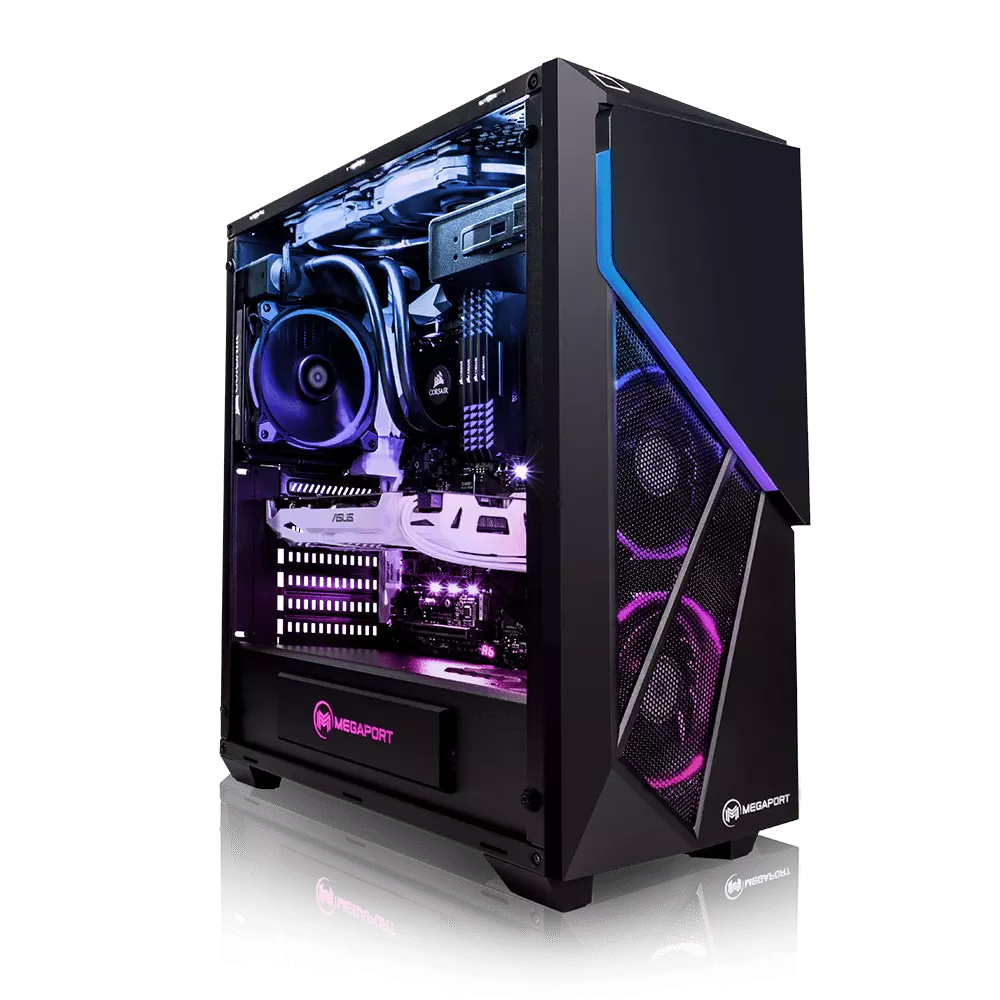
Building your own custom PC system can be one of the greatest things you can do to your budget. Instead of going for a rebuild, we will go into detail about why building your own PC is a much better option. Also, note that if you do not possess enough technical knowledge about a topic there are plenty of stores that will offer you advice on components and after all, you can always get help from a friend.

Custom PC

So without further diversion from the topic, let us explore all the benefits of building a custom computer.

Building a custom PC is cheaper

At the first look, this statement does not feel right since when you look at the prebuilt systems you get a feeling that it is much cheaper than do it yourself variant and although CPU and GPU seem like a great deal I beg you to look under the hood on other components. Usually to lower price compromise would be made on other crucial components like SD or power supply, a PC case, or motherboard so even if you have a good CPU and GPU that will not matter much since other components would not be able to catch up with them. After all, prebuild computers will need to pay people who are building them and there is no way that will be cheaper if you just plain went and bought the same components yourself and install them.

When you are in control in choosing each component there is not only being cheaper online, it is flexibility with building itself. You choose which components you want to be stronger and which to be normal. Also, you can choose the exact model of the given component leaving you more in control and open to future upgrades.

More flexibility

Also, it may sound irrelevant but when building your own custom PC you can also choose which company you would like to purchase for each model, yes considering the CPU it is AMD or Intel but when you are buying a case, SSD, GPU, and other components choosing the right company for your needs is also the thing that should not be overlooked.

You can customize it the way you want

Not really a quality argument but with a custom PC build, you can choose would you like that RGB component or not, you choose do you like white or black fans, and many more things. You really can place a personal stamp on the computer making it indeed a personal computer.

You choose OS and applications

When you buy an already prebuilt PC, usually it comes with some sort of OS on it, sometimes it is freedos, Linux and sometimes it is Windows Home. When you get your hands dirty you can place whichever system you want on it and install applications that you use and know and some preinstalled typical apps.

Read More
Importing and Exporting WSL distros in Windows
In this post, you will be guided on how to import and export the WSL distros in your Windows 10 computer. WSL, also known as Windows Subsystem for Linux, is a compatibility layer needed to run Linux binary executable in Windows 10, as well as the Windows Server 2019. In case you don’t know, when you reinstall or reset Windows 10, all of its configuration data stored with the WSL distros gets deleted. Going back or restoring the configuration can be quite challenging but worry not for Microsoft has already got this covered as you can now import and export the WSL or Windows Subsystem for Linux distros. There are three aspects that you have to deal with when you import or export WSL distros in your Windows 10 computer, such as importing WSL distro, exporting WSL distro, and uninstalling the imported WSL distros. Before you proceed to the instructions provided below, make sure that all your installed distros are updated via Microsoft Store. Once you have this covered, follow the options below.

Option 1 – Import the WSL distro

  • Type “command prompt” in the Start Search and from the search results, right-click on Command Prompt and then select the “Run as administrator” option.
  • After opening Command Prompt as admin, execute this command: wsl --list –all
  • The command you entered will list all the installed WSL distros on your computer. And now it’s time for you to import a WSL distro by executing this command: wsl --import <Name of the distro> <Fill path to save the backup .tar file>
Note: In the given command above, replace “<Name of the distro>” with the name of the distro you want to import and replace “<Fill the path to save the backup .tar file>” with the location where you want to save the .tar file.

Option 2 – Export the WSL distro

  • Type “command prompt” in the Start Search and from the search results, right-click on Command Prompt and then select the “Run as administrator” option.
  • After opening Command Prompt as admin, execute this command to see the list of all the installed WSL distros in your computer: wsl --list –all
  • After that, execute this command to export a WSL distro: wsl --export <Name of the distro> <Fill path to save the backup .tar file>

Option 3 – Uninstall the imported WSL distro

  • Open Command Prompt with admin privileges.
  • Next, execute this command to view the list of all the installed WSL distros: wsl --list –all
  • After that, execute this command to uninstall an imported WSL distro: wsl --unregister <Name of the distro>
  • Once it’s done, close Command Prompt and restart your computer.
Read More
Disabling the Recently Opened Files in Windows
The Windows 10 operating system comes with a user-friendly interface as well as better security features compared to its previous versions. One of these new features is the “Recently Opened Files” feature which displays all the files you’ve opened recently in File Explorer. Although it might seem useful, some users see this as a privacy concern especially if there are other users that use the same computer. If you are one of these users, read on as this post will guide you on how you can disable the “Recently Opened Files” feature in Windows 10. There are three ways you can disable the “Recently Opened Files” feature. You can manually clear the recent files, or disable the feature via Control Panel. You can also do it using the Group Policy Editor.

Option 1 – Manually clear the recent files

The first thing you can do is to clear the recent files manually. Since the information about the recently opened files is stored in the form of cached data, you can locate this data and delete it manually, from time to time. To do that, follow these steps:
  • Tap the Win + R keys to open the Run utility and copy this address in the field: %AppData%MicrosoftWindowsRecent
  • Next, tap the Ctrl + A keys to select all the items and then tap the Shift + Delete keys simultaneously.
  • After that, a prompt will appear where you have to click on Yes. This will delete all the recently opened files in the File Explorer the next time you open it.

Option 2 – Disable the feature via Control Panel

The next option you can try to disable the feature is via Control Panel. Refer to these steps to do so:
  • First, click on the Start Menu button and select the Settings icon.
  • After that, click on Personalization and then on Start located on the left pane.
  • Next, scroll down until you see the “Show recently opened items” in Jump Lists on the Start or the Taskbar and click on it and then toggle it off.

Option 3 – Disable the feature using the Group Policy Editor

If you are using the Windows 10 Pro version, then you have access to edit the functions in the Group Policy. The Group Policy function has the option that can disable all the default services of Windows 10. Note that in this step, you will permanently disable the “Recently Opened Files” feature. So before you proceed, make sure that you really want to disable this feature permanently and not in the meantime.
  • Tap the Win + R keys to open the Run dialog box and type “gpedit.msc” in the field and click OK or tap Enter to open the Group Policy Editor.
  • Next, on the left side pane, click on the “User Configuration” option and then click the “Administrative Templates” option.
  • After that, select the “Start Menu and Taskbar” option and select the “Don’t keep the history of recently opened documents” option in the right pane.
  • Now double click on this option and check the “Enabled” option and then click on Apply and OK buttons to save the changes made.
Read More
DDR5 what we know so far about it
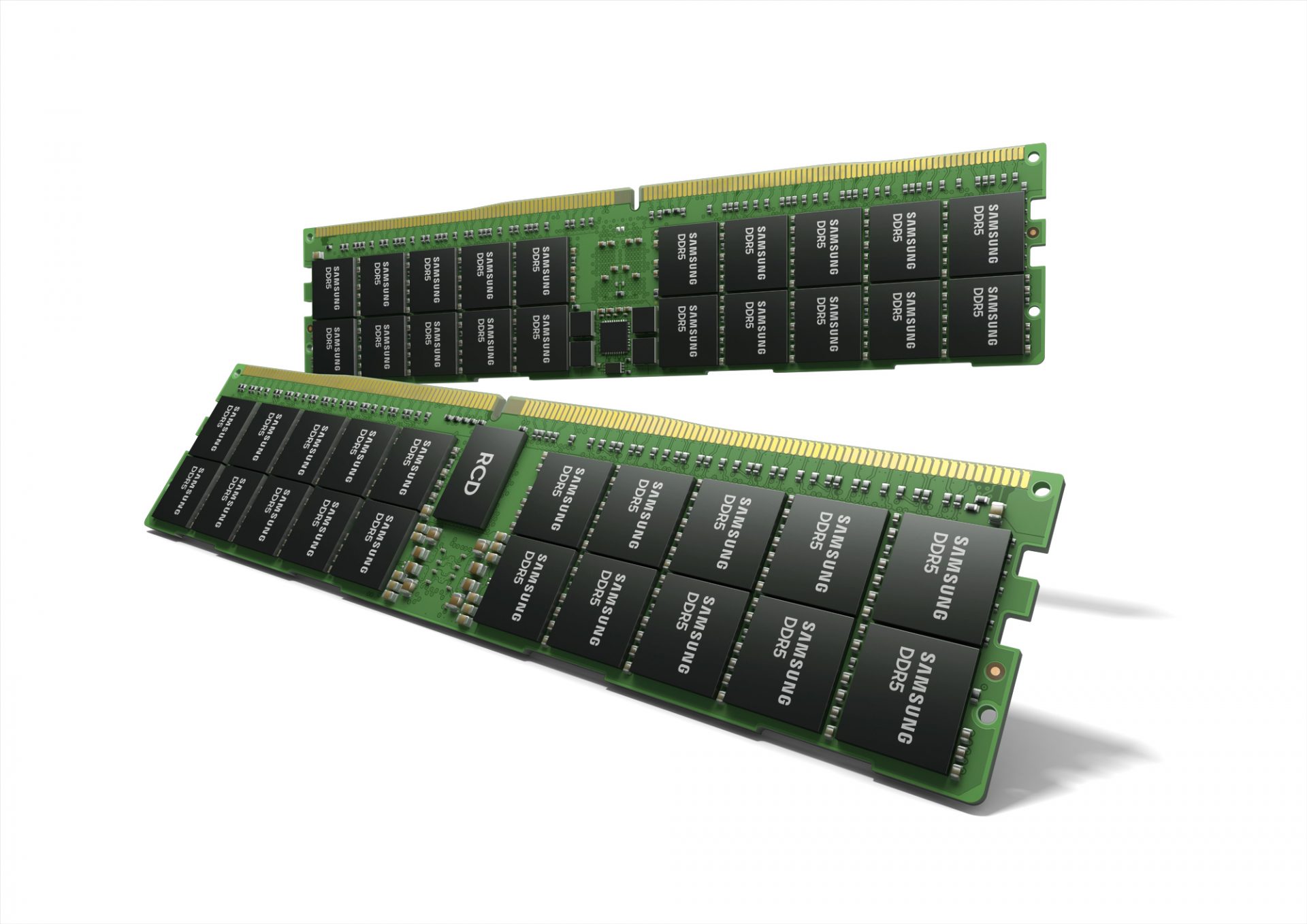
DDR5 memory moduleNext-generation of RAM, DDR5 supposed to hit shelves around late summer or fall in 2021if everything goes as planned. Its goal is to increase speed and efficiency, wants to pack more memory in a single stick, and have better power management.

Hardware requirements for DDR5

Using the latest memory technology will require other hardware to follow certain standards and the first ones that will need to follow are CPUs and Motherboards. Intel is already prepared with its Alder Lake CPUs that suppose to come out also later this year. AMD on other hand has not stated anything at the time of this writing but it is a bet that their next generation that will come in 2022 will have full support. It is speculated that bot companies and their respective CPUs will have both support for DDR4 and DDR5. A story about motherboards is a little different. Motherboards will support DDR4 or DDR5 memory banks, not both, so make sure that your motherboard will support the memory you plan on getting.

Capacity of memory

The goal and aim for the DDR5 memory stick are to reach a whopping 126GB per stack. This will be done by using a dual in-line module or DIMM enabling larger capacity. That being said, the first modules that we will see are more likely to be 16GB as standard and 8GB as low entry ones.

Power consumption of DDR5 memory

The standard voltage that DDR4 operates under is 1.2V. DDR5 wants to lower this to 1.1V without sacrificing speed. Voltage regulation on modules themselves will be now integrated on memory banks instead of leaving that to motherboards which will help to detect memory errors directly on the memory bank.

Speed of memory

The most common speed of DD4 memory banks is 2,666MHz, more expansive ones go from 3,600 to 4,000MHz. DD5 aims to raise this bar to 4,800MHz and offers greater speed.

Should you get it right away?

Hardware is ever-evolving, we have PCIe 3.0 to PCIe 4.0, and taking into account that sometimes the newest tech can cause some unexpected behavior it is always the best strategy to wait for a little. Price for the newest tech has also been in its heist just when it is released and seeing how DDR5 will benefit mostly servers mostly since even today memory, processors, and other available equipment can tackle all daily tasks.
Read More
3 Methods To Fix Qtcore4.dll Error

Qtcore4.dll Error - What is it?

Qtcore4.dll is a dynamic link library file that helps Microsoft Windows in loading several key components of the system. The Qtcore4.dll error occurs when the Qtcore4.dll file cannot be loaded to run the application supported by this .dll file. The Qcore4.dll missing error message may occur while booting your system or launching a certain program. It is a blue screen of death error type. The Qtcore4.dll error code is often displayed as:

BLUE SCREEN ERROR - QtCore4.dll Not Found

Filei386QtCore4.dll could not be loaded. The error code is 7. Setup cannot continue. Press any key to exit.

Solution

Restoro box imageError Causes

This error code is triggered by a variety of reasons such as:
  • Windows file allocation file gets damaged
  • Your computer BIOS (Basic Input/Output System) are misconfigured
  • The Qtcore4.dll file gets corrupt
  • Registry gets damaged and corrupt
  • Non-Microsoft program not running in tandem with Windows
  • Malware attack
  • Improper hardware driver software
It is advisable to fix the Qtcore4.dll error code immediately as this error can pose serious threats to your system. Qtcore4.dll error can lead to system breakdown.

Further Information and Manual Repair

Here are some ways of fixing the Qtcore4.dll error on your system:

1. Re-install the Program Causing Qtcore4.dll error message to pop up

As dll files are shared files sometimes due to program deletion and installation .dll file settings can get misconfigured, damaged, and corrupt. In such a scenario, you can try reinstalling the program that is causing Qtcore4.dll error message to appear on the screen.

2. Reconfigure your Mis-configured BIOS

If BIOS misconfiguration is the cause of this error code on your system, then try reconfiguring your system’s misconfigured BIOS.
  • To do this boot the computer and then press the BIOS designated keys to enter the BIOS. The keys may vary from manufacture to manufacture but typically, the setup keys are F2, F10, F12, and Del.
  • Once you figure out the setup keys, press them rapidly when booting the computer.
  • After successfully hitting the setup keys, the BIOS will load and you will see the BIOS setting menu on your screen. Adjust settings. Go to SATA Operation and change RAID AHCI to RAID ATA. Save changes and then exit.

3. Scan Your PC with a Registry Cleaner and an Antivirus

However, after adjusting the BIOS if the error still pops up on your screen, then this indicates the problem is bigger than you think. It triggers either malware attack or registry corruption. If these are the underlying causes for the Qtcore4.dll error on your system then you need to scan your PC with a registry cleaner and an antivirus. Registry is the main database of your system; if this gets corrupt it is most likely to result in system failure and valuable data loss. And as for malware, the biggest concern is data security threats. Today’s advanced and lethal malware like viruses and spyware can give easy access to hackers to enter your system from a remote location, browse through your confidential and private data and manipulate it to their advantage. This has led to a surge in various types of cyber crime, data breaches, and identity theft cases over the years. To avoid all this while resolving the error code Qtcore4.dll on your PC, registry cleaning and repair and antivirus scan are needed. You can either download 2 separate tools on your system to scan your PC which by the way will take a lot of time and increase your chances of the system slow down or you can download Restoro.

Why Restoro?

  • Total System Care is an advanced, user-friendly, high, and multi-functional repair.
  • It is deployed with a powerful and intuitive registry cleaner. It also functions as a system optimizer. It spares you from downloading numerous tools to address and resolve different errors on your PC.
  • It is your one-stop solution for not only Qtcore4.dll problems but practically all PC-related issues.
  • The registry cleaner utility detects all the malicious, unnecessary, and obsolete files overloading and corrupting your RAM.
  • This includes junk and temporary files. It wipes them out thus clearing your disk space. Simultaneously, it also repairs the damaged and misconfigured dll files including the Qtcore4.dll file, and fixes the corrupt registry.
  • The privacy error utility has the properties of an antivirus. It detects and removes malware, viruses adware, and spyware from your system in seconds.
  • Total System Care resolves the Qtcore4.dll error on your system and boosts the performance of your system. It has a simple and neat interface which makes it quite easy for users to operate it, even those who are not technically adept.
  • It is compatible with all Windows versions
Click here to download Restoro and repair the Qtcore4.dll error on your PC.
Read More
PrivacyAssistant Malware Removal Tutorial

PrivacyAssistant is a browser extension developed by SearchAssistant.net. These extensions allegedly offer users a safer way to browse the internet and some other tools to customize the home page with background wallpapers and one-click links that can be added. While all this may sound appealing, PrivacyAssistant also monitors your browser activity, search quarries, clicks, visits, and possibly personal information.

This extension changes your default home page to SearchAssistant.com and rerouting all searches through its search portal, displaying sponsored links instead of your typical search results. While active you may see unwanted ads and even pop-up ads appearing while browsing the internet.

Several anti-virus programs have classified this extension as a Browser Hijacker, and are, therefore, for security reasons, not recommended to keep on your computer.

About Browser Hijackers

Browser hijacking is amongst the web’s constant risks that target internet browsers. It’s a kind of malicious software that alters your internet browser’s configuration settings and redirects you to websites or pages that you had no intention of checking out. They are created to disrupt browser functions for many different reasons. Usually, hijackers will force hits to internet sites of their choice either to increase traffic producing higher advertisement earnings, or to gain a commission for each and every user visiting there. Most people believe that these kinds of websites are legitimate and harmless but that is not the case. Almost every browser hijacker poses an existent threat to your online safety and it’s important to categorize them under privacy dangers. When the program attacks your PC, it starts to mess things up a whole that slows your computer down to a crawl. In the worst-case scenario, you might be forced to deal with serious malware threats as well.

How one can recognize a browser hijack

There are numerous symptoms that point to a browser hijacking: your browser’s home page is suddenly different; you get re-directed to sites you never meant to visit; the default web engine has been changed and your web browser security settings have been lowered without your knowledge; find new toolbars that you simply did not add; you might find many pop-up ads on your computer screen; your web browser starts running slowly or displays frequent errors; you have prohibited entry to certain web pages, for example, the website of an antivirus software developer like SafeBytes.

So how exactly does a browser hijacker infect a PC

Browser hijackers may use drive-by downloads or file-sharing websites or perhaps an email attachment in order to reach a targeted computer system. They can also originate from any BHO, extension, toolbar, add-on, or plug-in with malicious intent. Other times you might have unintentionally accepted a browser hijacker as part of a software program bundle (generally freeware or shareware). A good example of some popular browser hijackers includes Conduit, Anyprotect, Babylon, DefaultTab, SweetPage, Delta Search, and RocketTab, however, the names are constantly changing. Browser hijacking can lead to serious privacy problems and even identity theft, disrupt your browsing experience by taking control over outgoing traffic, considerably slows down your personal computer by consuming lots of system resources, and result in system instability at the same time.

How to repair a browser hijack

Some hijackers can be removed by uninstalling the free software they were included with or by deleting any extension you’ve recently added to your browser. But, the majority of hijackers are extremely tenacious and require specialized applications to eradicate them. Furthermore, manual removal requires you to execute many time-consuming and tricky procedures which are hard to carry out for inexperienced computer users.

How To Get Rid Of Virus That Is Preventing Antivirus Installation?

Viruses can cause a great deal of damage to your computer system. Some malware sits in between the computer and your net connection and blocks some or all sites that you really want to visit. It will also prevent you from installing anything on your computer, especially anti-malware software. So what to do if malicious software keeps you from downloading or installing Safebytes Anti-Malware? Although this sort of problem can be difficult to circumvent, there are some actions you can take.

Make use of Safe Mode to resolve the problem

In Safe Mode, you can actually change Windows settings, un-install or install some software, and eliminate hard-to-delete malware. In case the malware is set to load immediately when PC boots, switching into this mode may well prevent it from doing so. To enter into Safe Mode or Safe Mode with Networking, press F8 while the system is starting up or run MSCONFIG and look for the “Safe Boot” options in the “Boot” tab. Once you’re in safe mode, you can try to install your anti-malware program without the hindrance of the malicious software. Following installation, run the malware scanner to remove most standard infections.

Switch over to some other web browser

Some malware mainly targets specific browsers. If this is your situation, use another internet browser as it can circumvent the malware. In the event you suspect that your Internet Explorer has been hijacked by a computer virus or otherwise compromised by cybercriminals, the best approach is to switch over to a different internet browser like Mozilla Firefox, Google Chrome, or Apple Safari to download your favorite computer security program – Safebytes Anti-Malware.

Run anti-virus from a USB drive

Another solution is to create a portable anti-malware program on your USB thumb drive. Try these simple actions to clean up your affected PC using a portable antivirus. 1) Download Safebytes Anti-Malware or Microsoft Windows Defender Offline onto a clean computer system. 2) Plug the pen drive into the uninfected PC. 3) Run the setup program by double-clicking the executable file of the downloaded application, which has a .exe file format. 4) Choose the flash drive as the location for saving the file. Follow the on-screen instructions to complete the installation process. 5) Transfer the pen drive from the uninfected computer to the infected computer. 6) Double-click the EXE file to open the Safebytes tool from the pen drive. 7) Click “Scan Now” to run a scan on the infected computer for viruses.

A Look at the Best AntiMalware Program

If you are looking to download an anti-malware application for your computer, there are several tools out there to consider nonetheless, you cannot trust blindly anyone, no matter whether it is paid or free software. Some are really worth your money, but many aren’t. While looking for an anti-malware program, choose one that offers solid, efficient, and complete protection against all known computer viruses and malware. One of the highly recommended software is SafeBytes AntiMalware. SafeBytes carries a very good track record of quality service, and customers appear to be happy with it. SafeBytes anti-malware is really a powerful, very effective protection tool created to assist users of all levels of IT literacy in finding and eliminating malicious threats out of their PC. Once you’ve got installed this software, SafeByte's state-of-the-art protection system will make sure that no viruses or malicious software can seep through your PC. SafeBytes anti-malware comes with a plethora of enhanced features which sets it aside from all others. Listed below are some of the highlighted features included in the tool. Robust Anti-malware Protection: This deep-cleaning anti-malware software goes much deeper than most anti-virus tools to clean your computer. Its critically acclaimed virus engine finds and disables hard to remove malware that conceals deep inside your personal computer. Active Protection: SafeBytes gives round-the-clock protection for your PC limiting malware attacks in real-time. They’re extremely effective in screening and removing various threats since they’re constantly improved with the latest updates and alerts. Web protection: SafeBytes checks the links present on a web page for possible threats and alerts you whether the website is safe to explore or not, through its unique safety ranking system. Light-weight: The program is lightweight and will work quietly in the background, and that does not impact your computer efficiency. 24/7 Premium Support: Support service is readily available for 24 x 7 x 365 days through email and chats to answer your queries.

Technical Details and Manual Removal (Advanced Users)

If you wish to manually remove PrivacyAssistant without the use of an automated tool, it may be possible to do so by removing the program from the Windows Add/Remove Programs menu, or in cases of browser extensions, going to the browsers AddOn/Extension manager and removing it. You will likely also want to reset your browser. To ensure the complete removal, manually check your hard drive and registry for all of the following and remove or reset the values accordingly. Please note that this is for advanced users only and may be difficult, with incorrect file removal causing additional PC errors. In addition, some malware is capable of replicating or preventing deletion. Doing this in Safe Mode is advised.

The following files, folders, and registry entries are created or modified by PrivacyAssistant

Registry: HKLMSOFTWAREClassesAppID.exe HKEY_CURRENT_USERsoftwareMicrosoftInternet ExplorerMainStart Page Redirect=http://.com HKEY_LOCAL_MACHINESOFTWAREMicrosoftWindows NTCurrentVersionvirus name HKEY_CURRENT_USERSoftwareMicrosoftWindows NTCurrentVersionWinlogon Shell = %AppData%.exe HKEY_CURRENT_USERSoftwareMicrosoftWindowsCurrentVersionRun Random HKEY_LOCAL_MACHINESoftwareMicrosoftWindows NTCurrentVersionRandom HKEY_LOCAL_MACHINESOFTWAREsupWPM HKEY_LOCAL_MACHINESYSTEMCurrentControlSetServicesWpm HKEY_CURRENT_USERSoftwareMicrosoftWindowsCurrentVersionUninstallPrivacyAssist HKEY_LOCAL_MACHINESOFTWAREMicrosoftWindows NTCurrentVersionImage File Execution Optionsmsseces.exe HKLMSOFTWAREClassesAppIDrandom.exe HKEY_CURRENT_USERSoftwareMicrosoftInternet ExplorerMain Default_Page_URL

Read More
Software review series: BitWarden
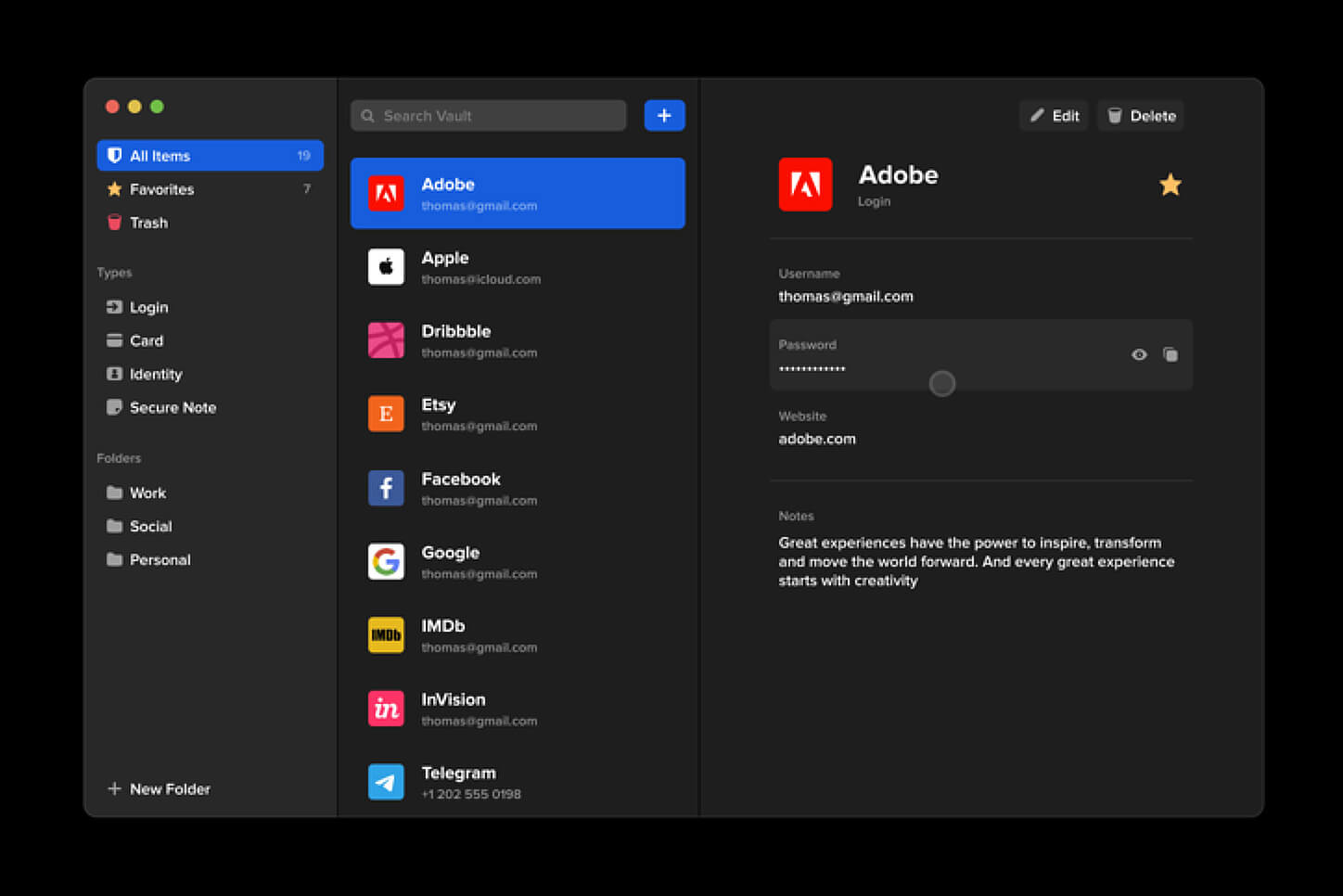
BitWardenMany times we were talking and writing here on Errortools.com about security, privacy, hacking, identity theft, etc. We tried to raise important security questions and I hope I have managed to at least shed some light and change maybe some bad behaviors for some, helping them embrace better routines about their security on their PC. In this light, I will today present you with one neat and awesome piece of software, a password manager worth your time and money (if you want premium features): BitWarden.

What BitWarden offers?

The first thing that it offers is the completely free basic plan, granted BitWarden is not an open-source project nor completely free but it has an unlimited free basic plan that will cover 90% of user needs. There is also a free basic unlimited plan for Organizations letting you and one more user share files and other stuff via BitWarden making it a cool option if you need it. Premium features offer you encrypted sharing of files, two-step login, 1GB file attachments (encrypted), Bitwarden Authenticator (TOTP), Vault Health Reports, Emergency Access, and Priority Support. The cost for all of these additional features is 10 USD per year for an individual plan or 40 USD per year for organizations where you will get an increase of maximum users from 2 to 6. Yes, you read that correctly, only 10 USD per YEAR for the whole set of features. Granted if you do not need any of them, enjoy the free version forever. Besides very low premium cost BitWarden will offer you compatibility with all major browsers and devices including both Android and iOS platforms making it a great cross-platform solution to login and maintain your passwords anywhere with just one click. Once installed all you need to do is set one master password and be very careful not to lose or forget this one, if you do all of your other generated passwords will be lost forever.

Features

Secure Password Sharing

Share your encrypted data quickly and easily, and only with the users or teams who need access

Cross-Platform Accessibility

Access critical data in your Bitwarden vault from any location, browser, and device

Cloud-Based or Self-Host

Get up and running in minutes in the cloud or you can self-host Bitwarden for complete data control

Security Audit & Compliance

Open source and third-party audited, Bitwarden complies with Privacy Shield, GDPR, CCPA regulations

Vault Health Reports

Access insightful reports to reveal weak, reused passwords, and other helpful data security metrics

Directory Sync

Our powerful Directory Connector streamlines user and group onboarding and keeps them in sync

Always-On Support

Our Customer Success agents are available to support you around the clock

Detailed Event Logs

Bitwarden creates audit trails to help you keep track of user and group access to sensitive data

Flexible Integrations

Unite your existing systems with Bitwarden using SSO authentication, Directory services, or powerful APIs

Conclusion

There are many password managers out there but via recommendation I have tried BitWarden and truth to be told, I really never felt the need to try anything else, it is great at what it does and it is moving forward with features and it is constantly updated and maintained.
Read More
1 2 3 171
Logo
Copyright © 2023, ErrorTools. All Rights Reserved
Trademark: Microsoft Windows logos are registered trademarks of Microsoft. Disclaimer: ErrorTools.com is not affiliated with Microsoft, nor claims direct affiliation.
The information on this page is provided for information purposes only.
DMCA.com Protection Status