Logo

Blizzard caught destroying evidence

Blizzard employeesCalifornia's Department of Fair Employment & Housing has widened its anti-discrimination lawsuit against Activision Blizzard and claims the publisher has been shredding vital documents relevant to the ongoing investigation.

A recent report from Kotaku described the department as offering poorly paid, highly insecure positions, with a culture of hostility towards LGBTQ+ testers. The DFEH's rewording of "employees" to "workers" now hopes to take these contractors' experiences into account.

"As a contract employee, I feel there's a lot of pressure to excel, impress, and move through the ranks as fast as you can before your contract ends and you're forced to go 3 months without income or find another job," Axios reports one worker saying. "I take pride in what I do, but it feels like it's never enough."

Activision's contentious hiring of union-busting third-party law firm WilmerHale "directly interferes" with its own investigation, it says. By going to WilmerHale, Activision appears to be claiming that all work related to the investigation is privileged and can't be shared with DFEH.

The suit also claims that Activision HR shredded documents related to "investigations and complaints", against its legal obligation to retain them during the investigation. The relevant parts of the updated lawsuit were shared by Axios reporters Stephen Totilo and Megan Farokhmanesh, the former also noting that the DFEH "fixed their misspelling of Bill Cosby's name".

"DFEH is also informed and aware that documents and records have not been maintained as required by law or by the DFEH's Document Retention Notice," the complaint reads, "including but not limited to documents related to investigations and complaints were shredded by human resource personnel and emails are deleted thirty days after an employees separation."

Speculation and answer from Activision Blizzard

Blizzard employee Jessica Gonzalez suspects that the costs of fines associated with destroying these documents may have been an easier blow for Blizzard to take than any penalties drawn from their existence in helping the lawsuit go through.

In an email to Kotaku, Activision denied the shredding allegations and issued a statement outlining steps it had taken to improve company culture—including the ousting of high-level executives like Blizzard president J. Allen Brack. The full statement reads:

"Throughout our engagement with the DFEH, we have complied with every proper request in support of its review even as we had been implementing reforms to ensure our workplaces are welcoming and safe for every employee. Those changes continue today, and include:

  •     Several high-level personnel changes
  •     Revamped hiring and recruiting practices requiring diverse interview panels
  •     Greater transparency on pay equity
  •     Expanded and improved training and investigative capabilities for human resource and compliance staff
  •     Created investigation teams outside of business units to support greater independence
  •     Restructured divisions to support greater accountability
  •     Enhanced review processes to include evaluation of managers by employees
  •     Clear boundaries on workplace behavior with a zero-tolerance approach to harassment and other actions that diminish or marginalize.

"We strive to be a company that recognizes and celebrates the diverse talents and perspectives that lead to the creation of great, globally appealing entertainment. We have provided the DFEH with clear evidence that we do not have gender pay or promotion disparities. Our senior leadership is increasingly diverse, with a growing number of women in key leadership roles across the company.

"We share DFEH’s goal of a safe, inclusive workplace that rewards employees equitably and is committed to setting an example that others can follow."

California and RIOT

Beyond Activision Blizzard, California's DFEH has also probed into League of Legends creator Riot Games, accusing the studio of dragging its heels over sexual harassment allegations dating back to 2019. Riot denied the allegations, telling us that it "will never retaliate against anyone for talking to any government agency".

Do You Need Help with Your Device?

Our Team of Experts May Help
Troubleshoot.Tech Experts are There for You!
Replace damaged files
Restore performance
Free disk space
Remove Malware
Protects WEB browser
Remove Viruses
Stop PC freezing
GET HELP
Troubleshoot.Tech experts work with all versions of Microsoft Windows including Windows 11, with Android, Mac, and more.

Share this article:

You might also like

Repair Windows 10 Error Code 0xC1900200, 0x20008

Code 0xC1900200, 0x20008, What is it?

Error Code 0xC1900200, 0x20008 (Code 0xC1900202 – 0x20008)  is an error that occurs when you attempt to upgrade to Microsoft Windows 10, but the minimum requirements have not been met by your computer. You will therefore be unable to upgrade to Microsoft Windows 10 until your computer is updated or upgraded to meet those requirements. Common symptoms include:
  • When attempting to upgrade a dialog box with Code 0xC1900200 – 0x20008 (Code 0xC1900202 – 0x20008) is displayed.
  • Your computer is unable to begin the Microsoft Windows 10 upgrade process.

Solution

Restoro box imageError Causes

Error Code 0xC1900200 – 0x20008 (Code 0xC1900202 – 0x20008)  occurs when you are unable to begin the Microsoft Windows 10 upgrade because your computer does not meet the minimum requirements to run Microsoft Windows 10.
  • You are unable to begin the upgrade because your computer does not meet the required system or hardware specifications.
  • You are not running the correct version of Microsoft Windows to be able to begin the upgrade.
  • You are not running the latest updated version of Microsoft Windows 7 SP1 or Microsoft Windows 8.1. Error Code 0xC1900200 – 0x20008 (Code 0xC1900202 – 0x20008) as stated, simply means your computer does not meet the requirements to update and does not indicate a permanent problem or inability to continue to use your computer. This error only means that you will not be able to upgrade to Microsoft Windows 10 until your computer is made to meet these requirements.

Further Information and Manual Repair

There are several solutions that the user can complete at home that should fix the problem resulting in a manifestation of Error Code 0xC1900200 – 0x20008 (Code 0xC1900202 – 0x20008). Below are several options that should resolve this error.

Method 1:

Verify what version of Microsoft Windows you are currently running, older, outdated, or no longer supported versions of Microsoft Windows are not able to upgrade to Microsoft Windows 10. If you are not running one of the following versions you will have to update before being able to upgrade.
  • The most current version of Microsoft Windows 7 SP1
  • The most current version of Microsoft Windows 8.1

Method 2:

Your computer's system specifications do not meet the requirements to be able to upgrade to and run Microsoft Windows 10. To check your system specifications do the following.
  • Click on the start button in the bottom left corner, then locate the control panel on the menu, click on it to open.
  • Once it opens, locate system and security on the menu and click to open, click on system and this will show you your amount of RAM and processor speed.
  • Find device manager on the left-hand side click this then select display adapter, and it will show you your current video card.
  • Click on the start button again, then click on the computer in the menu, this will show you your hard drive size, and available space.
If you have the option available you can simply run the get Microsoft Windows 10 app to check compatibility. Once you have your system specs make sure they meet or exceed the following.
  • 1 GHz or higher processor or SoC
  • 1 gig of RAM for 32 bit and 2 gigs of RAM for 64 bit
  • 16 GB available hard drive space for 32 bit, 20 GB for 64 bit
  • Minimum of DirectX9 that has 1.0 WDDM
  • At least an 800x600 display
If your computer does not meet these minimum requirements, upgrade the components necessary to meet them. If you do not possess the technical expertise required to accomplish this yourself or do not feel comfortable doing so, download and install a powerful automated tool to get the job done.

Method 3:

Your computer might not meet the aforementioned requirements to make an upgrade because of insufficient hard drive space or resources. Learn how to create space on your computer.

Method 4:

Many people hold on to and use the same computer for a very long time. It is possible that your computer cannot be upgraded to meet the requirements, or that the cost to do so would be so high that a new computer would be cheaper. If that is the case, your only option may be to replace your computer.
Read More
CLR20R3 error while launching an Application
CLR20R3 error is received when you are launching an application in Windows 10. It can happen because of two reasons, a corrupted application file or missing system components. Keep on reading in order to find solutions to fix this error.
  1. Run the program in compatibility mode

    Locate problematic application executable file Right-click on executable Click on properties Go to the compatibility tab and try running the application in the previous version of Windows or as an administrator.
  2. Reset Windows media component

    Right-click on Start, then left-click on command prompt (admin) In command prompt type next command and after each line of command press ENTER regsvr32 atl.dll cd C:\WINDOWS\eHome ehSched /unregServer ehSched /service ehRecvr /unregServer ehRecvr /service ehRec.exe /unregServer ehRec.exe /regserver ehmsas.exe /unregServer ehmsas.exe /regserver
  3. Reinstall Windows media player

    Go to control panel Click on Program and Features > Turn Windows feature on or off. Expand Media Features, uncheck Windows Media Player, and click Ok. Restart your PC, go through the same steps, tick Windows Media Player, and restart your computer once again.
  4. Reinstall .NET framework

    Go to control panel Click on Program and Features > Turn Windows feature on or off. Uncheck “.NET Framework 3.5” and “.NET Framework 4.8”, and click Ok. Restart your computer, go through the same steps, check “.NET Framework 3.5” and “.NET Framework 4.8”, and restart your computer once again.
  5. Update Windows

    Go to settings and check for updates
Read More
Easy Directions Finder Removal Guide for Windows PC

Easy Directions Finder is a browser extension developed by Mindspark Inc. for Google Chrome. This extension offers users quick access to popular websites for navigation and evens. While at first glance this might look useful, keep in mind that this extension has been marked as a Browser Hijacker by several anti-virus applications.

When installed EasyDirectionsFinder will record your browsing history, visited links, clicked URL-s, and viewed products. This data is later forwarded/sold to Mindspark's ad network and used to better target ads to users.

While browsing the internet with this extension installed (it does not have to be enabled) you will see additional injected ads, sponsored links, and pop-up ads throughout your browsing sessions. Due to its information mining behavior and aggressive ad injections, it is recommended to remove this extension from your computer.

About Browser Hijackers

Browser hijacking is a type of unwanted software, often a web browser add-on or extension, which causes modifications in web browser’s settings. Browser hijackers are capable of doing more than just modifying homepages. In general, browser hijacking is utilized for earning advertising revenue from forced ad mouse clicks and site visits. While it may seem naive, all browser hijackers are dangerous and thus always classified as security risks. When the malware attacks your laptop or computer, it starts to mess things up a whole that slows your system down to a crawl. In the worse case, you may be pushed to deal with serious malware threats as well.

How one can know whether the web browser is hijacked?

The common symptoms that suggest having this malicious software on your computer are: the browser’s home page is modified; you find yourself regularly directed to some other webpage than the one you actually intended; the default web browser settings have been modified and/or your default search engine is altered; unsolicited new toolbars are added to your web browser; your internet browser displays endless pop-up ads; web pages load slowly and often incomplete; you can’t navigate to certain webpages, like computer security software related sites.

So how does a browser hijacker infect a computer?

Browser hijackers may use drive-by downloads or file-sharing networks or an e-mail attachment in order to reach a targeted PC. They could also be deployed via the installation of an internet browser toolbar, add-on, or extension. A browser hijacker could also come bundled up with some freeware that you unintentionally download to your PC, compromising your internet security. Some of the most popular hijackers are EasyDirectionsFinder, Babylon Toolbar, Conduit Search, Sweet Page, OneWebSearch, and CoolWebSearch.

Browser hijacker removal tips

Some browser hijacking could be easily reversed by discovering and eliminating the corresponding malware software through your control panel. Sometimes, it can be a tough task to discover and eliminate the malicious component since the associated file will be running as part of the operating system process. Moreover, browser hijackers could modify the Computer registry therefore it can be quite tough to restore all the values manually, especially when you’re not a very tech-savvy individual. Industry experts always suggest users eliminate any malware including browser hijacker with an automatic removal tool, which is better, safer, and quicker than the manual removal solution. SafeBytes Anti-Malware could counter persistent browser hijackers and give you active PC protection against all types of malware. Together with the antivirus tool, a PC optimizer, such as SafeBytes Total System Care, can help you in deleting all related files and modifications in the computer registry automatically.

How To Get Eliminate Malware That Is Preventing Antivirus Downloads?

Malware could cause many different types of damage to computers, networks, and data. Some malware sits in between the computer and the internet connection and blocks a few or all sites that you really want to visit. It will also prevent you from adding anything to your PC, particularly anti-virus applications. So what to do when malicious software prevents you from downloading or installing Safebytes Anti-Malware? There are a few actions you can take to get around this issue.

Boot your computer in Safe Mode

If any malware is set to load immediately when Microsoft Windows starts, getting into Safe Mode could very well block the attempt. Since only the minimal programs and services launch in Safe Mode, there are hardly any reasons for conflicts to happen. Below are the steps you should follow to start into the Safe Mode of your Windows XP, Vista, or 7 computers (check out Microsoft site for directions on Windows 8 and 10 computers). 1) At power on, press the F8 key while the Windows splash screen starts to load. This will conjure up the “Advanced Boot Options” menu. 2) Choose Safe Mode with Networking with arrow keys and hit ENTER. 3) Once you get into this mode, you should have an internet connection again. Now, utilize your internet browser normally and go to https://safebytes.com/products/anti-malware/ to download and install Safebytes Anti-Malware. 4) After the software program is installed, let the diagnostic scan run to remove trojans and other malware automatically.

Switch over to an alternative web browser

Web-based malware can be environment-specific, targeting a specific web browser or attacking particular versions of the browser. If you seem to have malware attached to Internet Explorer, then switch to an alternate browser with built-in security features, such as Chrome or Firefox, to download your preferred antivirus program – Safebytes.

Install security software on a flash drive

Another option is to create a portable antivirus program onto your USB flash drive. Abide by these steps to run the anti-malware on the infected PC. 1) Download the anti-malware on a virus-free computer. 2) Plug the pen drive into the clean PC. 3) Run the setup program by double-clicking the executable file of the downloaded application, with a .exe file format. 4) Select the USB stick as the location for saving the software file. Follow the on-screen instructions to complete the installation process. 5) Now, insert the USB drive into the infected computer. 6) Run the Safebytes Anti-malware directly from the pen drive by double-clicking the icon. 7) Run Full System Scan to detect and clean-up up all sorts of malware.

SafeBytes AntiMalware Overview

If you’re looking to purchase anti-malware for your laptop or computer, there are plenty of brands and packages for you to consider. A few are very good ones, some are ok types, while some are just fake anti-malware applications that will damage your computer themselves! You need to purchase a product that has obtained a good reputation and detects not just viruses but other sorts of malware too. While thinking about reliable applications, Safebytes AntiMalware is certainly the strongly recommended one. Safebytes is among the well-established computer solutions companies, which provide this complete anti-malware tool. Using its outstanding protection system, this tool will quickly detect and remove most of the security threats, including adware, viruses, browser hijackers, ransomware, PUPs, and trojans.

There are numerous wonderful features you’ll get with this security product. Here are some of the good ones:

Best AntiMalware Protection: With its enhanced and sophisticated algorithm, this malware elimination tool can detect and eliminate the malware threats hiding in the computer system effectively. Live Protection: SafeBytes offers totally hands-free real-time protection and is set to observe, prevent and eliminate all threats at its very first encounter. It’ll regularly monitor your pc for hacker activity and also gives end-users superior firewall protection. SuperSpeed Scanning: Safebytes Anti-Malware, with its enhanced scanning engine, provides extremely fast scanning that can promptly target any active internet threat. Website Filtering: SafeBytes provides an instant safety rating about the pages you’re going to check out, automatically blocking dangerous sites and making sure that you are certain of your online safety while browsing the net. Low CPU Usage: SafeBytes is a lightweight and easy-of-use antivirus and antimalware solution. As it uses low computer resources, this program leaves the computer power exactly where it belongs: with you. 24/7 Live Professional Support: You may get high levels of support 24/7 if you are using their paid version. Overall, SafeBytes Anti-Malware is a solid program since it has plenty of features and can detect and eliminate any potential threats. You can be sure that your computer will be protected in real-time once you put this software to use. So if you’re searching for the absolute best malware removal tool out there, and if you don’t mind paying out a few bucks for it, go for SafeBytes Anti-Malware.

Technical Details and Manual Removal (Advanced Users)

If you do not wish to use a malware removal software and like to remove EasyDirectionsFinder manually, you could possibly accomplish this by going to the Windows Add/Remove Programs menu in the Control Panel and delete the offending program; in cases of browser plug-ins, you may uninstall it by going to the browser’s Add-on/Extension manager. You’ll likely also want to reset your browser. Finally, examine your hard drive for all of the following and clean your Windows registry manually to remove leftover application entries after uninstallation. But bear in mind, editing the registry is often a hard task that only advanced computer users and professionals should attempt to fix the problem. Moreover, some malicious programs have the capability to defend against its deletion. Completing this task in Safe Mode is advised.
Files: %LOCALAPPDATA%\EasyDirectionsFinderTooltab %UserProfile%\Local Settings\Application Data\EasyDirectionsFinderTooltab %LOCALAPPDATA%\Google\Chrome\User Data\Default\Sync Extension Settings\pjclebnjamlmkpgapopafeniobfnlllf %UserProfile%\Local Settings\Application Data\Google\Chrome\User Data\Default\Sync Extension Settings\pjclebnjamlmkpgapopafeniobfnlllf %LOCALAPPDATA%\Google\Chrome\User Data\Default\Local Extension Settings\pjclebnjamlmkpgapopafeniobfnlllf %UserProfile%\Local Settings\Application Data\Google\Chrome\User Data\Default\Local Extension Settings\pjclebnjamlmkpgapopafeniobfnlllf Registry: HKEY_CURRENT_USER\SOFTWARE\EasyDirectionsFinder HKEY_CURRENT_USER\SOFTWARE\Wow6432Node\EasyDirectionsFinder HKEY_LOCAL_MACHINE\Software\Microsoft\Internet Explorer\DOMStorage\easydirectionsfinder.com HKEY_LOCAL_MACHINE\Software\Google\Chrome\PreferenceMACs\Default\extensions.settings, value: pjclebnjamlmkpgapopafeniobfnlllf HKEY_LOCAL_MACHINE\Software\Microsoft\Internet Explorer\DOMStorage\easydirectionsfinder.dl.myway.com HKEY_LOCAL_MACHINE\Software\Microsoft\Internet Explorer\DOMStorage\easydirectionsfinder.dl.tb.ask.com HKEY_LOCAL_MACHINE\Software\[APPLICATION]\Microsoft\Windows\CurrentVersion\Uninstall..Uninstaller EasyDirectionsFinderTooltab Uninstall Internet Explorer

Read More
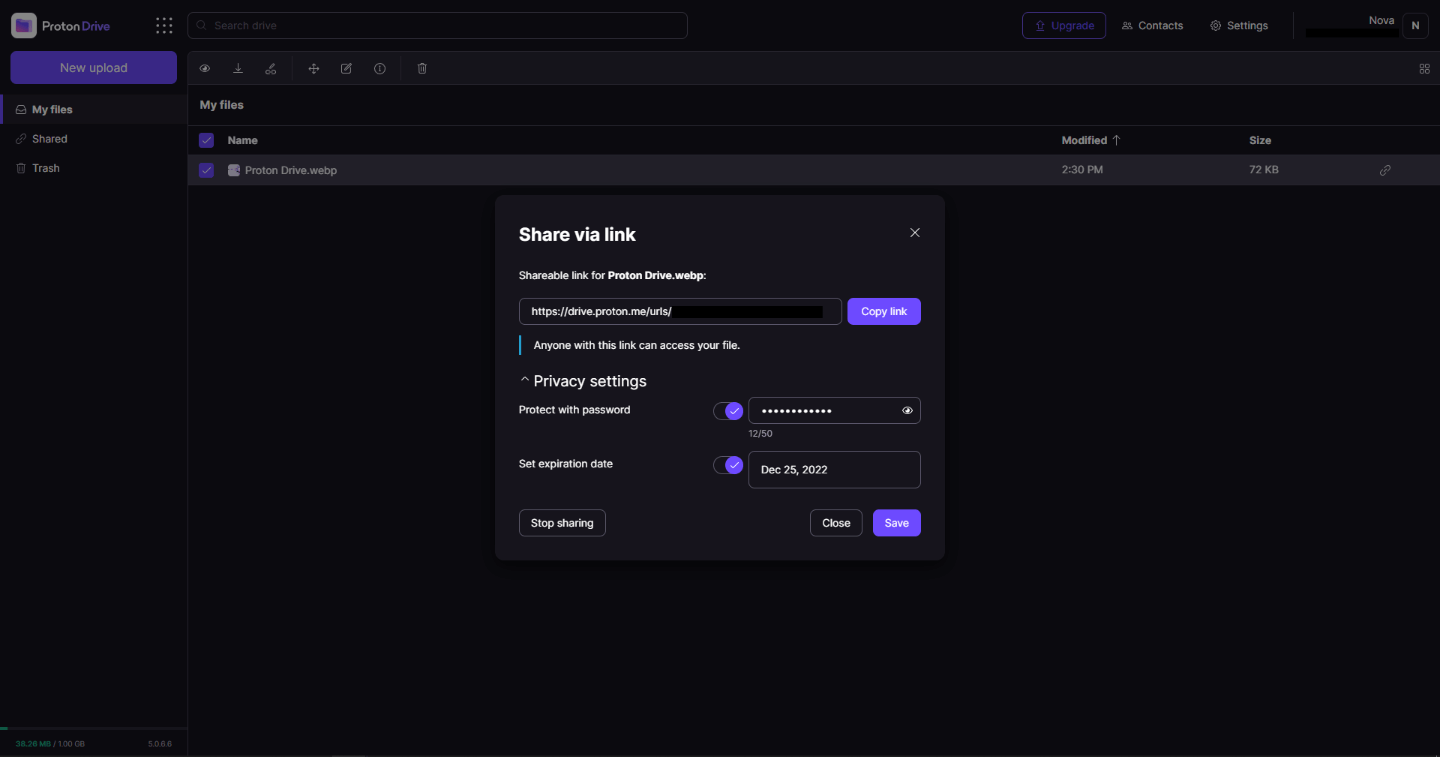
Proton Drive, privacy-first cloud storage

In 2014 Proton mail started as an end-to-end encrypted email service offering secure and private email services. Proton mail is still live and going with the same dedication to privacy and security but the company has expanded its offering into cloud storage drive services.

Starting as a public beta at the end of 2020, Proton Drive is keeping its privacy and security policy philosophy with the new service. Proton Drive is the newest service besides Proton Calendar, Proton VPN, and Proton Mail.

proton drive

Drive has end-to-end encryption for everything on it including files themselves, filenames, folder structure, folder names, extensions, and file sizes. This means that you and only you can access your files. Servers are located in Geneva, Switzerland and they are under Swiss privacy laws making sure that your files are protected. Proton services in general are all open source so anyone can take a look at them to be sure that nothing is lurking under the hood. For now, sync is done either via the android app or web interface but the desktop client will come soon since currently, it is under development.

Sadly free plan of Proton Drive will give you only 1GB of storage which is much less than other services and sadly payments plans are also not so jaw-dropping going for $4 USD per month for a 200GB plan or with Proton ultimate subscription that will set you $10 behind but you will get 500GB of drive storage. Of course, if you value privacy for your files these options are good but if you do not mind that part other services have much better options.

All in all Proton Drive is a great cloud storage solution if you need privacy and well worth the investment. With the ultimate subscription, you will get enough space for most people and company needs with other services and guaranteed privacy and security, on the other hand, if you just need a large amount of cloud storage not caring too much about privacy other options are better.

Read More
Toggle to turn Bluetooth On or Off is missing
Support for Bluetooth hardware has always been included in the Windows 10 operating system for a long time now. And it just keeps getting better especially now with the support for the latest version of Bluetooth 5.0 LE. However, there are still times when Bluetooth experiences a couple of issues one of which is users were not able to turn on or off Bluetooth on their Windows 10 Pc since the option to turn Bluetooth off or on is missing in the Windows 10 settings app and even in the Action Center. So if you are one of the users who experience the same problem, read on as this post will guide you in resolving the issue. To resolve this Bluetooth issue, here are some suggestions that could help:

Option 1 – Try running the Bluetooth Troubleshooter

As you know, Windows 10 has various troubleshooters with user-friendly interfaces where you can utilize them to fix issues in your PC. And since you’re dealing with some Bluetooth problem, you have to run the Bluetooth Troubleshooter.
  • Open the Windows 10 Settings.
  • Then go to Update & Security > Troubleshoot.
  • You should find the option for Bluetooth on your right-hand side – click on it then click on the “Run the troubleshooter” option.
  • Now follow the next screen options.

Option 2 – Try to reinstall or update the Bluetooth driver

The issue might have something to do with the Bluetooth drivers. It could be that it is outdated and needs to be updated or that you recently updated it and since then you have trouble removing the Bluetooth devices and so to fix the issue, you can update, roll back or uninstall the Bluetooth drivers. How? Follow the steps below.
  • Tap the Win + X keys to open the Device Manager.
  • Next, look for the Bluetooth device and right-click on it.
  • Select the option “Update driver”.
  • After that, a new popup window will appear. In there, select the option, “Search automatically for updated driver software”.
Note: Checking the update may take a few minutes so you’ll have to wait until it finishes. If it is able to find an update, you must install it. And if you want to reinstall the Bluetooth driver, just select the “Uninstall driver” option and follow the next on-screen instructions that follow.

Option 3 – Configure the Bluetooth Services

If the first two options didn’t work, the next thing you can do is configure Bluetooth Services. How? Simply follow these steps:
  • Tap the Win + R key combination to open the Run dialog box.
  • After that, type “services.msc” in the field and hit Enter to open the Windows Services Manager.
  • You will then see a list of services and from there, look for the following services and make sure that their default values are set as follows:
    • Bluetooth Handsfree Service – Manual (Triggered)
    • Bluetooth Audio Gateway Service – Manual (Triggered)
    • Bluetooth Support Service – Manual (Triggered)
    • Bluetooth User Support Service – Manual (Triggered)
  • Now click on the Start button to start all the aforementioned services and then check if you can now see the option to turn Bluetooth on or on.
Read More
Reversing Mouse & Touchpad scrolling direction
As you know, aside from making computing a lot easier, mouse and touchpad, it also makes computing more efficient and less time-consuming. And so life is unimaginable without these useful devices. However, it is a known fact that you can’t customize these devices since all touchpads and mice come with their own default scrolling direction but worry not for in this post you will be guided on how you can reverse their default scrolling directions. Every user has their own different preferences when it comes to scrolling directions. You might want the scrolling directions to look like the page is being scrolled in the same direction in where you move your fingers over the touchpad or you might prefer it in an inverted way. Reversing the scroll direction for your device’s touchpad is really easy as Windows by default offers this customization. So if you are trying to find a way to reverse the scrolling direction of your mouse, then you have to follow a tricky little method which will be provided in this post. It is apparent from the number of settings the touchpad is available that it has become more customizable. You can configure everything, from its gestures, taps, sensitivity, and even its scrolling direction. And now, if you want to reverse its scrolling direction, here’s what you have to do: Step 1: Tap the Win + I keys to open Settings. Step 2: From there, go to Devices and select Touchpad from the menu. Step 3: Next, look for the Scrolling Direction setting. Step 4: Then click on the drop-down and select your preferred setting.  If you want the same direction scrolling, just select the “Downwards motion scrolls down” option, and if you want the opposite select the other one. After you carry out these steps, the settings will be applied right away and you will see the changes. On the other hand, if you want to change the scrolling direction for your mouse, the procedure is not as simple as it was for the touchpad.

To reverse the scrolling direction for a mouse, refer to these steps:

Step 1: In the Start Search, type “device manager” and click on the appropriate result to open the Device Manager. Step 2: After opening the Device Manager, look for your Mouse under the “Mice and other pointing devices” section. It is mostly listed as an “HID-compliant mouse”. Step 3: Right-click on your mouse and click Properties. Step 4: From there, go to the Details tab and from the drop-down menu, select Device Instance Path. Step 5: Now take note of the value displayed on its value field and then tap the Win + R keys to open the Run dialog box. Step 6: Type in “Regedit” in the field and hit Enter to open the Registry Editor. Step 7: Next, navigate to the following location:
HKEY_LOCAL_MACHINESYSTEMCurrentControlSetEnumHID
Step 8: From this folder, you have to start matching the values in the first part of the value you’ve taken note of. Step 9: Open the folder which has the same value and repeat this for the second part of the value. Step 10: Afterwards, click on the Device Parameters and look for a property named “FlipFlopWheel” and invert its value from 0 to 1 or 1 to 0 to reverse the scrolling direction. And then restart your PC to apply the changes made. After you restart your PC, you should see the changes in the scrolling direction of your mouse. Note that you can change the value back to its original value or just use the registry backup to undo the changes you’ve made.
Read More
Word icon is not showing on .doc & .docx
Recently, a number of users reported seeing plain white icons on their “.docx” files instead of the Word icon. This kind of issue is mostly caused by a conflict with the default program settings in Windows which is why you may not see any Microsoft Word icon on your .docx files. So if you suddenly find that the Microsoft Word icon is either blank or missing and does not show properly on .doc and .docx document files of Office on your Windows 10 computer, then you can check out the potential solutions outlined below. Before you proceed, you can try to restart your computer as there are instances when a simple system restart can resolve some issues like this one. However, if it does not help, create a System Restore point first. This is to ensure that you can always undo the changes you are about to make in case something goes wrong. Once you have that covered, proceed to the following options.

Option 1 – Try to configure .docx files to open with “winword.exe”

You can try configuring the .docx files to open with the winword.exe in order to fix the problem.
  • Right-click on a .docx file and select the “Open with…” option.
  • After that, if a prompt appears with a message saying, “How do you want to open this file”, select the “More apps” option to proceed.
  • Next, scroll down and check the checkbox that says, “Always use this app to open .docx files” option.
  • Then click on the “Look for another app on this PC” link and choose the WINWORD.exe application from one of the following paths based on the installed Office version in your computer and click Open:
    • Word 2016 (64-bit): C:/Program Files/Microsoft Office/root/Office16
    • Word 2016 (32-bit): C:/Program Files (x86)/Microsoft Office/root/Office16
  • Now check if you can now see the Word icon on the .doc or .docx files.

Option 2 – Try changing the default Word icon via Registry Editor

  • Tap the Win + R keys to open the Run utility.
  • Then type “Regedit” in the field and hit Enter to open the Registry Editor.
  • Next, navigate to this path located in the left pane: HKEY_CLASSES_ROOTWord.Document.12DefaultIcon
  • From there, double click on the default value at the right pane and based on the Word version you are using as well as the architecture (32 bit or 64 bit) and then copy-paste the corresponding value in the Value data box:
    • For Word 2016 (64-bit) keep it as C:/Program Files/Microsoft Office/root/Office16/wordicon.exe,13
    • For Word 2016 (32-bit) Keep it as C:/Program Files (x86)/Microsoft Office/root/Office16/wordicon.exe,13
  • Once you’re done, tap Enter and then close the Registry Editor.
  • Restart your computer and see if the problem’s fixed.

Option 3 – Try to rebuild the Icon cache

You may want to rebuild the Icon cache as it could also help fix the issue.
  • Tap Win + E to open File Explorer and then click Folder Options and click Views to show Hidden System Files.
  • After that, go to C:Users%username%AppDataLocal folder and look for a file named Iconcache.db and delete it.
  • Next, go to C:Users%username%AppDataLocalMicrosoftWindowsExplorer.
  • From there, look for the following files and delete them.
    • iconcache_32.db
    • iconcache_48.db
    • iconcache_96.db
    • iconcache_256.db
    • iconcache_1024.db
    • iconcache_1280.db
    • iconcache_1600.db
    • iconcache_1920.db
    • iconcache_2560.db
    • iconcache_exif.db
    • iconcache_idx.db
    • iconcache_sr.db
    • iconcache_wide.dd
    • iconcache_wide_alternate.db
  • Restart your computer. This will purge and rebuild the icon cache.

Option 4 – Try fixing Office apps

Fixing the Office apps can help you resolve the Word icon issue. All you have to do is open Settings > Apps. From the app list, look for the Microsoft Office Desktop apps and select it and then click on the Advanced options and click Fix. After that, wait until the process is completed and restart your PC. However, if the problem still persists, repeat the steps again but this time, click on Reset instead of Fix.

Option 5 – Try to repair Office Installation

If the options given above didn’t work, you can try to repair the Office installation and see if it can fix the problem.
  • Open Control Panel and click on Programs and Features.
  • Next, right-click on the Office program that you want to repair which in this case is, Word.
  • Select Change and click Repair > Continue. After that, Office will start to repair Microsoft Word.
  • Wait until the process is done and then reboot your computer.
Read More
Webpage was blocked (ERR_BLOCKED_BY_CLIENT)
If you are browsing the web but suddenly encountered the ERR_BLOCKED_BY_CLIENT error on your Chrome browser in Windows 10, read on as this post will guide you in fixing this problem. This kind of error has already been reported by a number of Chrome users and it seems that the problem has something to do with a plugin or extension. Here’s the exact content of the error:
“This webpage was blocked by an extension (ERR_BLOCKED_BY_CLIENT)”
This kind of error, as pointed out, could be caused by an extension or plugin on Chrome that is blocking the web page. It is also possible that the version of Chrome is obsolete or that there could be more than 100 bookmarks in the Bookmark Manager. Before you troubleshoot the problem, make sure that you download the latest version of Google Chrome and see if it fixes the error. If it didn’t, then you can try opening a web page in Incognito Mode or disable and remove the extension that’s causing the problem. You could also try to remove any surplus bookmarks.

Option 1 – Try to open the web page in Incognito Mode

The first thing you can do to fix the problem is to try opening the web page in Incognito Mode. When your browser is in this mode, it will work without extensions. This would help in fixing the problem especially if it was caused by some extension or toolbar in your browser. All you have to do is open any web page in Chrome and tap the Ctrl + Shift + N key combination to open a window in Incognito Mode.

Option 2 – Try to disable and get rid of the problematic extension

After you’ve isolated the problem and have determined that an extension is the one that’s causing it, then the next thing you have to do is to disable or get rid of that extension.
  • Open Chrome and press Alt + F keys.
  • Go to More tools and click Extensions to look for any suspicious browser extensions or toolbars.
  • Click the Recycle bin and select Remove.
  • Restart Chrome and press Alt + F keys again.
  • Proceed to On Startup and mark Open a specific page or set of pages.
  • To check if the browser hijacker is still active, click Set pages, if it is active, overwrite the URL.
Note: If removing the browser extensions or toolbars didn’t work, you can also try to reset your Google Chrome browser.
  • Open Google Chrome, then tap the Alt + F keys.
  • After that, click on Settings.
  • Next, scroll down until you see the Advanced option, once you see it, click on it.
  • After clicking the Advanced option, go to the “Restore and clean up option and click on the “Restore settings to their original defaults” option to reset Google Chrome.
  • Now restart Google Chrome.

Option 3 – Try removing surplus bookmarks

If your Chrome browser is already supporting more than 100 bookmarks, you might want to consider deleting them as it could also be one of the reasons why you’re getting the ERR_BLOCKED_BY_CLIENT error. To remove these bookmarks, just open the bookmark library by typing this address “chrome://bookmarks/” in the address bar of Chrome and tap Enter and press Shift and then select the surplus bookmarks by using the arrow keys. After that, click Delete to get rid of them.

Option 4 – Try clearing browser data

There are times when some data in the browser is conflicting with the loading of the website and triggers errors like ERR_BLOCKED_BY_CLIENT. And so you can try to clear your browser’s data. This might be a very basic solution but oftentimes it works in fixing this kind of error in Google Chrome. Follow the steps below to clear the data in your browser.
  • Open your Google Chrome browser.
  • After that, tap the Ctrl + H keys. Doing so will open a new panel that allows you to delete the browsing history and other data in your browser.
  • Now select every checkbox that you see and click on the Clear browsing data button.
  • Then restart your Chrome browser and check if you can now open any website or not.
Read More
Windows Update service could not be stopped
If you are running the Windows Update service but decided to stop it but you encountered an error message instead that says, “The Windows Update service could not be stopped”, read on as this post will help you fix the problem. This kind of error appears when you use the Command Prompt to stop the Windows Update service, especially if you are using cmd without admin privileges. A lot of users reported that they were not able to disable the automatic Windows Update in Windows 10 using Command Prompt. The command used to stop the Windows Update service is the “net stop wuauserv” command. However, when some users executed this command, they got the error message. So if you are one of these users that can’t stop the Windows Update Service via Command Prompt, you can try to fix that using PID as well as checking the Service dependencies. For more details, follow the given options below.

Option 1 – Try to stop the Windows Update service via PID

In case you don’t know, each running service or process has its own unique ID or PID and you can find it in the Task Manager. You can use it to stop the Windows Update service. How? Refer to these steps:
  • Tap the Ctrl + Shift + Esc keys to open the Task Manager.
  • Next, go to the Services tab and look for the service named “wuauserv” and get its PID.
  • After that, type “cmd” in the Windows Start search and right-click on Command Prompt from the search results and then select the “Run as administrator” option.
  • After opening Command Prompt with admin privileges, execute this command: taskkill /f /pid <PID>
Note: You need to replace “<PID>” with the PID of the “wuauserv” service. For instance, the PID is 6676, then this is how the command should be “taskkill /f /pid 6676”.
  • After you execute the command, you will this message on your screen, “SUCCESS: The process with PID 6676 has been terminated” which indicates that you have stopped the Windows Update service successfully.

Option 2 – Try to check the Service dependencies

Dependencies of a Windows Service in Windows 10 are when windows services depend on other services. Such is the case with the Windows Update service – it also depends on three different services such as the Remote Procedure Call or RPC service, DCOM Server Process Launcher, and the RPC Endpoint Mapper. Meaning to say, if two of these services are not working as expected, then the dependant service will also be affected. This could be the reason why the Windows Update service could not start.
  • Tap the Win + R keys to open the Run dialog box.
  • Next, type “services.msc” in the field and hit Enter to open Windows Services.
  • From the list of Services, look for the following services:
    • Remote Procedure Call (RPC) Service
    • DCOM Server Process Launcher
    • RPC Endpoint Mapper
  • After you find these services, double click on each one of them and check whether the Startup type for all is set to Automatic and the Service status is set to Running or not.
  • If the service status is not running, then click the Start button. Afterward, check if you can now run the Windows Update service.
Read More
How to Fix Fmod.dll Error Code

Error Fmod.dll - What is it?

This is a type of DLL error code. DLL is the abbreviation of Dynamic Link Library. DLL files contain small programs which are similar to executable files. One DLL file may be used to load and run several programs. Fmod.dll is created by Electronic Arts Inc. and associated with Crysis. This file is developed for the Windows OS. This error code occurs when you are unable to access, run and load programs supported by Crysis on your PC. Fmod.dll error code message is displayed in different formats such as:
  • "Fmod_event.dll not found."
  • "The file fmod_event.dll is missing."
  • "This application failed to start because fmod_event.dll was not found. Re-installing the application may fix this problem."
  • "Cannot start Crysis. A required component is missing: fmod_event.dll. Please install Crysis again."
  • "Fmod_event.dll Access Violation."
  • "Cannot register fmod_event.dll."
  • "Cannot find C:\Windows\System32\fmod_event.dll."
Error Fmod.dll may pop up when you start-up or shut down the PC or even during the installation of a program.

Solution

Restoro box imageError Causes

Narrowing down to one cause for Fmod.dll error code is impossible virtually because this error may result due to different reasons on your system. Some of the common causes associated with this error code are:
  • Viral Infection
  • Hardware failure
  • Missing, Corrupt, or Deleted Fmod.dll file
  • Improper program installation
  • Registry issues
No matter what the underlying cause of the reason may be, it is recommended to resolve the issue immediately to avoid serious PC threats.

Further Information and Manual Repair

To resolve this error on your system, try the methods discussed below:

Method 1 - Check the Recycle Bin

As mentioned above, Fmod.dll is a DLL file that is used to run and load a variety of programs on your system. There is a possibility that you uninstalled a program that was supported by the Fmod.dll file and accidentally deleted it. In such a scenario, the easiest way to resolve the Fmod.dll error code is to re-install the deleted file from the recycle bin. For this, go to the recycle bin and search for the file. If you find it reinstall if you can’t then simply download the Fmod.dll file from a reliable website.

Method 2 - Scan for Malware

Malware usually enters through phishing emails and downloads. These malicious programs then hide in your system disguising as either DLL or EXE files. The occurrence of fmod.dll file error may be due to malicious programs hiding in your system. Therefore scan your entire PC with a powerful anti-virus. An antivirus detects and removes all malicious software programs such as viruses, malware, Trojans, spyware, and adware. Try this, to resolve error code Fmod.dll and see the results.

Method 3 - Fix Hardware Problems

Fmod.dll file error may also pop on your screen due to hardware failure. If this is the reason, then we advise you to use the Device Manager an in-built tool in Windows 7 and 8 to fix hardware failures. For this go to the start menu then control panel. Now click on the ‘hardware and sound link’ and then click on the Device Manager. If you find any devices in red exclamation point, then this means this device is problematic. Uninstall the driver for that hardware device and then update the driver. Install the latest version to resolve. Remember, hardware problems are mostly related to outdated drivers.

Method 4 - Restore Points

Use System Restore, an in-built utility also known as the recovery tool, to restore points and ensure your PC is back to its previous working condition before the error code occurred. Simply put, it helps undo recent changes. You can find the System Restore tool in the System Tools folder.

Method 5 - Clean and Repair the Registry

The registry is that part of your PC that stores all the information, activities performed, and files including the junk files, invalid keys, bad entries, and cookies. When these files accumulate on your PC, they take up all the registry space and corrupt the important system and DLL files also stored in the registry, thereby generating such errors. Now you can clean the registry manually. But this process can be time-consuming and slightly technical, hence we advise you to download Restoro. This is a PC Fixer integrated with a registry cleaner. It is easy to use deployed with an intuitive interface. The registry cleaner scans the entire PC and removes all registry errors. It wipes out all the obsolete files and repairs the damaged DLL and system files. Click here to download Restoro.
Read More
1 2 3 171
Logo
Copyright © 2023, ErrorTools. All Rights Reserved
Trademark: Microsoft Windows logos are registered trademarks of Microsoft. Disclaimer: ErrorTools.com is not affiliated with Microsoft, nor claims direct affiliation.
The information on this page is provided for information purposes only.
DMCA.com Protection Status