Logo

How to use Windows maps offline

If you like to travel but you do not have a navigation device and a place where you are traveling does not have internet coverage do not worry, Windows offline maps are here to help.

Traveling in today's world often requires that we have some sort of navigation system, wherever that be a dedicated navigation device, maps on your mobile phone, or something similar.

Maps on mobile-phone are nice but they drain the battery of the phone fast and being on a road might require that we have access to our phone, just in case of an emergency call, and dedicated navigation devices often cost a lot of money. Lucky for us Windows comes with a maps feature where you can check local maps and orientate with their help and even if you are in an area where you do not have internet coverage you can still use maps via offline mas mode in Windows.

This feature will require that you sacrifice little HDD space because you will need to download maps that you will need and some time preparing in order to find and download maps that you will need but in the end, it is worth it, you have a full map system completely offline and independent of the internet.

So in order to prepare all maps that you will need, follow this guide step by step and enjoy your trip.

  1. Select Settings from the Start menu.
  2. Click System.
  3. Select Offline maps.
  4. Click the + button next to "Download maps".
  5. Select the continent where your desired country is located.
  6. Select the region you want to download. Depending on the area, you can download a whole country or you'll have to drill down to a smaller region (for example, with Canada and the USA).
  7. Repeat for any additional regions you want to have as offline maps. You can download more maps while other maps are currently downloading.
  8. Pack your bags
  9. GO!

Do You Need Help with Your Device?

Our Team of Experts May Help
Troubleshoot.Tech Experts are There for You!
Replace damaged files
Restore performance
Free disk space
Remove Malware
Protects WEB browser
Remove Viruses
Stop PC freezing
GET HELP
Troubleshoot.Tech experts work with all versions of Microsoft Windows including Windows 11, with Android, Mac, and more.

Share this article:

You might also like

Reddit released the application in MS store
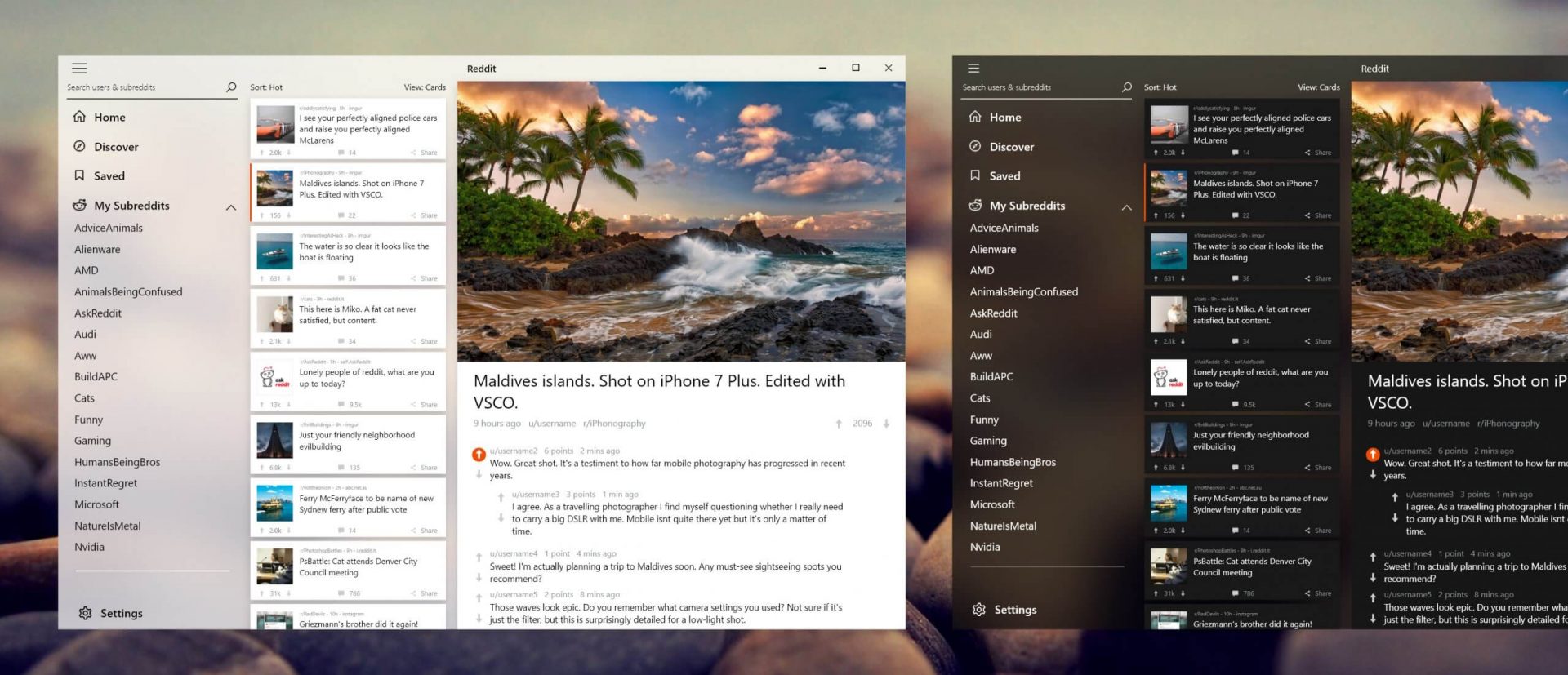
Reddit appReddit is one of the most popular websites in the world and how Microsoft is opening doors to everyone in its new store Reddit took a logical step and made a Progressive web application and placed it in it. Being a Progressive web app makes it more familiar and feels like a home experience using it for a lot of Reddit users. Reddit itself has a large community and active topics discussions all the time about anything. Bringing it to Windows as an application is, in my opinion, a great move since as an application it is independent, more light-weighted, and offering some other advantages specifically tied to being a standalone windows application. Everyone familiar with and using the Reddit website will feel right at home in this app and you can start using it right away.
Read More
Windows 11 slows down some SSD drives
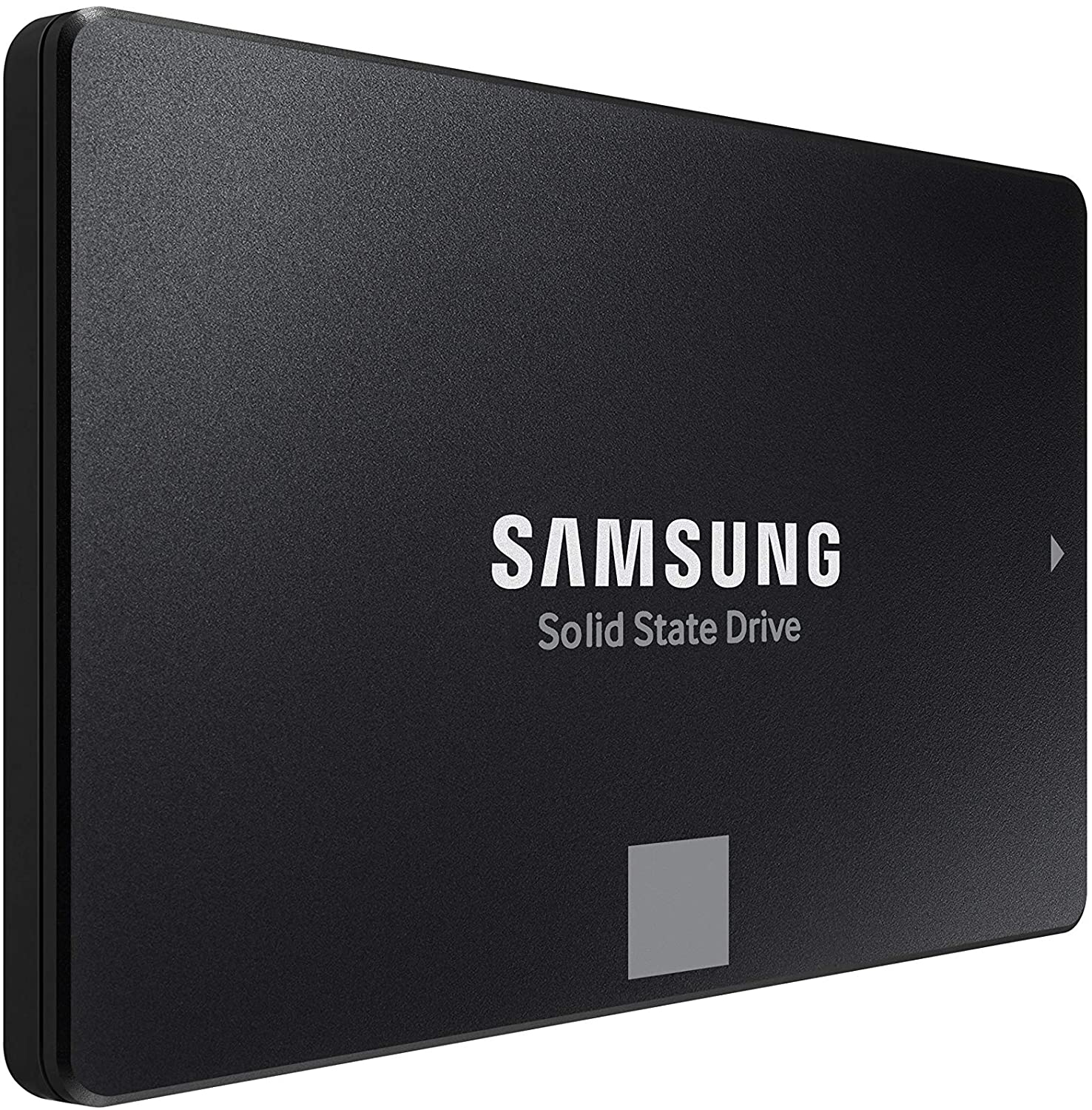
In the latest Windows 11 fiasco, it is reported that the operating system is slowing down some SSD drives. Good thing is that it does not affect all of SSD on the market but the ones which it is affecting can see even a 45% of speed drop. ssd driveMicrosoft has not published a solution to this issue, but users point out two potential problems. The first is a security mechanism based on disk virtualization, which is supposed to slow down the performance of SSDs. The second, in turn, is related to the place of installation of Windows 11 – users indicate that if the performance test is performed on a medium with no files associated with the system, its performance results are similar to the parameters given by the manufacturer. Transfer speeds were to be slightly improved with the latest Windows 11 update 22000.348. However, users are still waiting for a solution to the problem that significantly reduces the efficiency of SSD media.

More information

The details described leading to speculation that the problem could be related to drivers that Microsoft is providing. On further tests, all Nvme drives that use the Microsoft driver have this problem, but Intel 905P, which has its own driver provided by Intel, is working at full power,”.
Read More
This Publisher has been blocked
There are times when you try to open a file, an executable file for instance, but were unable to do so since you encounter an error in an Open File – Security Warning dialog box that says, “This publisher has been blocked from running software on your machine, You must unblock this publisher to run this software”. This kind of error is most likely thrown by your operating system because it considers the file to be unsafe and could potentially harm your computer. However, if you’re certain that the file is harmless, read on as this post will walk you through fixing the error so you can open the file without getting an error. There are various options you can check out to fix the error. You may run the program using Command Prompt or unblock it using File Properties. You could also try turning off SmartScreen or use the unblock file command in Windows PowerShell.

Option 1 – Try running the program via Command Prompt

  • Tap the Win + R keys to open the Run dialog box and type “cmd” in the field and hit Enter to open Command Prompt.
  • Next, tap the Shift key and right-click on the program or the executable file, and then select the “Copy as path” option.
  • After that, paste this path in the Command Prompt window and tap Enter to open the program.

Option 2 – Try to unblock the file using File Properties

  • Right-click on the file you were trying to open and select Properties.
  • Next, click the Unblock button and then click on the Apply and OK buttons.
  • You should now be able to open or access the file without getting the error.

Option 3 – Turn off SmartScreen

The next thing you can do is to turn off SmartScreen temporarily. All you have to do is open the Windows Defender Security Center and from there, go to the App & browser control section. After that, click on the radio button for Off under Check apps and files. Once you’re done, try opening the file again. Don’t forget to enable the SmartScreen back on.

Option 4 – Try to use the Unblock-File command in PowerShell

You might also want to utilize the Unblock-File command in Windows PowerShell as it will unblock the file so you can open it. To execute this command, follow these steps:
  • Tap the Win + X keys and then click on Windows PowerShell.
  • After opening PowerShell, type or copy and paste this command and tap Enter to execute it: Get-ChildItem -Path 'C:Users<username>Downloads' | Unblock-File
  • The command you entered will unblock all the files in the Downloads folder, assuming that’s where the file you were trying to open is stored. If it’s not, then replace the path with the path where the file is located. Take note to also replace “<username>” with your Username.
  • Now check if the file has been unblocked by accessing or opening it.
Read More
Fix Out of Memory error while copying files
What is Out of Memory error while copying files? As you know, both the hard drive and RAM play a major role in performing any operation on a computer since every process or task that takes place in the system requires some RAM storage as well as hard drive storage to be executed. However, there are times when you may receive the following error messages when you try to copy files from one location to another:
“Out of memory or system resources, Close some windows or programs and try again.” “There is not enough memory to complete this operation – copying files.”
These errors are caused by the Desktop Heap limitation when there is no longer enough memory to complete the operation while copying the files. If you encounter any of these errors, you will be guided in this post with the help of some potential fixes that can increase its limit and will hopefully fix this error on your Windows 10 computer. You may try to close all the open windows and programs and then try copying the file again and see if that helps. If not, then proceed to the instructions given below. But before you do that, make sure that you create a System Restore point first. This way, you can undo the changes you’ve made any time in case there are some unwanted changes you want to reverse. After you create a System Restore point, refer to the steps provided below. Step 1: Tap the Win + R keys to open the Run utility and type “Regedit” in the field and tap Enter to open the Registry Editor. Step 2: Next, navigate to this registry key: ComputerHKEY_LOCAL_MACHINESYSTEMCurrentControlSetControlSession ManagerSubSystems Step 3: Now double click on the DWORD named Windows to modify it. Step 4: Change the values for SharedSection in the Value Data field. It should be in the format of “SharedSection=aaaa,bbbb,cccc”. Note that you have to change the value of “bbbb” and “cccc”. So in case you are using an x86 operating system, set the value of bbbb to 12288 and then set the value for cccc to 1024. On the other hand, if you are using an x64 operating system, set the bbbb value to 20480 and the cccc value to 1024. Step 5: Exit the Registry Editor and restart your computer to successfully apply the changes made. Note: The bbbb value in the SharedSection registry is the size of the desktop heap for each interactive window station while the cccc section of the SharedSection value is the size of the desktop heap for each non-interactive window station. In addition, you must keep in mind that setting the value of bbbb to more than 20480 KB is not really recommended. On the other hand, there is another tool that could help in resolving the Out of Memory error. This tool is called the Memory Diagnostic tool in windows can help resolve the Out of Memory error by checking and automatically fixing any memory-based issues. To run it, refer to these steps:
  • Tap the Win + R keys to open Run and type mdsched.exe and hit Enter to open the Windows Memory Diagnostic Tool.
  • After that, it will give two options such as:
    • Restart now and check for problems (Recommended)
    • Check for problems the next time I start my computer
  • Once your computer has restarted, perform a basic scan or you could also go for the “Advanced” options such as “Test mix” or “Pass count”. Simply tap the F10 key to start the test.
Note: After you select your preferred option, your computer will restart and check for memory-based issues. If it finds any issues, it will automatically fix them.

Read More
STOP 0x00000050 - An Easy Fix Guide

Stop 0x00000050 is an error code that is popularly known as the Blue Screen of Death (BSoD) error. This error occurs when Windows crashes on your system. Stop 0x00000050 error is displayed in a blue screen which is why it is called the BSoD error.

The error message appears in the following form:

Stop 0X00000050 (parameter1, 0, parameter3, parameter4)

PAGE_FAULT_IN_NONPAGED_AREA”

However, the parameters within the Stop 0x0000005 error message sometimes vary depending on your PC configuration.

Solution

Restoro box imageError Causes

The most common causes of the Stop 0x0000005 error are:

  • Hardware malfunctioning
  • Overheating of the components
  • Installation of a faulty device driver
  • Incompatible DLL files
  • Corrupt Registry
  • Spyware and Virus Infection

Whatever the cause may be, the Stop 0x00000050 error message is alarming and should be fixed at the earliest as it indicates major system stability problems that can often lead to data loss and system corruption.

Further Information and Manual Repair

To fix and repair the Stop 0x0000005 error you don’t always have to hire an IT professional. In fact, fixing this error is quite easy and you can do it yourself regardless of whether you have a good know-how of computers or not.

So, let’s get started! Here are some the easy DIY solutions to fix the Stop 0x0000005 error:

Sometimes this error may occur due to a temporary issue like overheating of the computer components. When this happens all you need to do is switch off the computer and allow the components to cool down. Try starting up your computer after a couple of hours. If the blue screen of death does not occur again, then this means there is nothing to worry about and the problem is resolved.

However, if the error appears again on your screen, then you need to try something else to solve and fix this error on your PC. If the cause of the error is a faulty device driver, then it is advisable to disable and remove it. Try updating the latest version of the faulty device driver. Using updated software helps ensure your PC keeps running smoothly.

If the cause of the Stop 0x0000005 error code is your system's exposure to viruses and spyware, then you must immediately download a powerful antivirus program. After you download it, scan for viruses on your system. Once the scanning is complete, you will see a scan report showing viruses on your PC. Delete all of them and click on repair.

Furthermore, you can also add more RAM to prevent and fix the Stop 0x0000005 error message on your computer. This solution is suitable when you try to run a program on your PC and you get this error message.

Read More
Enumerating user sessions to generate ...
There are times when the Windows Search doesn’t work and you wouldn’t have a clue as to why it happened since it does not give any error codes. In such cases, you have to check the error logs in the Event Viewer to find out more about the problem. From there, look for an error with the Event ID 3104 in the Windows error logs and if you see an error message that says, “Enumerating user sessions to generate filter pools failed”, read on as this post will guide you in fixing the problem. Apart from the error message, you might also see more information in the details section of the log that says, “(HRESULT: 0x80040210) (0x80040210)”. This kind of error is most likely caused by something that prohibits the search function from initializing. A lot of users assumed that it could be due to Cortana but it’s actually not. While some users also reported that they encounter the issue after they restarted their computers. This error was also reported with the same event ID 3104 on the Windows Server. According to security researchers, this error could be caused by problems in the Registry entry of Windows search. It could also be due to an issue with the SYSTEM account where it hasn’t been added to the DCOM Security. It is also possible that the Windows Search function has not been initialized. To fix this error, you can try to rebuild the Search Index manually or run the Search and Indexing troubleshooter. You can also check the startup type of the Windows Search service or try some registry tweak.

Option 1 – Try to rebuild the Search Index manually

The first thing you can do to fix the problem is to manually rebuild the Search Index. You can do that by going to Control Panel > Indexing Options and from there, click on Advanced. After that, go to the Index Settings tab and then click on Rebuild > OK. Once you’re done, check if it fixed the problem.

Option 2 – Try running the Search and Indexing troubleshooter

You could also run the Search and Indexing troubleshooter in Windows 10 as it checks whether the settings are in place and automatically corrects any issues with the Windows 10 search function. To run this troubleshooter, just click on the Start button and select Settings > Updates and Security > Troubleshoot. From there, select the Search and Indexing Troubleshooter. Once the troubleshooter is done, restart your computer and see if it fixed the error.

Option 3 – Try checking the startup type of the Windows Search Service

In this option, you have to check the startup type of the Windows Search service since the service won’t start. To do so, refer to these steps:
  • Tap the Win + R keys to open the Run utility and type “services.msc” in the field and then tap Enter to open the Services Manager.
  • Next, from the list of services, look for the Windows Search Service or WSearch. Once you find it, right-click on it and select Properties.
  • After that, change the Startup type to Automatic and click on the Start button if the service is in the Stop state.
  • Now click on the Apply and OK buttons to save the changes made and then restart your computer.

Option 4 – Try changing the Registry entry for Windows Search

Before you apply some registry tweak, you need to create a System Restore point first. Once you have that covered, follow these steps:
  • Tap the Win + R keys to open the Run utility and type “Regedit” in the field and tap Enter to open the Registry Editor.
  • If a User Account Control prompt appears, just click Yes to proceed.
  • After opening the Registry Editor, navigate to this registry path: HKEY_LOCAL_MACHINESOFTWAREMicrosoftWindows Search
  • From there, click on Windows Search and look for the key named “SetupCompletedSuccessfully” and change its value to “0”. Just right-click on it and select Modify.
  • Then input “0” as its value data and click on OK to save the changes made.
  • Exit the Registry Editor and restart your computer.
  • Now check if the Enumerating user sessions to generate filter pools failed is fixed or not.
Read More
How to create a public VPN Server on Windows
As you know, a Virtual Private Network or VPN is used to access a particular network from another network which is why it is also referred to as a mini-internet. Moreover, you can use it in two ways. One, you can use it to get you access to a closed server which means that you would not be getting access to the internet. Second, you can also use it to access a set of resources while at the same time get access to the internet. However, what if you want to access your resources at home even when you’re away? And what if you want to use the private server at home or at your office even when you’re away? This is where the callout for a VPN server for yourself comes in. And so in this post, you will be guided in how you can create a public VPN server on your Windows 10 computer. Follow each one of the given steps below to get started. Step 1: Find your IP address. This step is rather simple since all you have to do is open Control Panel > Network and Internet > Network and Sharing Center. From there, click on “Local Area Connection” and then click on Details where you’ll see your IP address next to “Autoconfiguration IPv4 Address”. Step 2: Next, set up port forwarding on your router. In this step, you will have to configure port forwarding in your router so that you would be able to connect to the VPN server through a public network like the internet.
  • Log in to the Admin Panel of your router. You have to do this since your router will be the gateway for your access to the network.
  • After you’re logged in, look for the “Port Forwarding” or “Applications and Gaming” or “NAT/QoS” menu tab and other similar names.
  • Now you need to set the port number to 1723 for connections based on Point to Point Tunneling Protocol.
  • Then save the configuration and reboot your router.
Step 3: Set up a VPN server on Windows 10.
  • In the Cortana search box, type “ncpa.cpl” and click on the related entry from the search results.
  • After that, tap the Alt + F keys to bring down the File Menu and then select New Incoming Connection which will open a mini window where you can allow the user accounts on the particular machine to access the VPN connection.
  • On the other hand, you can also click the “Add someone” button so that you can add someone else to the whitelist that can access the connection.
  • Now click on Next and you’ll see an option to select how people will connect to the network. Check the checkbox for the “Through the Internet” option.
  • After that, you will see a page where you have to configure the network. Just select IPv4 and then click on Properties.
  • From there, you will be asked to continue some additional settings like letting users access your Local Area Network or how IP addresses will be allocated to these users. Click on OK to save the changes you’ve made.
  • Click on Allow Access after you configure the network. And if you want to, you have the option to print this information for future reference or for the client machine.
  • Now click on Close to exit the configuration process.
Step 4: Allow the VPN Connections through the firewall In this step, you will have to allow the VPN connections through the firewall.
  • In the Cortana search box, type “Allow an app through Windows Firewall” and click on the related search result to open the intended Windows Firewall settings.
  • Next, click on Change Settings.
  • Then scroll down to check if Routing and Remote Access is Enabled for both the Public and Private networks and click on OK.
Step 5: Set up a VPN connection on Windows 10 Now all that’s left for you to do is to set up a VPN connection on Windows 10.
  • Go to Settings > Network and Internet.
  • From the list of options given, click on VPN located on the left pane to see the related settings.
  • After that, click on the “+” icon to add a VPN connection.
  • Next, select Windows Default under VPN Provider and under the Connection Name, input your VPN’s name, and then enter the IP address you got from the VPN service provider under the Server name or address section.
  • Now select PPTP under VPN type since it is the most commonly used protocol for VPNs.
Read More
How to Repair Windows 10 Error 0x800F0922

Error Code 0x800F0922 – What is it?

Error Code 0x800F0922 refers to an issue with downloading the newest version of Microsoft Windows, Windows 10. It could mean that your PC doesn't have enough free space in the System Reserved partition, or that it couldn't connect to the Windows Update servers. This issue is not very common, most users will never see this error code. Some, however, will need to follow the below fixes in order to download and upgrade their systems properly. Common symptoms include:
  • Dialog box appears with the Error Code 0x800F0922
  • Microsoft Windows 10 upgrade is unsuccessful and/or incomplete
  • Users are unable to open applications after attempting the Microsoft Windows 10 upgrade

Solution

Restoro box imageError Causes

There are two standard reasons why this error occurs during the Microsoft Windows 10 upgrade.
  • There may not be enough free space in the “System Reserved” partition of your hard drive.
  • Error Code 0x800F0922 could also mean that your PC was not able to successfully connect to the Microsoft Windows update servers due to a VPN (virtual private network) connection in your home or office network.
  • The .Net framework installation portion of the Windows 10 upgrade fails.

Further Information and Manual Repair

Error Code 0x800F0922 as stated is somewhat rare, but it does occur occasionally. Users who have experienced this error while attempting to upgrade their system to Microsoft Windows 10 have the following options for do-it-yourself fixes.

Method 1:

Use this method if you are operating on a network that uses a VPN connection.
  1. Disconnect from your office or home network.
  2. Turn off your VPN software.
  3. Run the Microsoft Windows 10 upgrade.
  4. Restart your PC.
  5. Reconnect to your home or office network.
  6. Turn your VPN software back on.

Method 2:

This will run the Windows 10 Update troubleshooter that is built into your PC.
  1. Click on the Windows icon on the lower-left corner of your desktop.
  2. Press the “w” key to open the SEARCH function.
  3. Type “troubleshooting” in the search field and press ENTER
  4. When the troubleshooting window opens, select the “view all” option from the left window pane.
  5. Select “Windows update”.
  6. Select “advanced” and then choose the “run as administrator” option.
  7. Click the NEXT button and follow the on-screen prompts.
  8. This troubleshooter will walk you through the steps needed for your specific situation.

Method 3:

This method will run the DISM (deployment image servicing and management) tool built into your PC.
  1. Press the “windows key” on your keyboard followed by the “x” key.
  2. Select the “command prompt admin” option.
  3. Type the command “exe /online /cleanup-image /scanhealth” into the command prompt field and press ENTER.
  4. Wait for the scan to run completely.
  5. When the scan is complete, a message will appear telling you that “the operation completed successfully”.
  6. Type the command “dism.exe /online /cleanup-image /restorehealth” into the command prompt field and press ENTER.
  7. This will take a while to run completely, but it will restore any missing or corrupted files necessary for the Microsoft Windows 10 update.
  8. Restart your computer.
  9. Attempt the Windows 10 upgrade again.

Method 4: Use this option if you believe the issue is a result of the .NET framework being disabled.

  1. Press the “windows” key followed by the “x” key.
  2. Select the “control panel” option.
  3. When the control panel window opens, click your cursor in the search field on the upper right hand corner.
  4. Search for the phrase “windows features”, then select the link “turn Windows features on or off”.
  5. Select the check box (add a check) to the box next to “.Net framework”.
  6. Click the OK button.
  7. Proceed with your Microsoft Windows 10 upgrade.
To resolve this, all you need is third-party software to increase the size of the System Reserved partition. One of the four methods listed above should fix your Error Code 0x800F0922 issue and allow for a successful Windows 10 upgrade. On an occasion where there isn't enough space, use third-party software to increase the size of the System Reserved partition.  If you do not possess the technical expertise required to accomplish this yourself or do not feel comfortable doing so, download and install a powerful automated tool to get the job done.
Read More
Fix Some apps need to be uninstalled
When you update or upgrade your computer to Windows 10, the setup will look for the compatibility of both the hardware and software. And in this process, if suddenly got an error message saying, “Some apps need to be uninstalled” or “You need to uninstall a program in order to continue”, you have to look for the program(s) that might be causing the compatibility issues. But worry not as this post will help you resolve the issue. Simply follow the given suggestions below.

Option 1 – Look for the incompatible programs

There are times when Windows 10 will point out the programs that are incompatible with Windows 10. In this situation, just click on the Uninstall and continue button and then wait for the process to be completed. For more information, you can check out the official site Ready for Windows by Microsoft. This site can help you determine which software versions are compatible with Windows 10 and which ones are not. All you have to do is select the Windows 10 version and type your App name, after that, you will see the results about its compatibility. Thus, it’s now easier for you to figure out which software is causing an issue and if there is a new updated version available that you can install instead.

Option 2 – Try to install the Windows Update in a Clean Boot State

Putting your PC in a Clean Boot state can also help you install Windows Updates or Upgrades without any trouble because, during this state, you can start the system with a minimum number of drivers and startup programs that will surely help you in isolating the root cause of the issue.
  • Log onto your PC as an administrator.
  • Type in MSConfig in the Start Search to open the System Configuration utility.
  • From there, go to the General tab and click “Selective startup”.
  • Clear the “Load Startup items” checkbox and make sure that the “Load System Services” and “Use Original boot configuration” options are checked.
  • Next, click the Services tab and select the “Hide All Microsoft Services” check box.
  • Click Disable all.
  • Click on Apply/OK and restart your PC. (This will put your PC into a Clean Boot State. And configure Windows to use the usual startup, just simply undo the changes.)
  • After that, try to install the Windows Updates or upgrade again.

Option 3 – Try creating a new user account

Creating a new user account can resolve the “Some apps need to be uninstalled” error when upgrading or updating your Windows 10 PC. All you have to do is create a new admin account and initiate the setup. And this is a new user account, there will be no third-party applications installed on your computer. Thus, the installation should go through without any trouble. And in case you’ve already installed programs for that user, you just have to uninstall them all and then re-run the setup.

Option 4 – Perform a clean install

If none of the options worked, you can try to clean install Windows 10. Just make sure that you have the ISO from the official Microsoft Website and then a bootable USB drive to install Windows 10 again. Take note that this will delete all the data from your drive where Windows 10 was installed previously.
Read More
The application was unable to start 0xc00007b
As you know, Windows programs depend on several operations to get executed and at the same time, there are also numerous parameters that have to be fulfilled for a program to get executed. However, based on some reports, there was an error when some users tried to run a program. This error says, “The application was unable to start correctly (0xc00007b)”. There could be various reasons why this error occurs but the main one is most likely due to an x86 application that is not compatible with the x64-based operating system. To fix this problem, you can run the Check Disk utility or reinstall the application or the Microsoft .NET Framework. You can also try reinstalling DirectX or replace the corrupted DLL file(s). For more details, refer to the given options below.

Option 1 – Try running the Check Disk utility

  • In the Windows Search box, type “command prompt” and from the search results, right-click on Command Prompt and select “Run as administrator”.
  • After opening Command Prompt, type this command and tap Enter: chkdsk <Partition Letter>: /f
  • The command you entered will start to check for errors and fix them automatically. Else, it will throw an error message saying, “Chkdsk cannot run because the volume is in use by another process. Would you like the schedule this volume to be checked the next time the system restarts? (Y/N)”.
  • Tap the Y key to schedule Disk Check the next time your computer restarts.

Option 2 – Re-enable the Microsoft .NET Framework

You could also try to disable the Microsoft .NET Framework then enable the latest version of the .NET Framework on your PC and check if the error is fixed

Option 3 – Try to reinstall the program

There are times when some supporting module for your application under the hood could have messed up the application where you get the error. To fix this, you have to uninstall the program and then download its latest version from its official site and then install it again. Once you’re done, run the application and see if the error is fixed.

Option 4 – Run System File Checker scan

If reinstalling the program didn’t work, you can also try running the System File Checker or SFC scan to fix the error. System File Checker is a command utility built into your computer that helps restore corrupted files and missing files. Refer to the following steps to run it:
  • Hit the Win + R keys to launch Run.
  • Type in cmd in the field and tap Enter.
  • After opening Command Prompt, type in sfc /scannow
The command will start a system scan which will take a few whiles before it finishes. Once it’s done, you could get the following results:
  1. Windows Resource Protection did not find any integrity violations.
  2. Windows Resource Protection found corrupt files and successfully repaired them.
  3. Windows Resource Protection found corrupt files but was unable to fix some of them.
  • Reboot your computer.

Option 5 – Try running the DirectX Diagnostic Tool

Since the error has something to do with the DirectX Graphics APIs, you can run the DirectX Diagnostic tool to resolve the problem.

Option 6 – Try updating or re-installing DirectX

If the DirectX Diagnostic tool didn’t work, you can try to update or reinstall DirectX instead. This can help in fixing the problem because when you reinstall or update DirectX, it will replace the incompatible or corrupted components of DirectX from your computer.
Read More
1 2 3 171
Logo
Copyright © 2023, ErrorTools. All Rights Reserved
Trademark: Microsoft Windows logos are registered trademarks of Microsoft. Disclaimer: ErrorTools.com is not affiliated with Microsoft, nor claims direct affiliation.
The information on this page is provided for information purposes only.
DMCA.com Protection Status