Logo

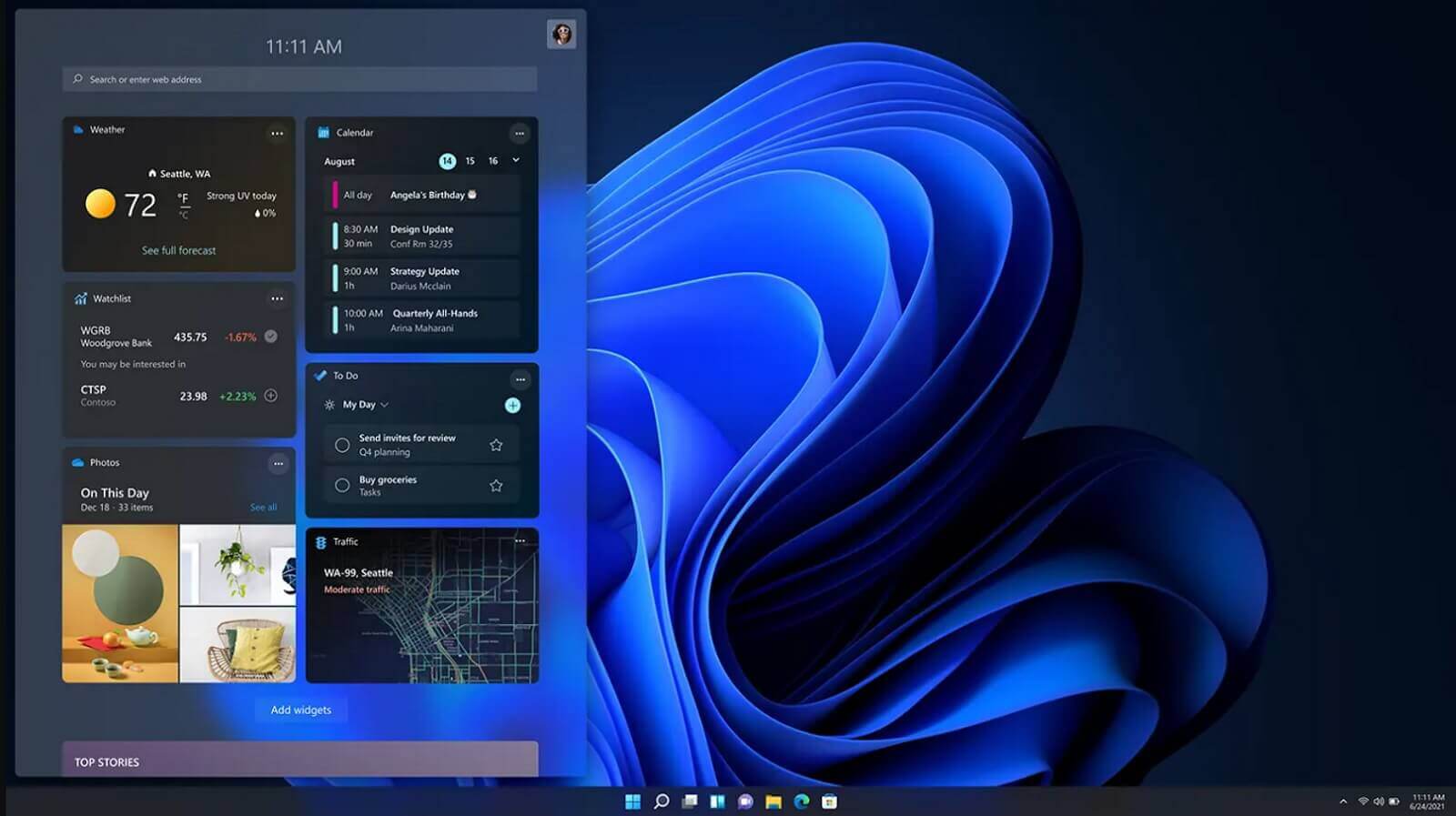
Windows 11 launch date set for October 5th

windows 11 release dateIt is officially confirmed, Windows 11 release date is October 5th. Windows 11 will be released as a free upgrade to all registered Windows 10 users that have supported hardware for it.

The rest of the users will be able to install it via ISO file as a clean installation if their computer supports Windows 10 hardware requirements. The official price for the license for Windows 11 has not yet been set but I assume after release it will be set.

Priority for W11 will have users who are upgrading from W10 as stated by Microsoft.

Also, it was officially confirmed that Android apps will not be running natively in this first release of Windows 11, that feature will come in a future update, official statement below:

"We look forward to continuing our journey to bring Android apps to Windows 11 and the Microsoft Store through our collaboration with Amazon and Intel; this will start with a preview for Windows Insiders over the coming months,"

The rest of the features will be all included inside Windows 11 on launch.

Do You Need Help with Your Device?

Our Team of Experts May Help
Troubleshoot.Tech Experts are There for You!
Replace damaged files
Restore performance
Free disk space
Remove Malware
Protects WEB browser
Remove Viruses
Stop PC freezing
GET HELP
Troubleshoot.Tech experts work with all versions of Microsoft Windows including Windows 11, with Android, Mac, and more.

Share this article:

You might also like

System Image Backup 0x807800A1 & 0x800423F3
System image backup error 0x807800A1 & 0x800423F3 appears when you are trying to create a system image backup and the operation fails to do so. If you’re faced with any of these error codes, try our recommended solutions in the order presented below and resolve the issue.

Check Volume Shadow Copy & Software Protection Services

To restart the Volume Shadow Copy Service (VSS) on Windows 10, do the following:
  • Press ⊞ Windows + X to bring up the Windows menu.
  • Click on command prompt (admin)
  • In the command prompt window, type the commands below and hit Enter after each line:
net stop vss net start vss
Once the commands execute successfully, try the system image backup again. The operation should complete successfully. You need to also check if the Software Protection Service is disabled. If it is, then Start it and ensure that it is set to default which is Automatic (Delayed Started).

Create System Image using PowerShell

Command lines are less prone to errors provided the syntax is correct, unlike GUIs that can suffer a glitch every now and then. To create a system image with PowerShell do the following:
  1. Open the Windows PowerShell as administrator. To create a System Image in Windows 10 using PowerShell, you will have to run the Wbadmin command.
  2. Inside the Powershell window type, then press Enter: wbadmin start backup-backup target: E:-include: C:-quiet-allCritical E: is the target drive where you’re going to save the system image, and C: is the system root drive where Windows is currently installed
  3. To extract the created system image, starting over from Windows 10 USB installation media, select advanced startup or open run and type: C: \ Windows \ System32 \ Shutdown.exe / r / o

Use third-party imaging software

If the previous two solutions have not managed to solve the issue there is always an option to use a third-party imaging solution. There are free open source and buying options offering various advantages each. Find out which one works best for you and use it.
Read More
Great gadgets for emergency blackout

Blackouts are one of the most annoying things that can happen in the modern age. We have all learned to depend on electricity, maybe too much, so having a backup plan in these unpleasant situations is necessary. Here are some good gadgets for these kinds of situations.

Power Bank

power bank

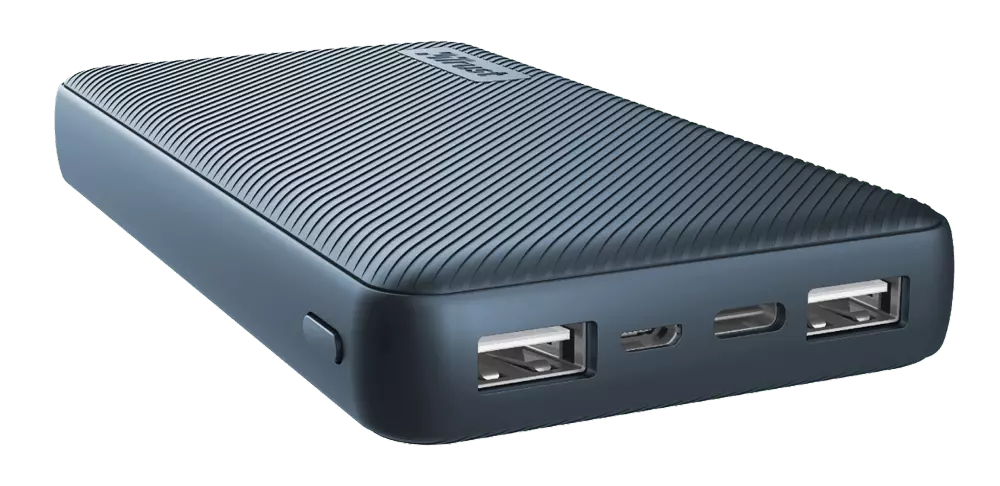
The fully charged power bank is a great item that could fill up your phone or tablet. If it is a larger power bank it could fill them up all the way to the top several times and having charged phone or tablet can help greatly with some fun during dark times. The power bank can also be used to fill up other gadgets on this list so if the power outage is expected to last longer perhaps it would be wiser not to waste it on phone/tablet games.

Portable Generator

portable generator

If the power bank is too short-lived for your needs, a portable generator is always a good option since it can provide power for longer time periods. The solar generator is what we recommend because it is much cheaper to produce electricity but it is limited if a power surge comes at night, one on gasoline is more stable and practical but it costs more to produce electricity.

Portable Solar Charger

solar charger

One more electric-producing device on the list, this one however is aimed at charging your phone, tablet, or laptop by harvesting Sun's energy and turning it into valuable electricity for your devices. Fully silent and easy to operate this is a great tool for power outrage. It will not be able to produce electricity for smaller house appliances but for basic phone/tablet/laptop needs it will suffice.

Panic light

panic light

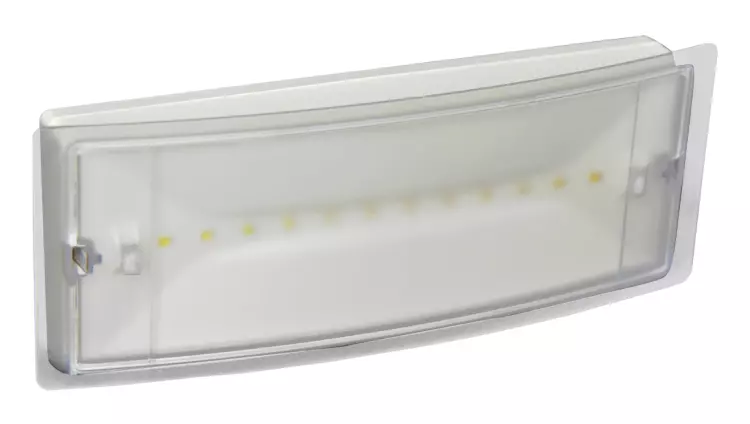
Self-sustained with its own battery, panic lights are great assets for lightning when power is not present. They can turn automatically when the circuit detects that power is missing but can be also manually switched on or off. There are many versions of panic lights ranging from the light they produce to how long can they work so picking the right one will depend entirely on your home size and needs.

USB Headlamp

usb headlight

If you lack panic lights USB headlamp is a great choice to light your way and it works even better than a flashlight, although a flashlight is also a great tool, a headlight will provide you with free arms to do various things that you would not be able to by holding a flashlight. Modern headlights come with LED lights so they provide a good amount of light with small power consumption and they can be recharged in a power bank, solar charger, or generator.

LED lantern

led light

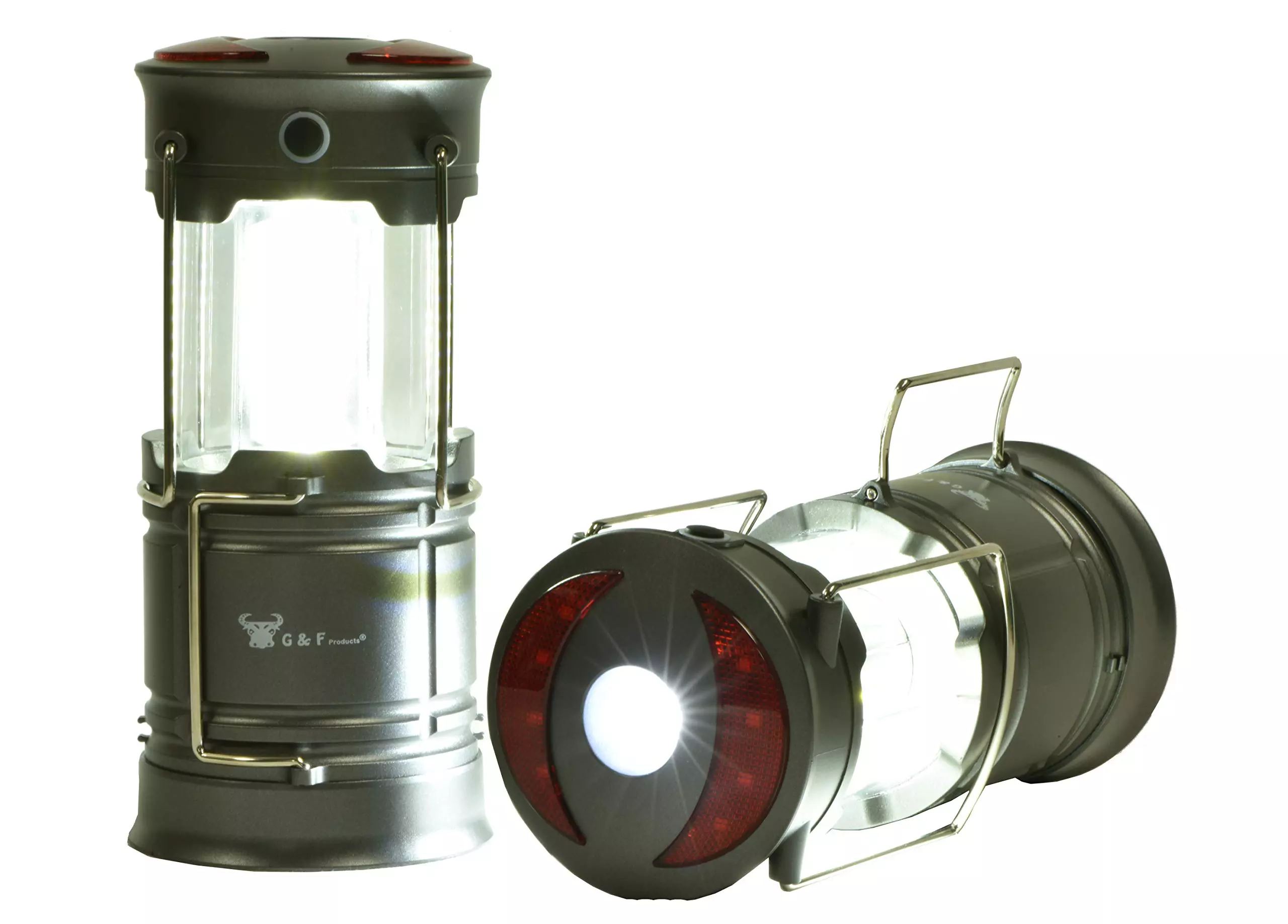
LED Lantern is a gadget sitting somewhere between a headlight and a panic light, it offers around the same light amount as a panic light but you can carry it around with you. Of course, it will drain its battery faster than a panic light and it will still need to carry around but it can offer some good options when you need it, like taking it with you to the toilet.

Electric Lighter

electric lighter

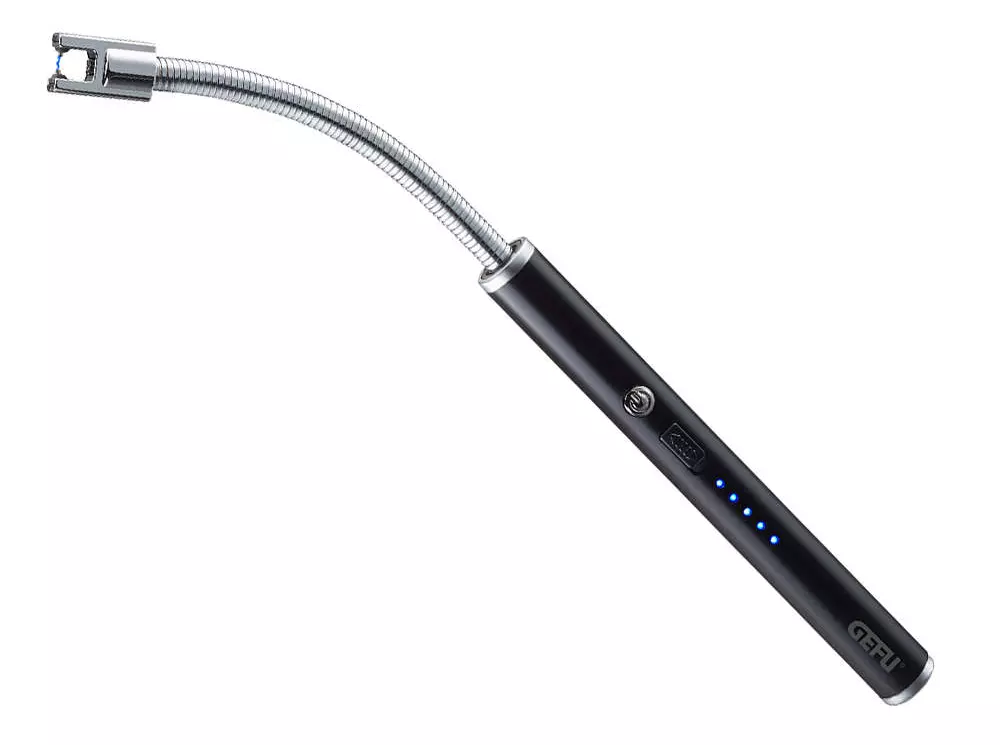
An electric lighter is also one of the things that you will need, it can ignite candles, paper, stoves, etc. Its battery is usually enough for extensive use and there are small chances that it will need to be recharged. Having matches is also smart, just in case.

Solar Oven

solar oven

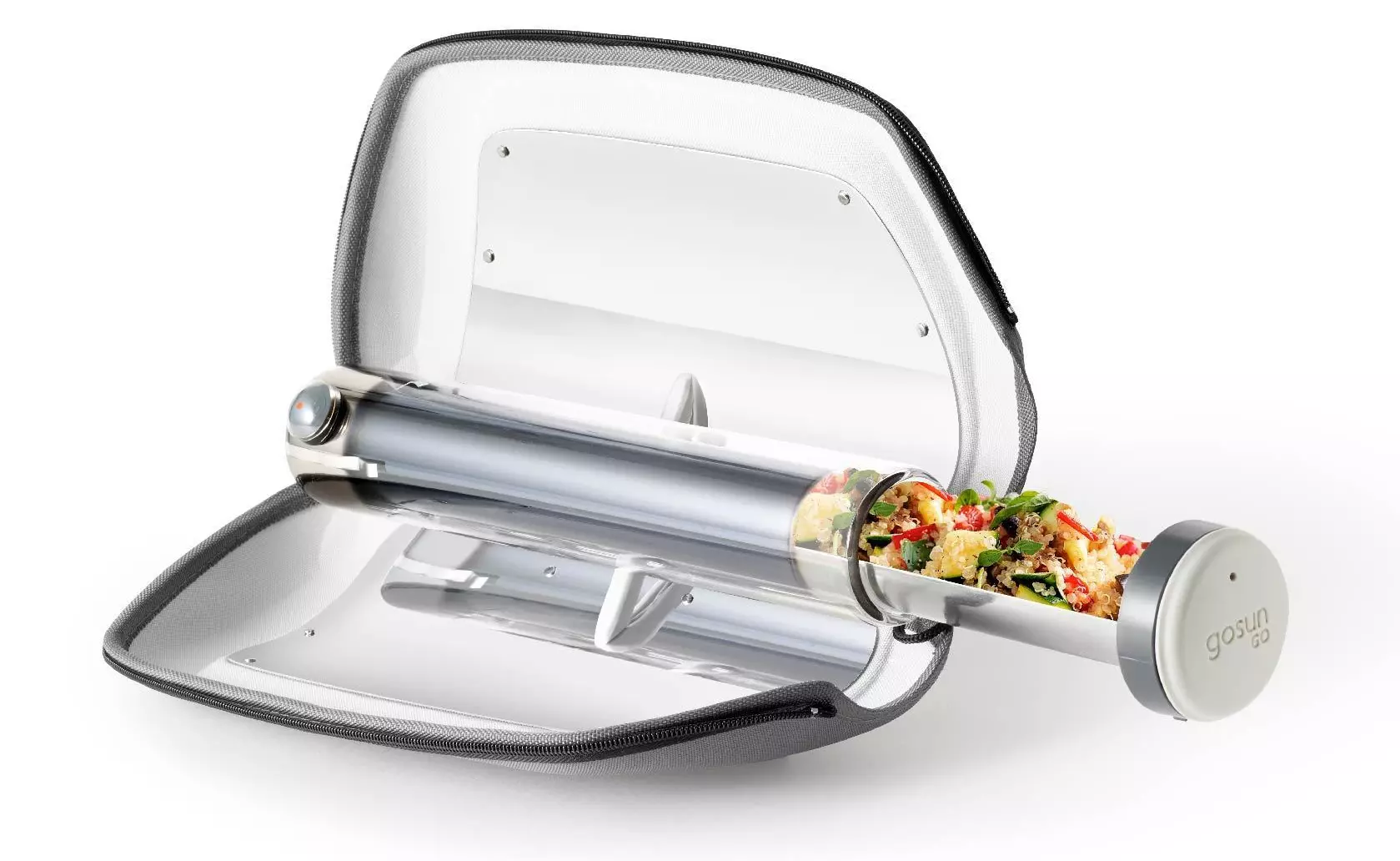
Great gadget when outbreaks last long or when you get hungry. Not all households have gas ovens so a Solar oven is a great tool to keep you full of food. Granted it will not be on par in speed and quality with a regular oven but when it is the only option it will suffice.

Read More
KFConsole enters the console competition
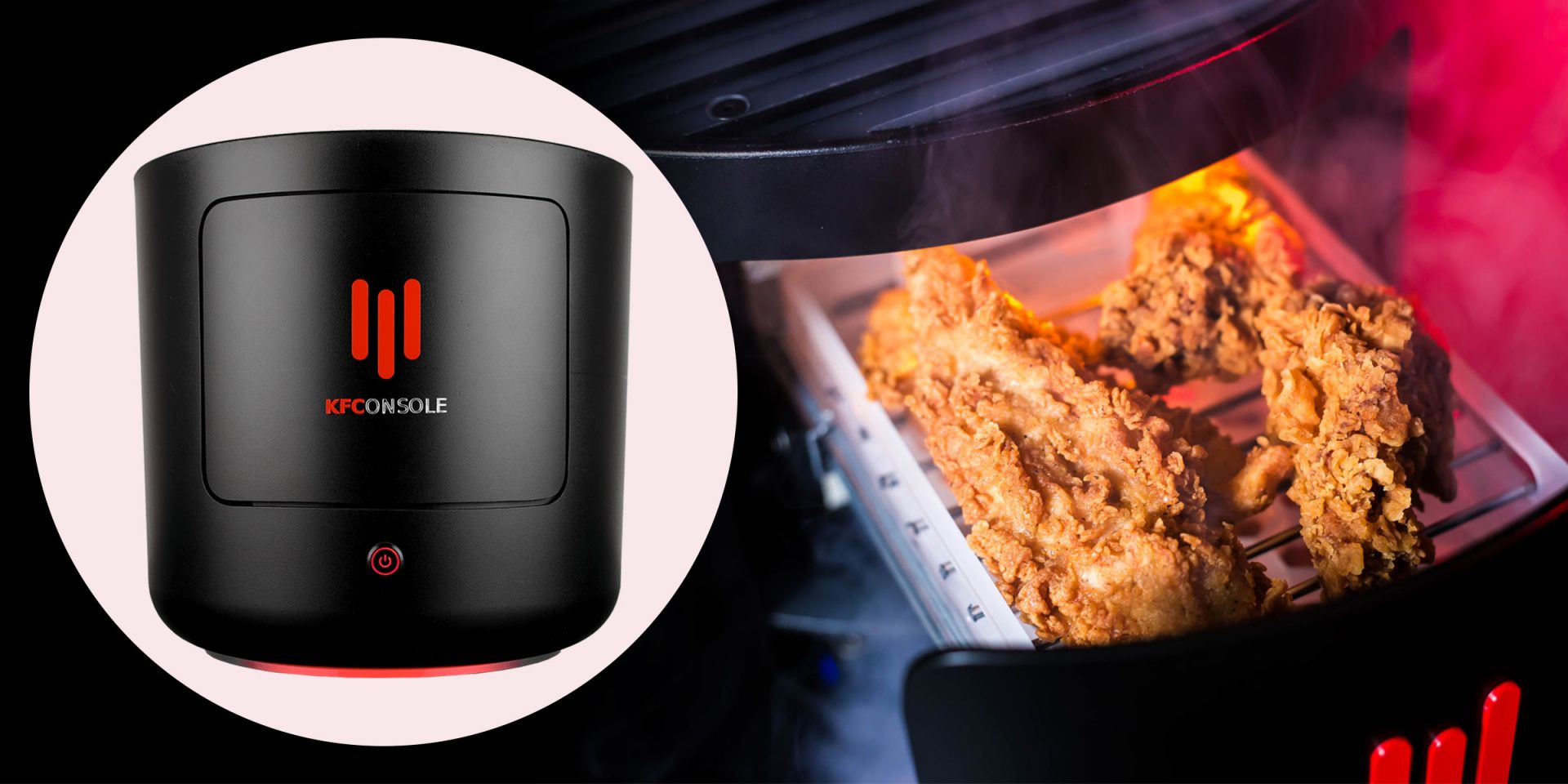
Yes, you read that right, KFC is making a console partnered with Cooler Master. Bizzare at it sounds, it is even more bizarre that the console is designed to keep your food warm!!! You can pull out the drawer from the console out on its top and place some food there in order to keep it warm. kfconsole drawerThe console itself is coming in cylindrical shape powered by Intel CPU and ASUS GPU of the unknown chipset. It has Seagate Baraccuda 1TB SSD and it is VR-ready. The console will have raytracing and will be 4K ready.

My thoughts

Well, my thoughts are somewhat strange, on one side I am not really sold on food heating gimmicks and without specific hardware specifications, it is difficult to say how much power the console will have. Price is also not leaked so that is also a stumbling stone for making an informed opinion. I am a little puzzled and concerned about this whole heating food thing because personally, I can see 2 issues: Console overheating and fat dripping on inside hardware, I am sure they have somehow eliminated this but I would be very interested to see how.
Read More
How to Turn off Advertising ID in Windows
In case you don’t know, Microsoft hooks up every machine that is running Windows 10 with an Advertising ID which helps them in providing Windows 10 users with relevant ads. These ads are delivered to users in the Action Center, Start Menu as well as the ads inside the UWP Applications. What makes these advertisements relevant is that they keep track of your browsing trends, likes and dislikes, with the help of the Advertising ID. However, if you are not fond of advertisements and you do not want this feature of Microsoft to track your usage, worry not for you actually have the option to disable targeted ads on your Windows 10 computer by turning off the Advertising ID. And you can do that during Windows 10 Setup or using the Group Policy Editor. For more details, refer to the instructions provided below for each one of the methods.

Option 1 – Turn off Advertising ID during Windows 10 setup

If you are about to install Windows 10, then during the installation process, your computer boots into the Install and Configure Windows 10 screen with Cortana that assist you during the setup. Once you reach the last page which is “Choose privacy settings for your device”, you will see the Advertising ID of your computer. Under the Advertising ID, you have to disable or toggle off the “Apps can use advertising ID to provide more personalized advertising in accordance with the privacy policy of the app provider” option. After you disable it, click on the Accept button to proceed with the installation. After that, the copy of your Windows 10 you are using will have the Advertising ID disabled by default.

Option 2 – Turn off Advertising ID via Group Policy Editor

  • First, tap the Win + R keys to launch the Run utility.
  • Then, type “gpedit.msc” in the field and click OK or tap Enter to open the Group Policy Editor.
  • Next, navigate to this group policy setting: Computer Configuration > Administrative Templates > System > User Profiles
  • Now double click on the “Turn off the advertising ID” option and set the radio button to Enabled. Once you do, you will see the following description on your screen:
“This policy setting turns off the advertising ID, preventing apps from using the ID for experiences across apps. If you enable this policy setting, the advertising ID is turned off. Apps can’t use the ID for experiences across apps. If you disable or do not configure this policy setting, users can control whether apps can use the advertising ID for experiences across apps.” Note that setting the radio button to Enabled or Not Configured will turn off the data collection of the Advertising ID.
  • Finally, exit the Group Policy Editor and then restart your computer to apply the changes made successfully.
Read More
How to Fix Error 0x800CCC90

Error 0x800CCC90 - What is it?

Error 0x800CCC90 is a typical Outlook error. This error indicates that Outlook has failed to connect to the mail server that handles and manages the incoming and outgoing emails. The error message is displayed in the following format:

“There was a problem logging onto your mail server. Your User Name was rejected.”

This error limits your ability to send and receive emails on Outlook. If you largely communicate at the workplace using your Outlook account, this error may slow down your work productivity and performance dramatically. Therefore it is advisable to fix it immediately.

Solution

Restoro box imageError Causes

The error 0x800CCC90 is triggered several reasons including but not limited to:
  • Authentication issues
  • Failure of POP 3 Server
  • PST File Corruption
  • Registry issues- Invalid Entries
  • Viral infection

Further Information and Manual Repair

To resolve error 0x800CCC90, try the methods given below:

Method 1 - Adjust the Authentication Settings

To resolve the error 0x800CCC90, adjust the authentication settings. Here’s what you need to do:
  • First, go to the ‘Tools’ tab and select the ‘Accounts’ option.
  • Once you select the account option, an internet accounts box will appear on the computer screen.
  • Simply double click on the account property box after that go to the server tab and click on it.
  • Check the box that says ‘My Server Requires Authentication’.
  • Click on apply to accept changes tab to save changes and close the window.
  • To activate changes made, restart Outlook and then try sending emails again.

Method 2 - Download a PST Repair Tool

If the error is triggered by PST file corruption, then the best way to resolve it is to download the PST repair tool. Download the PST repair tool from a trusted website. Run it on your system to fix PST file issues and resolve error 0x800CCC90.

Method 3 - Scan for Viruses

Another way to resolve this error is to scan for viruses. Viruses usually enter computer systems through phishing emails or while downloading attachments. You may not know this but viruses may be affecting your PC. Due to viruses, errors like error 0x800CCC90 can also be triggered. Therefore install an antivirus to scan and remove errors on your PC.

Method 4 - Clean the Registry and Remove Invalid Entries

Due to poor PC maintenance, misconfigured and invalid registry entries may be stored in the registry. Such entries may lead to Outlook errors too. Thus to resolve you must clean the registry and remove these entries right away. Download a registry cleaner to fix the error. Whether the error is triggered by viral infection or registry issues, it is recommended you download only Restoro. This is the one-stop solution to resolve all PC related errors. This software is deployed with 6 scanners including a registry cleaner, an antivirus, and a system optimizer. It is user-friendly and has simple navigation. It is compatible with all Windows versions. In just a few clicks this software resolves practically all types of PC-related errors including error 0x800CCC90. Click here to download Restoro today!
Read More
Hide game activity and set privacy on Steam
Steam is a game store behemoth that offers more titles than any other game store online, take that along with the fact that steam was one of the first online dedicated stores for games and you can guess that many people have a steam account, buy and play games on it. It is a platform where you can meet new people in games and add them as friends on steam so you can spend some time together. But happens if you want to have friends on Steam but you would like to hide your game activity? Or even if you want to go fully private on Steam so no one can find you so you can play whatever you want without paying and judging eyes? Luckily Valve appreciates your privacy and offers ways to do exactly this. Keep on reading on how to set up your privacy settings in Steam.

Hiding Steam game activity

  • Launch Steam on your PC.
  • Go to the top bar of Steam and click on your name.
  • Select Profile from the context menu.
  • Click on the Edit Profile button present at the right section of the window.
  • Next, click on the My Privacy Settings button.
  • Now, the Privacy Settings page will be opened.
  • Scroll down and go to the My Profile section.
  • Open the drop-down list given next to the Game Details and select the Private option.
  • Now, check if this process is working or not. For this, right-click anywhere on the blank space in the Steam screen > choose the Copy Page URL option.
  • Then, open a browser and paste the copied page URL in the address bar and check whether your Steam game activity is hidden or not.

Making profile private

  • Launch Steam > click on your name > select Profile from the menu list.
  • Click on the Edit Profile > My Privacy Settings button.
  • Go to the My Profile and open the dropdown menu.
  • Click on the Private option.
  • Now, the changes will be saved automatically.
If you would like to read more helpful articles and tips about various software and hardware visit errortools.com daily.
Read More
New Windows vulnerability discovered
The latest security vulnerability was discovered inside both Windows 10 and Windows 11 letting any user access admin privileges inside the operating system. This can, of course, be used by a potential attacker to get full control of the system. The problem lies in Microsoft's security rules assigned to the Windows Registry and the Security Account Manager. Both for some reason have reduced restrictions allowing any local user to fully access the files without administrator privileges. The problem is even more amplified if we think about Security Account Manager which includes all account data including the passwords of all users using the same PC. This can provide a potential attacker with all information and let them log on into the administrator account for full control. Microsoft is aware of the matter and is tracking it with code CVE-2021-36934, and includes a complete workaround for the issue, which includes restricting access to  %windir%\system32\config and deleting any restore points or Shadow volumes that were created before that point until the hole is plugged with an official security patch.
Read More
Windows keyboard language changes on its own
If you have multiple keyboards, things can get quite tricky. There are times when the keyboard language changes on its own since the keyboard changes while you are typing. The thing is, the keyboard changes because sometimes we accidentally tap shortcuts like Win key + Space key or Alt + Shift or Ctrl + Shift which changes the keyboard pairs or language. Thus, if your keyboard language changes on its own, there are two ways to resolve it. First, you have to make sure that Windows 10 does not add keyboards without your permission. Second, you have to make sure that the shortcut keys don’t change the keyboard language. This second option is what we’re going to discuss in this post. You need to first set a different input method for each app window. To do that, you have to disable the change in layout. Refer to these steps:
  • Go to Settings > Language and input.
  • Next, type “switching input methods” to open the Advanced keyboard settings with this option inside.
  • After that, select the checkbox labeled as “Let me set a different input method for each app window” and then click the Save button.
  • Restart your computer.
Now that you’ve disabled the change in layout, you now have to find the keyboard settings. Just go to Settings > Devices > Typing > Advanced Keyboard settings. From there, you have the option to select which keyboard is going to be used for any app. When you change the keyboard every time you use an app, usually, Windows remember it so that you won’t have to set it up all over again. In addition, the Advanced keyboard settings page also allows you to override the default input method which could be different from the first one in your language list. Aside from that, there is also a Language bar option that comes in handy as you can quickly switch between keyboards. And if you removed it, you have the option to restore the language bar back as well. Now all that’s left for you to do is to change the Language Settings under the Administrative tab. A user from a forum that came up with this solution, reported that the issue occurred when he started typing in some program with non-Unicode characters which caused Windows to use the default system local language to interpret these characters even though the language is unavailable in the Language bar. To change the Language Settings under the Administrative tab, follow these steps:
  • Go to Settings > Time and Language > Language > Administrative language settings.
  • After that, click on Copy Settings under the Administrative tab.
  • Now make sure that all the Display language, Input language, and Format are English (United States) or any language you prefer.
  • Then mark the two checkboxes in “Copy your current settings to Welcome screen and system accounts & New user accounts”.
  • After that, click OK and then exit.
Note: You also have the option to disable those shortcut combinations which can change your keyboard settings accidentally.
Read More
How to Fix Windows 10 Error Code 0x8024001b

Error Code 0x8024001b- What is it?

At its most basic level, Error Code 0x8024001b is an error that can cause problems with the installation and updates of software and operating system updates. The most common version of this error appears in Windows 10, but a similar error with a matching code number has been present in previous versions of the operating system, back through Windows 7.

Common symptoms include:

  • Programs freezing or locking up during use
  • The appearance of an error message regarding installation difficulties
  • Computer shutting down or freezing during operation
  • Difficulty in running multiple programs at the same time

Solution

Restoro box imageError Causes

There are two main causes for Error Code 0x8024001b, both of which are fairly simple:  Updates needed for the Windows Update tool itself and software that causes Windows Update to fail during installations through conflicts in system files. While these may seem like technical issues, these problems are actually easily resolved with a few simple steps. The average user can use the methods listed below to fix the problems on their own.

Further Information and Manual Repair

For users who want to address Error Code 0x8024001b for themselves, the steps below can be followed to address the two primary causes for the error. If you have difficulty in completing these steps or are not confident in your computing skills and ability to follow the listed steps, contact a Windows repair technician.

Here are the top methods to resolve Error Code 0x8024001b on your own:

Method One:  Check for Updates to Windows Update

In some cases, the Windows Update tool may need an update for itself. When you attempt to run updates or install wizards for other software, it can cause conflicts with the Windows Update process, slowing down your computer or causing it to freeze.

If you are attempting to run multiple installations or updates at the same time, it may also cause Error Code 0x8024001b to arise on your computer.

To resolve this issue, close out all programs, with the exception of the Windows Update tool. Within the tool, select “Check for Updates” and install any updates that are needed. When finished, you should restart your computer to ensure that all updates have been fully applied before attempting any other installations or updates.

Method Two:  Uninstall Conflicting Software

Another problem that can cause Error Code 0x8024001b is the presence of conflicting software. If Error Code 0x8024001b has only recently appeared on your computer, consider removing any software that has been added to your computer, running the Windows Update process, and restarting your computer before attempting to reinstall the problem software.

With any method that you use, it is important to remember to keep your Windows Updates current at all times. This is the best way to avoid the appearance of Error Code 0x8024001b and similar errors in the future, as stacked up updates are more likely to cause issues and conflicts with your other installed software and operating system.

While there are some tools out there that claim to be able to fix Error Code 0x8024001b for you, it is important to always thoroughly investigate the publisher and distributor of such software, as some of the tools available on the Internet will actually introduce malware and adware on your computer in the name of “protecting” your computer or resolving an error.

If you have tried to use both methods above and have not fully resolved Error Code 0x8024001b, get in touch with someone who is a qualified computer repair professional and is familiar with your particular version of the Windows operating system to assist you in finalizing your resolution.

Method Three: Use An Automated Tool

If you wish to always have at your disposal a utility tool to fix these Windows 10 and other related issues when they do arise, download and install a powerful automated tool.

Read More
How to Remove iWinGames - PUP Removal Tutorial

iWin is a self-published games platform that offers users to download and play free games. It is classified as potentially unwanted, primarily because it often comes bundled with the iWin Toolbar, which is an adware supported browser extension by Conduit. The iWin Toolbar is heavily flagged as malware or unwanted by numerous Antiviruses. iWin Games is not malicious in itself, though due to its bundling and common inclusion of the toolbar, many users wish to remove it.

About Browser Hijackers

Browser hijack is a very common type of online fraud where your web browser configurations are altered to allow it to do things you never intend. Basically, most browser hijackers are made for marketing or advertising purposes. It redirects you to the sponsored sites and injects advertisements on the browser that helps its creator generate income. Most people assume that these kinds of websites are legitimate and harmless but that is incorrect. Nearly every browser hijacker poses an actual threat to your online safety and it is necessary to categorize them under privacy risks. When the program attacks your computer or laptop, it starts to mess things up a whole lot that slows your computer down to a crawl. In the worst-case scenario, you may be pushed to deal with serious malware threats as well.

How one can know whether the web browser is hijacked?

There are plenty of signs that indicate your internet browser has been highjacked: the browser’s homepage is changed; you find new unwanted bookmarks or favorites added, usually directed to ad-filled or pornography sites; The default search page of web browser is altered; you’ll see many toolbars on the web browser; your internet browser displays constant pop-up ads; your web browser starts running slowly or presents frequent glitches; You can’t access certain sites, particularly anti-virus websites.

How they invade computers

Browser hijackers infect PCs in numerous ways, including via a drive-by download, a file-share, or an infected e-mail. Many browser hijackings originate from add-on programs, i.e., browser helper objects (BHO), toolbars, or plug-ins added to web browsers to provide them extra capabilities. Also, some shareware and freeware can put the hijacker in your computer through the “bundling” technique. A good example of some popular browser hijackers includes Anyprotect, Conduit, Babylon, SweetPage, DefaultTab, Delta Search, and RocketTab, but the names are constantly changing. Browser hijackers could record user keystrokes to collect potentially important information that leads to privacy concerns, cause instability on systems, severely disrupt the user experience, and ultimately slow down the computer to a point where it becomes unusable.

How to repair a browser hijack

Some hijackers can be easily removed by uninstalling the free software they were included with or by deleting any extension you have recently added to your computer system. However, most browser hijackers are hard to get rid of manually. Irrespective of how much you try to eliminate it, it may return over and over. And there’s no denying the very fact that manual repairs and removal can be quite a difficult job for a beginner computer user. Furthermore, there are many risks associated with tinkering around with the pc registry files.

What To Do If You Cannot Install Any Antivirus?

Malware could cause many different types of damage to computer systems, networks, and data. Some malware variants modify internet browser settings by including a proxy server or modify the computer’s DNS settings. In these cases, you’ll be unable to visit some or all of the sites, and thus not able to download or install the required security software to remove the computer virus. If you’re reading this article right now, you may have perhaps recognized that virus infection is the cause of your blocked net connectivity. So what to do when you want to install an anti-virus application like Safebytes? Refer to the instructions below to remove malware through alternative ways.

Make use of Safe Mode to fix the issue

In the event the malware is set to load at Windows startup, then booting in safe mode should avoid it. Only minimal required applications and services are loaded whenever you boot your laptop or computer in Safe Mode. Here are the steps you should follow to boot into the Safe Mode of your Windows XP, Vista, or 7 computers (visit Microsoft website for instructions on Windows 8 and 10 computers). 1) Press the F8 key continuously as soon as your system boots, but before the large windows logo comes up. This will bring up the Advanced Boot Options menu. 2) Use the arrow keys to choose Safe Mode with Networking and press ENTER. 3) Once you get into this mode, you will have an internet connection once again. Now, use your browser to download and install an anti-malware application. 4) Right after the software program is installed, let the scan run to remove viruses and other threats automatically.

Obtain the antivirus software using an alternate internet browser

Certain malware might target vulnerabilities of a specific web browser that obstruct the downloading process. The ideal way to overcome this issue is to go with an internet browser that is well known for its security measures. Firefox has built-in Malware and Phishing Protection to help keep you safe online.

Create a bootable USB antivirus drive

Another way is to download and transfer an antivirus application from a clean PC to run a scan on the infected computer. To run anti-malware from a USB pen drive, follow these simple measures: 1) Use another virus-free computer system to download Safebytes Anti-Malware. 2) Insert the pen drive onto the same computer. 3) Double-click the Setup icon of the anti-malware software package to run the Installation Wizard. 4) When asked, select the location of the pen drive as the place where you would like to store the software files. Follow the activation instructions. 5) Now, transfer the pen drive to the infected PC. 6) Run the Safebytes Anti-malware directly from the pen drive by double-clicking the icon. 7) Click on “Scan Now” to run a scan on the infected computer for malware.

Protect Your Computer & Privacy With SafeBytes Anti-Malware

To help protect your PC from many different internet-based threats, it is important to install an anti-malware program on your laptop. But with countless numbers of anti-malware companies in the market, nowadays it is hard to decide which one you should buy for your computer. A few of them are good, some are decent, while some will harm your PC themselves! You need to purchase a product that has gained a strong reputation and detects not just viruses but other kinds of malware as well. When considering commercial anti-malware tool options, most people opt for well-known brands, such as SafeBytes, and they are quite happy with it. SafeBytes anti-malware is a trustworthy tool that not only secures your PC permanently but is also extremely user-friendly for people of all ability levels. Through its cutting-edge technology, this software protects your personal computer against infections caused by various kinds of malware and similar threats, including adware, spyware, trojans, worms, computer viruses, keyloggers, potentially unwanted programs (PUPs), and ransomware. SafeBytes has a plethora of great features that can help you protect your PC from malware attacks and damage. Listed below are some of the best ones: Robust, Anti-malware Protection: Built upon a highly acclaimed antivirus engine, this malware removal application is able to identify and get rid of various stubborn malware threats like browser hijackers, potentially unwanted programs, and ransomware that other typical antivirus programs will miss. Live Protection: Malware programs attempting to get into the system are discovered and stopped as and when detected by the SafeBytes active protection shields. This tool will always monitor your PC for any suspicious activity and updates itself regularly to keep abreast of the constantly changing threat scenarios. Web Protection: Safebytes assigns all websites a unique safety rating that helps you to get an idea of whether the webpage you’re just about to visit is safe to browse or known to be a phishing site. High-Speed Malware Scanning Engine: SafeBytes’s virus scan engine is among the fastest and most efficient in the industry. Its targeted scanning considerably increases the catch rate for viruses which is embedded in various computer files. Lowest CPU and RAM Usage: SafeBytes is a lightweight and user-friendly anti-virus and antimalware solution. Since it uses very low computer resources, this program leaves the computer’s power exactly where it belongs to: with you actually. 24/7 Live Expert Support: For any technical concerns or product support, you may get 24/7 expert assistance through chat and email.

Technical Details and Manual Removal (Advanced Users)

If you wish to manually get rid of iWin Games without the use of an automated tool, it might be possible to do so by removing the program from the Windows Add/Remove Programs menu, or in cases of browser extensions, going to the browsers AddOn/Extension manager and uninstalling it. You may even want to reset your home page and search providers, and also delete browsing history, temporary files, and cookies. Lastly, examine your hard drive for all of the following and clean your computer registry manually to get rid of leftover application entries after uninstalls. Please be aware that this is for advanced users only and could be difficult, with wrong file removal causing additional PC errors. Moreover, certain malware is capable of replicating or preventing removal. You’re suggested to do this process in Safe Mode.
Files: C:DOCUME1USER1LOCALS1Tempnsu1.tmp C:e8bfb44ebc51cebadf4410cb35e993837a67e31b69a243ebac9de76160c97ac6 C:DOCUME1USER1LOCALS1Tempnsu2.tmp C:DOCUME1USER1LOCALS1Tempnsu2.tmpSystem.dll C:DOCUME1USER1LOCALS1Tempnsu2.tmpftdownload.dat C:e8bfb44ebc51cebadf4410cb35e993837a67e31b69a243ebac9de76160c97ac6 C:DOCUME1USER1LOCALS1Tempnsu2.tmpSystem.dll C:DOCUME1USER1LOCALS1Tempnsu2.tmpftdownload.dat C:DOCUME1USER1LOCALS1Tempnsu2.tmp C:DOCUME1USER1LOCALS1Tempnsu1.tmp C:DOCUME1USER1LOCALS1Tempnsu2.tmp C:DOCUME1USER1LOCALS1Tempnsu2.tmpftdownload.dat C:DOCUME1USER1LOCALS1Tempnsu2.tmpSystem.dll Directory %COMMONAPPDATAiWin Games. Directory %LOCALSETTINGSTempiWinGames. Directory %PROGRAMFILESiWin Games. Directory %PROGRAMSiWin Games. Registry: Key HKEY_CLASSES_ROOT named iWinGamesInstaller.CoInServ.1 Key HKEY_CLASSES_ROOT named iWinGamesInstaller.CoInServ Key 495874FE-4A82-4AD1-9476-0B957E0B95EB at HKEY_CLASSES_ROOTTypeLib. Key 4B55700F-DB51-4891-8B28-6136A48A0105 at HKEY_CLASSES_ROOTAppID. Key 4B55700F-DB51-4891-8B28-6136A48A0105 at HKEY_CLASSES_ROOTCLSID. Key CA5E2E62-8612-4942-84A0-A94090D166AA at HKEY_CLASSES_ROOTInterface. Key E3ED53C5-7AD5-4DF5-9734-AFB6E7E5D9DB at HKEY_CLASSES_ROOTInterface. Key 4301AEBD288588A40833184CFEC0AF92 at HKEY_CLASSES_ROOTInstallerFeatures. Key 4301AEBD288588A40833184CFEC0AF92 at HKEY_CLASSES_ROOTInstallerProducts. Key 80F08842F9EA1BE4BA4922DA74CDB698 at HKEY_CLASSES_ROOTInstallerUpgradeCodes. Key ForseRemove at HKEY_CLASSES_ROOTAppID. Key iWinArcade at HKEY_CURRENT_USERSoftware. Key iWinArcade at HKEY_LOCAL_MACHINESOFTWARE. Key iWinGamesInstaller.EXE at HKEY_CLASSES_ROOTAppID. Key iWinGamesInstaller at HKEY_LOCAL_MACHINESYSTEMControlSet001Services. Key iWinGamesInstaller at HKEY_LOCAL_MACHINESYSTEMControlSet002Services. Key iWinGamesInstaller at HKEY_LOCAL_MACHINESYSTEMControlSet003Services. Value %PROGRAMFILESiWin GamesiWinGames.exe at HKEY_LOCAL_MACHINESYSTEMControlSet001ServicesSharedAccessParametersFirewallPolicyStandardProfileAuthorizedApplicationsList. Value %PROGRAMFILESiWin GamesWebUpdater.exe at HKEY_LOCAL_MACHINESYSTEMControlSet001ServicesSharedAccessParametersFirewallPolicyStandardProfileAuthorizedApplicationsList.

Read More
1 2 3 171
Logo
Copyright © 2023, ErrorTools. All Rights Reserved
Trademark: Microsoft Windows logos are registered trademarks of Microsoft. Disclaimer: ErrorTools.com is not affiliated with Microsoft, nor claims direct affiliation.
The information on this page is provided for information purposes only.
DMCA.com Protection Status