What to do when you can't format SD card

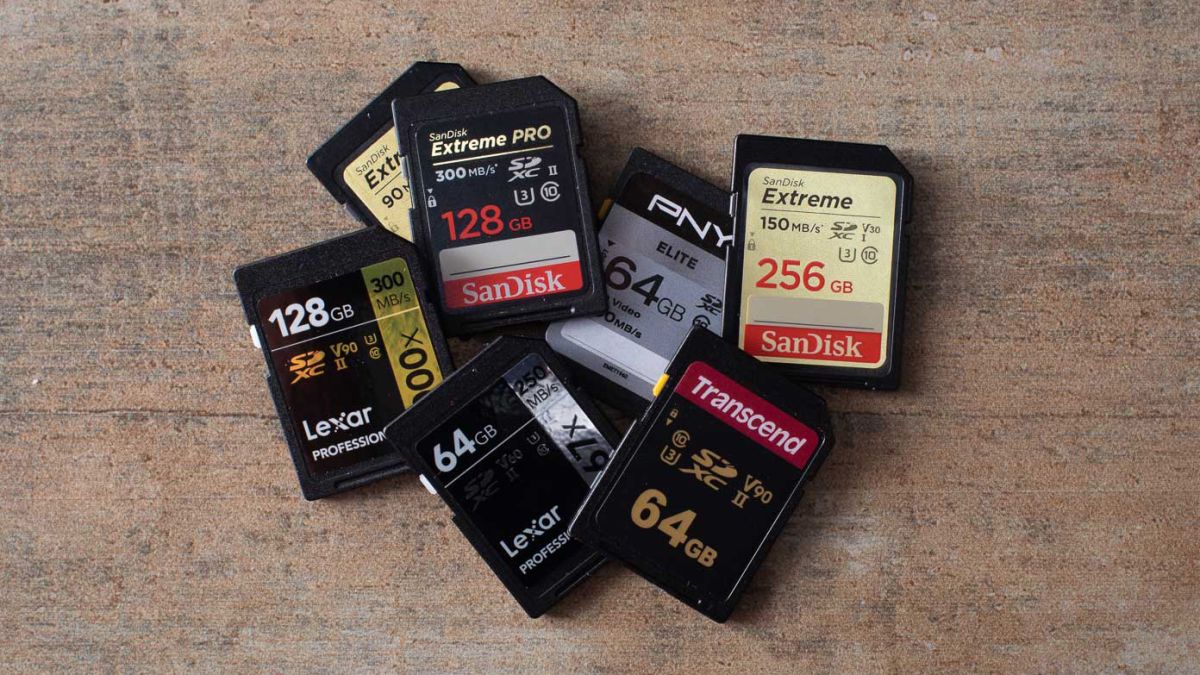
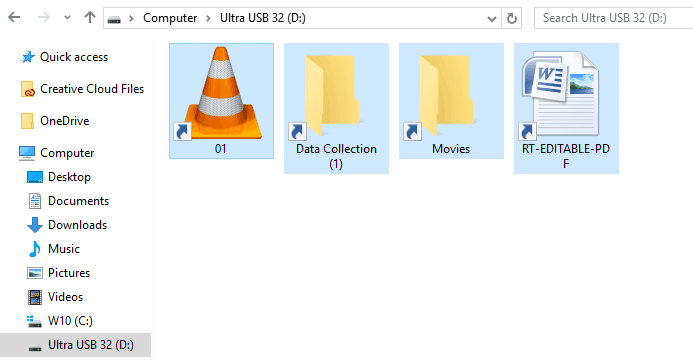
SD memory cards have surfaced as standard cards for digital cameras and microSD as phone standard memory cards. Most people have and use at least one daily, so naturally copying files and even formatting SD cards is a natural thing to do, but what if you cannot copy files or format SD cards?

SD cardsFear not because we had this issue and tried several things in order to overcome the problem and after some time here is a list of what can you do if you are facing this exact issue. The list is written from most simple solutions to more complex ones and it is advisable to follow it as presented. That being said, let's dive into solving the problem.


1. Remove Write Protection on SD card

First and in my experience the most usual thing preventing deleting, copying files, and formating SD card is due to write protection. Take an SD card out of the laptop, camera, or card reader and visually inspect it. On side of almost every SD card, there is a hardware lock switch and mark where it needs to be positioned in order to be locked. Even if the switch is positioned on unlocked state, switch it to locked and then back to unlocked. Sometimes this easy moving of switch can resolve some contact issues and the card will start working normally.

Another type of lock that could be turned ON is a software one. If for any kind of reason data protection has been turned ON, you will need to turn it off in order to be able to format an SD card. In order to do this follow this guide:

  1. Press ⊞ WINDOWS + R to open the Run dialog
  2. In run dialog type in diskpart and press ENTER
  3. Once diskpart is opened in command prompt type in: list disk and press ENTER
  4. Locate your SD card and type in select disk x, where x is disk number followed by ENTER
  5. After the SD card is selected type in: attributes disk clear read-only and press ENTER

This process will clear the software lock on the SD card, after following this method try to format the card again, if the problem still exists go to the next solution.

2. Format SD card using Command prompt

Command prompt is a great tool and can perform some commands that are not been able to be completed using file explorer or another tool inside Windows.

  1. In the taskbar search box, search for cmd and select the Command prompt
  2. On the right part select run as administrator
  3. If needed click on YES on UAC prompt
  4. Inside command prompt type in diskpart and press ENTER
  5. type in list disk followed by ENTER
  6. Select your SD card by locating its number in the list and typing select disk X, where is X SD cards number in list and press ENTER
  7. Once SD card is selected type in format fs=ntfs quick and press ENTER

This should format SD card but if for reason even this step is provided as unproductive, go to the next solution.

3. Format your card with the Disk Management tool

  1. Go into the taskbar and search for Disk Management and open it
  2. Select SD card partition that you wish to format
  3. Right-click on the partition and select format
  4. After the format is done, enter the volume label, file system, and allocation unit size. Confirm with OK
  5. Press OK again to confirm the formatting process.

If you have not managed to format your SD card even with this method go to the next solution.

4. Repartition card with Disk part

If all previous solutions have failed there is a chance that the SD card has bad sectors on it. If this is the case that we will need to partition cards in order to isolate bad sectors and use healthy ones.

  1. Press ⊞ WINDOWS + R to open the Run dialog
  2. In run dialog type in diskpart and press ENTER
  3. Once diskpart is opened in command prompt type in: list disk and press ENTER
  4. Locate your SD card and type in select disk x, where x is disk number followed by ENTER
  5. Type in Clean and press ENTER
  6. Type in Create partition primary and press ENTER
  7. To select a new partition type select partition 1 followed by ENTER
  8. Make partition active by typing active and pressing ENTER
  9. Format the drive by typing format fs=ntfs label=SDCard quick followed with ENTER
  10. Assign a letter to drive by typing assign letter=h followed with ENTER
  11. Type exit to close Command prompt followed again by ENTER and open File Explorer to check if the drive is active

5. Try a dedicated SD card formating fool

If anything failed so far, one last thing you could do is to download and try a dedicated SD card formatting tool. One that I would recommend is SD Memory Card Formatter, which is free software make specifically for formatting SD memory cards.

Do You Need Help with Your Device?

Our Team of Experts May Help
Troubleshoot.Tech Experts are There for You!
Replace damaged files
Restore performance
Free disk space
Remove Malware
Protects WEB browser
Remove Viruses
Stop PC freezing
GET HELP
Troubleshoot.Tech experts work with all versions of Microsoft Windows including Windows 11, with Android, Mac, and more.

Share this article:

You might also like

14 things we had in W10 but are gone in W11
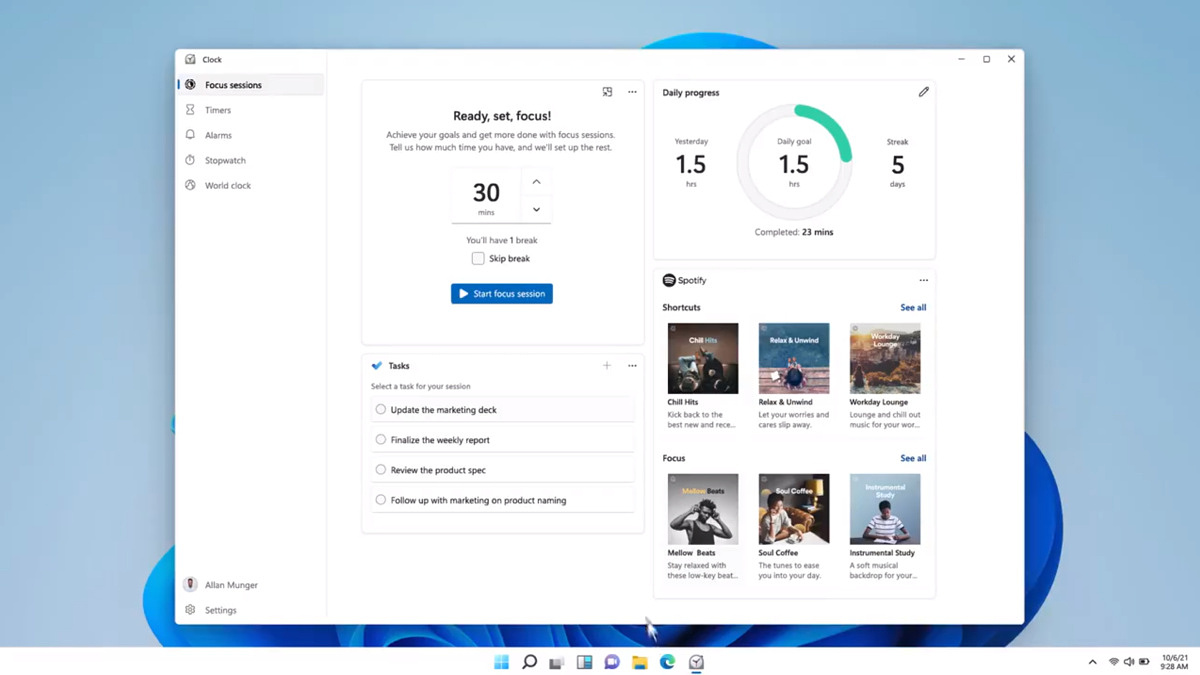
W11 missing featuresSo far we probably all know what are good new and exciting features that W11 is bringing to the table, let’s talk now about features that will be removed and are not there but we had them in W10
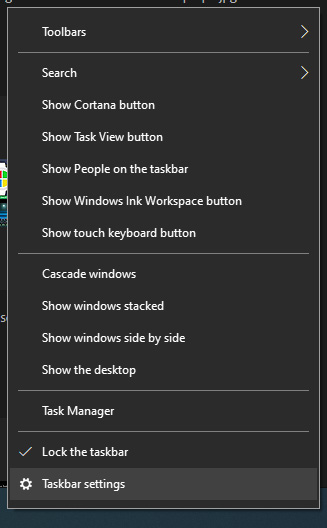
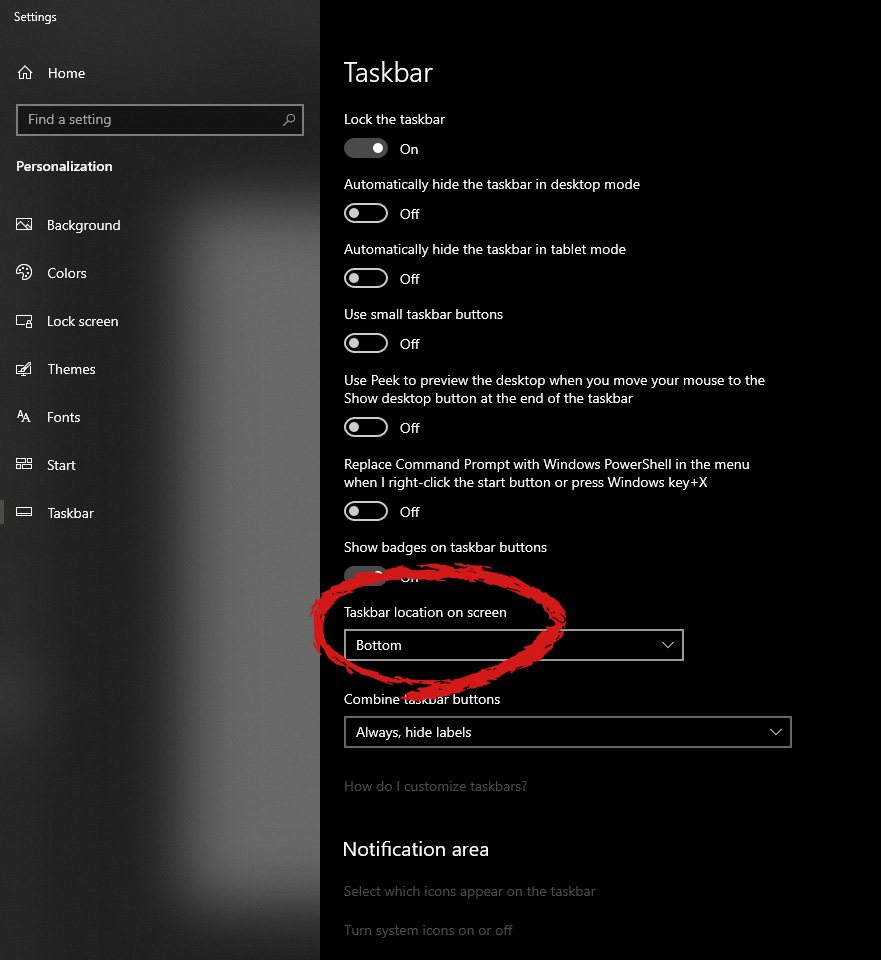
  1. Taskbar, do not worry, it is still there but it will be locked hard only to the bottom, people is removed, applications cannot customize areas and some icons will not appear in the system tray.
  2. Start Menu, No more named groups, cannot be resized, live tiles are history and pinned apps and sites will not migrate
  3. Tablet mode is completely removed
  4. Touch keyboard will not dock or undock on screen sizes bigger than 18 inches
  5. The timeline feature is no more
  6. The wallet is also removed
  7. Cortana is not active on first boot experience and it is no longer pinned to the taskbar
  8. Desktop wallpapers are not synched anymore when using an MS account
  9. IE is disabled, IE mode in edge here to fill the gap
  10. Math panel is removed with math recognizer as separate install on demand
  11. News and interests are now Windows Widgets
  12. Quick status is no longer on the lock screen nor in the settings
  13. S Mode exclusive only to Windows 11 home edition
  14. Snipping Tool continues to be available but functionality has been replaced with the Snip & Sketch tool functionality.3D Viewer, OneNote for Windows 10, Paint 3D, and Skype won't be installed anymore on new systems. They remain available when systems are upgraded.
Read More
How to Turn off Advertising ID in Windows
In case you don’t know, Microsoft hooks up every machine that is running Windows 10 with an Advertising ID which helps them in providing Windows 10 users with relevant ads. These ads are delivered to users in the Action Center, Start Menu as well as the ads inside the UWP Applications. What makes these advertisements relevant is that they keep track of your browsing trends, likes and dislikes, with the help of the Advertising ID. However, if you are not fond of advertisements and you do not want this feature of Microsoft to track your usage, worry not for you actually have the option to disable targeted ads on your Windows 10 computer by turning off the Advertising ID. And you can do that during Windows 10 Setup or using the Group Policy Editor. For more details, refer to the instructions provided below for each one of the methods.

Option 1 – Turn off Advertising ID during Windows 10 setup

If you are about to install Windows 10, then during the installation process, your computer boots into the Install and Configure Windows 10 screen with Cortana that assist you during the setup. Once you reach the last page which is “Choose privacy settings for your device”, you will see the Advertising ID of your computer. Under the Advertising ID, you have to disable or toggle off the “Apps can use advertising ID to provide more personalized advertising in accordance with the privacy policy of the app provider” option. After you disable it, click on the Accept button to proceed with the installation. After that, the copy of your Windows 10 you are using will have the Advertising ID disabled by default.

Option 2 – Turn off Advertising ID via Group Policy Editor

  • First, tap the Win + R keys to launch the Run utility.
  • Then, type “gpedit.msc” in the field and click OK or tap Enter to open the Group Policy Editor.
  • Next, navigate to this group policy setting: Computer Configuration > Administrative Templates > System > User Profiles
  • Now double click on the “Turn off the advertising ID” option and set the radio button to Enabled. Once you do, you will see the following description on your screen:
“This policy setting turns off the advertising ID, preventing apps from using the ID for experiences across apps. If you enable this policy setting, the advertising ID is turned off. Apps can’t use the ID for experiences across apps. If you disable or do not configure this policy setting, users can control whether apps can use the advertising ID for experiences across apps.” Note that setting the radio button to Enabled or Not Configured will turn off the data collection of the Advertising ID.
  • Finally, exit the Group Policy Editor and then restart your computer to apply the changes made successfully.
Read More
How to Fix the Error 0X80070005

0X80070005 - What is it?

0x8007005 is a Windows Error Code. You may come across this error if you don’t have the appropriate permission to install a particular Windows update. It is prompted as ‘Access Denied’ error message. Solution

Restoro box imageError Causes

The error code 0x80070005 usually triggered because of 2 reasons:
  1. Some updates require administrative permissions to be installed
  2. Due to malware and viruses

Further Information and Manual Repair

If you face this error while installing Windows updates on your PC, it is advisable to fix it immediately. By taking timely actions, you can update your PC easily and in case if the cause of the error code 0x80070005 is malware or some virus, you can stop it from causing more and serious damage to your system.  Sometimes malware and viruses can lead to data loss. To avoid such damages here’s what you need to do:

Cause: Updates require administrative permission

Quick Fix: If the 0x8007005 error occurs on your system due to administrative permission issues, then the best way to fix this error right away is to log on as an administrator. If there are many user accounts on your PC, then to resolve this error, make sure you log on using the user account that has administrator permissions on the computer. Once you log on as an administrator, now try to install the updates again.

Cause: Malware and Viruses

Quick Fix: If the error 0x80070005 occurs because of malware infection, the best way to resolve this error would then be to open your antivirus software and run a scan to detect the malware. However, if you don’t have antivirus software installed on your system, then it is advisable to download the software immediately. Download antivirus software. To be on the safe side download Microsoft Safety Scanner. Click on the run when prompted. Once the scanner is installed on your PC create a shortcut to Safety Scanner on your computer desktop so that it is easily accessible. Now double click on the icon and click on the full scan tab to start scanning for malware and viruses on your system. After the scan is complete, you will see a list of viruses on your PC. Now remove them all by hitting the delete tab and then repair. Now try installing the updates again. By following these quick-fix techniques, you can easily resolve the error 0x80070005 on your system by yourself, without calling an IT professional.
Read More
How to fix windows 10 error code 0x80073712
Windows 10 has displayed one of the most efficient and user-friendly interfaces. However there have been many issues on the backend of this commonly praised operating system: For example, Windows Update is still a wonky and error-laded system application. One example of this error is Windows Update Error 0x80073712 which stands in the way of users just wanting to keep their PCs updated hassle-free. The error code 0x80073712 signifies that a file needed by Windows Update to function is either damaged, missing, or corrupted. However, this does not mean that your Windows version will forever stay as-is with no mode to update it. Windows Update Error 0x80073712 is perfectly fixable with the set of provided steps below and some of Windows’ built-in troubleshooting steps:

Solution 1: Open Windows Update Troubleshooter

  1. Open the Windows Update Troubleshooter by pressing the Window Key and  “S” keys simultaneously.
  2. Enter the word “Troubleshoot” in the search box and select the Troubleshoot result
  3. On the new window, select “Windows Update” to troubleshoot.
  4. Run the troubleshooter, then open Windows Update and try to install the update again.

Solution 2: Run the DISM tool

  1. Open the command prompt by pressing Windows Key and “S” key simultaneously
  2. Enter “cmd” in the search box. Right Click command prompt among the results and select “Run as administrator”
  3. In the Command Prompt window type the following and press the Enter key after every command
DISM.exe /Online /Cleanup-image /Scanhealth DISM.exe /Online /Cleanup-image /Restorehealth
  1. To close the Administrator: Command prompt window, type Exit, and then press Enter.
  2. Run Windows Update again.

Solution 3: Rename the Software Distribution folder

  1. Open the command prompt as previously mentioned
  2. Input the following command pressing Enter after every line net stop wuauserv net stop cryptSvc net stop bits net stop msiserver rename c:windowsSoftwareDistribution softwaredistribution.old net start wuauserv net start cryptSvc net start bits net start msiserver exit
  3. Restart the PC and run the updater if it works again.

Solution 4: Restart Windows Update Services

  1. Press the Windows logo key and R together to open Run -> Input services.msc -> and press Enter
  2. Search for the Windows Update service -> Check its status
  3. If it is not indicated, right-click on the service and select Start to force start your Windows Update
  4. If you see an error, locate the Startup Type option and set it to Automatic
  5. Now you should reboot your computer and see if your Windows Update is OK

Solution 5: Fix Registry Issues

If after all the aforementioned solutions, you still experience problems with Windows Update, the problem may lie in the registry that is either damaged or corrupted. You may choose to do manual editing of your Windows registry by opening your Windows registry editor. But doing so is risky as one wrong letter may do incalculable damage to your system. To do so safely for more inexperienced users., we recommend using a third-party registry cleaner/tools, many of which can be found online.
Read More
NVIDIA driver keeps crashing in Windows
As you know, NVIDIA is one of the topmost graphics cards used and it has been that way for several years already. And in those years, the company has managed to release the best cards on the market. However, there are still times when some things fail and don’t work as expected due to some NVIDIA driver issues. As of late, one of the issues users reported about NVIDIA drivers is that it keeps on crashing on a daily basis. It gets to the point where they aren’t able to play games anymore while some users experience lag and rendering issues. In addition, some users also reported that their computer display tends to freeze sometimes, and then things would seem to go back to normal but only for a short span of time as the crash seems to happen every 10 minutes. This can be extremely annoying as you won’t be able to use your computer properly. If you are one of these users, worry not for there are several ways you can try to resolve the problem in your Windows 10 computer. Make sure to carefully follow the options given below.

Option 1 – Try checking if the NVIDIA graphics card is enabled

Although the problem is quite massive, the fix could be as simple as enabling the NVIDIA graphics card if it turns out to be disabled. There might be some strange reason why your graphics card disables itself. Thus, the best and first option you can try is to check if the NVIDIA graphics card is enabled or not. To do so, follow these steps:
  • Tap the Win + R keys to open the Run dialog box.
  • Then type “devmgmt.msc” in the field and hit Enter to open the Device Manager.
  • After opening the Device Manager, look for the Nvidia graphics card option among the list of device drivers. Once you found it, check if it is enabled or not. If it’s not enabled, you should see a gray arrow pointing downwards. Right-click on the card and select Enabled.
  • Next, right-click on the graphics card once more and click on the Update Driver Software option and then click on the “Search automatically for updated driver software” option.

Option 2 – Try to choose Maximum Performance and disable Vsync

If the first option didn’t work out for you, then you might want to try turning off Vsync and adjust the performance to the maximum. Refer to these steps to disable Vsync and adjust performance to the maximum.
  • The first thing you have to do is right-click on your desktop and select the NVIDIA Control Panel among the options.
  • After opening the NVIDIA Control Panel, select Manage 3D Settings.
  • After that, set Vsync to off, and then in the Power Management Mode, set it to Maximum Performance. That should fix the problem.

Option 3 – Try updating the drivers from the official site of NVIDIA

If both the first and second given options didn’t work, you can also try updating the drivers from the official NVIDIA website. And in case you don’t know the type of Nvidia graphics card that your computer is on, follow the steps below:
  • Tap the Win + R keys to open the Run dialog box.
  • Next type in “dxdiag” in the field and click OK or hit Enter to open the DirectX Diagnostic Tool.
  • From there, you can see what type of Nvidia graphics card that your system is on.
  • Take note of your graphics card information and then look for the best drivers for your operating system. Once you’ve downloaded and installed the file, restart your PC.
Read More
DownSpeedTest Removal Guide

DownSpeedTest is a Browser Toolbar Extension for Google Chrome that allows users to test their internet speed and convert files, however this speed test does not show proper values, nor even close.

Upon installation DownSpeedTest will replace your default New Tab page with its own Search Engine “MyWay.com” or “Search.MyWay.com”. This Search Engine camouflages itself as a “Enhanced Google Search Engine”, but all it does is allow more room for easier ad injection. In the background, this extension monitors user browsing behavior and records visited links, viewed products, clicked links and time spend on websites. This information is later used for Ad targeting.

While browsing the internet with this extension enabled you will experience additional ads, sponsored content, and even pop-up ads on some occasions. Due to its information mining behavior and aggressive ad placement, DownSpeedTest had been marked as a Browser Hijacker and it is recommended for removal.

About Browser Hijackers

Browser hijacking is a type of unwanted program, commonly a web browser add-on or extension, which causes modifications in the browser’s settings. There are lots of reasons why you may experience a browser hijack; but commercial, advertising and marketing are the major reasons for their creation. These are typically used to force hits to a specific site, manipulating web-traffic to generate ad-revenue. Even though it might appear naive, these tools are made by malicious people who always try to take full advantage of you, so that hackers could earn money from your naive and distraction. In a worst-case scenario, your browser could be hi-jacked to download malicious software that can do a lot of damage to your laptop or computer.

How one can know whether the browser is hijacked?

When your web browser is hijacked, the following might happen: your browser’s homepage has been reset to some unknown webpage; new bookmarks pointing to porn websites have been added to your bookmarks; the default browser configurations are modified and/or your default web engine is altered; you see unwanted new toolbars added; unstoppable flurries of pop-up ads show up on your computer screen; your browser gets slow, buggy, crashes regularly; you can’t navigate to specific internet pages, such as security software related websites.

How does a browser hijacker infect a computer?

Browser hijackers infect computers via malicious e-mail attachments, downloaded infected documents or by visiting infected internet sites. They can be included with toolbars, add-ons, BHO, plugins or browser extensions. Also, some freeware and shareware can put the hijacker in your PC through “bundling”. Browser hijackers could record user keystrokes to collect potentially important information leading to privacy concerns, cause instability on computers, significantly disrupt user’s browsing experience, and ultimately slow down the system to a point where it becomes unusable.

How you can fix a browser hijack

One thing you could try to eradicate a browser hijacker is to find the malware in the “Add or Remove Programs” list of the Microsoft Windows Control Panel. It might or might not be there. When it is, uninstall it. However, most browser hijackers are difficult to eliminate manually. Regardless of how much you attempt to get rid of it, it might come back over and over. Amateur PC users should never try for the manual form of removal methods, since it demands in-depth system knowledge to perform fixes on the system registry and HOSTS file. Anti-malware software is really effective when it comes to picking up and eliminating browser hijackers that regular anti-virus application has overlooked. If you’d like to get rid of persistent hijackers effectively, install the top-rated Anti-Malware software Safebytes Anti-Malware. Use a system optimizer (like Total System Care) along with your anti-malware software to fix various registry issues, remove system vulnerabilities, and improve your computer performance.

What To Do If You Cannot Install Any Anti-Malware?

Practically all malware is bad and the consequences of the damage could differ according to the specific kind of malicious software. Some malware is created to interfere with or block things that you’d like to do on your PC. It may not permit you to download anything from the web or prevent you from accessing a few or all of the internet sites, especially the anti-malware websites. So what you should do if malware prevents you from downloading or installing Anti-Malware? There are a few actions you can take to circumvent this problem.

Install the anti-virus in Safe Mode

Safe Mode is a unique, simplified version of Microsoft Windows in which only essential services are loaded to counteract viruses and also other problematic applications from loading. If the malware is set to load immediately when computer starts, switching into this mode may prevent it from doing so. To start the computer into Safe Mode, press the “F8” key on the keyboard just before the Windows logo screen shows up; Or after normal Windows boot up, run MSConfig, look over “Safe Boot” under the Boot tab, and then click Apply. Once you are in Safe Mode, you can try to install your antivirus application without the hindrance of the malicious software. Following installation, run the malware scanner to get rid of most standard infections.

Download the anti-malware program using a different browser

Web-based malware could be environment-specific, aiming for a particular web browser or attacking particular versions of the browser. If you’re not able to download the security program using Internet Explorer, it means virus is targeting IE’s vulnerabilities. Here, you should switch over to an alternative web browser such as Chrome or Firefox to download Safebytes Anti-malware software.

Install anti-malware on a thumb drive

Another solution is to save and operate antivirus software tool completely from a Pen drive. Follow these steps to use a USB flash drive to clean your infected PC. 1) Make use of another virus-free computer to download Safebytes Anti-Malware. 2) Insert the USB drive on the same system. 3) Double click on the downloaded file to run the installation wizard. 4) Choose the USB flash drive as the location for saving the software file. Follow the instructions to complete the installation process. 5) Now, plug the USB drive into the corrupted computer. 6) Double-click the Safebytes Anti-malware icon on the pen drive to run the application. 7) Run Full System Scan to identify and clean-up of all types of malware.

Protect Your Computer & Privacy With SafeBytes Anti-Malware

If you’re planning to purchase anti-malware for your computer, there are lots of brands and utilities for you to consider. A few of them do a good job in getting rid of threats while many will harm your PC by themselves. You need to select one that is trustworthy, practical and has a good reputation for its malware source protection. While thinking about the dependable programs, Safebytes Anti-Malware is certainly the strongly recommended one. SafeBytes anti-malware is a reliable software that not only secures your system permanently but is also very user friendly for people of all skill levels. Through its cutting-edge technology, this software will help you protect your PC against infections brought on by different kinds of malware and other threats, including spyware, adware, viruses, worms, trojans, keyloggers, potentially unwanted program (PUPs), and ransomware.

SafeBytes has great features when compared with other anti-malware programs. The following are some of the features you might like in SafeBytes Anti-Malware.

Live Protection: SafeBytes provides complete and real-time security for your computer system. This tool will continuously monitor your PC for any suspicious activity and updates itself regularly to keep abreast of the latest threats. World-class AntiMalware Protection: With a critically acclaimed anti-malware engine, SafeBytes offers multilayered protection which is made to find and remove threats which are hidden deep in your computer’s operating system. Safe Browsing: Safebytes assigns all sites a unique safety ranking that helps you to have an idea of whether the webpage you’re just about to visit is safe to view or known to be a phishing site. Lightweight: This program is light-weight and will work quietly in the background, and will not affect your computer efficiency. 24/7 Online Technical Support: Support service is available for 24 x 7 x 365 days via email and chats to answer your queries. SafeBytes can keep your PC safe from latest malware threats automatically with very little input needed from you again. Once you have installed this software, you no longer have to worry about malware or any other security worries. You will get the very best all-around protection for the money you pay on SafeBytes anti-malware subscription, there’s no question about it.

Technical Details and Manual Removal (Advanced Users)

To get rid of DownSpeedTest manually, go to the Add or Remove programs list in the Control Panel and select the offending program you want to get rid of. For internet browser extensions, go to your browser’s Addon/Extension manager and choose the plug-in you intend to disable or remove. You’ll likely also want to reset your web browser. To ensure the complete removal, manually check your hard disk and computer registry for all the following and remove or reset the values as needed. Please be aware that this is for skilled users only and might be challenging, with incorrect file removal causing additional system errors. In addition, some malware is capable of replicating itself or preventing deletion. You’re suggested to do this procedure in Safe Mode.
Files: %USERPROFILE%\Microsoft\Windows\Start Menu\Programs\DownSpeedTest %ALLUSERSPROFILE%\Microsoft\Windows\Start Menu\Programs\DownSpeedTest %ALLUSERSPROFILE%\Application Data\Microsoft\Windows\Start Menu\Programs\DownSpeedTest %LOCALAPPDATA%\Google\Chrome\User Data\Default\Sync Extension Settings\maoffpmgdffbgbncadalkhfhmlfihkgk %UserProfile%\Local Settings\Application Data\Google\Chrome\User Data\Default\Sync Extension Settings\maoffpmgdffbgbncadalkhfhmlfihkgk %LOCALAPPDATA%\Google\Chrome\User Data\Default\Extensions\maoffpmgdffbgbncadalkhfhmlfihkgk %UserProfile%\Local Settings\Application Data\Google\Chrome\User Data\Default\Extensions\maoffpmgdffbgbncadalkhfhmlfihkgk Registry: HKEY_CURREN_USER\SOFTWARE\Wow6432Node\Microsoft\Windows\CurrentVersion\explorer\Browser Helper Objects\5818CEA7-889D-459A-9A75-889E1298A892 HKEY_LOCAL_MACHINE\Software\Microsoft\Windows\CurrentVersion\Ext\Stats\5818CEA7-889D-459A-9A75-889E1298A892 HKEY_LOCAL_MACHINE\Software\Microsoft\Windows\CurrentVersion\Ext\Stats\481F6B47-2AD8-4C6A-8554-A2897E6CF900 HKEY_LOCAL_MACHINE\Software\Microsoft\Windows\CurrentVersion\Ext\Stats\1AAB982B-77D7-44F1-B305-8909DAC045F2 HKEY_LOCAL_MACHINE\Software\Microsoft\Windows\CurrentVersion\Ext\Settings\5818CEA7-889D-459A-9A75-889E1298A892 HKEY_LOCAL_MACHINE\Software\Microsoft\Windows\CurrentVersion\Ext\Settings\481F6B47-2AD8-4C6A-8554-A2897E6CF900 HKEY_LOCAL_MACHINE\Software\Microsoft\Windows\CurrentVersion\Ext\Settings\1AAB982B-77D7-44F1-B305-8909DAC045F2 HKEY_LOCAL_MACHINE\Software\Microsoft\Internet Explorer\Approved Extensions, value: 1AAB982B-77D7-44F1-B305-8909DAC045F2 HKEY_LOCAL_MACHINE\Software\Microsoft\Internet Explorer\SearchScopes\CA6A7AB9-F4B5-4D50-B5D2-33E996549AE3 HKEY_CURREN_USER\SOFTWARE\Wow6432Node\Microsoft\Internet Explorer\Toolbar, value: 1AAB982B-77D7-44F1-B305-8909DAC045F2 HKEY_CURREN_USER\SOFTWARE\Microsoft\Internet Explorer\Toolbar, value: 1AAB982B-77D7-44F1-B305-8909DAC045F2 HKEY_CURREN_USER\SOFTWARE\Wow6432Node\Microsoft\Tracing\DownSpeedTest_RASMANCS HKEY_CURREN_USER\SOFTWARE\Microsoft\Tracing\DownSpeedTest_RASMANCS HKEY_CURREN_USER\SOFTWARE\Wow6432Node\Microsoft\Tracing\DownSpeedTest_RASAPI32 HKEY_CURREN_USER\SOFTWARE\Microsoft\Tracing\DownSpeedTest_RASAPI32 HKEY_CURREN_USER\SOFTWARE\Microsoft\Internet Explorer\LowRegistry\DOMStorage\downspeedtest.dl.myway.com
Read More
Repair Windows 10 Error 0xC1900101, 0x4000D

Error Code 0xC1900101, 0x4000D - What Is It?

Error Code 0xC1900101, 0x4000D is not very common among the many error codes emerging when updating to Windows 10. It is specific to Windows 7 users who try to upgrade to Windows 10 system.

This error hinders Windows 7 users to install the Windows 10 update. Once the update is launched, the process will go smoothly until a certain percentage (normally upon hitting 70% or more) and then it gets stuck. The user will then see a notification stating: “The installation failed in the SECOND_BOOT phase with an error during MIGRATE_DATA operation.”

You’ll be able to get past the error after a while. The error message will disappear and continue with the configuration process. But, not for long as it will reoccur at around 90% of installation with another error message saying: “The installation failed in the SECOND_BOOT phase with an error during PRE_OOBE operation.”

Solution

Restoro box imageError Causes

You’re most likely to encounter Error Code 0xC1900101 – 0x4000D when you upgrade to Windows 10 using a USB drive. There are several reasons why this update-related error happens such as wrong update, incompatibility with an antivirus program, or incompatibilities with some software.

Further Information and Manual Repair

In attempting to fix error code-related problems, it is best to do manual repair methods. Employing repair methods manually can help users pinpoint the root causes of the issues they are encountering and apply permanent solutions to fix the problem.

While every Windows user can do most manual repair methods, there are certain cases where help from a Windows expert is needed. If you’re not confident in employing the manual repair methods yourself, you can always consider seeking help from a professional Windows technician who is equipped with enough knowledge to address any issues you are facing or you can just simply use a powerful automated tool.

In fixing Error Code 0xC1900101 – 0x4000D, you can try doing any of the following manual repair methods:

Method One: Disable Background Applications

Error Code 0xC1900101-0x4000D probably occurs when there are programs running in the background of the system as you are in the process of updating. On that note, you must ensure that any programs running in the background must be disabled through Task Manager.

  1. Press Ctrl+Alt+Del then choose Task Manager.
  2. Right-click on all background applications then chooses End Task to close the apps.

NOTE: If there are any processes you are unfamiliar with, you can always right-click that process then “search online.” Be careful not to end “Windows process” tasks under the “Type” column as it might cause further problems.

  1. Restart your device then proceed to Windows 10 system upgrading.

Method Two: Uninstall Anti-Malware Tools

Anti-malware tools normally trigger problems since they consist of files that are possibly incompatible with some software. If Error Code 0xc1900101-0x4000d is caused by incompatibility with an antivirus program, follow the following steps:

  1. Open the Control Panel then choose System and Security.
  2. Select Windows Solution Center.
  3. Click Security to locate your antivirus.
  4. Once you’ve located your antivirus, click on it then choose
  5. Restart your device then check if it eliminates the problem.

Method Three: Install System Updates

  1. Click on the Start menu then select System and Security – Windows Updates.
  2. Choose Check for updates.
  3. If there are any required updates detected by the system, select them all then choose Install Updates.
  4. Restart your device.

Method Four: Check System For Any Incompatibilities

In doing this method, you need to use the System Readiness tool.

  1. Download System Update Readiness Tool for Windows 7 for x64-based Systems (KB947821).
  2. Once the download is finished, open Windows 6.1-KB947821-v34-x64.msu
  3. Run the program to check for any incompatibilities in your system.

NOTE: The process might take a while depending on the speed of your device.

  1. If there are no results found, you can now try updating again to Windows 10. However, if there are any issues found, you need to have them fixed first.

Method Five: Download A Powerful Automated Tool

Can’t seem to put up with the long and technical manual repair process? You can still fix this error by downloading and installing a powerful automated tool that will surely get the job done in a jiffy!

Read More
There is No Sleep Option in Power Menu
If the Sleep option is missing from the Power Menu then this could be caused by the power settings, local group policy configuration, etc. in your computer. Based on the reports of users who experience the same problem, the issue occurred after they’ve updated or upgraded their Windows 10 computers. As you know, the sleep mode is quite useful in certain cases and is utilized by most users. If you put your computer in sleep mode, it actually minimizes the power usage of your computer while at the same time keeps your current session running. So if sleep mode is suddenly missing, then that could be a problem but worry not for this post will give you possible fixes to resolve the issue. Make sure to follow each one of them carefully to achieve good results.

Option 1 – Check the Power settings

As mentioned, one of the reasons why the Sleep option is missing could be the power settings in your computer. To check this possibility, make sure that you’ve enabled the sleep mode in the Power options setting window. How? Refer to these steps:
  • First, go to the Start menu, and from there open Control Panel.
  • Next, set the View by Large icons and select the Power Options.
  • After that, click on the “Choose what the power buttons do” option on the left-hand side.
  • Then click on the “Change settings that are currently unavailable” option and make sure that Sleep is checked under the Shutdown settings.
  • Afterward, click on Save changes.

Option 2 – Modify the Local Group Policy

If the Power setting isn’t the cause of the problem, then you might want to check the Local Group Policy and modify it. There is a dedicated policy for showing the sleep option in the power menu and if this policy is disabled, then it’s no wonder why you don’t see the sleep option in the power menu. To change this policy, refer to the steps below.
  • Tap the Win + R keys to open the Run dialog box.
  • Then type “gpedit.msc” in the field and hit Enter to open the Group Policy Editor.
  • Next, navigate to this path: Computer Configuration -> Administrative Templates -> Windows Components -> File Explorer
  • Look for the “Show sleep in the power options menu” option from the right-hand side pane and double click on it.
  • Now change it to Enabled and click on the Apply and OK buttons to save the changes made and restart your computer.

Option 3 – Try to turn on Standby

Standby, also known as InstantGo, is a feature in Windows 8 and 10 that allows users to maintain network connectivity after a computer has been put into sleep mode. Thus, if this feature is disabled, it can cause the Sleep option to disappear from the power menu. To turn it on, follow these steps:
  • Tap the Win + R keys to open Run.
  • And type “Regedit” in the field and tap Enter to open the Registry Editor.
  • Next, navigate to this path: HKEY_LOCAL_MACHINESYSTEMCurrentControlSetControlPower
  • From this path, look for the “CsEnabled” key on the right-hand side of the pane and double-click on it.
  • Set its value to “1” and click OK to save the changes made.
  • Now reboot your PC.
Note: If you were not able to find the CsEnabled key, then this indicates that your computer does not support the Standby feature. And if that’s the case, proceed to the next given option below.

Option 4 – Try to install a Video Card driver

On the other hand, some users reported that the problem was caused by the video card driver. And if your computer lacks the video adapter driver, it can also cause the same problem. Windows 10 typically install the video card driver on its own, however, there are rare cases when it doesn’t which is why you have to do it yourself manually. All you have to do is go to your manufacturer’s website and look for the video card driver, download it and then install it. Once you’ve installed the video card driver, reboot your computer and check if it has fixed the problem.
Read More
Fixing Error 0xC1900208, 0x4000C in Windows
As you know, the Windows Update process takes compatibility seriously. The Windows Updates need to be compatible with the hardware as well as all the installed applications in the computer else the Windows Updates will only get stuck in the process. Two of the Windows 10 errors that shows up during this case is the error 0xC1900208, 0x4000C. These error codes are caused by incompatible applications which means that there might be an incompatible app installed in your computer that’s blocking the upgrade process and prevents it from finishing. That’s why you need to make sure that all the applications on your computer are updated to their latest versions and then check the compatibility. So if there are any incompatible apps, be sure to uninstall them and then try doing the upgrade once again. Take note that these error codes are just among many compatibility issues that the Windows Update throws up. Since the error is caused by a compatibility issue, you have three options – first, you can update the incompatible application to the latest version, second, uninstall the application or trick Windows and make it seem like it’s compatible.

Option 1 – Try updating the application or software

As mentioned, you can try updating the concerned application or software to its latest version to resolve the compatibility issue and in turn, fix the errors 0xC1900208 – 0x4000C. Note that depending on where you had installed the application, your steps will change. So if you have it installed directly from the website, refer to these steps:
  • Look for the built-in option to check the updates since the most application has this option.
  • You also have the option to go to the website of the application and check if there is a new version available. If there is, download and update the app.
On the other hand, if you have downloaded the app from the Microsoft Store, here’s what you have to do:
  • Open the Store and click on the three dots located at the top-right of the window.
  • Next, click the Download and Updates option.
  • From there, check if there is an update available for the store. If there is, update it.

Option 2 – Try to uninstall the application or software

If updating the app or software to its latest version didn’t help and you’re still getting the error 0xC1900208 – 0x4000C every time you attempt to install the Windows Updates, you may have to uninstall it. You will need to use the usual Program and Features to uninstall it if you have downloaded it from the website.
  • In the search box, type in “control” and then click on Control Panel (desktop app) among the search results.
  • After that, select Programs and Features from the list which will give you a list of all the programs installed on your computer.
  • From there, look for the concerned program and select it and then uninstall it.
Note: If you have downloaded the app from the Windows Store, you can simply right-click on it from the application list and then uninstall it.

Option 3 – Try bypassing the Upgrade Advisor

There are times when a software developer fails to pass the compatibility test for their apps. It could be that they work on Windows 10 upgraded version but just didn’t pass the compatibility check. So if you are pretty certain that the app really works on Windows 10, you can just bypass the Upgrade Advisor.
Read More
Fix Windows doesn’t have a network profile
A number of users reported that they encountered an error that says, “Windows doesn’t have a network profile for this device” while they tried to connect Network devices such as printers and speakers to their Windows 10 computers. On the other hand, this kind of issue is reported for non-network devices as well. This kind of error might be due to incompatibility between the device and your operating system or it could be that the network drivers in your computer need to be updated in order to recognize the new device. Whatever the cause is here are a couple of suggestions you can try to resolve the “Windows doesn’t have a network profile for this device” error.

Option 1 – Check if the network device is compatible with your operating system

As mentioned, the error could be due to incompatibility between the device and the system. To verify, just go to the website of the device’s manufacturer since you can find all the information about the device there.

Option 2 – Make sure that your computer is discoverable

  • Click on the Start button.
  • Then click on the gear-like icon to open Settings.
  • After that, select Network & Internet >> Wi-Fi.
  • Next, change the Network Profile to Private.
  • Now restart your computer and then connect the device again and see if the error is gone or not.

Option 3 – Try to update or rollback or uninstall the Network drivers

You might also want to update or roll back or disable your Network drivers to fix the “This operation failed as no adapter is in the state permissible for this operation” error.
  • Tap the Win + R keys to launch the Run window and then type in the “devmgmt.msc” command and hit Enter to open the Device Manager window.
  • Under the Device Manager, you will see a list of drivers. From there, look for the Network Adapters and expand it.
  • Then right-click on each one of the Network drivers and depending on your preference, you can either select “Update driver”, “Disable device” or “Uninstall device”.
  • After that, restart your PC and see if it helped in fixing the “Windows doesn’t have a network profile for this device” error.

Option 4 – Try to check the SNMP status

  • Tap the Win + R keys to open the Run dialog box and type “services.msc” in the field and tap Enter to open the Service Manager window.
  • After opening the Service Manager, look for the SNMP Service from the list of services.
  • Once you’ve found the SNMP Service, make sure that its Service Status is set to “Running”. If the service is not running, just right-click on it and select Properties.
  • From there, change the Service Status to Automatic and then click on the Apply and OK buttons.
  • After that, click on the Start button again and check if the error is now fixed.
Note: If your printer is the one that triggers the error, refer to these steps:
  • You have to go to Control Panel > Devices & Printers.
  • From there, right-click on the printer which is the one that causes the error, and then select Printer Properties.
  • Next, click the Configure Port button under the Ports tab and select SNMP Status Enabled.
  • Now click the OK button and check if it fixes the error or not.

Option 5 – Run the Hardware and Devices Troubleshooters

You could also run this troubleshooter to fix the “Windows doesn’t have a network profile for this device” error.
  • The first thing you need to do is click on Start and then on the gear-like icon to pull up the window for Settings.
  • After opening Settings, look for the Update and Security option and select it.
  • From there, go to the Troubleshoot option located on the left-hand side of the list.
  • Next, select Hardware and Devices from the list and open the Troubleshooter and run it. Once it is doing its job, wait for it to complete the process and then restart the system.
  • After the system restarts, check if the problem’s now fixed. If not, refer to the advanced guide given below.
Read More
1 2 3 171
Logo
Copyright © 2023, ErrorTools. All Rights Reserved
Trademark: Microsoft Windows logos are registered trademarks of Microsoft. Disclaimer: ErrorTools.com is not affiliated with Microsoft, nor claims direct affiliation.
The information on this page is provided for information purposes only.
DMCA.com Protection Status