Logo

Windows could not start Update service

If you got an error message saying, “Windows could not start the Windows Update service on Local Computer, Error 87. The parameter is incorrect” while you were trying to start the Windows update service on your computer, then this post could help you resolve the problem. Along with this error, you might also get any of these error codes such as 0x80240034, 0x80244019, 0x80070643, and so on. Aside from these error codes, you will also notice that the Windows Update service has been stopped.

To fix this issue, here are a couple of suggestions that might help but before you go on, you need to create a System Restore point first.

Option 1 – Try checking Services Dependencies

Dependencies of a Windows Service in Windows 10 are when windows services depend on other services. Such is the case with the Windows Update service – it also depends on three different services such as the Remote Procedure Call or RPC service, DCOM Server Process Launcher, and the RPC Endpoint Mapper. Meaning to say, if two of these services are not working as expected, then the dependant service will also be affected. This could be the reason why the Windows Update service could not start.

  • Tap the Win + R keys to open the Run dialog box.
  • Next, type “services.msc” in the field and hit Enter to open Windows Services.
  • From the list of Services, look for the following services:
    • Remote Procedure Call (RPC) Service
    • DCOM Server Process Launcher
    • RPC Endpoint Mapper
  • After you find these services, double click on each one of them and check whether the Startup type for all is set to Automatic and the Service status is set to Running or not.
  • If the service status is not running, then click the Start button. Afterward, check if you can now run the Windows Update service.

Option 2 – Check the Background Intelligent Service and the Cryptographic Service

  • Tap the Win + R keys to open the Run dialog box.
  • Next, type “services.msc” in the field and hit Enter or click OK to open Services.
  • From the list of Services, look for the following services and make sure that their Startup type is as follows:
    • Background Intelligent Transfer Service – Manual
    • Cryptographic Service ­– Automatic
  • After that, check if the Service status of the listed services above is set to Running. If they’re not, click on the Start button to start these services and then check if you can now enable the Windows Update service or not.

Option 3 – Reset Windows Update components

If the first two options did not work then you might want to reset the Windows Update components manually. Follow the steps below to reset them.

  • Open Command Prompt with admin privileges.
  • After that, type each one of the following commands and hit Enter after you key in one after the other.
    • net stop wuauserv
    • net stop cryptsvc
    • net stop bits
    • net stop msiserver

Note: The commands you entered will stop the Windows Update components such as Windows Update service, Cryptographic services, BITS, and MSI Installer.

  • After disabling WU components, you need to rename both the SoftwareDistribution and Catroot2 folders. To do that, type each one of the following commands below, and don’t forget to hit Enter after you type one command after the other.
    • ren C:WindowsSoftwareDistribution SoftwareDistribution.old
    • ren C:WindowsSystem32catroot2 Catroot2.old
  • Next, restart the services you’ve stopped by entering another series of commands. Don’t forget to hit Enter after you key in one command after the other.
    • net start wuauserv
    • net start cryptsvc
    • net start bits
    • net start msiserver
  • Close Command Prompt and reboot your PC.

Option 4 – Run the Windows Update Troubleshooter

If resetting the Windows Update components didn’t work, you could also try running the Windows Update Troubleshooter as it could also help in fixing any issues related to Windows Update including this one. To run it, go to Settings and then select Troubleshoot from the options. From there, click on Windows Update and then click the “Run the troubleshooter” button. After that, follow the next on-screen instructions and you should be good to go.

Option 5 – Try removing a value from the Windows Registry

If running the Windows Update troubleshooter didn’t help and you receive a message instead saying, “Service Registration is Missing or Corrupt”, you can try to remove a value from the Windows Registry.

  • Tap the Win + R keys to open the Run dialog box.
  • Then type “Regedit” in the field and hit Enter to open the Windows Registry.
  • Next, navigate to this path: HKEY_LOCAL_MACHINESOFTWAREMicrosoftWindowsSelfHostApplicability
  • From this path, look for a value named “ThresholdOptedIn” and if you find it, delete it.
  • Exit the Registry Editor and see if you can now enable the Windows Update service.

Do You Need Help with Your Device?

Our Team of Experts May Help
Troubleshoot.Tech Experts are There for You!
Replace damaged files
Restore performance
Free disk space
Remove Malware
Protects WEB browser
Remove Viruses
Stop PC freezing
GET HELP
Troubleshoot.Tech experts work with all versions of Microsoft Windows including Windows 11, with Android, Mac, and more.

Share this article:

You might also like

Fixing 0x00000050 Stop Error – A How to Guide

What Is 0x00000050 Stop Error?

While running your Windows 7/Windows Server 2008 R2, your system suddenly stops responding out of complete randomness and you see an error message popping up which says something like this:

0x00000050 (parameter1, parameter2, parameter3, parameter4)

Solution

Restoro box imageError Causes

The stop error 0x00000050 signifies that there’s a PAGE_FAULT_IN_NONPAGED_AREA problem. If you’ve seen this error on different occasions then you will find the parameters in the message to be varying. That is because they are dependent on your PC’s configuration. Not all Stop errors "0x00000050” occur due to a single issue.

However, the most common problem which is encountered which results in the stop error popping up is due to a pool corruption occurring in the Srvnet.sys file.

This issue might be caused because of software incompatibility or a defective physical memory which resulted in requests for data for a hardware driver or service which was not found in the memory.

If you find the error occurring after you’ve installed a new application or a device driver then you should access Safe Mode and uninstall, disable or remove that application or driver.

Further Information and Manual Repair

In order to fix this issue, you should try booting your computer to the “Last Known-Good Configuration” as listed during startup.

For this you have to follow the below-mentioned steps:

  1. Start your system.
  2. When you see the message which says “For Troubleshooting And Advanced Startup Options For Windows, Press F8” hit F8 and proceed.
  3. Use the up and down arrow keys to highlight “Last Known-Good Configuration” and hit enter (This method will only work if your system boot was not successfully carried out ever since you made any specific changes).
  4. When you are starting the computer, press F12 and proceed with the PSA/32 Bit Diagnostics.
  5. Do the following so that a clean boot can be performed:
  • Go to the Start menu when the Windows 7 desktop shows up.
  • On the search bar, type “msconfig” and hit search.
  • Disable all the applications which are listed on the “Startup” tab.
  • Now head over to the “Services” tab and mark the option which reads "Hide all Microsoft Service".
  • Select the “Disable All Services” option.
  • Apply the changes by clicking on “Apply” then restart your PC. You should now check the performance of your computer. If you don’t see a BSOD then you start re-enabling all the Services and Startup applications one by one until you finally figure out which one is causing the BSOD to appear.
6. Update your Windows with “Windows Updates”.
Read More
dxgkrnl.sys Blue Screen Error in Windows
Dxgkrnl.sys is a file related to the Microsoft DirectX driver – a suite of technologies developed by Microsoft to provide hardware acceleration for heavy multimedia applications like 3D games as well as HD videos. However, there are times when you encounter Blue Screen errors for this system file which is quite a lot. So when you encounter a Blue Screen error that’s related to this file, then it could be that the dxgkrnl.sys file is infected with some virus or malware and this might go unnoticed since antivirus programs regard dxgkrnl.sys as a system file. Here are some Blue Screen errors related to the dxgkrnl.sys file:
  • SYSTEM_SERVICE_EXCEPTION .
  • BAD_POOL_HEADER
  • STOP 0x0000000A: IRQL_NOT_LESS_OR_EQUAL.
  • STOP 0x0000001E:
KMODE_EXCEPTION_NOT_HANDLED
  • STOP 0x00000050:
PAGE_FAULT_IN_NONPAGED_AREA
To fix the dxgkrnl.sys Blue Screen error, here are some suggestions you have to check out.

Option 1 – Try running the DirectX Diagnostic Tool

Since the dxgkrnl.sys error has something to do with the DirectX Graphics APIs, you can run the DirectX Diagnostic tool to resolve the problem.

Option 2 – Try updating or re-installing DirectX

If the DirectX Diagnostic tool didn’t work, you can try to update or reinstall DirectX instead. This can help in fixing the problem because when you reinstall or update DirectX, it will replace the incompatible or corrupted components of DirectX from your computer.

Option 3 – Try to run the DISM commands

You might want to repair potentially corrupted files in your system as having them could also trigger the dxgkrnl.sys Blue Screen error. To repair these corrupted system files, you can run the DISM commands:
  • Tap the Win + X keys and click on the “Command Prompt (Admin)” option.
  • After that, input each one of the commands listed below sequentially to execute them:
    • Dism /Online /Cleanup-Image /CheckHealth
    • Dism /Online /Cleanup-Image /ScanHealth
    • Dism /Online /Cleanup-Image /RestoreHealth
  • Once you’ve executed the commands given above, restart your computer and check if the dxgkrnl.sys Blue Screen error is now fixed.

Option 4 – Try updating or reinstalling your Graphics drivers

Updating or reinstalling the Graphics drivers in your computer can also help in resolving compatibility issues between the operating system and the driver that also cause this kind of BSOD error.
  • First, boot your computer into Safe Mode.
  • After that, tap the Win + R keys to launch Run.
  • Type in devmgmt.msc into the box and tap Enter or click OK to open the Device Manager.
  • After that, a list of device drivers will be displayed. From there, look for the Display Adapters and click on them.
  • After that, right-click on each entry under the Display Adapters and select the “Uninstall Device” option from the menu.
  • Now restart your computer.
  • After restarting your computer, go to the Settings app and Check for Updates in the Windows Update section.
Note: You also have the option to go directly to the website of your graphics card manufacturers like NVIDIA, Intel, or AMD and go to the section called Drivers then check if there’s a new available update – if there is, download and install it.

Option 5 – Try to run the Blue Screen Troubleshooter

As you know, the Blue Screen troubleshooter is a built-in tool in Windows 10 that helps users in fixing BSOD errors like dxgkrnl.sys. It can be found on the Settings Troubleshooters page. To use it, refer to these steps:
  • Tap the Win + I keys to open the Settings panel.
  • Then go to Update & Security > Troubleshoot.
  • From there, look for the option called “Blue Screen” on your right-hand side and then click the “Run the troubleshooter” button to run the Blue Screen Troubleshooter and then follow the next on-screen options. Note that you might have to boot your PC into Safe Mode.

Option 6 – Try disabling the SLI Technology in NVIDIA Control Panel

In case you don’t know, there is a technology called SLI that comes with the NVIDIA graphics cards. With the help of this technology, the usage of various GPUs is allowed on a computer and hence helps in triggering the Alternate Frame Rendering and boosts the Graphics Performance directly. This is why this option to disable the SLI technology is suitable in fixing the problem if you are using an NVIDIA Graphics card.
  • Search for NVIDIA Control Panel in the Cortana Search box and then click on the related search result or you can also right-click on the NIVIA icon located in the system tray and then select the NVIDIA Control Panel to open it.
  • After that, navigate to the 3D settings section.
  • Then select the “Set SLI Configuration” option and click on the “Do Not Use SLI Technology” option.
  • Now click on Apply located at the bottom-right corner of the window to save the changes made.
  • Restart your computer.

Option 7 – Try turning off NVIDIA Surround

Note that this option is only applicable if your computer is using the NVIDIA Graphics card.
  • In the Cortana Search box, search for NVIDIA Control Panel and click on the related search result.
  • After opening the NVIDIA Control Panel, go to 3D Settings > Configure Surround, PhysX.
  • Now uncheck the “Span displays with Surround” option and then click on the Apply and OK buttons to save the changes made.
  • Restart your computer.
Read More
Configuring Groove Music Equalizer in Windows
In case you don’t know, Groove Music is due to retire its OneDrive streaming service this month. Despite that being the case, there is actually a workaround you can try to still continue enjoying music streaming. The app also allows you to play your own local files and if required, you can also modify or tailor the experience with new features – for instance, Groove Music brings an Equalizer to the settings of the app. As the name suggests, the equalizer allows you to tweak frequency responses to your liking. On top of being able to tweak individual bands, the equalizer supports few pre-set settings to enable quick changes. This post will guide you on the process of accessing and using the equalizer in the Groove Music app. To get started, refer to the instructions provided below. Step 1: You need to make sure that you are running the latest version of the Groove Music app or version 10.18011.1211.0 or higher in order to use the equalizer in Groove Music. If needed, you can check the version number from Windows Store. Step 2: Open Windows Store and then click on the ellipses icon and select the Downloads and Updates option. Step 3: Next, search for Groove Music and check its version number. Step 4: Now that you’ve verified the version number of Groove Music, you need to open the equalizer setting. It is enabled by default and to access it, click on the gear icon for Settings and select equalizer under the Playback settings. Step 5: After that, the Equalizer window will pop up. It is where you can configure the equalizer settings using the drop-down menu. Here are the following presets you can choose from:
  • Flat
  • Treble Boost
  • Bass Boost
  • Headphones
  • Laptop
  • Portable speakers
  • Home Stereo
  • TV
  • Car
  • Custom
Step 6: Drag the dots upwards or downwards to set your own preferences, as needed. Note: The only downside to this setting is that there is no shortcut available for quick access as you have to navigate through the Settings section manually to access it and change the preset configurations. In addition, the Groove Music app also works on the mobile version of Windows 10.
Read More
Error Code 0x6d9 - The Causes & The Fix!

What is the Error Code 0x6d9?

If you have a firewall installed on your system, you may come across the error code 0x6d9.  This error occurs when opening Windows Firewall with advanced security. The error code 0x9d9 is displayed as:

“There was an error opening the Windows Firewall with Advanced Security snap-in. The Windows Firewall with Advanced Security snap-in failed to load. Restart the Windows Firewall service on the computer you are managing. Error code: 0x6D9”

This occurs when the Windows Firewall service is missing. The service doesn’t start due to permission errors on various registry keys. It is a critical blue screen of death error code that turns the computer screen blue and causes the Windows to shut down. If this error code is not fixed it may start appearing more and more frequently resulting in total system corruption.

Solution

Restoro box imageError Causes

Virtually, the underlying cause for Windows Firewall error code 0x6d9 is a damaged registry. The registry is the database of the system that saves all the activities including web browsing and programs installed and uninstalled and junk files on the PC. The registry saves all the information in the RAM, your hard disk. As the disk gets filled with files, it then requires more power to run which impacts the performance of the PC and slows it down. Simultaneously, since the hard disk is overloaded with data, it exposes the registry to file damages, fragmentation, and corruption which then eventually causes hindrance in running calling programs and running them on your system because files are either corrupt or missing. Other than cluttered disk issues, registry errors also occur due to viral and malware attacks. If the Firewall is inaccessible, your system is prone to malware.

Further Information and Manual Repair

To fix the error code 0x6d9 on your system, you don’t have to be a computer programmer or hire a professional. You can fix it all by yourself with Restoro. Restoro is an advanced, intuitive, user-friendly, and multi-functional repair tool with a comprehensive suite of powerful PC fixing utilities, all in one. From registry errors like the blue screen of death error codes including 0x6d9 to viral infection and system slowdowns, Restoro is your one-stop solution for all PC errors. With this software, you don’t need any technical expertise. You don’t have to get into the nitty-gritty of finding the deep-rooted cause for the error code 0x6d9 and then searching and installing a PC tool designed to solve that specific cause for the error. Restoro has an intuitive and sophisticated interface combined with an automated algorithm that enables it to detect, scan and identify all the underlying and deep-rooted causes for errors on your PC in seconds and resolves them all. All you have to do is hit the scan button and the Restoro takes care of the rest.

Restoro features

Restoro is also easy to use and has simple navigation making it easy for all levels of users including beginners and intermediates to use. This PC Fixer is both a high-functional registry cleaner and a powerful anti-virus. This means whether the error code 0x6d9 occurs due to disk overload or viral infection this helper can be used to fix the error in both scenarios. Its in-built registry cleaner cleans and clears up the hard disk in a few seconds. It removes all the unnecessary and obsolete files cluttering the system and repairs the damaged registry. For data safety during repair, it has a built-in back feature. This feature allows you to save and create backup copies of all your files. Its smart privacy error detector feature checks for viruses, spyware, adware, and malware invasion on your system. Such malicious software if not removed from your PC can expose you to data security risks.  Such software allows easy access to hackers. And since error code 0x6d9 hampers you in using Firewall, your system will have higher chances of getting infected by viruses and data security dangers. Nonetheless, by running Restoro on your system, you can easily remove this malicious software and resolve the error code 0x6d9. Unlike other repair tools, Restoro is compatible with all Windows versions.

How to get Restoro

So, what are you waiting for? It will take just 3 steps. To get started all you need to do is:
  1. Click here to install Restoro
  2. Run it to Scan for errors
  3. Hit the repair button to resolve
To prevent the error code 0x6d9 from reoccurring on your PC for a while proper PC maintenance is advisable to run Restoro on a weekly basis on your system so that the registry is not cluttered and your system is not exposed to viruses. Timely detection of errors and repair is the best way to keep your system performing smoothly and at its optimum speed.
Read More
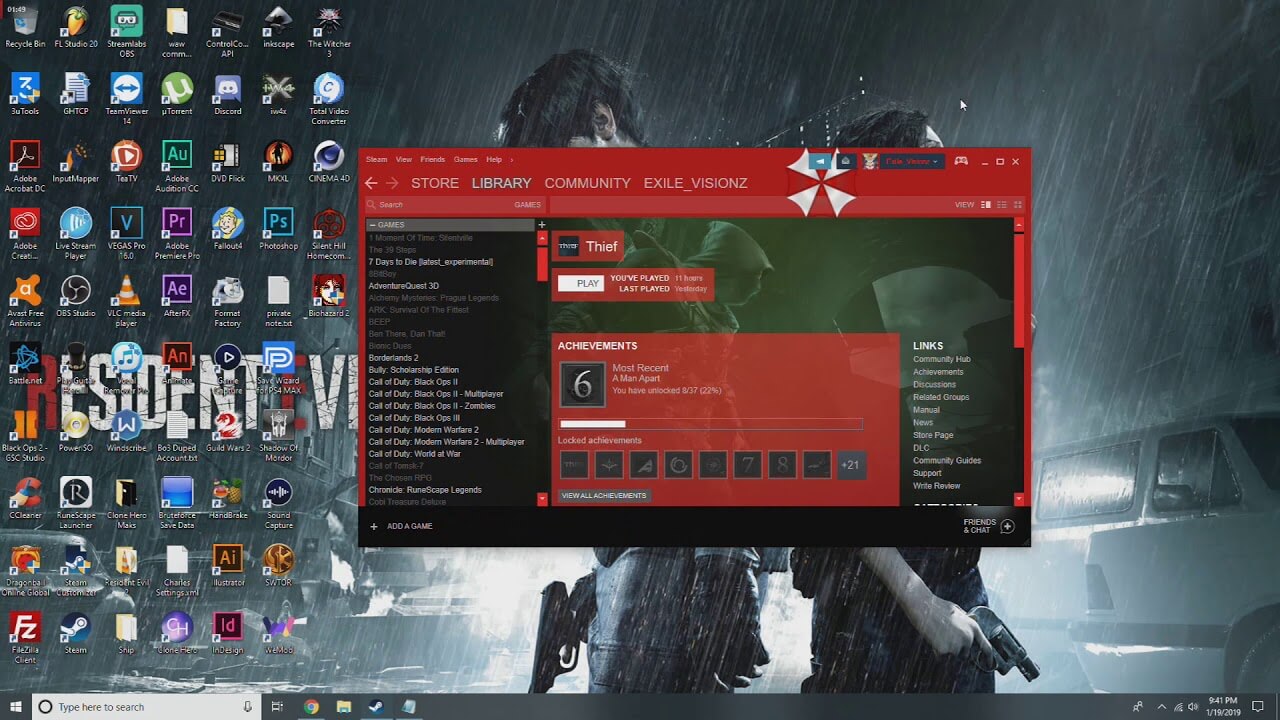
How to personalize STEAM with custom skin
steam skinSkinning of applications is not new to PC users, but did you knew you could skin Steam? With skin, you can customize the UI and style of the client to what you want making it more personal and to your liking. First thing is to find the skin that you would like to install. There are a lot of sites where you could find custom made Steam skins but we would recommend steamskins.org The site itself is organized in tabs with different sections, once you click on the tab you will get a list of skins available for chosen section. If you click on the skin you will be taken to skin page detail where you can find what skin is aiming for, its legibility, a record of how the skin has been altered over time, or some mix of these aspects. Note that some skins might have issues like some buttons might be missing from big picture mode but so far none of the skins has any kind of client breaking feature, only functionality one.

Downloading skin

Once you have chosen desired skin and while on the skin details page, scroll to the middle of the page just above the Related Skins sections with two options: Direct Download and External Download. Now usually I would recommend Direct download but in this case, I would advise going with External Download for the simple reason that the External link will send you to the developer's website where there is a higher chance to get the latest updated skin.

Installing it in Steam

Once the skin is downloaded you will first need to create a skin folder inside your Steam installation location. Navigate to your Steam installation folder (default: C:\Program Files (x86)\Steam) and create a new folder inside it. Give new folder name Skins and confirm. Extract the skin zip file in the newly made folder. Once the file is extracted you can delete the ZIP file if you wish. Go to your Steam client and go to Steam>Settings. In settings select Interface on the left bar and on the right part then click the Select the skin you wish Steam to use the drop-down menu and select the skin that you wish to use. Confirm and restart your Steam client

Reverting to old skin

If you found skin unappealing or, unfortunately, has some functions missing you can always choose another skin or revert back to default Steam skin. Default Steam skin is named in the drop-down menu as < default skin >.
Read More
How to fix windows 10 error code 0x80073712
Windows 10 has displayed one of the most efficient and user-friendly interfaces. However there have been many issues on the backend of this commonly praised operating system: For example, Windows Update is still a wonky and error-laded system application. One example of this error is Windows Update Error 0x80073712 which stands in the way of users just wanting to keep their PCs updated hassle-free. The error code 0x80073712 signifies that a file needed by Windows Update to function is either damaged, missing, or corrupted. However, this does not mean that your Windows version will forever stay as-is with no mode to update it. Windows Update Error 0x80073712 is perfectly fixable with the set of provided steps below and some of Windows’ built-in troubleshooting steps:

Solution 1: Open Windows Update Troubleshooter

  1. Open the Windows Update Troubleshooter by pressing the Windows and S keys simultaneously.
  2. Enter the word “Troubleshoot” in the search box and select the Troubleshoot result
  3. On the new window, select “Windows Update” to troubleshoot.
  4. Run the troubleshooter, then open Windows Update and try to install the update again.

Solution 2: Run the DISM tool

  1. Open the command prompt by pressing Windows and S keys simultaneously
  2. Enter “cmd” in the search box. Right Click command prompt among the results and select “Run as administrator”
  3. In the Command Prompt window type the following and press the Enter key after every command
DISM.exe /Online /Cleanup-image /Scanhealth DISM.exe /Online /Cleanup-image /Restorehealth
  1. To close the Administrator: Command prompt window, type Exit, and then press Enter.
  2. Run Windows Update again.

Solution 3: Rename the Software Distribution folder

  1. Open the command prompt as previously mentioned
  2. Input the following command pressing Enter after every line net stop wuauserv net stop cryptSvc net stop bits net stop msiserver rename c:/windows/SoftwareDistribution/softwaredistribution.old net start wuauserv net start cryptSvc net start bits net start msiserver exit
  3. Restart the PC and run the updater if it works again.

Solution 4: Restart Windows Update Services

  1. Press the Windows logo key and R together to open Run -> Input services.msc -> and press Enter
  2. Search for the Windows Update service -> Check its status
  3. If it is not indicated, right-click on the service and select Start to force start your Windows Update
  4. If you see an error, locate the Startup Type option and set it to Automatic
  5. Now you should reboot your computer and see if your Windows Update is OK

Solution 5: Fix Registry Issues

If after all the aforementioned solutions, you still experience problems with Windows Update, the problem may lie in the registry that is either damaged or corrupted. You may choose to do manual editing of your Windows registry by opening your Windows registry editor. But doing so is risky as one wrong letter may do incalculable damage to your system. To do so safely for more inexperienced users we recommend using a third-party registry cleaner/tools, many of which can be found online.
Read More
How to Fix Windows 10 Error 0x80248014

Error Code 0x80248014 - What is it?

Error Code 0x80248014 is an error that is particularly associated with the Windows 10 operating system. It generally appears during the Windows Update process and can interrupt the update installation, causing it to fail.

Common symptoms include:

  • Inability to download, install, or run updates on the Windows 10 operating system
  • The vague message that appears when the error occurs
  • Inability to finalize purchases made from the Windows Store
  • Inability to run a check to see if updates need to be installed

The resolutions available for Error Code 0x80248014 include the use of the command prompt and delving into the settings for Windows. While most users should be able to navigate the resolution methods on their own if you do not feel comfortable undertaking these steps on your own or if you aren’t able to resolve the error fully using these methods, get in touch with a qualified Windows repair technician who is familiar with issues in Windows updates.

Solution

Restoro box imageError Causes

There are several common culprits that can make Error Code 0x80248014 appear on your Windows device. The most common ones include problems with your connections, interference on the server, or problems in the settings for the Windows Store itself from which the updates are downloaded.

If you believe that your error relates most specifically to the Windows Store, you may want to jump directly to method two in order to attempt to resolve the issue.

Further Information and Manual Repair

There are a number of ways that you can try to resolve Error Code 0x80248014 on your Windows 10 operating system. The first will attempt to reset the issue using the command prompt, while the second attempts to address the issues that are associated directly with the Windows Store.

If you do not feel comfortable taking the steps below, be sure to get in touch with a qualified Windows repair technician to assist you.

Here are the top two methods to resolve Error Code 0x80248014 on the Windows 10 operating system:

Method One:  Attempt to Resolve the Error Using the Command Prompt

To use this method, employ the following steps in order:

  • Step One: To begin, open up the Start menu and select the option for the Command Prompt, choosing to run it in Admin mode.
  • Step Two: Put in the commands below, hitting the Enter key after each one:
    • net stop WuAuServ
    • %windir%
  • Step Three: Open up the Windows folder on your local hard drive. Look for the folder labeled “SoftwareDistribution” and change the name to “SDold”.
  • Step Four: Go back into the Command Prompt as an administrator and enter this command:  “net start WuAuServ”.
  • Step Five: Attempt to run your check for Updates again.

You may want to reboot your computer after running the steps above to ensure that the changes that you’ve made are fully applied to your device.

Method Two:  Reset Your Windows Store Settings

In some cases, Error Code 0x80248014 can appear on a device when the settings for the Windows Store have been altered or cannot be successfully read by the machine in question. If you believe that this is the case on your machine, you can run a simple command to renew your Windows Store settings.

To attempt to reset your Windows Store settings, open up your search bar and type in the following phrase “wsreset.exe,” then hitting Enter. Running this command will reset your Windows Store settings to their defaults.

After you reset your Windows Store settings, it may be a good idea to reboot your computer to ensure that all changes have fully taken effect on your device. Once this has been done, you can open the Windows Store back up and try to download or install the programs that you were attempting to purchase when the error code occurred.

If you are still experiencing the effects on your Windows 10 operating system or if you have not been able to follow the steps above to completion, it may be time to get in touch with a qualified Windows repair technician to assist you with the error resolution process.

Method Three: Use An Automated Tool

If you wish to always have at your disposal a utility tool to fix these Windows 10 and other related issues when they do arise, download and install a powerful automated tool.

Read More
BuzzDock Removal Guide

What is BuzzDock?

Buzzdock is a browser extension. Buzzdock will be automatically enabled on IE and Chrome following installation, and you may begin using Buzzdock with no further action required. If you elect to optimize Buzzdock performance, the settings preferences of your browser may be adjusted after installation. This browser extension changes your default search provider to Buzzdock.com custom search. It displays additional unwanted ads, banners & sponsored links on web pages that you visit, and it hijacks your browser home page. This browser extension has been flagged as malware by many anti-virus scanning programs.

About Browser Hijackers

Browser hijackers (sometimes called hijackware) are a type of malicious software that modifies web browser configuration settings without the user’s knowledge or consent. These hijacks are rising at an alarming rate worldwide, and it could be actually nefarious and sometimes dangerous too. They’re created to interfere with web browser programs for many different reasons. In most cases, hijackers are made for the benefit of online hackers often through income generation from forced ad clicks and site visits. Nonetheless, it’s not that harmless. Your online safety is jeopardized and it is extremely irritating. They not only screw up your browsers, but browser hijackers can even modify the computer registry, leaving your PC susceptible to other attacks.

Symptoms of browser hijacker malware

There are several signs that indicate the web browser is hijacked: 1. the home page of your browser is changed unexpectedly 2. you find new unwanted bookmarks or favorites added, typically directed to ad-filled or porn sites 3. The default search page of your web browser is changed 4. you see unsolicited new toolbars added 5. you notice a lot of pop-ups on your computer screen 6. your web browser gets slow, buggy crashes frequently 7. you are prohibited access to specific web pages, including the site of an anti-malware software firm like SafeBytes. Exactly how browser hijacker finds its way onto your computer system Browser hijackers infect computer systems in numerous ways, including through a file-share, a drive-by download, or an infected email. They are usually included with toolbars, BHO, add-ons, plug-ins, or browser extensions. Browser hijackers sneak to your computer along with free software downloads also that you unknowingly install alongside the original. Some of the most well-known hijackers are BuzzDock, Babylon Toolbar, Conduit Search, Sweet Page, OneWebSearch, and CoolWebSearch. Browser hijacking can cause severe privacy problems and even identity theft, affect your web browsing experience by taking command over outbound traffic, substantially slows down your computer by consuming lots of resources, and result in system instability as well.

The best ways to get rid of browser hijackers

Certain browser hijacking can be quite easily corrected by discovering and removing the corresponding malware application from your control panel. However, most hijackers are hard to remove manually. No matter how much you try to get rid of it, it may keep returning over and over again. You should consider doing manual fixes only if you’re a tech-savvy person because there are potential risks associated with fiddling around with the system registry and HOSTS file. Browser hijackers could be effectively removed by installing and running anti-malware software on the affected PC. Safebytes Anti-Malware can counter relentless browser hijackers and provide you proactive computer protection against all kinds of malware. Together with anti-malware, a system optimizer program, similar to Safebytes Anti-Malware, can help you correct registry errors, remove unwanted toolbars, secure online privacy, and enhance overall system performance.

Find Out How to Get rid of Malware that is Blocking Websites or Preventing Downloads

Malware could cause all sorts of damage when they invade your computer, starting from stealing your personal information to erasing files on your PC. Some malware sits in between the computer and the internet connection and blocks a few or all internet sites which you want to visit. It might also block you from adding anything to your system, especially anti-malware applications. So what should you do when malicious software prevents you from downloading or installing Safebytes Anti-Malware? There are a few fixes you can attempt to get around with this problem.

Boot Windows in Safe Mode

The Windows OS includes a special mode called “Safe Mode” where only the minimum required programs and services are loaded. In the event, the malicious software is set to load automatically when the computer starts, shifting to this mode may well prevent it from doing so. To get into Safe Mode or Safe Mode with Networking, press the F8 key while the computer is booting up or run MSCONFIG and find the “Safe Boot” options in the “Boot” tab. After you restart the PC into Safe Mode with Networking, you could download, install, as well as update anti-malware software from there. Right after installation, run the malware scanner to eliminate standard infections.

Use an alternate internet browser to download the anti-malware application

Malicious program code might exploit vulnerabilities in a specific browser and block access to all antivirus software sites. In case you suspect that your Internet Explorer has been hijacked by malware or otherwise compromised by online hackers, the best plan of action would be to switch to an alternate internet browser like Mozilla Firefox, Google Chrome, or Apple Safari to download your favorite computer security program – Safebytes Anti-Malware.

Create a portable USB antivirus for removing malware

Another way is to download and transfer an anti-malware program from a clean PC to run a scan on the affected computer. Adopt these measures to run the antivirus on the affected computer. 1) Download Safebytes Anti-Malware or Windows Defender Offline onto a clean computer. 2) Plug the Thumb drive into the uninfected computer. 3) Double-click the executable file to run the installation wizard. 4) Pick a USB flash drive as the location when the wizard asks you where you intend to install the software. Follow the directions to finish the installation process. 5) Transfer the thumb drive from the uninfected computer to the infected PC. 6) Run the Safebytes Anti-malware directly from the pen drive by double-clicking the icon. 7) Run Full System Scan to identify and clean-up up all types of malware.

A Look at the Best AntiMalware Program

If you’re looking to download an anti-malware application for your PC, there are various tools out there to consider however, you just cannot trust blindly anyone, irrespective of whether it is free or paid software. Some of them are excellent, some are ok types, and some will harm your PC themselves! You need to pick a tool that has gained a good reputation and detects not just computer viruses but other types of malware as well. Amongst few good programs, SafeBytes Anti-Malware is the highly recommended program for the security-conscious individual. SafeBytes anti-malware is a trustworthy tool that not only secures your PC completely but is also quite user-friendly for people of all skill levels. This software could easily detect, remove, and protect your computer from the latest malware threats including spyware, adware, trojan horses, ransomware, worms, PUPs, along with other possibly damaging software programs. There are numerous great features you will get with this security product. The following are some of the great features included in the software. Robust Anti-malware Protection: With its advanced and sophisticated algorithm, this malware removal tool can find and eliminate the malware threats hiding within your PC effectively. Live Protection: SafeBytes gives real-time active monitoring and protection against all known computer viruses and malware. This software will continuously monitor your PC for any suspicious activity and updates itself regularly to keep current with the constantly changing threat landscape. Website Filtering: Safebytes assigns all websites a unique safety score that helps you to get an idea of whether the webpage you are going to visit is safe to view or known to be a phishing site. Low CPU and Memory Usage: SafeBytes is really a lightweight application. It consumes an extremely small amount of processing power as it runs in the background so you’re free to use your Windows-based PC the way you really want. 24/7 Online Tech Support: For any technical issues or product support, you could get 24/7 expert assistance through chat and email. To sum it up, SafeBytes Anti-Malware offers great protection combined with an acceptable low system resources usage with both great malware detection and prevention. You now may understand that this particular software does more than just scan and delete threats from your PC. For optimum protection and the best value for your money, you can’t get better than SafeBytes Anti-Malware.

Technical Details and Manual Removal (Advanced Users)

If you wish to manually remove BuzzDock without the use of an automated tool, it may be possible to do so by removing the program from the Windows Add/Remove Programs menu, or in cases of browser extensions, going to the browsers AddOn/Extension manager and removing it. You will likely also want to reset your browser. To ensure the complete removal, manually check your hard drive and registry for all of the following and remove or reset the values accordingly. Please note that this is for advanced users only and may be difficult, with incorrect file removal causing additional PC errors. In addition, some malware is capable of replicating or preventing deletion. Doing this in Safe Mode is advised. The following files, folders, and registry entries are created or modified by BuzzDock
Files: File at $COMMONPROGRAMSBuzzdockBuzzdock Support Site.lnk. File at $COMMONPROGRAMSBuzzdockBuzzdock.lnk. File at $COMMONPROGRAMSBuzzdockUninstall.lnk. File at $PROGRAMFileSBuzzdockBuzzdock Support.url. File at $PROGRAMFileSBuzzdockBuzzdock.ico. File at $PROGRAMFileSBuzzdockBuzzdock.url. File at $PROGRAMFileSBuzzdockBuzzdockIEClient.dll. File at $PROGRAMFileSBuzzdockUninstall.url. Directory at $COMMONPROGRAMSBuzzdock. Directory at $LOCALAPPDATAGoogleChromeUser DataDefaultExtensionsejaodgecffaefnnoggjpogblnlpejkma.1.5_0. Directory at $LOCALAPPDATAGoogleChromeUser DataDefaultExtensionsejaodgecffaefnnoggjpogblnlpejkma. Directory at $PROGRAMFileSBuzzdock. Registry: A key in HKEY_CLASSES_ROOT named BuzzdockIEClient.Api.1 A key in HKEY_CLASSES_ROOT named BuzzdockIEClient.Api A key in HKEY_CLASSES_ROOT named BuzzdockIEClient.Layers.1 A key in HKEY_CLASSES_ROOT named BuzzdockIEClient.Layers Key 220EB34E-DC2B-4B04-AD40-A1C7C31731F2 at HKEY_LOCAL_MACHINESOFTWAREMicrosoftWindowsCurrentVersionUninstall. Key 435D09AA-DDE4-4B40-9129-08F025ECA349 at HKEY_CLASSES_ROOTCLSID. Key 435D09AA-DDE4-4B40-9129-08F025ECA349 at HKEY_LOCAL_MACHINESOFTWAREMicrosoftWindowsCurrentVersionExplorerBrowser Helper Objects. Key 4A3DEECA-A579-44BC-BCF3-167F4B9E8E4C at HKEY_CLASSES_ROOTCLSID. Key 83C58580-EC6E-48CD-9521-B95874483BEB at HKEY_CLASSES_ROOTCLSID. Key BE3A76AC-F071-4C7F-9B7A-D974B4F52DCA at HKEY_CLASSES_ROOTAppID. Key C8C107B2-28C2-472D-9BD4-6A25776841D1 at HKEY_CLASSES_ROOTTypeLib. Key BuzzdockIEClient.DLL at HKEY_CLASSES_ROOTAppID. Key ejaodgecffaefnnoggjpogblnlpejkma at HKEY_LOCAL_MACHINESOFTWAREGoogleChromeExtensions.
Read More
How To Fix Error 0x00000bcb

What is 0x00000bcb PC Windows Error?

The 0x00000bcb is a PC Windows error code that occurs when Windows cannot connect to the printer successfully thus hampering the installation of your system.

Solution

Restoro box imageError Causes

Like any other computer hardware device, printers also need additional software to function called the driver. Unsuccessful installation of driver software leaves behind locked files in the registry information that causes the next installation to fail as well. And so eventually, when you try to connect the printer with your system, you see a 0x00000bcb error message pop up on your screen. To ensure you fix this error code for good you need to make sure the printer software installation is carried successfully the next time you do it. And for that, you need to get rid of the locked files and bad registry keys that are preventing successful printer software installation.

Further Information and Manual Repair

The inability to install the printer support software countless times can be frustrating and cause inconvenience as it can prevent you from getting printouts. To resolve this error code, many people pay hundreds of dollars to technicians. Nonetheless, there is a way to resolve this issue on your PC without hiring a professional or having technical expertise. Wondering how? Restoro is your answer. This is a two in one highly functional system optimizer and registry cleaner PC repair tool. It includes multiple utilities allowing PC users to fix practically all types of PC errors in seconds. To use Restoro, you don’t need to be technically sound. It is simple and very easy to operate. The powerful registry cleaning utility integrated into Restoro enables PC users facing error code 0x00000bcb messages to clean up the registry in no time and ensure quick and successful printer software install. With this helper, you can swiftly clean up unnecessary and locked files and bad registry keys. The advanced registry cleaner scans for all junk files, invalid entries, bad keys, and corrupt files accumulated in your system. Once the files causing the 0x00000bcb error are scanned all you have to do is click on the fix button to repair. It’s that easy! It cleans up the registry, wipes out the clutter, and clears up the disk space in seconds. Once the registry is cleaned, you can then try installing the printer software again. And once the printer software is installed successfully, your system will be able to connect to your printer without displaying 0x00000bcb error messages. In addition to this, you will also experience a great difference in the speed and performance of your PC. Here's how to Install and use Restoro to Fix PC Errors Restoro also includes other utilities like privacy error fixer, Active X and Class detector, and system stability repair. So along with registry issues, you can also scan your system for privacy errors like viruses and malware, thus keeping your PC secure from data breaches and system security issues. This multi-functional tool is worth downloading. It is safe, efficient, useful, and utility load. With this helper, Windows compatibility is not an issue. Restoro is compatible with all PC Windows versions. So, no matter what Windows version you are using, you can run this repair tool with ease. So, what are you waiting for? Download it now to resolve the 0x00000bcb error code and ensure a successful printer connected to your computer. Click here to install Restoro on your system.
Read More
Remove GIFables - Malware Removal Guide

Gables is a browser extension developed by MindSpark Inc. This browser extension lets you create gifs and memes with a few simple clicks. This extension usually comes bundled up with the ASK toolbar.

While active this extension monitors your browser activity and records website visits, clicked links, and potentially personal data. This data is later forwarded to MindSparks ad servers where it is used to better target ads.

This extension hijacks your browser home screen, as well as your default search provider, and changes them to MyWay.com. This extension has been marked as a Browser Hijacker by several anti-virus scanners, and due to its behavior, it is not recommended to keep it on your computer for security reasons.

About Browser Hijackers

Browser hijacking means that a malicious program code has taken control over and altered the settings of your browser, without your approval. Browser hijacker malware is designed for a number of reasons. It redirects you to the sponsored websites and injects adverts on your internet browser that helps its creator generate earnings. Most people believe that these sites are legitimate and harmless but that is not true. Nearly every browser hijacker poses an existent threat to your online safety and it’s important to categorize them under privacy dangers. In a worst-case scenario, your internet browser could be hijacked to download malicious software that will do a lot of damage to your computer system.

Indications of browser hijack

There are numerous signs of web browser hijacking: your browser’s home page has been reset to some mysterious site; you find yourself regularly directed to some other web page than the one you actually meant; The default search page of web browser is modified; unwanted new toolbars are added to your browser; unstoppable flurries of popup advertisements appear on your computer screen; your browser has instability problems or displays frequent errors; You cannot access certain websites, in particular anti-virus sites.

Exactly how browser hijacker finds its way to your PC

Browser hijackers infect computers in numerous ways, including through a drive-by download, a file-share, or an infected email. They can be included with toolbars, add-ons, BHO, plugins, or browser extensions. Other times you may have mistakenly accepted a browser hijacker as part of an application bundle (generally freeware or shareware). A good example of a popular browser hijacker is the most recent Chinese malicious software called “Fireball”, which has infected 250 million computers globally. It works as a hijacker but can be turned into a full-functioning malware downloader later on. Browser hijackers could affect the user’s browsing experience significantly, record the websites frequented by users and steal personal information, cause difficulty in connecting to the internet, and ultimately create stability issues, making software programs and computers crash.

Learn how to get rid of browser hijackers

Some browser hijacking could be easily stopped by identifying and removing the corresponding malware program from your control panel. Often, it could be a challenging job to discover and delete the malicious program because the associated file will be running as part of the operating system process. Also, browser hijackers could modify the Computer registry so that it can be extremely difficult to restore all of the values manually, particularly if you are not a tech-savvy individual.

What To Do If You Cannot Install Any Antivirus?

Malware can cause a great deal of damage to your computer. Some malware is designed to hinder or block things that you wish to do on your computer system. It may well not allow you to download anything from the web or it will prevent you from accessing some or all of the sites, in particular the antivirus sites. If you’re reading this article, odds are you’re stuck with a malware infection that is preventing you to download and install Safebytes Anti-Malware software on your computer system. Refer to the instructions below to remove malware by alternate methods.

Use Safe Mode to resolve the problem

Safe Mode is a special, basic version of Microsoft Windows in which only essential services are loaded to prevent viruses and other problematic applications from loading. In the event, the virus is set to load immediately when PC boots, shifting to this particular mode may prevent it from doing so. To enter into Safe Mode or Safe Mode with Networking, press the F8 key while the PC is starting up or run MSCONFIG and locate the “Safe Boot” options under the “Boot” tab. Once you are in safe mode, you can attempt to install your antivirus software program without the hindrance of the malware. At this point, you could run the anti-malware scan to get rid of computer viruses and malware without hindrance from another malicious application.

Download the security software using an alternate browser

Some malware mainly targets specific internet browsers. If this sounds like your case, make use of another web browser as it might circumvent the malware. The best way to avoid this problem is to opt for a web browser that is known for its security features. Firefox has built-in Phishing and Malware Protection to help keep you secure online.

Create a bootable USB antivirus drive

Here’s another solution which is creating a portable USB antivirus software package that can check your system for viruses without needing installation. Adopt these measures to run the anti-virus on the affected computer. 1) Make use of another virus-free computer to download Safebytes Anti-Malware. 2) Plug the Flash drive into the clean computer. 3) Run the setup program by double-clicking the executable file of the downloaded application, which has a .exe file format. 4) Select the drive letter of the pen drive as the location when the wizard asks you exactly where you want to install the anti-malware. Follow the on-screen instructions to complete the installation. 5) Now, transfer the pen drive to the infected computer. 6) Double click the Safebytes Anti-malware icon on the USB drive to run the application. 7) Run Full System Scan to detect and clean-up up all kinds of malware.

How SafeBytes Anti-Malware Keep your Computer Virus Free

Do you wish to install the best anti-malware program for your system? There are many applications on the market that come in paid and free versions for Windows computers. Some are worth your money, but most aren’t. You really should select a company that creates industry-best anti-malware and has earned a reputation as reliable. While thinking about reliable applications, Safebytes AntiMalware is undoubtedly the highly recommended one. SafeBytes antimalware is a highly effective and user-friendly protection tool that is designed for end-users of all levels of IT literacy. This tool can easily identify, remove, and protect your computer from the latest malware intrusions including adware, spyware, trojan horses, ransomware, parasites, worms, PUPs, as well as other possibly damaging software programs. SafeBytes anti-malware takes computer protection to a whole new level with its enhanced features. Below are some of the good ones: World-class AntiMalware Protection: Using its advanced and sophisticated algorithm, this malware removal tool can detect and get rid of the malware threats hiding in your computer system effectively. Real-time Active Protection: SafeBytes gives round-the-clock protection for your computer limiting malware attacks instantly. It will continuously monitor your pc for hacker activity and also provides users with advanced firewall protection. Safe Browsing: Through its unique safety ranking, SafeBytes informs you whether a site is safe or not to visit it. This will ensure that you’re always certain of your online safety when browsing the online world. “Fast Scan” Features: This program has got one of the fastest and most powerful virus scanning engines in the industry. The scans are very accurate and take a little time to complete. Minimal CPU Usage: SafeBytes is renowned for its minimal influence on processing power and great detection rate of numerous threats. It runs quietly and efficiently in the background so you are free to use your PC at full power all of the time. Fantastic Technical Support: Support service is accessible 24 x 7 x 365 days through chat and email to answer your questions.

Technical Details and Manual Removal (Advanced Users)

If you wish to manually remove GIFables without the use of an automated tool, it may be possible to do so by removing the program from the Windows Add/Remove Programs menu, or in cases of browser extensions, going to the browsers AddOn/Extension manager and removing it. You will likely also want to reset your browser. To ensure the complete removal, manually check your hard drive and registry for all of the following and remove or reset the values accordingly. Please note that this is for advanced users only and may be difficult, with incorrect file removal causing additional PC errors. In addition, some malware is capable of replicating or preventing deletion. Doing this in Safe Mode is advised.

The following files, folders, and registry entries are created or modified by GIFables

Files: %UserProfile%Local SettingsApplication DataGoogleChromeUser DataDefaultSync Extension Settingsjahgjnedbefhiimghmiemdmgiegiddjg %LOCALAPPDATA%GoogleChromeUser DataDefaultLocal Extension Settingsjahgjnedbefhiimghmiemdmgiegiddjg %UserProfile%Local SettingsApplication DataGoogleChromeUser DataDefaultLocal Extension Settingsjahgjnedbefhiimghmiemdmgiegiddjg Search and Delete: chrome-extension_jahgjnedbefhiimghmiemdmgiegiddjg_0.localstorage-journal Search and Delete: chrome-extension_jahgjnedbefhiimghmiemdmgiegiddjg_0.localstorage

Read More
1 2 3 171
Logo
Copyright © 2023, ErrorTools. All Rights Reserved
Trademark: Microsoft Windows logos are registered trademarks of Microsoft. Disclaimer: ErrorTools.com is not affiliated with Microsoft, nor claims direct affiliation.
The information on this page is provided for information purposes only.
DMCA.com Protection Status