Logo

Windows is stuck on signing out screen

As you know, each time you log out of your Windows 10 computer, it will take you to the login screen where you can switch users or log back in. But there are instances where Windows 10 remains stuck on the signing out screen, along with a blue spinning circle and all you can see is the process of your computer signing out, however, it does not progress and only gets stuck there. Thus, in this post, you will be guided on how you can resolve such an issue on your Windows 10 computer.

So if you are one of the users who experience the same problem, there are several fixes you can check out if your computer is stuck on the signing out screen with a blue spinning circle. You can try to force shutdown your computer or troubleshoot the problem in a Clean Boot State. You could also try to check the status of the User Profile Service or repair User Profile, as well as run System Restore. For more details, refer to each one of the suggestions provided below. But before you troubleshoot the problem, make sure that you are logged in to your computer as an administrator.

Option 1 – Try to force shutdown your computer

The first thing you can do is to force reboot your computer as this simple fix could help in fixing the problem. This option is quite simple, just make sure that before you do it, you have to save all your work.

  • First, turn on your computer and press and hold the power button for at least 30 seconds. You might notice the screen flashing or making any changes, just ignore it.
  • After that, plug out and plug in your computer and automatically turn it on.
  • Once done, check if the issue is now fixed or not.

Option 2 – Put your computer in a Clean Boot State

It is possible that some third-party application is causing your computer to get stuck in the signing out screen. So you can try putting your computer in a Clean Boot State and see if it fixes the problem.

  • Log onto your PC as an administrator.
  • Type in MSConfig in the Start Search to open the System Configuration utility.
  • From there, go to the General tab and click “Selective startup”.
  • Clear the “Load Startup items” checkbox and make sure that the “Load System Services” and “Use Original boot configuration” options are checked.
  • Next, click the Services tab and select the “Hide All Microsoft Services” checkbox.
  • Click Disable all.
  • Click on Apply/OK and restart your PC. (This will put your PC into a Clean Boot State. And configure Windows to use the usual startup, just simply undo the changes.)
  • Once your computer is in a Clean Boot State, you should now be able to sign out or sign in without any problem.

Option 3 – Try checking the status of the User Profile Service

If forcing your computer to shut down or putting your computer in a Clean Boot State didn’t fix the problem, you can try to check the status of the User Profile Service since it is the one responsible for loading and unloading user profiles. Thus, if this service is disabled or stopped, you will no longer be able to sign out or sign in successfully.

  • Tap the Win + R keys to launch the Run utility and type “services.msc” in the field and hit Enter to open the Services Manager.
  • From there, look for the User Profile Service and make sure that its Startup Type is set to Automatic and that its status is “Started”.
  • Once done, exit the Services Manager and see if the issue is resolved.

Option 4 – Try to repair your corrupted profile via Registry

In this second option, you can try to repair the corrupted profile using the Registry but before you proceed, make sure to create a System Restore Point and then follow the steps below.

  • Tap the Win + R keys to open the Run dialog box.
  • Then type “regedit” in the field and hit Enter or click OK to open the Registry Editor.
  • Next, go to this registry key: ComputerHKEY_LOCAL_MACHINESOFTWAREMicrosoftWindows NTCurrentVersionProfileList
  • Once you’ve opened the registry key, you should see a list of all the user profiles on your computer. Now click on each S-1-5 folder and look for the “ProfileImagePath” entry and double click on it to check which user account it is related to. You will see a path like “CUsersACK” where “ACK” is the username.
  • You should know which of the user account is corrupted. Just look for a key named “RefCount” and change its Value data to “0” and click OK. And if it isn’t available, simply right-click on the right pane and create it.
  • After that, double click on the key named “State” and make sure that the Value data is “0” and click OK.
  • Exit the Registry Editor and restart your computer to apply the changes made and then check if it fixed the problem or not.

Option 5 – Run System Restore

  • Tap the Win + R keys to open the Run dialog box.
  • After that, type in “sysdm.cpl” in the field and tap Enter.
  • Next, go to the System Protection tab then click the System Restore button. This will open a new window where you have to select your preferred System Restore point.
  • After that, follow the on-screen instructions to finish the process and then restart your computer and check if the problem is fixed or not.

Do You Need Help with Your Device?

Our Team of Experts May Help
Troubleshoot.Tech Experts are There for You!
Replace damaged files
Restore performance
Free disk space
Remove Malware
Protects WEB browser
Remove Viruses
Stop PC freezing
GET HELP
Troubleshoot.Tech experts work with all versions of Microsoft Windows including Windows 11, with Android, Mac, and more.

Share this article:

You might also like

How to Fix Error Code 43

Code 43 - What is it?

Code 43, Device Manager Error, is reported when Windows doesn’t recognize a hardware device such as the video card, USB, printer, or any other piece of external hardware attached to your PC.

The Device Manager stops the hardware if it reports some kind of unspecified problem. It is mostly displayed in the following format:

“Windows has stopped this device because it has reported problems. Code 43”

Solution

driverfix boxError Causes

Code 43 can be triggered due to several reasons. However, 95% of the times it is related to the device driver problems such as:

  • Missing Drivers
  • Corrupted Drivers
  • Outdated Drivers

Driver problems pop up when either new driver versions are available or drivers become damaged due to some underlying reasons like viral infections.

Other than driver problems, code 43 can also pop up when you install and remove the software. This can cause hardware conflict in the registry, altering driver communication.

Code 43 can hamper your ability to use your desired device smoothly.  Although Code 43 is not a fatal error code like Runtime and BSoD errors, it is still advisable to resolve it immediately to avoid inconvenience.

You can sometimes bypass error code 43 temporarily by a simple PC reboot but this will not fix the problem permanently. For a permanent fix, try the methods given below.

Further Information and Manual Repair

To help you repair code 43 permanently from your PC, below are some of the best, easy perform, and effective solutions. Simply follow the steps to get rid of code 43 from your PC.

Method 1 - Launch and Run the Troubleshoot Wizard

This is one way to find the exact nature of the problem that spurred error code 43 to pop up. To launch and run the Troubleshoot Wizard, here’s what you need to do:

  • Go to the start menu
  • Type Device Manager in the search bar and then press enter
  • Click on Device Manager to run it on your system
  • Now click on the ‘General Tab’
  • After that press Trouble Shoot to launch the Troubleshooting Wizard

The Wizard will diagnose the problem and provide you a solution to resolve it, all you have to do from there is to follow the Wizard’s instructions

Method 2 - Check the Hardware Documentation

If for some reason Method 1 doesn’t work,  another solution would be to check the hardware documentation for more information about diagnosing the problem.

Method 3 - Uninstall Faulty Drivers

If the underlying reason for code 43 is related to driver problems, then the best way to resolve it is to uninstall faulty drivers and then reinstall new drivers. One of the many ways to uninstall drivers is:

  • Click on the start button
  • Type ‘sysdm.cpl’ in the search box and then press enter to continue
  • In the System Properties dialog box open the Hardware tab
  • Click Device Manager and then double click Device Type
  • Now click on the problematic hardware device reporting code 43
  • After that go to the Driver tab and click Uninstall to uninstall that driver completely
  • Visit the manufacturer’s website and download the new driver version
  • Install it on your system by extracting the .ZIP file

Method 4 - Update Drivers Automatically

Identifying and updating new driver versions manually can be both frustrating and time-consuming especially if you are in a rush and no computer whiz.

Also, after you update the drivers, you need to keep checking them time and again to ensure they don’t become outdated. You need to update them every time new versions are available which can be stressful.

To avoid this hassle by repairing code 43 permanently, download DriverFIX. This is an innovative and user-friendly device driver software program exclusively designed to resolve all kinds of driver problems.

Whether code 43 occurs on your PC due to missing or outdated drivers, DriverFIX can resolve the problem easily.

The intelligent programming system embedded in this software enables it to detect problematic and outdated drivers in seconds.

It matches new and compatible versions and updates the drivers immediately, automatically, and on a regular basis in just a few clicks. This resolves code 43 and also ensures that all your drivers remain up to date.

DriverFIX is compatible with all Windows versions.

Click here to download DriverFIX to repair and resolve code 43 right away.

Read More
How to Fix KMODE_EXCEPTION_NOT_HANDLED Error On Windows 10

KMODE_EXCEPTION_NOT_HANDLED – What is it?

Some users installing or upgrading to Windows 10 experienced the theKMODE_EXCEPTION_NOT_HANDLED Blue Screen of Death (or commonly known as BSOD) error. This error can be due to different types of things, ranging from software to driver issues. When you experience this BSOD error while trying to install Windows 10, it will prompt you to restart your computer every single time you experience it. In most cases, you will also not be able to proceed with the Windows 10 set-up.

Solution

Restoro box imageError Causes

The “KMODE_EXCEPTION_NOT_HANDLED” error is normally caused by:

  • Hardware incompatibility
  • A faulty device driver or system service

Further Information and Manual Repair

You won’t be able to successfully upgrade or set up Windows 10 if you continue to encounter this BSOD error. Note that this error will always prompt your computer to restart every time it happens, preventing you from completing the Windows 10 set-up.

If you’re not tech-savvy or not capable of debugging this issue, it’s highly advisable to proceed with the basic troubleshooting techniques available in this link.

After troubleshooting, below you’ll find a few solutions to rectify the issue.

Method 1 – Check The Cause of The BSOD Error

Two common causes of the KMODE_EXCEPTION_NOT_HANDLED issue are hardware incompatibility and faulty device driver or system service.

If you experience this error, check first if any of your newly installed hardware is compatible with Windows 10. You can find the required hardware for Windows 10 from this link

If all your hardware is compatible with Windows 10, you might need to check the device driver or system service. Review the bug check message. If any of the drivers you have is listed in the message, either disable or uninstall them before upgrading or setting up Windows 10.

You might also find it useful to check the System Log available in the Event Viewer for other error messages that can help you figure out the driver or device that’s causing the error. Running hardware diagnostics can also be useful.

Method 2 – Disable (or preferably uninstall) Software Before Upgrading

If you’re upgrading Windows 10 from Windows 7 or Windows 8.1, you might need to disable or uninstall the software first. First, try uninstalling your Antivirus utility before starting the upgrade. Restart a few times before starting the Windows 10 installation. If you’re upgrading using the Windows 10 update, make sure that you disconnect from your Wi-Fi or Internet LAN (Ethernet) connection as soon as the download reaches 100% before attempting to start the set-up. Other users also reported that the cause of the KMODE_EXCEPTION_NOT_HANDLED issue is BitDefender. If this is what happened in your case, it will show in the error message such as KMODE_EXCEPTION_NOT_HANDLED (bdselfpr.sys). Users reported that a common solution for this is renaming the file. In the case of BitDefender, try renaming it to bdselfpr.s__. However, make sure to do this cautiously. Sometimes, renaming a file will even do more damage than good.

Method 3 – Disable/Disconnect From Hardware

If you’re connected to any general USB devices (such a smart card reader), disable it. If your computer is connected to other external devices, disconnect all of them. Examples of this include gaming controllers, printers, external hard disk, USB keys, and other non-essential devices).

Method 4 – Other Troubleshooting Steps

Other troubleshooting steps include:

  • Upgrade using an .ISO file, instead of directly upgrading from Windows Update. When you do this, make sure you’re disconnected from the Internet during installation. If the process started and you forgot to disconnected, it’s best to restart the installation.
  • If you’re connected to a domain while trying to set up Windows 10, disconnect and use a local account.
  • If you’re using a SCSI hard disk, connect a thumb drive with the drivers for your storage device. While Windows 10 is setting up, click on the Custom Advanced Option. Using the thumb drive, use the Load Driver command to load the SCSI drive.
  • Another possible cause of this error is due to BIOS incompatibility. BIOS issues can be solved by upgrading your version of your system BIOS. If you don’t know how to do this, refer to your BIOS manufacturer’s website.

Method 5 – Use A Trusted Automated Tool

If you still experience the error after doing the methods above, you might want to try a powerful and trusted automated tool to fix the job.

Read More
Fix Error 0x8000704ec in Windows 10
Universal Windows Platform (UWP) applications are the modern application in the windows store that can be used in all the Window devices like Xbox, Hololens, Tablet, PC or Phone. Basically, UWP provides a common platform for every device that runs Windows 10. When attempting to login into these applications and receive this error:
Can’t sign in with a Microsoft account This program is blocked by group policy. For more information, contact your system administrator. 0x8000704ec
Then this post is for you. We will guide you on how to easily resolve issues, please follow the steps provided.
  1. Local group policy editor solution

    • Press ⊞ WINDOWS + R to open the Run dialog.
    • In the Run dialog box type gpedit.msc and press ENTER to open Group Policy Editor.
    • Inside the Local Group Policy Editor, navigate to the path below:
    Computer Configuration > Windows Settings > Security Settings > Local Polices > Security Options
    • On the right pane, double-click on Accounts: Block Microsoft accounts to edit its properties.
    • Under Local Security Setting tab, click on the drop-down and select This policy is disabled.
    • Click Apply > OK to save the changes.
    • Exit Group Policy Editor.
  2. Registry editor solution

    As always, it is highly recommended to make a backup of the registry editor just in case that something goes wrong.
    • Press ⊞ WINDOWS + R to open the Run dialog.
    • In the Run dialog box, type regedit and hit ENTER to open Registry Editor.
    • Navigate to the registry key path below:
    HKEY_LOCAL_MACHINE\SOFTWARE\Microsoft\Windows\CurrentVersion\Policies\System
    • At the location, on the right pane, identify the NoConnectedUser key. The key value might be set to either 1 or 3.
    • Now, double-click the NoConnectedUser entry to edit its properties.
    • Input 0 in the Value data field and hit Enter to save the change.
Read More
Domain Users Sign in using Biometrics
The use of Biometrics is supported by Windows 10. Aside from that, it also supports PIN, password, picture password on all computers and if your computer has the proper hardware, Windows 10 also supports facial scanning, iris scanning, and even fingerprint scanning. You can see all these exciting features inside Settings > Accounts > Sign In Options. On the other hand, you can’t really expect to make use of all the above-mentioned features since it depends if the hardware is available to support them. One of the most interesting features is the use of Biometrics which is really useful in workplaces and so this post will show you how you can enable or disable the Domain Users Sign In on Windows 10 using Biometrics via Registry Editor or Group Policy Editor. But before you go on, you need to create a System Restore Point first since the modifications you’re about to do might affect the functioning of your computer. So in case something went wrong, you can always undo the changes you’ve made.

Option 1 – via Registry Editor

  • Tap the Win + R keys to open the Run dialog box.
  • Next, type “Regedit” in the field and hit Enter to open the Registry Editor.
  • After that, navigate to the following registry path:
HKEY_LOCAL_MACHINESOFTWAREPoliciesMicrosoftBiometricsCredential Provider
  • From there, right-click on the right-side panel and click on New > DWORD (32-bit) Value.
  • And then set the name of the newly created DWORD as “Domain Accounts”.
  • Afterward, click on “Domain Accounts” and set its value to “1”. This will allow the domain users to sign in to Windows 10 using Biometrics. While the value of 0 will disable the domain users sign in to Windows 10 using Biometrics.
  • Exit the Registry Editor and restart your computer for the changes to take effect.

Option 2 – via Group Policy Editor

  • Tap the Win + R keys to open the Run dialog box.
  • Next, type “gpedit.msc” in the field and hit Enter to open the Group Policy Editor.
  • After that, navigate to the following setting:
Computer Configuration > Administrative Templates > Windows Components > Biometrics
  • Then double click on the following entries located on the right-side panel and set the radio button to Enabled on all of them.
    • Allow the use of Biometrics.
    • Allow users to log on using Biometrics.
    • Allow domain users to log on using biometrics.
  • Now exit the Group Policy Editor and restart your computer to apply the changes made properly.
Read More
How To Fix Error 0x00000bcb

What is 0x00000bcb PC Windows Error?

The 0x00000bcb is a PC Windows error code that occurs when Windows cannot connect to the printer successfully thus hampering the installation of your system.

Solution

Restoro box imageError Causes

Like any other computer hardware device, printers also need additional software to function called the driver. Unsuccessful installation of driver software leaves behind locked files in the registry information that causes the next installation to fail as well. And so eventually, when you try to connect the printer with your system, you see a 0x00000bcb error message pop up on your screen. To ensure you fix this error code for good you need to make sure the printer software installation is carried successfully the next time you do it. And for that, you need to get rid of the locked files and bad registry keys that are preventing successful printer software installation.

Further Information and Manual Repair

The inability to install the printer support software countless times can be frustrating and cause inconvenience as it can prevent you from getting printouts. To resolve this error code, many people pay hundreds of dollars to technicians. Nonetheless, there is a way to resolve this issue on your PC without hiring a professional or having technical expertise. Wondering how? Restoro is your answer. This is a two in one highly functional system optimizer and registry cleaner PC repair tool. It includes multiple utilities allowing PC users to fix practically all types of PC errors in seconds. To use Restoro, you don’t need to be technically sound. It is simple and very easy to operate. The powerful registry cleaning utility integrated into Restoro enables PC users facing error code 0x00000bcb messages to clean up the registry in no time and ensure quick and successful printer software install. With this helper, you can swiftly clean up unnecessary and locked files and bad registry keys. The advanced registry cleaner scans for all junk files, invalid entries, bad keys, and corrupt files accumulated in your system. Once the files causing the 0x00000bcb error are scanned all you have to do is click on the fix button to repair. It’s that easy! It cleans up the registry, wipes out the clutter, and clears up the disk space in seconds. Once the registry is cleaned, you can then try installing the printer software again. And once the printer software is installed successfully, your system will be able to connect to your printer without displaying 0x00000bcb error messages. In addition to this, you will also experience a great difference in the speed and performance of your PC. Here's how to Install and use Restoro to Fix PC Errors Restoro also includes other utilities like privacy error fixer, Active X and Class detector, and system stability repair. So along with registry issues, you can also scan your system for privacy errors like viruses and malware, thus keeping your PC secure from data breaches and system security issues. This multi-functional tool is worth downloading. It is safe, efficient, useful, and utility load. With this helper, Windows compatibility is not an issue. Restoro is compatible with all PC Windows versions. So, no matter what Windows version you are using, you can run this repair tool with ease. So, what are you waiting for? Download it now to resolve the 0x00000bcb error code and ensure a successful printer connected to your computer. Click here to install Restoro on your system.
Read More
Media Player can't detect the length of file
Even with the new Groove Music in Windows 10, a lot of users still prefer to use the old Windows Media Player. This isn’t surprising since Windows Media Player still remains to be one of the best players you can find. However, that does not mean that it is without flaws as it could still encounter some issues from time to time. One of the issues you might encounter when using the Windows Media Player is when you try to burn DVDs or CDs but end up failing due to an error that pops up that says, Windows Media Player cannot detect the length of the file. At the time of writing, it isn’t clear yet what the real cause of the error is. However, there are several fixes that are provided in this post for you to check out so you can resolve the problem. You can try to get rid of any unsupported files from the burning list or you could also try running the Windows Media Player troubleshooters. Aside from that, you could also try to drag and drop music or change the burning speed. For more details, refer to the following options.

Option 1 – Get rid of the unsupported files from the burning list

You must get rid of the unsupported files from the list of files to burn. This list can be found on the right-hand side of the Windows Media Player. One of the indications that a file is causing problems is when there is a white cross in a red circle next to the file. You can simply click on that icon to remove the file from the burning list. Once you’ve gotten rid of all the unsupported files, try to burn your files to the CD or disk once more.

Option 2 – Try running the Windows Media Player troubleshooters

The next thing you can do to fix the error is to run the built-in troubleshooters for the Windows Media Player. Windows 10 actually comes pre-packed with three troubleshooters designed for Windows Media Player. They can help in fixing the “Windows Media Player cannot detect the length of the file” error. To run these troubleshooters, simply tap the Win + R keys to open the Run dialog box and type “msdt.exe -id WindowsMediaPlayerConfigurationDiagnostic” for the Windows Media Player Settings troubleshooter or type “msdt.exe -id WindowsMediaPlayerLibraryDiagnostic” for the Windows Media Player Library troubleshooter, or type “msdt.exe -id WindowsMediaPlayerDVDDiagnostic” for the Windows Media Player DVD troubleshooter.

Option 3 – Try to drag and drop music

Another thing you can check out is to drag and drop all the tracks into the Windows Media Player before you burn them. All you have to do is open the folder where the tracks are located and highlight all of them and then drag them to the Windows Media Player. It should now be able to detect the length of each one of the tracks without any errors.

Option 4 – Try to change the burning speed

Since the burning speed is set to fastest by default, you can try to change the burning speed to resolve the problem. Just open the Options window and then go to the Burn tab. From there, select either Medium or Slow burning speed and save the changes made. Now try to burn your files to the CD or disk once again.
Read More
BubbleDock Complete Removal Tutorial

BubbleDock is a software developed by Nosibay. It installs a customizable dock at the top of your screen.

It adds registry entities to allow it to start automatically each time your system is rebooted, as well as installing an update checker that will automatically update the software when an update is available. The software also adds various scheduled tasks to start the application at different times, this ensures that once the application is closed, it is re-launched at a later time, making it very hard to keep the software closed permanently.

While the software is running, it will generate ad links in your browser, display sponsored ads, and collect personal information and deliver it back to it’s ad network. While using this software you may see additional ads, banners, links, pop-up ads, and various other sponsored content while browsing the internet.

About Potentially Unwanted Applications

Have you ever found out an unwanted program running on your computer system and wondered exactly how the heck it got there? A PUA / PUP (potentially unwanted application / potentially unwanted program) is actually a piece of software that comes bundled with freeware and you consent to install it on your computer. These are programs you certainly don’t want on your computer since it does not provide any beneficial service. From a technical standpoint, a PUP isn’t “true” malware. An interesting difference between PUP and malware is distribution. Malware is commonly dropped via vulnerability exploitation whereas PUP gets installed with the consent of the user, who purposefully or unwittingly authorizes the PUP installation on their PC. Although a PUP is not malware by definition, it can still be harmful software and put your computer at risk exactly the same way a computer virus does.

Exactly how do PUPs look like?

PUPs come in many forms; however, most of them are adware, which usually displays irritating adverts and advertising banners on internet pages that you’re surfing. PUPs which come as browser add-ons and toolbars are widely recognizable. These toolbars alter your homepage and your default search engine in the installed web browser, track your internet activities, modify your search results with re-directs and sponsored hyperlinks, and eventually slow down your internet browser and diminish your web browsing experience. Potentially Unwanted Programs occasionally act quite much like viruses or spyware. They will carry dialers, keyloggers, as well as other software built right into them that may monitor you or deliver your sensitive details to 3rd parties. Even if the PUPs are not basically malicious, these applications still do practically nothing good on your personal computer – they’ll take precious system resources, slow your PC, weaken your device’s security, and make your PC more susceptible to viruses.

Preventing PUPs

• Study the fine print to be sure the end-user license agreement (EULA) you are accepting is only for the program you actually intend to download. • Never accept standard, express, default, or other installation settings which are recommended. Always opt for custom installation. • Use a good anti-malware program. Try Safebytes Anti-Malware which will spot PUPs and handle them as malware by flagging them for deletion. • Avoid shareware or freeware wherever possible. Disable or get rid of toolbars and browser extensions you don’t actually need. • Don’t download software from popups, online advertising, file sharing sites, as well as other unreliable sources; look out for any pre-set, unwanted features when downloading the program. Avoid heading to blogs and websites that promote pirated programs.

How To Install Safebytes Anti-Malware On An Infected Computer

Practically all malware is inherently unsafe, but certain kinds of malicious software do a lot more damage to your computer than others. Certain malware goes to great lengths to prevent you from downloading or installing anything on your personal computer, particularly antivirus applications. So what should you do if malicious software keeps you from downloading or installing Anti-Malware? There are some solutions you could try to get around with this particular obstacle.

Install in Safe Mode with Networking

Safe Mode is a unique, simplified version of Microsoft Windows where only the bare minimum services are loaded to stop malware and other troublesome applications from loading. In the event, the malicious software is set to load immediately when the PC starts, switching to this mode can prevent it from doing so. In order to enter into Safe Mode or Safe Mode with Networking, press the F8 key while the PC is starting up or run MSCONFIG and look for the “Safe Boot” options under the “Boot” tab. After you restart the PC into Safe Mode with Networking, you may download, install, as well as update the anti-malware program from there. Now, you can run the anti-virus scan to remove computer viruses and malware without interference from another application.

Switch to some other internet browser

Web-based malware could be environment-specific, aiming for a particular internet browser or attacking specific versions of the web browser. If you’re not able to download the security software program using Internet Explorer, this means the virus may be targeting IE’s vulnerabilities. Here, you must switch over to a different browser like Firefox or Chrome to download Safebytes Anti-malware software.

Create a portable USB antivirus for removing viruses

Here’s yet another solution which is creating a portable USB antivirus software that can scan your computer for malware without needing installation. Abide by these steps to run the anti-virus on the affected computer. 1) Use another virus-free computer to download Safebytes Anti-Malware. 2) Plug the Flash drive into the clean computer. 3) Double-click the Setup icon of the antivirus software to run the Installation Wizard. 4) When asked, select the location of the USB drive as the place where you would like to put the software files. Follow the activation instructions. 5) Now, transfer the USB drive to the infected PC. 6) Double-click the antivirus program EXE file on the flash drive. 7) Hit the “Scan Now” button to start the virus scan.

Benefits and Features of SafeBytes Security Suite

To protect your computer from many different internet-based threats, it’s very important to install an anti-malware application on your laptop. However, with so many antimalware companies in the marketplace, these days it’s tough to decide which one you should obtain for your PC. A few of them are excellent, some are ok types, and some will destroy your computer themselves! You should pick one that is efficient, practical, and has a strong reputation for its malware source protection. While considering the highly regarded software programs, Safebytes Anti-Malware is undoubtedly the highly recommended one. SafeBytes anti-malware is a powerful, highly effective protection application intended to help end-users of all levels of computer literacy in identifying and eliminating harmful threats out of their personal computer. After you have installed this software program, SafeBytes' superior protection system will ensure that no viruses or malicious software can seep through your personal computer. There are numerous great features you’ll get with this security product. Let’s check out a few of them below: Live Protection: Malware programs attempting to get into the computer are identified and stopped as and when detected by the SafeBytes real-time protection shields. They’re very efficient in screening and getting rid of different threats since they’re constantly improved with the latest updates and safety measures. Robust Anti-malware Protection: Built upon a greatly acclaimed anti-virus engine, this malware removal tool is able to identify and get rid of many stubborn malware threats like browser hijackers, potentially unwanted programs, and ransomware that other common antivirus applications will miss. Internet Security: SafeBytes gives an instant safety rating about the web pages you’re about to visit, automatically blocking dangerous sites and ensuring that you are certain of your safety while browsing the net. “Fast Scan” Abilities: Safebytes AntiMalware, with its enhanced scanning engine, provides ultra-fast scanning that will promptly target any active online threat. Lightweight: This program is not “heavy” on the computer’s resources, so you will not find any performance problems when SafeBytes is operating in the background. 24/7 Guidance: Expert technicians are at your disposal 24/7! They will quickly fix any technical issues you may be experiencing with your security software.

Technical Details and Manual Removal (Advanced Users)

If you wish to manually remove BubbleDock without the use of an automated tool, it may be possible to do so by removing the program from the Windows Add/Remove Programs menu, or in cases of browser extensions, going to the browsers AddOn/Extension manager and removing it. You will likely also want to reset your browser. To ensure the complete removal, manually check your hard drive and registry for all of the following and remove or reset the values accordingly. Please note that this is for advanced users only and may be difficult, with incorrect file removal causing additional PC errors. In addition, some malware is capable of replicating or preventing deletion. Doing this in Safe Mode is advised.

The following files, folders, and registry entries are created or modified by BubbleDock

Files: %APPDATA%Nosibay %PROGRAMS%Bubble Dock %PROGRAMFILES%Nosibay Registry: Key: HKCUSoftwareNosibay Key: HKCUSoftwareClassesbubbledock Key: HKCUSoftwareClasses.bubbledock Key: HKCUSoftwareMicrosoftWindowsCurrentVersionUninstallBubble Dock Key: HKLMSOFTWAREGoogleChromeExtensionskbjlipmgfoamgjaogmbihaffnpkpjajp Key: HKLMSOFTWAREMicrosoftWindowsCurrentVersionExplorerBrowser Helper Objects23AF19F7-1D5B-442c-B14C-3D1081953C94 Key: HKLMSOFTWAREClassesNosibay.SurfMatch Key: HKLMSOFTWAREClassesAppIDIESurfMatch.DLL
Read More
Remove Task View button from Windows 11
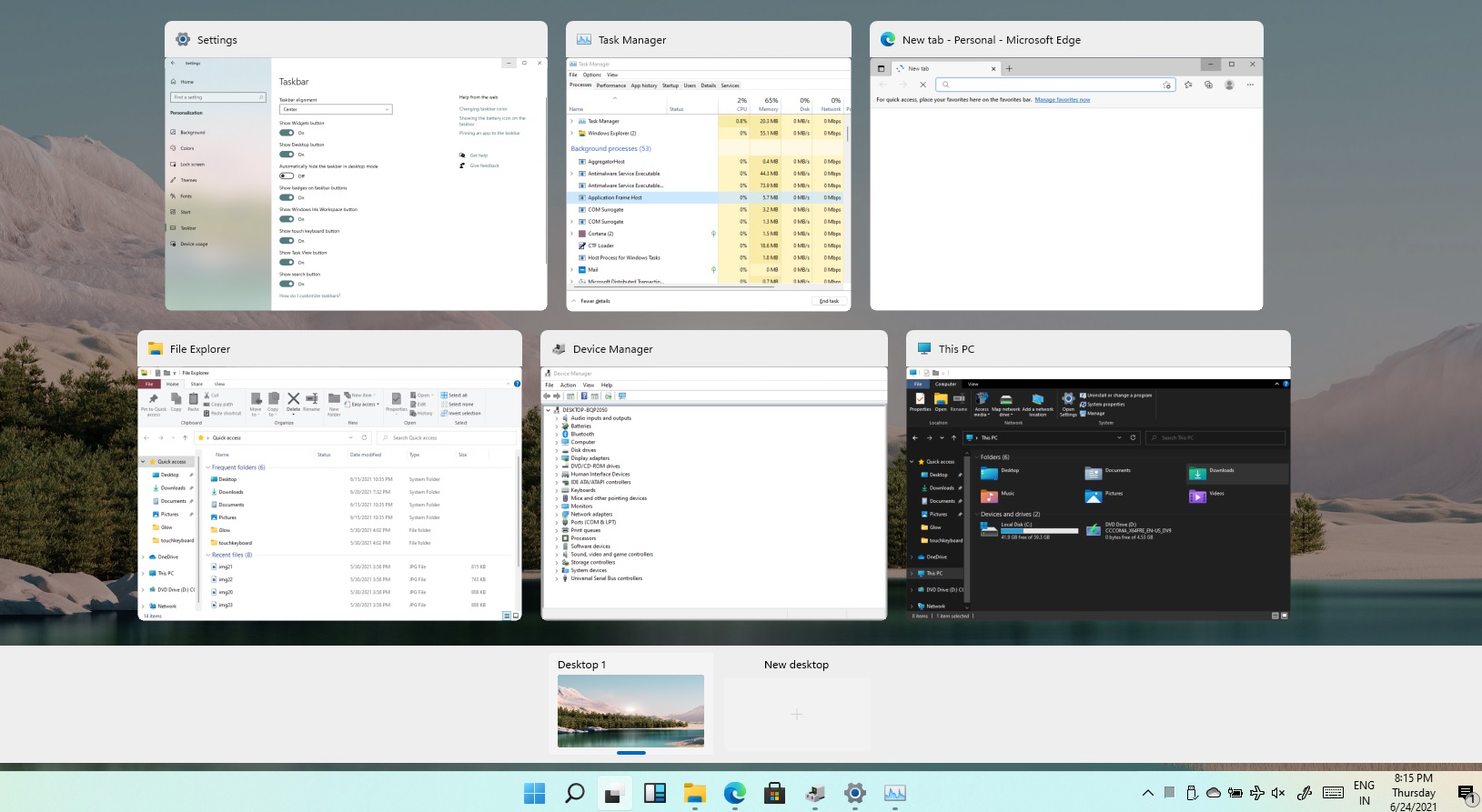
Task ViewTask View feature inside Windows 11 is actually a great feature, letting you quickly view open windows and virtual desktops. How Task view itself could be reached with keyboard shortcut combination of ⊞ WINDOWS + TAB some users will prefer this way of using it and thus button on the taskbar is something you do not want or need. There is a very easy way to remove mentioned button and I will show you how to do it. Right-click the taskbar button itself and click on Hide From Taskbar. That’s it, you have done it. Now in order for you to bring it back if you change your mind, you will have to do some extra steps but it is nothing difficult. Right-click on the taskbar and click on Taskbar settings, you will be lead to Personalization > Taskbar. Inside locate Taskbar Items and switch Task View to ON, you will see the Task View button right away showing itself again.
Read More
Fix can not open EXE file in Windows 10
Can not open and run EXE file in Windows is not a new issue and sadly it can still happen from time to time, luckily this step by step solution will help you to resolve this problem fast and effective in no time. Try the below solutions in no particular order and I hope that you will solve the issue fast and be able to return to using the computer like it never happened
  1. Run SFC scan

    As the EXE file not opening issue lies in the Windows OS, the SFC tool will be able to identify the cause and fix this issue. Press ⊞ WINDOWS + X and choose command prompt (admin) in command prompt type: sfc /scannow Press ENTER
  2. Check registry and modify if needed

    Sometimes value in the registry key is wrong and can cause this error, in order to check if this is the case, we will open the registry editor and find out Press ⊞ WINDOWS + R to bring run dialog up type in it: RegEdit and press ENTER In the left pane of the Registry Editor window, click on the HKEY_CLASSES_ROOT to expand the section Scroll down to find out the .exe registry and click on it Go to the right pane of the window and double-click on the Default and set the Value Data as exefile Click on the OK button Next, located the given in the window: HKEY_CLASSES_ROOT>exefile>shell>open>command Click on the “Command” in the left pane of the window In the right pane of the window double-click on the Default and set Value Data as “%1” %* Click on the OK button Restart your computer and check if the issue persists
  3. Turn off Firewall and defender

    If you have a firewall and antivirus active there might be a chance of a conflict and that firewall or antivirus is preventing the EXE file from starting, disable your firewall and anti-virus and try again to open the EXE file.
  4. Turn off user account control

    User account control can also like a firewall prevent some files from executing, go into accounts and turn off user account control to see if this might be an issue preventing you from opening the file.
Read More
How to remove AnytimeAstrology

AnytimeAstrology is a browser extension for Google Chrome developed by Mindspark Inc. When installed, this extension will change your default new tab page to a custom search provider called MyWay (search.myway.com).

While browsing the internet with this extension installed, you will see additional ads through your browsing sessions, including but not limited to Sponsored Content, Injected Ads and Pop-up Ads.

While AnytimeAstrology is active it will monitor your browsing habits, recording website visits, clicked links, viewed products, etc. This information is later sent back to Mindspark Ad network servers where it is used to better target additional injected ads into your web pages.

Several anti-virus applications have marked this extension as a Browser Hijacker and it is recommended to remove it from your computer.

About Browser Hijackers

Browser hijackers (also known as hijackware) are a kind of malicious software that modifies web browser configuration settings without the computer owner’s knowledge or approval. These hijacks are raising at an alarming rate globally, and it can be actually nefarious and often harmful too. Browser hijackers could do more than just changing homepages. In most cases, hijackers are created for the benefit of online hackers usually through income generation that comes from forced ad clicks and site visits. While it might seem harmless, these tools are made by malicious people who always try to take advantage of you, so that they can earn money from your naive and distraction. Browser hijackers can also permit other vicious programs without your knowledge to further damage your computer.

Key symptoms that your browser has been hijacked

The following are some symptoms that indicate you’ve been hijacked: 1. your homepage has been reset to some unfamiliar site 2. your browser is constantly being redirected to porn sites 3. default internet search engine is modified 4. you find unwanted new toolbars added 5. you observe a lot of pop-up ads on your screen 6. your browser has become unstable or starts running slowly 7. you can’t visit certain websites such as homepages of antivirus software.

How browser hijacker finds its way to your computer

Browser hijackers could use drive-by downloads or file-sharing websites or perhaps an e-mail attachment in order to reach a targeted computer. They could also come from add-on software, also referred to as browser helper objects (BHO), web browser extensions or toolbars. Browser hijackers sneak into your computer along with free software downloads that you unwittingly install along with the original. An example of some well known browser hijacker includes Conduit, Anyprotect, Babylon, SweetPage, DefaultTab, RocketTab, and Delta Search, but the names are constantly changing. The existence of any browser hijacker on your computer might considerably diminish the web browsing experience, monitor your internet activities that result in serious privacy issues, produce system stability issues and ultimately cause your PC to slowdown or to an almost unusable condition.

The best ways to remove a browser hijacker

Some hijackers can be simply removed by deleting the free software they came with or by eliminating any extension you have recently added to your system. The sad thing is, the majority of the software applications used to hijack a internet browser are deliberately built to be hard to eliminate or detect. Novice computer users should never attempt for the manual form of removal methods, since it calls for thorough computer knowledge to carry out repairs on the computer registry and HOSTS file. Installing and running anti-malware application on the affected system will automatically erase browser hijackers and other unwanted applications. SafeBytes Anti-Malware could counter persistent hijackers and give you proactive computer protection against all kinds of malware. Together with the anti-virus tool, a system optimizer, such as SafeBytes’s Total System Care, could help you in removing all linked files and modifications in the registry automatically.

How to Get rid of Malware that is Blocking Websites or Preventing Downloads

Malware could potentially cause a great deal of damage to your PC. Some malware sits in between the computer and the internet connection and blocks some or all websites that you really want to visit. It might also prevent you from adding anything to your PC, especially anti-malware software. If you’re reading this article, you may have got affected by a virus that prevents you from installing a security software like Safebytes Anti-Malware. Follow the instructions below to get rid of malware through alternate methods.

Eliminate malware in Safe Mode

If the malware is set to run immediately when Windows starts, entering safe mode could very well block the attempt. Just the minimum required programs and services are loaded when you start your PC in Safe Mode. To launch your Windows XP, Vista or 7 computer in Safe Mode with Networking, do as instructed below. 1) At power-on/startup, press the F8 key in 1-second intervals. This will invoke the Advanced Boot Options menu. 2) Select Safe Mode with Networking using arrow keys and press ENTER. 3) Once this mode loads, you will have an internet connection. Now, use your internet browser normally and navigate to https://safebytes.com/products/anti-malware/ to download Safebytes Anti-Malware. 4) As soon as the software program is installed, allow the scan run to eliminate trojans and other threats automatically.

Use an alternate web browser to download an antivirus application

Some malware mainly targets particular internet browsers. If this is your case, make use of another browser as it might circumvent the computer virus. If you suspect that your Internet Explorer happens to be hijacked by a virus or otherwise compromised by online hackers, the best plan of action is to switch to a different browser such as Mozilla Firefox, Google Chrome, or Apple Safari to download your favorite security application – Safebytes Anti-Malware.

Make a bootable USB anti-virus drive

To successfully eliminate the malware, you will need to approach the problem of running antivirus program on the affected PC from a different angle. Follow these steps to employ a USB flash drive to fix your infected PC. 1) Download the anti-malware program on a virus-free PC. 2) Insert the pen drive on the same system. 3) Run the setup program by double-clicking the executable file of the downloaded application, which has an .exe file extension. 4) When asked, select the location of the USB drive as the place where you want to put the software files. Follow the onscreen instructions to finish the installation. 5) Remove the pen drive. You can now use this portable antivirus on the affected computer. 6) Double-click the antivirus program EXE file on the thumb drive. 7) Run Full System Scan to detect and clean-up up all types of malware.

Protect Your Computer Against Viruses and Malware With SafeBytes Anti-Malware

Would you like to download the best anti-malware software program for your desktop? There are numerous applications in the market that comes in free and paid versions for Microsoft Windows computers. Some are good ones, some are ok types, while some are simply just bogus anti-malware software which will damage your personal computer themselves! You must pick one that is dependable, practical and has a strong reputation for its malware protection. On the list of recommended software programs is SafeBytes AntiMalware. SafeBytes has a really good history of excellent service, and customers appear to be very happy with it. SafeBytes antimalware is a highly effective and easy-to-use protection tool which is created for users of all levels of IT literacy. Through its cutting-edge technology, this software will help you protect your PC against infections brought on by different kinds of malware and similar threats, including adware, spyware, computer viruses, worms, trojan horses, keyloggers, potentially unwanted program (PUPs), and ransomware.

There are plenty of amazing features you will get with this security product. Listed below are some of the great features included in the application.

World-class AntiMalware Protection: This deep-cleaning antimalware program goes much deeper than most antivirus tools to clean out your computer system. Its critically acclaimed virus engine detects and disables hard to remove malware that conceals deep within your personal computer. Active Protection: SafeBytes delivers complete and real-time security for your computer system. They are highly effective in screening and removing numerous threats since they’re continuously improved with new updates and alerts. Safe Web Browsing: Through its unique safety ranking, SafeBytes tells you whether a site is safe or not to visit it. This will ensure that you’re always certain of your online safety when browsing the web. Faster Scanning: SafeBytes’s virus scan engine is among the fastest and most efficient within the industry. It's targeted scanning considerably increases the catch rate for malware that is embedded in various PC files. Lightweight Application: SafeBytes is a lightweight application. It consume a really small amount of processing power as it works in the background so you’re free to use your Windows-based PC the way you really want. 24/7 Premium Support: You can get absolutely free 24/7 technical support from their IT experts on any product queries or PC security concerns. SafeBytes has created a fantastic anti-malware solution to help you conquer the latest malware threats and virus attacks. You can be sure that your computer system will be protected in real-time as soon as you put this software to use. So if you are searching for the best anti-malware subscription for your Windows-based PC, we suggest the SafeBytes Anti-Malware application.

Technical Details and Manual Removal (Advanced Users)

If you wish to manually get rid of AnytimeAstrology without the use of an automated tool, it may be possible to do so by removing the program from the Windows Add/Remove Programs menu, or in cases of web browser plug-ins, going to the browser’s AddOn/Extension manager and removing it. You will most probably also want to totally reset your browser to its default configuration settings. Finally, examine your hard disk for all of the following and clean your computer registry manually to get rid of leftover application entries after uninstallation. Please remember that this is for professional users only and may be difficult, with wrong file removal leading to additional system errors. Additionally, some malicious programs have the capability to defend against its removal. You are urged to do this procedure in Windows Safe Mode.
Folders: C:\USERS\username\APPDATA\LOCAL\AnytimeAstrologyTooltab C:\Users\username\AppData\Local\Google\Chrome\User Data\Default\Extensions\bdcnkkhncapfcngcjkmfkikanomkgnmb\

Read More
1 2 3 171
Logo
Copyright © 2023, ErrorTools. All Rights Reserved
Trademark: Microsoft Windows logos are registered trademarks of Microsoft. Disclaimer: ErrorTools.com is not affiliated with Microsoft, nor claims direct affiliation.
The information on this page is provided for information purposes only.
DMCA.com Protection Status