Logo

Windows Clock is missing, invisible or black

Although the Windows Updates do bring in new features and improvements, there are times when they also introduce issues as well. The main cause for these arising bugs is the incompatibility between the old and new software components. One of the issues brought in by such bugs is Clock is missing, invisible or black

This problem was experienced by users after they recently installed a feature update. This particular bug can make the Windows clock in the taskbar appear to be black or invisible which makes it hard for users to read the time on their computers. According to experts, this bug has something to do with the Windows Themes and Aero styling. To fix this issue, here are some suggestions that could help but before you get started, you have to restart Explorer first and see if it can help in resolving the problem – if it didn’t, follow the options given below carefully.

Option 1 – Try to disable Custom Theme

It could be that the reason behind the black or invisible Windows Clock can be an old or an incompatible theme. You might have a custom theme in place and it became incompatible after an update. Thus, you can try switching to one of the default themes and then recreate your custom theme afterward. To do so, follow the steps below.

  • Right-click on your desktop and select Personalize.
  • Next, select Themes from the left menu and then select Windows 10 as your theme.
  • After that, you can delete all the other custom themes and create them again from scratch. This should fix the black or invisible Windows 10 Clock.

Option 2 – Try to edit your existing themes

If you don’t want to get rid of your existing themes, there is an alternative solution you can try to fix the missing Windows 10 Clock albeit it’s a bit of a complex one. Follow the given steps below to modify the existing themes and fix the missing or black Windows Clock.

  • First, you need to save your existing theme. Just simply right-click on your desktop and select Personalize and select Themes from the left menu.
  • Next, click on the Save Theme button below your custom theme to save it. You can name the theme anything.
  • After that, you can now modify the saved theme by going to C:/Users/UserName/AppData/Local/MicrosoftWindowsThemes.
  • From there, look for the file with the theme name you just saved, and then right-click on the file and open it with notepad or any other text editing app.
  • Now you have to look for the line that says, “Path=%SystemRoot%resourcesthemesAeroAeroLite.msstyles” and change it to “Path=%SystemRoot%resourcesthemesAeroAero.msstyles” and then save the file and rename it with some other name.
  • Afterward, go back to themes and select the new theme you’ve created. This should resolve the Windows Clock issue as well as other Themes and Taskbar issues.

Option 3 – Try disabling the small icons in Taskbar

This option should help you fix any Windows Clock cases. So if your Windows Clock is nowhere to be found, you can try to disable small taskbar icons on your Windows 10 PC.

  • Go to Settings > Personalization > Taskbar.
  • From there turn off the toggle button for the “Use small taskbar buttons” option. Note that this solution is only a temporary one and it may or may not work in some cases.

Do You Need Help with Your Device?

Our Team of Experts May Help
Troubleshoot.Tech Experts are There for You!
Replace damaged files
Restore performance
Free disk space
Remove Malware
Protects WEB browser
Remove Viruses
Stop PC freezing
GET HELP
Troubleshoot.Tech experts work with all versions of Microsoft Windows including Windows 11, with Android, Mac, and more.

Share this article:

You might also like

Fix FAULTY_HARDWARE_CORRUPTED_PAGE
If you got the FAULTY_HARDWARE_CORRUPTED_PAGE Blue Screen error on your Windows 10 computer then it is most likely caused by various factors. It could be caused by an incomplete installation or uninstallation of some applications or program, or it could also be caused by some exploit that intervenes with the normal functioning of the computer, as well as bad sectors on the hard disk, damaged system files, malfunctioned system drivers, modified Windows Registry files, or a Blue Screen occurrence during a Windows Update and many more. Getting this bug check means that a single-bit error was found on this page. It also indicates that this is a hardware memory error and to resolve it, you need to follow the suggestions laid out below but before that, it is recommended for you to create a System Restore Point first so that if anything goes wrong, you can always go back to the previous state.

Option 1 – Run a Memory Check to test RAM

Since the problem might have something to do with hardware memory, you need to test RAM by running a Memory Check using the Windows Memory Diagnostic. Refer to these steps to do so.
  • Tap the Win + R keys to open the Run dialog box.
  • Then type “mdsched.exe” in the field and hit Enter to open the Windows Memory Diagnostic.
  • After that, the Windows Memory Diagnostic will give out two options such as:
  1. Restart now and check for problems (recommended)
  2. Check for problems the next time I start my computer
  • Select any of the given options. After that, your computer will restart and check for memory-based issues upon the restart. If there are any issues, it will automatically them.

Option 2 – Run the System File Checker

System File Checker or SFC is a built-in command utility that helps in restoring corrupted files as well as missing files. It replaces bad and corrupted system files with good system files that might be the cause why you’re getting the FAULTY_HARDWARE_CORRUPTED_PAGE Blue Screen error. To run the SFC command, follow the steps given below.
  • Tap Win + R to launch Run.
  • Type in cmd in the field and tap Enter.
  • After opening Command Prompt, type in sfc /scannow
The command will start a system scan which will take a few whiles before it finishes. Once it’s done, you could get the following results:
  1. Windows Resource Protection did not find any integrity violations.
  2. Windows Resource Protection found corrupt files and successfully repaired them.
  3. Windows Resource Protection found corrupt files but was unable to fix some of them.

Option 3 – Check for conflicting or incompatible programs by putting your PC in a Clean Boot state

As mentioned, the FAULTY_HARDWARE_CORRUPTED_PAGE Blue Screen error might be caused by some problematic programs that clash with your existing operating system. Several users reported that numerous programs that are supposedly designed to enhance computer performance are causing conflict in the system instead. To identify which program is causing the problem, you need to put your computer in a Clean Boot State. To do so, follow the steps below.
  • Log onto your PC as an administrator.
  • Type in MSConfig in the Start Search to open the System Configuration utility.
  • From there, go to the General tab and click “Selective startup”.
  • Clear the “Load Startup items” checkbox and make sure that the “Load System Services” and “Use Original boot configuration” options are checked.
  • Next, click the Services tab and select the “Hide All Microsoft Services” checkbox.
  • Click Disable all.
  • Click on Apply/OK and restart your PC. (This will put your PC into a Clean Boot State. And configure Windows to use the usual startup, just simply undo the changes.)
  • From there, start to isolate the problem by checking which one of the programs you installed recently is the root cause of the problem.

Option 4 – Update or rollback drivers

If the first few options didn’t work for you, then it’s time to either update or roll back the device drivers. It is most likely that after you updated your Windows computer that your driver also needs a refresh. On the other hand, if you have just updated your device drivers then you need to roll back the drivers to their previous versions. Whichever applies to you, refer to the steps below.
  • Open the Devices Manager from the Win X Menu.
  • Then locate the device drivers and right-click on them to open the Properties.
  • After that, switch to the Driver tab and click on the Uninstall Device button.
  • Follow the screen option to completely uninstall it.
  • Finally, restart your computer. It will just reinstall the device drivers automatically.
Note: You can install a dedicated driver on your computer in case you have it or you could also look for it directly from the website of the manufacturer.
Read More
FromDocToPDF Step by Step Removal Guide

FromDocToPDF Toolbar is a browser extension published by Mindspark InteractiveNetwork, that usually comes bundled with other potentially unwanted programs. The toolbar is distributed heavily through advertising networks.

This toolbar automatically sets your default search engine to MyWebSearch, it also sets your new tab to the DocToPDF welcome page. This toolbar ads startup registration tasks that allow it to start automatically with Windows, it gathers website traffic, clicks, data, and personal information and sends it to its ad network. Multiple anti-virus programs have detected FromDocToPDF as a browser hijacker and therefore is potentially unwanted and recommended for optional removal

About Browser Hijackers

Browser hijacking is actually a form of unwanted software, commonly a web browser add-on or extension, which causes modifications in the web browser’s settings. Browser hijacker malware is developed for numerous reasons. Often, hijackers will force hits to internet sites of their preference either to increase traffic producing higher advertisement earnings, or to gain a commission for every user visiting there. While it might seem naive, these tools were created by vicious individuals who always attempt to take full advantage of you, so that they could make money from your naive and distraction. Furthermore, hijackers could make the whole infected system vulnerable – other dangerous malware and viruses will seize these opportunities to get into your computer system very easily.

Key signs that your web browser has been highjacked

There are several signs that could indicate a browser hijacking: home-page is changed; you see new unwanted favorites or bookmarks added, typically directed to ad-filled or porn websites; the default online search engine is changed and your browser security settings have been cut down without your knowledge; unwanted new toolbars are added to your browser; your browser will display constant pop-up ads; your web browser starts running slowly or exhibits frequent errors; You can’t access specific sites, in particular anti-malware websites.

Precisely how browser hijacker infects PCs

A browser hijacker could be installed on your PC when you visit an infected website, click on an email attachment, or download something from a file-sharing website. Many browser hijackings originate from add-on applications, i.e., browser helper objects (BHO), toolbars, or plug-ins added to browsers to give them additional functionality. A browser hijacker could also come bundled up with some free software that you unknowingly download and install, compromising your PC security. Typical examples of browser hijackers include CoolWebSearch, Conduit, OneWebSearch, Coupon Server, RocketTab, Delta Search, Searchult.com, and Snap.do. The presence of any browser hijacker on your system might significantly diminish the browsing experience, track your online activities that lead to serious privacy concerns, degrade overall system efficiency, and lead to software instability also.

Tips on how to get rid of browser hijackers

Certain browser hijacking could be simply stopped by discovering and eliminating the corresponding malware application through your control panel. However, most hijackers will be more difficult to locate or eliminate as they might get themselves connected with some important computer files that enable it to operate as a necessary operating system process. Novice computer users should never try for the manual form of removal, as it demands comprehensive system knowledge to carry out fixes on the system registry and HOSTS file.

How One Can Get rid of a Virus that is Blocking Websites or Preventing Downloads

Malware could cause all kinds of damage if they invade your computer, starting from stealing your private details to deleting data files on your computer. Some malware sits in between your computer and the internet connection and blocks a few or all websites that you would like to check out. It might also prevent you from installing anything on your PC, particularly anti-malware software. If you are reading this now, you may have perhaps recognized that virus infection is the reason behind your blocked net traffic. So what to do if you want to download and install anti-malware software like Safebytes? Although this kind of issue will be harder to circumvent, there are some actions you can take.

Download the antivirus in Safe Mode with Networking

If the malware is set to load at Windows startup, then booting in Safe Mode should prevent it. Since just the minimum programs and services start-up in “Safe Mode”, there are seldom any reasons for conflicts to take place. You will have to do the following to get rid of malware in Safe mode. 1) At power on/start-up, tap the F8 key in 1-second intervals. This should bring up the Advanced Boot Options menu. 2) Select Safe Mode with Networking using arrow keys and press Enter. 3) When you are into this mode, you should have access to the internet once again. Now, make use of your web browser normally and go to https://safebytes.com/products/anti-malware/ to download Safebytes Anti-Malware. 4) After the application is installed, allow the scan run to eliminate trojans and other threats automatically.

Switch to some other internet browser

Some malware only targets particular web browsers. If this is your situation, employ another internet browser as it might circumvent the malware. If you’re not able to download the antivirus software using Internet Explorer, this means the virus is targeting IE’s vulnerabilities. Here, you need to switch over to another web browser such as Chrome or Firefox to download Safebytes software.

Create a portable USB antivirus for removing viruses

Another solution is to create a portable anti-malware program on your USB stick. To run anti-malware using a flash drive, follow these simple steps: 1) Download Safebytes Anti-Malware or MS Windows Defender Offline onto a clean computer system. 2) Plug the USB drive into the uninfected computer. 3) Double-click on the downloaded file to open the installation wizard. 4) Choose a USB drive as the place when the wizard asks you exactly where you intend to install the application. Follow the instructions on the screen to finish off the installation process. 5) Transfer the flash drive from the uninfected computer to the infected computer. 6) Double click the Safebytes Anti-malware icon on the thumb drive to run the program. 7) Click on “Scan Now” to run a scan on the infected computer for viruses.

Ensure the Safety of Your PC by Installing SafeBytes Anti-Malware Software

If you are planning to purchase anti-malware for your laptop or computer, there are lots of brands and packages for you to consider. A few of them do a good job in getting rid of threats while some will harm your PC themselves. You should look for a product that has obtained a good reputation and detects not just computer viruses but other kinds of malware as well. One of the recommended software programs is SafeBytes Anti-Malware. SafeBytes carries a superb track record of top-quality service, and customers are very happy with it. SafeBytes is a powerful, real-time anti-malware application that is designed to assist the everyday computer end user in safeguarding their computer from malicious internet threats. With its cutting-edge technology, this software will let you remove multiples types of malware including viruses, trojans, PUPs, worms, ransomware, adware, and browser hijackers. SafeBytes anti-malware comes with a plethora of enhanced features that sets it apart from all others. Let’s take a look at a few of them below: Live Protection: SafeBytes gives real-time active supervision and protection from all known viruses and malware. It’ll constantly monitor your laptop or computer for hacker activity and also provides users with superior firewall protection. World-class AntiMalware Protection: Built upon a greatly acclaimed antivirus engine, this malware removal application can find and remove many obstinate malware threats like browser hijackers, PUPs, and ransomware that other common antivirus applications will miss. Quick Multithreaded Scanning: SafeBytes’s very fast malware scanning engine reduces scan times and extends battery life. At the same time, it’ll effectively identify and eliminate infected computer files or any online threat. Web Protection: Safebytes allots all sites a unique safety ranking that helps you to get an idea of whether the website you’re about to visit is safe to view or known to be a phishing site. Lightweight: SafeBytes is a lightweight and easy-of-use antivirus and antimalware solution. As it utilizes very low computer resources, this application leaves the computer power exactly where it belongs to: with you. 24/7 Live Expert Support: You can get 24/7 technical support to immediately resolve any issue with your security software.

Technical Details and Manual Removal (Advanced Users)

If you wish to manually remove FromDocToPDF without the use of an automated tool, it may be possible to do so by removing the program from the Windows Add/Remove Programs menu, or in cases of browser extensions, going to the browsers AddOn/Extension manager and removing it. You will likely also want to reset your browser. To ensure the complete removal, manually check your hard drive and registry for all of the following and remove or reset the values accordingly. Please note that this is for advanced users only and may be difficult, with incorrect file removal causing additional PC errors. In addition, some malware is capable of replicating or preventing deletion. Doing this in Safe Mode is advised.

The following files, folders, and registry entries are created or modified by FromDocToPDF

Files: C:Users%USERAppDataLocalGoogleChromeUser DataDefaultLocal Storagehttp_fromdoctopdf.dl.tb.ask.com_0.localstorage C:Users%USERAppDataLocalGoogleChromeUser DataDefaultLocal Storagehttp_fromdoctopdf.dl.tb.ask.com_0.localstorage-journal C:Users%USERAppDataLocalGoogleChromeUser DataDefaultLocal Storagehttp_fromdoctopdf.dl.myway.com_0.localstorage C:Users%USERAppDataLocalGoogleChromeUser DataDefaultLocal Storagehttp_fromdoctopdf.dl.myway.com_0.localstorage-journal Registry: HKEY_CURRENT_USERSoftwareFromDocToPDF..Uninstaller HolidayPhotoEditTooltab Uninstall Internet Explorer

Read More
Turn On/Off and Clear Windows Clipboard
Windows 10 has a Cloud Clipboard feature that allows users to have a list of multiple copied text in place so that they can reuse it. And each time the computer restarts, the Clipboard Data is cleared. However, you can actually do it manually. How? Read on as this post will walk you through how you can turn on or off as well as clear the Clipboard history in Windows 10. This kind of feature is already available in Windows 10 v1903. In the previous versions of Windows, there was no feature to turn off history in the clipboard and users have to use other ways to clear the clipboard history. And now it seems that Microsoft has put an end to this dilemma as it now allows users to clear the clipboard history. To turn on or off or clear the Clipboard history, here are some instructions you need to follow: Step 1: Tap the Win + X keys to open the power menu and select Settings. Step 2: After that, navigate to Settings > System > Clipboard. Step 3: From there, turn off the toggle button under the Clipboard history section. This will turn off the Cloud Clipboard feature. As a result, the default clipboard will hold one last item and will not display the data on the clipboard. Note: When you tap the Win + V keys to invoke the clipboard manager, you will see a prompt that says, “Can’t show history, See all copied items in place, Turn on clipboard history”. You have the option to turn it back on by simply clicking on the available button. Doing so would only hide the existing data and makes sure that no copy of the data is kept.

Conclusion

On the other hand, if you want to clear the clipboard without affecting its history data, you have to make sure to pin the items on the clipboard that you want to stay. After that, click on the three-dotted icon for the menu and click on the “clear all” option. This will delete all the entries but will keep the pinned items on your clipboard.
Read More
User account control notifications in Windows
Hello and welcome to our user account notifications in Windows 10 tutorial where we will dive a little more into how you can control notification and behavior settings for your or someone else's user account in your Windows 10. If you are annoyed with confirmation windows each time you start a new application or install one please keep reading and I am sure you will find just the right setting for you. User account options are a little hidden and not so obvious, well at least not in Windows 10 compared to previous Windows versions. Since we will not be able to find them under typical and standard settings we will need to do few tricks in order to get to them.

Opening control panel

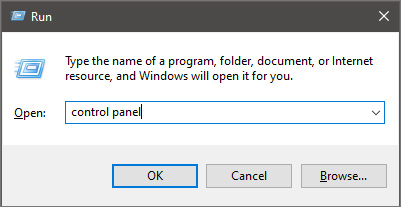
First thing is to press ⊞ WINDOWS + R on your keyboard so the run dialog window pops up on your desktop. keyboard with windows and r markedOnce run dialog is shown type in it control panel as shown in the picture and press OK run dialog with control panel typed inIf you have followed the steps precisely, you should be now in the control panel of Windows 10. Click on the top-right view and choose large icons. The Control panel will switch to a grid-like view, in the current view go to the far-right and almost bottom icon where it says User Accounts and click on it.
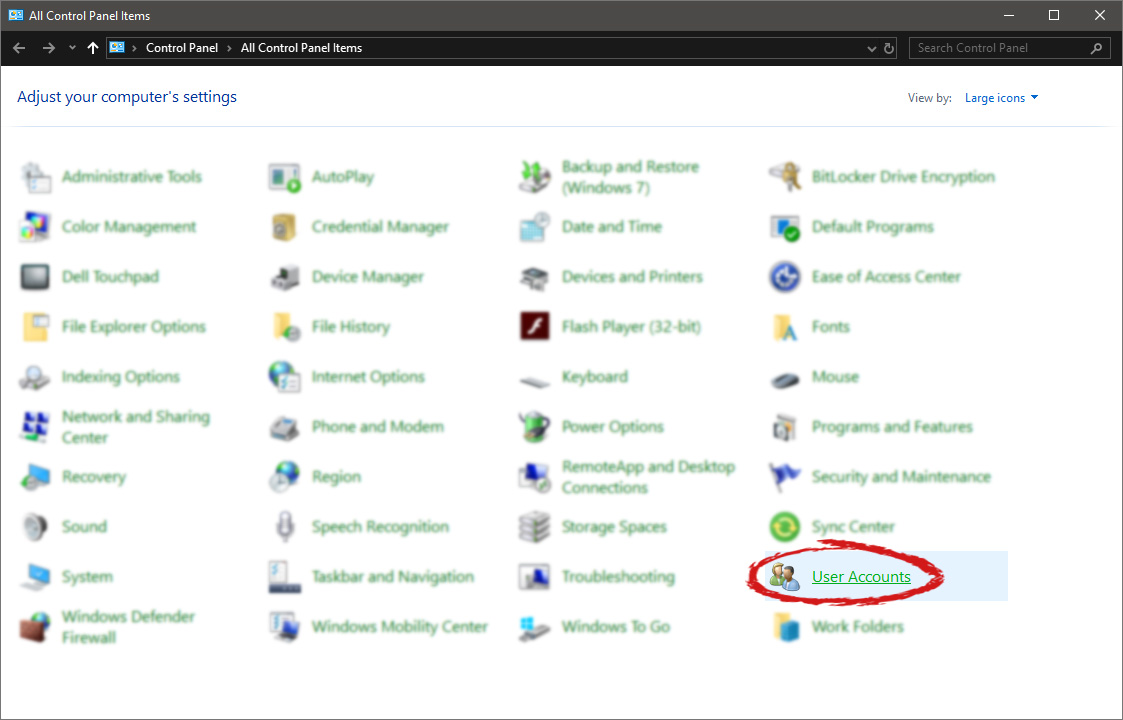
control panel with user account selectedUser account settings

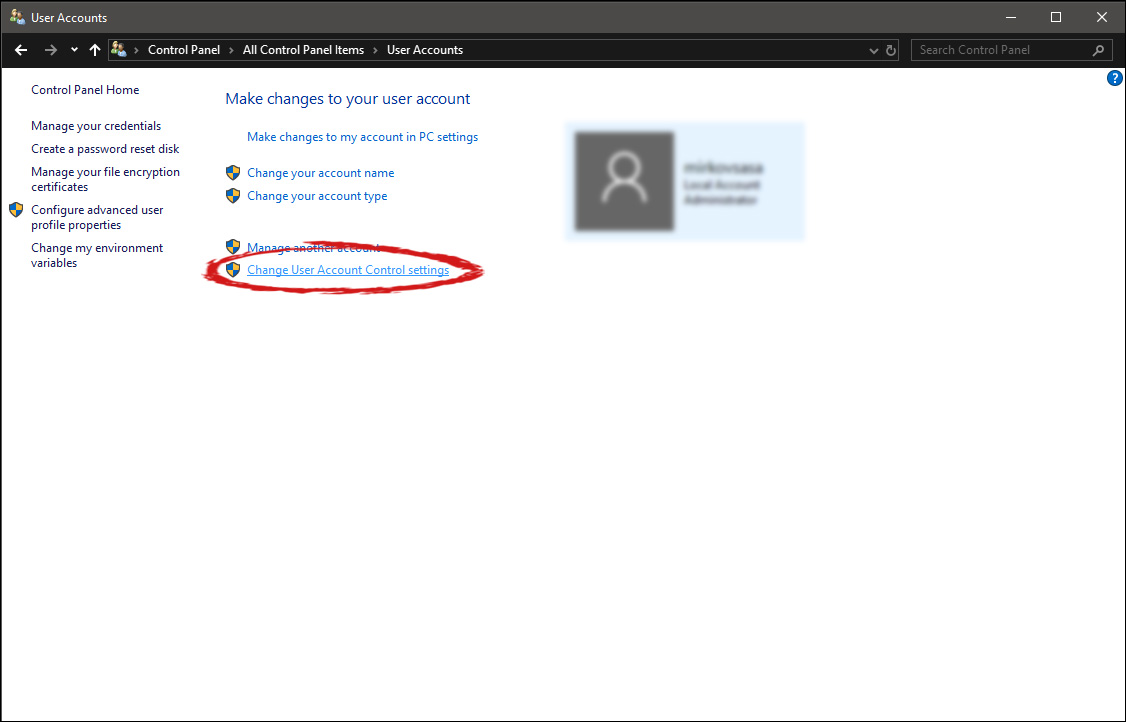
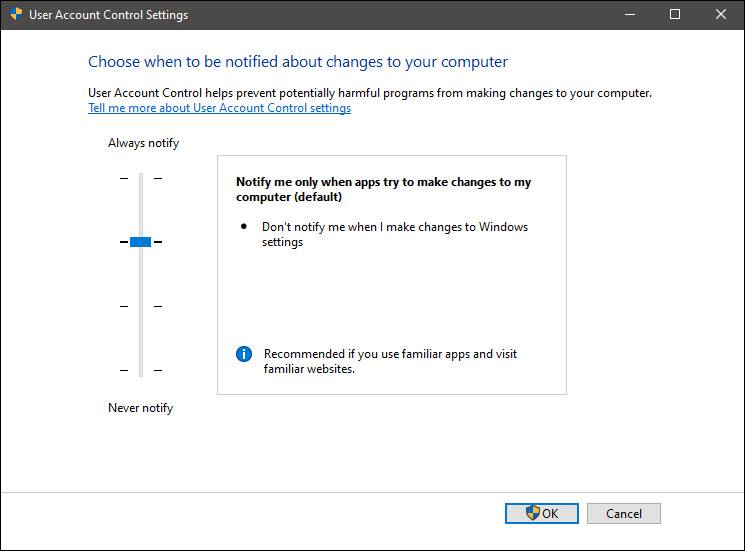
Once the user account opens click on the bottom link which says Change User Account Control settings. Please note that you will need to be logged in as an administrator or have administrator privileges in order to change this setting. user account change user accountOnce you click on the link you will be presented with a User account control slider on the left and a brief explanation on the right user account settingsHere in the picture, we see Windows default setting and an explanation of when and how he will notify you. If you wish to turn all notifications linked to programs changing computer or you making windows changes, click on the left slider and bring it all the way to the bottom where it says never notify me. If you prefer some notifications try to find which of the remaining 3 settings best suit your needs. Once you are done and satisfied with your choice click on OK.

Read More
Step by Step Guide for Removing RadioRage

RadioRage is a potentially unwanted application developed by Mindspark Inc. This browser add-on is compatible with Mozilla Firefox, Internet Explorer and Google Chrome and claims to enhance the Internet browsing experience by allowing users to listen to their favorite music via the installed toolbar.

RadioRage Toolbar is categorized as adware since it infiltrates computers and after successful installation, this browser extension redirects browsers to home.tb.ask.com. And changes your default search engine to myway.com.

While active on your computer RadioRage collects user information such as browsing data, website clicks, and sometimes even sensitive user information, that it later sells / forwards to its ad distributors.

About Browser Hijackers

Browser hijacking is regarded as the internet’s constant risk that targets web browsers. It’s a type of malicious software that modifies your internet browser’s settings so that you are redirected to websites or pages that you had no intention of checking out. They are made to interfere with browser programs for many different reasons. These are typically used to force visitors to a specific website, manipulating web traffic to generate ad revenue. Most people assume that the browser hijacker is just a harmless website but that is not the case. Nearly all browser hijackers pose an actual threat to your online safety and it is necessary to classify them under privacy dangers. In a much worst case, your browser can be hijacked to download malicious software that will do a great deal of damage to your PC.

Key signs that your web browser has been hijacked

The typical signs that signify having this malicious software on your computer are: 1. your web browser’s home page is suddenly different 2. you get re-directed to internet sites you never intended to visit 3. The default search page of the browser is modified 4. you see multiple toolbars on the web browser 5. you might notice many pop-up ads on your screen 6. web pages load slowly and sometimes incomplete 7. you cannot go to specific sites such as home pages of security software.

So how does a browser hijacker infect a PC

There are many ways your computer could become infected with a browser hijacker. They typically arrive by way of spam email, via file-sharing websites, or by a drive-by download. They may also be deployed through the installation of a web browser toolbar, add-on, or extension. Some internet browser hijackers spread in user’s computers by using a deceptive software distribution method known as “bundling” (often through freeware and shareware). Well-known examples of browser hijackers include Conduit, CoolWebSearch, Coupon Server, OneWebSearch, RocketTab, Searchult.com, Snap.do, and Delta Search. Browser hijackers might record user keystrokes to collect potentially valuable information leading to privacy concerns, cause instability on systems, drastically disrupt the user experience, and finally slow down the computer to a point where it becomes unusable.

Browser hijacker removal methods

One thing you can try to eliminate a browser hijacker is to locate the malware within the “Add or Remove Programs” list of the Windows Control Panel. It might or might not be there. When it is, try to uninstall it. But, the majority of hijackers are really tenacious and require specialized tools to get rid of them. Inexperienced PC users should never attempt the manual form of removal, as it demands detailed system knowledge to carry out repairs on the computer registry and HOSTS file.

What To Do If You Cannot Install Any Anti-virus?

Every malware is detrimental and the effects of the damage will vary based on the specific kind of malware. Some malware is meant to restrict or prevent things that you wish to do on your computer system. It may well not permit you to download anything from the internet or it will prevent you from accessing a few or all websites, especially the anti-virus sites. So what should you do if malware keeps you from downloading or installing Anti-Malware? Refer to the instructions below to eliminate malware through alternate methods.

Use Safe Mode to resolve the issue

If the malware is set to run at Windows start-up, then booting in Safe Mode should avoid it. Only the bare minimum required applications and services are loaded when you boot your computer or laptop into Safe Mode. Listed below are the steps you need to follow to eliminate viruses in Safemode. 1) At power on, hit the F8 key before the Windows splash screen begins to load. This will bring up the Advanced Boot Options menu. 2) Select Safe Mode with Networking with arrow keys and press ENTER. 3) As soon as this mode loads, you will have an internet connection. Now, get the malware removal software you want by utilizing the browser. To install the application, follow the guidelines in the installation wizard. 4) As soon as the software is installed, allow the scan run to eliminate viruses and other threats automatically.

Switch over to some other web browser

Certain viruses might target vulnerabilities of a particular browser that block the downloading process. When you suspect that your Internet Explorer happens to be hijacked by malware or otherwise compromised by online hackers, the ideal plan of action is to switch over to a different web browser such as Firefox, Chrome, or Safari to download your favorite computer security application – Safebytes Anti-Malware.

Run anti-malware from a pen drive

Another approach is to download and transfer an antivirus program from a clean PC to run a virus scan on the infected system. Follow these steps to employ a flash drive to fix your infected system. 1) Make use of another virus-free computer system to download Safebytes Anti-Malware. 2) Insert the pen drive onto the same computer. 3) Run the setup program by double-clicking the executable file of the downloaded software, with a .exe file format. 4) Select the USB flash drive as the destination for saving the file. Follow activation instructions. 5) Now, transfer the flash drive to the infected computer. 6) Double click the Safebytes Anti-malware icon on the pen drive to run the software. 7) Hit the “Scan” button to run a full computer scan and remove viruses automatically.

Let's Talk About SafeBytes Security Suite!

These days, anti-malware software can protect your laptop or computer from various forms of online threats. But wait, how to select the right one amongst several malware protection software that’s available in the market? Perhaps you might be aware, there are many anti-malware companies and tools for you to consider. Some are really worth your money, but many aren’t. When looking for anti-malware software, purchase one which gives solid, efficient, and complete protection against all known computer viruses and malware. One of the recommended software programs is SafeBytes AntiMalware. SafeBytes carries a really good reputation for top-quality service, and clients seem to be very happy with it. SafeBytes anti-malware is a highly effective and user-friendly protection tool that is designed for end-users of all levels of computer literacy. This application could easily detect, remove, and protect your personal computer from the most advanced malware attacks including spyware, adware, trojan horses, ransomware, PUPs, worms, parasites as well as other possibly damaging software programs. There are numerous amazing features you’ll get with this particular security product. Listed below are a few of the great ones: Real-time Protection: SafeBytes gives you round-the-clock protection for your computer limiting malware intrusions in real-time. It’ll continuously monitor your laptop or computer for hacker activity and also gives end-users sophisticated firewall protection. Antimalware Protection: Built upon a greatly acclaimed antivirus engine, this malware removal application is able to find and remove several obstinate malware threats such as browser hijackers, PUPs, and ransomware that other common anti-virus applications will miss. Web protection: SafeBytes checks and gives a unique safety ranking to every site you visit and block access to webpages considered to be phishing sites, thus protecting you from identity theft, or known to contain malicious software. Light-weight: This application is not “heavy” on the computer’s resources, so you’ll not find any performance problems when SafeBytes is working in the background. 24/7 On-line Tech Support: Support service is accessible 24 x 7 x 365 days via email and chats to answer your questions.

Technical Details and Manual Removal (Advanced Users)

If you wish to manually remove RadioRage without the use of an automated tool, it may be possible to do so by removing the program from the Windows Add/Remove Programs menu, or in cases of browser extensions, going to the browsers AddOn/Extension manager and removing it. You will likely also want to reset your browser. To ensure the complete removal, manually check your hard drive and registry for all of the following and remove or reset the values accordingly. Please note that this is for advanced users only and may be difficult, with incorrect file removal causing additional PC errors. In addition, some malware is capable of replicating or preventing deletion. Doing this in Safe Mode is advised.

The following files, folders, and registry entries are created or modified by RadioRage

Files: C:Program FilesRadioRage_4jEIInstallr.binNP4jEISb.dl_ C:Program FilesRadioRage_4jEIInstallr.binNP4jEISb.dll C:Program FilesRadioRage_4jEIInstallr.binjEIPlug.dl_ C:Program FilesRadioRage_4jEIInstallr.binjEIPlug.dll C:Program FilesRadioRage_4jEIInstallr.binjEZSETP.dl_ C:Program FilesRadioRage_4jEIInstallr.binjEZSETP.dll C:Program FilesRadioRage_4jEIInstallr.binjEZSETP.dll C:Program FilesRadioRage_4jEIInstallr.binNP4jEISb.dl_ C:Program FilesRadioRage_4jEIInstallr.binNP4jEISb.dll C:Program FilesRadioRage_4jEIInstallr.binjEIPlug.dl_ C:Program FilesRadioRage_4jEIInstallr.binjEIPlug.dll C:Program FilesRadioRage_4jEIInstallr.binjEZSETP.dl_ C:PROGRA1RADIOR1Installr.binjEZSETP.dl_ C:Program FilesRadioRage_4jEIInstallr.binjEZSETP.dll C:WINDOWSsystem32rundll32.exe Registry: Key HKLMSYSTEMCurrentControlSetServicesRadioRage_4jService Key HKLMSYSTEMControlSet001ServicesRadioRage_4jService Key HKLMSOFTWAREMozillaPlugins@RadioRage_4j.com/Plugin Key HKLMSOFTWARERadioRage_4j Key HKLMSOFTWAREMicrosoftWindowsCurrentVersionUninstallRadioRage_4jbar Uninstall Internet Explorer Key HKLMSOFTWAREMicrosoftWindowsCurrentVersionUninstallRadioRage_4jbar Uninstall Firefox Key HKLMSOFTWAREMicrosoftWindowsCurrentVersionExplorerBrowser Helper Objects5848763c-2668-44ca-adbe-2999a6ee2858 Key HKLMSOFTWAREMicrosoftWindowsCurrentVersionExplorerBrowser Helper Objects48909954-14fb-4971-a7b3-47e7af10b38a Key HKLMSOFTWAREClassesRadioRage_4j.XMLSessionPlugin.1 Key HKLMSOFTWAREClassesRadioRage_4j.XMLSessionPlugin Key HKLMSOFTWAREClassesRadioRage_4j.UrlAlertButton.1 Key HKLMSOFTWAREClassesRadioRage_4j.UrlAlertButton Key HKLMSOFTWAREClassesRadioRage_4j.ToolbarProtector.1 Key HKLMSOFTWAREClassesRadioRage_4j.ToolbarProtector Key HKLMSOFTWAREClassesRadioRage_4j.ThirdPartyInstaller.1 Key HKLMSOFTWAREClassesRadioRage_4j.ThirdPartyInstaller Key HKLMSOFTWAREClassesRadioRage_4j.SkinLauncherSettings.1 Key HKLMSOFTWAREClassesRadioRage_4j.SkinLauncherSettings Key HKLMSOFTWAREClassesRadioRage_4j.SkinLauncher.1 Key HKLMSOFTWAREClassesRadioRage_4j.SkinLauncher Key HKLMSOFTWAREClassesRadioRage_4j.SettingsPlugin.1 Key HKLMSOFTWAREClassesRadioRage_4j.SettingsPlugin Key HKLMSOFTWAREClassesRadioRage_4j.ScriptButton.1 Key HKLMSOFTWAREClassesRadioRage_4j.ScriptButton Key HKLMSOFTWAREClassesRadioRage_4j.RadioSettings.1 Key HKLMSOFTWAREClassesRadioRage_4j.RadioSettings Key HKLMSOFTWAREClassesRadioRage_4j.Radio.1 Key HKLMSOFTWAREClassesRadioRage_4j.Radio Key HKLMSOFTWAREClassesRadioRage_4j.PseudoTransparentPlugin.1 Key HKLMSOFTWAREClassesRadioRage_4j.PseudoTransparentPlugin Key HKLMSOFTWAREClassesRadioRage_4j.MultipleButton.1 Key HKLMSOFTWAREClassesRadioRage_4j.MultipleButton Key HKLMSOFTWAREClassesRadioRage_4j.HTMLPanel.1 Key HKLMSOFTWAREClassesRadioRage_4j.HTMLMenu.1 Key HKLMSOFTWAREClassesRadioRage_4j.HTMLPanel Key HKLMSOFTWAREClassesRadioRage_4j.HTMLMenu Key HKLMSOFTWAREClassesRadioRage_4j.FeedManager Key HKLMSOFTWAREClassesRadioRage_4j.FeedManager.1 Key HKLMSOFTWAREClassesRadioRage_4j.DynamicBarButton.1 Key HKLMSOFTWAREClassesRadioRage_4j.DynamicBarButton
Read More
Simple Manual to Fix Corrupted PST Files Quick

Just what is a PST File?

PST file is the acronym for Private Storage Table. It is a proprietary file structure utilized in the ms-outlook program shop and to preserve attachments as well as e-mails, notifications, scheduled calendar events, and even more. This structure can also be called a Personal Folder File. The storage limit or the size varies today with respect to the Outlook version you've got installed. The PST file size limit depends on the edition you have installed. Outlook 2002 and earlier versions have a memory limitation of 2GB while later versions such as Outlook 2013 have up to 50GB memory limit.

Error Causes

You will be amazed to discover there is not a single cause behind this problem. The File can be damaged due to a number of reasons including:
  • Virus infection
  • Incorrect file system recovery
  • Data storage device failure
  • Storage size limit exceeds
  • Sometimes due to power failure when accessing the PST files
Once this File becomes corrupted and broken, it places you in danger of losing your important e-mails and attachments. Moreover, this stops you from getting or sending e-mails to and from your own associates. And in case you would like to add new contacts, you are greatly hindered. It reduces your productivity. For individuals relying completely on the Outlook program for communicating via e-mails and maintaining a track of important dates that they have set reminders for and scheduled in their calendars, the PST file problem is a nightmare. It decreases productiveness and performance.

Further Information and Manual Repair

To regain the damaged File without removing old e-mails Install a PST File Repair Tool. The latter one is probably the best way to resolve this issue without compromising on your old important emails and contacts. There are a number of repair resources out there. Each device provides a distinct degree of characteristics and performance. We urge you to use Stellar Phoenix Outlook PST Repair Tool. Not only does this repair tool aid work out PST file error that is damaged, but it also helps with data recovery. With this particular tool, it is possible to recover even the erased files you've removed from your Outlook Installation before the PST file got corrupted. Wait there is more! It is also possible to raise the memory limit by installing this repair tool on your computer. What this means is in the event the PST file corruption's cause was associated with the storage size limit, it is easily worked out. With an increase in memory, you can keep your older emails and continue storing new mail from associates. To begin, Click here to Download Install Stellar Phoenix Outlook PST Repair on your personal computer and run it to restore the PST files.
Read More
Fix Generic PnP monitor driver issue
Universal PnP or plug-and-play monitors use a generic PnP Windows driver. Whenever a user plugs a USB device or monitor into a PC the system will automatically identify the device and it will install the proper driver for smooth running. Generic PnP Monitor in Windows 10 means that Windows 10 installed a monitor driver as the PNP did not recognize the device. This generic PnP monitor driver may not work perfectly like the manufacturer’s one. It can lead to issues like unable to set the best monitor resolution and the screen refresh rate. Therefore, it is important to fix this issue. All of that being said let us fix your PnP display driver issue.
  1. Reconnect monitor

    Always try this first, just by unplugging the monitor and then plugging it back may resolve the issue, if the monitor was not detected properly the first time, there are very high chances that this method will resolve the issue.
  2. Check if the Device Manager is reporting an error and update the driver

    If the hardware is functioning properly then the issue might be in Windows not detecting device or driver malfunction. In any case, the Device Manager will be the one who will report this problem. In order to check to see if the driver is properly working press ⊞ WINDOWS + X to open the hidden start menu. keyboard with windows and x marked Once it opens, click on Device Manager to open it, If you have a driver device error inside Windows, you should see it immediately when entering the Device Manager, it will have a yellow exclamation mark beside it. Right-click on it and choose update driver.


  3. Reinstall driver

    If driver update failed or you already have the latest drivers, reinstalling them could fix the issue since drivers might have corrupted during installation of some update or application. Follow steps from point 3 to get to the driver in Device Manager, then right-click on it but instead of update choose to uninstall. Reboot Windows once the driver is uninstalled and Windows will install a new one automatically. If you do not want to update drivers automatically install the latest driver for your device, then reboot.
  4. Check Windows update

    Check to see if the latest Windows update is installed, update your Windows if needed
  5. Fix driver issue with DRIVERFIX

    If everything else fails, get DRIVERFIX, a premium solution for your PC issues, and fix driver errors.
Read More
How to Fix Windows 10 Error Code 0xc004c008

Error Code 0xc004c008 - What is it?

This specific Windows 8.1 or Windows 10 error code has to do with the number of times you can use your license number to install windows programs on computers. All windows activation codes are licensed to be used one time for a device, to control piracy, but what happens when your PC crashes, or you have to change a hard drive component and are forced to re-install Windows Operating System. Luckily, there is an easy fix for this issue.

Solution

Restoro box imageError Causes

Basically, when you need to re-install the Windows operating system that you have previously bought and installed on another computer an error code will be displayed with a message telling you that the activation server determined that the specific key could not be used for activation. This occurs because the key has already been used on that computer, or a different one, to install operating systems. There are a few easy fixes for this issue, and most of them should be easily completed on your own.

Further Information and Manual Repair

There aren’t many explanatory ways to repair Error Code 0xc004c008. Below are two methods to go about addressing this issue.

Methods 1:

  1. The first step is to open the “Run” Window. You can do this in two ways. First, press the “Window” key and press the “R” key simultaneously. This will open the “Run” menu. Or you can start the “run” window by going to the Start menu and selecting Run.
  2. In the Run window type “SLUI 4” and click enter.
  3. A Phone Activation window will open up, after which you'll need to select a few options.
  4. First chose the country in which you registered the product for the first time.
  5. Choose your country and a phone number will be displayed specific to your choice. You will now need to call the number provided.
  6. After you’ve dialed you will be prompted to write your “Installation ID”. Type your “Installation ID” on the phone.
  7. After that step, you will be asked how many copies of Windows have been installed using this license. Choose “1”, should anything else be chosen but “1”, this will not work.
  8. After the process is completed, you will be given a confirmation ID and should be able to proceed as normal with installation. You will have a workable product key again.
  9. Install whatever copy of the Windows Operating System you are attempting to with the new product key.

Method 2:

If the first method did not work, the only other option is to call Microsoft and walk through the process with a technician. To do this, dial “1-800-936-5700”. Explain the error that you received and the steps in the update process during which it was displayed. The technician will be able to walk through the steps from getting a new product key to finishing the installation.

If you're not a tech-savvy individual but would like to solve this problem without the aid of a technician, download a powerful automated tool to fix error code 0xc004c008.

Read More
3 Methods To Fix Qtcore4.dll Error

Qtcore4.dll Error - What is it?

Qtcore4.dll is a dynamic link library file that helps Microsoft Windows in loading several key components of the system. The Qtcore4.dll error occurs when the Qtcore4.dll file cannot be loaded to run the application supported by this .dll file. The Qcore4.dll missing error message may occur while booting your system or launching a certain program. It is a blue screen of death error type. The Qtcore4.dll error code is often displayed as:

BLUE SCREEN ERROR - QtCore4.dll Not Found

Filei386QtCore4.dll could not be loaded. The error code is 7. Setup cannot continue. Press any key to exit.

Solution

Restoro box imageError Causes

This error code is triggered by a variety of reasons such as:
  • Windows file allocation file gets damaged
  • Your computer BIOS (Basic Input/Output System) are misconfigured
  • The Qtcore4.dll file gets corrupt
  • Registry gets damaged and corrupt
  • Non-Microsoft program not running in tandem with Windows
  • Malware attack
  • Improper hardware driver software
It is advisable to fix the Qtcore4.dll error code immediately as this error can pose serious threats to your system. Qtcore4.dll error can lead to system breakdown.

Further Information and Manual Repair

Here are some ways of fixing the Qtcore4.dll error on your system:

1. Re-install the Program Causing Qtcore4.dll error message to pop up

As dll files are shared files sometimes due to program deletion and installation .dll file settings can get misconfigured, damaged, and corrupt. In such a scenario, you can try reinstalling the program that is causing Qtcore4.dll error message to appear on the screen.

2. Reconfigure your Mis-configured BIOS

If BIOS misconfiguration is the cause of this error code on your system, then try reconfiguring your system’s misconfigured BIOS.
  • To do this boot the computer and then press the BIOS designated keys to enter the BIOS. The keys may vary from manufacture to manufacture but typically, the setup keys are F2, F10, F12, and Del.
  • Once you figure out the setup keys, press them rapidly when booting the computer.
  • After successfully hitting the setup keys, the BIOS will load and you will see the BIOS setting menu on your screen. Adjust settings. Go to SATA Operation and change RAID AHCI to RAID ATA. Save changes and then exit.

3. Scan Your PC with a Registry Cleaner and an Antivirus

However, after adjusting the BIOS if the error still pops up on your screen, then this indicates the problem is bigger than you think. It triggers either malware attack or registry corruption. If these are the underlying causes for the Qtcore4.dll error on your system then you need to scan your PC with a registry cleaner and an antivirus. Registry is the main database of your system; if this gets corrupt it is most likely to result in system failure and valuable data loss. And as for malware, the biggest concern is data security threats. Today’s advanced and lethal malware like viruses and spyware can give easy access to hackers to enter your system from a remote location, browse through your confidential and private data and manipulate it to their advantage. This has led to a surge in various types of cyber crime, data breaches, and identity theft cases over the years. To avoid all this while resolving the error code Qtcore4.dll on your PC, registry cleaning and repair and antivirus scan are needed. You can either download 2 separate tools on your system to scan your PC which by the way will take a lot of time and increase your chances of the system slow down or you can download Restoro.

Why Restoro?

  • Total System Care is an advanced, user-friendly, high, and multi-functional repair.
  • It is deployed with a powerful and intuitive registry cleaner. It also functions as a system optimizer. It spares you from downloading numerous tools to address and resolve different errors on your PC.
  • It is your one-stop solution for not only Qtcore4.dll problems but practically all PC-related issues.
  • The registry cleaner utility detects all the malicious, unnecessary, and obsolete files overloading and corrupting your RAM.
  • This includes junk and temporary files. It wipes them out thus clearing your disk space. Simultaneously, it also repairs the damaged and misconfigured dll files including the Qtcore4.dll file, and fixes the corrupt registry.
  • The privacy error utility has the properties of an antivirus. It detects and removes malware, viruses adware, and spyware from your system in seconds.
  • Total System Care resolves the Qtcore4.dll error on your system and boosts the performance of your system. It has a simple and neat interface which makes it quite easy for users to operate it, even those who are not technically adept.
  • It is compatible with all Windows versions
Click here to download Restoro and repair the Qtcore4.dll error on your PC.
Read More
How to Fix R6025 Pure Virtual Function Call
R6025 pure virtual function call’ is a runtime error that occurs suddenly on the screen and disrupts the program being run prior to it. This error display indicates that the program has been corrupted. R6025 runtime error usually occurs with the Visual C++ framework.

Solution

Restoro box imageError Causes

This error occurs when the C++ program crashes which is usually because of the malfunctioning or missing of the device driver or incomplete device driver files. It happens because your application indirectly calls a pure virtual member function in a context where a call to the function is invalid. Most of the time, the compiler detects it and reports it as an error when building the application. R6025 error is usually detected at run time.

Further Information and Manual Repair

To fix the R6025 pure virtual function call error, you need to find the call to the pure virtual function. After you find the call, you need to rewrite the code so that it is not called again. There are 2 ways to do this:

Alternative 1

One way to fix the R6025 pure virtual function call is to replace the function with an implementation that calls the Windows API function DebugBreak. The DebugBreak causes a hard-coded breakpoint. Once the code stops running at this breakpoint, it is easy for you to view the call stack. By viewing the call stack you can identify the place where the function was actually called.

Alternative 2

Another quick way to find a call to a pure virtual function to fix the R6025 error is to set a breakpoint on the _purecall function that is usually found in PureVirt.c. By breaking this function you can trace the problem occurring and rewrite the call to ensure the error does not occur and the program you are trying to develop on the Visual C++ framework is easily developed. If R6025 Error is related to Windows Registry Problem Then here’s how you can fix the problem: To fix the runtime error R6025, run registry cleaner software to scan and fix all errors.  This alternative is suitable if the R6025 error is related to the Windows registry problem and where the error has occurred due to corrupted or malicious registry entries. You can download the registry cleaner repair tool for free. Run it to scan errors and then click the fix error button to repair the problem immediately.
Read More
1 2 3 171
Logo
Copyright © 2023, ErrorTools. All Rights Reserved
Trademark: Microsoft Windows logos are registered trademarks of Microsoft. Disclaimer: ErrorTools.com is not affiliated with Microsoft, nor claims direct affiliation.
The information on this page is provided for information purposes only.
DMCA.com Protection Status